

On this page
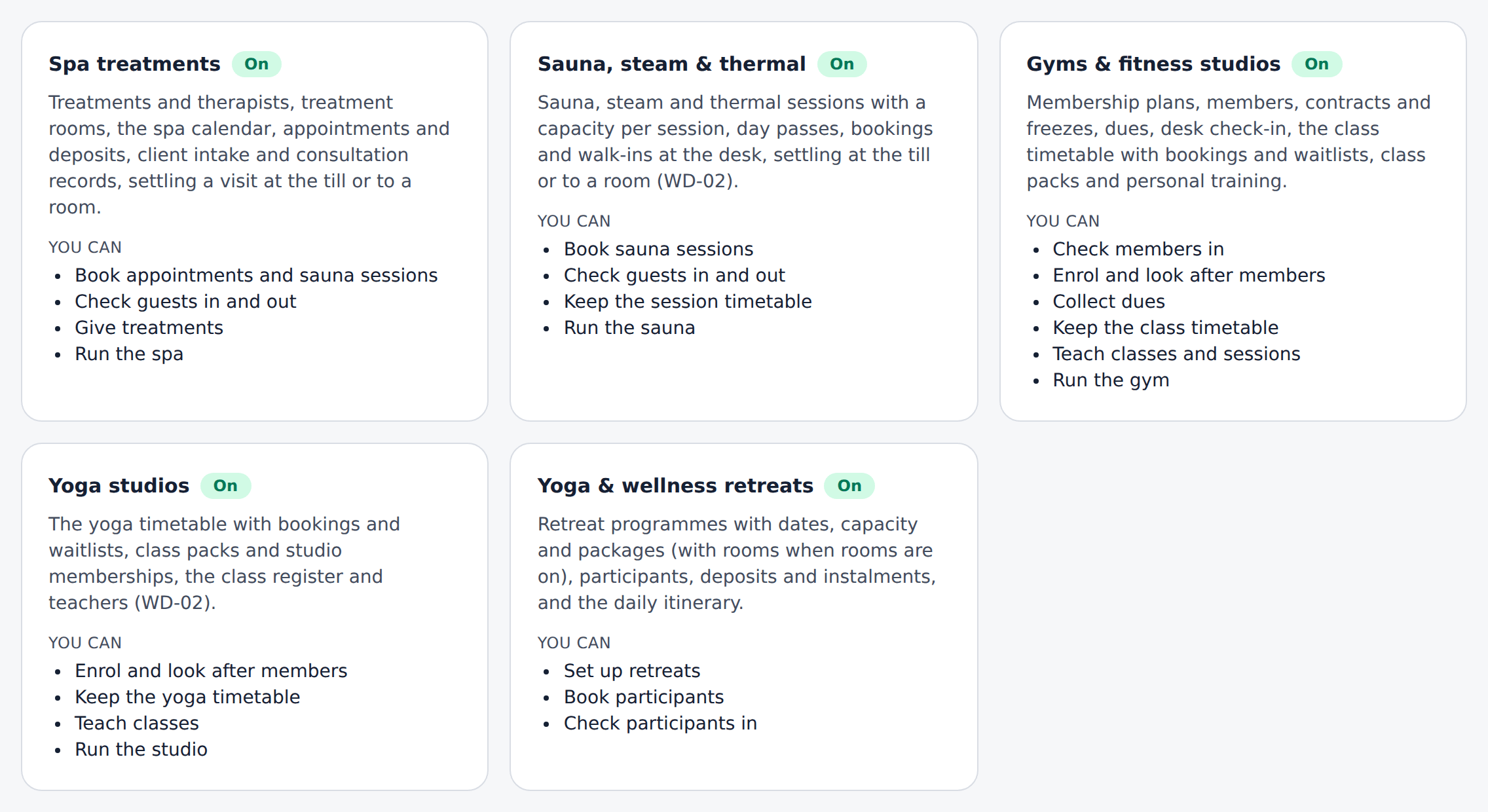
Wellness & Fitness covers modules that run beside the restaurant and the rooms, on the same customers, staff, prices, payments and books:
| Module | Manual |
|---|---|
| Spa treatments — treatments, therapists, rooms, the spa calendar, client and health records | Spa, sauna and wellness |
| Sauna, steam & thermal — sauna sessions with places, on the session timetable (screens of their own come later) | Spa, sauna and wellness |
| Yoga studios — the yoga timetable, class packs and studio members, on the class screens | Gyms and fitness studios |
| Gyms & fitness studios — plans, members, dues, the door, classes and personal training | Gyms and fitness studios |
| Yoga & wellness retreats — programmes, packages, participants, deposits, check-in | Yoga and wellness retreats |
This manual covers what they share: the dashboard, the overview and online booking, the reports, client messages, and working without a connection.
In the menu they are one workspace, Wellness & Fitness (Daily operations): Wellness Overview (Overview, Clients, Reports, Payment cases), Appointment Calendar (Appointments, Booking requests), Spa & Treatments, Sauna & Steam, Gym & Fitness (Members, Personal training), Yoga & Classes, Memberships & Packages, Attendance & Access (Attendance, Door check-in, Wellness offline) and Wellness Resources (Resources, Practitioners, Back office, Settings). Retreats are under Events, Catering & Private Hire › Wellness Retreats. A page you may not open is not shown; a module that is off takes its pages with it.
The shared rules, in short:
- Nothing is a second till. Every bill — a spa visit, dues, a drop-in, a retreat — is an ordinary order paid at the till with your usual methods, or charged to a hotel guest’s room.
- One scheduler. Rooms, studios, therapists, instructors and trainers are booked in one place: a therapist is never in a treatment and a class at once, and a studio is never double-booked.
- Health information is sealed. Intakes, contraindications, private
notes and participants’ health notes are read only with
wellness.health, and every reading is audited. They never appear in a report, a message, a document, the offline copy or the storefront.
See what is on and set online booking
Purpose
See which wellness modules your business runs and what each lets you do, and set or pause online booking for treatments, classes and retreats.
Role / permission required
Anyone with wellness.view sees the overview; changing online booking
needs wellness.setup (owner, spa manager, gym manager, retreat
coordinator).
Prerequisites
- An owner or administrator has switched the modules on in Modules
(
/system/modules). - For online booking, the storefront is live and its Spa booking, Class booking or Retreat booking feature is ticked (Set up the storefront).
Steps
- Open Wellness & Fitness › Wellness Overview › Overview in the menu. Below your dashboard (Use your wellness dashboard), each module that is on shows what it covers and what you can do in it.
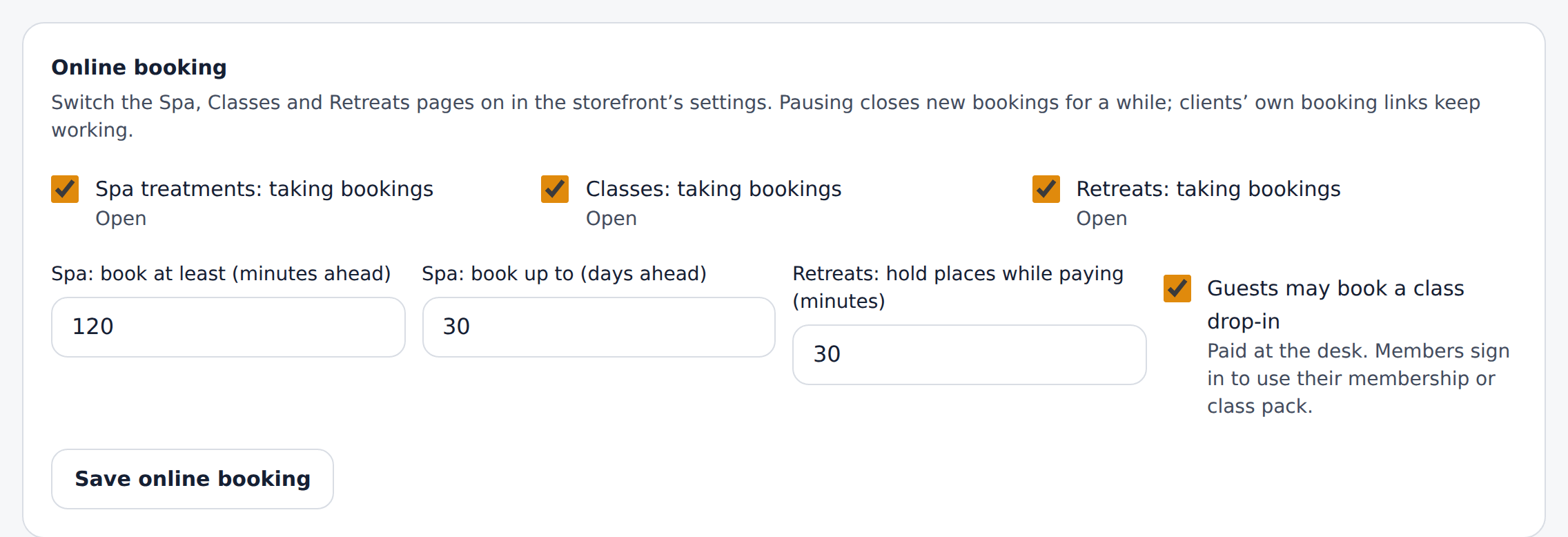
- Under Online booking, untick a module’s box to pause new online bookings for it — clients’ own booking links keep working.
- Set Spa: book at least (minutes ahead), Spa: book up to (days ahead) and Retreats: hold places while paying (minutes).
- Tick Guests may book a class drop-in to let people who are not members book a class online and pay at the desk.
- Choose Save online booking.
Expected result
The storefront’s spa, class and retreat pages follow the settings at once. A paused page says booking is closed for now.
Screenshot
Common mistakes
- Switching a module off to stop online bookings: that closes it for staff too. Pause online booking instead.
Troubleshooting
- “No Wellness & Fitness module is on”. Ask an owner or administrator to switch one on in Modules.
Use your wellness dashboard
Purpose
See today’s work for your role at a glance — the manager’s figures and exceptions, the front desk’s arrivals, a therapist’s treatments, the sauna, a trainer’s classes, retreats or the money — and jump to the screen that deals with it.
Role / permission required
Anyone with wellness.view. Each panel shows only to the roles it is for:
the manager’s to spa.manage, fitness.manage or wellness.setup; the
front desk’s to spa.front_desk, fitness.checkin or fitness.members;
a therapist’s to spa.treat; the sauna’s to sauna.attend; a trainer’s to
fitness.instruct; retreats to retreats.manage; the money panel to
wellness.reports with accounting or commission access.
Prerequisites
- At least one wellness module is on.
- Therapists and trainers see their own panel once their user is linked to their staff record.
Steps
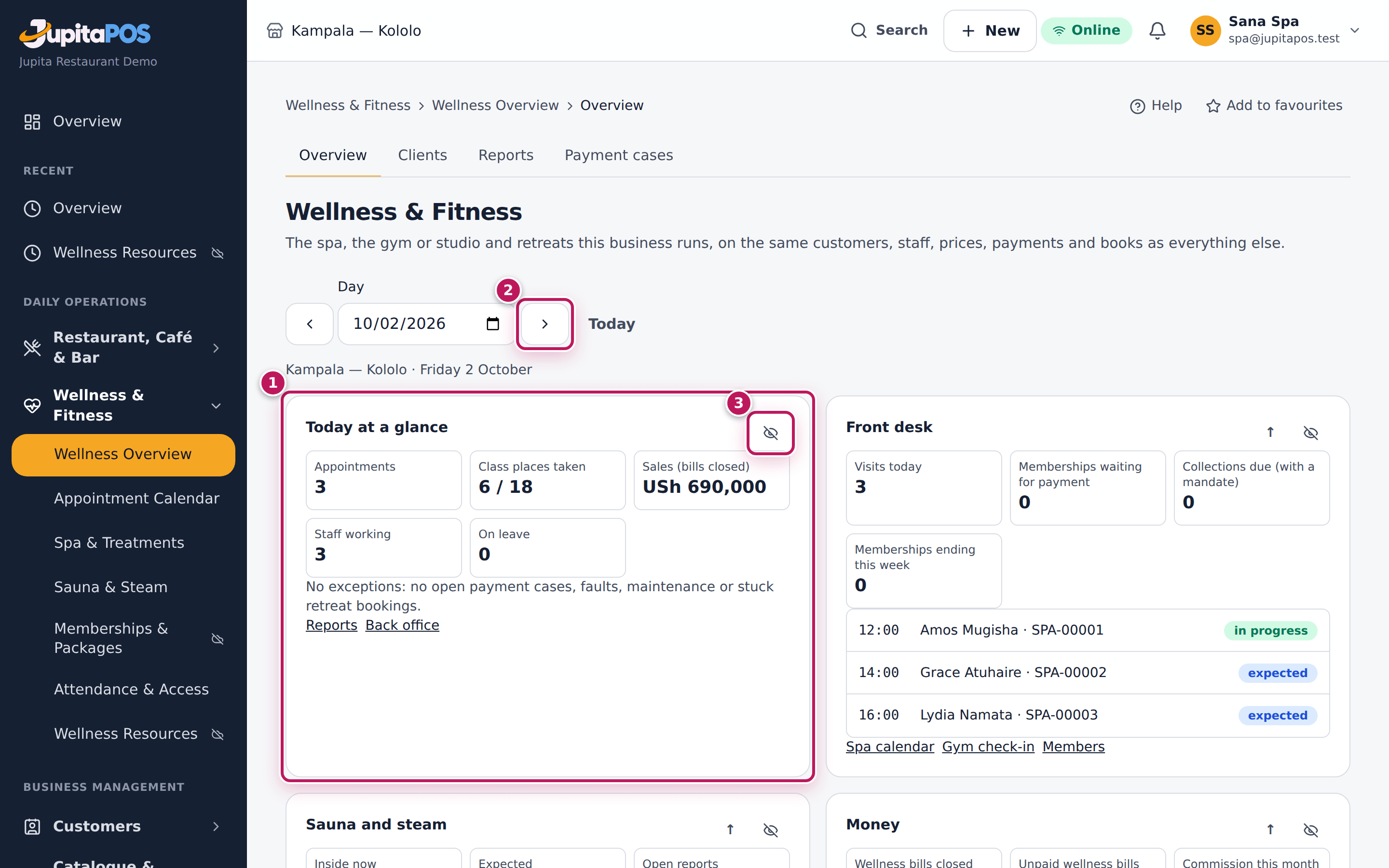
- Open Wellness & Fitness › Wellness Overview › Overview in the menu. Your panels (1) are at the top, for today at your branch.
- Choose Previous day or Next day, or pick a date, to look at another day (2); Today comes back. With more than one branch, choose the Branch; Always open that branch makes it your default.
- Choose a row or a link under a panel to open the screen that deals with it. On a phone, the Shortcuts row under the date does the same.
- Use the up arrow on a panel to put it higher, or the crossed-out eye to hide it (3); a hidden panel waits below the others under Hidden, with a button to show it again. Your order and hidden panels are kept for you only.
Expected result
The panels follow your role and the modules that are on. A panel with nothing today says so; one that could not load says so on its own and the rest still show.
Screenshot
Common mistakes
- Looking for another person’s treatments on the therapist panel: it shows only your own. The spa calendar shows everyone’s.
- Expecting the money panel without accounting or commission access: it shows only to those who may read the figures.
Troubleshooting
- “You are offline”. The figures are as last loaded; the desk screens that work offline keep working. They refresh when the connection is back.
- A panel says it could not load. Reload the page; if it stays, the screen it links to says what is wrong.
Read wellness reports and check the books
Purpose
See how the spa, the gym and retreats did in a period — revenue, members and retention, class fill, rooms and practitioners — and check that the money held for clients matches the books.
Role / permission required
Owner, spa manager, gym manager or retreat coordinator (wellness.reports).
The back office needs wellness.consumables (consumables) or
wellness.commissions (commissions).
Prerequisites
- None. The month so far is shown by default.
Steps
- Open Wellness & Fitness › Wellness Overview › Reports in the menu.
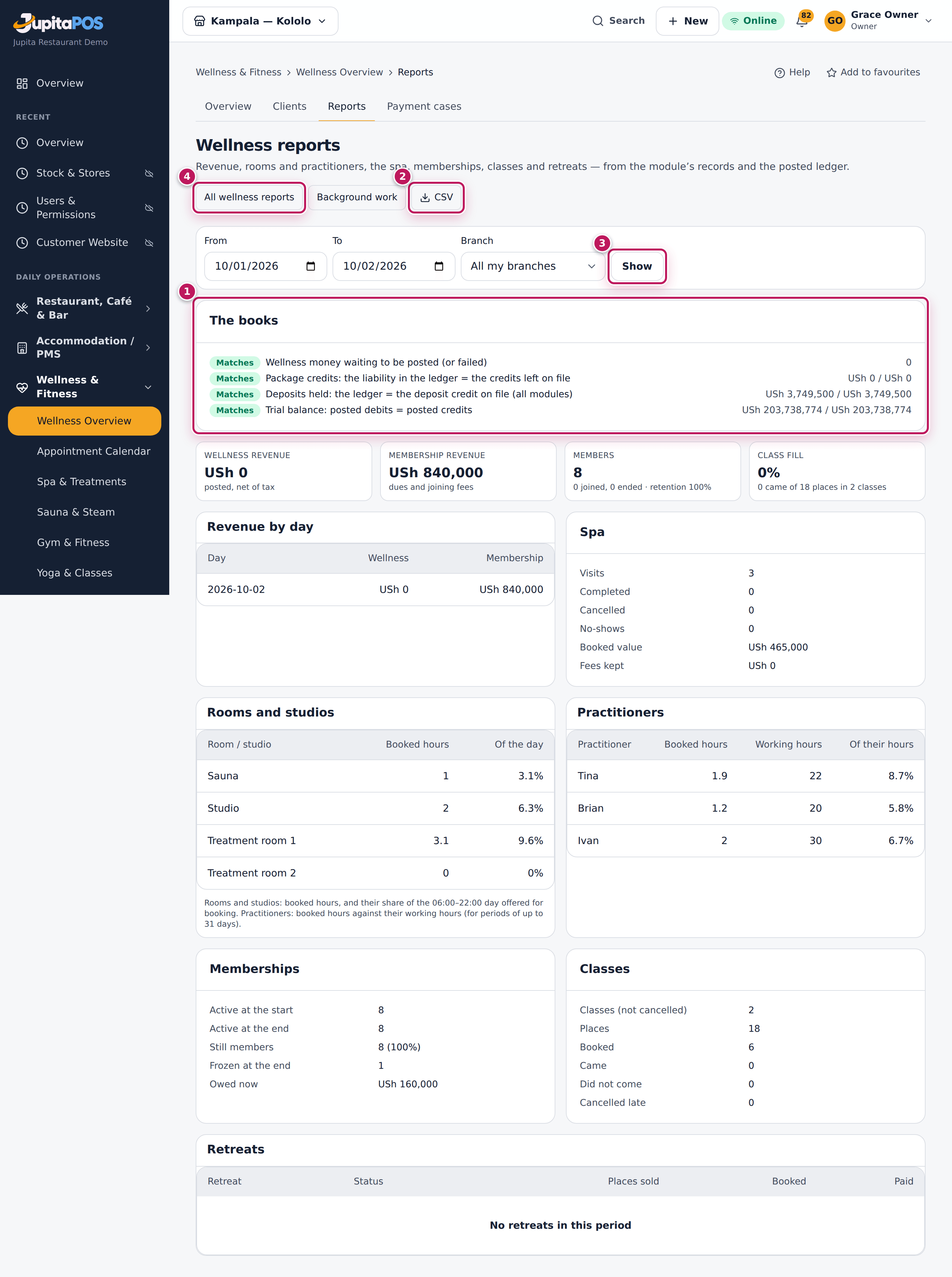
- Choose From, To and a Branch (or All my branches) and choose Show (3).
- Read The books (1) first: each line compares a ledger account with the records it should match.
- Read the Summary, Revenue by day, Spa, Rooms and studios, Practitioners, Memberships, Classes and Retreats.
- Choose CSV (2) to download the report for a spreadsheet.
- For a report on one subject, choose All wellness reports (4). It
opens the Wellness & Fitness section of Reports: spa sales and
utilisation, therapist workload, sauna reservations and occupancy,
memberships, attendance, class fill rates, waitlists, packages,
training, cancellations, retreats, consumables, commissions and
receivables. Each says under its table how its figures are counted.
Export them as PDF, Excel or CSV (needs
wellness.export). The file is prepared in the background and waits under Reports → Files for you and for others who may see it. - Open Back Office for the same period. Under Consumables, compare the standard use of the treatments given with what came into the store, was wasted and what counts found; count the store to find the true difference.
- Under Commissions, read the Ledger per employee (earned, clawed back after refunds, adjusted). Choose Bring up to date after bills are paid. To pay commission, choose Add the rule; to correct one, Record the adjustment with a reason.
Expected result
Revenue is what was posted to the books in the period: wellness revenue (treatments, classes, retreats) and membership revenue (dues, joining and freeze fees). The books check shows matches for each line.
Screenshot
Common mistakes
- Reading booked visits as revenue: revenue counts only bills paid and posted; a visit booked for next week is not in it. In the catalogue reports, booking value, collected cash, recognised revenue, consumed benefits and outstanding are separate columns: they are never added together.
- Reading standard consumables as what was really used: a recipe is an estimate. Only issues, waste and counts at the store show what went.
Troubleshooting
- A line of the books does not match. Something was posted by hand to that account, or a posting is waiting; see the posting log and tell your accountant.
Check the background work
Purpose
See the reminders, waitlist offers, membership notices, documents, the daily billing run, cleaning and fault notices and report summaries that run in the background; try failed work again; rebuild report summaries.
Role / permission required
Owner, spa manager, gym manager or retreat coordinator (wellness.reports).
Prerequisites
- None.
Steps
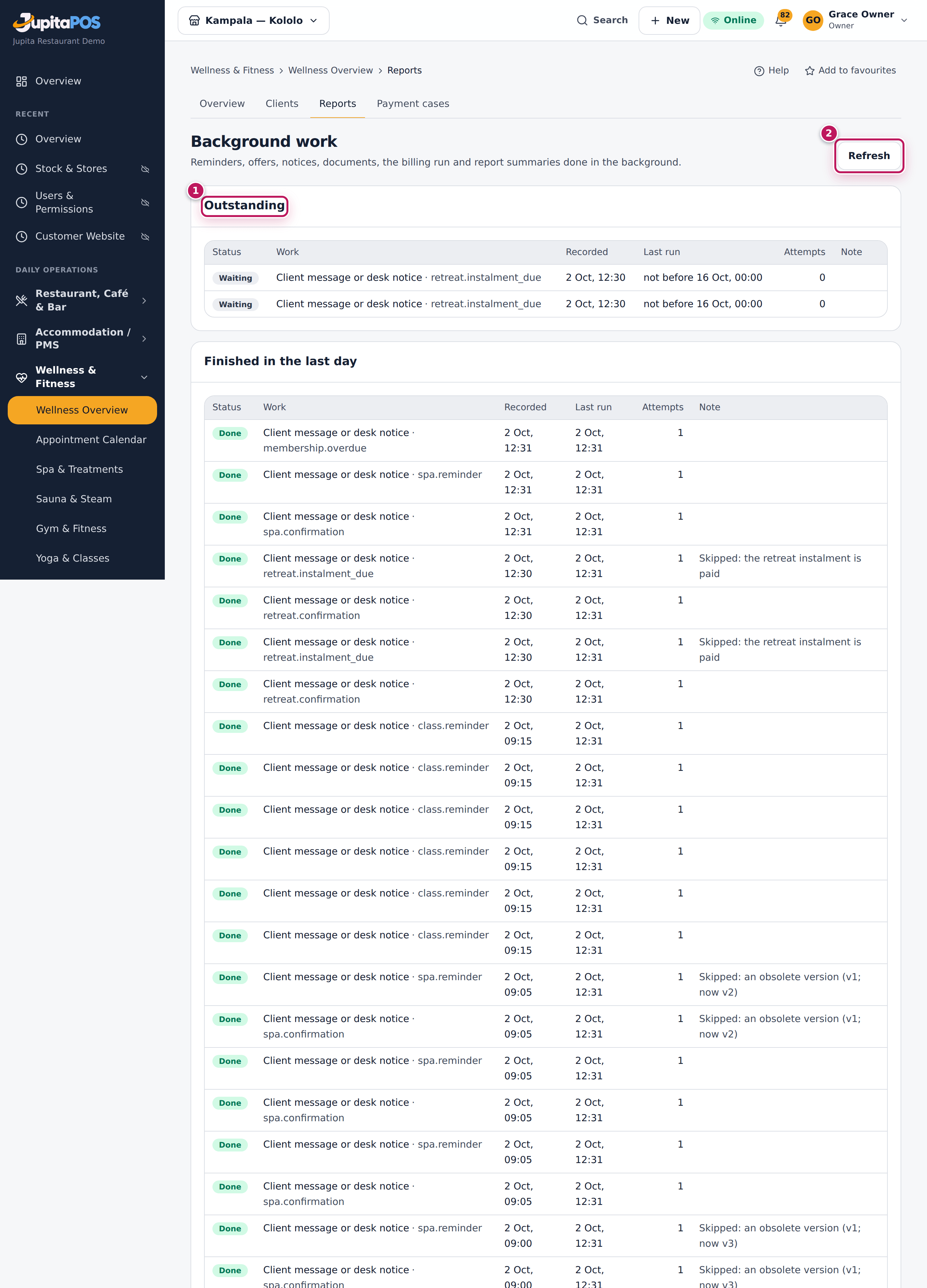
- Open Wellness & Fitness › Wellness Overview › Reports (Wellness reports) and choose Background work.
- Read Outstanding (1): work waiting for its time (not before), queued, running, or failed with its last error.
- For a failed piece, choose Try again. It still runs once, and checks first that it is still wanted.
- Read Finished in the last day. Skipped says why work was not done: the visit moved or was cancelled, the offer lapsed, the bill was paid.
- To correct older figures in the reports, choose From and To under Daily summaries and choose Rebuild. A range is 92 days at most. Choose Refresh (2) to see the latest.
Expected result
Nothing is lost when the connection to the queue server drops: the work is kept with the booking and sent again within a minute or two.
Screenshot
Common mistakes
- Trying again work that was skipped: it was not done on purpose, because what it was for had changed.
Troubleshooting
- Work stays outstanding past its time. The background workers or the scheduler are not running; tell your administrator (the system status page warns too).
Set client reminders and read the messages prepared
Purpose
Choose when clients are reminded of a spa visit, a class, a training session or a retreat payment, and see every confirmation and reminder prepared.
Role / permission required
Owner, spa manager, gym manager or retreat coordinator (wellness.setup).
Prerequisites
- Clients have an e-mail address or a phone number on file.
Steps
- Open Wellness & Fitness › Wellness Resources › Settings in the menu.
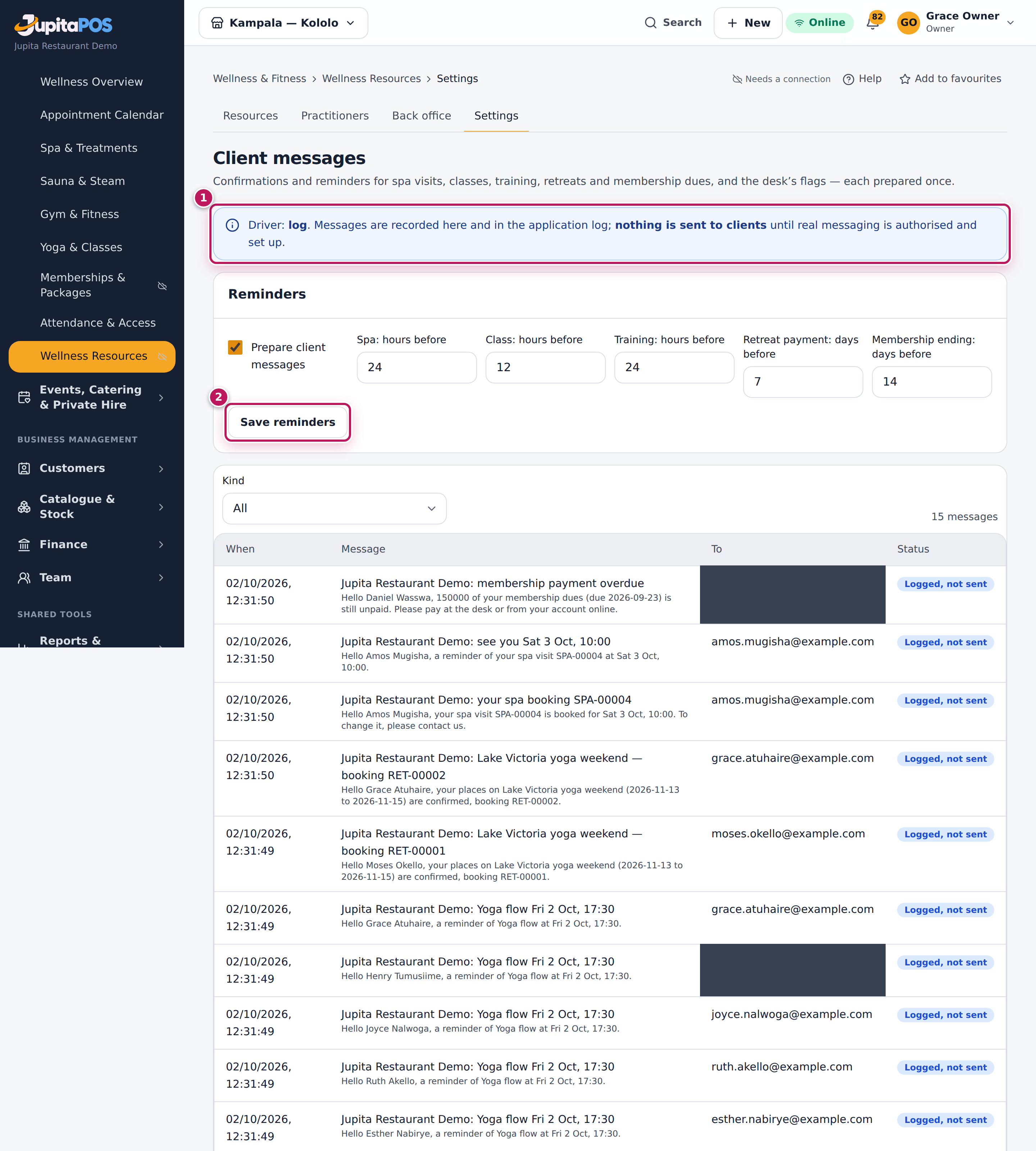
- Read the driver line (1): it says how messages leave. While it says that nothing is sent to clients, messages are only recorded.
- Under Reminders, tick Prepare client messages and set the hours before a spa visit, a class and a training session, the days before a retreat payment is due, and the days before a membership ends (the client is told once).
- Choose Save reminders (2).
- Below, filter the messages by Kind to see what was prepared, for whom and when.
Expected result
Each confirmation and reminder is prepared once, by e-mail or else SMS. A visit moved to a new time is reminded of the new time only; a cancelled visit is never reminded. The desk is flagged in the app when a spa client has not arrived half an hour after their start, whether client messages are on or not. A message never carries health information.
Screenshot
Common mistakes
- Expecting clients to receive messages while the driver says nothing is sent: real sending is set up by your administrator once it is authorised.
Troubleshooting
- A message is skipped. The client has no e-mail or phone on file.
Keep working without a connection
Purpose
Keep the gym door, class registers, retreat arrivals, treatments, training and the sauna going when the internet is down; take booking requests; and send what was done when the connection is back.
Role / permission required
Gym front desk or gym manager for the door (fitness.checkin); the
register for those running classes or the instructor
(fitness.instruct); retreat arrivals for the coordinator
(retreats.checkin); treatments for the therapist who gives them
(spa.treat); cleanings and faults for the sauna attendant
(sauna.attend); booking requests for the spa or gym desk. Set how the
desks work offline with wellness.setup. The device must be an
offline-enabled terminal.
Prerequisites
- The device was set up for offline use and has signed in while online (Prepare a terminal for offline use).
- On Overview, under Working offline, the business has chosen whether a person may override at the door offline, how many times a day, for how many hours the copy may decide on its own, and whether desk notes are taken offline — then Save offline rules.
Steps
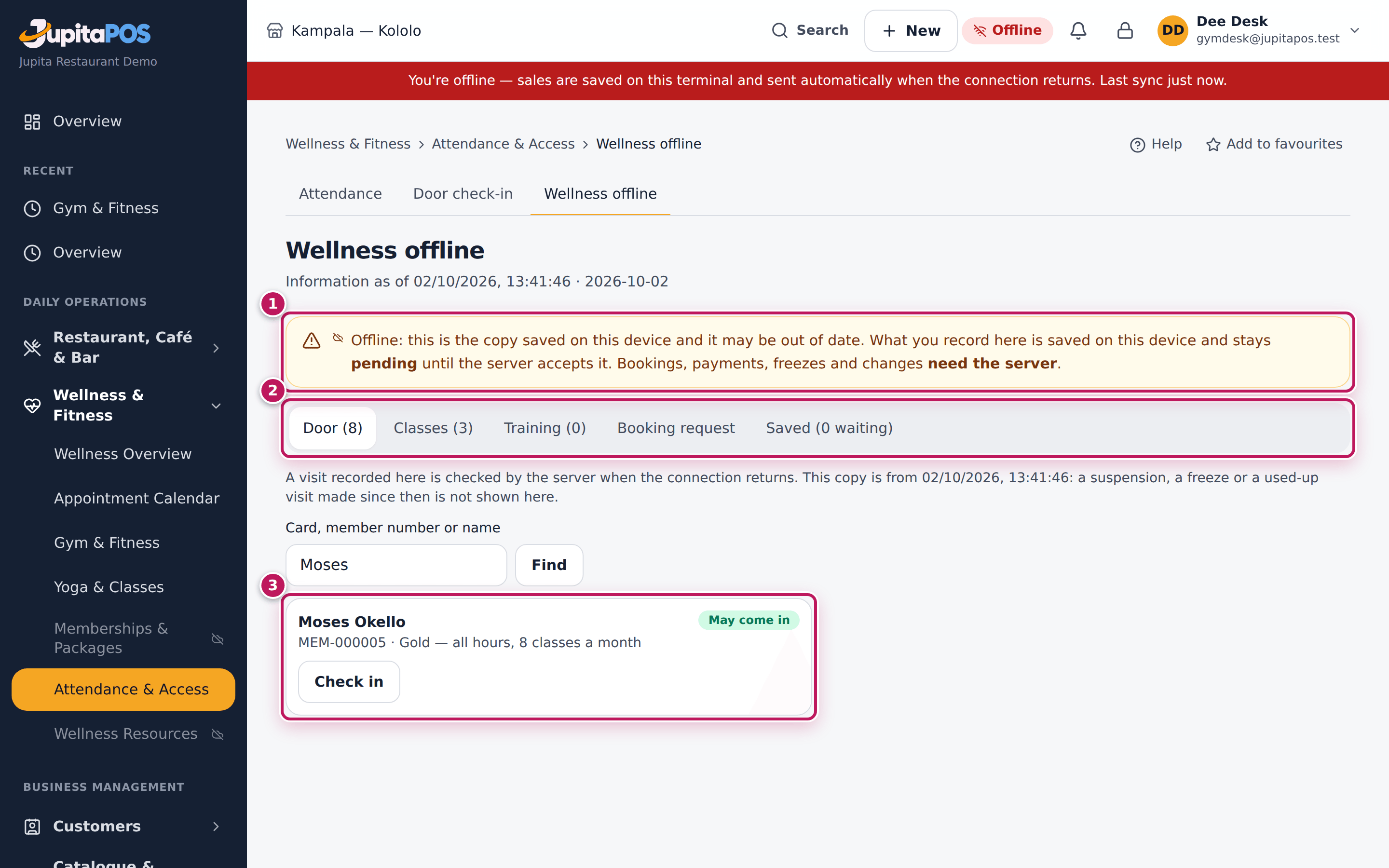
- Open Wellness & Fitness › Attendance & Access › Wellness offline in the menu — it opens without the network. The banner (1) says how old this device’s copy is and what needs the server.
- Door: search a member by Card, member number or name and choose Find. The answer (3) says what this copy shows. Check in records the visit; the server checks it when the connection is back. A member the copy refuses, a plan with counted visits, a day pass, or anyone once the copy is too old needs the server — unless overrides are allowed: then Override (staffed), say Why you are letting them in, and Let in under an override.
- Classes: open the class, tick who came, and choose Save register, or Save and close (the rest did not come).
- Retreat arrivals: tick who arrived and choose Mark arrived.
- Spa today: the therapist chooses Treatment done on their own treatment. With desk notes allowed, Desk note then Save desk note adds a front-desk note to the visit.
- Training: Session done or Not shown.
- Sauna rooms: choose the Room, Cleaning or Fault, say what, and Save report.
- Booking request: write who, what and when, and Save request. It is not a booking: nothing is held.
- Saved (2) lists what is waiting on this device and where each stands: saved here, accepted, needs review or refused.
- Back online, open Booking requests (from the front desk’s dashboard), book each one in the usual screens, call the client, then choose Booked online or Decline with what was done.
Expected result
When the device is back online, everything saved is sent by itself (on reconnecting, on opening the app, and retried while it stays open) and recorded once, at the time it happened. The server applies its own rules: a member let in whom the rules refuse — frozen or suspended since the copy, visits used up — is recorded as refused, with a note for a manager; an override outside the rules, a copy too old, or the same member let in at two desks is noted for review with what each device recorded. A treatment the server cannot clear, or a visit cancelled meanwhile, waits for a manager rather than being applied.
Screenshot
Common mistakes
- Trying to book, take a card or mobile-money payment, enrol, freeze or cancel offline: these need the server and wait until you are back online. Cash at the till follows the till’s own offline rules.
- Treating a booking request as a booking: nothing is held until someone books it online.
- Writing health information in a desk note: private and health notes are never on a device.
Troubleshooting
- “Nothing saved for wellness on this device”. The device has not signed in online since it was set up for offline use, or you hold none of the permissions above.
- “Needs the server: this device cannot let them in”. Overrides are off (Overview → Working offline), or the copy is older than it may decide on its own. Ask the member to wait, or a manager decides.
- “Not saved”. This device cannot store anything (its storage is full or unavailable): nothing was kept. Free some space or work online.
- The device’s clock is wrong. Work it records is held for a manager when its time is impossible (in the future, or older than the offline limit); a few minutes off is recorded as captured and flagged.