

On this page
- Choose what you hire out and the terms
- Register the asset types, their units and the rate card
- Book a hire at the desk
- Take the deposit
- Hand items over and take them back
- Settle the agreement: the one bill
- Keep the fleet fit to hire
- Read the hire reports
- The public hire page and online requests
- Let a unit: write a lease and take the rent
- Charges, notice, renewal and the end of a tenancy
- Keep working when the connection is down
- Record something found after it was recorded missing
RentalPOS is the JupitaPOS edition for a business that hires things out and gets them back: tents, chairs and sound for a weekend; a generator or a mixer for a day; a gown for a wedding; a projector for a conference; a wheelchair for a month. It has its own database, separate from any other JupitaPOS product the same owner runs.
One agreement carries everything. A hire is one agreement from the quote to the settlement: the items and the dates, the price from the rate card, the deposit held, the hand-over and the return with each item’s condition, the charges, and the one bill. Nothing is typed twice and nothing is posted twice: the deposit is money held for the hirer, never revenue, until the bill is made.
| Menu | Pages | What they are for |
|---|---|---|
| Hire | Assets, Calendar, Agreements, Tenancies, Today, Offline desk, Maintenance, Reports | the register and rate card; who has what and when; the agreements; the yard’s day; working without a connection; servicing; the figures |
| Customers | Customers | the hirers — one record per phone number |
| Finance | Payments, Cash & Tills | deposits in, refunds out, the till the desk runs |
| Settings | Hire settings, Customer Website | what you hire out and on what terms; the public hire page |
The words used on these pages:
| Word | Meaning |
|---|---|
| Type | a kind of item with one rate card — Generator 5 kVA, Plastic chair |
| Unit | one tracked item of a type with its own tag and history — GEN-001 |
| Pool | a counted type with no tags — 200 chairs; the count is what matters |
| Rate card | the type’s prices per hour, day, weekend, week or month; the quote picks the cheapest honest stack |
| Hold | items reserved for a quote that lapses unless confirmed (the desk takes the deposit, or confirms) |
| Agreement | the contract: items, dates, price, deposit, identity, terms and the signature |
| Turnaround | the hours a unit needs between one hire and the next (cleaning, a service) |
| Lease | a unit let to one tenant by the period — a shop, a flat, a storage unit — with its rent, deposit and notice |
| Arrears | rent or charges billed and past their due date |
| Profile | the kind of hire business — event supplies, tools and machinery, clothing… — which sets the checks the yard records |
Pictures are from a practice business with made-up data (Kampala Event Hire); no real customer appears.
Choose what you hire out and the terms
Purpose
Tell RentalPOS what kind of hire business this is, so the right checks, words and terms apply everywhere.
Role / permission required
rental.settings — the Owner or the Rental manager.
Prerequisites
The business set up with its branch (Settings → Business).
Steps
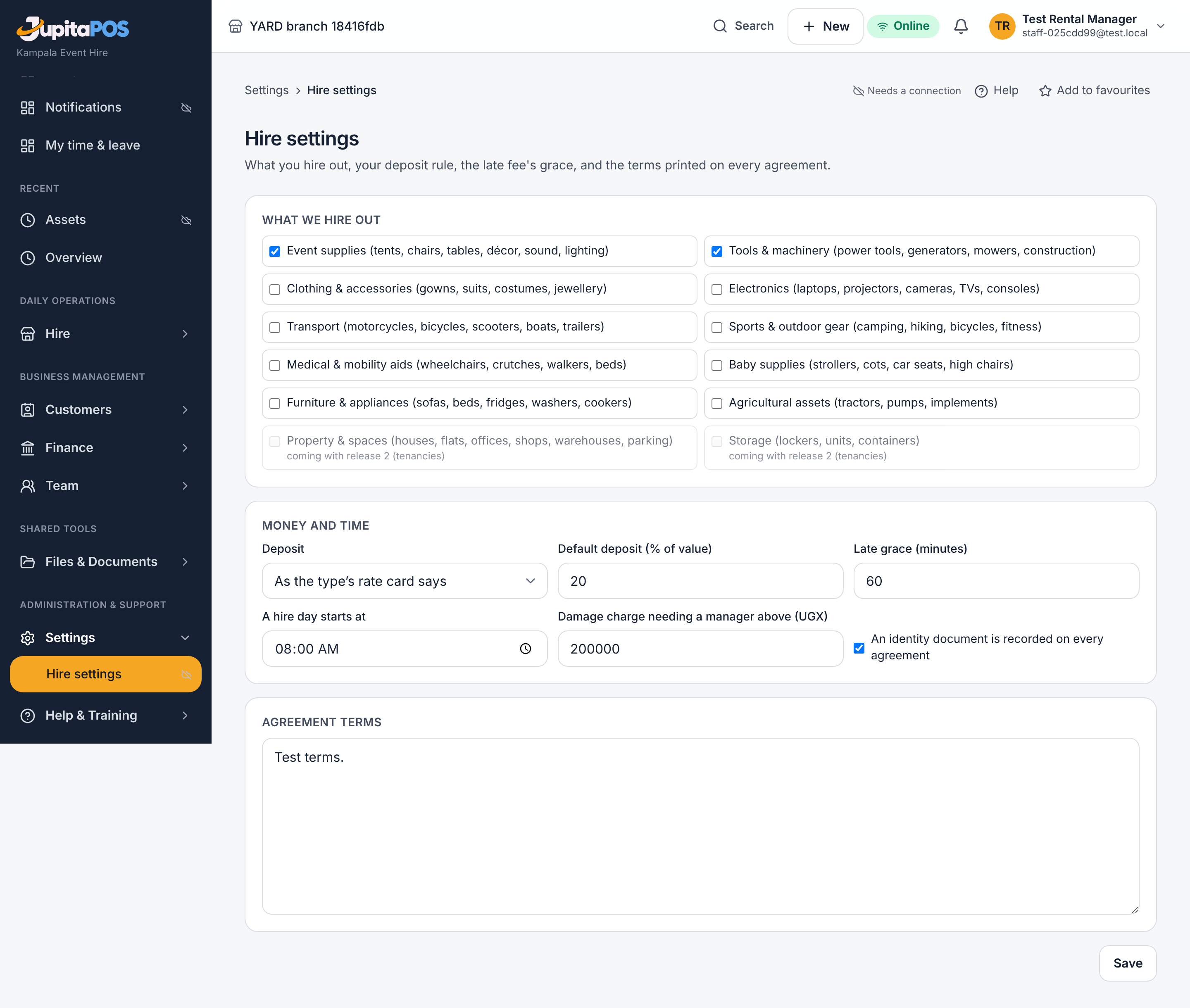
- Open Settings → Hire settings.
- Tick the kinds of hire you do under What you hire out — one or several.
- Choose the Deposit rule: by the rate card (each type says), a percentage of value for everything, or none.
- Set the Late grace in minutes, the Hold time for a quote, and the Damage approval limit: a damage or loss charge above it waits for a manager.
- Say whether an identity document is recorded on every agreement.
- Press Use the standard terms to start from the terms your kinds of hire usually carry, then edit them. They print under every agreement.
- Press Save.
Expected result
The Hire menu and the yard’s screens use your words (a rider, a client, a farmer); Hire → Assets offers the usual types for your kinds of hire.
Screenshot
Common mistakes
- Switching identity off for machinery or vehicles: the agreement is then your only record of who took the item.
- A damage limit of zero: every damage charge waits for a manager.
Troubleshooting
Deposits are refused with Deposits are switched off for hire deposits: the owner switches them on under Settings → Deposits (Hire deposits).
Register the asset types, their units and the rate card
Purpose
Build the register: each type with its prices, then its units (by tag) or its count (a pool).
Role / permission required
rental.assets.manage — the Rental manager or the Owner; the hire
desk and the yard see the register (rental.assets.view).
Prerequisites
Hire settings saved with at least one kind of hire.
Steps
- Open Hire → Assets.
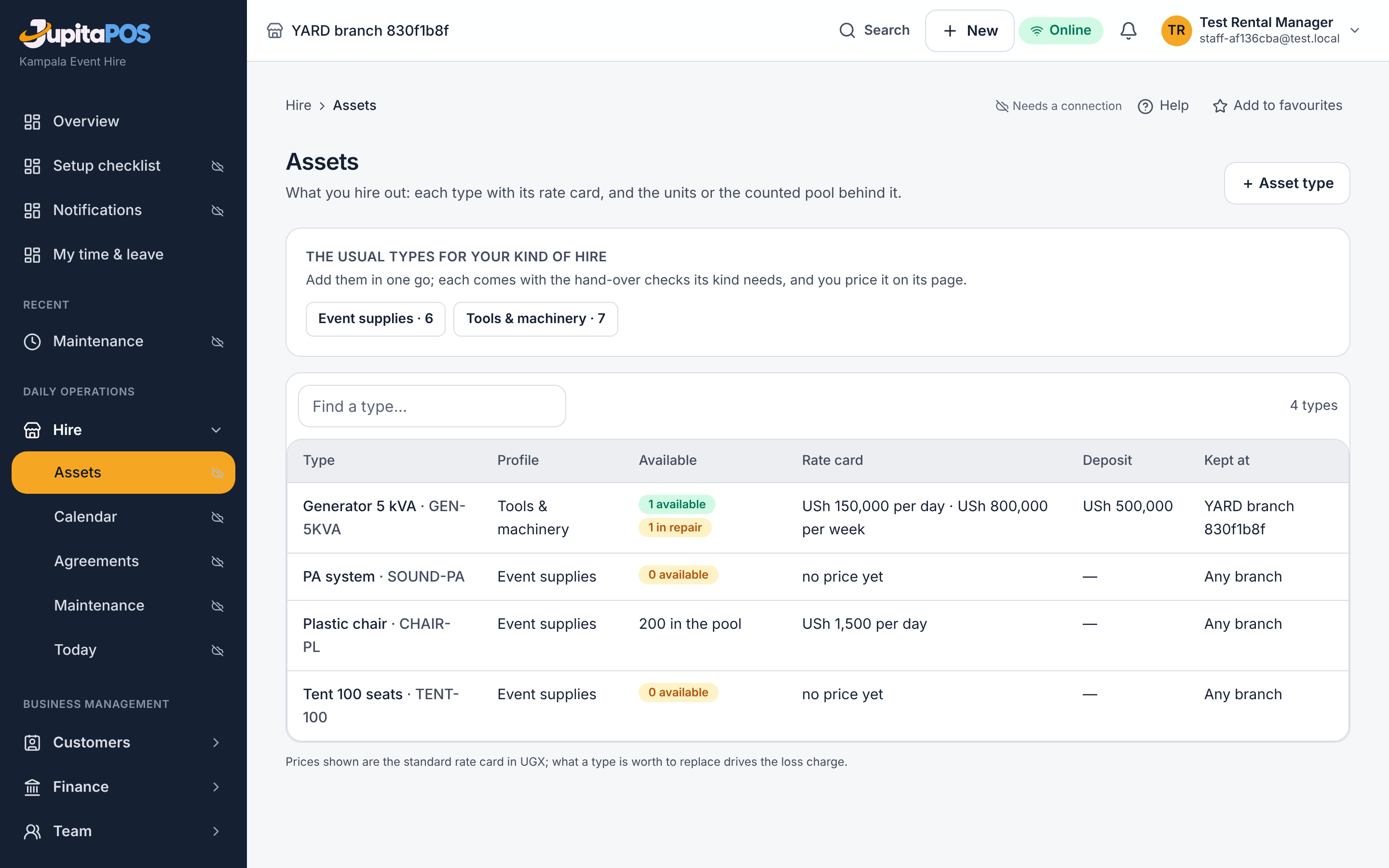
- Under The usual types for your kind of hire, tick the types you have and press Add — they arrive with the hand-over checks their kind needs, unpriced.
- Or press + Asset type for your own: a code, a name, the kind, by unit or counted, and a price per day or per week.
- Open a type. Under Rate card give the prices per hour, day, weekend, week or month as you charge them; a weekend price replaces two or three days when a hire covers one. Set the Deposit (an amount or a percentage of value), the Late fee and its rhythm, the Turnaround hours and the Replacement value (what a lost unit costs the hirer).
- For a unit-tracked type, press + Unit for each item: its tag, serial, condition and purchase cost. For a pool, set the Quantity.
- Tick the checks the yard records for this type under Recorded at hand-over and return, or leave them for the kind’s usual ones.
Expected result
The register shows each type with its rate card and what is free to hire; the Calendar shows its units day by day. A type with no price is listed but cannot be booked.
Screenshot
Common mistakes
- Pricing per hour only for things hired by the day: a day then costs 24 hours. Give the day price too; the quote picks the cheaper stack.
- Forgetting the replacement value: a lost unit is then charged at zero.
Troubleshooting
Only 0 of Generator 5 kVA are free then: the units are out, reserved, in repair or retired for those dates. Check the Calendar, or Maintenance for a unit held for service.
Book a hire at the desk
Purpose
Quote a hirer for items and dates, reserve the items, and write the agreement.
Role / permission required
rental.book — the Hire desk, the Rental manager, the Owner.
Prerequisites
Priced types in the register.
Steps
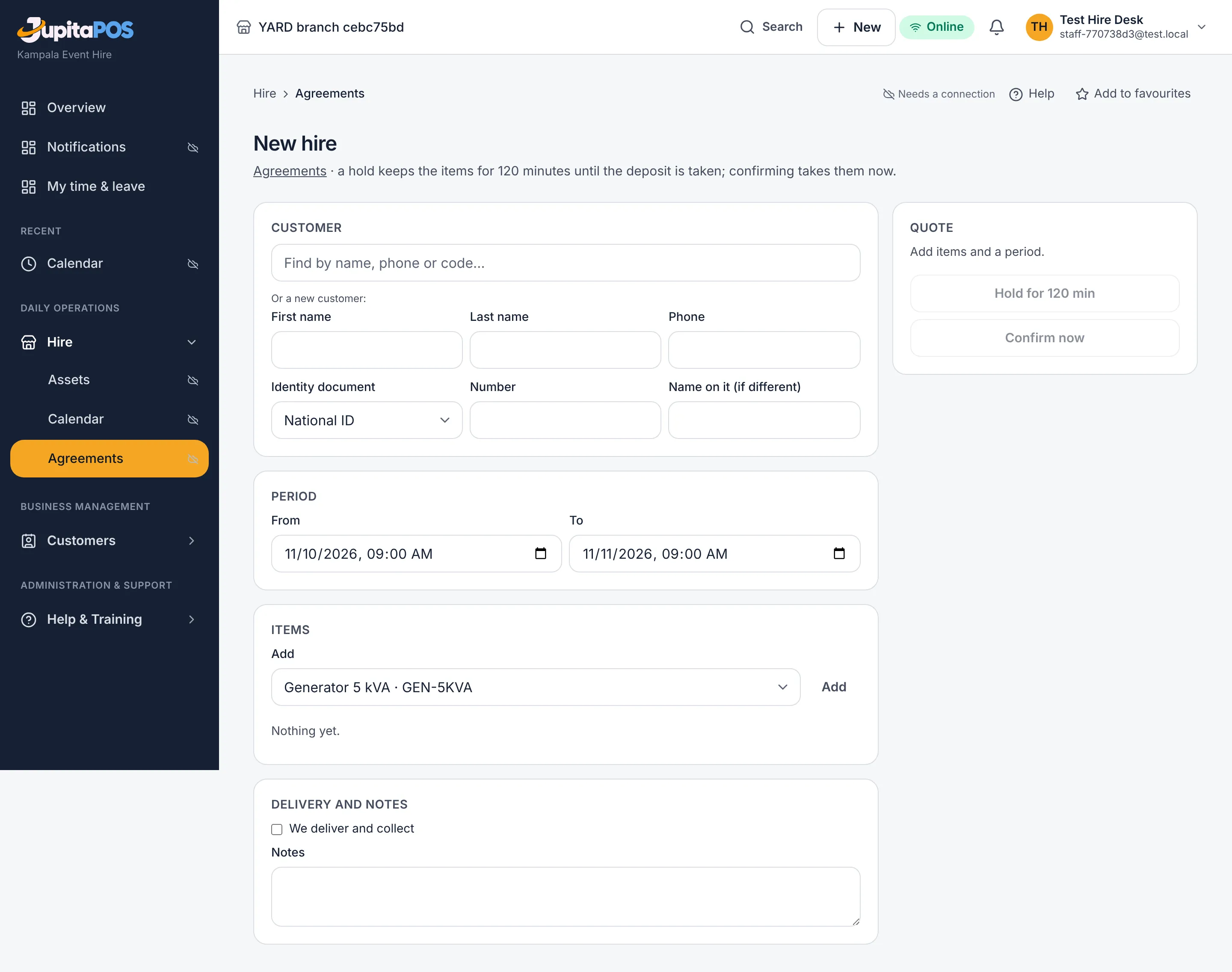
- Open Hire → Agreements and press New hire, or pick a free day on the Calendar.
- Find the customer by name or phone, or type a new one.
- Record the identity document (type and number) when your settings require it.
- Set the From and To dates and times, add the items and quantities. The quote shows each line’s price — how many days or weeks, and the deposit due.
- Add delivery and its price if you deliver.
- Press Hold to reserve the items for the hold time, or Confirm when the hirer is at the counter.
- On the agreement, press Record the signature once the hirer has signed, and Print the agreement.
Expected result
The agreement has a number (HIRE-…), the items are reserved for those dates, and the hirer’s record carries it. A hold lapses on its own if nobody confirms it.
Screenshot
Common mistakes
- Booking a unit that comes back the same morning it goes out again: the turnaround blocks it. Give the type its real turnaround.
- A second customer record for the same phone: search before typing a new one.
Troubleshooting
An identity document is recorded on every agreement: your settings require it; record it, or the owner relaxes the rule under Hire settings.
Take the deposit
Purpose
Take the deposit the agreement asks for and hold it for the hirer until the bill is made.
Role / permission required
payments.take — the Hire desk, the Rental manager, the Owner.
Cash needs an open till (cash.open).
Prerequisites
An agreement that is held or confirmed; Settings → Deposits with Hire deposits on.
Steps
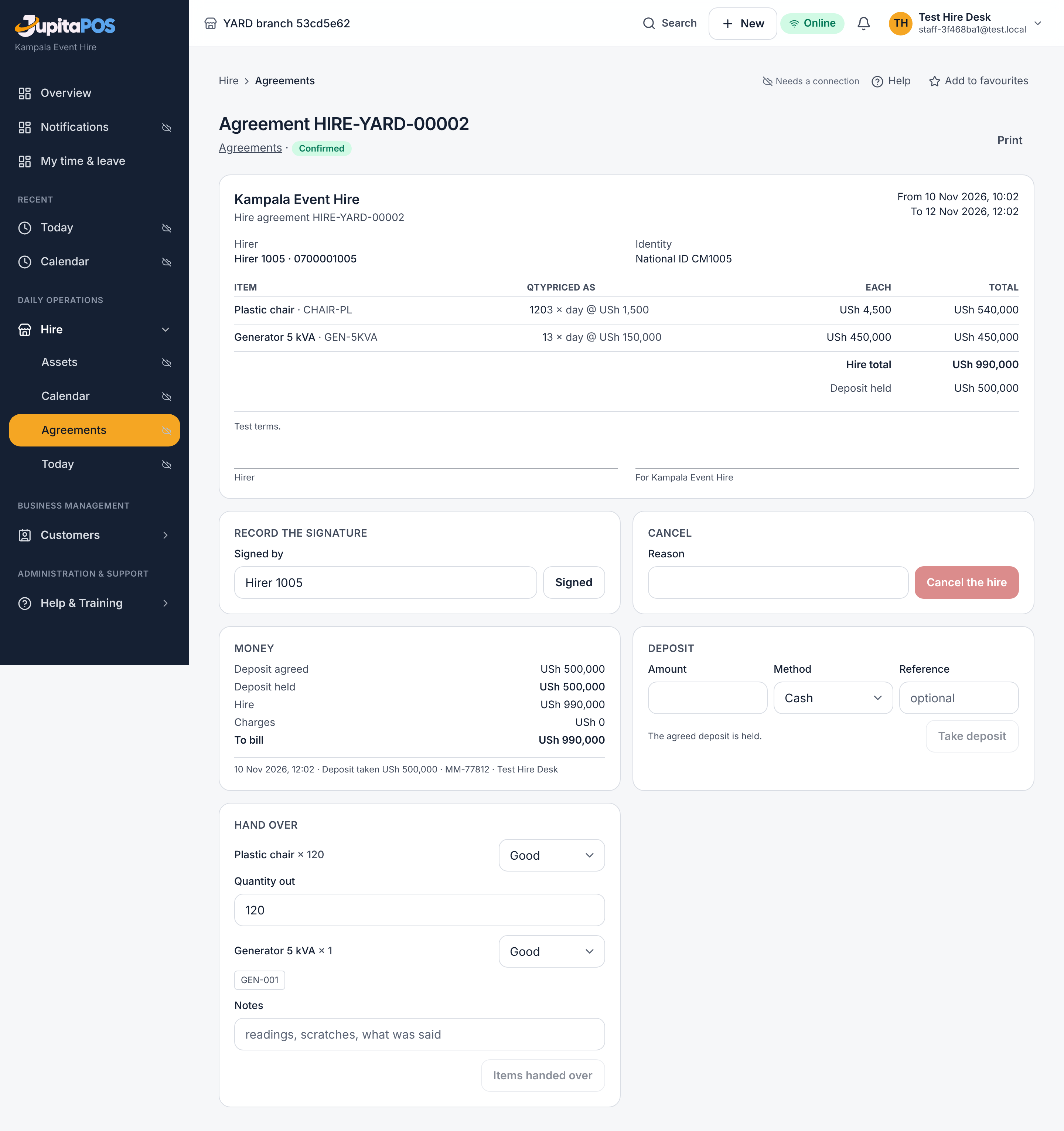
- Open the agreement. Under Deposit, the amount still to take is shown.
- Choose the Method — cash, mobile money, bank, card — and type the reference the method needs.
- Press Take deposit.
Expected result
Money shows the deposit held and the line Deposit taken. Taking a deposit on a held agreement confirms it. The money is customer credit held for the hirer and posted to deposits held, not to sales.
Screenshot
Common mistakes
- Taking cash without an open till: refused — open your till first under Finance → Cash & Tills.
Troubleshooting
Deposits are switched off for hire deposits: the owner switches them on under Settings → Deposits.
Hand items over and take them back
Purpose
Record what went out, in what state and with what readings; record what came back and how.
Role / permission required
rental.handover — the Yard attendant, the Driver, the Hire
desk, the Rental manager.
Prerequisites
A confirmed agreement with its deposit taken (identity recorded when required).
Steps
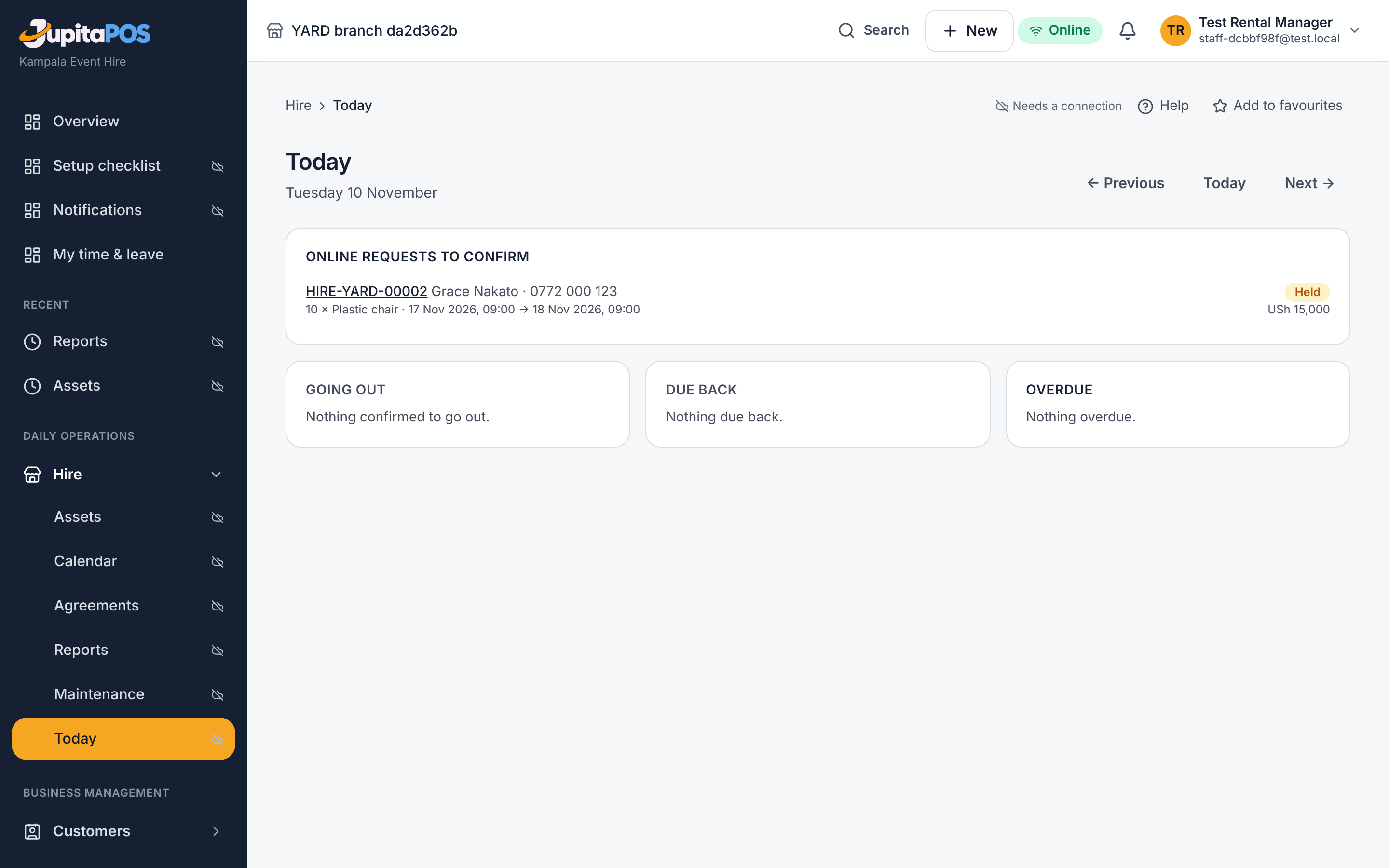
- Open Hire → Today. Under Going out open the agreement.
- Under Hand over, for each line tick the units going out (or type the count for a pool), choose the Condition, fill the checks the kind records — fuel level, hour meter, odometer, accessories, serial, cleanliness — and add a note. Press Items handed over.
- When the hire ends, open the agreement from Due back (or Overdue). Under Take back, tick each unit that came back and its condition; a unit left unticked is recorded missing and charged at its replacement value. Fill the readings. Press Items back.
- If something is damaged, dirty or missing, use Add a charge: the kind, what happened, the amount.
Expected result
The units’ history shows the hand-over and the return; a damaged unit goes to repair; a missing unit is retired and a loss charge raised. A late return past the grace raises the late charge per the type’s fee. A damage or loss charge above the business’s limit waits for a manager’s approval.
Screenshot
Common mistakes
- Handing over fewer units than the line says: refused — the agreement is for that many. Change the agreement first.
- Taking back without the readings: the next hire starts without a baseline and maintenance cannot count the hours.
Troubleshooting
Record the identity document on the agreement first: the desk records it under Identity document on the agreement.
Settle the agreement: the one bill
Purpose
Bill the hire, delivery and every charge on one order, pay it from the deposit first, and give back or take the difference.
Role / permission required
payments.take — the Hire desk, the Rental manager, the Owner.
Approving or waiving a charge needs rental.charges.approve.
Prerequisites
An agreement whose items are back; no charge waiting for a manager.
Steps
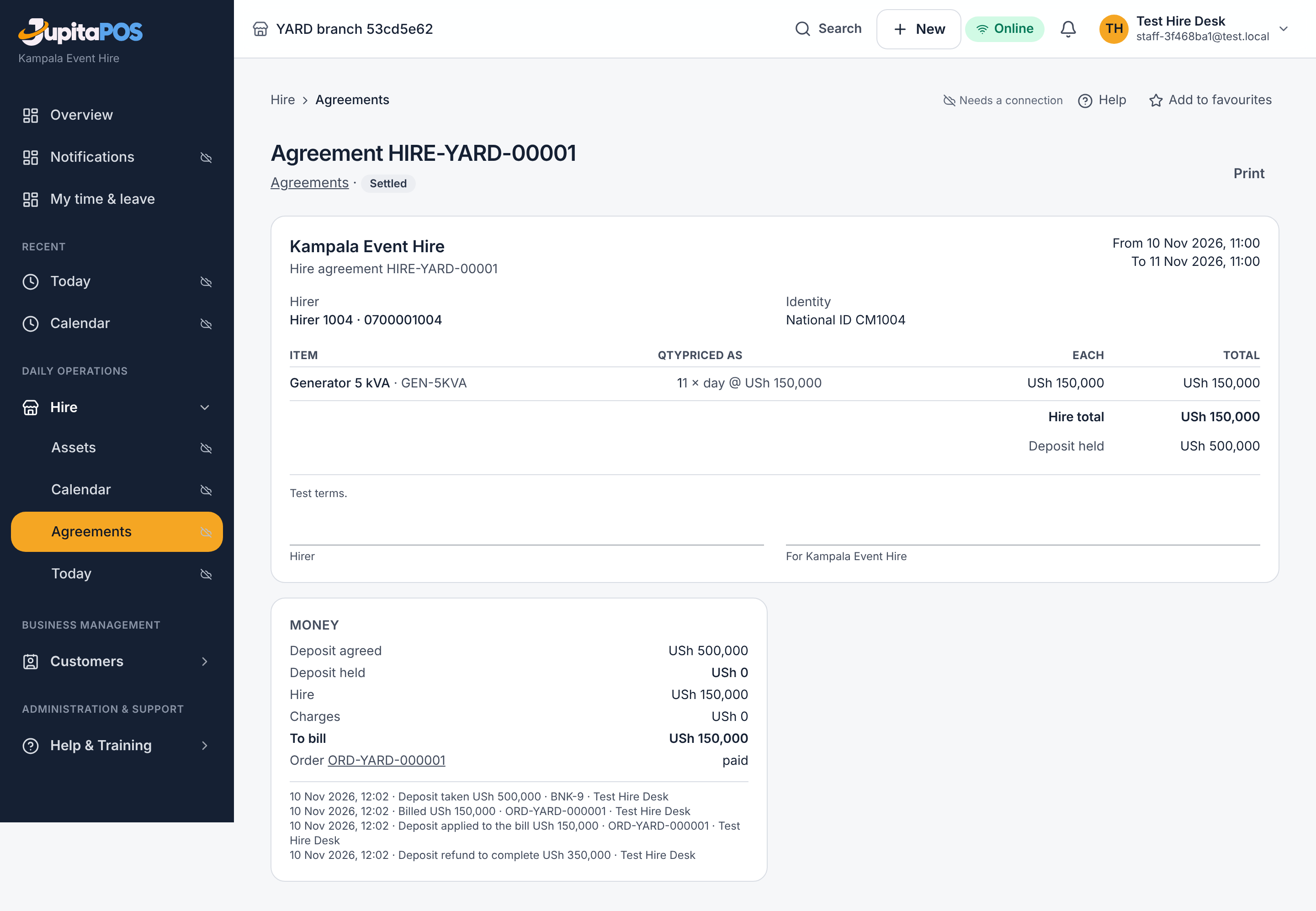
- Open the agreement. Money shows hire, delivery, charges and To bill.
- A manager decides any charge marked needs a manager: Approve, Refuse or Waive with a reason.
- Press Settle, refund in cash to give the rest of the deposit back from your open till, or Settle, refund later to record a refund to complete by mobile money or bank.
- If the bill is more than the deposit, the balance is on the order: take it at the till like any order.
Expected result
One order (Hire) carries the bill; the deposit is applied to it once; the money trail under Money shows Billed, Deposit applied and the refund. The agreement is settled.
Screenshot
Common mistakes
- Settling before the manager has decided a loss charge: refused — A damage or loss charge waits for a manager.
- Refunding in cash with no till open: refused — open a till or refund later.
Troubleshooting
Settling a second time changes nothing: the order is the one already made.
Keep the fleet fit to hire
Purpose
Set when a type or a unit is serviced, let the system hold units that fall due, and log the service.
Role / permission required
Plans: rental.assets.manage — the Rental manager. Logging a service:
rental.maintenance — the Yard attendant too.
Prerequisites
Types registered; for hour or km plans, the hour meter or odometer among the type’s checks.
Steps
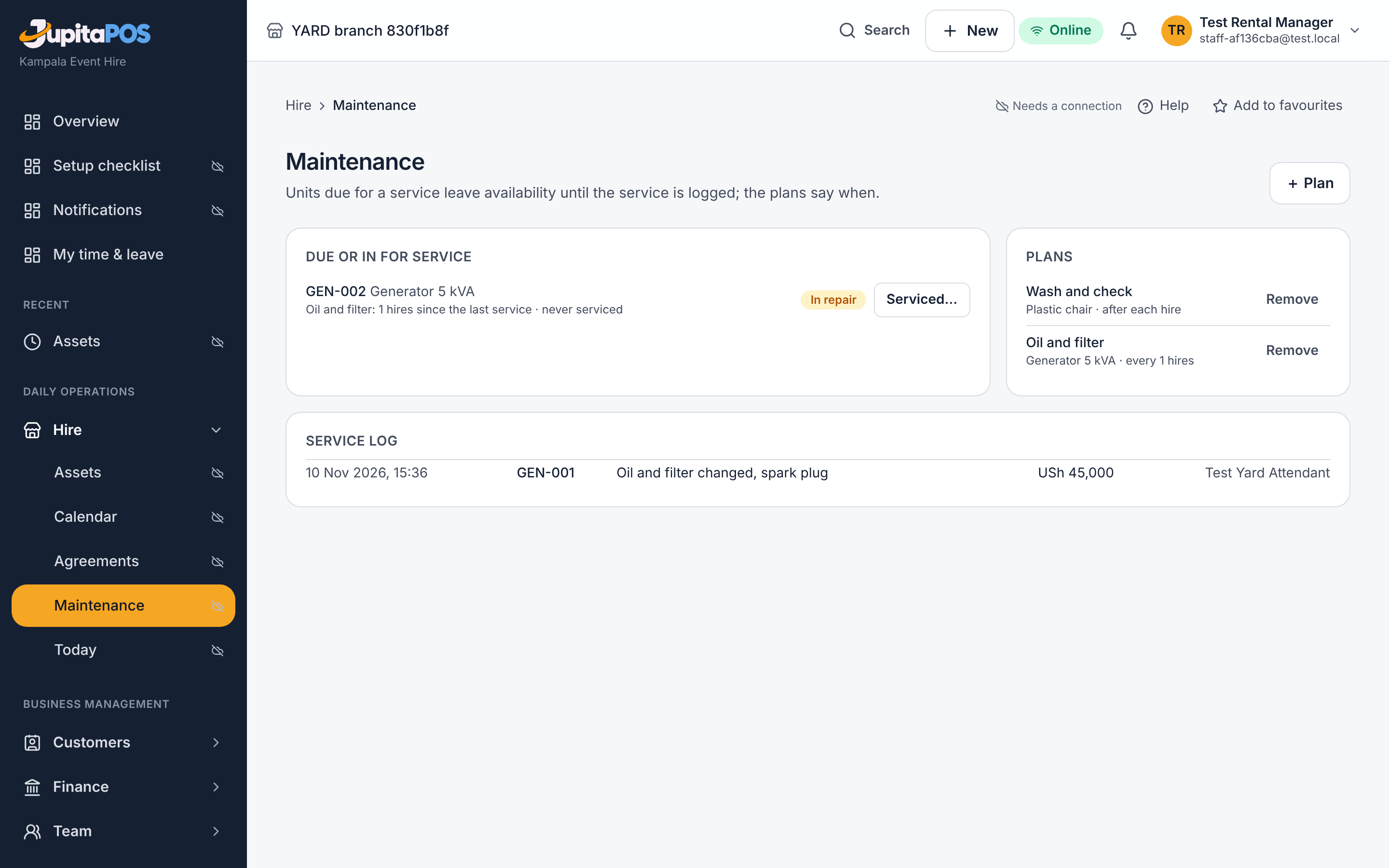
- Open Hire → Maintenance and press + Plan.
- Name what is done, choose the type, and when: after each hire, every N hires, every N days or every N hours / km. Leave cannot go out until serviced ticked for anything that matters. Press Set the plan.
- When a unit comes back and a plan has fallen due, it appears under Due or in for service and leaves availability.
- After the work, press Serviced… on the unit, say what was done and what it cost, and press Back in service.
Expected result
The unit is available again, its counters reset, and the Service log keeps the record. A plan that does not block hire only lists the unit.
Screenshot
Common mistakes
- A plan every 1 hire with a short turnaround: every return holds the unit until someone logs the service.
Troubleshooting
A unit shows in repair with no plan: it was put there from its page or at a return (damaged). Serviced… puts it back.
Read the hire reports
Purpose
See what was billed, how the fleet was used, who came back late and what deposits stand.
Role / permission required
rental.reports — the Rental manager, the Accountant, the Owner.
Prerequisites
Settled agreements in the period.
Steps
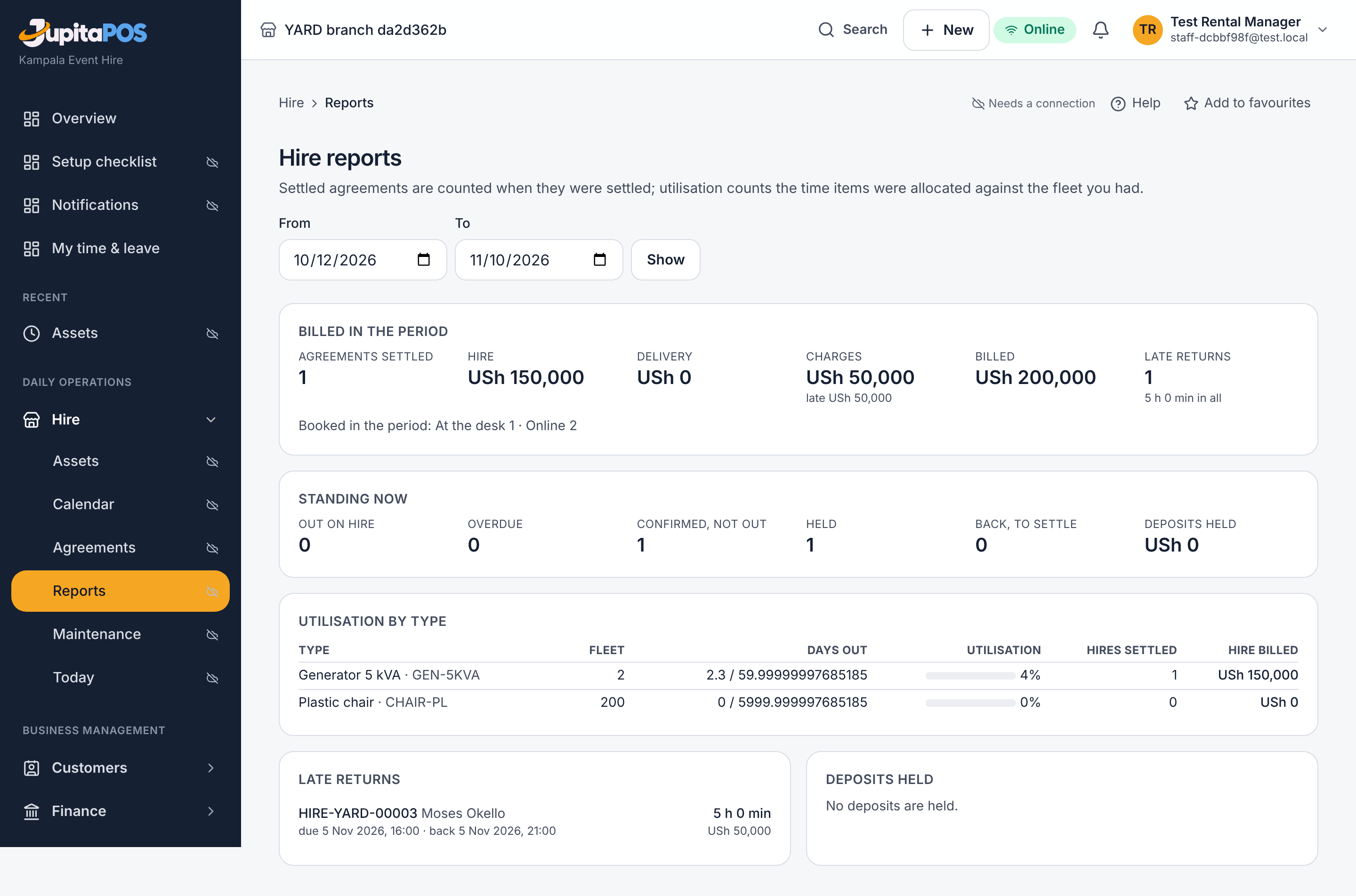
- Open Hire → Reports; set From and To and press Show.
- Billed in the period counts agreements settled then: hire, delivery, charges by kind, late returns.
- Standing now shows what is out, overdue, confirmed, held, back and not yet settled, and the deposits held.
- Utilisation by type compares the days items were allocated with the days your fleet could have been out.
- Late returns and Deposits held list the agreements behind the figures.
Expected result
Figures that agree with the agreements and the orders they link to.
Screenshot
Common mistakes
- Reading billed as booked: a hire counts when it is settled, not when it is booked.
Troubleshooting
Utilisation above what you expect: the allocation includes each type’s turnaround hours.
The public hire page and online requests
Purpose
Show what is for hire on your website with the rate card, give visitors a quote for their dates, and take their request for the desk to confirm.
Role / permission required
Switching the page on: storefront.manage — the Owner. Confirming a
request: rental.book — the Hire desk.
Prerequisites
The storefront set up under Settings → Customer Website, and priced types.
Steps
- Open Settings → Customer Website and tick Hire enquiries among the features; save.
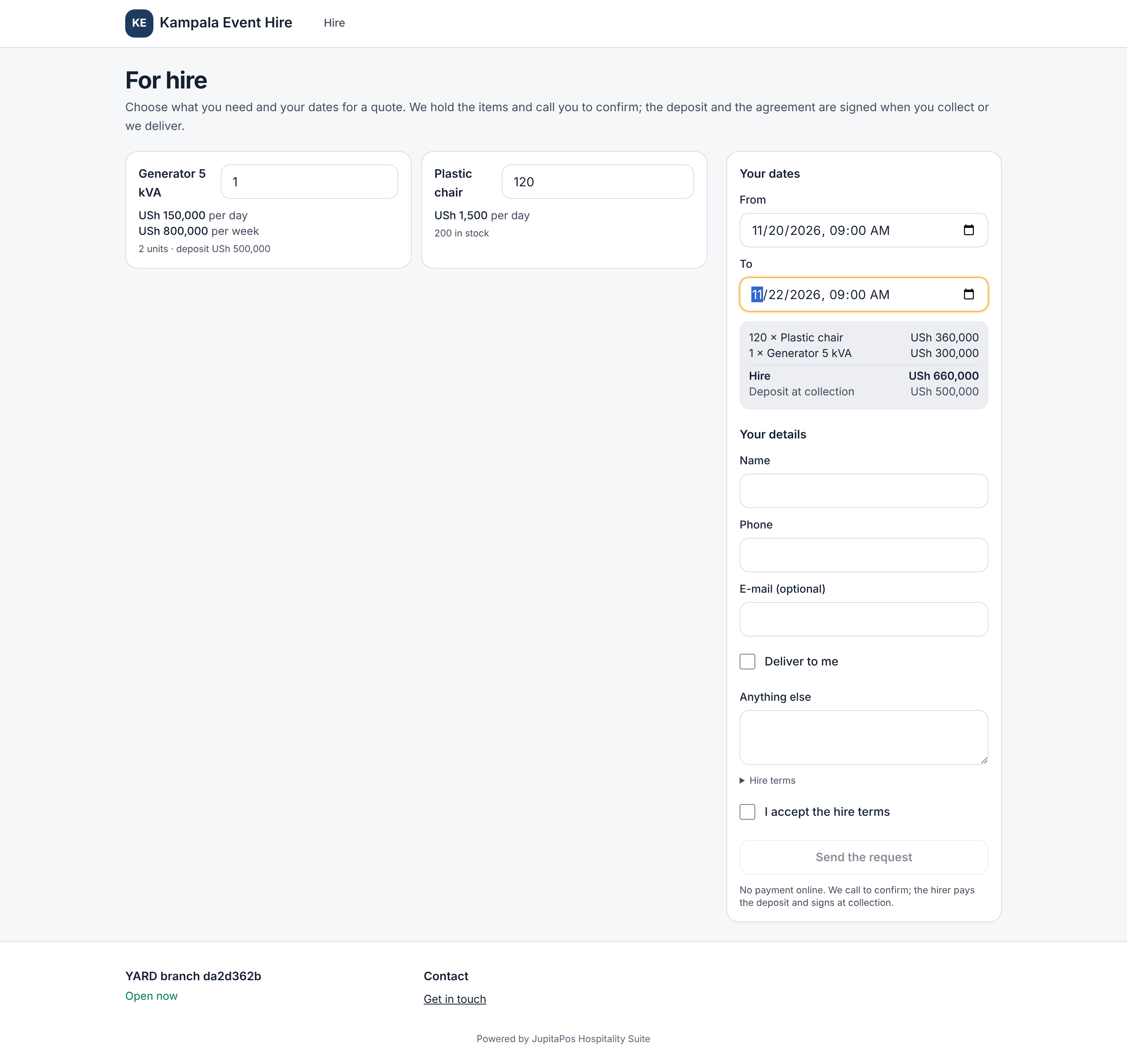
- Visitors open /hire on your site: each priced type with its rates and what is in stock. They choose quantities and dates, see the quote and the deposit, give a name and phone, accept the terms and send the request.
- The request appears on Hire → Today under Online requests to confirm as a held agreement for a day. Call the hirer, record the identity document, and Confirm — or let the hold lapse.
Expected result
A confirmed request is an ordinary agreement from then on. No money is taken online; the deposit and the signature happen at collection or delivery.
Screenshot
Common mistakes
- Leaving the page on with nothing priced: visitors see Nothing is listed for hire yet.
Troubleshooting
A request for dates already taken is refused to the visitor with how many are free; nothing reaches the desk.
Let a unit: write a lease and take the rent
Purpose
Let a shop, a flat, an office or a storage unit to one tenant by the week, month, quarter or year, and collect the rent as it falls due.
Role / permission required
Writing a lease: rental.leases.manage — the Property manager, the
Rental manager, the Owner. Taking rent: payments.take with
rental.leases.view — the Hire desk too.
Prerequisites
The space registered under Hire → Assets as a unit of a type (for example type Shop, unit SHOP-02), free on the start date.
Steps
- Open Hire → Tenancies and press + Lease.
- Choose the Unit; type the tenant’s name, phone and identity document.
- Set Starts, and Ends (leave it empty for a tenancy that runs until notice).
- Type the Rent and choose how often; the Deposit; the Notice in days; a Yearly increase if the lease has one.
- Press Write the lease. The first rent invoice is raised at once; later ones appear a few days before each period starts.
- On the lease, take the Deposit, then under Rent and charges billed press Take rent on an invoice: the method, the amount (part payment is allowed) and the reference.
Expected result
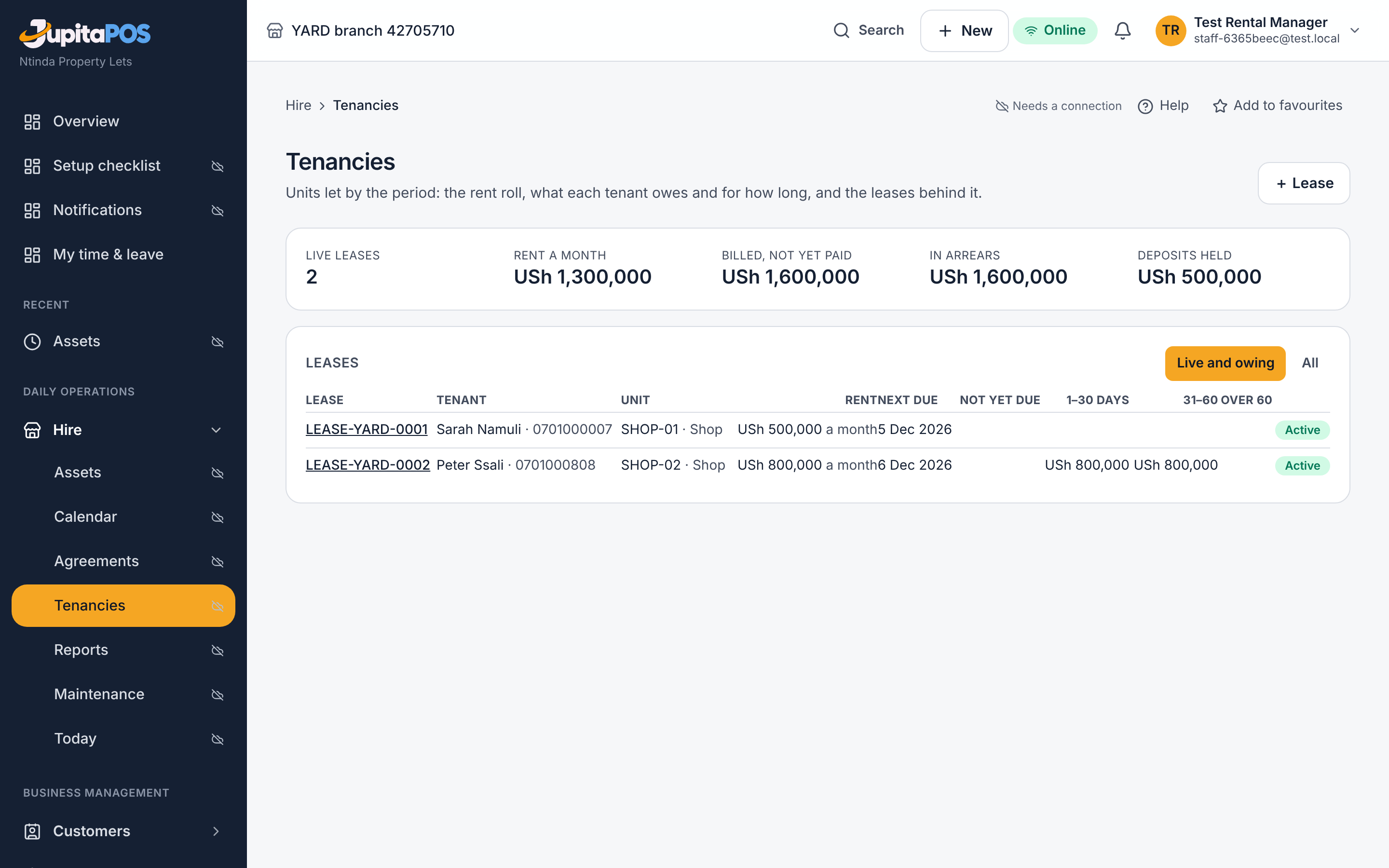
The unit is closed to short hire for the term. Hire → Tenancies shows the rent roll: each lease with its rent, the next due date, and what is owed by age — not yet due, 1–30 days, 31–60, over 60.
Screenshot
Common mistakes
- Letting a unit that is booked on a hire inside the term: refused — finish or move the hire first.
- Taking rent as a plain sale at the till: the invoice then stays owed. Always use Take rent on the invoice.
Troubleshooting
A mobile-money or card payment shows as not yet paid: an integrated tender counts when the provider confirms it; a recorded transfer counts at once and is verified under Finance → Payments.
Charges, notice, renewal and the end of a tenancy
Purpose
Bill a tenant for more than rent, record notice, renew a lease, and end a tenancy with its deposit settled.
Role / permission required
rental.leases.manage — the Property manager, the Rental manager,
the Owner.
Prerequisites
A live lease.
Steps
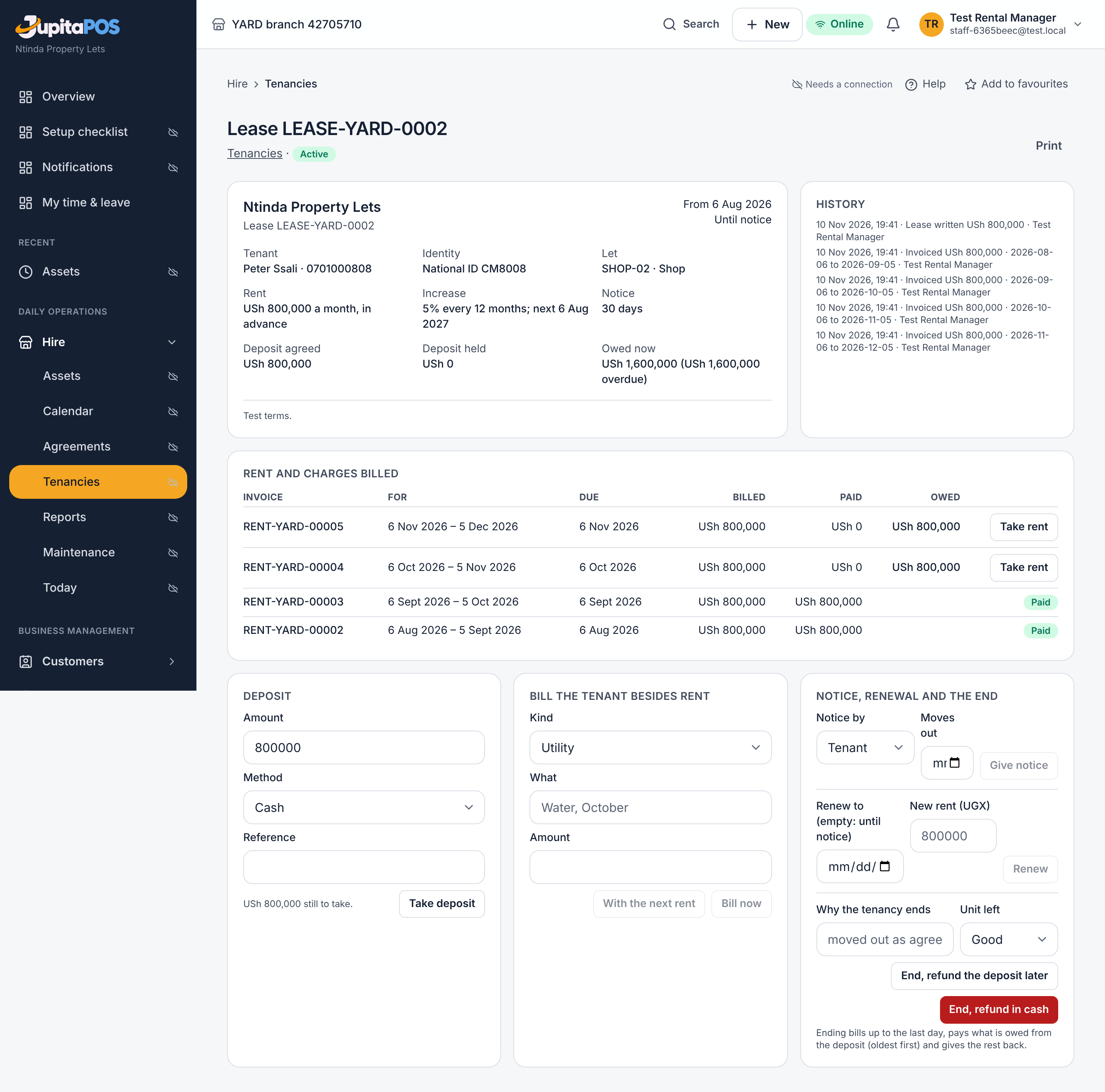
- A charge (water, a repair, a penalty): on the lease under Bill the tenant besides rent, choose the kind, say what and how much, and press With the next rent or Bill now.
- Notice: choose who gives it and the move-out date, and press Give notice. A date sooner than the lease’s notice days is refused.
- Renewal: type the new end date and, if it changes, the new rent, and press Renew. A notice that stood is withdrawn.
- The end: say why, choose how the unit was left, tick The tenant has moved out and the unit is checked, and press End, refund in cash or End, refund the deposit later.
Expected result
Ending bills the rent up to the last day (the last period is charged by its days) and any waiting charges, pays what is owed from the deposit — oldest invoice first — and gives the rest back. The unit returns to the register, free to let or hire. Anything the deposit did not cover stays owed on its invoices and on the rent roll.
Screenshot
Common mistakes
- Ending a tenancy before the unit is checked: the repair then cannot be billed against the deposit. Add the charge first.
- Refunding in cash with no till open: refused — open your till or refund later.
Troubleshooting
The rent did not go up on the anniversary: the increase applies from the first period that starts on or after that day; the lease’s history shows Rent changed to when it does.
Keep working when the connection is down
Purpose
Hand items over, take them back, receive cash and write down a booking while the device has no connection, and have the server record it all when the connection returns.
Role / permission required
rental.handover — the Yard attendant, the Driver, the Hire
desk, the Rental manager. Cash needs payments.take; writing down a
booking needs rental.book. Reviewing what was held needs sync.view — the
Rental manager, the Owner.
Prerequisites
The device is a registered terminal with offline work switched on, and you have opened the app on it once while online, signed in as yourself. For cash, your till is open.
Steps
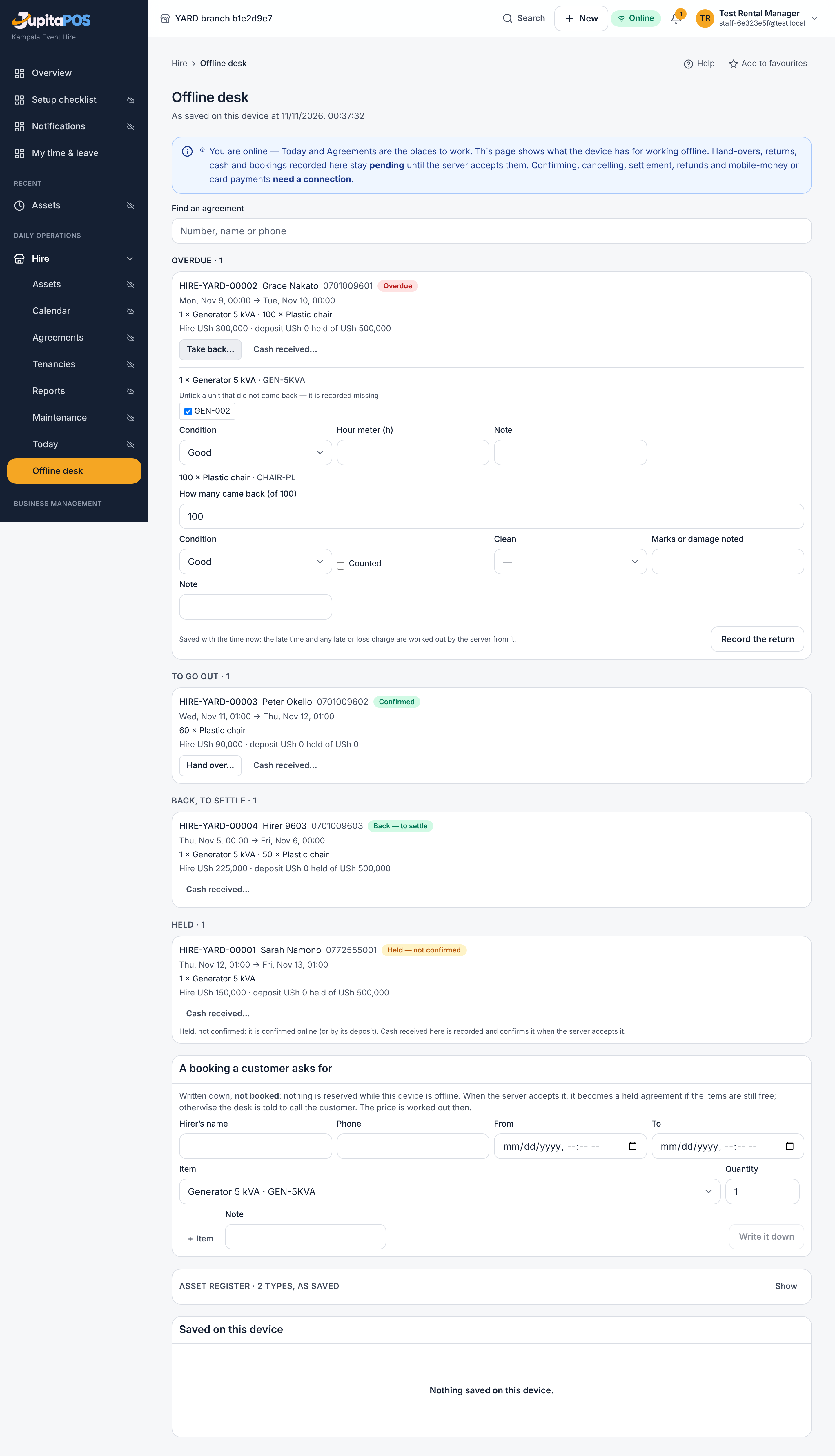
- Open Hire → Offline desk. The page says when its copy was saved and lists the agreements: overdue, to go out, out, back and held.
- To hand items over, press Hand over… on the agreement, tick the units going out, choose the condition, fill the readings and press Record the hand-over.
- To take items back, press Take back…, leave ticked the units that came back (untick one that did not — it is recorded missing), type how many of a counted item came back, and press Record the return. The time now is kept: late time is worked out from it.
- To receive cash for a hire, press Cash received…, type the amount and press Record the cash. Write the provisional receipt number shown on the customer’s slip.
- For a customer who wants to book, fill A booking a customer asks for — name, phone, dates, items — and press Write it down. Tell the customer it is not booked yet.
- When the connection is back, the device sends everything by itself. Under Saved on this device each item shows pending, accepted, needs review or refused.
- A manager opens Settings → Offline sync for anything that needs review, puts the agreement right and retries it.
Expected result
Each hand-over and return is on the agreement with the time it happened on the device; a late return has its late charge; the cash is in your till as money held for the hire, and it confirms a held agreement; a booking written down is a held agreement for the desk to complete, or — if the items were taken meanwhile — a note to call the customer.
Screenshot
Common mistakes
- Promising a customer the items offline: nothing is reserved until the server accepts the booking. Say so.
- Taking mobile money offline: only cash can be recorded. A mobile-money payment is taken when the connection is back.
- Using a device that was never opened online: it has no copy to work from.
Troubleshooting
An agreement cannot be handed over offline and says the identity document is not on it: recording identity needs a connection. Cash recorded offline needs review with “no open till”: open your till, then a manager retries it under Settings → Offline sync — the money is never dropped.
Record something found after it was recorded missing
Purpose
Put a unit or counted items back into the fleet when they turn up after a return recorded them missing, and deal with the loss charge.
Role / permission required
rental.handover — the Yard attendant, the Hire desk, the Rental
manager. Once the agreement is settled, deciding about the charge needs
rental.charges.approve — the Rental manager, the Owner.
Prerequisites
An agreement whose return recorded a unit or part of a count as missing.
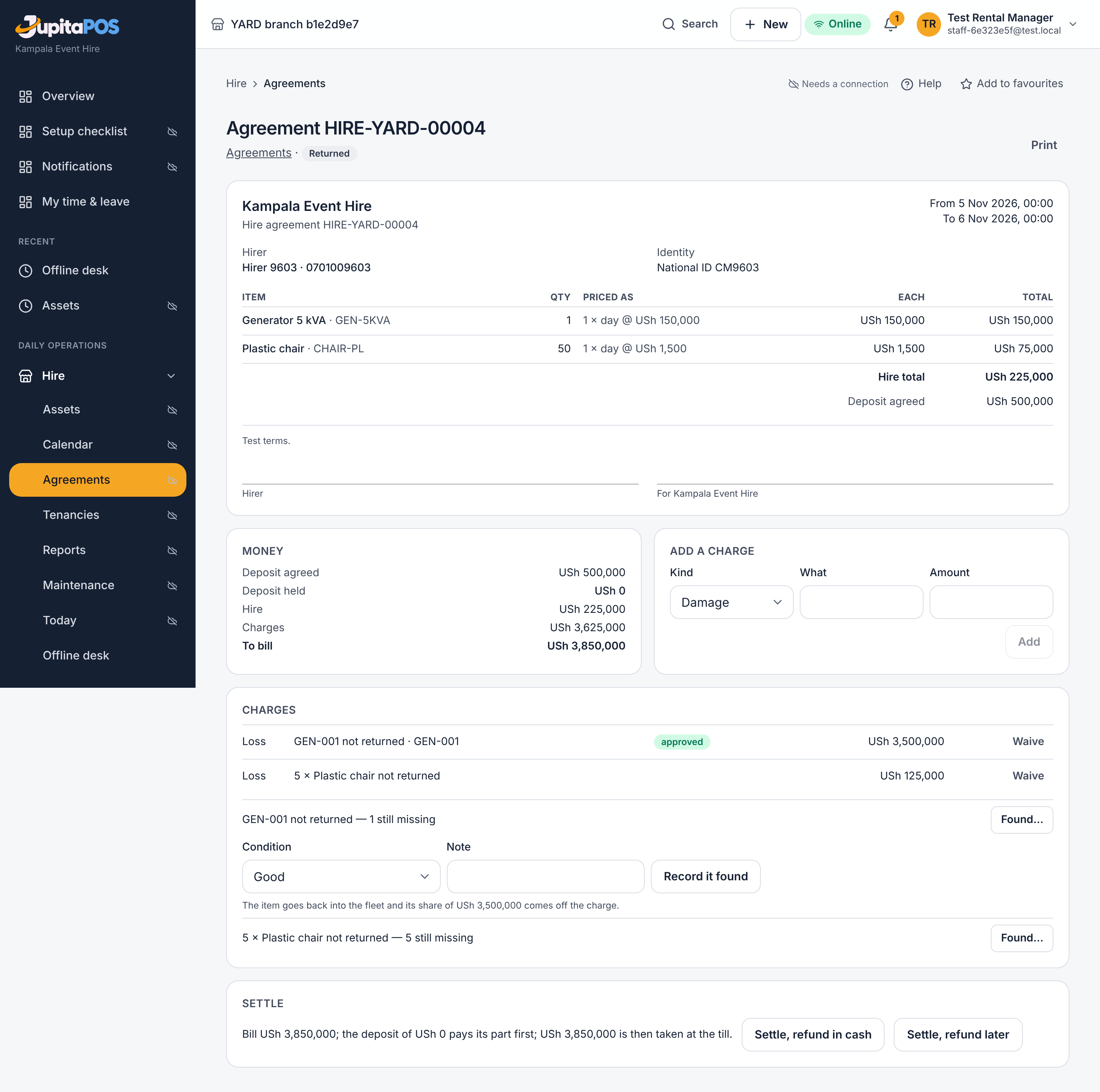
Steps
- Open Hire → Agreements and the agreement.
- Under Charges, on the line that says how many are still missing, press Found….
- For a counted item, type how many came back. Choose the condition and add a note.
- If the agreement is already settled, a manager chooses whether the loss charge is given back to the hirer or stands.
- Press Record it found.
Expected result
A unit is available again (or in repair if it came back poor or damaged); a counted item’s pool has its number back. Before settlement the found share comes off the loss charge. After settlement the bill is not rewritten: the agreement shows what is to be given back, and the refund is made on the settlement order.
Screenshot
Common mistakes
- Adding the unit again as a new unit: its history is then split. Use Found… so the same tag comes back.
- Waiving the loss charge by hand and leaving the unit retired: the unit stays out of the fleet.
Troubleshooting
The agreement is settled: a rental manager decides: ask the manager to record it. Everything on this charge has already been found: it was recorded before — check the unit’s history under Hire → Assets.