

On this page
- Set up rooms and rates
- Keep the list of charges
- Set prices by date
- See which rooms are free
- Take a room booking
- Book several rooms at once
- Use the room calendar
- Take, refund or keep a deposit
- Check a guest in
- Charge extras and take payments on the folio
- Read and settle a folio in full
- Check a guest out
- Move a guest to another room, or extend the stay
- Take a walk-in guest
- See who is in house
- Clean and ready rooms
- Work your rooms from a phone
- Supervise housekeeping: reopen work, read a room’s timeline, block rooms
- Take room bookings on your website
- Switch rooms and room service on or off
- Pause new room bookings
- See every open guest folio
- Take and deliver room-service orders
- Charge a restaurant or bar bill to a room at the till
- Print the room QR codes for guest room service
- Order room service from the room (for guests)
- Read the reception, housekeeping and room-service dashboards
- Keep the front desk going without a connection
- Clean rooms from a phone without a connection
- Hand over orders sent from an offline till
- Settle room charges that arrived after checkout
- Give the guest a statement or confirmation
- Check background work and rebuild summaries
- Read the room reports
- Troubleshoot the rooms module
This is the manual of the Accommodation / PMS workspace in the menu (under Daily operations): the property management side of JupitaPos — rooms and room types, availability and reservations, the front desk, the guest folio, housekeeping and room service. The pages inside it are Front Desk, Reservations, Guests, Folios, Housekeeping, Room Service and Rooms & Room Types; the setting that switches it on is Settings › Modules & Branch Availability › Accommodation.
If your business has rooms — a lodge, a guest house, suites above the restaurant — JupitaPos keeps them next to the restaurant: the same customers, the same tills and payment methods, the same receipts and invoices and the same books. It is a simple accommodation module, not a full hotel system: there is no channel manager, no revenue management and no night audit.
The Accommodation group of the menu:
| Entry | Page | What it is for |
|---|---|---|
| Front Desk › Today | Front desk (/accommodation) |
today’s arrivals, departures and guests in house, and every room at a glance |
| Room Calendar › Availability | Room availability (/accommodation/availability) |
rooms free per room type and night, with the night’s rate |
| Room Reservations | Room reservations (/accommodation/reservations) |
every booking; open one to change it, check the guest in or out, and see the folio |
| Arrivals, Departures | /accommodation/arrivals, /accommodation/departures |
the stays arriving or leaving on a day |
| In House | /accommodation/in-house |
every guest in house now; those being checked out are marked |
| Guests / Stays | Guests (/accommodation/guests) |
registration details kept for each guest, and their stays |
| Rooms, Room Types, Settings | Rooms setup (/accommodation/rooms, /accommodation/room-types, /accommodation/settings) |
the rooms, the room types and their rates, the property’s rules |
| Guest Folios | /accommodation/folios |
every folio still open, with its balance and the deposit held |
| Housekeeping | /accommodation/housekeeping |
which rooms to clean and inspect, and the tasks |
Under Hospitality operations, Room Service (/room-service) lists the
day’s orders for rooms; under Reports, Accommodation and Room service.
Rooms and room service are modules: an owner or administrator switches
them on or off for the business in Modules (/system/modules). A
business that is not a hotel starts with rooms off. When a module is off,
its menu entries disappear and the server refuses its pages, its API and
its online booking page, whoever asks; its data is kept. A module is never
switched off under a stay that is still going on: while guests are in
house, bookings are still to arrive or folios are open, the switch is
refused — pause new bookings instead (see
Pause new room bookings). Once rooms are
off, the stays and folios already made stay readable to those who could
see them, and nothing can be changed.
The words used on these pages:
| Word | Meaning |
|---|---|
| Room type | a kind of room with one price — Standard Double, Deluxe King |
| Held | a booking kept for a while (an online request, a phone hold); it lets the room go by itself when the hold runs out |
| Folio | the guest’s bill for the stay: the nights, extras, room service charged to the room, payments |
| Deposit | money taken before or at arrival, kept as the guest’s credit until checkout |
| Posting hour | the hour each night is charged to the folio (22:00 unless set otherwise) |
Who does what:
| Role | What they do here |
|---|---|
| Front office manager | everything: set-up, rates, reservations, the desk, folios, housekeeping, room reports; overrides at check-in |
| Receptionist | reservations, check-in and checkout, guest registration, folios and payments |
| Housekeeper | the housekeeping board only |
| Waiter, cashier | see which rooms are in house and charge an order to a room (accommodation.charge) |
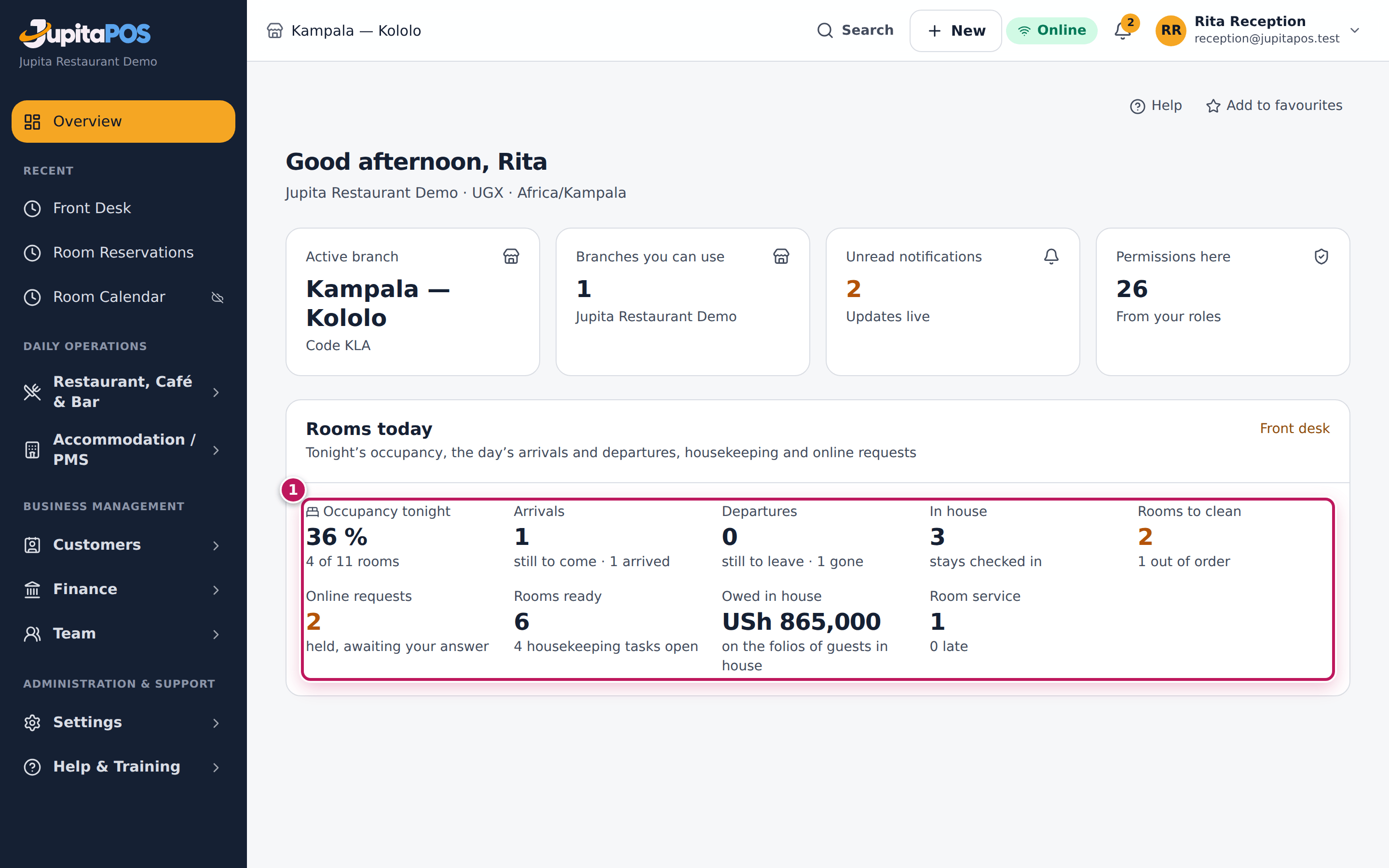
A housekeeper who signs in lands on the housekeeping board. The front office sees Rooms today on the dashboard: tonight’s occupancy, arrivals and departures, guests in house, rooms to clean and online requests waiting.
Rooms are online only: bookings, check-in, checkout and folios need the server. When the internet is down, a till can still take room service for a room in house and charge it to the room; it reaches the folio when the till syncs (see Offline mode).
Set up rooms and rates
Purpose
Describe your rooms once — the property, its room types with their price, and each room — so that bookings, availability and the folio work out the prices by themselves.
Role / permission required
Front office manager, manager or owner (accommodation.setup; rates also
need accommodation.rates).
Prerequisites
- The branch the rooms belong to exists.
Steps
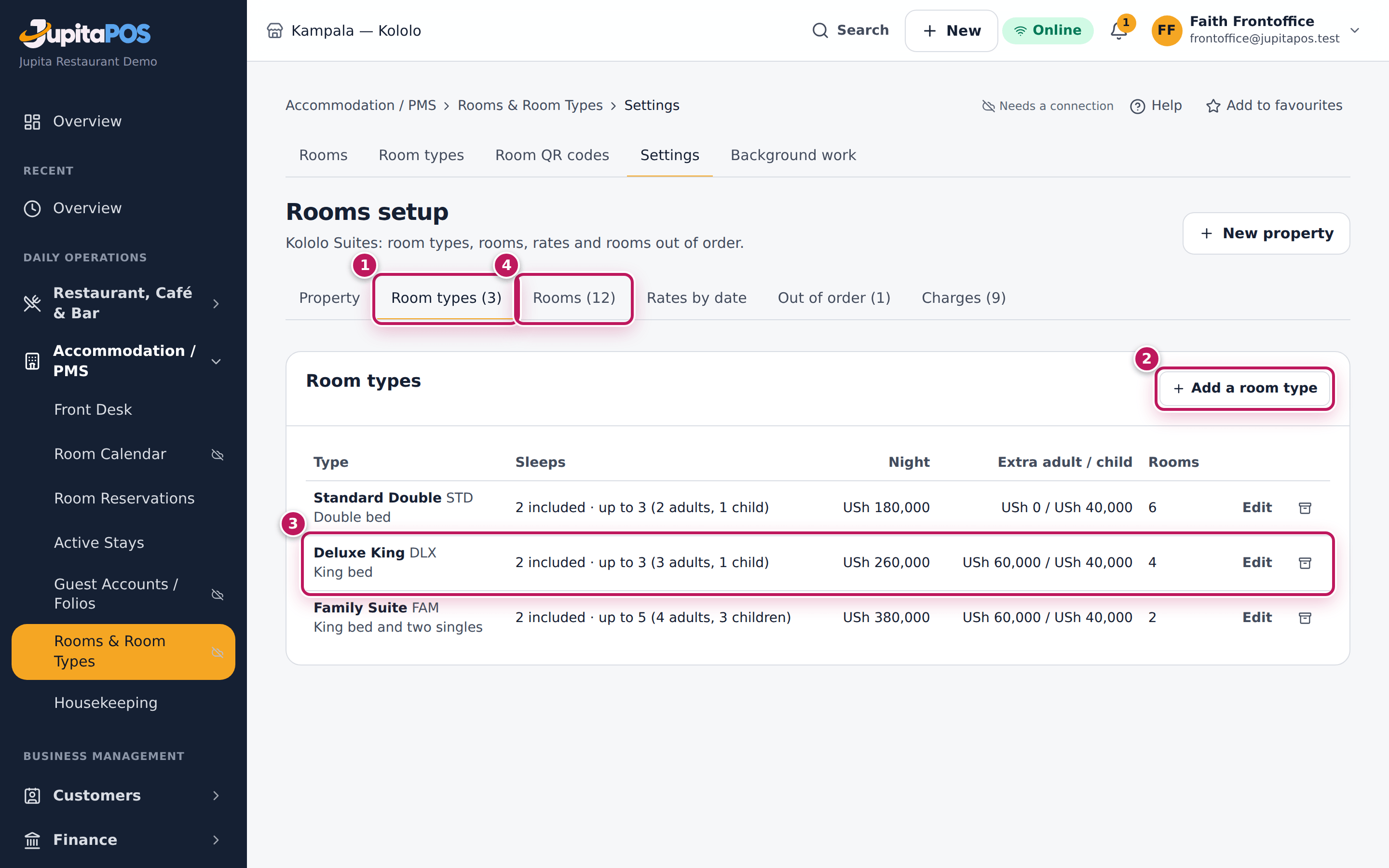
- Open Accommodation / PMS › Rooms & Room Types › Settings in the menu (the page Rooms setup). At a branch that has no property yet, the menu shows only Accommodation / PMS › Set up a property, which opens the same page; the rest of the menu appears once the property is saved.
- On the Property tab, give the property its name, a short code, the check-in and check-out times, the deposit rule and whether it is Bookable online. Choose the Tax on room nights and folio charges: only the tax you choose applies, and with No tax nothing is added. Staff-only Operating notes (keys, generator, water) and photos of the property go here too.
- Open Room types (1) and choose Add a room type (2). Give each type a code, a name, how many it sleeps and its price a night. The price covers the people included; extra adults and children pay the extra you set. Add the beds, amenities, a description, staff notes and photos (JPG, PNG or WebP, up to 5 MB, twelve a type; the first is the cover).
- Check each row (3): the type, how many it sleeps, the night’s price and how many rooms it has.
- Open Rooms (4) and add each room with its number, type, floor and where it is (Garden wing). Each room shows its housekeeping state and whether it is occupied, reserved or vacant today.
- To charge more on some dates (weekends, holidays), use Rates by date.
- To take a room off sale for repairs, use Out of order with the dates and the reason.
Expected result
The room types are listed with their prices and their number of rooms — for Kololo Suites, Standard Double at USh 180,000, Deluxe King at USh 260,000 and Family Suite at USh 380,000, twelve rooms in all. New bookings are priced from these rates.
Screenshot
Common mistakes
- Setting the price for one person. The price is for the people included (usually two); extra people pay the extra adult or child price.
- Removing a room that has bookings. Rooms and room types are archived, never deleted, and only when no booking needs them: move the stay assigned to the room first. Taking a room out of use, or lowering how many a type sleeps, is refused the same way while a booking needs it.
Troubleshooting
- No Accommodation / PMS in the menu. The module is switched off for
the business, or you do not hold
accommodation.setupat this branch — with neither a property nor that permission there is nothing to show. - “That code is already used”. Codes are unique within the property; choose another.
- A price change does not show on an old booking. Bookings keep the
nightly rates and tax they were accepted at. Change the booking’s rate on
the booking itself (an agreed rate needs
accommodation.rates); the booking’s Changes list keeps the old and new terms, who changed them and why. - “Choose a service item”. A room type’s nights can post on a charge item of your own, but only a service item that is not stock.
Keep the list of charges
Purpose
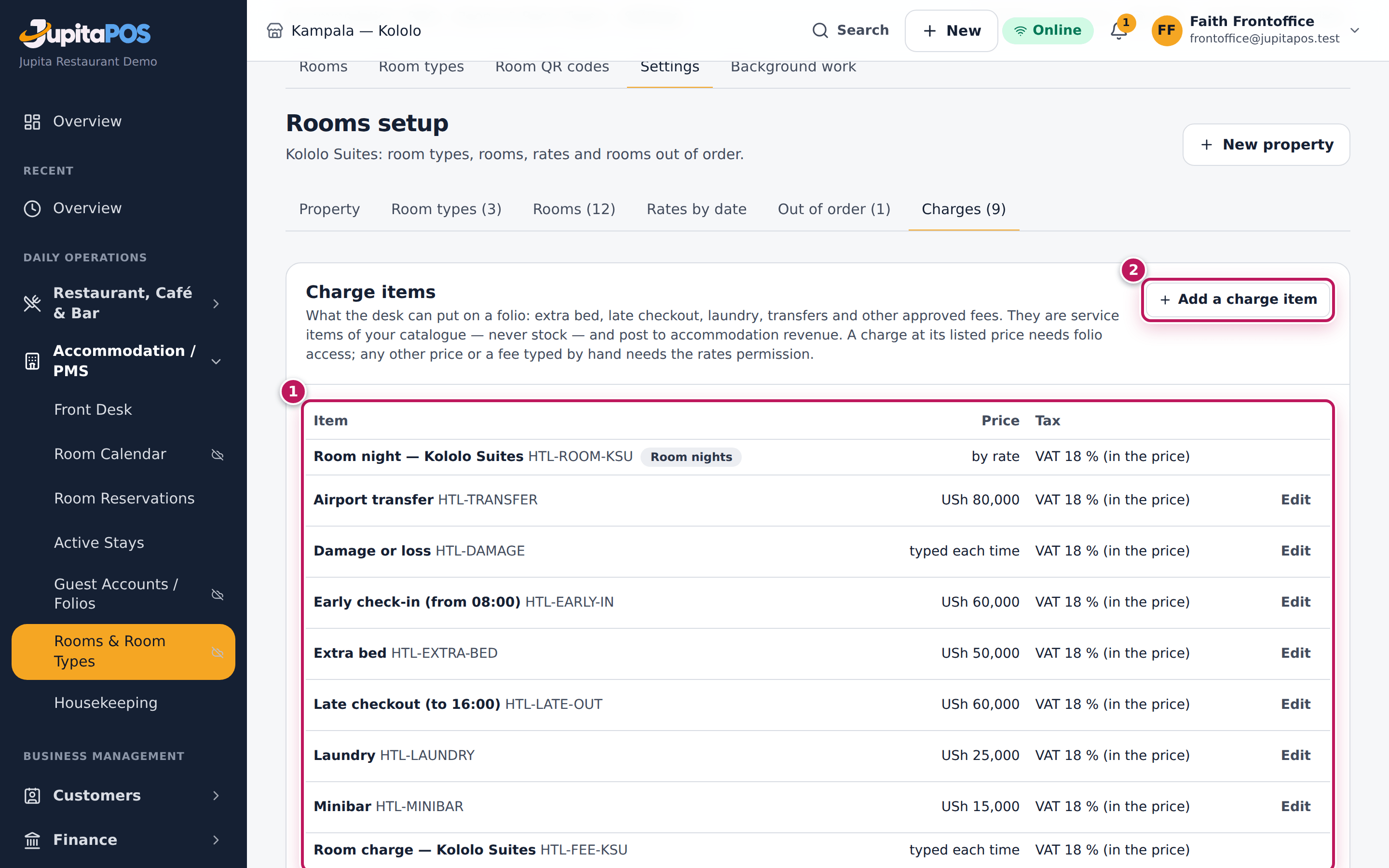
Decide what the desk can put on a folio, and at what price: extra bed, late checkout, early check-in, laundry, transfers, minibar and other fees you approve. They are service items of your catalogue — never stock — and post to accommodation revenue.
Role / permission required
Front office manager, manager or owner (accommodation.setup). Any staff
with folio access can charge them.
Prerequisites
- A property is set up.
Steps
- Open Accommodation / PMS › Rooms & Room Types › Settings in the menu and the Charges tab.
- Read the list (1): each item, its code, price and tax. Room nights is the property’s own item; its price comes from the rates.
- Choose Add a charge item (2). Give it a name, a short code, the price and its tax. Turn on Price typed each time for a charge whose amount varies, such as damage.
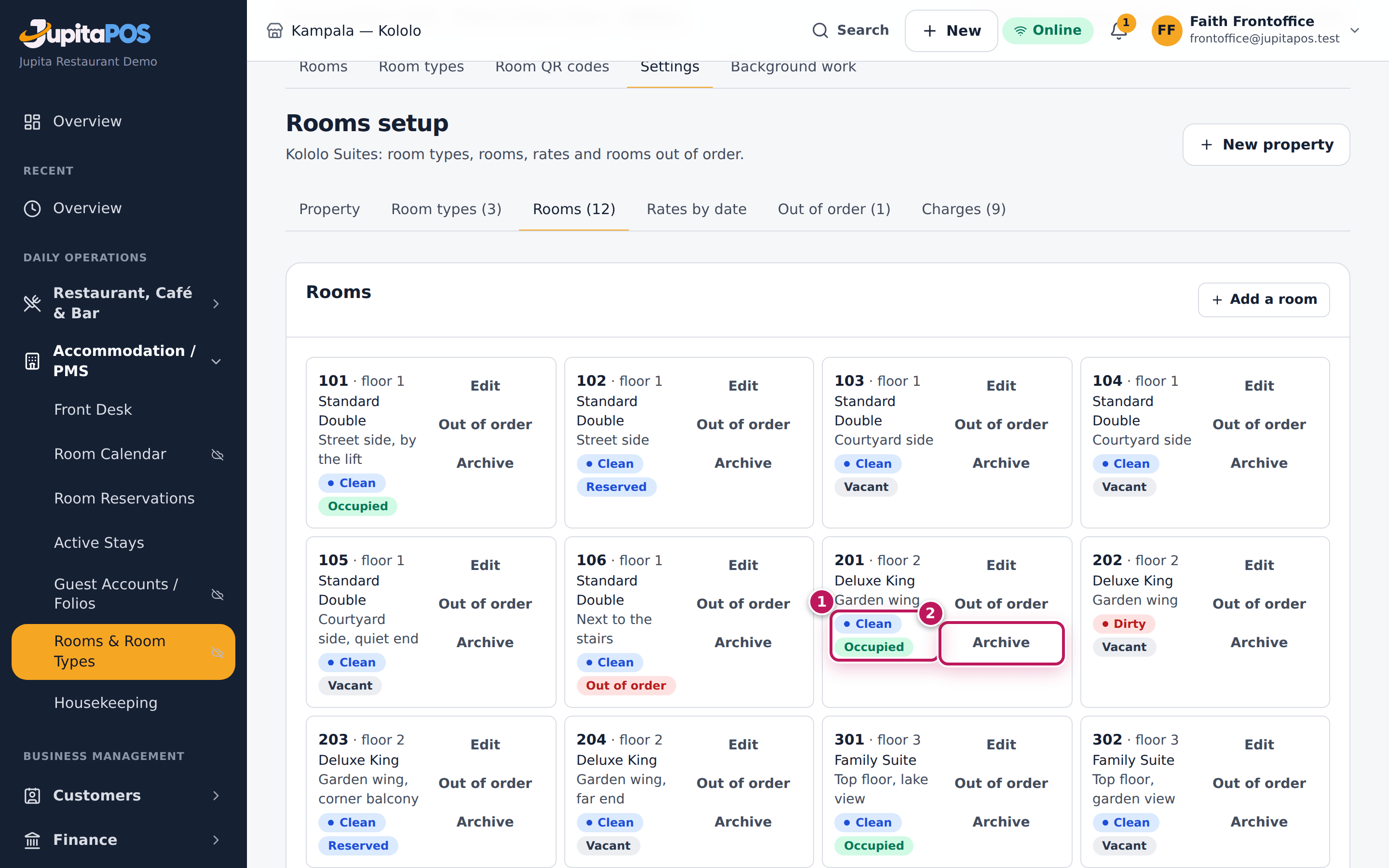
- Open Rooms to see each room’s state today (3): housekeeping (Clean, Dirty, Cleaning, Inspected), whether it is occupied, reserved or vacant, and whether it is out of order.
- To retire a room nobody needs, choose Archive (4).
Expected result
The new item is offered in the folio’s Charge list at its price. A room with a guest stays Occupied when it is cleaned; a booking for a later date does not make a room reserved today.
Screenshot
Common mistakes
- No tax on an item. An item’s tax is the one you choose for it; No tax means none is added.
- Using a code starting ROOM- or FEE-. Those belong to the property’s own items.
Troubleshooting
- “The code is already used”. Every charge item has its own code.
- “Archiving is refused”. A booking still has the room; move it first.
Set prices by date
Purpose
Charge a different price on some nights — weekends, a holiday, a season — and control what can be sold: close dates to sale, refuse arrivals on a day, or ask for a minimum stay. Bookings already taken keep the price they were booked at.
Role / permission required
Front office manager, manager or owner (accommodation.rates).
Prerequisites
- The room type exists with its base price (see Set up rooms and rates).
Steps
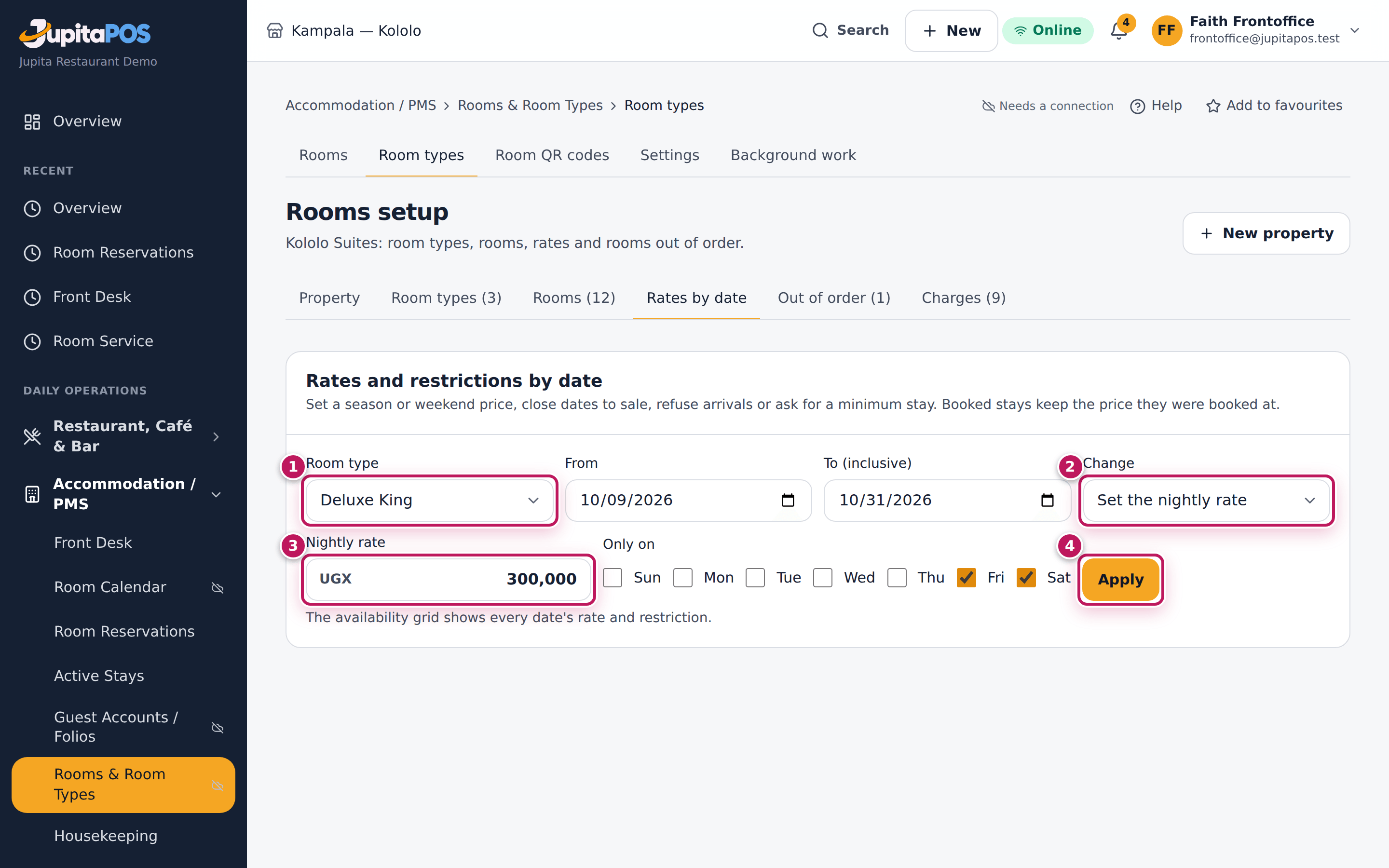
- Open Accommodation / PMS › Rooms & Room Types › Room types in the menu (the page Rooms setup) and choose the Rates by date tab.
- Choose the Room type (1), the first night in From and the last night in To (inclusive).
- Under Change (2), choose what to do on those nights:
- Set the nightly rate — type the Nightly rate (3);
- Back to the base rate — undo an earlier change;
- Close to sale — no new booking may include those nights;
- No arrivals — a stay may run through those nights but not start on them;
- Minimum stay — a stay arriving on those dates must be at least Nights at least long;
- Lift every restriction — open the nights again.
- To change only some days of the week, tick them under Only on — for a weekend price, Fri and Sat. Leave them all empty for every night.
- Choose Apply (4).
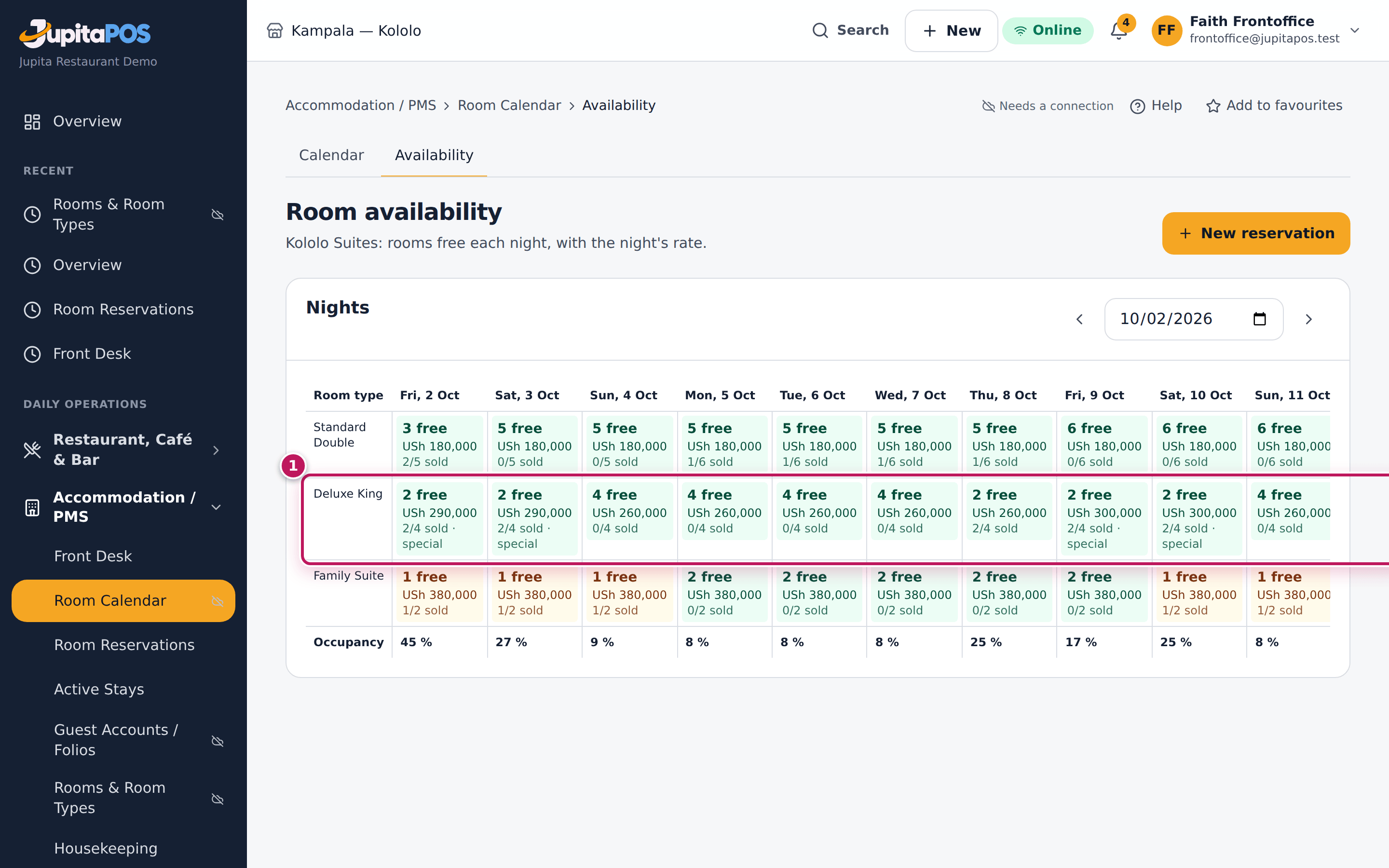
- Open Calendar (Room availability) to see each night’s rate and restriction.
Expected result
Rates set appears. In Room availability the chosen nights show the new price (or Closed, No arrivals, min. N nights); new bookings and quotes — at the desk and on the website — use them at once. The change is in the audit trail with who made it.
Screenshot
Common mistakes
- Expecting an old booking to change price. A booking keeps the rates it was taken at. To change one booking’s price, use Agreed nightly rate on the booking (it is recorded with the old and new terms).
- Typing the price for the whole weekend. The rate is per night.
- Forgetting the last night. To (inclusive) is the last night sold at that price, not the departure day.
Troubleshooting
- The Rates by date tab is greyed out. You do not have
accommodation.rates, or the property has no room type yet. - A guest is quoted the old price. The quote was opened before the change; search again.
- “No … room is free on every night” for open dates. A night of the stay is closed to sale, refuses arrivals, or is below the minimum stay — check the availability grid for that night.
See which rooms are free
Purpose
Answer “do you have a room on …?” at a glance: the rooms still free for each room type, night by night, with the night’s price.
Role / permission required
Anyone with accommodation.view — front office, receptionists.
Prerequisites
- Rooms are set up (see Set up rooms and rates).
Steps
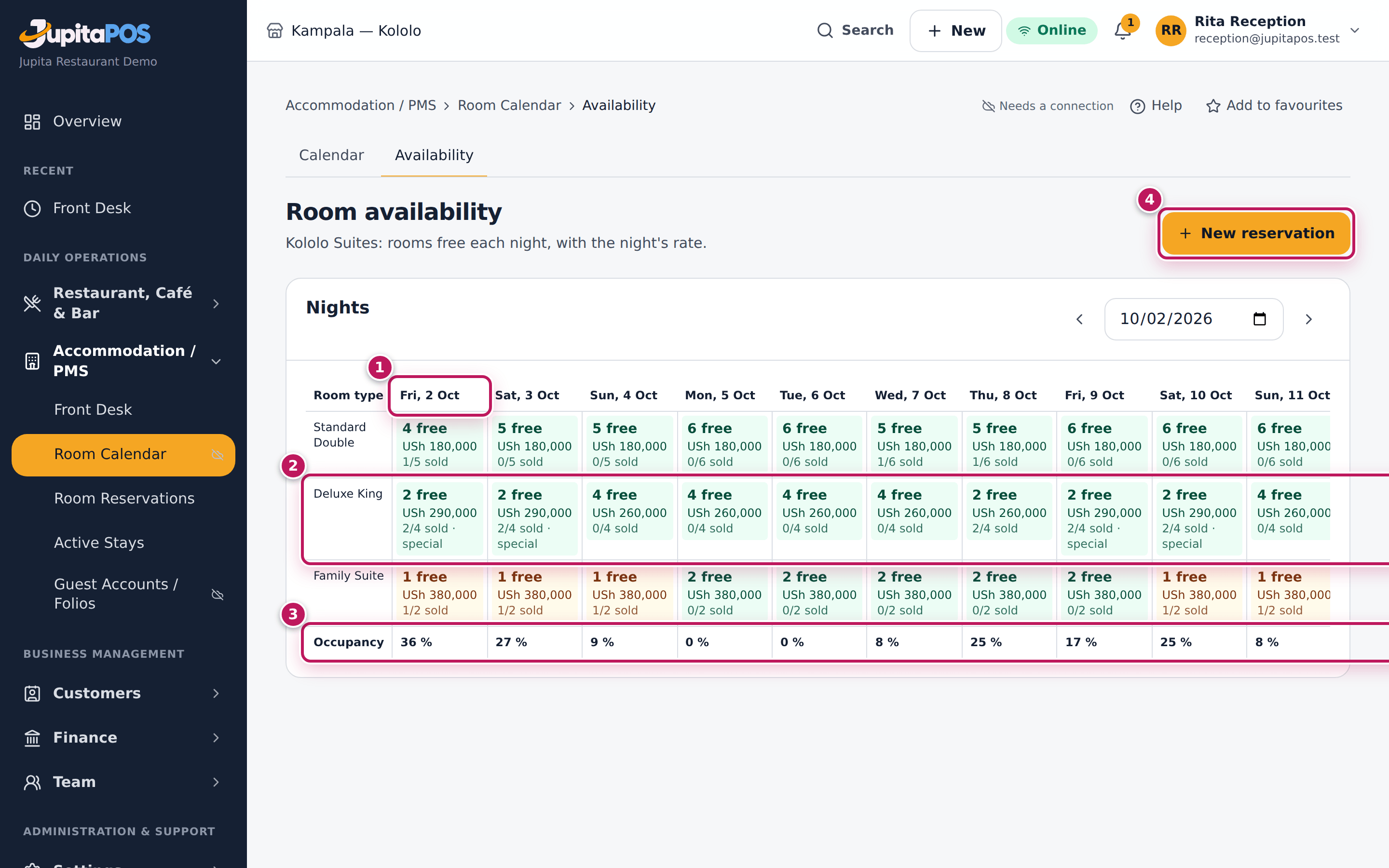
- Open Accommodation / PMS › Room Calendar › Availability in the menu. It opens on today (1). (Calendar shows each room by night; see Use the room calendar.)
- Read across a room type’s row (2): each night shows the rooms free, the night’s rate and how many are sold.
- Read the Occupancy row (3) for the whole property.
- Choose New reservation (4) to book from here.
Expected result
Each night shows n free with the price for that night; a night with nothing left shows it as full. Rooms out of order are not counted as free.
Screenshot
Common mistakes
- Counting a held request as a free room. A held booking takes a room until its hold runs out or you confirm or cancel it.
Troubleshooting
- A room type shows fewer rooms than you have. A room may be out of order on those dates; see Accommodation / PMS › Rooms & Room Types › Rooms in the menu, then Out of order.
Take a room booking
Purpose
Book a room for a guest who calls, writes or walks in, or who comes through a travel agent or a company: the dates, the room type at its price, the guest and the deposit asked.
Role / permission required
Receptionist or front office manager (accommodation.reservations).
Prerequisites
- Rooms are set up.
Steps
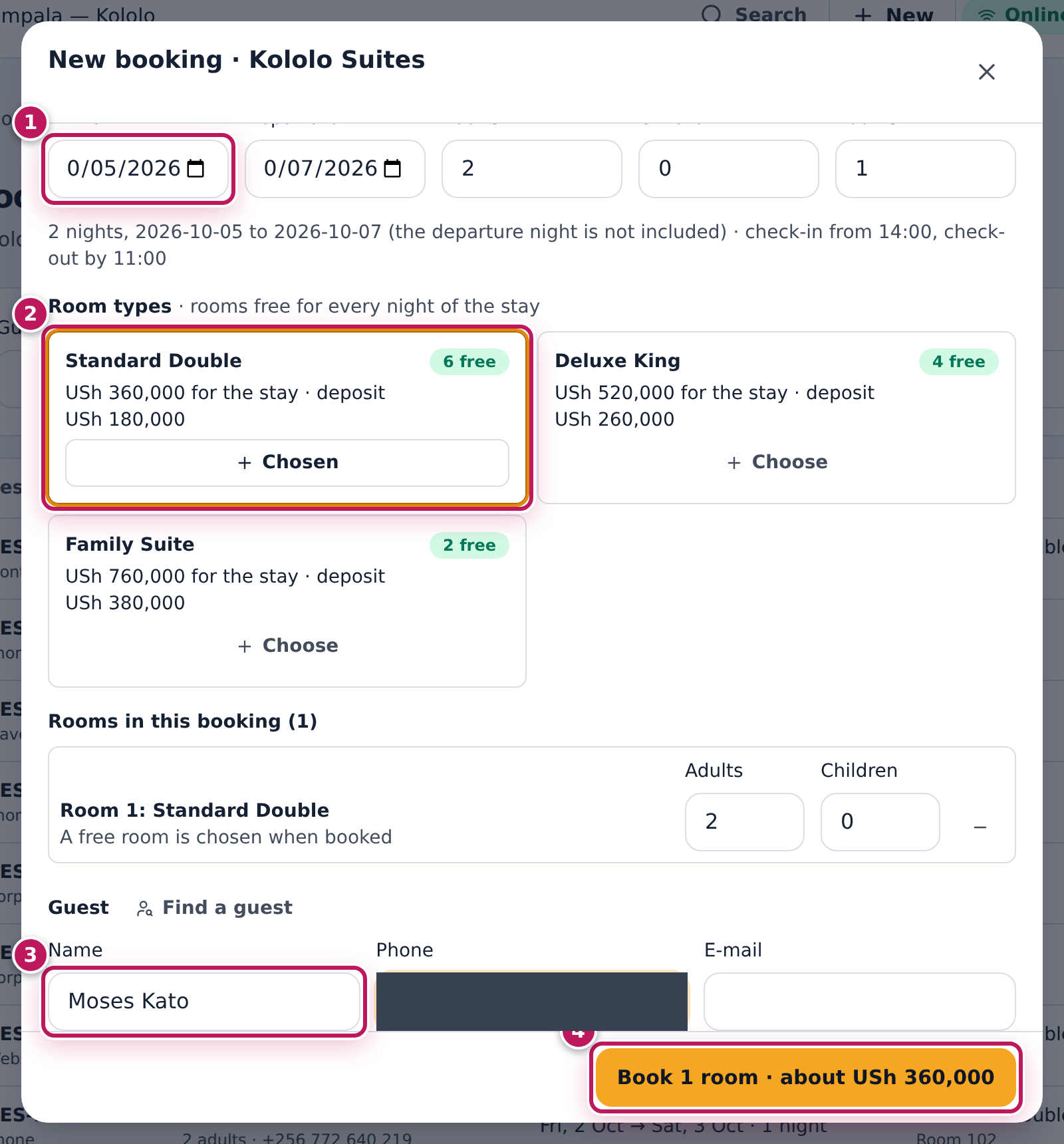
- Open Accommodation / PMS › Room Reservations and choose New reservation.
- Set Arrival (1) and Departure, the number of adults and children, and Rooms. The departure day is not a night of the stay: the next guest can arrive that day.
- Choose a room type (2). Each shows the rooms free for every night of the stay and the price for the whole stay, with the deposit asked.
- Type the guest’s Name (3) and Phone, or choose Find a guest for someone who has been before.
- Set the Status:
- Confirmed — the room is the guest’s.
- Pending — room held — the room is kept for the property’s hold hours, then released by itself.
- Pending — enquiry — the details are kept but no room is held; confirm it later, when the rooms are checked again.
- Set Came by: front desk, walk-in, phone, e-mail, website, travel agent or corporate. For a travel agent or a company, type its name.
- Choose Book (4).
Expected result
The booking opens with its number, Confirmed, its room, the nights with their rates and the deposit asked. Every confirmed or held booking is given a room straight away. If you chose none, the system picks a free one, a clean one first for an arrival today. That room is off sale for those nights.
Screenshot
Common mistakes
- Choosing a room number at booking time. You can (from the calendar), but a room you choose is kept as your choice: a later change that would need another room is refused rather than swapped. A room the system picked is moved by itself when the dates change.
- Booking a held room for a guest who has paid. Confirm it so it does not lapse.
- Taking an enquiry as a booking. An enquiry holds nothing; another guest can take the room.
Troubleshooting
- “No … room is free on every night”. Someone took the last room while you were typing, or the free rooms change during the stay. Choose another type or other dates.
- The price is not what you agreed. Use Agreed nightly rate with a note before booking, or Change on the booking.
Book several rooms at once
Purpose
Book two or more rooms for one party — a family, a company, a travel agent’s guests — in one booking that is taken whole or not at all.
Role / permission required
Receptionist or front office manager (accommodation.reservations).
Prerequisites
- Rooms are set up.
Steps
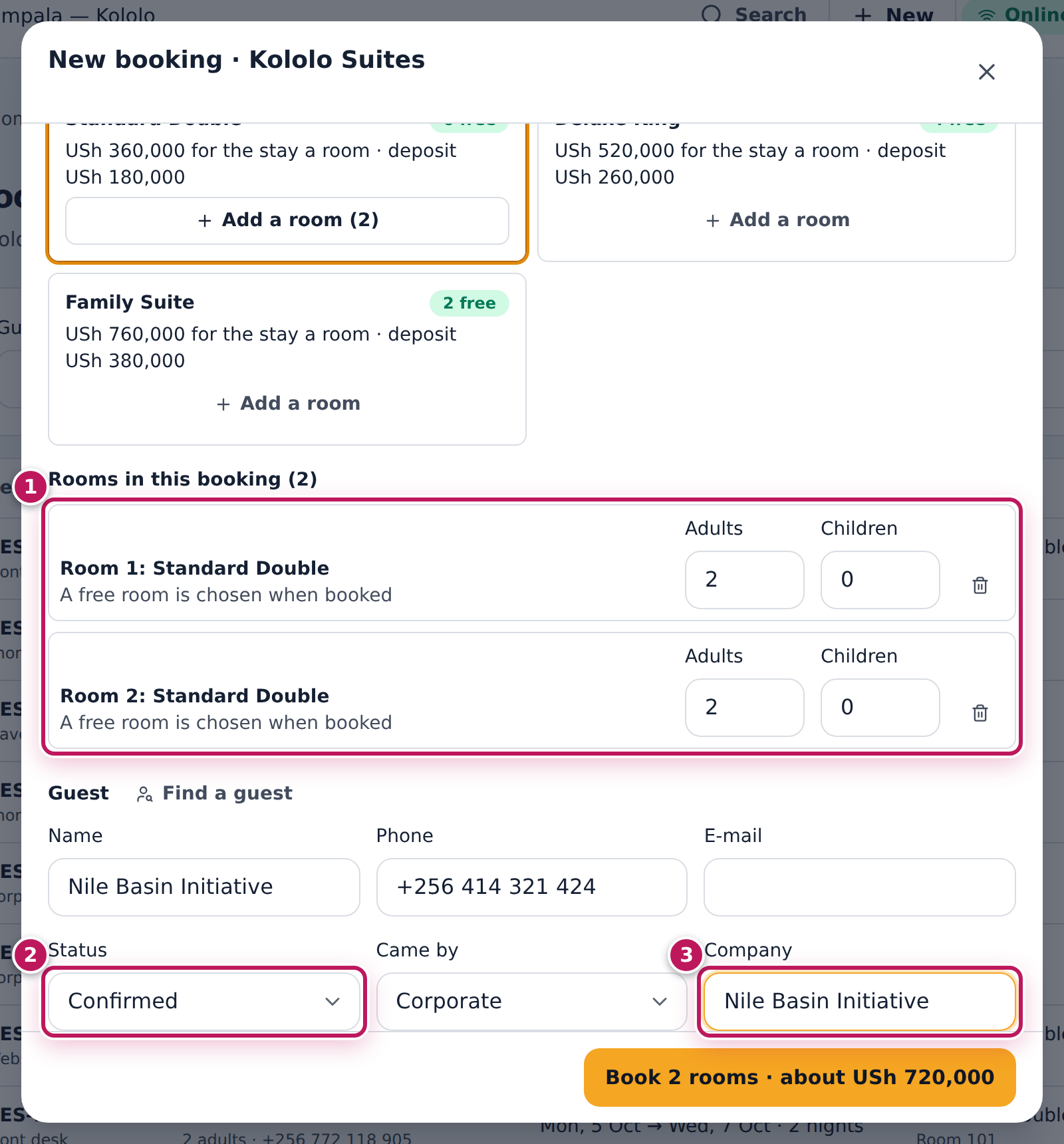
- Open Room Reservations, choose New reservation, and set the dates, all the adults and children, and the number of Rooms. Each room type is priced for the party shared over the rooms.
- Choose Add a room on a room type once per room. The rooms appear under Rooms in this booking (1): set each room’s adults and children.
- Type the guest, set the Status (2) and Came by; for a travel agent or company, type its name (3).
- Choose Book n rooms.
Expected result
One booking with a room line per room, each in its own room. If any room cannot be had — someone took it a moment before — nothing is booked, and the message says which room of the booking failed and why.
Screenshot
Common mistakes
- Booking each room separately. Separate bookings can leave half a party booked; one booking is all or nothing.
- Large groups and allotments. A booking holds at most 20 rooms; blocks of rooms held for an agent are not handled here.
Troubleshooting
- “Room 2 of 3: …” That room could not be had. Change its type or the dates, and book again.
Use the room calendar
Purpose
See every room night by night and change stays where they are: book a free night, move a stay to another room or dates, extend or shorten it.
Role / permission required
Anyone with accommodation.view can look. Booking needs
accommodation.reservations; changes need it or accommodation.front_desk.
Prerequisites
- Rooms are set up.
Steps
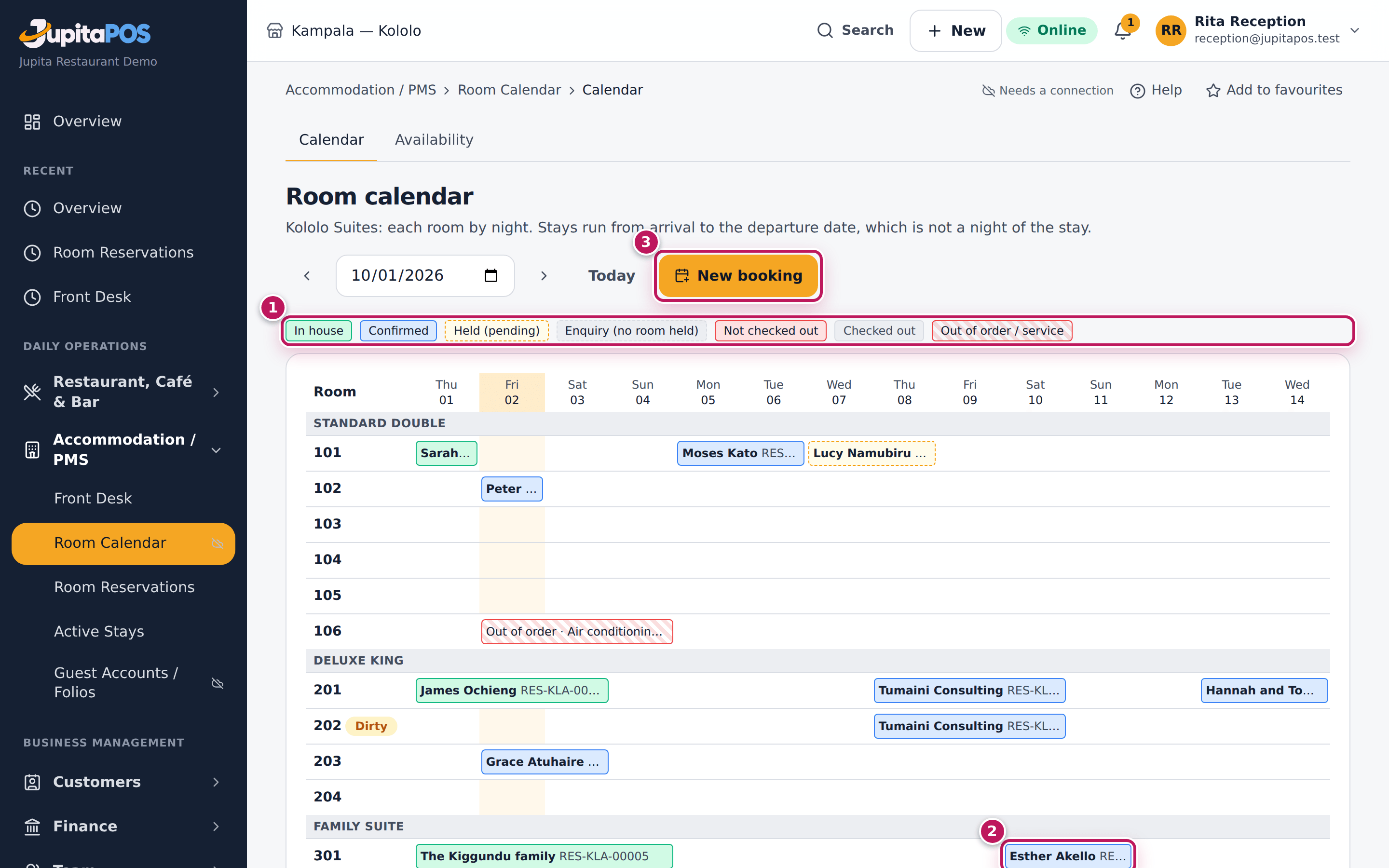
- Open Accommodation / PMS › Room Calendar › Calendar in the menu. Each row is a room; each column a night. The colours are in the legend (1): in house, confirmed, held, not checked out after the departure day, checked out, and out of order.
- To book, choose a free night in a room (or New booking (3)). The booking is for that room from that night.
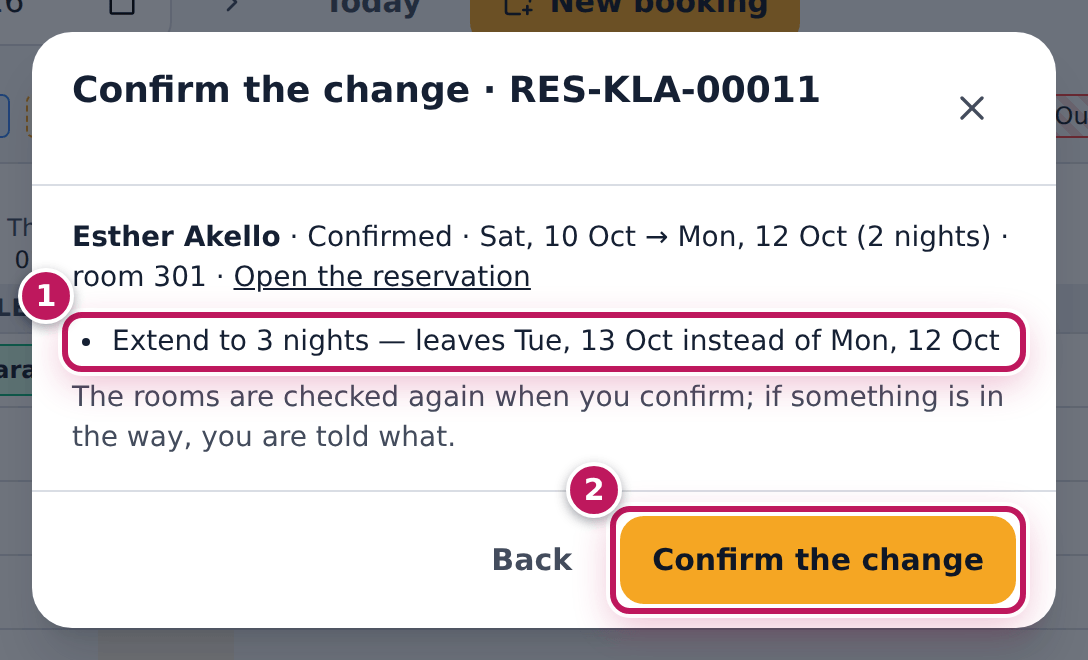
- To change a stay, choose it (2). Change the Room, the Arrival (the length is kept), or the Departure with − and +, then Review the change.
- Read what will change and choose Confirm the change. With a mouse you can also drag a stay onto a free night; it opens the same confirmation.
Expected result
The stay moves or changes length, and the calendar updates for everyone. Nights already charged keep their price; new nights take the rate of their date. The change is kept on the booking with its reason.
Screenshot
Common mistakes
- Reading the departure day as a night. A stay ends on its departure day without a night; the next guest can arrive that day, once the room is clean.
- Moving an in-house guest by changing dates. An in-house guest’s arrival stays; move them to another room instead.
Troubleshooting
- “Room 203 cannot be used: …” Something is in the way — another stay, a hold, a guest not yet checked out, or a block. The message names it.
- “Someone else changed this reservation”. Reload the calendar and try again.
- A guest is shown past the departure day. They have not checked out: the room stays theirs until they do.
Take, refund or keep a deposit
Purpose
Take money before the guest arrives (or at check-in) and hold it as the guest’s credit, so the room is secured; give it back when a booking is cancelled in time, or keep it when the terms say so.
Role / permission required
- Take a deposit: receptionist or front office manager
(
accommodation.folio). - Check a card or mobile-money deposit against the provider:
payments.verify(a manager). - Refund the deposit:
accommodation.folioandpayments.approve(a front office manager or a manager — a receptionist asks one).
Prerequisites
- The booking exists and is not cancelled.
- For a cash deposit, your till is open.
Steps
- Open the booking (Room Reservations, then the guest’s row).
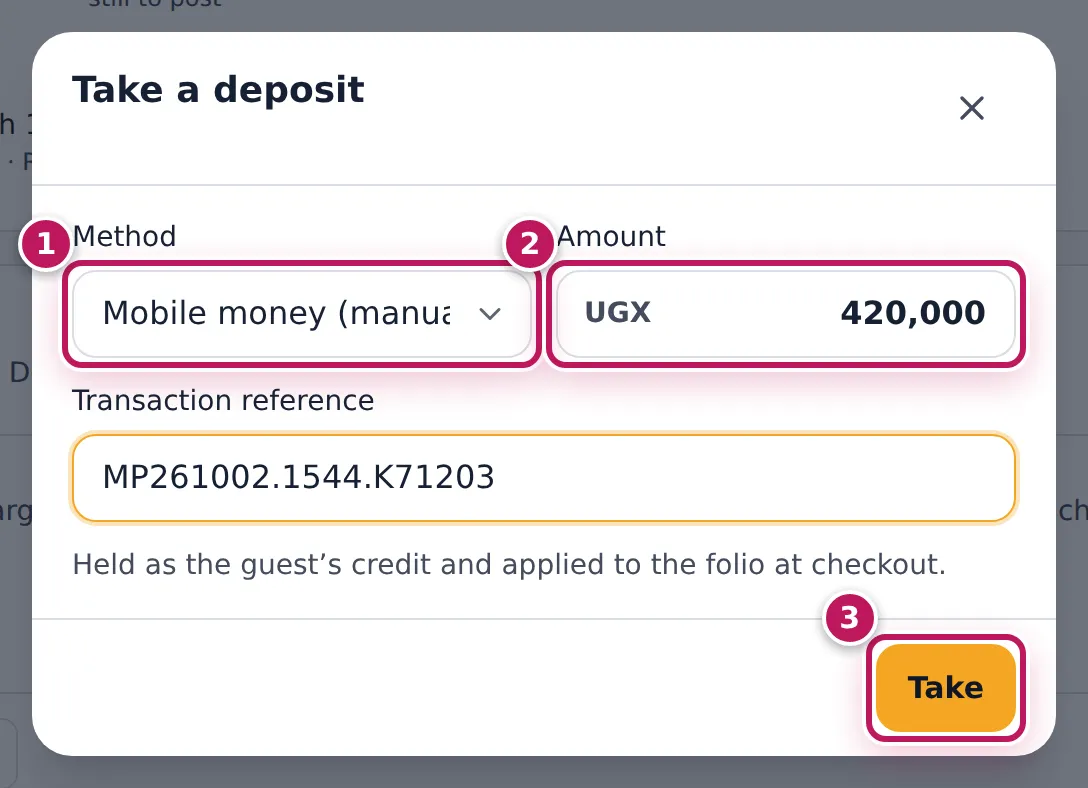
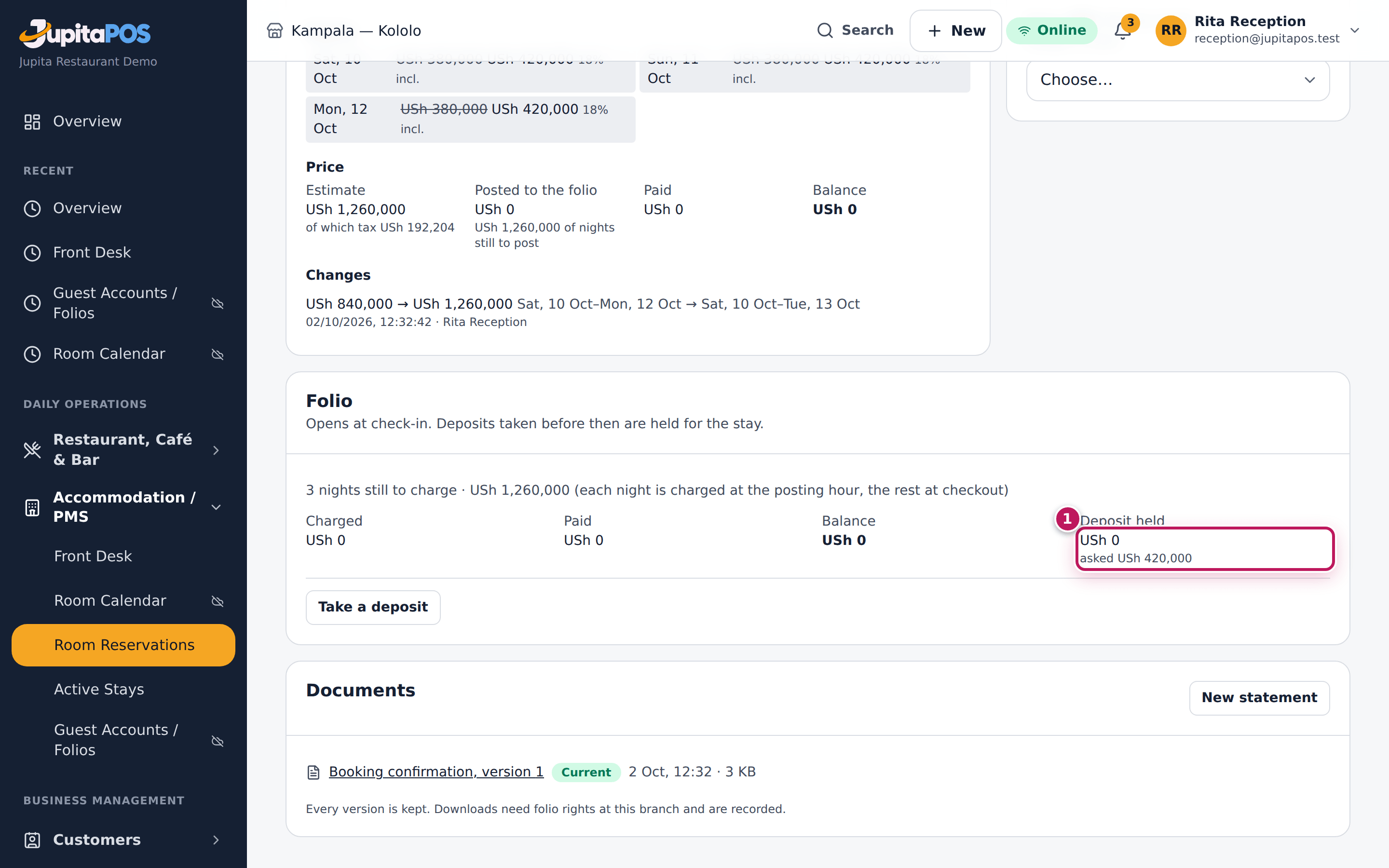
- On the folio card, choose Take a deposit.
- Choose the Method (1). The Amount (2) starts at what the property still asks for; change it if the guest pays another amount — a deposit is the one amount the desk types (deposits only where the owner has switched them on in Settings → Deposits).
- For mobile money, a bank transfer or a card on the card machine, type the Transaction reference from the provider’s message or slip.
- Choose Take (3).
- A deposit by card, mobile money or transfer counts once it is checked: a manager opens the folio page and verifies it against the provider (see Read and settle a folio in full). Attach the proof of a transfer there too.
- If the booking is cancelled in time, choose Refund the deposit, set the Amount, tick Paid back in cash from the till if you give cash, add a Note and choose Refund.
- If the terms keep the deposit (a late cancellation, a no-show), choose Keep the deposit, set the Amount kept, name the Charge and choose Keep.
Expected result
Deposit taken appears and the folio card shows Deposit held with the amount (and asked when the property asks for one). A manual card or mobile-money deposit is listed as awaiting verification until it is checked. The deposit is applied to the folio at check-in (up to what is charged) and the rest at checkout. In the books it sits in Deposits held until it is used, refunded or kept.
Screenshot
Common mistakes
- Taking the deposit as a payment. Use Take a deposit, not Take a payment, before the guest arrives: a deposit is held as the guest’s credit; a payment pays charges.
- Refunding a deposit from the payments list. Use Refund the deposit on the folio card so the books and the folio agree.
- Typing a reference from memory. Copy it from the provider’s message; the manager checks it against the statement.
Troubleshooting
- “Open your till” when taking cash. Open your till first, or take the deposit by another method.
- The deposit does not count at check-in. It is still awaiting verification: a manager verifies it on the folio page, or the property’s front office manager overrides with a reason.
- Refund the deposit is not offered. The guest is in house — the deposit will be used at checkout — or nothing is held.
- “Refunding a deposit needs a manager’s approval”. Ask someone with
payments.approveto refund it.
Check a guest in
Purpose
Give an arriving guest their room, record who they are and take the deposit, so their folio is open for the stay.
Role / permission required
Receptionist or front office manager (accommodation.front_desk; the
deposit also needs accommodation.folio). Overriding a room not yet clean
or a deposit not received needs a front office manager
(accommodation.override) and a reason.
Prerequisites
- The guest has a confirmed booking arriving today (or earlier). An enquiry holds no room: confirm it first.
- To take a cash deposit, your till is open.
- When the property requires the deposit before check-in (Settings → Deposit at check-in), the deposit is held: in cash at the desk, or a transfer already verified.
- When the property records an identity document at every check-in, have the guest’s document at hand.
Steps
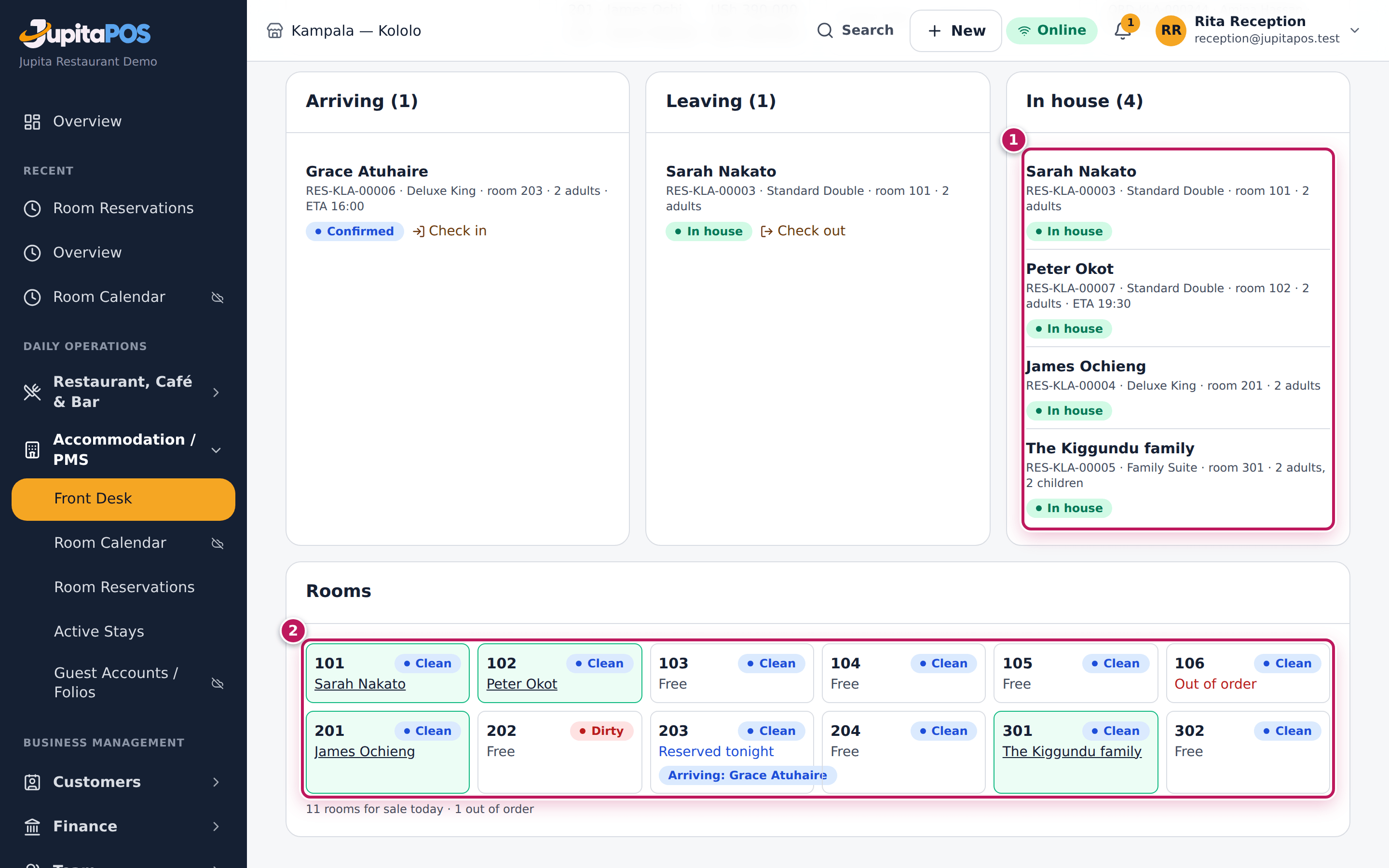
- Open Accommodation / PMS › Front Desk › Today in the menu (the Front desk). Under Arriving, choose Check in next to the guest.
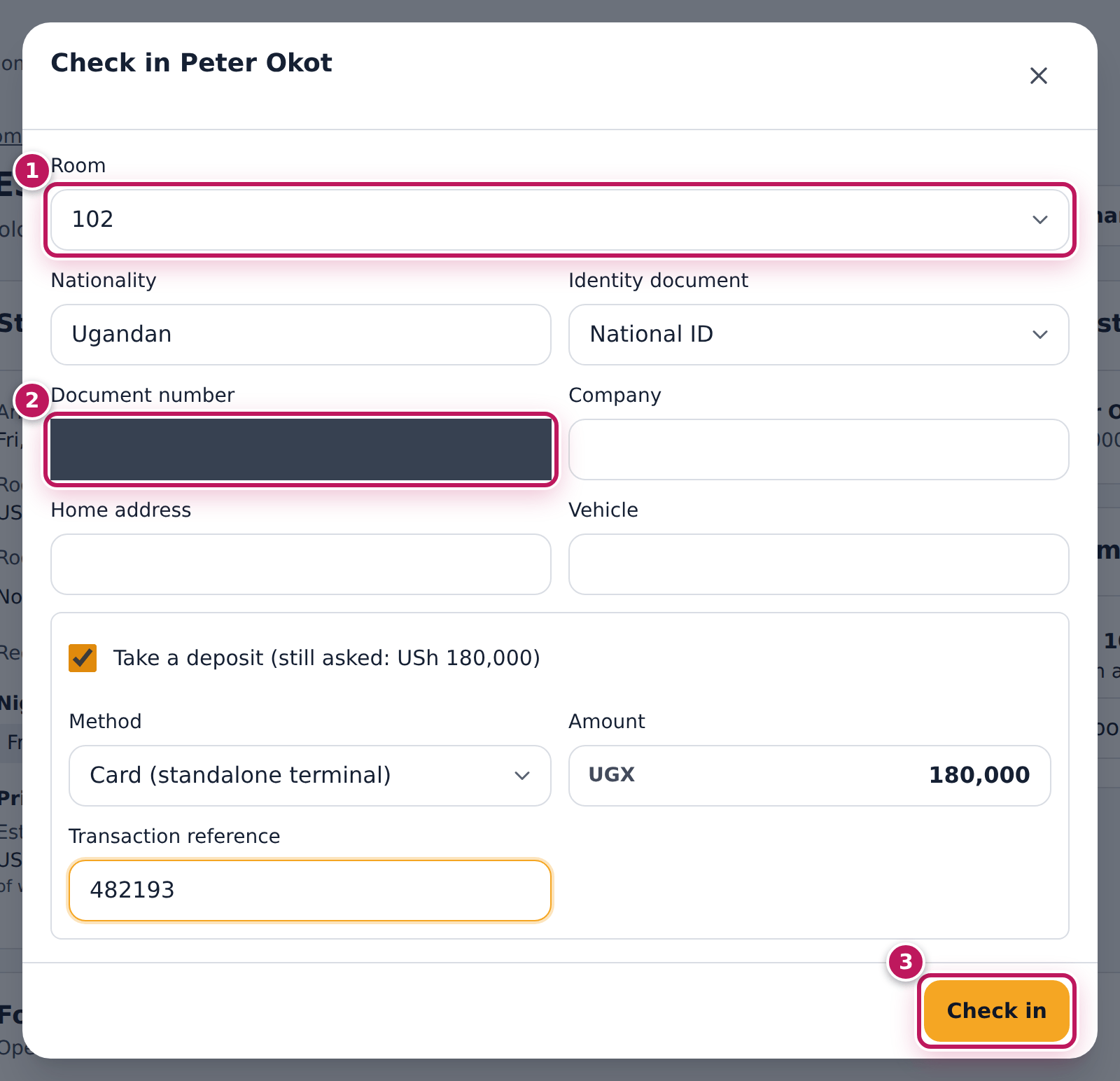
- Choose the Room (1). Clean, free rooms of the booked type are offered first.
- Fill in the registration: Nationality, Identity document and Document number (2).
- Leave Take a deposit ticked, choose the Method and, for a card or mobile money, the Transaction reference.
- Choose Check in (3).
Expected result
The guest is In house in the room you chose and the folio is open. The
deposit is applied to it as a payment, up to what is charged so far; the rest
stays held and is applied at checkout. A deposit by card or mobile money
counts once someone with payments.verify checks it on the folio page. The
front desk shows the guest under In house.
Screenshot
Common mistakes
- Checking a guest into a room not yet cleaned. The room list warns you. Only a front office manager can override it, with the reason (for example “aired and checked by Faith”); the reason is kept on the stay’s history.
- Taking cash with no till open. If the deposit is optional the guest is still checked in, but the deposit is not taken: open your till and take it from the folio.
Troubleshooting
- “Checked in, but the deposit was not taken”. Open the booking and use Take a deposit on the folio.
- “The deposit asked is not received yet”. The property checks guests in once the deposit is held. Take it in cash, have a transfer verified, or ask a front office manager to override with a reason.
- “This booking is an enquiry”. Confirm the booking first (it then takes a room).
- You pressed Check in twice. Nothing happens twice: the second request shows the stay already checked in.
- The guest arrives early, before the booking’s date. Change the arrival date on the booking first.
Charge extras and take payments on the folio
Purpose
Put what the guest uses on their bill — laundry, minibar, transfers, room service — and take payments during the stay.
Role / permission required
Receptionist or front office manager (accommodation.folio).
Prerequisites
- The guest is in house.
Steps
- Open the guest’s booking from Front Desk or Room Reservations.
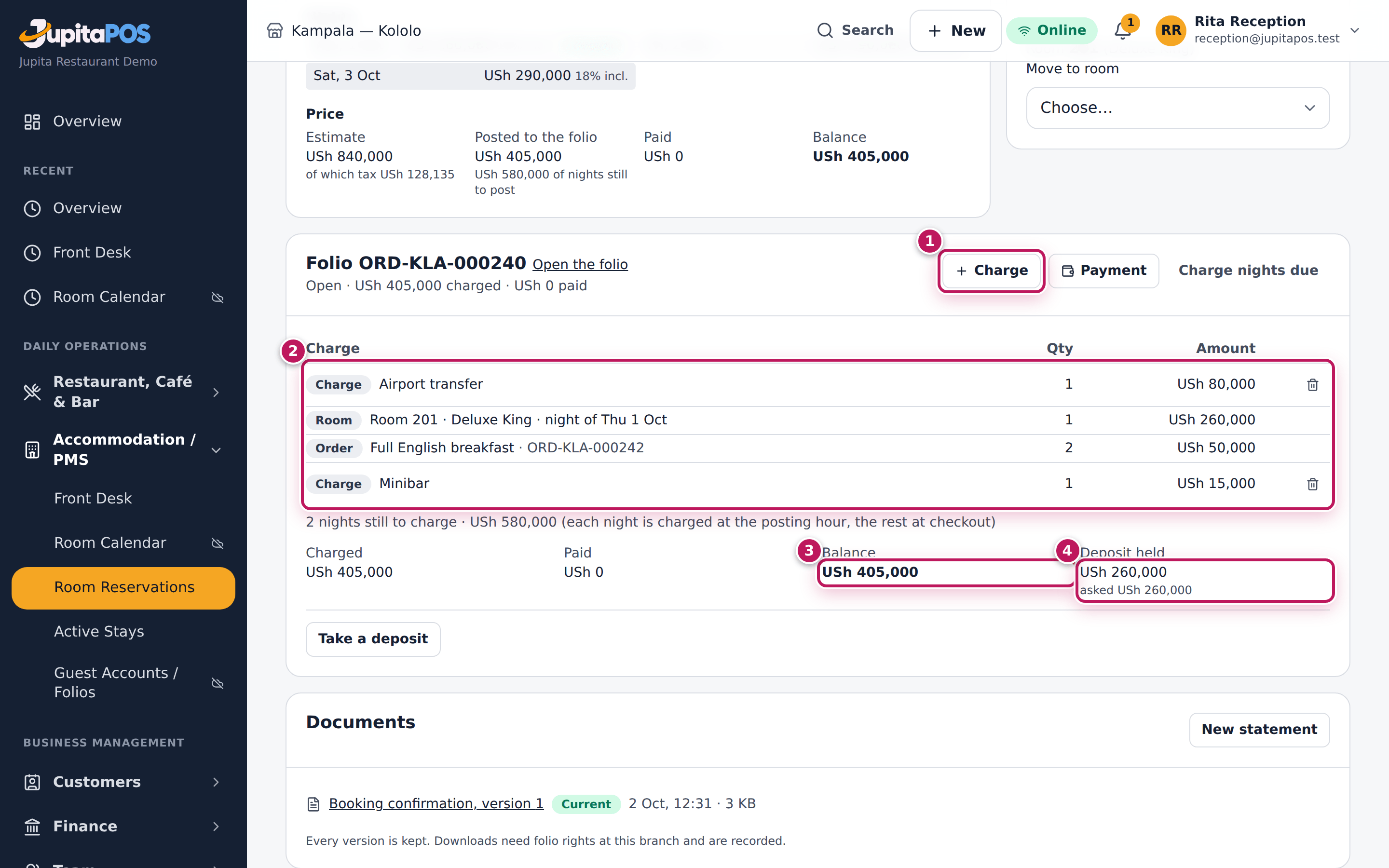
- On the folio, choose Charge (1), pick the item (Laundry, Minibar, Airport transfer…) and the quantity, and save. The price is the item’s listed price.
- Read the lines (2): the nights already charged, extras and orders moved from the restaurant or bar.
- Read Balance (3) and Deposit held (4).
- To take money now, choose Payment.
Expected result
The extra appears on the folio and the balance goes up by its amount. Each night is charged at the posting hour; nights still to come are shown under the lines.
Screenshot
Common mistakes
- Typing the restaurant’s bill as a charge. Charge the order to the room from the till instead (see below), so the items, stock and tax are right.
Troubleshooting
- A charge was a mistake. Remove it with the bin next to it, while the folio is open, and give the reason. The charge is voided, not erased: the folio page keeps it, struck through, with your reason. A night cannot be removed: a manager corrects its price on the folio page, or the stay is shortened.
- A payment shows “awaiting verification”. A card or mobile-money
payment typed in by hand counts only when someone with
payments.verifychecks it on the folio page. Cash is taken by the cashier on duty, with their till open. - “Another price needs a manager”. A charge at a different price, an
item priced each time (Damage or loss) or a charge typed by hand needs
accommodation.rates. Ask the front office manager, or add the item to the charge list (below).
Room service and restaurant bills charged to the room. At the till, an unpaid order can be moved onto an in-house guest’s folio with Charge to room: choose the room from the rooms in house. The order keeps its items and prices; the guest pays at checkout. A stay can refuse charges (for example a booking paid by a company); the till then asks for payment.
Read and settle a folio in full
Purpose
See everything on a guest’s bill and where it came from:
- each charge with its date, department and source (the reservation, or the restaurant or bar bill it was moved from);
- payments, deposits, invoices and receipts, credits and history.
Verify payments, correct a charge, refund, and print or export the statement.
Role / permission required
- Reading: anyone with
accommodation.view. - Corrections:
accommodation.rates. - Verifying payments and deposits:
payments.verify. - Refunds:
sales.refund; a refund needs a manager’s approval (payments.approve). - Giving back a deposit:
payments.approve.
Prerequisites
- The guest has a folio (checked in, or a deposit taken).
Steps
- On the booking’s folio card, choose Open the folio. You can also choose the folio number under Guest Folios.
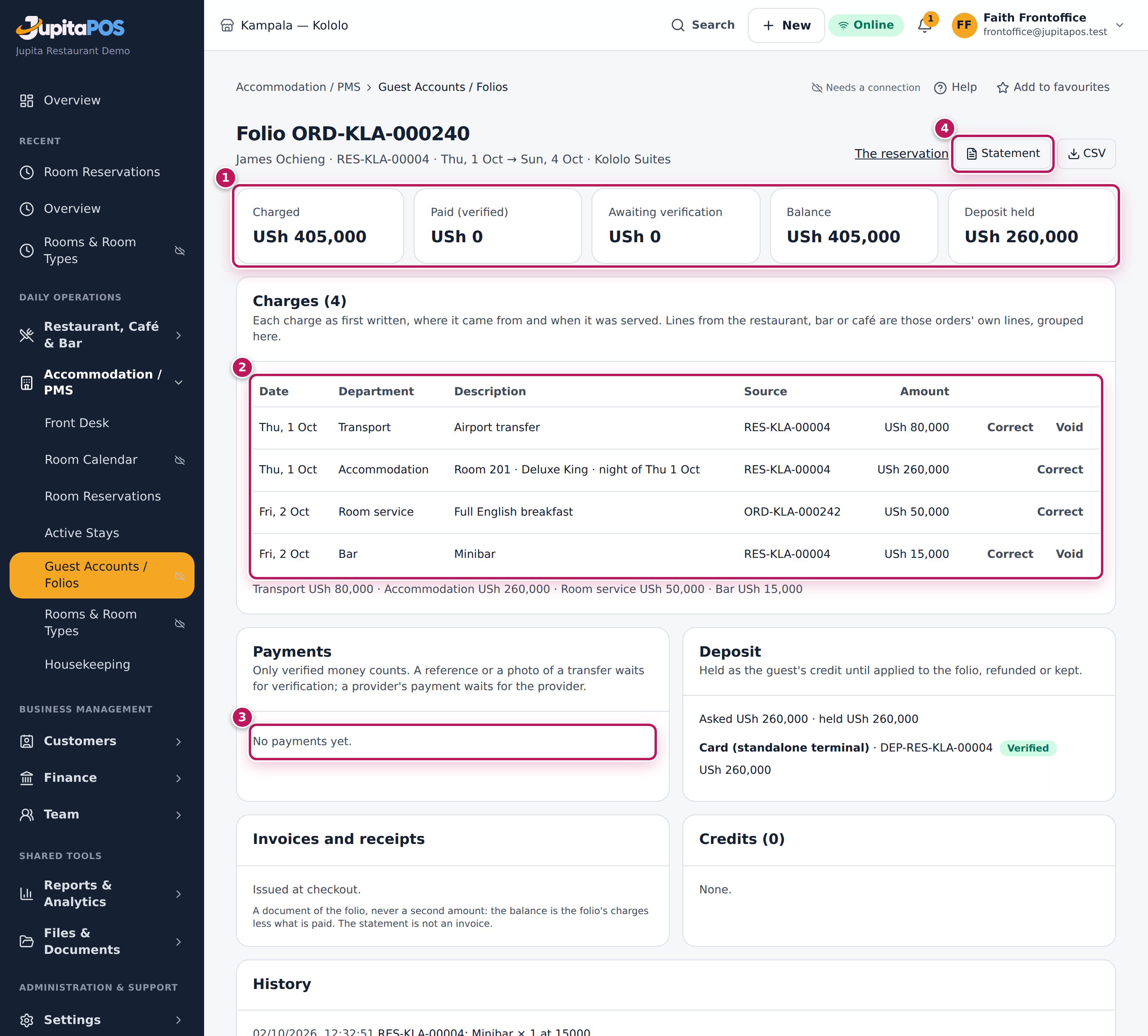
- Read the totals (1):
- Charged;
- Paid (verified);
- Awaiting verification;
- Balance;
- Deposit held.
- Read the charges (2): each line’s date, department, source document and
status.
- To change a price, choose Correct, then type the new amount and the reason.
- To take an extra off, choose Void.
- Under Payments (3), choose Verify once you have seen the money for a card or mobile-money payment, or Fail with the reason. Choose Refund to give money back.
- Under Deposit, attach the proof for a deposit paid by transfer or mobile money. Choose Verify once the money is seen.
- Choose Statement (4) to print it, or CSV to export it.
Expected result
- The balance is what the guest still owes. It counts verified money only.
- A corrected charge shows the old line struck through, with the reason, above the new one. The difference is the change in the balance.
- The statement lists the same lines and totals.
Screenshot
Common mistakes
- Treating a screenshot of a transfer as payment. Attach it as proof. The payment counts only when someone verifies it against the account or the phone.
- Handing the statement over as the tax invoice. The statement is not an invoice. The receipt or tax invoice is issued at checkout.
- Refunding the deposit from the payments list. The part of a deposit applied to the folio has paid for charges. What is still held is given back with Refund the deposit on the folio card, after checkout or a cancellation.
Troubleshooting
- “Refunding needs sales.refund.” Ask a manager.
- A refund shows “pending approval”. It waits for a manager in the approvals inbox. No money has moved yet.
- “Open your till first.” Cash on a folio is taken by the cashier on duty. Open your till, or ask the cashier.
- The deposit is not under Payments before check-in. A deposit is held as the guest’s credit. At check-in it is applied once, up to what is charged so far. The rest is applied at checkout.
Check a guest out
Purpose
Settle the stay in steps you can follow:
- every night charged;
- the deposit used;
- open room-service orders decided;
- what is left paid or put on the guest’s account;
- the receipt or tax invoice issued;
- the room sent to housekeeping.
Role / permission required
Receptionist or front office manager (accommodation.front_desk and
accommodation.folio). Putting the balance on account needs a manager’s
approval.
Prerequisites
- The guest is in house. For an early departure, the guest confirms they are leaving today.
Steps
- Open Accommodation / PMS › Front Desk › Today in the menu (the Front desk). Under Leaving, choose Check out next to the guest. For an in-house guest, use Check out on the reservation.
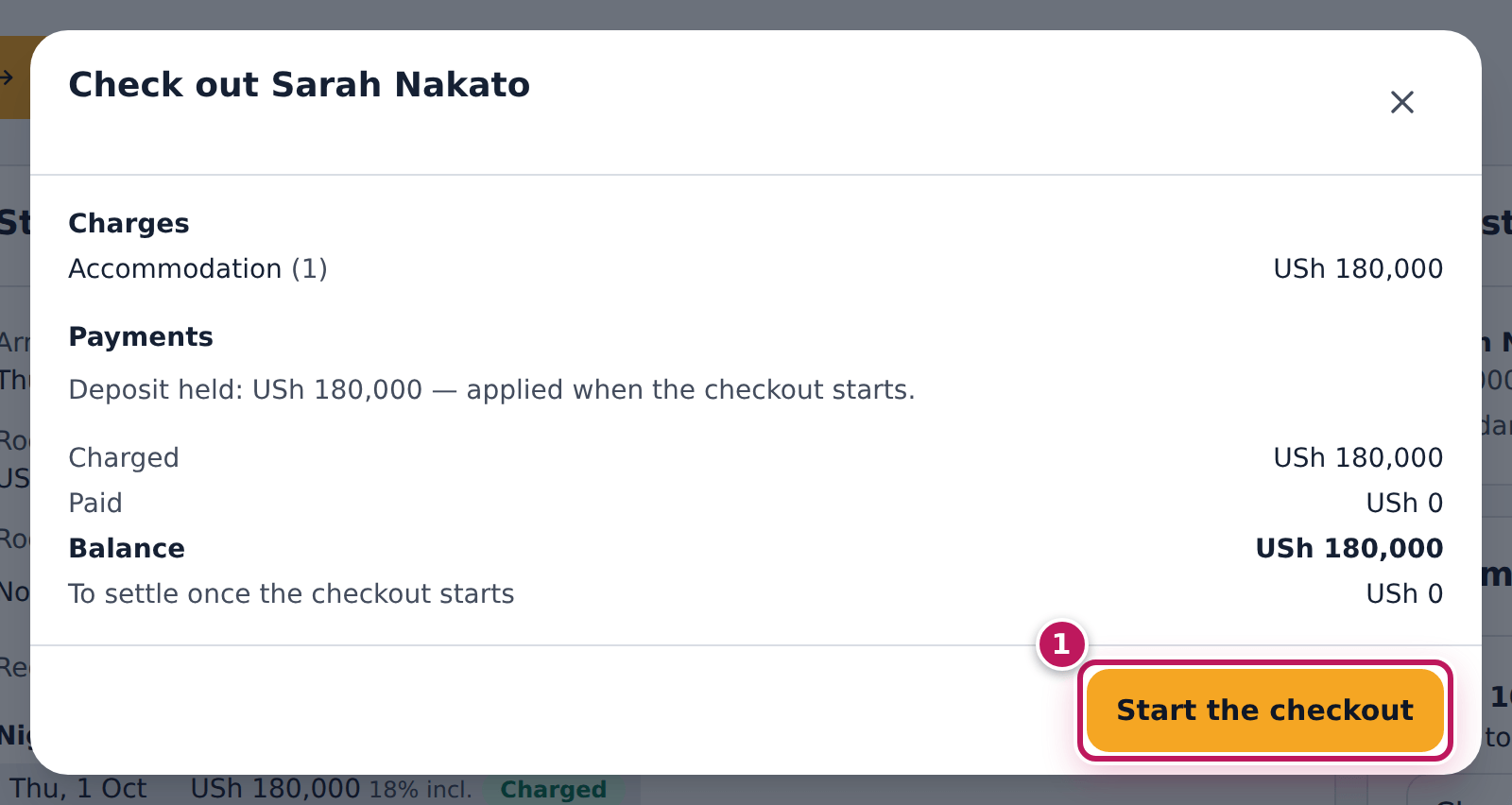
- Read the preview: the charges by department, payments, any deposit still held and the Balance. If the guest leaves early, tick Leaving early.
- Choose Start the checkout (1). The stay is now Checking out: no new charges reach the room. The preview shows the orders still open for the room.
- For each open room-service order, choose Add to the folio or Paid apart.
- If something is left, take it under Take a payment, or tick Put what is left on the guest’s account. The Amount to pay is the balance the system computes — it cannot be typed. For cash, type the Cash handed over to see the change. To pay with two methods (part cash, part MTN), tick Split the payment, type what this method pays (less than the balance), take it, then take the rest — again the computed balance — by the other method.
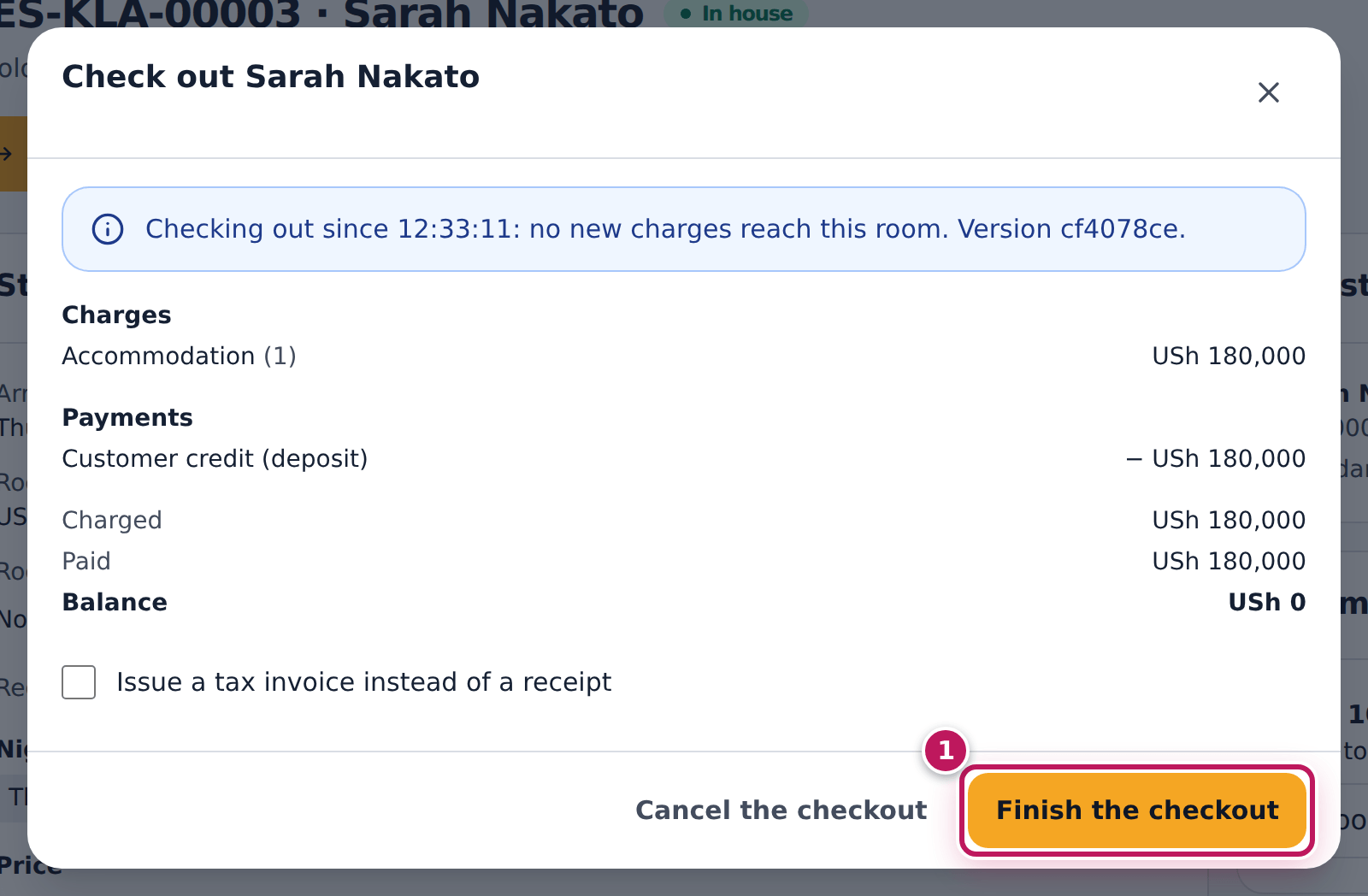
- Choose Finish the checkout (second picture, 1).
Expected result
- The stay is Checked out, and the folio is closed with its receipt (or invoice).
- The room becomes Dirty, with one checkout clean on the housekeeping board.
- Money put on the guest’s account shows as owed by the guest (a receivable), not as money received.
Screenshot
Common mistakes
- Leaving a checkout half done. While a stay is Checking out, the till cannot charge orders to the room. Finish the checkout, or cancel it.
- Taking the payment again after a network error. Choose Take the payment again: the same payment is found, never taken twice.
Troubleshooting
- “The folio changed since the checkout was shown”. Something was added or paid in the meantime: read the new preview and finish again.
- “A payment has no known outcome yet”. Choose Check its status: the payment is looked up (and the provider asked) before anything else.
- The guest stays after all. Choose Cancel the checkout and give the reason. The guest is in house again, and payments already taken stay on the folio.
- A charge turns up after the guest left (the minibar). A manager adds it as a charge after checkout. It goes on a separate bill for the stay, which is paid or put on the guest’s account; the closed folio is not reopened.
Move a guest to another room, or extend the stay
Purpose
Give an in-house guest another room (a fault, a request, an upgrade), or keep them longer. The booking, the stay and the folio stay the same.
Role / permission required
Receptionist or front office manager (accommodation.front_desk). A room
of another type changes the price, so it needs accommodation.rates.
Prerequisites
- The guest is in house and not checking out.
- The new room is clean and free for the rest of the stay.
Steps
- Open the guest’s reservation.
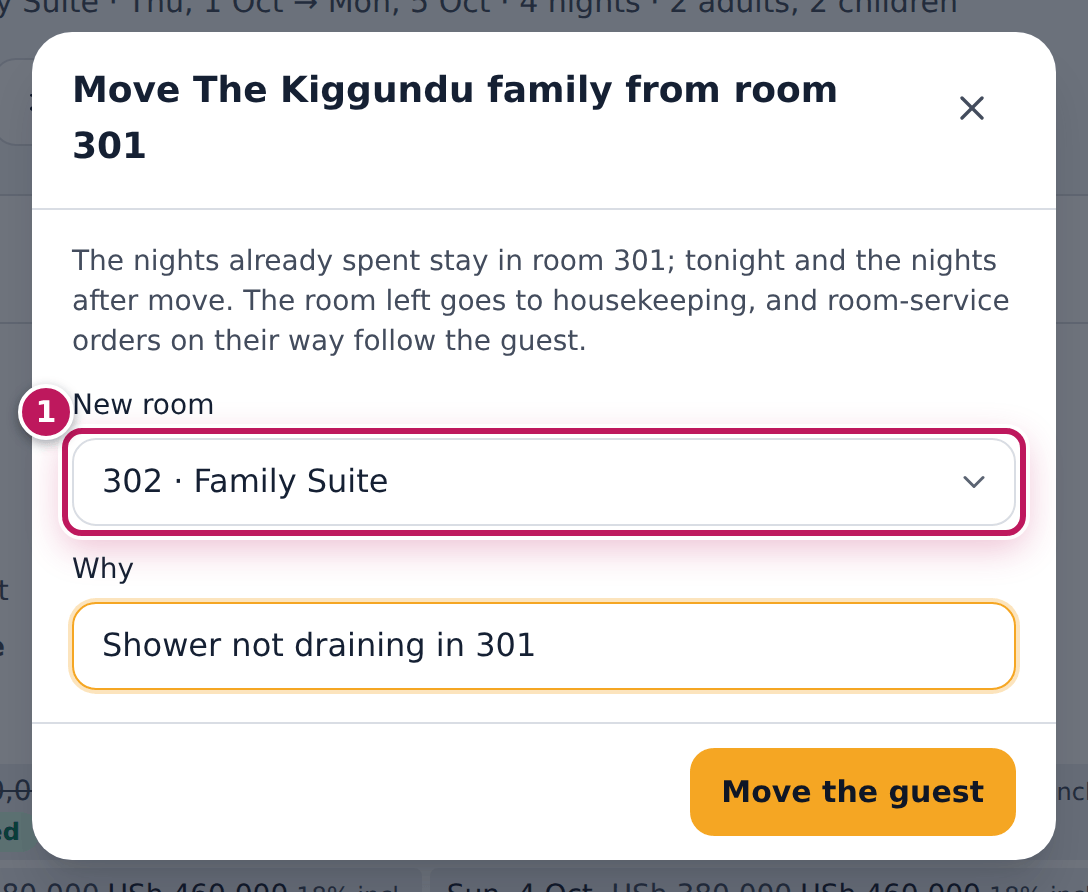
- To move rooms, choose Move room. Pick the New room (1), say Why, and choose Move the guest.
- To keep the guest longer, choose Extend, set the New departure, and choose Extend.
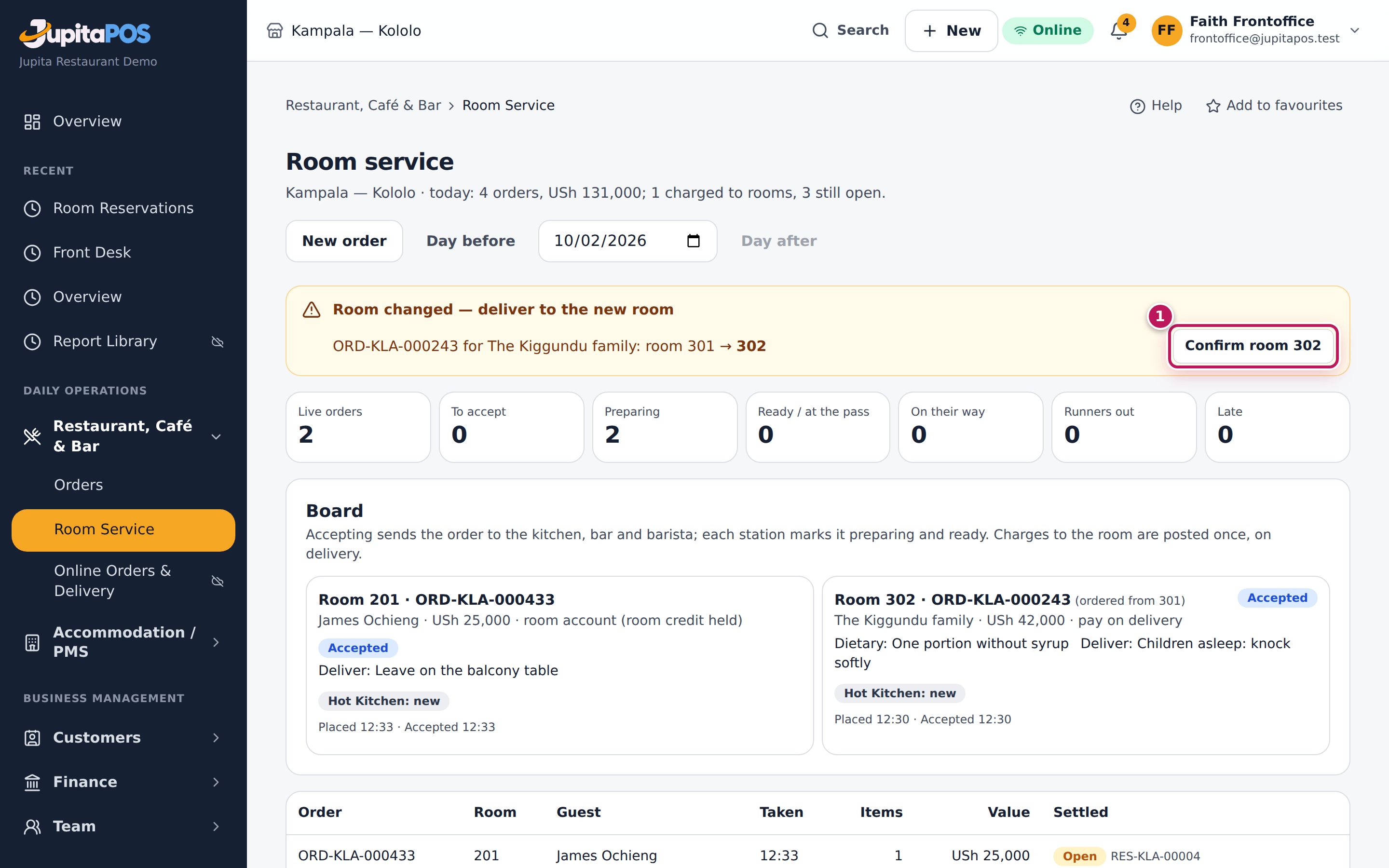
- If room-service orders were on their way, the runner confirms the new room on Room Service: Confirm room … (second picture, 1).
Expected result
- The guest is in the new room from tonight. The nights already spent stay in the old room, and the stay page lists the move under Rooms during the stay.
- The room left goes to housekeeping.
- Orders on their way show the new room on the expeditor’s board and the room-service list.
Screenshot
Common mistakes
- Moving by editing the booking’s room on the calendar without a reason. It works, but say why on Move room, so the history explains it.
Troubleshooting
- “Room … has not been cleaned yet”. Choose a clean room, or wait for housekeeping.
- “The guest’s room cannot be kept” when extending. The room is booked by someone else on the new nights: move the guest to a free room first, then extend.
Take a walk-in guest
Purpose
Give a room tonight to a guest who arrives without a booking, with their identity checked at the desk.
Role / permission required
Receptionist or front office manager (accommodation.front_desk and
accommodation.reservations; a deposit needs accommodation.folio).
Prerequisites
- A room of the type is free and clean tonight.
- The guest shows an identity document.
Steps
- On the Front desk, choose Walk-in.
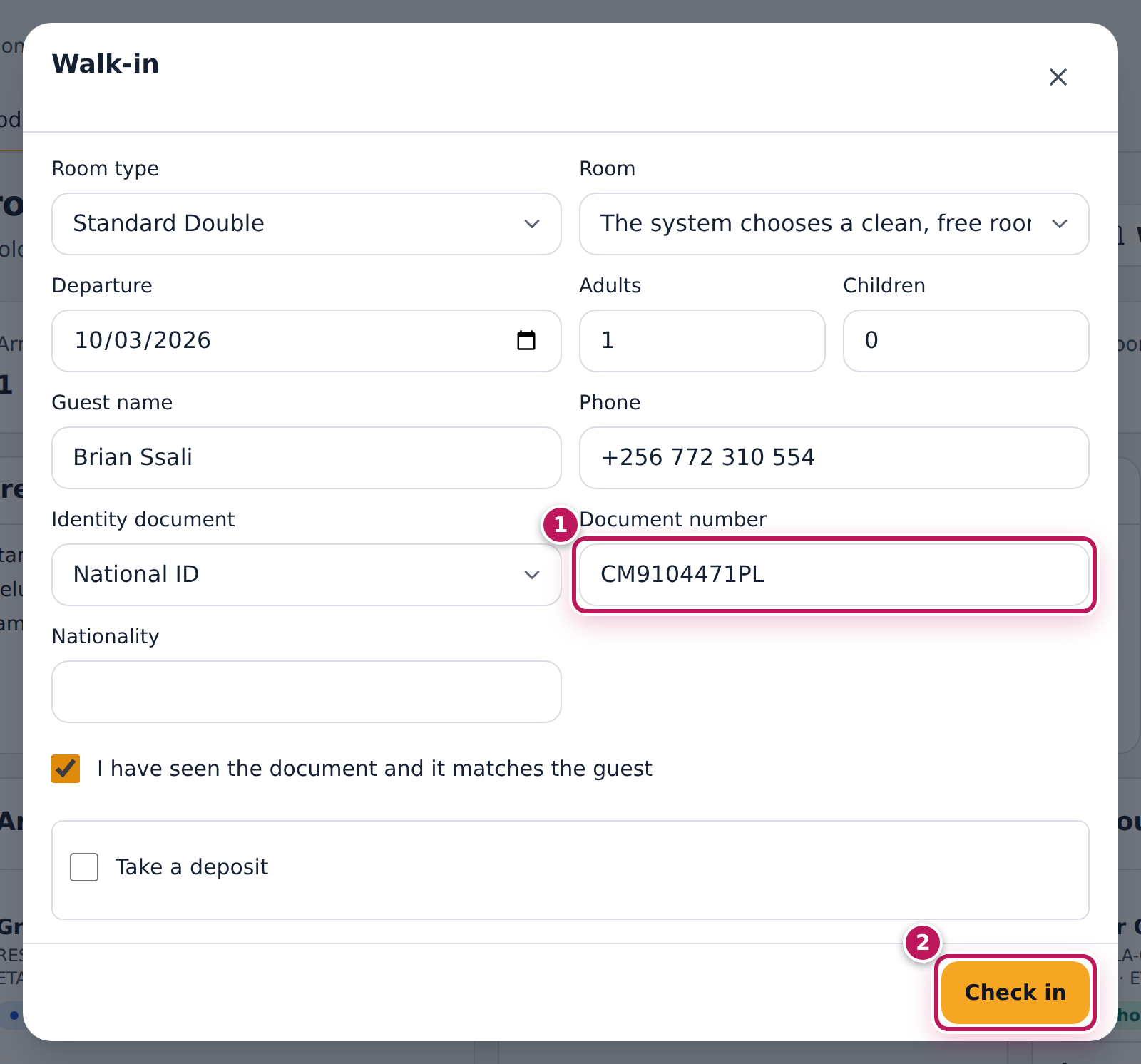
- Choose the Room type, and a Room, or let the system choose a clean, free one.
- Set the Departure, the guests, the Guest name and Phone.
- Record the Identity document and Document number (1). Tick I have seen the document and it matches the guest.
- Take a deposit if you need one, then choose Check in (2).
Expected result
The guest is In house in the room. Their booking (source Walk-in) and registration are recorded, and the folio is open.
Screenshot
Common mistakes
- Typing the document without seeing it. The walk-in is checked in on the document the desk has seen; keep the box honest.
Troubleshooting
- No room is offered. Every room of the type is taken or not clean tonight: choose another type, or wait for housekeeping.
- The screen froze and you pressed Check in again. The same walk-in is found, never booked twice.
See who is in house
Purpose
See every guest in house now, and which stays are being checked out.
Role / permission required
Anyone with accommodation.view.
Prerequisites
- None.
Steps
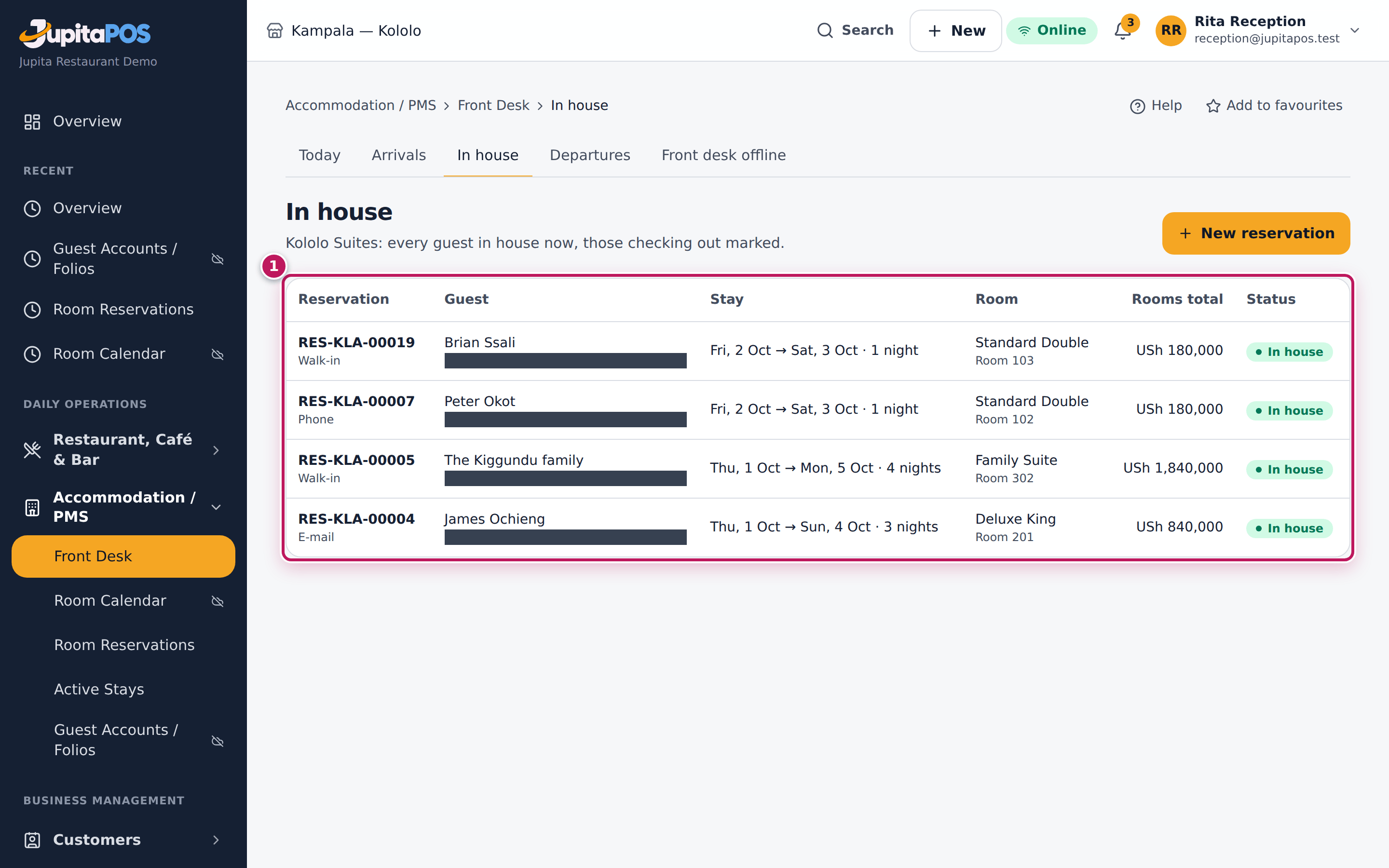
- Open Accommodation / PMS › Front Desk › In house in the menu.
- Read the list (1): room, dates and status. A stay being checked out shows Checking out.
- Choose a guest to open the stay.
Expected result
Every guest in house is listed, with their room and dates.
Screenshot
Common mistakes
- Expecting today’s arrivals here. Guests appear once checked in; arrivals are under Arrivals.
Troubleshooting
- A guest shows Checking out for a long time. The checkout was started and not finished: open the stay and finish or cancel it.
Clean and ready rooms
Purpose
Know which rooms to clean, mark your work as you go, and tell the front desk when a room is ready.
Role / permission required
Housekeeper or front office manager (accommodation.housekeeping).
Prerequisites
- None: checkouts add their cleans by themselves, and stay-over service is added each morning for the rooms in house.
Steps
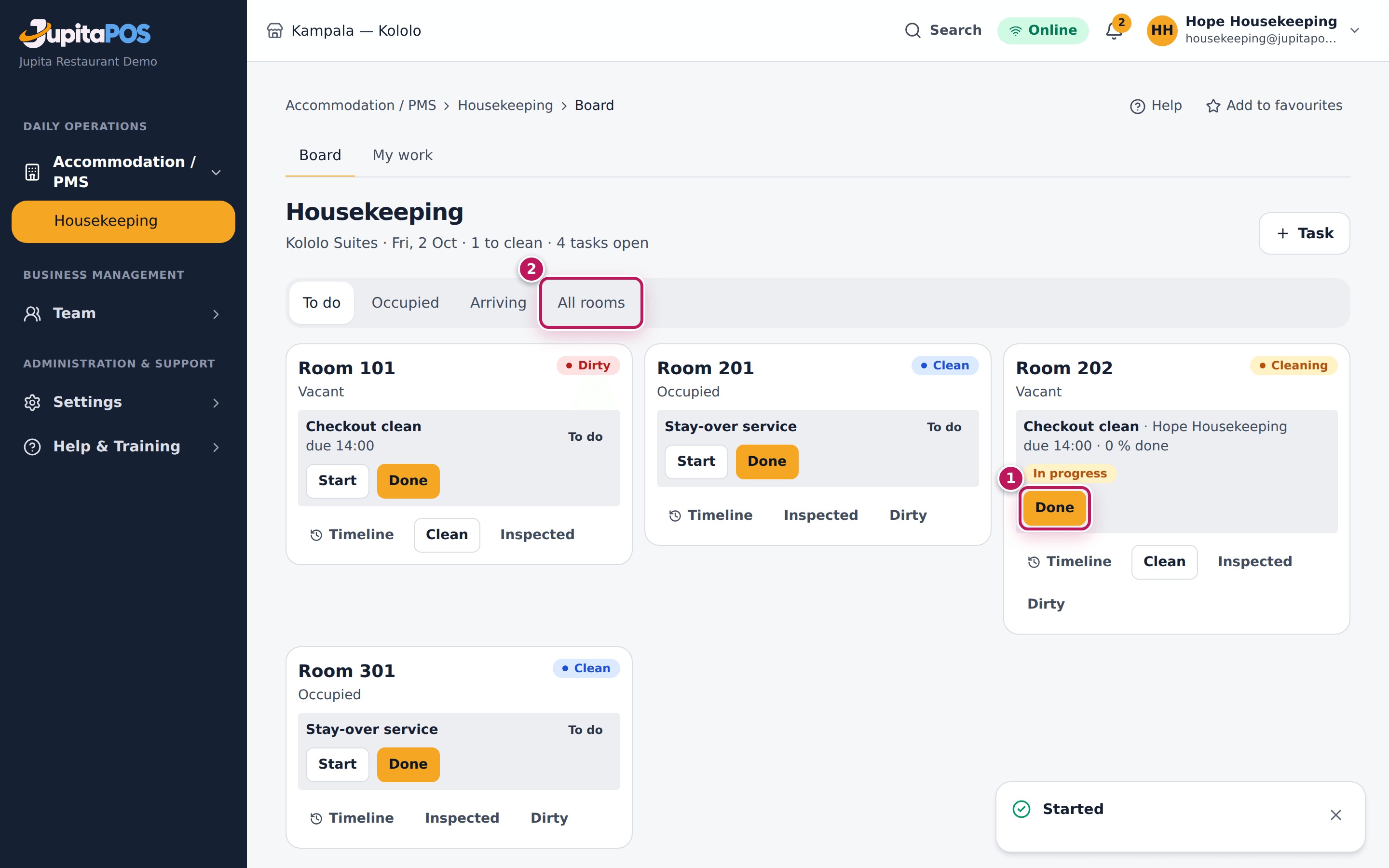
- Open Housekeeping. To do lists the rooms with work, with each task’s priority, due time and progress. On a phone, Housekeeping › My work shows only your own (see Work your rooms from a phone).
- Choose Start on a room’s task when you begin; you can work your own tasks and the ones nobody has taken.
- Choose Done (1) when the room is ready. A checkout clean makes the room Clean; an inspection makes it Inspected.
- Use All rooms (2) to see every room, and to mark one Dirty or Clean by hand.
Expected result
The room leaves the to-do list and shows Clean, and Ready when it is empty and not blocked; the front desk sees it at once.
Screenshot
Common mistakes
- Marking a room clean without closing its task. Use Done on the task, so the board and the reports agree.
Troubleshooting
- A room you cleaned shows Dirty again. A guest checked out of it after you cleaned; clean it again.
Work your rooms from a phone
Purpose
See only your own work — the rooms to clean, what is under way, what is done today — and tell a supervisor about a problem in a room, from a phone in the corridor.
Role / permission required
Housekeeper (accommodation.housekeeping). A housekeeping supervisor
(accommodation.housekeeping_supervise) sees everyone’s tasks.
Prerequisites
- Tasks come by themselves: one departure clean per checkout (due by the check-in time, High when a guest arrives into the room that day), stay-over service each morning, tray collections after room service, and the tasks a supervisor adds.
Steps
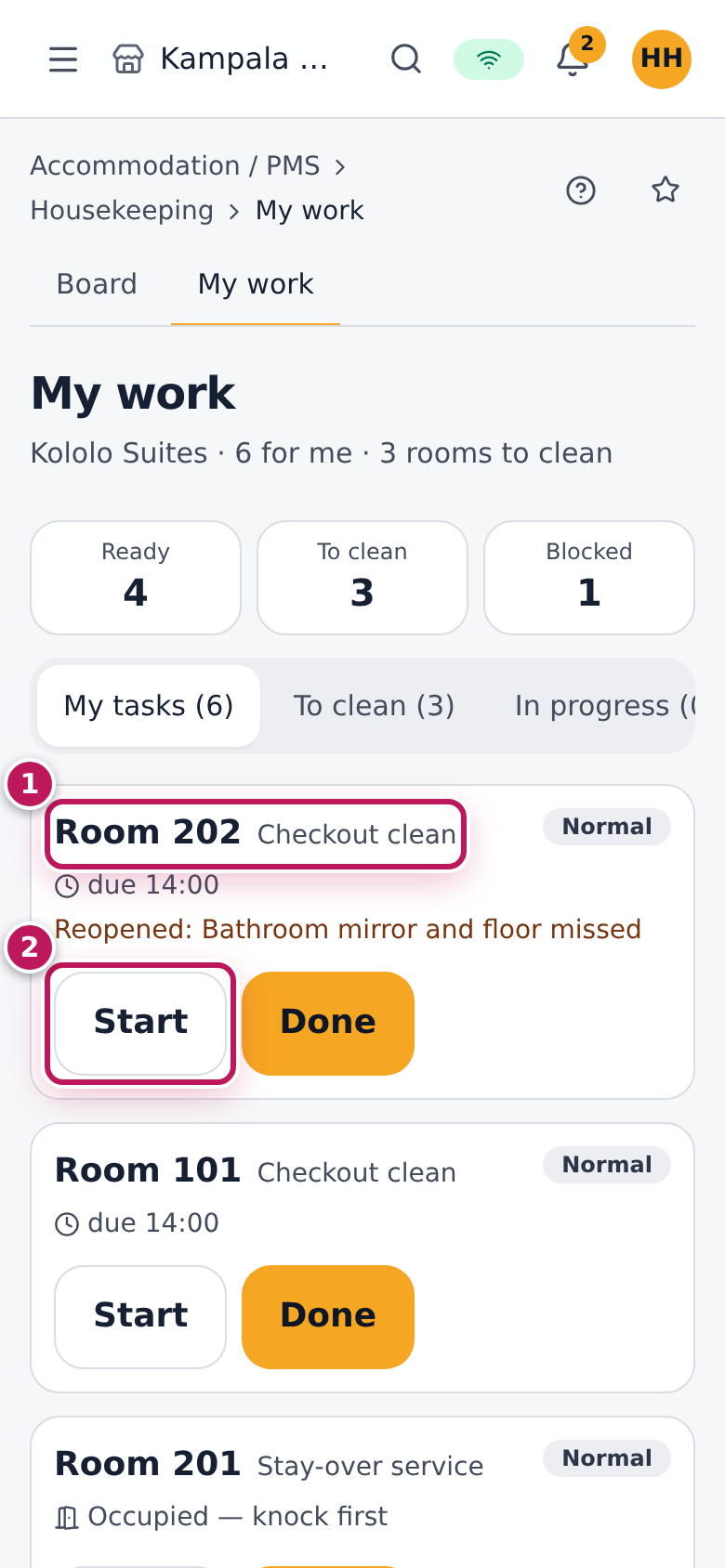
- Open Accommodation / PMS › Housekeeping › My work. My tasks lists your tasks and the ones nobody has taken yet, most urgent first: the room and what to do (1), the due time, and flags — Occupied — knock first, Leaving today, Guest arriving today, Blocked. No guest names, bills or payments are shown.
- Choose Start (2) when you begin. The room shows Cleaning.
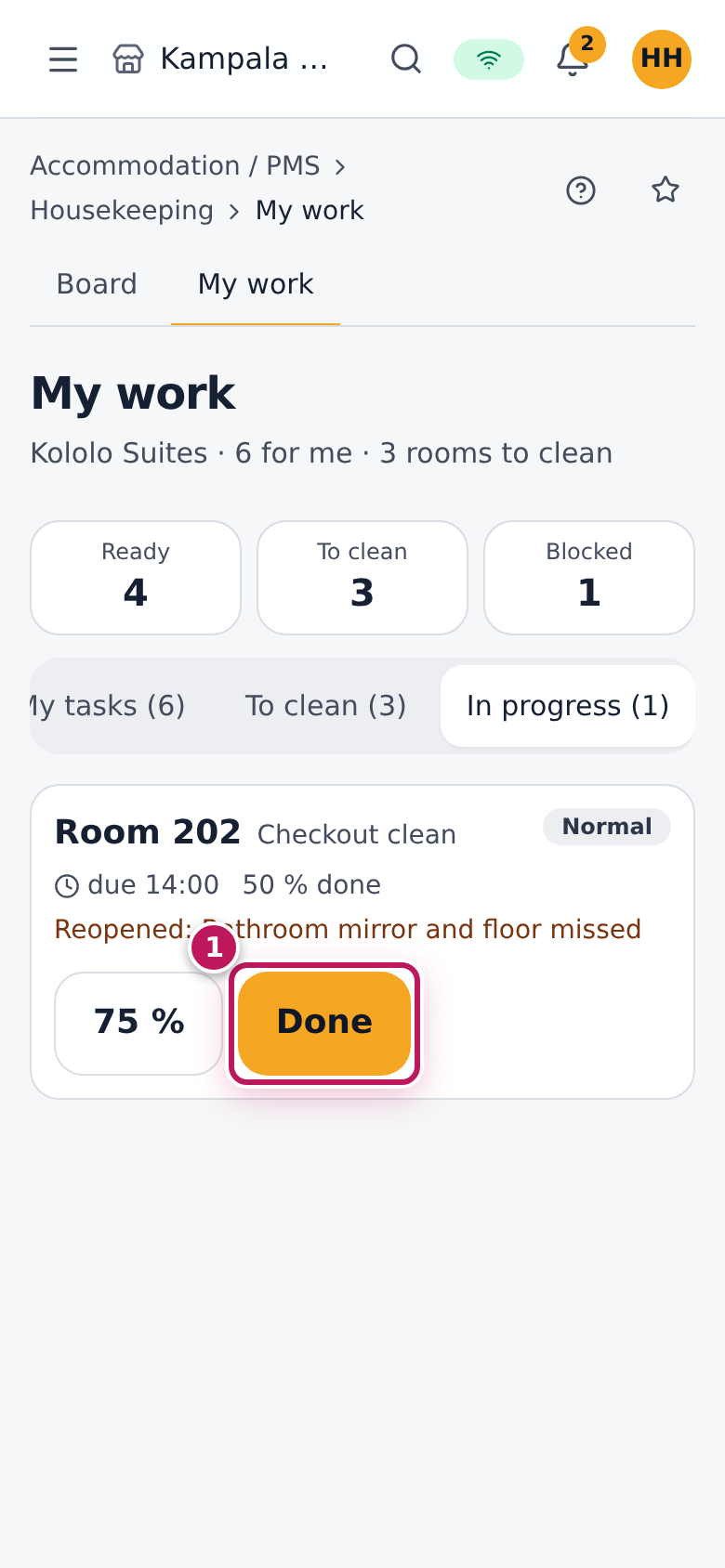
- Under In progress, tap 25 %, 50 % or 75 % as you go, and Done (1) when the room is ready. A clean makes the room Clean.
- To clean lists every dirty room; Completed what you finished today.
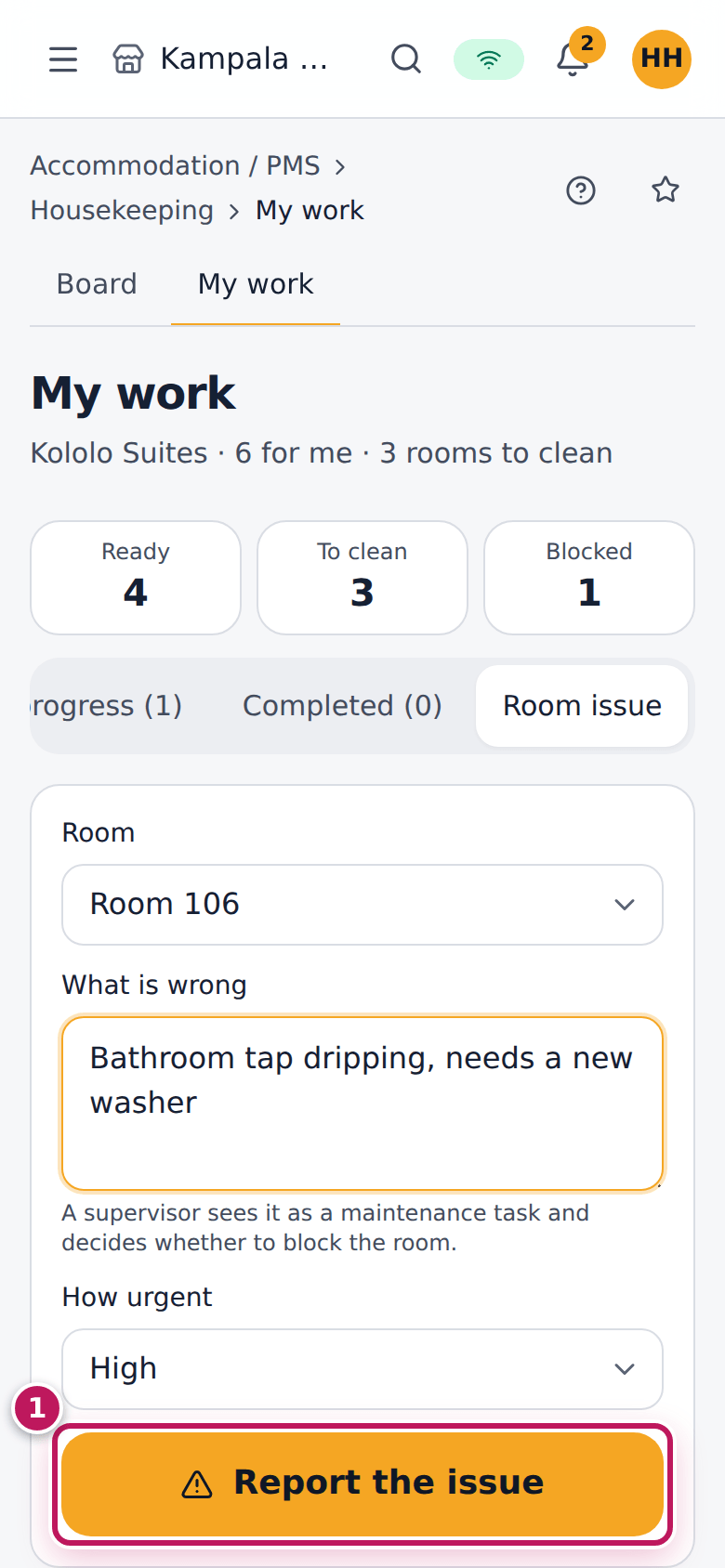
- Something wrong in a room? Open Room issue, choose the room, say what is wrong and how urgent, and Report the issue (1). The supervisor sees it as a maintenance task.
Expected result
The room is Clean. The front desk sees it at once; it is Ready for the next guest only if nobody is in it and it is not blocked — cleaning never changes who is in a room or takes a room off a block.
Screenshot
Common mistakes
- Finishing a colleague’s task. Only the person it was given to, or a supervisor, finishes it; ask the supervisor to hand it over.
- Tapping Done on an old screen. If the task changed since (reopened, given to someone else), the step is refused — reload the page.
Troubleshooting
- That task is someone else’s. It was given to another housekeeper.
- The task changed since … Reload it. Another phone or the supervisor changed it; reload and try again.
Supervise housekeeping: reopen work, read a room’s timeline, block rooms
Purpose
Check the work, send back what was not done properly, see who changed a room and why, and take a room off sale for repairs — without moving a guest silently.
Role / permission required
Housekeeping supervisor or front office manager
(accommodation.housekeeping_supervise; set-up rights also block and
release rooms).
Prerequisites
- To block a room, the nights must be free: a stay on those nights is named, and the front desk relocates it first.
Steps
- Open Housekeeping. Give tasks out with Give to…; add a task with a priority and a due time with Task.
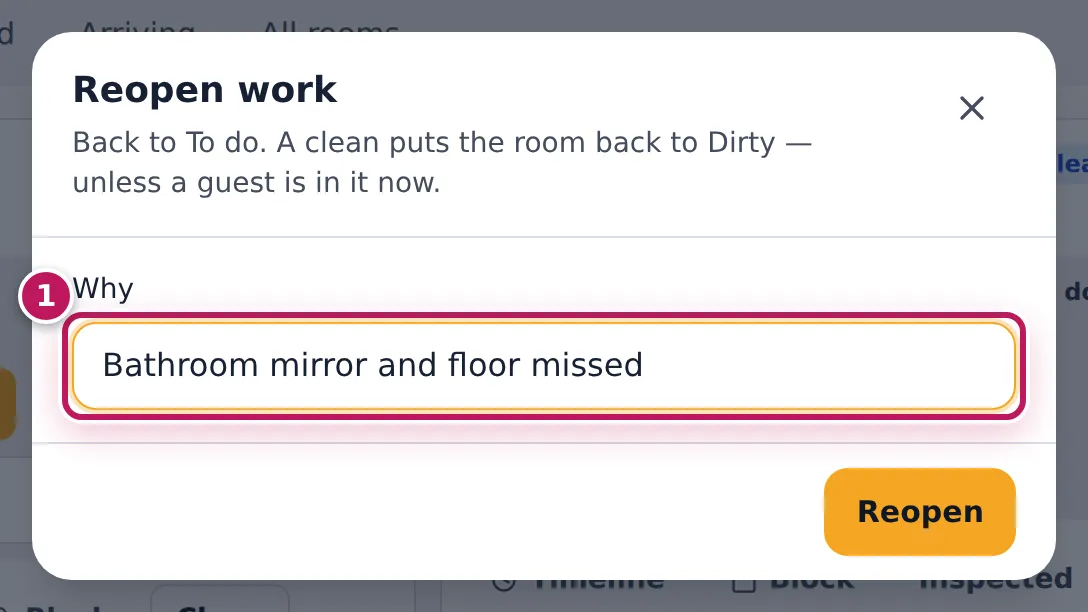
- Under Done today, choose Reopen on work that was not finished, and say why (1). The task goes back to To do for the same housekeeper; a clean puts the room back to Dirty — unless a guest is in it now.
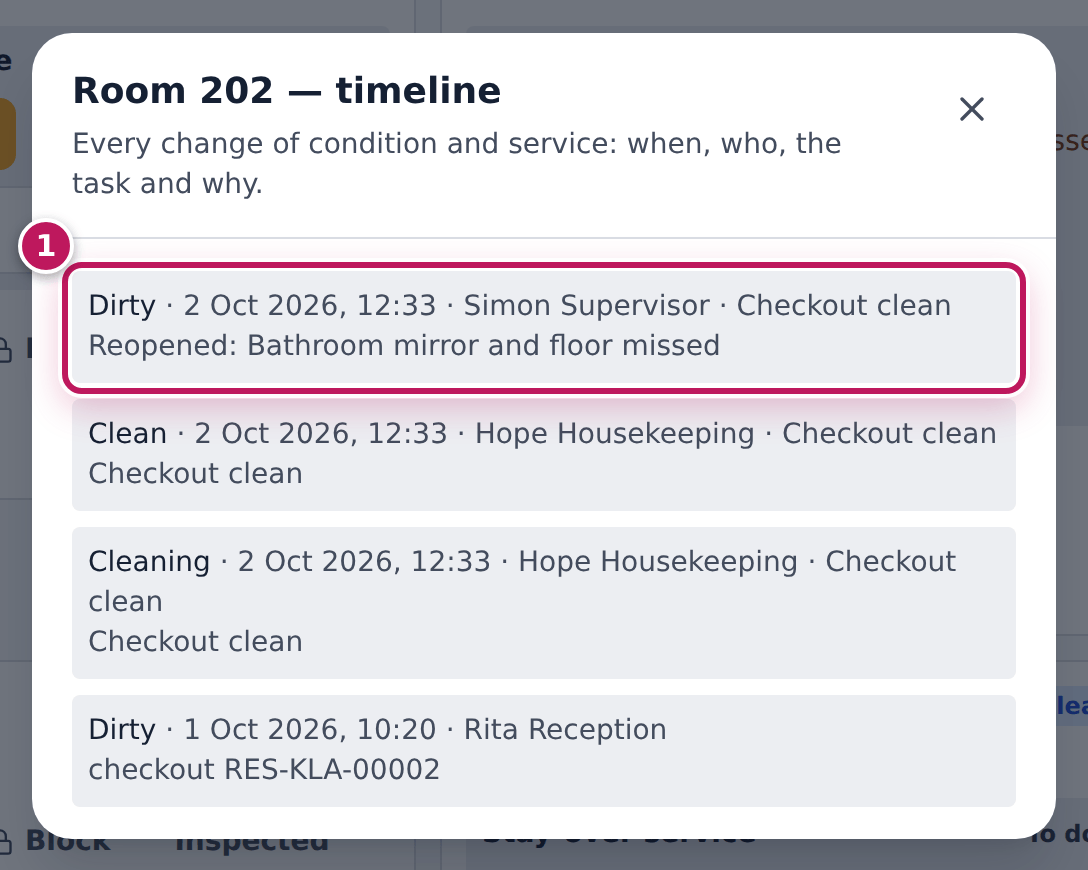
- On a room, choose Timeline: every change of condition and service, when, by whom, through which task and why (1).
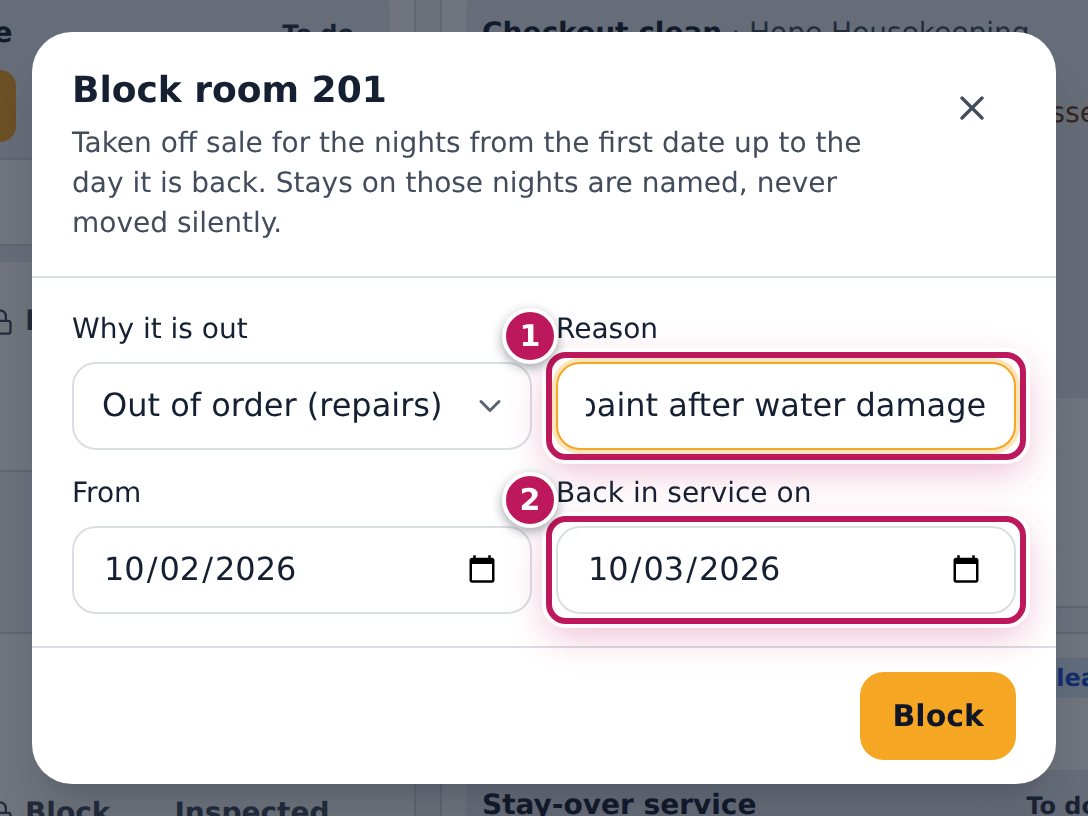
- To repair a room, choose Block on it, give the reason (1) and the day it is back in service (2), and Block. If a guest is booked on those nights, the block is refused with the stay to relocate; another block on the same nights is refused too.
- When the repair is done early, choose Release block and say why. The block stays in the room’s history; the room sells again from today.
Expected result
Reopened work is back on the housekeeper’s phone with the reason. A blocked room is not sold and is never Ready, whatever its cleaning; a released block keeps who released it, when and why.
Screenshot
Common mistakes
- Blocking a room with a guest booked. Relocate the stay at the front desk first; the block never moves guests.
- Releasing a block without a reason. The reason is required and kept.
Troubleshooting
- Relocate that stay first. The message names the booking and its nights.
- Room … is already blocked on …. Change or release that block instead of adding a second.
Take room bookings on your website
Purpose
Let guests book a room on your storefront: they choose dates and a room type at the same price the desk would quote, give their details, accept your terms and — if you ask for one — pay the deposit online. The room comes from the same rooms the front desk sells, so it is never sold twice.
Role / permission required
Anyone, on the storefront. To set it up: storefront.manage for the
storefront’s Room booking feature and accommodation.setup for the
property’s settings. To deal with a paid booking that could not be
confirmed: accommodation.reservations.
Prerequisites
- The storefront’s Room booking feature is on and the property is bookable online, on the storefront’s branch.
- In the property’s settings, choose how Online bookings work: a request (held while you confirm), instant (confirmed at once, nothing paid online) or a deposit (the guest pays the deposit online; the room is held for a few minutes while they do). Write your Booking terms, or leave them empty to show the standard terms (check-in and check-out times, cancellation, deposit).
- For Deposit: an online payment method on the storefront.
Steps
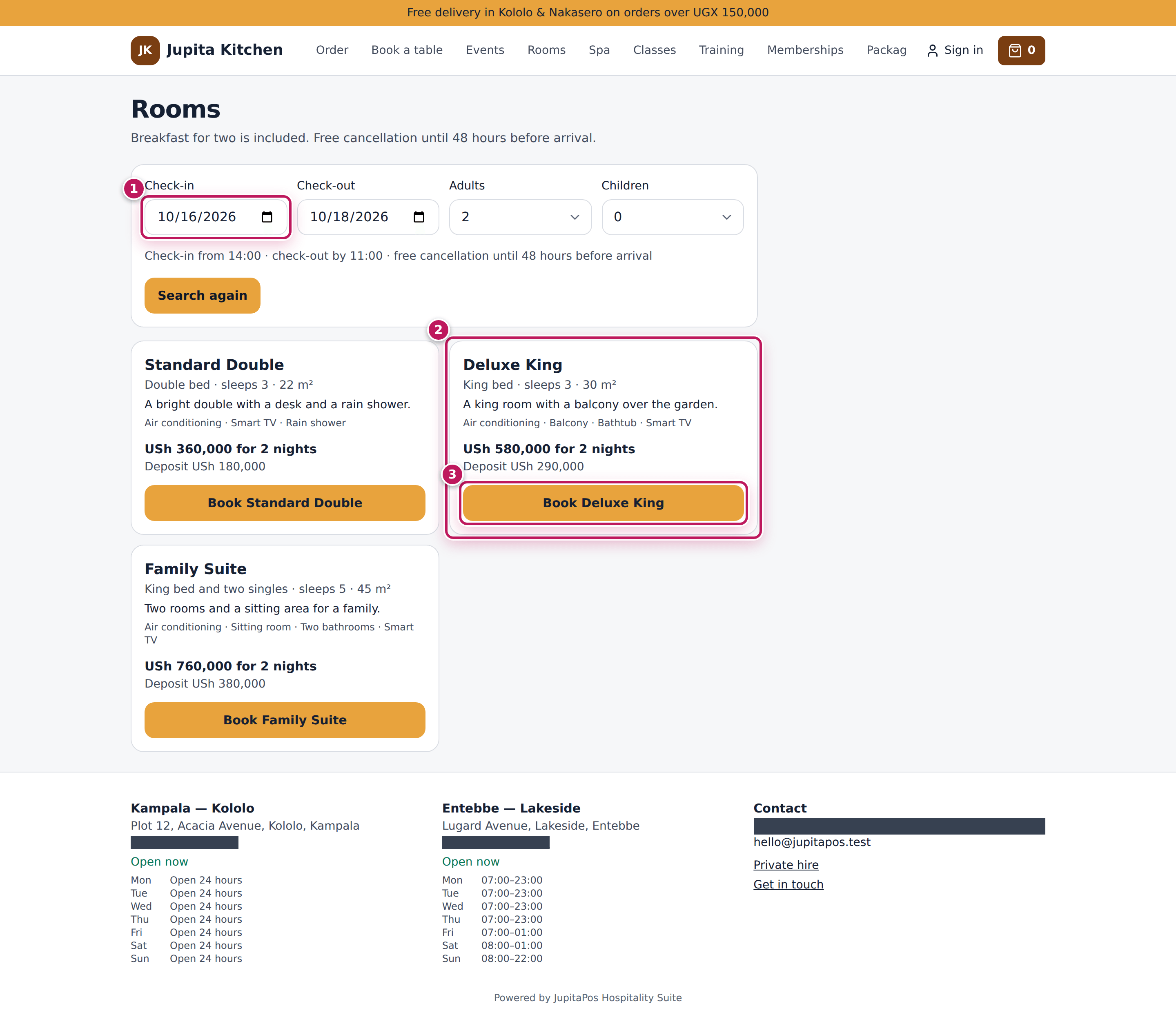
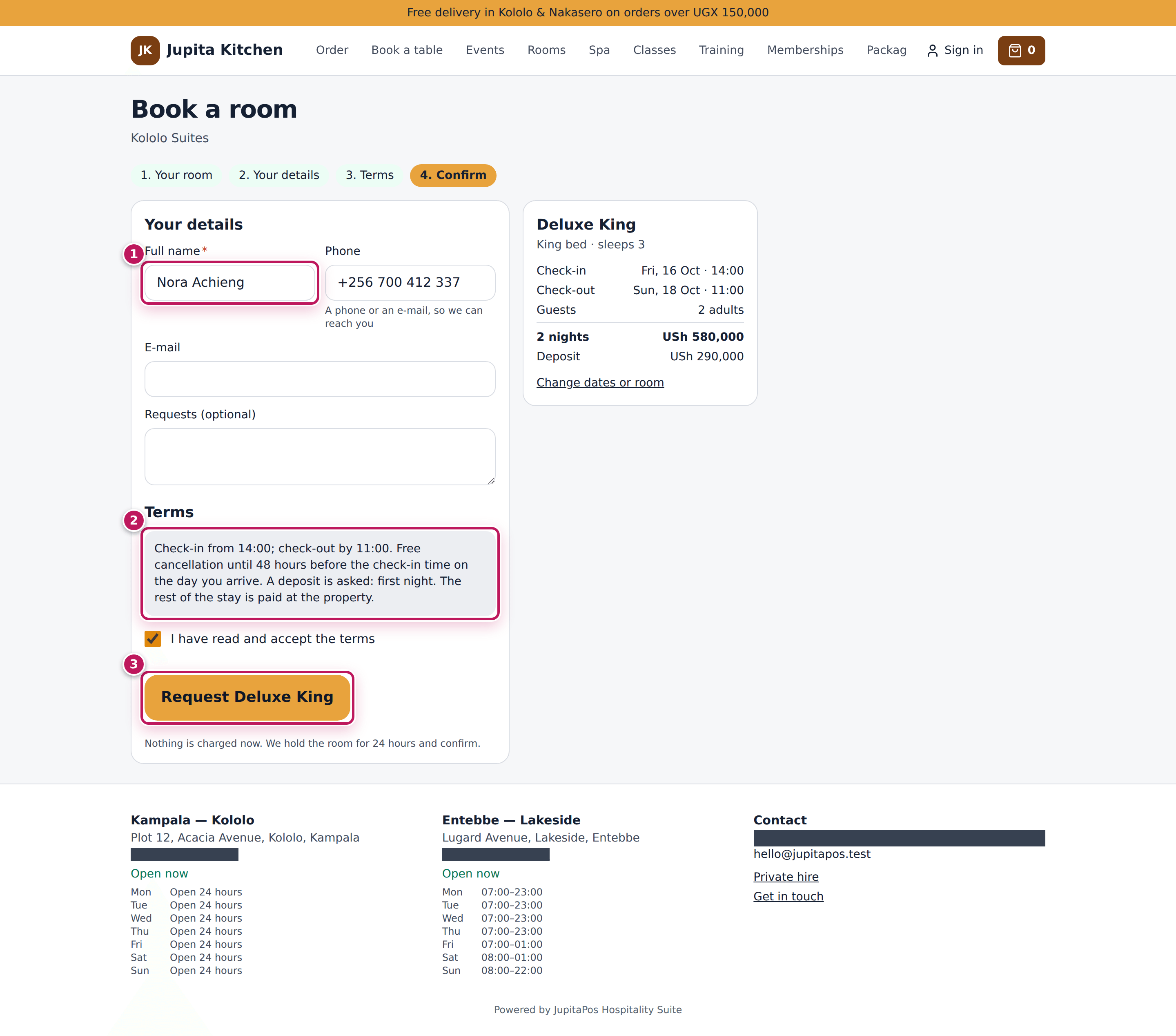
- On the storefront, open Rooms, set the dates (1) and the guests and choose See rooms. Each room type shows its price for the dates (2).
- Choose Book (3) on a room type.
- On Book a room, type the name and a phone or an e-mail (1), read the terms (2) and tick that you accept them.
- Choose Request (3) — or Book, or Book and pay with a payment method when the property asks for a deposit.
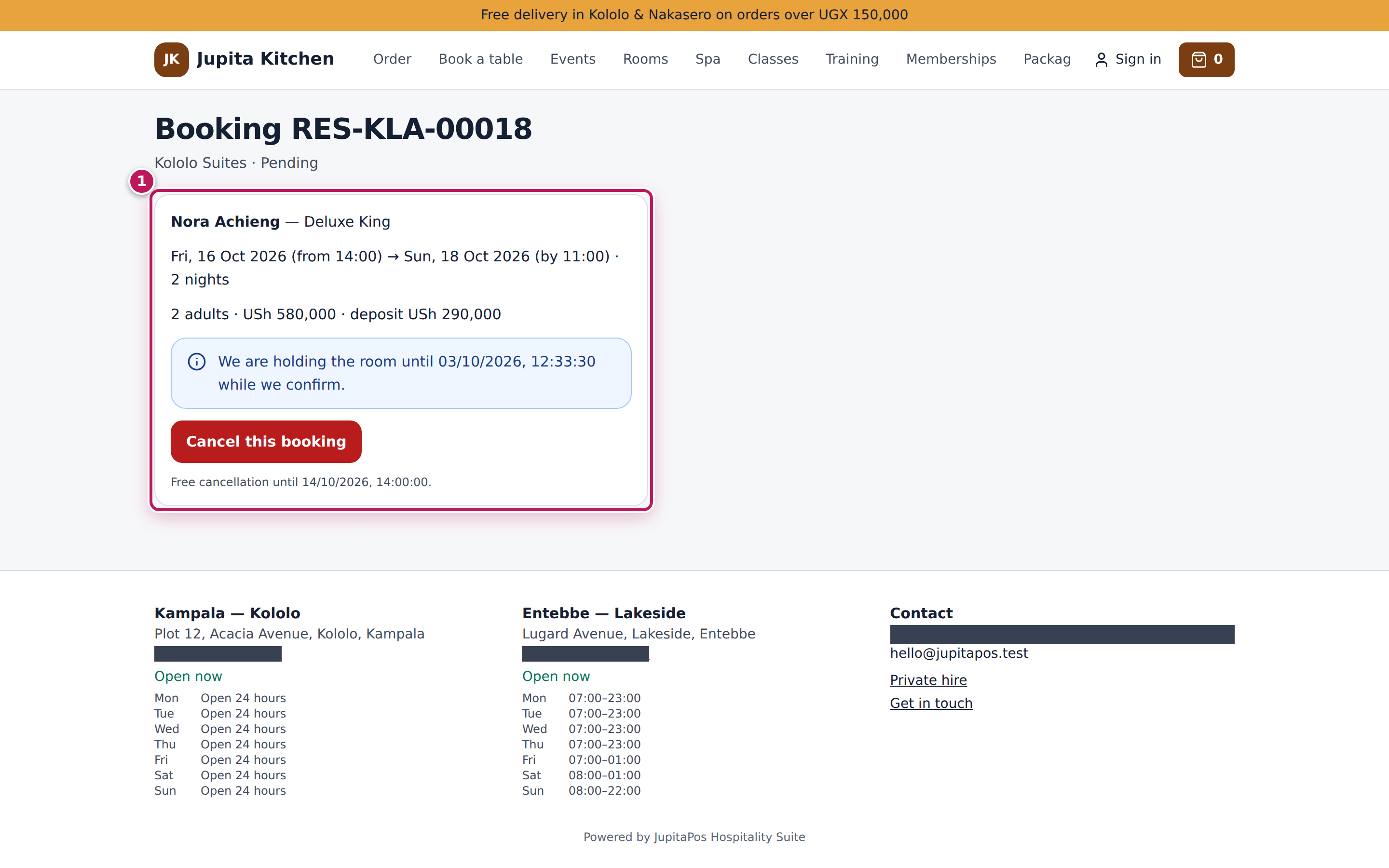
- The guest lands on the booking’s own page (1): keep its link to see, pay or cancel the booking.
Expected result
- Request: the room is held while you confirm; the desk is notified and sees the booking as Held in Room reservations.
- Instant: the booking is confirmed at once.
- Deposit: the page waits for the payment and shows Confirmed when the provider confirms it; the deposit is on the booking’s folio. A guest who closes the page is still confirmed — JupitaPos checks the payment itself.
- If the payment arrives after the hold ran out and the room was sold meanwhile, the booking is not confirmed and the money is not lost: it stays on the booking as a deposit, the desk is notified, and the front desk shows it under Paid online, not confirmed. Open the booking and, under Paid online — needs the desk, choose Confirm if a room is free when a room frees up, Refunded once you have refunded the deposit on the folio, or Close with a note.
Screenshot
Common mistakes
- Leaving a request unanswered. It lets the room go when its hold runs out. Confirm it or call the guest.
- Changing the terms while guests are booking. A guest who accepted the old text is asked to read them again.
- Closing a booking case without dealing with the money. Refund the deposit on the folio, or move it to the guest’s new booking, first.
Troubleshooting
- “Online room booking is not open at the moment”. No property is bookable online, or the storefront’s location is not the property’s branch.
- The guest paid but the page still waits. The provider has not confirmed yet; the page checks every few seconds and JupitaPos keeps checking after the guest leaves.
Switch rooms and room service on or off
Purpose
Use only the parts of JupitaPos your business needs: a restaurant without rooms keeps the menu short, a hotel switches rooms on.
Role / permission required
Owner or administrator (settings.manage); anyone with settings.view
sees the page.
Prerequisites
- For room service: a kitchen, bar or dispatch station exists (room-service orders go to production).
Steps
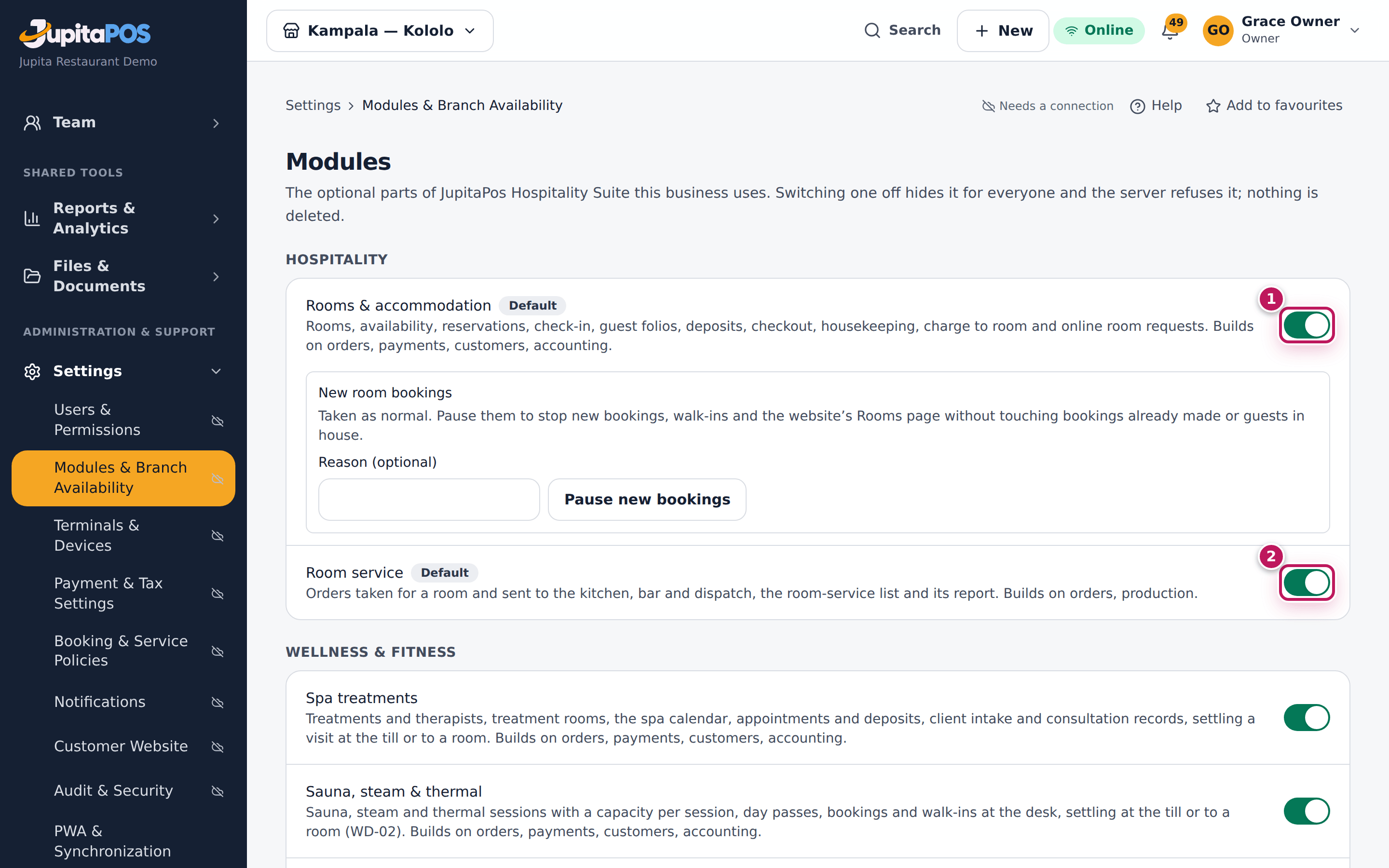
- Open Modules from the menu.
- Find Rooms & accommodation (1) and switch it on or off.
- Switch Room service (2) on or off the same way.
Expected result
The change takes effect at once for everyone in the business: the Accommodation menu group appears or disappears, and a module that is off is refused by the server. The change is in the audit trail.
Screenshot
Common mistakes
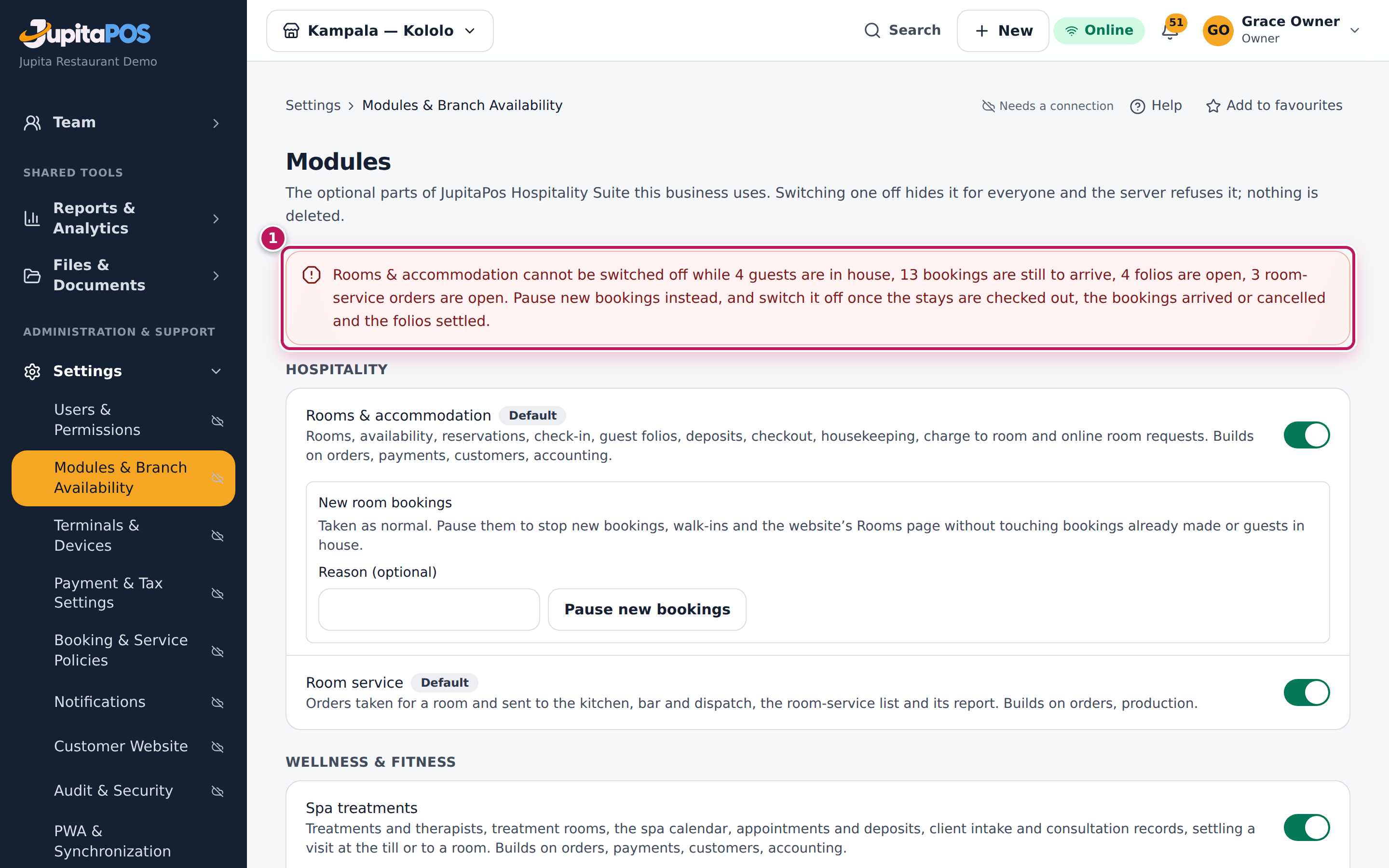
- Switching rooms off to stop new bookings. Switching off is refused while guests are in house, bookings are still to arrive, folios are open or room-service orders are open. To stop new business, use Pause new room bookings; switch off once everything is finished.
- Expecting the history to vanish. A business that switches rooms off after it has had stays keeps them readable — reservations, folios, statements and room reports (Off — history readable); nothing can be booked, charged or changed until it is switched on again.
Troubleshooting
- “Room service sends orders to production: set up a kitchen, bar or dispatch station first”. Add a station under Production, then switch room service on.
- “… cannot be switched off while …”. The message lists what is still going on. Pause new bookings, check the guests out, settle the folios and finish or cancel the room-service orders, then switch off.
Pause new room bookings
Purpose
Stop taking new bookings for a while — a pilot run, a renovation, the season over — without touching what is already going on: bookings already made still arrive, guests in house stay, folios, checkout, housekeeping, room service and reports carry on.
Role / permission required
Owner or administrator (settings.manage).
Prerequisites
- Rooms & accommodation is switched on.
Steps
- Open Modules from the menu.
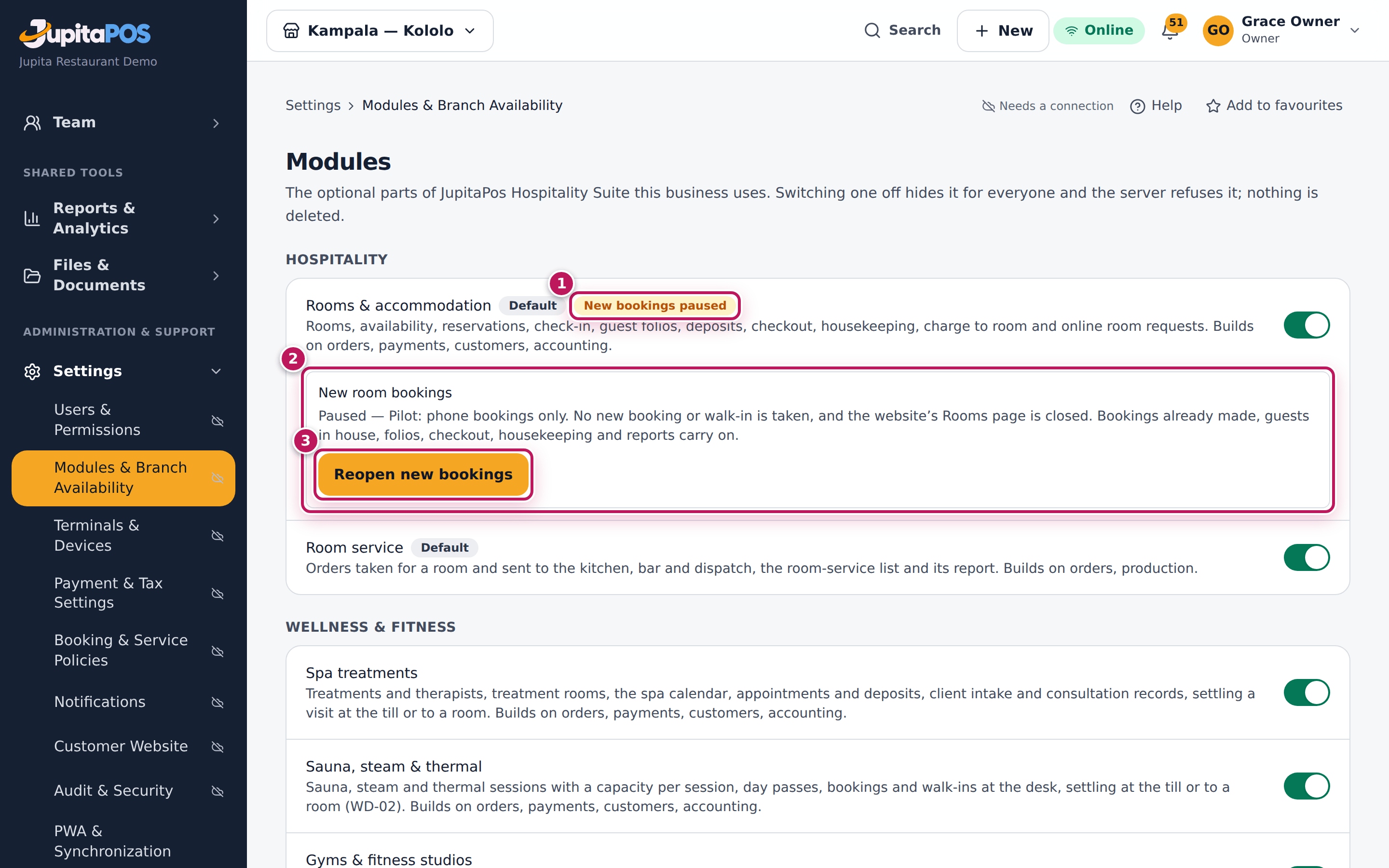
- Under Rooms & accommodation, find New room bookings (2).
- Type a Reason (optional) — staff see it when a booking is refused.
- Choose Pause new bookings.
- To take bookings again, choose Reopen new bookings (3).
Expected result
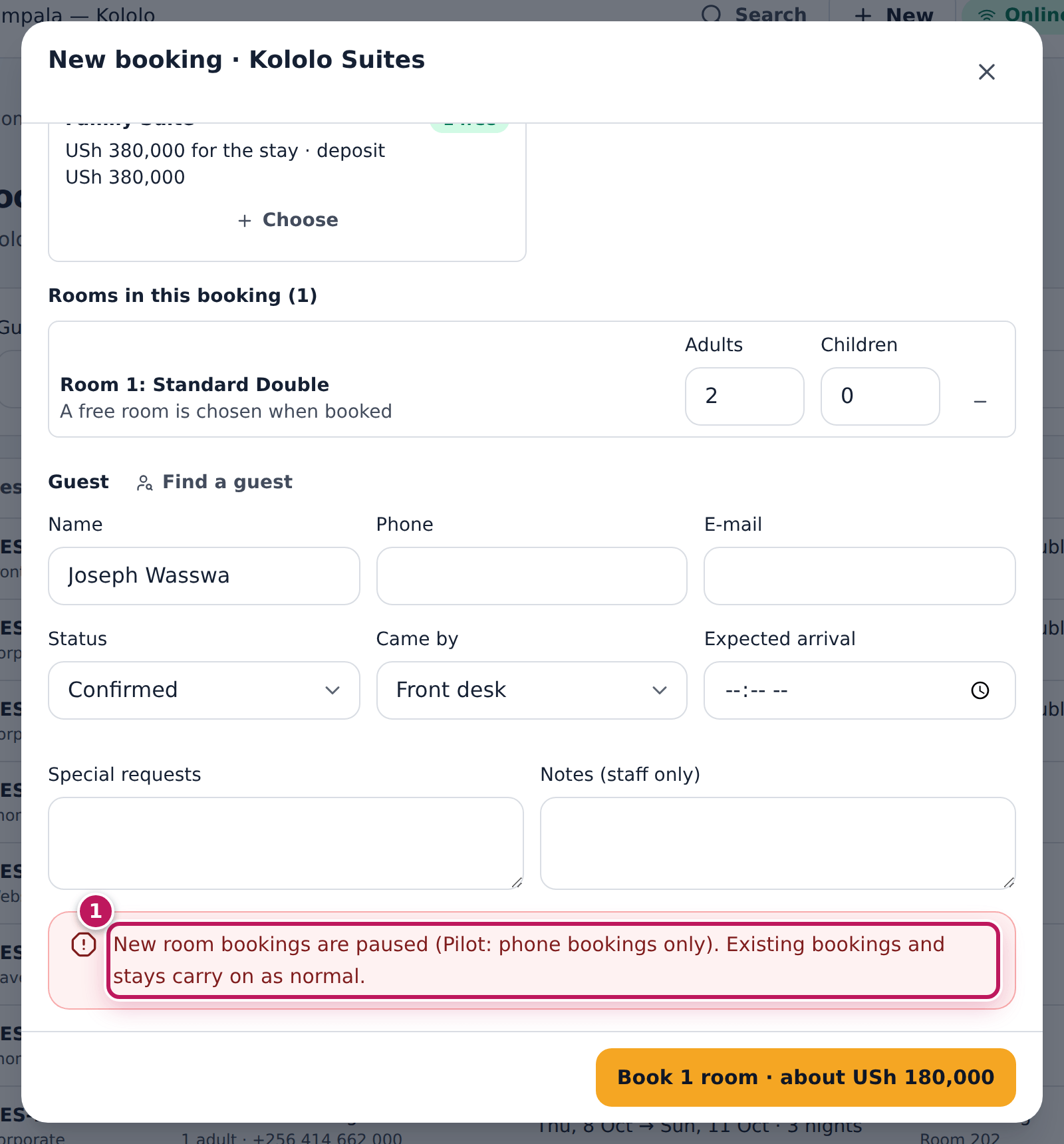
The module shows New bookings paused (1) with the reason. From now on the desk cannot take a new booking or a walk-in — it is refused with the reason — and the website’s Rooms page and room search close. A guest’s own booking link still works (to pay a deposit or cancel). Bookings already made are checked in as usual, and a request typed in offline before the pause, sent again, is the same booking. Pausing and reopening are in the audit trail with who did it.
Screenshot
Common mistakes
- Switching rooms off instead. Switching the module off is refused while anyone is in house, a booking is still to arrive or a folio is open; pausing is the way to wind down.
- Forgetting to reopen. The pause stays until someone reopens bookings.
Troubleshooting
- The pause does not show on the website at once. Reload the page; the storefront checks on every request.
- “Rooms & accommodation is switched off”. There is nothing to pause: the module is off.
See every open guest folio
Purpose
See at a glance what every guest still owes and which deposits are held, before the day’s departures or at the end of a shift.
Role / permission required
Front office manager, receptionist (accommodation.view).
Prerequisites
- None.
Steps
- Open Accommodation / PMS › Guest Accounts / Folios in the menu.
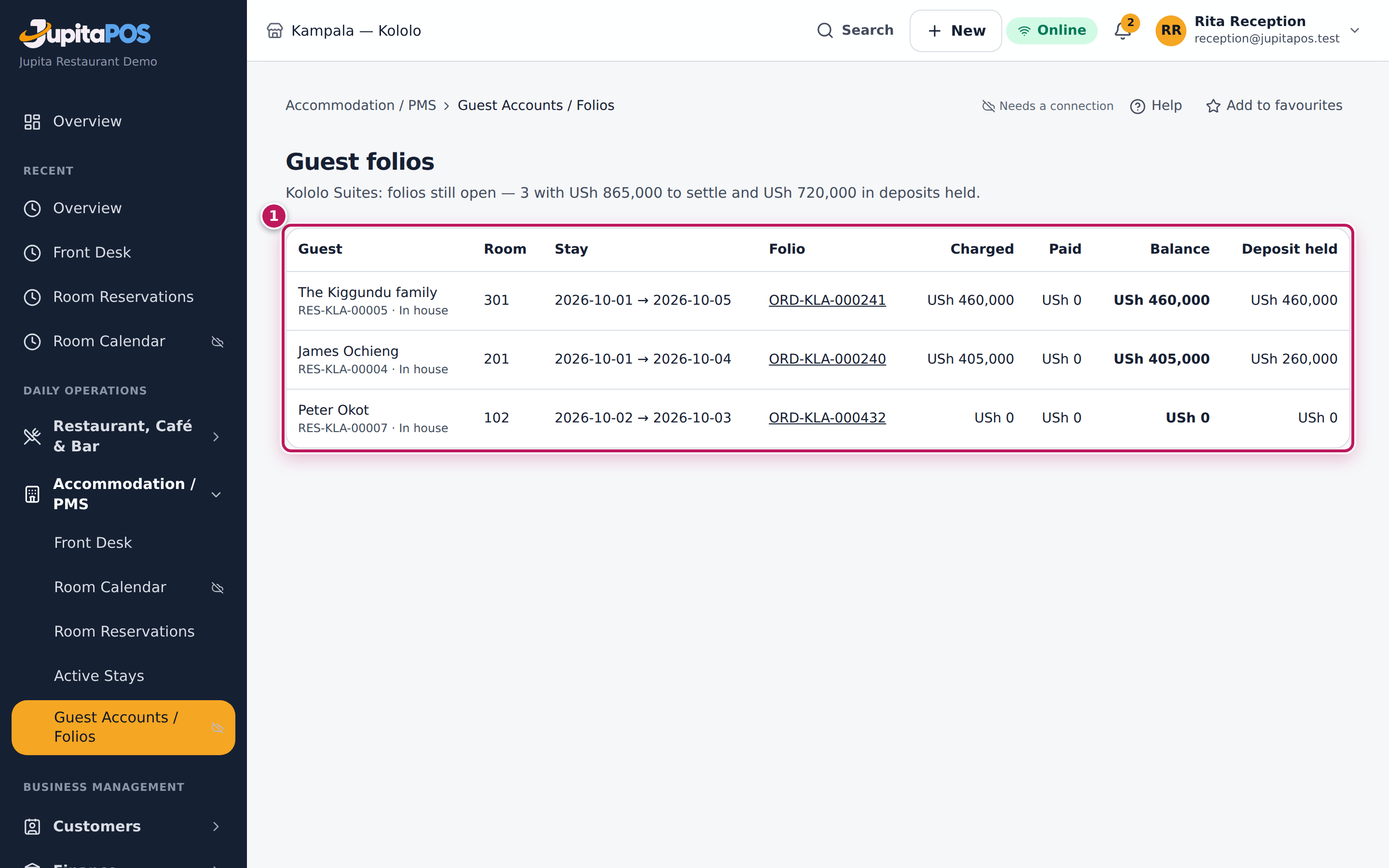
- Read each folio (1): charged, paid, the balance and the deposit held, biggest balance first.
- Choose a guest’s name to open the stay and settle it, or the folio number to open the folio page.
Expected result
Every folio still open is listed with its room and dates; the heading gives the total to settle and the deposits held.
Screenshot
Common mistakes
- Taking a folio’s payment at the till. A folio is settled from the stay only; the till refuses it.
Troubleshooting
- A checked-out guest is still listed. The checkout stopped part-way; open the stay and choose Check out again — no step runs twice.
Take and deliver room-service orders
Purpose
Take an order for a guest in their room, send it to the kitchen, bar and barista, hand it to a runner and deliver it — paid on delivery or charged to the room once — and see the day’s orders for rooms.
Role / permission required
- See the page:
room_service.view(waiters, cashiers, front office, managers). - Take an order:
sales.createoraccommodation.front_desk. - Accept, assign a runner, send out, cancel:
expeditor.dispatchoraccommodation.front_desk; cancelling an order already sent also needssales.void. - Mark delivered:
delivery.completeorexpeditor.dispatch. - Charge to the room:
accommodation.charge, and the stay allows charges.
Prerequisites
- Room service is switched on (see Switch rooms and room service on or off).
- The guest is checked in.
- The dishes are on the room-service menu (Menu → item → Room service).
- Optional, per property (Accommodation → Set-up → property): opening hours (a closing time before the opening time runs overnight), a delivery fee, a room-account limit, and a tray-collection task after each delivery.
Steps
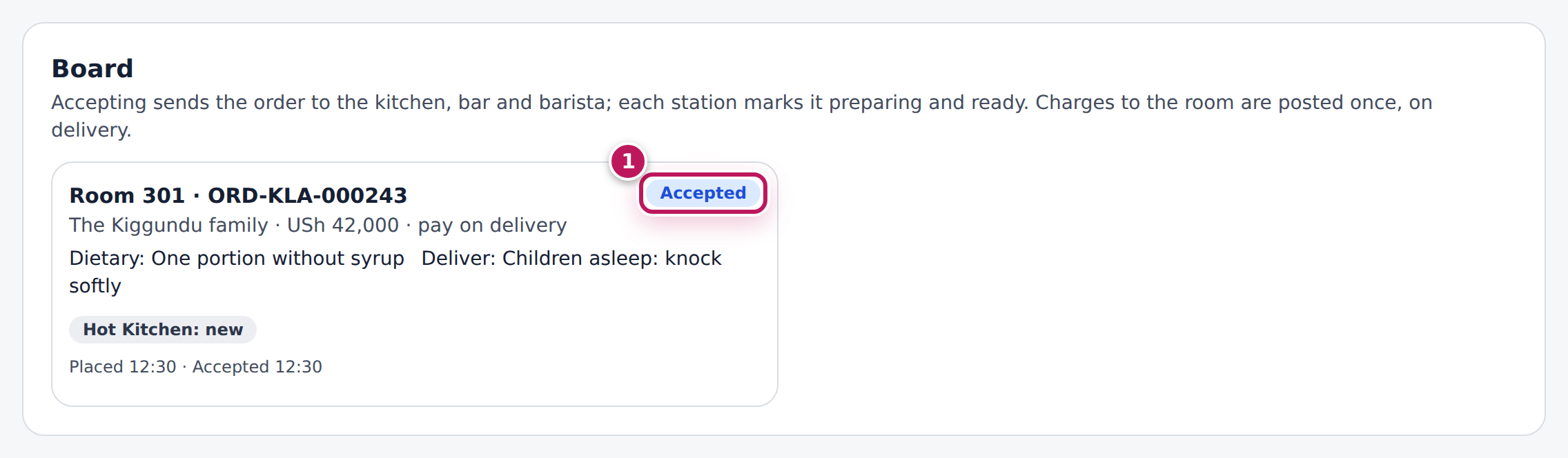
- Open Restaurant, Café & Bar › Room Service in the menu. The Board (1) shows each order: the room, the guest, the value, how it is settled, the stations and the time of each step.
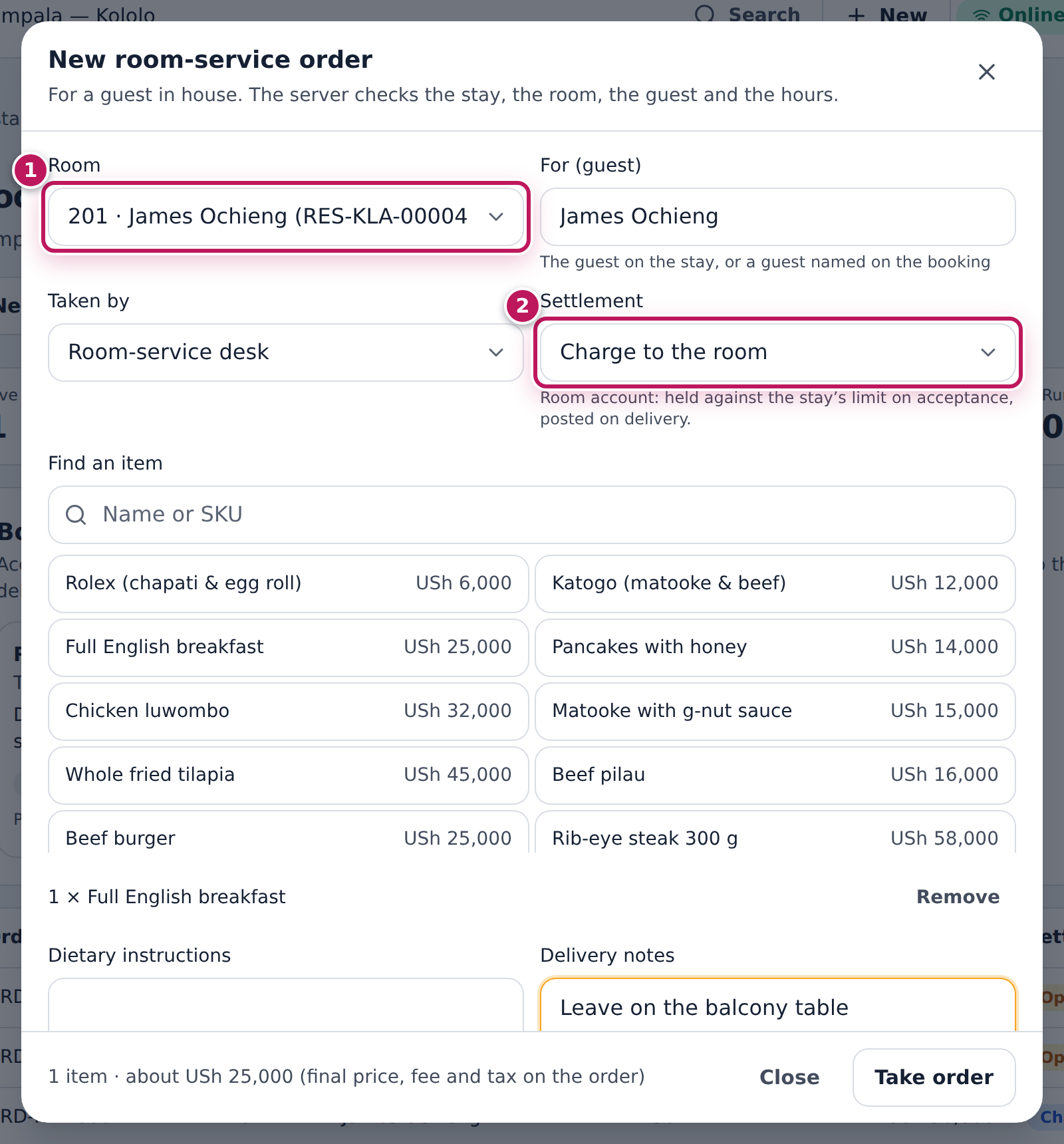
- Choose New order. Pick the Room (the guests in house), check For (guest), choose the dishes (a dish with choices opens its options), add Dietary instructions and Delivery notes, and choose Settlement: Pay on delivery or Charge to the room (2). Choose Take order.
- Choose Accept and send on the order. The kitchen, bar and barista receive it now — not before. A room-account order holds its value against the stay’s limit.
- The stations mark it Preparing and Ready themselves. When every part is ready, choose Assign runner, then Out for delivery.
- At the door, choose Delivered. A room-account order goes on the guest’s folio now, once. A pay-on-delivery order is paid at the till.
- Something wrong with a dish? Remake sends that station’s ticket back with a reason. The guest no longer wants it? Cancel with a reason.
- Below the board, the day’s orders (3) show how each was settled; use Day before to look back.
Expected result
The board moves through New, Accepted, Preparing, Ready, Runner assigned, On its way and Delivered, each with its time. A room-account order shows room credit held until it is delivered, then on the folio. The kitchen’s ticket shows the room (“Room 301”) and the dietary instructions.
Screenshot
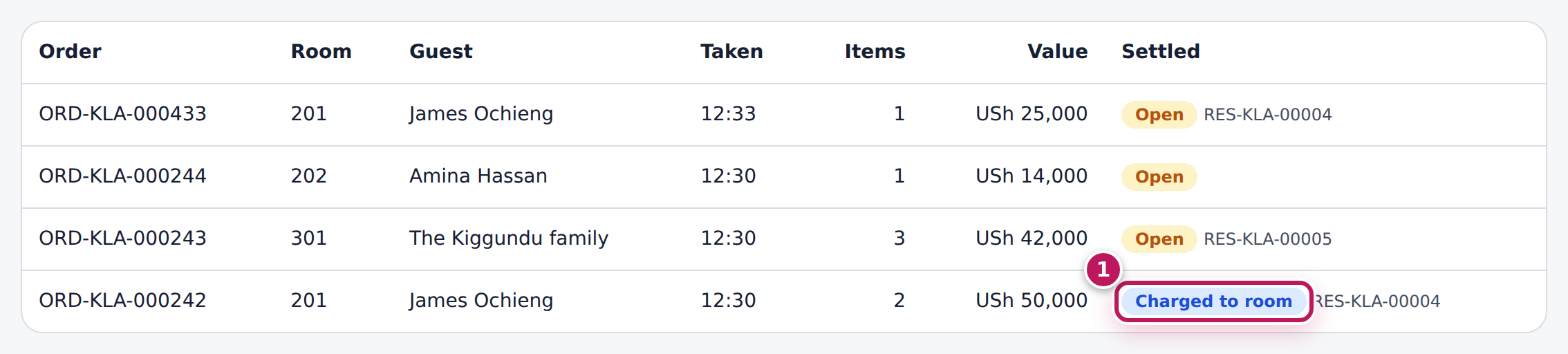
Common mistakes
- Expecting the kitchen to have a new order. A New order is not at the stations until someone chooses Accept and send.
- Marking it delivered twice. Nothing is billed twice; the second tap only confirms.
- Cancelling a delivered order. It was eaten or charged: correct it through the folio or a refund instead.
Troubleshooting
- “… is not in room …” / “… is not a guest of room …”. The guest moved, or the name is not on the booking. Pick the room again.
- Over the room account’s limit. The stay owes, or holds for other orders, too much. Take it as Pay on delivery, or ask someone with folio rights to raise the stay’s limit on the reservation page.
- Room service runs from … to …. Outside the property’s hours.
- Room Service is not in the menu. The module is off, or you lack
room_service.view.
Charge a restaurant or bar bill to a room at the till
Purpose
Let a hotel guest eat or drink in the restaurant, bar or café and pay at checkout: the till moves the unpaid order onto the guest’s folio, once, with its items and prices.
Role / permission required
Cashier, waiter, bartender, barista, supervisor or front office
(accommodation.charge).
Prerequisites
- Rooms are switched on and the guest is checked in.
- The stay allows charges (a booking paid by a company may not).
- The order has items and nothing has been paid on it yet.
Steps
- Ring up the order as usual — a table, the counter or the bar.
- Ask the guest for their room number and name, and check them.
- Choose Charge to room below the order.
- In Room (1), choose the guest’s room: the list shows the guests in house by room and name; a stay that refuses charges is shown but cannot be chosen.
- Choose Charge to room with the room number (2). Ask the guest to sign the docket if your house does.
Expected result
… is on the folio … appears and the till is cleared for the next order. The order keeps its items; its tickets went to the kitchen, bar or barista as usual, and the stock is used as for any sale. The front desk sees it on the guest’s folio with the order number, and it is paid at checkout. Nothing is paid at the till and nothing goes in the drawer.
Screenshot
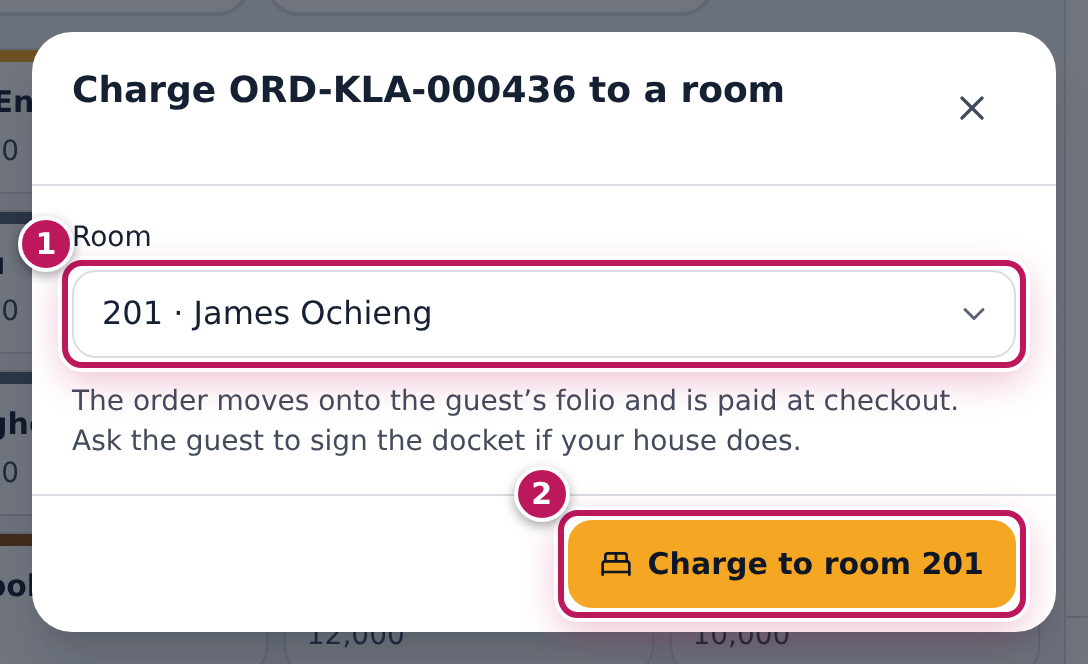
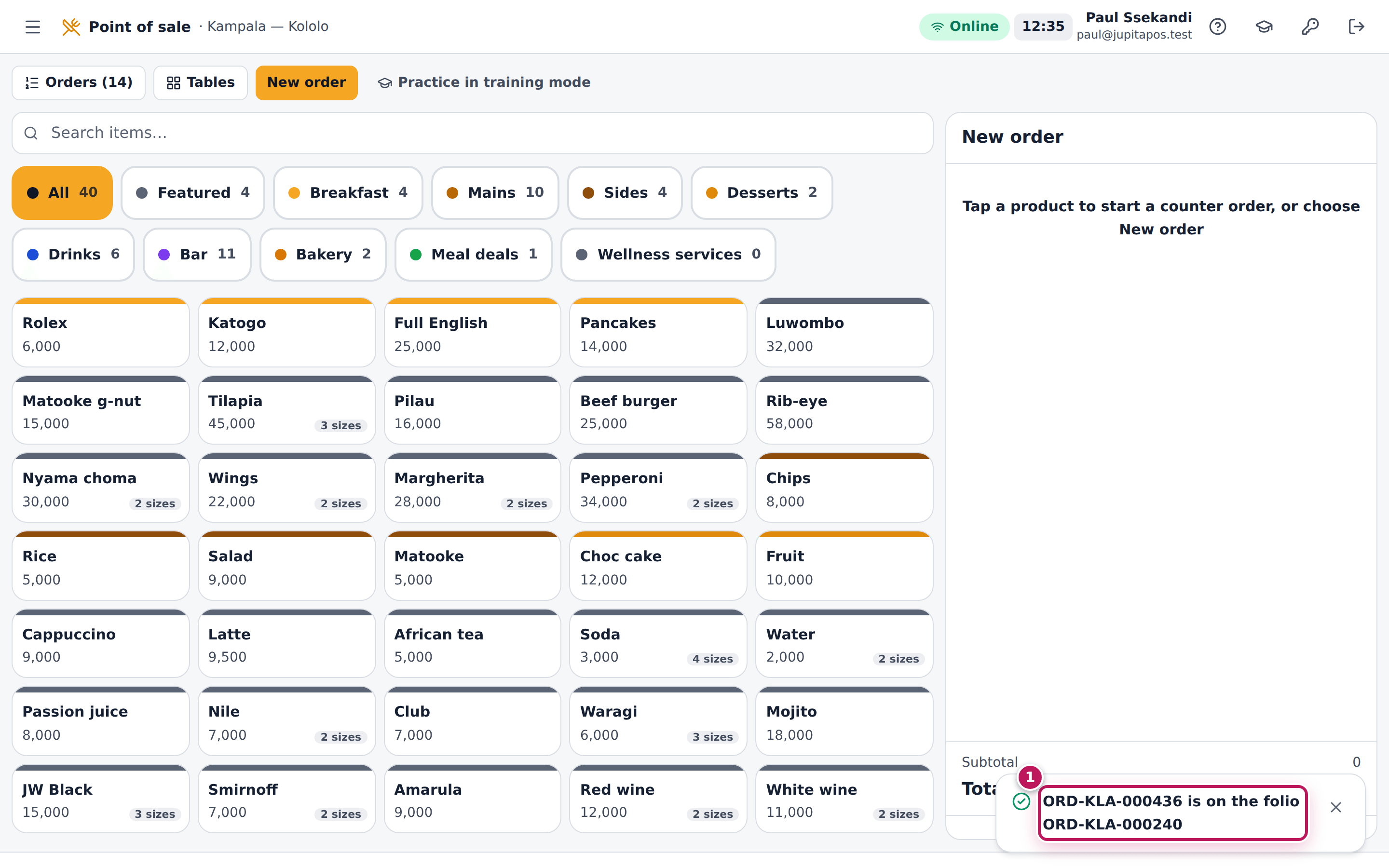
Common mistakes
- Charging a bill that is half paid. Charge to room is offered only while nothing is paid on the order; take the whole bill one way.
- Choosing a room by number only. Check the name too: rooms change guests every day.
- Charging a guest who is checking out. Once the desk starts the checkout, the room takes no new charges: take payment at the till.
Troubleshooting
- Charge to room is not shown. You do not have
accommodation.charge, the order is a training order, something is already paid, or rooms are switched off. - “No guest is in house”. Nobody is checked in, or the guest checked out — take payment at the till.
- The till is offline. The till can still charge to a room in house from what it last cached; it reaches the folio when the till syncs (see Offline mode). If the guest left in between, the front desk settles it from Room charges to settle (Settle room charges that arrived after checkout).
Print the room QR codes for guest room service
Purpose
Put a card in each room with a QR code, so guests can order room service from their phone. The code only opens the ordering page for that room; it lets nobody order or charge anything until they prove their stay.
Role / permission required
accommodation.setup.
Prerequisites
- In the property’s settings, tick Guests order room service from their phone (and, if you allow it, …and may charge it to the room).
- A published storefront on the property’s branch, with room service switched on.
Steps
- Open Room QR Codes.
- Choose Print (1) and print the cards — one per room (2), with the room number, the code and its link.
- If a card is copied, photographed or lost, choose New code (3) on that room and print its card again.
Expected result
Each room has its own card. A new code stops the old card working at once; guests already signed in keep ordering until checkout.
Screenshot
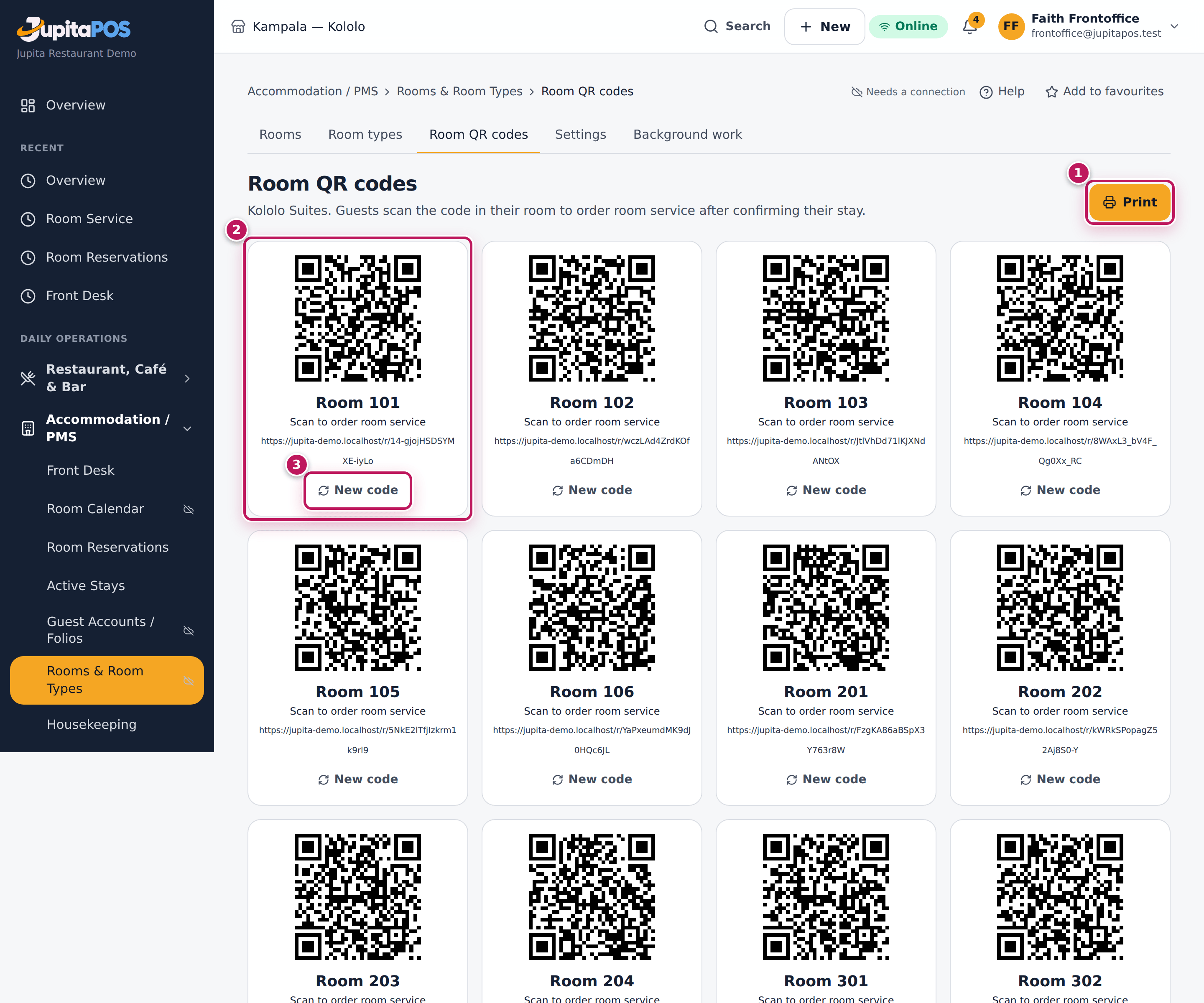
Common mistakes
- Treating the code as a key. Anyone who sees the card can open the page, but only the guest staying in that room — with the booking code and surname — can order.
Troubleshooting
- “Guests cannot order from their room yet”. Tick the guest ordering setting on the property.
- “Publish a storefront first”. The codes open a page on your storefront.
Order room service from the room (for guests)
Purpose
A guest staying in the room orders food and drinks from their phone and follows the order until it arrives, without calling the desk.
Role / permission required
Everyone can open the page, but only the guest checked in to the room can
order (no account is needed). The front desk (accommodation.front_desk)
can end a guest’s access from the booking.
Prerequisites
- The guest is checked in to that room.
- The room’s QR card is in the room.
Steps
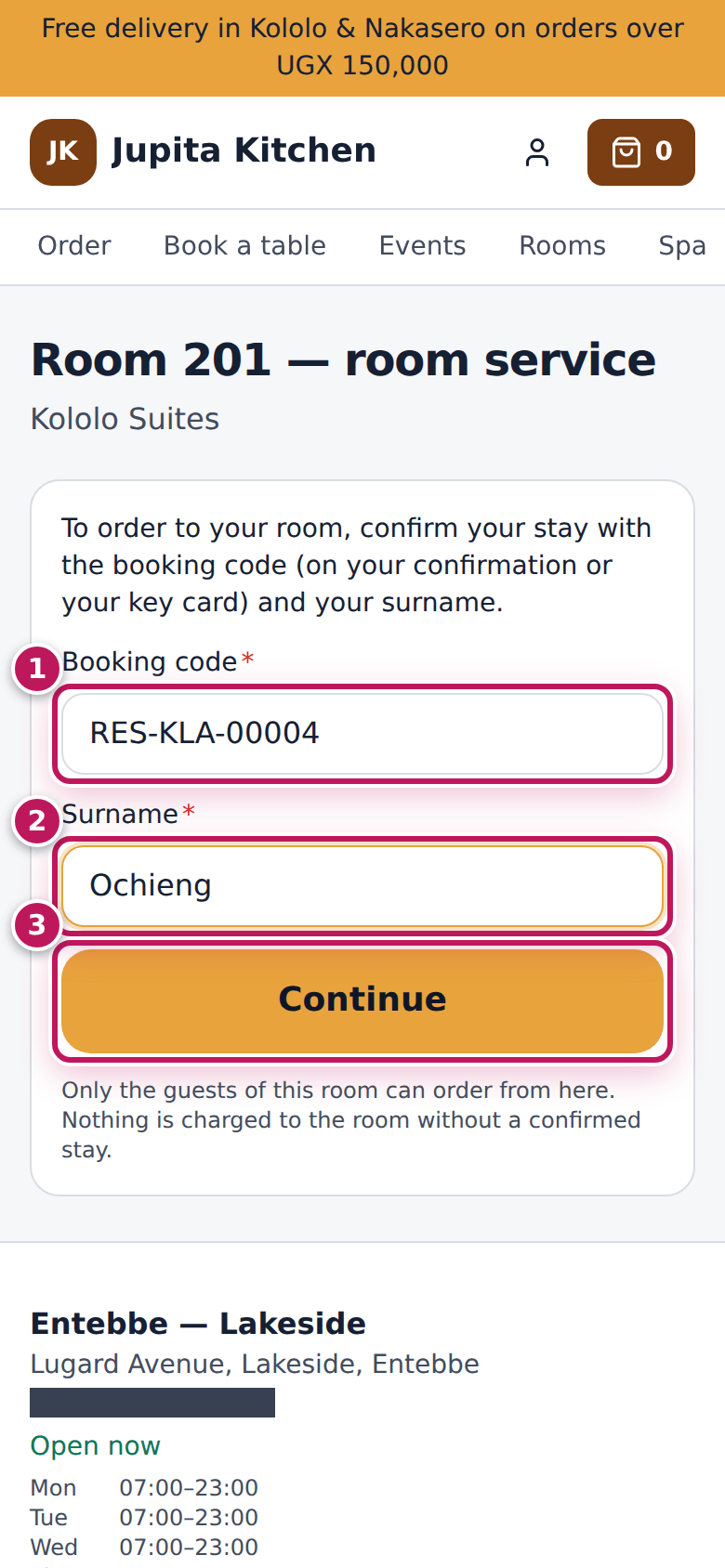
- Scan the QR code in the room. The page names the room.
- Type the Booking code (1) from the confirmation or key card and the Surname (2), and choose Continue (3).
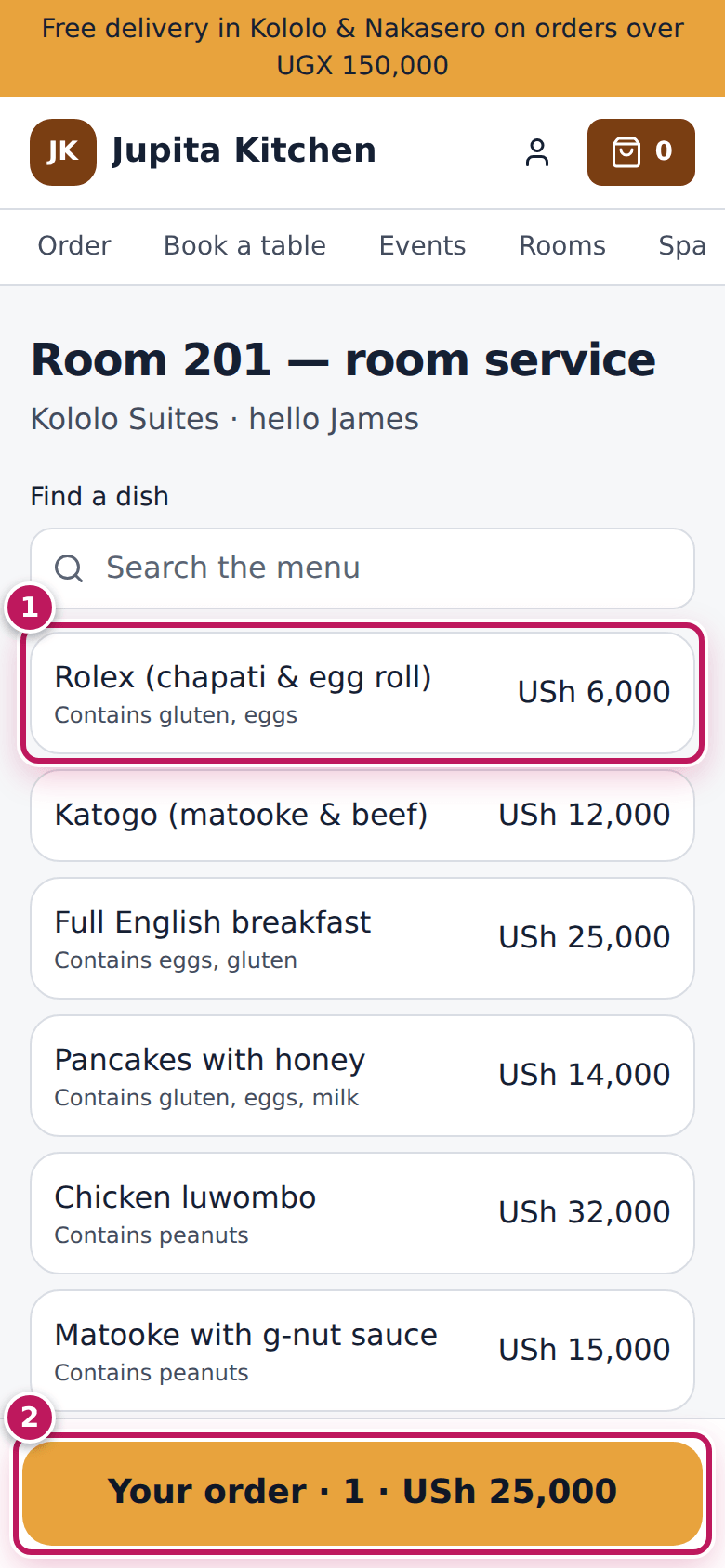
- Tap dishes on the menu (1) to add them, choosing any options. On a phone, the bar at the bottom (2) shows the order so far; tap it.
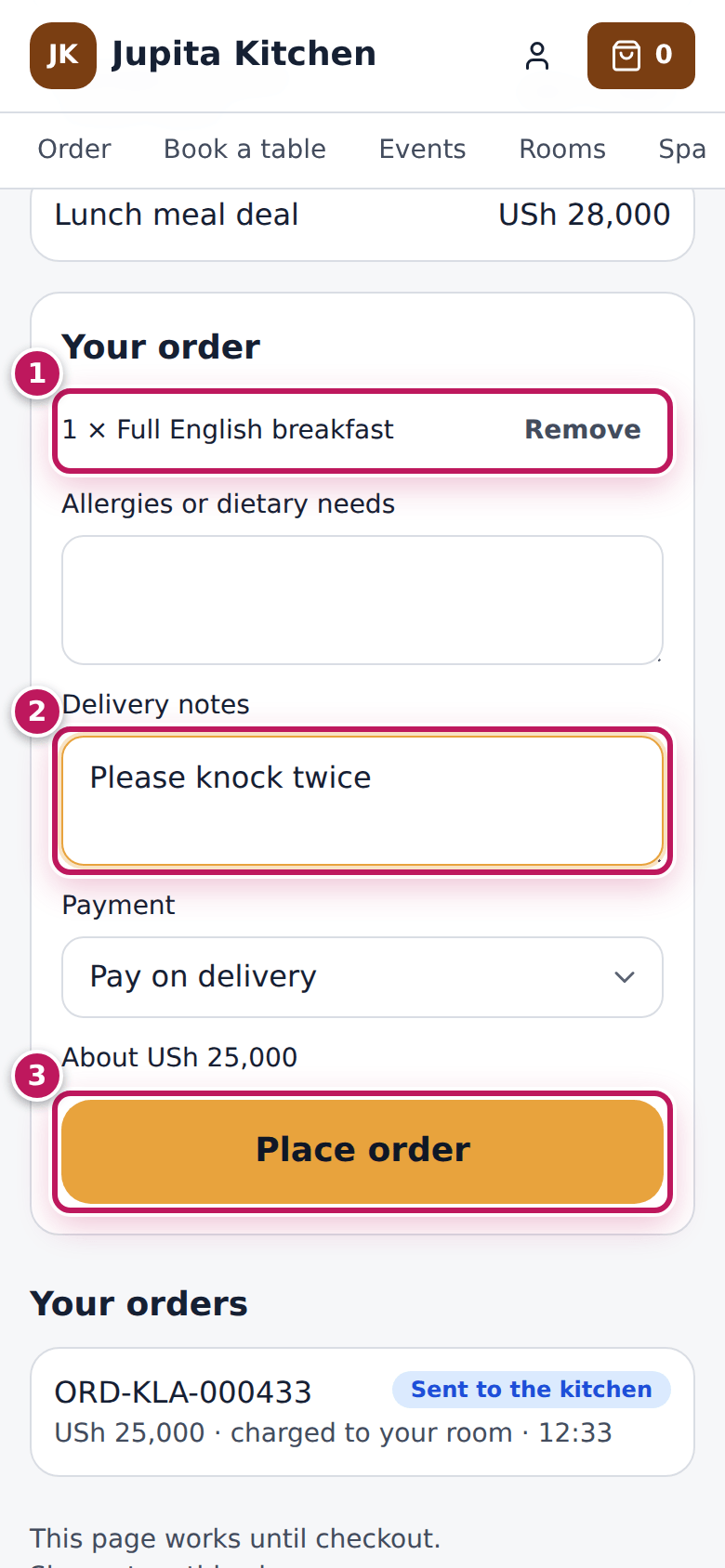
- Check the dishes (1), add allergies or Delivery notes (2), and choose Place order (3) — paying on delivery, or charging it to the room where the hotel allows it.
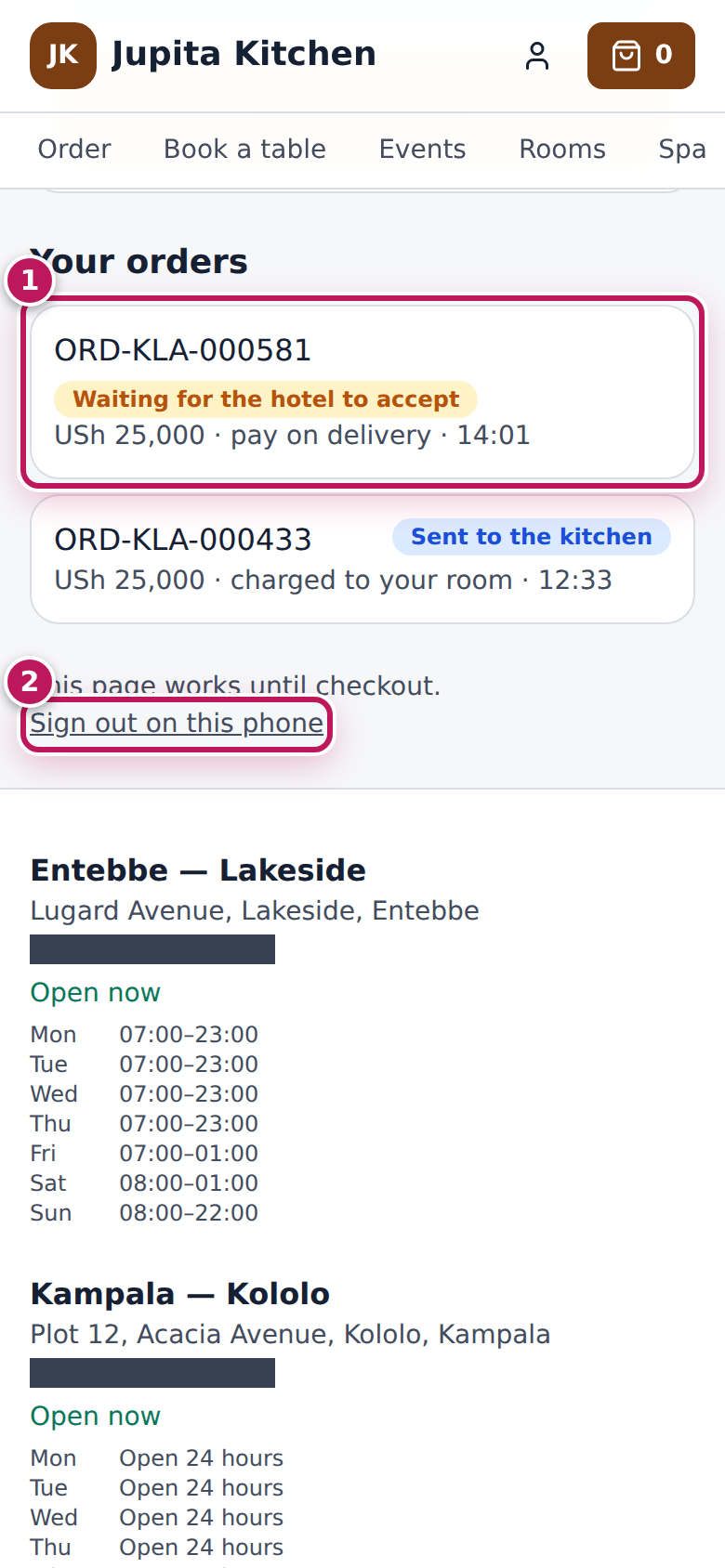
- Follow the order (1) under Your orders; choose Sign out on this phone (2) when you are done.
Expected result
The order reaches the room-service board as a guest order; the hotel accepts it before it goes to the kitchen, and the guest sees each step. The page shows only this stay’s orders — no bill, no balance, no other room. It stops working at checkout.
Screenshot
Common mistakes
- Typing the room number as the booking code. The booking code is the reference on the confirmation, such as RES-….
Troubleshooting
- “We could not find a stay in this room with those details”. The booking code or surname does not match the guest checked in to this room. Call the front desk.
- “Your room-service access has ended”. You checked out, signed out, or the session expired — scan the code again.
- Charge to the room is not offered. The hotel takes payment on delivery for this stay.
Read the reception, housekeeping and room-service dashboards
Purpose
See at a glance what each team needs: the rooms free tonight, what guests owe, which rooms are ready, what needs the desk, and which room-service orders are late.
Role / permission required
Front desk (accommodation.front_desk; balances need
accommodation.folio). Housekeeping (accommodation.housekeeping). Room
service staff. Managers see the summary on the dashboard.
Prerequisites
- Rooms are switched on for the business, and the user works at the property’s branch.
Steps
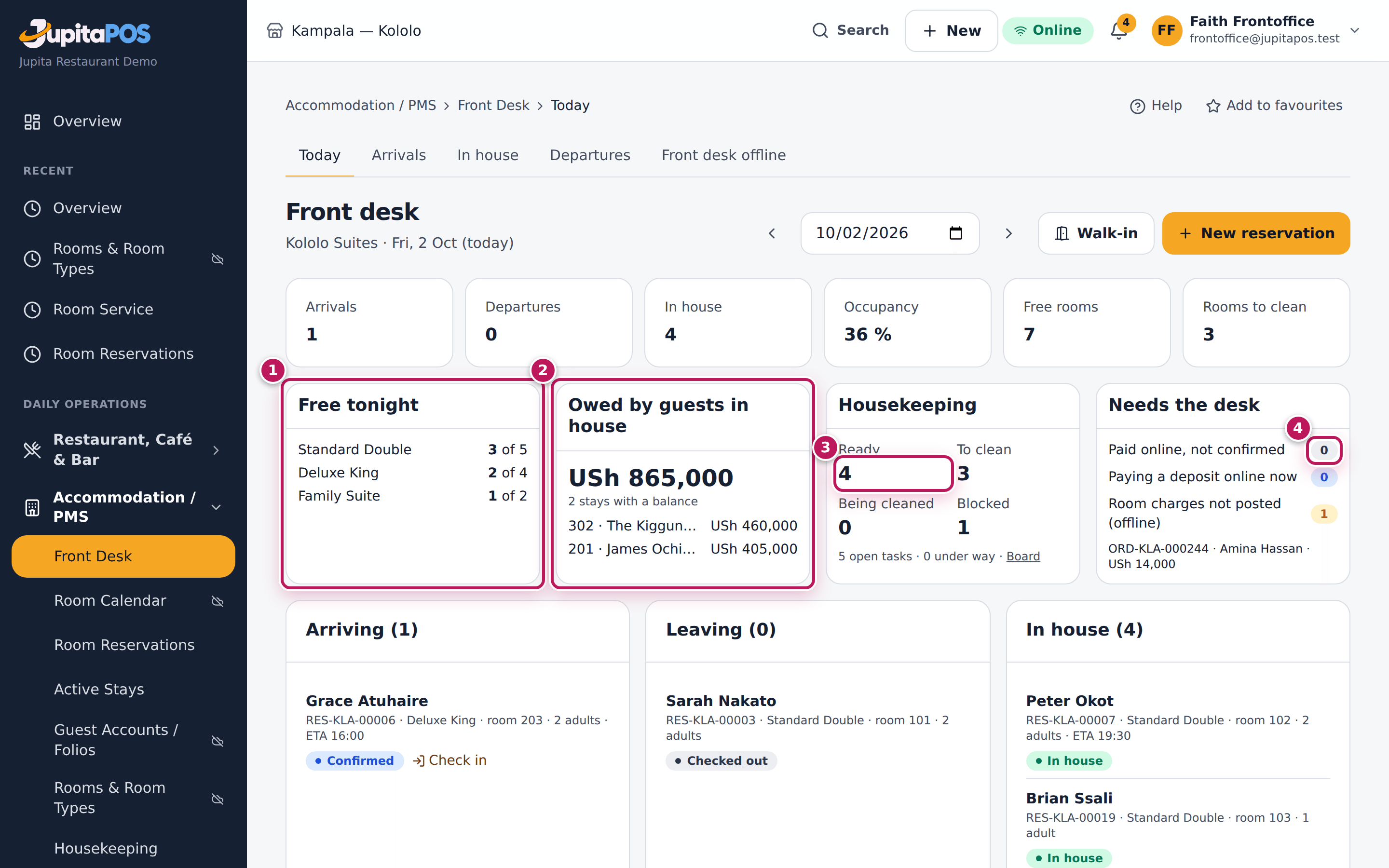
- Open Front Desk. Above arrivals and departures: Free tonight (1) by room type, Owed by guests in house (2), Housekeeping with the ready rooms (3), and Needs the desk (4) — paid online but not confirmed, and deposits being paid now.
- Housekeepers see the same readiness on Housekeeping › My work.
- Room service staff see live orders, orders in preparation, with runners, and late ones on Room Service; a late order carries a late badge.
- Managers see Rooms today and Events today on the Overview, beside the sales figures.
Expected result
Each person sees only what their permissions, branch and licence allow: without folio rights the balances are hidden; with rooms switched off the cards are gone.
Screenshot
Common mistakes
- Reading Free tonight as rooms ready now. Free means not sold for tonight; Ready means clean, in service and empty.
Troubleshooting
- “Folio rights are needed to see balances”. Ask an owner for
accommodation.folio. - A count looks stale. The pages refresh themselves; reload to see the latest at once.
Keep the front desk going without a connection
Purpose
When the internet or the server is down, see who is arriving, leaving and in house, the bookings ahead and what guests owe — from the copy saved on this computer — and save booking requests to confirm later. Nothing that needs the server is pretended.
Role / permission required
Front desk (accommodation.front_desk) or reservations
(accommodation.reservations); folios need accommodation.folio; saving a
request needs accommodation.reservations.
Prerequisites
- The computer is a registered terminal with offline use switched on, and someone from the desk has opened Front Desk Offline on it while online (it then keeps its copy and the page).
Steps
- Open Front Desk Offline. The top line (1) says what needs the server; the page says how old this computer’s copy is.
- Use the tabs (2) — Arrivals, Departures, In house, Bookings, Guests, Folios — to answer guests (3).
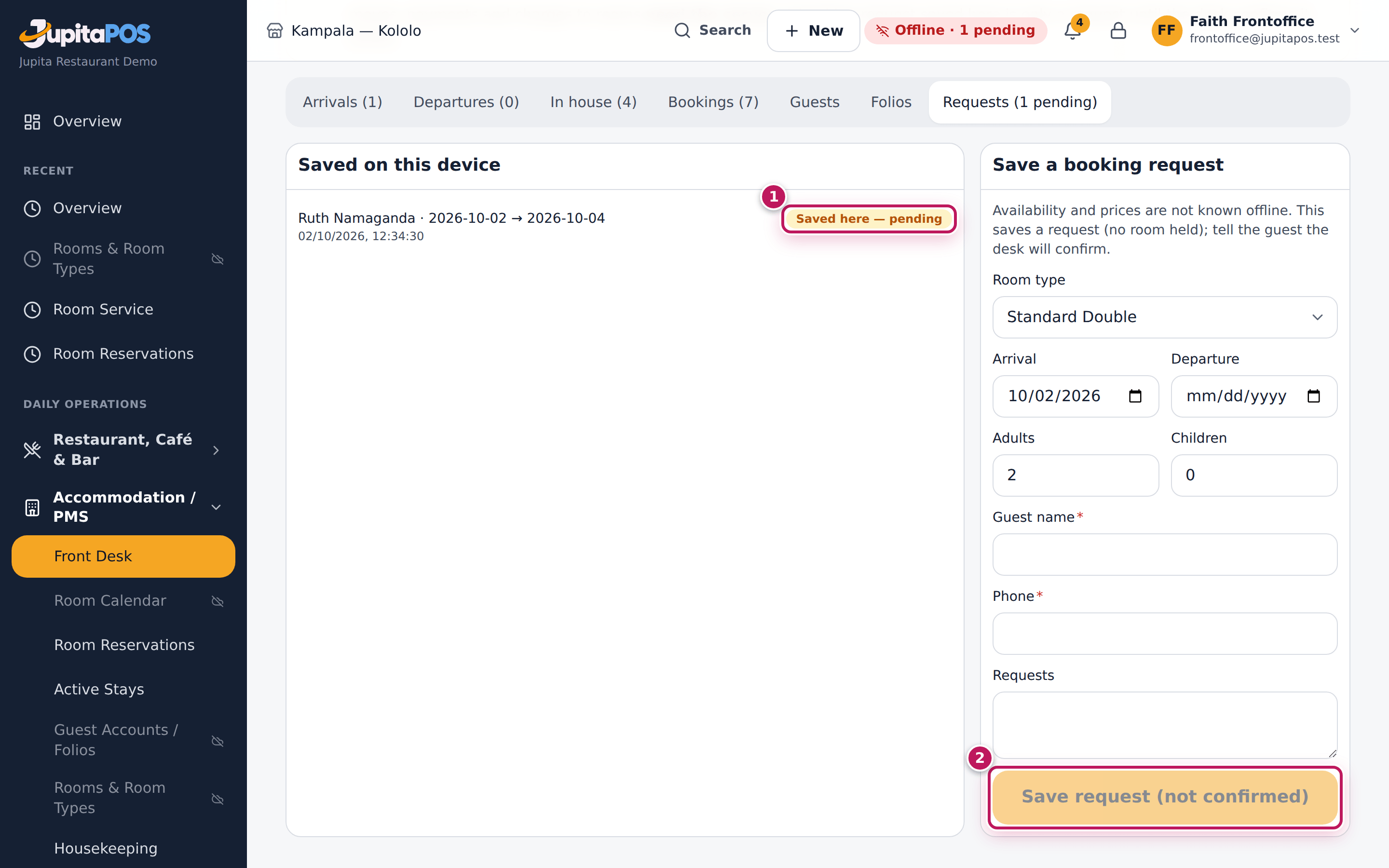
- A caller wants a room? Open Requests, fill in the dates, the guest’s name and phone, and choose Save request (not confirmed) (2).
- The request shows Saved here — pending (1) until the server has it; then Accepted — still a request, which you confirm online at Room Reservations.
Expected result
Guests are answered from the copy. Requests wait on this computer through reloads and go up by themselves when the connection returns; each becomes a pending enquiry (no room held) for the desk to confirm or decline.
Screenshot
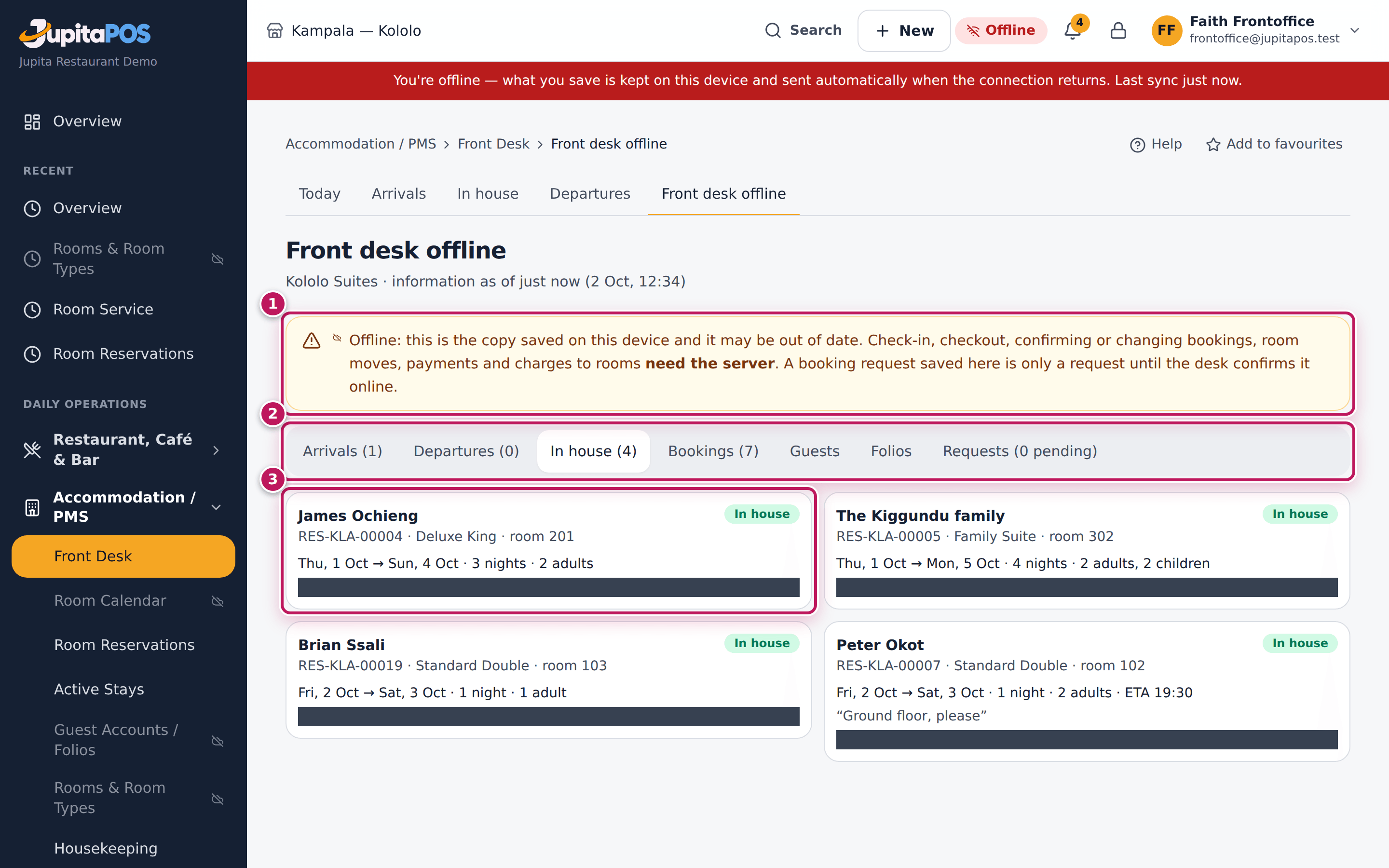
Common mistakes
- Promising the room. A request is not a booking: availability and prices are decided online. Tell the guest you will confirm.
- Checking a guest in “on paper” and forgetting it. Check-in and checkout need the server — do them as soon as it is back.
Troubleshooting
- “Nothing saved for the desk on this device”. The computer is not set up for offline work, or nobody from the desk opened the page on it while online.
- “This device cannot save offline work”. The browser cannot store anything (a private window, or the disk is full); nothing typed offline can be kept here.
Clean rooms from a phone without a connection
Purpose
Keep cleaning when the phone loses the connection: your tasks stay on the phone, and Start, progress and Done are saved there and sent when the connection returns.
Role / permission required
Housekeeper (accommodation.housekeeping).
Prerequisites
- The phone is a registered terminal with offline use switched on, and you opened My Work on it while online.
Steps
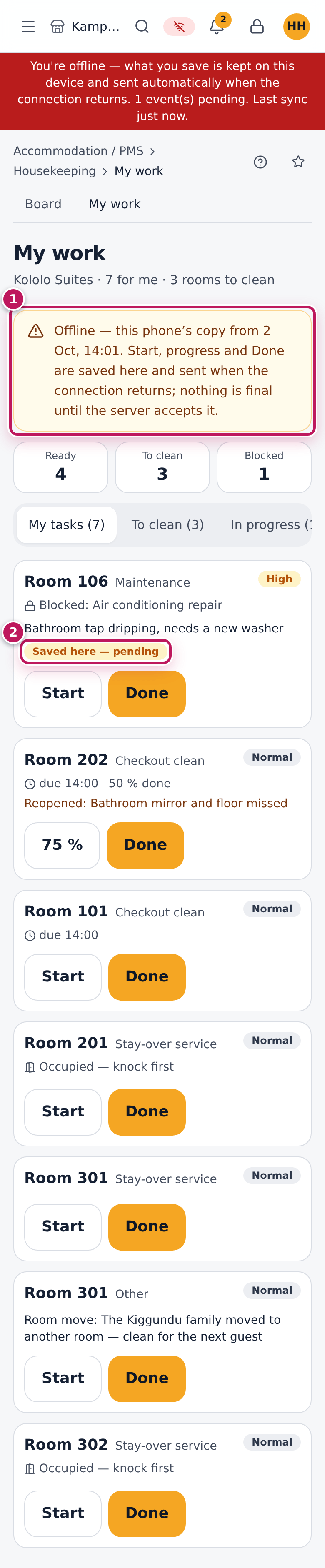
- Open Accommodation / PMS › Housekeeping › My work. Without a connection, the banner (1) says the phone is showing its own copy and how old it is.
- Choose Start, then Done, as usual. Each step shows Saved here — pending (2) until the server accepts it.
- Report room issues once you are back online.
Expected result
When the connection returns the steps go up by themselves. A step the server cannot apply — the supervisor gave the task to someone else, or a new guest is in the room — is kept for the supervisor and never overwrites the newer state.
Screenshot
Common mistakes
- Taking a pending step as final. Until it is accepted, the room is not Clean for the front desk.
Troubleshooting
- A step shows Needs review. The task changed on the server while you were offline; the supervisor decides.
Hand over orders sent from an offline till
Purpose
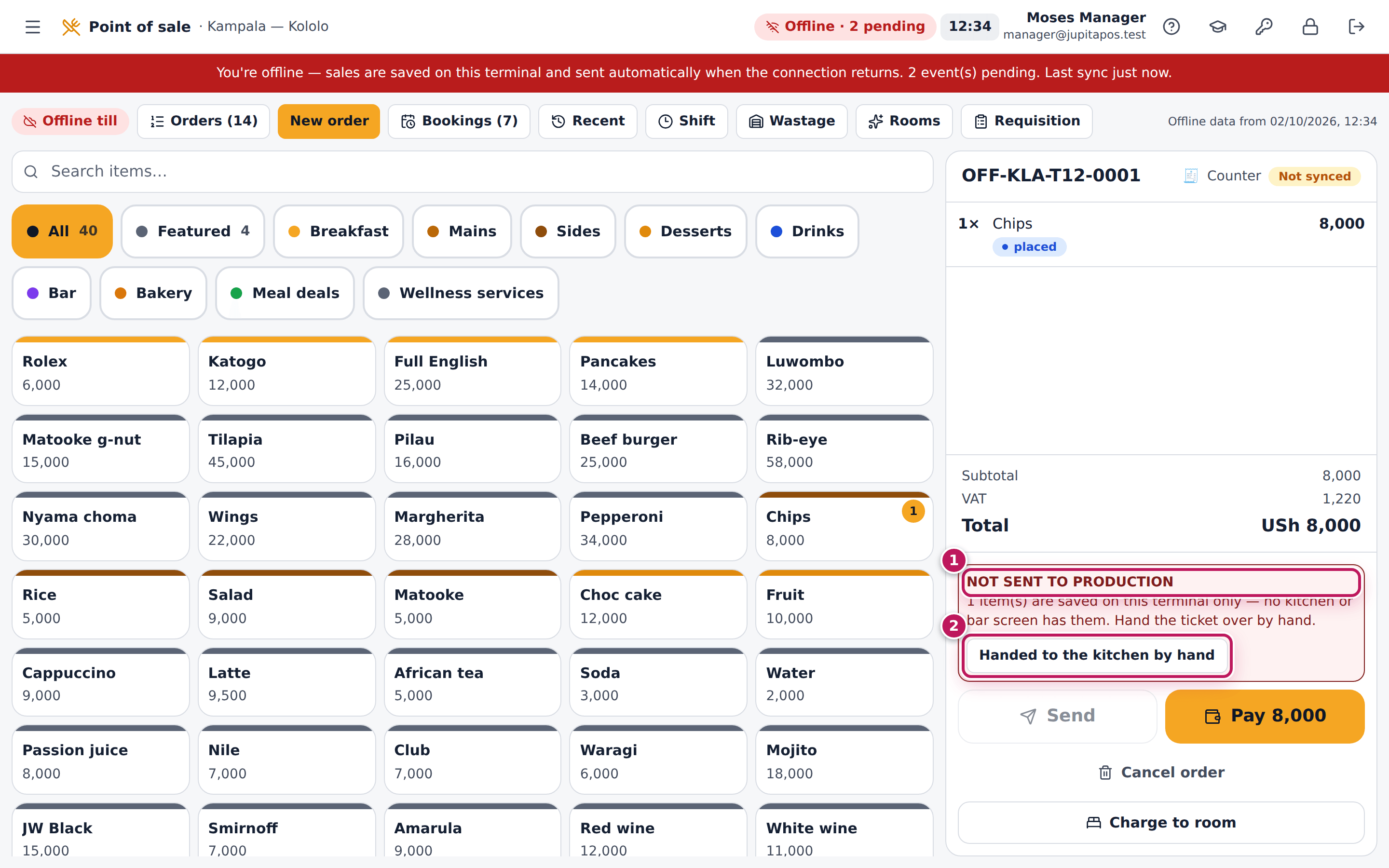
When the till is offline, no kitchen or bar screen can receive an order. The till says so, and you hand the ticket over by hand — and mark it, so the kitchen does not make it twice when the till reconnects.
Role / permission required
Anyone who takes orders on the till (sales.create).
Prerequisites
- The till is a registered terminal working offline.
Steps
- Take the order (room service or any other) and choose Send. The till shows NOT SENT TO PRODUCTION (1).
- Write or print the ticket and take it to the kitchen or the bar.
- Choose Handed to the kitchen by hand (2).
Expected result
When the till syncs, the kitchen screens record those tickets as handed over by hand — not as new work. A ticket a cook had already started on a screen is left as it is and noted.
Screenshot
Common mistakes
- Marking it handed over without taking the ticket. The screens will not show it; the kitchen then never makes it.
Troubleshooting
- The kitchen screen briefly shows the ticket at sync. It closes itself as handed over a moment later.
Settle room charges that arrived after checkout
Purpose
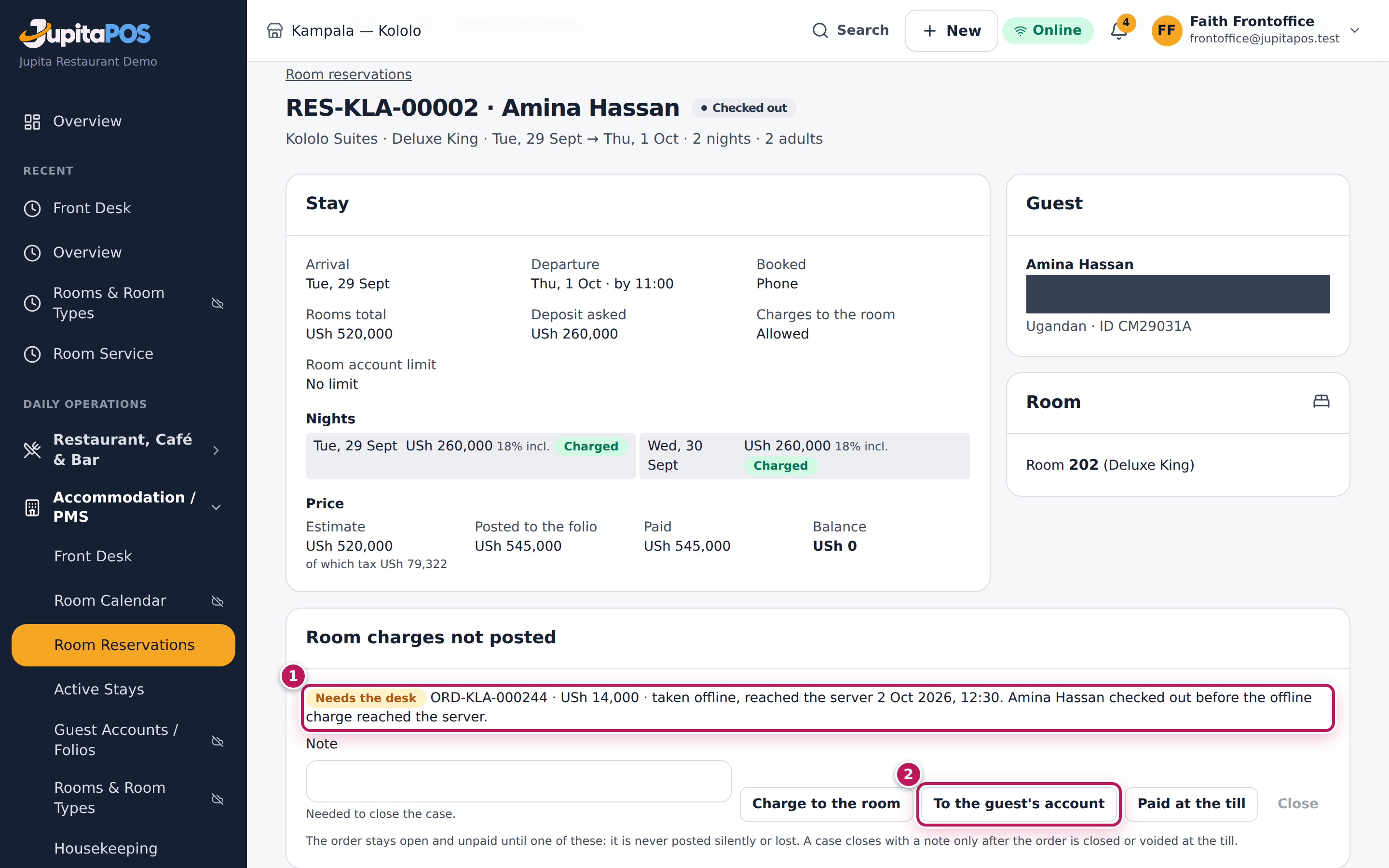
A till that was offline may have charged an order to a room whose guest then checked out before the till synced. That charge is never posted silently or lost: the order stays open and unpaid, and the desk settles it.
Role / permission required
Front desk (accommodation.front_desk).
Prerequisites
- An order charged to a room offline that the server could not post (the desk is notified).
Steps
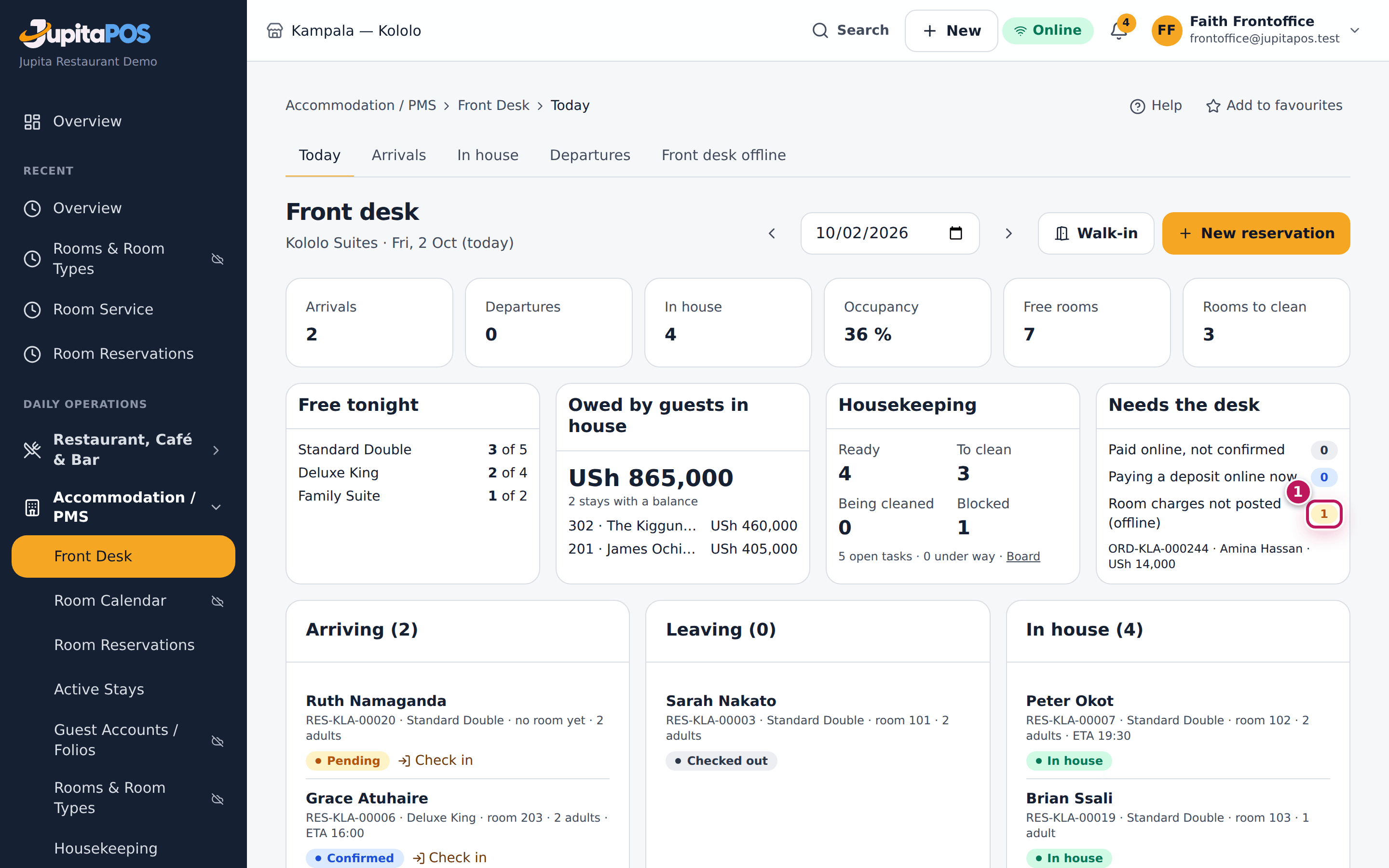
- On Front Desk, Needs the desk counts the room charges not posted (1); choose one to open the booking.
- Under Room charges not posted (1), choose To the guest’s account (2) to put it on the guest’s account, Charge to the room if the guest is back in house, or Paid at the till once it was paid.
- To close it otherwise, void or close the order at the till first, then write a note and choose Close.
Expected result
The case shows how it was settled, and both steps are in the audit log.
Screenshot
Common mistakes
- Closing a case while the order still owes money. It is refused: settle the order first.
Troubleshooting
- “has no account to charge”. Give the guest credit first (Customers), or collect the payment.
Give the guest a statement or confirmation
Purpose
Every booking keeps its documents: the booking confirmation (made when the booking is confirmed, and e-mailed when the guest gave an address) and the folio statements (made at checkout, or when you ask). Each new version is kept next to the older ones.
Role / permission required
Front desk with folio rights (accommodation.folio) at the booking’s
branch.
Prerequisites
- A statement needs the stay’s folio (the guest is checked in, or was).
Steps
- Open the booking (from Front Desk or Room Reservations).
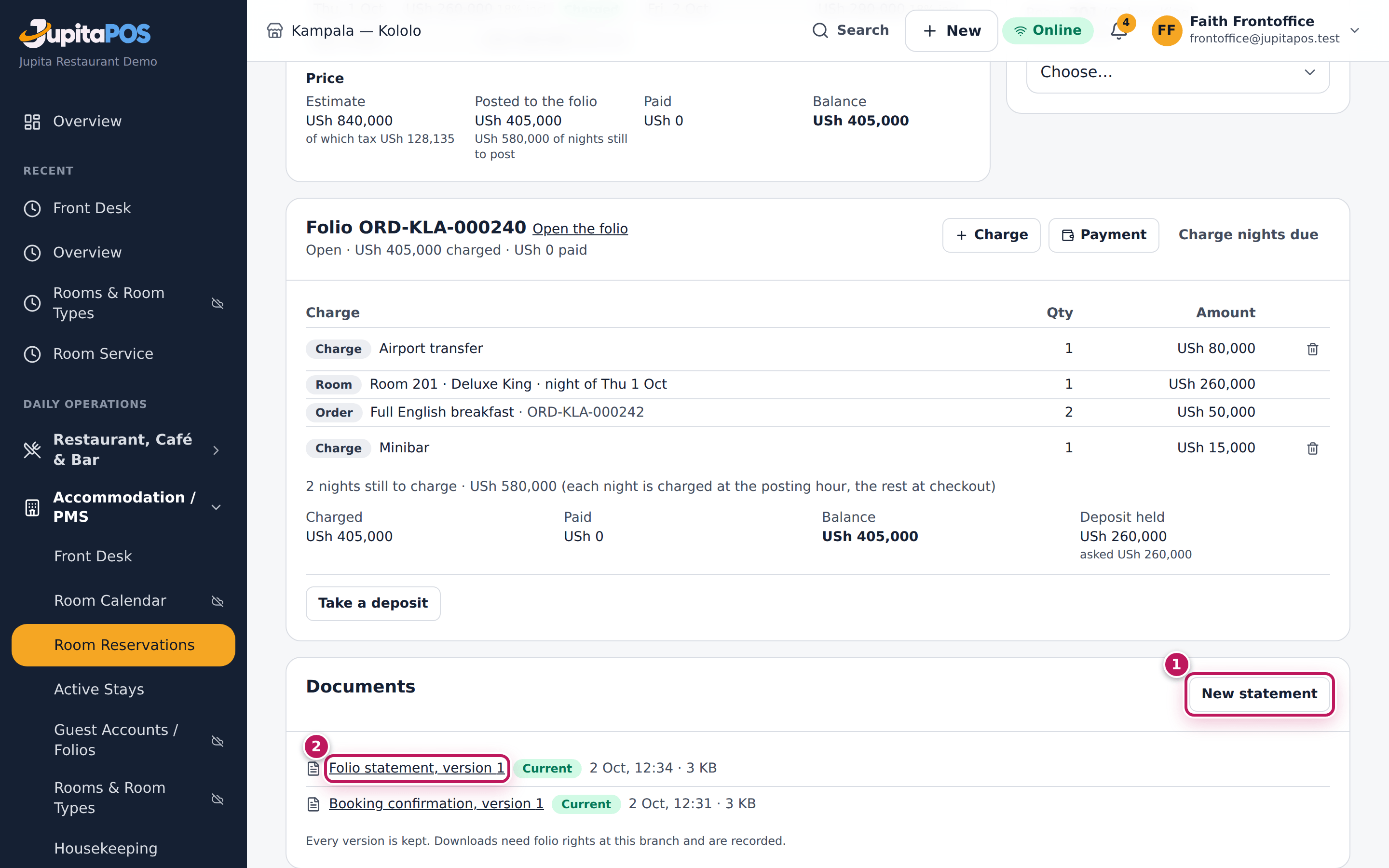
- Under Documents, choose New statement (1). The desk is not kept waiting: the statement is made in the background and appears in the list a moment later.
- Choose a document (2) to download it.
Expected result
The new statement is Current; an earlier one is marked Replaced and can still be downloaded. If nothing changed on the folio since the last statement, no new version is made and you are told which one is current.
Screenshot
Common mistakes
- Sending a link to the file. Downloads need a signed-in person with folio rights at the branch; send the PDF itself.
Troubleshooting
- The statement stays “Queued”. The background worker is not running or Redis is unavailable; the work is kept and done when they return. Ask your administrator, or see Background Work.
Check background work and rebuild summaries
Purpose
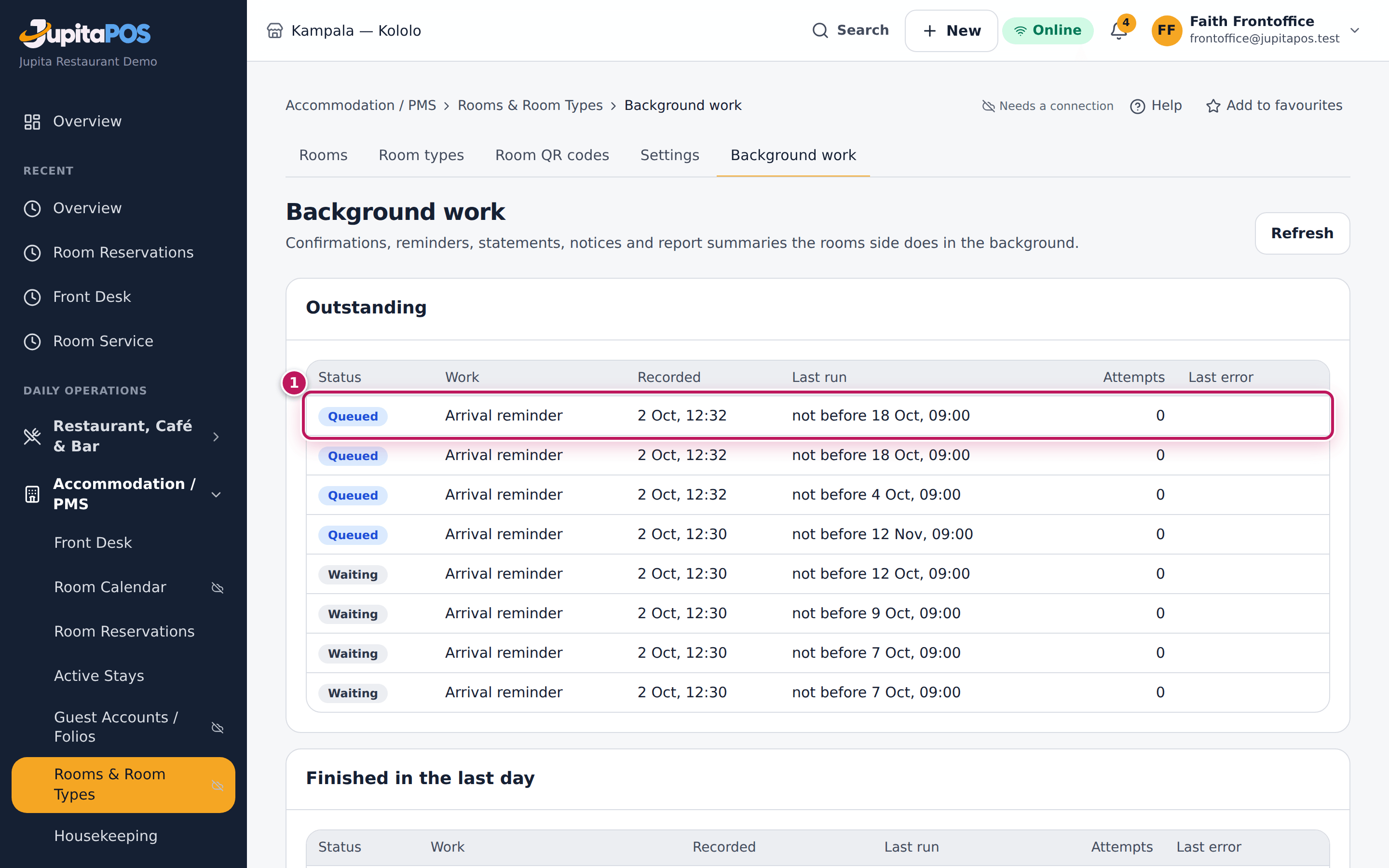
Confirmations, reminders, statements, housekeeping and room-service notices and report summaries are done in the background. Each is recorded with the change that needed it, so nothing is lost if the server or Redis restarts; this page shows what is still to do and what failed.
Role / permission required
Front office manager, manager or owner (accommodation.reports).
Prerequisites
- None.
Steps
- Open Accommodation / PMS › Rooms & Room Types › Background work.
- Outstanding (1) lists work waiting, queued, working or failed, with its attempts and last error. Choose Try again on failed work.
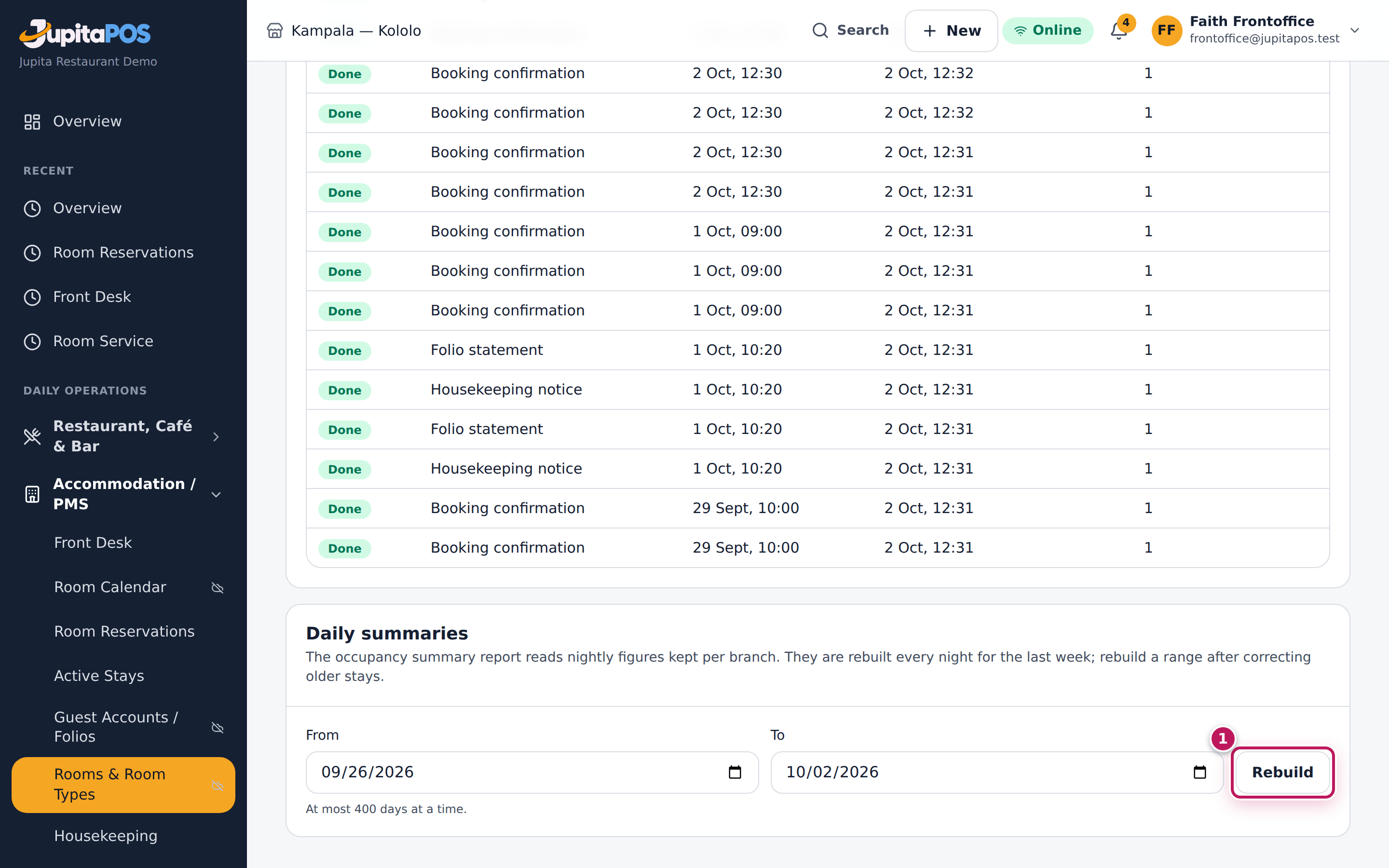
- Under Daily summaries, pick a range of at most 400 nights and choose Rebuild (1) after correcting older stays.
Expected result
Work tried again runs once. Rebuilt summaries replace the nights of the range; the Accommodation summary report reads them.
Screenshot
Common mistakes
- Expecting a booking to wait for its e-mail. Bookings, payments and checkouts are complete when you save them; their e-mails and PDFs follow.
Troubleshooting
- Work stays “Waiting” for more than a few minutes. The queue worker is not running or Redis is unavailable; tell your administrator. The work is kept and is sent within a minute of their return.
Read the room reports
Purpose
Follow how full you are and what each room earns: occupancy, average daily rate (ADR), revenue per available room (RevPAR), arrivals and departures, bookings by source, deposits held and housekeeping.
Role / permission required
Front office manager, manager or owner (reports.view and
accommodation.reports).
Prerequisites
- None.
Steps
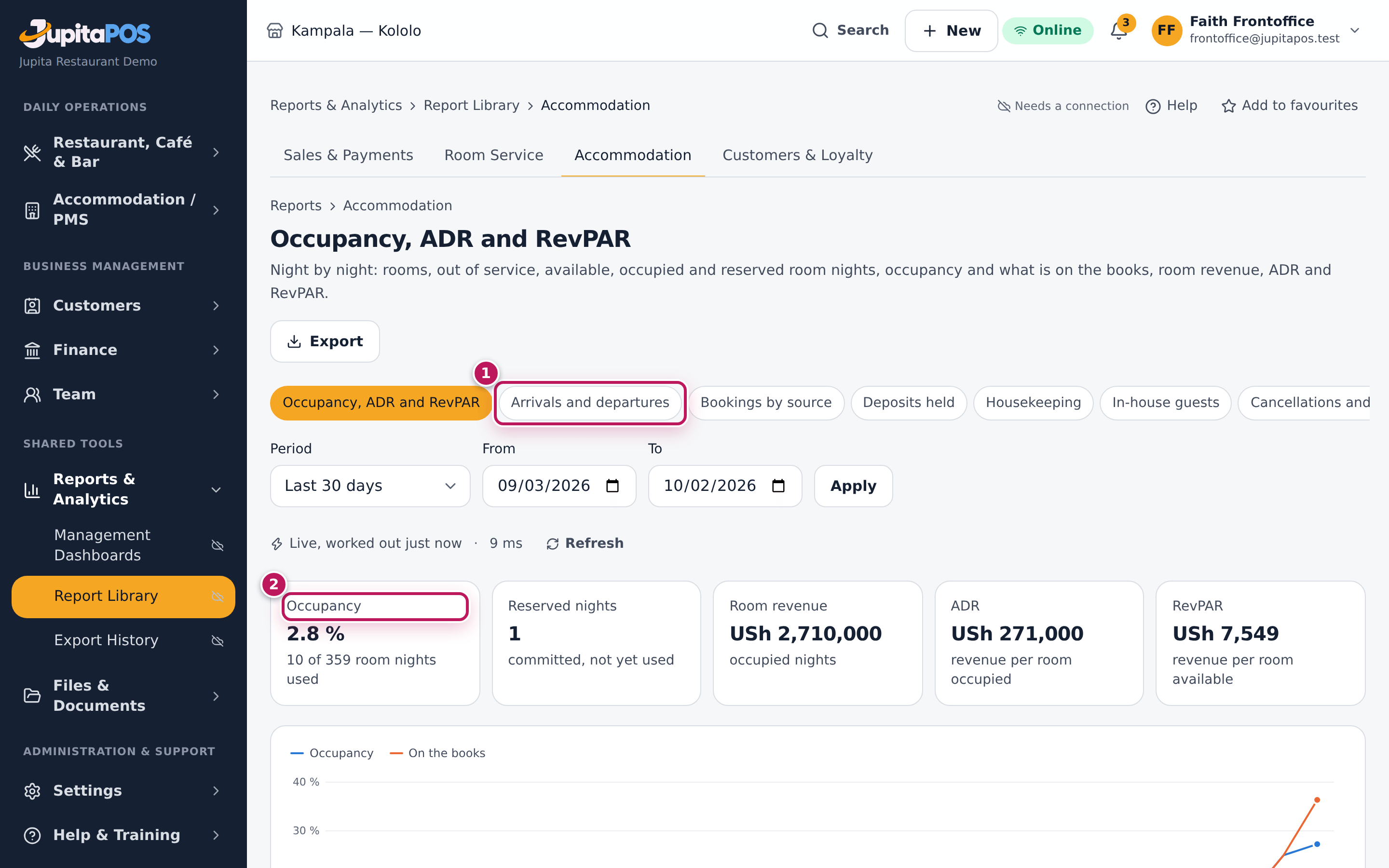
- Open Reports and choose Accommodation.
- Occupancy, ADR and RevPAR opens on the last 30 days: read the headline figures (2) and the line night by night.
- Use the tabs (1) for Arrivals and departures, Bookings by source, In-house guests, Cancellations and no-shows, Room revenue, Payments received, Outstanding folios, Deposits held, Housekeeping and the Accommodation summary; room-service sales and Preparation and delivery are under Room service.
- Export to PDF, Excel or CSV.
Expected result
Available is rooms less those out of order or out of service that night. Occupied nights are nights guests actually stayed (checked in or out), up to tonight; occupancy is occupied ÷ available for those nights. Future confirmed nights are reserved (and on the books), not occupancy; their value is reserved revenue, not revenue. Room revenue is the agreed rates of occupied nights; ADR is room revenue ÷ occupied nights; RevPAR is room revenue ÷ available nights. Cash collected (Payments received) is money taken, whenever the stay is — not revenue. Held online requests are shown apart.
Screenshot
Common mistakes
- Comparing room revenue with the books. The report uses the agreed nightly rates (tax as your prices are set); the accounting reports show accommodation revenue net of tax.
Troubleshooting
- The Accommodation section is missing. You need
accommodation.reports; ask your administrator.
Troubleshoot the rooms module
Purpose
Find the cause and the fix for the messages and surprises the front desk, housekeeping, the till and the managers meet most often. Every guide above has its own Troubleshooting; this is the list in one place.
Role / permission required
Anyone who works with rooms (accommodation.view, accommodation.housekeeping
or accommodation.charge); each fix says who may do it — overrides need
accommodation.override, verifications payments.verify, the module
switch and the pause settings.manage.
Prerequisites
- None.
Steps
- Find the message, or what you see, in the tables below.
- Do what the Fix column says; follow its link for the full steps.
- If nothing here fits, write down the time, the booking or room number and the exact message, and tell the front office manager (see Getting help in your role manual).
Bookings and the calendar
| What you see | Why | Fix |
|---|---|---|
| No … room is free on every night | a night of the stay is full, closed to sale, refuses arrivals or is under the minimum stay | another room type or other dates; check the availability grid (Set prices by date) |
| New room bookings are paused | the owner paused new bookings | bookings already made carry on; an owner reopens (Pause new room bookings) |
| a booking’s price did not follow a rate change | bookings keep the rates they were taken at | change that booking’s agreed rate (Take a room booking) |
| a held booking disappeared | its hold ran out and the room was released | book again; confirm a booking the guest has paid for |
Check-in, deposits and folios
| What you see | Why | Fix |
|---|---|---|
| The deposit asked is not received yet | the property checks in only with the deposit held | take it, have it verified, or a front office manager overrides with a reason (Take, refund or keep a deposit) |
| the room is Dirty or Inspect at check-in | housekeeping has not finished it | choose a clean room, or wait; an override needs a reason |
| Open your till | cash needs your own open till | open the till, or use another method |
| a payment awaiting verification | card or mobile money typed in by hand | a manager verifies it on the folio page (Read and settle a folio in full) |
| Another price needs a manager | the charge is not at its listed price | a front office manager posts it, or adds the item to the charge list |
The till and room service
| What you see | Why | Fix |
|---|---|---|
| no Charge to room button | no accommodation.charge, something already paid, a training order, or rooms are off |
take payment at the till (Charge a restaurant or bar bill to a room at the till) |
| Over the room account’s limit | the stay owes or holds too much on account | pay on delivery, or a front office manager raises the limit |
| the kitchen has no room-service order | it is New: nobody chose Accept and send | accept it on the room-service board (Take and deliver room-service orders) |
| a charge made offline did not reach the folio | the guest checked out before the till synced | settle it from Room charges to settle (Settle room charges that arrived after checkout) |
Checkout and housekeeping
| What you see | Why | Fix |
|---|---|---|
| checkout refused with a balance | the folio still owes | take the payment, then check out (Check a guest out) |
| a checked-out guest still on Guest folios | the checkout stopped part-way | open the stay and choose Check out again — no step runs twice |
| a room stays Dirty after cleaning | the clean was started but not marked done, or it waits for inspection | finish it on the board (Clean and ready rooms) |
Modules, pending work and the offline desk
| What you see | Why | Fix |
|---|---|---|
| … cannot be switched off while … | guests in house, bookings to arrive, open folios or room-service orders | pause new bookings and finish them first (Pause new room bookings) |
| Off — history readable on Modules | rooms are switched off after stays were made | stays, folios and reports stay readable; nothing can be changed until it is switched on |
| requests saved on this device | the desk was offline | they are sent when the line returns; check them on Offline desk (Keep the front desk going without a connection) |
| a confirmation or statement not sent | background work failed or is waiting | see Background work and retry (Check background work and rebuild summaries) |
Expected result
The message is gone and the work carries on; nothing was entered twice. Each fix is recorded in the audit trail under the person who made it.
Screenshot
Common mistakes
- Trying again and again. Read the message: it says why and what to do. A retry of the same action is safe (nothing is taken twice), but it will not change the answer.
- Fixing a folio by a manual journal. Correct the charge on the folio page so the folio and the books agree.
Troubleshooting
- The message is not listed here. Search the help for its first words, or ask the front office manager with the time and the booking number.