

On this page
If your business has a spa — treatment rooms, a sauna or steam room, therapists — JupitaPos runs it next to the restaurant and the rooms: the same customers, the same tills and payment methods, the same receipts and the same books. A visit is booked on the spa calendar, given by its therapist, billed as an ordinary order and paid at the till, or charged to a hotel guest’s room.
The spa’s pages are in the Wellness & Fitness workspace of the menu (Daily operations). A page’s deeper functions are its tabs, across the top of the page:
| Menu path | Page | What it is for |
|---|---|---|
| Wellness Overview › Overview | /wellness |
which wellness modules are on and online booking — see Wellness & Fitness |
| Wellness Overview › Clients | /wellness/clients |
each client’s wellness profile and, for those allowed, the health record |
| Appointment Calendar › Appointments | /wellness/appointments |
the day’s treatments, sessions, classes and training in time order — the spa desk’s landing screen; Find a free time (/wellness/availability) is its link at the top right |
| Appointment Calendar › Booking requests | /wellness/booking-requests |
requests captured offline or online, to be confirmed |
| Spa & Treatments | /wellness/spa (the page is headed Spa calendar) |
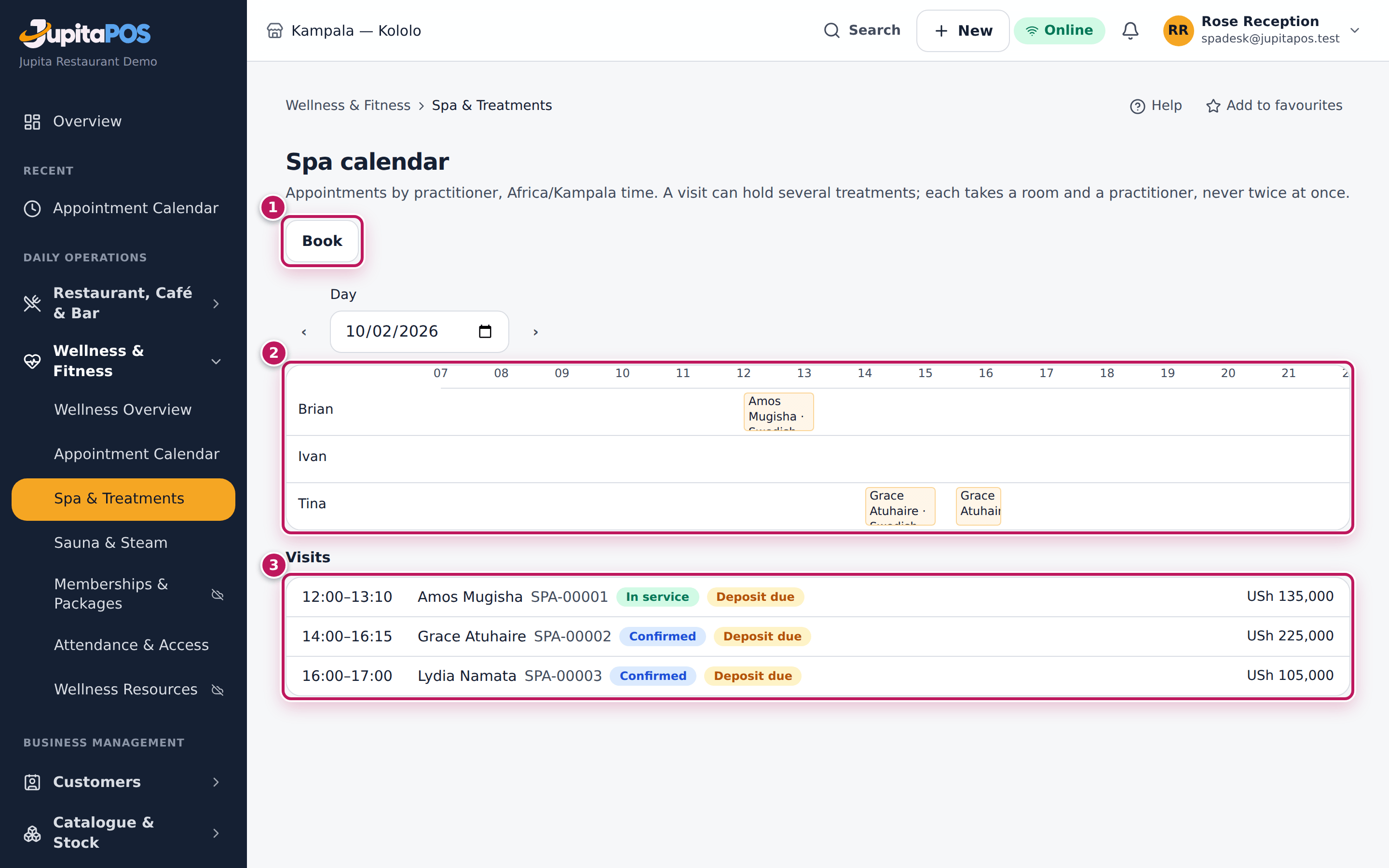
the day’s visits, a lane per therapist; book, arrive, treat and bill |
| Sauna & Steam › Sessions, Attendant screen | /wellness/sauna, /wellness/sauna/attendant |
the sauna’s sessions and the attendant’s register (the Sauna, steam & thermal module) |
| Wellness Resources › Resources | /wellness/resources |
treatment rooms, the sauna, studios and the hours each is closed |
| Wellness Resources › Practitioners | /wellness/practitioners |
which staff give treatments, their skills and their working hours |
| Wellness Resources › Settings | /wellness/settings |
the set-up cards: Services & packages (/wellness/services — treatments, add-ons, sauna sessions and the packages sold in advance), Intake forms (/wellness/intake-forms), Client messages, Working offline |
The spa is a module (Spa treatments; the separate Sauna, steam &
thermal module adds sauna sessions as timetable occurrences): an owner or
administrator switches it on in Modules (/system/modules). When it is
off, its menu entries disappear and the server refuses its pages, its API
and its online booking page; its data is kept.
The words used on these pages:
| Word | Meaning |
|---|---|
| Visit | one client’s booking, with one or more treatments (SPA-00001) |
| Treatment | a service given by a practitioner in a room — a massage, a facial |
| Add-on | something given with a treatment, in its time — aroma oil |
| Session | a service with places, booked for a number of people — an hour in the sauna |
| Resource | a room or space that is booked: a treatment room, the sauna, a studio |
| Practitioner | a member of staff who gives treatments, with their skills and hours |
| Hold | a visit kept for a few minutes while the client decides; it lets go by itself |
| Deposit | money taken before the visit, kept as the client’s credit until the bill |
| Intake | the client’s answers to the health questionnaire, signed with their name |
Who does what:
| Role | What they do here |
|---|---|
| Spa manager | everything: services and prices, rooms, therapists’ hours, the booking policy, client and health records, spa reports |
| Spa receptionist | books visits and sauna sessions, takes deposits, marks arrivals, makes the bill and takes payment |
| Therapist | their own day: reads the client’s intake, starts and finishes their own treatments |
The spa’s health information — intakes, contraindications, private notes,
protected documents — is shown only to people holding wellness.health
(the spa manager and therapists). The desk sees that a client is cleared
or needs an intake, never why.
Set up treatment rooms and the sauna
Purpose
Describe the rooms and spaces your spa books, so that a treatment never lands in a room that is taken or closed, and the sauna never holds more people than it should.
Role / permission required
Spa manager, gym manager or owner (wellness.setup).
Prerequisites
- The branch the spa is at exists, and the spa module is on.
Steps
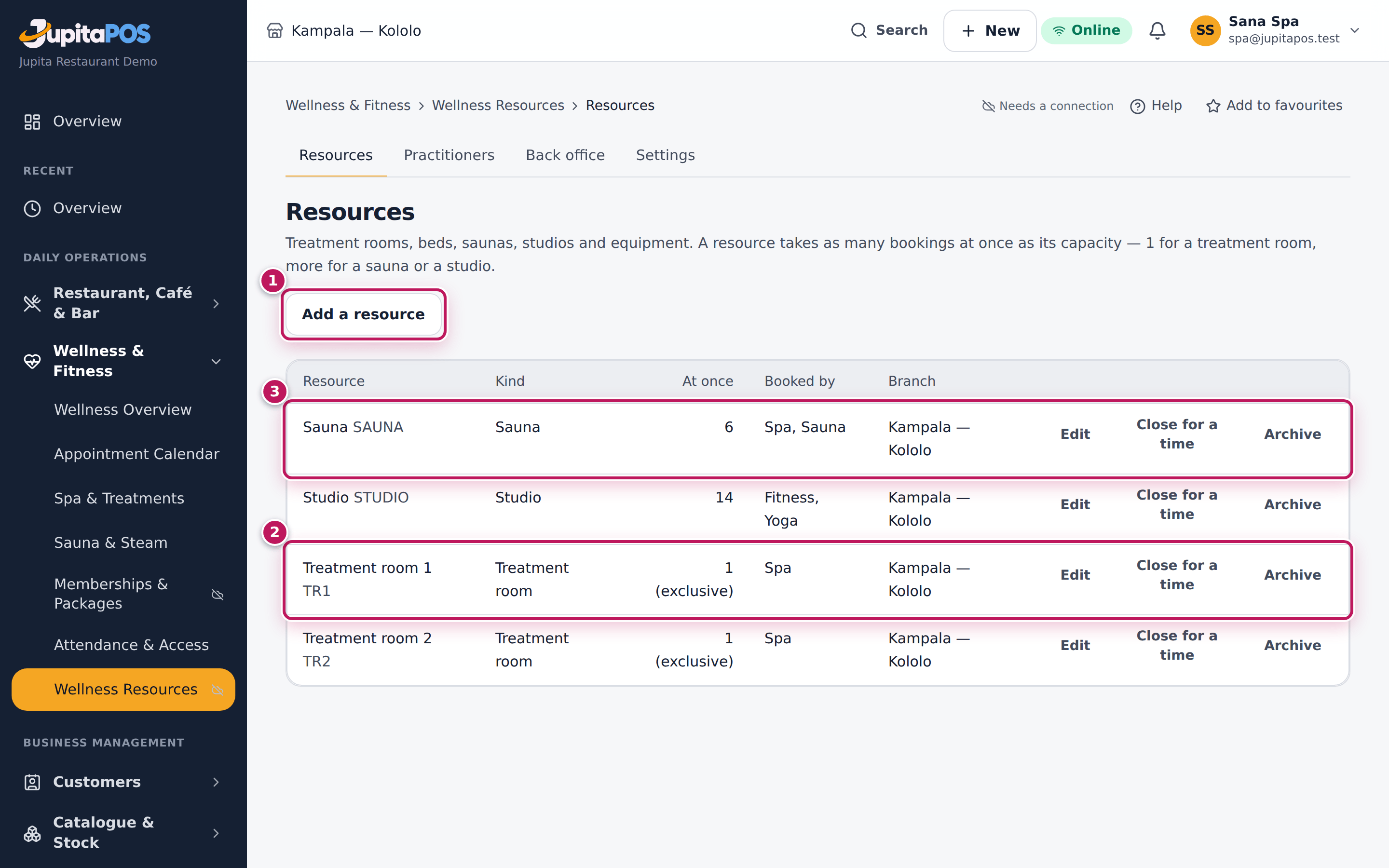
- Open Wellness & Fitness › Wellness Resources › Resources in the menu.
- Choose Add a resource (1).
- Give it a Code and a Name, its Kind (a treatment room, a sauna, a studio …), the Branch and Bookings at once — 1 for a treatment room, the number of people for a sauna.
- Tick the modules that may book it (the spa, the gym, retreats) and save.
- To close a room for a while — repairs, a deep clean — open it and add a closure From and Until, with a Reason. Nothing can be booked into it then. For maintenance that must go ahead even over bookings, open Back Office, tab Assets and maintenance, choose Plan maintenance on the room and Close for maintenance. The visits already in that time are listed under Open maintenance and faults for you to move or cancel; choose Resolve once the work is done. Choose Edit there to record the room’s or machine’s Asset tag, Make and model, Serial number, how often it is serviced (Service every (days)) and the Consumables store its oils come from, then Save the asset.
- For the sauna or steam room, open Sauna/Steam and choose Attendant screen. On the facility, choose Limit and hours: set Most people inside at once (the authorised limit), tick Has lockers, and tick Set operating hours for the days it opens.
Expected result
The room is listed with its kind and capacity (2). The sauna (3) takes as many people at once as its capacity, from any number of bookings; a treatment room takes one booking at a time.
Screenshot
Common mistakes
- Giving a treatment room a capacity of 2 for a couples’ massage. Book the couple as two treatments side by side in a room for two, or in two rooms.
- Forgetting to tick the spa module: the room then never appears when booking a treatment.
Troubleshooting
- A closure is refused. Visits are booked into the room in that time; move them first, or plan it as maintenance in Back Office, which lists them for you.
Give therapists their skills and hours
Purpose
Say who gives which treatments and when they work, so that the calendar only offers a treatment to a qualified therapist who is at work and free.
Role / permission required
Spa manager, gym manager or owner (wellness.setup).
Prerequisites
- The therapist has a staff account and an employee record at the branch (Add a staff member).
- Their days of leave are recorded in Staff, as for anyone.
Steps
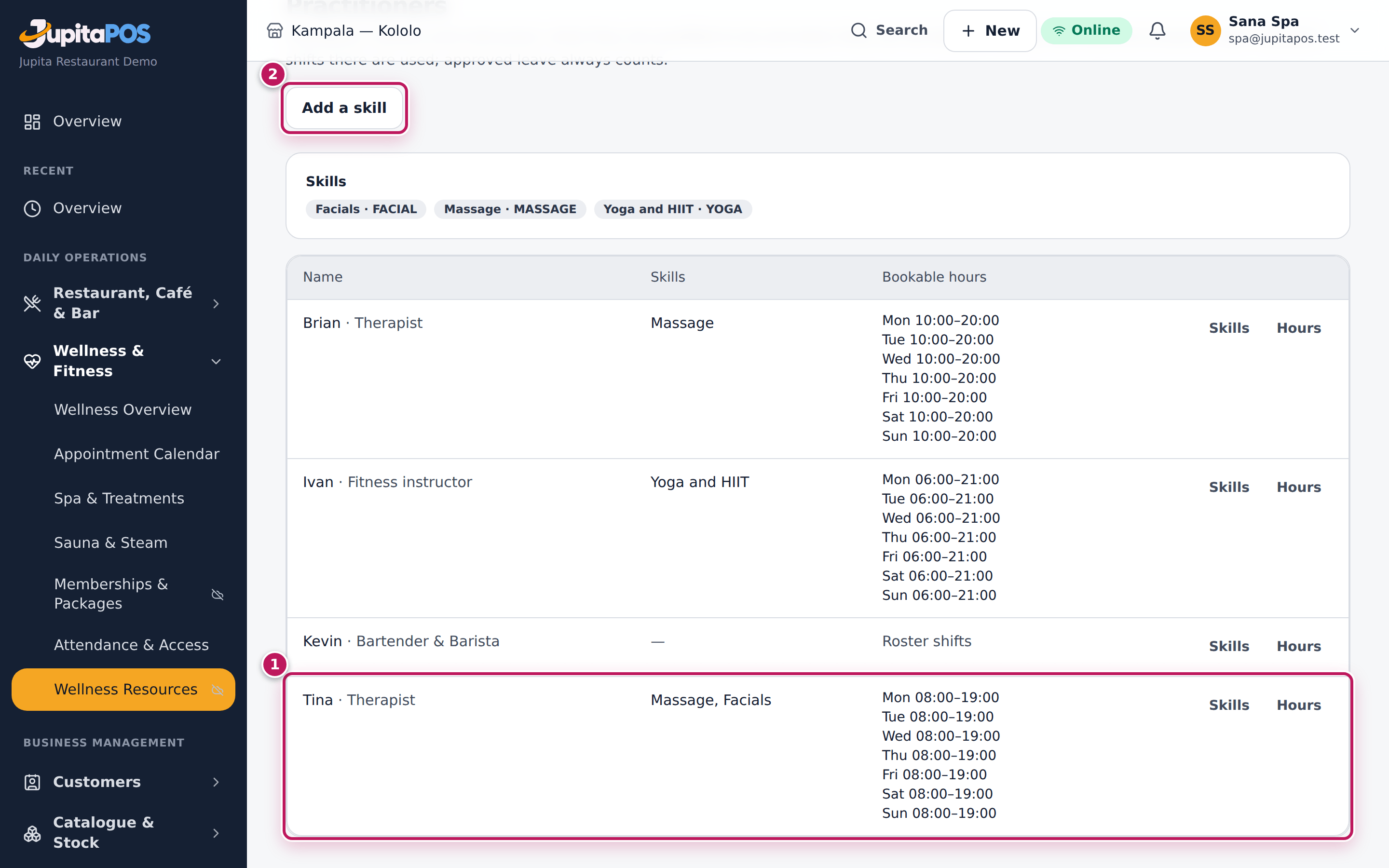
- Open Wellness & Fitness › Wellness Resources › Practitioners in the menu.
- Find the therapist (1). Choose Add a skill (2) and pick the skill — Massage, Facials — with Valid until (optional) for a certificate that lapses.
- Add their working hours: each Day with From and To. A therapist with no hours is never offered.
Expected result
The therapist is listed with their skills and hours. The calendar offers them for treatments needing those skills, within their hours, and never while they are on leave, in a class, or giving another treatment.
Screenshot
Common mistakes
- Skills are shared by the spa and the gym: an instructor who teaches yoga holds the Yoga skill here, with their hours, like a therapist.
Troubleshooting
- A therapist is missing from the list. They have no employee record at one of your branches; add one in Staff.
- A skill has lapsed. Its valid until date has passed; the therapist is no longer offered for it. Record the renewed certificate.
Set up treatments, add-ons, sauna sessions and packages
Purpose
Describe what the spa sells — how long each treatment takes, who can give it, which room it needs and what it costs — and the packages clients buy in advance.
Role / permission required
Spa manager, gym manager or owner (wellness.setup).
Prerequisites
- The rooms are set up (Set up treatment rooms and the sauna), and the skills given (Give therapists their skills and hours).
Steps
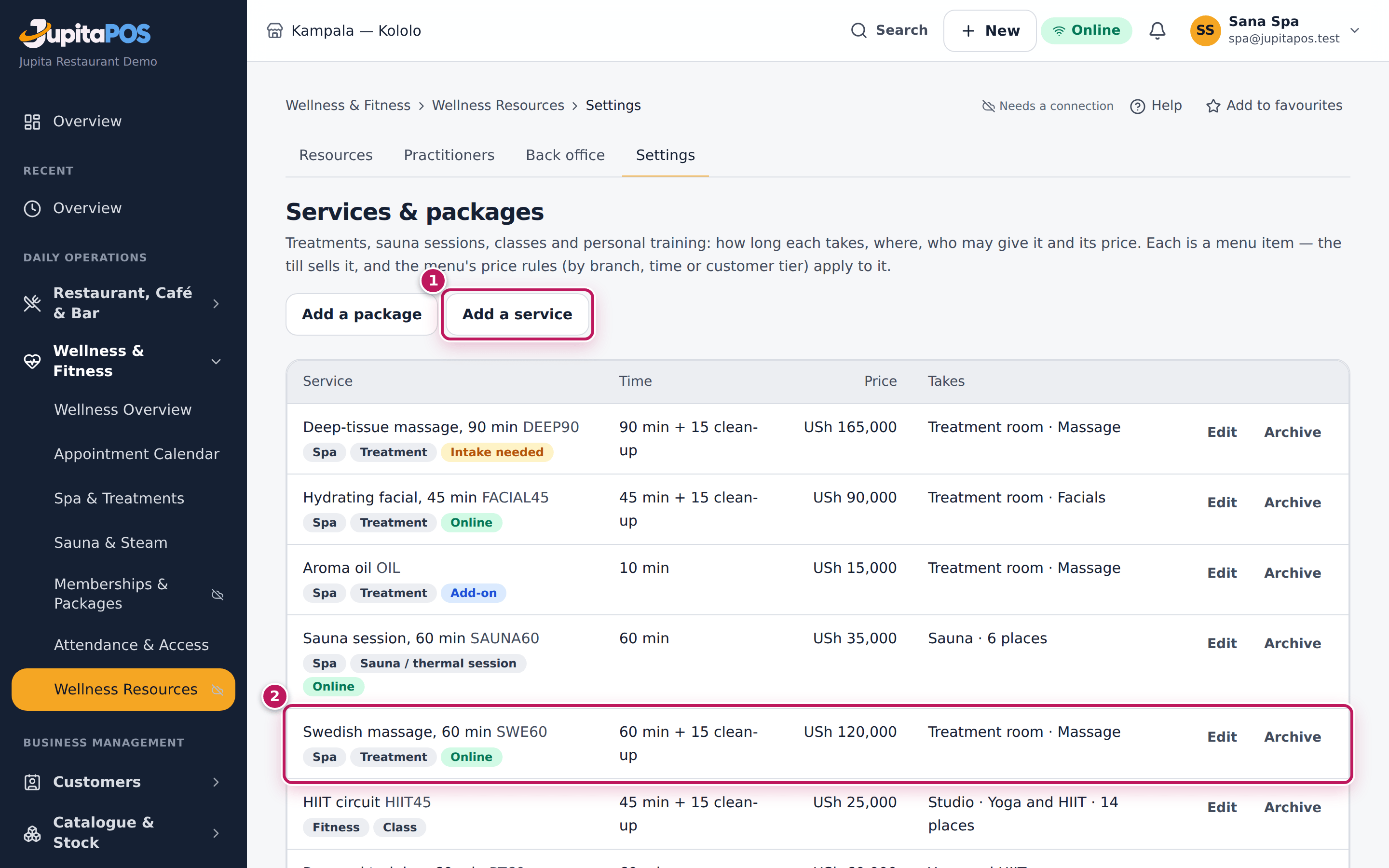
- Open Wellness & Fitness › Wellness Resources › Settings in the menu.
- Choose Add a service (1). Give it a Code, a Name, the Module (spa), the Kind and the Minutes, with Set-up before and Clean-up after for turning the room around.
- Set the Price and the Tax. Tick Needs a practitioner and choose the Skill needed; tick Takes a room or space for the kind of room.
- For a treatment that must follow a health questionnaire, tick Health intake needed first.
- For an add-on (aroma oil), tick It is an add-on. For a sauna hour, set Places per session (classes, sauna).
- Put the treatment in a Treatment category (massage, facial, body treatment or your own). For another length of the same treatment, add it as its own service and choose the main one under Duration variant of, with a Variant label (90 minutes).
- To let only some therapists give it, tick them under Eligible therapists (they still need the skill). For the whole sauna for one party, tick Private buyout.
- Tick Bookable online for a treatment clients may book on your storefront, and save.
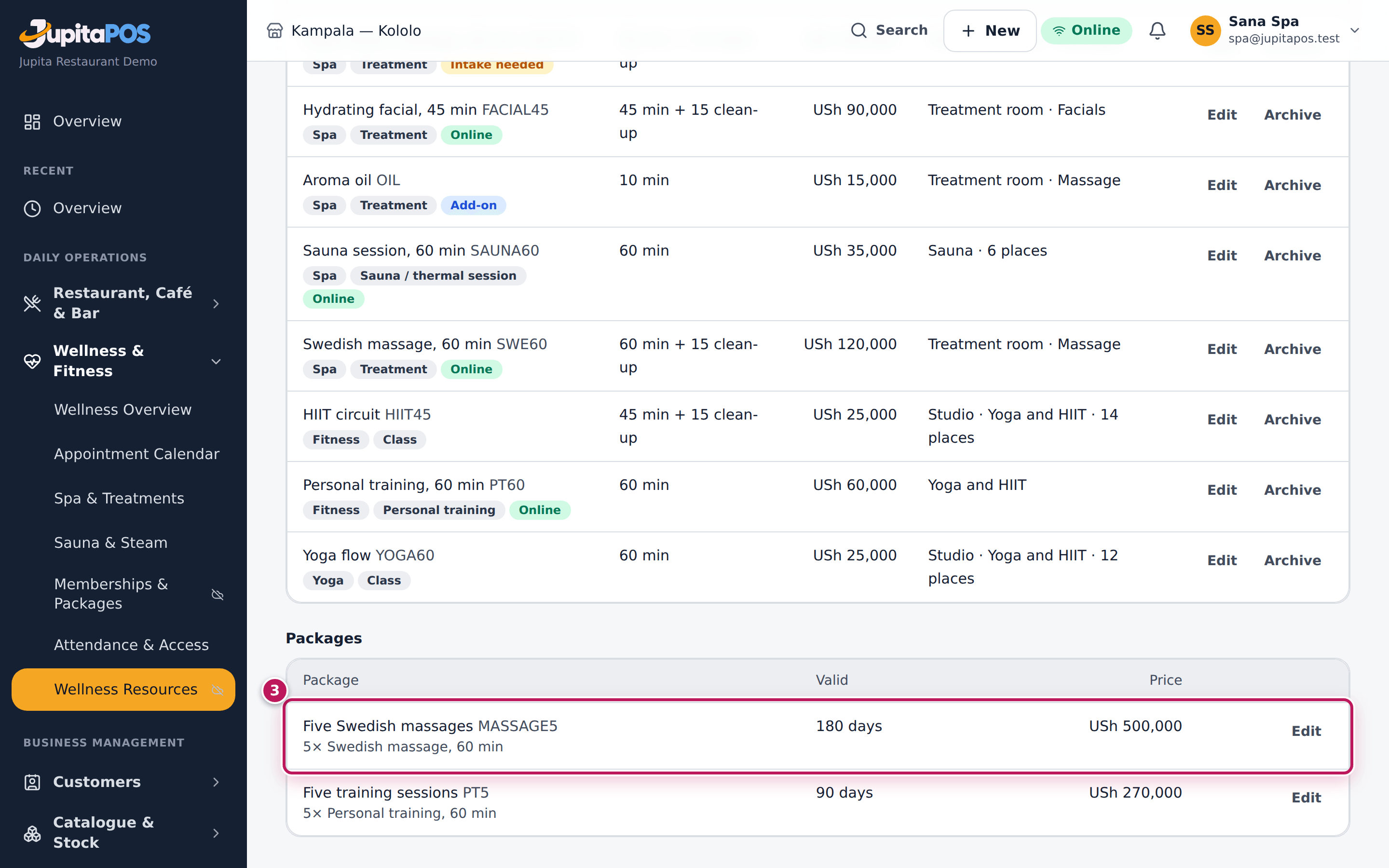
- For a package (3) — five massages paid ahead — add it under Packages: the service, How many and Valid for (days).
Expected result
The treatment (2) is on sale on the calendar with its minutes and price. A package (3) can be sold from a client’s page; its credits pay for visits until they lapse.
Screenshot
Common mistakes
- Putting the clean-up inside the treatment’s minutes. Keep the minutes the client’s time and the turnaround in Clean-up after: the client sees the true length and the room is still held.
- A recipe (massage oil) is set in Menu on the service’s item; it is taken from stock when the bill closes.
- Making a variant of a variant: pick the main treatment instead. Each length keeps its own minutes and price.
Troubleshooting
- A price change does not show on a visit already booked. The booking shows an estimate; the bill uses today’s price when it is made.
Book a visit and take a deposit
Purpose
Book a client — a customer, a hotel guest in house or someone new — for one or more treatments, with the therapist and room they need, and take a deposit when your policy asks for one.
Role / permission required
Spa receptionist or spa manager (spa.book; a deposit also needs
payments.take).
Prerequisites
- The services, rooms and therapists are set up.
- For a cash deposit, your till is open (Open a till).
Steps
- Open Wellness & Fitness › Spa & Treatments (the Spa calendar). Pick the Day; each therapist has a lane (2) with their hours and visits, and the visits are listed below (3).
- Choose Book (1).
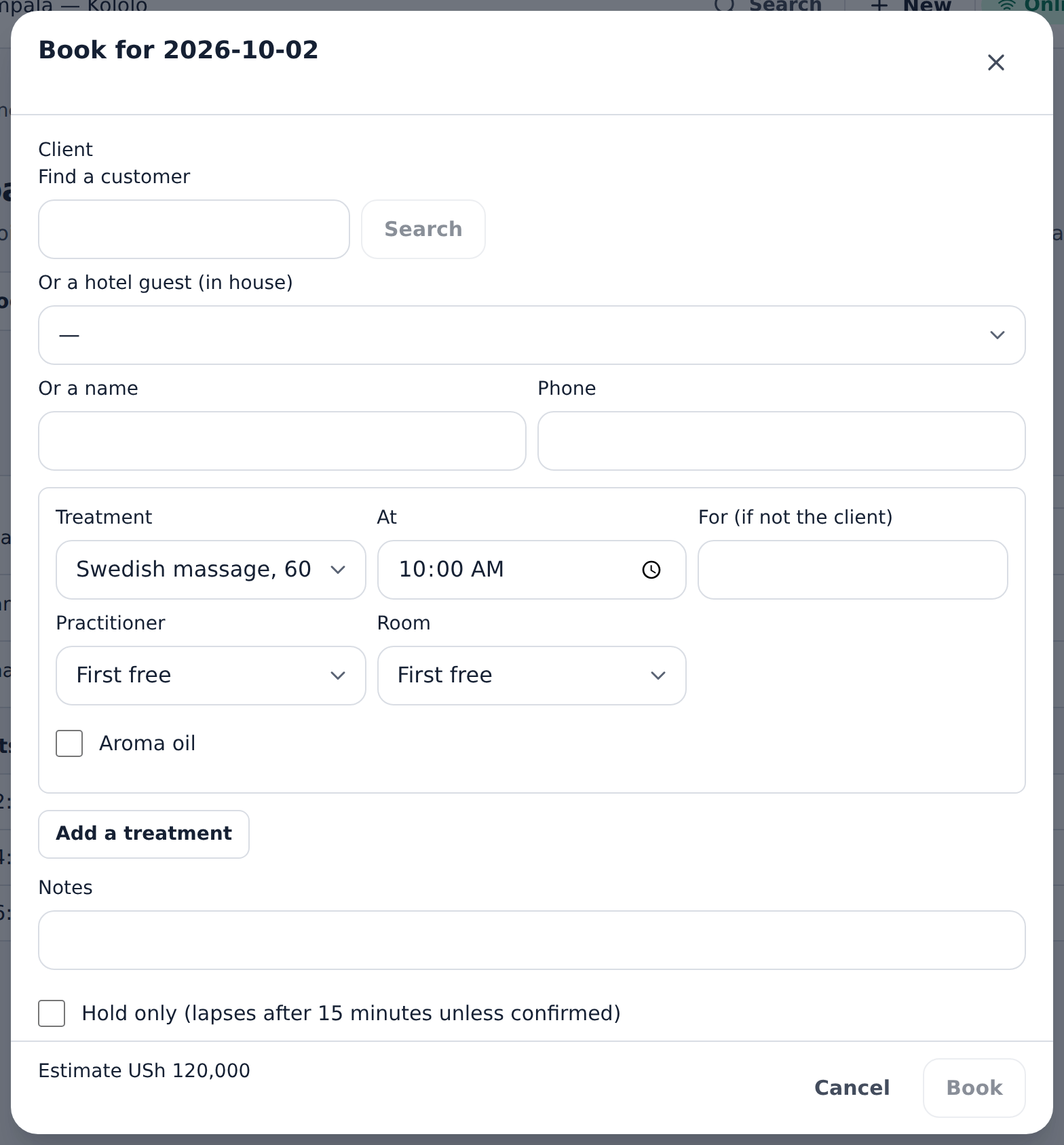
- Choose the client: Find a customer, Or a hotel guest (in house), or Or a name with a Phone.
- Pick the Treatment and its time (At). Choose the Practitioner and Room, or First free. For a sauna session, set People.
- To add another treatment or an add-on, choose Add a treatment. For two people side by side in one room, tick Couples’ visit: all in one room.
- For a client who has just walked in, tick Walk-in: starts now: the first treatment starts now if it is free, and the client is checked in.
- Save. When your policy asks for a deposit, open the visit and choose Take deposit with the Amount and the Method (and the Transaction reference for a card or mobile-money payment).
- Hand the client their Confirmation (PDF) if they want one.
Expected result
The visit appears in the therapist’s lane and in the list as booked. Its times, therapist and room are held for it. A deposit is kept as the client’s credit and is applied to the bill.
Screenshot
Common mistakes
- Booking a person twice at once. A client cannot be in two treatments at the same time; give each treatment of a couple its own name under For (if not the client).
- Expecting part of a visit to be kept. A visit of several treatments is booked whole or not at all: when one cannot be placed, nothing is held.
- Taking a deposit in cash without an open till: it is refused.
Troubleshooting
- “Not free”. The therapist or room is taken in that time, the room is closed or outside its hours, or the therapist is not working; use Find a free time.
- The client’s preferred therapist was not given. They are tried first but only when qualified and free; name them on the booking to insist.
- A deposit is refused. It cannot be more than the visit costs.
FAQ
How are the deposit, the late-cancellation fee and the no-show fee set? The spa manager sets them under Policy on the calendar (Spa booking policy): the hold minutes, the deposit asked, the late-cancellation window and what is kept. A fee is kept only from a deposit that was paid.
Run a visit: arrive, treat, bill
Purpose
Take the visit from the client’s arrival to a paid bill: the therapist starts and finishes each treatment, the desk makes the bill and takes payment at the till, or charges it to a hotel guest’s room.
Role / permission required
Spa receptionist (spa.front_desk) for arrival and the bill; the
therapist (spa.treat) for their own treatments; the spa manager
(spa.manage) for anyone’s. Charging a room also needs
accommodation.charge.
Prerequisites
- The visit is booked.
- For a treatment that needs one, the client’s intake is cleared (see Keep a client’s record and health intake).
Steps
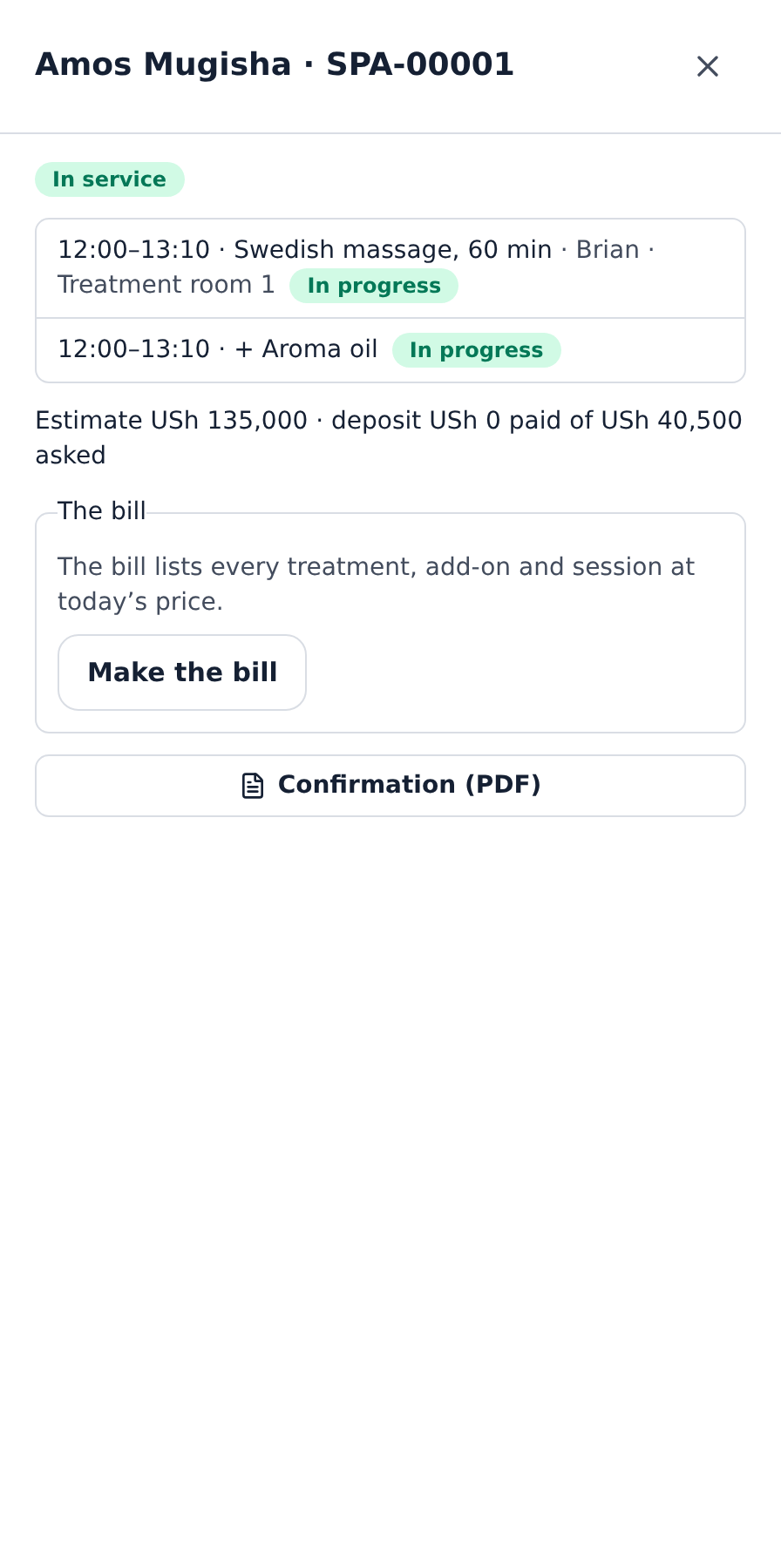
- When the client comes in, open the visit on Spa & Treatments (the Spa calendar) and choose Arrived. The message says whether the intake and consents their treatments need are in order.
- If the therapist cannot give a treatment that has not started, choose Change therapist, pick the Substitute (or the first qualified and free) and say Why.
- The therapist opens the visit and chooses Start on their treatment; add-ons follow it. When it is over, they choose Done. The oils and products its recipe uses come off the spa’s stock then, once.
- The desk chooses Make the bill. The bill lists every treatment, add-on and session at the price booked, with the deposit and anything a package includes already taken off.
- Choose Take payment at the till and take the rest as for any order (Take payment). A tip goes to the therapist.
- For a hotel guest, choose Charge to the room instead: the bill goes onto their folio, settled at checkout.
- A client who never came: after the start time, choose No-show. To call off a visit, choose Cancel the visit with a Reason.
- With
wellness.consumables, choose Consumables on a treatment that is done to see what it used, and record what was really used when it differs: pick the Item, give the quantity and Why, and choose Record what was used. On a cancelled visit, record what was already prepared with Record preparation.
Expected result
The visit is completed once every treatment is done, and closed when its bill is paid. Revenue posts to wellness revenue. Oils and products come off stock by the service’s recipe when each treatment is marked done — never again when the bill is paid; retail sold on the bill comes off stock as with any sale.
Screenshot
Common mistakes
- Making the bill twice: pressing again, or two desks at once, gives the same single bill. Pressing Done twice is the same: the treatment is completed once.
- Charging a bill to a room after part of it was paid at the till: refused; take the rest at the till.
Troubleshooting
- Start is refused: “record an intake first” or “waiting for review”. The treatment needs a cleared intake; someone with access to the health record records or reviews it. The message never says why.
- Change therapist is refused. Nobody else qualified for the treatment is free at that time, or the treatment has started.
- Charge to the room is refused. The guest is not in house, the stay is closing, charges are not allowed, or the credit limit is reached.
- A late cancellation kept part of the deposit. It fell inside the policy’s window; the spa manager may tick Waive the fee.
Keep a client’s record and health intake
Purpose
Keep what the spa needs to treat a client safely — the health questionnaire, anything to take care with, consents and private notes — sealed and seen only by those who need it.
Role / permission required
Anyone at the spa or gym may see the profile (wellness.view); the health
record needs wellness.health (spa manager, therapist, gym manager,
instructor, retreat coordinator). Forms are set up with wellness.setup.
Prerequisites
- The client is a customer (Add a customer).
- An intake form exists (Intake forms → New form).
Steps
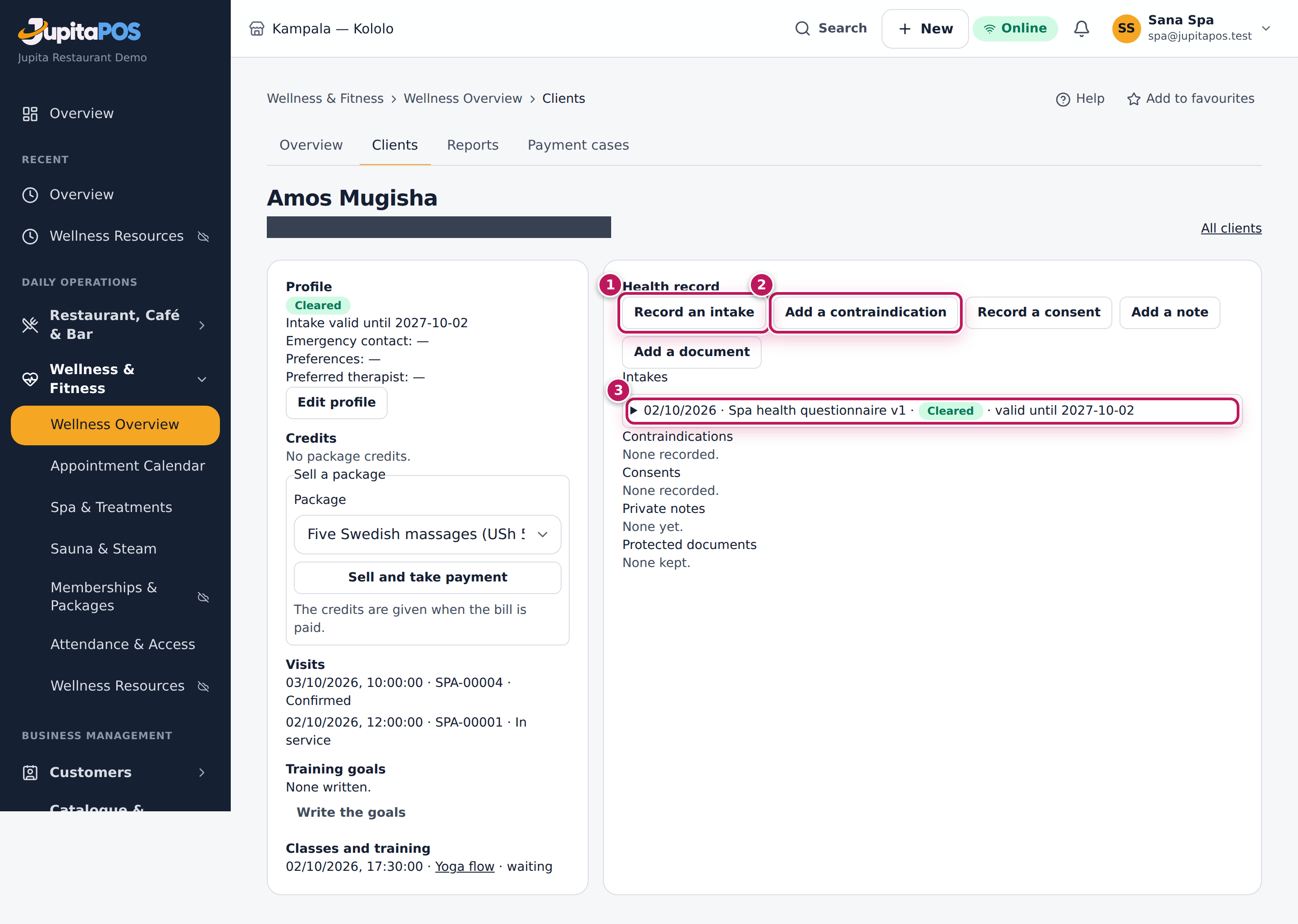
- Open Wellness & Fitness › Wellness Overview › Clients, find the client and open them.
- Choose Open the health record. The opening is recorded in the audit.
- Choose Record an intake (1): pick the Form, go through the questions with the client, and have them sign with their full name. An answer the form flags puts it waiting for review.
- To review it, choose the Outcome — Cleared, Cleared with care or Not suitable — and Save the review.
- Choose Add a contraindication (2) for anything to take care with: Caution — take care, or Avoid — the services below are not given.
- Record a consent for the treatment, photographs or keeping health information; Add a note for a private treatment note; Add a document for a scanned form.
- Under Edit profile, set the client’s preferences (not health) and their Preferred therapist: they are tried first when the client is booked.
Expected result
The intake (3) clears the client for treatments that need one until it lapses. An avoid contraindication stops the named services from being started. Notes are never edited — Amend adds a new note pointing at the old one; a consent is withdrawn, never deleted.
Screenshot
Common mistakes
- Writing health details in the visit’s Notes or the customer’s notes: those are read by the desk. Health details go in the health record only.
Troubleshooting
- The health record is not there. You do not hold
wellness.health; the desk never sees it. - A document upload is refused. Only PDF, JPEG, PNG or WebP up to 10 MB are taken, and the file must really be what its name says.
Let clients book treatments online
Purpose
Let clients book a treatment on your storefront at a free time, and pay the deposit online when your policy asks for one.
Role / permission required
Owner or administrator to switch the page on (storefront.manage); the
spa manager or owner sets online booking (wellness.setup). The
storefront page is public.
Prerequisites
- The storefront is live (Set up the storefront).
- The treatments offered online are marked Bookable online.
Steps
- Open Settings › Customer Website › Storefront, tick Spa booking under Features and save.
- On Wellness & Fitness › Wellness Overview › Overview in the menu, set Spa: book at least (minutes ahead) and Spa: book up to (days ahead), then choose Save online booking (see Pause or limit online booking).
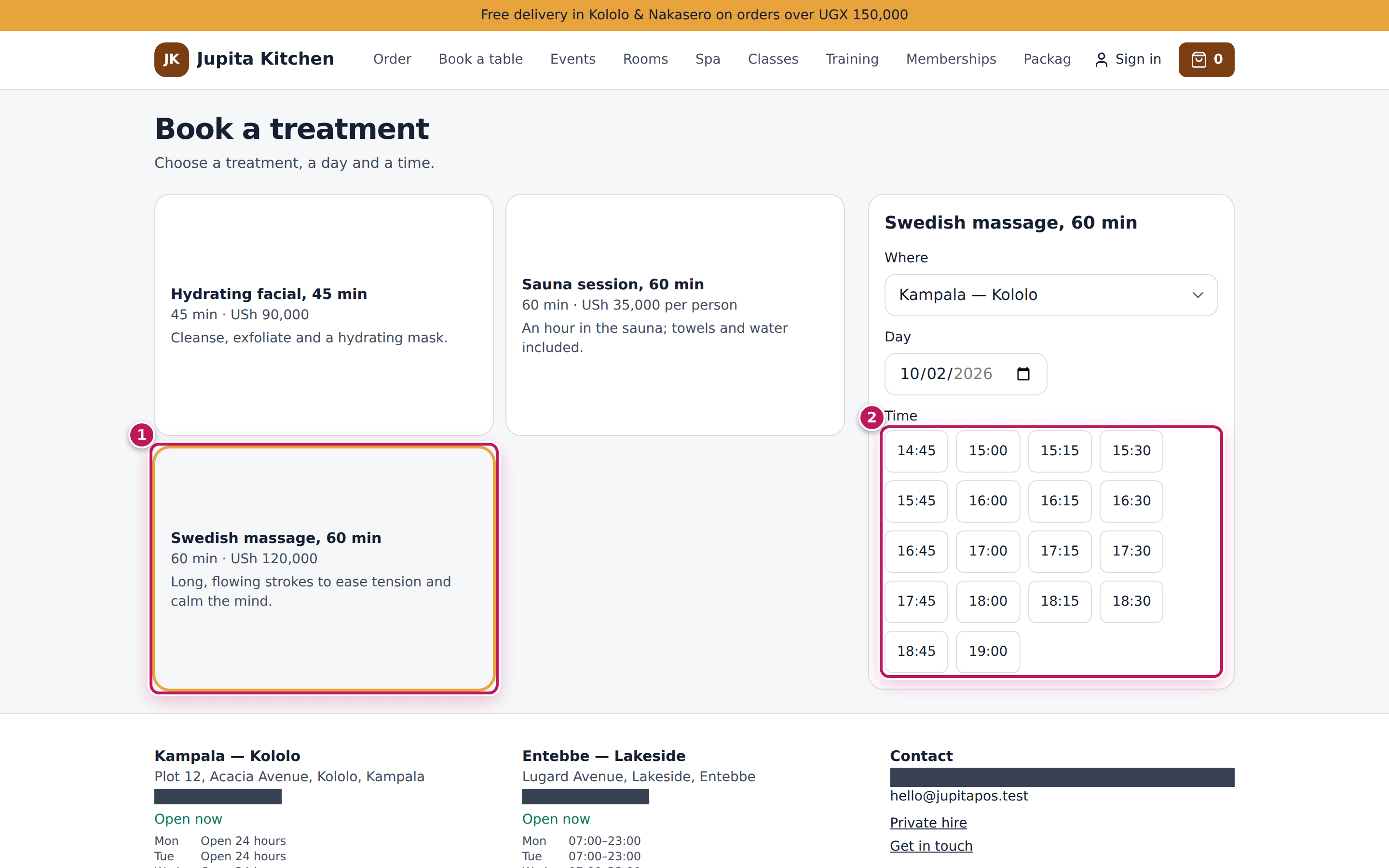
- Your clients open the storefront’s Book a treatment page, choose a treatment (1), a day and a free time (2), give their name and phone, accept the terms, and book — paying the deposit when one is asked.
Expected result
The visit appears on the spa calendar, from the storefront, with the first free therapist and room. The client gets a private link to see, pay or cancel their booking; the client sees times only, never who or which room.
Screenshot
Common mistakes
- Expecting an online booking to name a therapist: the spa places it, and can move it on the calendar.
Troubleshooting
- The page says booking is closed. Online spa booking is paused on the Overview, or the spa module is off.
- An unpaid online booking disappears. A booking waiting for its deposit is held only for the hold minutes, then let go.