

On this page
The barista board is the coffee machine’s ticket rail. Every coffee, tea, juice or smoothie rung up at the till or the café counter goes to the Barista station and appears on its board within a second, with the drink written the way a barista reads it: the Size, the Milk, the extra Shots, Decaf, Sugar, Syrup, the temperature and the toppings, each as a small label — the ones that change how you pull the shot in bold.
The barista board works like the kitchen and bar boards (see Kitchen display), with two differences:
- Tickets arrive already accepted. The Barista station is set to auto-accept, so there is no Accept button: Start, then Ready.
- Ready calls the customer. A counter or café order carries the customer’s call number and first name (74 · Amina). When you tap Ready, the number moves to Ready on the collection board and the customer’s screen, where the customer sees it.
The screens in this manual show the demo business on a Friday lunchtime: Bella Barista at Kampala — Kololo. A large cappuccino with oat milk and an extra shot costs USh 14,000 (9,000 + 2,000 for Large + 1,500 for oat milk + 1,500 for the shot).
Open the barista board
Purpose
Put the drink tickets on the screen by the coffee machine at the start of the shift, so every drink ordered appears in front of you.
Role / permission required
Baristas — anyone with bar.view sees the barista board; working it needs
bar.complete. The list of stations (Preparation Screens › Stations, headed Production boards) needs
production.view, which baristas, bartenders, cooks, supervisors and
managers have.
Prerequisites
- The screen by the machine is a registered device at your branch (see Register this device as a till).
Steps
- Sign in on the machine’s screen with your own account and open
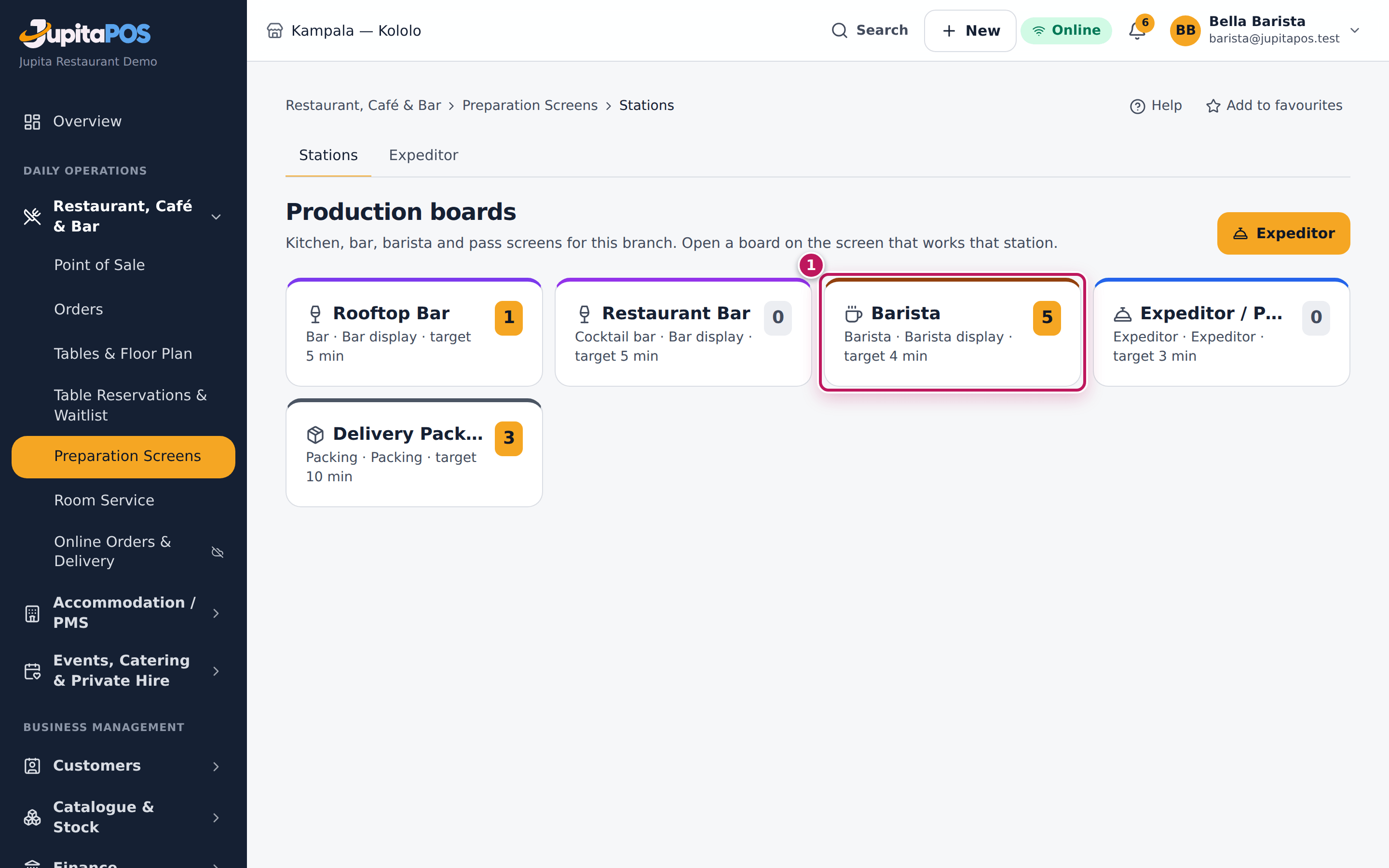
Restaurant, Café & Bar › Preparation Screens › Stations from the menu (
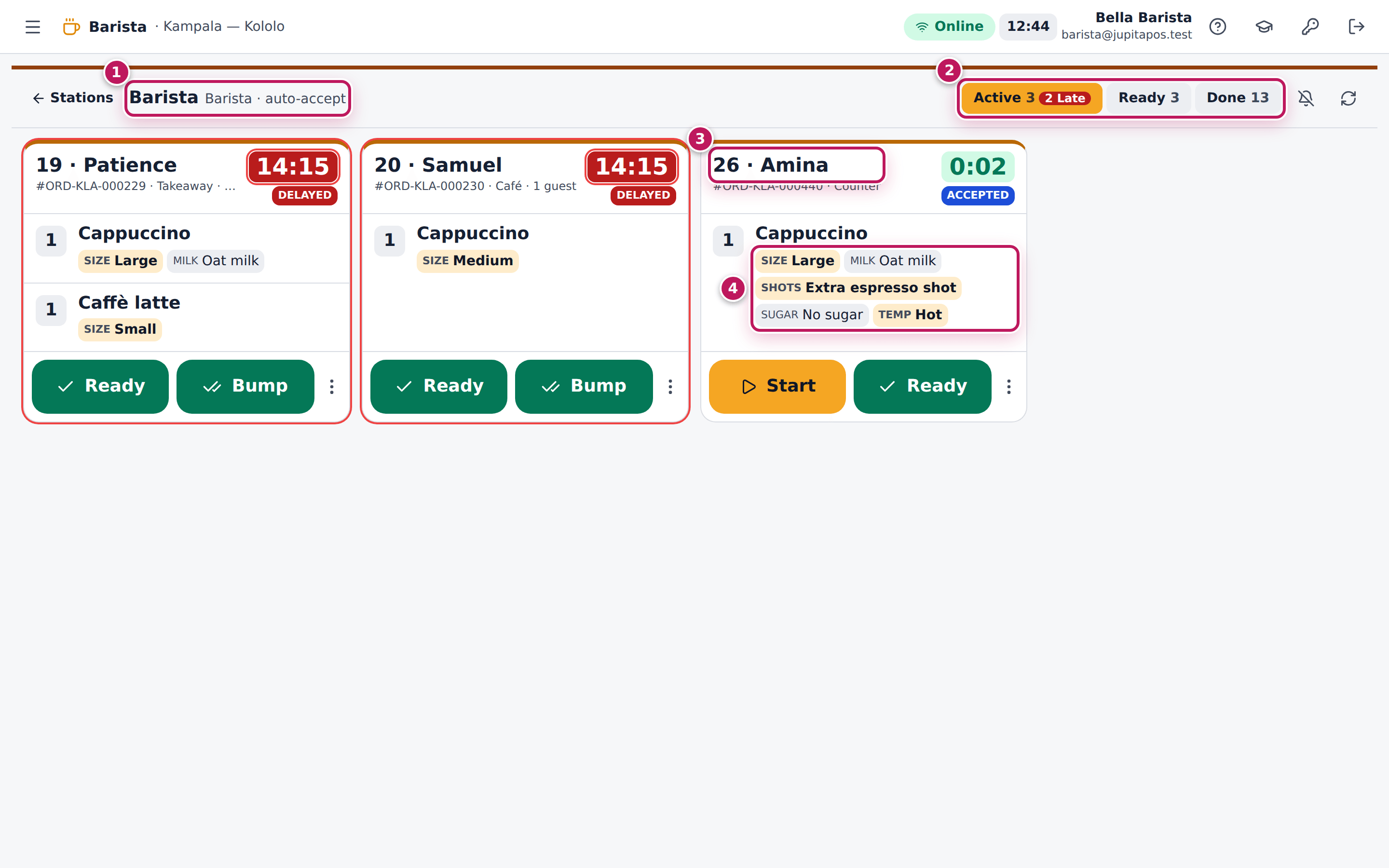
/production; the page is headed Production boards). - Tap the Barista card (1). The board’s top shows Barista and auto-accept (1).
- Read the lanes (2): Active is what you must make, Ready what waits for the customer, Done what was finished in the last half hour.
- Each ticket shows the call number and first name (3) and the drink as labels (4): size, milk, shots, syrup, sugar.
Expected result
The Barista board is open. A large oat cappuccino with an extra shot for Amina arrives as a ticket headed with her number and first name, with the labels Size Large, Milk Oat milk and Shots Extra espresso shot, and the defaults Sugar No sugar and Temp Hot.
Screenshot
Common mistakes
- Using the café counter screen as the board. The counter takes orders; the board is where drinks are made and called. Keep the board open on the screen by the machine.
- Reading only the drink’s name. Cappuccino is not enough: the size, the milk and the shots are on the labels under it.
Troubleshooting
- “Preparation Screens” is not in my menu. Your role does not have
production.view; ask your manager to check your role. - No new tickets arrive. Check the Online pill and tap Refresh.
- An order-ahead drink is not on the board yet. Orders placed for a later pickup reach the board a few minutes before the pickup time (see Order ahead).
Start an order and tick off the drinks
Purpose
Show the counter which orders you are making, and keep track of the drinks of a large order as you pour them.
Role / permission required
Baristas — anyone with bar.complete.
Prerequisites
- The barista board is open (see Open the barista board).
Steps
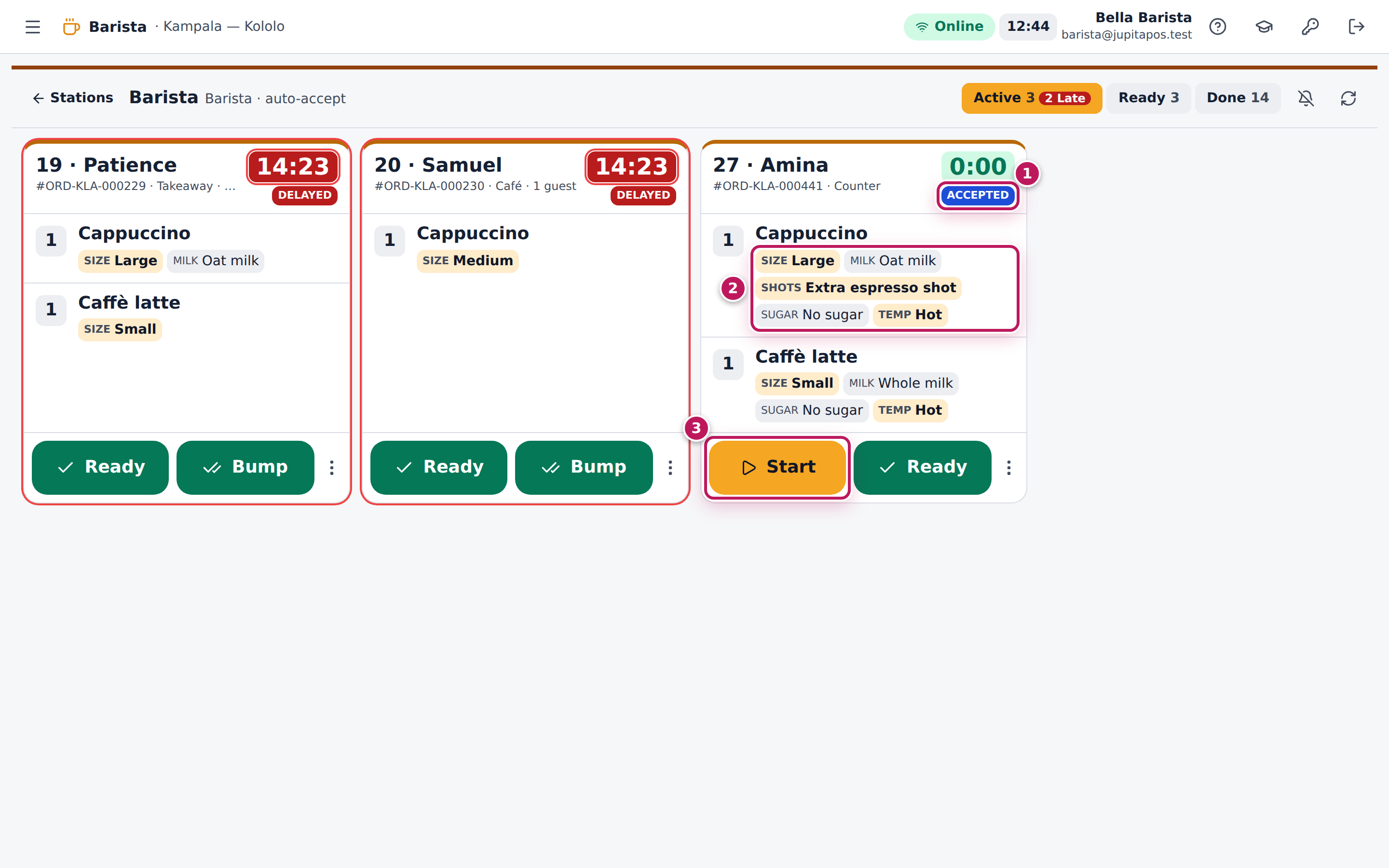
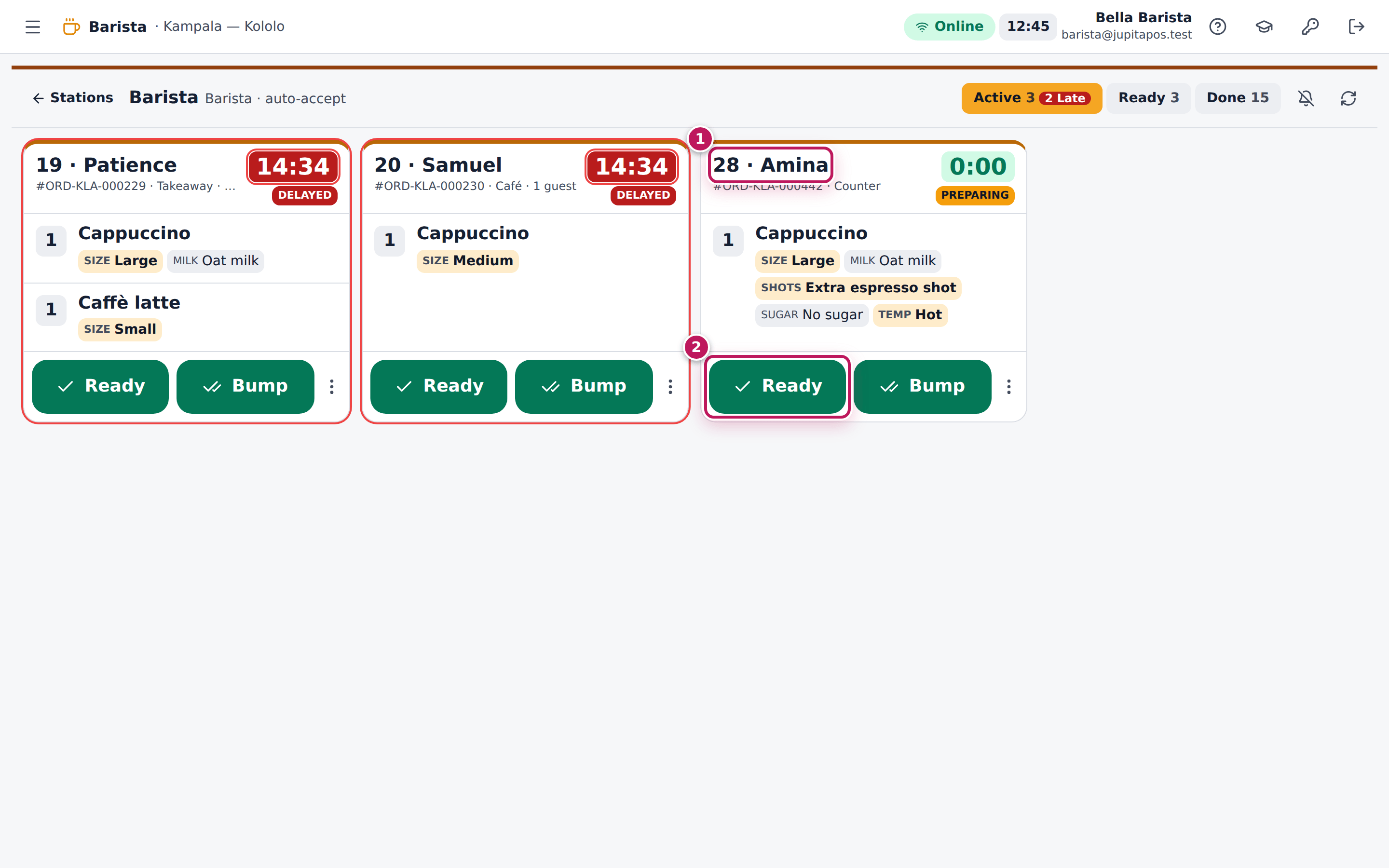
- A new ticket arrives in the Active lane already Accepted (1).
- Read the drinks (2): the size, the milk, the extras.
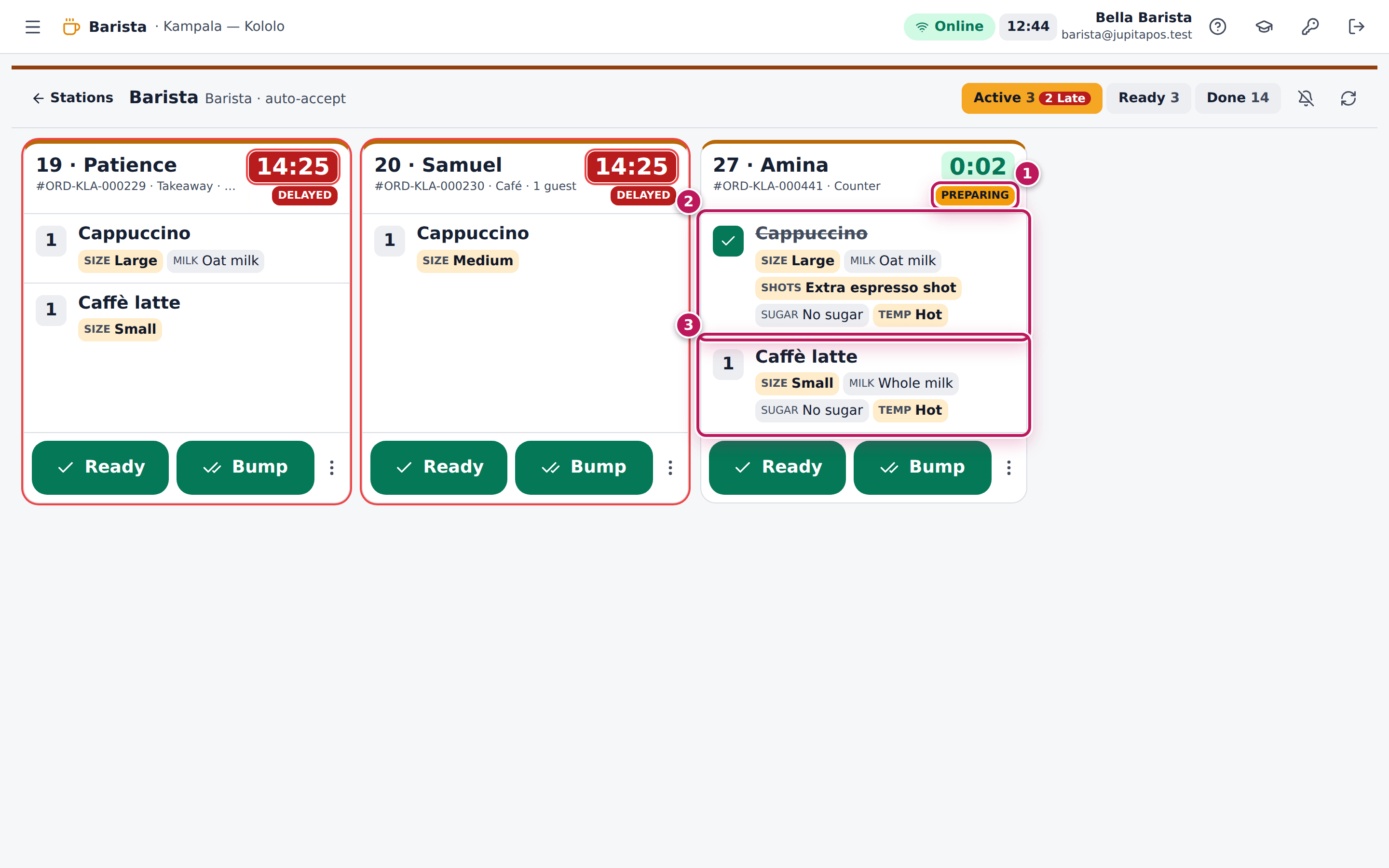
- Tap Start (3) when you start the order. The status becomes Preparing (1).
- As each drink is poured, tap it (2). It gets a green tick and is crossed out. The drinks still to make stay as they are (3).
- When the last drink is ticked, the ticket becomes Ready by itself and the customer’s number is called (see Call the customer’s number).
Expected result
Amina’s order — a large oat cappuccino with an extra shot and a caffè latte — shows Preparing, with the cappuccino ticked and the latte still to make.
Screenshot
Common mistakes
- Ticking drinks you have not poured yet. Ticking the last drink calls the customer.
- Waiting to tap Start. The counter uses Preparing to tell the customer the order is on its way.
Troubleshooting
- There is no Accept button. That is normal on the barista board: new tickets are accepted automatically.
- “This ticket changed on another screen. Reloaded.” Another barista tapped it first; look again.
Call the customer’s number when the order is ready
Purpose
Tell the customer their order is ready, so they collect it hot from the counter instead of waiting and asking.
Role / permission required
Baristas — anyone with bar.complete. The collection board needs
cafe.view; handing over needs sales.create or expeditor.dispatch.
Prerequisites
- The order is on the barista board (see Start an order).
- The café’s collection board (
/cafe/collection) or the customer display is on a screen the customers can see (see Run the collection board).
Steps
- Read the customer’s number and first name (1) at the top of the ticket.
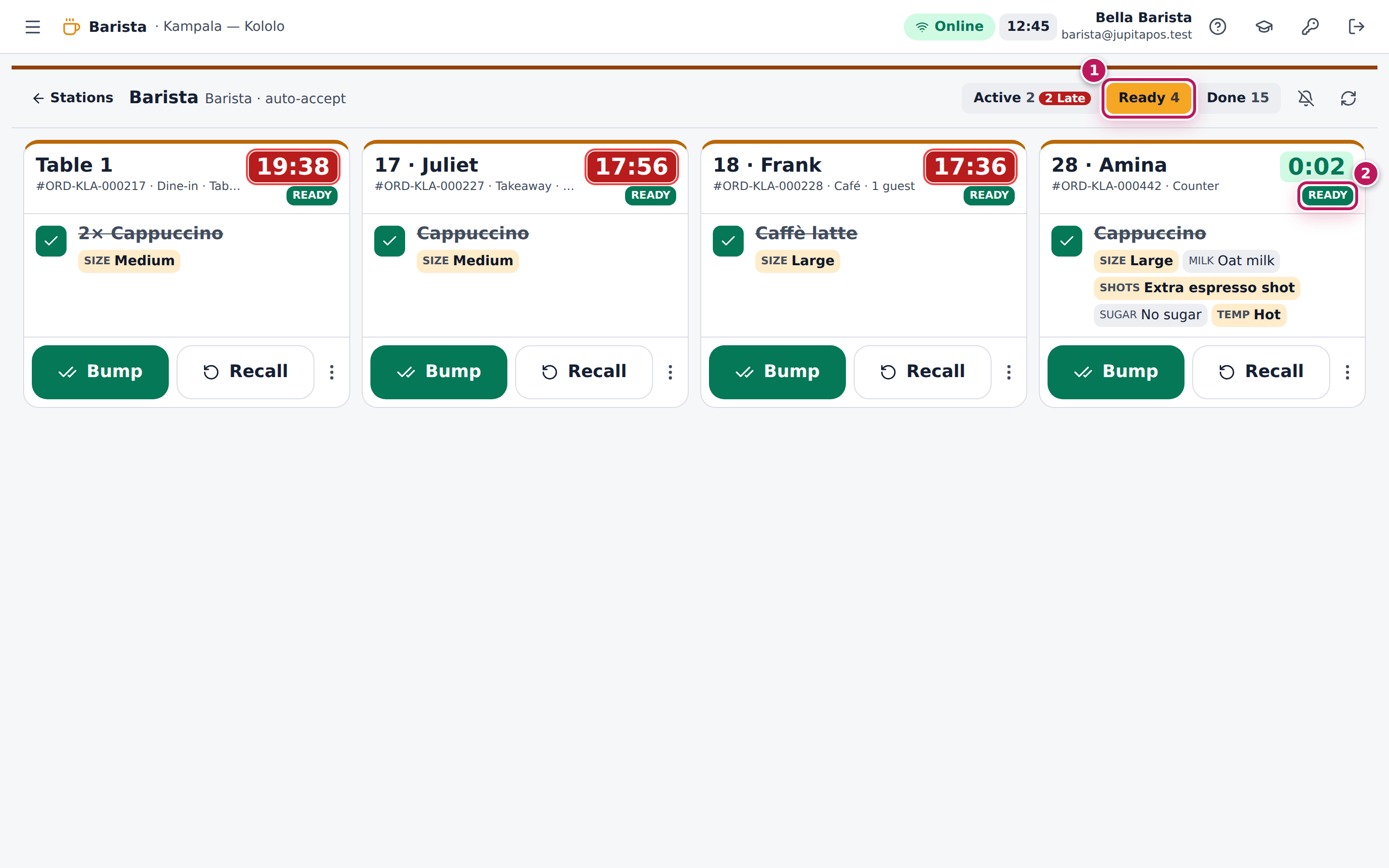
- When the whole order is on the counter, tap Ready (2).
- The ticket moves to the Ready lane (1), marked Ready (2).
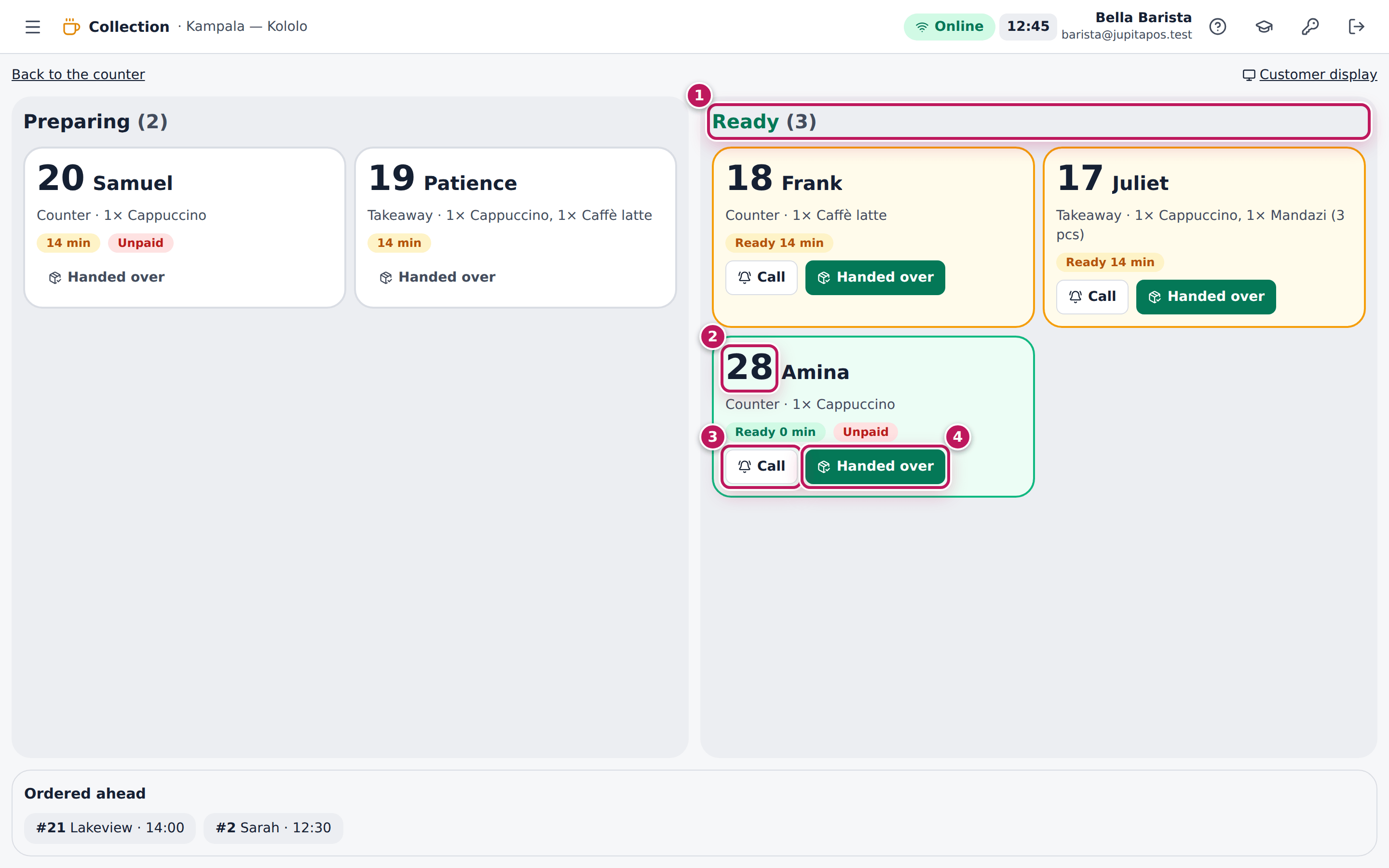
- On the collection board, the number moves from Preparing to the Ready column (1). The card shows the number (2) and how many minutes it has been ready.
- If the customer does not come, tap Call (3): the number flashes on the customer display under Now collecting.
- When the customer takes the order, tap Handed over (4). The number leaves the board.
Expected result
Amina’s cappuccino shows Ready on the barista board, and her number with Amina is in the Ready column of the collection board with Ready 0 min. After Handed over the number disappears and the order counts as collected.
Screenshot
Common mistakes
- Tapping Ready before the whole order is on the counter. The customer comes up for a drink that is not there yet.
- Calling names across the café instead of the number. Two Aminas come up. Use the number on the cup and the board.
- Not tapping Handed over. The number stays under Ready and the card turns amber after a few minutes, as if the customer never came.
Troubleshooting
- The number is not on the collection board. Only orders with a call number show there (counter, café, takeaway and pickup orders). A table order is taken to the table.
- The card says Unpaid. The customer has not paid yet; take the payment at the counter before handing over.
- The number did not move to Ready. The collection board updates by itself and every 20 seconds; if the screen was offline, reload it.
Remake a drink and record the waste
Purpose
Make a drink again when it was wrong or spilt, and have the thrown-away drink recorded in the café waste log at cost, with its milk and extras.
Role / permission required
Baristas — anyone with bar.complete. Seeing the café waste log needs
cafe.waste.
Prerequisites
- The drink’s ticket is on your board (in any lane).
Steps
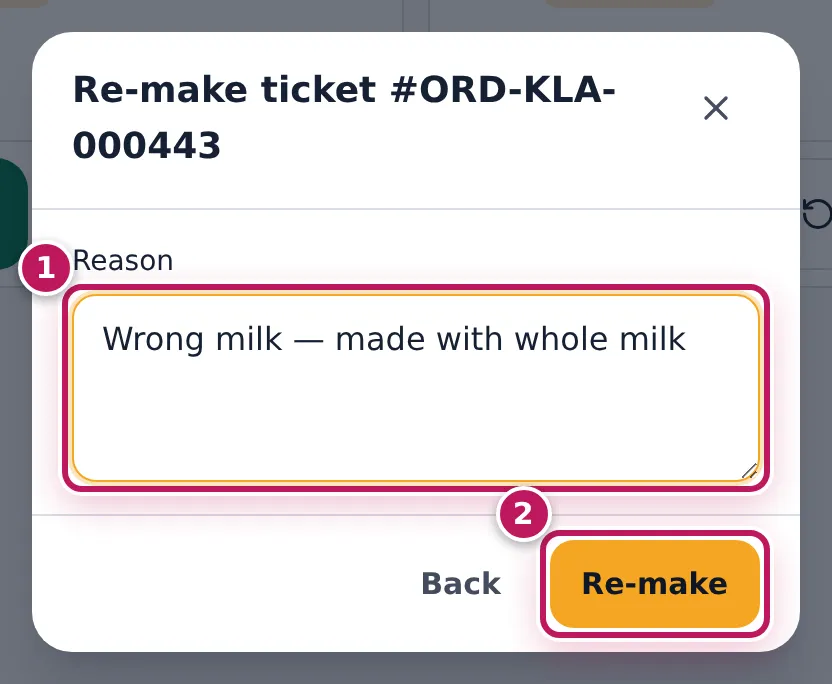
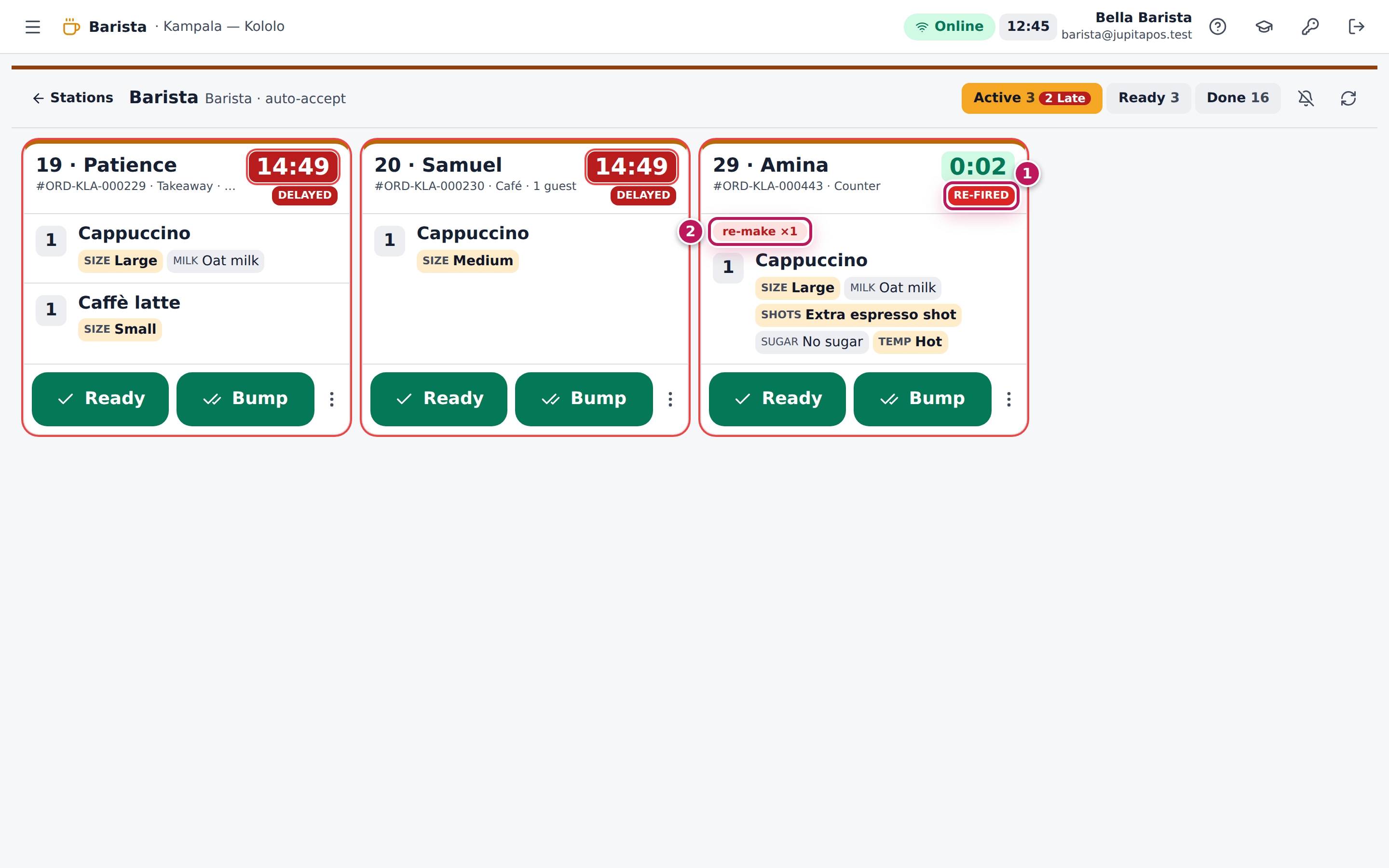
- Tap the ticket’s ⋮ button (More actions) and tap Re-make. For a drink that was knocked over, tap Spillage instead.
- Type why in Reason (1), for example Wrong milk — made with whole milk, and tap Re-make (2).
- The ticket comes back to the Active lane as Re-fired (1) with a re-make ×1 badge (2). Make the drink again and tap Ready.
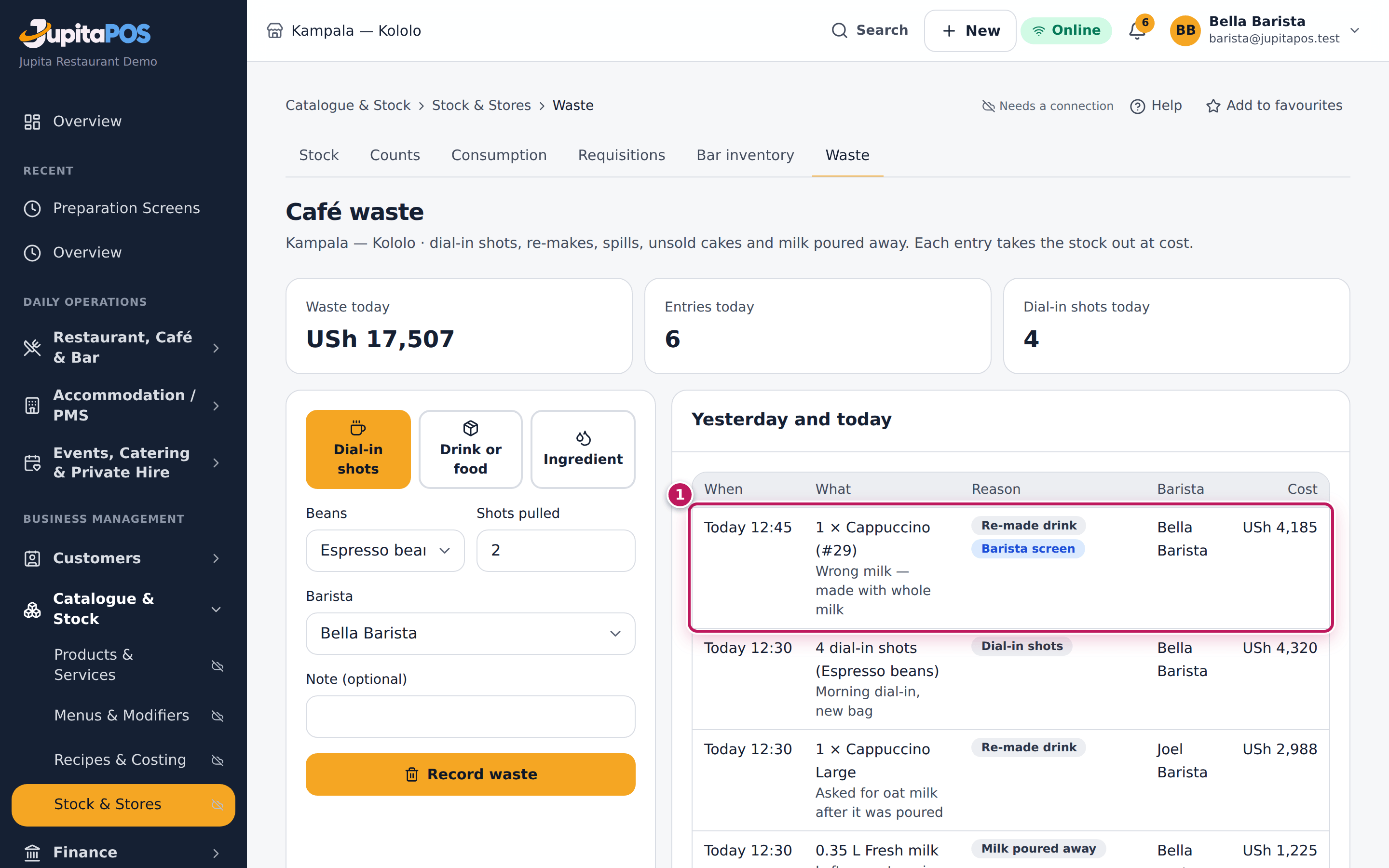
- To see the waste, open Café waste from the sidebar (
/cafe/waste). The re-made drink is under Yesterday and today (1), with the reason you typed, recorded from the Barista screen, with its cost. The ticket’s History (⋮, History) also lists Re-made with your name and the reason.
Expected result
The cappuccino is back on the board as Re-fired with re-make ×1. Café waste lists 1 × Cappuccino with its call number and the reason typed (Wrong milk — made with whole milk), as Re-made drink from the Barista screen, Bella Barista, and its cost at cost price — the beans, the oat milk and the cup it used.
Screenshot
Common mistakes
- Recording the same drink again in Café waste. The re-make on the board already wrote it there. Record by hand only waste that has no ticket — dial-in shots, milk poured away (see Record café waste).
- Ringing the drink up again. The guest pays once; a re-make does not touch the bill.
Troubleshooting
- The re-make is not in Café waste. Your business may have switched off the automatic deduction of re-makes; record it by hand.
- The drink was never made, only ordered by mistake. Do not re-make it; ask the counter to void it, and use Cancel ticket.