

On this page
- Read the finance overview
- Post a manual journal
- Reverse or correct a posted entry
- Look up an account: the general ledger and the chart of accounts
- Check room revenue, deposits and guest folios in the books
- Record an expense or petty cash
- Approve or reject an expense
- Record money moved: bank the cash, top up petty cash
- Reconcile the bank
- See what customers owe and take a payment on account
- See what the business owes suppliers
- Read the profit and loss, balance sheet and VAT
- Close a month
- Enter the opening balances at go-live
- Check the posting log
The books keep themselves. Every sale, payment, refund, stock movement, till movement, gift card, supplier invoice and supplier payment records a money fact at the moment it happens, and the posting run turns it into a journal entry within the minute. What the tills cannot know is yours to record: expenses, money moved between the safe and the bank, bank statements, adjustments and opening balances. At the end of each month you check the books and lock the month.
Open Accounting from the sidebar (/accounting). The accounting pages
have their own menu: Finance overview, Journals, General ledger,
Chart of accounts, Banking, Expenses, Receivables,
Payables, Financial reports, Periods & close and Posting log.
Who sees what:
| You can | You need |
|---|---|
| Read the books: overview, journals, ledger, reports, periods | accounting.view and access to every branch (the books cover the whole business) |
| Post manual journals, reverse and correct entries, opening balances | accounting.post |
| Record money moved, import and reconcile bank statements | accounting.bank |
| Lock and reopen months | accounting.close_period |
| Record an expense (managers and supervisors at their branch) | expenses.create |
| Approve, reject, reverse or re-categorise an expense | expenses.approve |
The screens in this manual are the demo business, Jupita Restaurant Demo, on Friday 2 October 2026. The accountant is Andrew Accountant; the branch manager at Kampala — Kololo is Moses. The accounting pages show amounts in UGX (Uganda shillings, the same money the tills show as USh). Figures such as the month’s sales change all day as the tills trade, so yours will differ from the pictures.
Read the finance overview
Purpose
See in one page how the month is going — sales, profit, VAT, cash and bank, who owes what — and what in the books needs you today.
Role / permission required
Accountant, finance manager or owner: accounting.view, with access to all
branches.
Prerequisites
- You are signed in with a role that can see every branch. A manager of one branch sees Expenses only (see Record an expense).
Steps
- Open Accounting from the sidebar. The Finance overview opens.
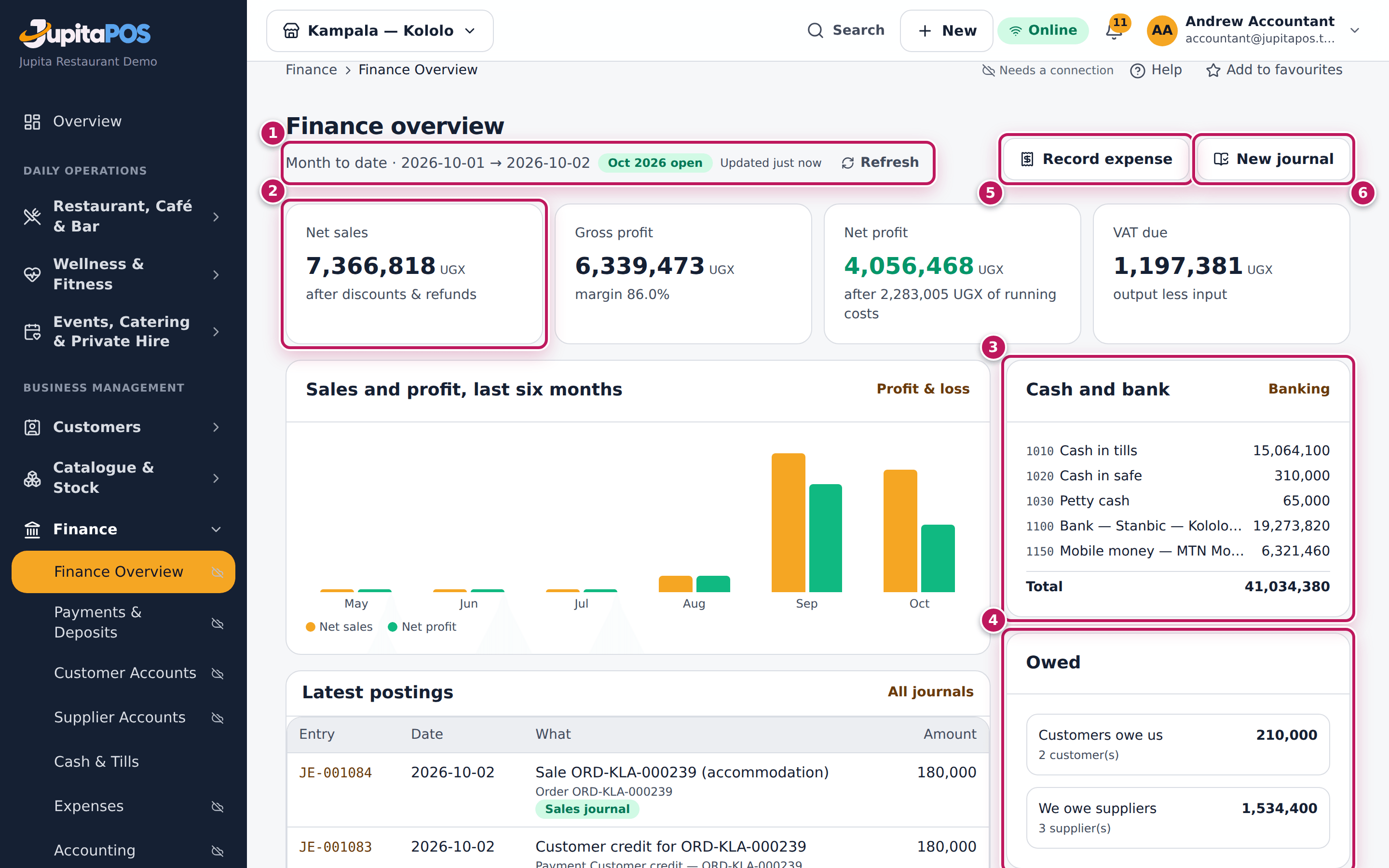
- Read the period under the title (1): Month to date with the dates, and whether the month is open. Refresh recomputes the figures now.
- Read the four figures at the top: Net sales (2) after discounts and refunds, Gross profit with the margin, Net profit after the running costs, and VAT due (output VAT less input VAT).
- Read Cash and bank (3): the cash in the tills, the safe and petty cash, and each bank and mobile-money account. Click a line to open that account’s ledger.
- Read Owed (4): Customers owe us opens the receivables, We owe suppliers the payables.
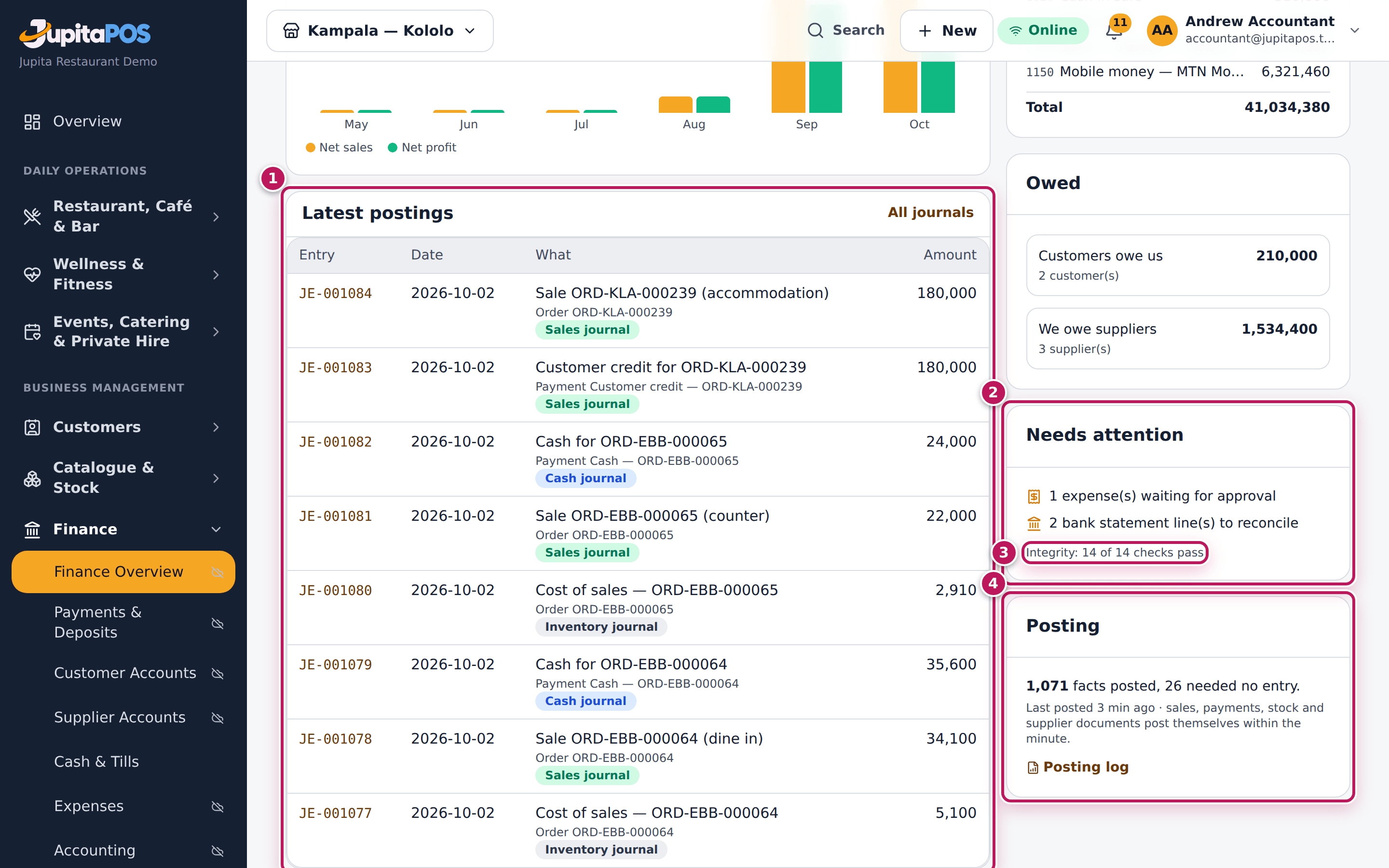
- Scroll down. Latest postings (1 in the second picture) lists the newest journal entries; All journals opens them all.
- Work down Needs attention (2): expenses waiting for approval, bank statement lines to reconcile and any integrity check that fails. Each line opens the page where you fix it. The integrity line (3) opens the 14 checks.
- Check Posting (4): how many facts were posted and when. The link Posting log shows each one.
- Use Record expense (5) and New journal (6) at the top for the two things you record most.
Expected result
You see the month so far for the whole business, for example net sales of 5,736,142 UGX with a margin of 82.1 %, the total held in cash and bank, what customers and suppliers owe, and a short list of things to do. When the books are in order, Needs attention has nothing but the integrity line, and it says 14 of 14 checks pass.
Screenshot
Common mistakes
- Comparing the overview with a till report of today only. The overview is the month to date for every branch. For one day or one branch use Profit and loss with dates and a branch.
- Ignoring Needs attention. An expense waiting for approval has not moved any money yet, and unreconciled bank lines mean the bank balance is not proved. Clear the list before you close the month.
- Expecting a sale to show the second it is paid. Sales post within the minute; the overview says when it was last updated. Tap Refresh.
Troubleshooting
- “The books cover every branch: accounting needs access to all of them.” Your role is limited to some branches. Ask the owner to give you a business-wide role, or use Expenses for your branch.
- Integrity: 12 of 14 checks pass. Open the line: each failing check says what does not agree (for example stock held before the books started that needs an opening balance, or tips paid out by journal instead of from a till). Fix it at its source.
- The figures look old. Tap Refresh. If Posting says posting stopped, see Check the posting log.
FAQ
Why is the gross margin so high? It is over all sales, including catering and service charges. Food and beverage cost percentages are on the profit and loss.
Where are the staff costs? Salaries and wages post as expenses or journals to 6000 Salaries & wages; they appear in the running costs.
Post a manual journal
Purpose
Record what no till or supplier document can: an accrual (rent owed but not yet invoiced), depreciation, a loan repayment, a reclassification out of suspense.
Role / permission required
Accountant or owner: accounting.post.
Prerequisites
- The month of the entry’s date is open (see Close a month).
- You know the two (or more) accounts. Find them in the chart of accounts.
Steps
- Open Journals and click New journal.
- Check the Date (today by default) and the Journal (General for most entries).
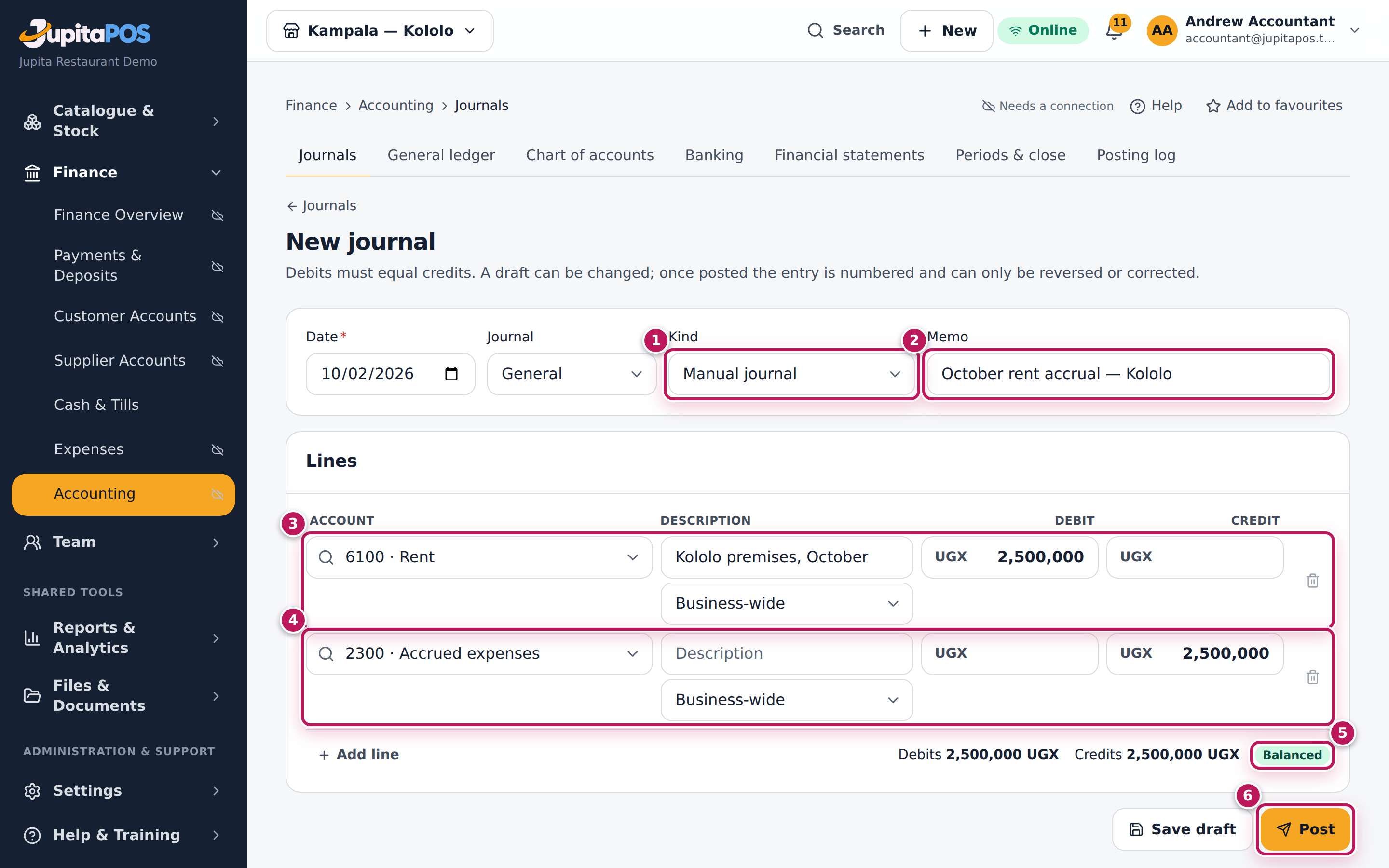
- Choose the Kind (1): Manual journal, Adjustment (needs a reason) or Opening balance. An adjustment asks for a Reason.
- Type a Memo (2): what the entry records, for example October rent accrual — Kololo.
- On line 1 (3), search the account by code or name — type Rent and pick 6100 · Rent — and type the amount under Debit. Add a Description if it helps.
- On line 2 (4), pick the other account — 2300 · Accrued expenses — and type the same amount under Credit.
- Watch the badge at the end of the lines (5). It says Out by … until debits equal credits, then Balanced. Use Add line for more lines. A line on a customer or supplier account asks you to choose the customer or supplier.
- Click Post (6). To finish later, click Save draft instead.
Expected result
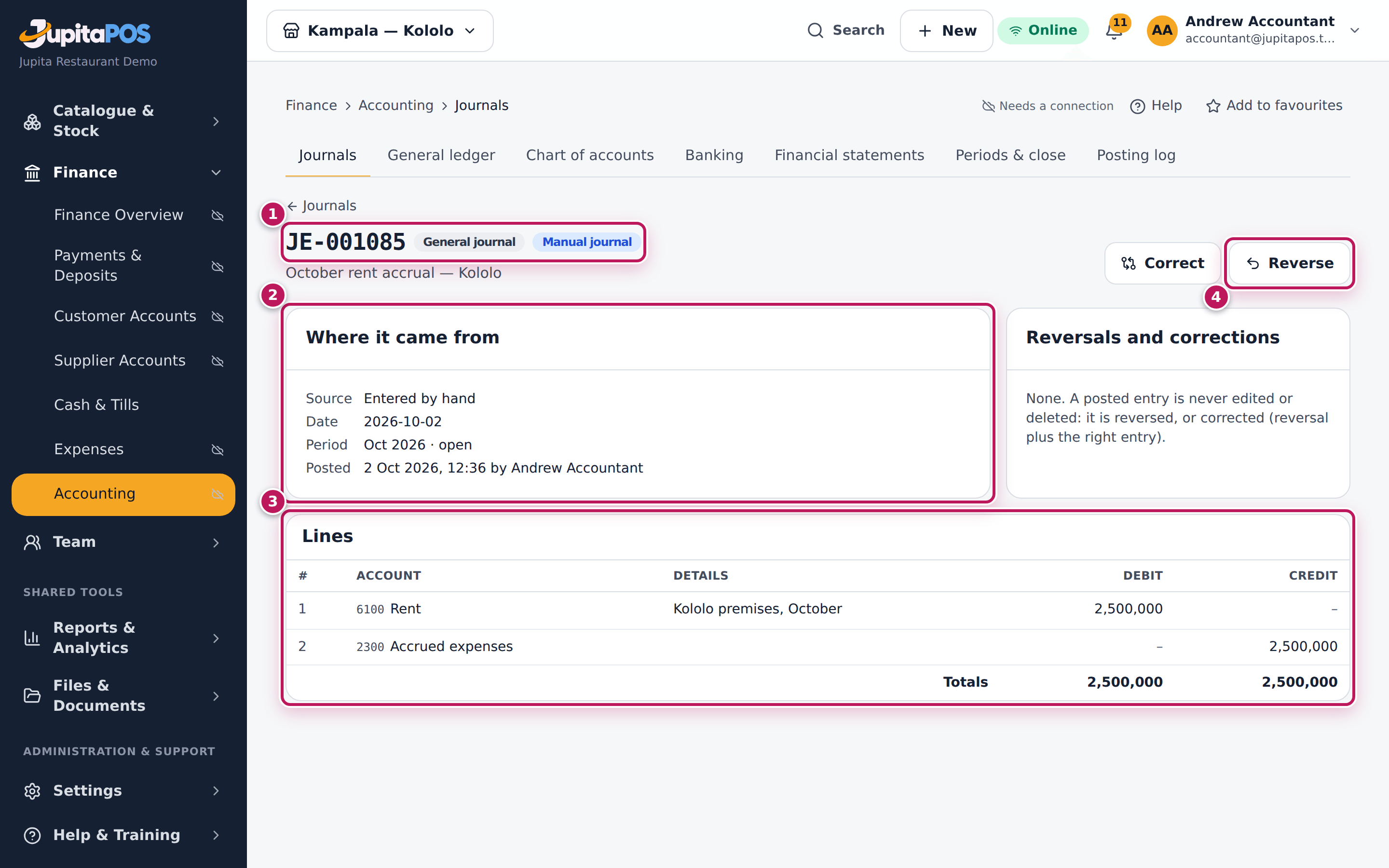
The entry opens with its number, for example JE-001042 (1), the journal
and kind, Where it came from (2) — Entered by hand, the date, the
period and who posted it — and its lines (3): Rent 2,500,000 debit and
Accrued expenses 2,500,000 credit. From now on it can only be reversed or
corrected (4), never edited or deleted.
Screenshot
Common mistakes
- Debit and credit the wrong way round. An expense or an asset is a debit; income, a liability or money going out of the bank is a credit. If you posted it the wrong way, reverse it and post it again.
- Posting a sale, a payment or a stock count by journal. Those come from the tills and the stores. A journal on cash, bank or stock that the tills also post counts the money twice.
- Leaving a draft behind. A draft is not in the books, and a month with draft journals cannot be locked cleanly. Post it or Discard it.
Troubleshooting
- Post stays grey. The lines do not balance (the badge says Out by and the difference), an amount is missing, or the kind is an adjustment without a reason.
- “Not saved” with a message about the period. The date is in a locked month. Date it in the open month, or ask for the month to be reopened.
- “No account matches”. Search by the code (6100) or a word of the name. A closed account cannot be chosen.
FAQ
Can I save a draft and post it later? Yes. Save draft keeps it editable: open it from Journals (filter Status to Drafts), then Edit or Post.
Which journal should I choose? General unless the entry belongs in a day book (cash, bank, sales, purchases, inventory). It only changes where the entry is listed.
Reverse or correct a posted entry
Purpose
Undo a posted entry that was wrong without deleting anything: the books keep the original, its reversal and, for a correction, the right entry, all linked.
Role / permission required
Accountant or owner: accounting.post.
Prerequisites
- The entry is posted and has not been reversed already.
- The date you reverse it on is in an open month.
Steps
- Open the entry: from Journals (search its number), the ledger, or the link on the document it came from.
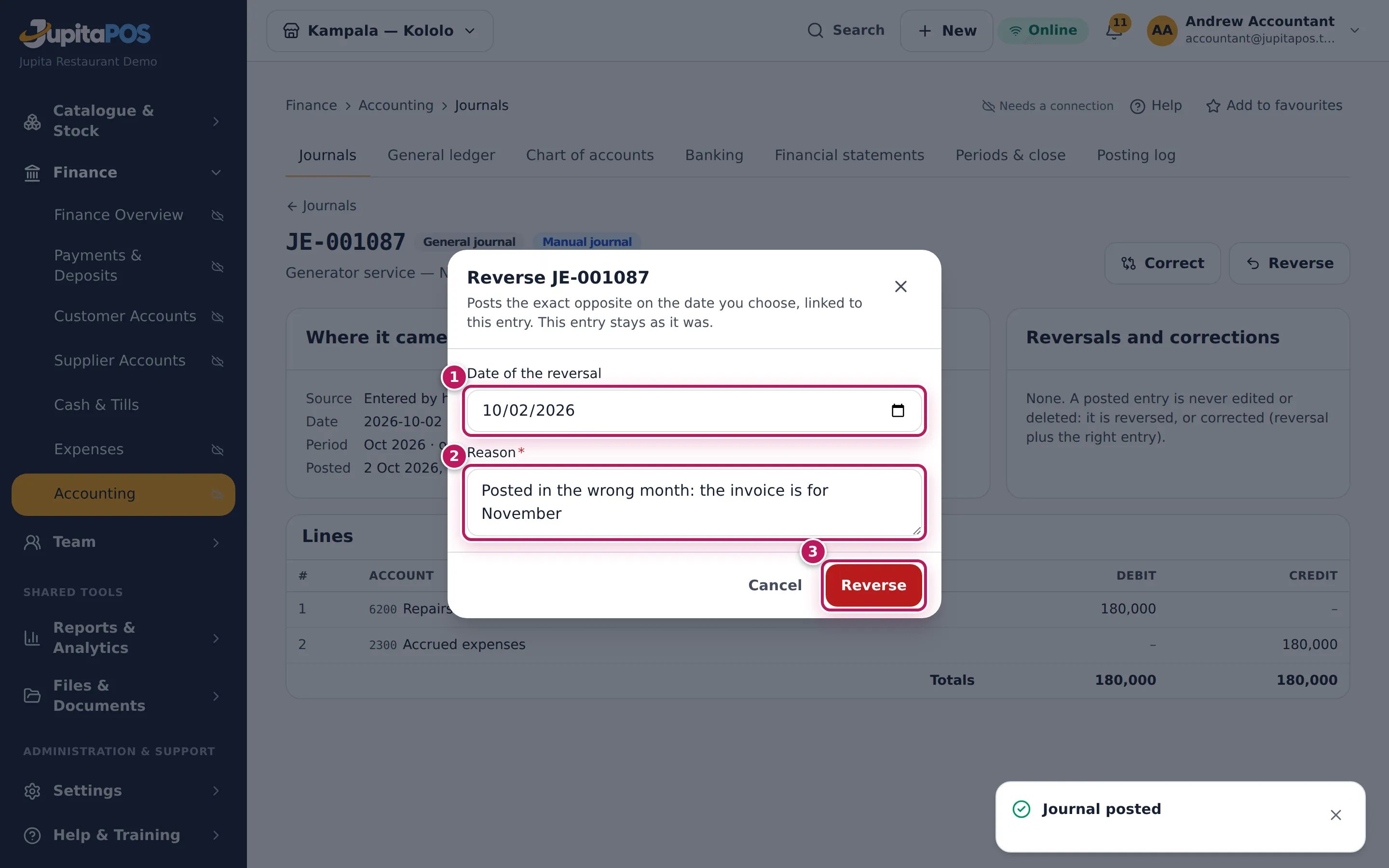
- To cancel it completely, click Reverse.
- Check the Date of the reversal (1) — today by default; never before the entry itself.
- Type the Reason (2), for example Posted in the wrong month: the invoice is for November.
- Click Reverse (3).
- To replace it with the right figures instead, click Correct: type What was wrong, fix the lines, and click Post correction.
Expected result
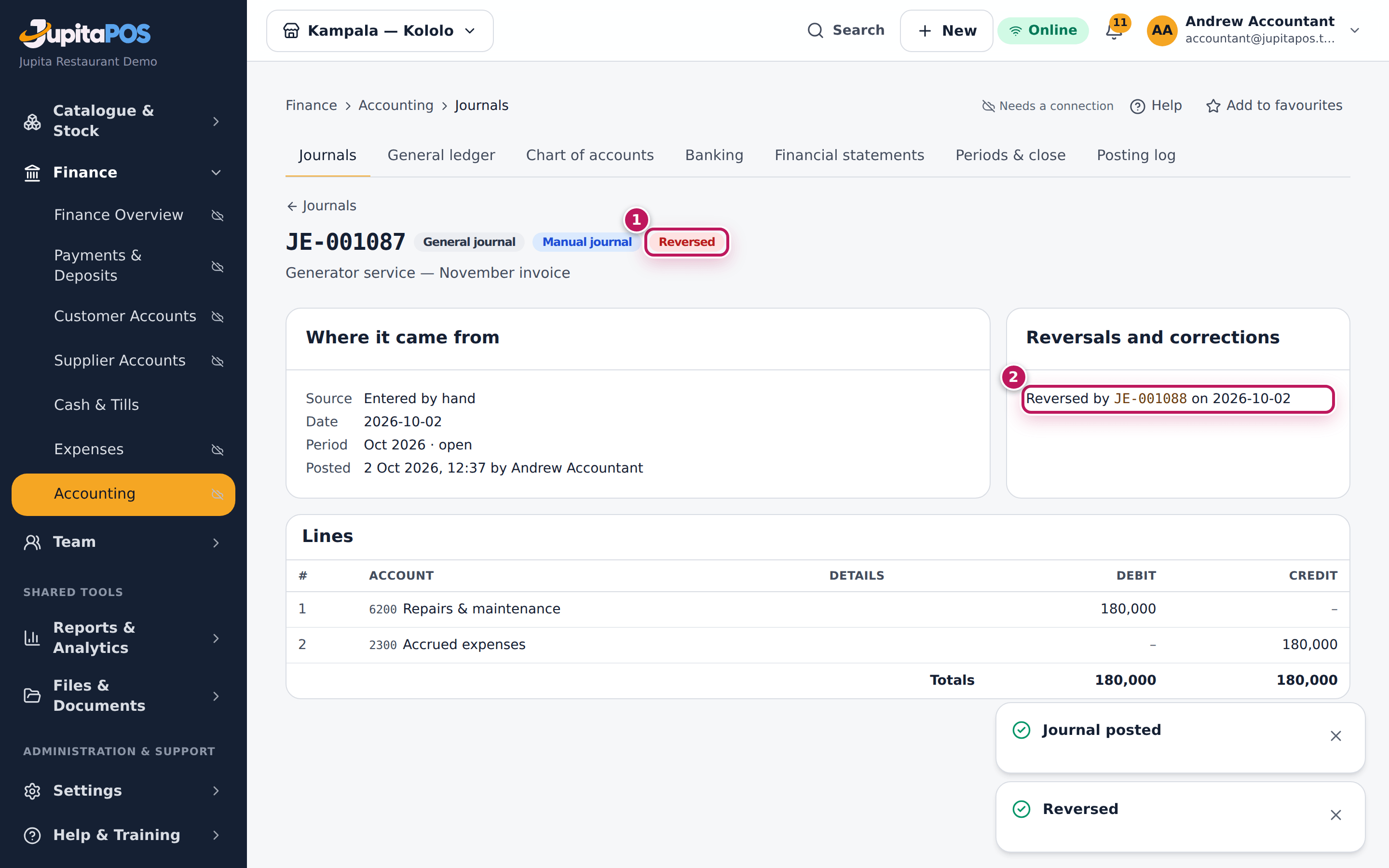
The entry shows the Reversed badge (1) and, under Reversals and corrections (2), Reversed by JE-… with the date. Its own lines are unchanged. The reversing entry has the same lines the other way round and says Reverses JE-…. Both are in the audit trail with your reason.
Screenshot
Common mistakes
- Posting the opposite entry by hand. It is not linked, so nobody can see that the two cancel. Use Reverse.
- Reversing an automatic entry to “fix” a sale or a payment. An entry the system posted is corrected at its source — void the payment, cancel the invoice, reopen the order — and the books follow. The button on such an entry is Reclassify: it only moves the same amounts to other accounts (a sale to venue hire instead of food, say).
- Reversing on today’s date an entry of a locked month on purpose. That is right: the locked month stays as it was, and the reversal is in the open month.
Troubleshooting
- There is no Reverse button. The entry is already reversed (look under
Reversals and corrections), it is a draft (use Discard), or you do
not have
accounting.post. - “Follows its records: correct it at the source document”. In a Reclassify, cash, bank, receivable, payable, stock and customer balance lines cannot be moved. Correct the source document.
Look up an account: the general ledger and the chart of accounts
Purpose
See every line posted on one account with its running balance, and find which account each payment method, till, category and tax posts to.
Role / permission required
Accountant, owner or auditor: accounting.view. Adding or changing
accounts and the posting map needs accounting.post.
Prerequisites
- None.
Steps
- Open General ledger.
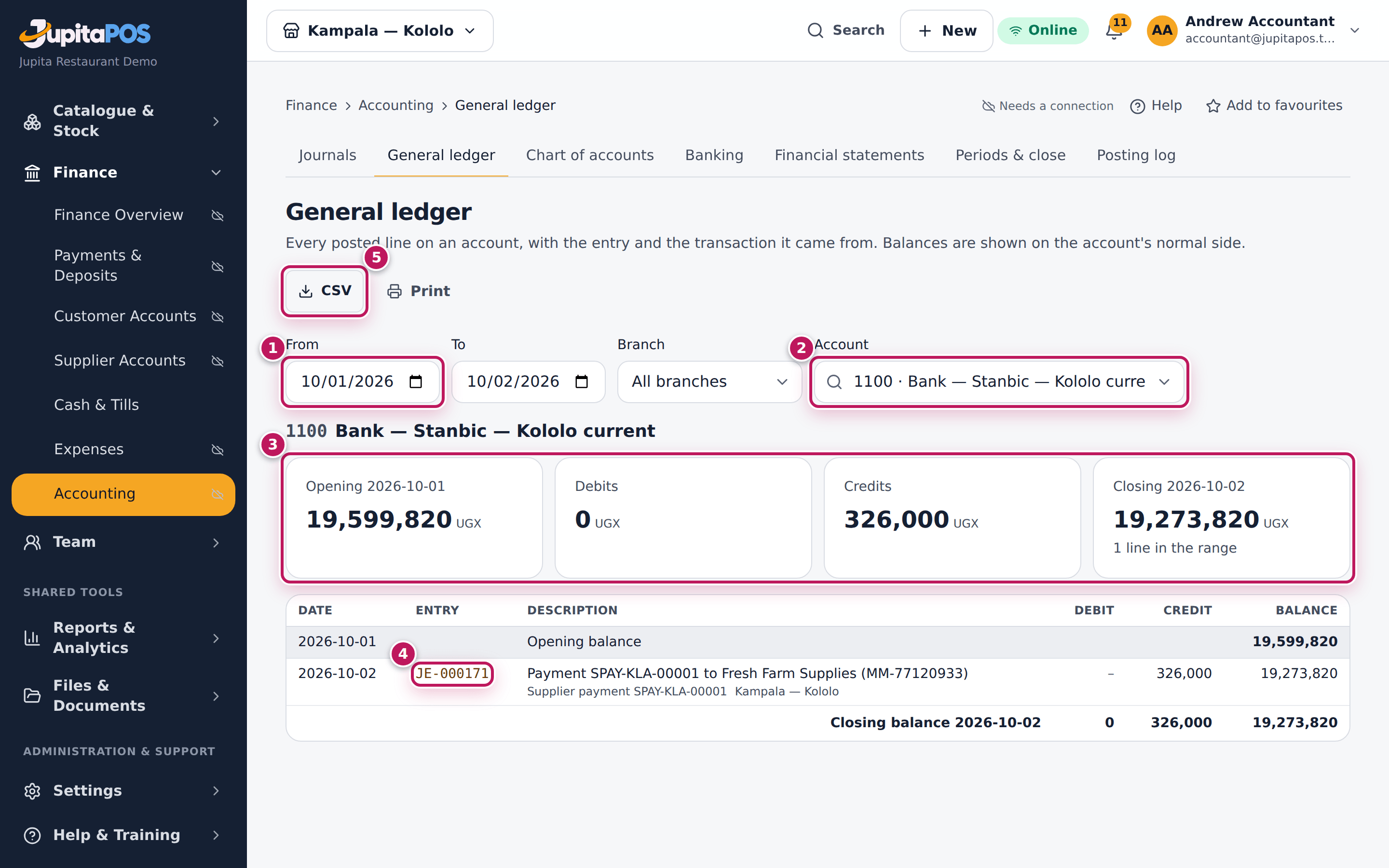
- Set From and To (1) and, if you want one branch, Branch.
- In Account (2), type a code or a word — Stanbic — and pick the account.
- Read the summary (3): the opening balance, the debits, the credits and the closing balance, with the number of lines.
- Read the lines: each has its date, the entry (4) — click it to open the entry — the description with the document it came from, and the running balance.
- Click CSV (5) to download the lines, or Print.
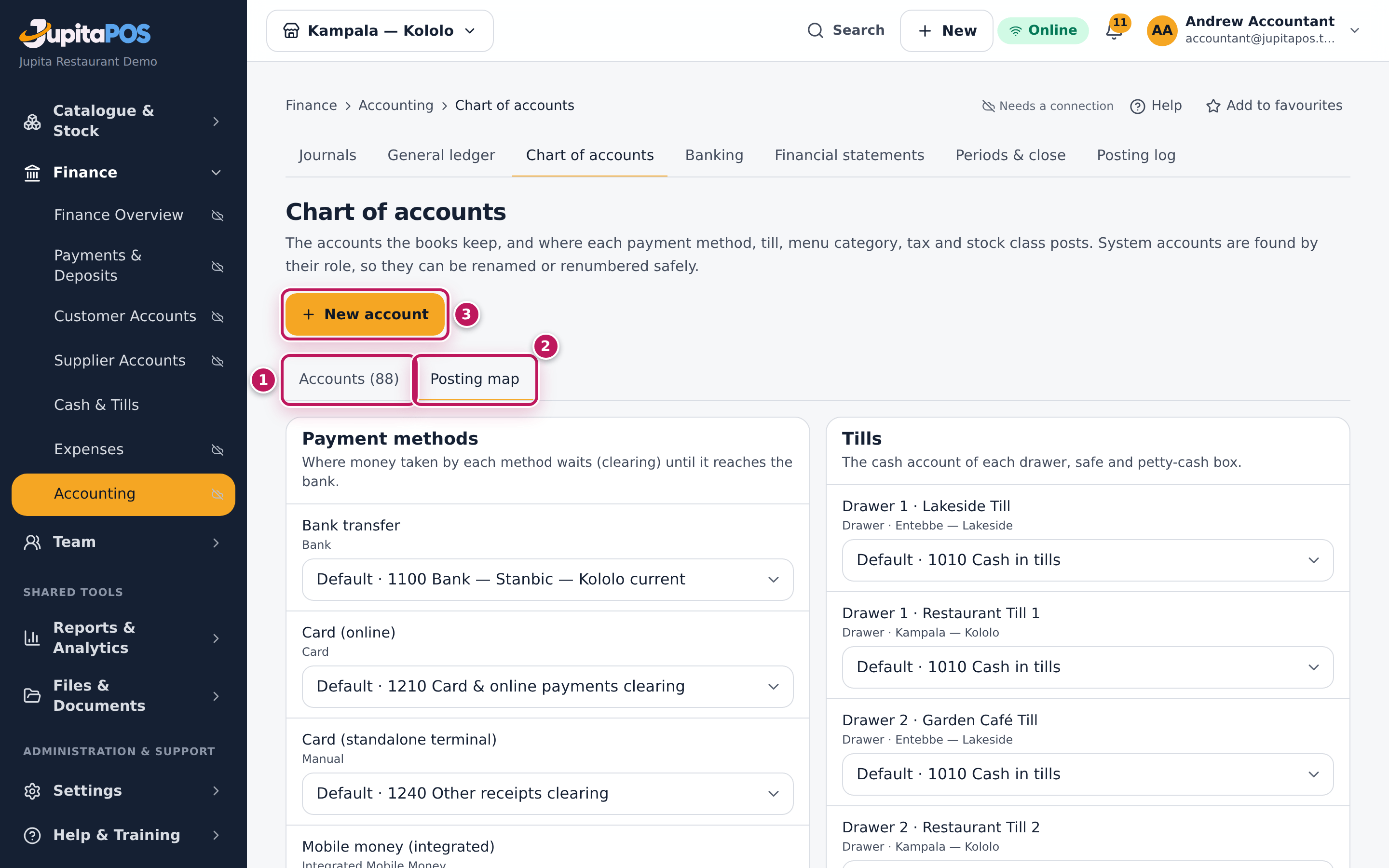
- Open Chart of accounts to see every account by type with its balance. Accounts (1) lists them; New account (3) adds your own, for example a second rent account.
- Click Posting map (2) to see where money goes: each payment method’s clearing or bank account, each till’s cash account, each menu category’s sales account, each tax’s liability and each service charge’s income. Change one only with your accountant’s agreement.
Expected result
For 1100 Bank — Stanbic — Kololo current from 1 to 2 October you see the opening balance on 1 October — what the account held at the end of September — then each deposit, charge, supplier payment and expense paid from the bank in those days, and the closing balance, which is the same figure as on the Banking page.
Screenshot
Common mistakes
- Reading the balance of the wrong branch. With a Branch chosen, the ledger shows that branch’s lines only. Choose All branches to compare with the bank.
- Renaming a system account to reuse it for something else. System accounts are found by their role; rename them only to match your own names. Add a New account for something new.
Troubleshooting
- The account is not in the list. It may be closed. Closed accounts show the Closed badge in the chart of accounts; an account with a balance or a mapping cannot be closed.
- The balance differs from the bank. Reconcile the account (see Reconcile the bank).
FAQ
Which accounts do the books use? Every sale, payment, delivery and stock movement is posted by JupitaPos to these accounts of the chart (the codes of a new business; the demo’s bank account is renamed Bank — Stanbic — Kololo current):
| What | Account |
|---|---|
| Cash in the tills, the safe, petty cash; cash with riders | 1010, 1020, 1030; 1040 |
| The bank | 1100 |
| Card, mobile money and bank transfers on their way to the bank | 1210, 1220, 1230 |
| What customers owe (house accounts, invoiced functions) | 1310 Accounts receivable — customers |
| Input VAT on purchases | 1340 Input VAT recoverable |
| Stock: food, beverages, packaging | 1410, 1420, 1430 Inventory |
| What the business owes suppliers | 2000 Accounts payable — suppliers |
| Goods received and not yet invoiced | 2050 Goods received not invoiced (GRNI) |
| VAT on sales | 2200 VAT output payable |
| Sales: food, beverages, venue hire, catering, delivery fees | 4000, 4010, 4020, 4030, 4040 |
| Discounts given; refunds | 4100; 4150 |
| Cost of sales: food, beverages, packaging, staff meals and complimentary, catering, event bar | 5000, 5010, 5020, 5030, 5040, 5050 |
| Waste and spoilage; count and adjustment differences; purchase price variance | 5100; 5110; 5120 |
| Cash over / short at the till | 6800 |
| Rooms: deposits held; payments on folios still open; room revenue; deposits kept | 2130; 2100; 4070; 4510 (see Check room revenue, deposits and guest folios) |
A goods receipt puts the stock at cost into inventory against 2050; the supplier’s invoice moves it from 2050 to 2000, and a price above the order goes to 5120. A sale takes the recipe’s ingredients out of inventory at their average cost into cost of sales. The Posting map tab of the chart shows which account each kind of posting uses; change it there, not by renaming accounts.
Check room revenue, deposits and guest folios in the books
Purpose
If the business has rooms, follow a stay’s money into the books: deposits held before arrival, payments on the open folio, the revenue recognised at checkout, and what is still owed — and tie the books to the front desk’s figures at the end of the month.
Role / permission required
Accountant, owner or auditor: accounting.view. The front office’s own
room reports need accommodation.reports (front office manager, managers).
Prerequisites
- The business uses rooms (the Rooms & accommodation module is on, or was).
Steps
- Open General ledger and set From and To to the month.
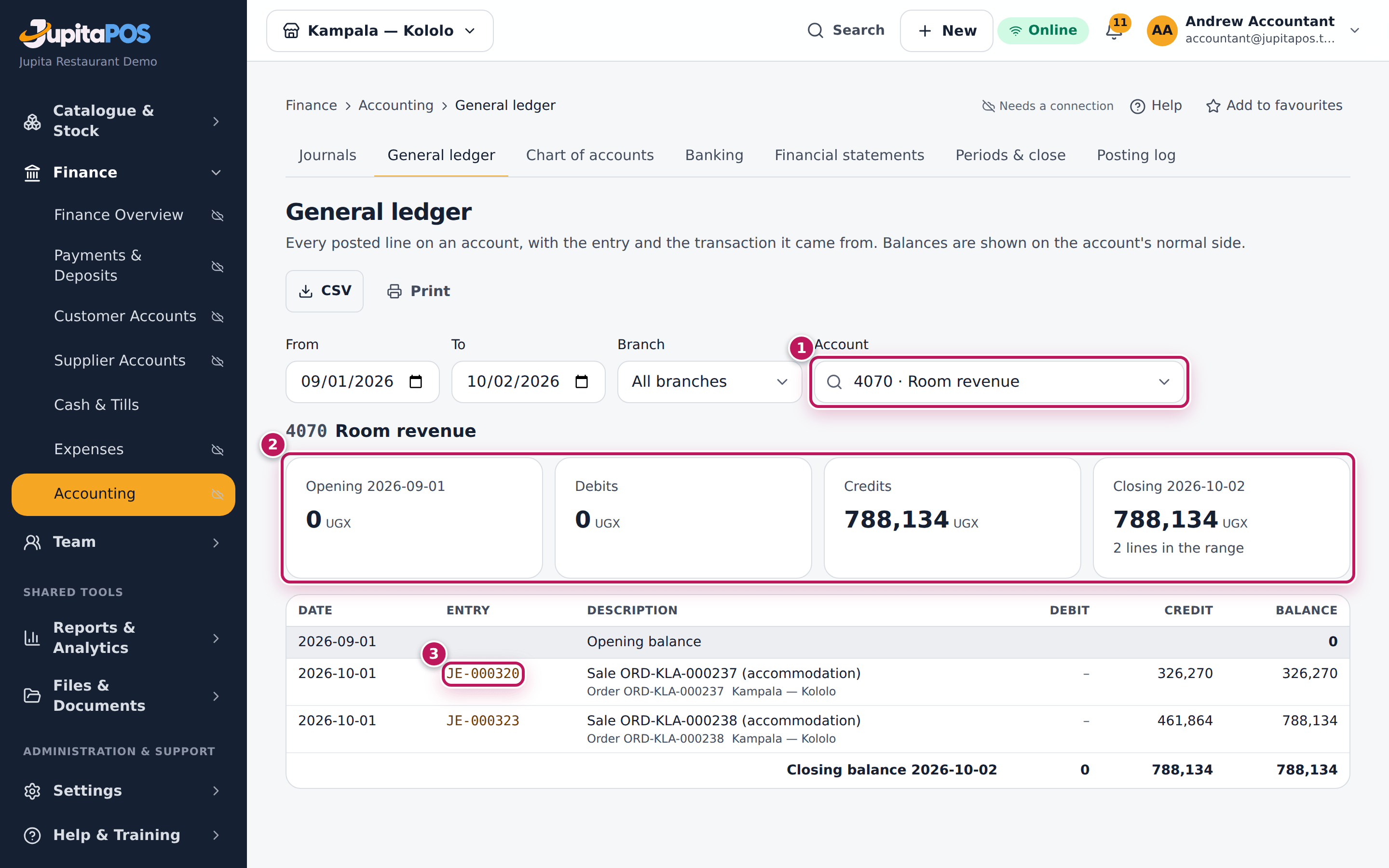
- In Account (1), pick 4070 Room revenue. Read the summary (2) and the entries (3): one per guest folio closed at checkout — the room nights; the folio’s restaurant, bar and room-service lines post to their own sales accounts (4000, 4010…), with the output VAT on 2200.
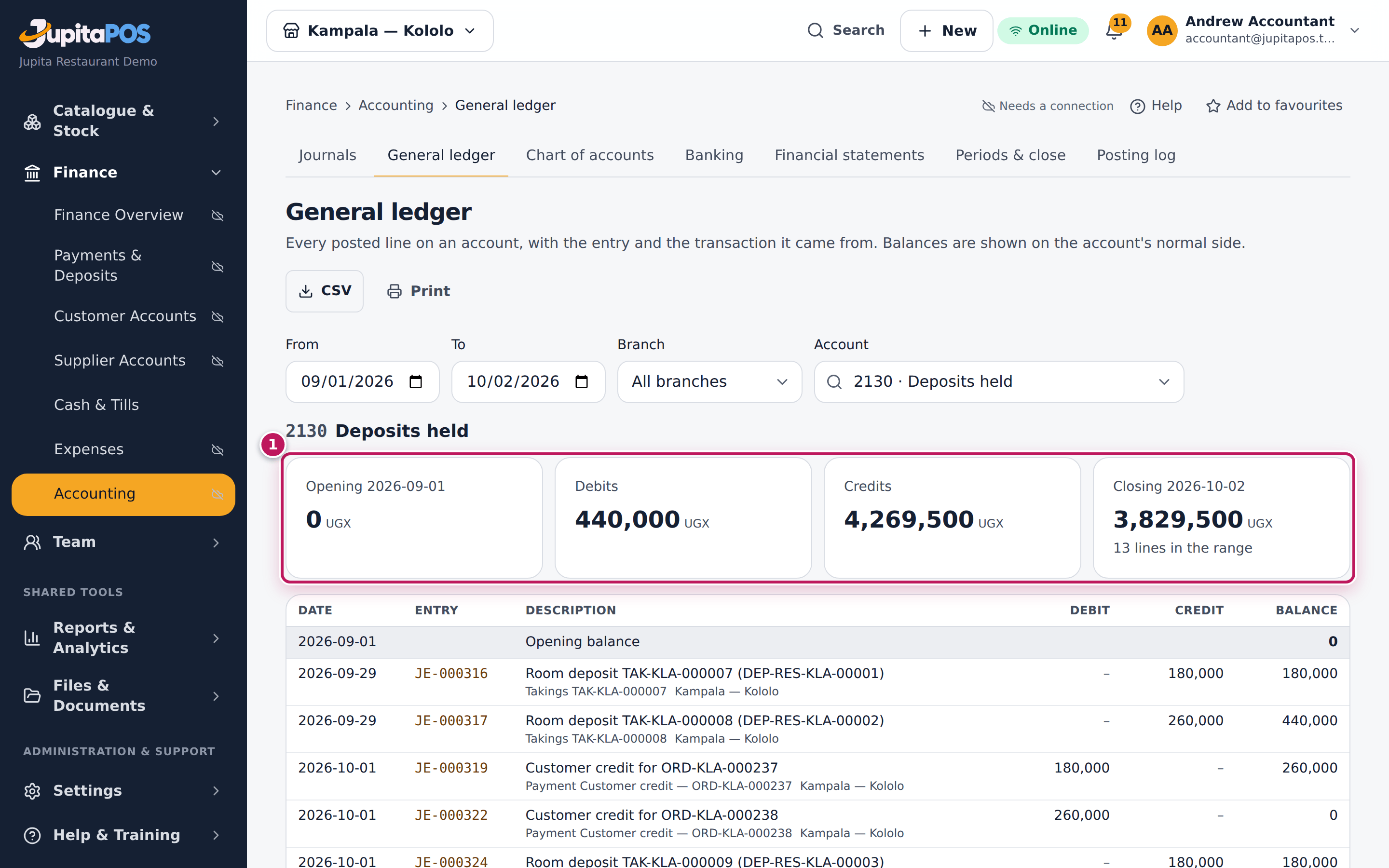
- Pick 2130 Deposits held: credits are deposits received and verified before arrival; debits are deposits used at check-in, refunded, or kept (a kept deposit is income on 4510 Breakage & forfeited deposits).
- Pick 2100 Customer advances & order deposits: payments taken on open folios (and deposits applied at check-in) wait here until the folio closes; at checkout they settle against the folio’s total.
- Pick 1310 Accounts receivable — customers: a folio closed to a company or house account stays here until it is paid.
- At the end of the month compare with the front office: the room revenue of the room reports (recognised at checkout) against 4070, and the deposits held on Guest folios against 2130. Folios still open at the month’s end are not revenue yet — their payments sit in 2100.
Expected result
Every closed folio appears once in 4070 (and its outlet lines in their own sales accounts); 2130 equals the deposits the front desk still holds; 2100 equals what was paid on folios still open. A card or mobile-money payment typed in by hand appears only after it is verified.
Screenshot
Common mistakes
- Expecting revenue every night. Room revenue is recognised once, when the folio closes at checkout; the nights charged before that are on the folio, not in the books.
- Posting a manual journal to fix a folio. Ask the front office to correct the charge or payment on the folio; the books follow.
- Counting a deposit as a sale. A deposit is a liability until it is used at checkout or kept.
Troubleshooting
- A payment from the folio is missing. It is awaiting verification:
someone with
payments.verifychecks it on the folio page. - 4070 differs from the room report. The report counts the nights of the dates you chose; the books count folios closed in the period. A stay that runs across the month’s end is in the report for both months and in the books when it checks out.
Record an expense or petty cash
Purpose
Record money spent outside supplier invoices — detergent from the supermarket, a boda to the market, a gas refill, a repair — so the cost is in the books with its VAT and the cash or bank balance is right.
Role / permission required
Branch managers, supervisors, accountants and owners: expenses.create.
Prerequisites
- You have the receipt.
- To pay cash out of a drawer, a till is open at your branch (see Open the till).
Steps
- Open Expenses and click Record expense.
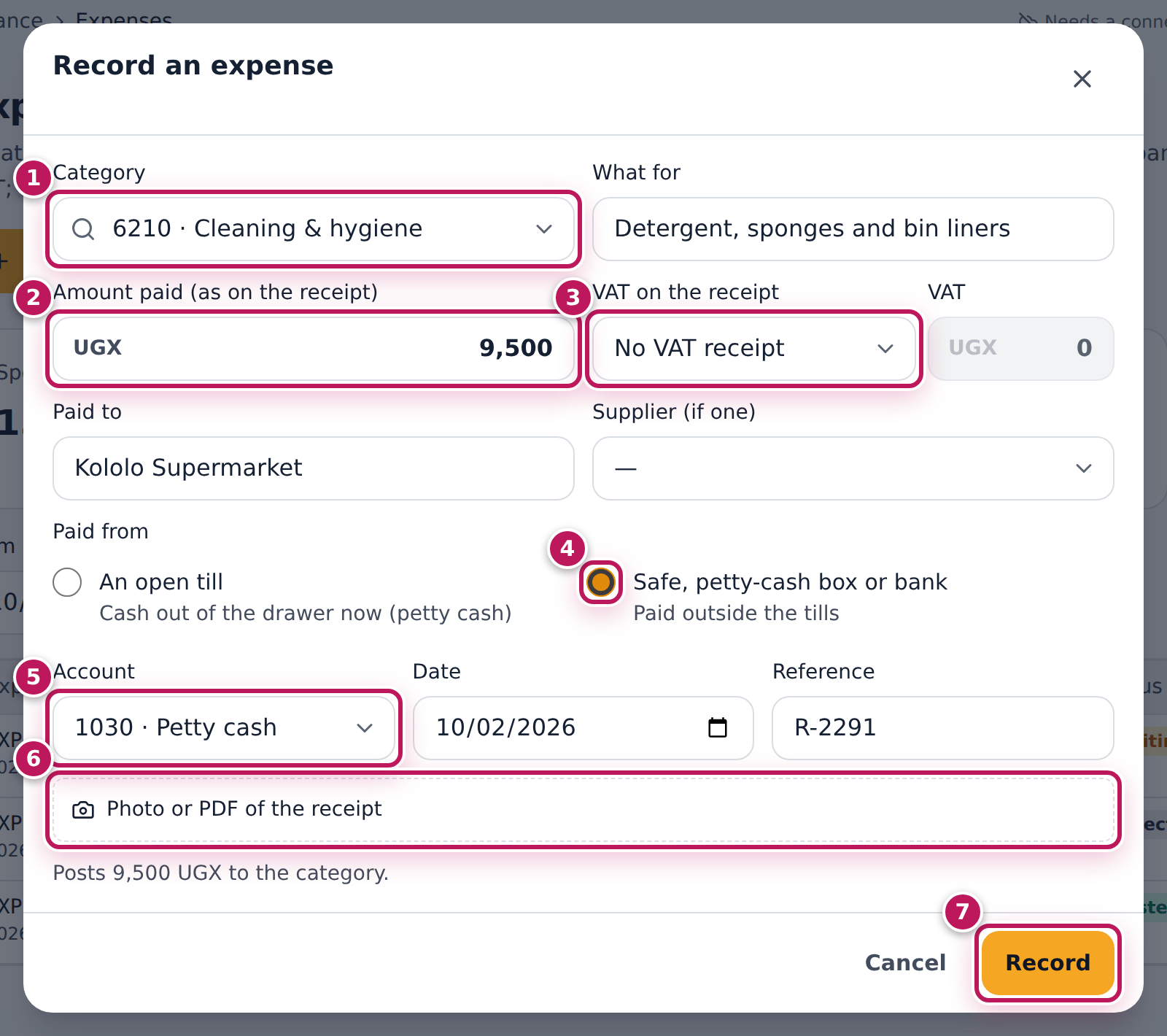
- In Category (1), type a word and pick the account, for example 6210 · Cleaning & hygiene.
- Type What for: Detergent, sponges and bin liners.
- Type the Amount paid (as on the receipt) (2), with VAT.
- If the receipt is a VAT receipt, choose the rate in VAT on the receipt (3); the VAT is worked out. Otherwise leave No VAT receipt.
- Type Paid to (the shop or person), and choose the Supplier (if one).
- Under Paid from choose An open till (cash out of the drawer now) or Safe, petty-cash box or bank (4).
- For a till, choose the Till. Otherwise choose the Account (5) — here 1030 · Petty cash — and check the Date.
- Type the Reference (the receipt number) and add a Photo or PDF of the receipt (6).
- Check the line under the form (Posts 9,500 UGX to the category) and click Record (7).
Expected result
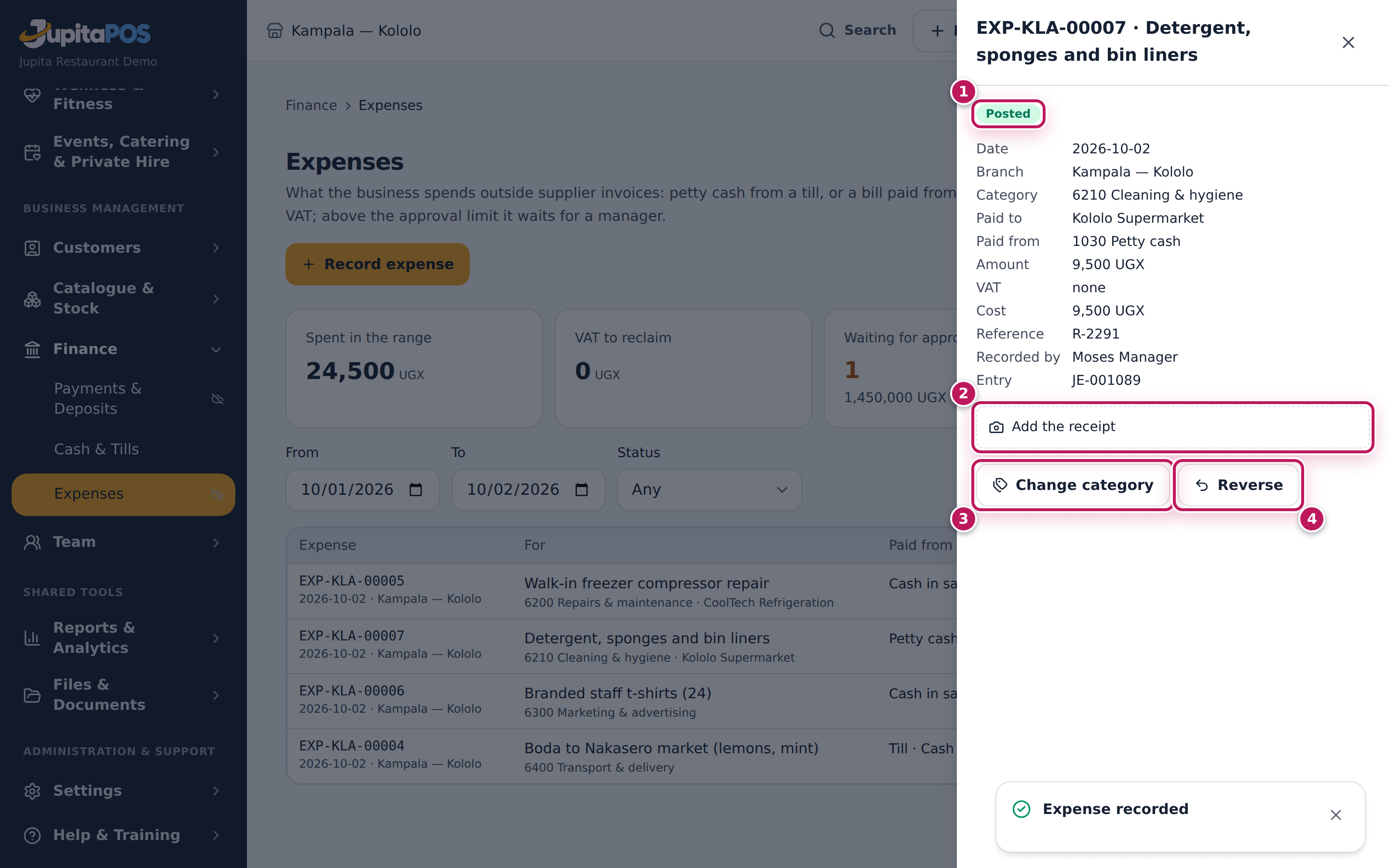
The message Expense recorded appears and the expense is in the list with
its number, for example EXP-KLA-00010. Open it: it is Posted (1),
paid from 1030 Petty cash, with its journal entry. Add the receipt (2)
attaches the photo later; Change category (3) and Reverse (4) are
for whoever approves expenses. Above the approval limit (500,000 UGX unless
your business changed it) it says Waiting for approval instead, and no
money moves until it is approved.
Screenshot
Common mistakes
- Recording stock bought for cash as an expense. Tomatoes for the kitchen are stock: receive them in procurement so the store and the recipe costs know (see Receive goods).
- Claiming VAT without a VAT receipt. Input VAT is reclaimable only with a VAT receipt. Leave No VAT receipt for a market receipt.
- Typing the amount without VAT. Type what was paid, as on the receipt; the VAT is taken out of it.
- Choosing a till that is not the one the cash came from. The drawer’s expected cash goes down; the cash-up of the wrong till will be short.
Troubleshooting
- “An open till” is greyed out. No till is open at your branch. Pay from the safe or petty cash, or open the till first.
- “Not enough cash in the till for that.” The drawer’s expected cash is less than the amount. Pay from the safe or petty cash.
- “An expense cannot be dated in the future.” Change the Date to today or earlier.
- “The VAT must be less than the amount.” Check the amount and the VAT.
FAQ
Who approves an expense above the limit? Someone with
expenses.approve who did not record it (see
Approve an expense).
Where do I see the petty-cash box? Financial reports → Petty cash: the box at the start and now, and every payout.
Approve or reject an expense
Purpose
Decide on a bill above the approval limit before any money is paid, so large spending always has a second pair of eyes.
Role / permission required
Owner, accountant or branch manager: expenses.approve. You can never
approve an expense you recorded yourself.
Prerequisites
- An expense is Waiting for approval. The finance overview shows how many under Needs attention; you are also notified.
Steps
- Open Expenses and set Status to Waiting for approval (or click the line under Needs attention).
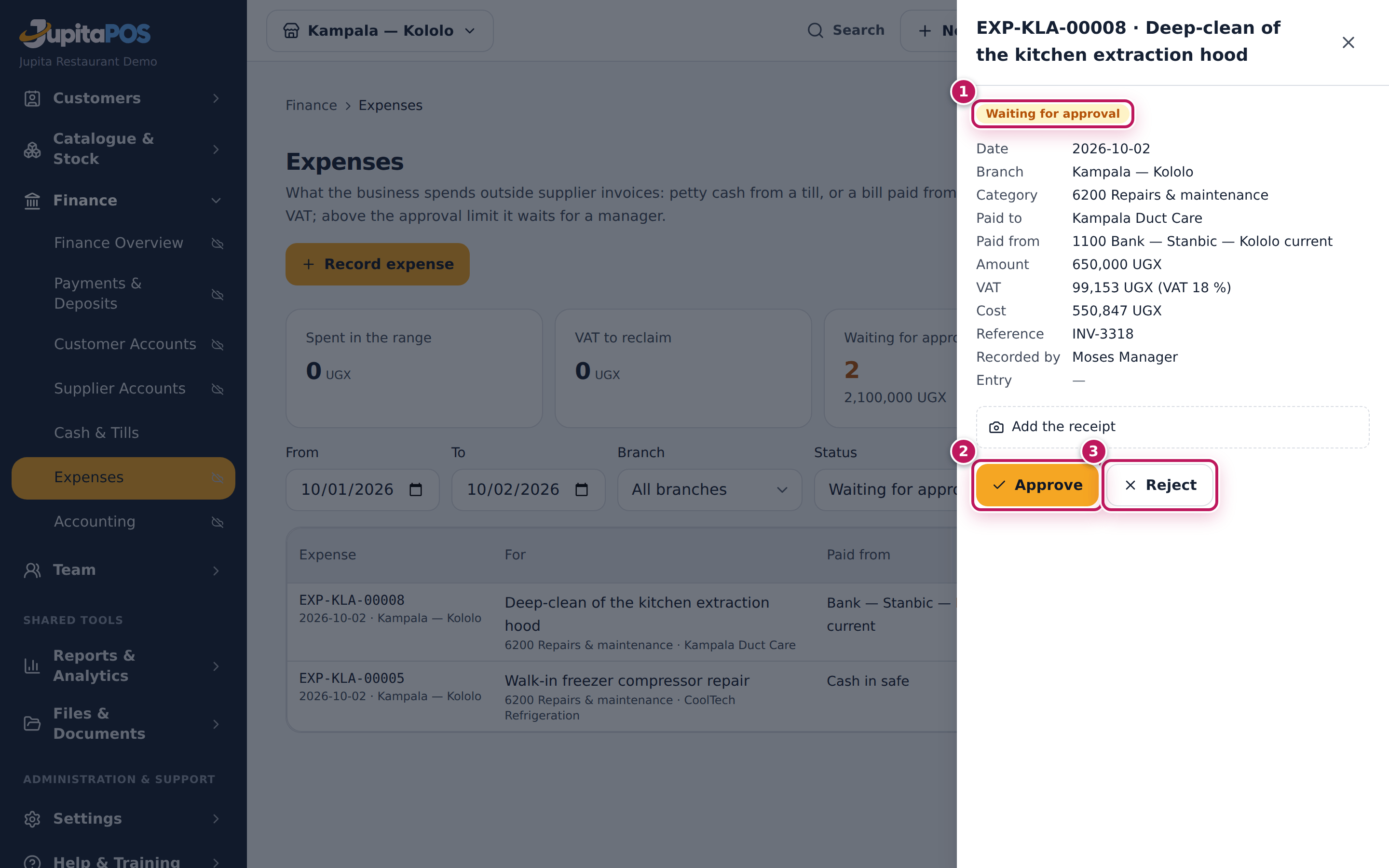
- Click the expense. Its details open: who recorded it, the amount, the VAT, where it is paid from and the receipt. It says Waiting for approval (1).
- To approve, click Approve (2). To refuse, click Reject (3).
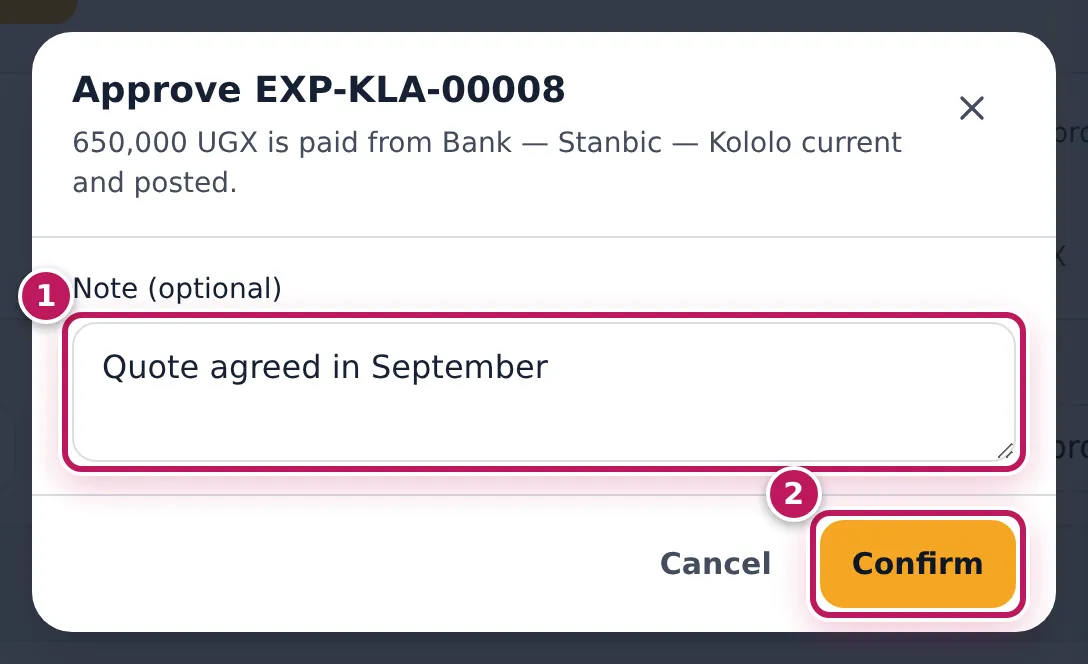
- In the dialog, read what is paid from where. For an approval the Note (optional) (1) is for the record; a rejection needs a Reason.
- Click Confirm (2).
Expected result
After an approval the message Approved and posted appears: the expense is Posted, the money leaves the account it is paid from (here 650,000 UGX from the Stanbic account, of which 99,153 UGX is VAT to reclaim) and it has its journal entry. A rejected expense shows Rejected with your reason and nothing is posted.
Screenshot
Common mistakes
- Approving without the receipt. Ask for the photo first; Add the receipt is on the expense.
- Rejecting instead of changing the category. If only the category is wrong, approve it and use Change category: it posts a linked correction.
Troubleshooting
- There is no Approve button; it says “Someone else approves what you recorded.” You recorded it. Another manager or the accountant approves.
- The expense is no longer in the list. Requests expire after seven days without a decision. Record it again if it is still to be paid.
Record money moved: bank the cash, top up petty cash
Purpose
Keep the safe, petty cash and the bank right when money moves between them — cash banked, a withdrawal for petty cash, a transfer, a mobile-money settlement, a bank charge or interest.
Role / permission required
Accountant or owner: accounting.bank.
Prerequisites
- The bank or mobile-money account exists on Banking (Bank account adds one; it gets its own ledger account).
- You have the deposit slip, cheque or transaction reference.
Steps
- Open Banking and click Record movement.
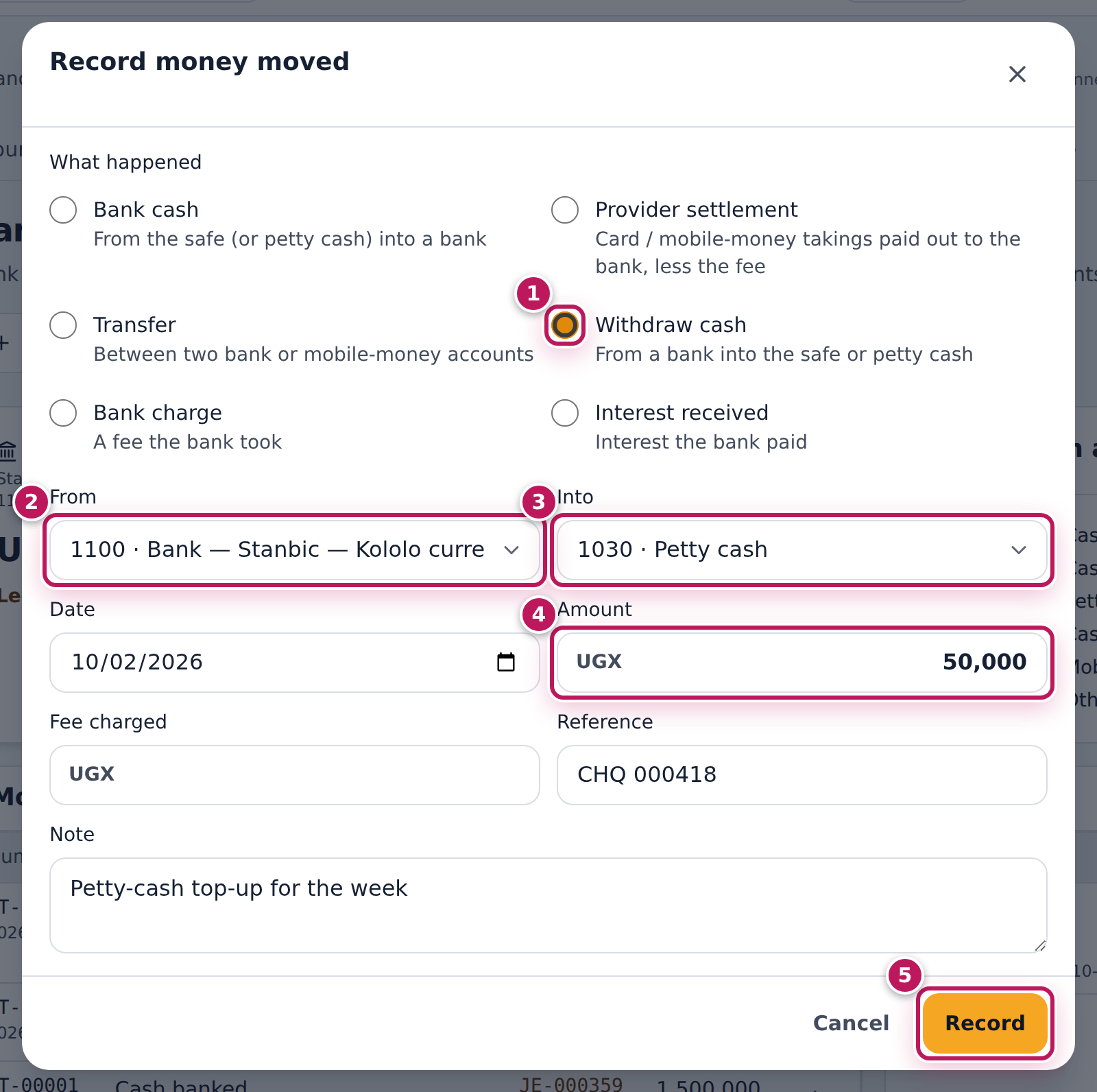
- Under What happened choose what it is (1): Bank cash, Provider settlement, Transfer, Withdraw cash, Bank charge or Interest received. Here: Withdraw cash.
- Choose From (2) — 1100 · Bank — Stanbic — Kololo current — and Into (3) — 1030 · Petty cash.
- Check the Date and type the Amount (4): 50,000. If the bank took a fee, type it in Fee charged and choose where it is charged.
- Type the Reference (the cheque number, CHQ 000418) and a Note.
- Click Record (5).
Expected result
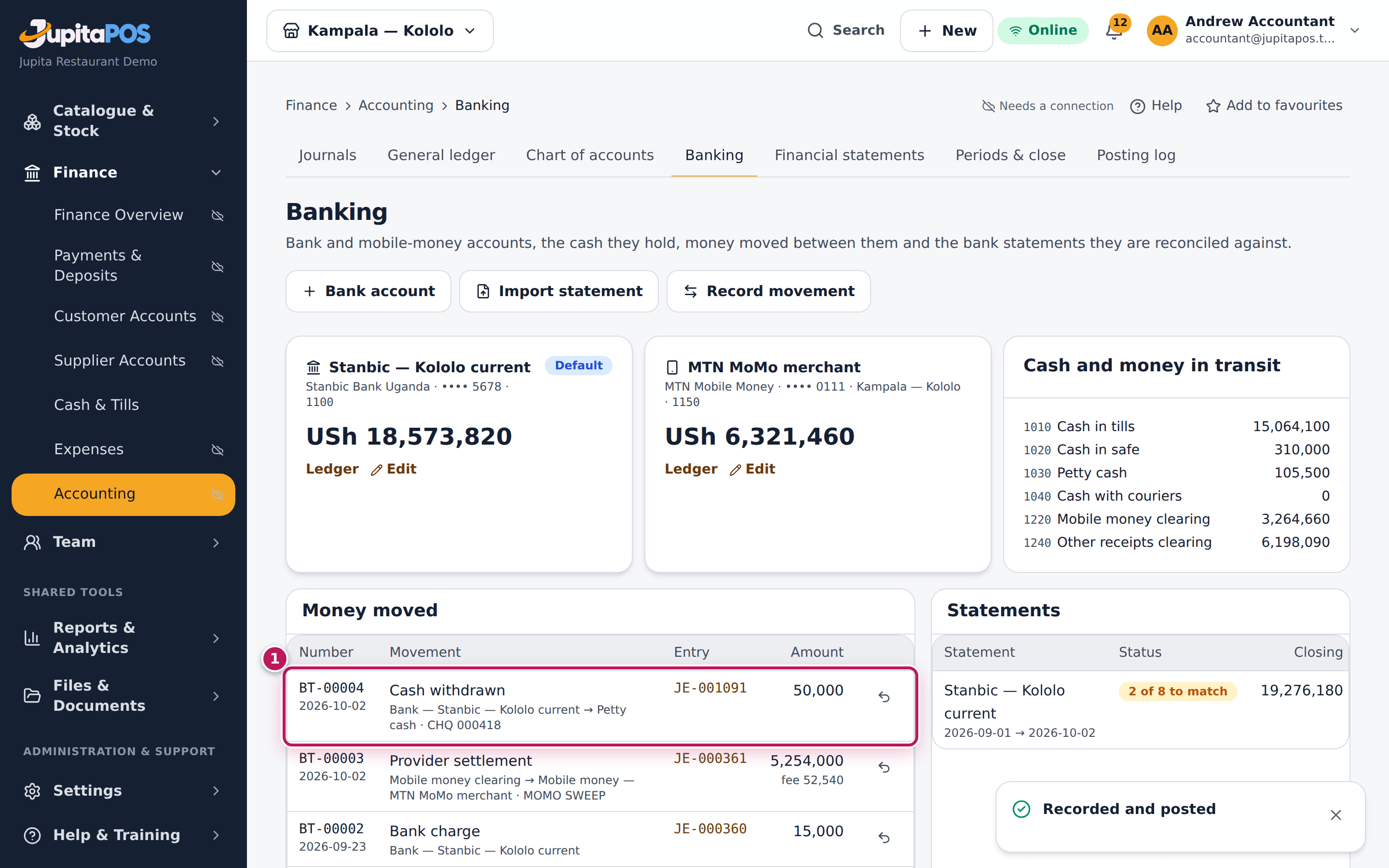
The message Recorded and posted appears. Money moved lists the
movement first (1) — Cash withdrawn, from the bank to petty cash, with its
number (BT-…), its journal entry and 50,000. The bank balance goes down
and the petty-cash box goes up by the same amount.
Screenshot
Common mistakes
- Recording card or mobile-money takings as “Bank cash”. Those arrive from the provider, less its fee: use Provider settlement, type the gross and the Provider’s fee; the fee becomes a bank charge.
- Recording a movement the statement import will create. A charge you first see on the statement is easier to post from the statement (see Reconcile the bank).
Troubleshooting
- Recorded the wrong amount. Click the ↶ button at the end of the movement’s line, give a reason: the opposite is posted today. Then record it again. A movement already matched on a statement must be unmatched first.
- The account is missing from From or Into. A closed bank account is not offered. Open it again with Edit on its card.
Reconcile the bank
Purpose
Prove the books against the bank’s or the mobile-money provider’s statement, line by line, so the balance in the books is the money you really have.
Role / permission required
Accountant or owner: accounting.bank.
Prerequisites
- The statement as a CSV file from the bank’s or provider’s portal: a date column and an amount column (or money in and money out); a description, reference and balance column help.
- The statement’s opening balance follows on from the last statement you reconciled for that account.
Steps
- Open Banking and click Import statement.
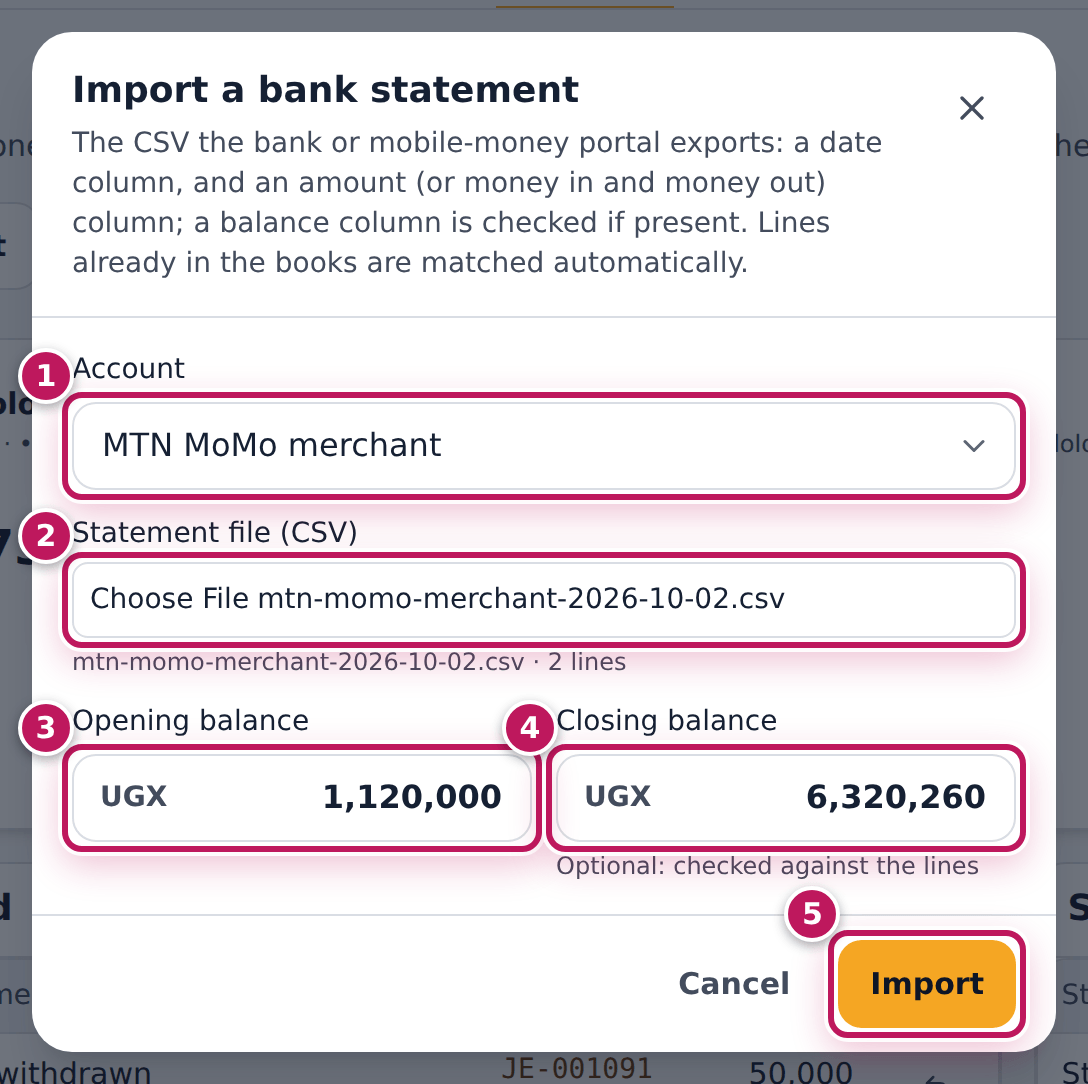
- Choose the Account (1): MTN MoMo merchant.
- Choose the Statement file (CSV) (2). The number of lines read shows under it.
- Type the Opening balance (3) and the Closing balance (4) printed on the statement, and click Import (5).
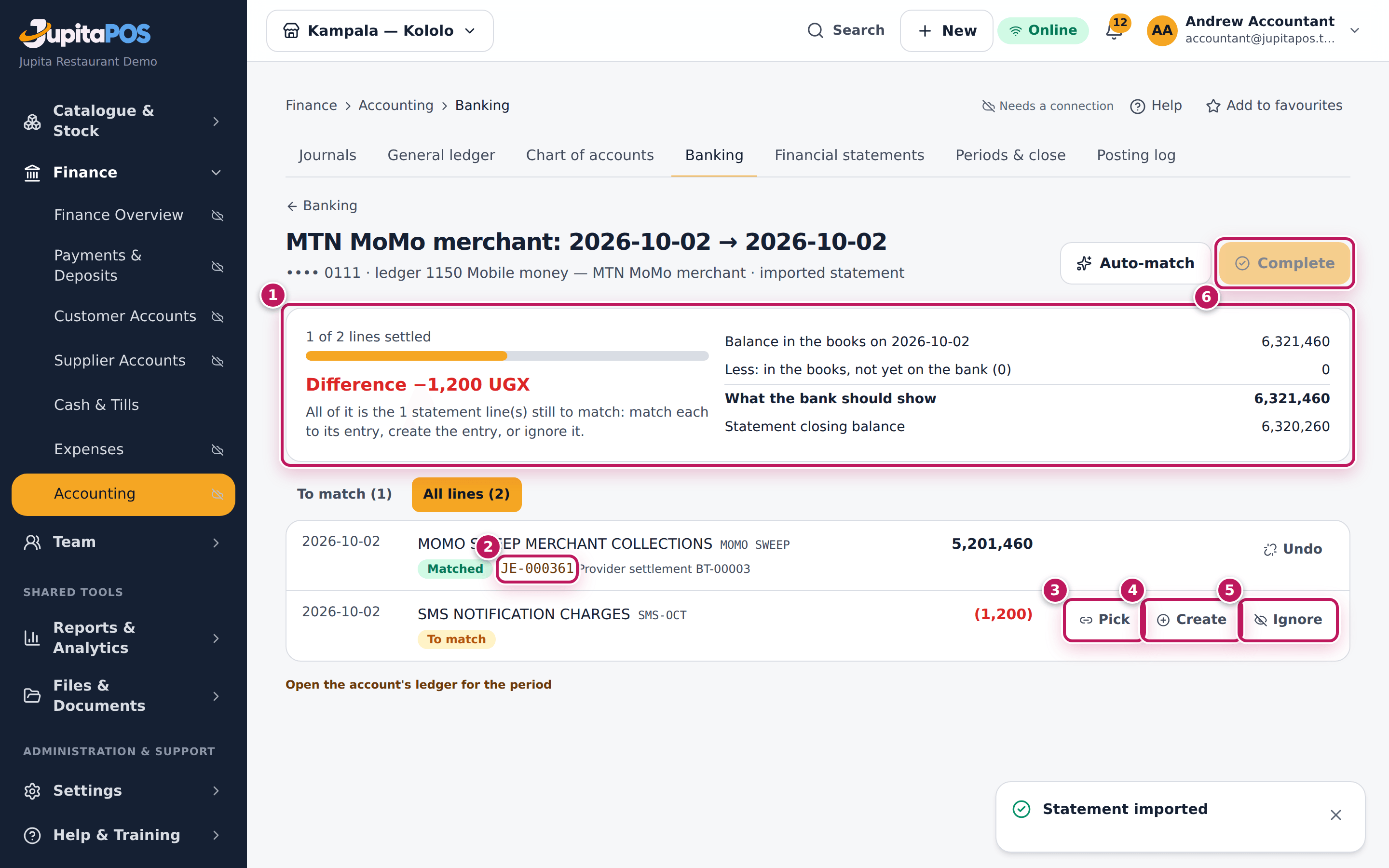
- The statement opens. Lines already in the books were matched on import — the sweep of the day’s collections shows its entry (2).
- Read the summary (1): lines settled, the Difference, the balance in the books, what is in the books but not yet on the bank, and what the bank should show.
- For each line still To match:
- Pick (3) ticks the ledger lines it pays (one or several), until Ticked equals the line.
- Create (4) posts the entry from the line: here an SMS charge.
- Ignore (5) a line that needs no entry, with a reason (a charge the bank reversed).
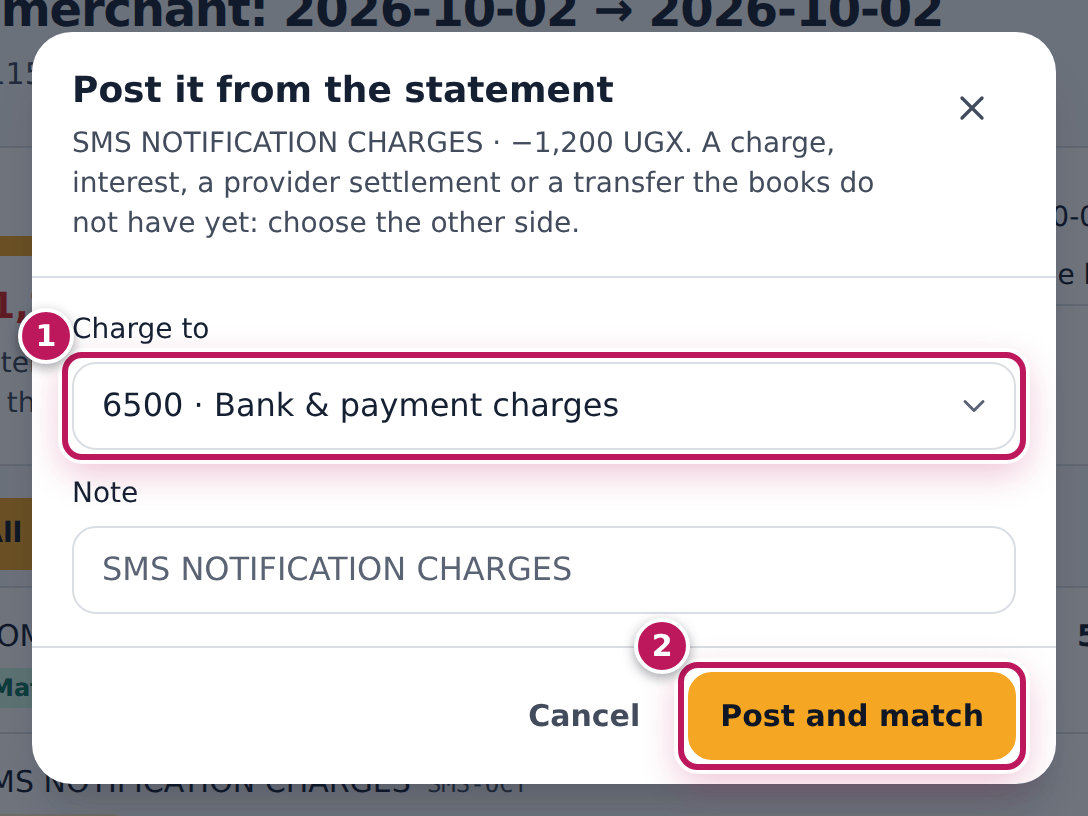
- For Create, choose the account in Charge to (1) — 6500 · Bank & payment charges — (or Where it came from for money in) and click Post and match (2).
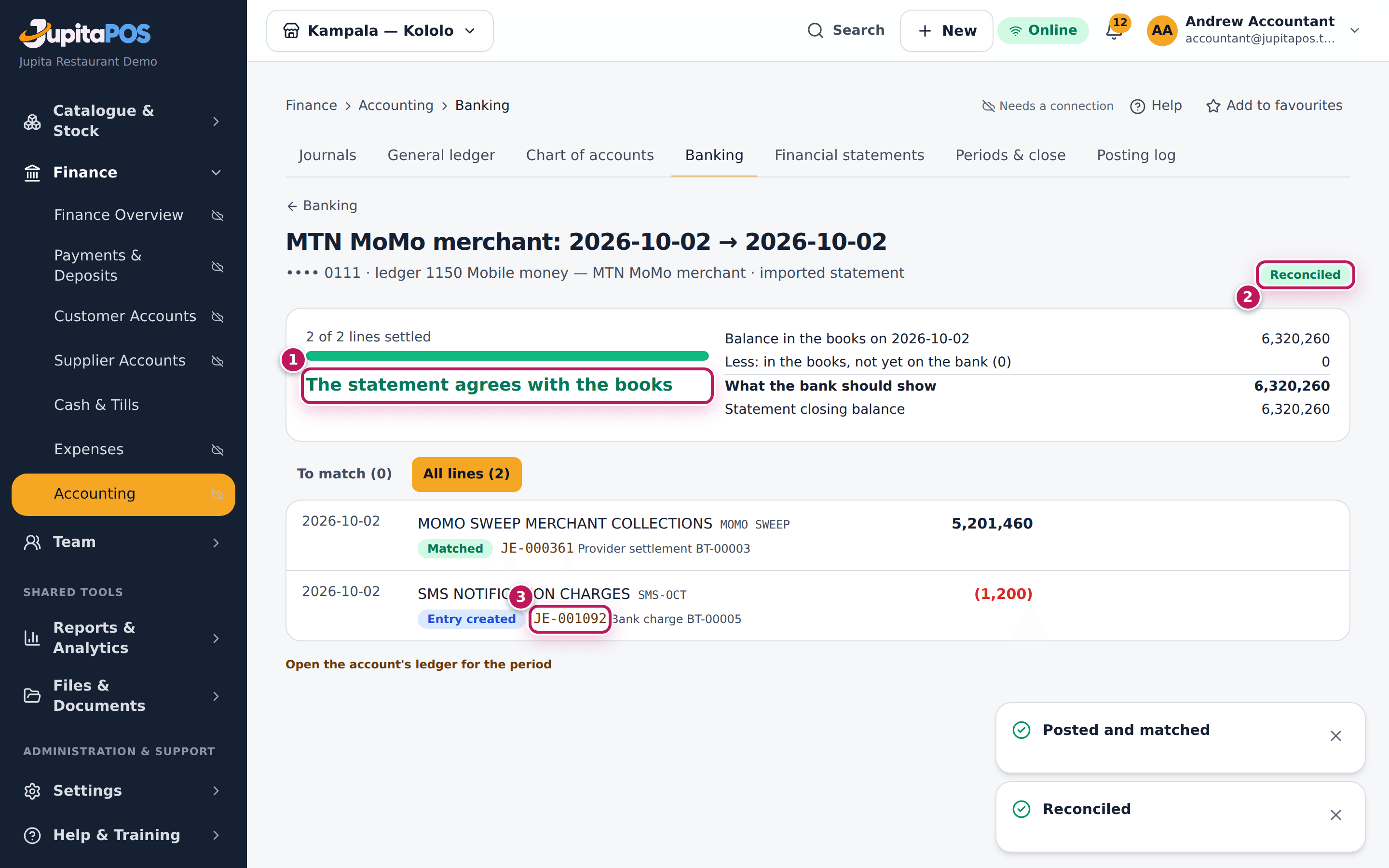
- When the summary says The statement agrees with the books, click Complete (6).
Expected result
The statement shows Reconciled (2): 2 of 2 lines settled and The statement agrees with the books (1). Every line links to its entry (3). On Banking the statement is listed as reconciled, and the finance overview no longer counts its lines under Needs attention.
Screenshot
Common mistakes
- Creating an entry for a line that is already in the books. A deposit you recorded with Record money moved is matched with Pick, not created again — creating it counts it twice.
- Ignoring a line to make the difference go away. An ignored line still counts in the closing balance; ignore only lines that really need no entry.
- Importing a statement that overlaps the last one. Statements follow each other: import each period once.
Troubleshooting
- “The first row must name the columns: a date, and an amount (or money in and money out).” The file has no header row, or its columns have other names. Export the CSV again from the portal with column names.
- “Opening … plus the lines … is …, not the closing …” A line is missing or mistyped, or the closing balance is wrong. Check the statement.
- “A statement for … is already here: the periods overlap.” That period was imported before. Open it from Statements on Banking.
- “The opening balance does not follow on” or the bank’s opening … differs from the books: a statement is missing, or the account’s opening balance was never entered. Post the missing opening balance (see Opening balances) before you complete.
- Complete stays grey. A line is still to match, or there is a difference left to find. The line under the difference says which.
FAQ
What does “in the books, not yet on the bank” mean? Payments and deposits you recorded that the bank has not processed by the statement’s last day — a cheque not yet cashed. They are normal and appear on the next statement.
Can I undo a match? Yes, while the statement is not completed: Undo on the line.
See what customers owe and take a payment on account
Purpose
Know who owes the business money — house-account tabs and orders invoiced on credit — and record their payments so the balance comes down.
Role / permission required
Accountant or owner: accounting.view. Taking a payment needs
customers.credit.
Prerequisites
- The customer has a house account or an order invoiced on credit (see Credit and house accounts).
Steps
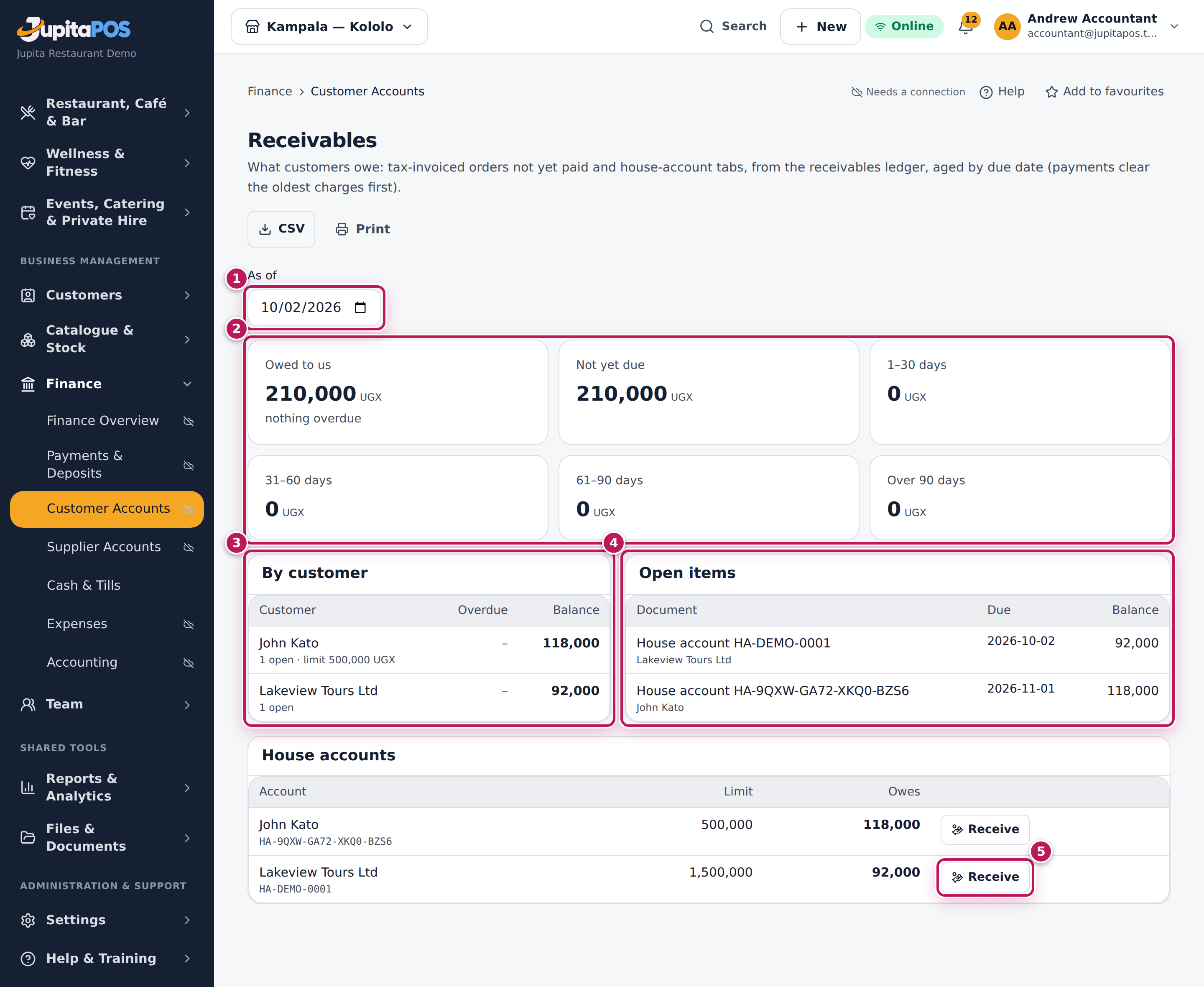
- Open Receivables. Change As of (1) to see the position on another day.
- Read the buckets (2): Owed to us, then by due date — Not yet due, 1–30 days, 31–60 days, 61–90 days, Over 90 days.
- Read By customer (3): each customer’s balance, what is overdue and their credit limit. Open items (4) lists each charge and when it is due; payments clear the oldest first.
- When a customer pays, click Receive (5) on their house account.
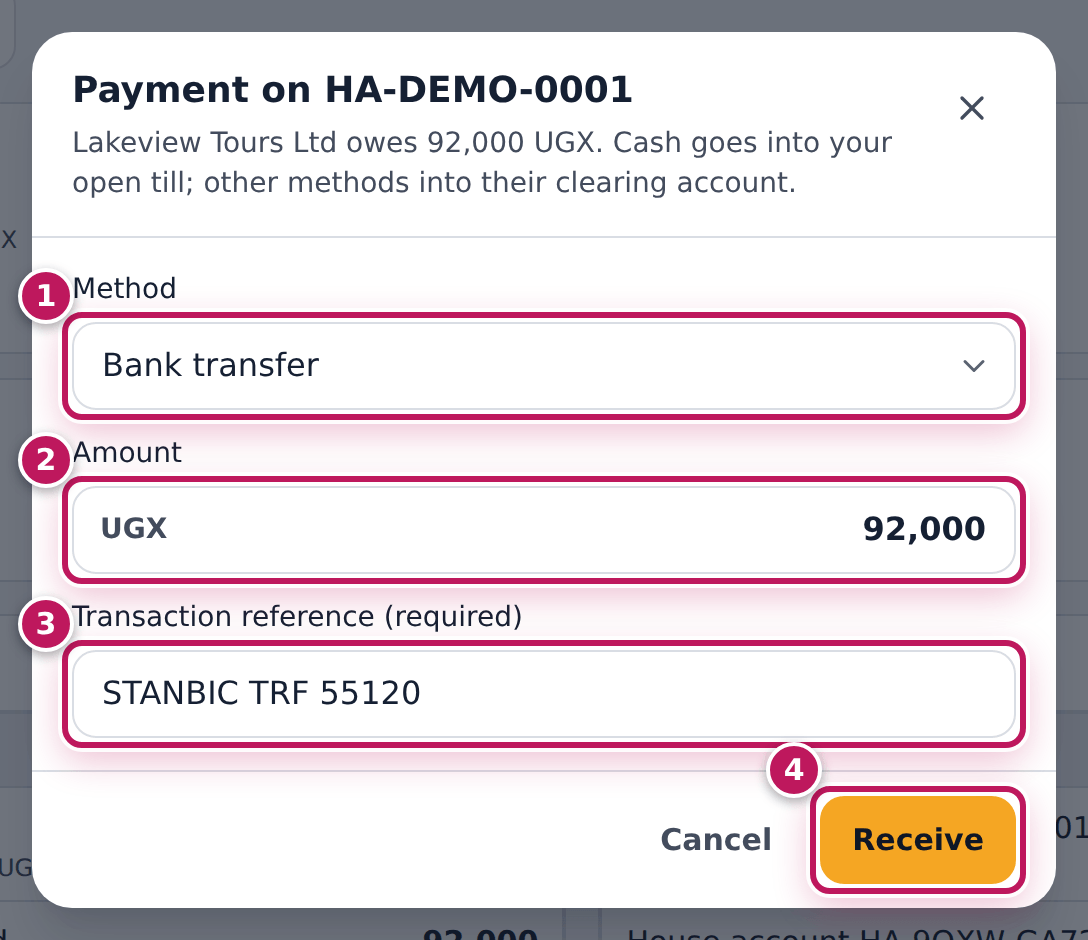
- Choose the Method (1): cash goes into your open till; other methods go to their clearing account.
- Check the Amount (2): it starts at what they owe; type less for a part payment.
- Type the reference (3) — a bank transfer or mobile money needs its Transaction reference (required).
- Click Receive (4).
Expected result
The message Payment received appears. The house account owes less by the amount paid, the receipt is a takings document like a till payment, and the payment appears in the tenders of the day. CSV and Print download or print the list.
Screenshot
Common mistakes
- Taking the payment as a new sale on the till. A sale would count the income twice. Use Receive.
- Choosing Cash without an open till. Cash goes into your till; open it first or choose the method the money really came by.
Troubleshooting
- The customer is not in the list. They owe nothing on that date, or the order was paid at the till.
- Receive stays grey. Choose the method, and type the reference if the label says it is required.
See what the business owes suppliers
Purpose
Know which supplier invoices are due and when, so suppliers are paid on time and the cash is there.
Role / permission required
Accountant or owner: accounting.view. Paying suppliers happens in
procurement.
Prerequisites
- Supplier invoices are matched and approved in procurement (see Match and post the supplier’s invoice).
Steps
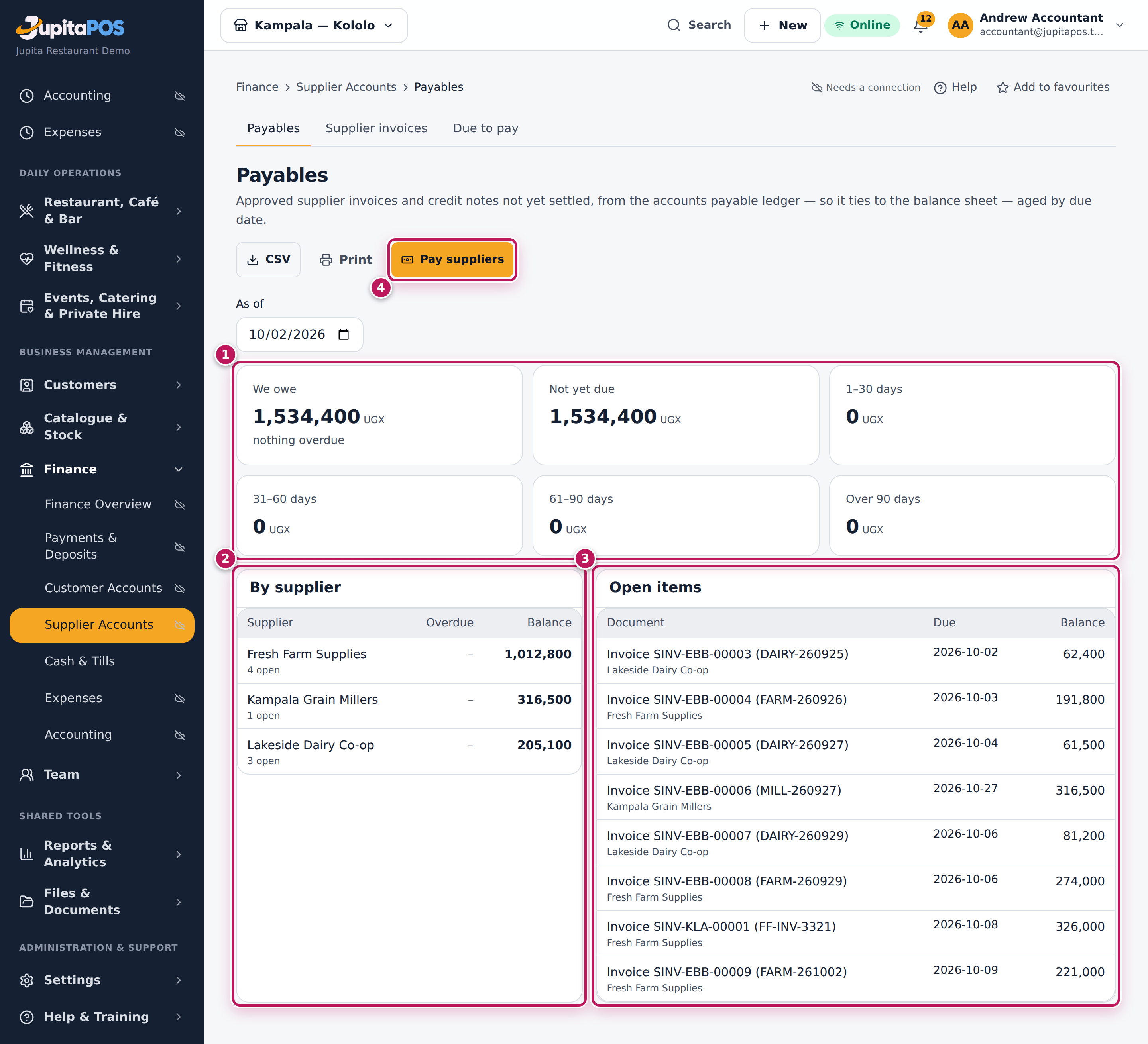
- Open Payables. Change As of to see another day.
- Read the buckets (1): We owe, then by due date.
- Read By supplier (2): each supplier’s balance and what is overdue. Click a supplier to open it in procurement.
- Read Open items (3): each invoice or credit note with its due date.
- Click Pay suppliers (4) to pay: the payment screen in procurement opens, where you choose the invoices and the Paid from account (see Pay a supplier).
Expected result
You see what is owed by age — in the demo about 1.5 million UGX to three suppliers, nothing overdue — and each invoice. After a payment the invoice leaves the list and the balance comes down.
Screenshot
Common mistakes
- Paying a supplier by journal or expense. The invoice then stays open here. Pay it from procurement.
- Looking for an invoice that is not approved. Only approved invoices are owed in the books.
Troubleshooting
- The total is not what the supplier says. Open By supplier and compare the open items with their statement; a credit note or a payment may be missing.
Read the profit and loss, balance sheet and VAT
Purpose
Get the statements the owner, the bank and the tax authority ask for, straight from the posted ledger.
Role / permission required
Accountant, owner or auditor: accounting.view (the accounting reports
under Reports also need reports.financial).
Prerequisites
- The month’s sales and expenses are posted (the finance overview shows nothing waiting).
Steps
- Open Financial reports. Every report reads the posted ledger.
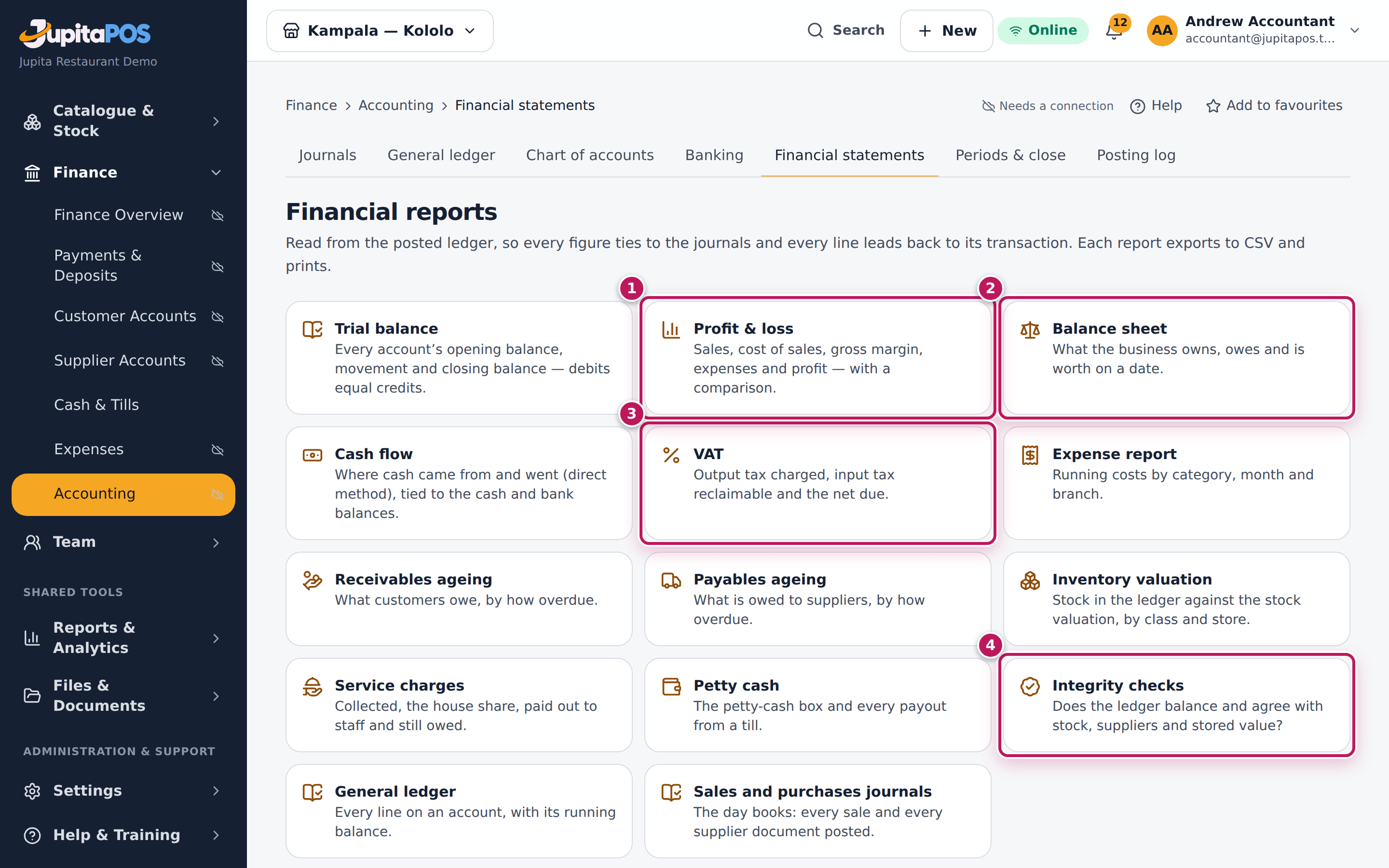
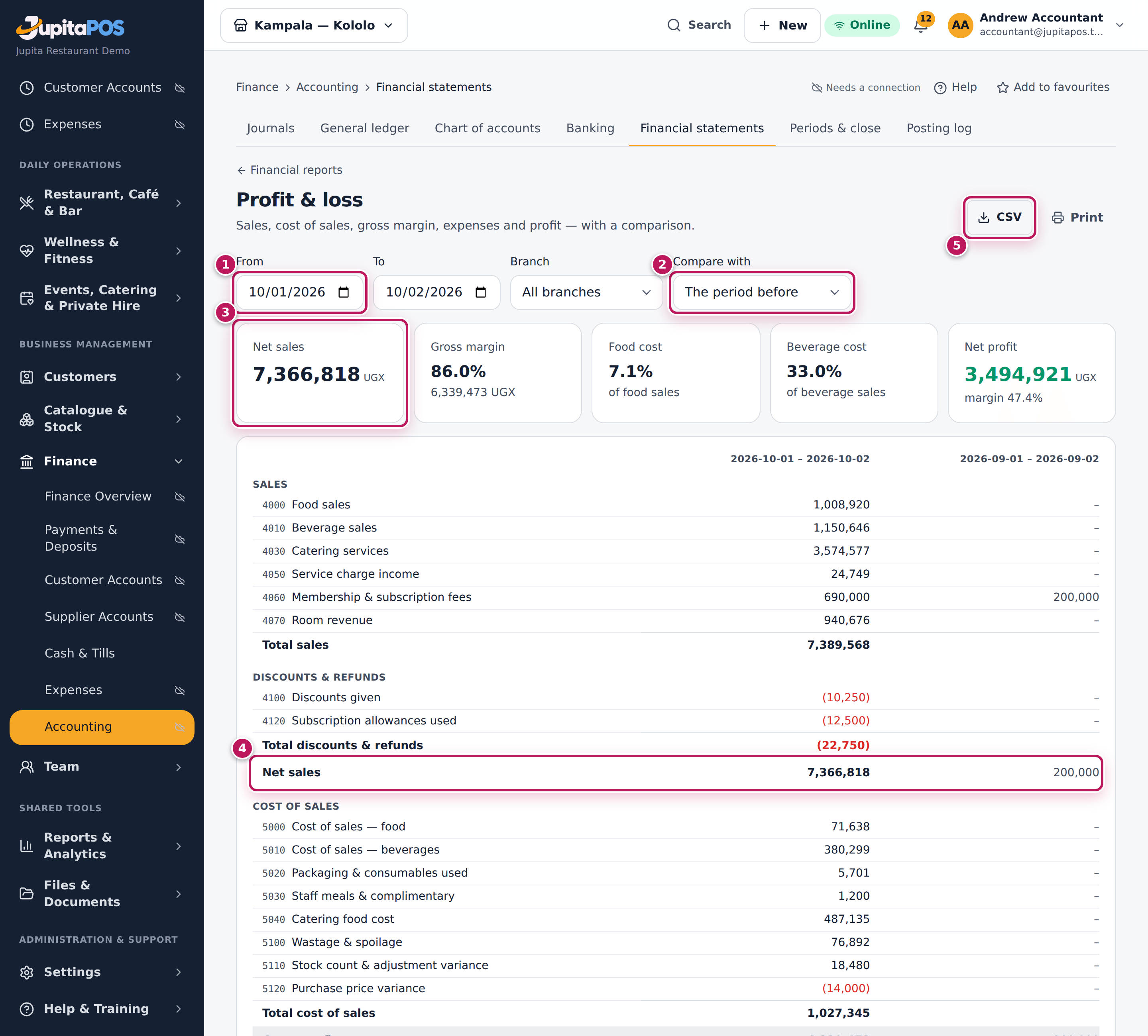
- Click Profit & loss (1).
- Set From and To (1 in the second picture) and, if you want, a Branch.
- In Compare with (2) choose The period before or The same period last year.
- Read the figures at the top (3) — Net sales, Gross margin, Food cost, Beverage cost, Net profit — and the statement below: sales, discounts and refunds, Net sales (4), cost of sales, operating expenses, profit. Click an account to open its ledger.
- Click CSV (5) to download, or Print.
- Open Balance sheet (2 in the first picture) for what the business owns, owes and is worth on a date; it shows Assets = liabilities + equity when it balances.
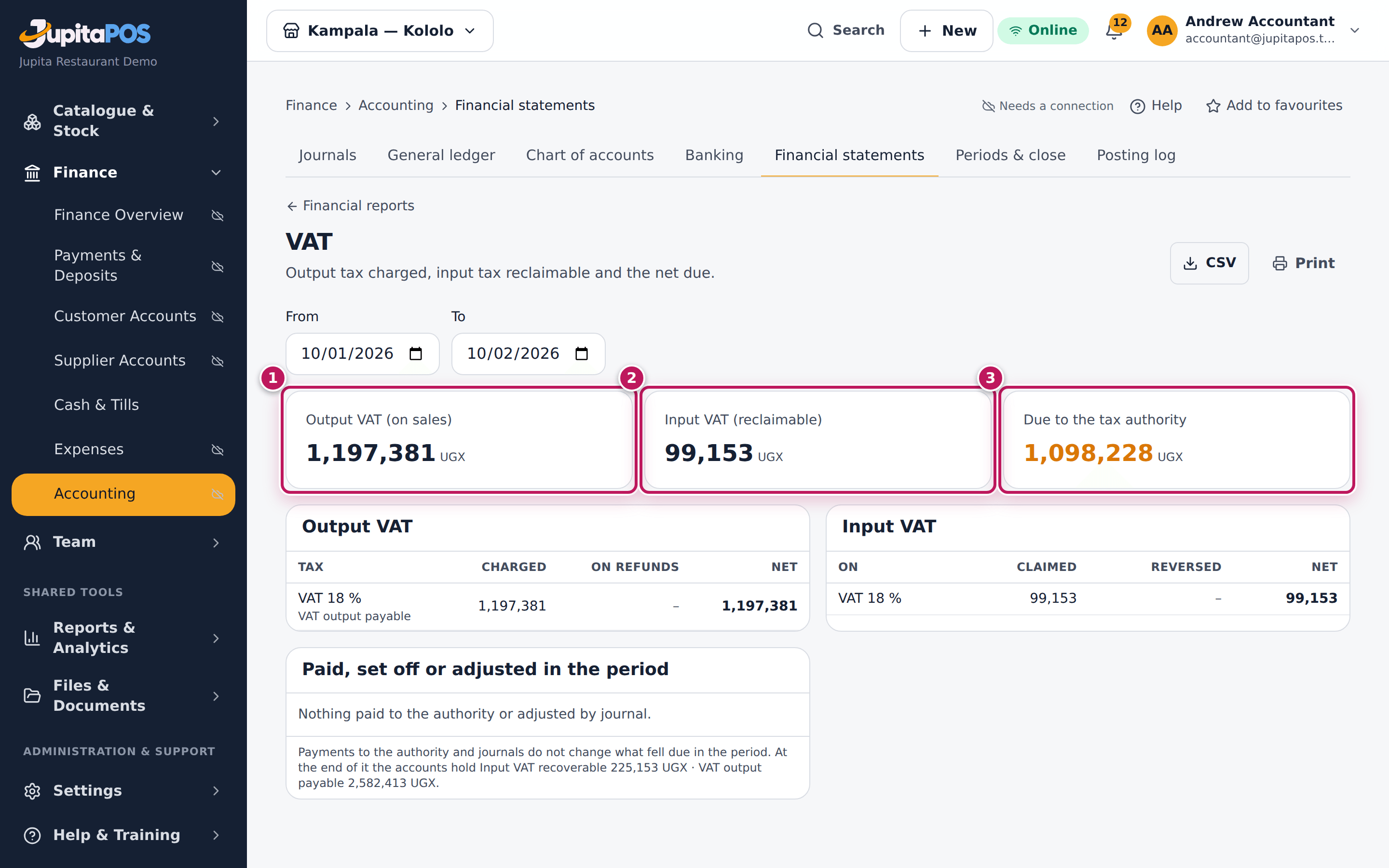
- Open VAT (3 in the first picture): Output VAT (on sales) (1 in the third picture), Input VAT (reclaimable) (2) and what is Due to the tax authority (3).
- Open Integrity checks (4 in the first picture) before you send any report: 14 checks that the ledger agrees with the tills, stock, suppliers and stored value.
Expected result
The profit and loss for 1–2 October shows the month so far beside the period before. Profit this fiscal year on the balance sheet is the net profit from the start of the fiscal year (1 July) to the balance sheet’s date — in the demo, whose books start on 1 September, September and October together. The VAT report shows the output VAT charged (less VAT returned on refunds), the input VAT claimed and the net due.
Screenshot
Common mistakes
- Sending a month before it is closed. Late postings can still change it. Close the month first (see Close a month).
- Comparing month to date with a whole month. The period before is the same number of days just before, so 1–2 October compares with 1–2 September.
Troubleshooting
- A report shows zero for August or earlier. In the demo the books start on 1 September; earlier months hold only the opening balances of 31 August. The demo restaurant trades from Monday 21 September, so 1–20 September has no sales either.
- The balance sheet does not balance. Open Integrity checks; each failing check says where to look.
FAQ
Where are the sales reports by item, hour or waiter? In Reports (see Open a report).
Is the CSV safe to open in Excel? Yes. A cell that looks like a formula is neutralised, and every export is recorded in the audit trail.
Close a month
Purpose
Lock a month once its books are checked, so no manual entry can change the figures you reported.
Role / permission required
Accountant or owner: accounting.close_period.
Prerequisites
- The month is over (the month being traded shows Locks once the month is over).
- The earlier months are locked, the tills of the month are closed, the bank statements are reconciled and no journal is left as a draft.
Steps
- Open Periods & close. The fiscal year’s months are listed.
- Click Lock on the month.
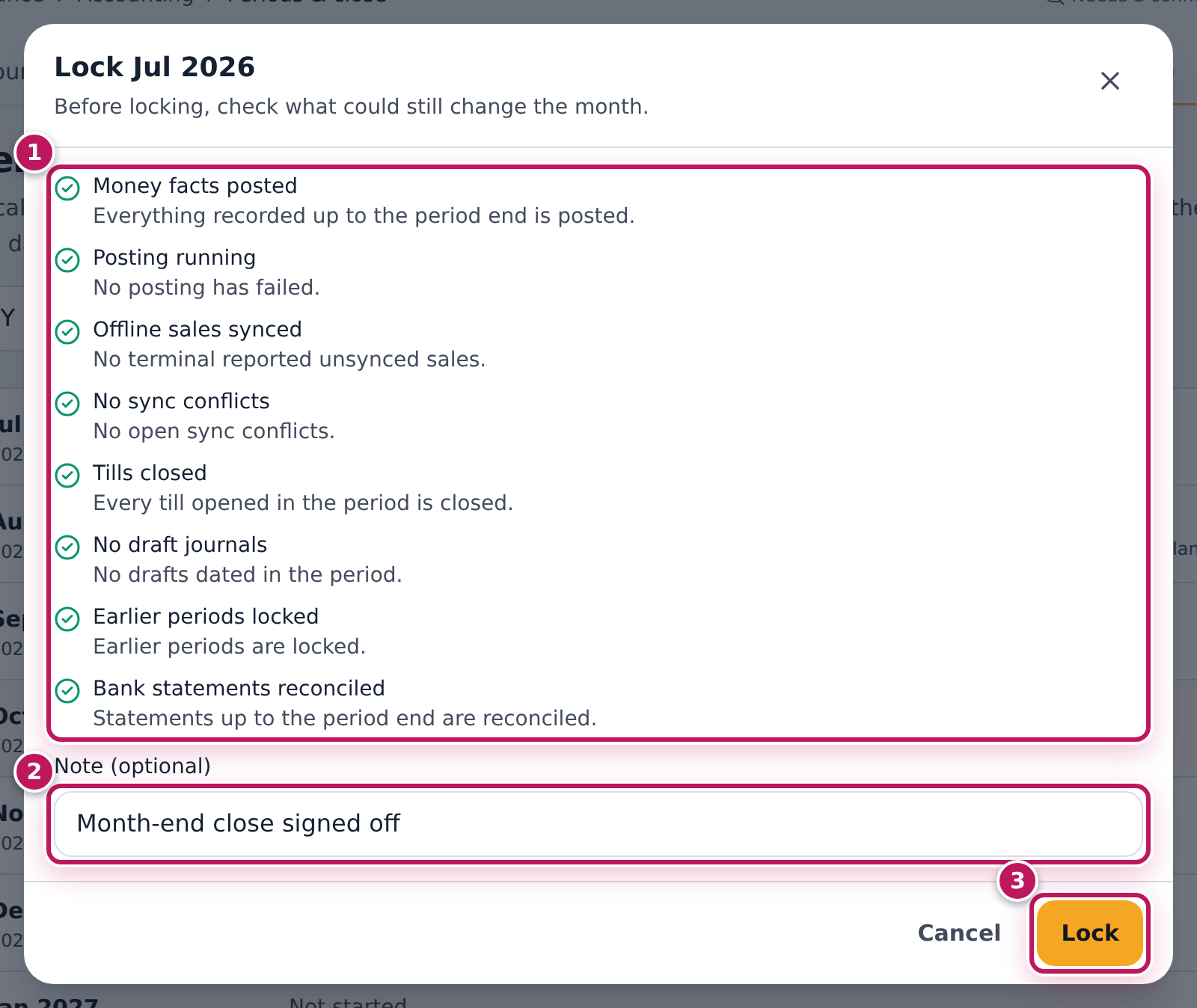
- Read the checks (1): Money facts posted, Posting running, Offline sales synced, No sync conflicts, Tills closed, No draft journals, Earlier periods locked, Bank statements reconciled. A green tick is fine; a red mark blocks the lock.
- Type a Note (optional) (2): Month-end close signed off.
- Click Lock (3). With a blocker, the button says Lock anyway and needs a reason in Lock anyway — why?.
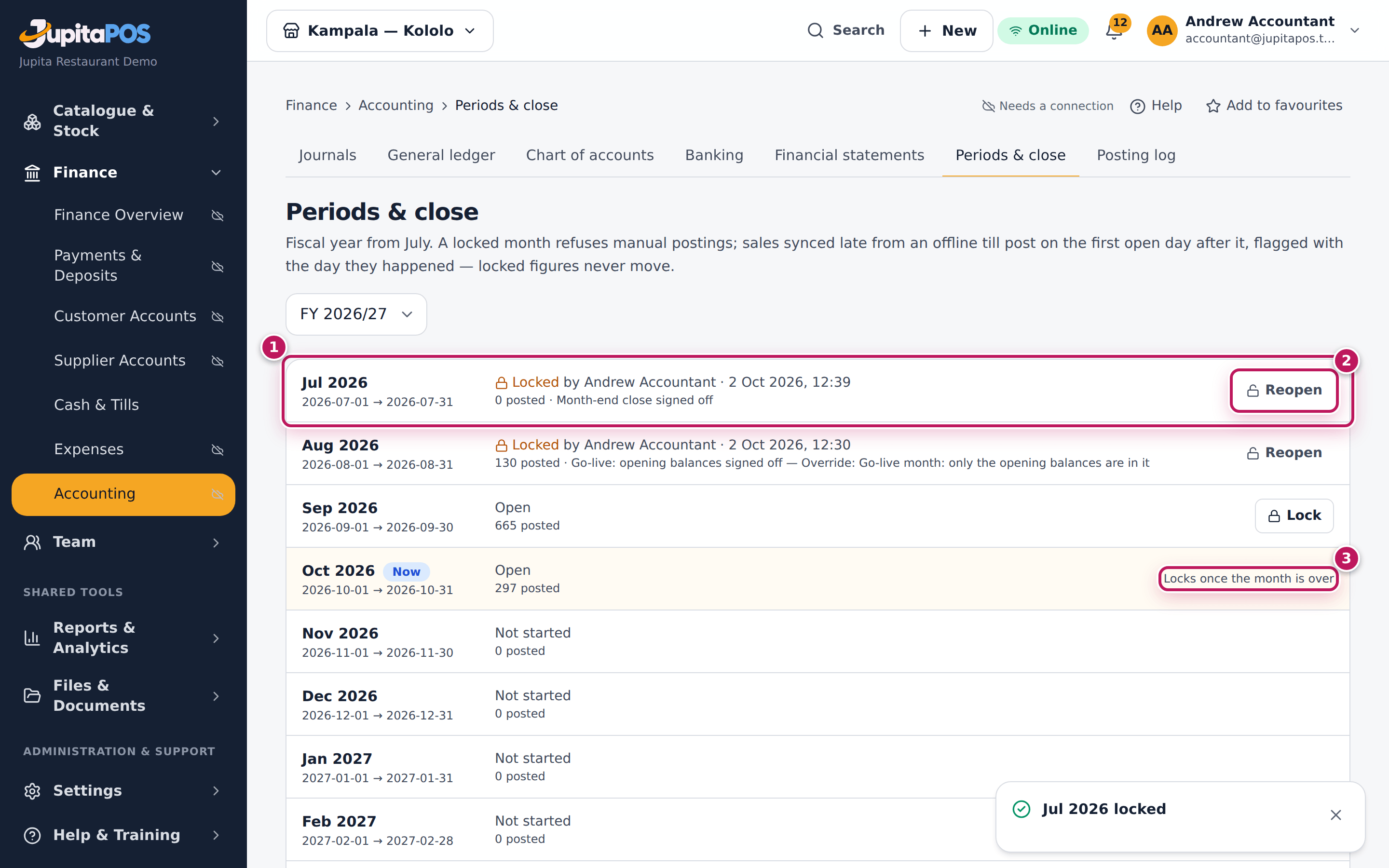
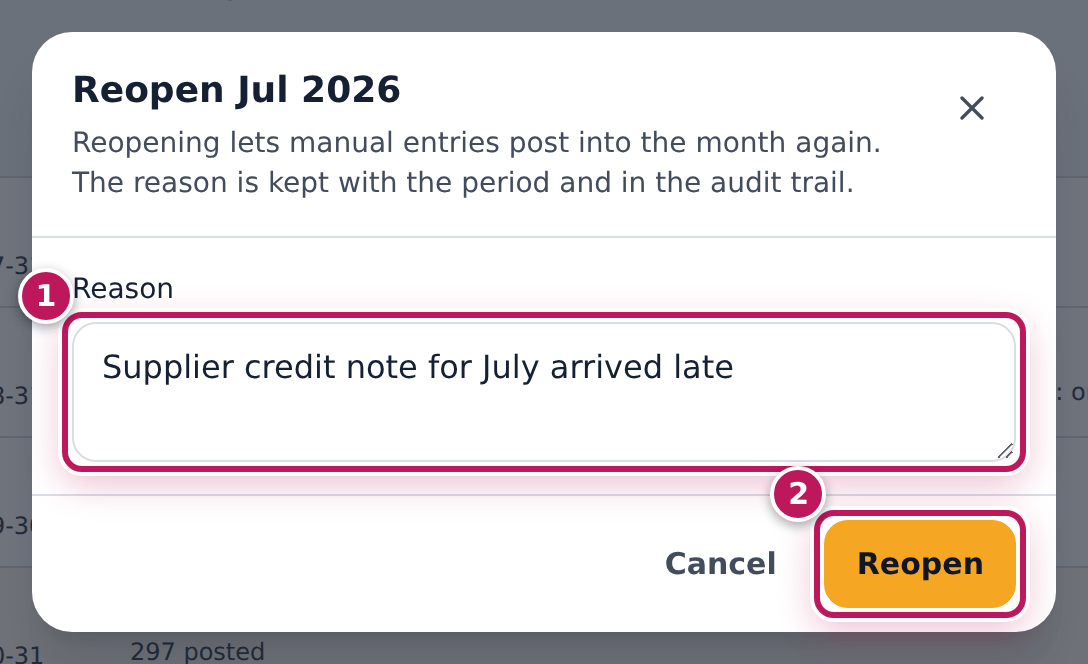
- If a locked month must change, click Reopen (2 in the second picture), type the Reason (1 in the third picture) and click Reopen (2).
Expected result
The message Jul 2026 locked appears and the month shows Locked by you with the date and your note (1). The month being traded (3) cannot be locked yet. A locked month refuses manual entries; a sale that syncs late from an offline till posts on the first open day after it, flagged late, so locked figures never move. Reopening needs a reason; both are in the audit trail.
Screenshot
Common mistakes
- Locking with a blocker “to get it done”. Tills still open or sales not synced will post after the lock, into the next month. Fix the blocker first; override only when you know why.
- Reopening a month to post a correction. Post the correction in the open month instead; reopen only when the reported figures must change.
Troubleshooting
- There is no Lock button on the month. It is the month being traded, a month not started yet, or it is already locked.
- “Tills closed” blocks. A till opened in the month is still open. Close it (see Close the till).
- “Offline sales synced” blocks. A till has sales it has not sent. Bring it online (see What happens when the connection returns).
FAQ
Why does the demo lock July? In the demo business the books start on 1 September, and August — which holds only the opening balances — was locked at go-live. July is before that, so locking and reopening it changes no figures. You lock September at the start of October in the same way.
Enter the opening balances at go-live
Purpose
Start the books with what the business already held on the day it started using JupitaPos: stock, supplier invoices unpaid, gift cards, house accounts, cash and bank.
Role / permission required
Accountant or owner: accounting.post; setting the date the books start
needs accounting.close_period.
Prerequisites
- The stock count, the unpaid supplier invoices, the gift cards and house accounts are entered in their modules.
- You have counted the cash and have the bank balances for the day before the books start.
Steps
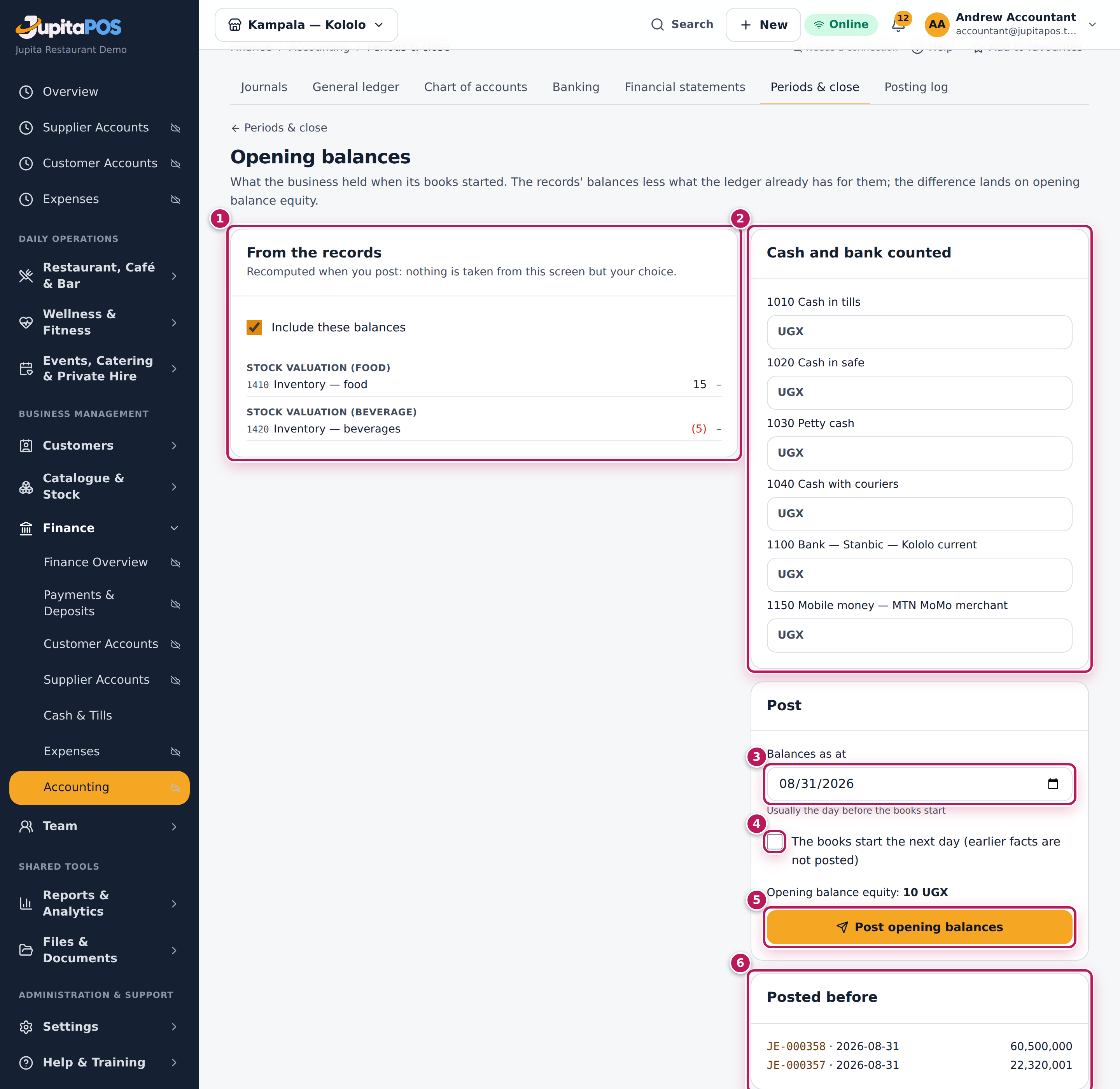
- Open Periods & close. Under Go-live, set Books start on and click Save, then click Opening balances.
- Read From the records (1): the balances the system already knows — stock by class, supplier invoices approved and unpaid, gift cards, wallets, deposits and house accounts — less anything already in the ledger. Leave Include these balances ticked.
- Under Cash and bank counted (2), type the counted cash for each till, the safe and petty cash, and each bank and mobile-money balance.
- Set Balances as at (3): usually the day before the books start.
- Tick The books start the next day (earlier facts are not posted) (4), so sales and payments dated before are not posted again.
- Check Opening balance equity and click Post opening balances (5).
Expected result
The opening entry opens with its number; the difference between what the
business holds and owes lands on 3900 Opening balance equity. The
entries are listed under Posted before (6) — in the demo, JE-000316
and JE-000317 of 31 August 2026. The finance overview’s balances now
start from them.
Screenshot
Common mistakes
- Posting the opening balances twice. The records part is recomputed when you post, but typed cash is added each time. Check Posted before first.
- Not ticking the books-start box. Sales from before go-live would post again on top of the opening balances.
Troubleshooting
- From the records shows lines after go-live. The ledger and the records differ (for example stock recalculated). Leave them unless your accountant agrees; the integrity checks explain each difference.
Check the posting log
Purpose
See each money fact and the entry it posted, and restart posting if it stopped, so the books are complete.
Role / permission required
Accountant or owner: accounting.view; Post now, Retry and
Skip… need accounting.post.
Prerequisites
- None.
Steps
- Open Posting log.
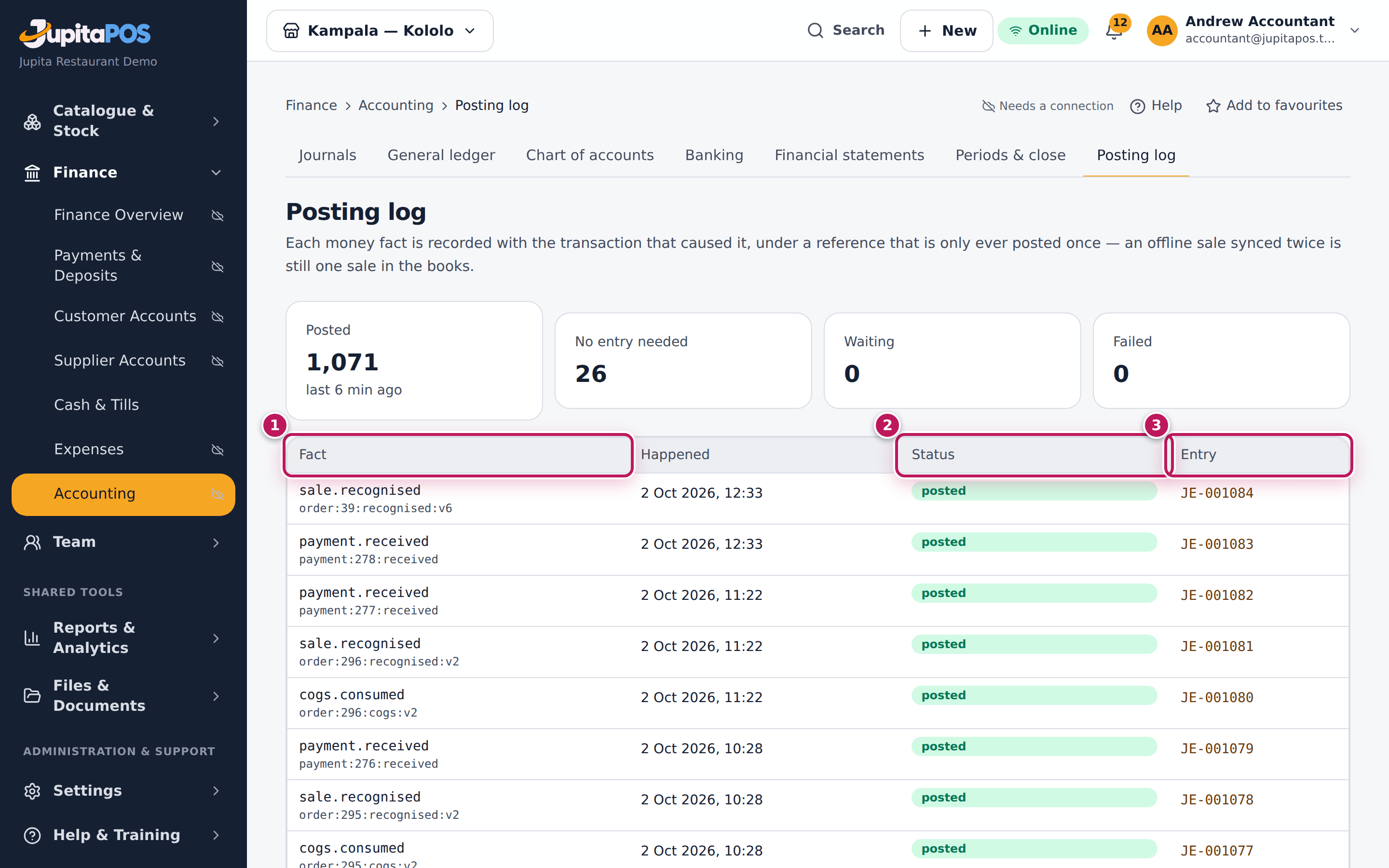
- Read the counts at the top: Posted, No entry needed (a complimentary order has nothing to post), Waiting and Failed.
- Read the list: each Fact (1) with its reference, when it Happened, its Status (2) and its Entry (3).
- If facts are waiting, click Post now to post them at once.
- If posting stopped, the red box says Stopped at …. Fix the cause and click Retry. A fact that can never post is set aside with Skip… and a reason; post what it should have posted as a journal.
Expected result
Every fact is posted (or needed no entry), Waiting and Failed are 0, and the finance overview says when the last fact posted.
Screenshot
Common mistakes
- Skipping a fact to clear the red box. Later facts then post, but the skipped one is missing from the books until you post it by journal.
Troubleshooting
- Stopped at a fact. Posting stops at the first failure because later facts may depend on it. The message says why (often an account missing from the posting map: see the chart of accounts). Fix it, then Retry.