

On this page
Team › Work Schedules (/staff/roster; the page is headed Roster & shifts) plans who works when, a week at a
time. Each shift then runs its day: it is opened by the manager on duty,
handed over if managers change, closed and — when the cash was out or orders
were carried over — signed off by a second supervisor. Its report is live
while it is open and frozen at the close. Everyone sees their own shifts and
hours on My time & leave.
Who does what:
| You can | You need |
|---|---|
| See the roster, shifts and shift reports; your own shifts | shifts.view |
| Make templates, fill, copy and publish the week, assign people | shifts.roster |
| Open a shift and hand it over | shifts.open |
| Close a shift | shifts.close |
The screens are the demo business at Kampala — Kololo on Friday 2 October 2026. Moses Kigozi is the branch manager and Samuel Mukasa (Sam) the shift supervisor — the names of their staff records, which the roster and the timecards show (they sign in as Moses Manager and Sam Supervisor); the day shift runs 06:30–15:00 and the evening shift 15:00–23:00.
Set up shift templates
Purpose
Describe once the shifts that repeat — their times, break, days and the people they need — so each week’s roster can be filled from them.
Role / permission required
Branch manager or owner: shifts.roster.
Prerequisites
- The positions exist (see Staff setup).
Steps
- Open Team › Work Schedules and click the Templates tab.
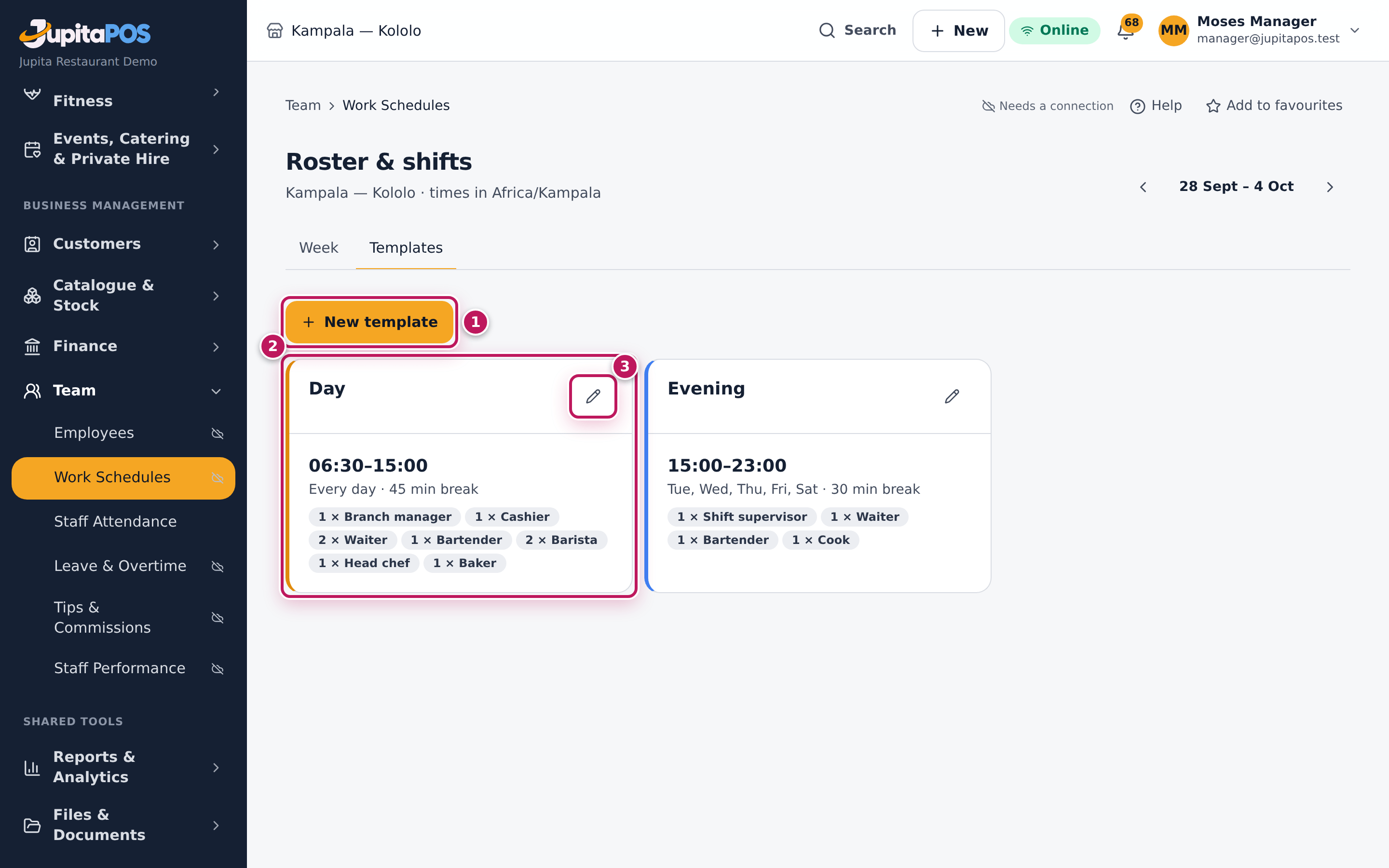
- Read each template (2): its times, the days it runs, its break and the positions it needs. The pencil (3) edits it.
- Click New template (1).
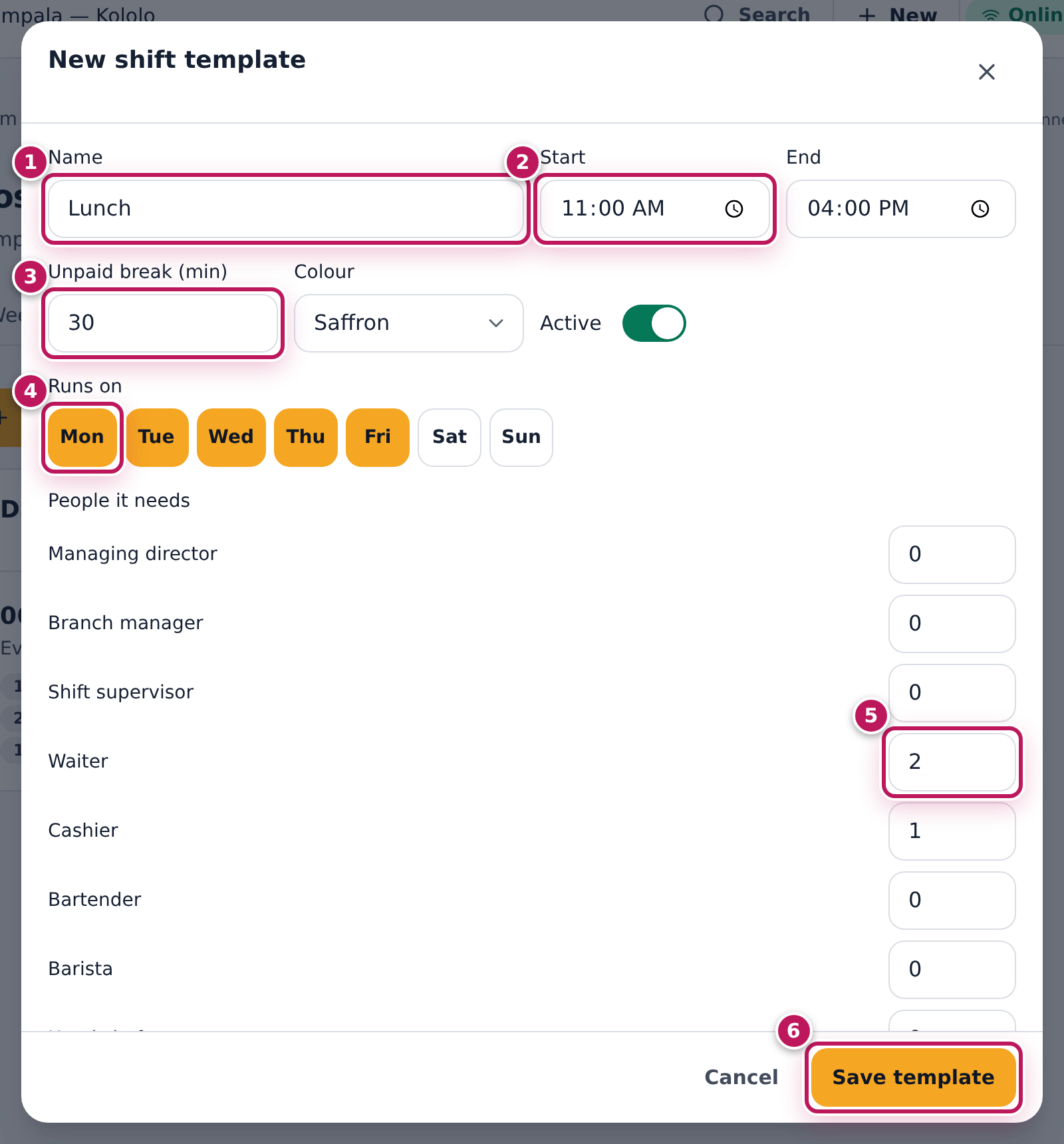
- Type the Name (1): Lunch.
- Set Start (2) and End. An end before the start runs past midnight.
- Type the Unpaid break (min) (3).
- Tap the days it runs (4); a day that is lit runs.
- For each position it needs, type how many (5): Waiter needed 2, Cashier needed 1.
- Choose a Colour and keep Active on.
- Click Save template (6).
Expected result
Template saved appears and the template is listed. Fill from templates on the Week tab now adds a Lunch shift to each weekday, showing the places still to fill (Waiter 0/2). To stop a template, edit it and turn Active off: weeks already filled keep their shifts.
Screenshot
Common mistakes
- Leaving out the positions needed. Without them the roster cannot tell you which places are still empty.
- Making a template for a one-off party. Use Add a shift on the week instead.
Troubleshooting
- “Choose the days it runs on.” Tap at least one day.
- “A shift needs different start and end times.” Check the times.
Roster the week
Purpose
Put the right people on every shift of the week, then tell them — so the floor, the kitchen and the bar are covered and everyone knows when they work.
Role / permission required
Branch manager or owner: shifts.roster.
Prerequisites
- The shift templates exist (see Set up shift templates).
- Leave for the week is decided (see Approve leave).
Steps
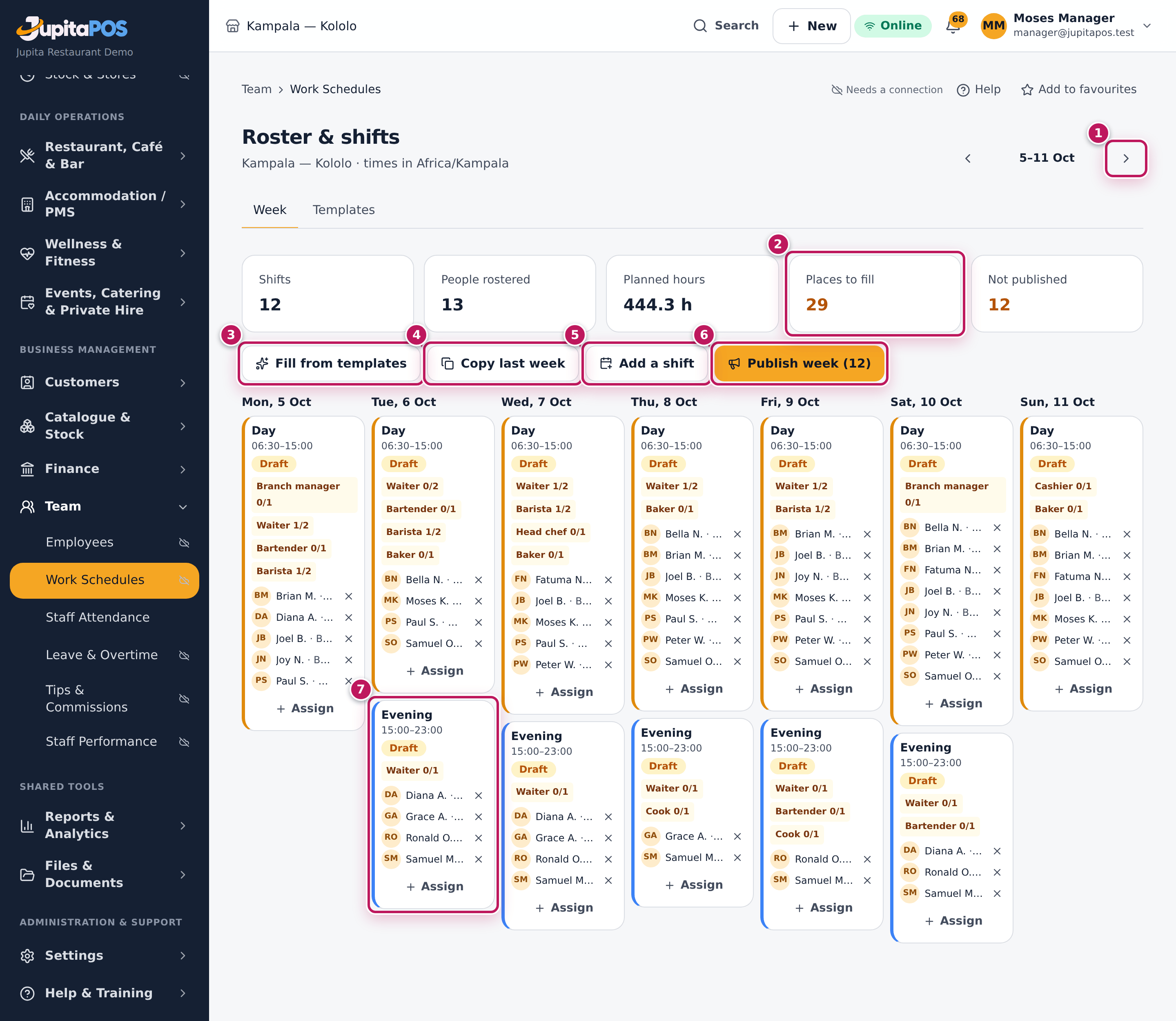
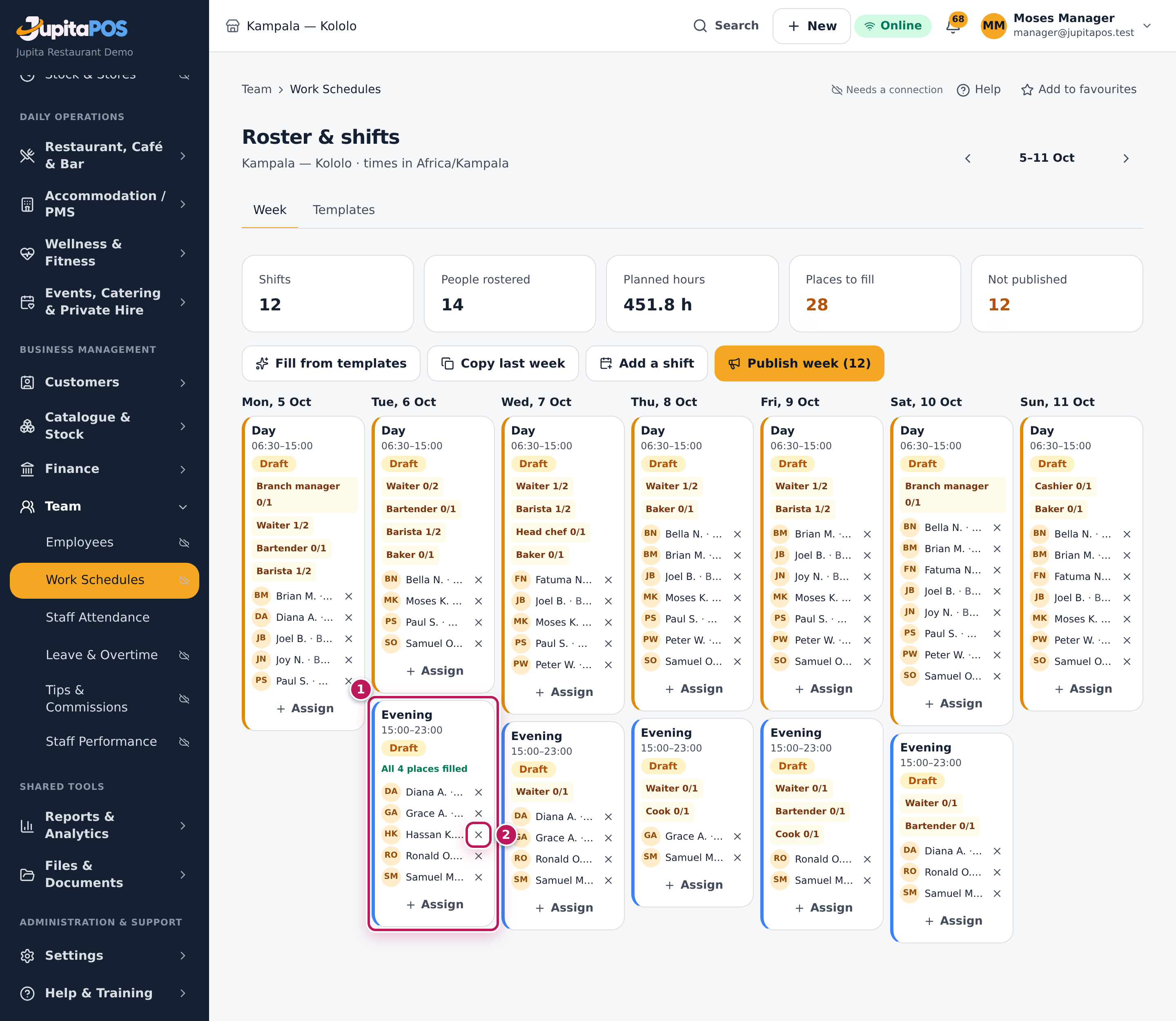
- Open Team › Work Schedules. The Week tab shows this week; the arrows (1) move a week. Read the cards: Shifts, People rostered, Planned hours, Places to fill (2) and Not published.
- Click Fill from templates (3) to add the template shifts the week does not have yet (running it twice adds nothing).
- Or click Copy last week (4) to put the same people on the same shifts. Anyone on approved leave, suspended or no longer at the branch is skipped, and the warnings are listed.
- Click Add a shift (5) for a one-off: a private party, a stock take.
- On a shift (7), click Assign.
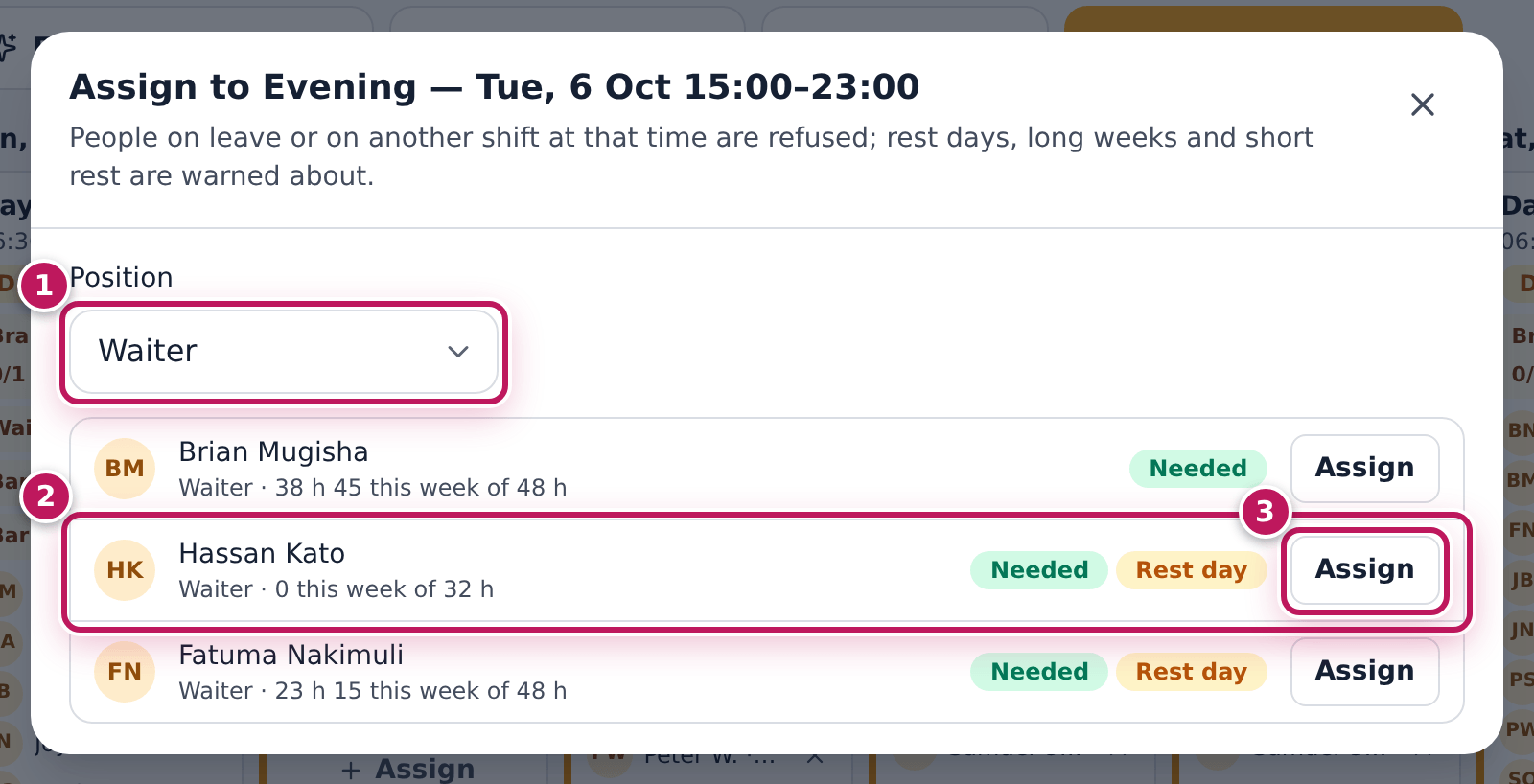
- Choose the Position (1) to see those who fit first. Each person (2) shows their hours this week against their contract, and badges such as Needed, Rest day, Long week or Leave asked.
- Click Assign (3) next to the person.
- When the week is ready, click Publish week (6).
Expected result
The person is on the shift (1) with a × (2) to take them off before it starts; the missing places count down. A rest day, less than 8 hours’ rest, a week over 48 hours or leave waiting are warned about after the assignment (Done — with something to know). Publish week tells everyone rostered who has a login (Week published — … people told their shifts) and shows the shifts on their My time & leave; until then the week is a Draft only managers see.
Screenshot
Common mistakes
- Forgetting to publish. Staff do not see a draft week. Not published on the cards tells you how many shifts are still drafts.
- Ignoring the warnings. A double shift with less than 8 hours’ rest is allowed but tiring; it is shown so you decide.
Troubleshooting
- Someone cannot be assigned. They are on approved leave, already on a shift at that time (At Entebbe), or suspended.
- Publish week is grey. Every shift of the week is already published.
Open the trading shift
Purpose
Start the shift so the day’s takings, drawers and staff belong to it, with you as the manager on duty.
Role / permission required
Supervisors and managers: shifts.open.
Prerequisites
- The previous shift at the branch is closed or handed over: only one shift is open at a branch at a time.
Steps
- Open Team › Work Schedules and click the shift on today (its name and times).
- Check where the shift is: Scheduled.
- Click Open shift.
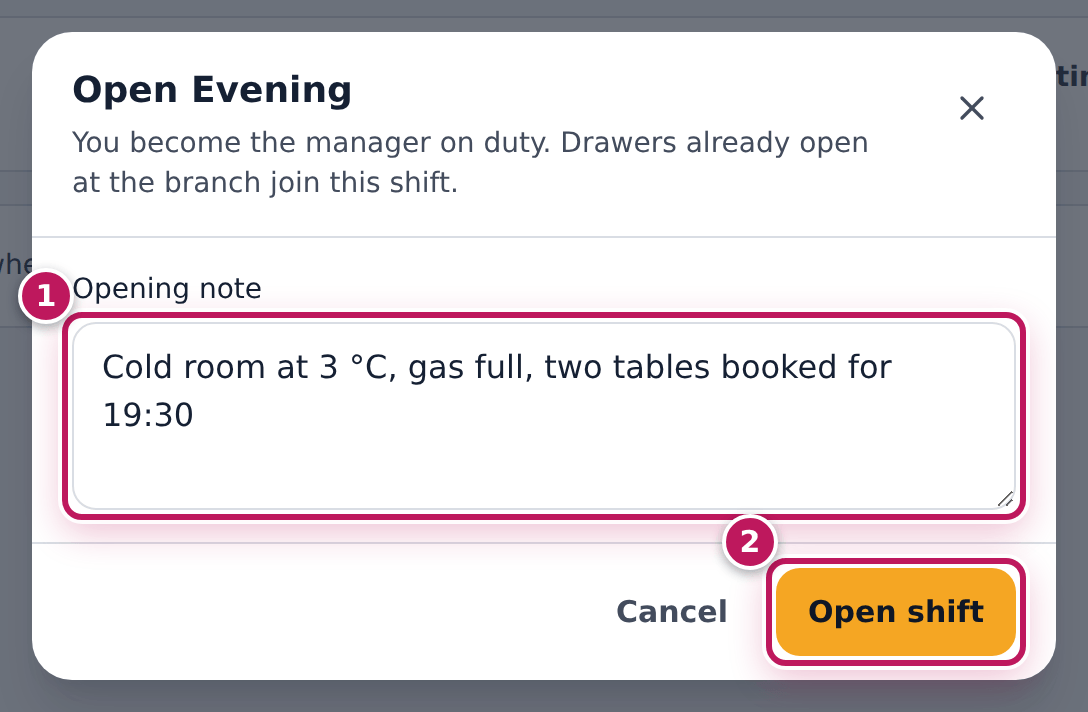
- Type an Opening note (1): the fridges, the gas, the float, the bookings.
- Click Open shift (2).
- To hand over to another manager during the day, click Hand over: type the notes; the incoming manager enters their Incoming manager — employee no. and Their PIN.
Expected result
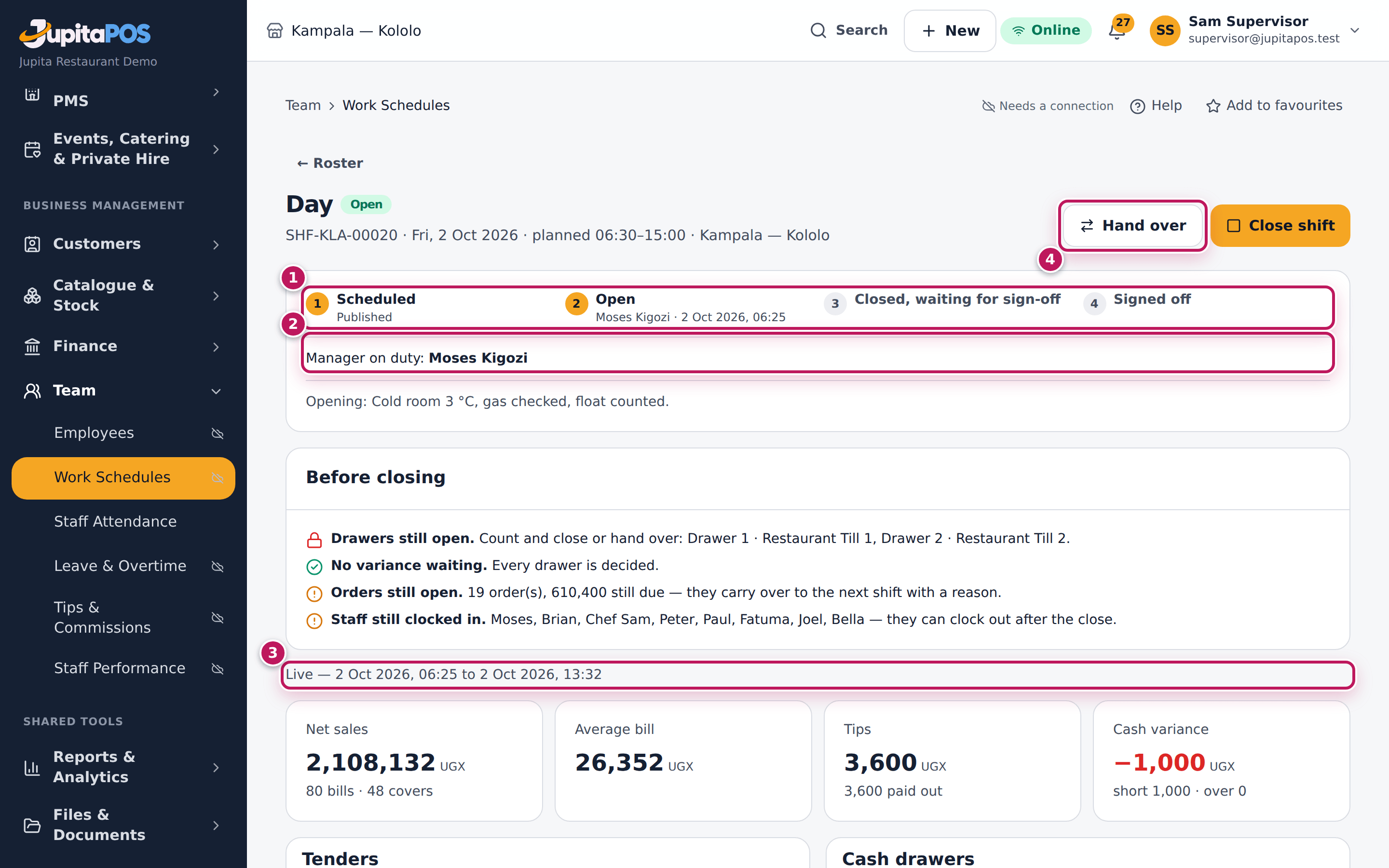
Shift opened appears. The shift shows Open (1) with you as the Manager on duty (2) and your note, and its report is live (3). Drawers already open at the branch join the shift, and so does every drawer opened while it runs. Hand over (4) records what is open at that moment and makes the incoming manager the manager on duty.
Screenshot
Common mistakes
- Opening the next shift instead of handing over. When managers change during a service, use Hand over: the day stays one shift.
- Opening without a note. The note is the first thing the closing manager reads.
Troubleshooting
- “Day SHF-… is still open — close it (or hand it over) first.” The earlier shift is still open. Close it (see Close the shift).
- There is no Open shift button. The shift is not scheduled any more, or
you do not have
shifts.open.
Close the shift and read the shift report
Purpose
End the shift with every drawer counted, then read one report of the whole service — sales, tenders, cash and staff hours — frozen for good.
Role / permission required
Supervisors and managers: shifts.close. The sign-off is by someone other
than the one who closed.
Prerequisites
- Every drawer of the shift is counted and closed or handed over (see Close the till).
Steps
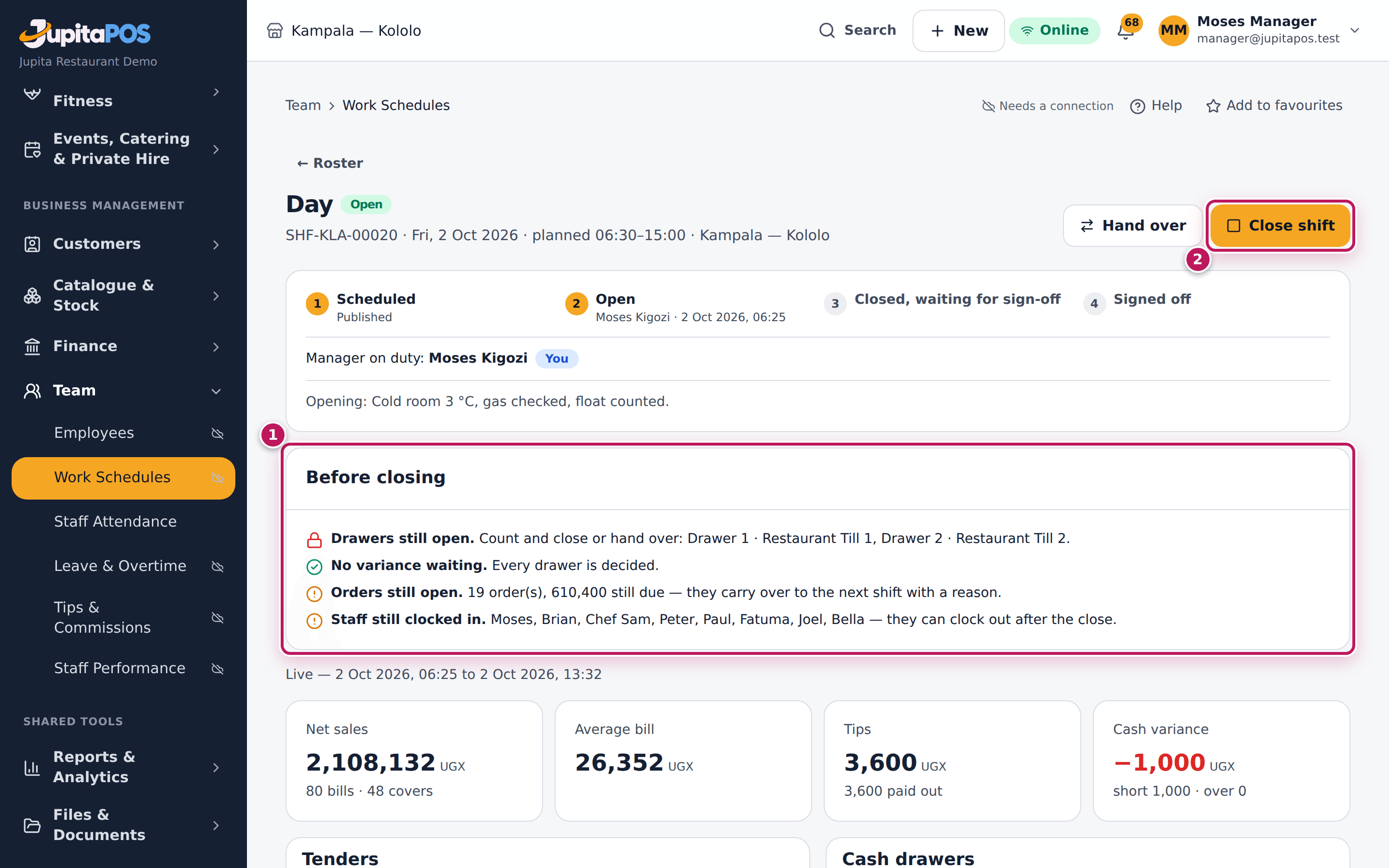
- Open the shift from the roster. Read Before closing (1): a lock blocks
the close, a warning does not.
- Drawers still open — count and close them, or hand them over.
- Variances waiting for a supervisor — decide them on Tills & cash.
- Orders still open — they carry over to the next shift with a reason.
- Staff still clocked in — they can clock out after the close.
- Click Close shift (2).
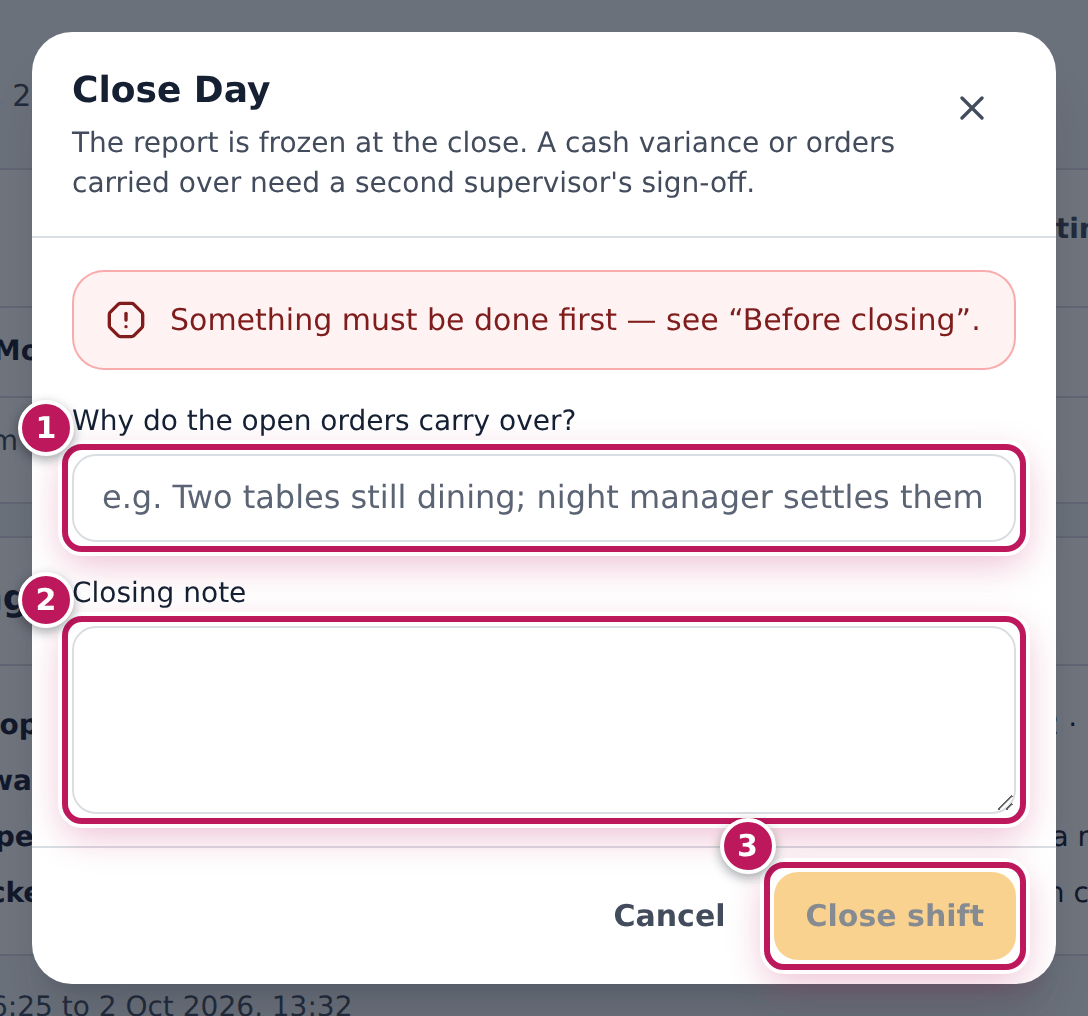
- If orders are open, type Why do the open orders carry over? (1 in the second picture). Type a Closing note (2).
- Click Close shift (3) in the dialog.
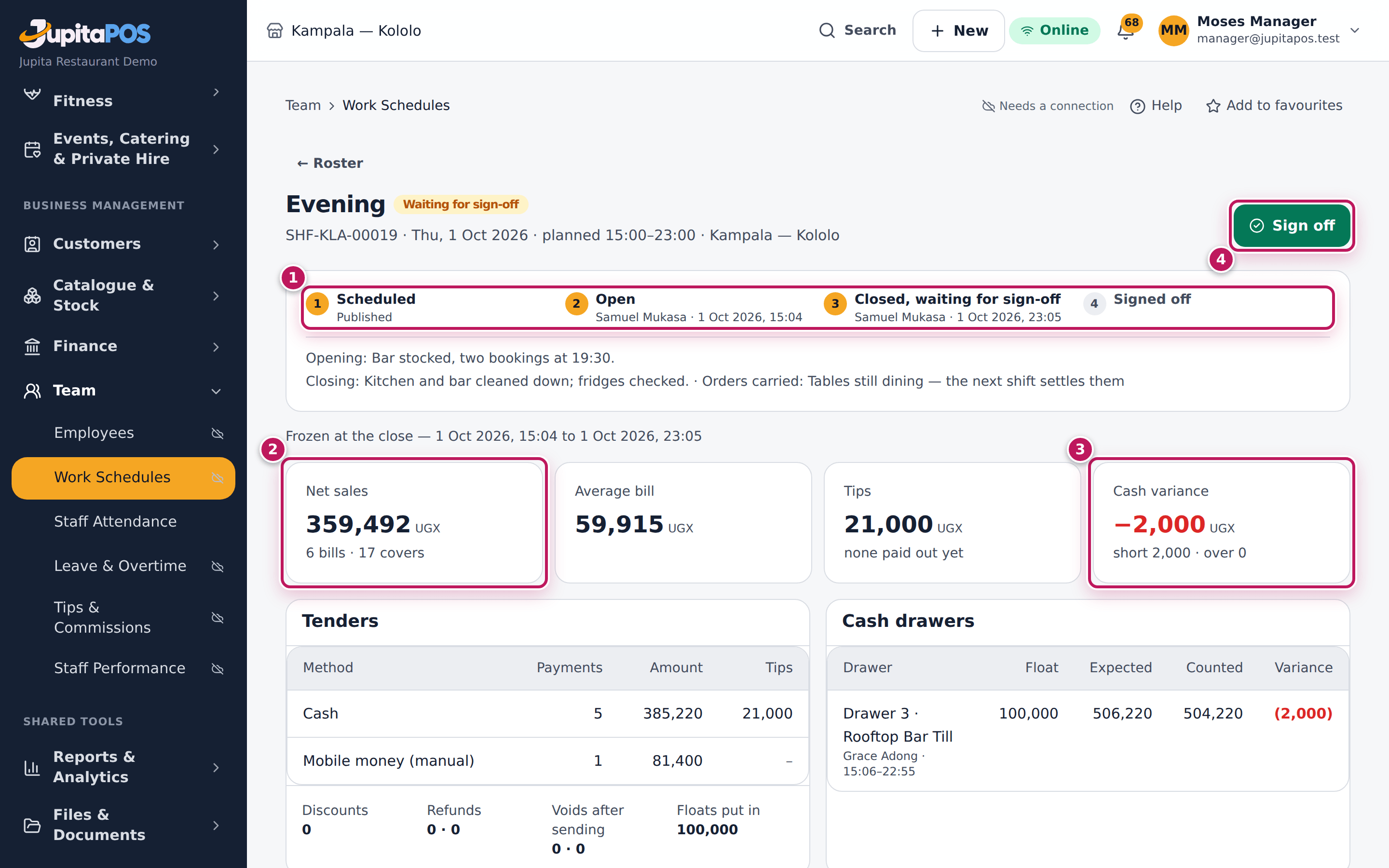
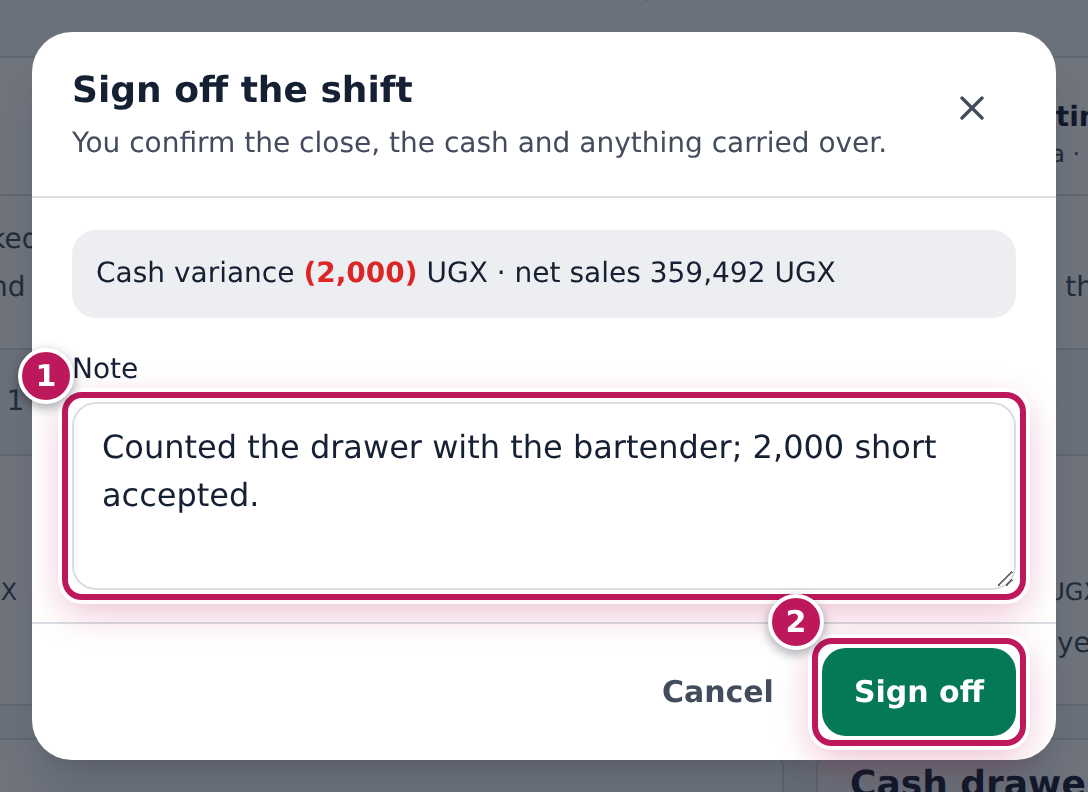
- If the shift waits for sign-off, a second supervisor opens it and clicks Sign off (4 in the third picture), types a Note (1 in the fifth picture) and clicks Sign off (2). At the closer’s own screen they sign with their Supervisor — employee no. and Their PIN.
Expected result
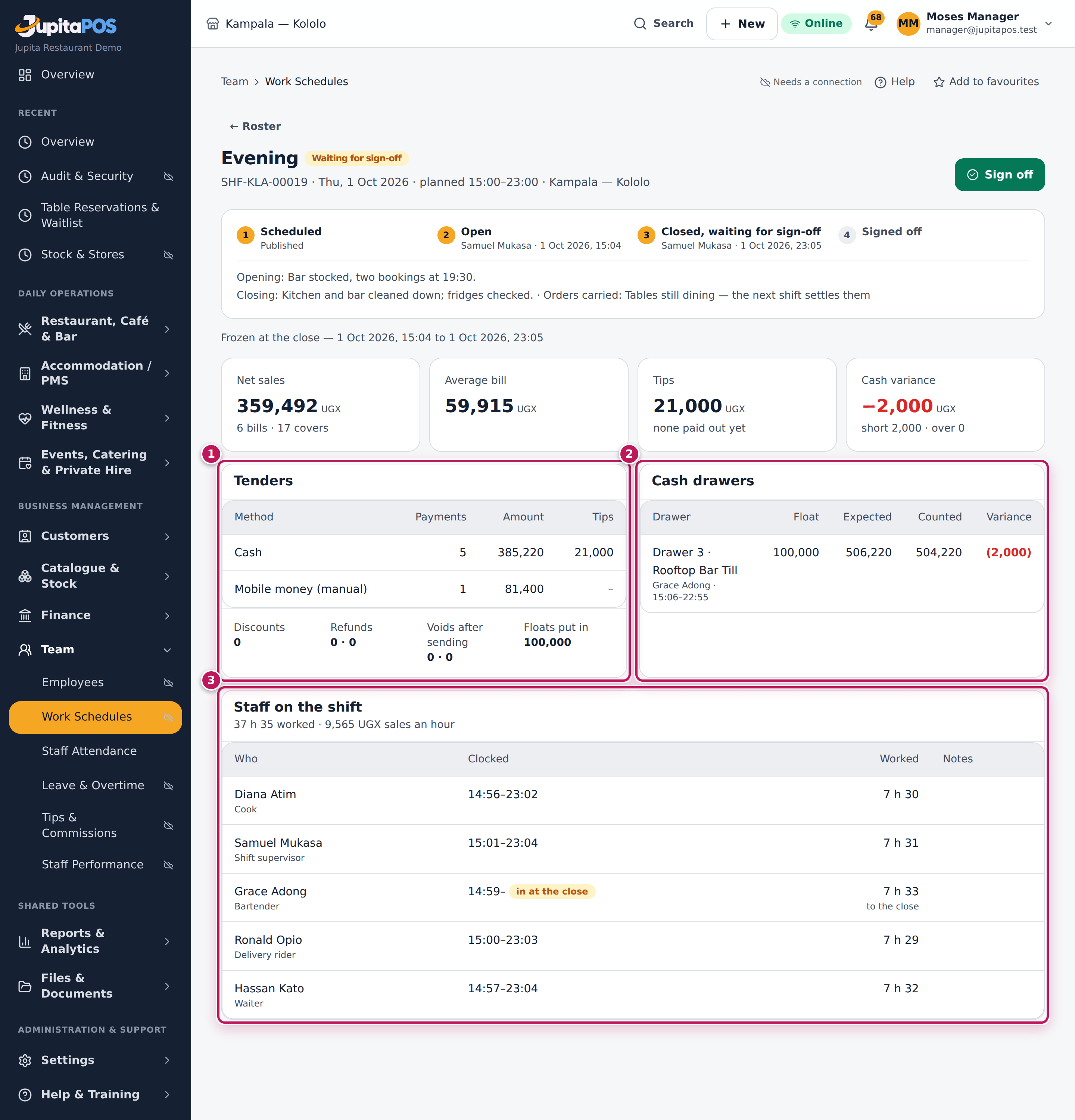
The shift is Closed — or Closed, waiting for sign-off (1 in the third picture) when a drawer was short or over or orders were carried — and the report is Frozen at the close. It shows Net sales (2), bills and covers, Average bill, Tips and the Cash variance (3); then the Tenders (1 in the fourth picture) with their tips, discounts, refunds and voids, the Cash drawers (2) with each count and variance, and the Staff on the shift (3) with their hours, lateness and overtime, the hours in total and the sales per labour hour. After the sign-off the message Shift signed off appears and the shift is Closed.
Screenshot
Common mistakes
- Closing the shift before the drawers. The close is blocked while a drawer is open; count them first.
- Signing off your own close. The system refuses: a second person looks at the variance.
Troubleshooting
- “Something must be done first — see “Before closing”.” A drawer is still open or a variance waits for a decision. Close the drawers first.
- “Orders are still open — give a reason to carry them over to the next shift.” Type the reason in the dialog.
- The labour cost is missing from the report. It is shown only to
people with
employees.pay.
FAQ
What is “net sales” on the shift report? Sales net of VAT and discounts, before service charge — the same as the reports and the accounts. Catering functions settled during the shift are in the tenders and drawers but apart from the floor’s sales.
See your shifts and hours
Purpose
Know when you work next, how many hours you have done this week, your timecards and your own figures — on your phone.
Role / permission required
Everyone: shifts.view (your own shifts), and your login linked to your
staff profile.
Prerequisites
- Your manager has published the week (see Roster the week).
Steps
- Open My time & leave.
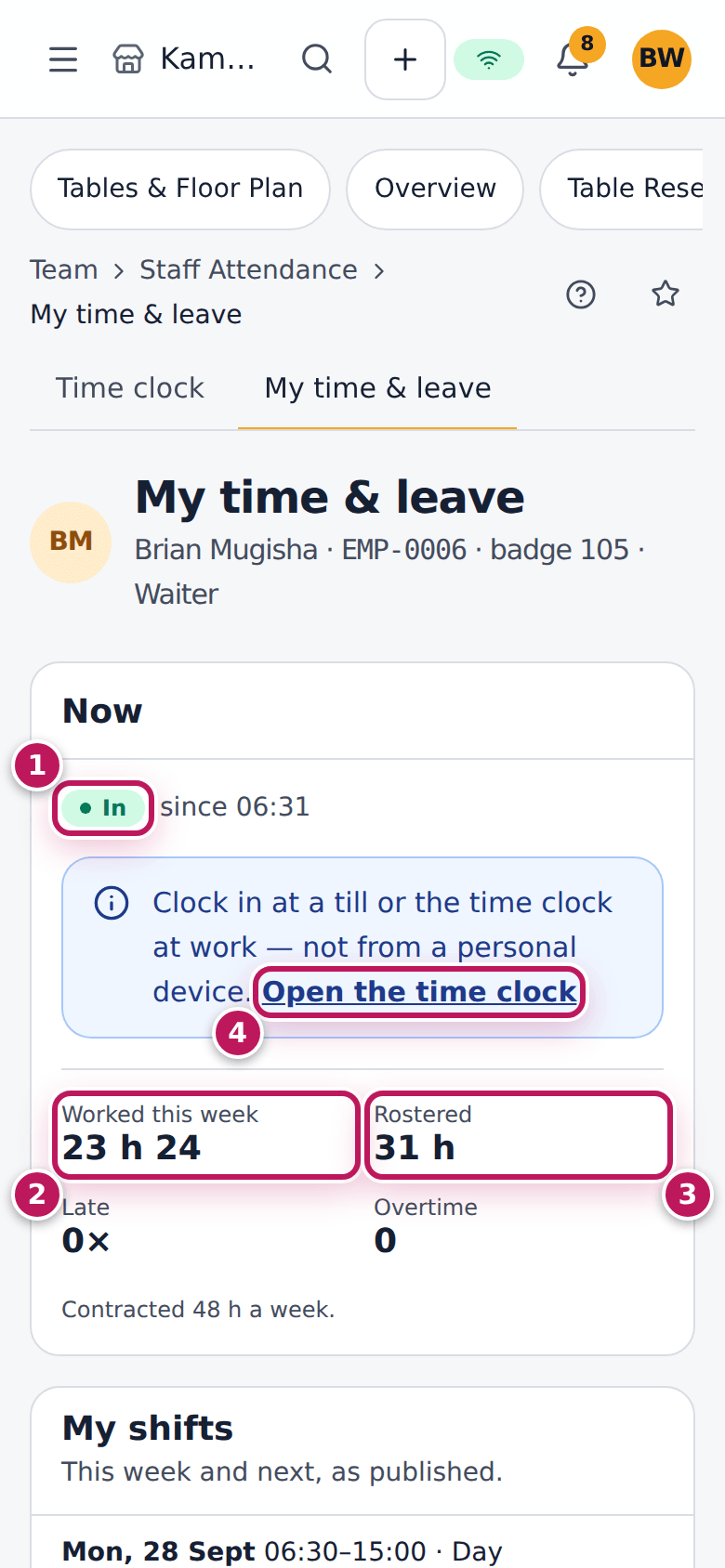
- Read Now: In (1), on a break or out, and since when; Worked this week (2) against Rostered (3), lateness and overtime. On your own phone you cannot clock in: Open the time clock (4) works on a till at work.
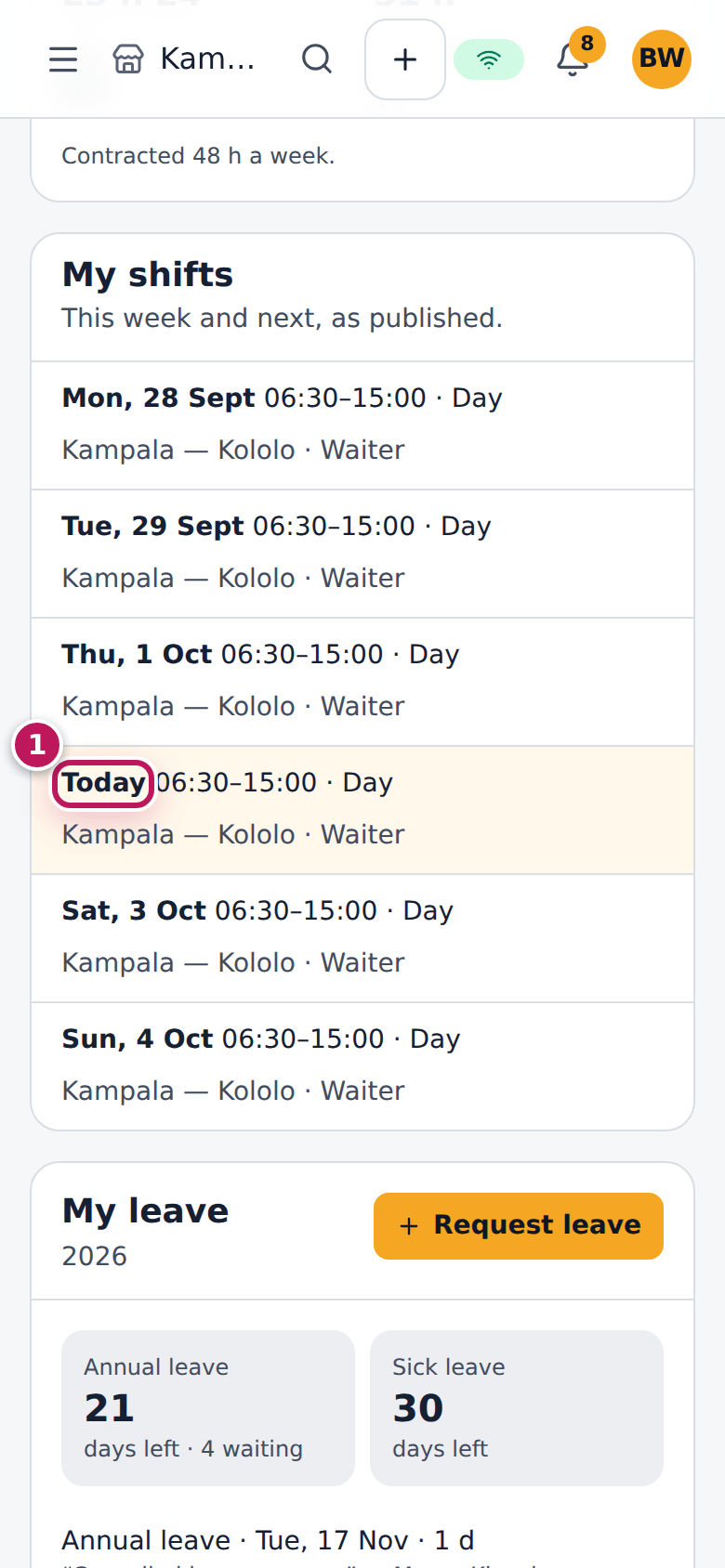
- Read My shifts: this week and next as published; today is marked (1).
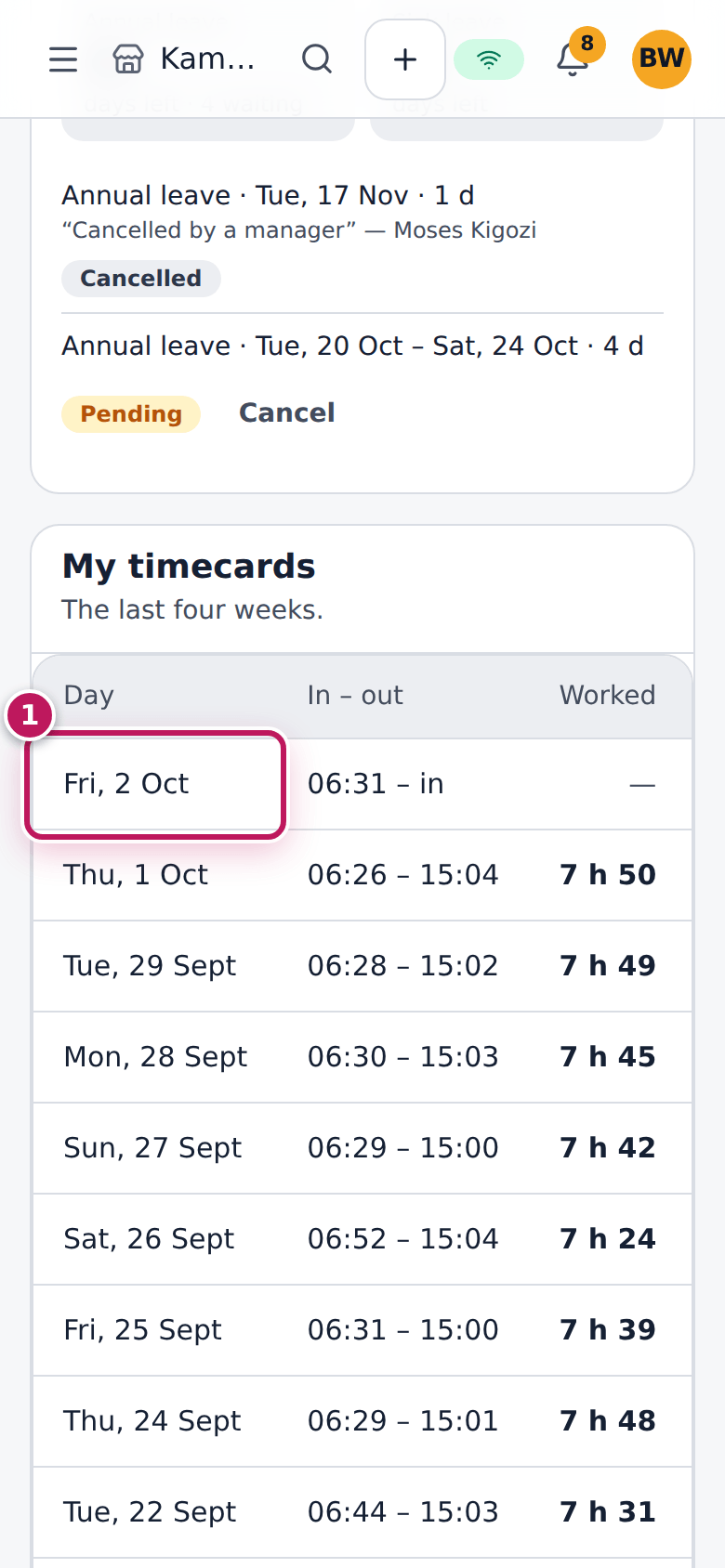
- Scroll to My timecards: the last four weeks, a day (1) on each line with the times in and out and the hours worked. Swipe the table sideways for the notes: late, overtime and corrected by a manager. A wider screen also shows the breaks.
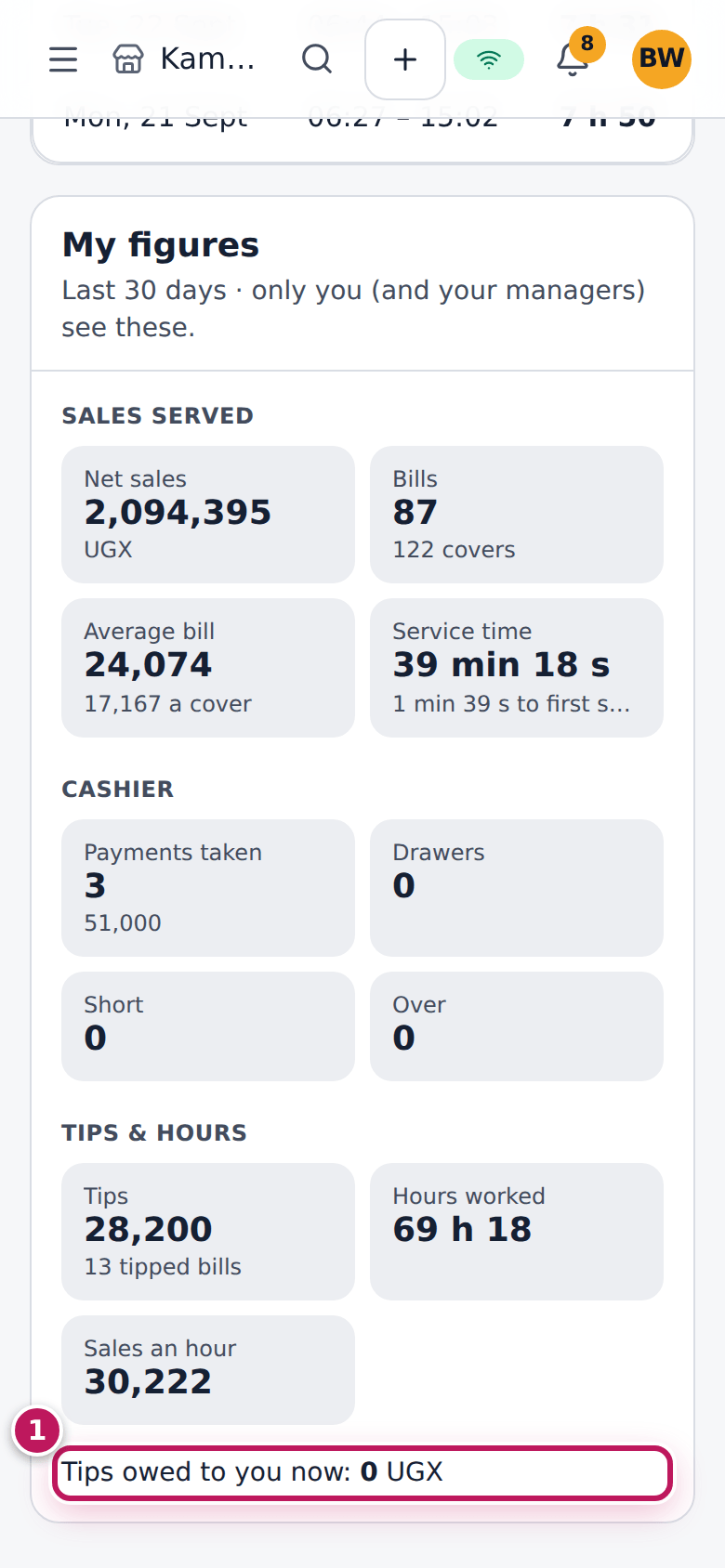
- Scroll to My figures: your last 30 days — sales served, payments, discounts and voids, tips and hours — and the Tips owed to you now (1).
Expected result
Brian sees that he is in since 06:31, his day shifts this week and next, his timecards and his figures. Only he and his managers see these.
Screenshot
Common mistakes
- Expecting next week before it is published. Ask your manager to publish it.
- Reading overtime as paid. Overtime counts once a manager approves it.
Troubleshooting
- “Your login is not linked to a staff profile”. Ask your manager to link your login on your profile.
- A timecard is wrong. Tell your manager: they correct it with a reason (see Correct attendance).