

On this page
- Find a function on the catering board
- Log a catering enquiry
- Write and send a quote
- Revise a quote the client wants changed
- Take the deposit and confirm
- Confirm a function without a deposit
- Plan production: ingredients and stock
- Issue the ingredients to production
- Staff, equipment and transport
- Print the production sheets
- Mark the function served and count the equipment back
- Issue the final invoice and take the balance
- Read a function’s profitability
- Mark an enquiry lost
- Cancel a booked function
- Set up packages, equipment and vehicles
- Set the catering rules
- Read the catering reports
Catering is everything the restaurant cooks and serves away from its own
tables: weddings and introductions, corporate lunches, government workshops,
parties, funerals and packed meals. Each job is a function with its own
number (CAT-KLA-00004) and its own workspace, from the first phone call to
the final invoice and the profit it made.
Open Events & catering from the sidebar (/catering). The screens in this
manual are those of Joan, the Catering Manager at Jupita Restaurant Demo,
Kampala — Kololo, on Friday 2 October 2026. Amounts are in Uganda shillings
and include 18 % VAT.
A function moves through these statuses. The progress steps at the top of its workspace show where it is.
| Status | What it means | What comes next |
|---|---|---|
| Enquiry | A client asked; nothing is priced yet. | Write a quote. |
| Quoted | A quote has gone to the client. | The client accepts or declines. |
| Accepted — deposit due | The client said yes; the order exists. | Take the deposit. |
| Confirmed | The deposit is in (or was waived). | Plan production, roster staff, book equipment and transport. |
| On the day | The team has left for the venue. | Mark it served. |
| Served — to invoice | The guests were served. | Issue the final invoice. |
| Invoiced | The tax invoice is issued; money is still due. | Take the balance. |
| Closed (paid) | Paid in full. | Read its profitability. |
| Lost / Cancelled | The client went elsewhere, or the booking was cancelled. | Nothing. |
Two roles are made for this work. Neither can approve exceptions: those need a branch or general manager.
| Role | In the demo | Does |
|---|---|---|
Catering Manager (catering_manager) |
Joan, catering@jupitapos.test |
Runs outside catering: enquiries, quotes, deposits and payments, production plans, staff, equipment, transport, production sheets, the BEO and the events reports. Also raises the purchase requisition for shortages (procurement.create). |
Events & Private Hire Manager (events_manager) |
Ritah, events@jupitapos.test |
Runs venues, private hire, banquets and events: bookings, guest lists and the door, function sheets and the day itself — and the same function work as the Catering Manager. Also sees reservations and tables; cannot raise purchase requisitions. |
Branch or general manager (events.approve) |
Moses, manager@jupitapos.test |
Waives deposits, sends quotes below the margin floor, cancels booked functions, sets the catering rules, keeps or refunds security deposits, approves BEOs. |
Chef (inventory.issue) |
Chef Okello | Issues the ingredients from the stores. |
Venues, guest lists, the event bar and banquet event orders have their own manuals: Private hire, Events and Banqueting.
Find a function on the catering board
Purpose
See at a glance what needs you today — new enquiries to answer, quotes waiting for the client, deposits to chase, functions this week and served functions still to invoice — and open any function in one click.
Role / permission required
Anyone who can see catering and events (events.view): the Catering
Manager, the Events & Private Hire Manager, branch and general managers,
accountants and auditors. New enquiry needs events.manage.
Prerequisites
- You are signed in (see Sign in).
Steps
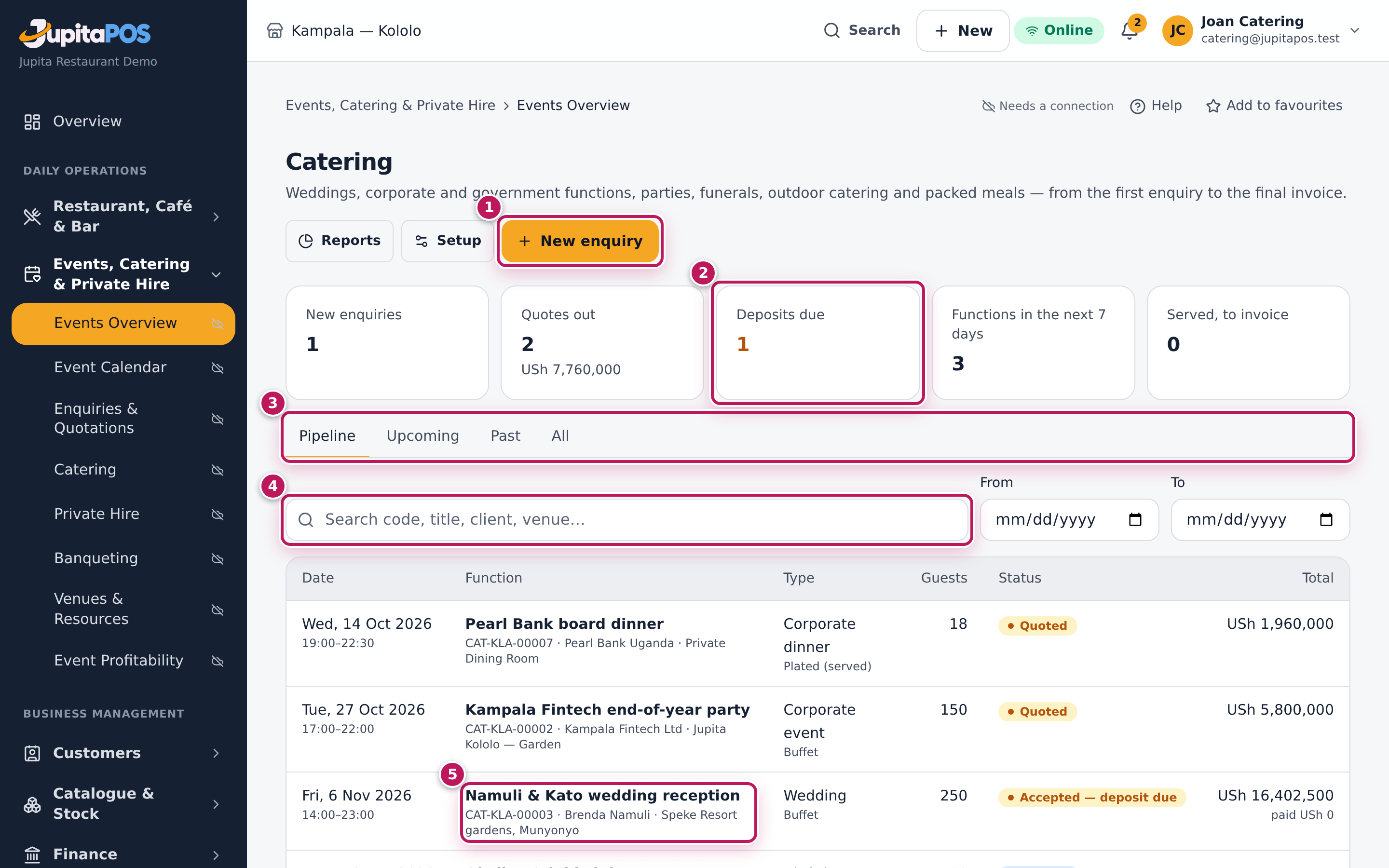
- Open Events & catering in the sidebar. The board opens on the Pipeline view.
- Read the counters (2): New enquiries, Quotes out (with their value), Deposits due, Functions in the next 7 days and Served, to invoice.
- Choose a view (3): Pipeline (enquiries, quotes out, quotes accepted waiting for the deposit), Upcoming (booked functions from today), Past (functions held, lost or cancelled) or All.
- To find one function, type part of its number, title, client or venue in Search code, title, client, venue… (4) and press Enter. Use From and To to limit the dates.
- Click a function’s title (5) to open its workspace.
- To start a new job, click New enquiry (1) (see Log a catering enquiry).
Expected result
The board lists the functions of your branch with their date and times, type and service style, guests, status and total (and what is paid). In the demo the Pipeline shows the Pearl Bank board dinner and the Kampala Fintech party (Quoted), the Namuli & Kato wedding reception (Accepted — deposit due, USh 16,402,500, paid USh 0) and the Okello 50th birthday (Enquiry). The board updates by itself when a colleague changes a function.
Screenshot
Common mistakes
- Looking for a booked function in Pipeline. Once the deposit is paid the function is Confirmed and moves to Upcoming. Use All when you are not sure of its status.
- Searching for the client’s first name only. Search matches the number, the title, the contact name, the organisation and the venue; the organisation (“Rotary Club”) is often the quickest.
Troubleshooting
- “No functions here”. Nothing matches the view and the filters. Clear the search and the dates, or choose All.
- A function of the other branch is missing. The board shows the branch you are working in. Switch branch in the top bar if you work at both.
- I do not see New enquiry. You can read catering but not create it
(
events.manageis missing). Ask your manager.
Log a catering enquiry
Purpose
Write down a client’s request while they are on the phone or at the counter — who, what, when, where, how many and what they eat — so the quote, the kitchen and the team all start from the same facts.
Role / permission required
Catering Manager, Events & Private Hire Manager, branch or general manager —
anyone with events.manage.
Prerequisites
- You can see the catering board (see Find a function on the catering board).
Steps
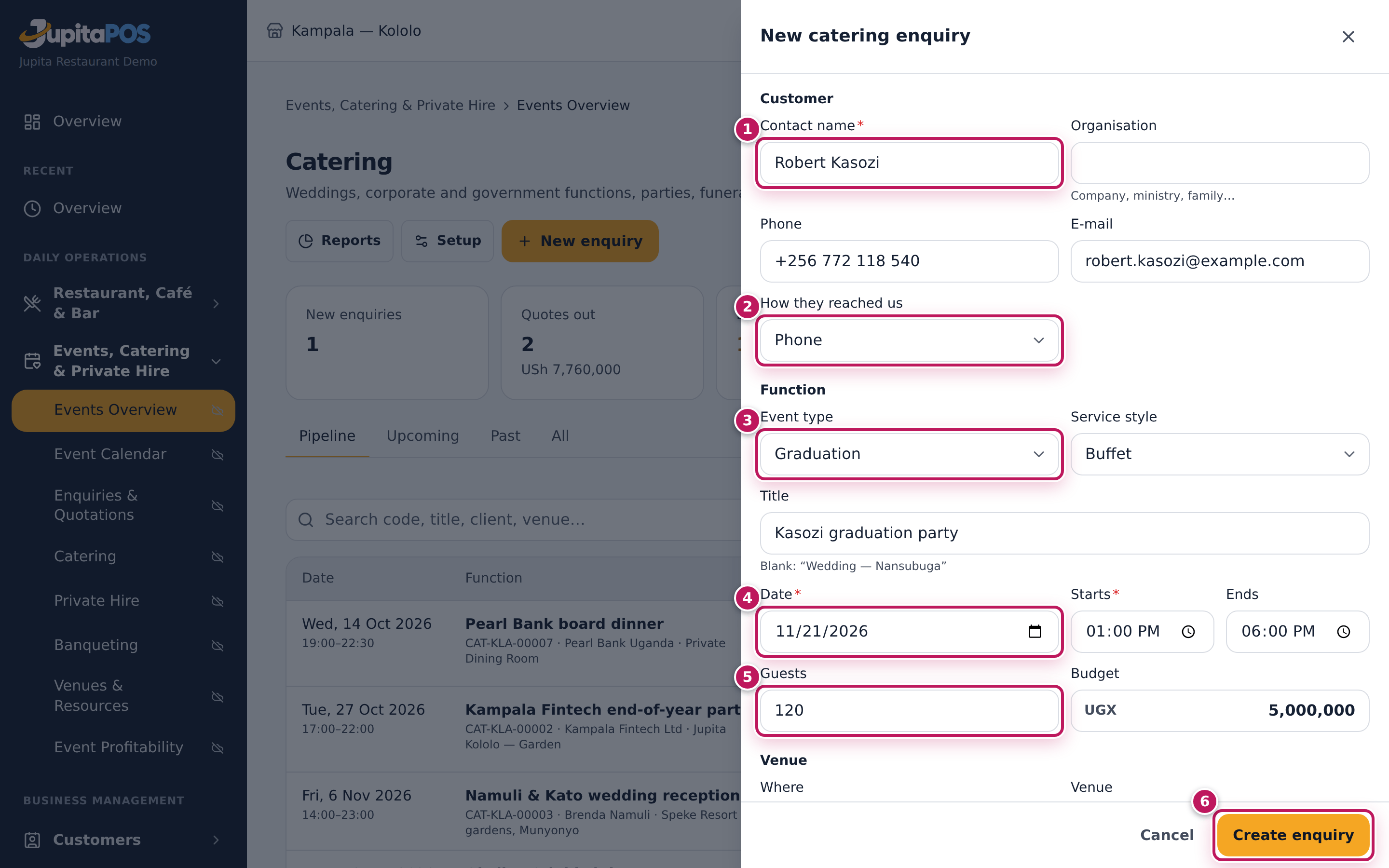
- On the catering board, click New enquiry. The New catering enquiry drawer opens.
- Under Customer, type the Contact name (1) — here Robert Kasozi — and, if there is one, the Organisation. Add the Phone and E-mail.
- Choose How they reached us (2): Phone, E-mail, Walk-in, Referral, Repeat client or Other.
- Under Function, choose the Event type (3) — here Graduation — and the Service style (Buffet, Plated (served), Cocktail / canapés, Packed meals, Family style, Drop-off (no service)).
- Type a Title such as Kasozi graduation party. Left blank, the system names it after the type and the contact.
- Set the Date (4), Starts and Ends, the number of Guests (5) and the client’s Budget if they gave one.
- Under Venue, choose Where (Our venue, Client’s venue or Outdoor catering) and type the Venue and Address / directions.
- For each dietary need, click Add requirement, type the Requirement (Vegetarian) and how many Guests need it.
- Note what the client asked for under Menu preferences, Equipment, Staff, Transport, Set-up (room, stage, décor) and Billing instructions.
- Click Create enquiry (6).
Expected result
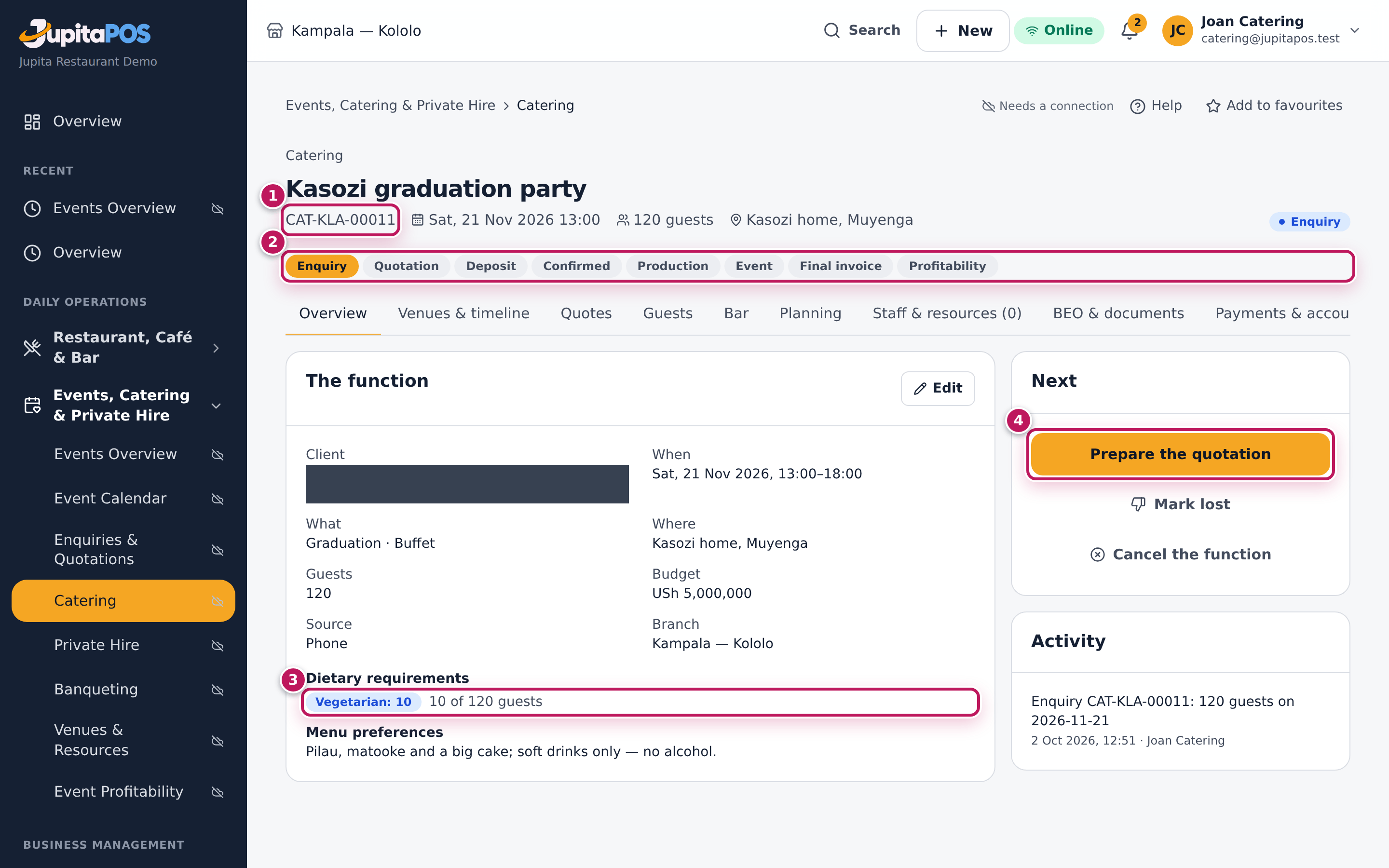
The function opens on its Overview with its new number (1)
(CAT-KLA-000…), the status Enquiry and the progress steps (2) on
Enquiry. The details show Graduation · Buffet, 120 guests, the budget
USh 5,000,000 and the dietary badge Vegetarian: 10 — 10 of 120 guests
(3). Prepare the quotation (4) is the next step. The client is also
found (by phone) or added among the customers when the quote is accepted.
Screenshot
Common mistakes
- Putting dietary needs in the notes only. A requirement with its number of guests goes on the kitchen sheet and the banquet event order; a note does not. Use Add requirement.
- Leaving the guests at the default of 50. The quote, the production plan and the staff all start from this number. Ask the client, even for a first estimate.
- Creating a second enquiry for a changed date. Open the function and click Edit instead; its history stays in one place.
Troubleshooting
- Create enquiry stays grey. The contact name, the date and the number of guests are required.
- “Choose the date of the function.” The date is empty or not a date. Pick it from the calendar.
- The enquiry came from the website. It is already under Online orders → Enquiries: open it as a function from there instead of typing it again (see Handle website enquiries).
FAQ
Can I change the details later? Yes. Edit on the Overview changes any detail until the function is invoiced; the change is logged in Activity.
What is Source on the Overview? How the client reached us, for the pipeline report (a website enquiry shows its enquiry number too).
Write and send a quote
Purpose
Price the function the way the client will be charged — food per guest, equipment, staff, transport — see the estimated margin before it goes out, and send a quotation the client can read.
Role / permission required
Catering Manager, Events & Private Hire Manager or a manager
(events.manage). A quote below the margin floor or with a discount above
the limit can only be sent by a manager (events.approve).
Prerequisites
- The function is an Enquiry or already Quoted (see Log a catering enquiry).
- The packages are set up (see Set up packages, equipment and vehicles).
Steps
- Open the function and click the Quotes tab (or Prepare the quotation on the Overview).
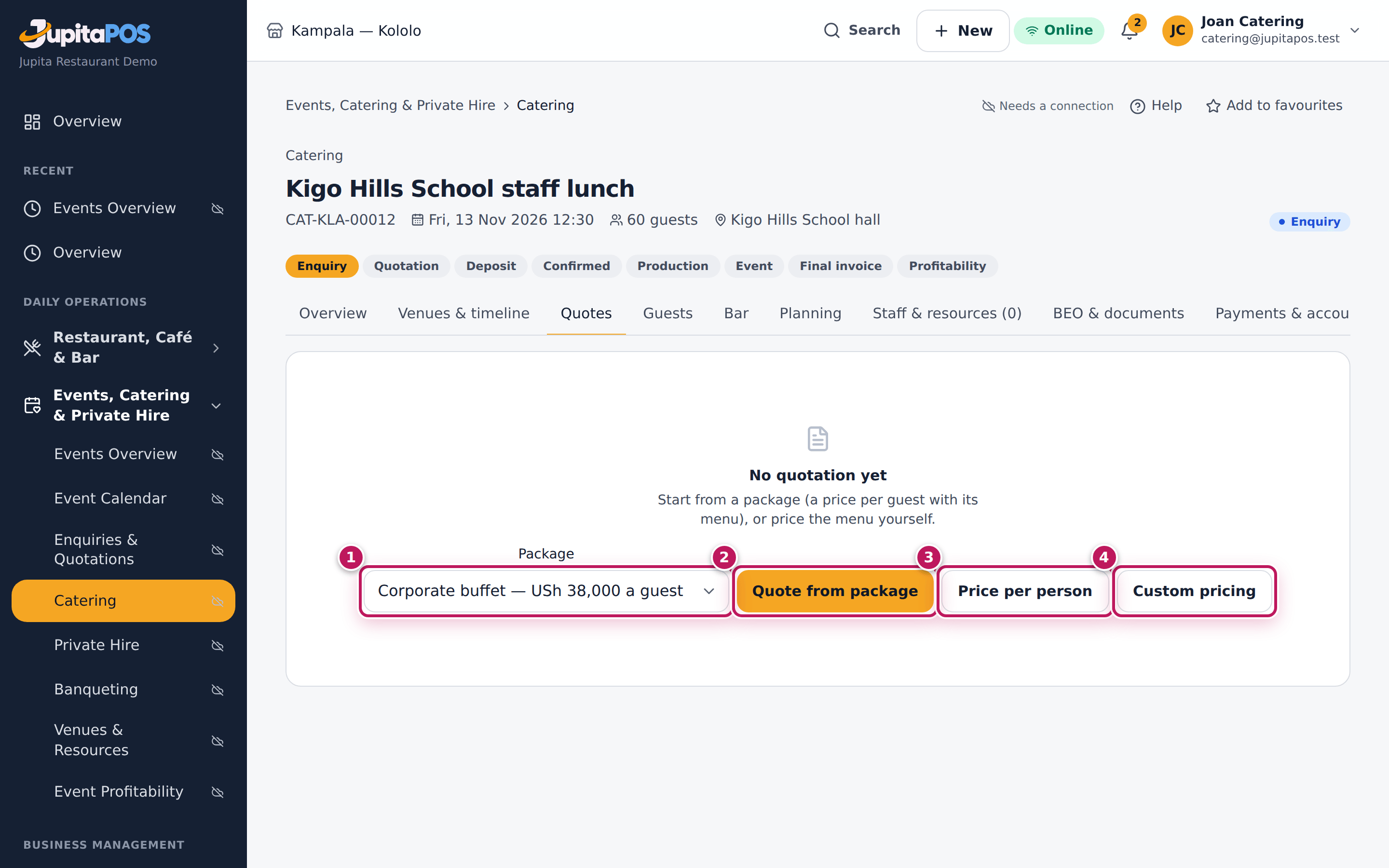
- Choose how to price it:
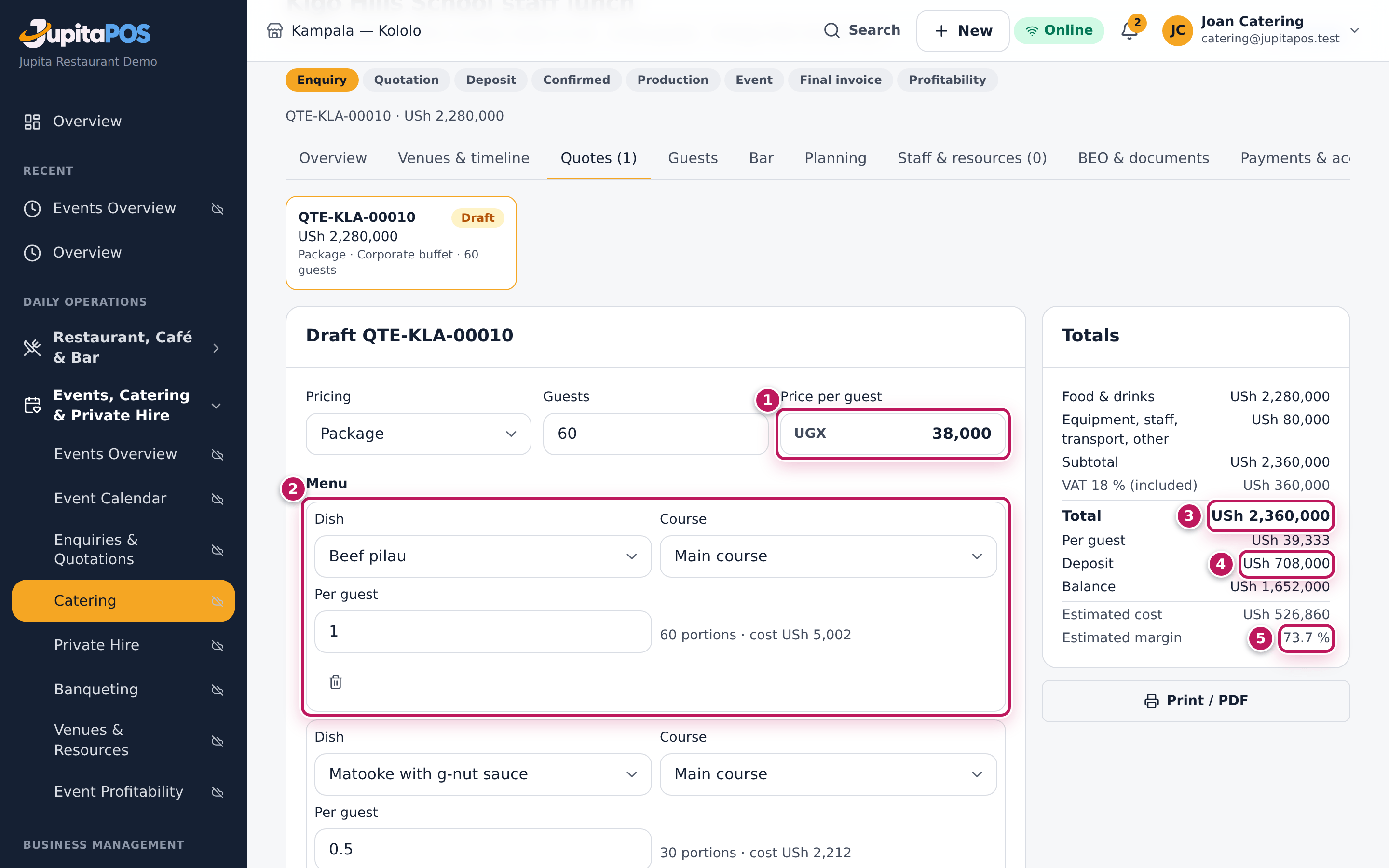
- a Package (1) and Quote from package (2): the package’s price per guest with its dishes — here Corporate buffet — USh 38,000 a guest;
- Price per person (3): you choose the dishes and one price per guest;
- Custom pricing (4): every dish is charged per portion.
- In the draft, check the Guests and the Price per guest (1).
- Under Menu, check each dish (2): its Course and how many portions Per guest (1 plate of pilau, 0.5 of matooke). Use Add dish for more. With a price per guest the dishes are listed, not charged one by one.
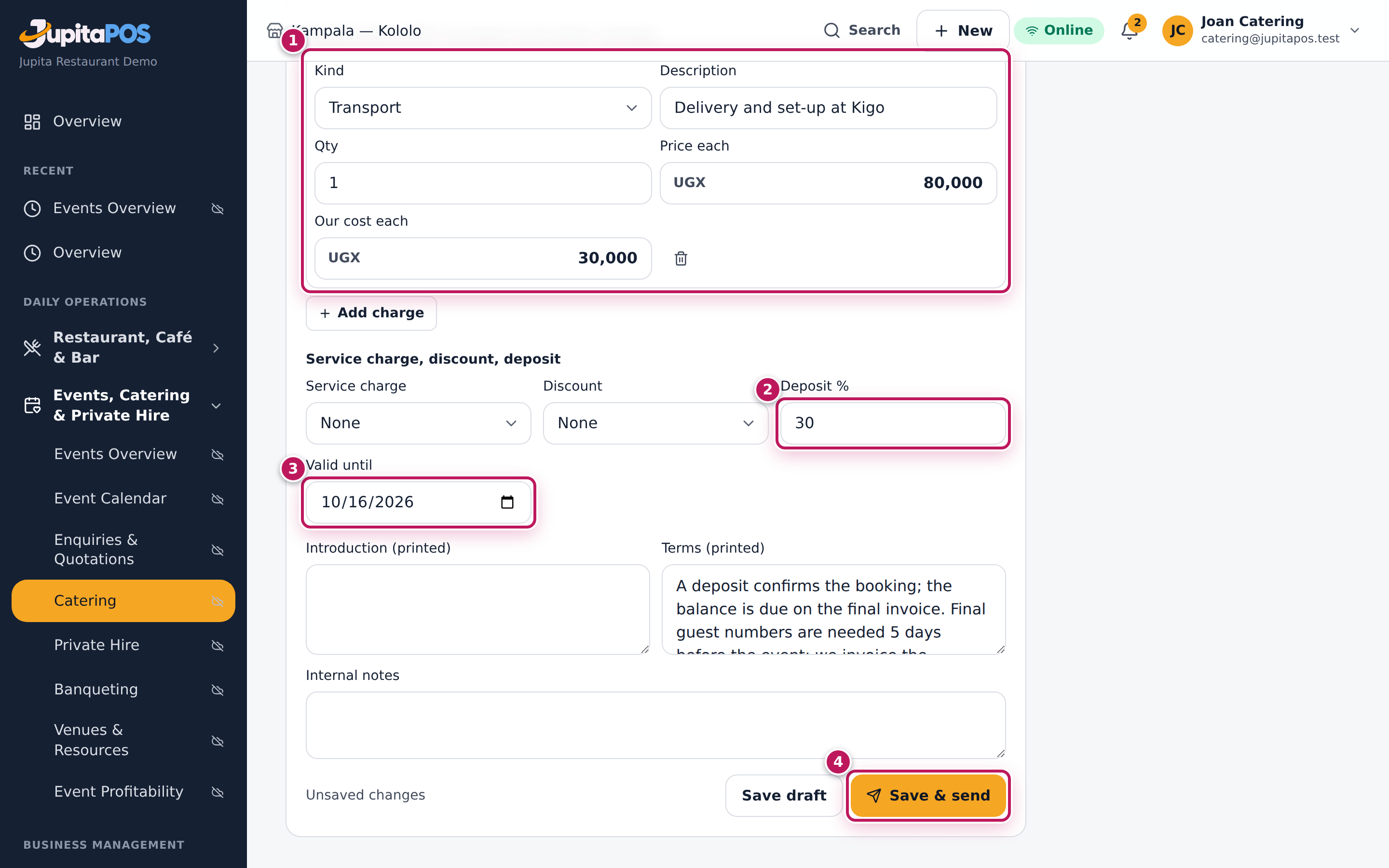
- Under Equipment, staff, transport and other charges, click Add charge, choose the Kind (here Transport), type the Description, the Qty, the Price each and Our cost each (1). For equipment choose the item from the catalogue: its price and cost fill in, and the list says how many are free that day.
- Under Service charge, discount, deposit, choose a Service charge if one applies, a Discount (a percentage or an amount, with a label), the Deposit % (2) — 30 % by default — and Valid until (3).
- Read the Totals on the right: the total (3), the deposit (4) and the Estimated margin (5).
- Click Save & send (4) — or Save draft to finish later.
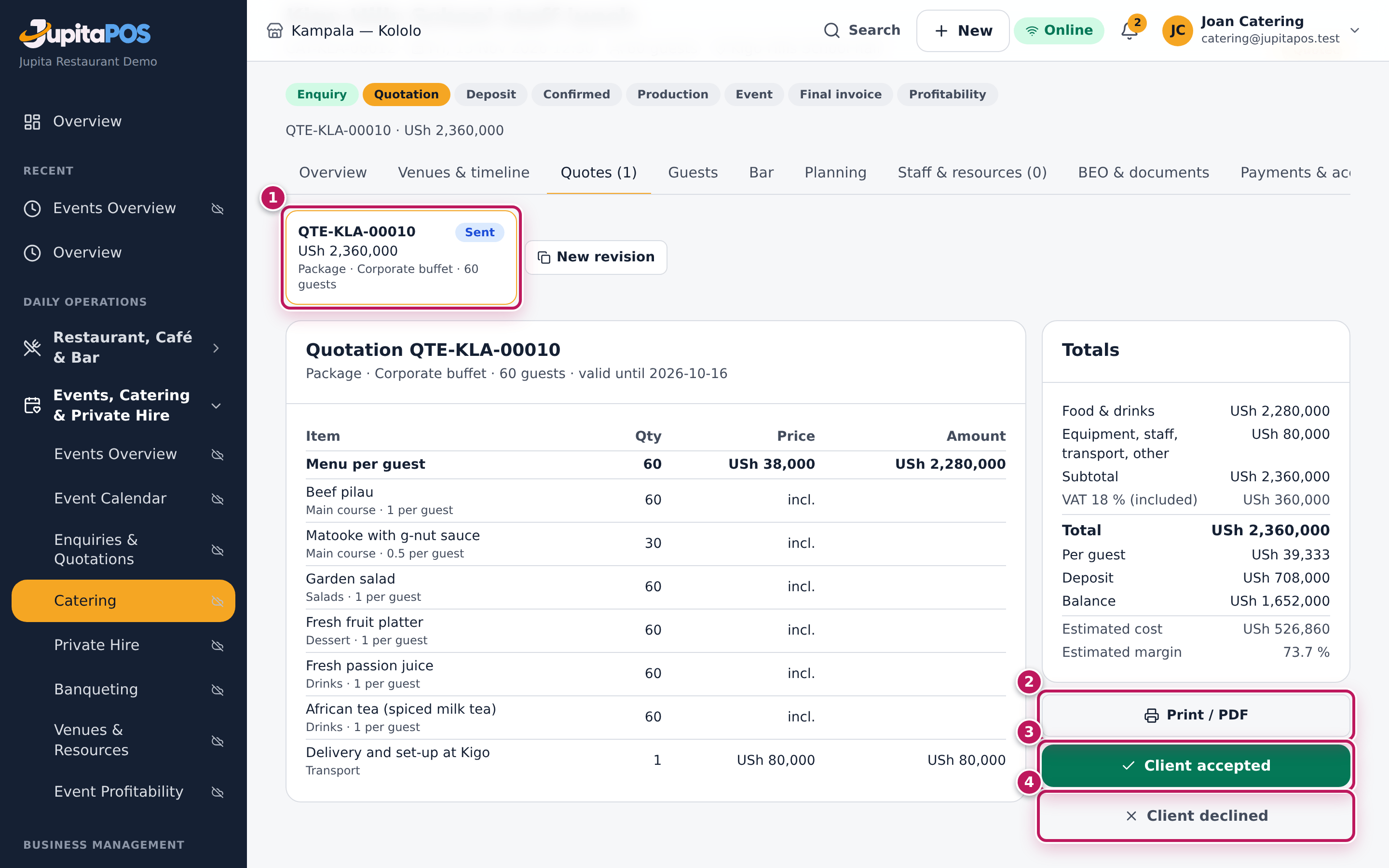
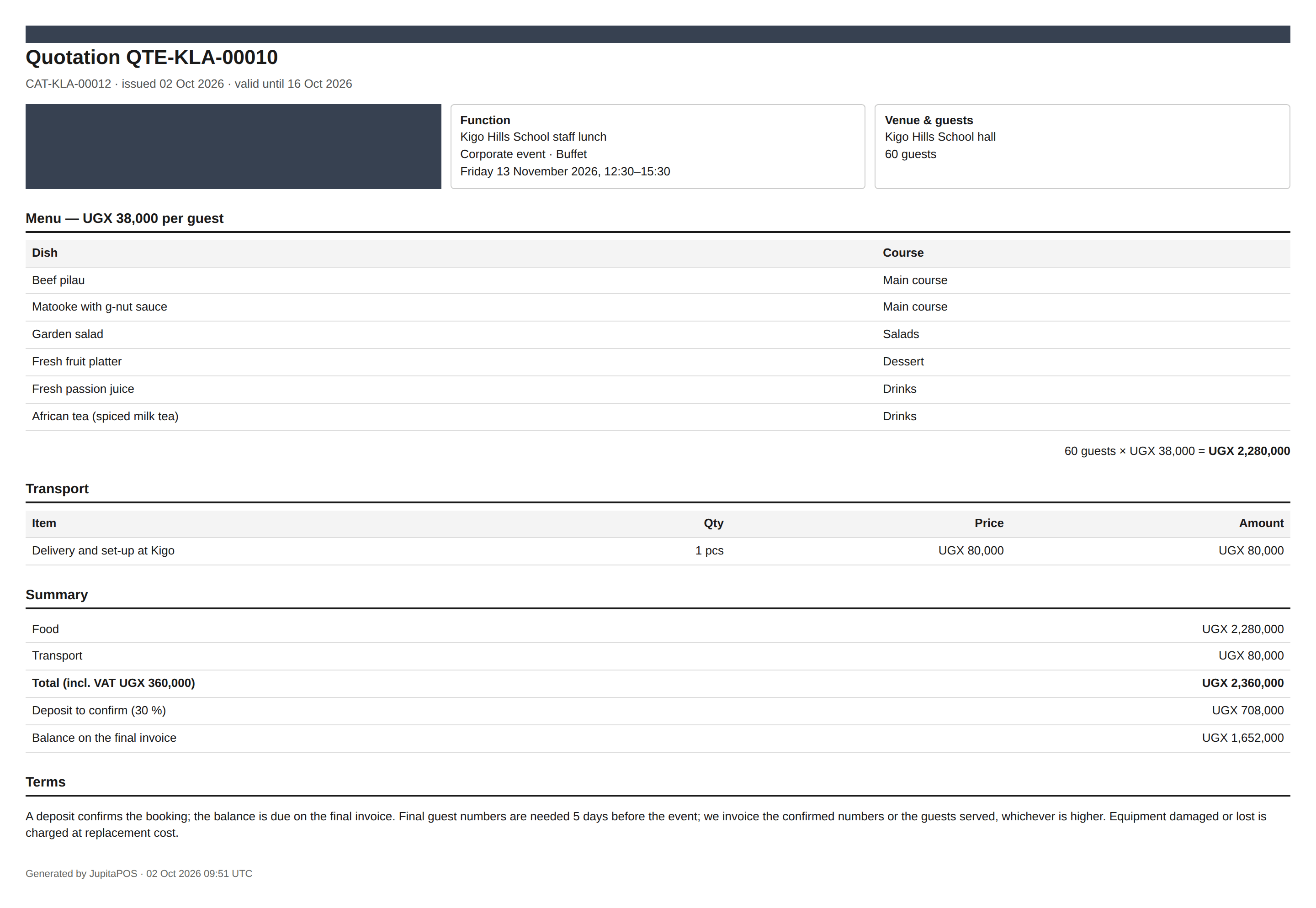
- Click Print / PDF (2) and send the quotation to the client.
Expected result
For 60 guests at 38,000 and a delivery charge of 80,000 the Total is USh 2,360,000 (VAT 18 % included: 360,000), the Deposit USh 708,000 and the Balance USh 1,652,000; the estimated margin is 73.7 %. After sending, the revision shows Sent (1), the function is Quoted, and the quote is frozen: its lines, Print / PDF, Client accepted (3) and Client declined (4). The printed quotation shows the menu, the charges, the total with VAT, the deposit to confirm, the balance and your terms.
Screenshot
Common mistakes
- Leaving Our cost each empty. The estimated margin (and later the profitability) is then too good. Type what the charge costs us.
- Changing a sent quote. A sent quote cannot change; start a new revision (see Revise a quote the client wants changed).
- Using a package for too few guests. Each package has a minimum and maximum number of guests (Events setup → Packages). Price a small function per person instead.
Troubleshooting
- Send to client is grey, and the Totals card says “a manager must send it”. The margin is below the margin floor (25 %) or the discount above the limit (10 %). Ask a manager to open the quote and send it, or change the price.
- “Add the menu before sending the quote.” A quote needs at least one dish.
- “Only a draft can be changed — start a new revision.” The quote was sent. Use New revision.
FAQ
Is VAT added on top? Prices include VAT as the menu does; the Totals show how much of the total is VAT.
What happens to the menu prices when the menu changes? A draft picks up the dishes as they are; a sent quote keeps what the client was sent.
Revise a quote the client wants changed
Purpose
When the client asks for a lower price, fewer guests or another dish, send a new revision under the same quote number, so everyone knows which version is live.
Role / permission required
Catering Manager, Events & Private Hire Manager or a manager
(events.manage).
Prerequisites
- The function is Quoted: a quote was sent (see Write and send a quote).
Steps
- Open the function and click the Quotes tab.
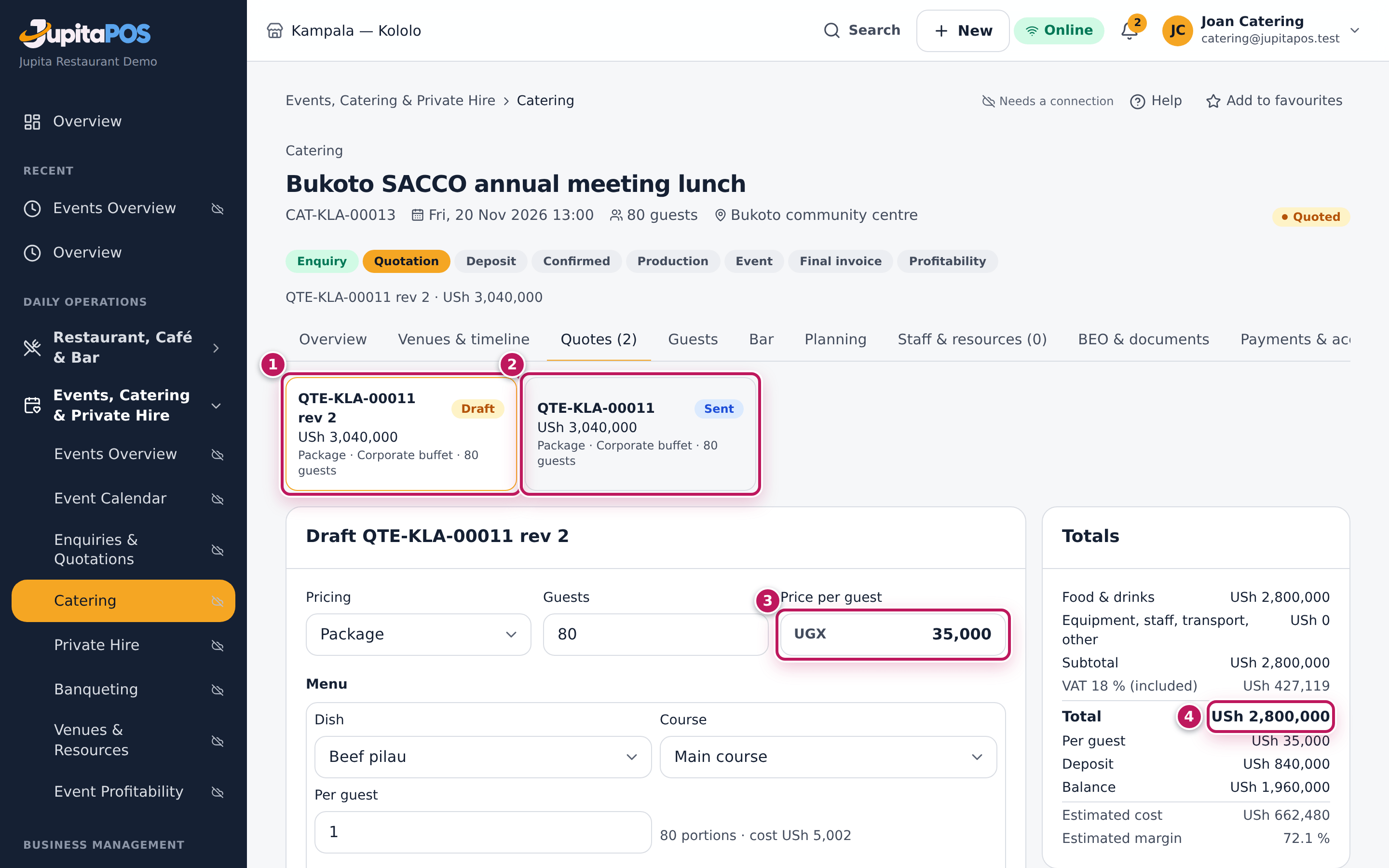
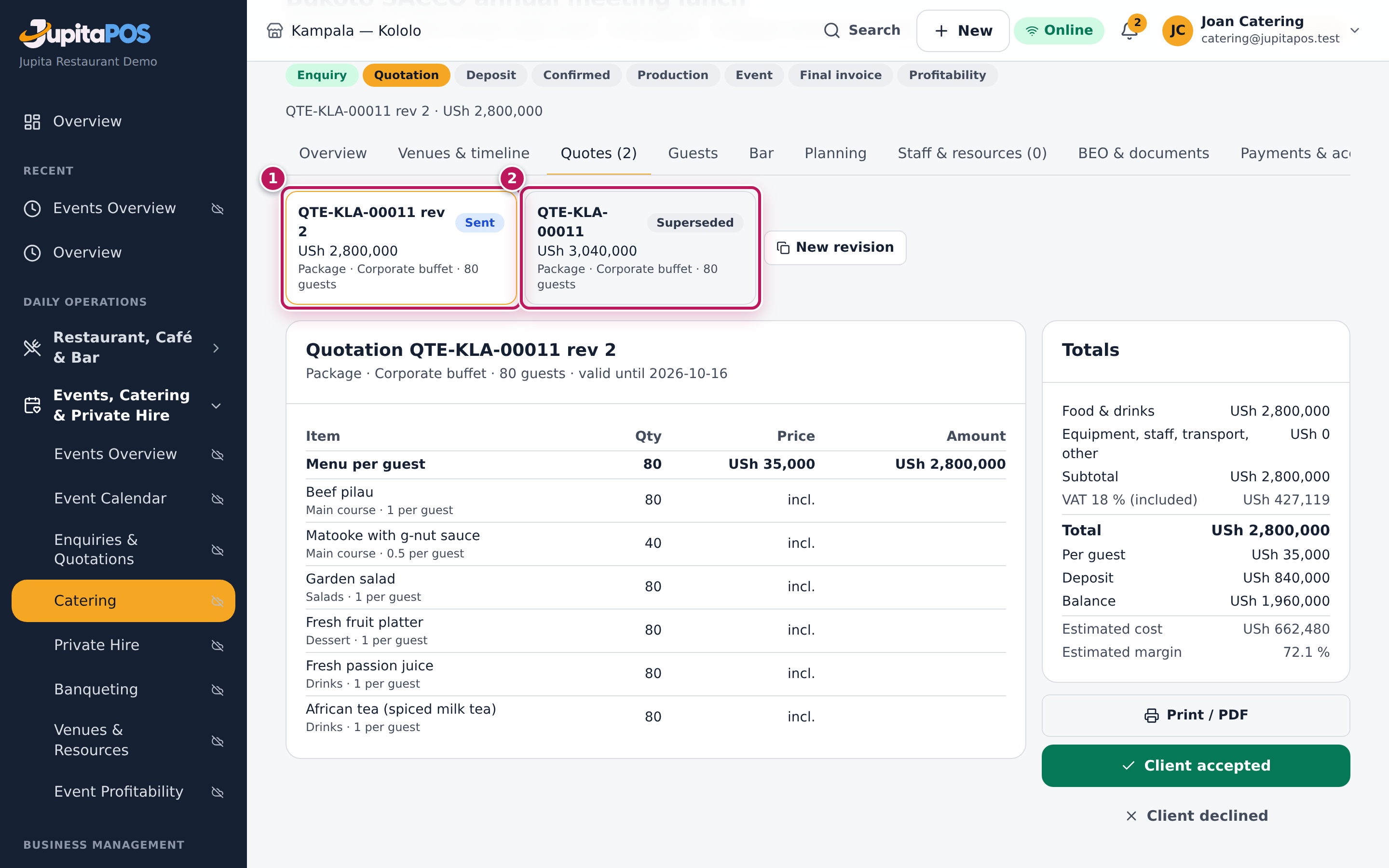
- Beside the revision cards above the quote, click New revision. A copy of the last quote opens as a draft, first in the row (1); the sent one stays beside it (2).
- Make the change — in the example, the Bukoto SACCO annual meeting lunch for 80 guests, the Price per guest (3) goes down to 35,000 — and, if you like, explain it in Introduction (printed).
- Check the new Total (4).
- Click Save & send.
Expected result
The new revision (QTE-KLA-000… rev 2) is Sent (1) at USh 2,800,000 for 80 guests (deposit USh 840,000), and revision 1 is Superseded (2). Only the latest sent revision can be accepted.
Screenshot
Common mistakes
- Editing a revision the client never saw. If the last revision is still a draft there is no New revision: change the draft and send it.
- Forgetting to send. A saved draft does not supersede anything; the client still has the old price.
Troubleshooting
- There is no New revision. A draft already exists (finish it), or the client already accepted a quote: changes are then made on the booking and its order, not on the quote.
- “The quote expired … — send a new revision, or a manager accepts it.” The client answered after Valid until. Send a new revision with a new date, or ask a manager to accept the old one.
Take the deposit and confirm
Purpose
When the client accepts, turn the quote into the function’s catering order and take the deposit, so the date is secured and production can start.
Role / permission required
Catering Manager, Events & Private Hire Manager or a manager: accepting needs
events.manage, taking the money also payments.take. Cash goes into a
till open in your name, which needs cash.open: the catering and events
managers do not have it, so they take mobile money or card here and a
cashier takes cash at the till.
Prerequisites
- The client has a sent quote (see Write and send a quote).
- For a cash deposit: your till is open (see Open the till).
Steps
- Open the function, click the Quotes tab and then Client accepted.
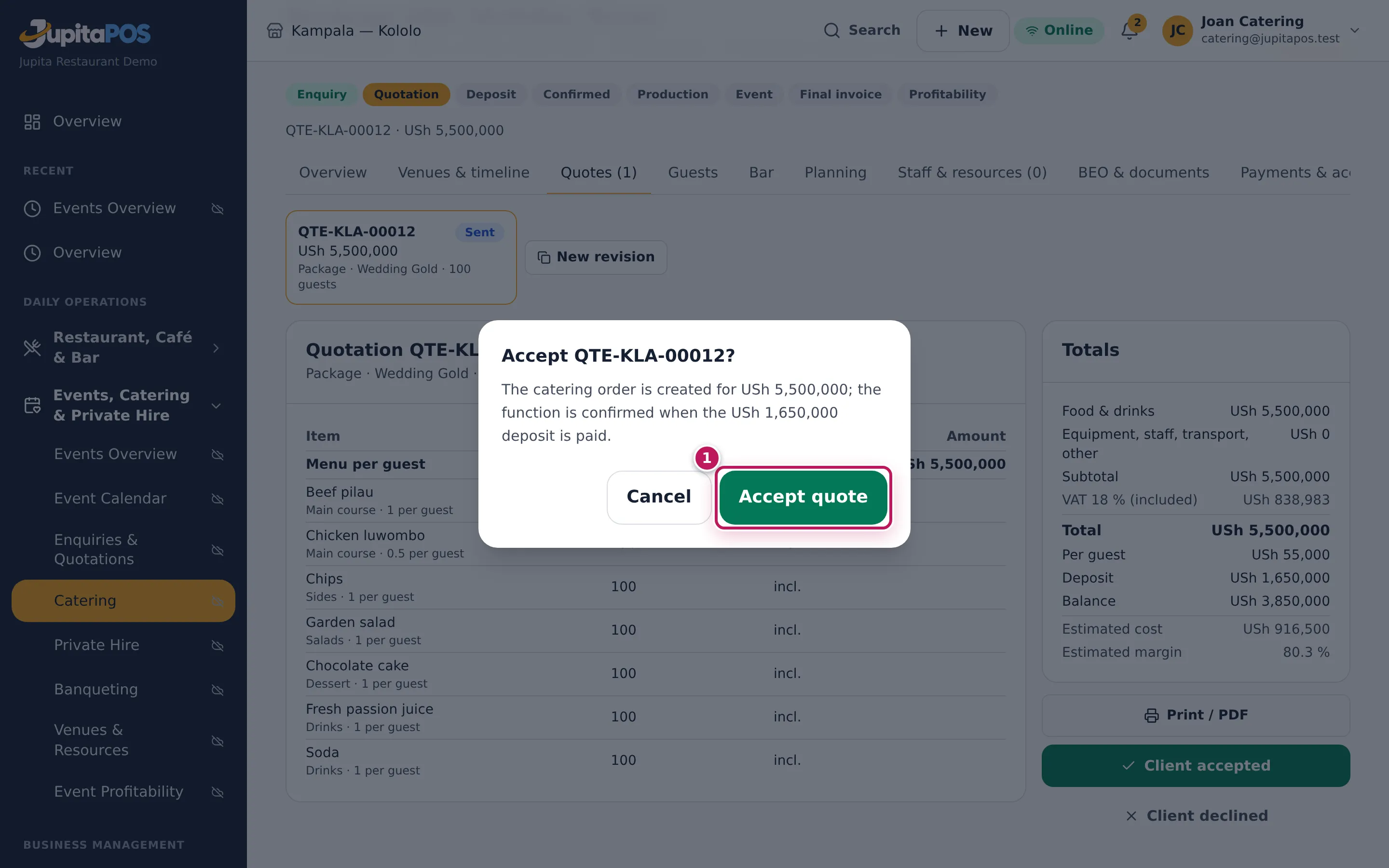
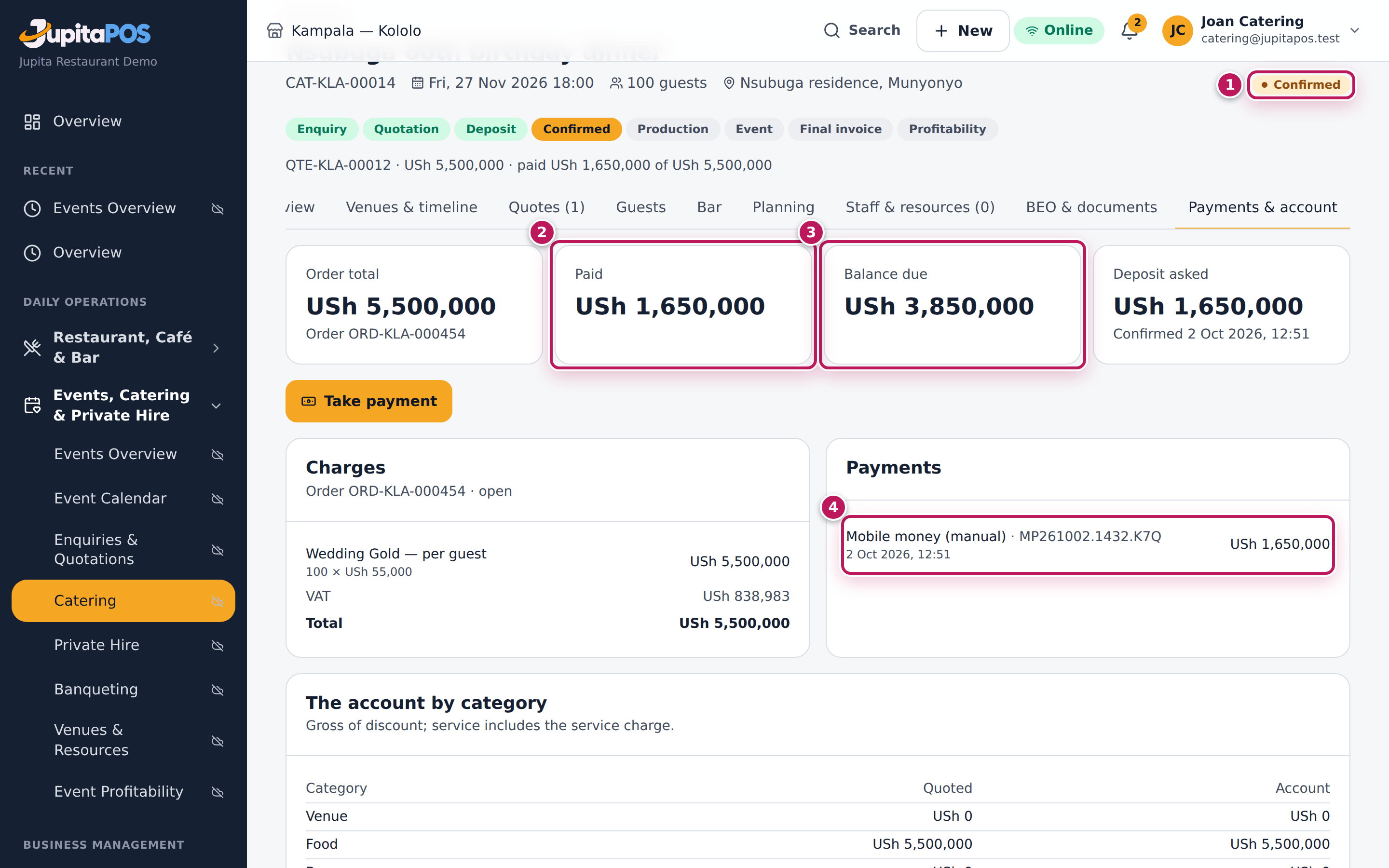
- Read the confirmation — here The catering order is created for USh 5,500,000; the function is confirmed when the USh 1,650,000 deposit is paid — and click Accept quote (1).
- The function is Accepted — deposit due. Click the Payments & account tab: it says Waiting for the deposit.
- Click Take deposit.
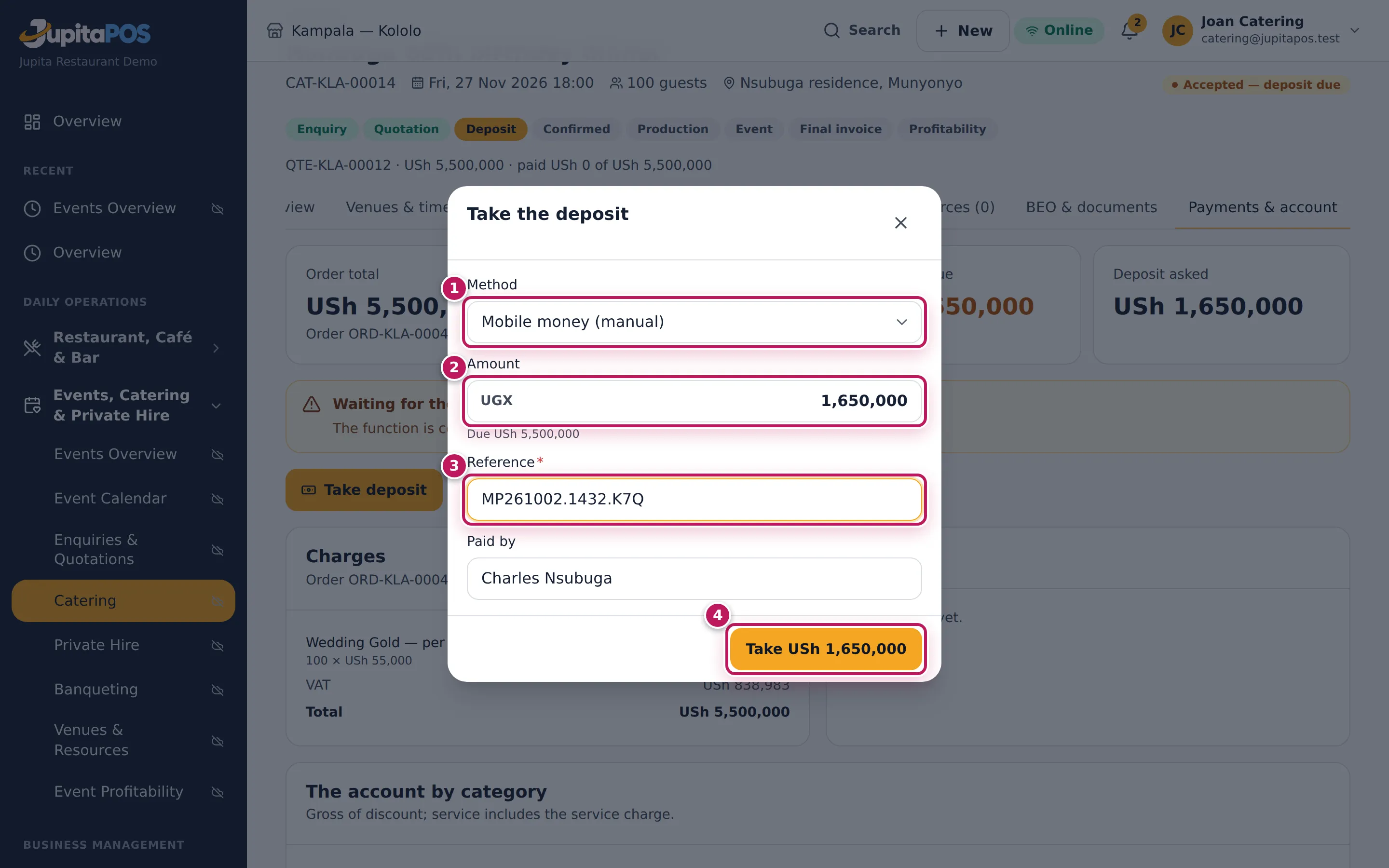
- Choose the Method (1) — here Mobile money (manual).
- Check the Amount (2): it is the deposit still due. A part payment is fine.
- Type the Reference (3) — the mobile money transaction ID (for cash, the Tendered amount instead). Paid by is filled with the client.
- Click Take USh 1,650,000 (4).
Expected result
The function is Confirmed (1). Paid shows USh 1,650,000 (2), Balance due USh 3,850,000 (3) and the payment is listed with its method and reference (4). The deposit counts in the day’s takings like any other payment, and the client is linked to their customer record.
Screenshot
Common mistakes
- Accepting the wrong revision. Only the revision the client signed should be accepted; open it in the list first.
- Taking cash without a till. Cash always goes into a drawer. Take cash at the till, or record the mobile money or card payment instead.
- Recording the full amount as the deposit. Type what the client really paid; the rest stays due and is paid later with Take payment.
Troubleshooting
- “Open a till before taking cash.” No till is open in your name. Open one (see Open the till) or choose the method the client really used.
- The payment is in but the function is still Accepted — deposit due. Less than the deposit was paid. Take the rest; the function confirms itself when the deposit is reached.
- The client cannot pay a deposit (a government LPO). A manager can confirm without one (see Confirm a function without a deposit).
FAQ
What if no deposit was asked (Deposit % 0)? Accepting the quote confirms the function at once.
Can the client pay the balance in parts? Yes, with Take payment on Payments & account, until the final invoice is paid.
Confirm a function without a deposit
Purpose
Confirm a trusted client or a government function that pays against a local purchase order (LPO) without waiting for a deposit, with the reason on record.
Role / permission required
Branch or general manager (events.approve).
Prerequisites
- The function is Accepted — deposit due (see Take the deposit and confirm).
Steps
- Open the function and click the Payments & account tab.
- Click Waive deposit.
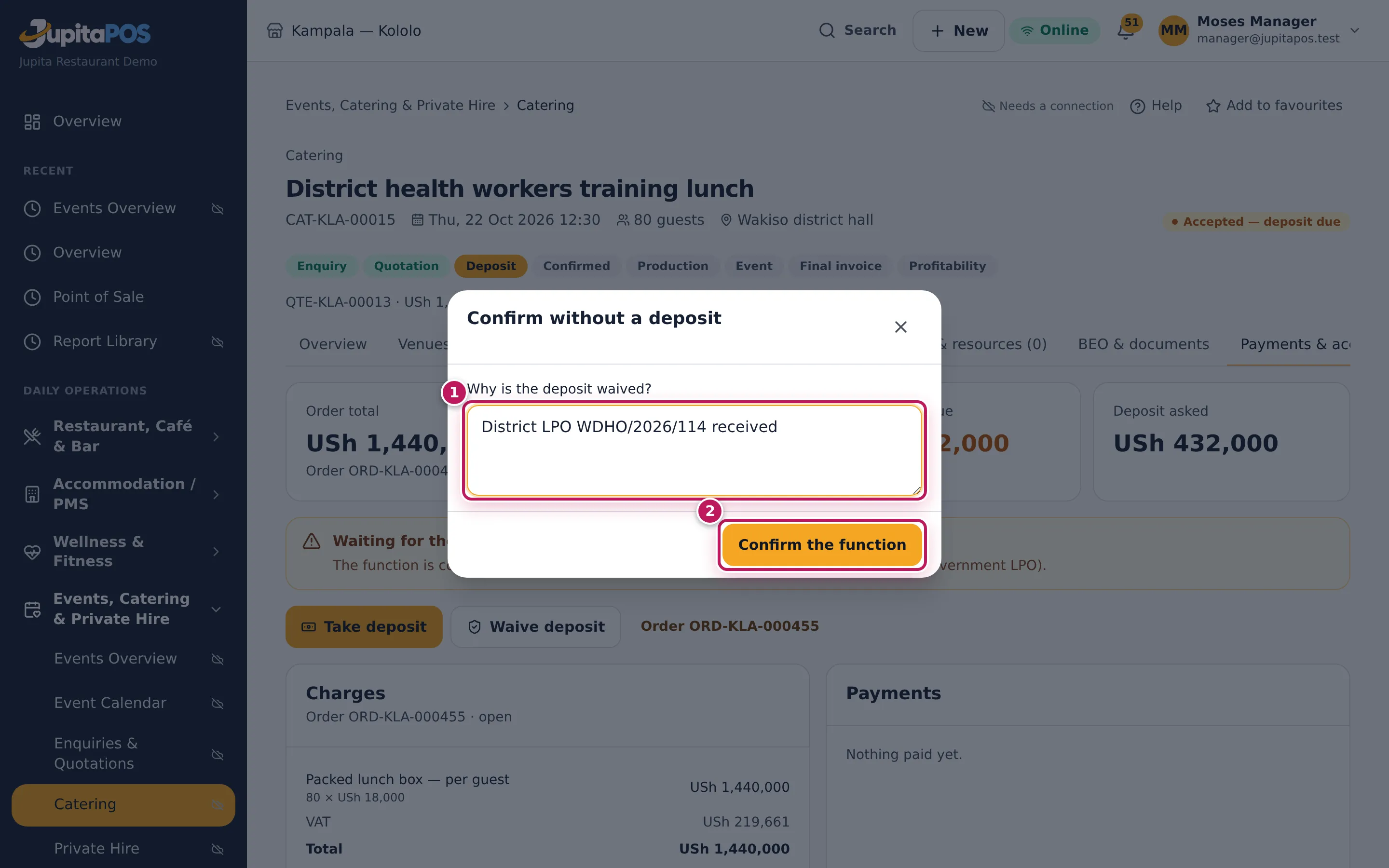
- Type Why is the deposit waived? (1) — here District LPO WDHO/2026/114 received.
- Click Confirm the function (2).
Expected result
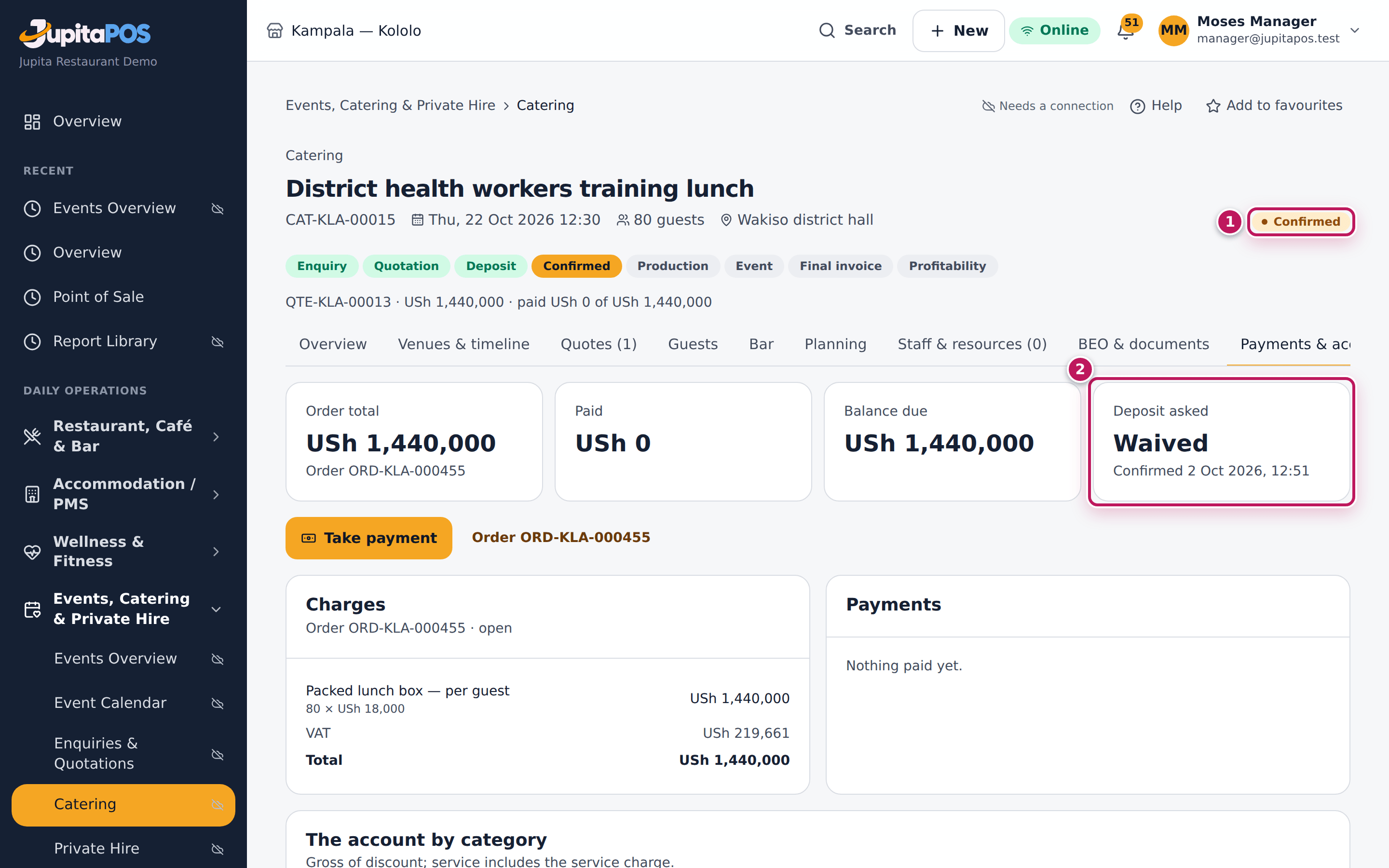
The function is Confirmed (1) and Deposit asked says Waived (2) with the time it was confirmed; nothing is paid yet and the whole USh 1,440,000 stays due for the final invoice. The reason is in the function’s Activity and the audit trail.
Screenshot
Common mistakes
- Waiving instead of recording a payment. If the client paid part, take that payment; waive only when no deposit is coming.
Troubleshooting
- There is no Waive deposit button. You are not a manager
(
events.approve), or the function is not waiting for its deposit. - “Only a function waiting for its deposit.” The function is already confirmed (or not accepted yet).
Plan production: ingredients and stock
Purpose
Turn the guests and the menu into portions, recipes and ingredients, and see at once what the stores hold and what is short — in time to buy it.
Role / permission required
Catering Manager, Events & Private Hire Manager, chef or manager
(events.plan). Raising the purchase requisition also needs
procurement.create.
Prerequisites
- The function is Accepted — deposit due or Confirmed (see Take the deposit and confirm).
- The dishes have recipes (see Write a recipe for a menu item); a dish with no recipe adds no ingredients.
Steps
- Open the function and click the Planning tab.
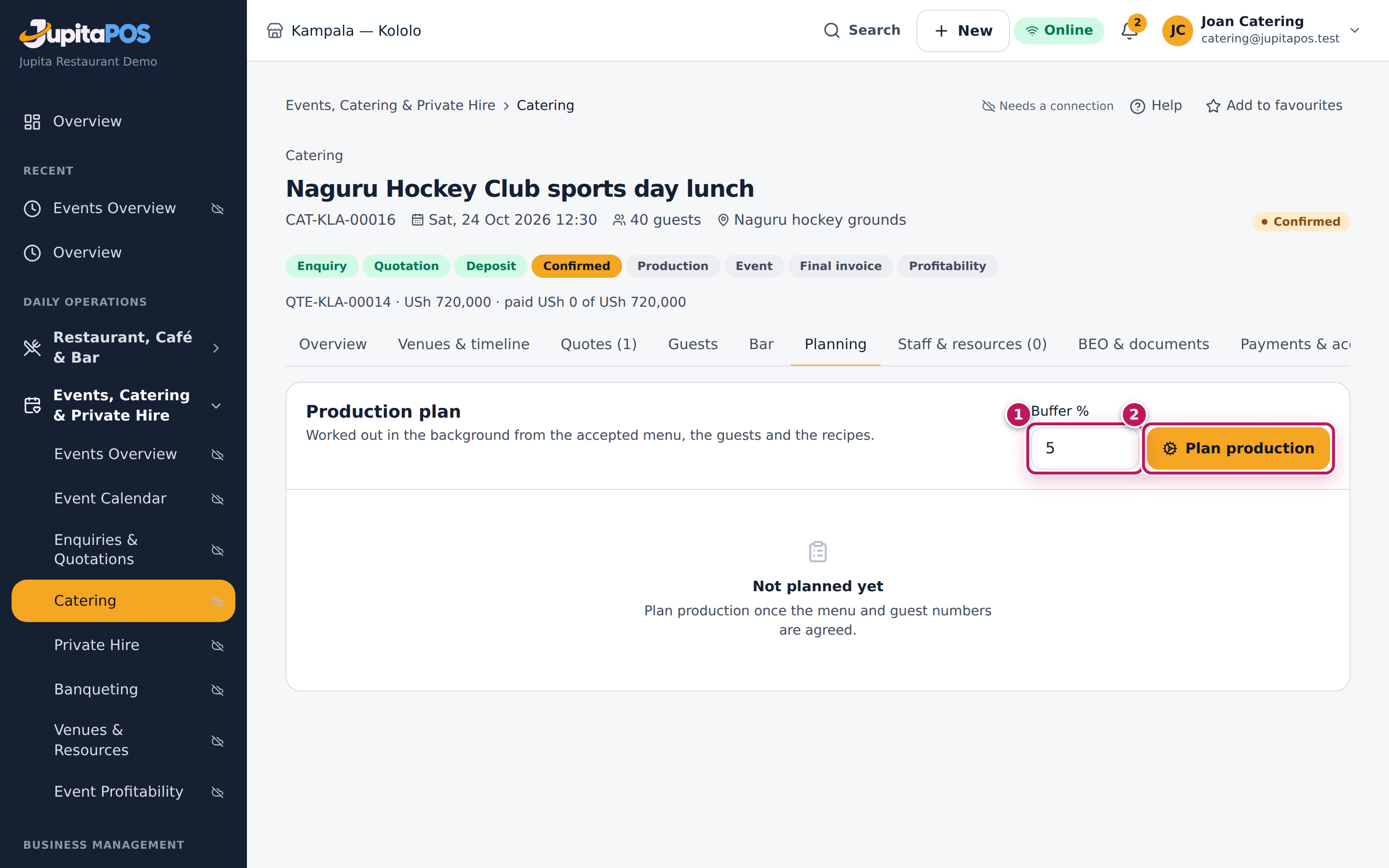
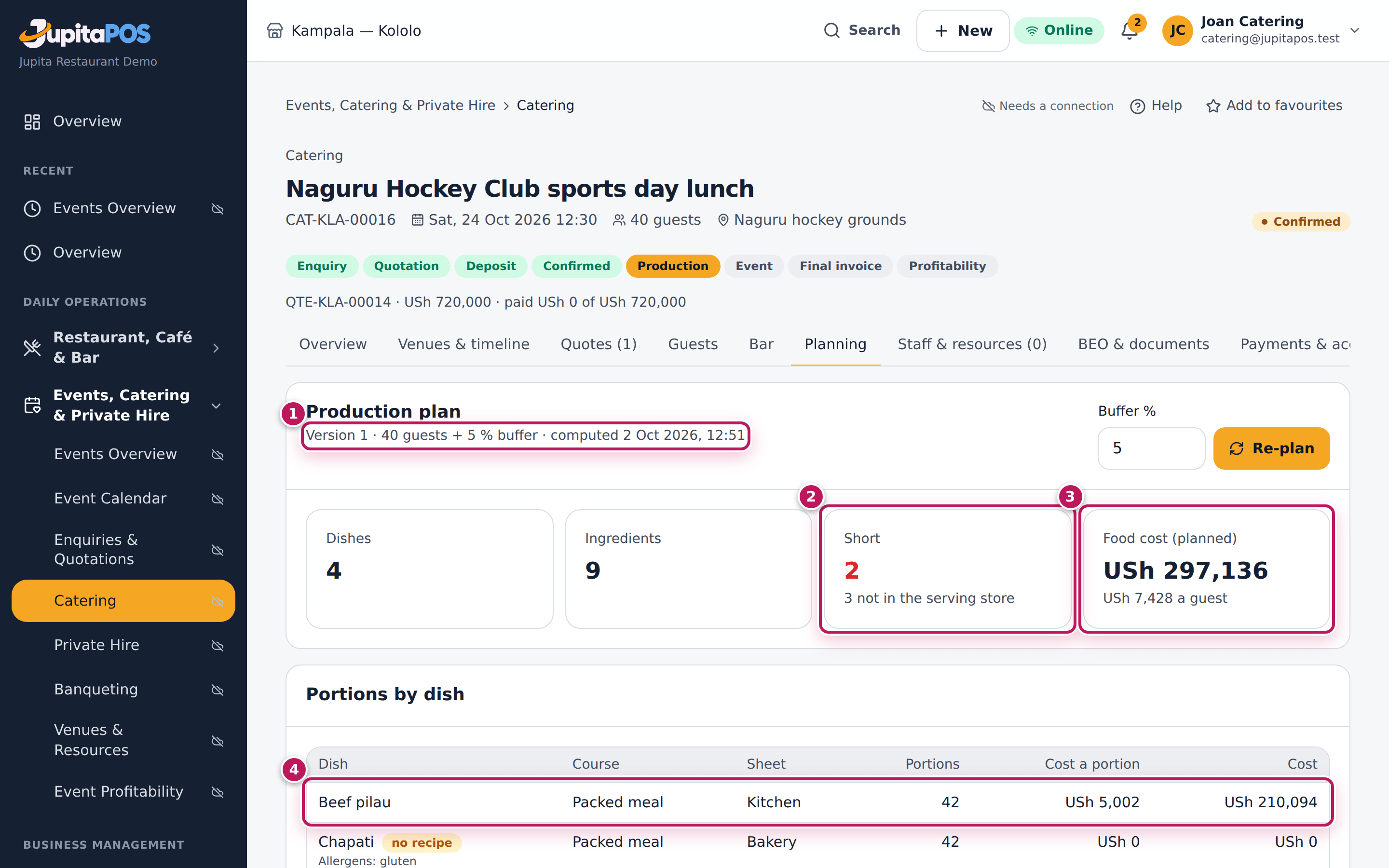
- Check the Buffer % (1): the extra portions over the guest count (5 % by default).
- Click Plan production (2). The plan is worked out in the background; the page says so and updates itself when it is ready.
- Read the plan (the second picture): the version, guests and buffer (1), Short (2), Food cost (planned) (3) and, under Portions by dish, each dish with its course, the sheet it is made on (kitchen, bakery, bar or bought in), its portions and cost (4).
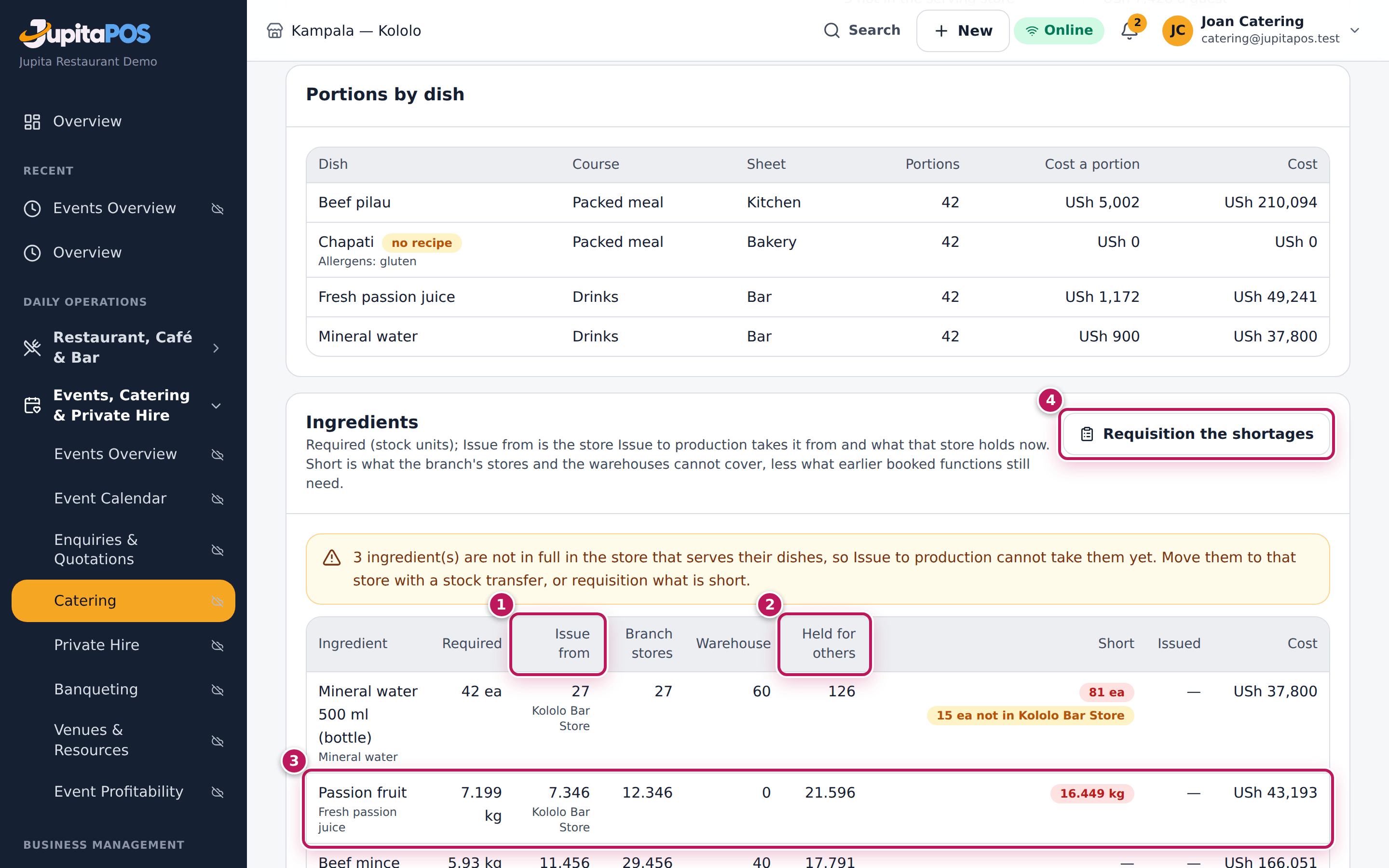
- Scroll to Ingredients. For each one: Required; Issue from (1) — the store Issue to production takes it from (the kitchen store for the kitchen’s dishes, the bar store for the bar’s) and what that store holds now; Branch stores (all the branch’s stores, on a large screen), Warehouse and Held for others (2) (what earlier booked functions still need); Short (3); Issued and Cost. In Short, a red badge is what must be bought; an amber badge (… not in Bar) is stock the branch has but not in the store that serves the dish — a note above the table says so. Move it there with a stock transfer (see Transfer stock between stores).
- If anything is short, click Requisition the shortages (4). One purchase requisition is raised for everything short, needed before the buy-in lead time, and goes for approval.
- When the menu or the guests change, click Re-plan.
Expected result
For 40 packed lunches with a 5 % buffer the plan makes 42 portions of each dish (beef pilau, chapati, fresh passion juice, mineral water) and shows the planned food cost and the cost a guest. Short shows 2, 4 not in the serving store. The passion fruit and the water bottles are short (red badges): functions booked earlier, the Ministry of Health workshop among them, already hold what the stores have. They are also not in the Kololo Bar Store that serves the drinks (amber badges, and the note above the table). After Requisition the shortages the button becomes a link to the requisition, with its number and status (PR-KLA-… (submitted)), which follows the usual approval, quotes and purchase order (see Raise a purchase requisition).
Screenshot
Common mistakes
- Planning before the numbers are agreed. Planning is cheap, but a requisition raised on 200 guests is not. Re-plan when the guests change; the requisition already raised stays.
- Ignoring “no recipe”. A dish marked no recipe adds nothing to the ingredients — the plan looks cheaper than it is. Give it a recipe.
- Buying what another function holds. Held for others is already promised; the shortage takes it into account.
Troubleshooting
- “The plan is being worked out” does not go away. The background worker is busy or stopped. After two minutes Re-plan is allowed again; if it still does not finish, tell your administrator: the background worker may be stopped.
- “The plan failed”. The message says why (usually a recipe with a unit that cannot be converted). Fix the recipe and re-plan.
- There is no Requisition the shortages button. Nothing is short, a
requisition was already raised (its link is shown), or you lack
procurement.create.
Issue the ingredients to production
Purpose
Take the planned ingredients out of the stores for the function, so the stock is right and the function carries its real food cost.
Role / permission required
Chef, sous chef, store manager or manager — events.plan with
inventory.issue. (The Catering Manager plans; the kitchen issues. A
storekeeper issues stock in general but not to a function’s plan: that needs
events.plan.)
Prerequisites
- The function is Confirmed (or on the day) and planned (see Plan production: ingredients and stock).
Steps
- Open Events & catering, open the function and click the Planning tab.
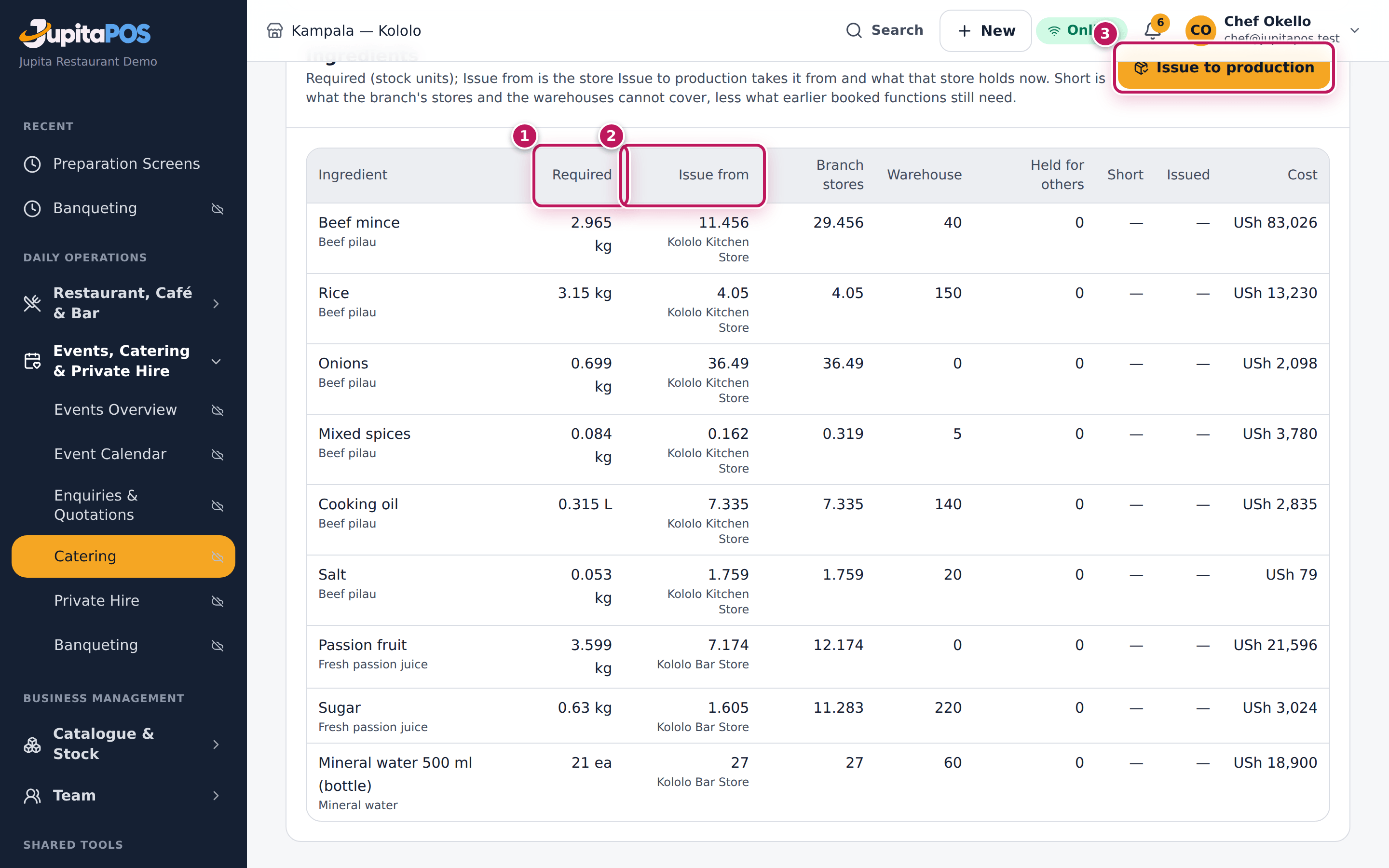
- Scroll to Ingredients and compare Required (1) with Issue from (2): what the store serving each dish holds now. An amber … not in … badge under Short means that store does not hold enough yet.
- Click Issue to production (3).
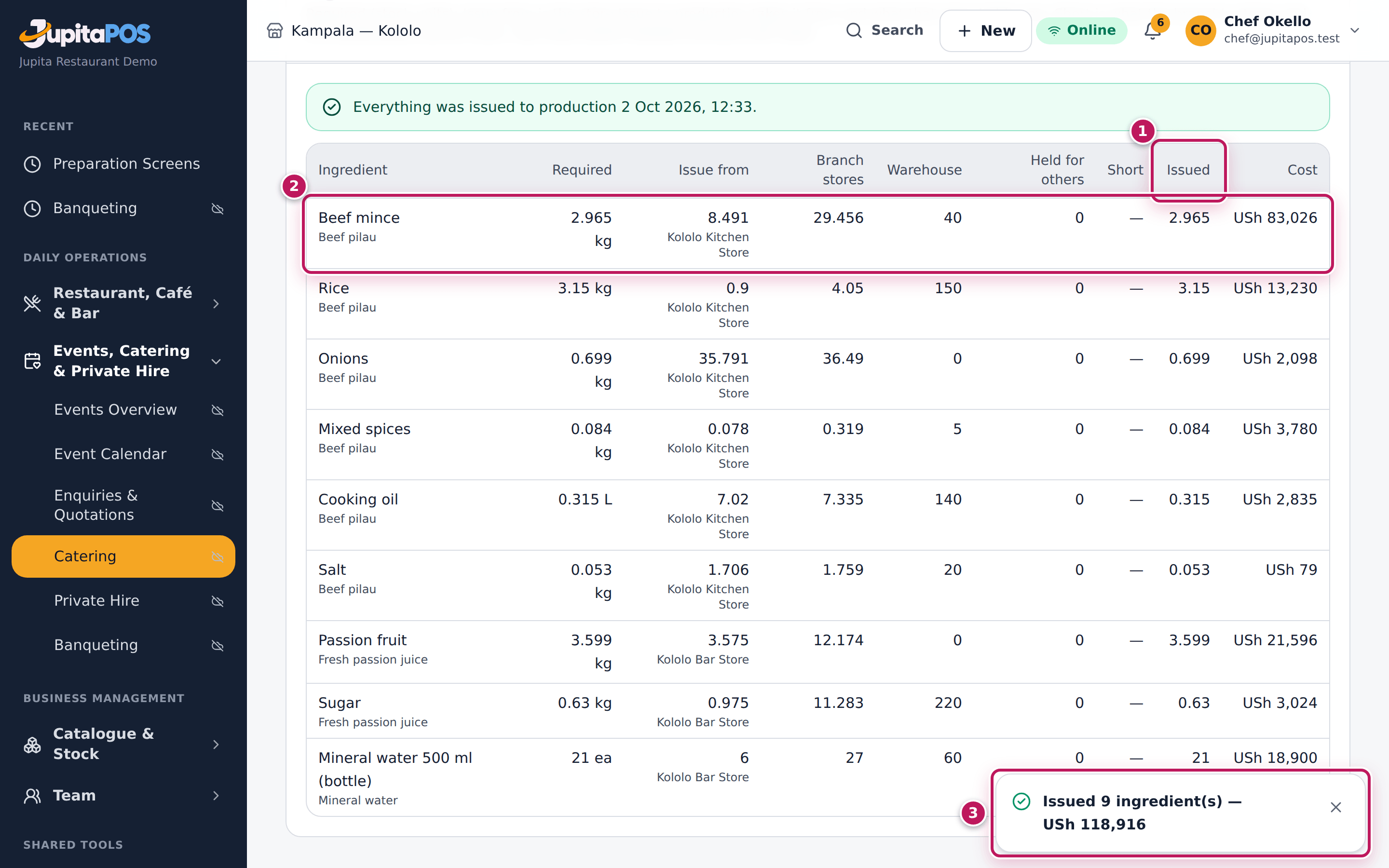
- Read the message: how many ingredients were issued and their value, and — Not enough in … — what each store did not hold.
- When the missing stock arrives (or is transferred to the store), click Issue to production again: only what is still to issue is taken.
Expected result
The Issued column (1) fills in: for the 20 packed lunches of the Bugolobi residents’ lunch the Kololo Kitchen Store gives the beef mince (2), rice, onions, spices, oil and salt, and the Kololo Bar Store the passion fruit and sugar. The message (3) — for example Issued 9 ingredient(s) — USh 118,916 — then lists, store by store, anything that was not there in full: Not enough in Kololo Bar Store: Mineral water 500 ml (bottle). Each store gives what it has; the rest stays to issue, with its amber badge under Short. (In the pictures every store held enough, so the message names no shortage.) The stock movements are marked with the function’s number; when everything is issued the tab says Everything was issued to production and the button goes.
Screenshot
Common mistakes
- Issuing too early. Issued stock leaves the store at once; issue on the day of production, not when the function is booked.
- Counting on stock in another store. The issue takes only from the store in Issue from. Stock in the branch’s other stores is not taken: move it first (see Transfer stock between stores).
Troubleshooting
- There is no Issue to production button. You lack
inventory.issue, the function is not confirmed yet, or everything was already issued. - “Stock is issued for a confirmed function.” Take the deposit (or ask a manager to waive it) first.
Staff, equipment and transport
Purpose
Put the team, the equipment and the vehicles on the function — with their times and costs — so nobody is double-booked, the loading list is right and the profit counts every shilling spent.
Role / permission required
Catering Manager, Events & Private Hire Manager, chef or manager
(events.plan). Each person’s pay shows only to those with employees.pay;
the total always shows.
Prerequisites
- The function exists and is not closed (see Log a catering enquiry); usually it is Confirmed.
- Equipment and vehicles are in the catalogue (see Set up packages, equipment and vehicles).
Steps
- Open the function and click the Staff & resources tab.
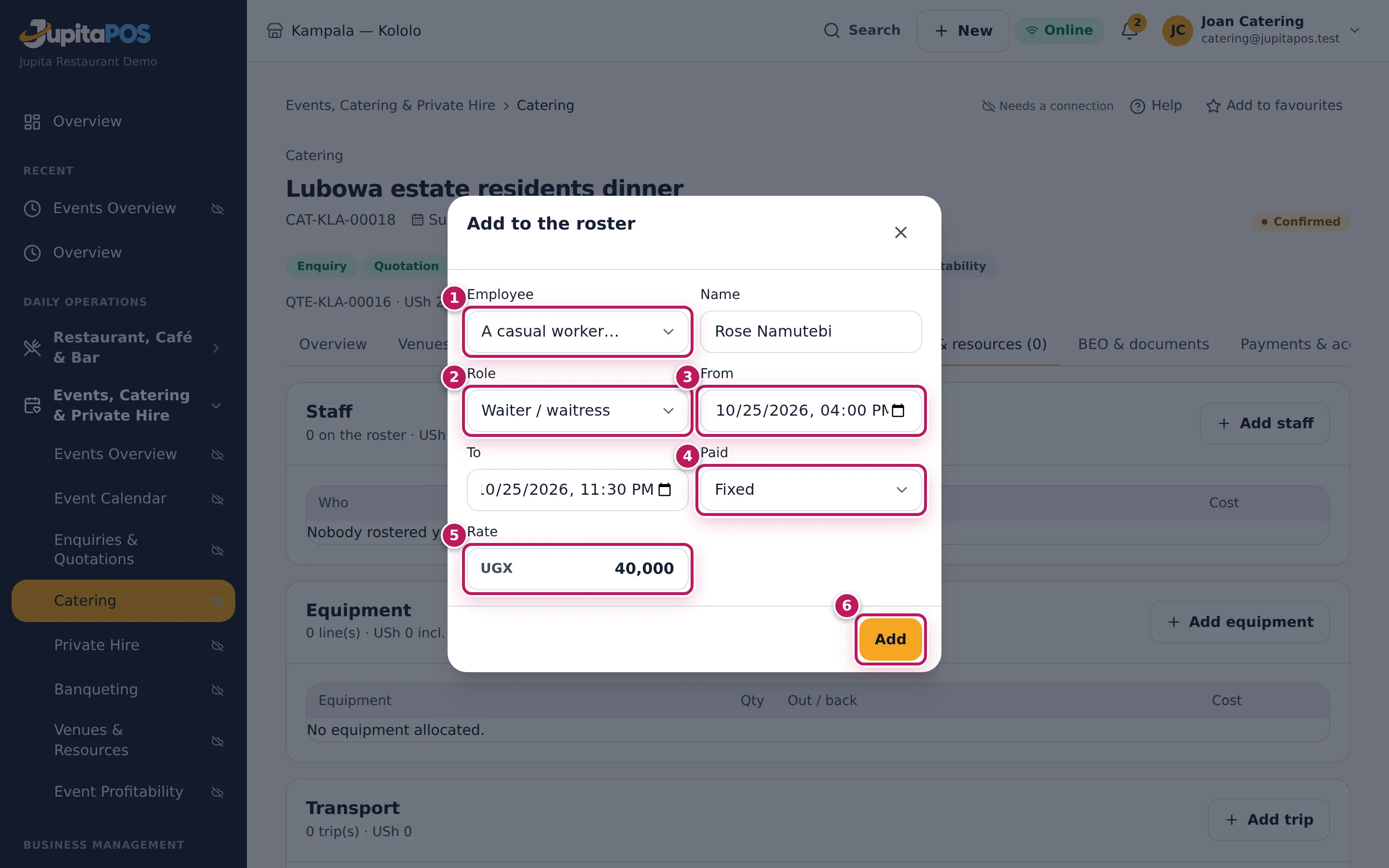
- Under Staff, click Add staff. In Employee (1) choose a member of staff, or A casual worker and type the Name.
- Choose the Role (2), the From (3) and To times, how they are Paid (4) (Per hour, Per day or Fixed) and the Rate (5). For an employee, a blank rate uses their own pay. Click Add (6).
- Under Equipment, click Add equipment. Choose From: Our stock (the list says how many are free that day) or Hired in (with the Supplier and the hire charge in Cost to us). Choose the Equipment, the Quantity, and click Allocate.
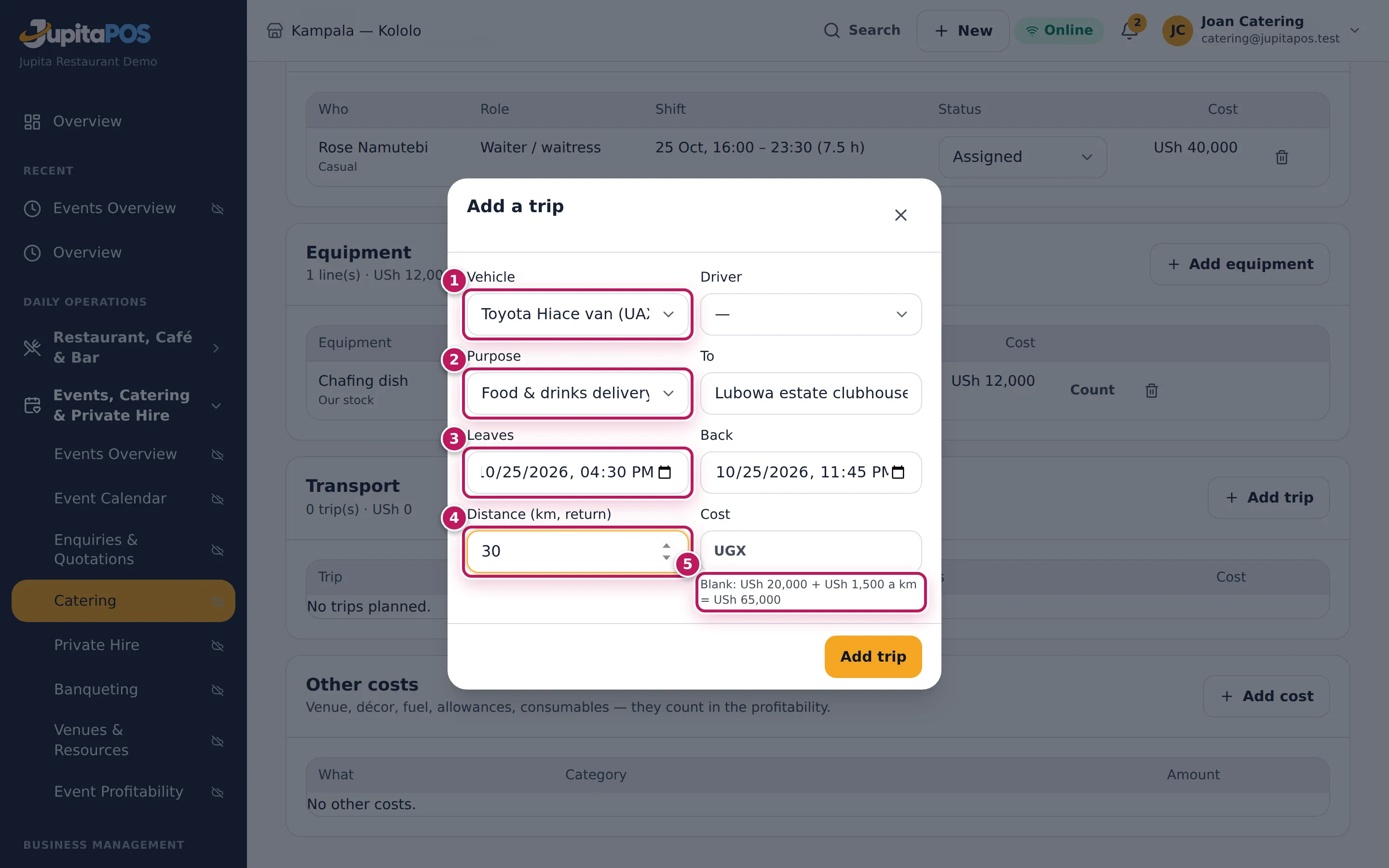
- Under Transport, click Add trip. Choose the Vehicle (1) (or Hired / other), the Driver, the Purpose (2), To, Leaves (3) and Back, and the Distance (km, return) (4). Leave Cost blank to use the vehicle’s rates (5). Click Add trip.
- Under Other costs, click Add cost for anything else — venue, décor, fuel, allowances, consumables: the Category, What and the Amount. Click Add.
- On the day, change each person’s status (Assigned, Confirmed, Attended, Absent) and each trip’s status (Planned, Departed, Arrived, Returned) in their rows.
Expected result
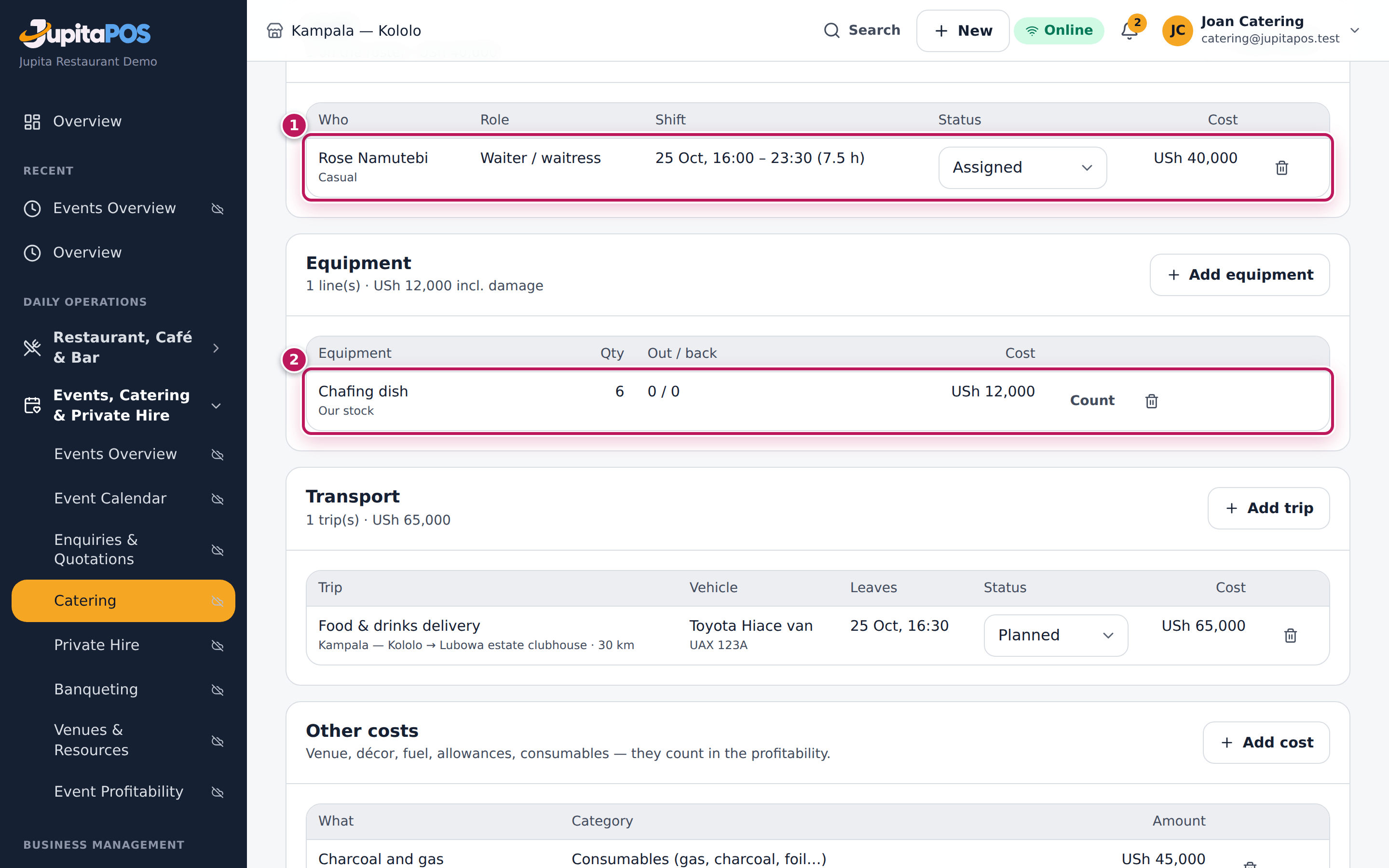
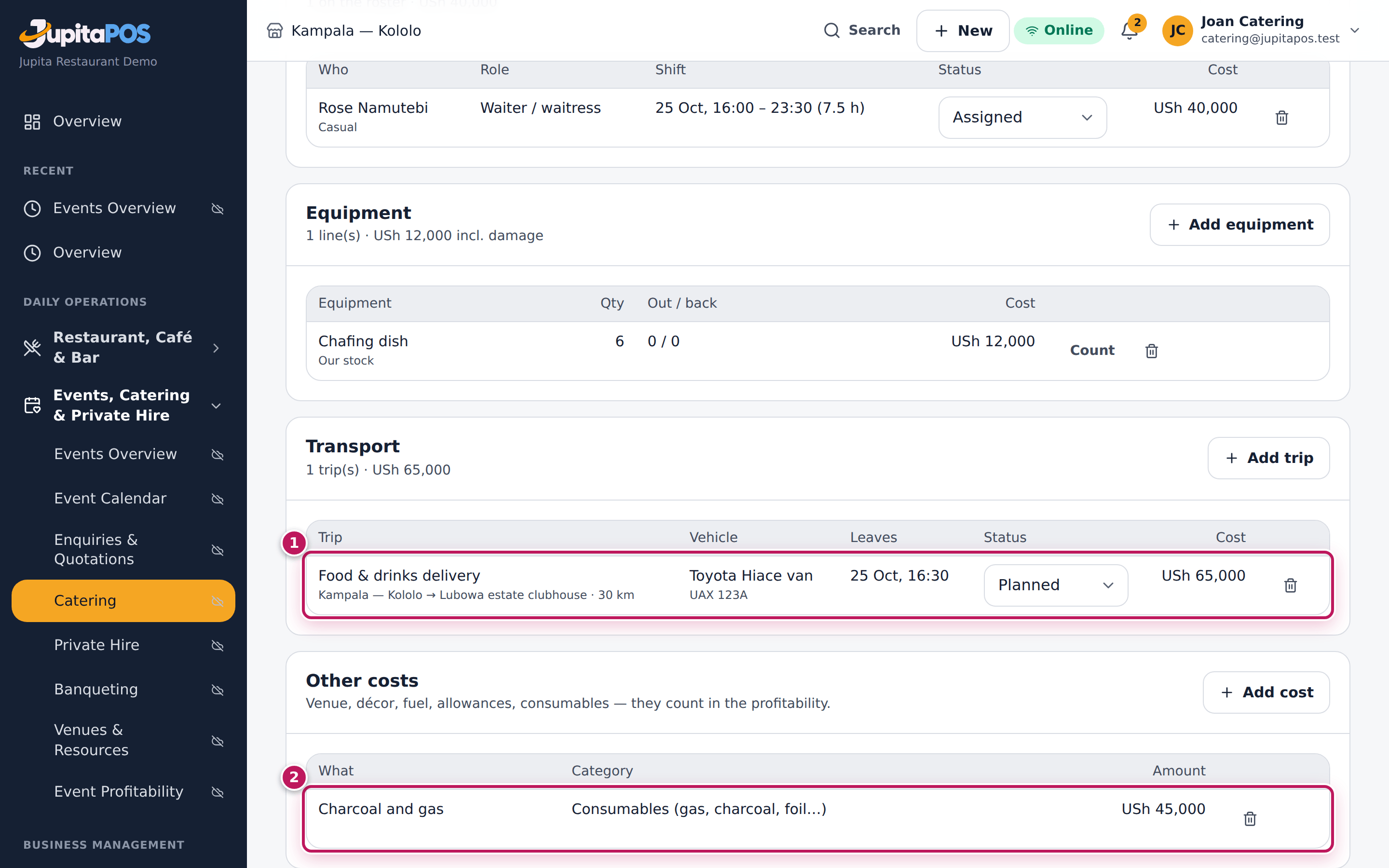
Rose Namutebi is on the roster (1) as a waiter, 25 Oct 16:00–23:30 (7.5 h), USh 40,000; six chafing dishes from our stock (2) cost USh 12,000 in use; the van’s delivery trip (1) is 20,000 + 30 km × 1,500 = USh 65,000; the charcoal and gas (2) are USh 45,000. Every line counts in the function’s profitability and prints on the production sheets.
Screenshot
Common mistakes
- Rostering an employee already at another function. The system refuses; tick Roster even if already on another function only when you really mean it (a short overlap).
- Hiring in without a cost. A hired item with no Cost to us makes the function look more profitable than it is.
- Marking absent staff “attended”. Absent staff cost nothing; set them to Absent so the cost is right.
Troubleshooting
- The cost shows “—” for an employee. Pay is restricted: you do not
see each person’s pay (
employees.pay), but the staff total in the card’s description includes it. - The equipment list shows 0 free. Other functions that day hold all of it. Hire it in, or check the other functions.
- A vehicle is refused. It is already out on another trip at that time. Choose another vehicle or Hired / other.
Print the production sheets
Purpose
Give the kitchen, bakery, bar, packers, stores, drivers and service team each their own sheet — what to make, pack, load and serve — from the plan and the resources.
Role / permission required
Anyone who can see the function (events.view) opens and prints the
sheets. Generating them needs events.plan.
Prerequisites
- Production is planned (see Plan production: ingredients and stock).
- Staff, equipment and transport are added (see Staff, equipment and transport).
Steps
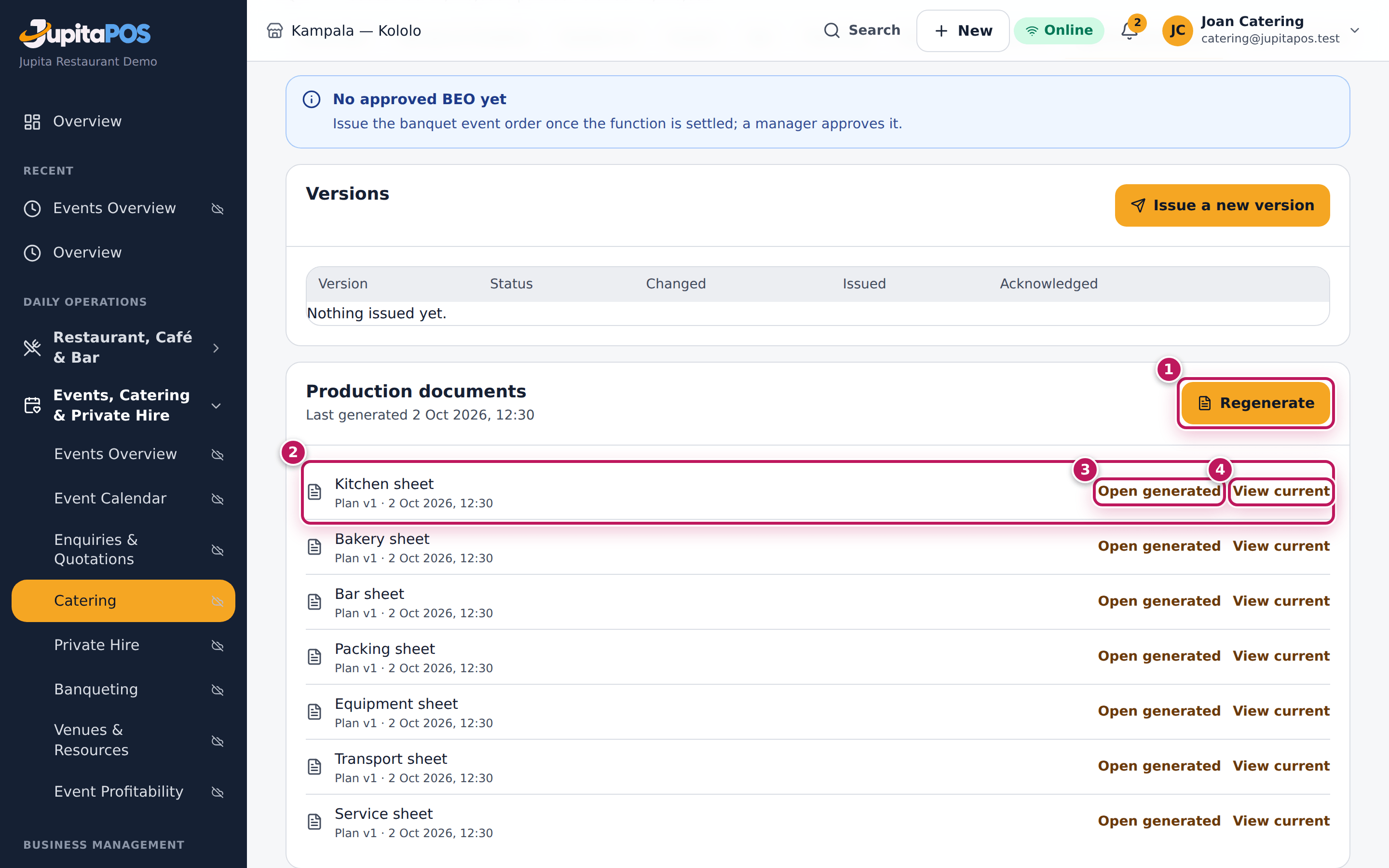
- Open the function and click the BEO & documents tab. Scroll to Production documents.
- Click Generate documents — Regenerate (1) once they exist. They are made in the background; the page updates when they are ready.
- Find the sheet you need (2): Kitchen sheet, Bakery sheet, Bar sheet, Packing sheet, Equipment sheet, Transport sheet or Service sheet.
- Click Open generated (3) for the stored copy (as it was when generated), or View current (4) to see it now from the latest plan.
- Print it from the browser (Ctrl and P), or save it as PDF.
Expected result
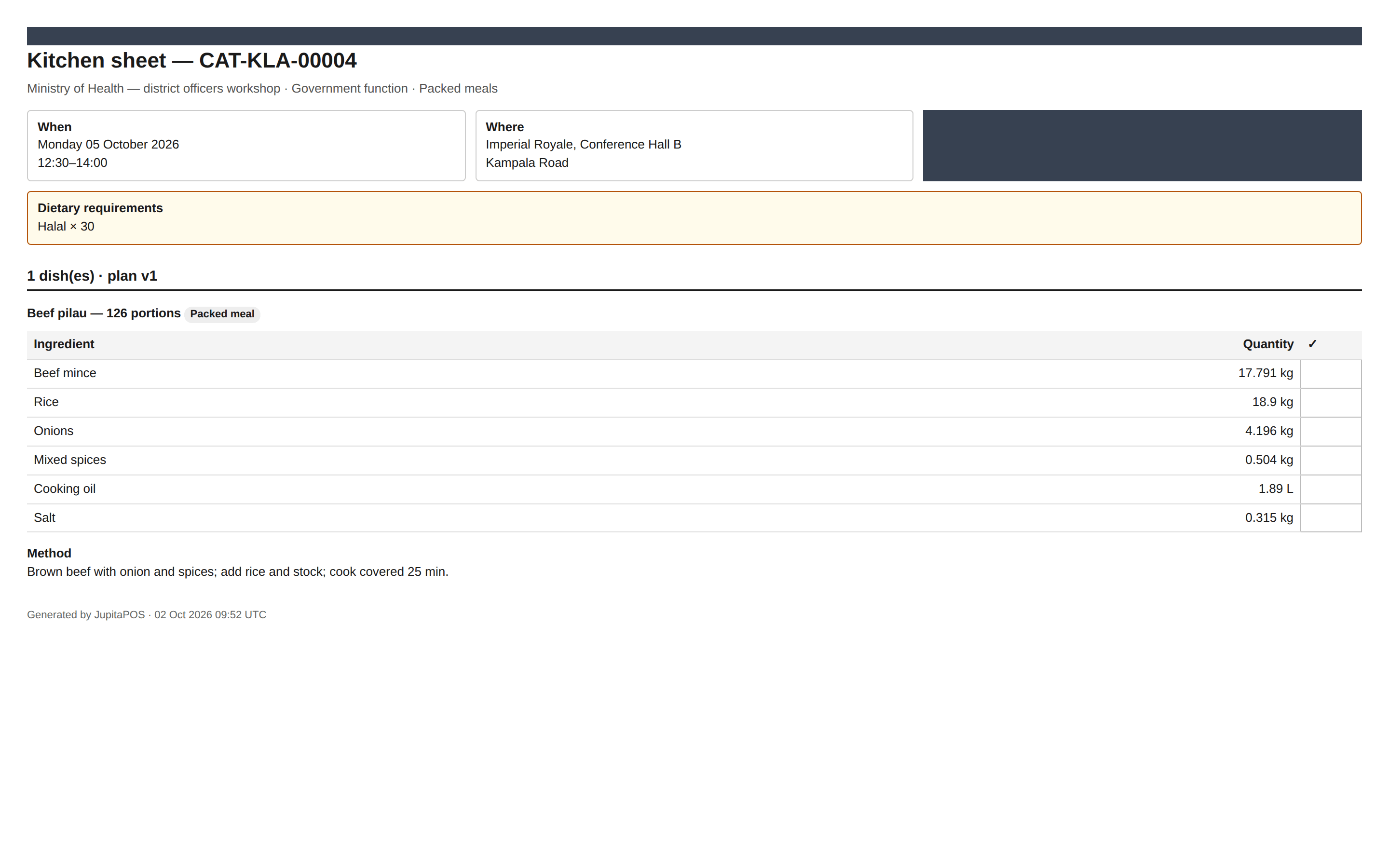
The kitchen sheet of the Ministry of Health workshop shows when and where, the guests (120 (produce for 120 + 5 %)), the dietary requirements (Halal × 30), the beef pilau for 126 portions with every ingredient, its quantity and a tick column, and the method. The packing sheet lists meal boxes for packed meals (or pans of 20 portions per dish), the equipment sheet has out / back / damaged columns, the transport sheet the trips, and the service sheet the run of the day and the team.
Screenshot
Common mistakes
- Printing an old stored copy after a change. Open generated is the copy from its date (the list shows the plan version and time). After a re-plan, regenerate — or use View current.
- Printing the bakery sheet for a function with no bakery dishes. An empty sheet means nothing is made there.
Troubleshooting
- “Plan production first: the sheets come from the plan.” There is no plan yet (see Plan production: ingredients and stock).
- “Generation failed”. The message says why; fix it and click Regenerate.
- There is no Generate documents button. You can read the sheets but
not generate them (
events.plan).
Mark the function served and count the equipment back
Purpose
Record how many guests were really served — the final invoice charges on it — and count the equipment that came back, so breakages are costed.
Role / permission required
Catering Manager, Events & Private Hire Manager or a manager:
Mark served needs events.manage, the count events.plan.
Prerequisites
- The function is Confirmed or On the day.
- Its equipment was allocated (see Staff, equipment and transport).
Steps
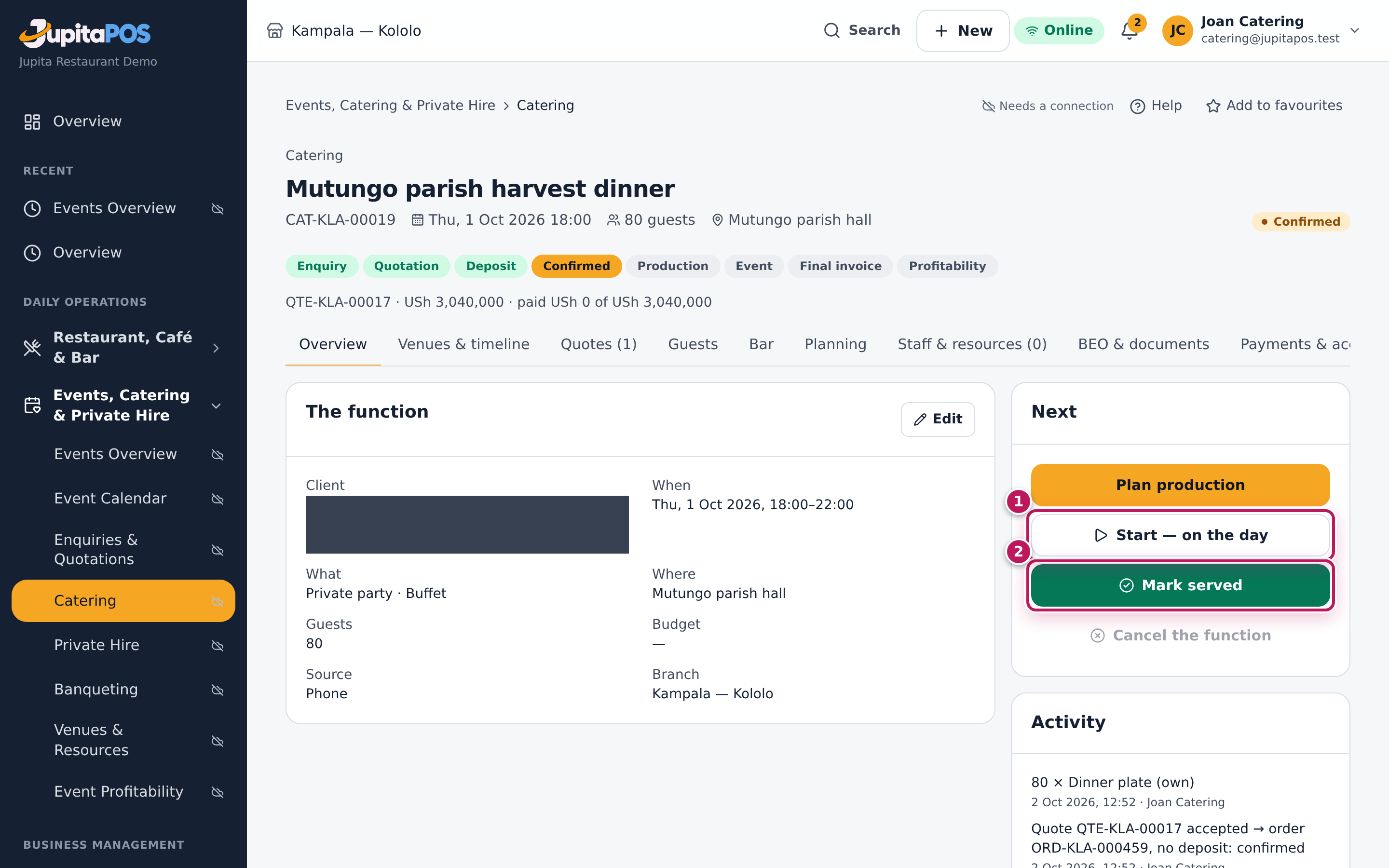
- Open the function on its Overview. When the team leaves for the venue, click Start — on the day (1) in the Next card: the function is On the day.
- After the event, click Mark served (2).
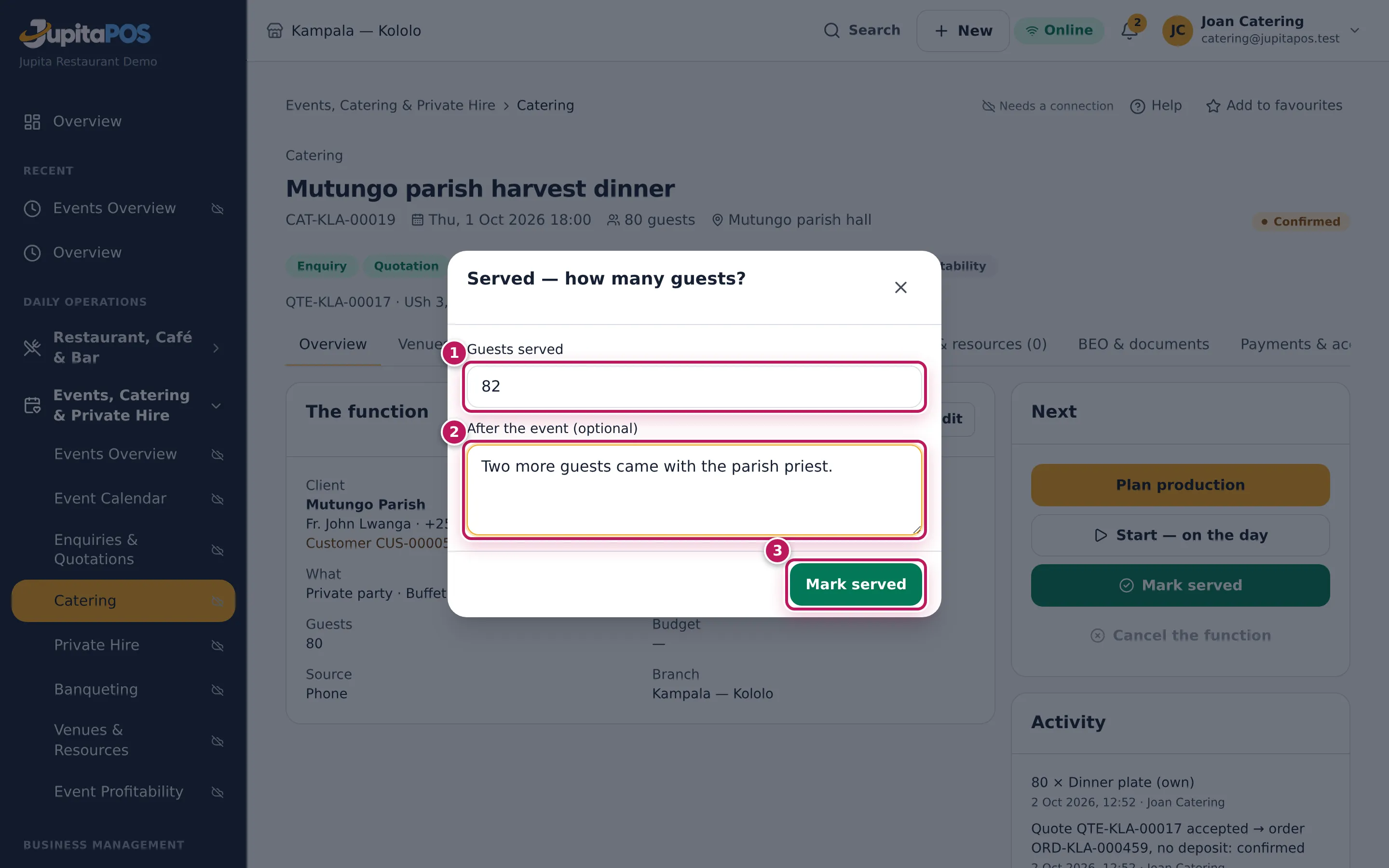
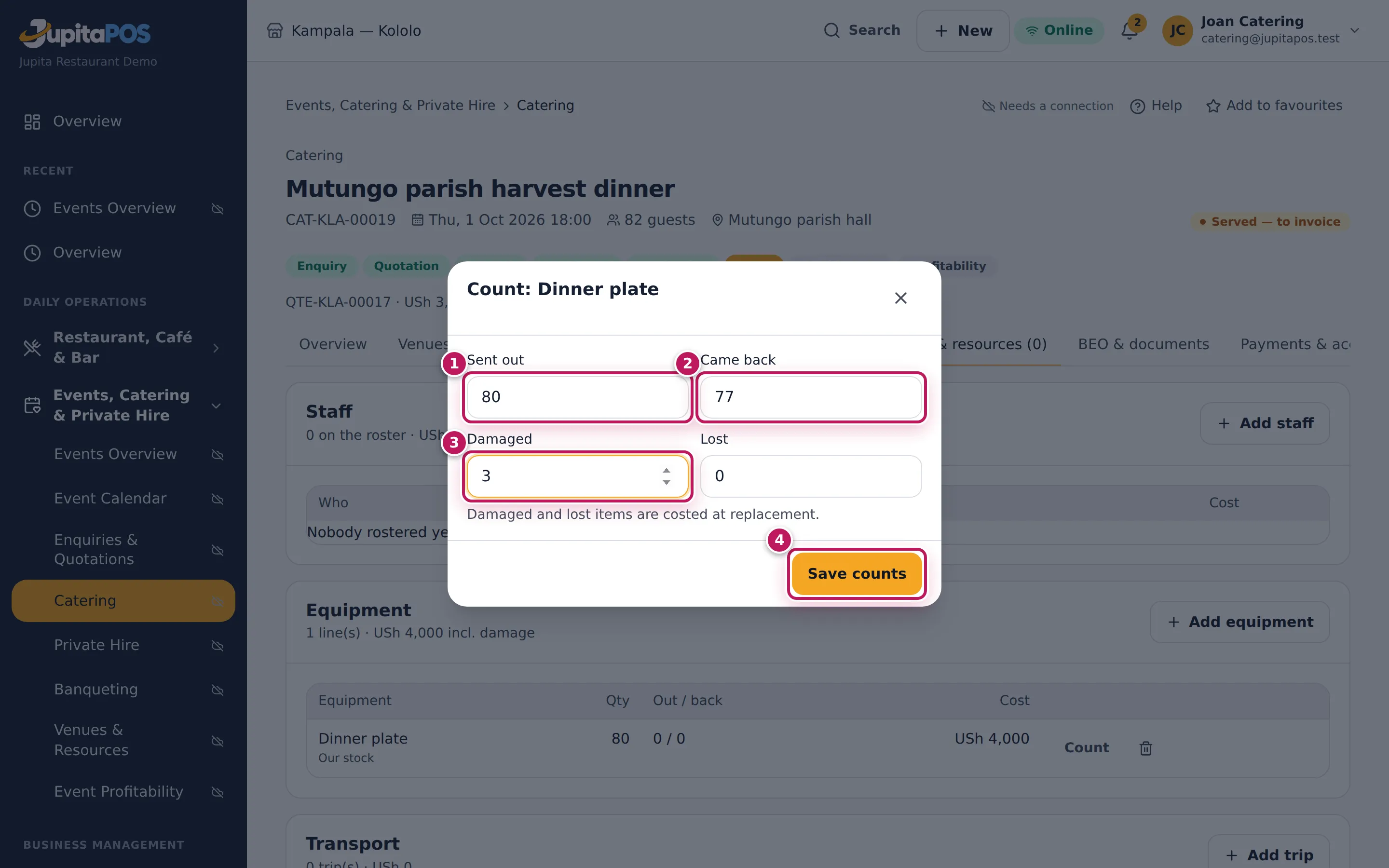
- Type the Guests served (1) — here 82 for 80 booked — and anything to remember under After the event (optional) (2). Click Mark served (3).
- Click the Staff & resources tab. On each equipment line, click Count.
- Check Sent out (1), type how many Came back (2), how many are Damaged (3) and Lost. Click Save counts (4).
Expected result
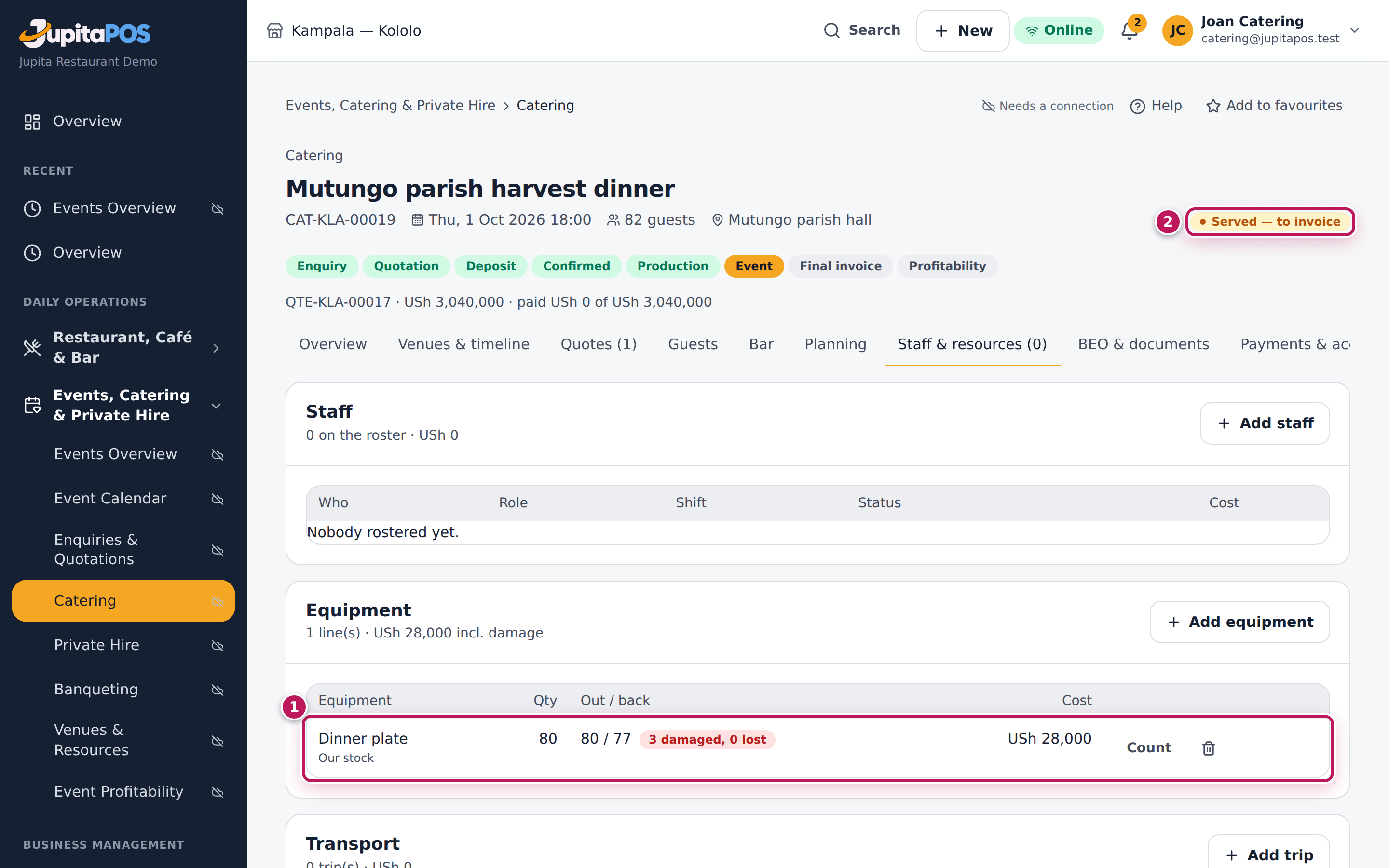
The function is Served — to invoice (2). The plates’ line (1) shows 80 / 77 and 3 damaged, 0 lost; its cost is USh 28,000 — 80 plates at 50 in use plus 3 at their replacement cost of 8,000. The damage counts in the profitability. The next step is the final invoice.
Screenshot
Common mistakes
- Typing the booked number as served. The invoice charges the higher of booked and served; typing booked when more came loses money.
- Counting only the damaged items. Type what came back too; lost is what neither came back nor is damaged.
Troubleshooting
- There is no Mark served. The function is not confirmed yet, or you
lack
events.manage. - There is no Count button. The function is invoiced or closed, or you
lack
events.plan.
Issue the final invoice and take the balance
Purpose
Charge what was really served plus any extras (overtime, breakage, extra dishes), issue the tax invoice, and take the balance so the function closes.
Role / permission required
Catering Manager, Events & Private Hire Manager or a manager: the invoice
needs events.manage, taking the balance also payments.take.
Prerequisites
- The function is Served — to invoice (see Mark the function served and count the equipment back).
Steps
- Open the function and click the Payments & account tab.
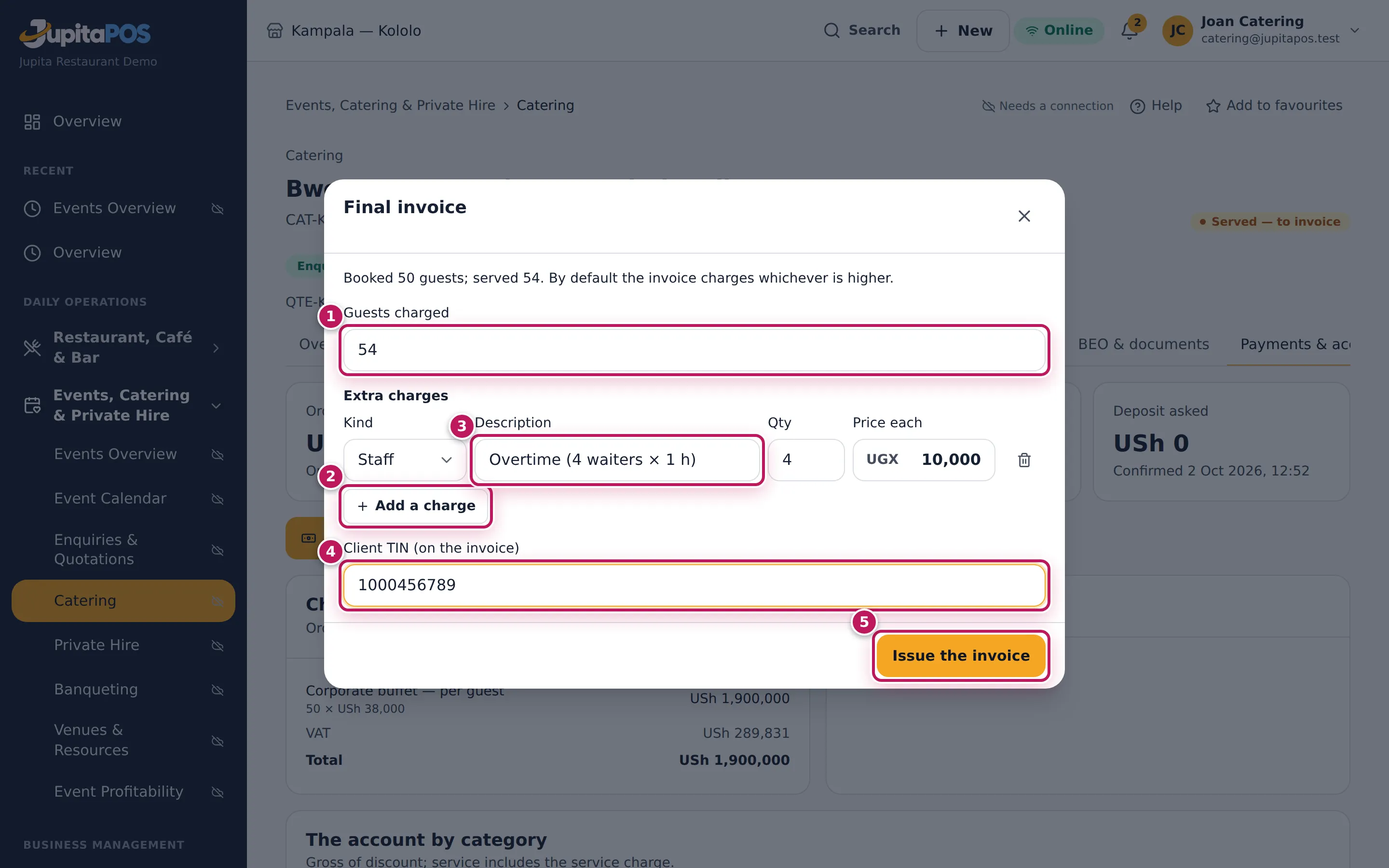
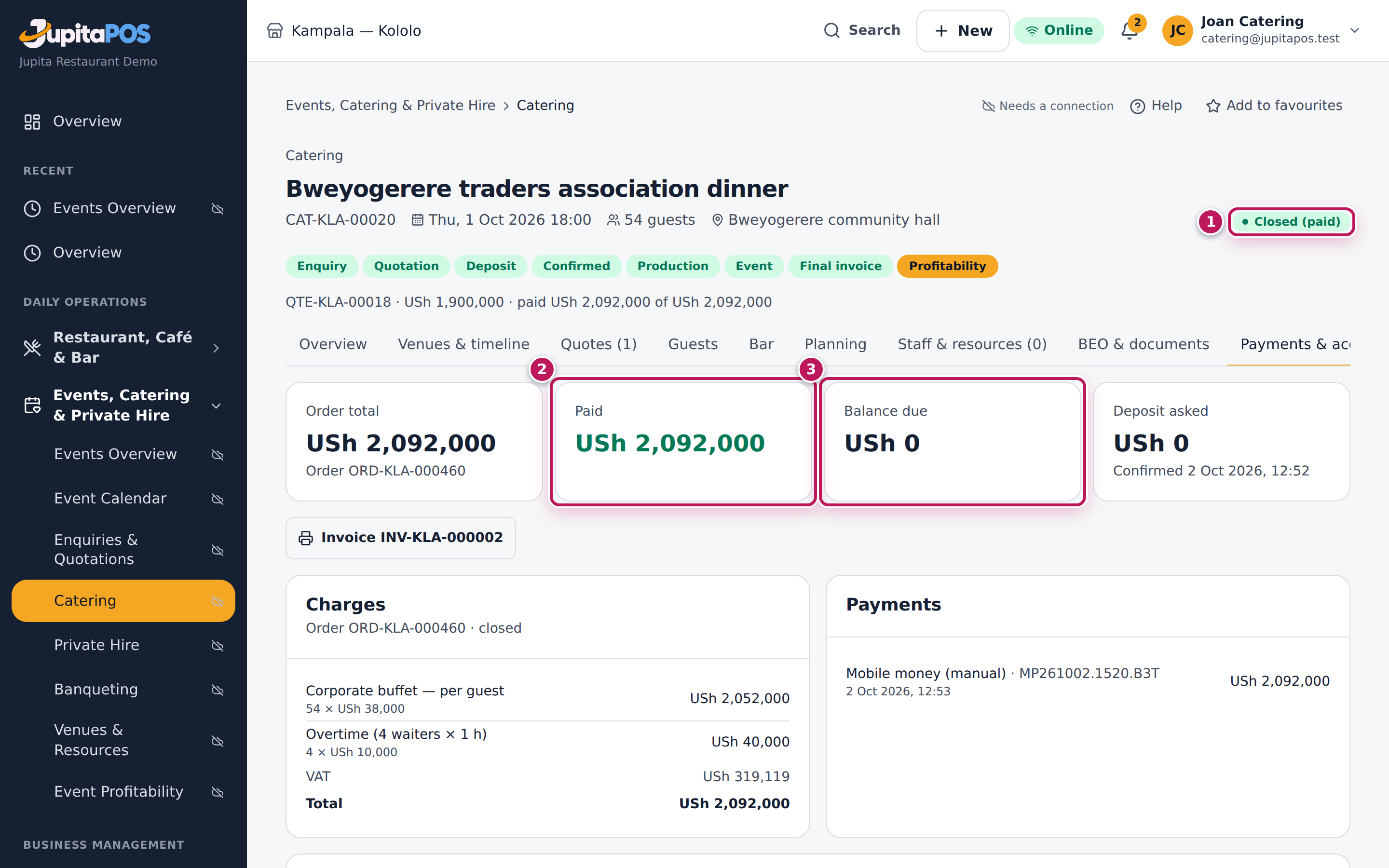
- Click Final invoice. The dialog says Booked 50 guests; served 54.
- Check Guests charged (1): the higher of booked and served (54). You may change it.
- For each extra, click Add a charge (2), choose the Kind, type the Description (3) — Overtime (4 waiters × 1 h) — the Qty and the Price each.
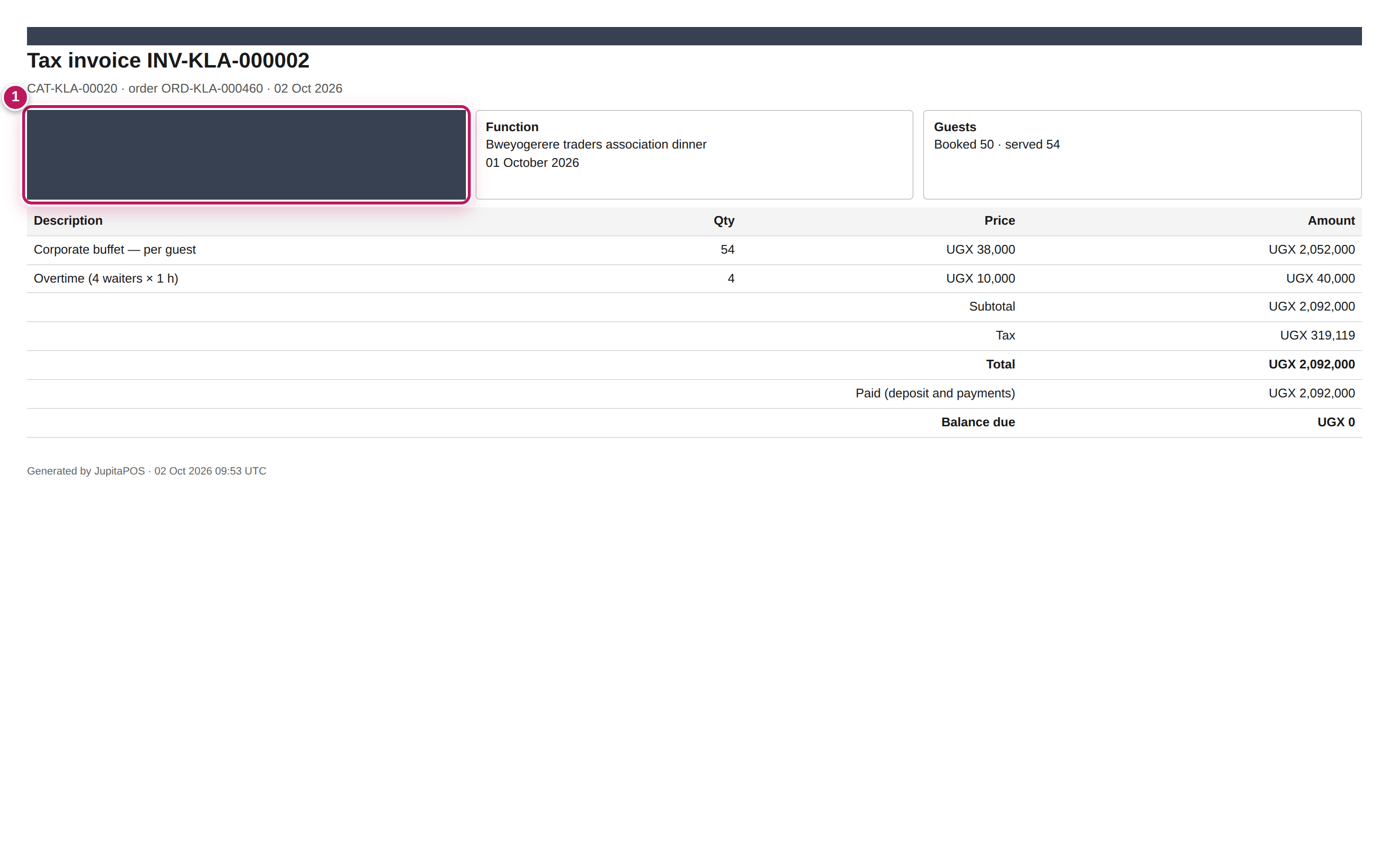
- Type the client’s tax number in Client TIN (on the invoice) (4) if they need it.
- Click Issue the invoice (5).
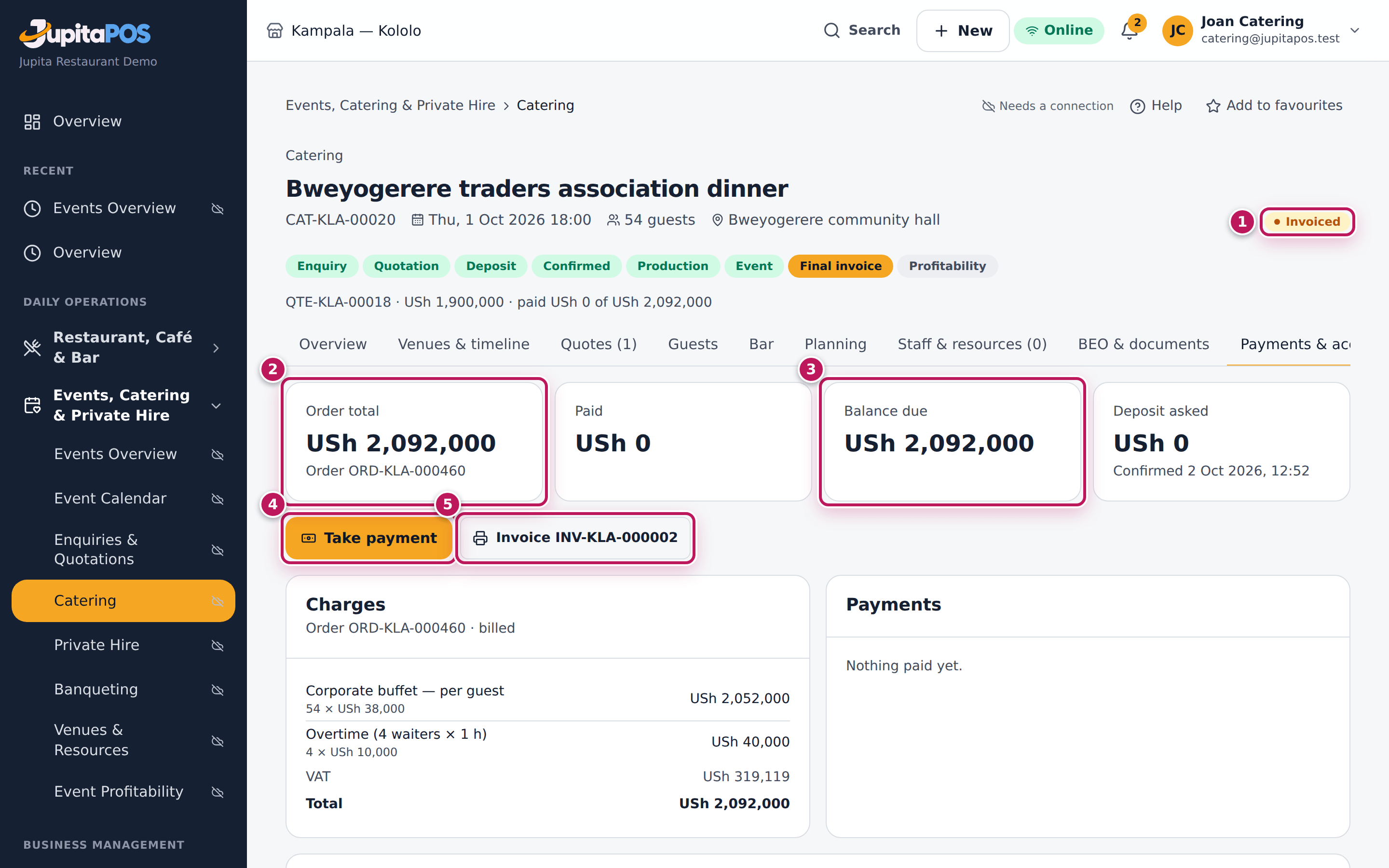
- The function is Invoiced. Click Take payment (4), choose the Method, check the Amount, type the Reference and click Take.
- Click Invoice and its number (5) to print the invoice for the client.
Expected result
The order total is USh 2,092,000 (2): 54 guests × 38,000 = 2,052,000 plus the overtime 4 × 10,000 = 40,000; with nothing paid yet the balance due (3) is the same. When the balance is paid the function is Closed (paid) (1) with Balance due USh 0. The tax invoice INV-KLA-… is billed to the client with the TIN you typed (1), and lists the lines, the VAT, the total, what was paid and the balance.
Screenshot
Common mistakes
- Charging the booked number when more came. Leave Guests charged at the higher number unless you agreed otherwise with the client.
- Adding breakage as “other” with no description. The client reads every line; say what it is.
Troubleshooting
- “The final invoice follows the function: mark it served first.” Mark it served (see Mark the function served and count the equipment back).
- “Only … is still due.” You typed more than the balance.
FAQ
Was the deposit counted? Yes: the invoice shows Paid (deposit and payments) and only the balance is due.
Read a function’s profitability
Purpose
See what a function really earned against what it really cost — food, staff, equipment, transport and the rest — and compare it with the quote’s estimate.
Role / permission required
Anyone who can see the function (events.view).
Prerequisites
- The function has been served and invoiced, for the final figures (see Issue the final invoice and take the balance). Before that the tab shows the costs recorded so far.
Steps
- Open the function and click the Profitability tab.
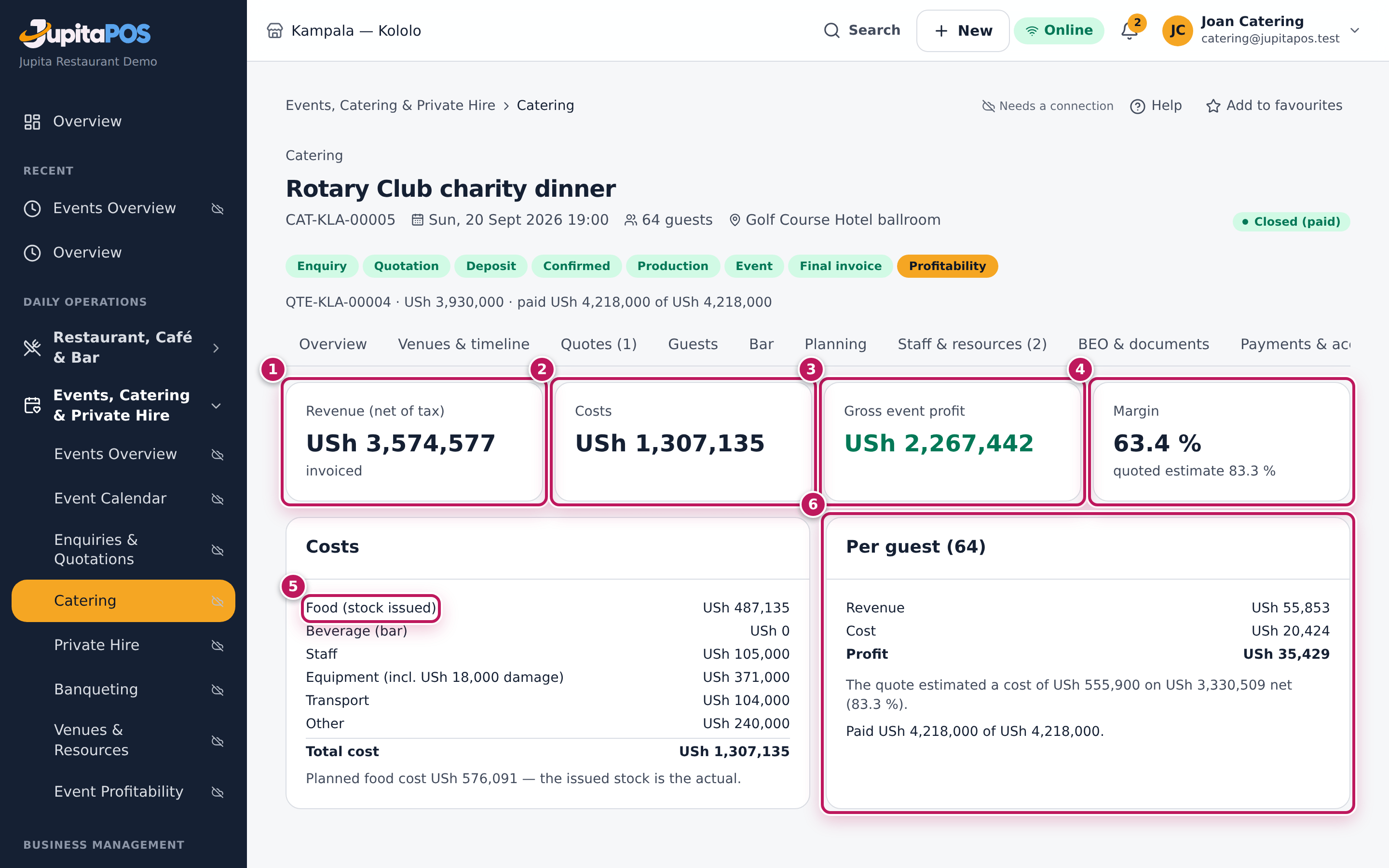
- Read the four figures: Revenue (net of tax) (1) — invoiced, else on the order, else quoted —, Costs (2), Gross event profit (3) and Margin (4) with the quoted estimate.
- Read Costs: Food (5) (stock issued, else planned), Beverage (bar), Staff, Equipment (with damage), Transport and Other.
- Read Per guest (6): revenue, cost and profit a guest, the quote’s estimate and what is paid.
Expected result
The Rotary Club charity dinner (64 guests served) shows revenue USh 3,574,577 net of tax, costs USh 1,307,135, gross profit USh 2,267,442 and a margin of 63.4 % against 83.3 % quoted. The food is the stock issued (USh 487,135; the plan said 576,091), equipment USh 371,000 includes USh 18,000 of broken glasses, and each guest earned USh 35,429.
Screenshot
Common mistakes
- Reading the profit before the function is served. Until then the tab says so far: only the costs recorded yet.
- Forgetting other costs. Décor, fuel and allowances not entered under Other costs make every function look better than it was.
Troubleshooting
- Food says “planned” or “none yet”. Nothing was issued to production yet (see Issue the ingredients to production); the planned cost stands in.
- Staff is 0. Nobody is on the roster, or everyone is marked absent.
Mark an enquiry lost
Purpose
Close an enquiry the client did not take, with the reason, so the pipeline stays true and the reports show why business was lost.
Role / permission required
Catering Manager, Events & Private Hire Manager or a manager
(events.manage).
Prerequisites
- The function is an Enquiry or Quoted.
Steps
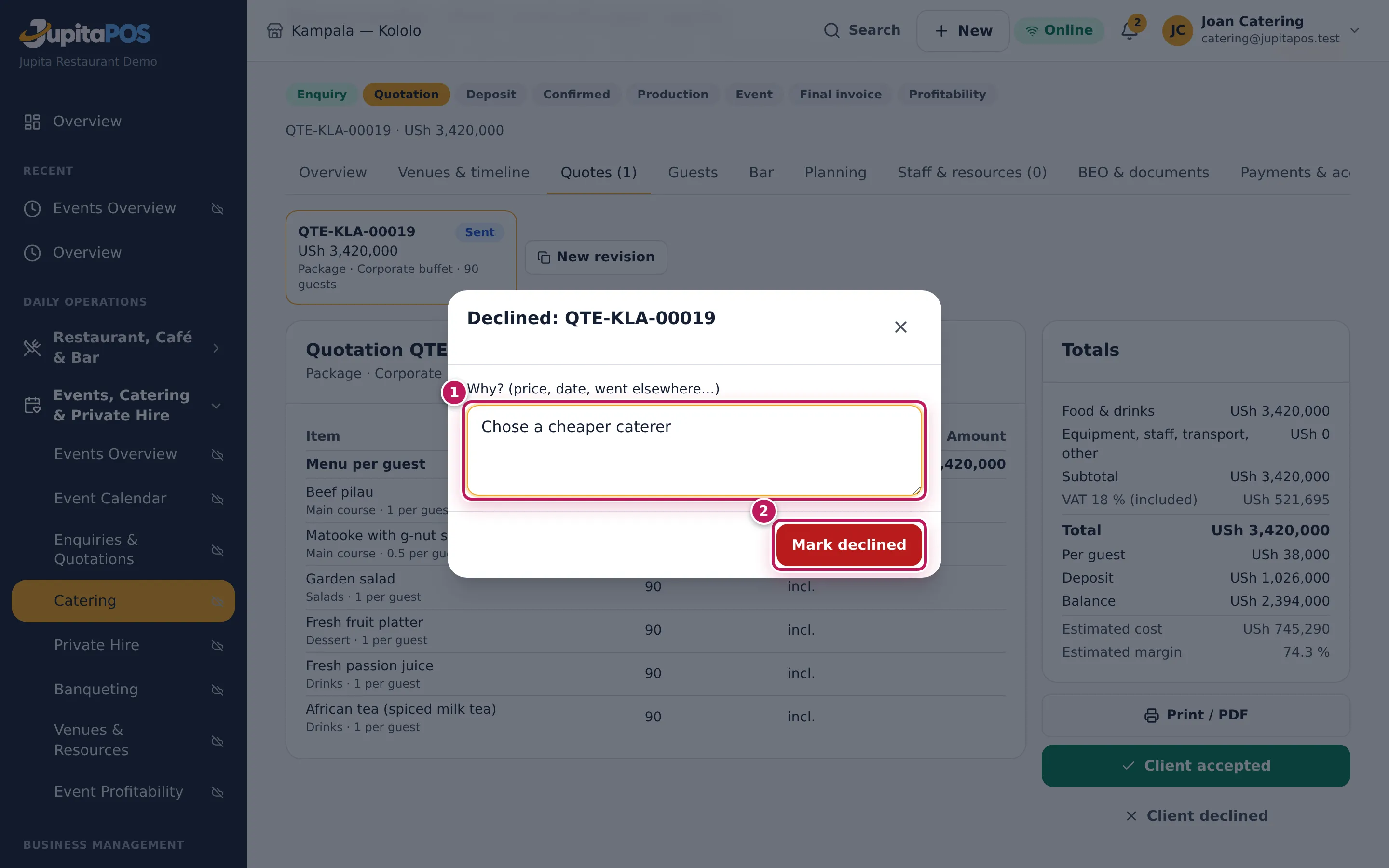
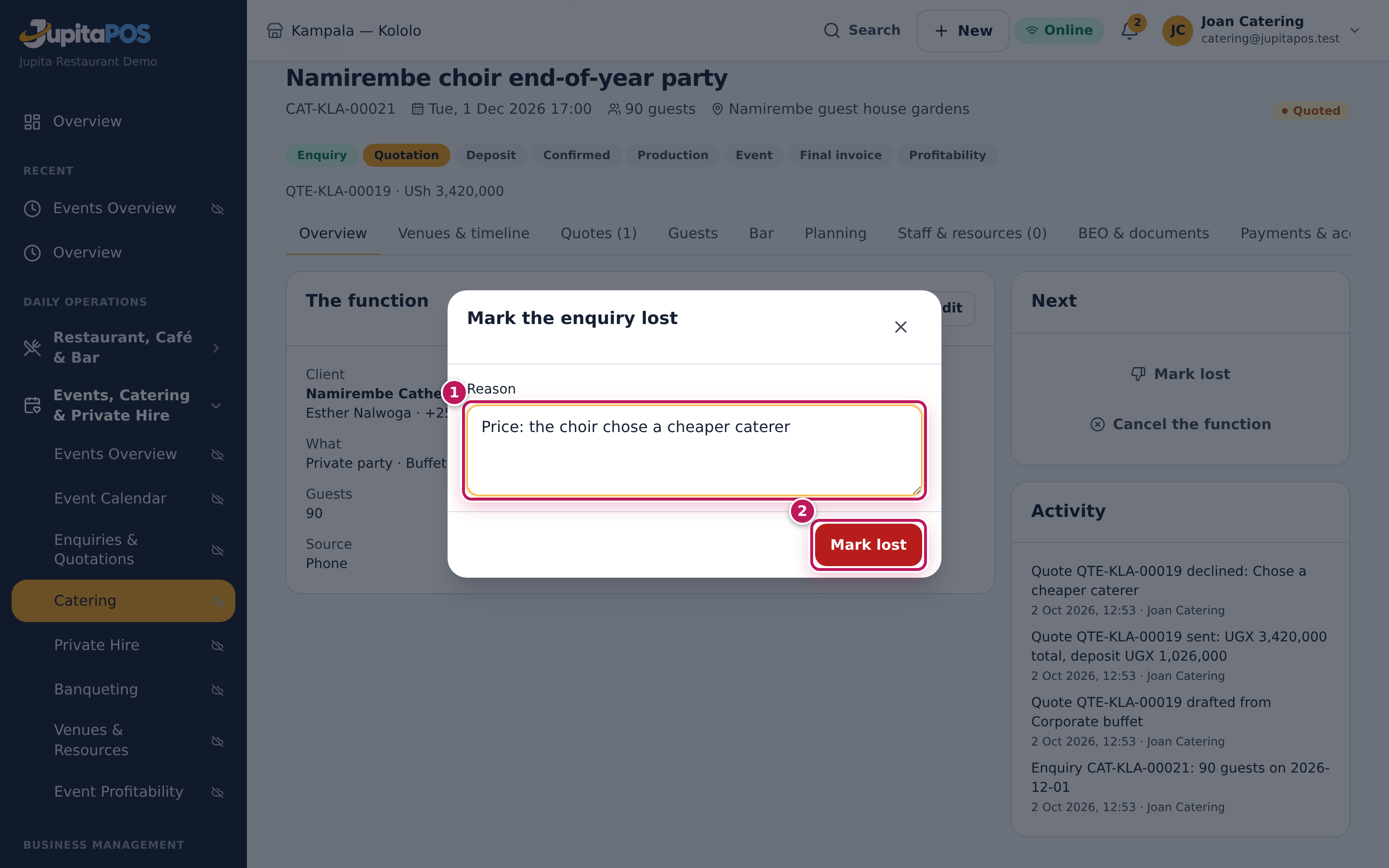
- If a quote was sent, click the Quotes tab and Client declined. Type Why? (price, date, went elsewhere…) (1) and click Mark declined (2). The revision shows Declined.
- Click the Overview tab and Mark lost in the Next card.
- Type the Reason (1) and click Mark lost (2).
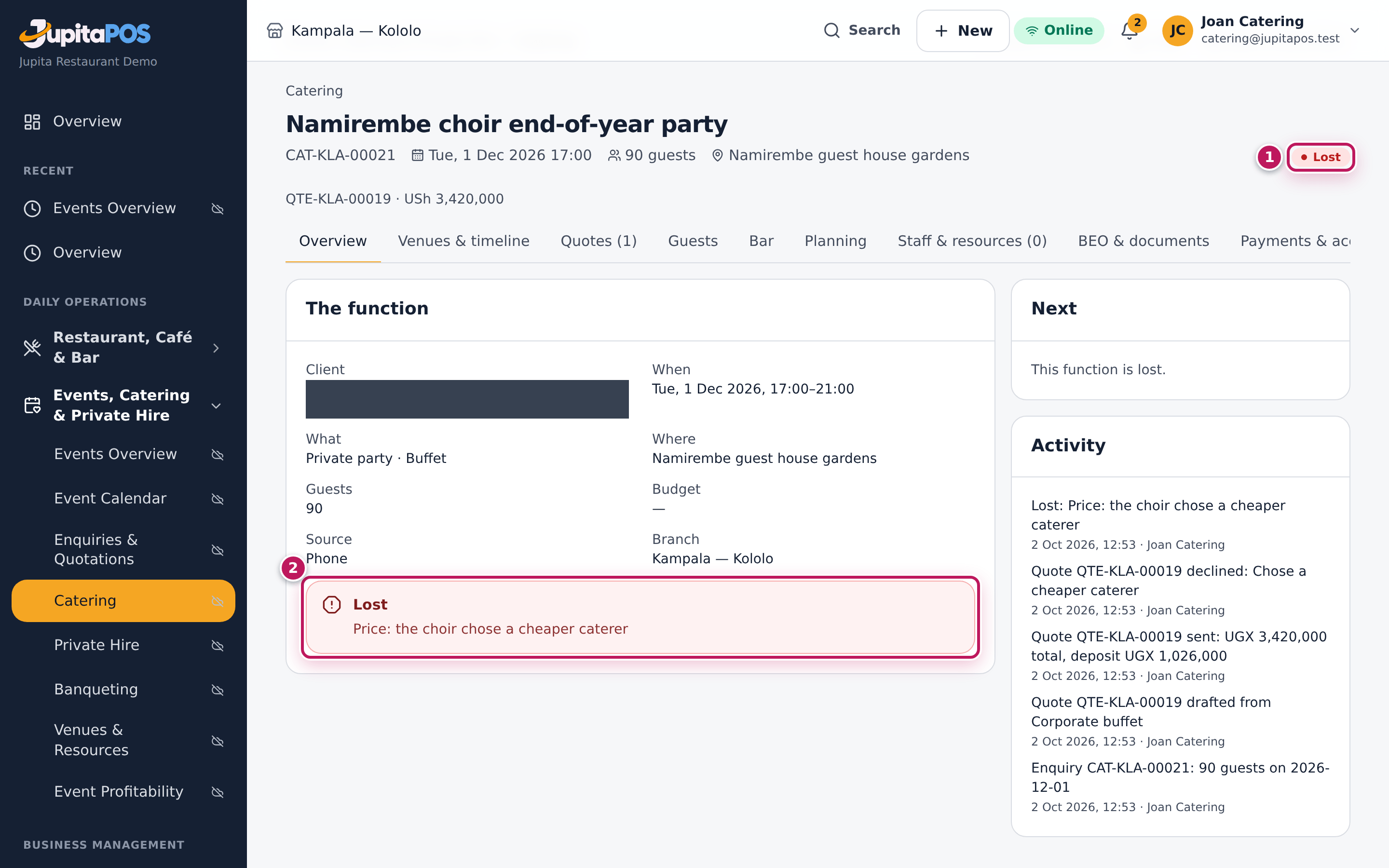
Expected result
The function is Lost (1) and its Overview shows the reason (2). It moves from the Pipeline to Past, counts as lost in the catering reports, and any venue it held is released for others.
Screenshot
Common mistakes
- Marking lost when the client only wants a lower price. Send a new revision instead (see Revise a quote the client wants changed).
- Leaving the reason vague. “Price”, “date taken”, “went elsewhere” — one clear word helps the reports.
Troubleshooting
- There is no Mark lost. The client already accepted: a booked function is cancelled instead (see Cancel a booked function).
Cancel a booked function
Purpose
Cancel a function the client has booked, and decide what happens to the money already paid: kept as a cancellation fee or refunded.
Role / permission required
Branch or general manager (events.approve) for an accepted or confirmed
function. An enquiry or a quote can be cancelled with events.manage.
Prerequisites
- The function is Accepted — deposit due or Confirmed (not yet on the day).
Steps
- Open the function on its Overview.
- Click Cancel the function in the Next card.
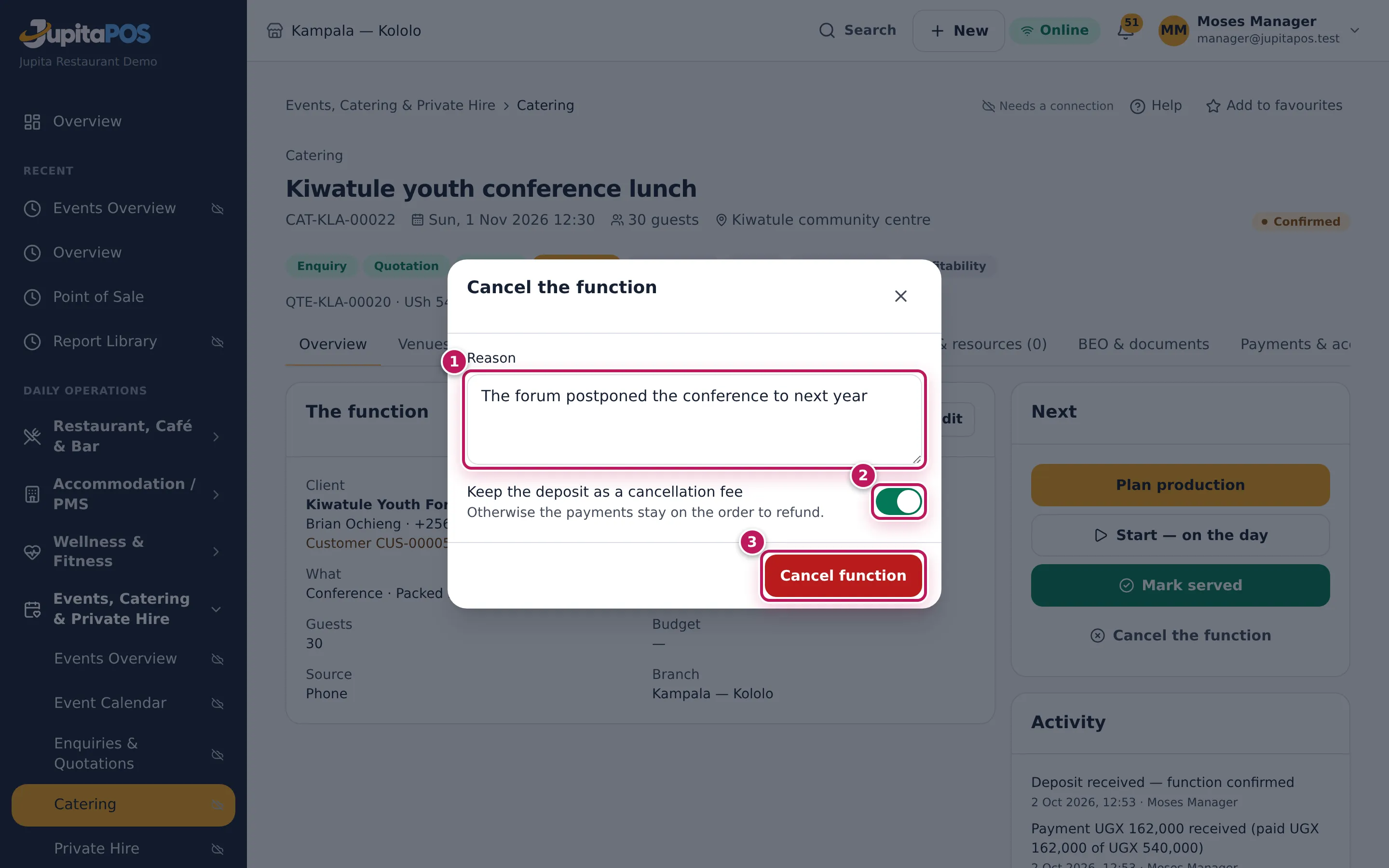
- Type the Reason (1).
- If money was paid, choose what happens to it: switch on Keep the deposit as a cancellation fee (2), or leave it off to refund it.
- Click Cancel function (3).
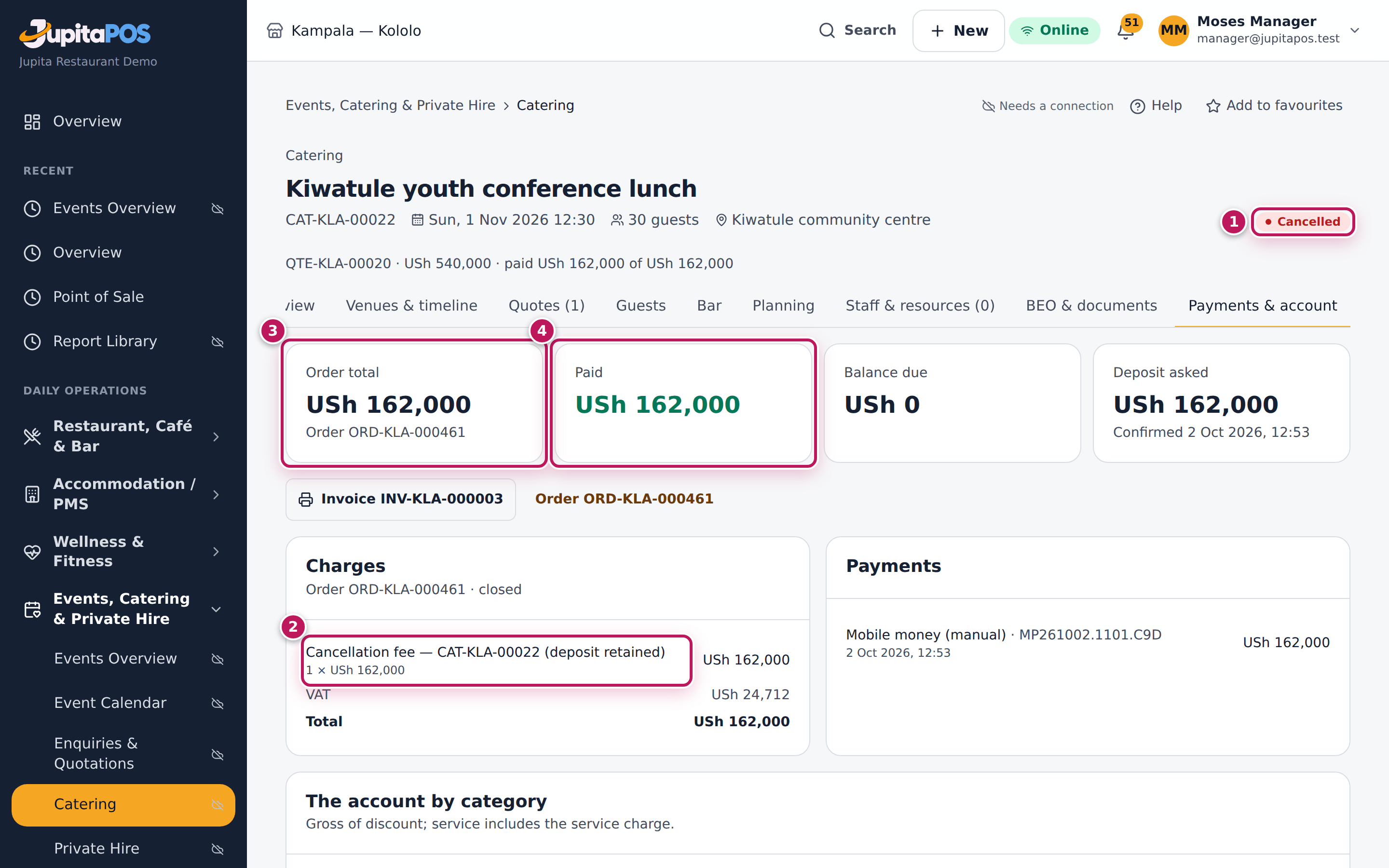
Expected result
The function is Cancelled (1) and its venues are released. With the deposit kept, the order becomes one line — Cancellation fee — CAT-KLA-… (deposit retained) (2) — for the USh 162,000 paid, invoiced and closed (3, 4). Without it, nothing paid is cancelled: the payments stay on the order to be refunded (see Refund a paid order). With nothing paid, the order is simply cancelled.
Screenshot
Common mistakes
- Cancelling what the client only postponed. Change the date with Edit instead; the quote, the payments and the plan stay.
- Forgetting the refund. Without the switch the money stays on the order until someone refunds it.
Troubleshooting
- Cancel the function is grey. The function is booked and you are
not a manager (
events.approve). - There is no Cancel the function. The function is on the day or already served, and cannot be cancelled: mark it served and invoice what was done.
Set up packages, equipment and vehicles
Purpose
Keep the menus you sell per guest, the equipment you own and the vehicles you use, with their prices and costs, so quotes and plans start right.
Role / permission required
Catering Manager, Events & Private Hire Manager or a manager
(events.manage).
Prerequisites
- The dishes exist on the menu with their recipes (see Add a menu item).
Steps
- Open Events setup in the sidebar (
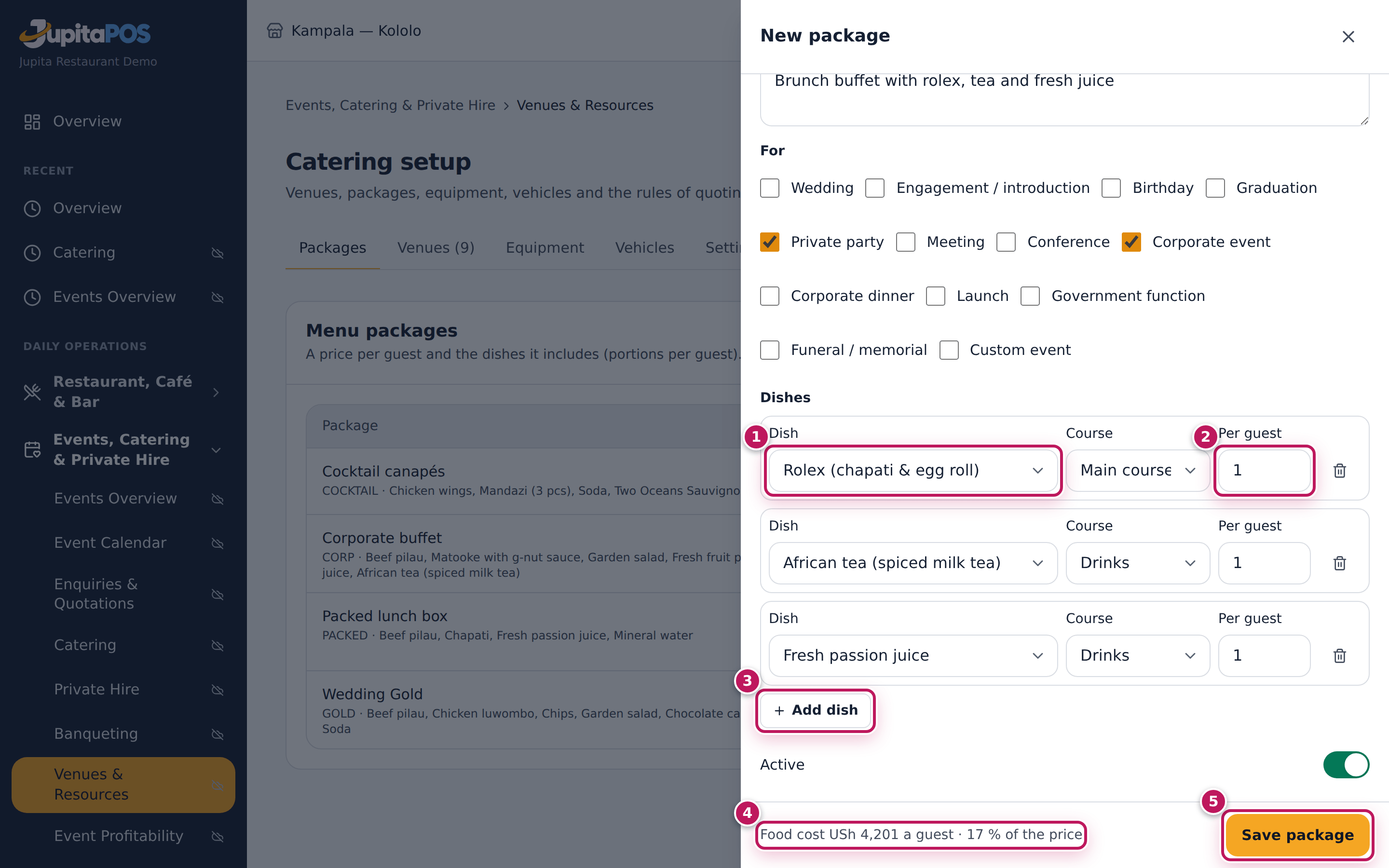
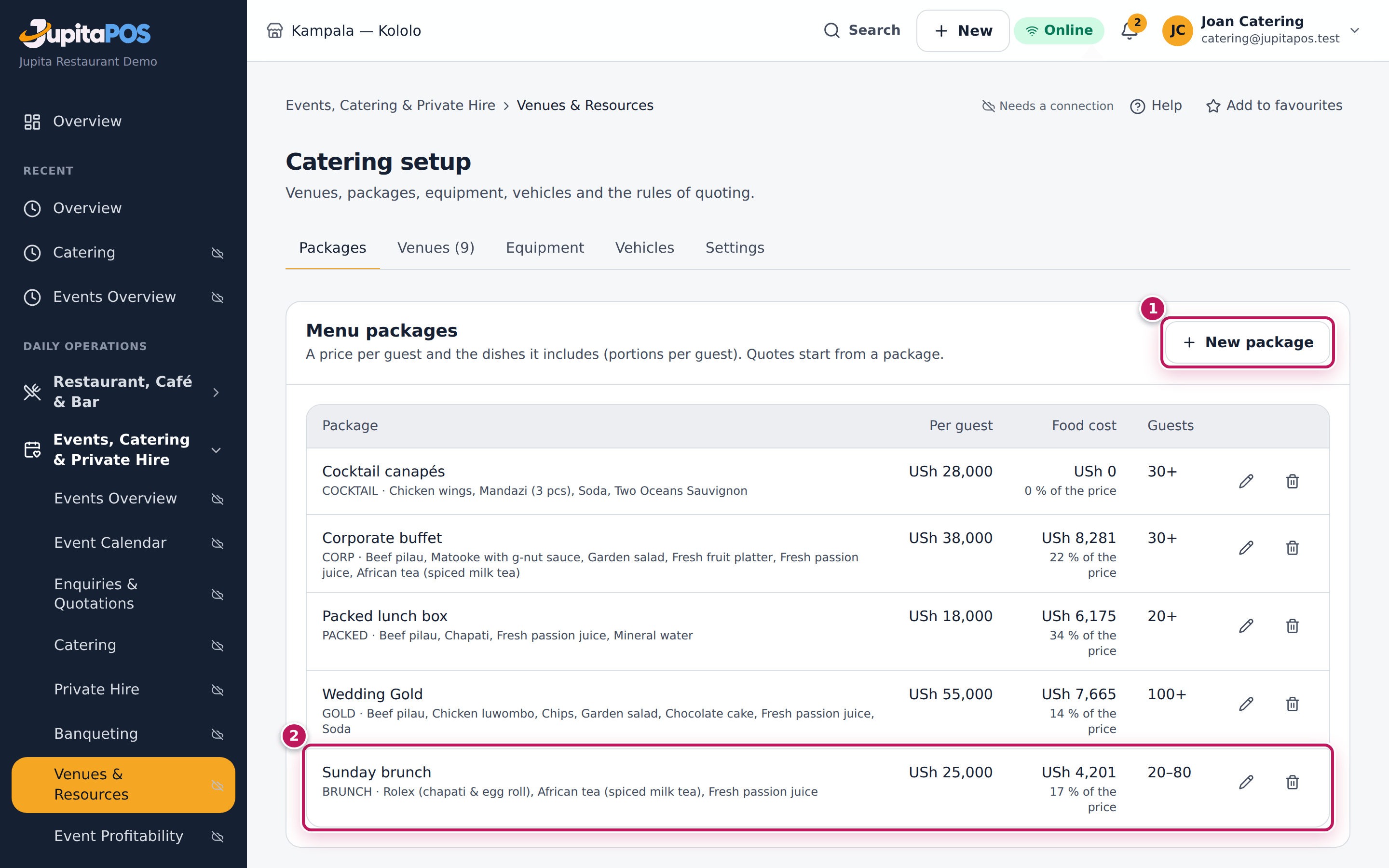
/catering/setup). It opens on Packages. - Click New package. Type the Code (BRUNCH), the Name (Sunday brunch), the Price per guest, the Service style, the Minimum guests and Maximum guests, what it Includes (printed), and tick the event types it is For.
- For each dish, click Add dish (3), choose the Dish (1), its Course and the portions Per guest (2).
- Read the food cost a guest (4) at the bottom, and click Save package (5).
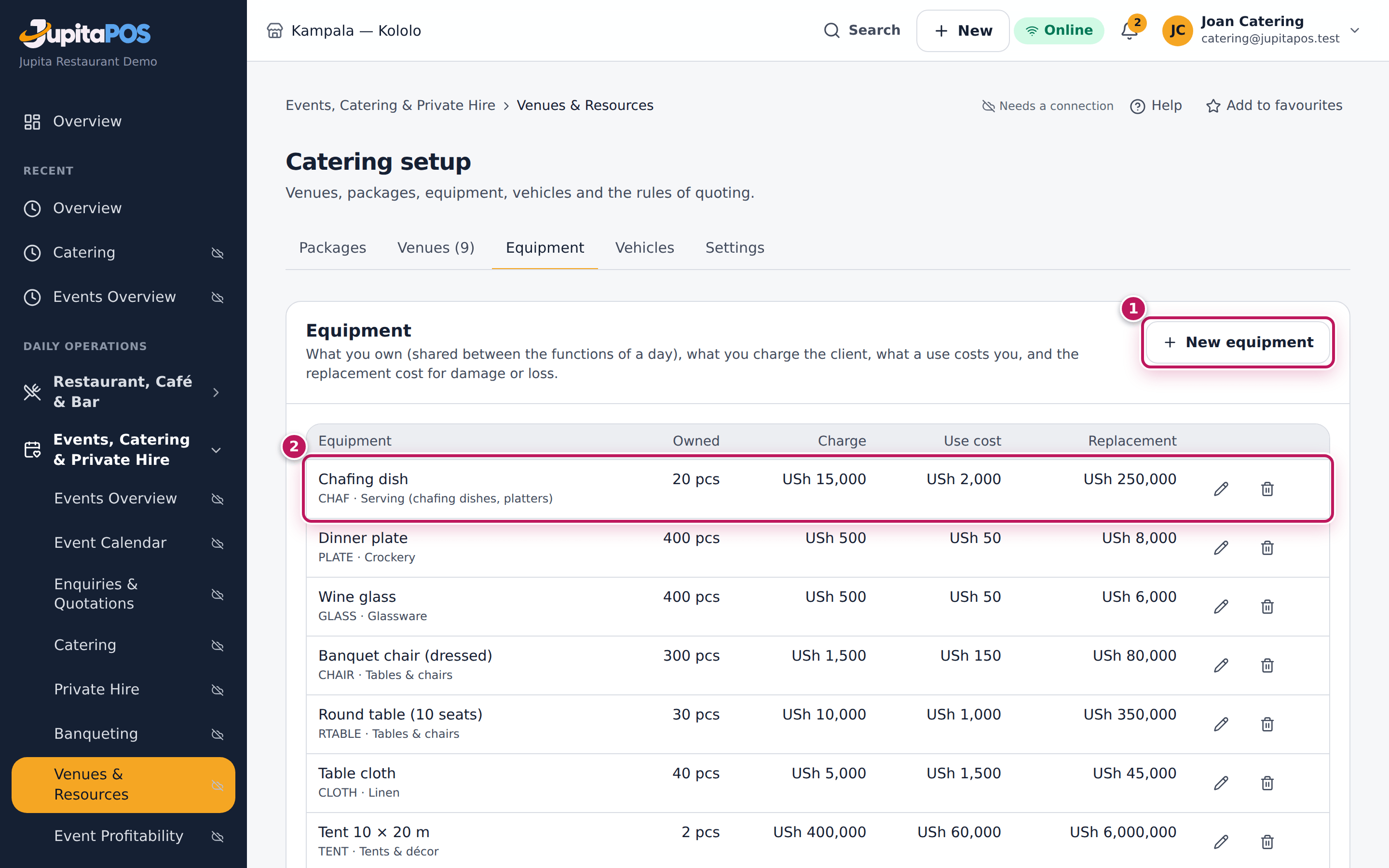
- Click the Equipment tab to keep what you own: New equipment (1), with its Owned quantity, Charge to the client (each), Our cost per use (each) and Replacement cost (each).
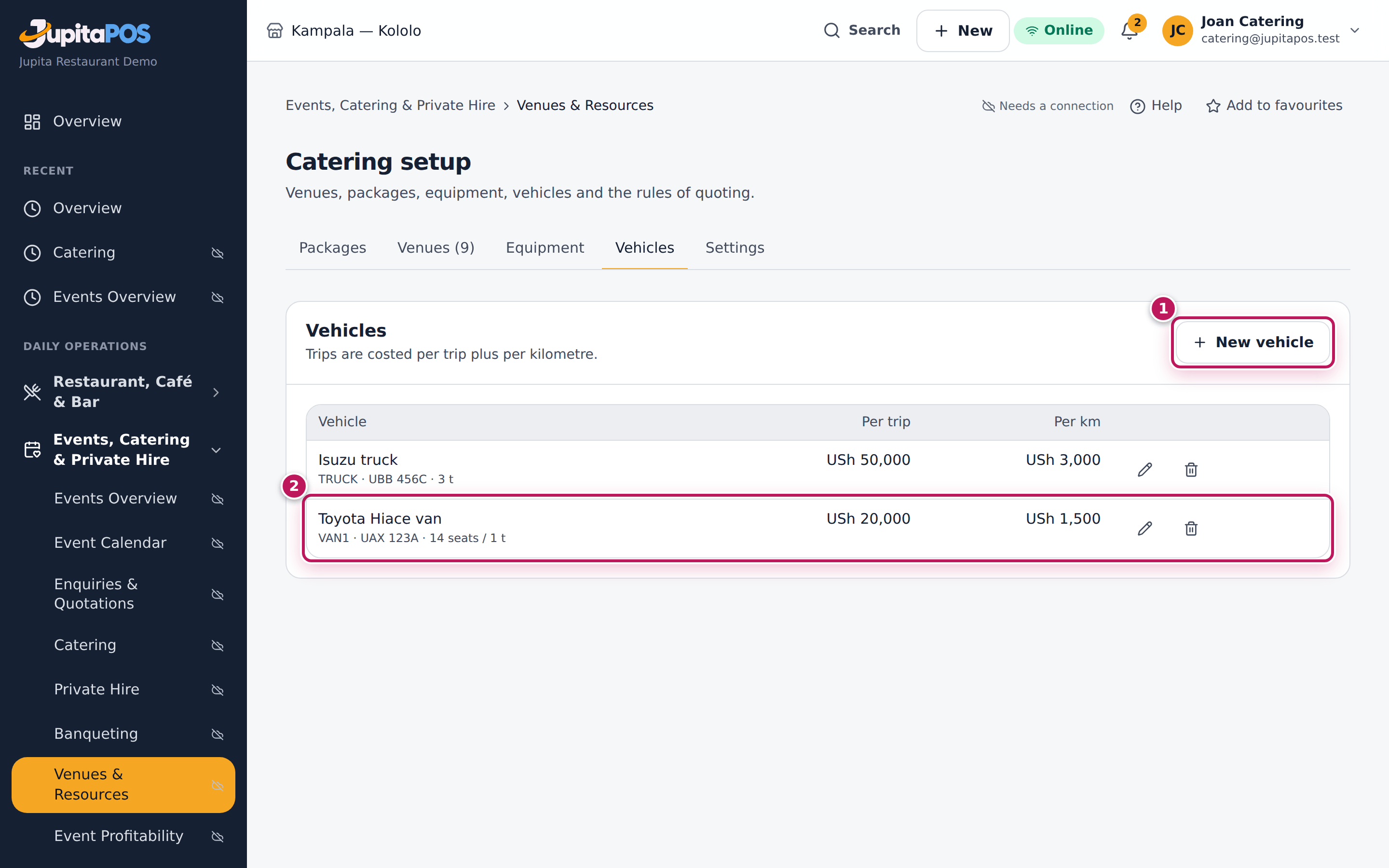
- Click the Vehicles tab: New vehicle (1), with its registration, Cost per trip and Cost per km.
- To change a line, click its pencil; to stop using it, its bin (archive).
Expected result
The Sunday brunch (2) is in the packages list at USh 25,000 a guest with its dishes and its food cost as a share of the price; it is offered in Quote from package at once. The equipment list (2) shows the chafing dishes (20 owned, 15,000 to the client, 2,000 a use, 250,000 to replace) and the vehicles list (2) the Toyota Hiace van at 20,000 a trip and 1,500 a km.
Screenshot
Common mistakes
- A package with no food cost. A dish with no recipe costs 0, so the package looks free to make (see the Cocktail canapés in the demo). Give each dish a recipe.
- Owned quantity left at 0. Nothing is ever free on the day; quotes and allocations then warn or refuse.
Troubleshooting
- “The code … is already used.” Codes are unique, even for archived lines. Choose another code.
- Save package stays grey. A package needs a code, a name and at least one dish.
Set the catering rules
Purpose
Decide the deposit asked, the production buffer, how long quotes and venue holds last, the margin floor and discount limit that need a manager, the buy-in lead time and the terms printed on quotations.
Role / permission required
Branch or general manager (events.approve). Others see the settings
read-only.
Prerequisites
- None.
Steps
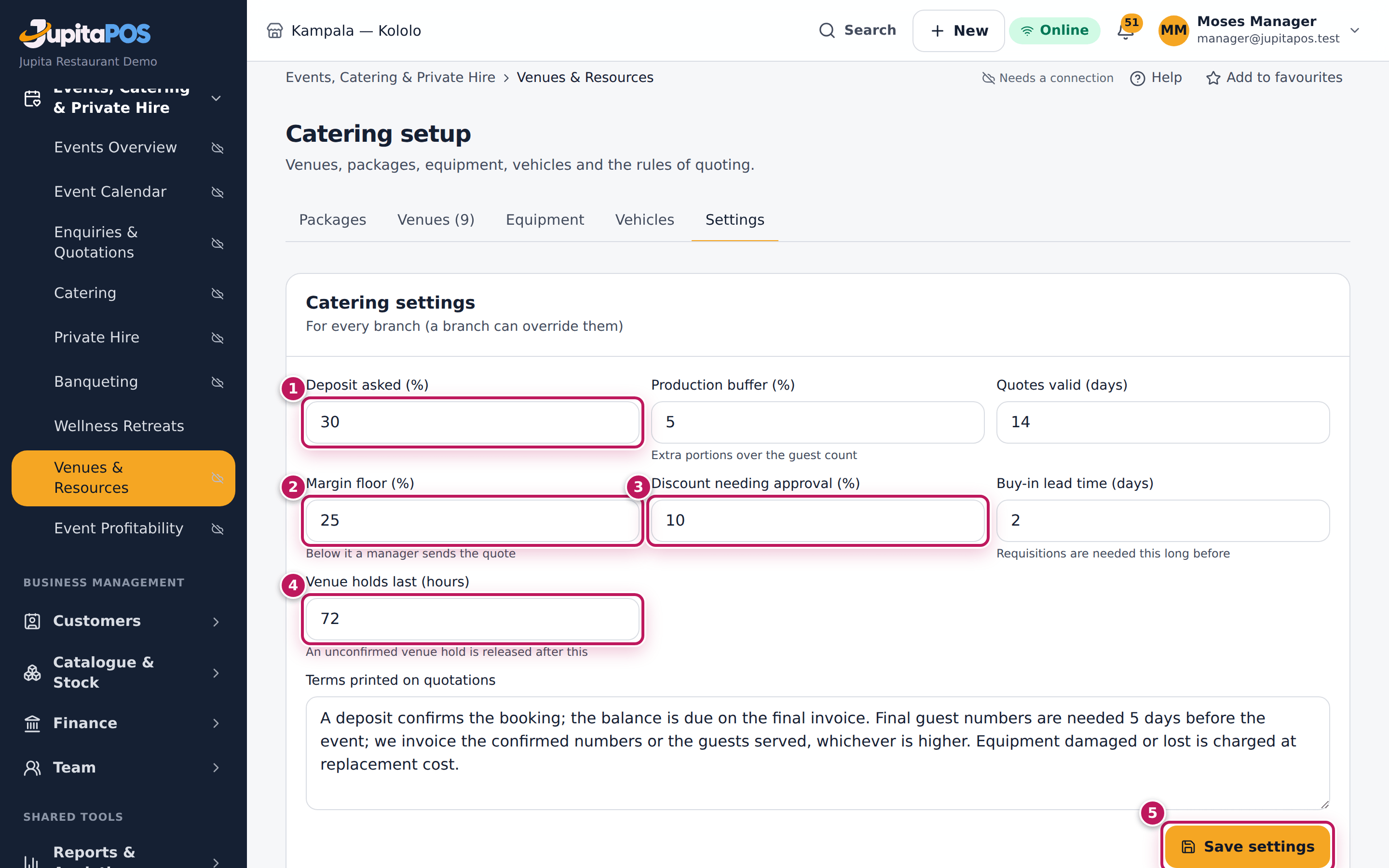
- Open Events setup and click the Settings tab.
- With more than one branch, choose Settings for All branches or one branch (a branch overrides the business).
- Set Deposit asked (%) (1), Production buffer (%), Quotes valid (days), Margin floor (%) (2), Discount needing approval (%) (3), Buy-in lead time (days) and Venue holds last (hours) (4).
- Edit the Terms printed on quotations.
- Click Save settings (5).
Expected result
Settings saved. New drafts use the new deposit and validity; quotes below the margin floor or above the discount limit then need a manager to send; new venue holds last the new number of hours. Quotes already sent keep their terms.
Screenshot
Common mistakes
- Setting the margin floor to 0. Every quote then goes out without a second look, however little it earns.
Troubleshooting
- The fields are grey. You are not a manager (
events.approve).
Read the catering reports
Purpose
See what catering earned in a period — functions, revenue, costs, profit and margin, by event type and function by function — and how the pipeline of enquiries converted.
Role / permission required
Catering Manager, Events & Private Hire Manager, managers, accountants and
auditors (events.reports). Export CSV also needs reports.export.
Prerequisites
- Functions were held in the period.
Steps
- Open Events, Catering & Private Hire › Event Profitability in the menu (
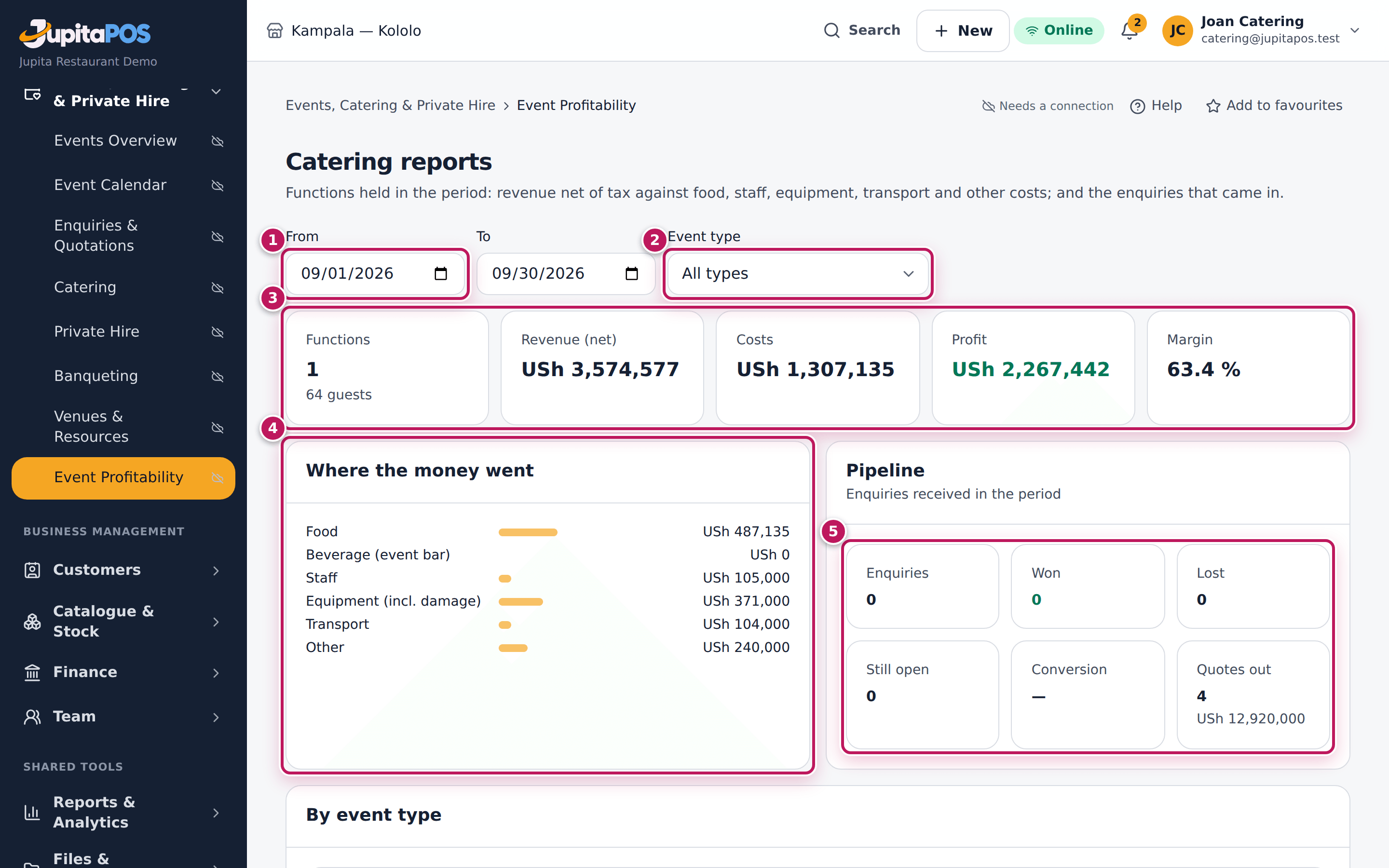
/catering/reports). It shows this month. - Set From (1) and To — here 1 to 30 September 2026 — and, if you like, an Event type (2) (and a Branch with several branches).
- Read the totals (3): functions and guests, revenue net of tax, costs, profit and margin.
- Read Where the money went (4) and Pipeline (5): enquiries received in the period, won, lost, still open, the conversion and the quotes out.
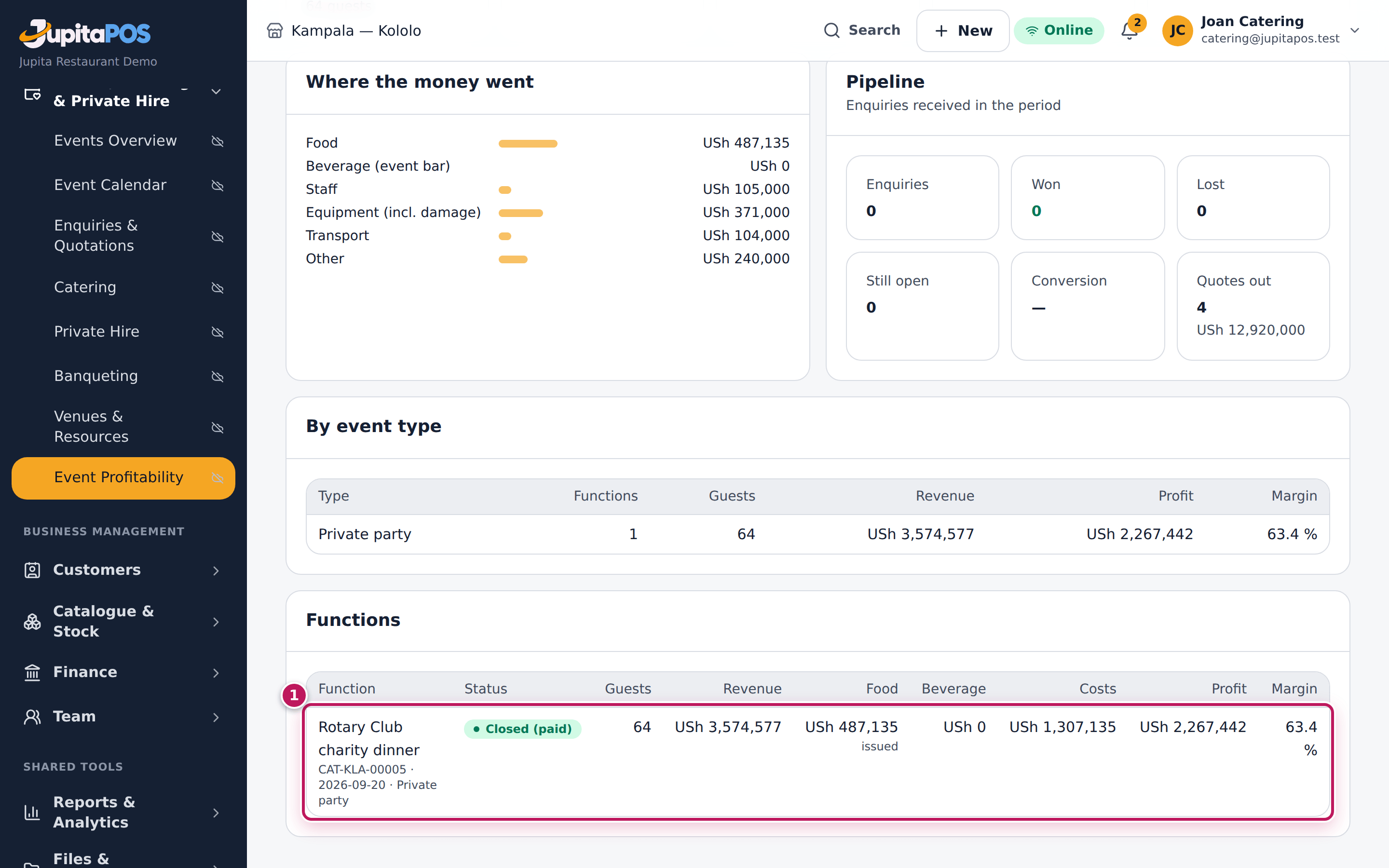
- Scroll to By event type and Functions. Click a function (1) to open its profitability.
- To work on the figures in a spreadsheet, click Export CSV (managers and accountants).
Expected result
September 2026 shows one function held — the Rotary Club charity dinner, 64 guests — with USh 3,574,577 revenue net of tax, USh 1,307,135 costs, USh 2,267,442 profit and a 63.4 % margin. A booked function (accepted, confirmed, on the day, served, invoiced or closed) counts in the month it is held; lost and cancelled ones do not. Enquiries count in the month they came in.
Screenshot
Common mistakes
- Comparing a month still running. Functions not yet served show their costs so far; compare months that are over.
Troubleshooting
- There is no Export CSV. You lack
reports.export; ask your manager or the accountant for the file.