

On this page
The bar display is the bartender’s ticket rail. When a waiter or cashier sends an order, every drink goes to the bar station that makes it and appears on that station’s board within a second. At Jupita Restaurant Demo, Kampala — Kololo:
- Restaurant Bar makes the cocktails — the Mojito, the Gin & tonic.
- Rooftop Bar pours the beer, spirits, wine and soft drinks.
The bar board is the same board as the kitchen’s, with the same lanes and buttons (see Kitchen display). What changes is what each drink shows: the measure (single or double) when the drink has that choice, its size, ice and garnish as small labels, and — for a cocktail — the Recipe of its active version (50 ml Bacardi White Rum 750 ml · 40 g Limes · 15 g Sugar…), so every bartender pours the same drink. The bar board also has Spillage, and every re-make or spilt drink is recorded as a loss at the bar store by itself (see Bar control).
The screens in this manual show the demo business on a Friday lunchtime: Grace Bartender at the Restaurant Bar.
Open the bar board
Purpose
Put your bar’s drink tickets on the bar screen at the start of the shift, so every drink sent to your bar appears in front of you.
Role / permission required
Bartenders — anyone with bar.view sees the bar boards; working them needs
bar.complete. The list of stations (Preparation Screens › Stations, headed Production boards) needs
production.view, which bartenders, baristas, cooks, supervisors and
managers have.
Prerequisites
- The bar screen is a registered till or tablet at your branch (see Register this device as a till).
- Your manager has set up the bar stations (see Set up stations and routing).
Steps
- Sign in on the bar screen with your own account and open Production
boards from the sidebar (
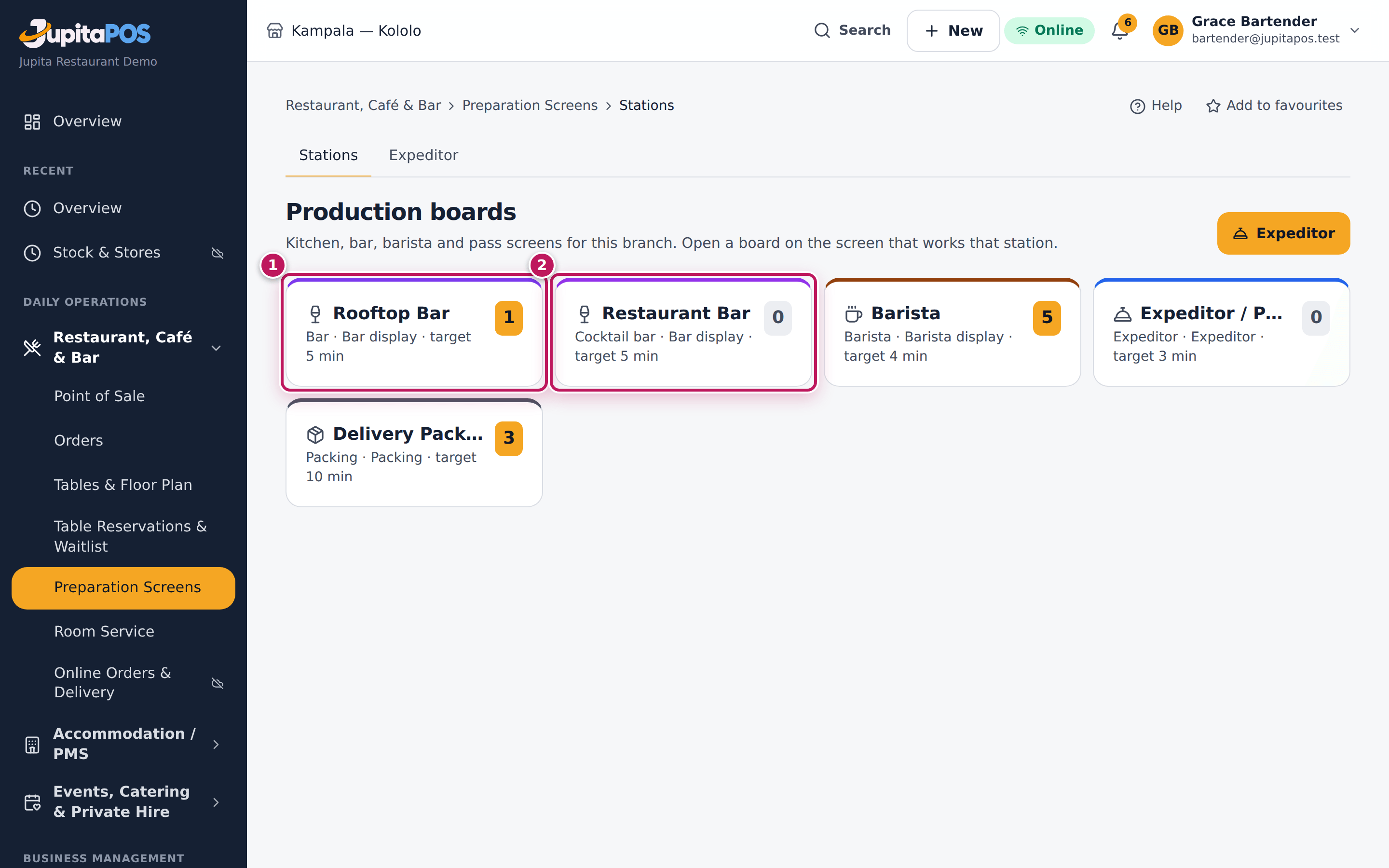
/production). - Tap your bar’s card: Rooftop Bar (1) for beer, wine and spirits, or Restaurant Bar (2) for cocktails.
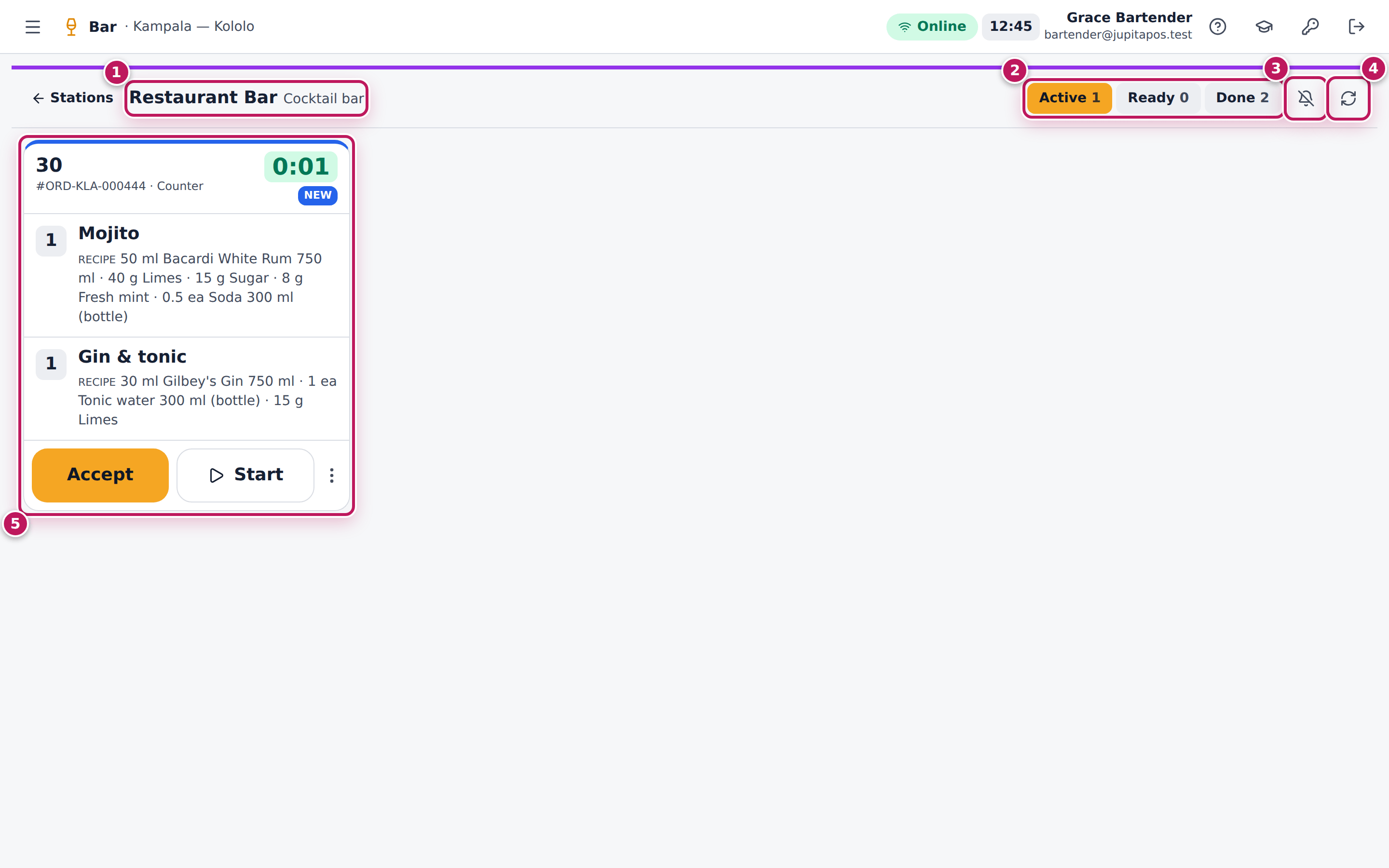
- Check the station’s name at the top (1). Read the lanes (2): Active is what you must make, Ready what waits to be picked up, Done what you finished in the last half hour.
- Tap the bell (3) to hear a beep for each new ticket, and Refresh (4) if the connection was down. New tickets (5) appear by themselves.
- To come back to the list of stations, tap Stations at the top left.
Expected result
The Restaurant Bar board is open under the bartender’s name. A Mojito and a Gin & tonic sent by the waiter arrive as one ticket in the Active lane with New on it.
Screenshot
Common mistakes
- Watching the wrong bar. Cocktails go to the Restaurant Bar, beer and spirits to the Rooftop Bar. If a drink never shows, check which board is open.
- Signing out and leaving the board to a colleague’s account. The board records who accepted and finished each drink. Sign in as yourself.
Troubleshooting
- “Preparation Screens” is not in my menu. Your role does not have
production.view; ask your manager to check your role. - My bar is not in the list. The list shows your branch’s stations; if you work at several branches, switch branch at the top first.
- No new tickets during service. Check the Online pill and tap Refresh. The board also refreshes itself every 30 seconds.
Accept a drink ticket and start making it
Purpose
Show the waiter that the bar has the order and is making it, and pour each drink to the house recipe.
Role / permission required
Bartenders — anyone with bar.complete.
Prerequisites
- Your bar’s board is open (see Open the bar board).
Steps
- A new ticket appears in the Active lane. Read it: the table or call number, then each drink with its quantity.
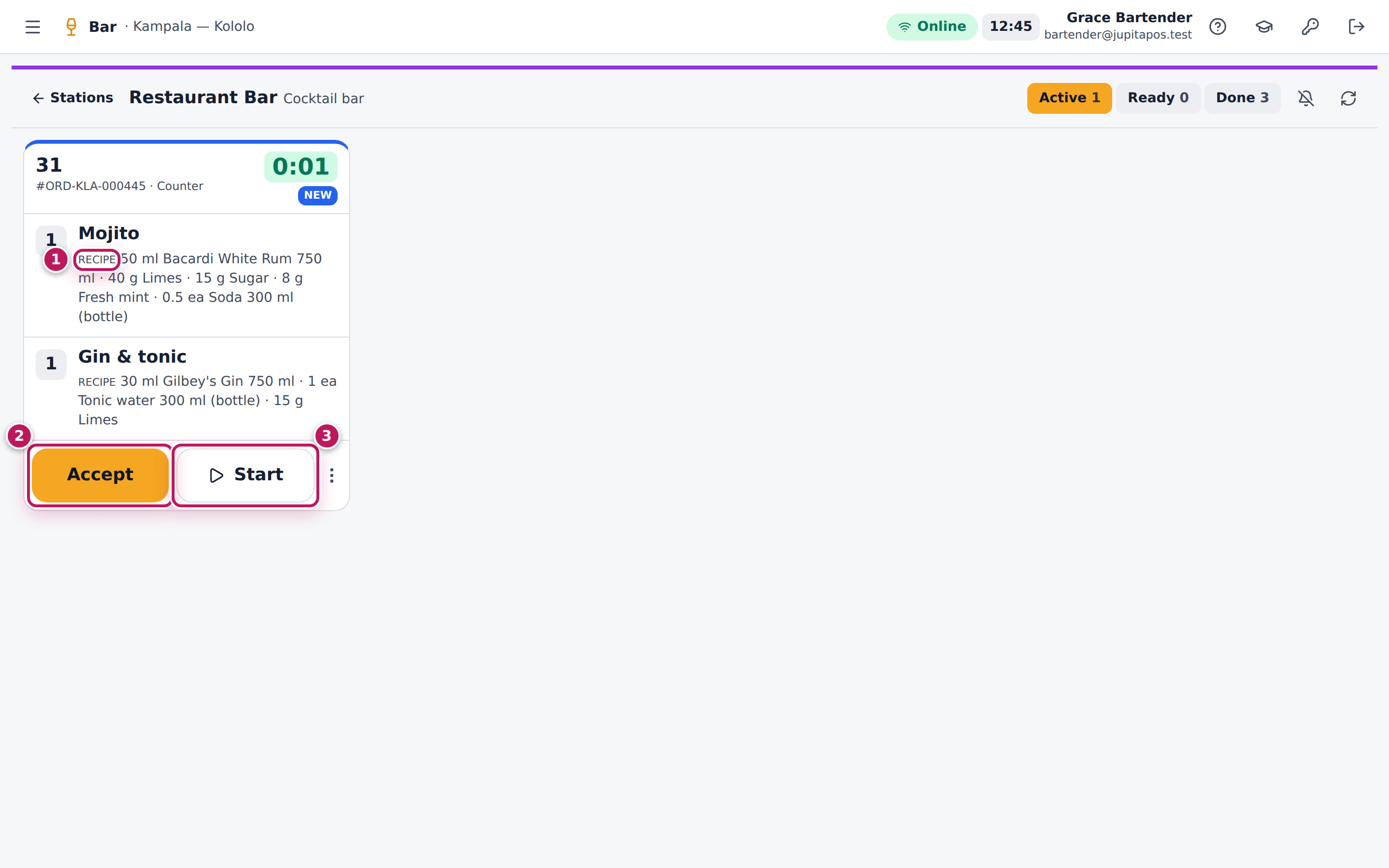
- Read the Recipe (1) under a cocktail: the measures of every ingredient.
- Tap Accept (2) to show you have seen it.
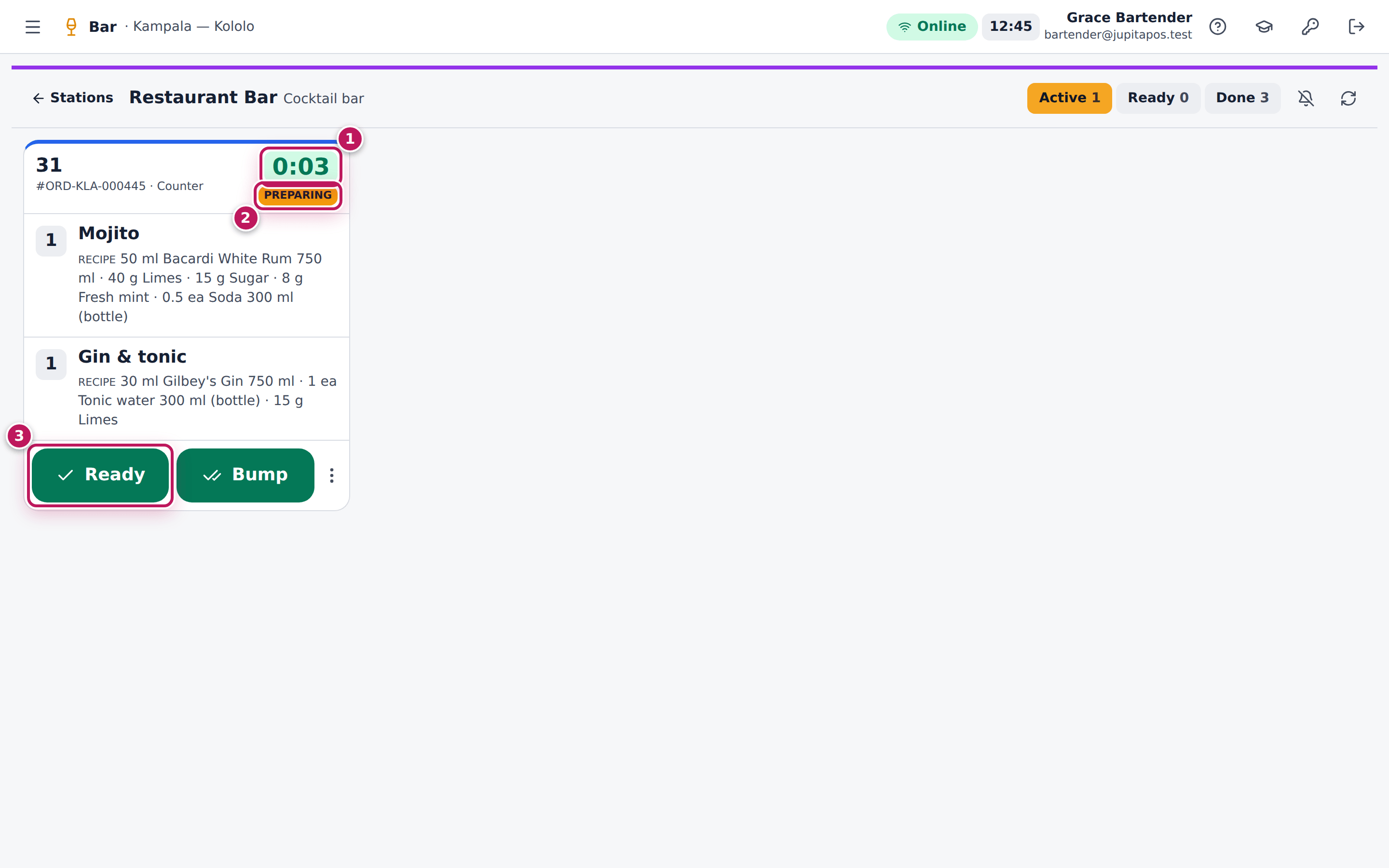
- Tap Start (3) when you start making the drinks. The status becomes Preparing (2) and the waiter’s till shows the drinks as preparing; the timer (1) runs from the moment the order was sent.
- When the drinks are made, tap Ready (3) (see Mark a drink ready).
Expected result
A ticket for 2 Mojitos and a Gin & tonic shows each drink’s recipe. After Start it shows Preparing, and the bar’s target of 5 minutes drives the timer: green, amber after 3 ½ minutes, red after 5.
Screenshot
Common mistakes
- Pouring from memory. The recipe on the ticket is the costed one; a different measure makes the stock report wrong at the end of the shift.
- Making a drink that is not on a ticket. A drink poured without a ticket shows as a variance at the bottle count. Ask the waiter to ring it up, or record it (see Record a spill or breakage).
Troubleshooting
- A cocktail shows no recipe. Its menu item has no active recipe. Ask the chef or manager (see Write a recipe for a menu item).
- “This ticket changed on another screen. Reloaded.” Another bartender tapped it first. Look again.
Mark a drink ready and bump it
Purpose
Tell the waiter the drinks are on the bar to pick up, and clear the ticket when they have gone.
Role / permission required
Bartenders — anyone with bar.complete.
Prerequisites
- The ticket is started (see Accept a drink ticket).
Steps
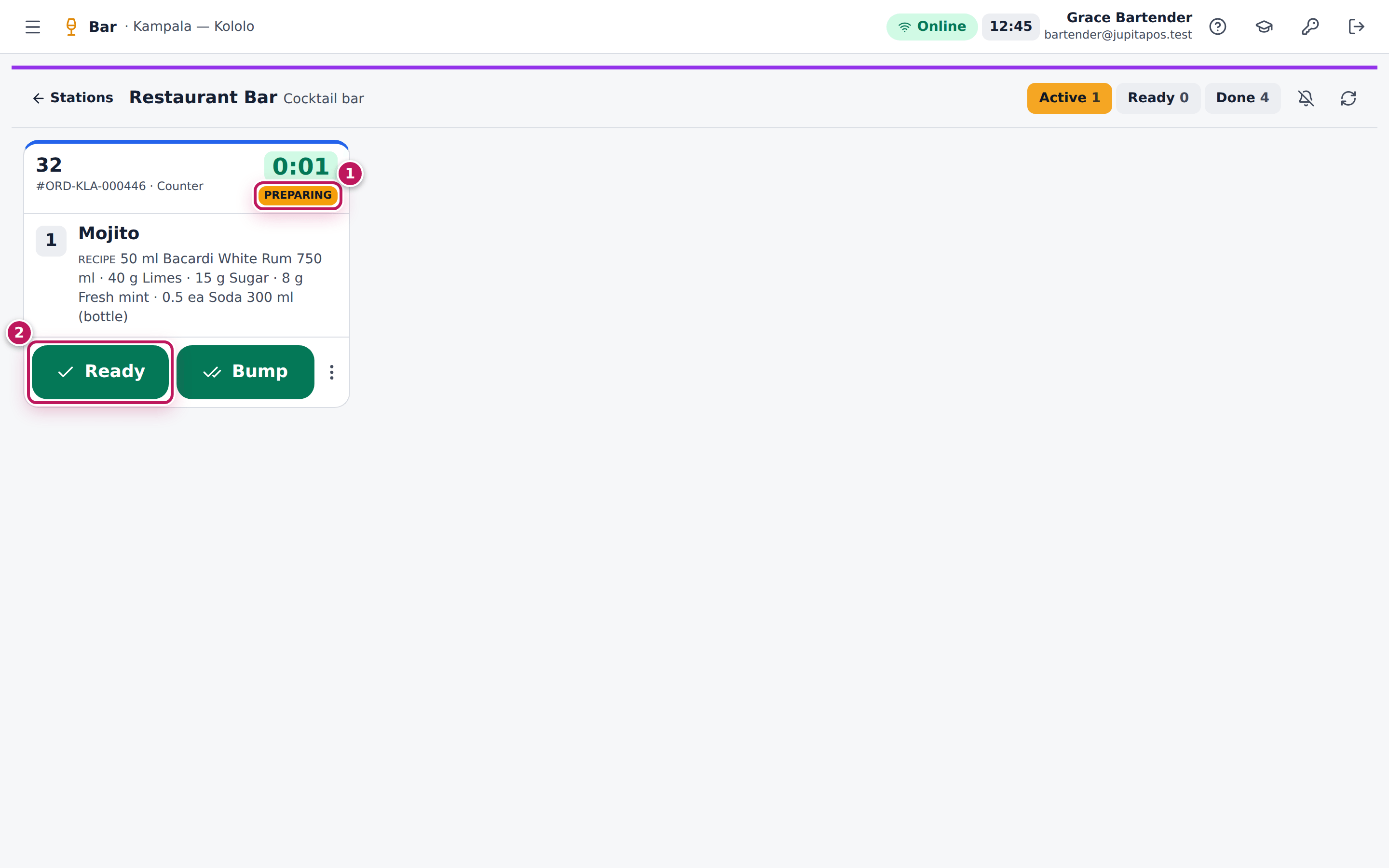
- When the drinks are made, check the ticket shows Preparing (1) and tap Ready (2). With several drinks you can also tap each drink as it is made; the last one makes the ticket ready.
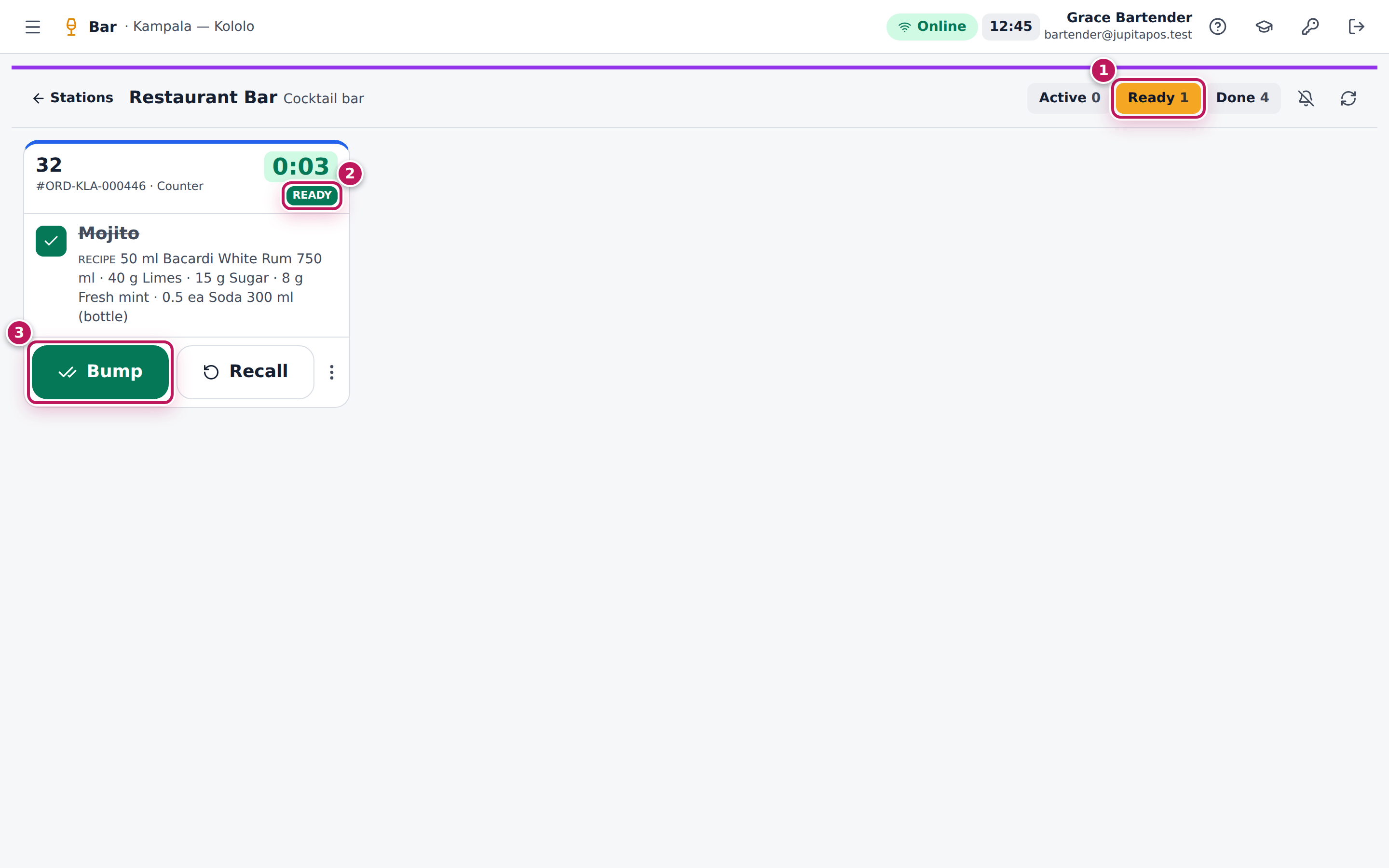
- The ticket moves to the Ready lane (1) marked Ready (2). The waiter’s till and the pass show the drinks as ready.
- When the waiter has picked the drinks up, tap Bump (3).
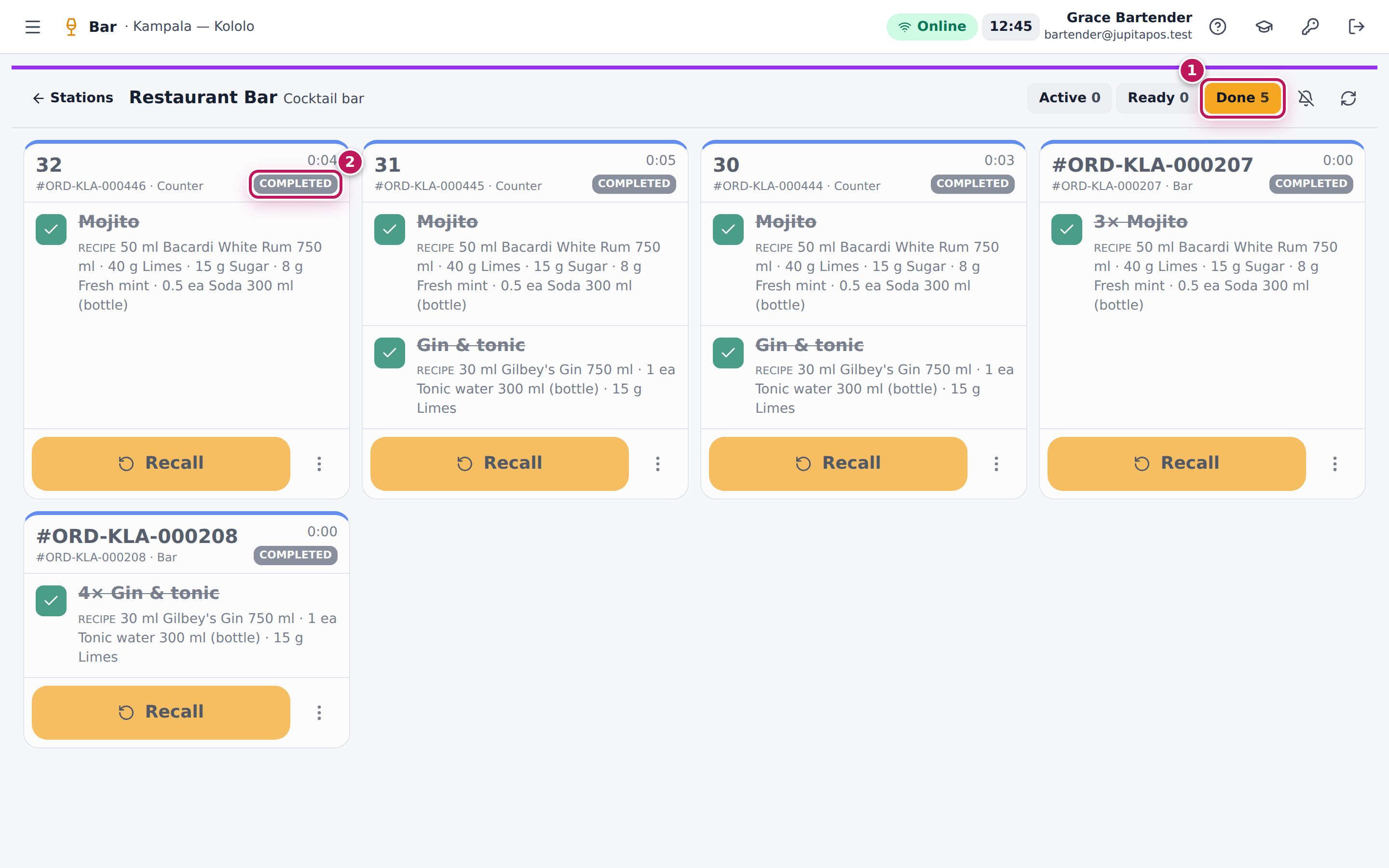
- The ticket moves to the Done lane (1), marked Completed (2).
Expected result
The Mojito goes Preparing → Ready → Completed. On the pass (the Expeditor screen) the Mojito line shows READY and then DONE.
Screenshot
Common mistakes
- Bumping as soon as the drink is poured. Bump means the drink has left the bar. Until then keep it Ready, so the waiter sees it waiting.
- Forgetting the Ready lane at a busy bar. Ready drinks are no longer in Active; ice melts. Glance at the Ready count.
Troubleshooting
- The ticket vanished when I tapped the last drink. It became ready by itself and is in the Ready lane.
- I bumped the wrong ticket. Open Done and tap Recall (see Recall a drink ticket).
Recall a drink ticket
Purpose
Bring a drink ticket back to the board when it was marked ready or bumped by mistake, or when the drink must be checked again.
Role / permission required
Bartenders — anyone with bar.complete.
Prerequisites
- The ticket is in the Ready lane, or in the Done lane (bumped less than 30 minutes ago).
Steps
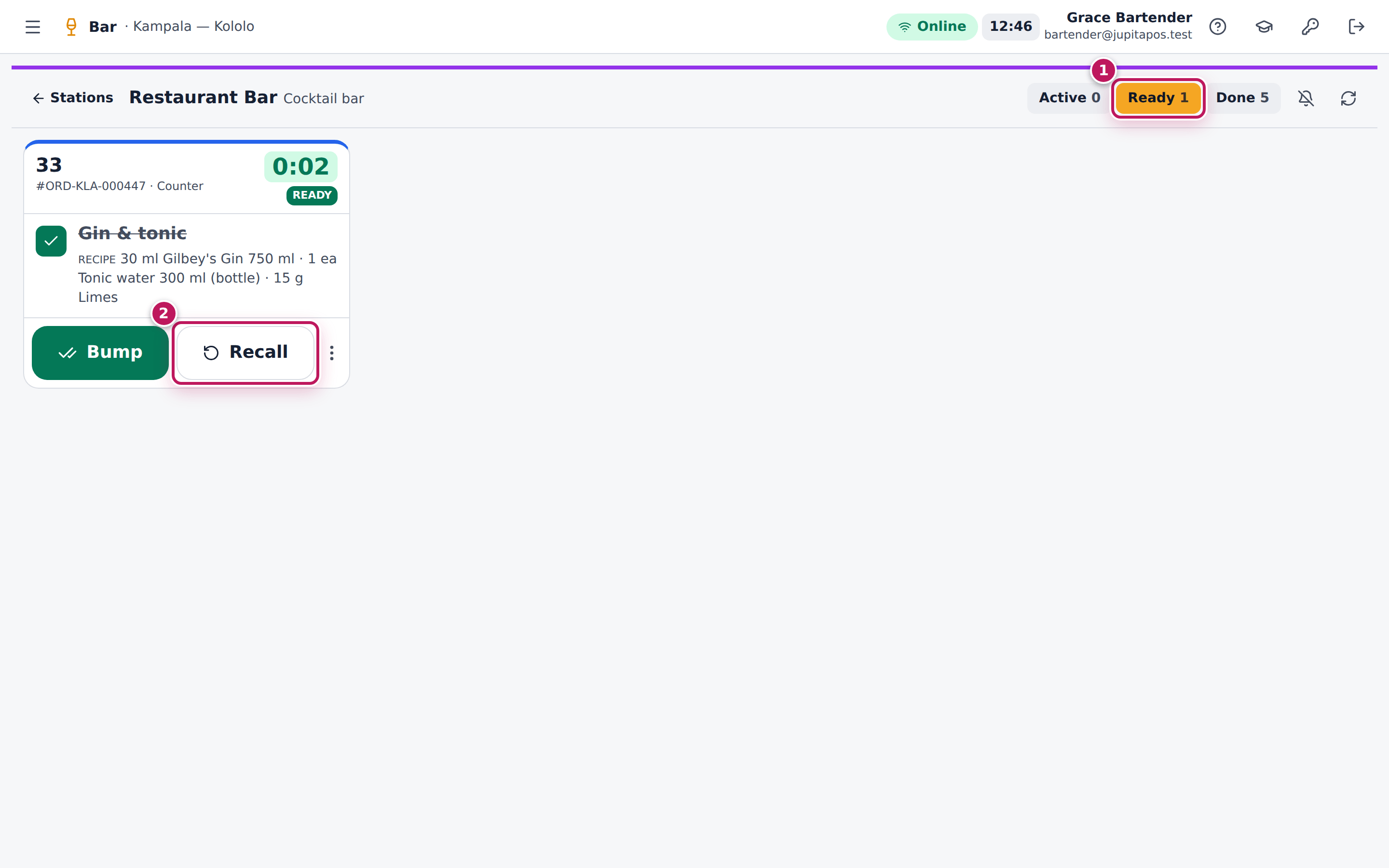
- Tap the Ready lane (1) (or Done).
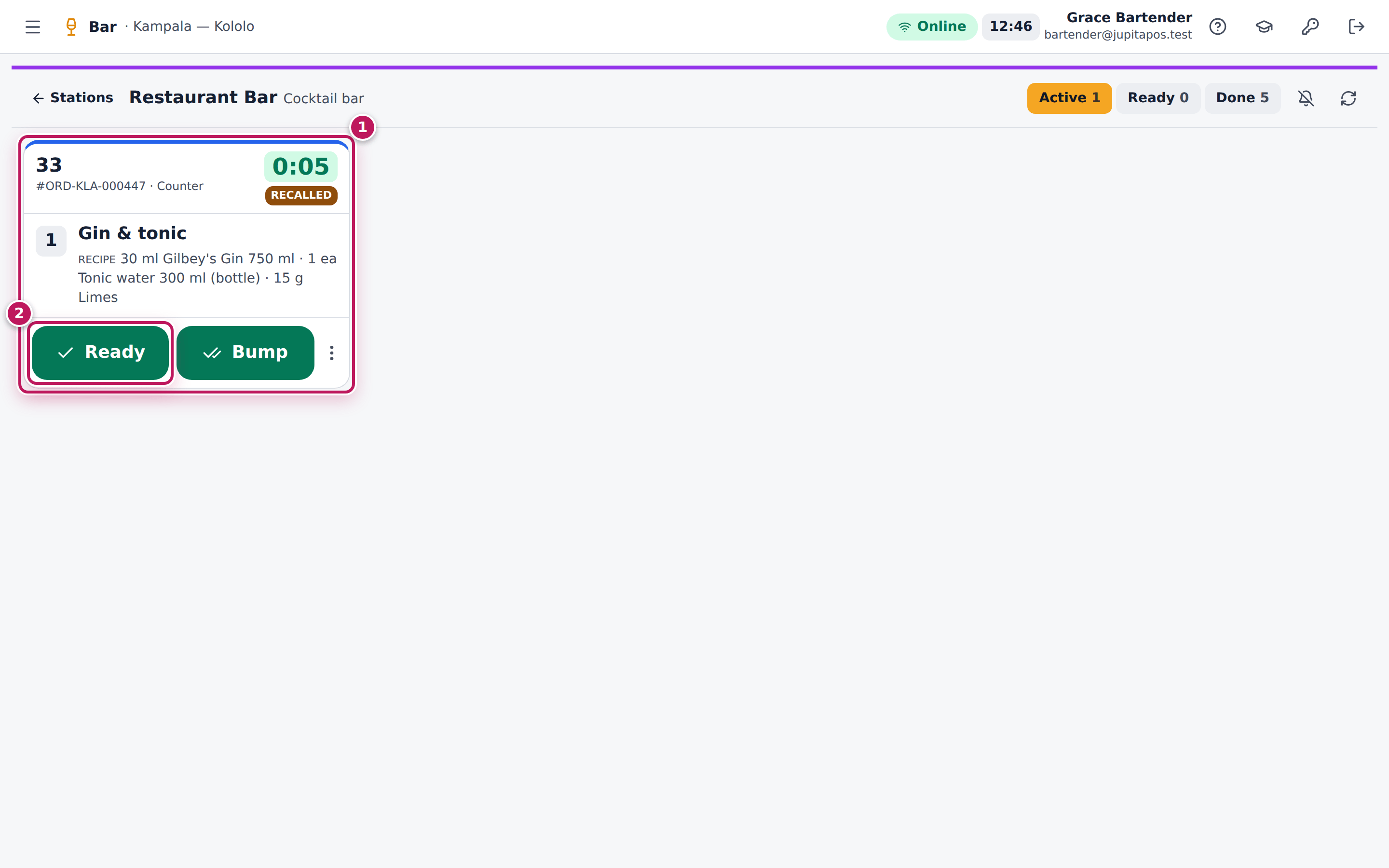
- On the ticket, tap Recall (2).
- The ticket goes back to the Active lane (1).
- Finish it and tap Ready (2) again.
Expected result
The Gin & tonic ticket is back in Active; the pass shows the drink as PREPARING again until you mark it ready.
Screenshot
Common mistakes
- Recalling to make the drink again. Recall does not record anything. If the drink is poured again, use Re-make or Spillage so the stock is right (see Record a re-make or a spilt drink).
Troubleshooting
- There is no Recall button. The ticket is still active, or it was cancelled.
- The ticket is not in Done. It was bumped more than 30 minutes ago. Ask the waiter to send the drink again.
Record a re-make or a spilt drink
Purpose
Make a drink again when it was spilt or sent back, and have the extra pour recorded against the bar’s stock — so the bottle count at the end of the shift explains where the rum went.
Role / permission required
Bartenders — anyone with bar.complete.
Prerequisites
- The drink’s ticket is on your board (in any lane where it has a ⋮ button).
Steps
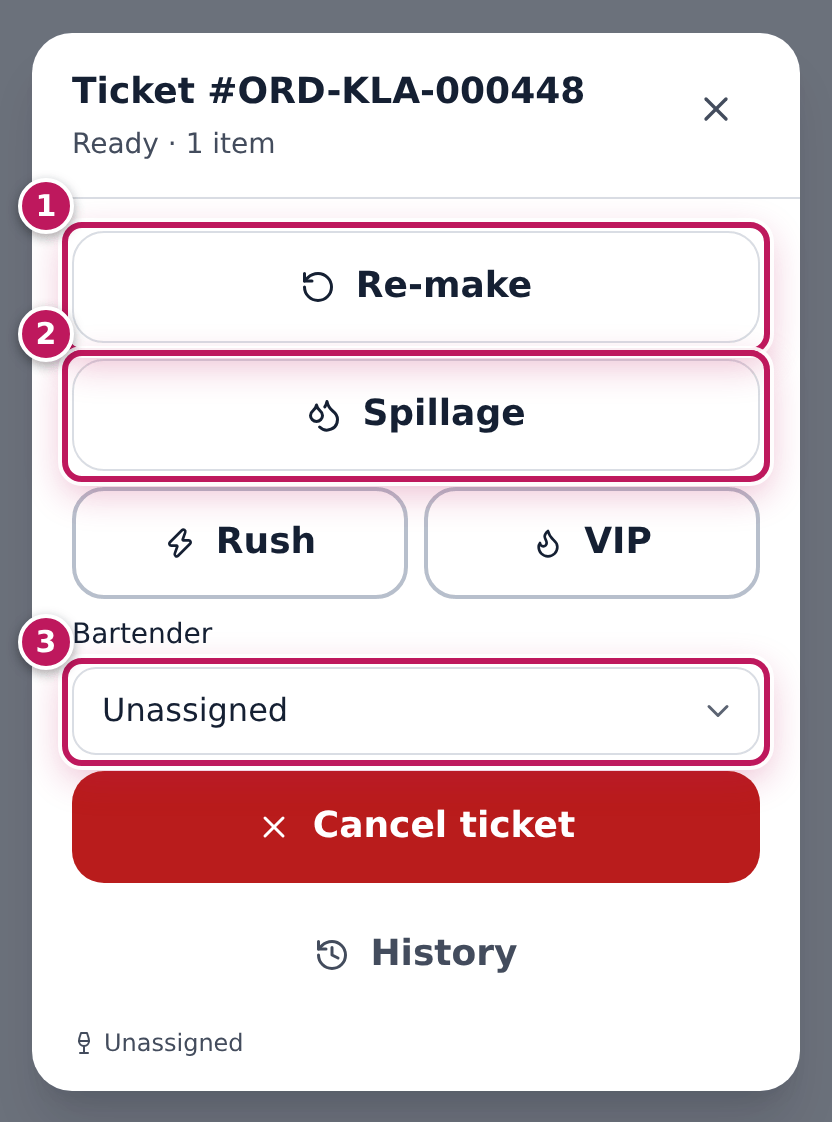
- Tap the ticket’s ⋮ button (More actions). You see Re-make (1), Spillage (2) and Bartender (3), with Rush, VIP, Cancel ticket and History.
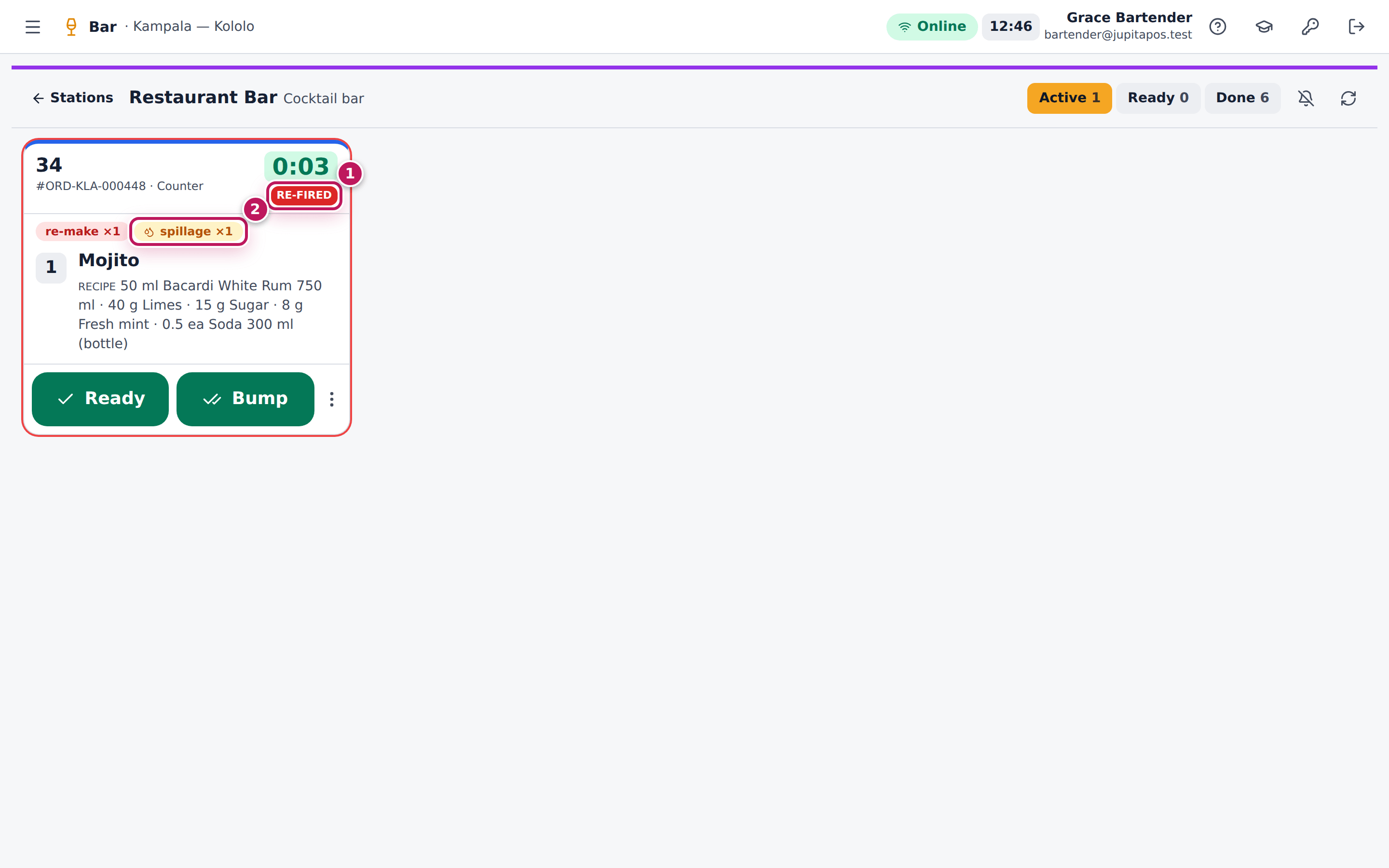
- The drink was knocked over: tap Spillage. A drink that was ready or bumped comes back to the Active lane as Re-fired (1) with the badges re-make ×1 and spillage ×1 (2), its drinks un-ticked to be made again. Make it again.
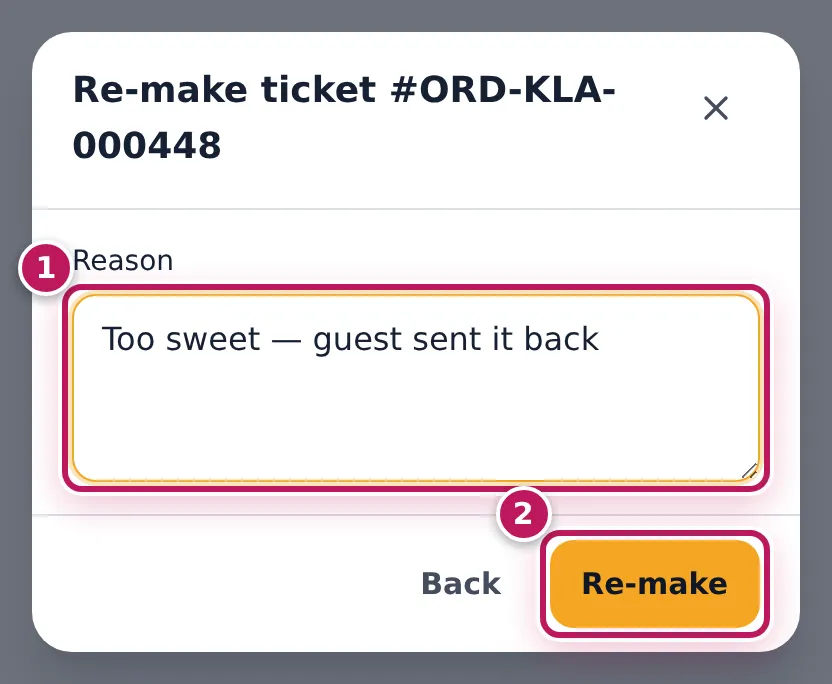
- The guest sent the drink back: tap Re-make, type why in Reason (1), for example Too sweet — guest sent it back, and tap Re-make (2).
- Make the drink again and tap Ready.
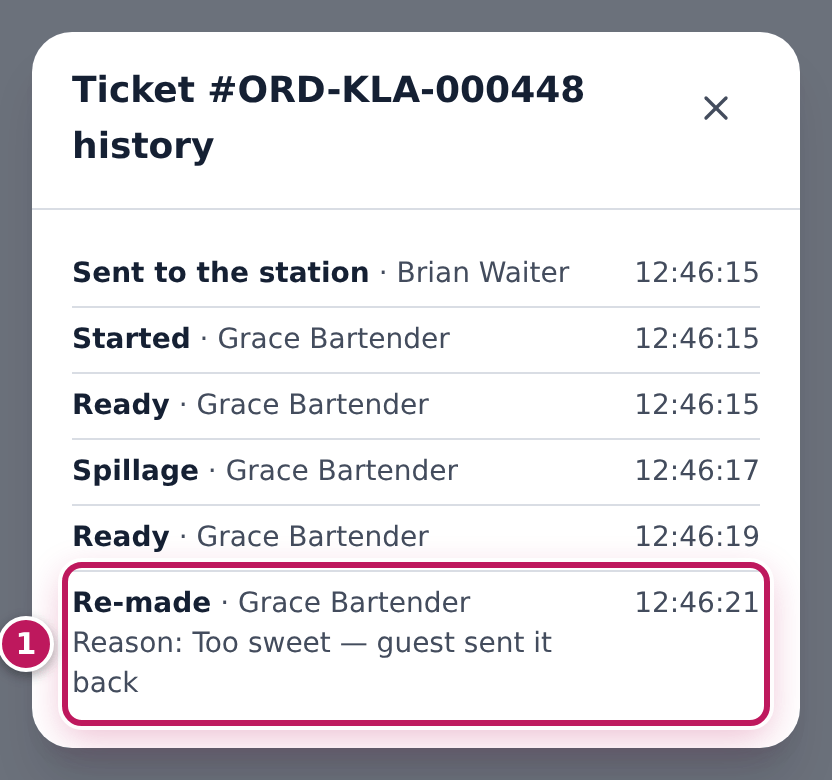
- To see what happened to a ticket, open ⋮ and History: each step in words with who did it — Spillage, Re-made with Reason: Too sweet — guest sent it back, and the time.
Expected result
The spilt Mojito is back on the board as Re-fired with re-make ×1 and spillage ×1; after the second re-make it shows re-make ×2. Each time, the Mojito’s ingredients — 50 ml of rum, limes, sugar, mint and half a soda — are taken out of the Kololo Bar Store as a loss (spillage or re-make), and they show in the shift’s losses and in Bar reports. The ticket’s History lists Re-made with the reason typed (1).
Screenshot
Common mistakes
- Recording the loss twice. A spillage or re-make on the board already takes the stock out. Do not also record it under Bar control.
- Using Spillage for a drink that was never poured. Spillage takes the full recipe out of stock. If the drink was not made, use Cancel ticket or ask the waiter to void it.
Troubleshooting
- Spillage did not bring the ticket back. On a ticket that is still being made, Spillage only counts the spill; make the drink again under the same ticket.
- The loss is not in the bar store. Your business may have switched off the automatic deduction of re-makes; ask your manager to record it by hand (see Record a spill or breakage).
FAQ
Does a re-make charge the guest again? No. The bill is not touched; only the stock is.