

On this page
- Set up products, the depot, agents and vehicles
- Open your journey
- Ask for stock, approve, dispatch and confirm
- Find and register a customer
- Visit, sell and take pre-orders
- Confirm and deliver pre-orders
- Count the vehicle and close the day
- Review customers and locations
- Positions on duty, and selling with no network
- The route reports
- Collect from a customer
- Take goods back
- Hand over the vehicle’s stock
- Send stock back, or to another vehicle
- Cover for a supervisor, record a departure, take a vehicle out of service
- Keep customer records right
- Who does what
Route SalesPOS is the JupitaPOS edition for distributors and field sales teams: agents who sell from a vehicle, take pre-orders for the depot to deliver, or both, and who find their own customers on the road. It has its own database, separate from any other JupitaPOS product the same owner runs.
There is no customer list to wait for. Agents register the shops they find from the first day; nobody has to approve a new customer before the agent can sell to it.
| Menu | Pages | What they are for |
|---|---|---|
| Field sales | My journey, Sales on the road, Collections & close, Map & positions, Sync, Vehicle stock, My customers, Customer review | the agent’s day on the road, and the supervisor’s decisions |
| Catalogue & Stock | Products & depot | what you sell, at what price, and the depot’s opening stock |
| Team | Field team (Agents, Vehicles) | agents with their supervisors, and the vehicles |
| Reports & Analytics | Route reports | sales by agent, closes and variances, stock and positions |
The words used on these pages:
| Word | Meaning |
|---|---|
| Journey | one agent’s working day with one vehicle: vehicle sales, pre-sales or both |
| Vehicle stock | the goods in a vehicle, held by the agent named on the journey |
| Stock request | what an agent asks to load; the supervisor approves all, part or none; the storekeeper dispatches |
| Outlet | a customer’s shop or stall, with its location |
| Close | the agent’s count of the vehicle at the end of the day, compared with what the books expect |
| On duty | the time an agent shares their position; never outside it |
Pictures are from a practice distributor with made-up data: no real person, plate or customer appears.
Set up products, the depot, agents and vehicles
Purpose
Get the business ready for its first day on the road.
Role / permission required
route.settings and catalogue.manage for products and the depot;
route.team.manage for agents; route.vehicles.manage for vehicles — the
Route manager and the Owner.
Prerequisites
The people who will be agents and supervisors are staff of the business.
Steps
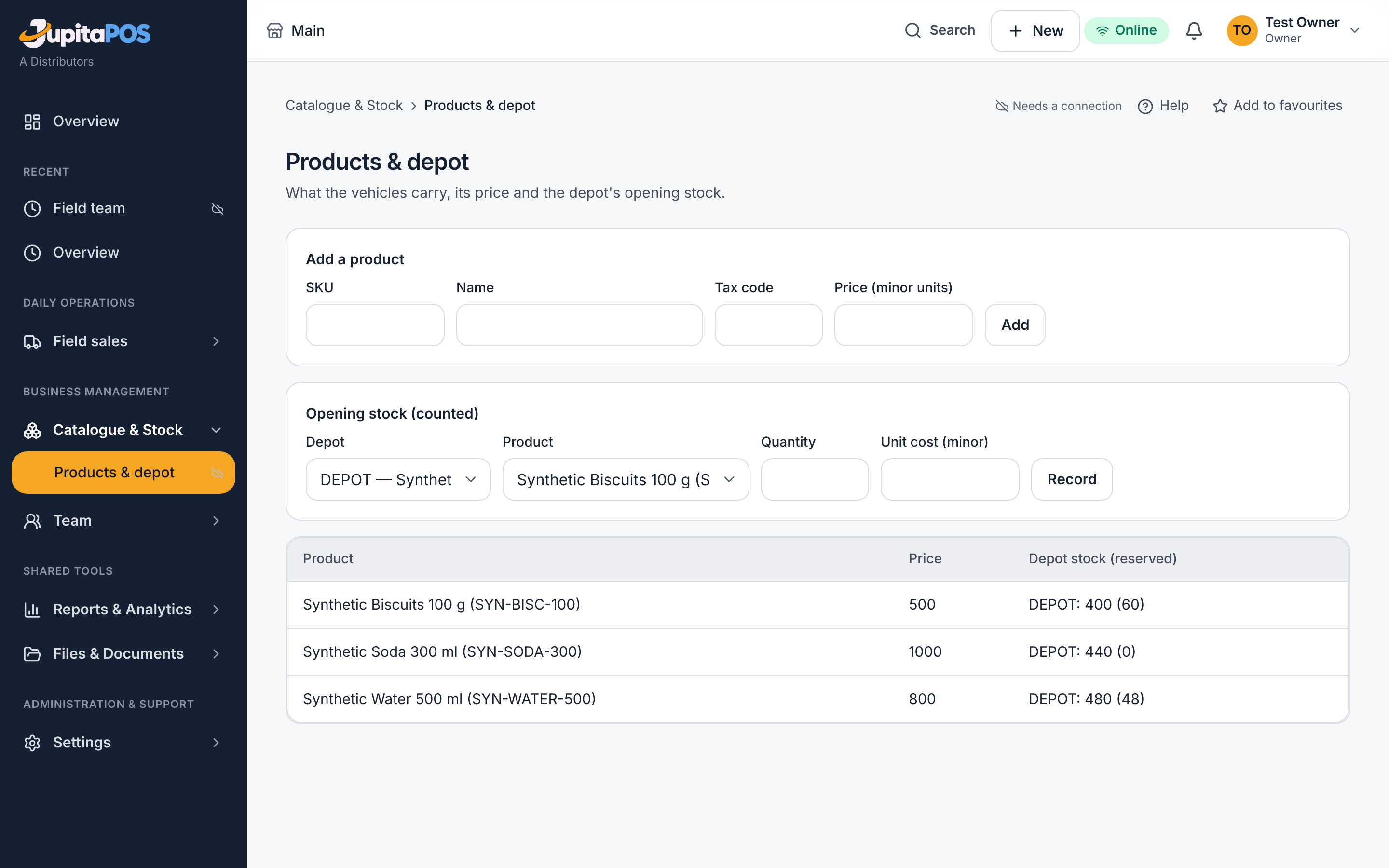
- Open Catalogue & Stock → Products & depot. Press Create depot, then Add a product for each one with its SKU, Price (minor units) and Tax code.
- Under Opening stock (counted), record what is in the depot and press Record.
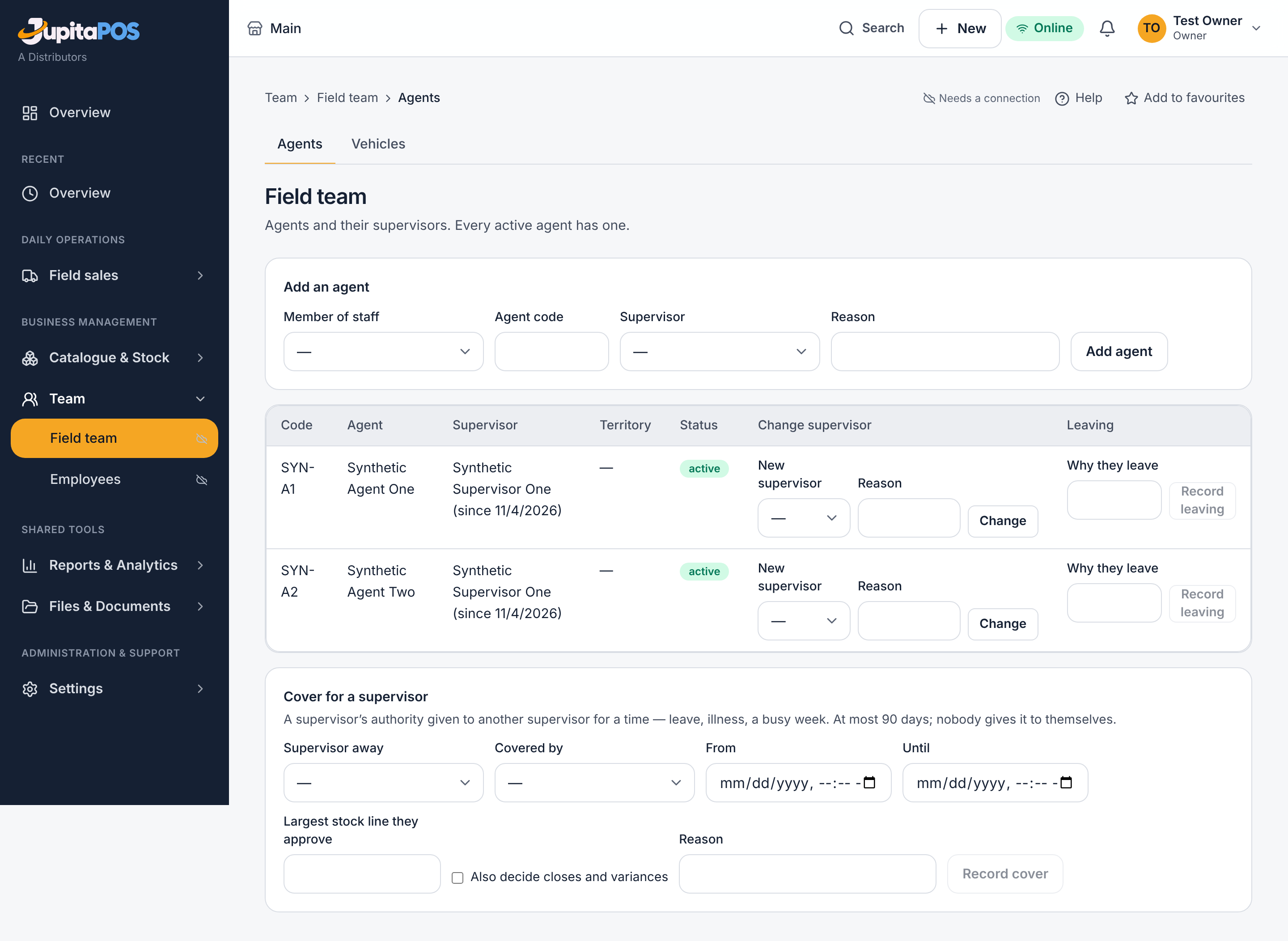
- Open Team → Field team. For each agent choose the Member of staff, type the Agent code, choose the Supervisor, give a Reason and press Add agent.
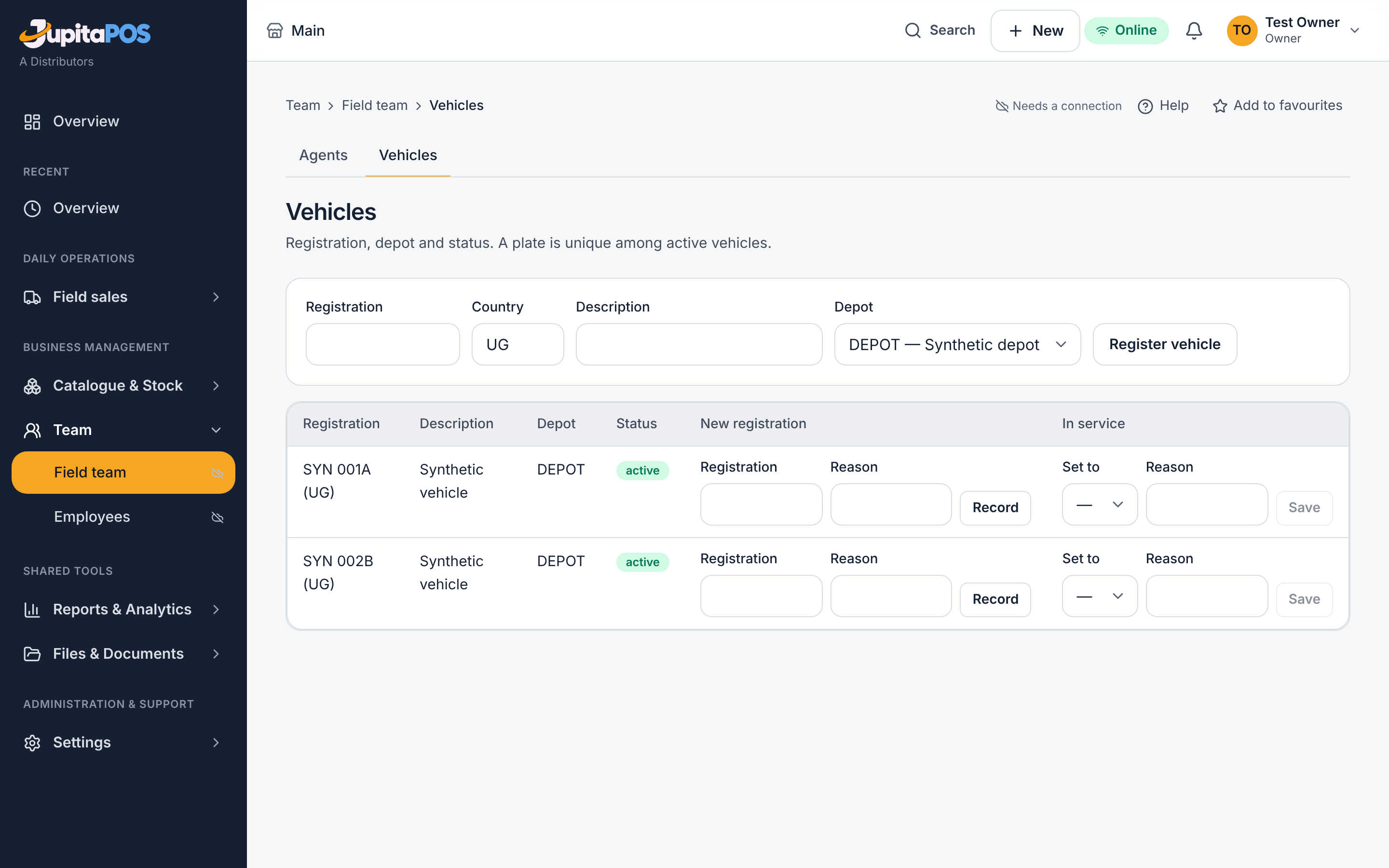
- Tab Vehicles: type the Registration, the Country and the Depot, and press Register vehicle.
Expected result
The depot has stock, every agent has a supervisor, and the vehicles are ready to be loaded.
Screenshot
Common mistakes
An agent’s own supervisor being the agent: refused — nobody approves their own work.
Troubleshooting
A supervisor changed with Change starts a new dated period; the history stays.
Open your journey
Purpose
Start the agent’s day with the vehicle, so its stock and sales are the agent’s for the day.
Role / permission required
route.journeys.open — the Agent.
Prerequisites
You are an agent with a supervisor, and a vehicle is free.
Steps
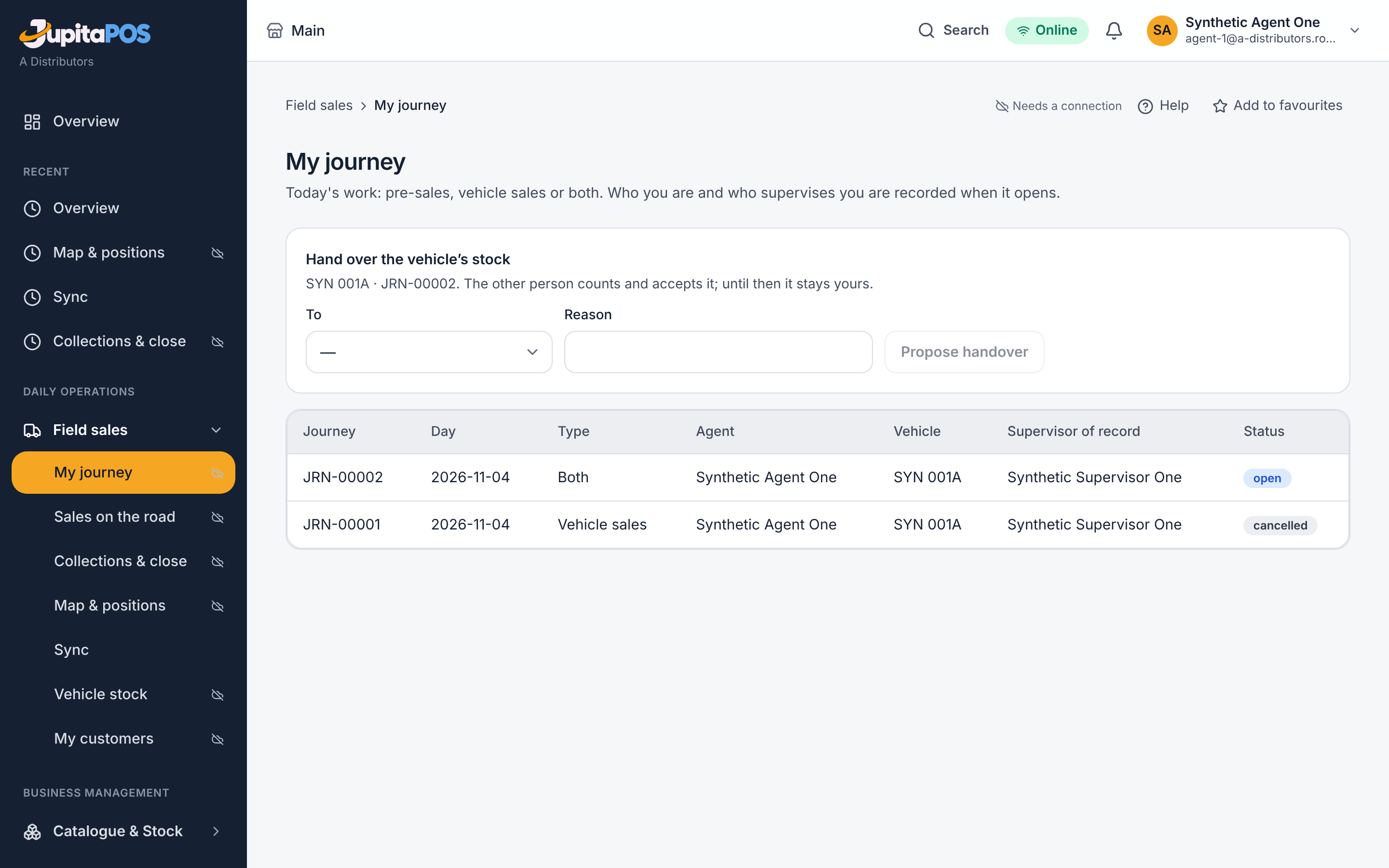
- Open Field sales → My journey.
- Choose the Type: Vehicle sales, Pre-sales or Both.
- Choose the Vehicle.
- Press Open journey.
Expected result
The journey shows your name, your supervisor, the vehicle’s plate and you as the holder of its stock — fixed for the day.
Screenshot
Common mistakes
Opening a second journey while one is open: refused.
Troubleshooting
No supervisor shown: ask your route manager to set one in Team → Field team.
Ask for stock, approve, dispatch and confirm
Purpose
Load the vehicle with exactly what was approved, and know what arrived.
Role / permission required
route.stock.request for the Agent; route.supervise for the
Supervisor; route.stock.dispatch for the Storekeeper.
Prerequisites
An open journey for vehicle sales, and stock in the depot.
Steps
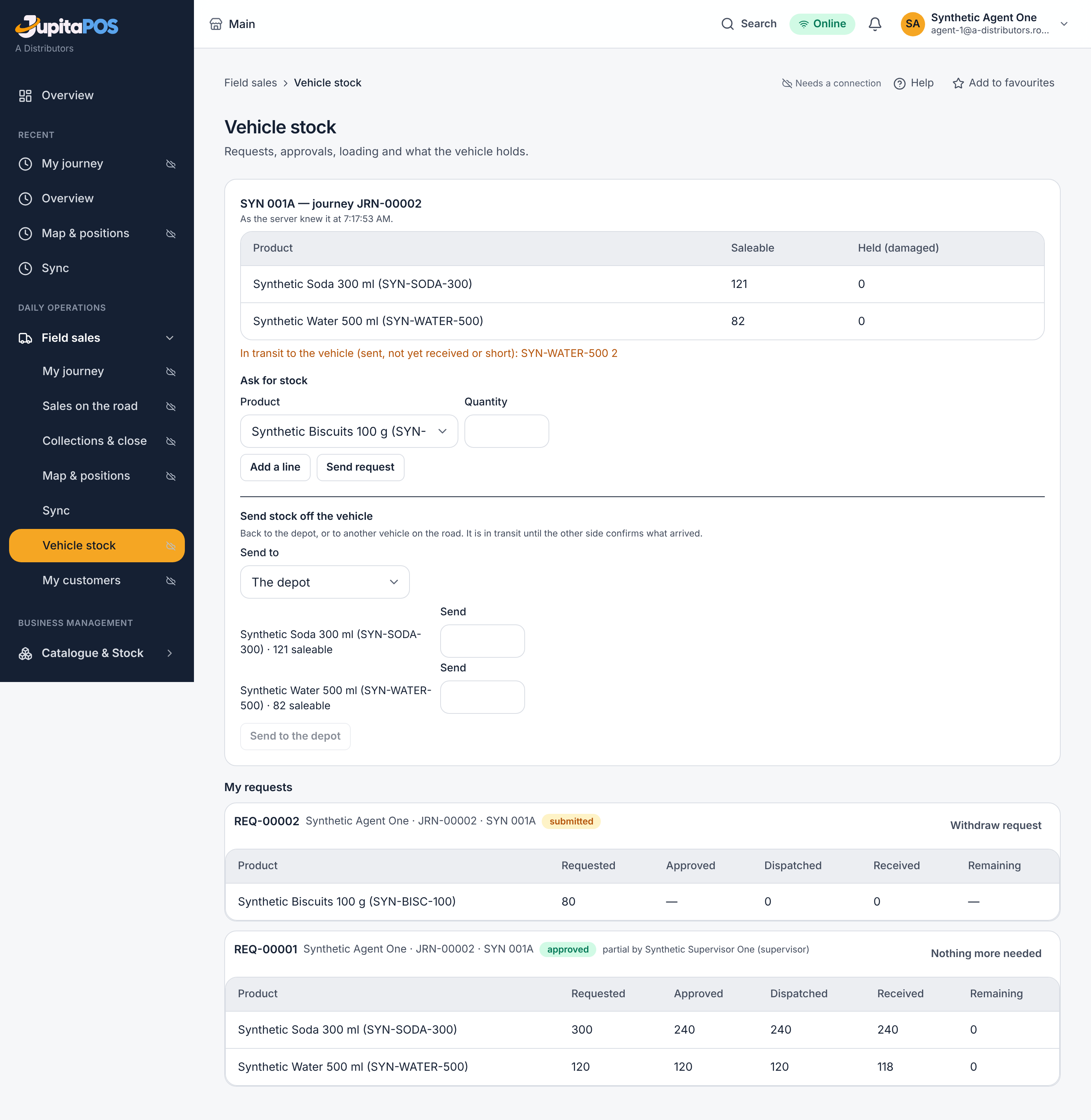
- The agent: Field sales → Vehicle stock, Ask for stock — the Product and Quantity per line — and Send request.
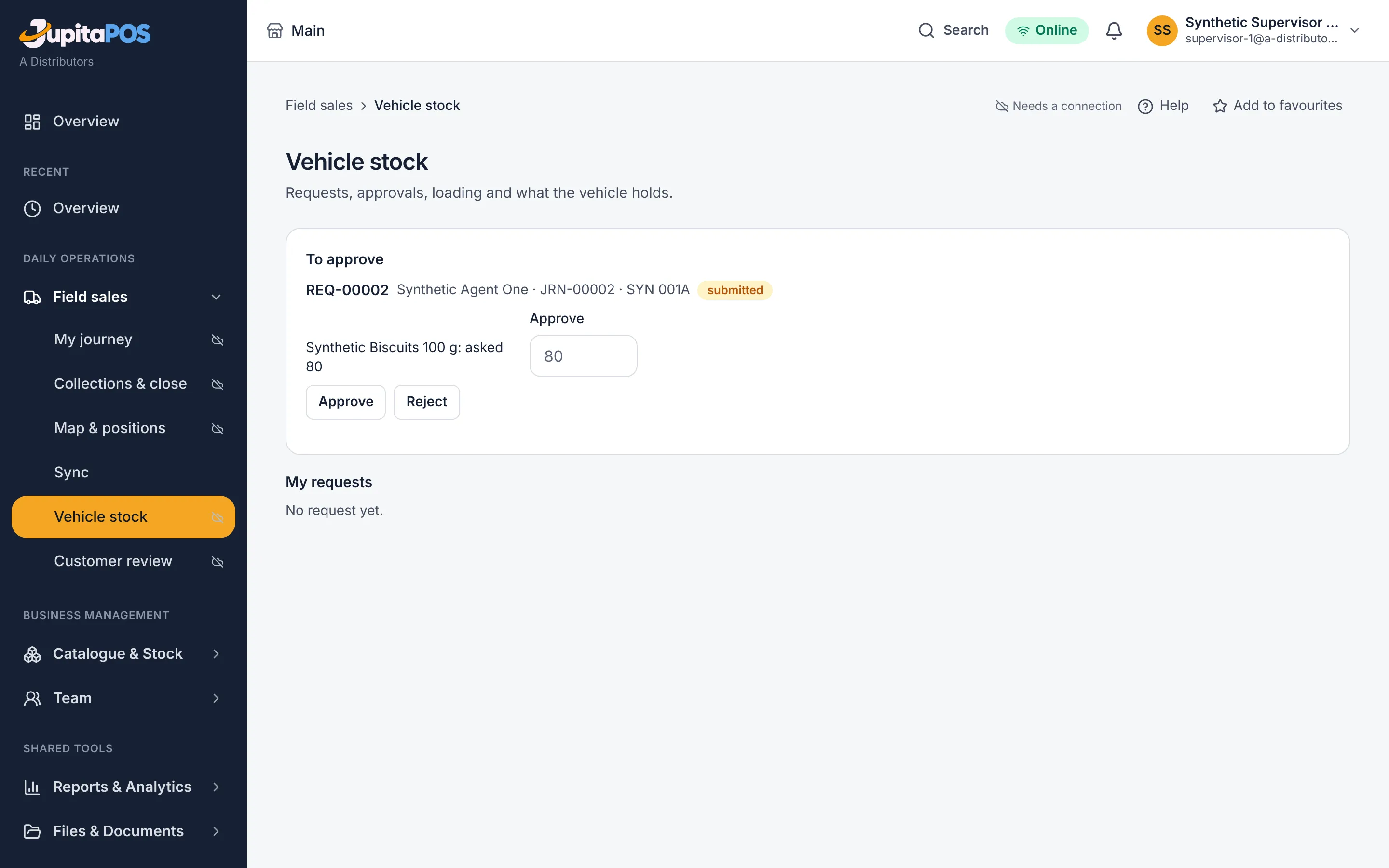
- The supervisor: To approve — Approve (type a smaller quantity to approve part), or Reject.
- The storekeeper: To dispatch — Dispatch up to what remains approved per line.
- The agent, when the load arrives: To receive — type what actually arrived if it differs — Confirm what arrived.
Expected result
The vehicle holds what the agent confirmed. Approval reserves depot stock; only the dispatch moves it. What did not arrive stays in transit for the supervisor to decide.
Screenshot
Common mistakes
- Dispatching more than was approved: refused.
- Hiding a shortfall by confirming the full quantity: type what really arrived.
Troubleshooting
Goods not acknowledged appear for the supervisor in Field sales → Collections & close, to be decided as found, returned or lost.
Find and register a customer
Purpose
Add a shop you found on the road, with its location, so you can sell to it straight away.
Role / permission required
route.customers.register — the Agent.
Prerequisites
The phone may share its location (or you know the coordinates).
Steps
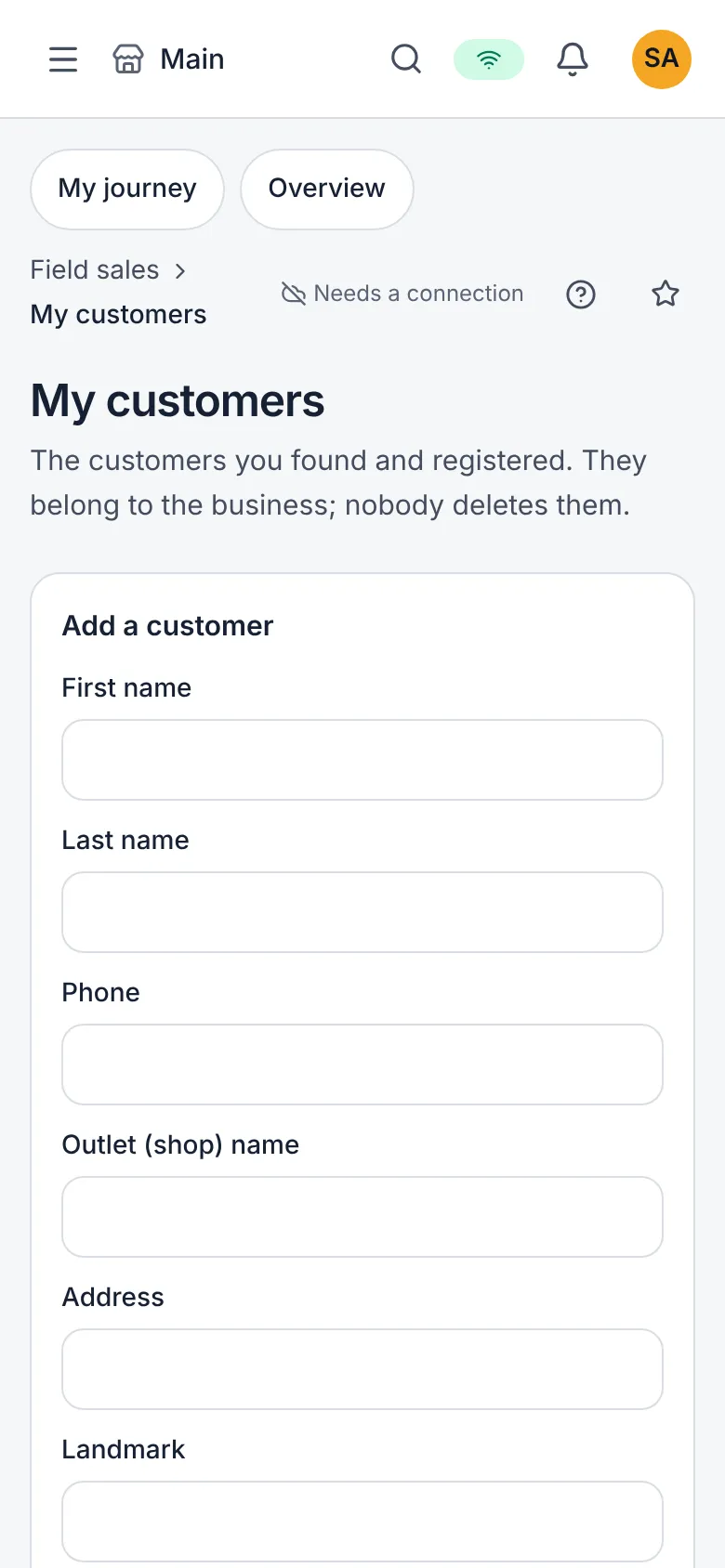
- Open Field sales → My customers and press Add a customer.
- Type the First name, Last name, Phone, the Outlet (shop) name, the Address and a Landmark.
- Press Use this device’s location (allow it), or type the Latitude and Longitude you checked; tick I checked: this point is the outlet.
- Press Register customer.
Expected result
The customer and the outlet are yours to sell to at once. If it looks like an existing customer, it is marked being checked for your supervisor — you do nothing.
Screenshot
Common mistakes
Guessing a location: if the phone refuses, save without one.
Troubleshooting
You cannot delete, archive or merge a customer: your supervisor or route manager decides duplicates in Field sales → Customer review.
Visit, sell and take pre-orders
Purpose
Record each visit: a sale from the vehicle, a pre-order for the depot, or why nothing was sold.
Role / permission required
route.sales.vehicle for vehicle sales; route.sales.presale for
pre-orders — the Agent.
Prerequisites
An open journey; for a vehicle sale, stock in the vehicle.
Steps
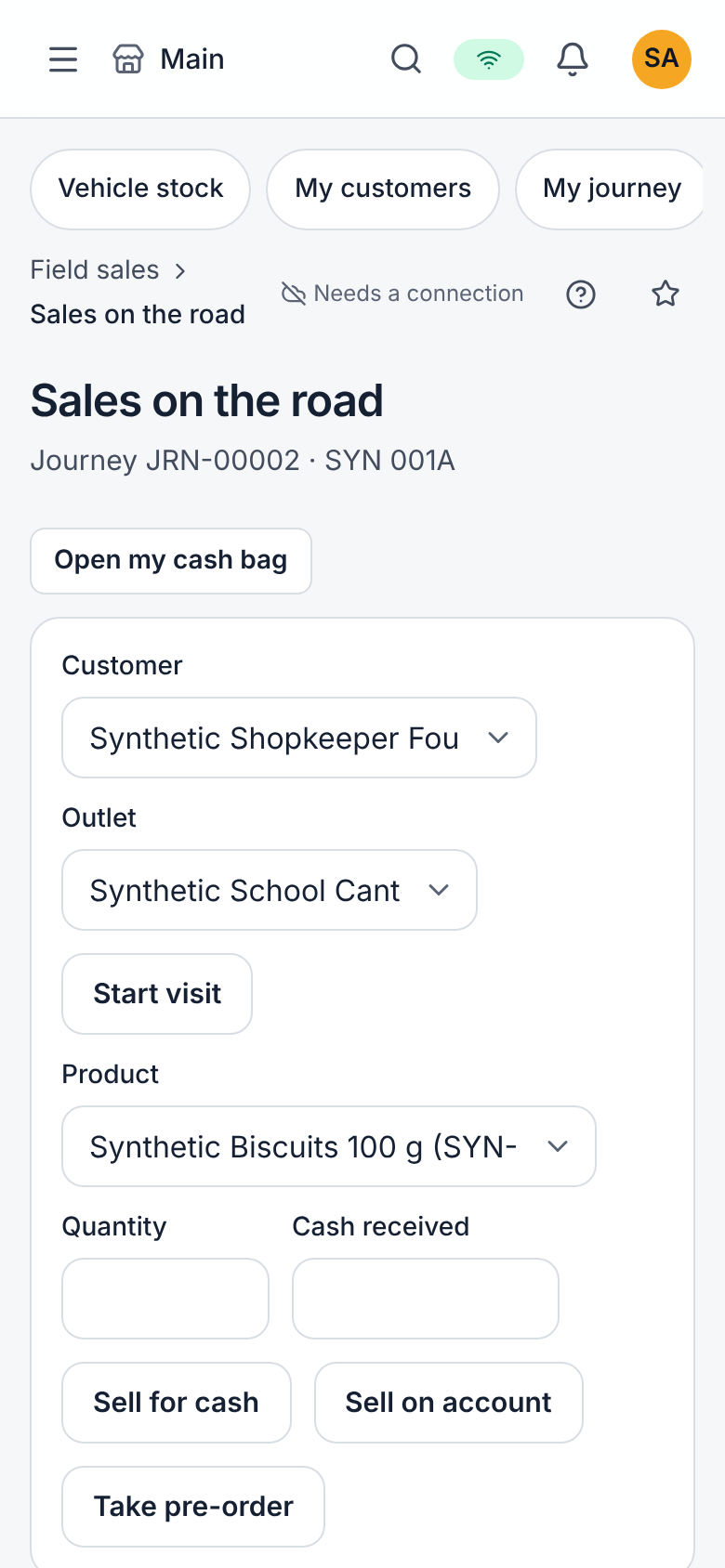
- Open Field sales → Sales on the road, choose the Customer and the Outlet, and press Start visit.
- A vehicle sale: the Product, the Quantity, the Cash received — Sell for cash; or Sell on account for a customer with an open account, within its limit.
- A pre-order: the lines, then Take pre-order — the depot confirms it; nothing leaves your vehicle.
- Press End visit with what happened — no sale is a correct answer.
Expected result
The sale is recorded against your journey and leaves the vehicle’s stock; the pre-order waits for the depot.
Screenshot
Common mistakes
Changing a price: prices are the business’s; an agent cannot change them.
Troubleshooting
Selling more than the vehicle holds: refused.
Confirm and deliver pre-orders
Purpose
Reserve depot stock for a pre-order and record who received it.
Role / permission required
route.stock.dispatch for the Storekeeper; route.deliveries for the
Driver.
Prerequisites
A pre-order taken by an agent.
Steps
- The storekeeper: Field sales → Sales on the road, under Pre-orders (open, or with a deposit to settle), press Confirm (reserve depot stock).
- The driver, at the shop: per line Handed over, Received by — the person’s name — or If nothing: why.
- An order nobody wants any more: type Why cancel and press Cancel order. The agent cancels their own order before the depot confirms it; the depot cancels any order not yet delivered.
Expected result
The order is delivered line by line; what was not handed over is recorded with the reason.
Screenshot
Common mistakes
A phone near the shop is not acceptance: type the name of the person who received the goods.
Troubleshooting
Confirming the same order twice: recorded once.
Count the vehicle and close the day
Purpose
End the journey with a true count of the vehicle, and let the supervisor approve it.
Role / permission required
route.journeys.open for the Agent; route.supervise for the
Supervisor.
Prerequisites
The day’s visits are ended.
Steps
- The agent: Field sales → Collections & close — type what is physically in the vehicle in Counted for each product, and an Explanation of any difference.
- Press Submit close.
- The supervisor: read the variance and the agent’s explanation, add Your note, and press Approve — or Send back for a recount.
Expected result
An approved close posts its variances as count adjustments. A close sent back reopens the journey for a recount, as a new version.
Screenshot
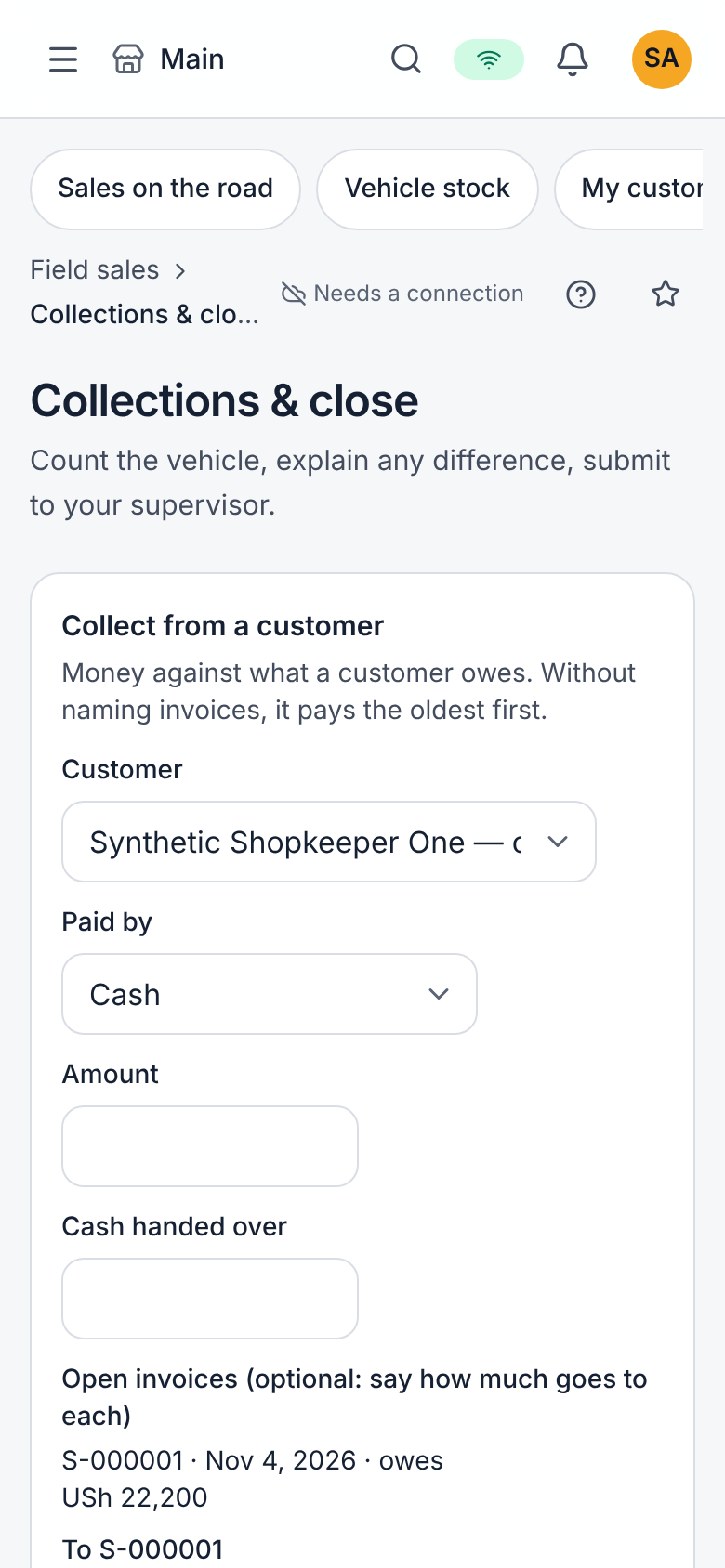
Common mistakes
Copying the expected numbers: count what is in the vehicle.
Troubleshooting
A supervisor never approves their own close, under any role they also hold.
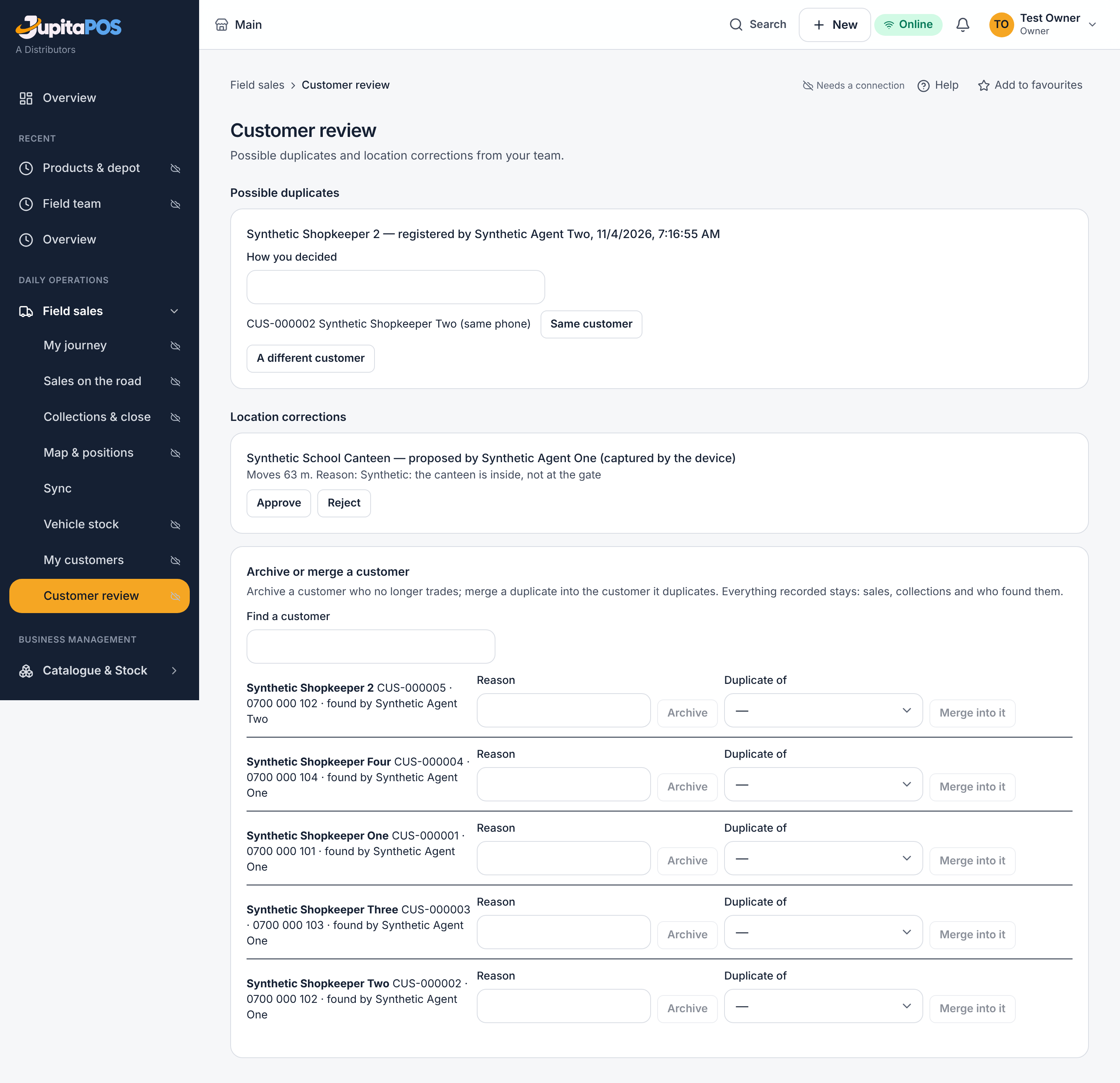
Review customers and locations
Purpose
Decide possible duplicate customers and corrections of an outlet’s location.
Role / permission required
route.supervise or route.customers.manage — the Supervisor and the
Route manager.
Prerequisites
An agent registered a customer that looks like another, or moved an outlet.
Steps
- Open Field sales → Customer review.
- Under Possible duplicates, press Same customer or A different customer.
- Under Location corrections, see how far the outlet moves and decide.
Expected result
The decision is recorded with How you decided; everything recorded before stays.
Screenshot
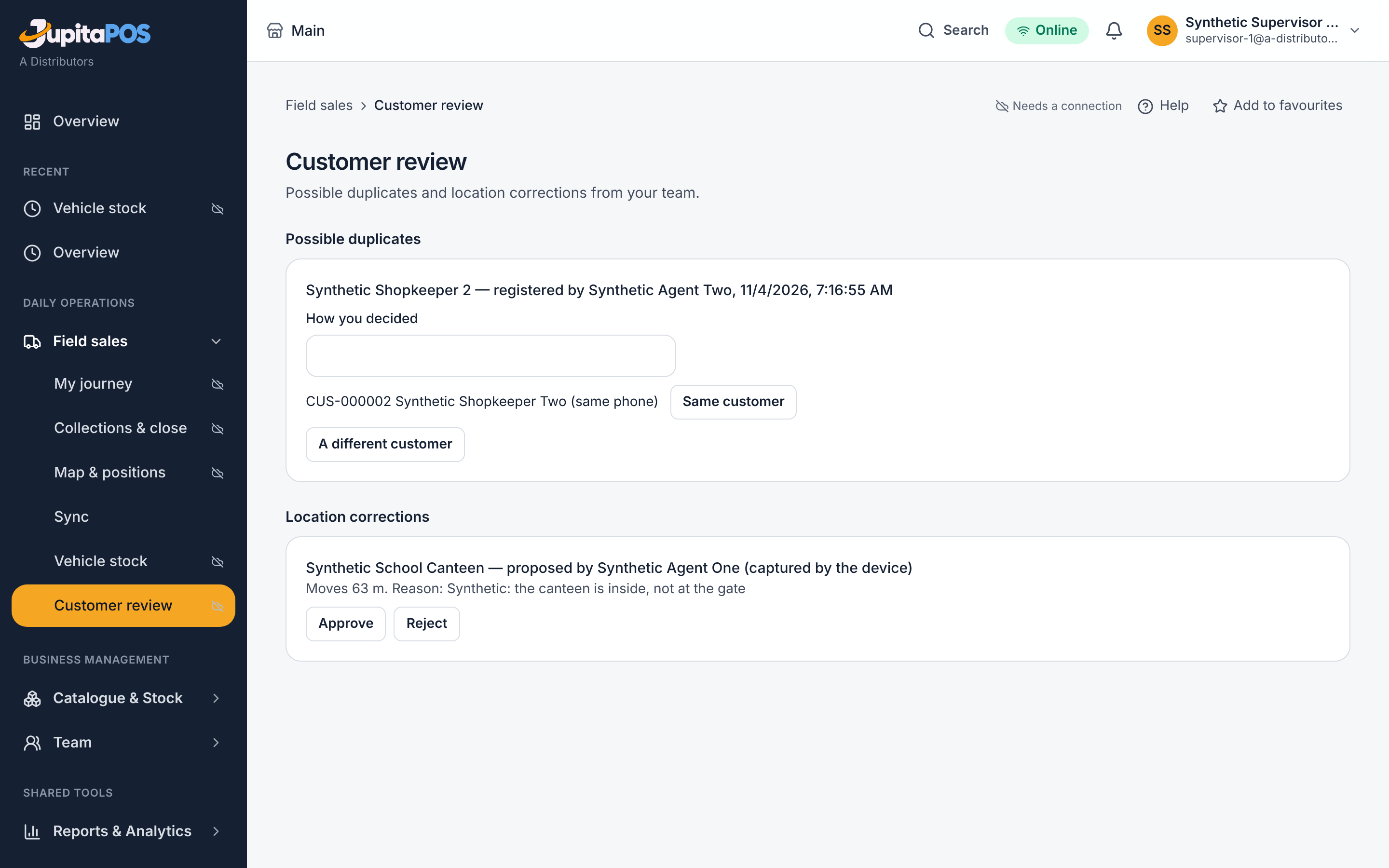
Common mistakes
Deciding a duplicate you registered yourself: someone else decides it.
Troubleshooting
An agent can always keep selling to a customer that is being checked.
Positions on duty, and selling with no network
Purpose
Share the agent’s position only while on duty, and keep selling where there is no network.
Role / permission required
route.locations.share for the Agent; route.locations.view for the
Supervisor.
Prerequisites
For offline selling: the phone was chosen for the vehicle’s stock while it was online.
Steps
- Field sales → Map & positions: press Start duty (share my position). Press Stop duty at the end of the day.
- Field sales → Sync, while online: press Use this phone for the vehicle’s stock.
- Offline: Record while offline — cash sales and new customers.
- When the network is back, the phone sends them once.
- A phone lost or replaced: under Phones registered to journeys, type Why revoke and press Revoke this phone. Another phone can then take over the vehicle’s stock.
Expected result
The supervisor sees the team’s latest positions with their age; stale or off duty means exactly that. Offline sales arrive once, in order.
Screenshot
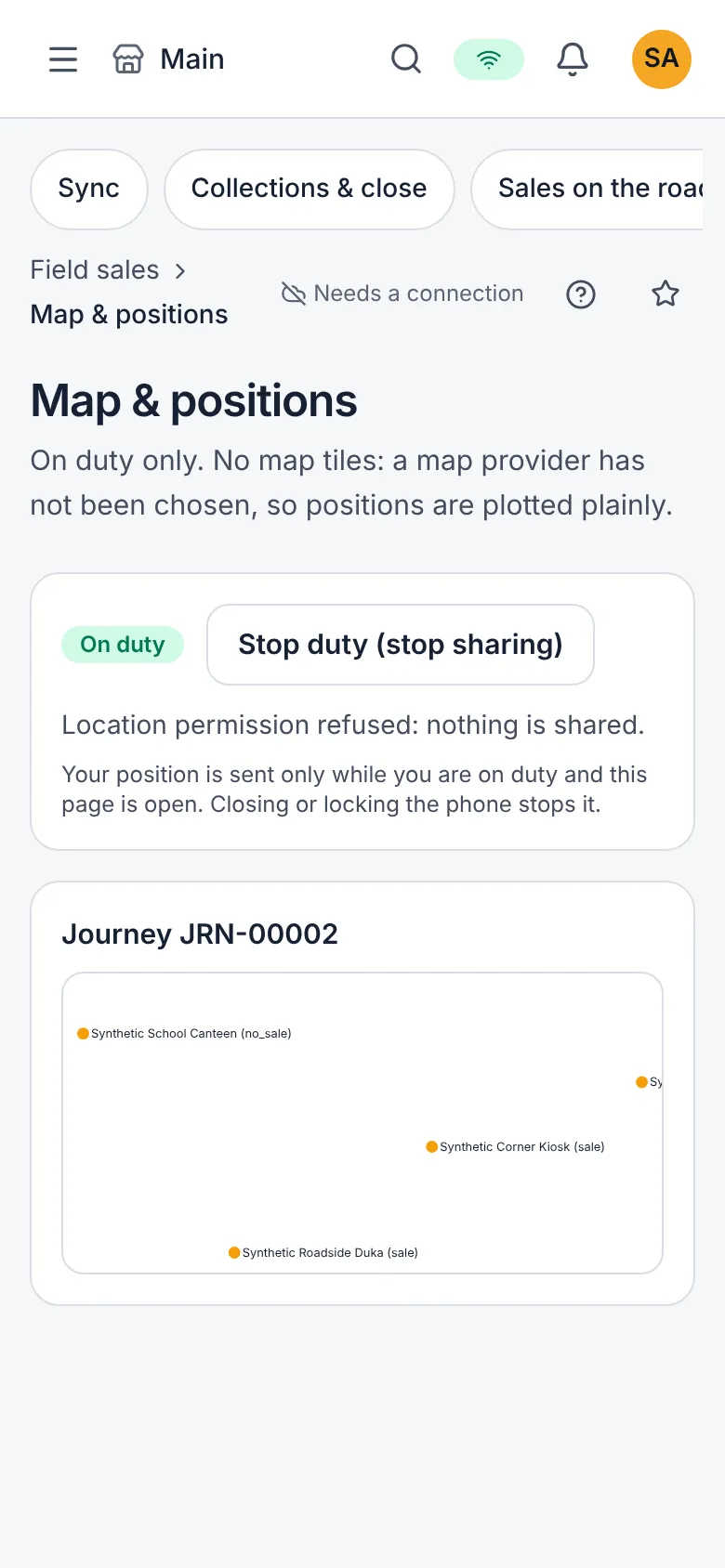
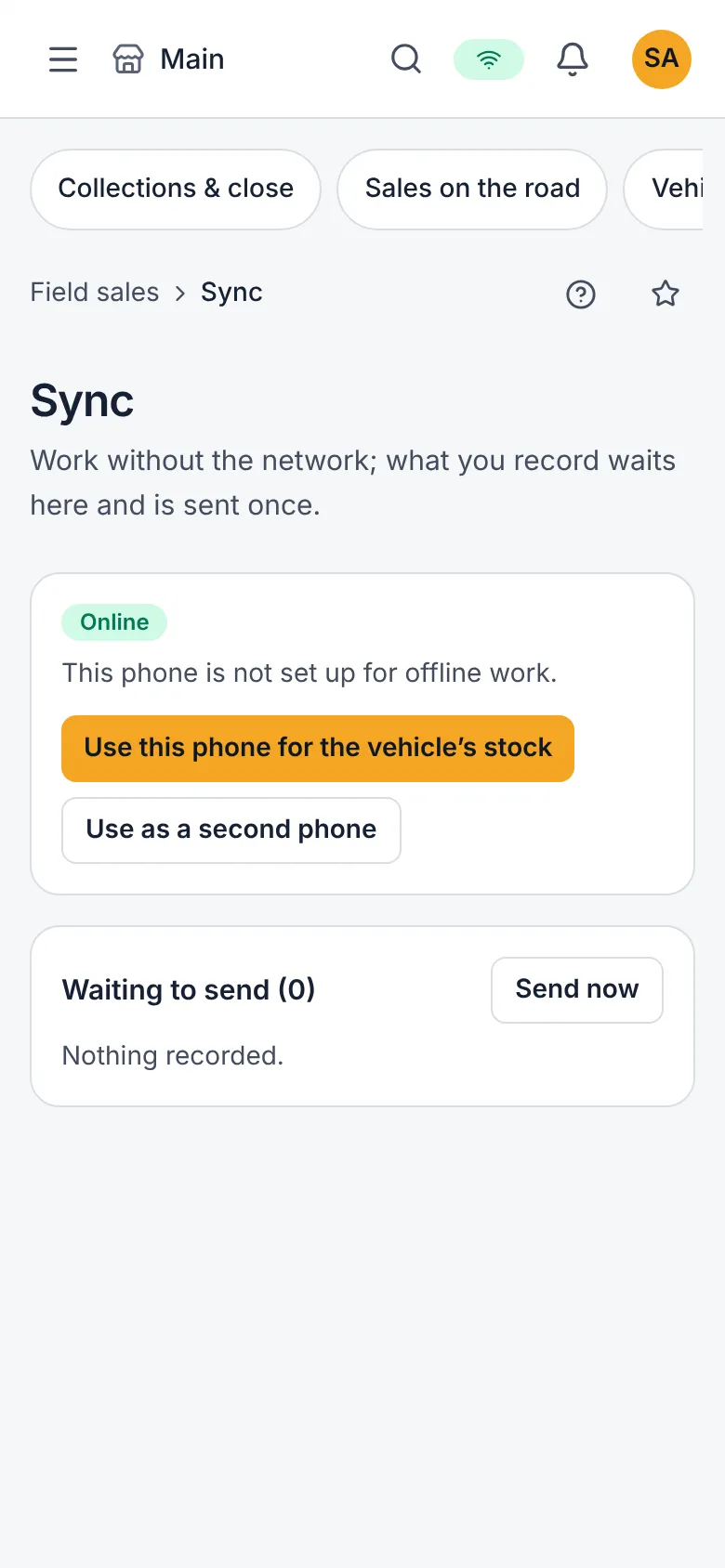
Common mistakes
A second phone selling the same vehicle’s stock: refused — one phone holds it at a time.
Troubleshooting
A position flag invites a question; it proves nothing.
The route reports
Purpose
See the team’s sales, closes and variances.
Role / permission required
reports.view — the Supervisor (for their team), the Route manager,
the Accountant and the Owner.
Prerequisites
Journeys closed in the period.
Steps
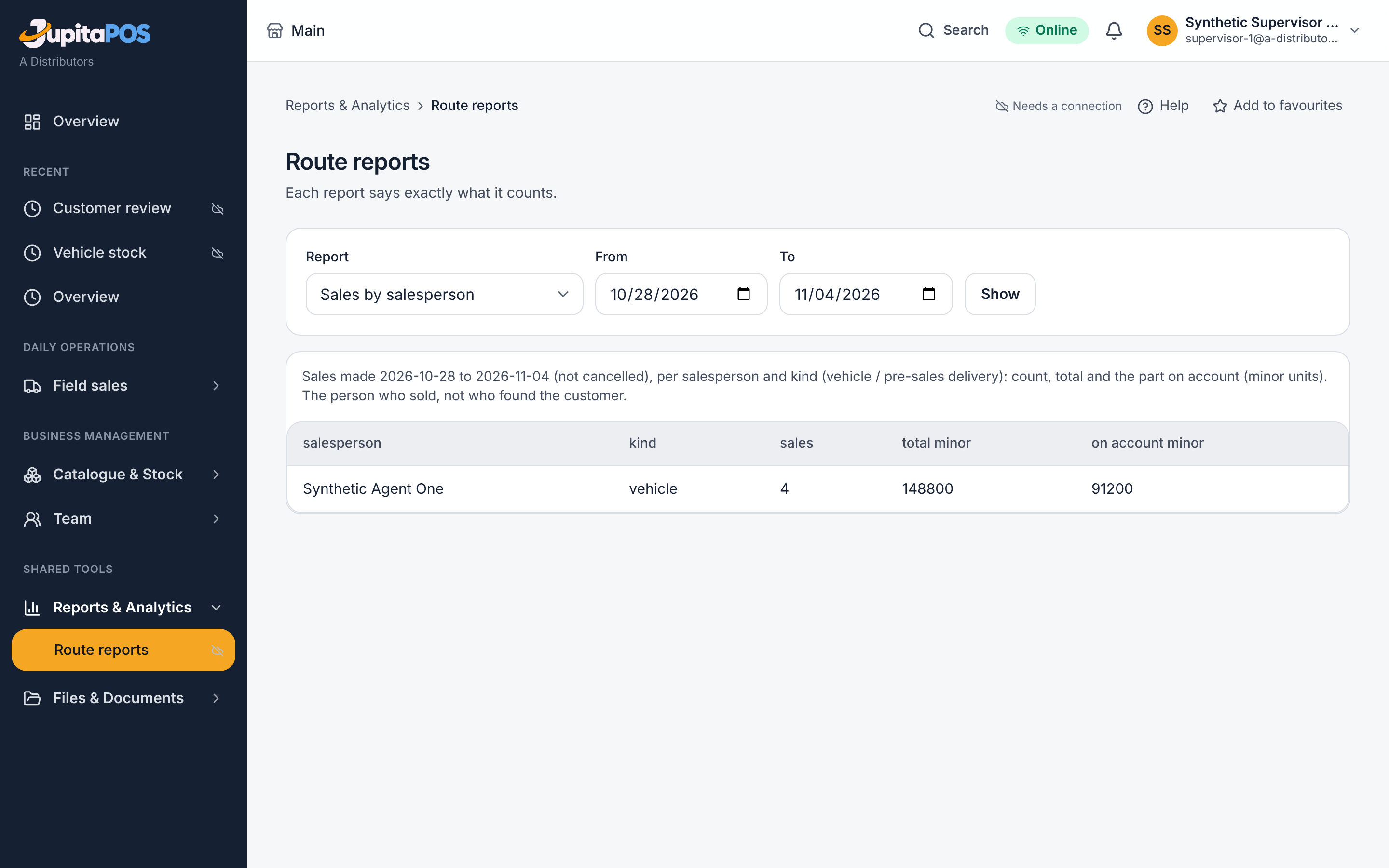
- Open Reports & Analytics → Route reports.
- Choose the Report, From and To, and press Show.
Expected result
Sales by agent, closes and their variances, and stock — the same figures the ledger has.
Screenshot
Common mistakes
Comparing a period that has journeys still open: their sales are in, their close is not.
Troubleshooting
Route sales, returns and stock post through the same ledger as the rest of the business — there is no second ledger.
Collect from a customer
Purpose
Take money from a customer against what they owe on Route sales, on the road, and keep it in your cash bag until you hand it over.
Role / permission required
route.collections — the Agent, the Driver or the Collector
on the journey.
Prerequisites
An open journey, and a customer who bought on account.
Steps
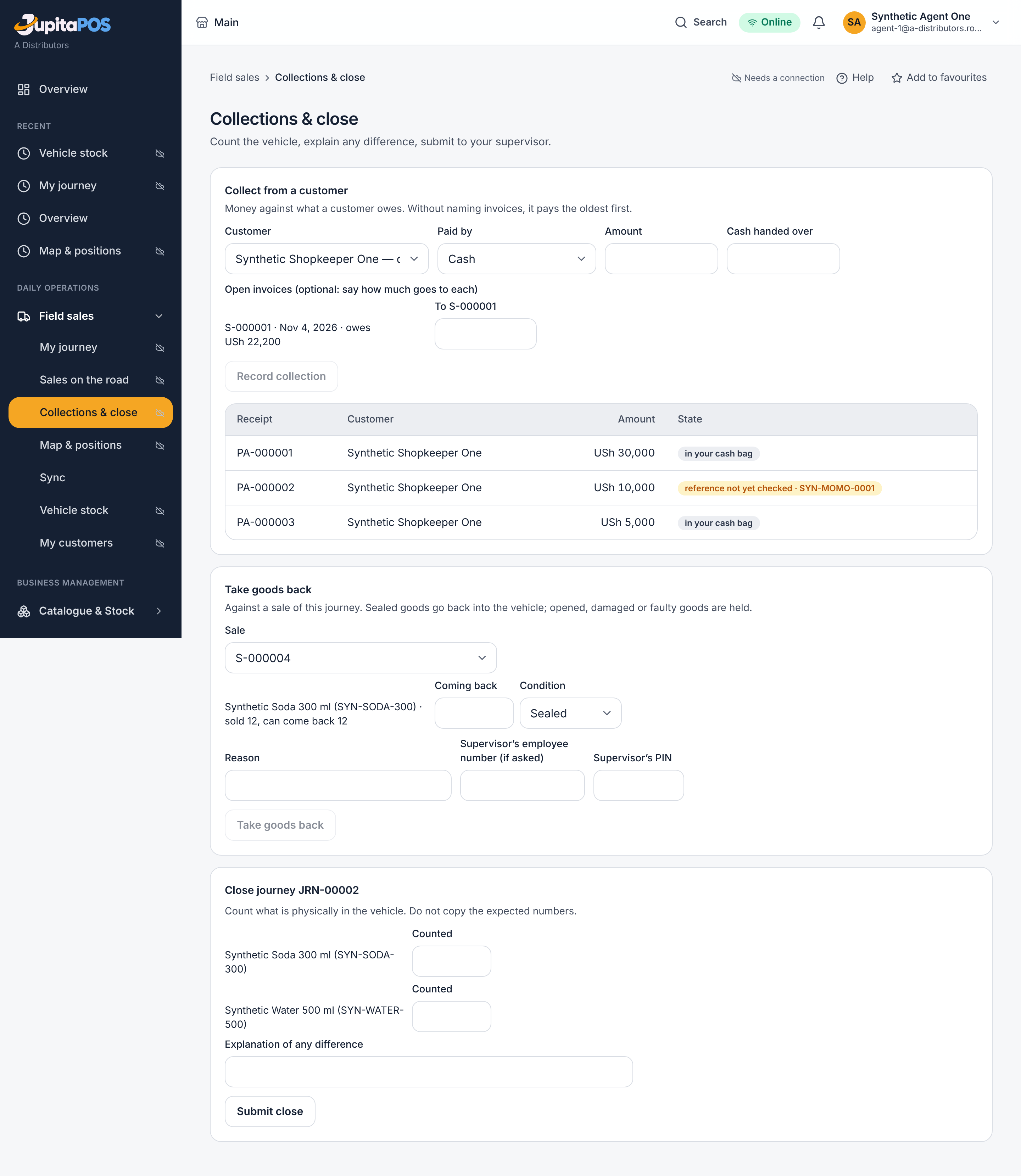
- Open Field sales → Collections & close.
- Under Collect from a customer, choose the Customer. The list shows what each one owes.
- Choose Paid by, and type the Amount. For cash, type the Cash handed over to see the change. For mobile money or a card slip, type the Transaction reference.
- To pay particular invoices, type an amount against each one. Leave them empty to pay the oldest first.
- Press Record collection.
Expected result
The collection has its receipt number and is listed under Collected on this journey. Cash is in your cash bag. A reference stays reference not yet checked until someone checks it.
Screenshot
Common mistakes
- Putting more against an invoice than it still owes: refused.
- Recording today’s new sale as a collection: a collection pays what is owed; a sale is a sale.
Troubleshooting
Collections are made on your own journey: you are not the agent or the driver of this journey.
Take goods back
Purpose
Take goods a customer gives back onto the vehicle, against the sale they came from.
Role / permission required
route.sales.vehicle — the Agent holding the vehicle’s stock. A cash
refund needs a supervisor’s employee number and PIN when your role cannot
refund.
Prerequisites
The sale was made from this vehicle on this journey.
Steps
- Open Field sales → Collections & close.
- Under Take goods back, choose the Sale.
- For each line coming back, type Coming back and choose the Condition: sealed, opened, damaged or faulty.
- Give the Reason. For a sale on account, choose Settled by: credit the account, or refund in cash.
- Press Take goods back.
Expected result
Sealed goods are back in the vehicle’s saleable stock; the others are held. The customer’s account is credited, or the cash refund leaves your cash bag.
Screenshot
Common mistakes
Returning more than can still come back: refused. A sale already fully returned is no longer offered.
Troubleshooting
Only the person holding the vehicle’s stock takes goods back onto it: after a handover, the new holder takes returns.
Hand over the vehicle’s stock
Purpose
Give the vehicle’s stock to another person during the day: a driver taking over, or an agent going home ill. The stock is theirs only once they have counted it and accepted it.
Role / permission required
The person holding the stock (or a manager with route.journeys.manage)
proposes. Only the receiver accepts or refuses.
Prerequisites
An open vehicle journey, and the person who will take over is a member of staff.
Steps
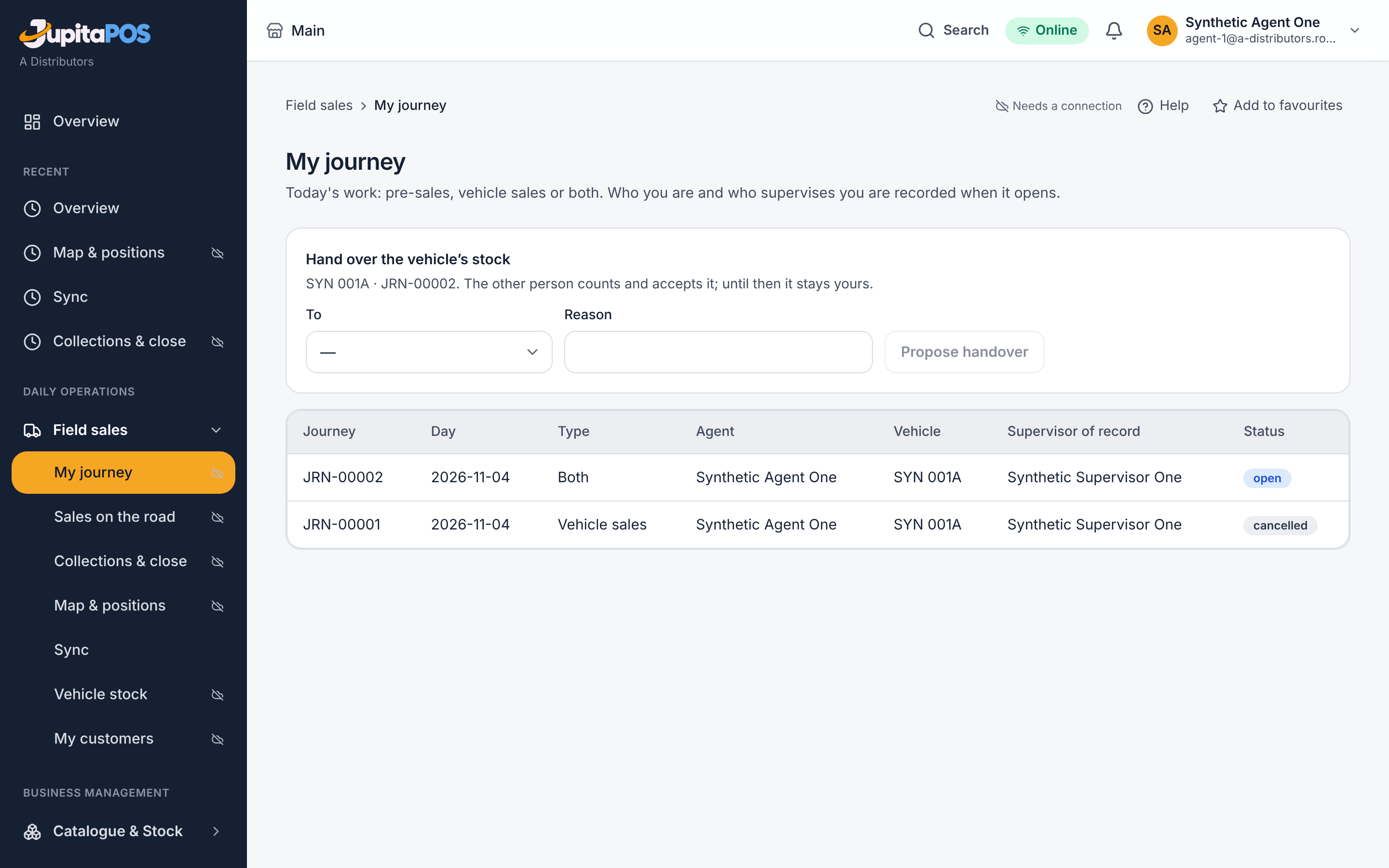
- Open Field sales → My journey.
- Under Hand over the vehicle’s stock, choose who it goes To and give the Reason. Press Propose handover.
- The receiver opens My journey. Under Handovers waiting, they type what they counted for every product and press Accept the stock, or Refuse.
- The person who proposed it can Withdraw it until then.
Expected result
The receiver holds the vehicle’s stock from that moment. A difference between the count and the books is recorded with the handover.
Screenshot
Common mistakes
Accepting without counting: every product must be counted first.
Troubleshooting
A handover of this journey is already waiting: withdraw it, or wait for the answer.
Send stock back, or to another vehicle
Purpose
Return goods the vehicle no longer needs to the depot, move them to another vehicle on the road, or close a request.
Role / permission required
The person holding the vehicle’s stock. route.stock.request to withdraw
or close your own request.
Prerequisites
An open vehicle journey with saleable stock.
Steps
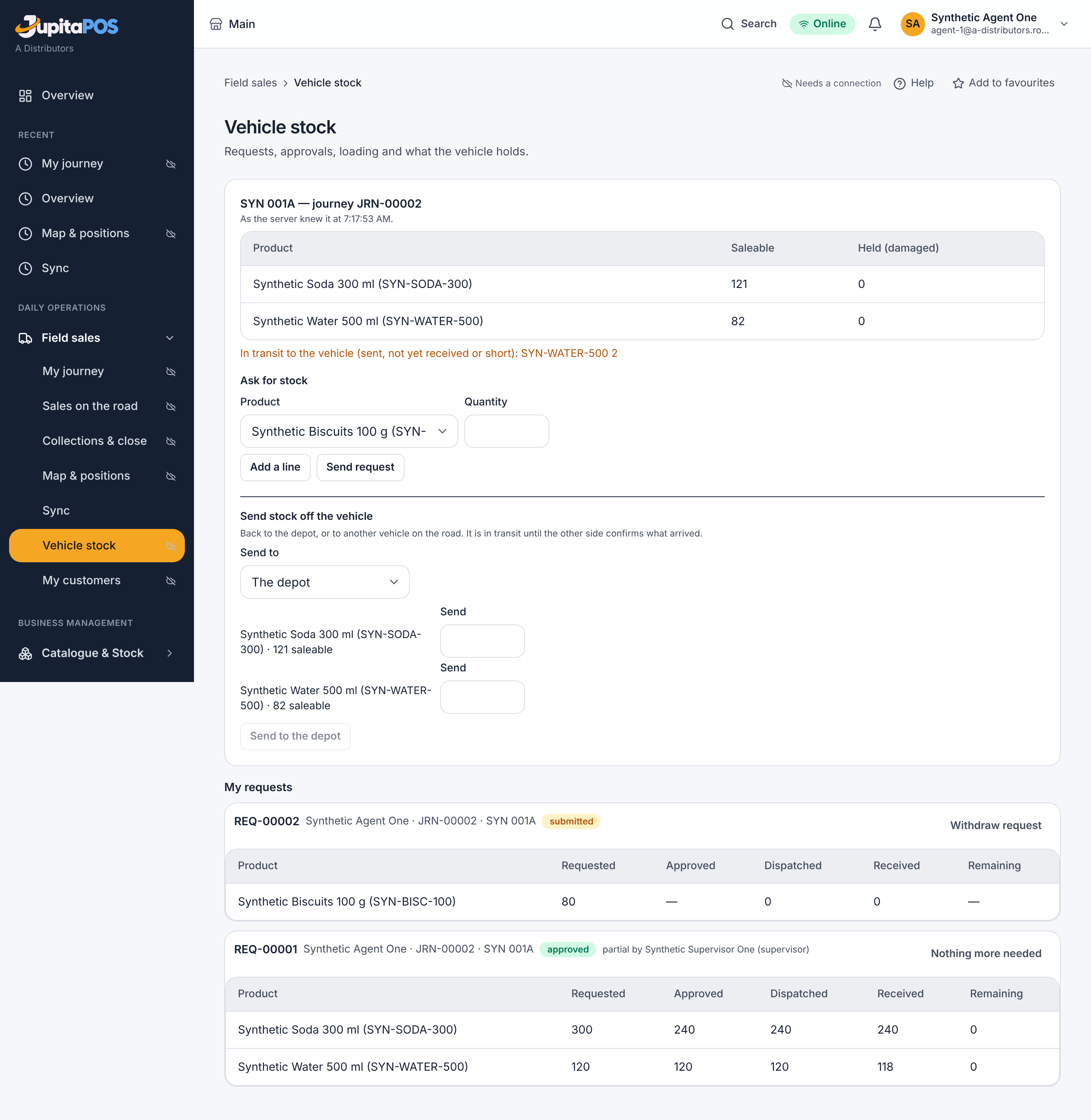
- Open Field sales → Vehicle stock.
- Under Send stock off the vehicle, choose Send to: the depot, or another vehicle (then the Vehicle).
- Type what to Send for each product, and press Send to the depot (or Send to the vehicle).
- Under My requests, Withdraw request takes back a request the supervisor has not decided. Nothing more needed closes an approved request whose rest you no longer need.
Expected result
The goods are in transit until the depot or the other vehicle confirms what arrived. A closed request frees what it held at the depot.
Screenshot
Common mistakes
Sending more than is saleable on the vehicle: refused. Held (damaged) goods are not sent from here.
Troubleshooting
No Another vehicle choice: no other vehicle is on an open journey.
Cover for a supervisor, record a departure, take a vehicle out of service
Purpose
Keep the team’s records true: another supervisor covering for a time, an agent who leaves, a vehicle in maintenance or retired.
Role / permission required
route.team.manage for cover and departures; route.vehicles.manage for
vehicles — the Route manager and the Owner.
Prerequisites
For a departure or a vehicle change: no open journey and no stock held.
Steps
- Team → Field team, under Cover for a supervisor: choose the Supervisor away and who it is Covered by, From and Until, the Largest stock line they approve, whether they Also decide closes and variances, and the Reason. Press Record cover. End cover stops it early.
- A departure: on the agent’s row, type Why they leave and press Record leaving.
- A vehicle: Team → Field team, tab Vehicles, choose Set to and the Reason, and press Save.
Expected result
The cover is listed with its dates and limits. The agent shows left with the day. The vehicle shows its new status; a retired vehicle stays retired.
Screenshot
Common mistakes
- Cover longer than 90 days, or given to the person giving it: refused.
- A vehicle on a journey, or one still holding stock, cannot go to maintenance: return or transfer the stock first.
Troubleshooting
An agent with an open journey cannot leave: close the journey first.
Keep customer records right
Purpose
Correct a customer’s phone, add or correct an outlet’s location, archive a customer who no longer trades, and merge a duplicate.
Role / permission required
route.customers.register for the agent who found the customer;
route.customers.manage for archive and merge — the Route manager.
Prerequisites
The customer is registered.
Steps
- The agent: Field sales → My customers, on the customer, Change phone, or on the outlet, Add the location (or Correct the location, with why it moves), standing at the outlet.
- The manager: Field sales → Customer review, under Archive or merge a customer, find the customer, give the Reason, and press Archive — or choose who it is a Duplicate of and press Merge into it.
Expected result
A first location is recorded at once; a corrected one waits for a supervisor in Customer review. Archived and merged customers leave the lists; everything recorded about them stays.
Screenshot
Common mistakes
Merging a customer into itself: refused.
Troubleshooting
A correction of this outlet is already waiting for review: the supervisor decides it first.
Who does what
| Role | What they do |
|---|---|
| Agent | opens a journey, asks for stock, confirms what arrived, registers customers, sells and takes pre-orders, counts and closes |
| Supervisor | approves stock requests, customer and location reviews, decides goods not acknowledged, approves or sends back closes, sees the team’s positions |
| Storekeeper | dispatches approved stock, confirms pre-orders |
| Driver | delivers pre-orders and records who received them |
| Collector | collects money from customers |
| Route manager | the team, vehicles, products, customers and corrections |
| Accountant | the route reports and the books |
| Owner | everything |