

On this page
A wedding, a gala dinner or a launch is more than food: it has guests who reply, choose their meal and sit at a table; a door where they are checked in; a bar where the host (or the guests) pay for the drinks; and a timeline that tells every department what happens when. All of it lives on the function’s workspace in Events & catering, next to its quote and account (see Catering) and its venues (see Private hire).
The screens show the demo’s Mukasa & Nakato wedding reception: Tuesday 6 October 2026, a ceremony in the Garden at 14:00 and the reception in the Grand Hall from 16:00 to 23:30, 180 guests, an unlimited hosted bar at USh 35,000 a guest. Ritah, the Events & Private Hire Manager, keeps the guest list and the timeline; the door can be kept by a supervisor or a host; the bar by the bartenders.
| Who | May |
|---|---|
| Events & Private Hire Manager, managers | everything in this manual |
Supervisor, host (events.guests) |
the guest list, seating, meal choices and the door |
Bartender (events.bar) |
open and close the event bar, ring drinks (selling to guests also payments.take) |
Anyone with events.view |
read the guests, the bar and the timeline |
Keep the guest list and seating
Purpose
Know who is invited, who is coming, what each eats and where each sits, so the kitchen cooks the right meals, the tables are right and the door can find every guest.
Role / permission required
Events & Private Hire Manager, Catering Manager, supervisor, host or manager
— events.guests or events.manage.
Prerequisites
- The function exists and is not closed (see Log a catering enquiry).
- For meal choices linked to dishes: the dishes are on the menu.
Steps
- Open the function and click the Guests tab.
- Click Add guest.
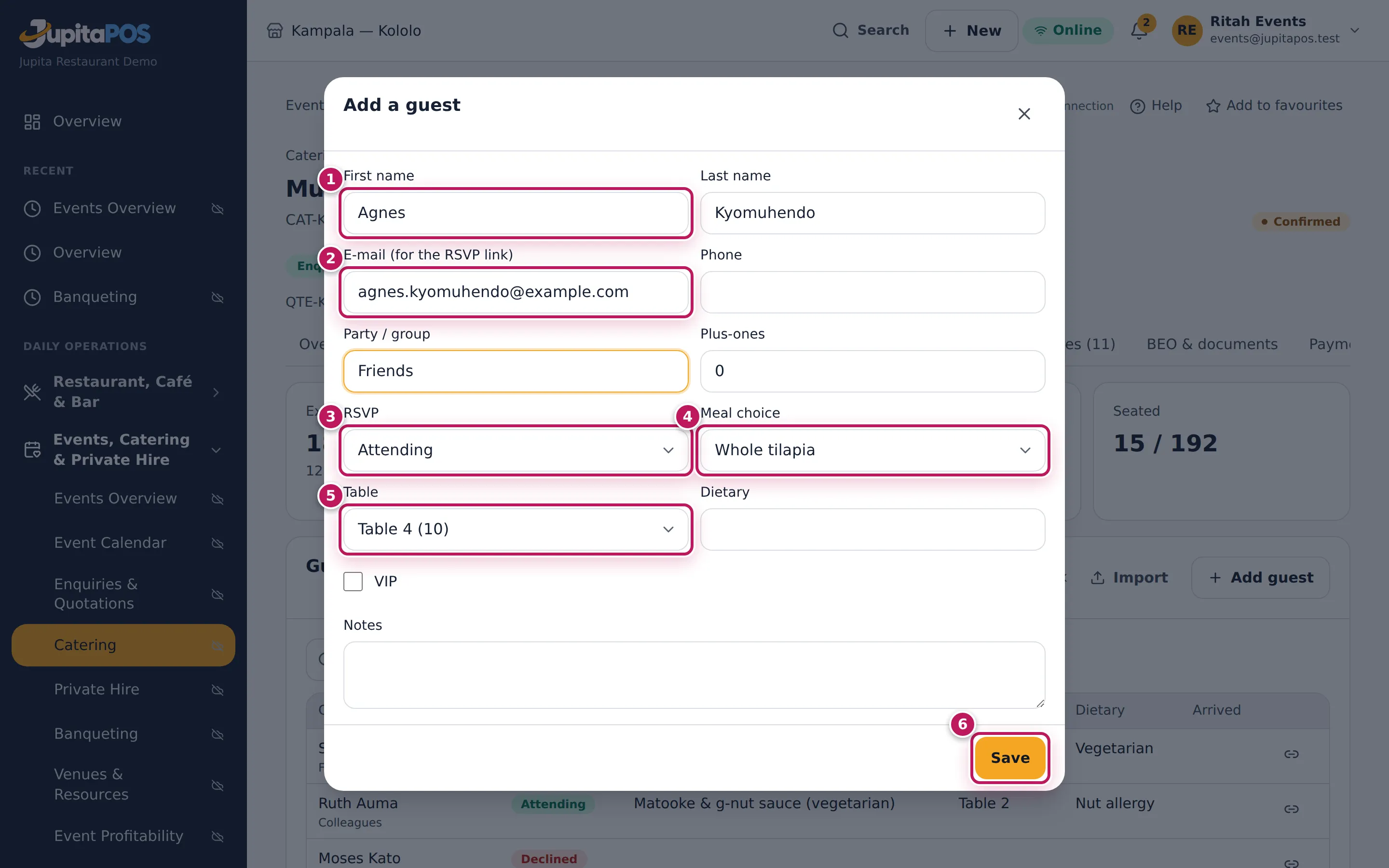
- Type the First name (1) and Last name, the E-mail (for the RSVP link) (2) or the Phone, and the Party / group (Friends, Family of the bride).
- Set the Plus-ones the invitation allows, the RSVP (3) if the guest has already answered, the Meal choice (4), the Table (5), any Dietary need, and tick VIP for the head table and speakers.
- Click Save (6).
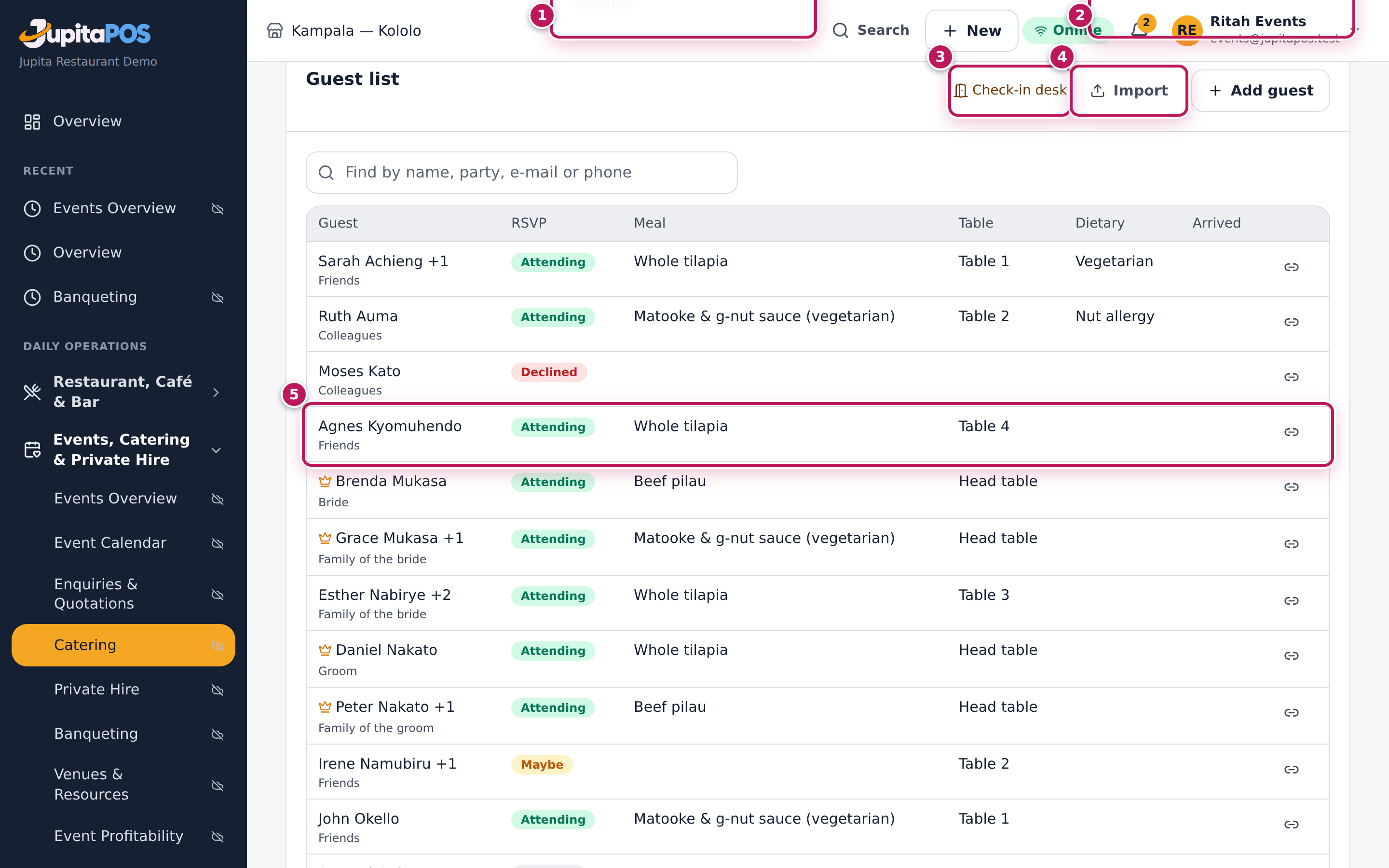
- To add many guests at once, click Import (4 in the second picture) and paste one guest per line: name, e-mail, phone, party, plus-ones, VIP. Guests already on the list (same e-mail, phone or name) are skipped.
- To change a guest, click their row; Remove is in the same dialog.
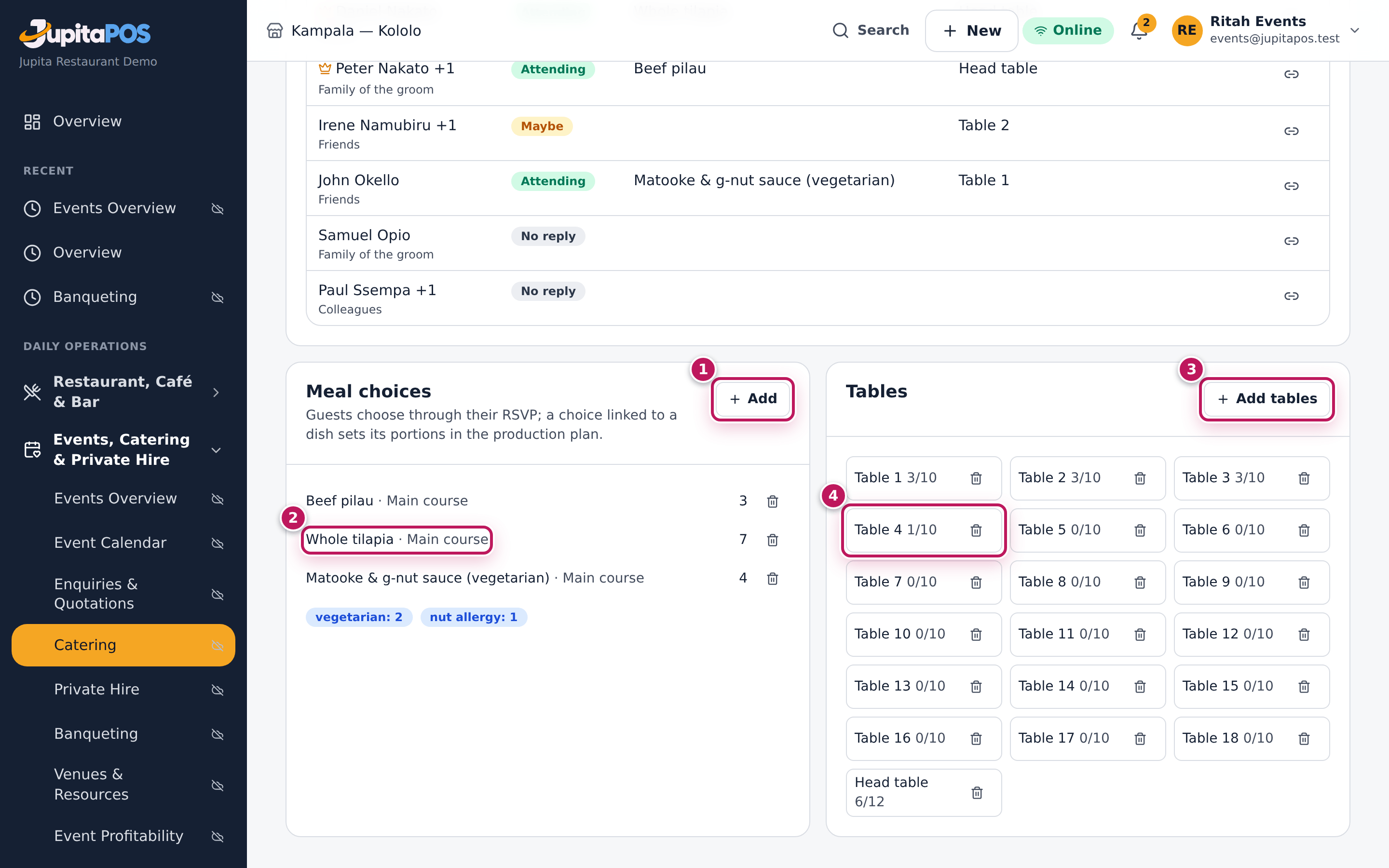
- Under Meal choices, click Add (1 in the third picture) to offer a choice: its name, the Course and the Dish (for the production plan).
- Under Tables, click Add tables (3) and give How many tables and Seats each.
Expected result
Agnes Kyomuhendo is on the list (5) as Attending, Whole tilapia, Table 4. The counters above the list (1, 2) show the guests expected (180), how many are attending and how many replied no, maybe or not at all, how many arrived, and the seats taken against the seats (Seated 16 / 192 with Agnes). Meal choices shows how many chose each dish (2) and the dietary needs; each table shows its seats taken (4). The production plan makes each chosen dish for the guests who chose it.
Screenshot
Common mistakes
- Putting a party of four as one guest with no plus-ones. The seats and the meals count people: give the guest their Plus-ones.
- A meal choice with no dish. It helps the waiters but not the kitchen; link it to the dish so the production plan counts it.
- Seating more than a table holds. The list refuses it (Table 4 seats 10: … already placed). Move someone or add a table.
Troubleshooting
- “The guest list is closed.” The function is invoiced, closed, lost or cancelled.
- A meal choice says “Not on the quoted menu”. The dish is not on the quote: the plan still makes it, but it is not priced. Add it to the quote.
- Removing a table. Its guests stay on the list, without a table.
Send RSVP links
Purpose
Let each guest answer the invitation themselves — coming or not, with how many, their meal choice and any dietary need — through a private link, with no account and no password.
Role / permission required
Events & Private Hire Manager, Catering Manager, supervisor, host or manager
(events.guests or events.manage). The guest needs nothing: the link
opens without signing in.
Prerequisites
- The guest is on the list (see Keep the guest list and seating).
- The meal choices are set up, if the guests choose.
Steps
- Open the function and click the Guests tab.
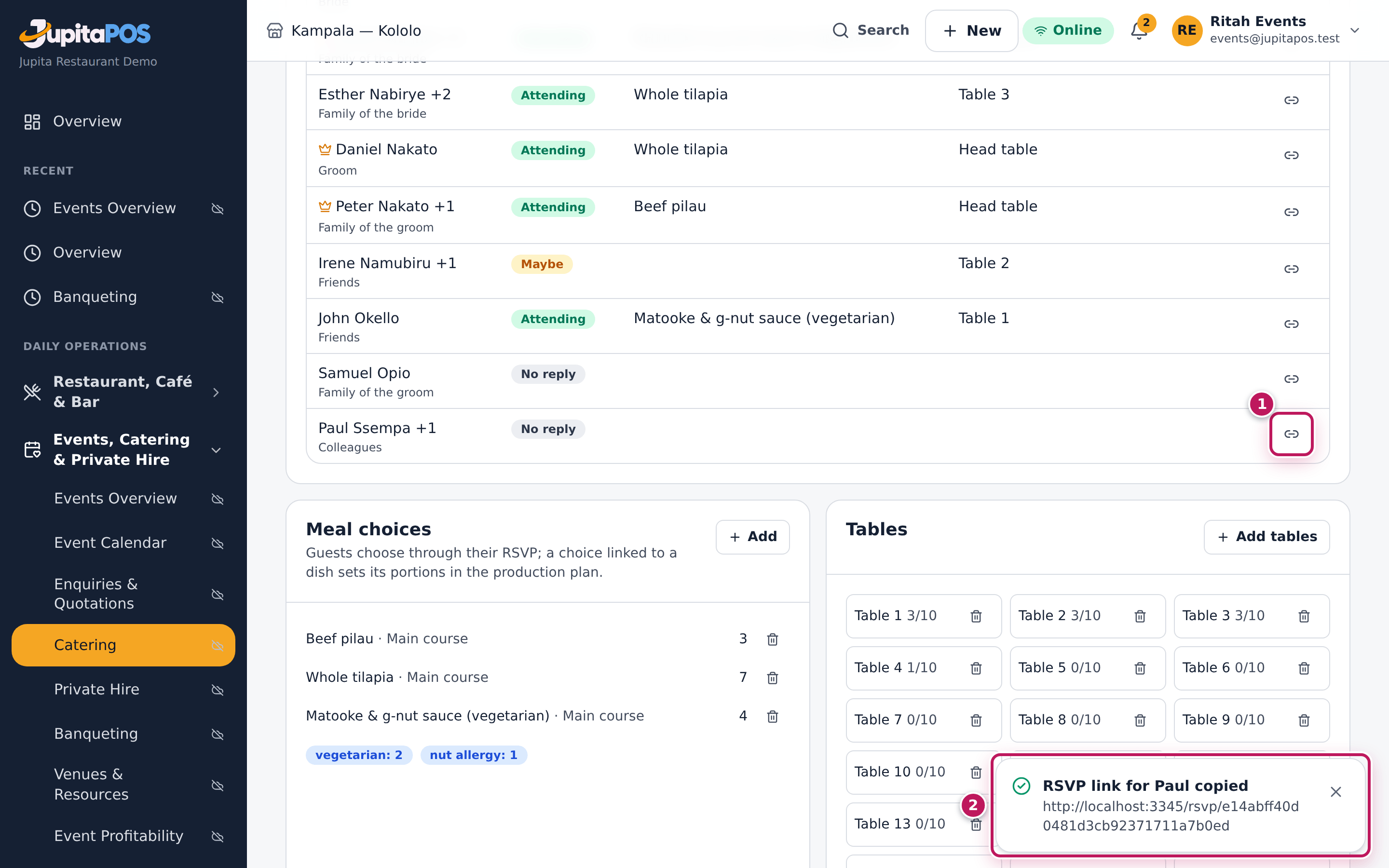
- On the guest’s row, click the link button (1) (Copy the RSVP link of Paul Ssempa). The link is copied and shown in the message (2).
- Send the link to the guest by SMS, WhatsApp or e-mail.
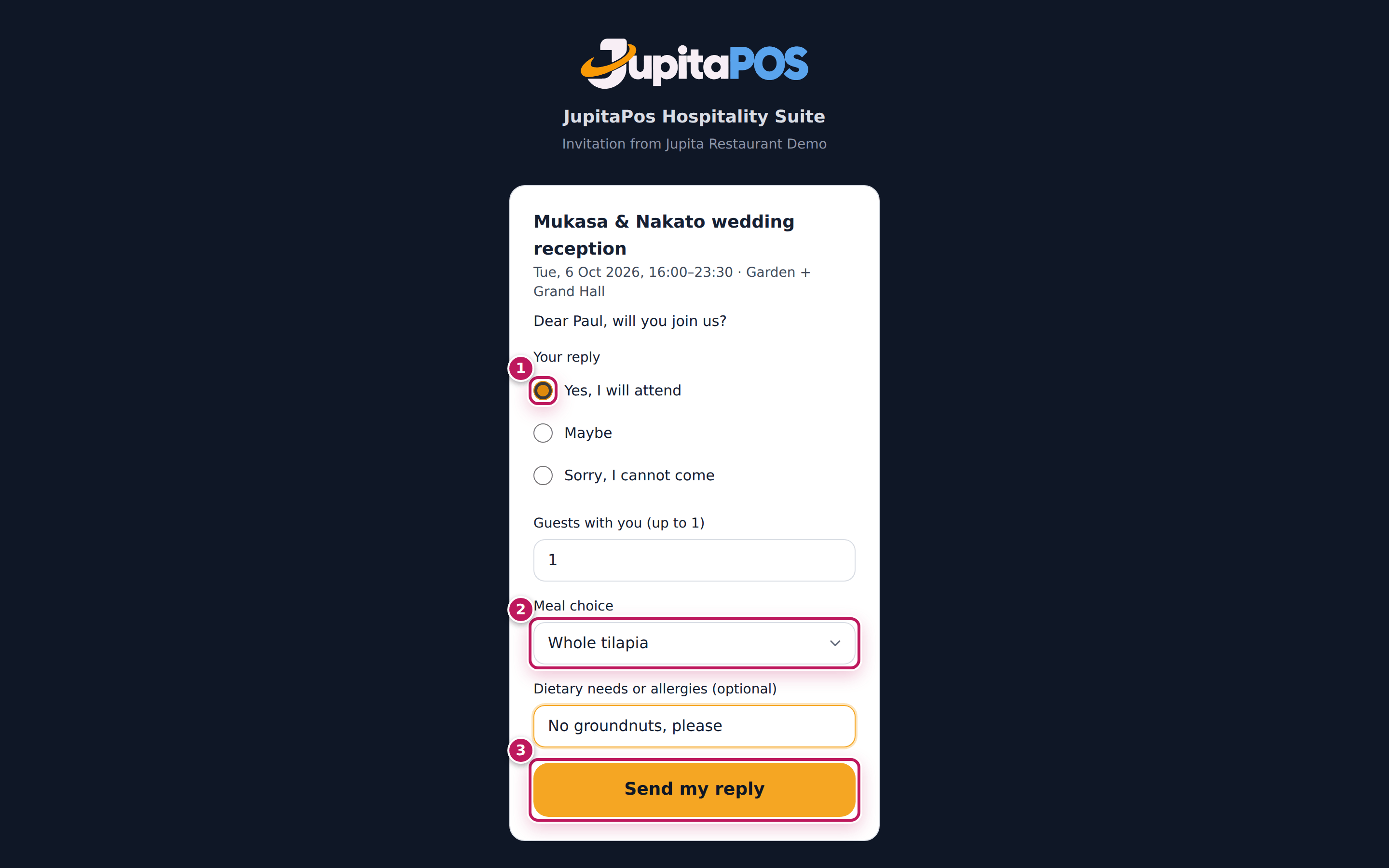
- The guest opens it and sees the event — its title, date, times and venue — and Dear Paul, will you join us?
- The guest chooses Yes, I will attend (1), Maybe or Sorry, I cannot come, how many come with them (up to their plus-ones), the Meal choice (2) and any dietary need, and taps Send my reply (3).
Expected result
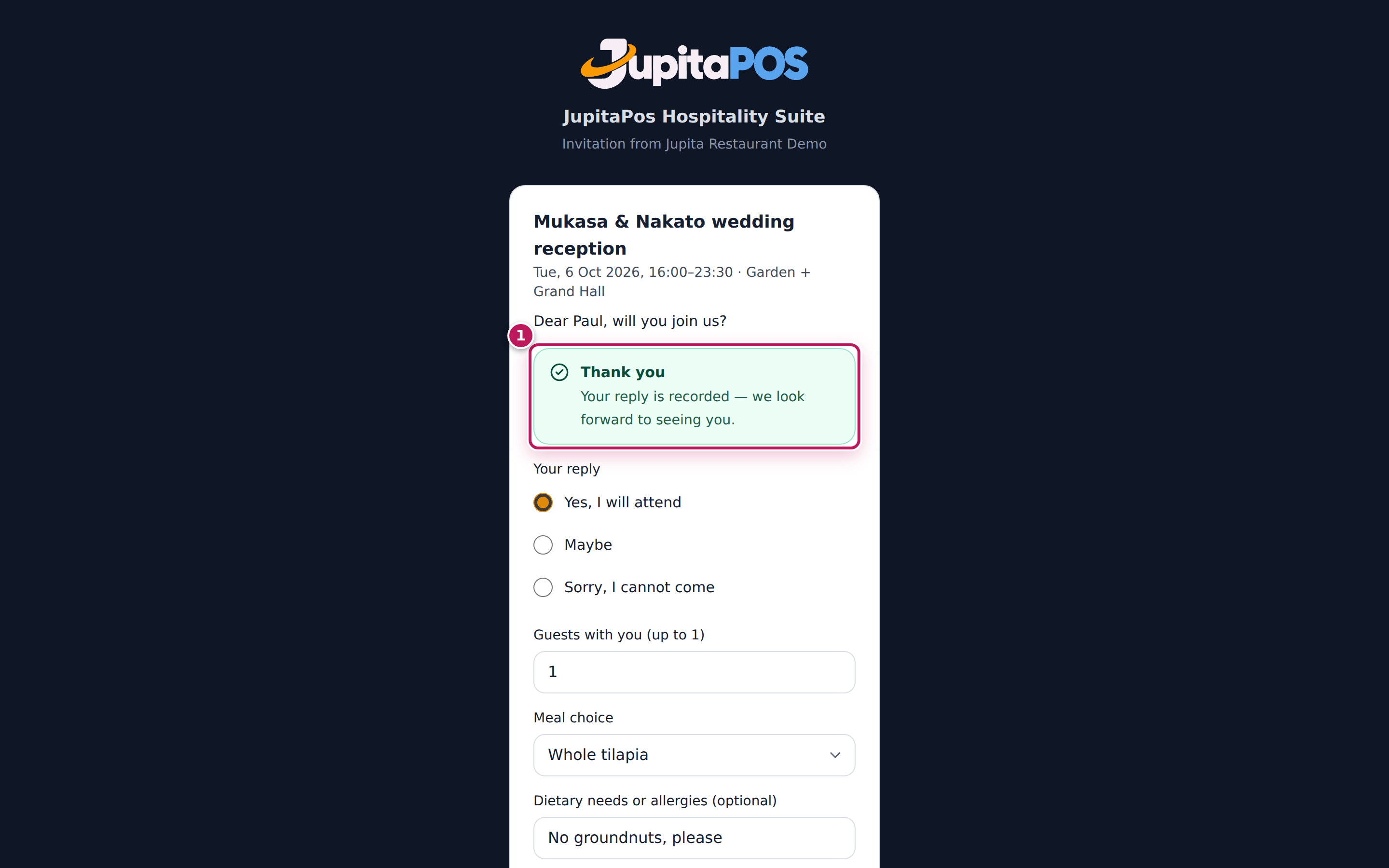
The guest sees Thank you — Your reply is recorded — we look forward to seeing you (1). On the guest list Paul Ssempa changes from No reply to Attending, with Whole tilapia, and the counts, the meal numbers and the production plan follow. The link shows nothing about the other guests.
Screenshot
Common mistakes
- Sending one link to a whole family. Each link answers for one guest and their plus-ones. Add each household as a guest with its plus-ones.
- Forwarding a guest’s link to someone else. Whoever has the link can change that guest’s reply.
Troubleshooting
- “This invitation link is not valid.” The link was cut short, or the guest was removed from the list. Copy it again.
- “Replies for this event are closed.” The function is past, lost or cancelled.
- “Your invitation is for 2 people.” The guest asked for more places than their plus-ones. Change their plus-ones on the list if you agree.
Check guests in at the door
Purpose
Welcome each guest by name, send them to their table, warn the kitchen of their needs, and know at every moment how many have arrived.
Role / permission required
Supervisor, host, Events & Private Hire Manager or manager —
events.guests or events.manage.
Prerequisites
- The function is Confirmed (check-in opens then).
- The guest list is ready (see Keep the guest list and seating).
Steps
- Open the function, click the Guests tab and Check-in desk — or open the desk on a phone or tablet at the door.
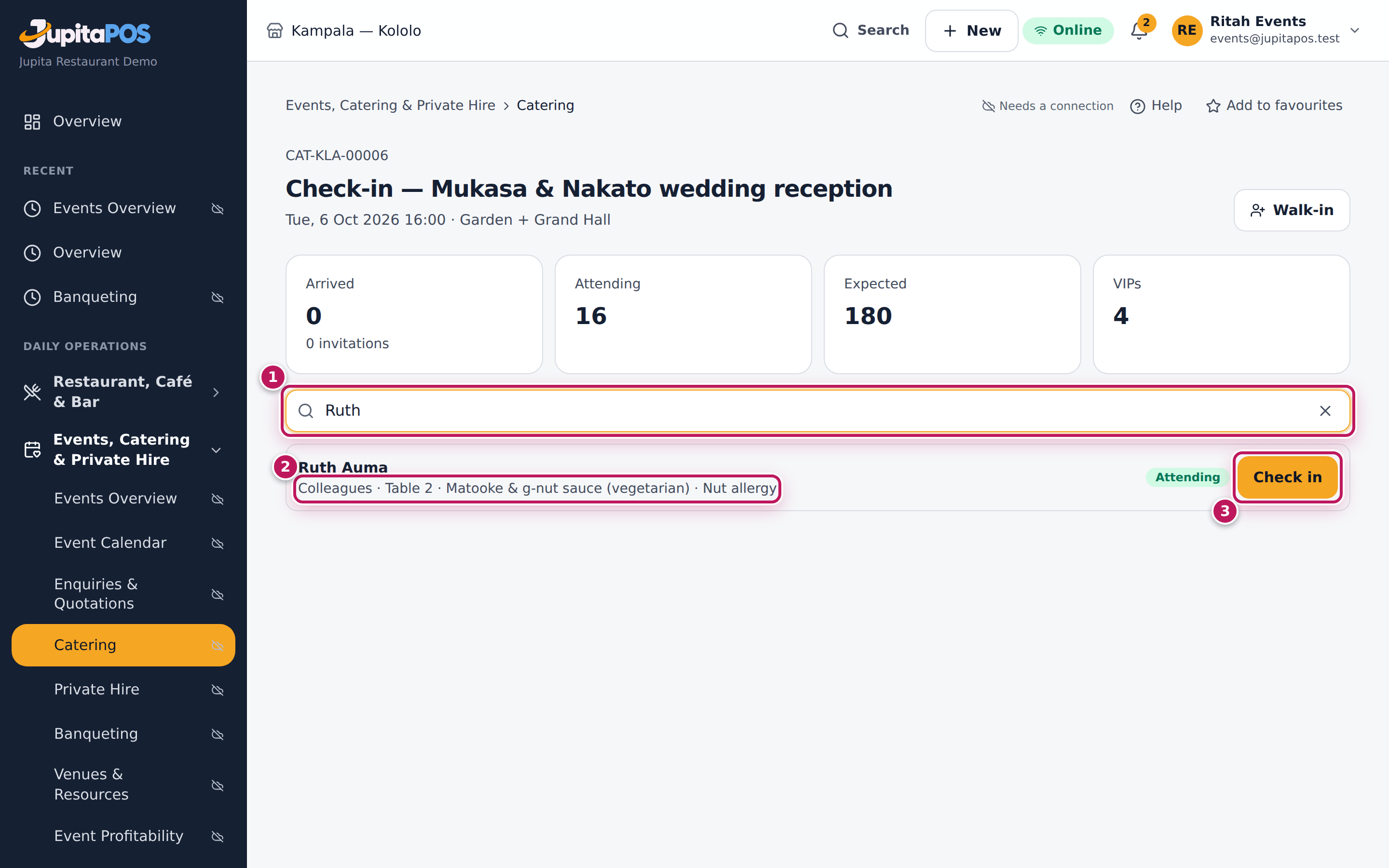
- Type the guest’s name, party or phone in Name, party or phone (1). Their party, table (2), meal and dietary need show on their line.
- Tap Check in (3). For a guest with plus-ones, say how many arrived and tap Check in in the dialog.
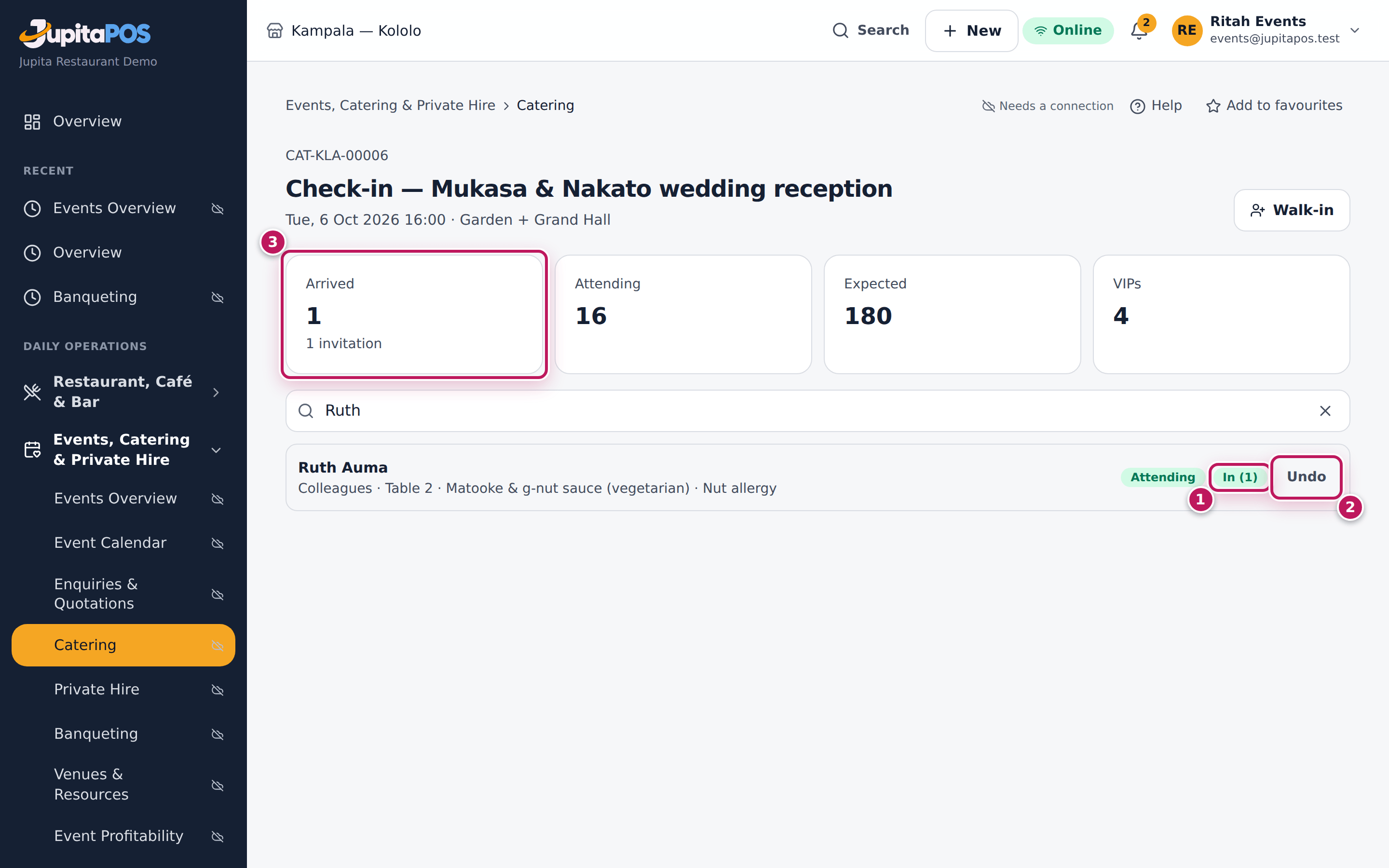
- Checked in the wrong person? Tap Undo (2).
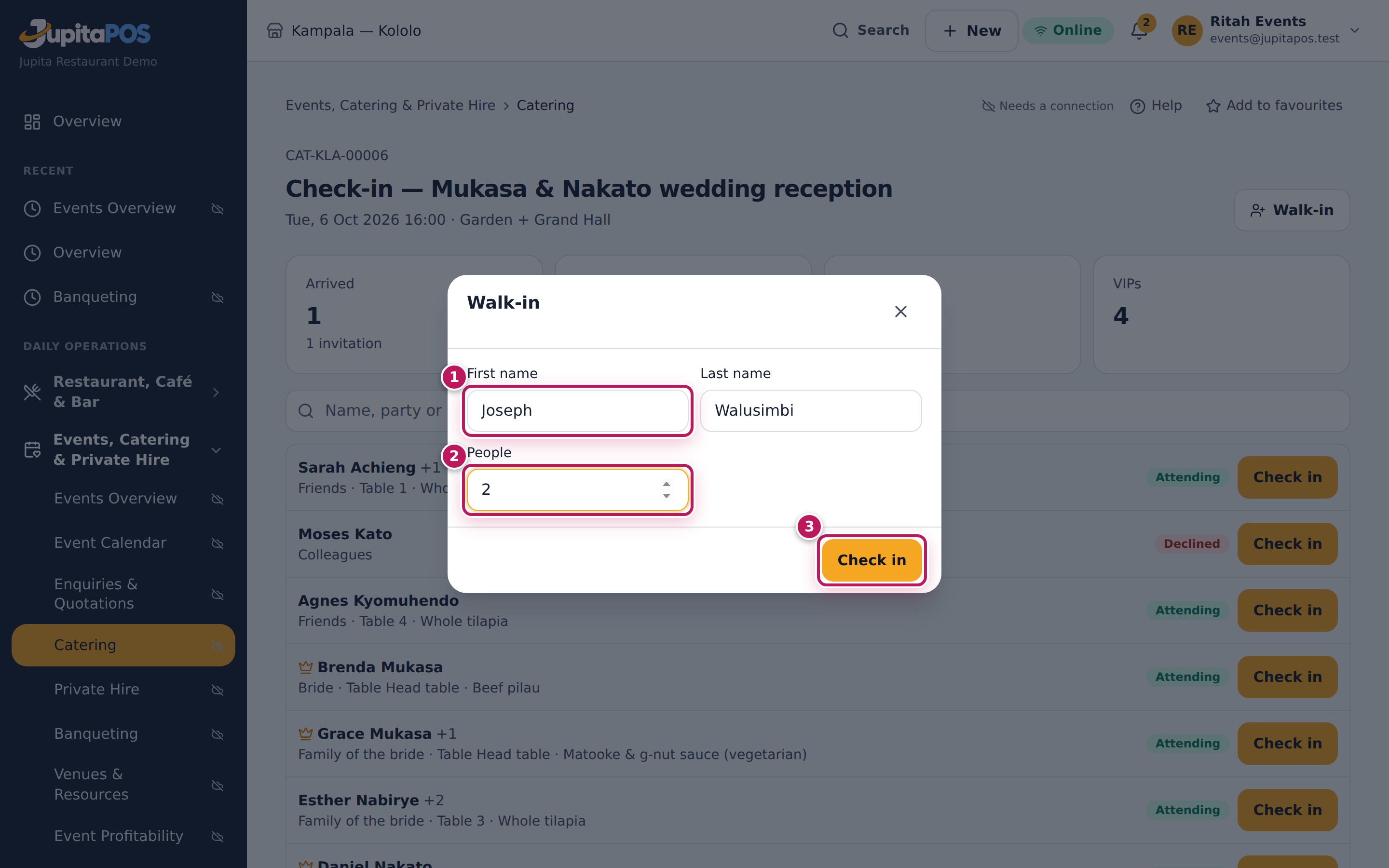
- For someone not on the list, tap Walk-in, type the First name (1) and Last name, how many People (2), and tap Check in (3).
Expected result
Ruth Auma shows In (1) (1) with Undo (2), and Arrived goes up (3). Checked-in guests move to the bottom of the list. A walk-in is added to the list (party Walk-in) and checked in at once — Joseph Walusimbi, In (2). The desk refreshes itself every 20 seconds, so several doors can work at once.
Screenshot
Common mistakes
- Checking in a family as one person. Say how many arrived: the kitchen and the bar count people.
- Adding a walk-in who is on the list under another name. Search by phone or party first.
Troubleshooting
- “Check-in opens once the function is confirmed.” The deposit is not in yet (see Take the deposit and confirm).
- A guest checked in on another phone does not show yet. The desk refreshes every 20 seconds; pull to refresh or wait.
Set up the event bar
Purpose
Agree with the host who pays for the drinks — everything, up to a limit, a list of drinks, an allowance per guest, or nothing — and at what prices, so the bar charges it right on the day.
Role / permission required
Events & Private Hire Manager, Catering Manager or a manager
(events.manage).
Prerequisites
- The function exists and is not closed (see Log a catering enquiry).
Steps
- Open the function and click the Bar tab.
- Click Set up the bar.
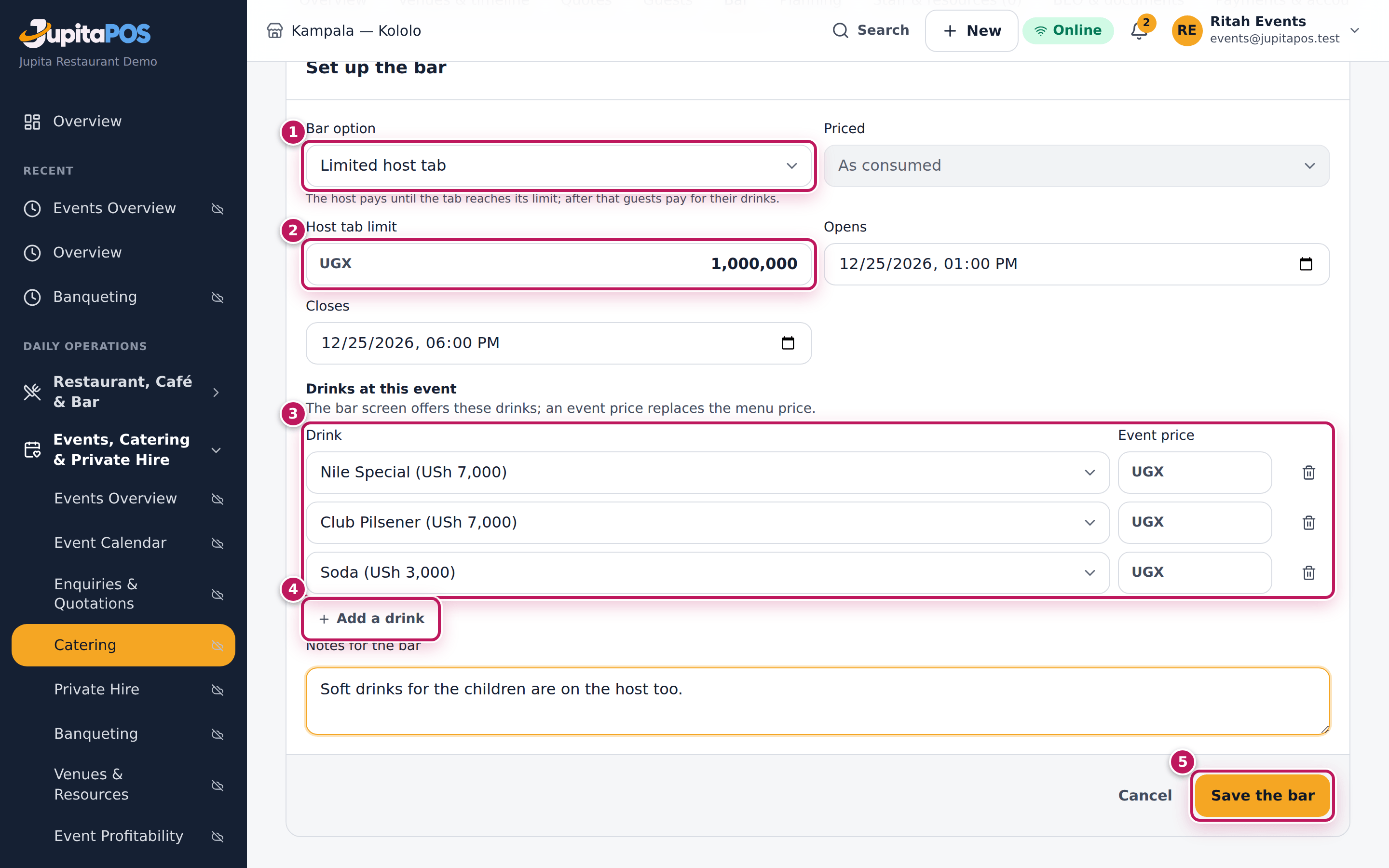
- Choose the Bar option (1). The hint under it says who pays:
- Unlimited hosted bar: the host pays every drink, as consumed or a Package per guest;
- Limited host tab: the host pays up to the Host tab limit (2), then the guests;
- Cash bar: the guests pay (an optional Bar minimum (optional));
- Guest-paid bar (host guarantees a minimum): the guests pay; if they spend less than the Minimum the host guarantees, the host pays the difference;
- Selected beverages hosted: the host pays the drinks ticked Host pays, the guests the rest;
- Per-person allowance: the host pays up to a number of drinks (or an amount) per guest.
- For a hosted bar choose how it is Priced: As consumed or Package per guest.
- Set Opens and Closes.
- Click Add a drink (4) for each drink served, choose the Drink and, if it differs from the menu, the Event price (3).
- Write Notes for the bar and click Save the bar (5).
Expected result
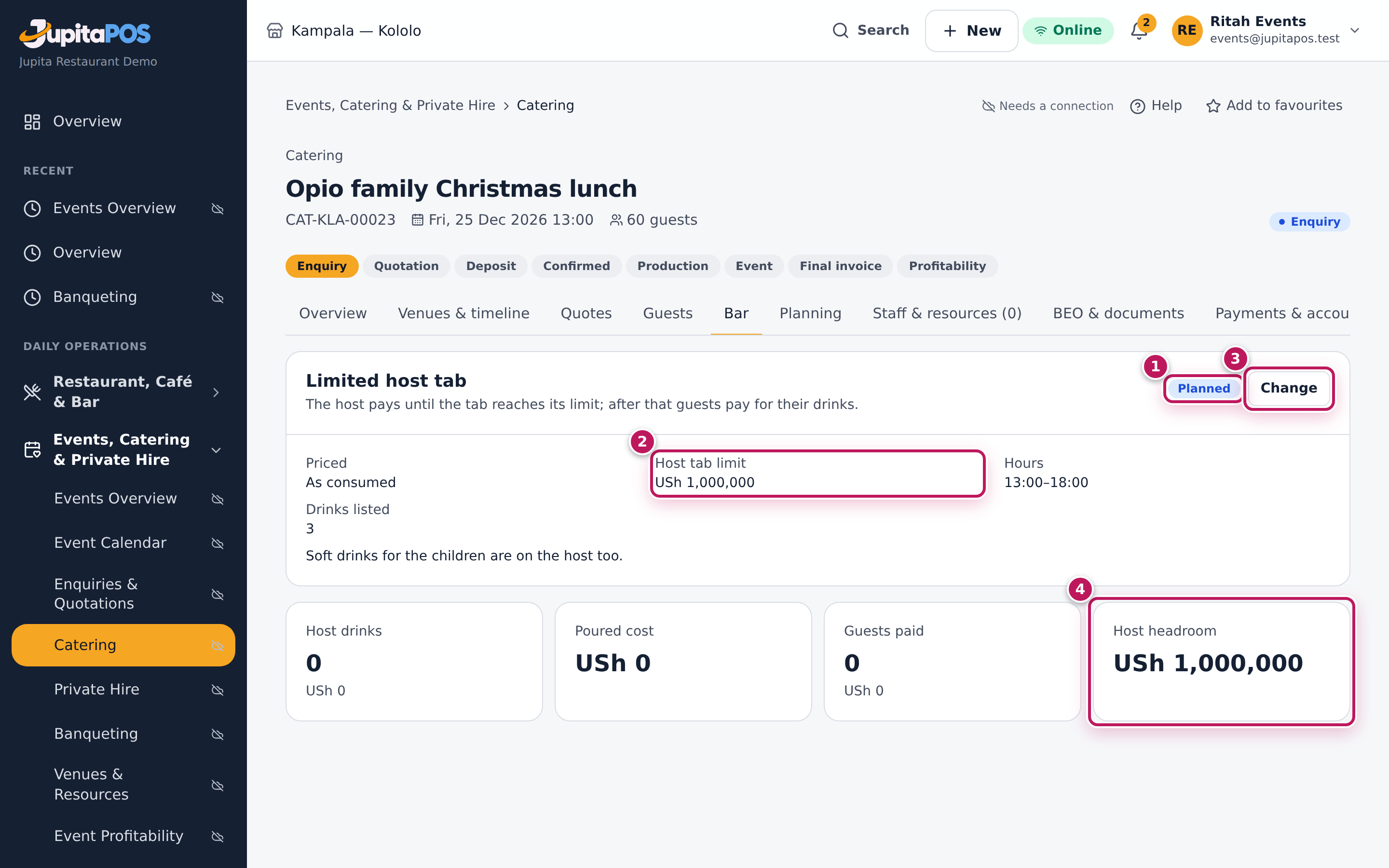
The Bar tab shows Limited host tab with its hint, Planned (1), the Host tab limit USh 1,000,000 (2), the hours and three drinks listed. Change (3) edits it until the bar is open. On the day the counters — host drinks, poured cost, guests paid and Host headroom (4) — fill in. A package per guest is quoted and charged per guest.
Screenshot
Common mistakes
- No drinks listed on a hosted bar. The bar screen then offers the whole bar menu on the host. List the drinks agreed.
- Changing the option while the bar is open. It cannot change then; agree it before the day.
Troubleshooting
- “The bar is closed.” It was closed on the day; its charges are on the account.
- “A drink is on the list twice.” Remove the second line.
Serve at the event bar
Purpose
Pour for a function: every drink the host pays is rung on the host’s tab (and leaves the bar’s stock at once); every drink a guest pays is sold to them on the spot.
Role / permission required
Bartender, supervisor or manager (events.bar); selling to guests also
needs payments.take, and cash needs a till open in your name.
Prerequisites
- The function’s bar is set up and the function is Confirmed (see Set up the event bar).
- For guests paying cash: your till is open (see Open the till).
Steps
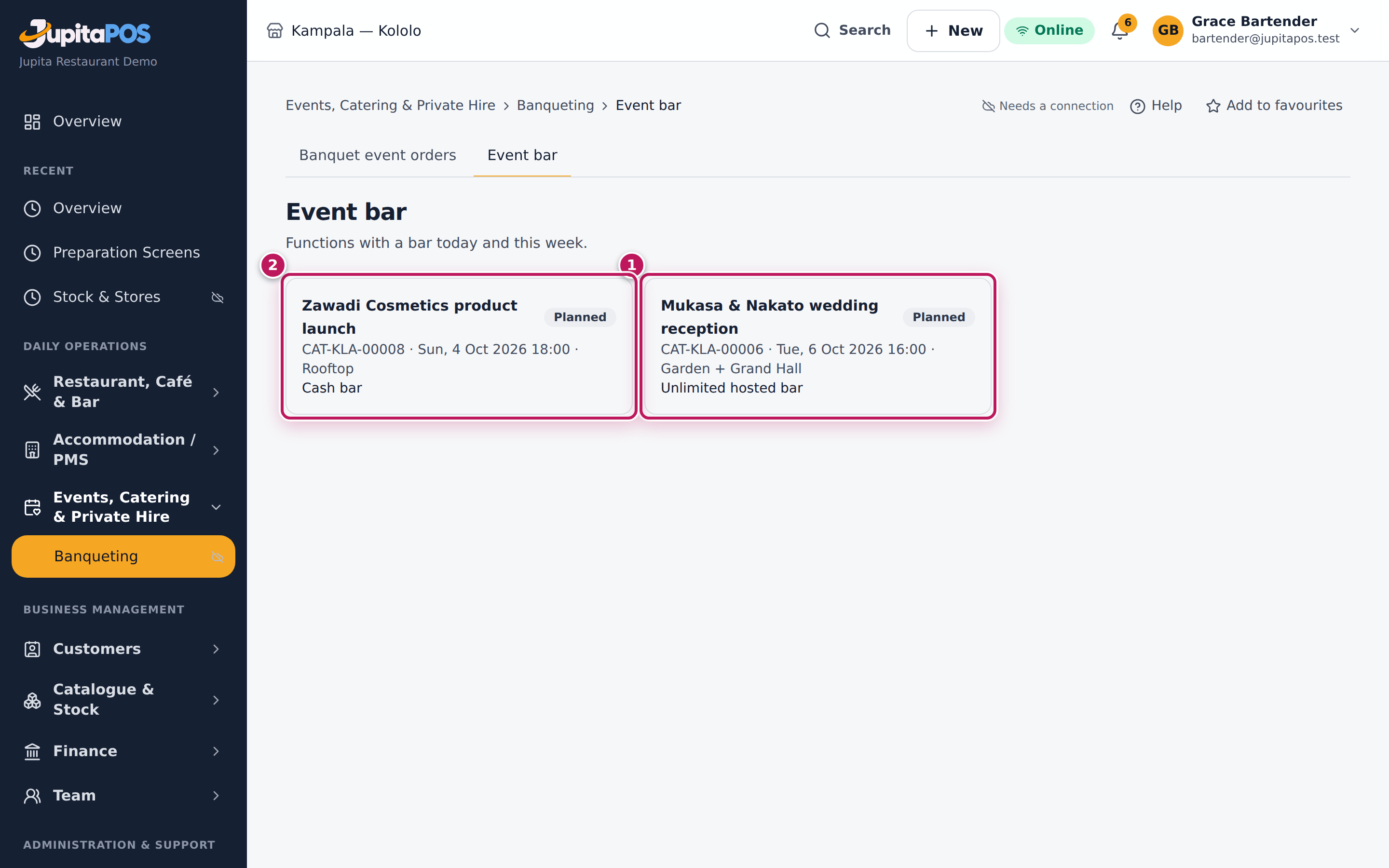
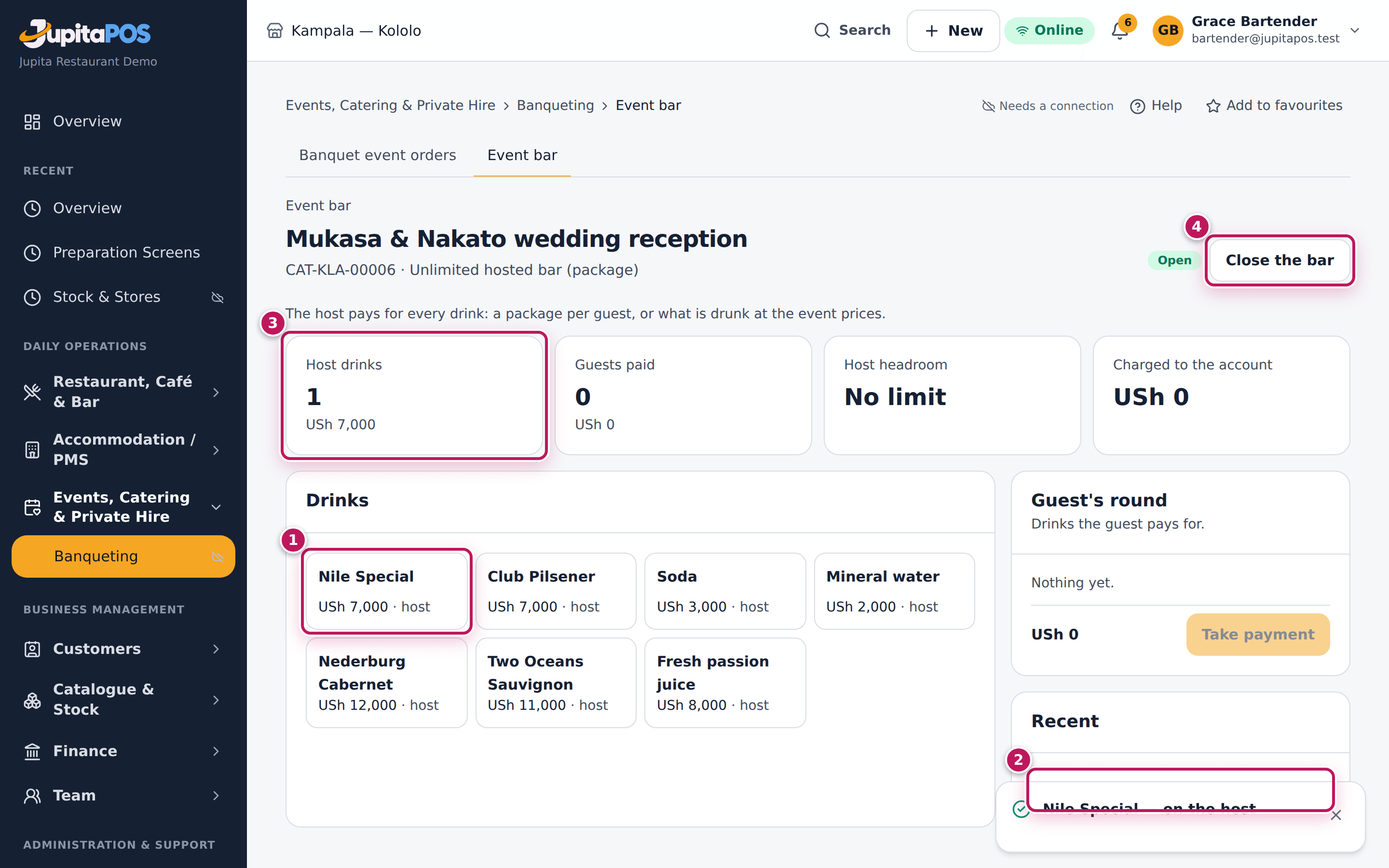
- Open Event bar in the sidebar (
/events/bar). It lists the functions with a bar today and this week (1, 2). - Tap the function.
- Tap Open the bar at the start of service.
- Tap a drink (1). Where the host pays (· host), it is rung on the host at once: the message says — on the host, it shows under Recent (2) and Host drinks (3) goes up.
- Where the guest pays (· guest — a cash bar, a drink the host does not cover, or the tab or allowance used up), the drink goes to the Guest’s round. Tap more drinks; use + and − for the quantities.
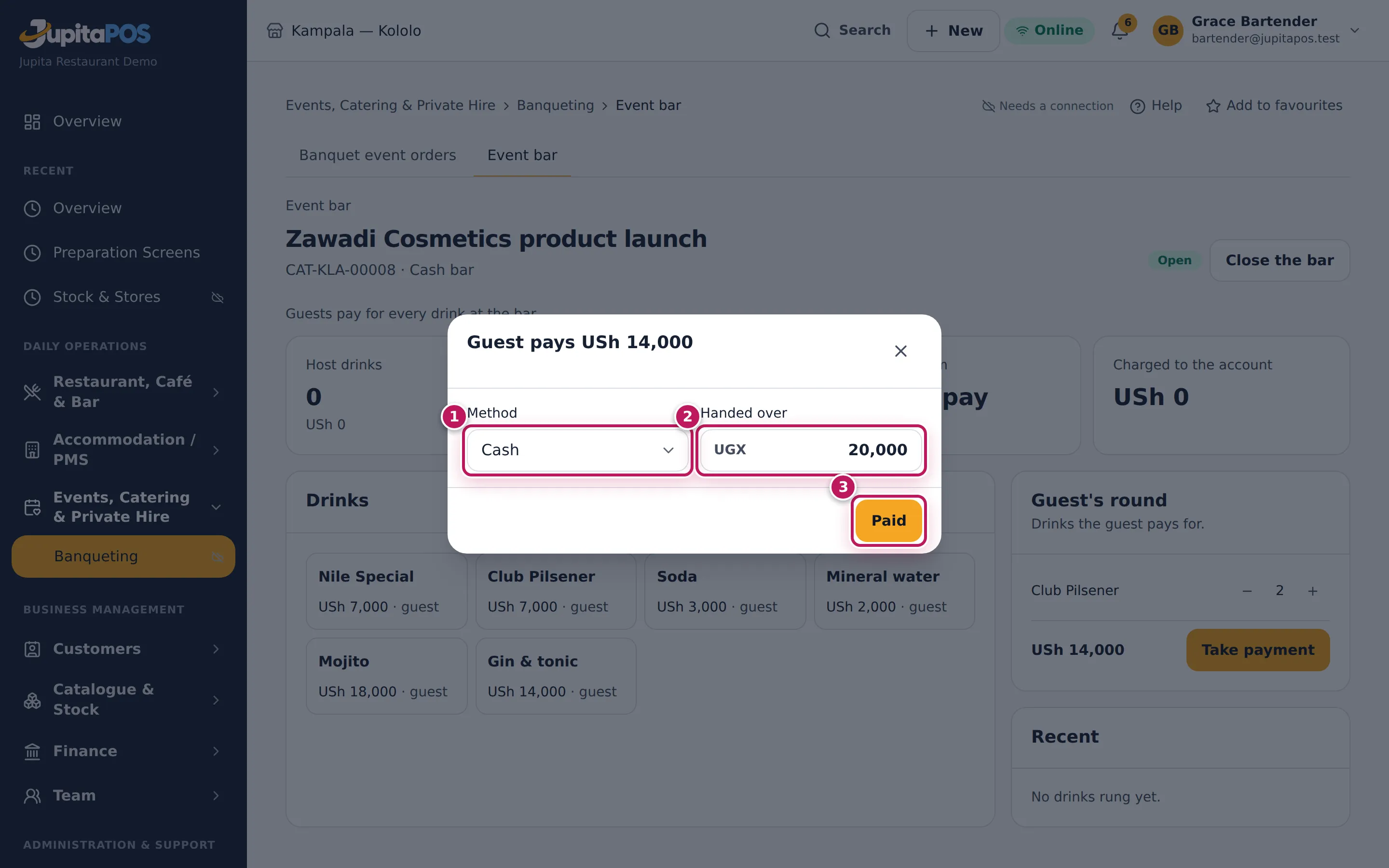
- Tap Take payment, choose the Method (1), type what the guest Handed over (2) for cash (or the Reference), and tap Paid (3).
- A host drink rung by mistake: tap its undo button under Recent, type Why and tap Void — its stock goes back.
- At the end, tap Close the bar (4 in the second picture): the host’s drinks (as consumed) and any shortfall are charged to the function’s account.
Expected result
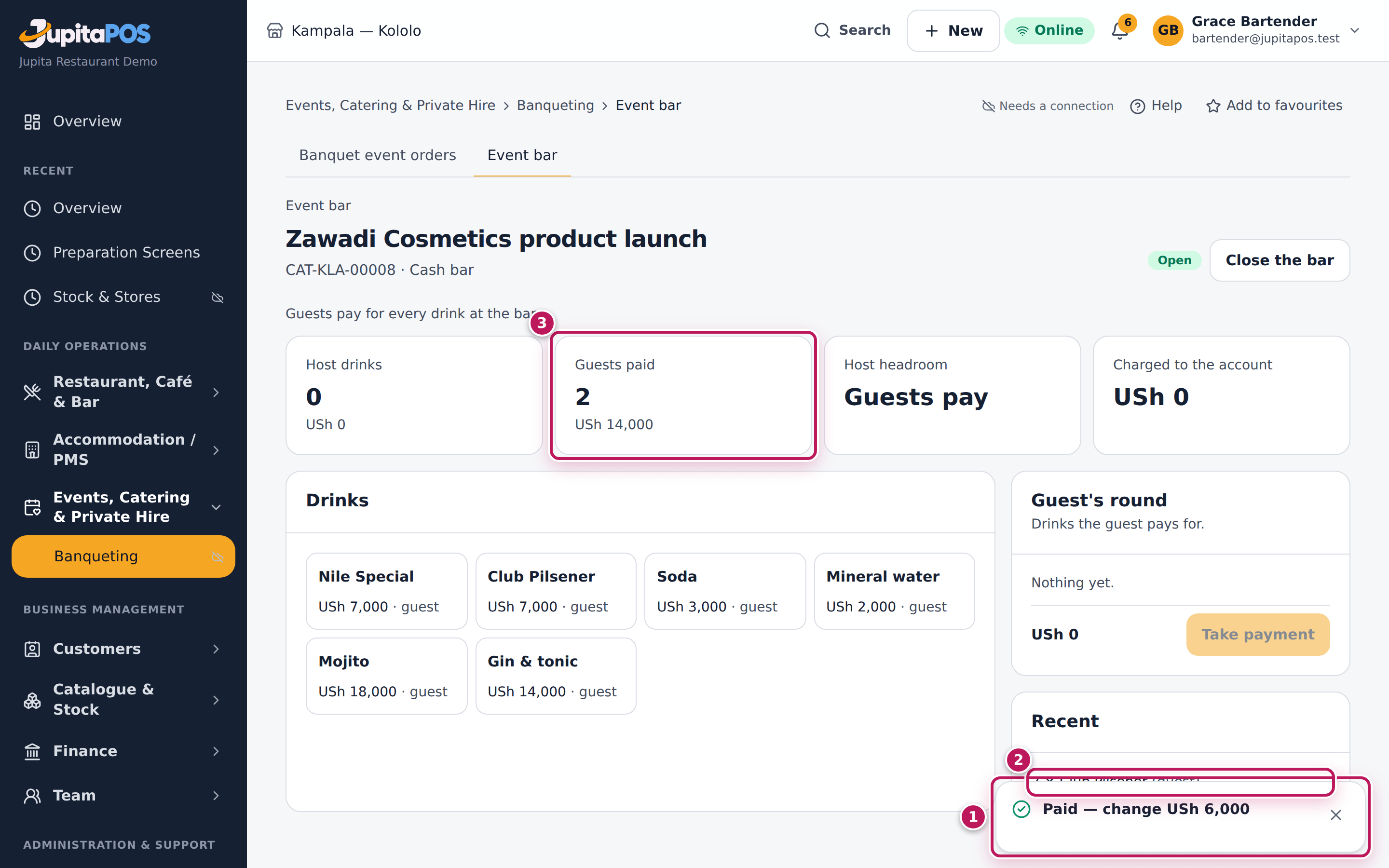
At the wedding, Nile Special — on the host: 1 × Nile Special (host) under Recent. At the Zawadi Cosmetics launch (a cash bar), two Club Pilsener make USh 14,000; with 20,000 handed over the message says Paid — change USh 6,000 (1), the drinks show under Recent as the guest’s (2), and Guests paid goes up (3). A guest sale is an ordinary bar sale linked to the function.
Screenshot
Common mistakes
- Closing the bar before last orders. Once closed, nothing more can be rung; the host’s charges are on the account.
- Selling to a guest on the host’s tab. Only drinks the host covers are rung on the host; the screen decides, from the bar option.
Troubleshooting
- “At a cash bar guests pay — the guest pays for it.” The drink went to the guest’s round: take the guest’s payment.
- “The host tab has … left — the guest pays for it.” The host’s limit is reached; from now on the guests pay.
- “Voiding another ring or an older one needs a manager (events.approve).” You may void your own ring within 15 minutes; otherwise call a manager.
- “Open a till before taking cash.” Open your till first (see Open the till).
Run the day’s timeline
Purpose
Write down what happens when, for which department and who is in charge — set-up, doors, ceremony, speeches, service, cake, last orders, departure — so every department works to the same clock.
Role / permission required
Events & Private Hire Manager, Catering Manager or a manager
(events.manage). Anyone with events.view reads it.
Prerequisites
- The function exists (see Log a catering enquiry).
Steps
- Open the function and click the Venues & timeline tab. The Timeline is under the venues.
- Click Add.
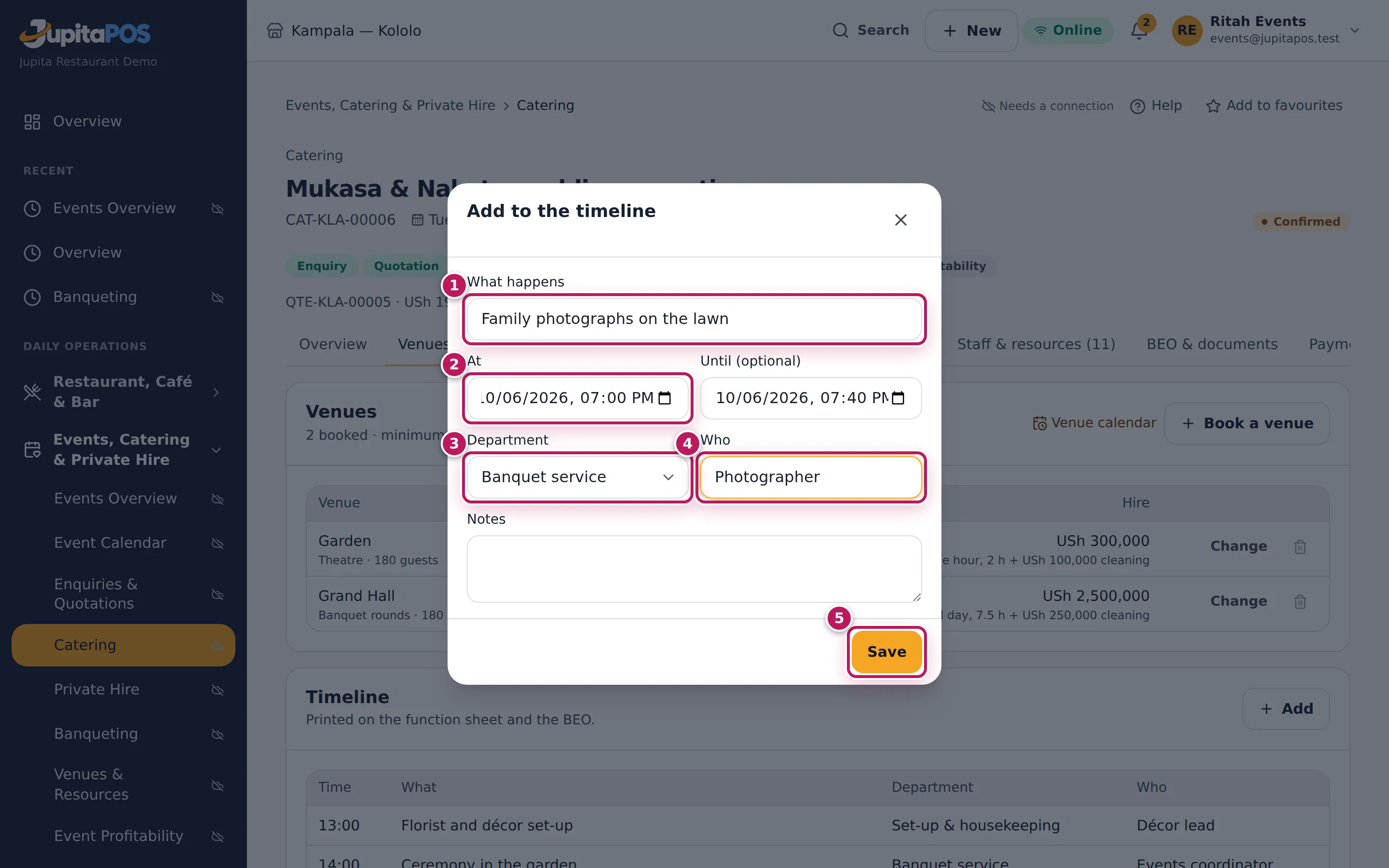
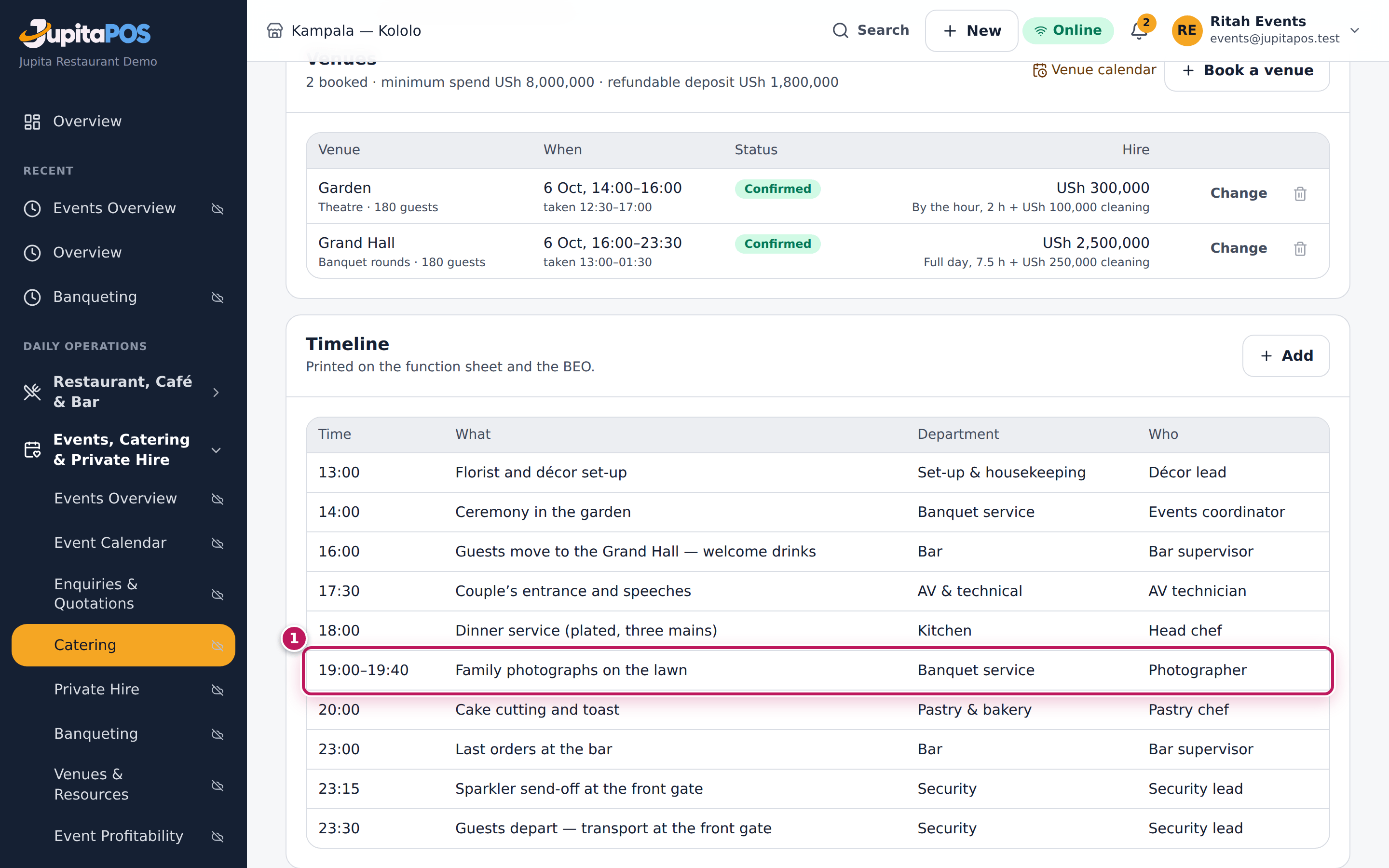
- Type What happens (1) — Family photographs on the lawn.
- Set At (2) and, if it has an end, Until (optional).
- Choose the Department (3) — Kitchen, Pastry & bakery, Bar, Banquet service, Set-up & housekeeping, Security, AV & technical, Transport, Accounts or Events management — and type Who (4) is in charge.
- Click Save (5).
- To change or remove an entry, click its row.
Expected result
The entry is in the Timeline of the day (1) in time order — 19:00–19:40 Family photographs on the lawn · Banquet service · Photographer, between the dinner service and the cake cutting. It prints on the function sheet and the banquet event order; departments see it when a new version is issued (see Change a BEO and send the new version).
Screenshot
Common mistakes
- One entry for “the evening”. Break it into the moments departments act on: last orders, speeches, cake.
- Changing the timeline after the BEO without a new version. The departments work from the approved BEO; issue a new version.
Troubleshooting
- Add is missing. The function is served, invoiced or closed, or you
lack
events.manage.