

On this page
Files & Documents (/files) holds the business’s own files: licences,
contracts, insurance papers, menus to print, supplier documents, photos and
so on. The files are kept privately on the business’s own storage. They are
downloaded only through the application, by people allowed to see them.
They are never on a public web address.
Who can do what:
| You can | You need |
|---|---|
| See and download files | files.view |
| Add, rename, attach, add a new version, put in the trash, restore | files.manage |
| Remove a file from the trash for good | files.purge |
Owners, directors and general managers have all three. Branch managers can see and manage files, and accountants and auditors can see them. A file added for a branch is seen only by people with access to that branch. A file attached to a purchase order, a customer or a catering event is seen only by people who may see that record.
JupitaPOS support sessions cannot open business files.
Add a file
Purpose
Keep a document of the business — a licence, a contract, a menu to print — where the people allowed to see it can find and download it.
Role / permission required
files.manage (owners, directors, general managers and branch managers).
Prerequisites
- The file is an image, a PDF, an office document, a CSV or a text file, of at most 25 MB.
Steps
- Open Files & Documents › All Files in the menu.
- Choose the category next to Add a file (1): Business documents, Images & media, Contracts, Receipts or Other.
- Select Add a file (2) and pick the file. The button shows the upload progress.
- The file appears in the list (3), with its category, size and date; Download (4) opens it.
Expected result
The file is in the list for everyone with files.view, and its history
records who added it and when.
Screenshot
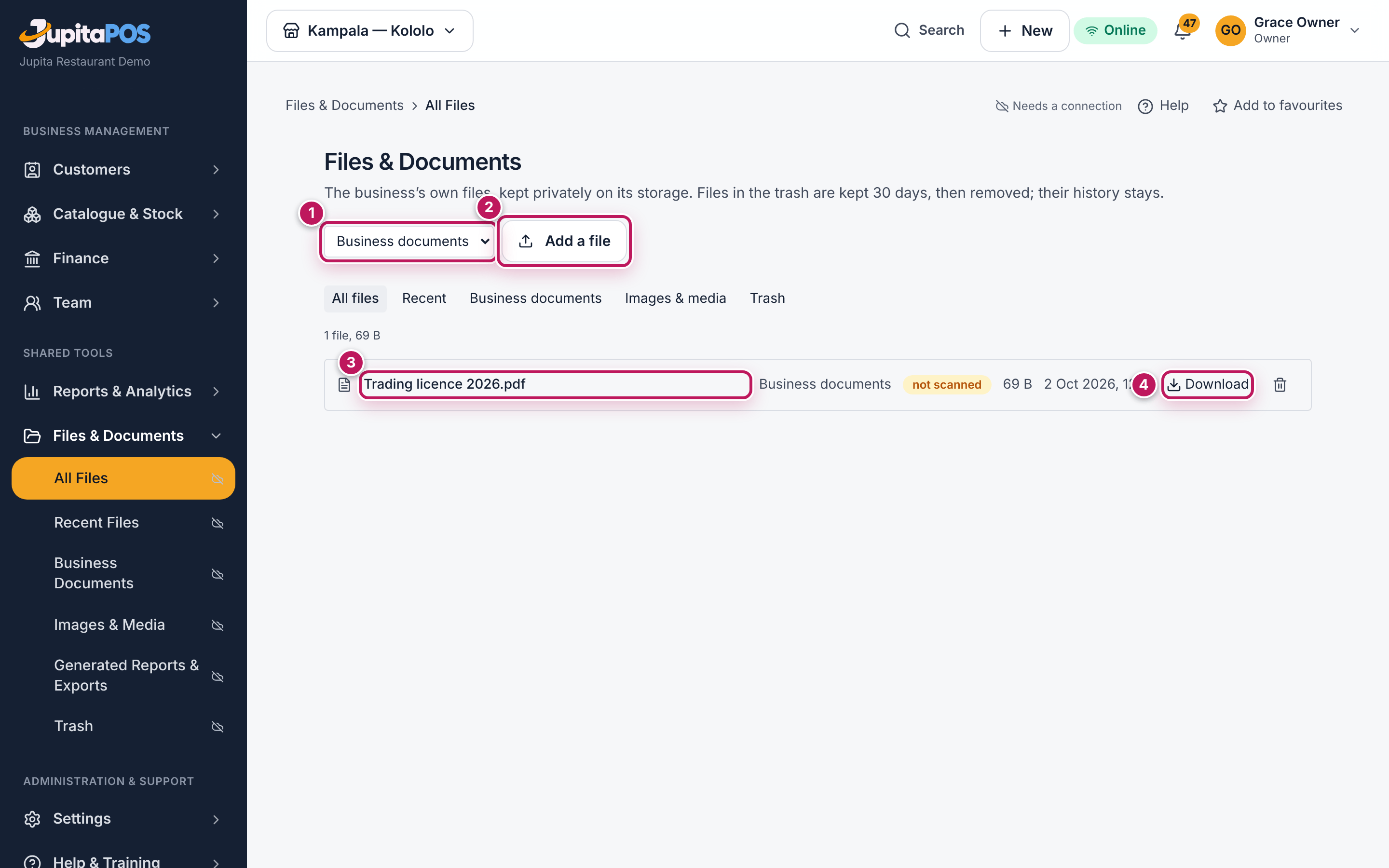
Common mistakes
- Renaming a file to make it acceptable: the content is checked, so a renamed program or web page is refused.
- Adding a newer version as a separate file instead of a new version of the old one, so that the history is split.
Troubleshooting
- “That type of file is not accepted” — save it as PDF, an image or an office document.
- “The business’s storage allowance is used up” — add storage in the Client Area. Nothing was deleted.
- “The upload was interrupted” — nothing was kept: try again.
What is accepted
Accepted types are checked by their content, not only by their name:
| Type | Files |
|---|---|
| Images | JPG, PNG, WebP |
| Office | Word (.docx), Excel (.xlsx), PowerPoint (.pptx), OpenDocument (.odt, .ods) |
| Text | CSV and plain text in UTF-8 |
Programs, scripts, web pages and SVG drawings are never accepted, whatever they are called. A file is at most 25 MB unless the installation set another limit.
If an upload is interrupted, nothing is kept: try again.
Storage
The page shows how many files the business keeps and how much space they use. In a JupitaPOS subscription it also shows the purchased storage allowance and the space left.
- When the allowance is used up, new files are refused before anything is written, and nothing is deleted. Add storage in the Client Area (Plan & features).
- Database and files share one allowance.
Viewing and downloading
View opens images in the browser. Other files are downloaded. Every view and download is recorded in the file’s history.
A file marked not scanned has not been checked by a virus scanner, because none is configured on this installation. It is still a file of an accepted type, and it is only ever downloaded, never opened in the page. Open such files with the usual care.
Versions
Adding a new version of a file keeps the earlier ones. The list shows the latest, and the file’s history lists every version.
Trash
Put in the trash hides a file. It stays in Trash for 30 days, can be
restored during that time, and is then removed. People with files.purge
can remove it at once. Either way, the file’s history stays.
Documents kept under a retention policy, marked kept, cannot be put in the trash.
What this page does not do
- It lists only the files added here. Item photos, room photos, folio statements, function documents and report exports stay with their own records and pages.
- Files are not synchronised to devices for offline use.