

On this page
A requisition is a written request for stock from one store to another — the kitchen asks the Central Warehouse for rice, oil and sugar. It goes through four steps, and every step is recorded with who did it and when:
| Step | Who | What happens |
|---|---|---|
| Request | the chef or bar manager (procurement.create) |
what, how much, from which store, for which store, why and by when |
| Approve | a manager (procurement.approve), never the requester |
what the store can spare; the approved quantities are reserved there |
| Issue | the storekeeper of the issuing store (inventory.issue) |
the stock moves now, with its batches and costs |
| Receive | someone at the receiving store (inventory.receive) |
what really arrived; anything short is written off |
Each line carries four quantities: Requested, Approved, Issued and Received. Reserved stock shows in the Reserved column of the Inventory page and is taken off Available, so a warehouse never promises the same bag of sugar twice.
Open Requisitions from the sidebar (/inventory/requisitions). Buying
from a supplier is a different request: a purchase requisition (see
Raise a purchase requisition).
In the demo, Chef Okello asks for the Kololo Kitchen Store, Moses the branch manager approves, and Isaac the storekeeper issues and confirms the delivery.
Request stock from the store
Purpose
Get what the kitchen or bar needs from the warehouse or main store, with a written request that a manager approves — instead of a note on a piece of paper or a phone call.
Role / permission required
Chef, sous chef, store manager or manager — anyone with
procurement.create.
Prerequisites
- The store you ask has the stock (the dialog shows what it has available once the request is saved).
Steps
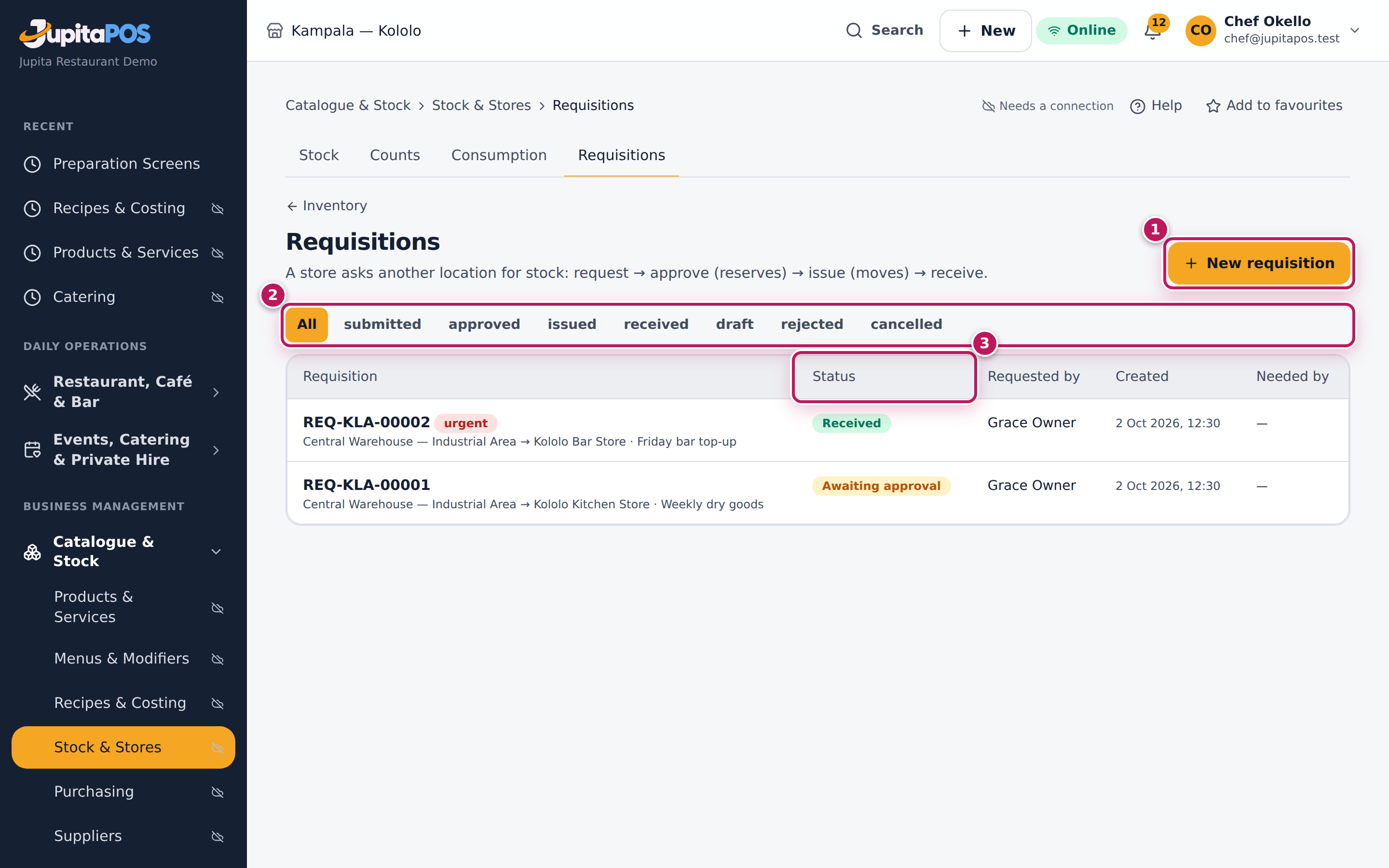
- Open Requisitions from the sidebar. The list shows every requisition with its status; the Status filter (2) narrows it.
- Tap New requisition (1).
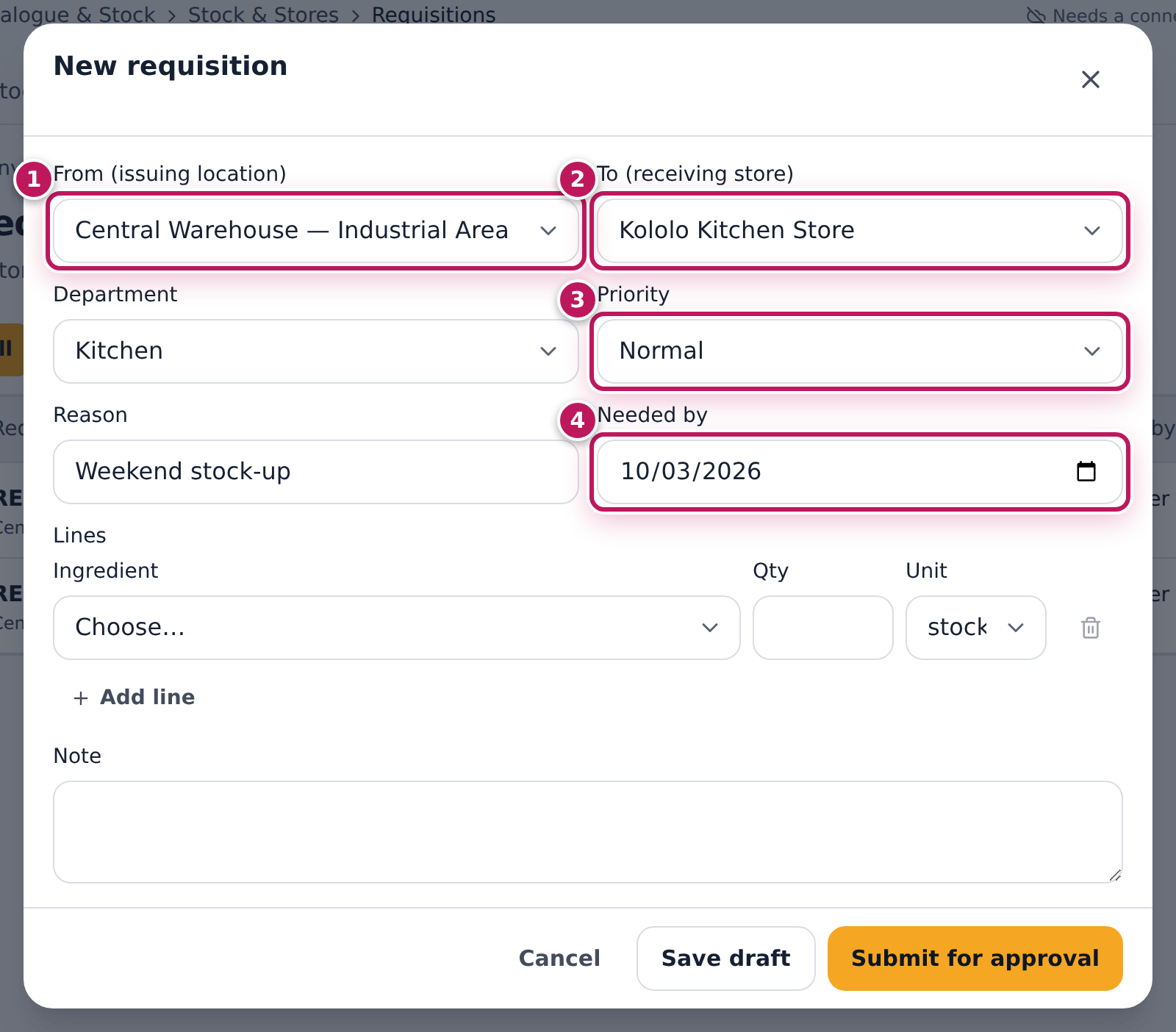
- Choose From (issuing location) (1): Central Warehouse — Industrial Area.
- Choose To (receiving store) (2): Kololo Kitchen Store, and the Department: Kitchen.
- Choose the Priority (3): Normal, or Urgent if it cannot wait.
- Type the Reason (Weekend stock-up) and the Needed by date (4).
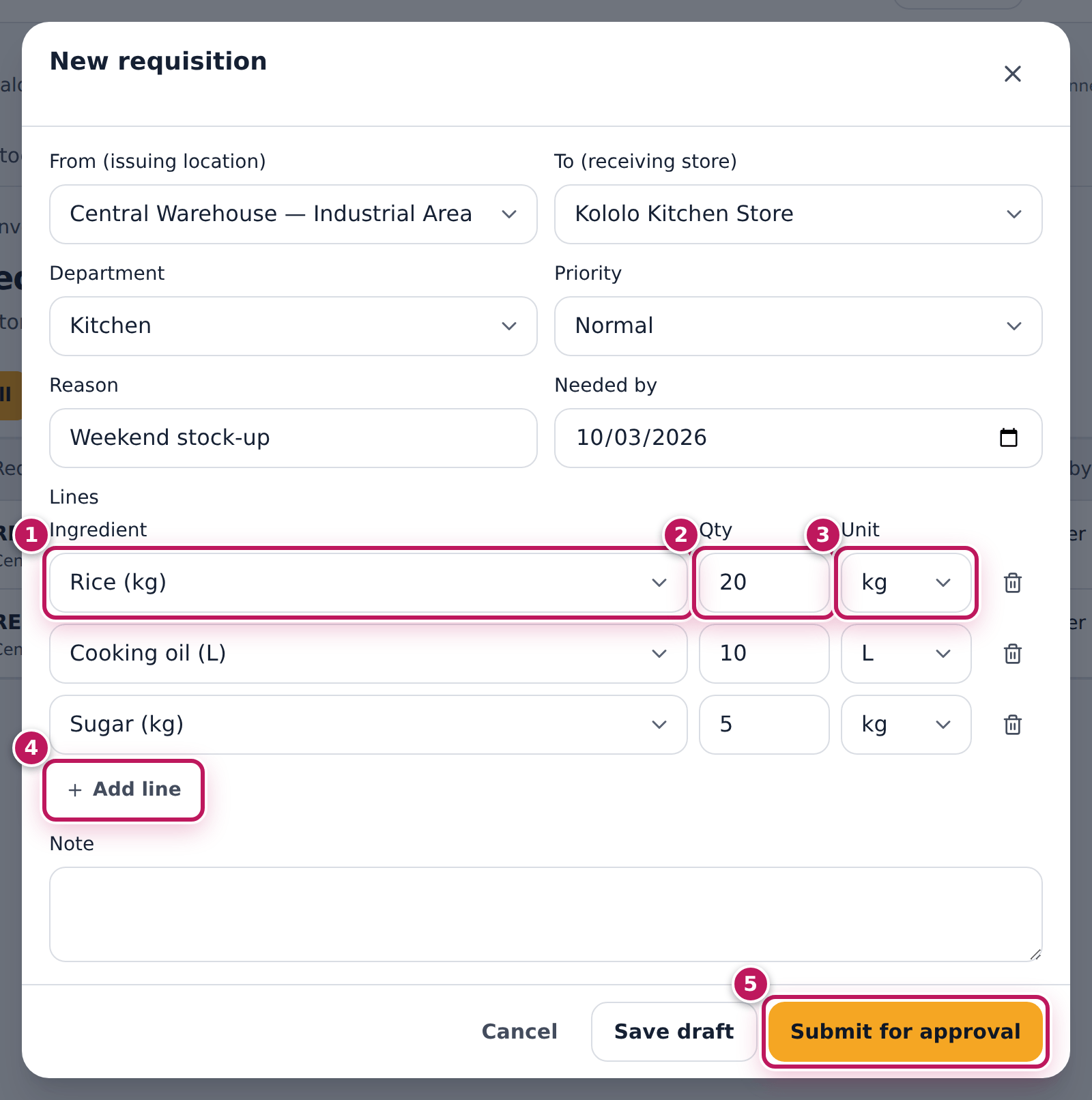
- Under Lines, choose the first Ingredient (1): Rice (kg), and type the Qty (2): 20. Leave the Unit (3) on the stock unit, or choose another (a crate) if a conversion exists.
- Tap Add line (4) for each more item: cooking oil 10 L, sugar 5 kg.
- Tap Submit for approval (5). (Save draft keeps it to finish later.)
Expected result
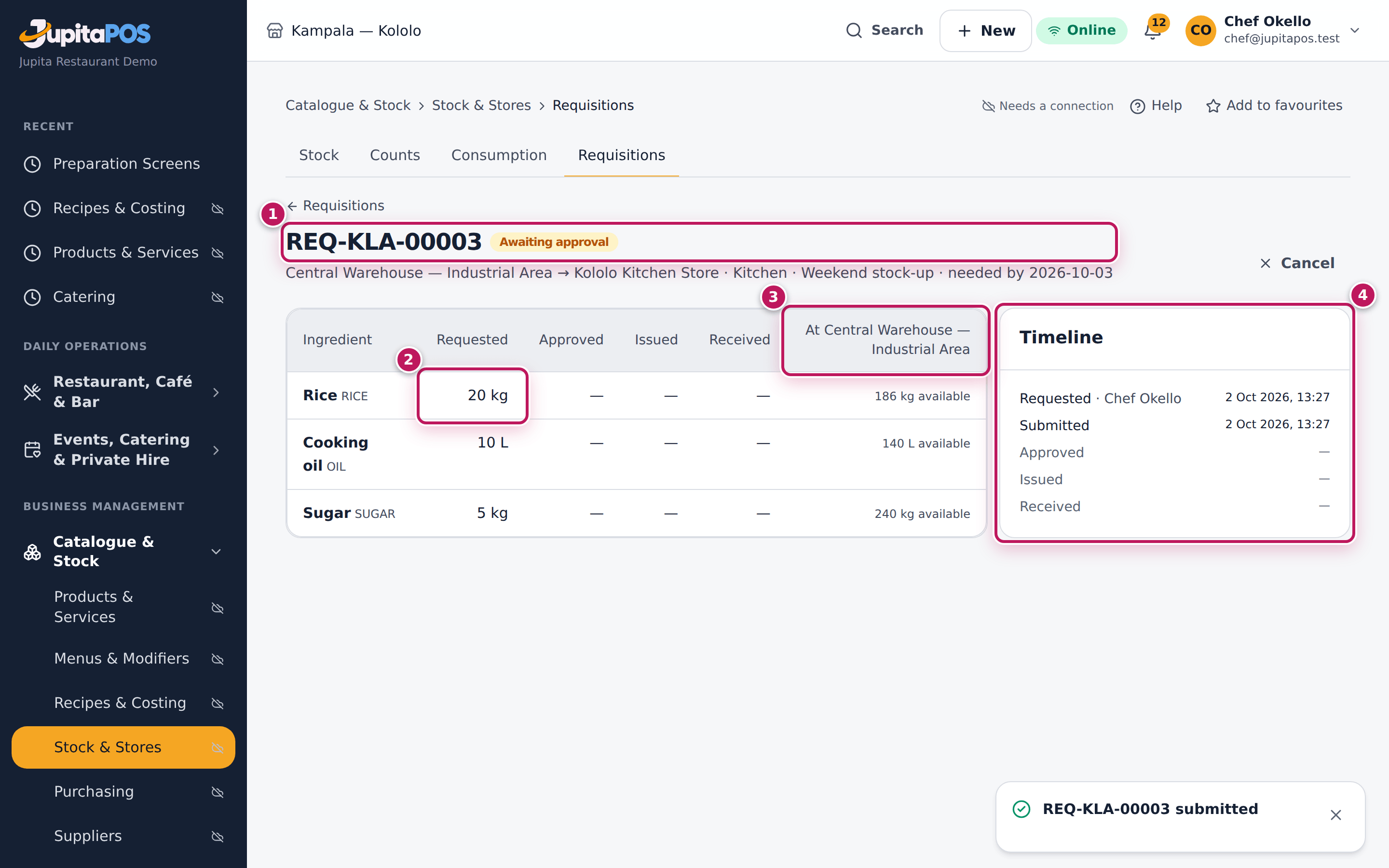
The requisition opens with its number — for example REQ-KLA-00003 — and
the status Awaiting approval (1): Central Warehouse — Industrial Area →
Kololo Kitchen Store · Kitchen · Weekend stock-up. Each line shows the
Requested quantity (2) and what the warehouse has available (3).
The Timeline (4) shows Requested and Submitted with your name and
the time. The managers who approve see it in their list.
Screenshot
Common mistakes
- Swapping From and To. From is the store that gives, To is yours.
- Asking for a crate when the store counts bottles. Choose the unit on the line; the store sees your quantity converted.
- One requisition per item. Put everything you need from the same store on one requisition with Add line.
Troubleshooting
- “A store cannot requisition from itself.” From and To are the same store.
- “An ingredient appears twice.” Put the total on one line.
- The New requisition button is missing. You do not have
procurement.create. Ask your chef or manager.
Approve a requisition
Purpose
Decide what the issuing store can spare, so stock goes where it is needed and nobody empties the warehouse. Approving reserves the stock.
Role / permission required
Branch manager, store manager or owner — anyone with procurement.approve.
You cannot approve a requisition you raised yourself (unless you also have
inventory.manage).
Prerequisites
- A requisition is Awaiting approval (see Request stock from the store).
Steps
- Open Requisitions and tap submitted in the status filter.
- Tap the requisition.
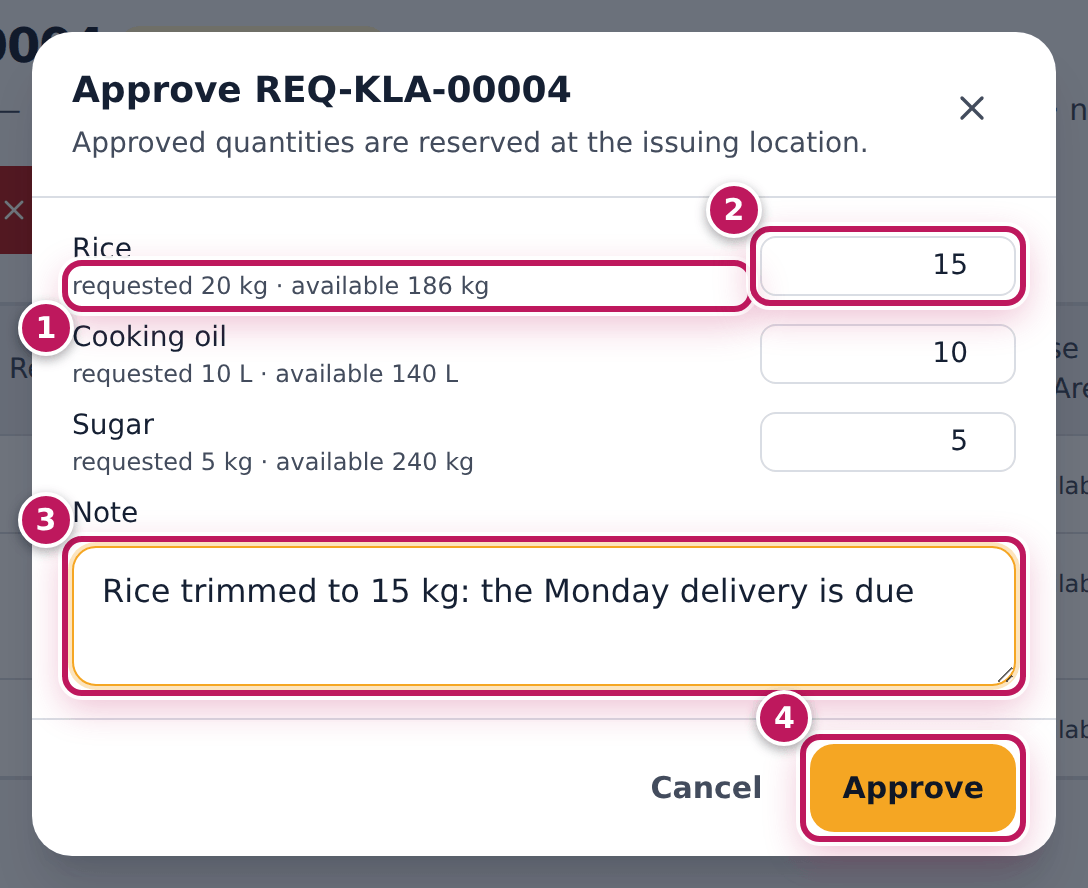
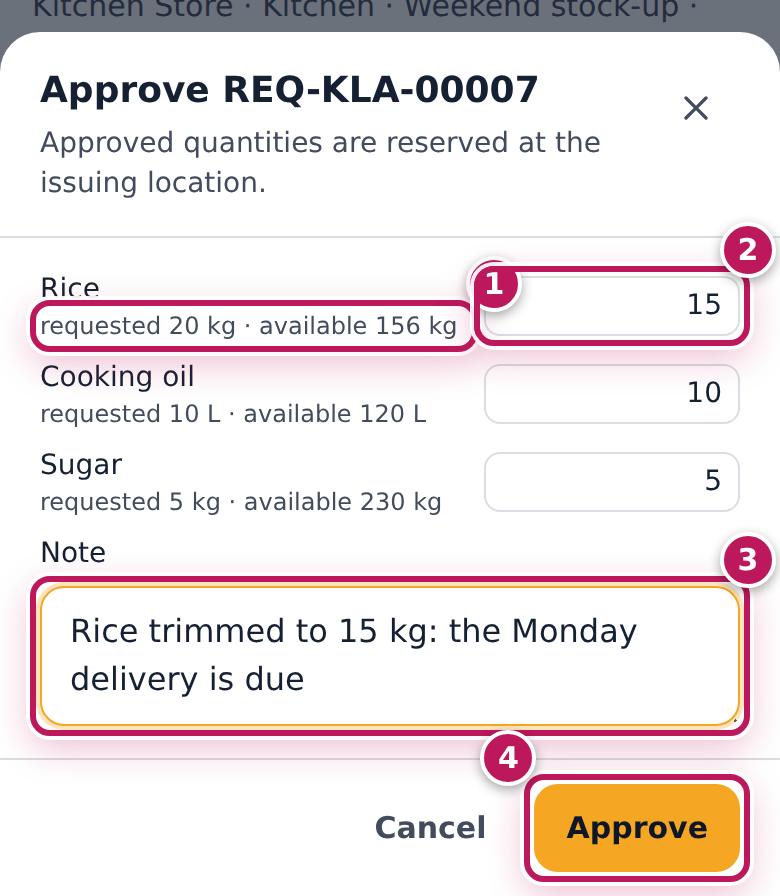
- Tap Approve. The dialog lists each line with what was requested and what the issuing store has available (1).
- Change a quantity if the store cannot spare it all (2): rice from 20 to 15. Type 0 to drop a line.
- Type a Note (3) to explain: Rice trimmed to 15 kg: the Monday delivery is due.
- Tap Approve (4).
- To refuse the whole request, tap Reject instead and type the reason.
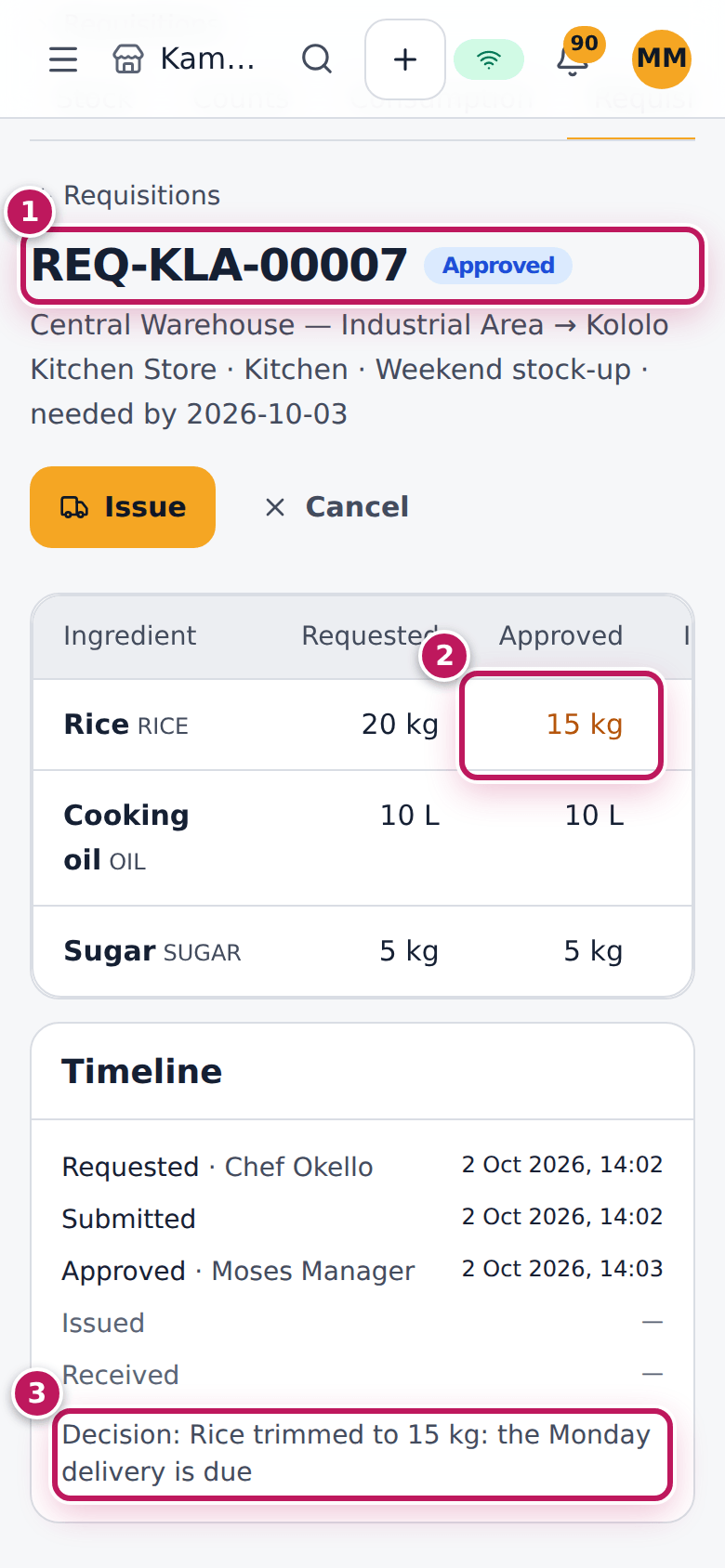
On a phone the steps are the same; the dialog opens from the bottom of the screen.
Expected result
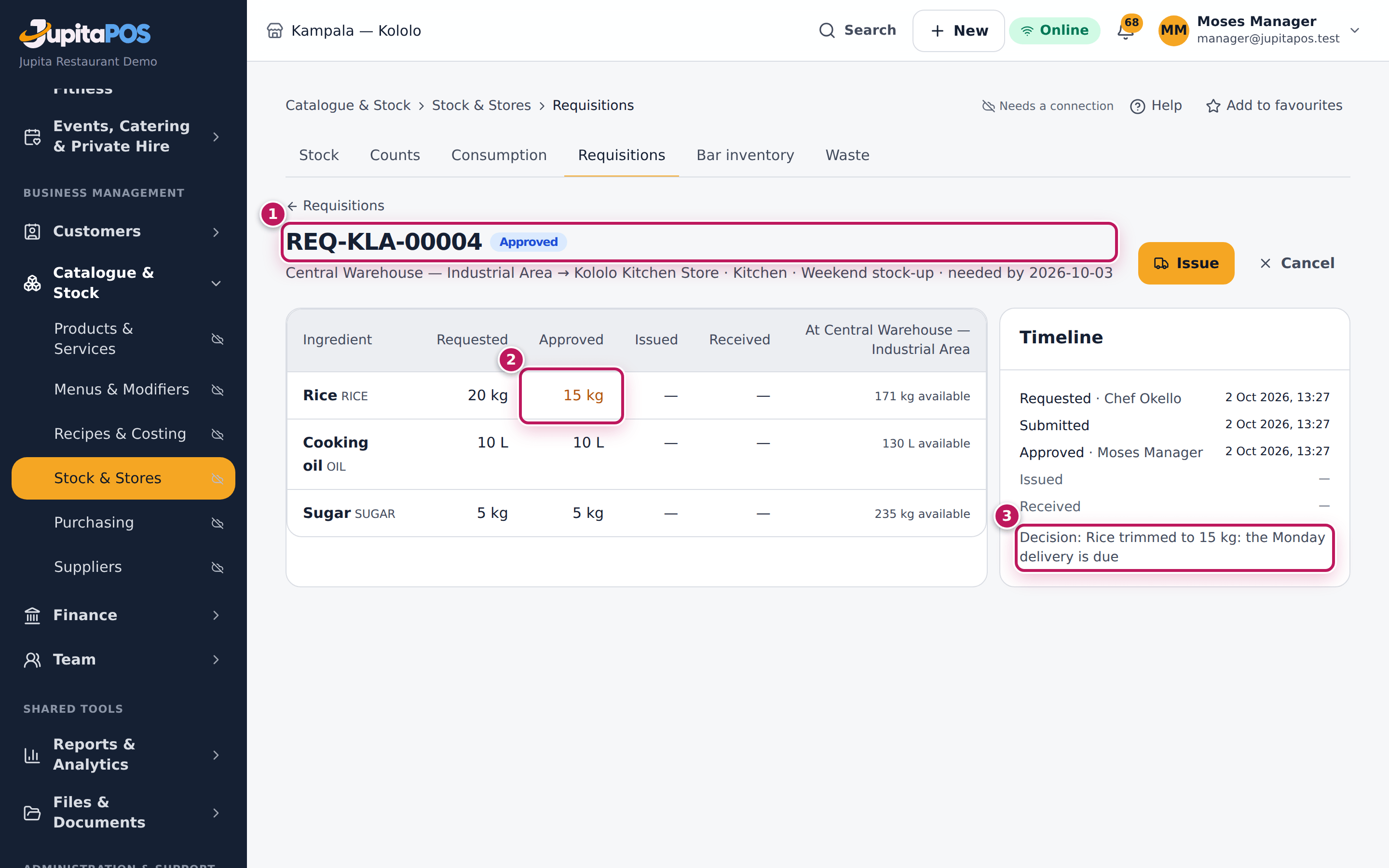
The status is Approved (1). The Approved column shows 15 kg for rice (2), in amber because it is less than requested; the other lines are approved in full. The Timeline shows Approved · Moses Manager and the decision note (3). At the Central Warehouse, 15 kg of rice, 10 L of oil and 5 kg of sugar are now Reserved: nobody else can issue them.
Screenshot
Common mistakes
- Approving more than is available. The reservation goes above what the store has, and the issue will fall short. Read available on each line.
- Leaving requests waiting. Stock is not reserved until you approve. Check the submitted filter every morning.
Troubleshooting
- “You cannot approve your own requisition.” Ask another manager.
- “Approve at least one line, or reject the requisition.” Every quantity is 0. Approve something or use Reject.
- “A reason is required to reject.” Type the reason in the dialog.
Issue a requisition
Purpose
Send the approved stock to the store that asked for it. Issuing moves the stock on the books at once, with its batches and costs, and releases the reservation.
Role / permission required
Storekeeper of the issuing store, or anyone with inventory.issue.
Prerequisites
- The requisition is Approved (see Approve a requisition).
- The goods are picked and ready to go.
Steps
- Open Requisitions and tap approved in the status filter.
- Tap the requisition.
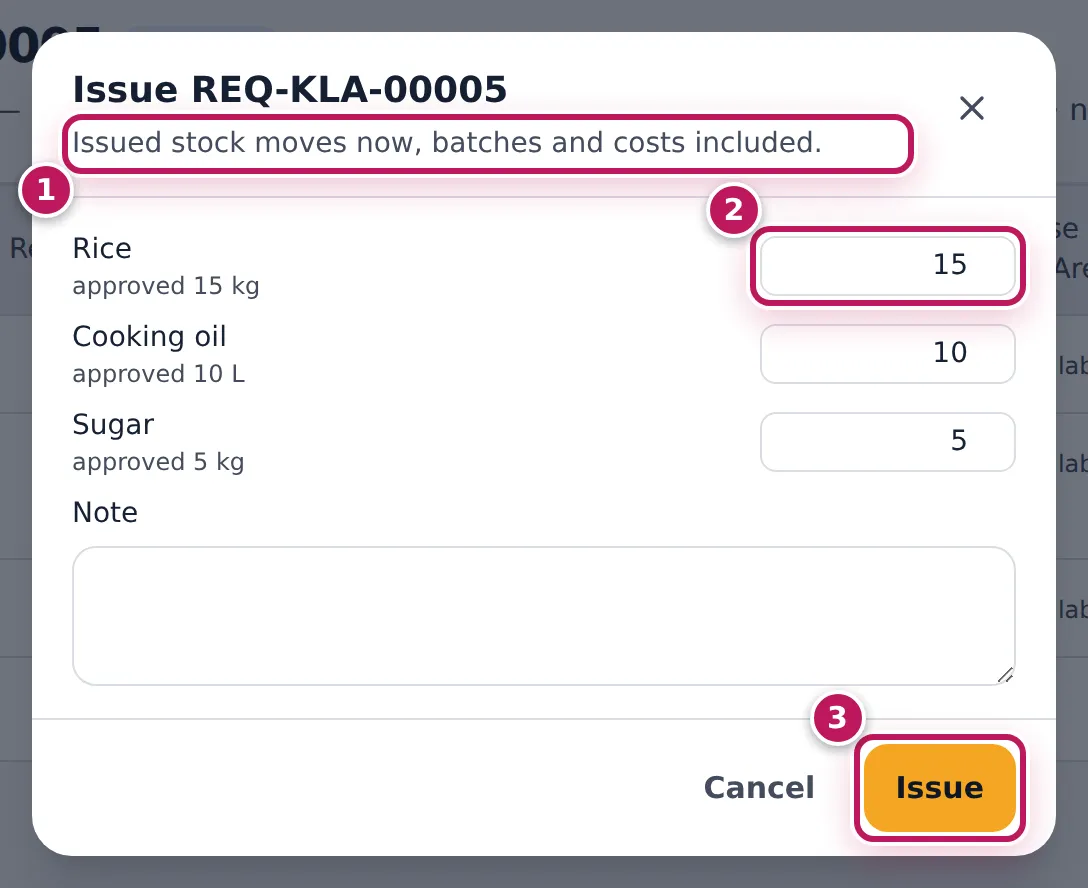
- Tap Issue. Each line is filled with the approved quantity (2).
- Change a line only if you send less than approved (never more). The dialog reminds you: Issued stock moves now, batches and costs included. (1)
- Tap Issue (3) and send the goods.
Expected result
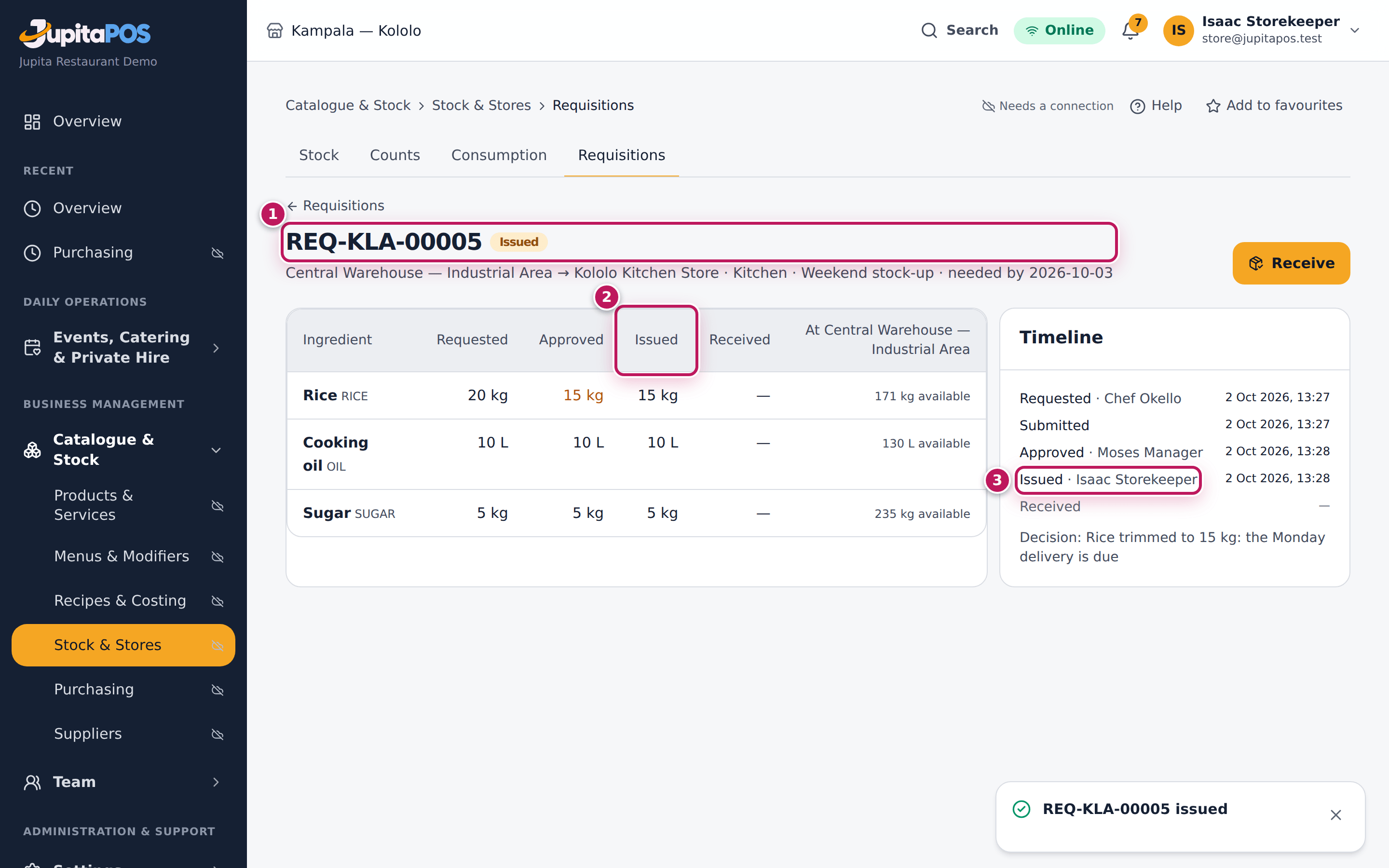
The status is Issued (1) and the Issued column (2) is filled in: rice 15 kg, cooking oil 10 L, sugar 5 kg. The Timeline shows Issued · Isaac Storekeeper (3). The stock has left the Central Warehouse and is at Kololo Kitchen Store already; the ledgers show a transfer with the requisition’s number as the reason.
Screenshot
Common mistakes
- Issuing before the goods leave. The books move when you tap Issue. Tap it when the goods go out of the door.
- Issuing more than approved. It is refused; if the kitchen needs more, they raise another requisition.
Troubleshooting
- “This requisition was already issued.” Someone else issued it; reload the page.
- “Issue at least one line.” Every quantity is 0.
Confirm what arrived
Purpose
Close the requisition with what really reached the receiving store, so a shortfall on the way is written off and explained, not a mystery at the next count.
Role / permission required
Someone at the receiving store with inventory.receive: the storekeeper or
a manager. (The Chef role does not include it by default.)
Prerequisites
- The requisition is Issued (see Issue a requisition).
- The goods have arrived and you have counted them.
Steps
- Open Requisitions and tap issued in the status filter.
- Tap the requisition.
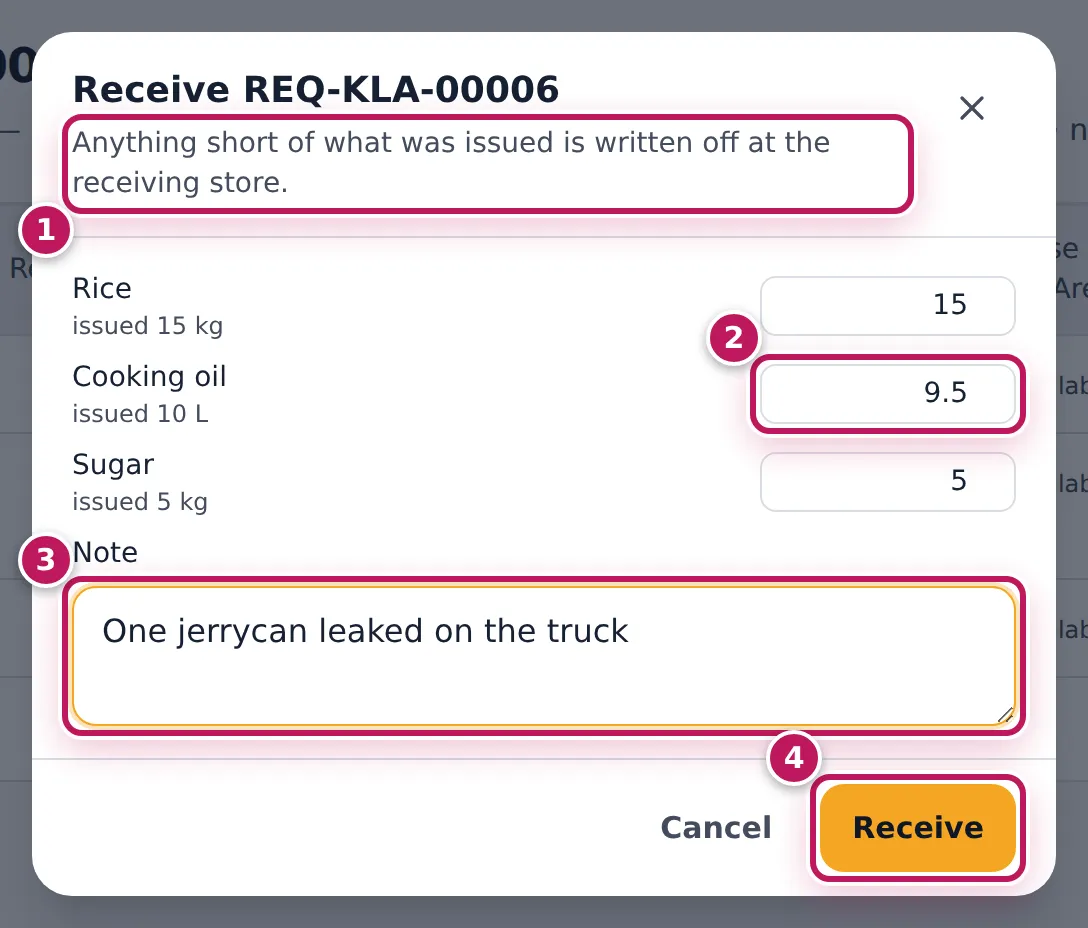
- Tap Receive. Each line is filled with the issued quantity.
- Change a line that arrived short (2): cooking oil 9.5 instead of 10.
- Type a Note (3): One jerrycan leaked on the truck.
- Tap Receive (4).
Expected result
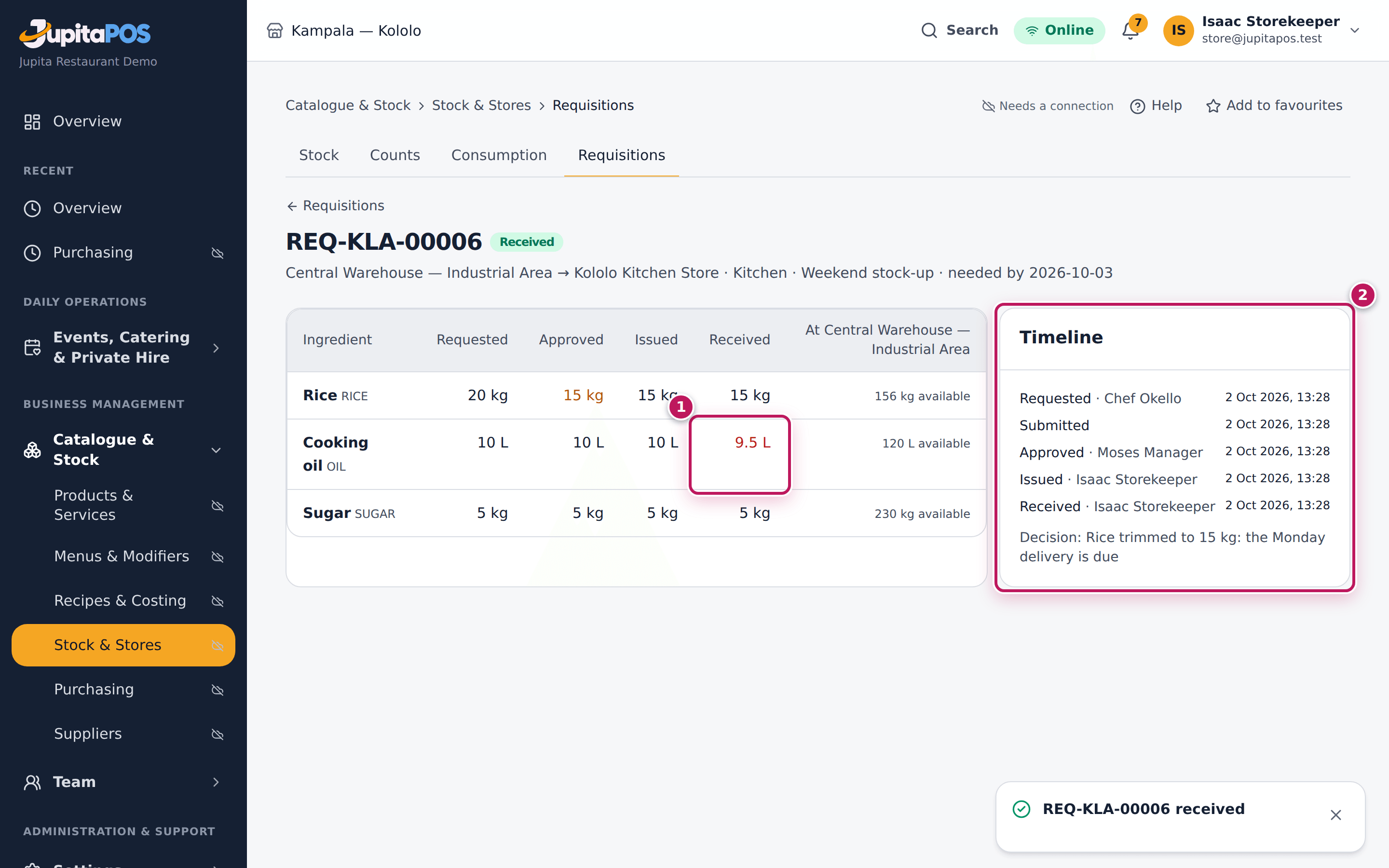
The status is Received. The Received column shows cooking oil 9.5 L (1) in red because it is less than issued; the other lines match. The missing 0.5 L is written off at Kololo Kitchen Store with the reason Requisition REQ-…: short on receipt and your note. The Timeline (2) is complete: requested, submitted, approved, issued, received — each with a name and a time.
Screenshot
Common mistakes
- Confirming without counting. A shortfall found later cannot be added to the requisition; it becomes an unexplained difference at the next count.
- Typing more than was issued. It is refused. Extra goods that arrived by mistake are received on the Inventory page and sent back.
Troubleshooting
- “Cannot receive more than was issued (10).” Type at most the issued quantity.
- The Receive button is missing. You do not have
inventory.receive, or the requisition is not Issued yet.
FAQ
Can a requisition be cancelled? Yes, until it is issued: the requester or a manager taps Cancel and gives a reason. An approved requisition’s reservation is released.