

On this page
A private hire is a function held in one of our own spaces: a wedding reception in the Grand Hall, a board dinner in the Private Dining Room, a launch on the Rooftop, an introduction ceremony in the Garden. The function itself — the enquiry, the quote, the deposit, the final invoice — works as in the Catering manual; this manual adds the venues: what each costs, who has it when, and the refundable deposit held against damage.
The screens are those of Ritah, the Events & Private Hire Manager
(events_manager, see the roles in Catering) at Jupita Restaurant
Demo, Kampala — Kololo. The demo branch starts with nine
venues:
| Venue | Takes | Hire | Minimum spend | Refundable deposit |
|---|---|---|---|---|
| Grand Hall | 400 (320 seated) | USh 350,000 an hour · 1,200,000 half day · 2,500,000 a day | 8,000,000 | 1,500,000 |
| Private Dining Room | 24 seated | 80,000 an hour · 250,000 half day · 450,000 a day | 1,500,000 | 200,000 |
| Rooftop | 180 (100 seated) | 250,000 an hour · 800,000 half day · 1,600,000 a day | 3,000,000 | 800,000 |
| Rooftop Terrace (part of the Rooftop) | 60 | 120,000 an hour | 1,000,000 | — |
| Garden | 250 (200 seated) | 150,000 an hour · 500,000 half day · 900,000 a day | — | 300,000 |
| Conference Room | 40 | 60,000 an hour · 200,000 half day · 350,000 a day | — | — |
| VIP Lounge | 30 | 150,000 an hour | 2,000,000 | 300,000 |
| Poolside | 120 | 180,000 an hour · 600,000 half day | 2,500,000 | 600,000 |
| Whole Restaurant | 800 | 12,000,000 a day | 30,000,000 | 5,000,000 |
Three rules run through everything here:
- No double bookings. A venue is taken from its set-up to its clear-down. Anybody who holds or has booked it — or a venue it is part of, or the Whole Restaurant — makes it not free, and the system says who has it. Nobody can override a clash.
- Holds expire. Before the client accepts, a booking is a hold: it blocks the venue for others for 72 hours (or until its set-up starts, if sooner). When the client accepts the quote, every hold becomes confirmed.
- Exceptions need a manager. Booking above the capacity or outside the
opening hours, releasing a confirmed venue, and refunding or keeping the
refundable deposit need
events.approve(a branch or general manager).
Set up venues
Purpose
Keep every space you hire out with what it holds, what it costs, when it is open and what deposit it asks, so bookings and quotes price it right.
Role / permission required
Events & Private Hire Manager, Catering Manager or a manager
(events.manage).
Prerequisites
- None.
Steps
- Open Events setup in the sidebar and click the Venues tab
(
/catering/setup). - Click New venue.
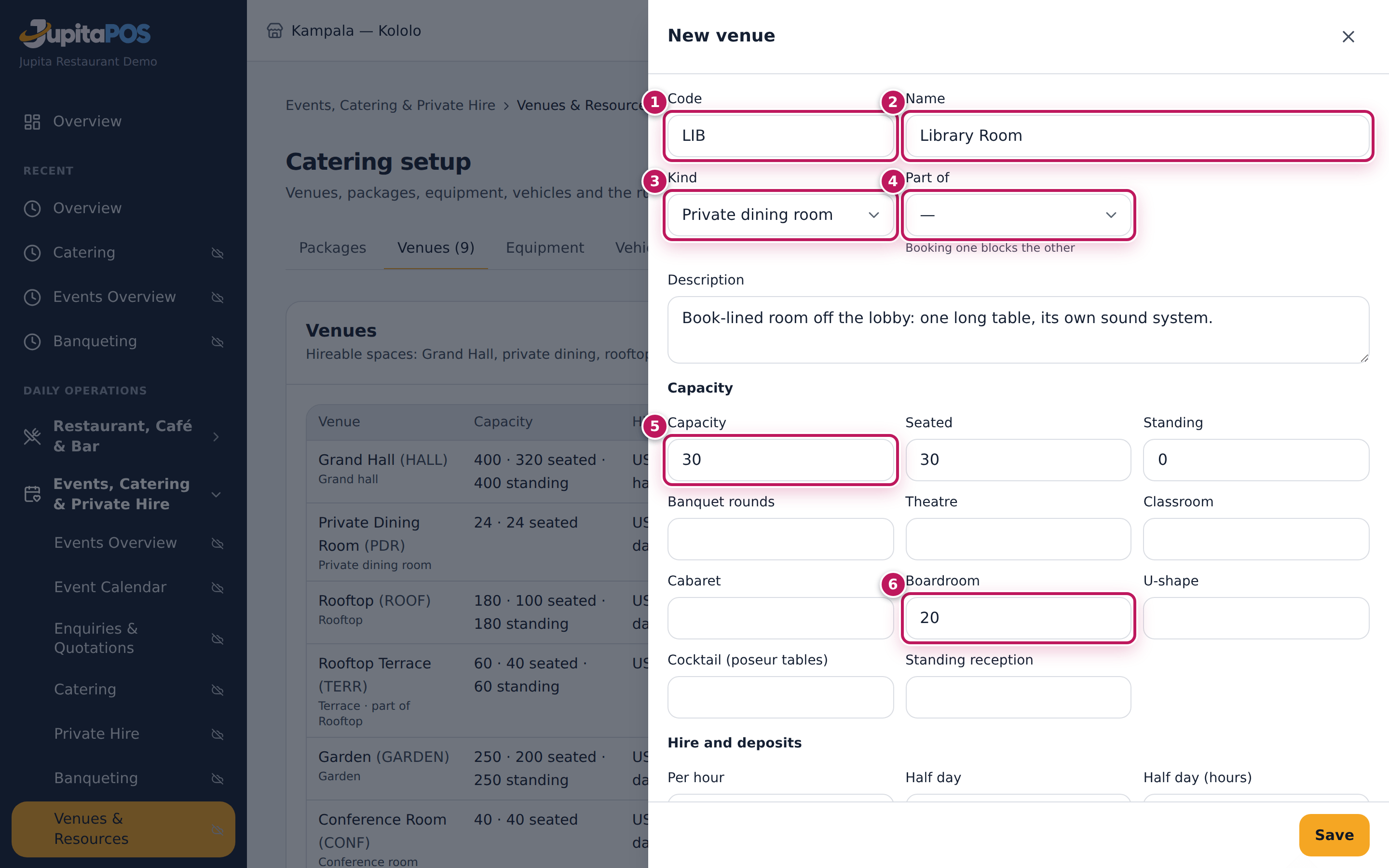
- Type the Code (1) — LIB — and the Name (2) — Library Room. Choose the Kind (3). If the space is part of a bigger one (the Terrace of the Rooftop), choose it in Part of (4): booking one then blocks the other.
- Type a Description, then the capacities: Capacity (5), Seated, Standing and, for each set-up you offer, how many it takes — here Boardroom 20 (6).
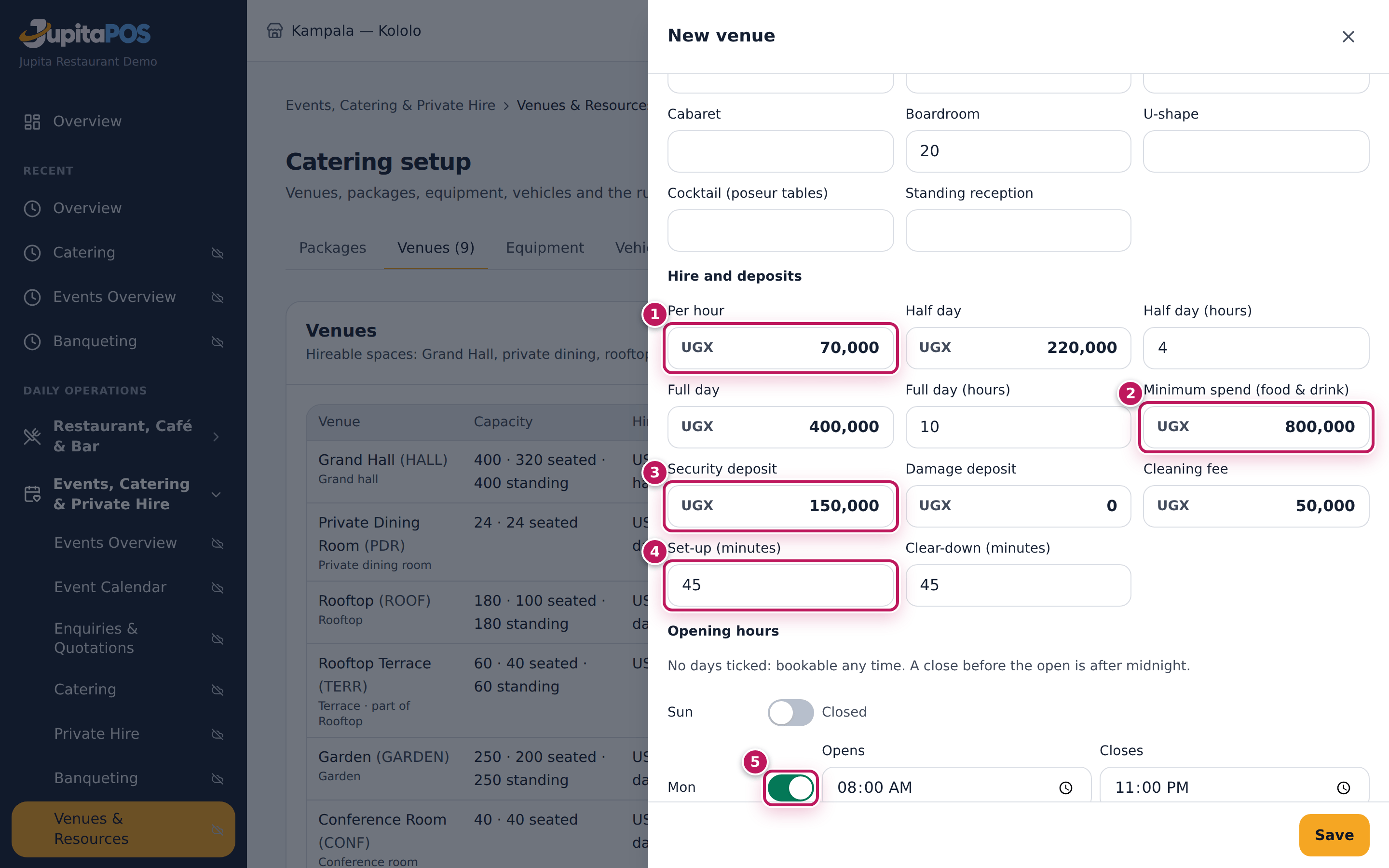
- Under Hire and deposits, type the prices: Per hour (1), Half day with its hours, Full day with its hours. Type the Minimum spend (food & drink) (2), the Security deposit (3), the Damage deposit and the Cleaning fee.
- Type the Set-up (minutes) (4) and Clear-down (minutes): the venue is taken that long before and after each event.
- Under Opening hours, switch on each day it opens (5) and set Opens and Closes. No day switched on means bookable at any time; a closing time before the opening time means after midnight.
- Leave For hire on and click Save.
- To add photos, open the venue again (its pencil) and click Add photo.
Expected result
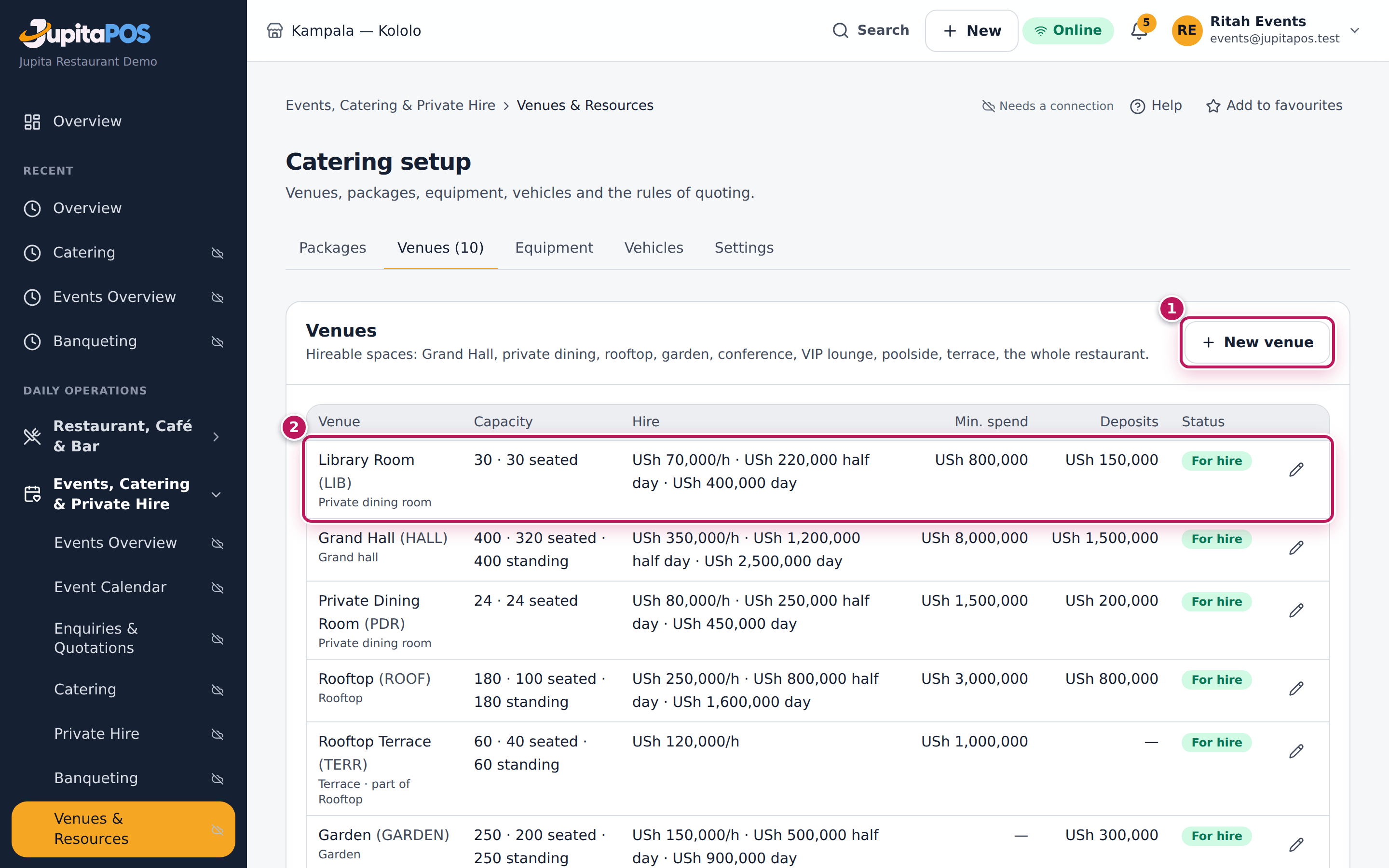
The Library Room (2) is in the venue list: 30 · 30 seated, USh 70,000/h · USh 220,000 half day · USh 400,000 day, minimum spend USh 800,000, the deposit USh 150,000 and For hire. It is offered at once in the venue calendar’s search and in Book a venue.
Screenshot
Common mistakes
- Leaving the set-up and clear-down at 0. The venue then looks free the minute the last guest leaves, and the next event walks into the cleaners.
- Only a capacity, no set-ups. A booking uses the set-up’s capacity, else the seated (standing for cocktails), else the overall number. Give the set-ups you really offer.
- Switching For hire off to “close” a venue for a day. That hides it from every booking. Close it for the day instead (see Close a venue for maintenance or a holiday).
Troubleshooting
- “The code … is already used.” Codes are unique, archived venues included. Choose another.
- Add photo is missing. Photos are added once the venue is saved: open it again from the list.
- Archive is refused. The venue has bookings to come. Move or release them first.
Check the venue calendar
Purpose
See which space is free, held or booked on which day — set-up and clear-down included — and find a free venue for a client’s date, number of guests and set-up, with its price.
Role / permission required
Anyone who can see catering and events (events.view).
Prerequisites
- The venues are set up (see Set up venues).
Steps
- Open Venues in the sidebar (
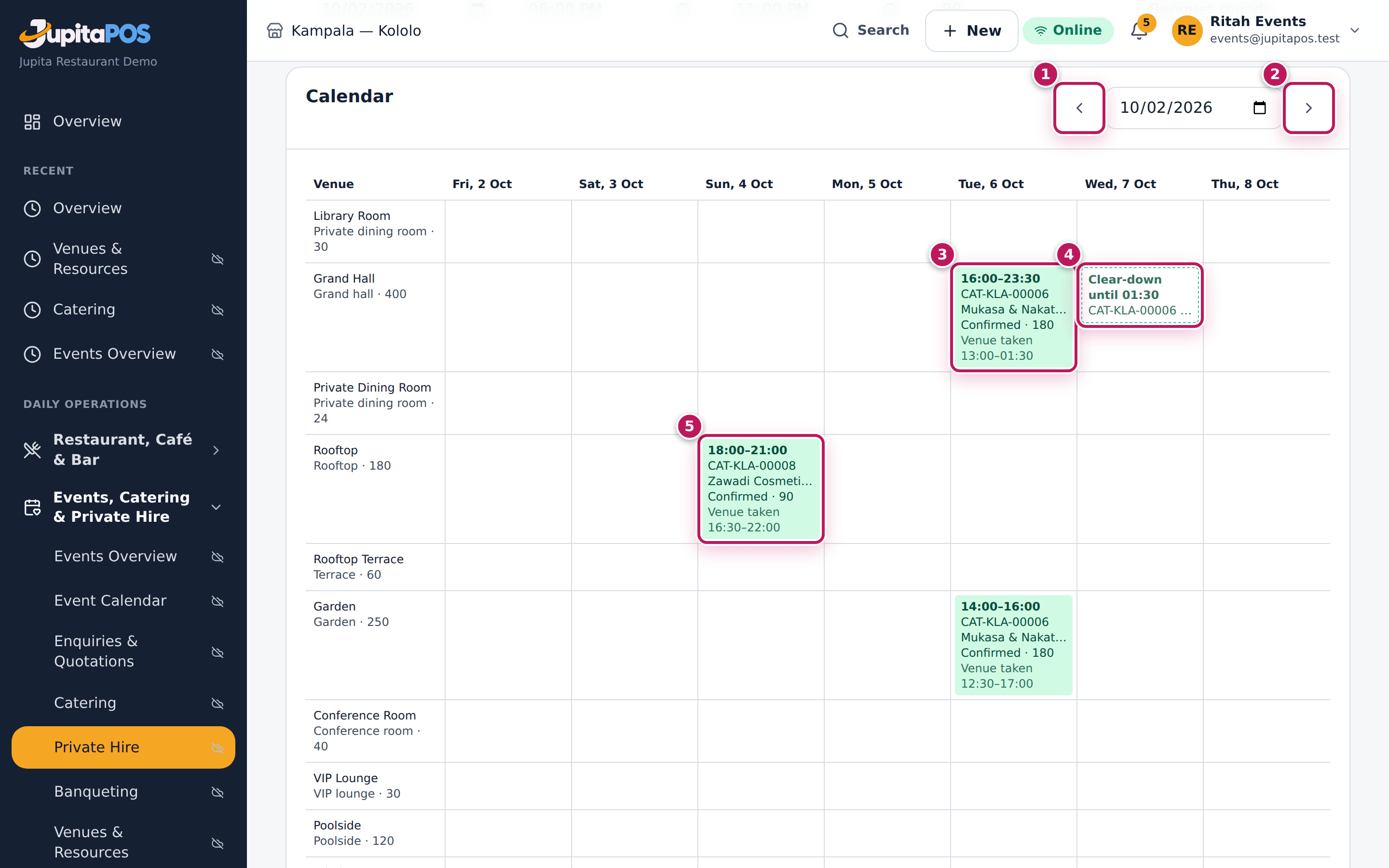
/venues). The calendar shows a week from today, one row per venue. - Move a week with the arrows Earlier (1) and Later (2), or pick a day in the date box between them.
- Read each booking (3): its times, the function’s number and title, its status and guests, and Venue taken (with set-up and clear-down). Green is confirmed, amber on hold. A dashed box (4) is only the set-up (the day before) or the clear-down (after midnight).
- Click a booking to open its function.
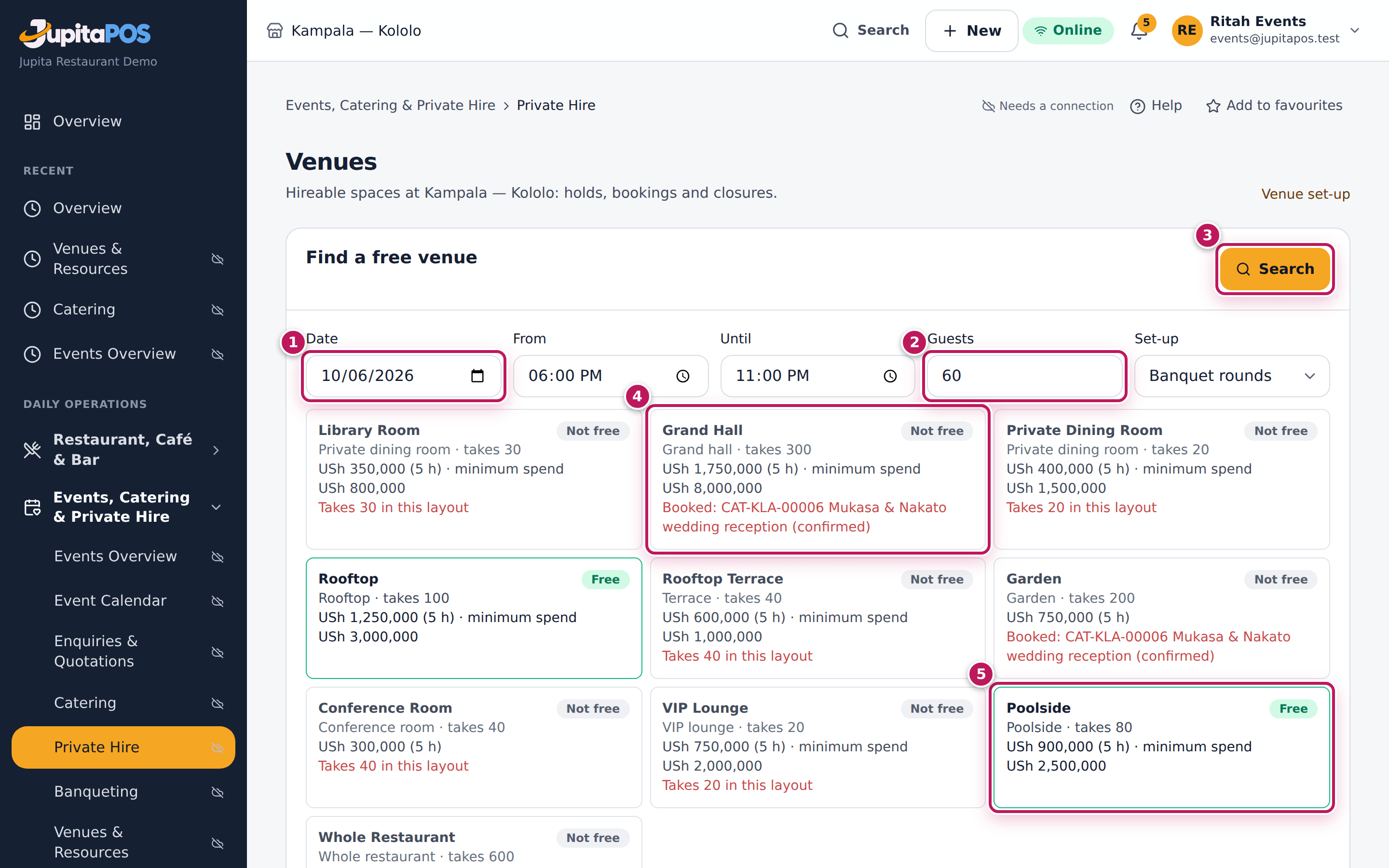
- To find a venue for a client, fill Find a free venue: the Date (1), From, Until, the Guests (2) and the Set-up, and click Search (3).
- Read the results: each venue is Free or Not free with the reason (4) — booked by which function, closed, too small for that set-up, or outside its opening hours — and its price for those hours (5) with its minimum spend.
Expected result
In the week from Friday 2 October the Mukasa & Nakato wedding has the Garden (14:00–16:00) and the Grand Hall (16:00–23:30) on Tuesday 6 October, confirmed; the Grand Hall’s clear-down runs until 01:30 on Wednesday; the Zawadi Cosmetics launch has the Rooftop on Sunday. Searching Tuesday 6 October, 18:00–23:00, for 60 guests: the Grand Hall is Not free (the wedding has it), the Whole Restaurant is not free (something is booked), and Poolside is Free with its best price.
Screenshot
Common mistakes
- Reading only the event times. The venue is taken from the set-up to the clear-down (Venue taken); a morning meeting may clash with an evening wedding’s set-up.
- Forgetting the set-up in the search. A room that seats 320 in banquet rounds may take 400 standing; choose the set-up the client wants.
Troubleshooting
- A venue is missing from the calendar. It is switched off (For hire off), archived, or at another branch — choose the branch at the top.
- “The booking ends after it starts.” In the search, an Until earlier than From is read as after midnight; check the times.
Close a venue for maintenance or a holiday
Purpose
Block a venue (or the whole branch) for maintenance, a private closure or a public holiday, so nobody books it then.
Role / permission required
Events & Private Hire Manager, Catering Manager or a manager
(events.manage).
Prerequisites
- Nothing is booked in the venue at that time (a closure does not move bookings).
Steps
- Open Venues in the sidebar and go to the week of the closure.
- Click Close a venue under the calendar.
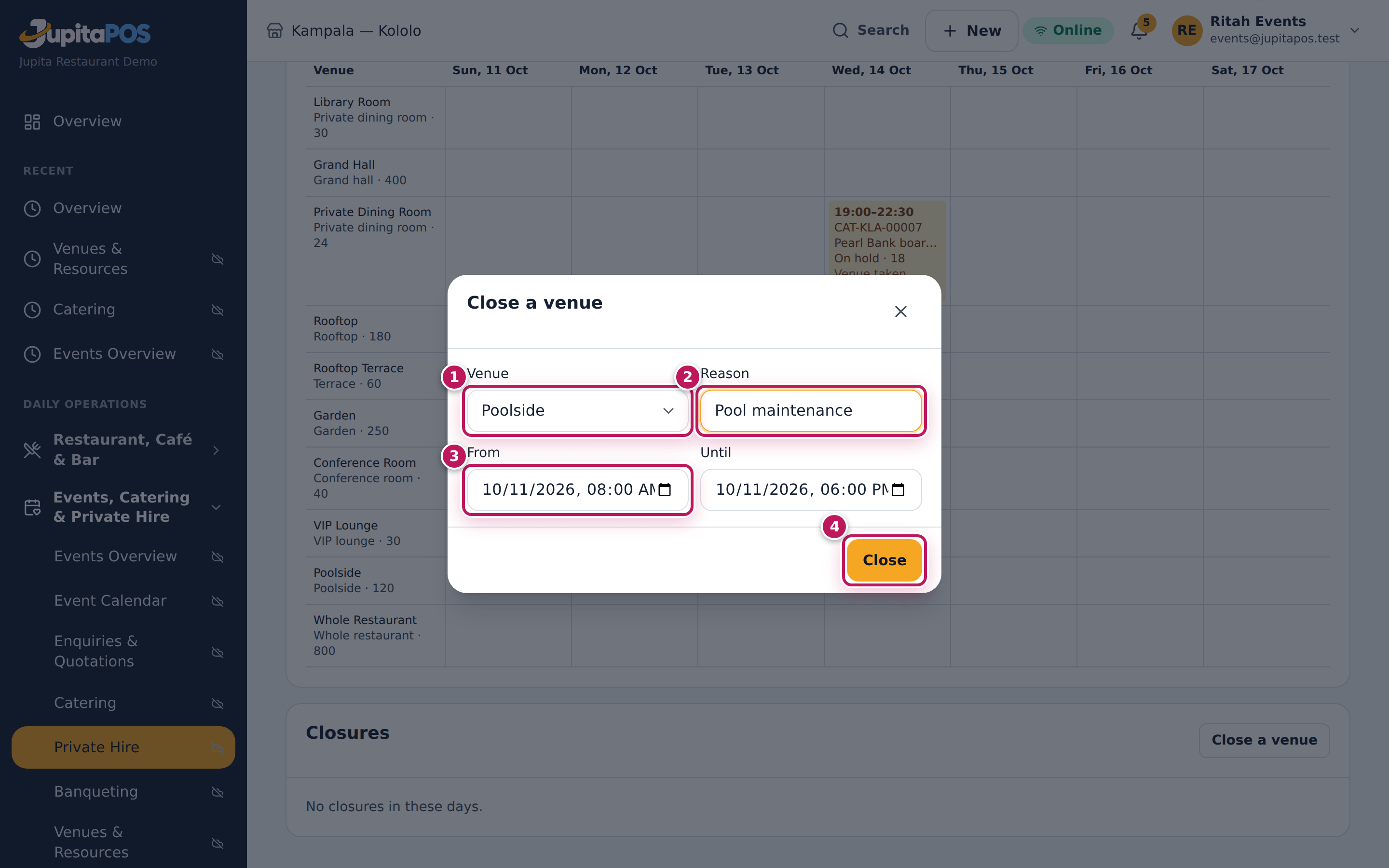
- Choose the Venue (1) — here Poolside, or The whole branch.
- Type the Reason (2) — Pool maintenance.
- Set From (3) and Until.
- Click Close (4).
Expected result
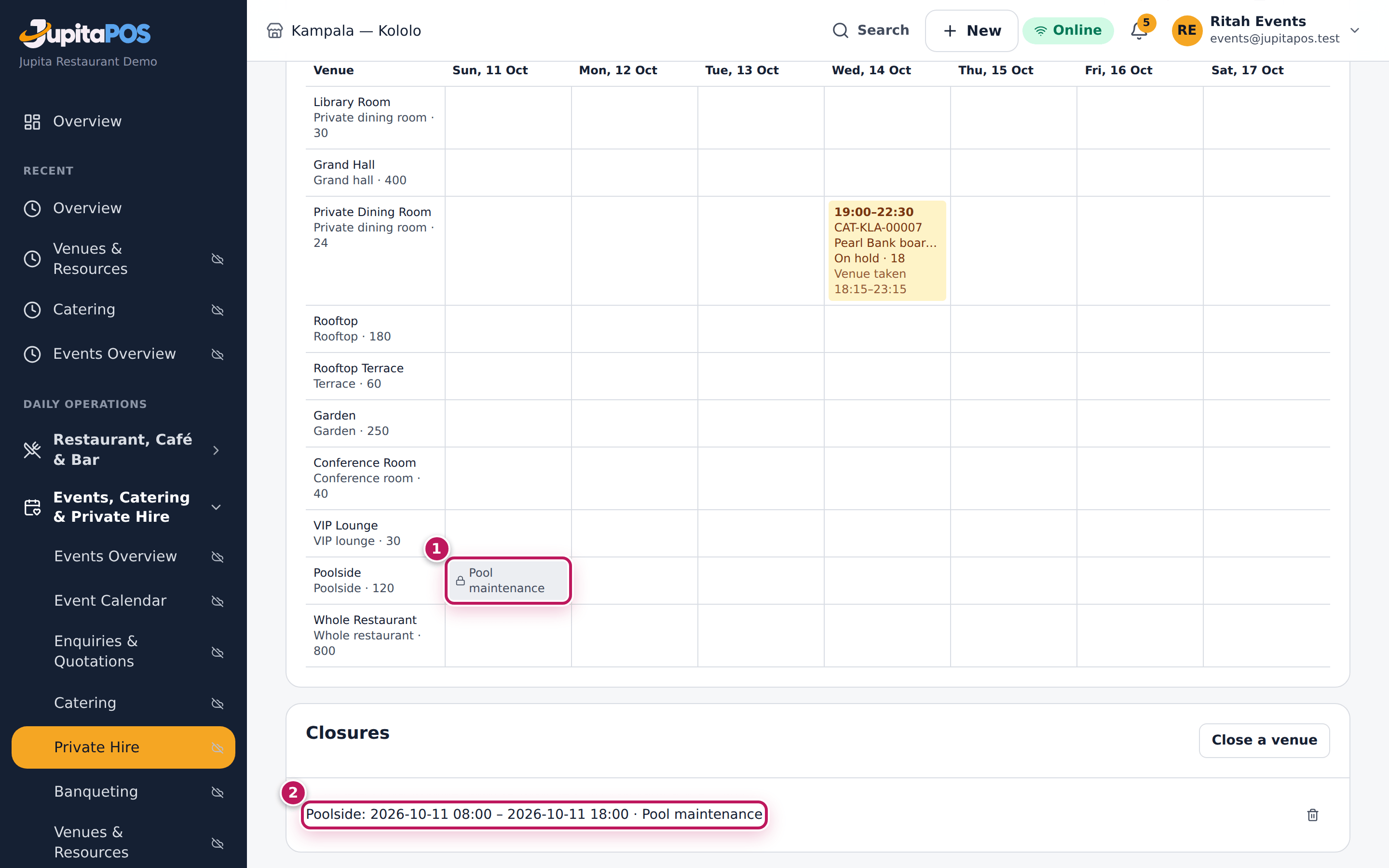
The calendar shows a lock with Pool maintenance (1) in the Poolside row on Sunday 11 October, and the closure is listed under Closures (2). The venue search says the Poolside is closed then, and a booking over it is refused: Poolside is closed then: Pool maintenance. The bin beside a closure removes it.
Screenshot
Common mistakes
- Closing the whole branch for one room. The whole branch blocks every venue; choose the room.
Troubleshooting
- Close stays grey. Type a reason.
- The closure does not show. It is outside the week on screen: move to its week with Later.
Book a venue for a function
Purpose
Hold the right space for a client’s function at the right times — checked against every other booking — so it is blocked for others and priced on the quote.
Role / permission required
Events & Private Hire Manager, Catering Manager or a manager
(events.manage). Booking above the capacity or outside the opening hours
needs a manager (events.approve).
Prerequisites
- The function exists (see Log a catering enquiry), with Where set to Our venue, its date, times and guests.
Steps
- Open the function and click the Venues & timeline tab.
- Click Book a venue. The drawer opens with the function’s times and guests, and lists the venues Free at that time.
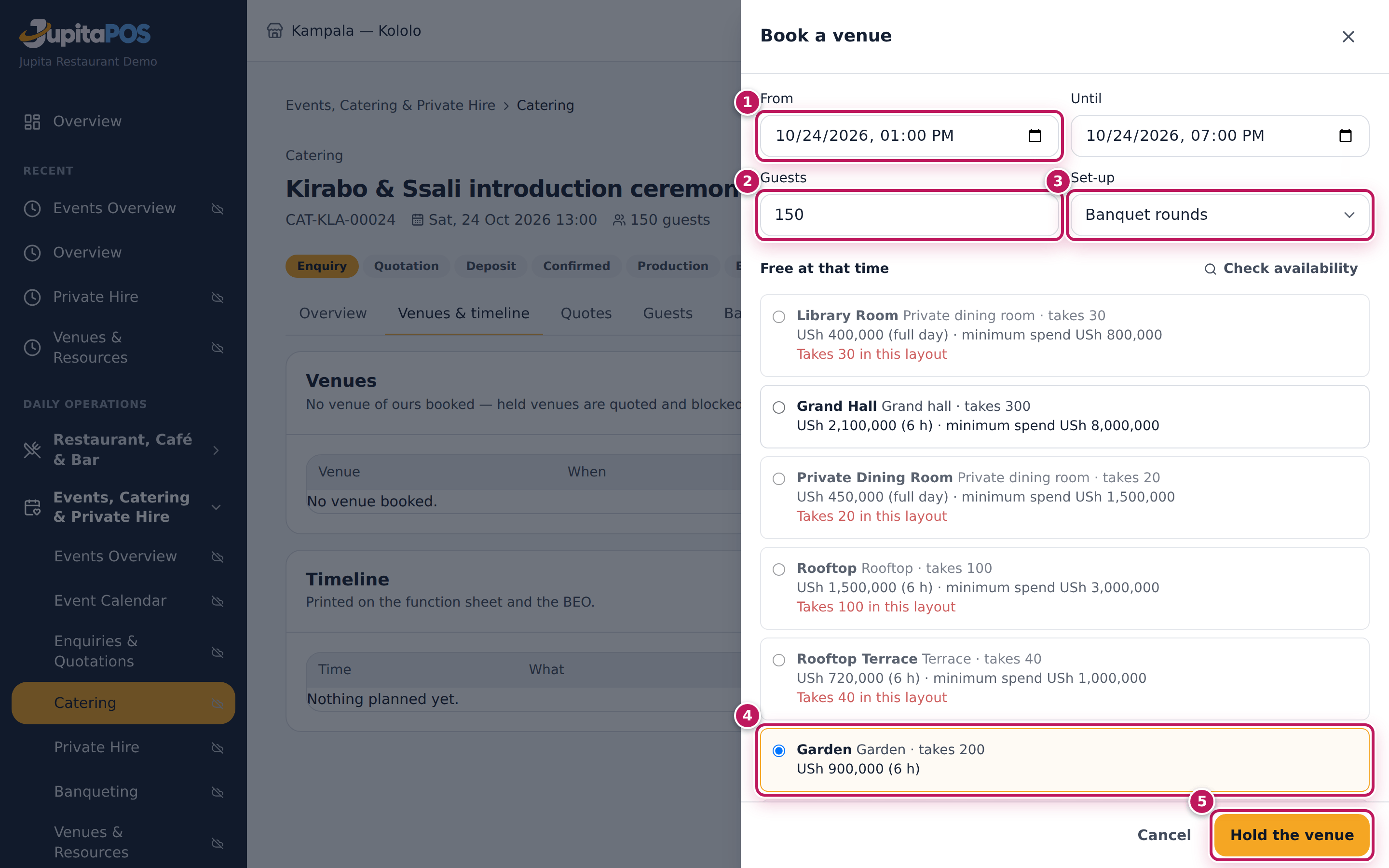
- Check From (1), Until, the Guests (2) and the Set-up (3). If you change them, click Check availability.
- Choose the venue (4) — here the Garden, USh 900,000 (6 h). Each venue shows its price for those hours and its minimum spend; one that is not free, or too small for the set-up, says why in red (Takes 100 in this layout).
- Choose the Hire rate: Best rate (the cheapest of hourly, half day and full day), By the hour, Half day, Full day, Agreed amount or No hire charge.
- If the venue needs more (or less) time than usual, type Set-up (minutes before) and Clear-down (minutes after).
- Write the Layout, AV & technical and Décor notes: they print on the banquet event order.
- Click Hold the venue (5).
Expected result
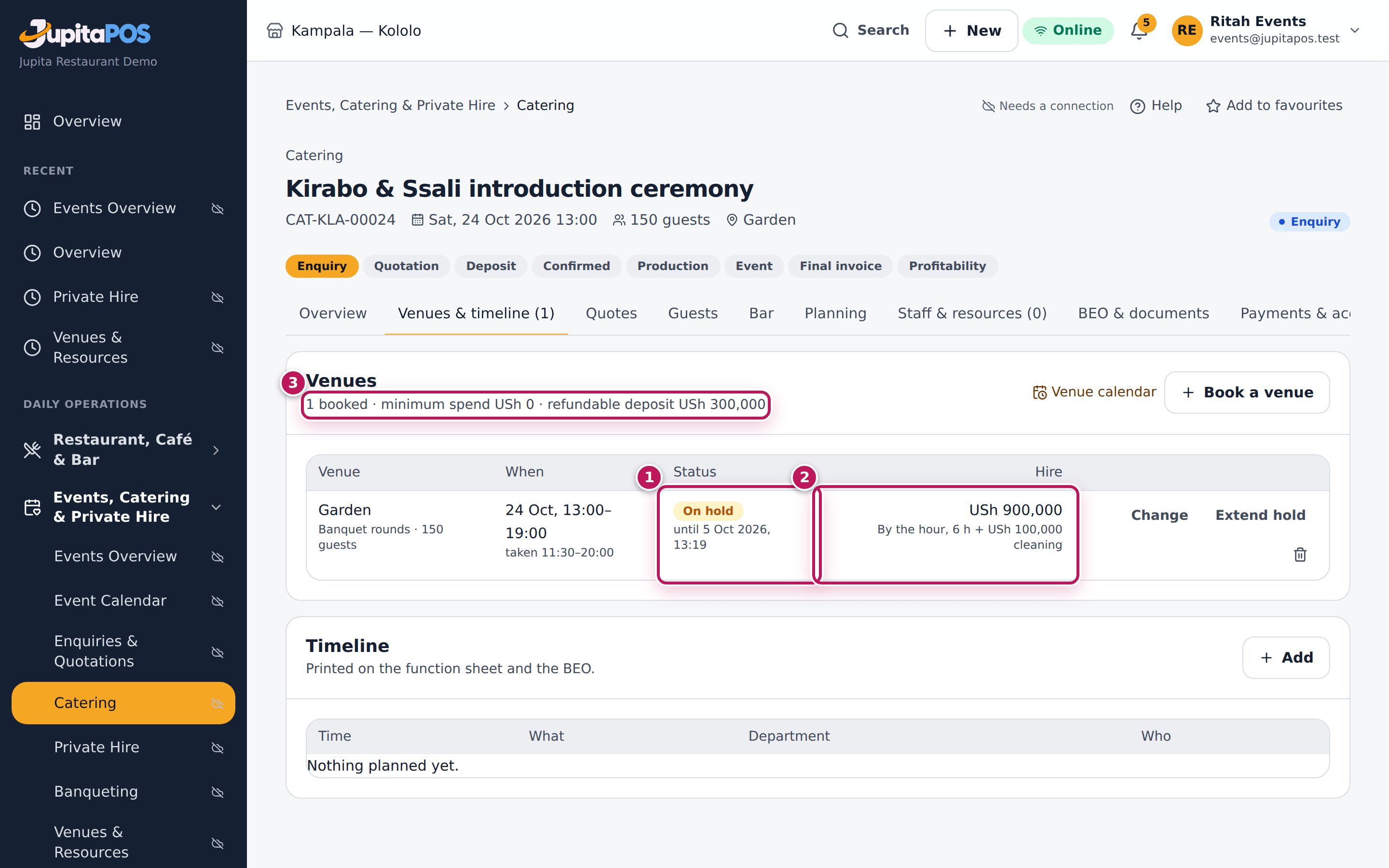
The Garden is On hold until three days from now (1), for 24 Oct 13:00–19:00 (taken 11:30–20:00 with set-up and clear-down). The hire is USh 900,000 at the best rate — here by the hour, 6 h — plus the USh 100,000 cleaning fee (2). The card says 1 booked with the minimum spend and the refundable deposit, USh 300,000 (3). When the client accepts the quote the hold becomes Confirmed.
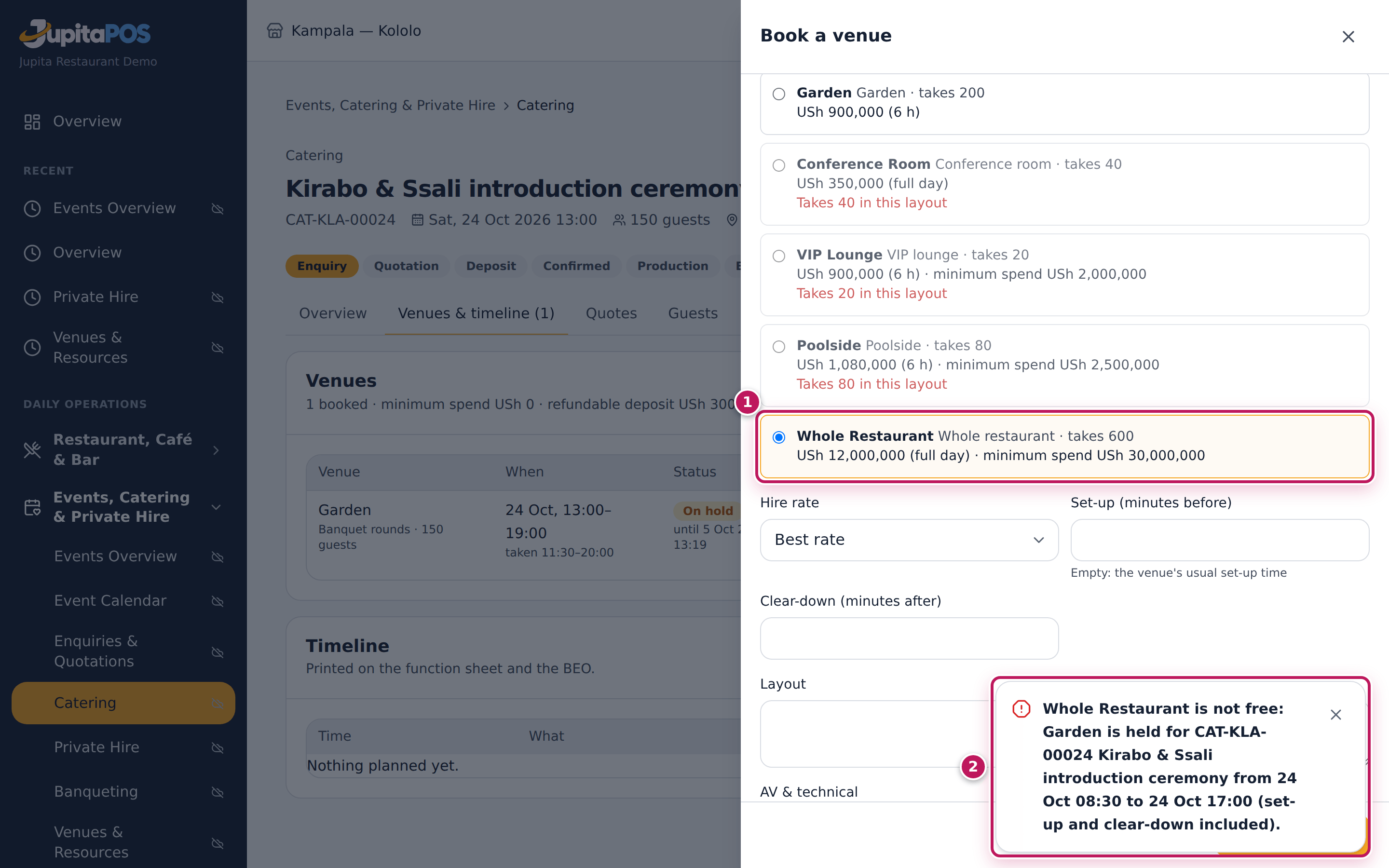
Trying to book the Whole Restaurant (1) over it is refused (2): Whole Restaurant is not free: Garden is held for CAT-KLA-… Kirabo & Ssali introduction ceremony from 24 Oct 11:30 to 24 Oct 20:00 (set-up and clear-down included).
Screenshot
Common mistakes
- Holding a venue “just in case” and forgetting it. A hold blocks the venue for everyone until it expires. Release what the client does not want.
- Booking the event times only. Set the set-up and clear-down if the décor needs longer; otherwise the next booking can start too soon.
Troubleshooting
- “… is not free: … is held for … (set-up and clear-down included).” Someone has that venue, a part of it or the whole restaurant then. Choose another venue or time — nobody can override a clash.
- “… guests is above …’s … — a manager can book it anyway.” Too many guests for that set-up (or outside its opening hours). Choose a bigger venue, or ask a manager to tick Book anyway.
- “… is closed then: ….” The venue is closed for that time (see Close a venue for maintenance or a holiday).
FAQ
Can one function use two venues? Yes: book each one, for its own times (a ceremony in the Garden, then the reception in the Grand Hall).
What happens when the hold expires? The venue is free again. If someone else books it meanwhile, the client’s quote cannot be accepted until another venue is found.
Move, extend or release a booking
Purpose
Keep a hold alive while the client decides, move a booking to new times, or give the venue back when the client does not need it.
Role / permission required
Events & Private Hire Manager, Catering Manager or a manager
(events.manage). Releasing a confirmed venue needs a manager
(events.approve).
Prerequisites
- The function has a venue on hold or confirmed (see Book a venue for a function).
Steps
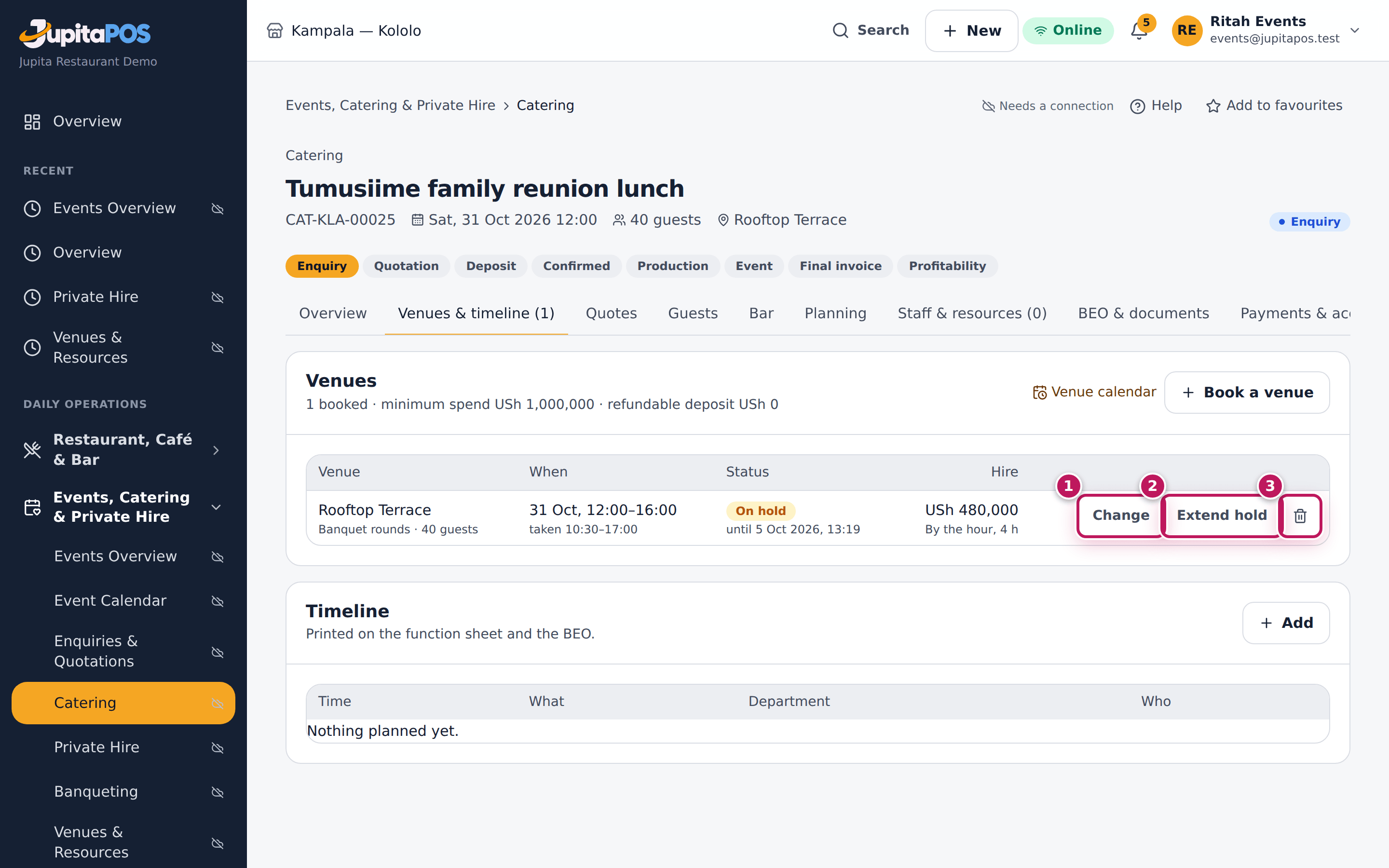
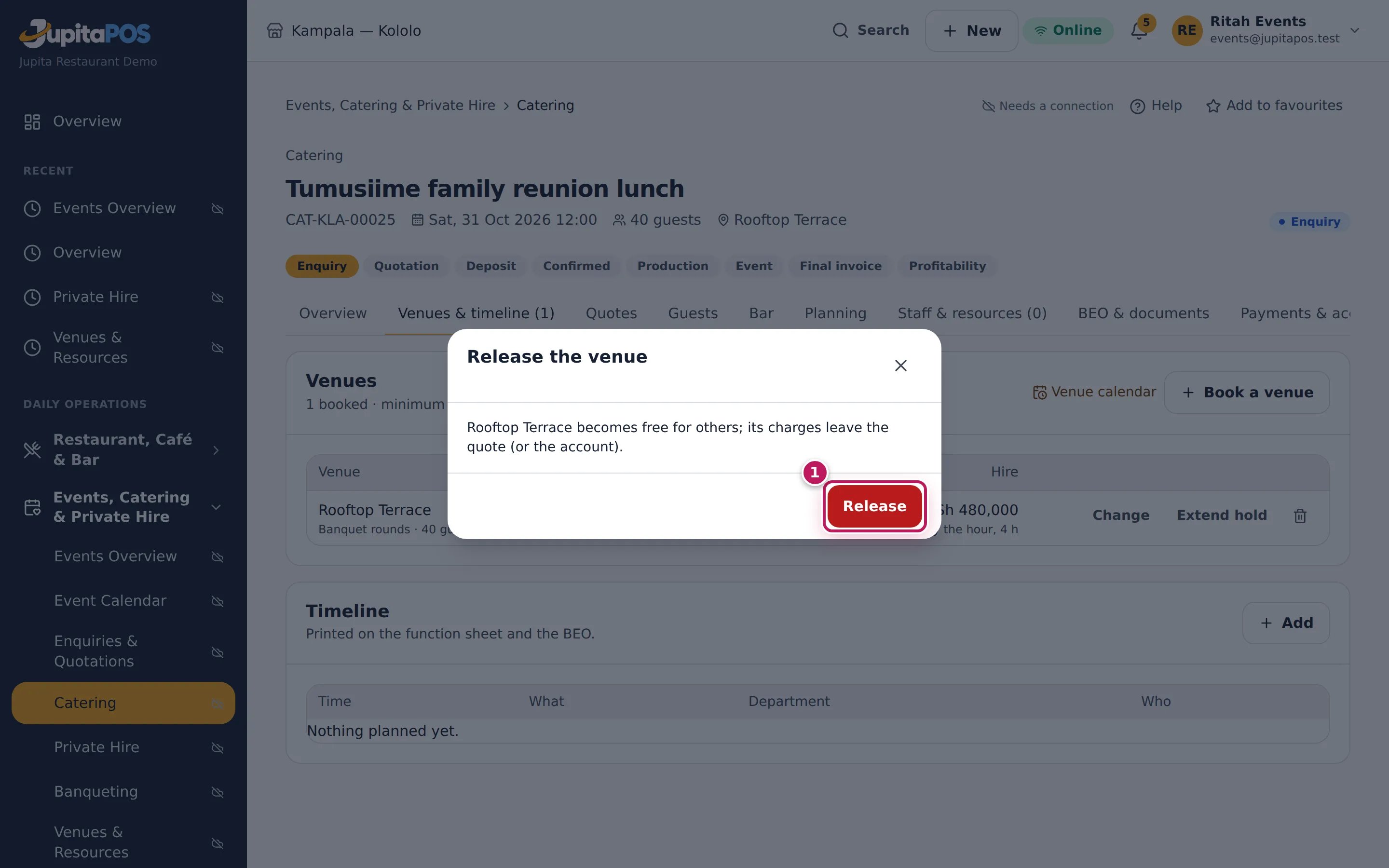
- Open the function and click the Venues & timeline tab. Each booking row has Change (1), Extend hold (2) (holds only) and a bin to release it (3).
- To keep a hold longer, click Extend hold: three more days are added to its expiry (to now, if it had already lapsed), but never past the start of the venue’s set-up.
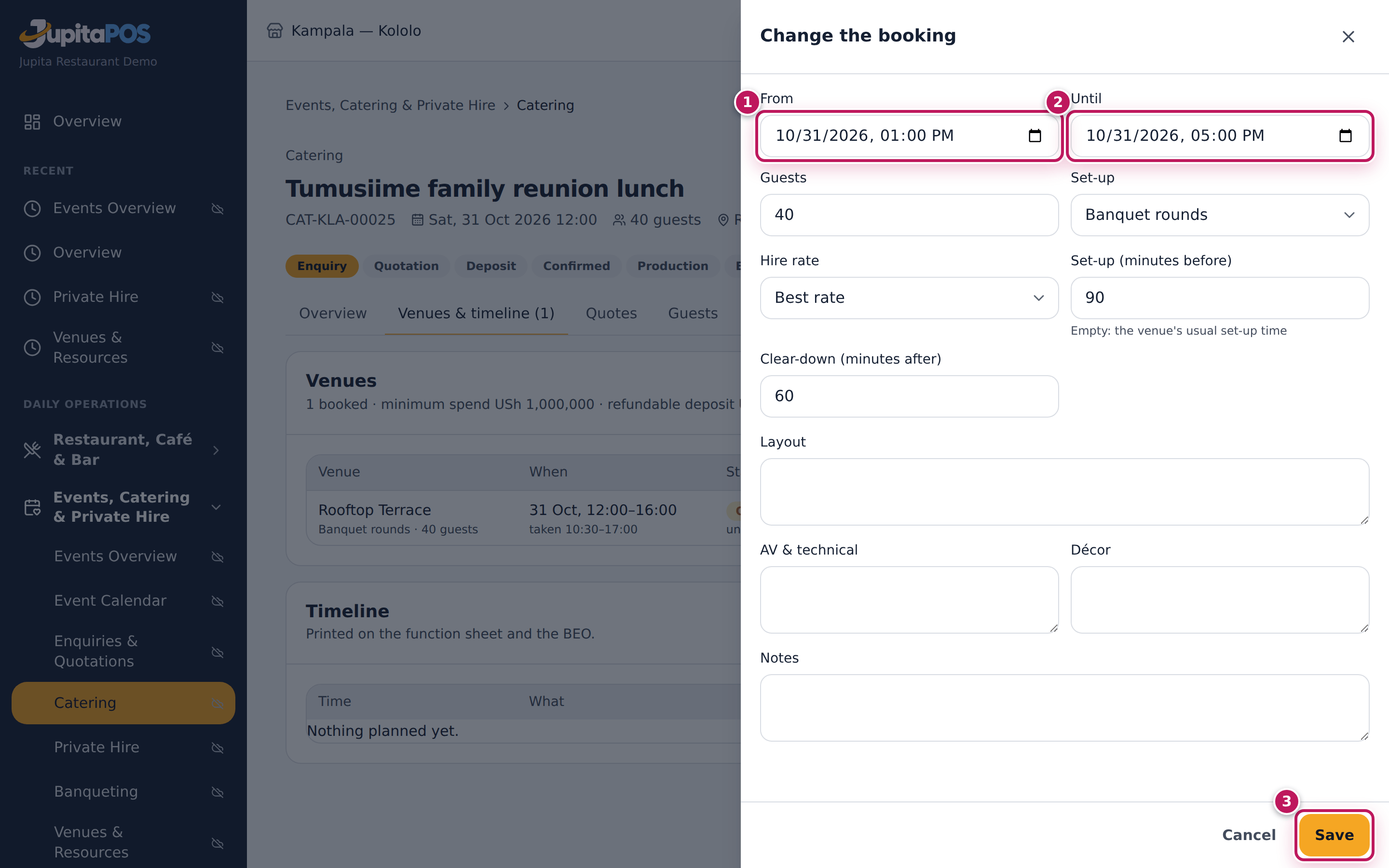
- To move it, click Change, set the new From (1) and Until (2) (or guests, set-up, rate, notes) and click Save (3). The new times are checked against every other booking.
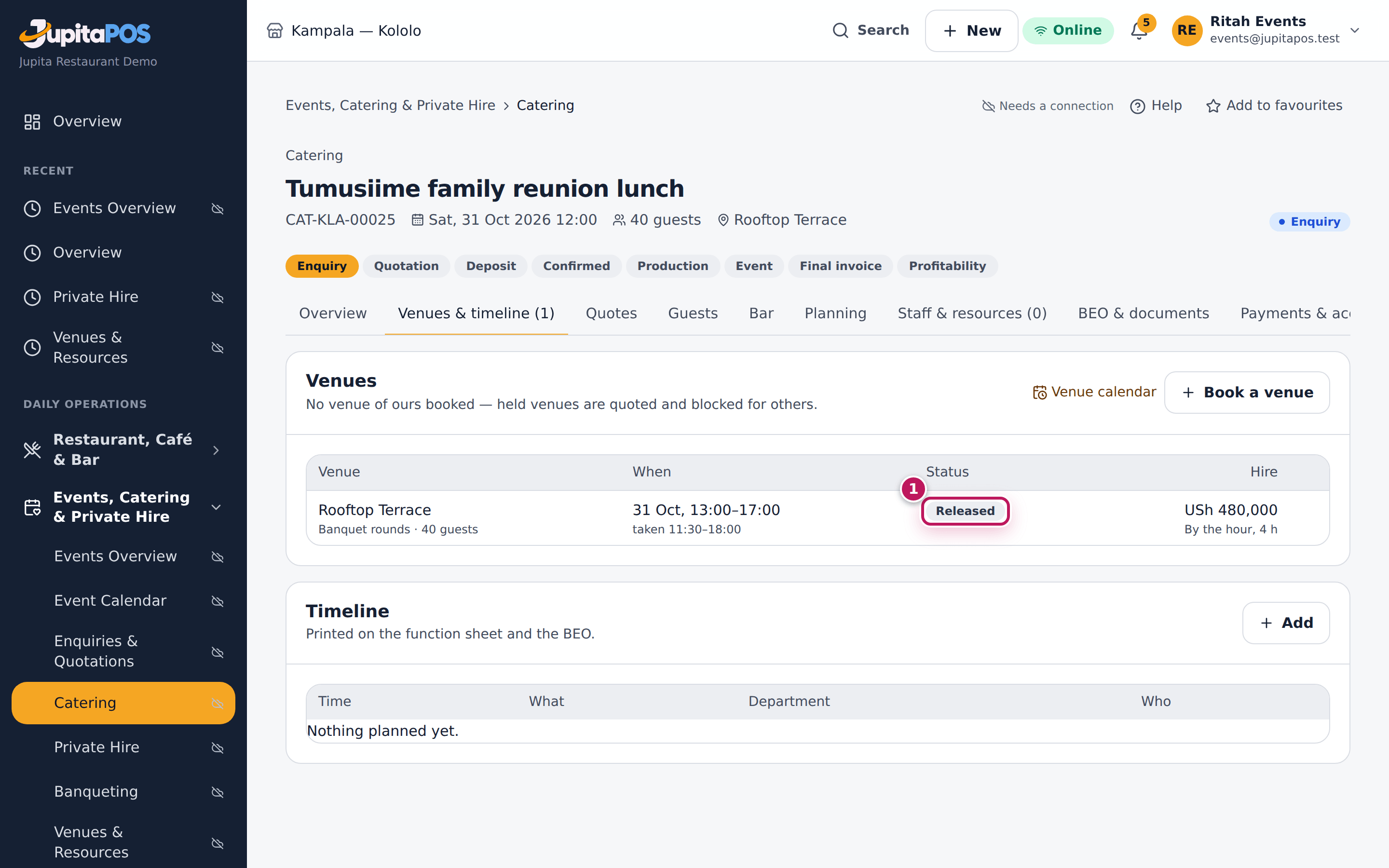
- To give the venue back, click the bin and then Release (1).
Expected result
Hold extended by 3 days: the hold that ran until three days from now now runs three days longer. The lunch moves to 13:00–17:00 (Booking changed); after Release the Rooftop Terrace is Released (1) and free for others, and its hire leaves the quote (or the account).
Screenshot
Common mistakes
- Extending a hold again and again. A hold is a promise to nobody. If the client cannot decide, release it and book again when they do.
- Releasing instead of moving. To change the times, use Change; a released venue may be taken before you book it again.
Troubleshooting
- The bin is grey on a confirmed booking. Releasing a confirmed venue
needs a manager (
events.approve). - “… is not free: …” when moving. The new times clash with another booking; the message says whose.
- There is no Extend hold. The booking is already confirmed: it no longer expires.
Quote the venue hire and read the account
Purpose
Put the venue hire, the cleaning fee and the minimum spend on the client’s quote without typing them, and follow what the function will cost the client by category.
Role / permission required
Events & Private Hire Manager, Catering Manager or a manager
(events.manage).
Prerequisites
- The function has its venue on hold (see Book a venue for a function).
Steps
- Open the function and click the Quotes tab.
- Start the quote: choose the Package and click Quote from package (or Price per person / Custom pricing), as for any catering quote (see Write and send a quote).
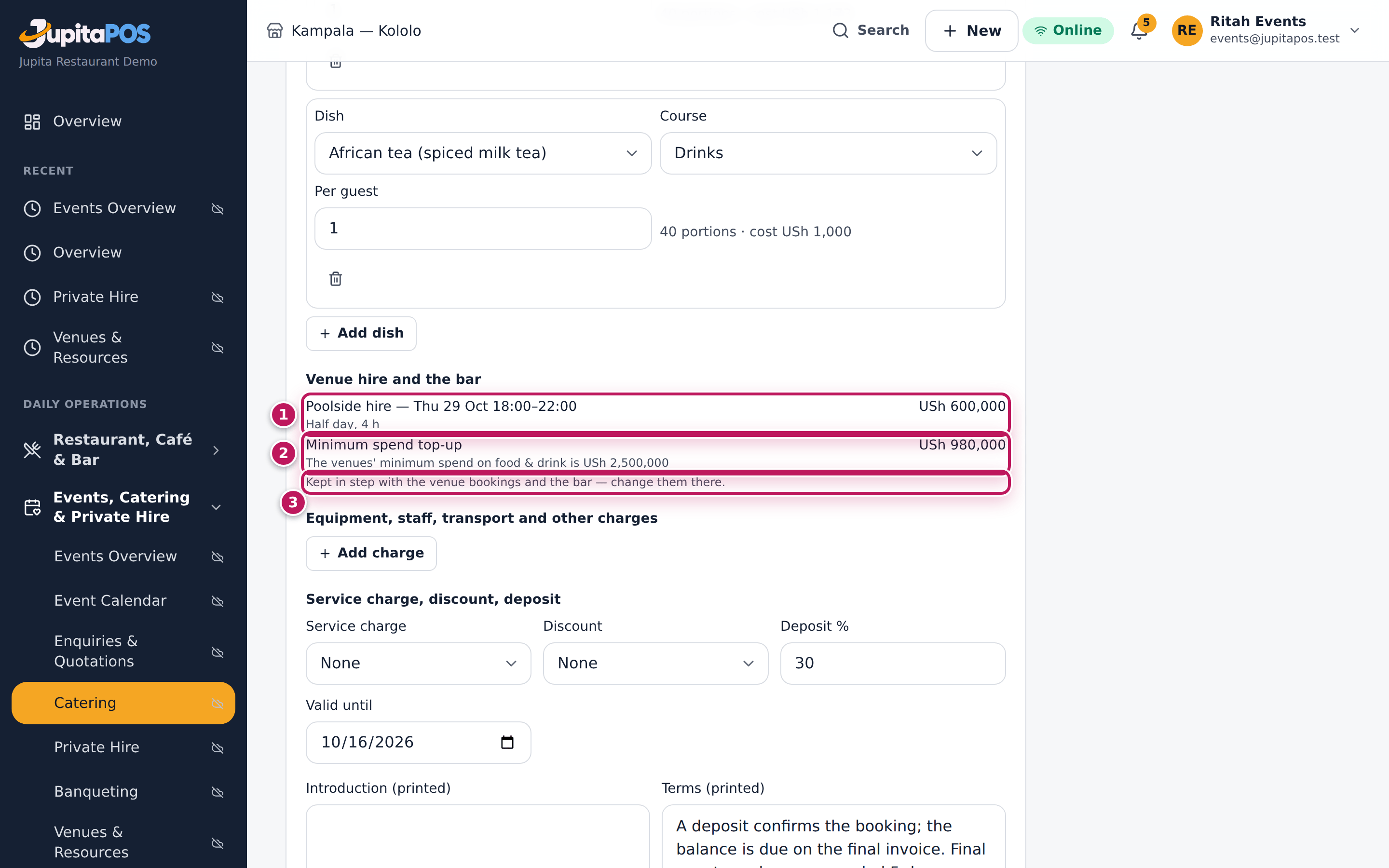
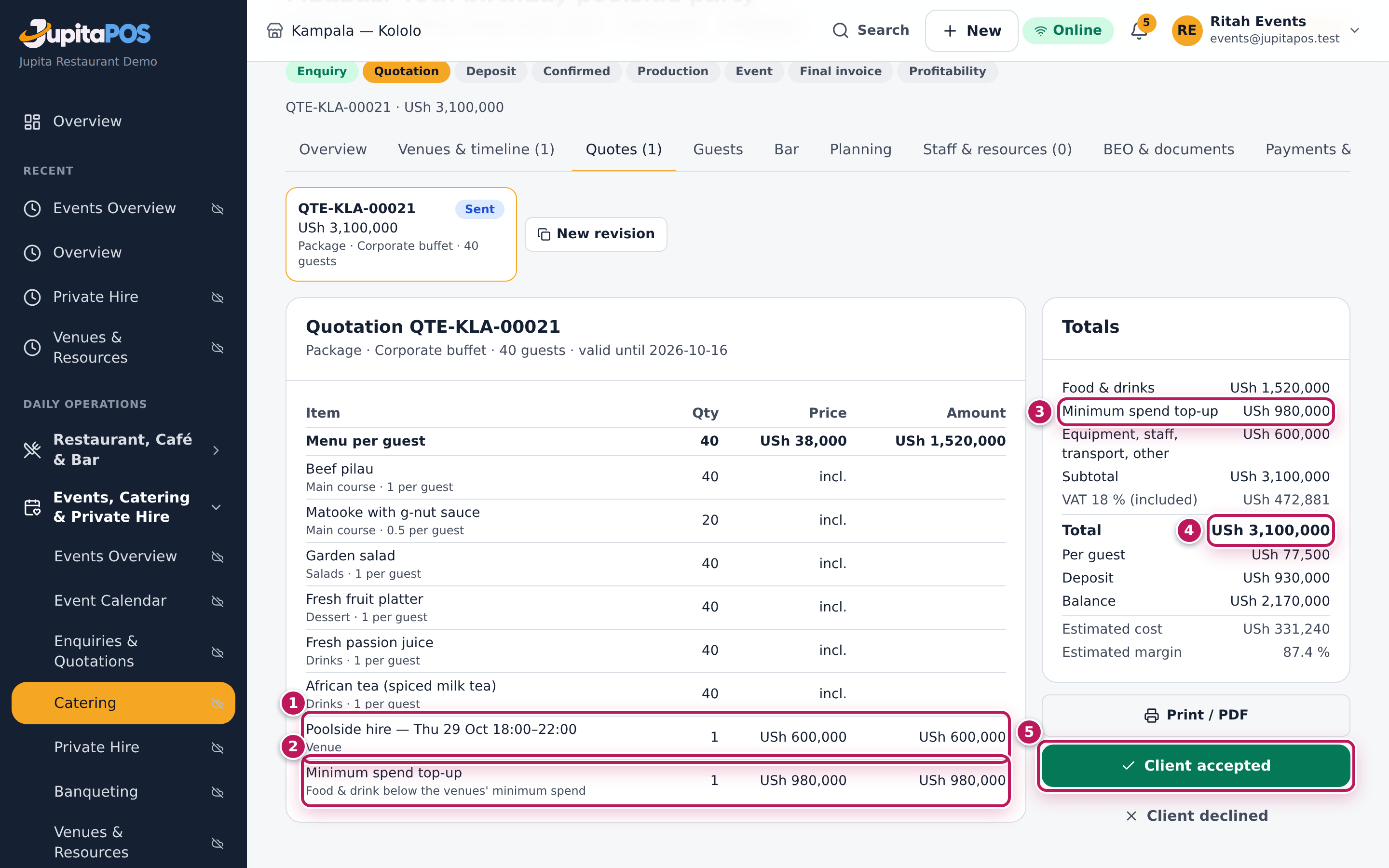
- Under Venue hire and the bar, read the hire of each venue (1) (and its cleaning fee, and the bar package per guest when the bar is priced that way). When food and drink come to less than the venues’ minimum spend, the difference is added as a Minimum spend top-up (2), with the minimum it makes up. These lines are Kept in step with the venue bookings and the bar — change them there (3).
- Read the Totals: Food & drinks, the Minimum spend top-up, Equipment, staff, transport, other and the Total.
- Click Send to client.
- Click Print / PDF and send the quotation to the client. Under the lines it explains the minimum spend and the top-up.
- When the client accepts, click Client accepted (5) and Accept quote. The holds become Confirmed.
- Click the Payments & account tab and read The account by category.
Expected result
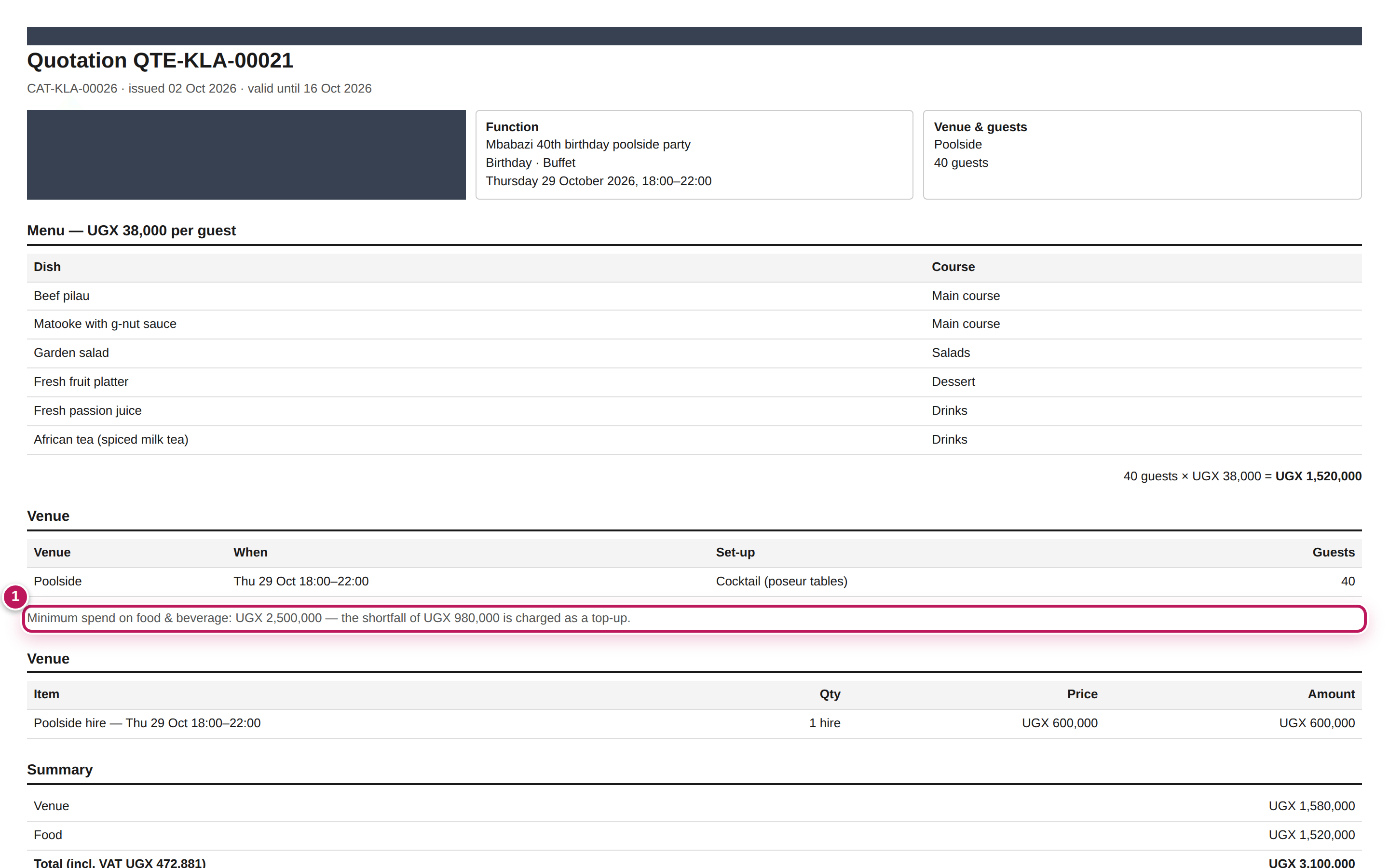
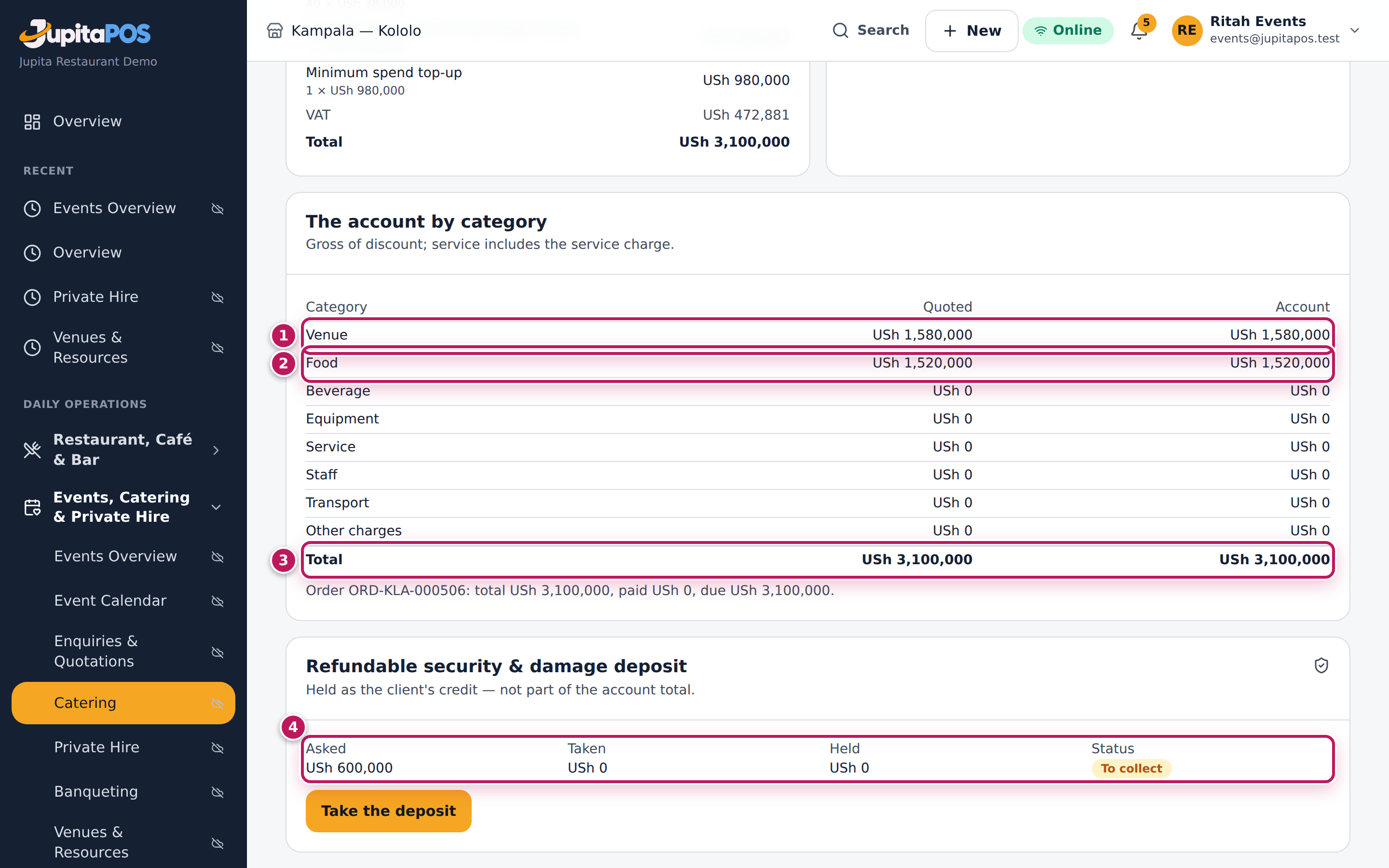
For the Mbabazi 40th birthday at the Poolside (40 guests, 18:00–22:00): food 40 × 38,000 = 1,520,000 and Poolside hire at the half-day rate, 600,000 (1). The Poolside’s minimum spend is 2,500,000, so a Minimum spend top-up of USh 980,000 is its own line on the quotation (2) and in the Totals (3); the Total is USh 3,100,000 (4). The printed quotation says Minimum spend on food & beverage: UGX 2,500,000 — the shortfall of UGX 980,000 is charged as a top-up (1). After acceptance The account by category shows Venue USh 1,580,000 (the hire and the top-up) (1), Food USh 1,520,000 (2), quoted against the account (3), and the refundable deposit of USh 600,000 To collect (4) — outside the total.
Screenshot
Common mistakes
- Typing the hire as a charge. It is already on the quote from the booking; typed again it is charged twice. Change the booking’s rate instead.
- Promising the minimum spend is “waived”. The top-up is added automatically; to agree another amount, a manager changes the venue’s minimum spend or you add more food and drink.
Troubleshooting
- The hire is missing from a sent quote. A sent quote stays as sent. Start a new revision to pick up a new booking.
- The account’s venue line changed. After acceptance, moving or extending a booking changes its hire on the account; the final invoice recomputes the minimum spend on what was really charged.
Take and return the security deposit
Purpose
Hold the client’s refundable security and damage deposit against the venue, then give it back after the event — keeping what pays for any damage.
Role / permission required
Taking it: Events & Private Hire Manager, Catering Manager or a manager with
payments.take (and events.manage). Refunding it or keeping it for
damage: a branch or general manager (events.approve).
Prerequisites
- The function is booked (accepted or confirmed) with a venue that asks a deposit (see Book a venue for a function).
- For cash: a till is open in your name (see Open the till).
Steps
- Open the function and click the Payments & account tab. Scroll to Refundable security & damage deposit: Asked, Taken, Held and the Status — To collect.
- Click Take the deposit.
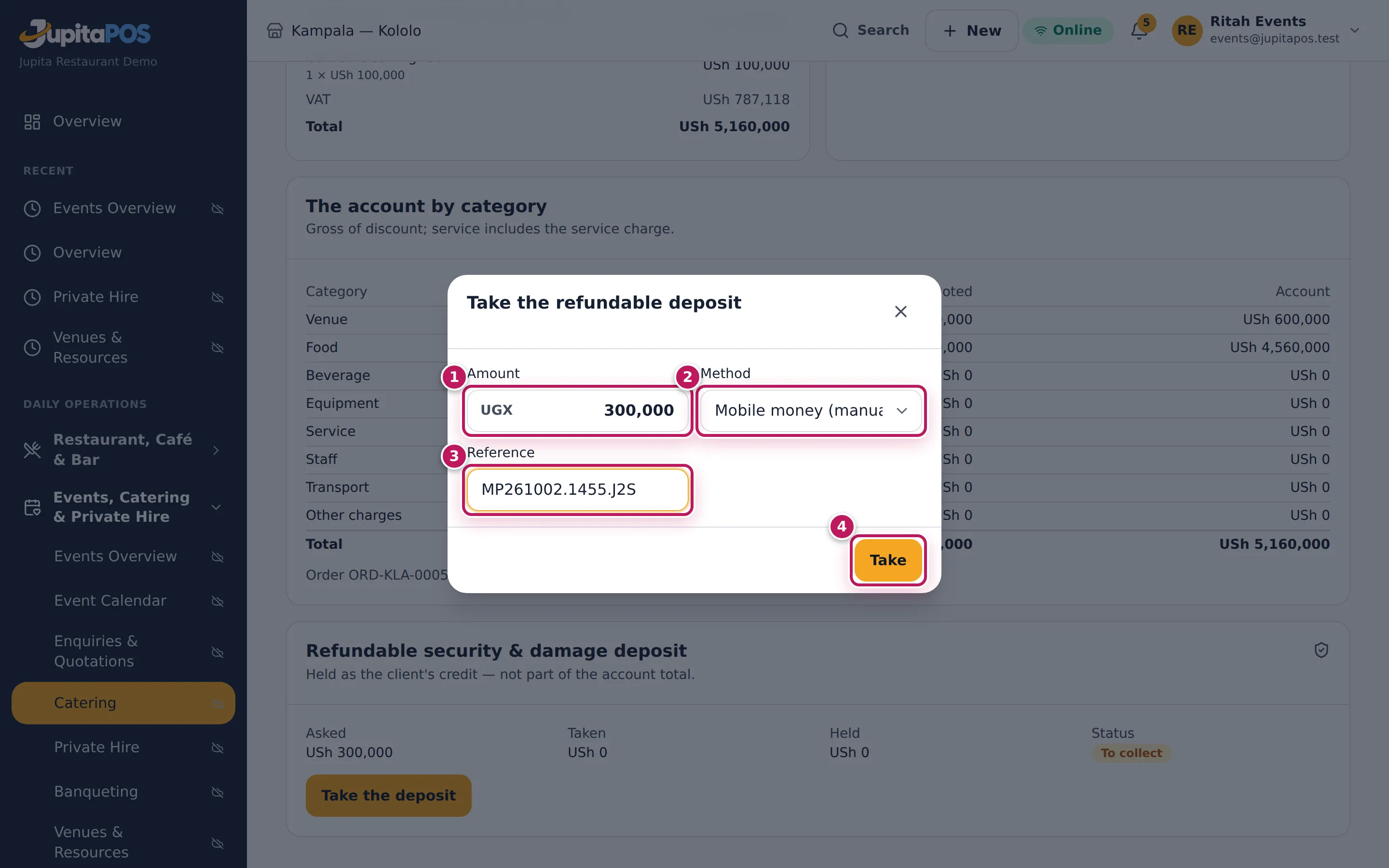
- Check the Amount (1) — the venues’ deposits, here USh 300,000 for the Garden — choose the Method (2) — here Mobile money (manual) — and type the Reference (3), the transaction ID.
- Click Take (4).
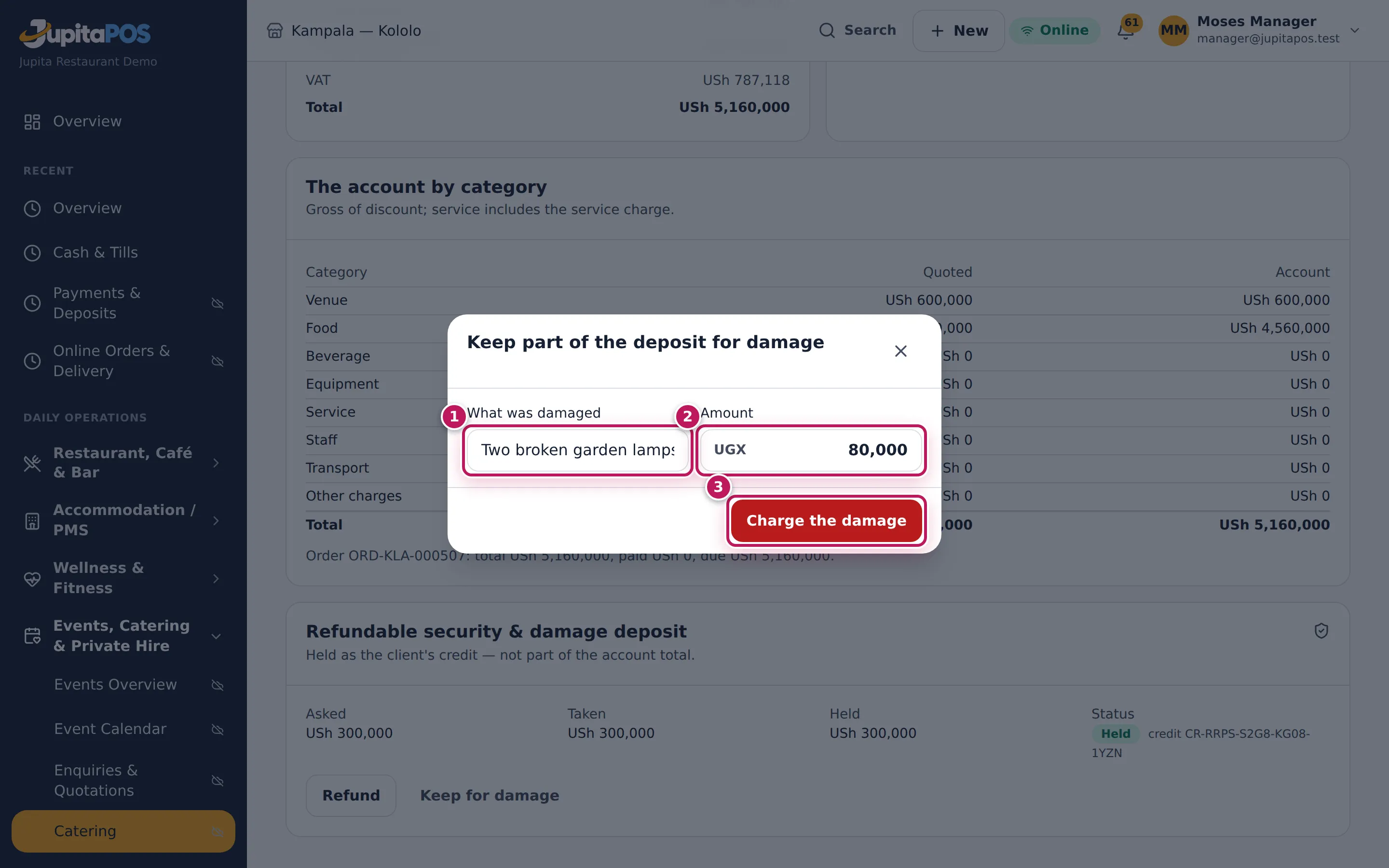
- After the event, the manager opens the same card. If something was damaged, click Keep for damage, type What was damaged (1) and the Amount (2), and click Charge the damage (3).
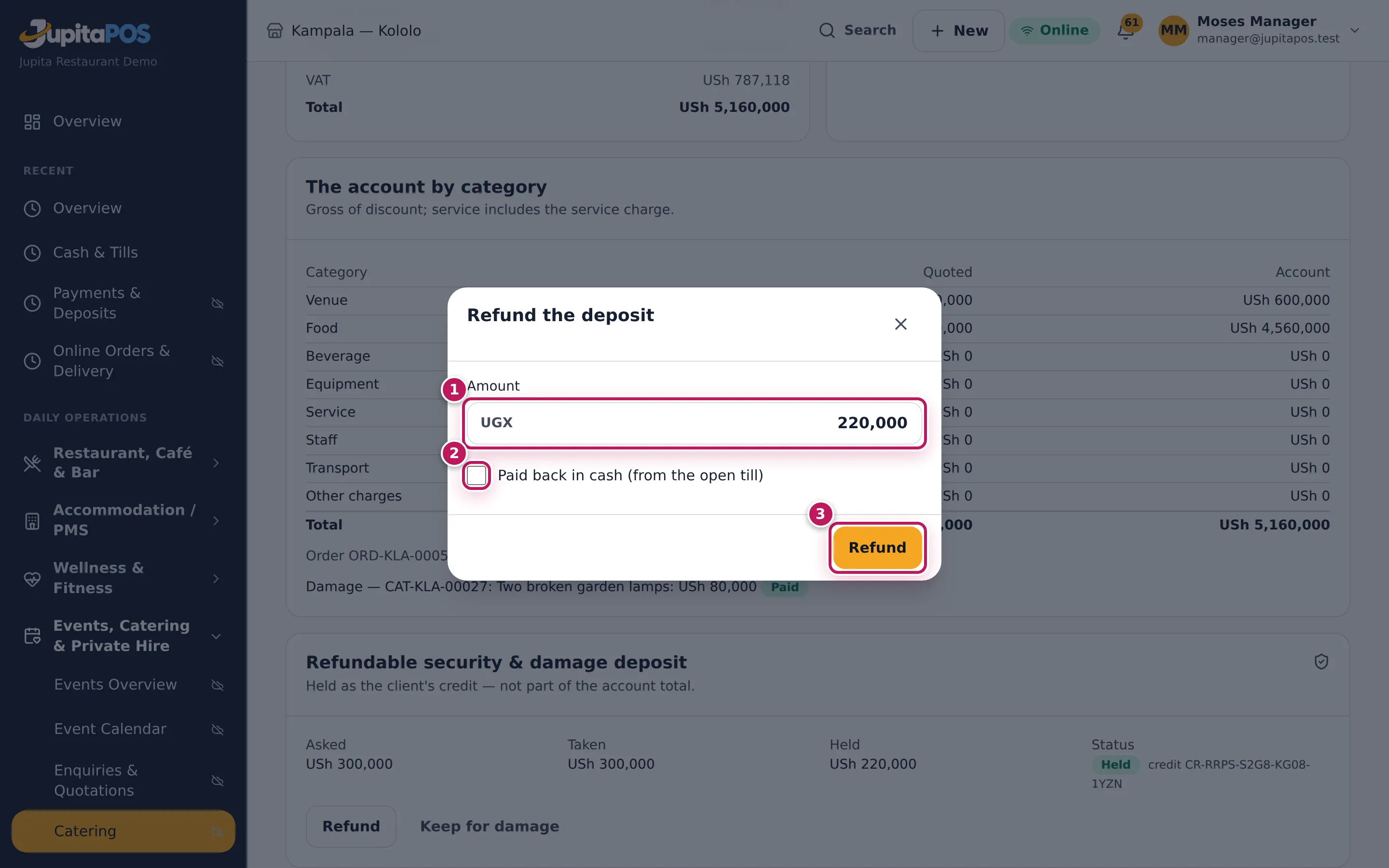
- Click Refund. Check the Amount (1). Untick Paid back in cash (from the open till) (2) when it goes back another way (a bank transfer); leave it ticked to pay it out of your open till. Click Refund (3).
Expected result
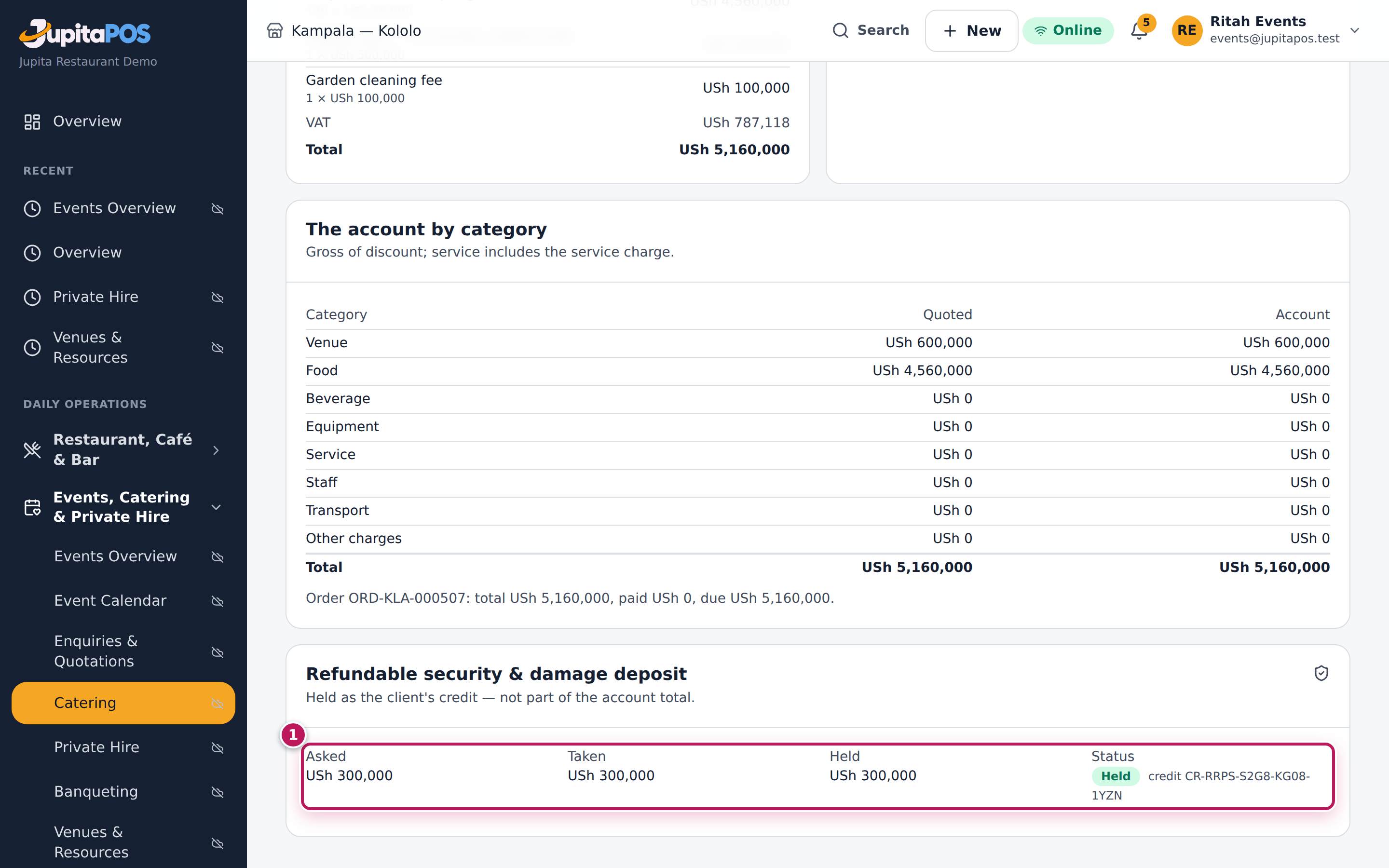
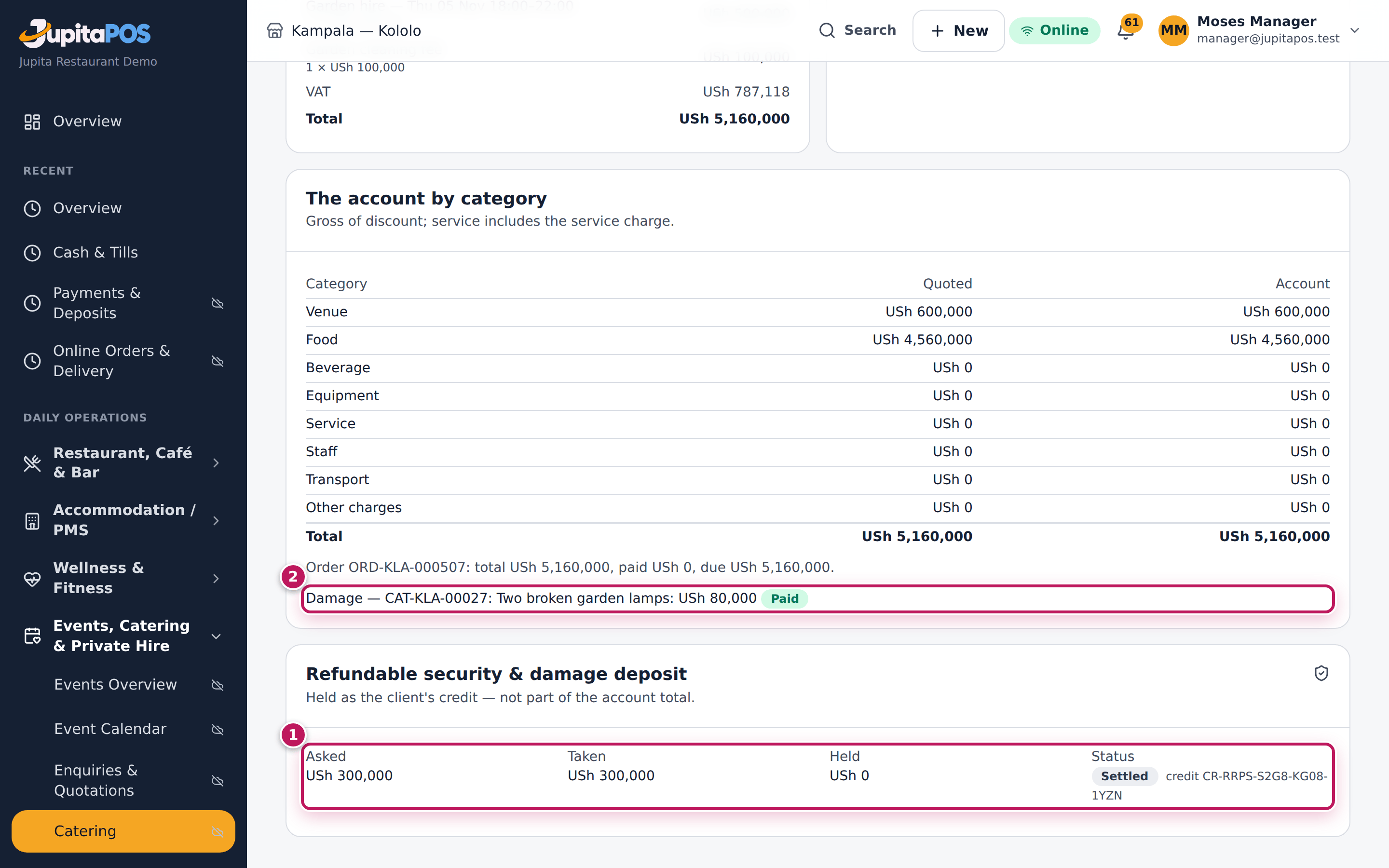
After Take, the deposit is Held: USh 300,000 asked, taken and held, with the client’s credit code. After the event the manager keeps USh 80,000 for two broken garden lamps: a damage charge is raised on the function and paid from the deposit, USh 220,000 stays held, and nothing more is asked. After the refund the status is Settled (1): USh 300,000 taken, nothing held, and the damage charge shows under the account as Paid (2). The deposit is never part of the account total. If the venue’s deposit is raised later, the card asks only for the difference.
Screenshot
Common mistakes
- Taking the deposit as a payment on the order. Take payment pays the function; the refundable deposit is held separately, with Take the deposit.
- Refunding everything, then finding the damage. Keep for damage first, then refund what is left.
Troubleshooting
- “Open a till to refund cash.” Untick Paid back in cash and pay it back by bank transfer, or open a till first.
- “The deposit is taken for a booked function.” The client has not accepted the quote yet.
- There is no Refund or Keep for damage. You are not a manager
(
events.approve), or nothing is held.