

On this page
- Record the licence and the pharmacist
- Add and classify medicines
- Receive medicines by batch and expiry
- Hold stock, record a recall, dispose of stock
- Keep the controlled-drugs register
- Record, review and supply a prescription
- Sell at the counter
- Sell general-sale medicines when the connection is down
- Transfer and count stock
- Client records and the pharmacy reports
- Orders and sales, reprints and returns
- Customer accounts and the pharmacy’s figures
- Order from a supplier and receive against the order
- Who does what
- Not in PharmacyPOS yet
PharmacyPOS is the JupitaPOS edition for community pharmacies and drug shops, with one outlet or several. It has its own database, separate from any other JupitaPOS product the same owner runs: medicines, batches, client records and prescriptions never mix with a shop’s or a restaurant’s.
Your licence is your authority. Selling, prescriptions, controlled drugs, patient returns and disposal open for an outlet as soon as two things are recorded in Settings → Pharmacy settings: the outlet’s pharmacy licence (its number, and not past its expiry) and a current registered pharmacist. Nothing else has to be approved first.
PharmacyPOS never diagnoses, never suggests a dose and never substitutes a medicine by itself: those are the pharmacist’s decisions, recorded as the pharmacist makes them.
| Menu | Pages | What they are for |
|---|---|---|
| Customers | Till, Prescriptions, Pharmacy clients, Orders & sales, Returns | the counter, prescriptions from intake to supply, client records, the day’s sales and returns |
| Catalogue & Stock | Medicines, Stock (by batch, receive, transfers, counts, recalls, controlled drugs), Purchasing | the medicines and their classes, stock by batch and expiry, orders to suppliers |
| Finance | Pharmacy figures, Customer accounts | the pharmacy’s money, and customers who buy on account |
| Reports & Analytics | Pharmacy reports | sales, expiry, stock, recalls and dispensing |
| Settings | Pharmacy settings | the market’s rules, licences, qualifications and read-only integrations |
The words used on these pages:
| Word | Meaning |
|---|---|
| Market | the country whose rules apply (Uganda, Kenya, Tanzania, Rwanda) |
| Class | the medicine’s legal class in that market (general sale, pharmacy only, prescription only, controlled) |
| Batch (lot) | stock with one lot number and expiry; the till supplies the earliest expiry first |
| Use-until | the last day a batch may be supplied: a label that shows only a month is usable until the end of the month before |
| Hold | stock set aside — damaged, warm, returned, recalled — that cannot be supplied |
| Qualified person | someone whose registration is recorded: only they open client records and prescriptions |
Pictures are from a practice pharmacy with made-up data (A Community Pharmacy): no real patient, product or registration appears.
Record the licence and the pharmacist
Purpose
Open the pharmacy’s regulated work: the outlet’s licence and the registered pharmacist are the authority PharmacyPOS needs.
Role / permission required
pharmacy.settings — the Owner (or a pharmacist given it).
Prerequisites
The licence as issued, and the pharmacist’s registration number with the regulator that issued it.
Steps
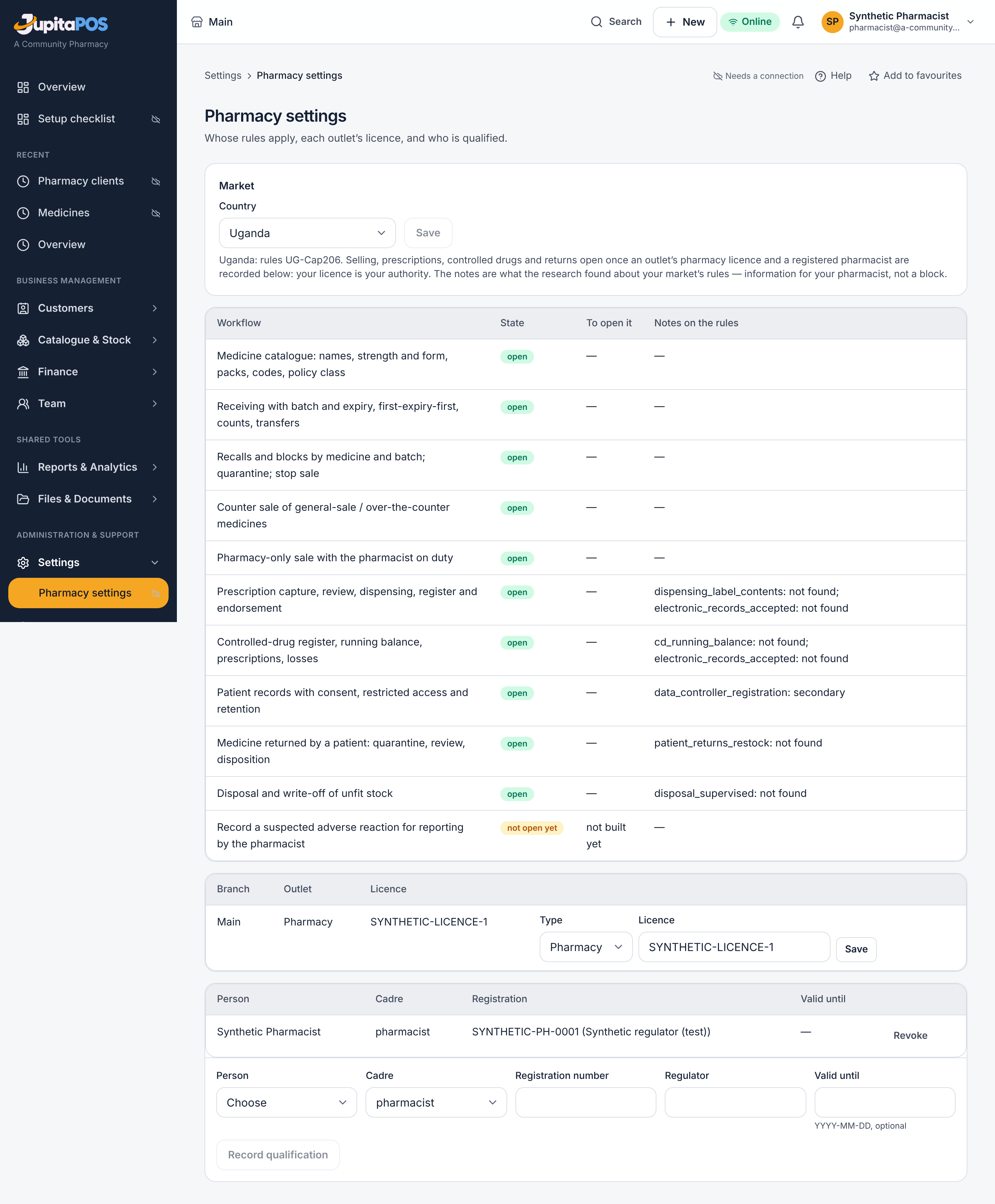
- Open Settings → Pharmacy settings.
- Under Market, choose the Country and press Save.
- Under Outlets, for each branch choose the Type (pharmacy, drug shop, or ADDO in Tanzania), type the Licence number as issued, and press Save.
- Under Qualifications, choose the Person, the Cadre, the Registration number, the Regulator and, if the registration has one, Valid until. Press Record qualification.
Expected result
What is open for this pharmacy shows each workflow as open. The notes column says what research found about your market’s rules — information for your pharmacist, not a block.
Screenshot
Common mistakes
- Recording your own qualification: refused — someone else records it.
- A drug shop selling classes its licence does not allow: the till refuses them.
Troubleshooting
A workflow shows not open yet with To open it: the reason is there — usually no licence number, an expired licence, or no current pharmacist. A revoked or lapsed registration closes client records at once.
Add and classify medicines
Purpose
Keep the medicine catalogue right: the approved name, strength as printed, form, packs and their barcodes, and the class in your market.
Role / permission required
catalogue.manage to add; pharmacy.classify to classify — the
Pharmacist. A Pharmacy technician adds and edits but does not
classify.
Prerequisites
The market is chosen in Pharmacy settings.
Steps
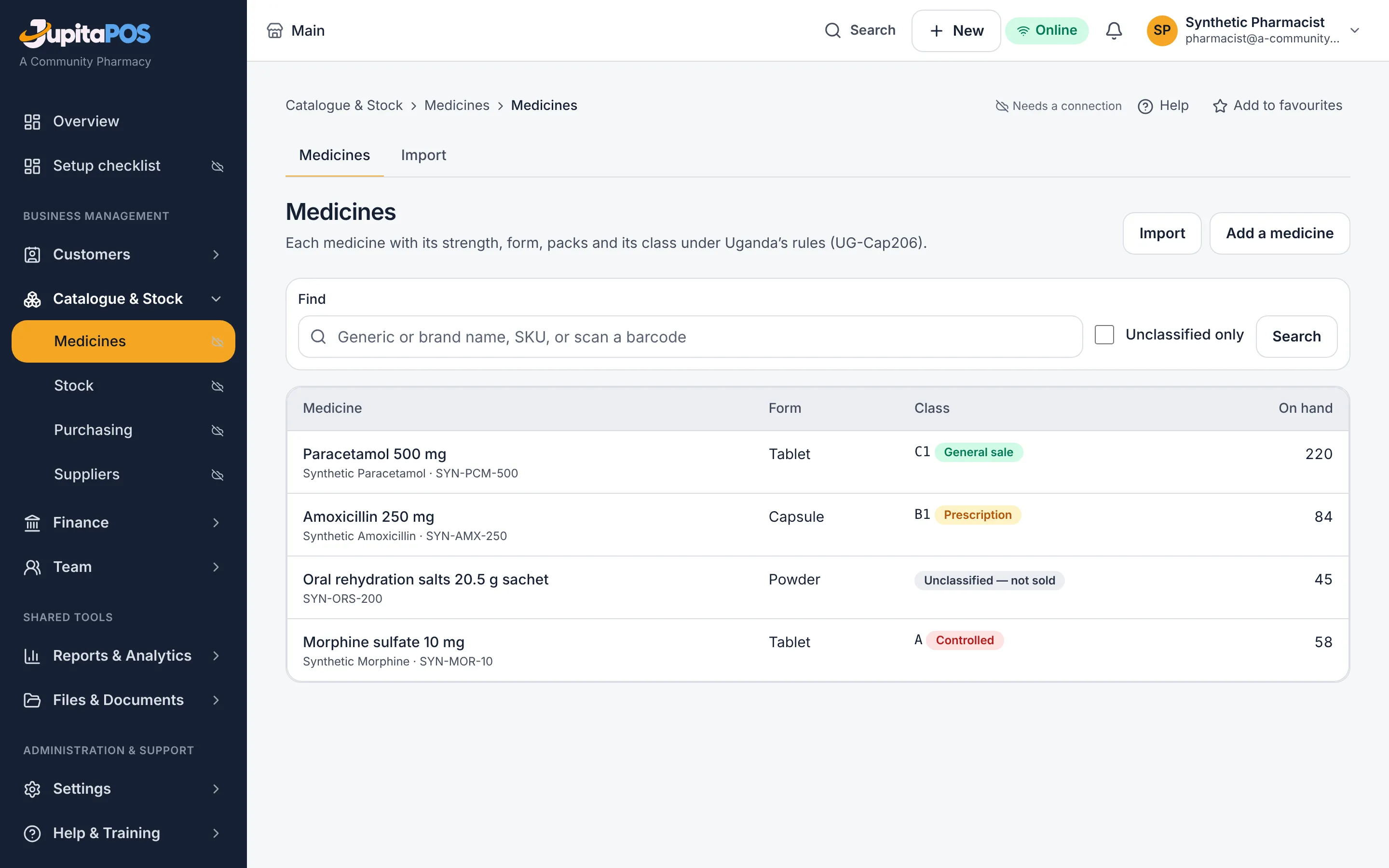
- Open Catalogue & Stock → Medicines and press Add a medicine.
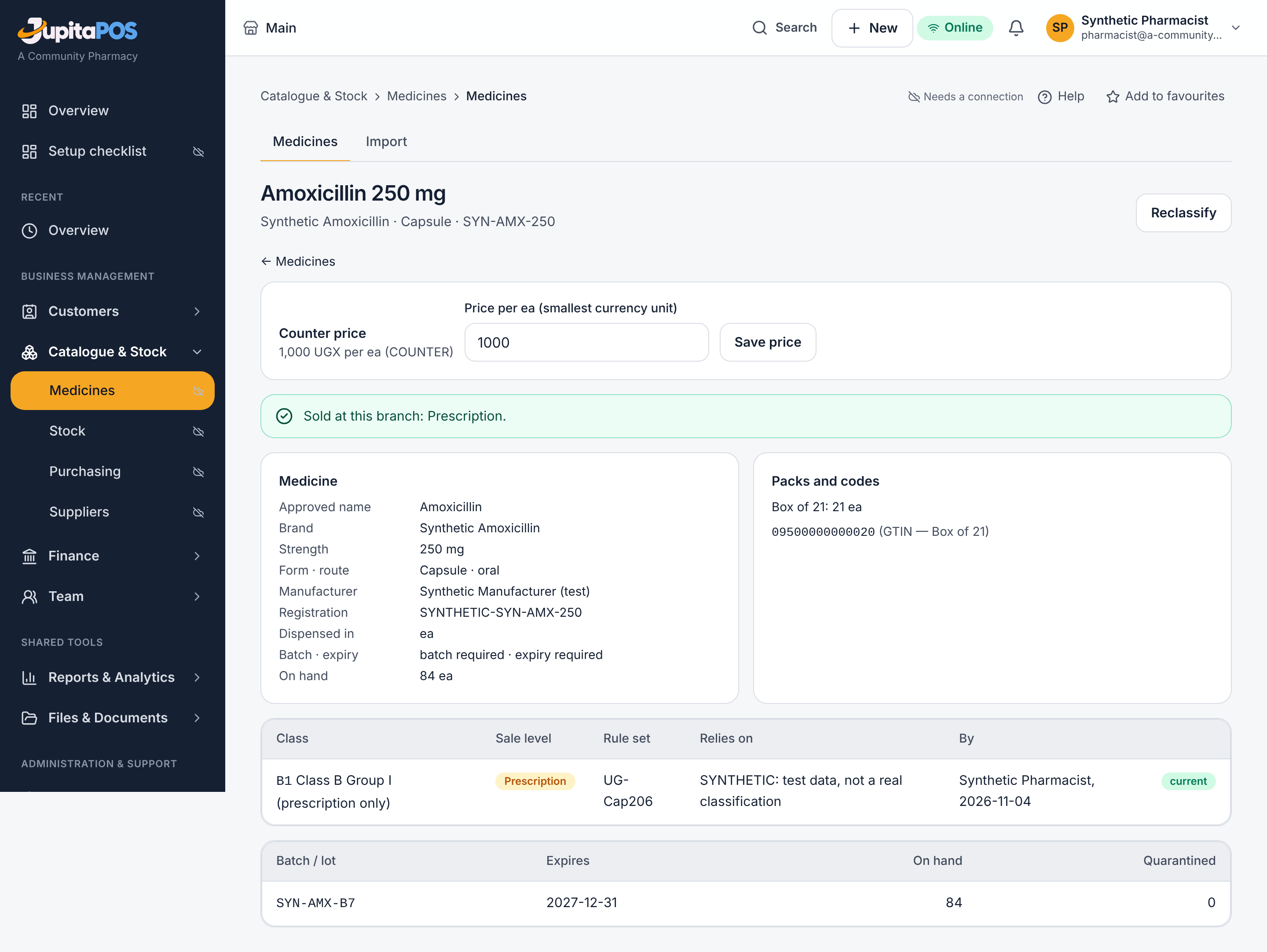
- Type the Approved (generic) name, the Strength as printed, the Dosage form, the Smallest unit dispensed and each pack with its Pack barcode (GTIN) and Units in the pack.
- Open the medicine and press Classify: the market’s class and the source it relies on.
- Many medicines at once: the Import tab takes a spreadsheet, shows a preview, and imports only what you approve.
Expected result
The medicine shows its class and its sale check — what the till will allow at the counter, and who must sell it.
Screenshot
Common mistakes
- A tablet with the base unit g, or a pack of 2.5 tablets: refused.
- A class that is not of the market’s scheme: refused.
Troubleshooting
Unclassified only lists the medicines still waiting for a class: the till does not sell them.
Receive medicines by batch and expiry
Purpose
Bring a delivery into stock with each lot’s expiry as printed, so the till supplies the earliest expiry first and never an expired batch.
Role / permission required
inventory.receive — the Pharmacist, the Pharmacy technician and
the Storekeeper. Only someone who holds pharmacy.stock.release makes
goods saleable at once.
Prerequisites
The medicines exist and the supplier is recorded.
Steps
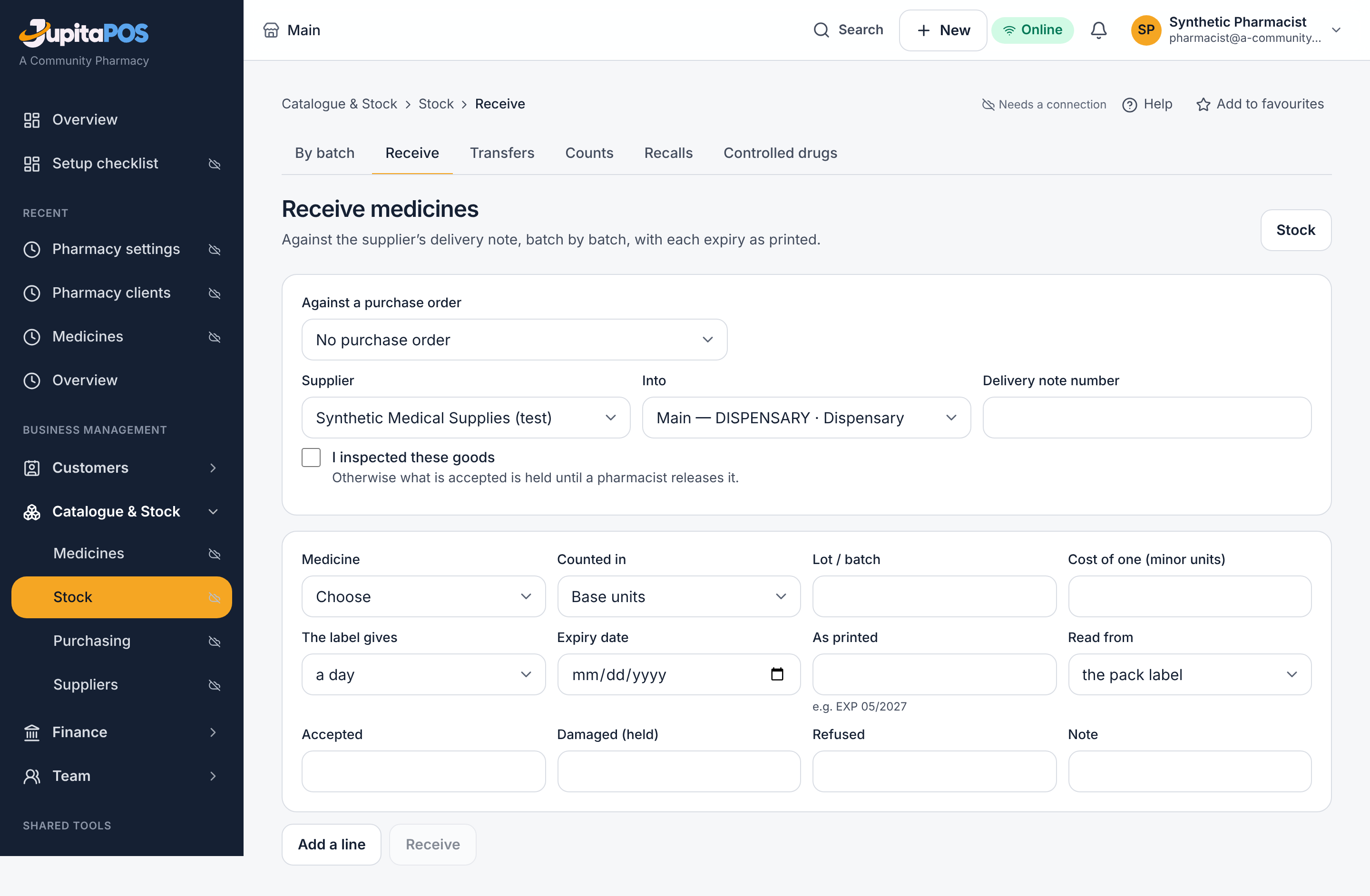
- Open Catalogue & Stock → Stock, tab Receive.
- Choose the Supplier, where it goes (Into) and type the Delivery note number.
- For each line: the Medicine, the pack, the Lot / batch, the expiry As printed and where you read it, what was Accepted, Damaged (held) and Refused, and the cost.
- Tick I inspected these goods if you may release them, and press Receive.
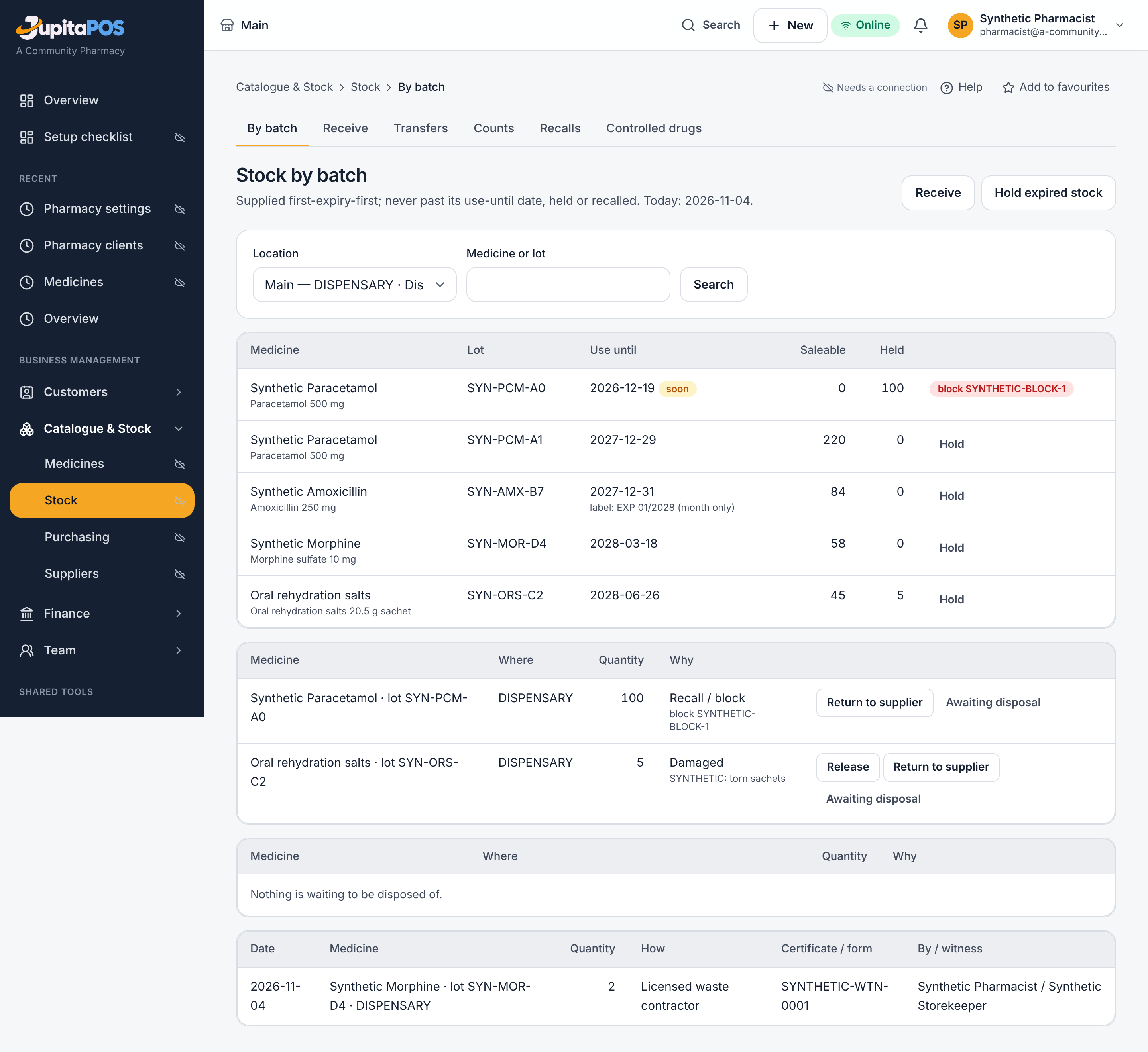
Expected result
The batches appear under Stock by batch with their use-until dates. Goods received by someone who may not release them are held for inspection until a pharmacist releases them.
Screenshot
Common mistakes
- Receiving an expired batch as accepted: refused — record it as refused.
- The same delivery note twice: refused.
Troubleshooting
A label that shows only a month and year is usable until the end of the month before.
Hold stock, record a recall, dispose of stock
Purpose
Keep unsafe stock out of supply, follow a recall to every batch it touches, and record a witnessed disposal.
Role / permission required
pharmacy.stock.hold to hold; pharmacy.stock.release to release or
decide; pharmacy.recalls for recalls — the Pharmacist decides; the
Pharmacy technician and the Storekeeper hold. A storekeeper cannot
dispose.
Prerequisites
The stock is in Stock by batch. For a disposal, the destruction certificate or waste-transfer note as issued.
Steps
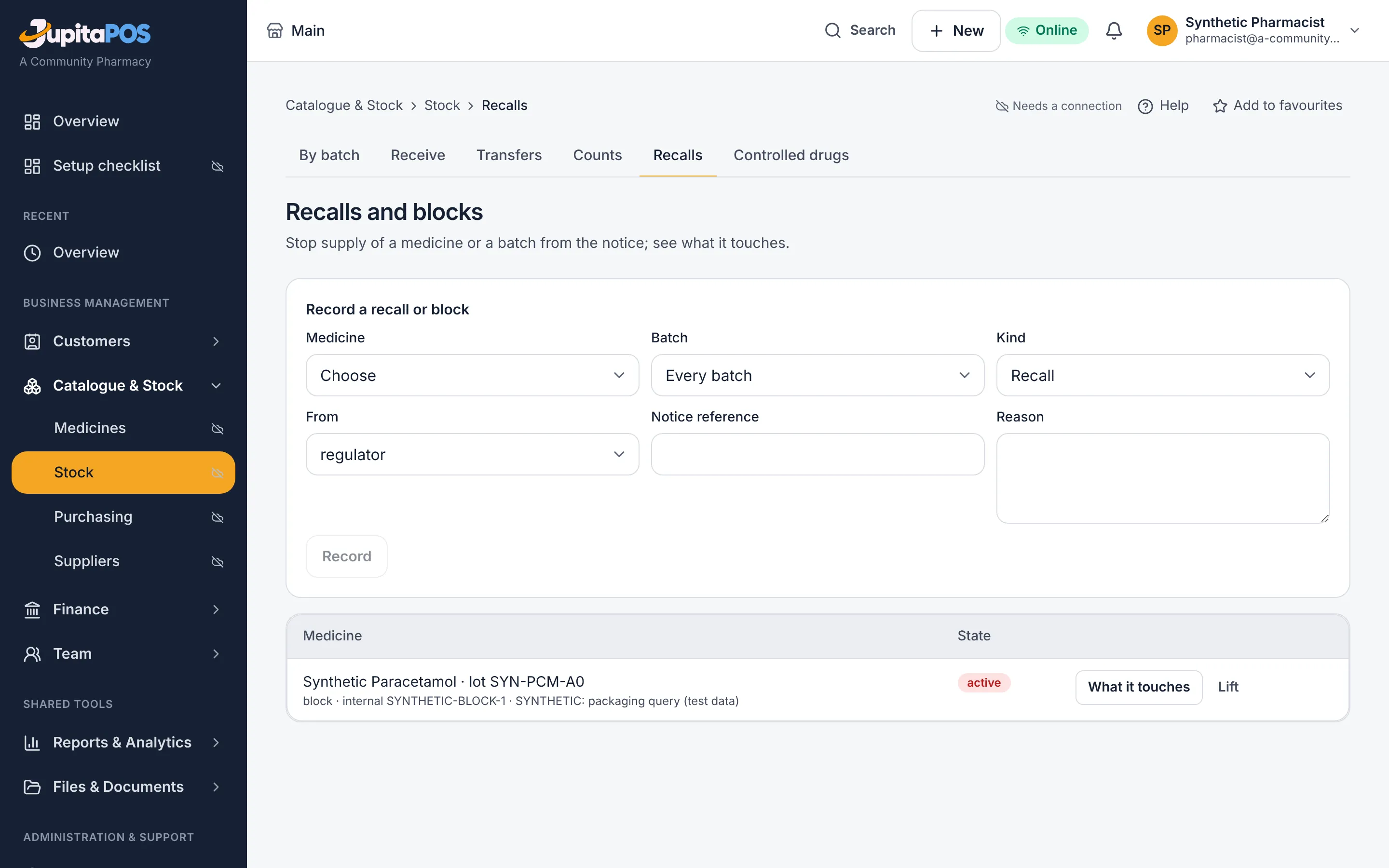
- To hold a batch (damaged, warm, returned): Stock by batch, the batch, Hold, and why.
- To decide held stock: under On hold, waiting for a decision, release it, return it to the supplier, or mark it Awaiting disposal.
- To dispose: under Awaiting disposal, press Record disposal — How, the Witness (another person), the Certificate / waste note, the Regulator form (if any) and the Date.
- A recall: tab Recalls, Record a recall or block — the medicine, the batch (or every batch), the source, the Notice reference and the reason.
Expected result
Held stock cannot be supplied, transferred or sold. A recall puts its stock on hold everywhere and lists what it touches. A disposal takes the stock off the books as a write-off; the hold becomes disposed, once.
Screenshot
Common mistakes
- Naming yourself as the disposal’s witness: refused.
- A disposal date in the future, or before the stock was held: refused.
Troubleshooting
Who received a recalled batch is listed only for a qualified person. Nothing is sent to anyone automatically.
Keep the controlled-drugs register
Purpose
Have an exact, uneditable record of every controlled medicine coming in and going out, with witnessed counts and an export for an inspector.
Role / permission required
inventory.view to read the register; inventory.count to record a
witnessed count — the Pharmacist.
Prerequisites
The medicine is classified as controlled in your market (Uganda class A, Kenya CD, Tanzania class AI).
Steps
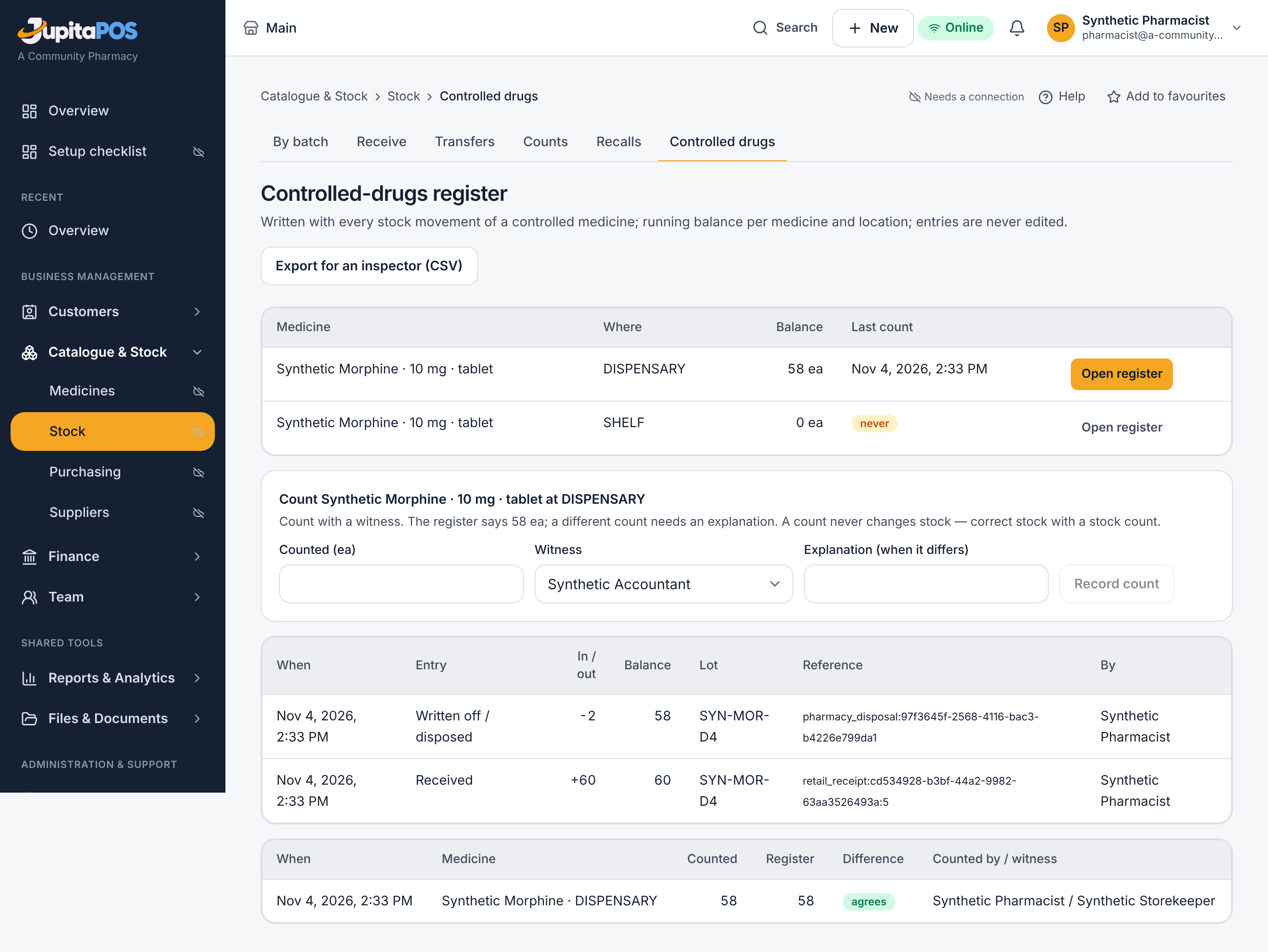
- Open Catalogue & Stock → Stock, tab Controlled drugs.
- Under Balances, press Open register for a medicine at a location.
- To count: type what you counted, choose the Witness and, when it differs from the register, the Explanation (when it differs). Press Record count.
- For an inspector, press Export for an inspector (CSV).
Expected result
Every receipt, supply, return, transfer, count correction and disposal of a controlled medicine is already in the register with its running balance — the database writes it with the stock movement itself. A count never moves stock.
Screenshot
Common mistakes
Correcting stock with a register count: a count only records what was found. Correct stock with an ordinary stock count — the register then shows the correction.
Troubleshooting
never under Last count: the medicine has not been counted with a witness yet.
Record, review and supply a prescription
Purpose
Take a prescription from intake to supply, with the pharmacist’s decision on every item and a label for the patient.
Role / permission required
pharmacy.prescriptions to record; pharmacy.review to review;
pharmacy.dispense to supply — the Pharmacist reviews and supplies; a
qualified Pharmacy technician records intake.
Prerequisites
The client is in Pharmacy clients, and you hold a recorded, current qualification.
Steps
- Open Customers → Prescriptions and press Record a prescription received: the client, the Prescriber (as written), Issued on, and each item as written. Add the scanned original.
- Open it and, under Review (pharmacist), decide each item: the Approved quantity (not above written), May be supplied until, and a Substitution reason (only if another medicine).
- Under Supply, confirm by typing the client’s name, choose the quantities and From where, and press Supply now.
- Print the label.
Expected result
The supply leaves stock from the earliest-expiry batch, the prescription shows what was supplied and what is left, and the till takes payment for the supplied lines.
Screenshot

Common mistakes
- Expecting intake to be an approval: a recorded prescription waits for the pharmacist’s review.
- Approving more than was written: refused.
Troubleshooting
A reprinted label is marked as a copy. Every view of a client record is logged.
Sell at the counter
Purpose
Take payment for counter medicines and for prescription supplies.
Role / permission required
sales.create — the Cashier, the Pharmacy technician and the
Pharmacist.
Prerequisites
The till is open, and the medicines are classified and in stock.
Steps
- Open Customers → Till and press Open till with the float.
- Scan or type in Scan or find (F2) and choose the quantity.
- Where the medicine’s class requires it, choose the Customer before paying.
- Press Pay (F4) and take the payment.
Expected result
The sale is recorded and the stock leaves the earliest-expiry batch.
Screenshot

Common mistakes
- Selling a prescription-only medicine as a counter item: it is paid only after a pharmacist has supplied it.
- A pharmacy-only medicine rung up by a cashier: a pharmacist must sell it.
Troubleshooting
A line the till refuses shows the reason — its class, the licence type, a hold or a recall.
Sell general-sale medicines when the connection is down
Purpose
Keep serving customers who buy general-sale medicines while the pharmacy has no connection, and have the server record those sales when it returns.
Role / permission required
sales.create — the Cashier, the Pharmacy technician and the
Pharmacist. Reviewing a sale the server held needs sync.view — the
Pharmacist, the Owner.
Prerequisites
The device is a registered terminal with offline work switched on (Settings → Terminals & Devices), you have opened the app on it while online within the last 12 hours, and your till is open. The outlet’s licence is recorded.
Steps
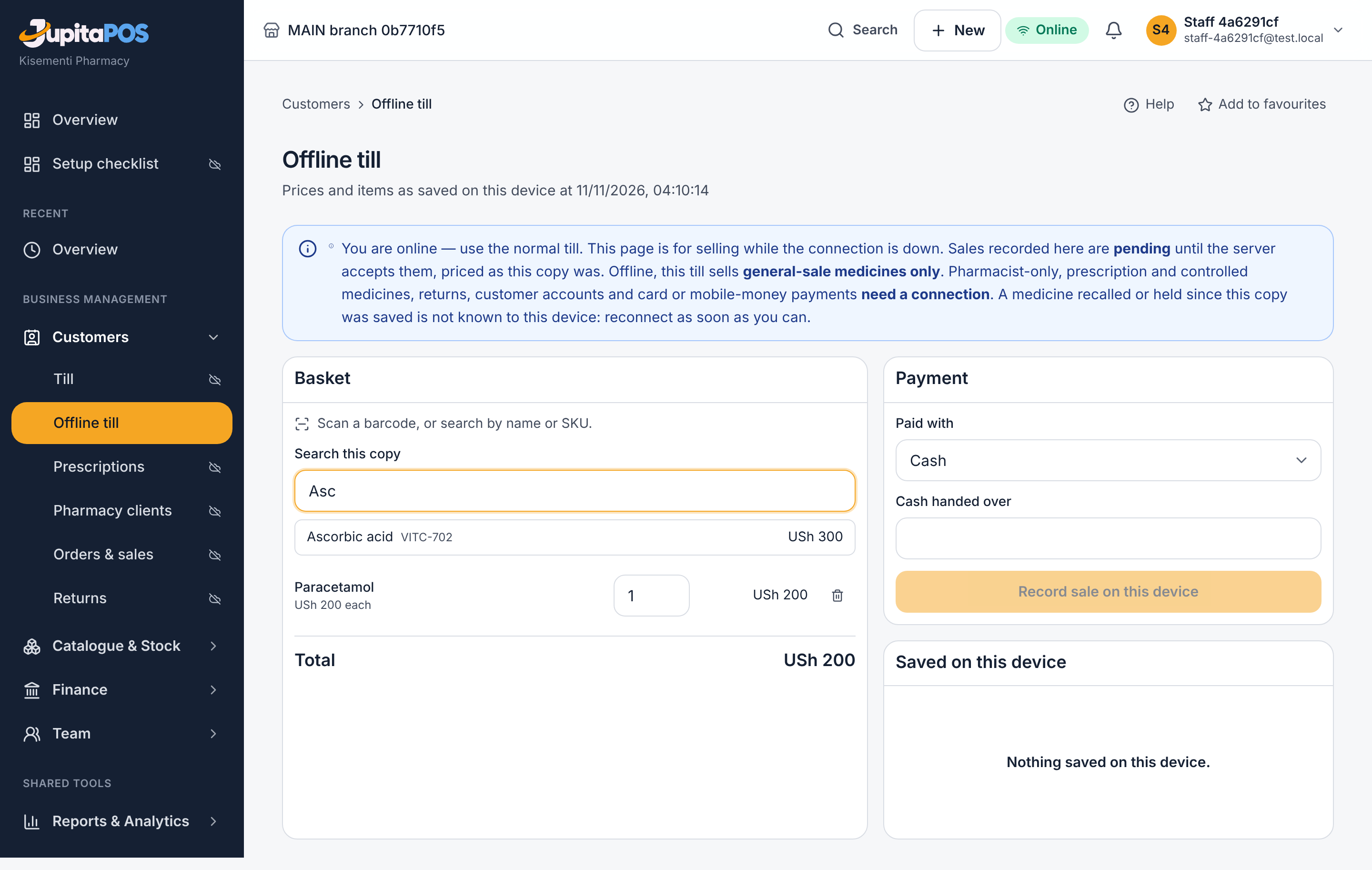
- Open Customers → Offline till. The page says when its copy of the medicines and prices was saved.
- Scan the pack or type in Search this copy and choose the medicine. Only general-sale medicines that were in stock, in date and priced are there.
- Set the quantity, choose Cash and type the cash handed over.
- Press Record sale on this device, then Print receipt. The receipt says it is provisional.
- When the connection is back the device sends the sales by itself. Under Saved on this device each one shows pending, accepted, needs review or refused.
- A pharmacist opens Settings → Offline sync for any sale that needs review.
Expected result
Each accepted sale is in Customers → Orders & sales with its own number, its stock taken from the earliest-expiry batch and its cash in your till. A sale of a medicine that was recalled, held, expired or reclassified after the copy was saved is not accepted: it waits for a pharmacist, marked critical, with the receipt number.
Screenshot
Common mistakes
- Looking for a pharmacist-only or prescription medicine here: they are never sold offline, even by a pharmacist. Wait for the connection.
- Selling for hours without reconnecting: a recall issued meanwhile does not reach the device. Reconnect as soon as you can; after 12 hours the copy can no longer ring up a sale.
- Taking mobile money offline through the provider: only cash or a manually recorded payment can be taken.
Troubleshooting
Nothing can be sold offline here yet: the page gives the reason — usually the outlet’s licence is not recorded in Settings → Pharmacy settings. A sale that needs review as a safety matter: the pharmacist checks the batch the customer was given against the recall or hold, contacts the customer if needed, corrects the stock, then retries or resolves it.
Transfer and count stock
Purpose
Move medicines between outlets and keep the stock figures true.
Role / permission required
inventory.issue to transfer; inventory.count to count — the
Storekeeper, the Pharmacy technician and the Pharmacist.
Someone else approves a count.
Prerequisites
Two locations, and stock that is in date, not held and not recalled.
Steps
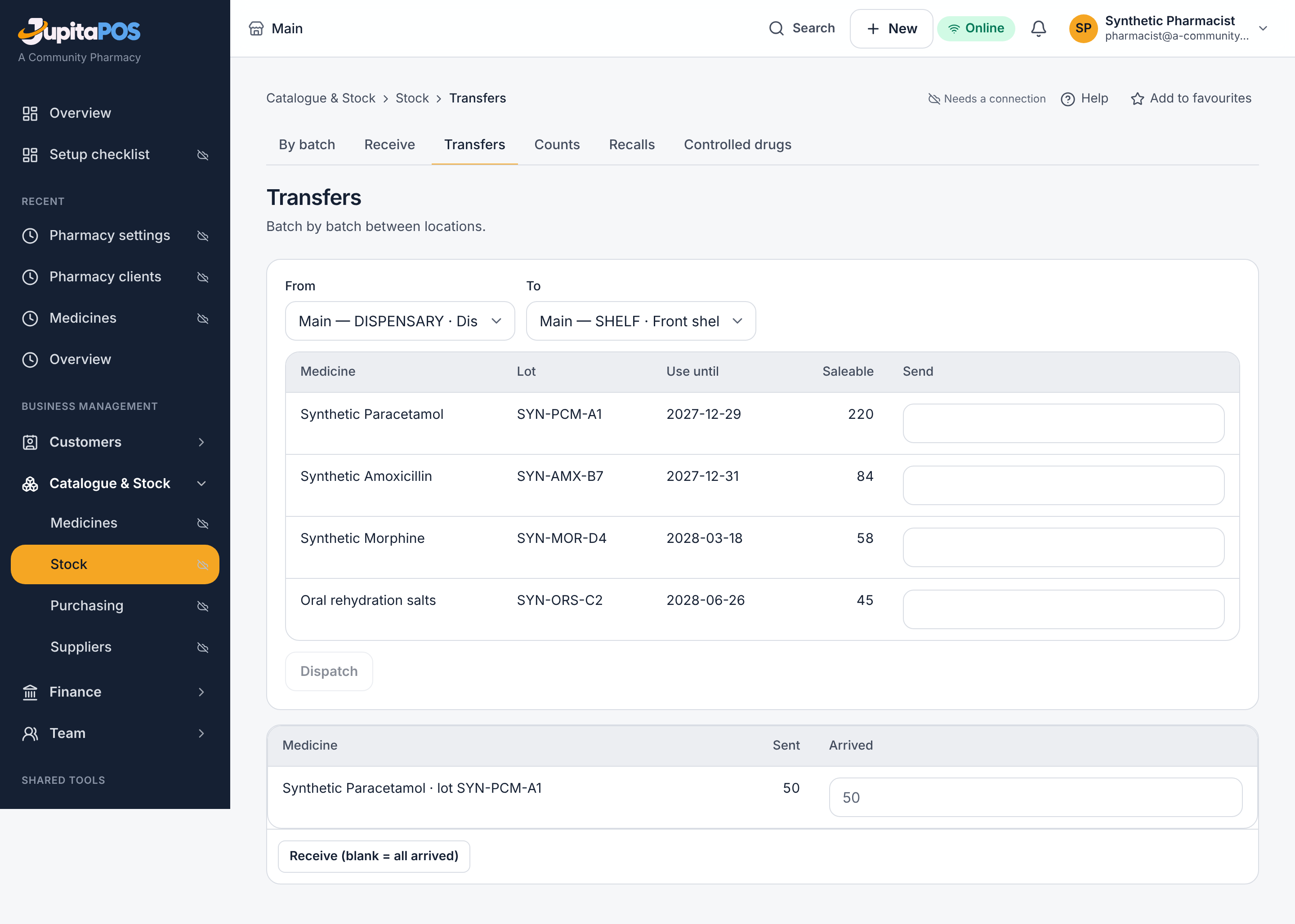
- Open Catalogue & Stock → Stock, tab Transfers: choose From and To, the quantities per batch, and send it.
- At the other end, receive it: what did not arrive is recorded as lost.
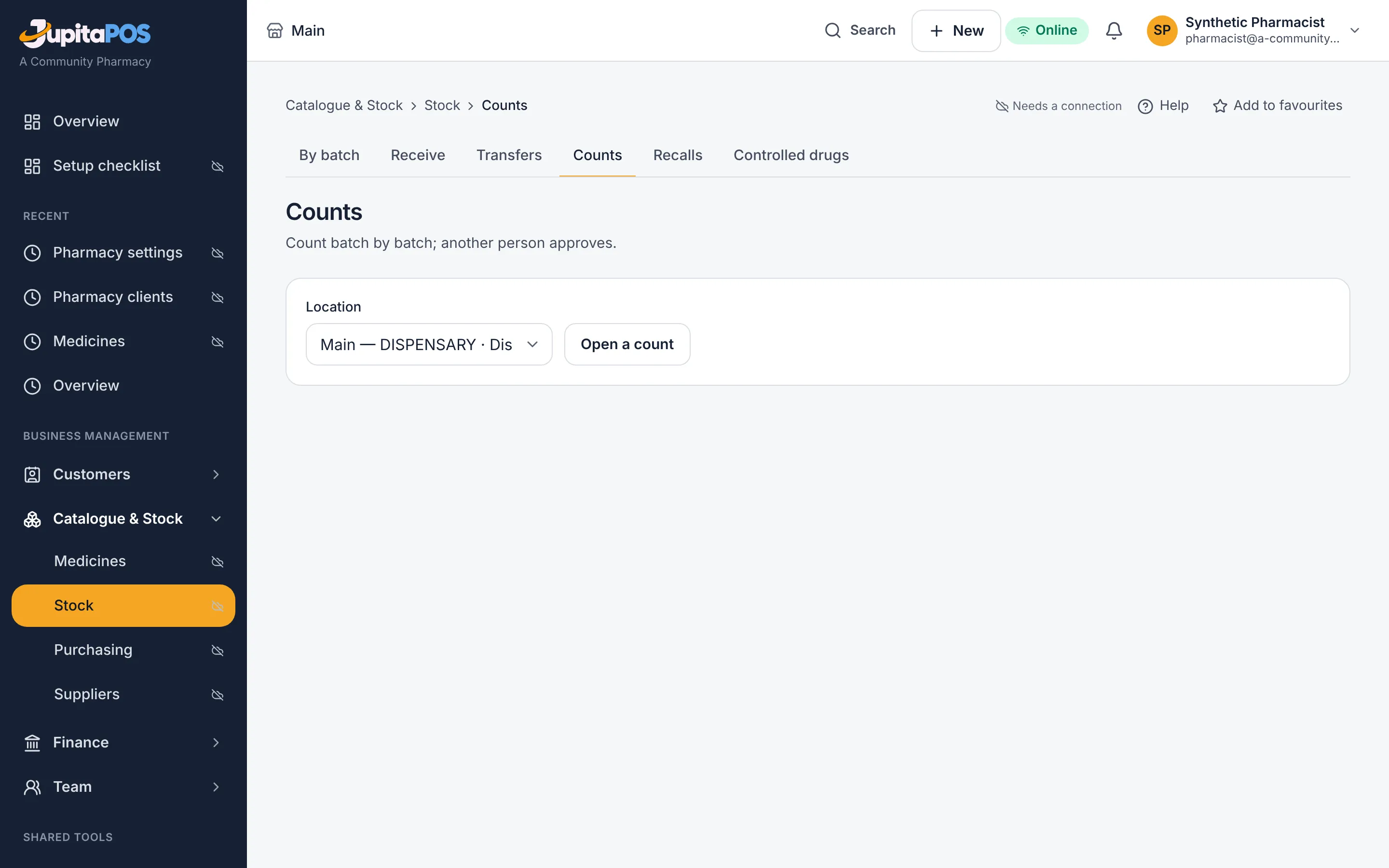
- Tab Counts: open a count for a Location, count every batch, and submit it.
Expected result
Transferred stock arrives held for inspection. A count changes the stock only when someone else approves it.
Screenshot
Common mistakes
Moving an expired or recalled batch: refused.
Troubleshooting
Approving your own count: refused.
Client records and the pharmacy reports
Purpose
Keep the clients you dispense to, with their consent, and read the pharmacy’s figures.
Role / permission required
pharmacy.patients.view for client records (with a recorded qualification);
reports.view for the reports.
Prerequisites
A recorded, current qualification for client records.
Steps
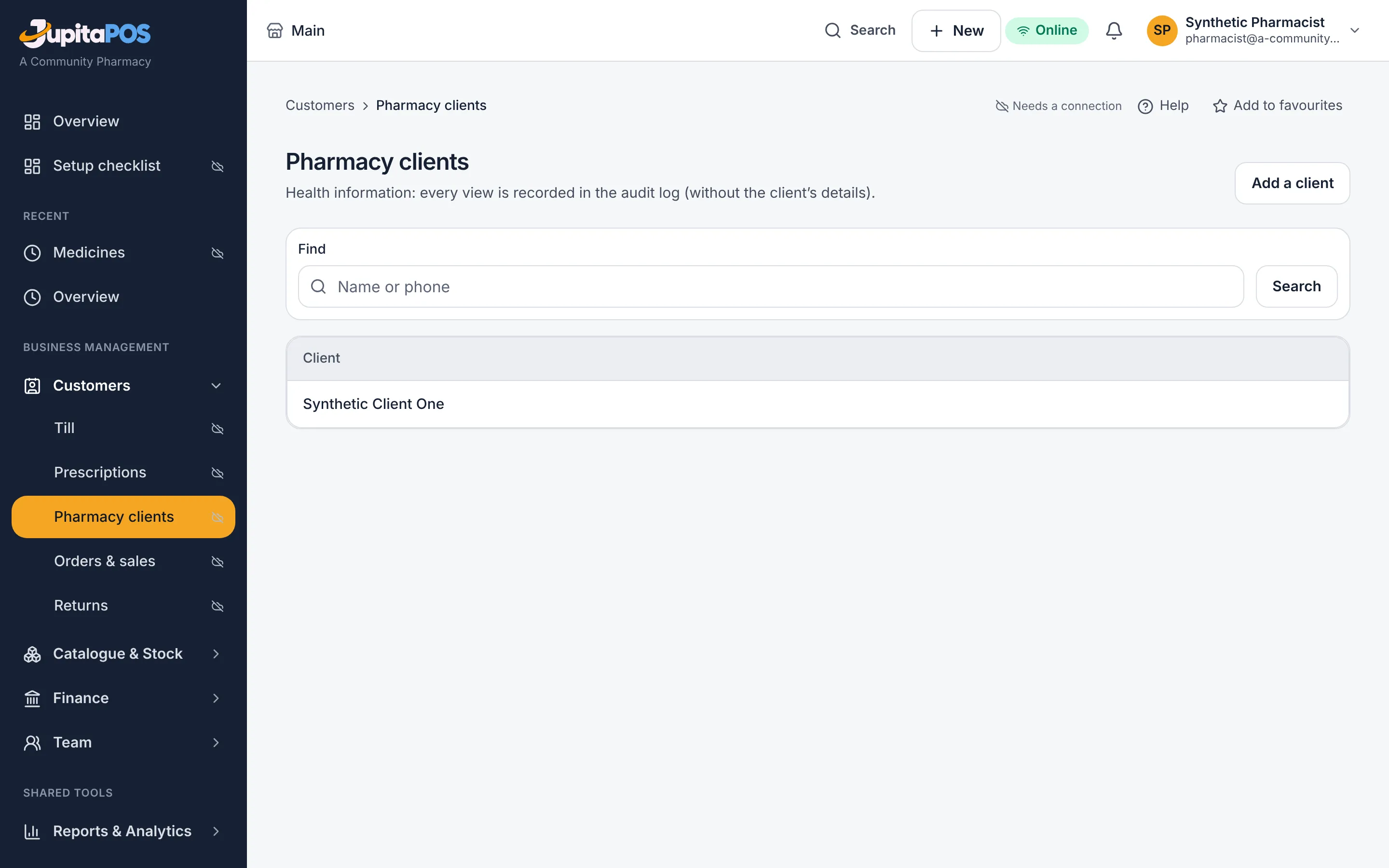
- Open Customers → Pharmacy clients and press Add a client: the Full name, Date of birth, Phone and Address.
- Open the client to Record a consent.
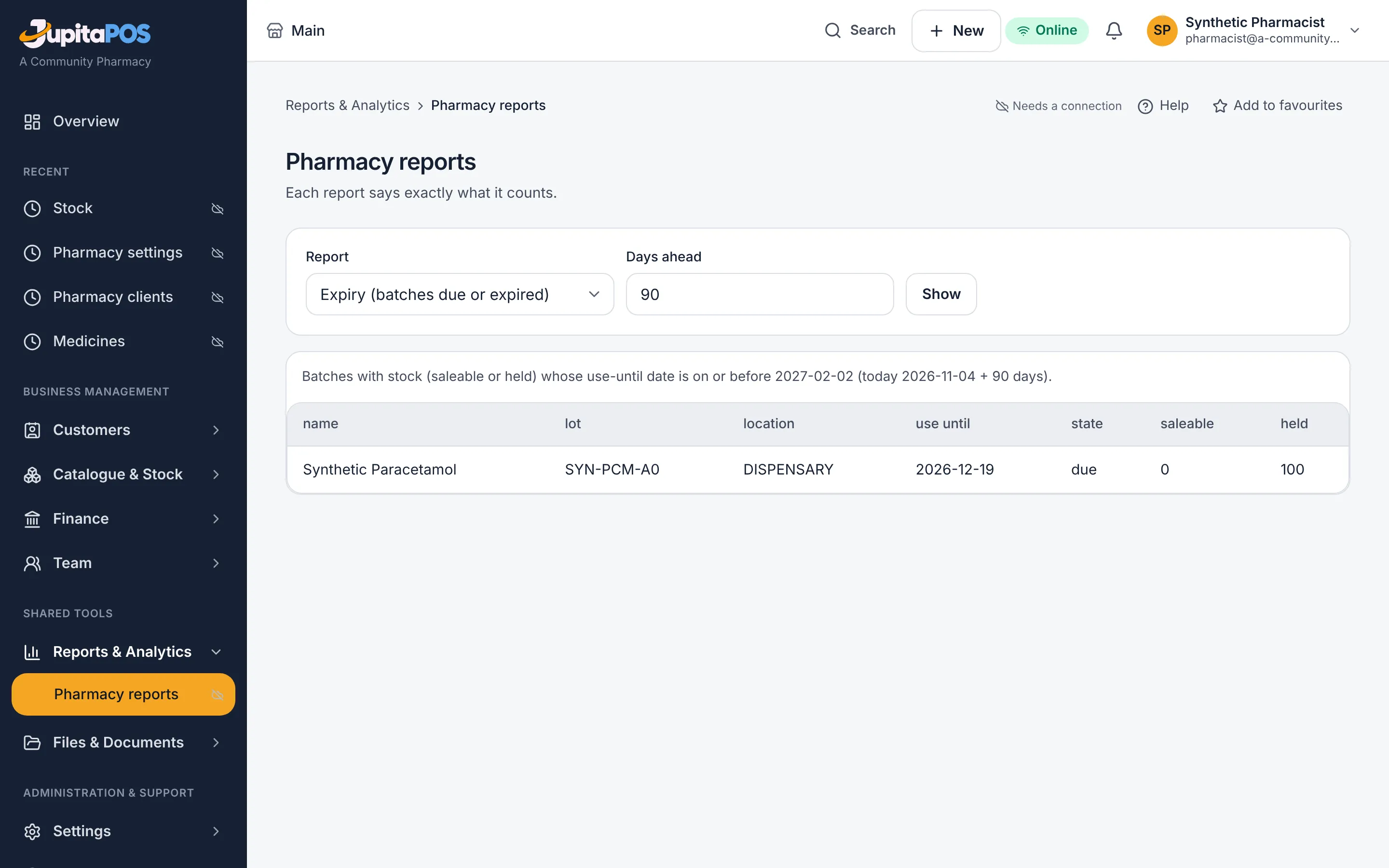
- Open Reports & Analytics → Pharmacy reports, choose the Report, From and To, and press Show.
Expected result
The client is ready for prescriptions; the report shows its figures for the period.
Screenshot
Common mistakes
Expecting the owner to read client records: the owner holds every permission but is not a qualified person — client records stay closed unless someone else records a qualification for them.
Troubleshooting
A provider’s support session never opens client records.
Orders and sales, reprints and returns
Purpose
See the day’s sales, reprint a receipt, check a payment reference, and take medicines back from a patient into quarantine.
Role / permission required
sales.create — the Cashier, the Pharmacy technician and the
Pharmacist. A refund needs sales.refund, or a supervisor’s employee
number and PIN on the till.
Prerequisites
The sale’s receipt number for a return.
Steps
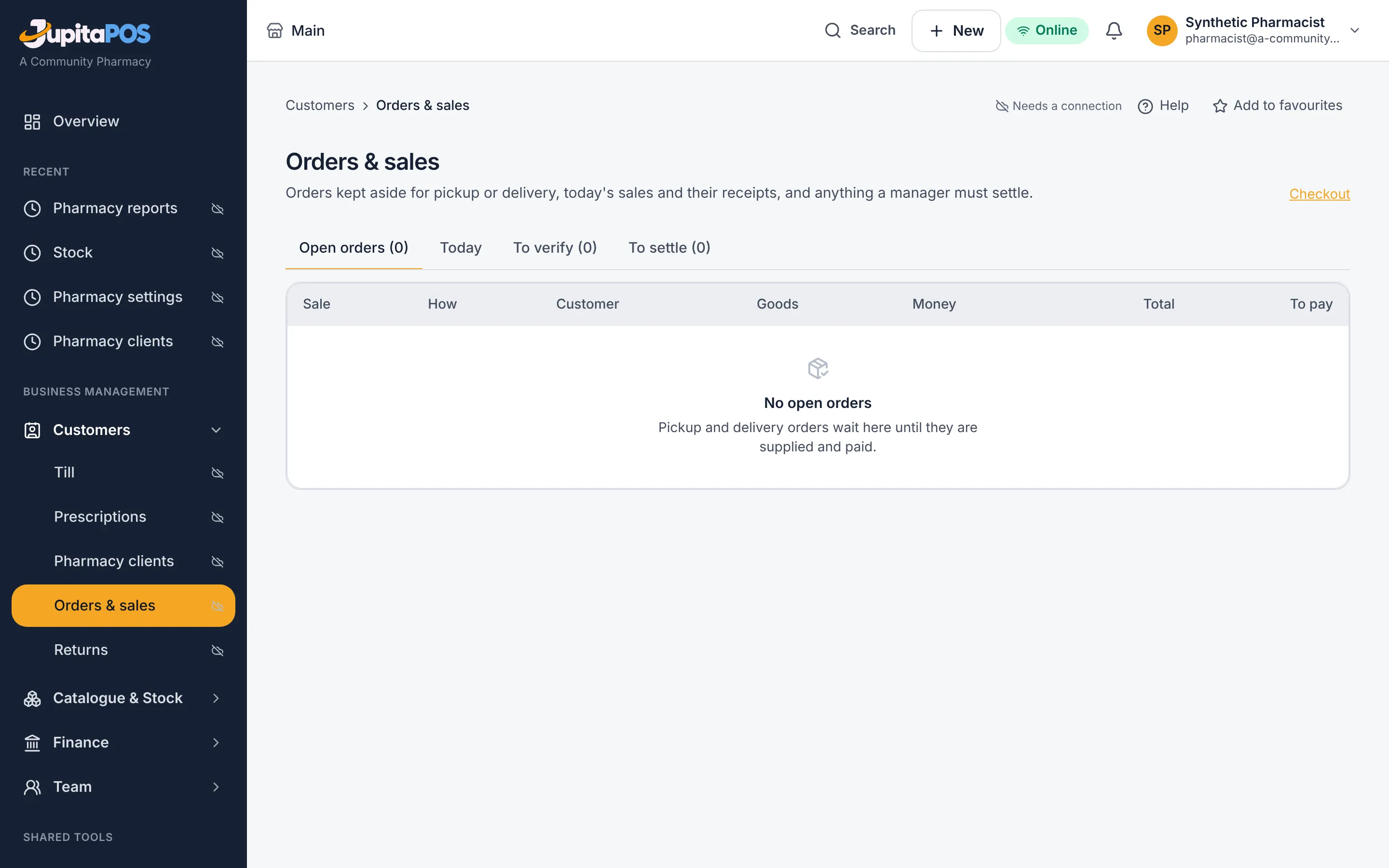
- Open Customers → Orders & sales: open orders, today’s sales, payments whose reference is waiting to be checked, and anything to resolve.
- Open a sale to reprint its receipt (Print receipt), or to start a return from it.
- Open Customers → Returns, type or scan the receipt number and press Find the sale.
- Tick what comes back and how many, give the reason, and choose Money back or On the customer’s account.
Expected result
Medicines that come back go into quarantine, never back on the shelf: a pharmacist decides them under Stock by batch → On hold. A reprint is marked as a copy.
Screenshot
Common mistakes
Expecting an exchange: a pharmacy takes medicines back; it does not swap them.
Troubleshooting
Returns are part of the pharmacy’s regulated work: they open with the outlet’s licence and a registered pharmacist (Settings → Pharmacy settings).
Customer accounts and the pharmacy’s figures
Purpose
Sell on account to customers you trust — a clinic, a school, a company — collect what they owe, and see the pharmacy’s money.
Role / permission required
customers.credit to open an account; payments.take to record a payment;
reports.view for the figures — the Pharmacist, the Accountant and
the Owner.
Prerequisites
The customer is in the customers list with an open account and a limit.
Steps
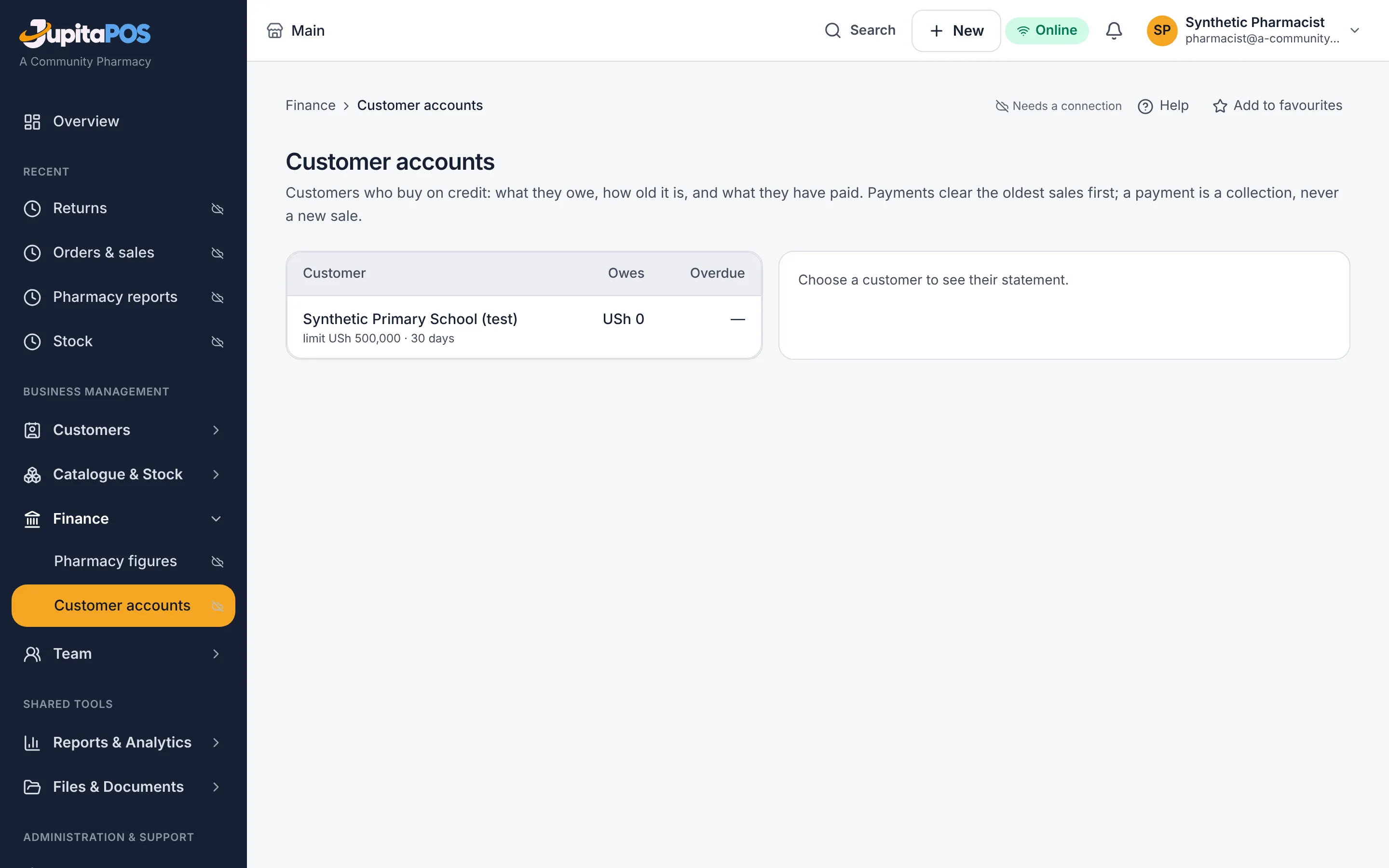
- Open Finance → Customer accounts: each balance, what is overdue, and the statement.
- Record a payment on an account: it clears the oldest sales first.
- Open Finance → Pharmacy figures for sales, payments, refunds, what is still owed, supplier payments and refunds still to confirm.
Expected result
The account’s balance and statement are up to date. The figures come from the same sales, payments and ledger as the reports.
Screenshot
Common mistakes
A customer without an open account cannot buy on account at the till.
Troubleshooting
Accounting’s full books are under Finance → Accounting.
Order from a supplier and receive against the order
Purpose
Raise purchase orders, have them approved, receive the delivery by batch and expiry against the order, and record the supplier’s invoice.
Role / permission required
procurement.create to raise; procurement.approve to approve;
inventory.receive to receive; procurement.invoice for invoices — the
Purchaser raises, the Pharmacist or the Owner approves, the
Storekeeper or Pharmacist receives, the Accountant records and
pays invoices.
Prerequisites
The supplier and the medicines exist.
Steps
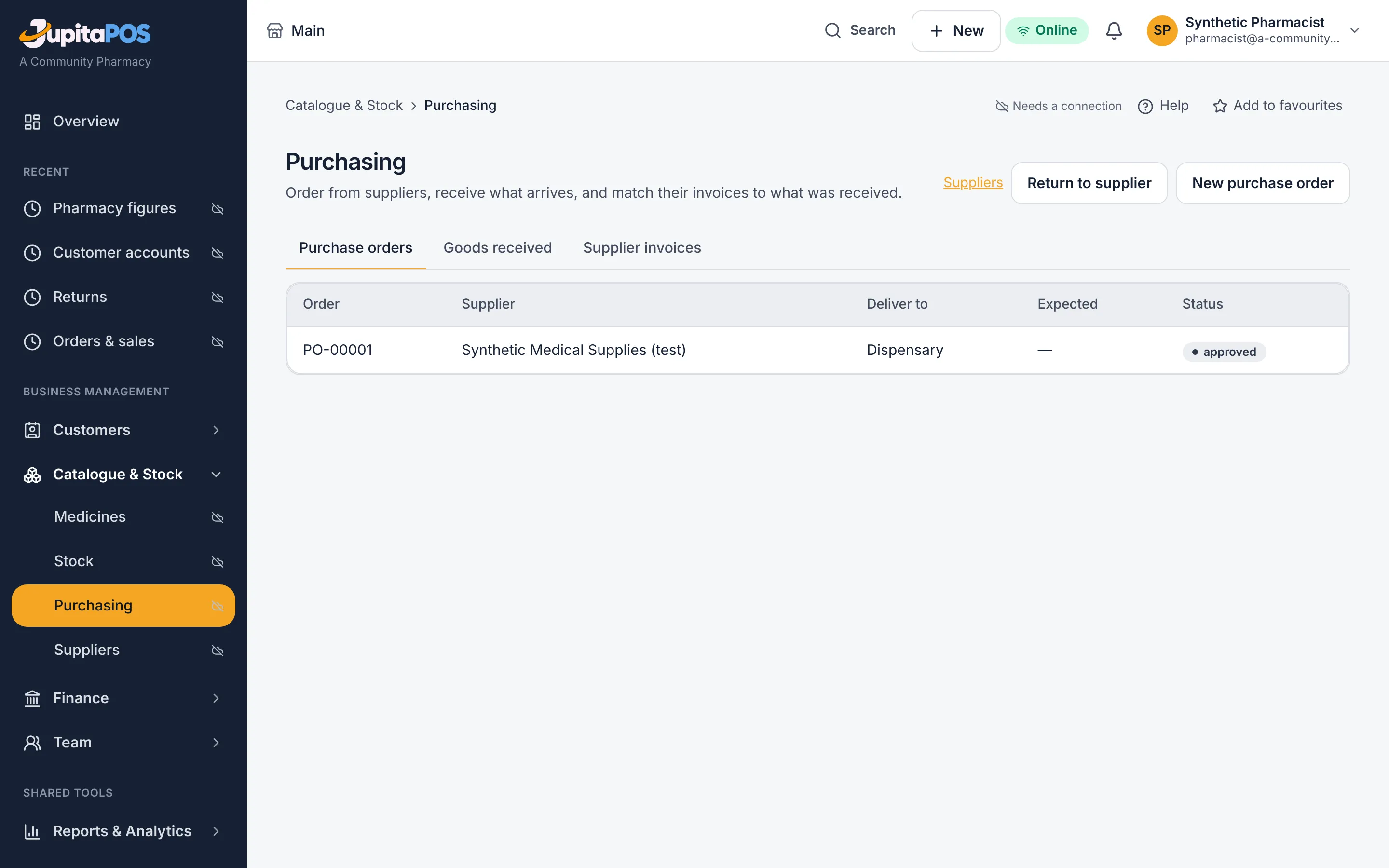
- Open Catalogue & Stock → Purchasing and press New purchase order: the supplier, the store, and each medicine or pack with its quantity and cost.
- Someone who may approve opens it and presses Approve.
- When the delivery comes, open the order and press Receive delivery. The Pharmacy receive page opens with the order chosen under Against a purchase order and its lines filled in: add each lot, its expiry as printed, and what was accepted, damaged or refused.
- Record the supplier’s invoice under Purchasing.
Expected result
The stock goes in by batch and expiry, and the order shows what is still to come. The supplier’s invoice and payment post to the books.
Screenshot
Common mistakes
Receiving a delivery from the order page’s own form: a pharmacy always receives on the batch page, with its inspection.
Troubleshooting
An expired batch cannot be accepted: record it as refused.
Who does what
| Role | What they do |
|---|---|
| Pharmacist | classifies medicines, releases and decides held stock, recalls, disposal, the controlled-drugs register, reviews and supplies prescriptions, approves counts |
| Pharmacy technician | adds medicines, receives (held for inspection), holds stock, counts, records prescriptions as written, sells at the counter |
| Storekeeper | receives, transfers, counts and holds stock; sees no client record |
| Cashier | takes payment at the till, reprints receipts; sees no client record |
| Purchaser | raises purchase orders and records supplier invoices; sees no client record |
| Accountant | customer accounts, supplier payments, the figures and the books; sees no client record |
| Owner | the market, licences, qualifications and the business — but not client records |
Not in PharmacyPOS yet
The adverse-reaction log; electronic reporting to a regulator; selling offline at the pharmacy till.