

On this page
Loyalty brings guests back: members earn points on every paid bill, climb
tiers as they spend, and turn points into rewards at the till. Gift cards
and vouchers are money paid in advance and spent later. Open Loyalty
(/loyalty) to set the programme up and Gift cards (/giftcards) to
sell and check cards. At the till everything happens from the order’s
Customer button.
The screens in this manual are the demo business, Jupita Restaurant Demo, at Kampala — Kololo. Its programme, Jupita Rewards, gives 1 point per UGX 1,000 of the items after discounts (the items at their menu prices, VAT included, less discounts; the service charge and the delivery fee earn nothing); a point is worth UGX 10; new members get 50 welcome points and 200 on their birthday. Tiers: Silver (from the first shilling, 1×), Gold (from USh 750,000 a year, 1.25× points and 1 % cashback) and Platinum (from USh 2,500,000, 1.5× and 2 %).
Who can do what:
| Task | Permission | Roles in the demo |
|---|---|---|
| See the programme and a customer’s points | loyalty.view |
floor staff, cashier, supervisor, managers, accountant |
| Enrol a member | customers.manage |
floor staff, host, cashier, supervisor, managers |
| Redeem rewards and stamp cards at the till | loyalty.redeem |
floor staff, cashier, supervisor, managers |
| Set up the programme, send campaigns | loyalty.manage |
branch and restaurant managers, general manager, owner |
| Adjust points by hand | loyalty.adjust |
managers, owner |
| Sell and top up gift cards | giftcards.sell |
floor staff, cashier, supervisor, managers |
Enrol a customer in loyalty
Purpose
Make a regular guest a member, so every bill they pay earns points and they can start working towards a reward.
Role / permission required
Cashiers, waiters, hosts, supervisors and managers — customers.manage. The
pictures show Paul, a cashier.
Prerequisites
- The guest has a customer profile (see Add a customer — Join loyalty there enrols a new customer at once).
- The programme is active (see Set up the loyalty programme).
Steps
- Open the customer’s profile from Customers.
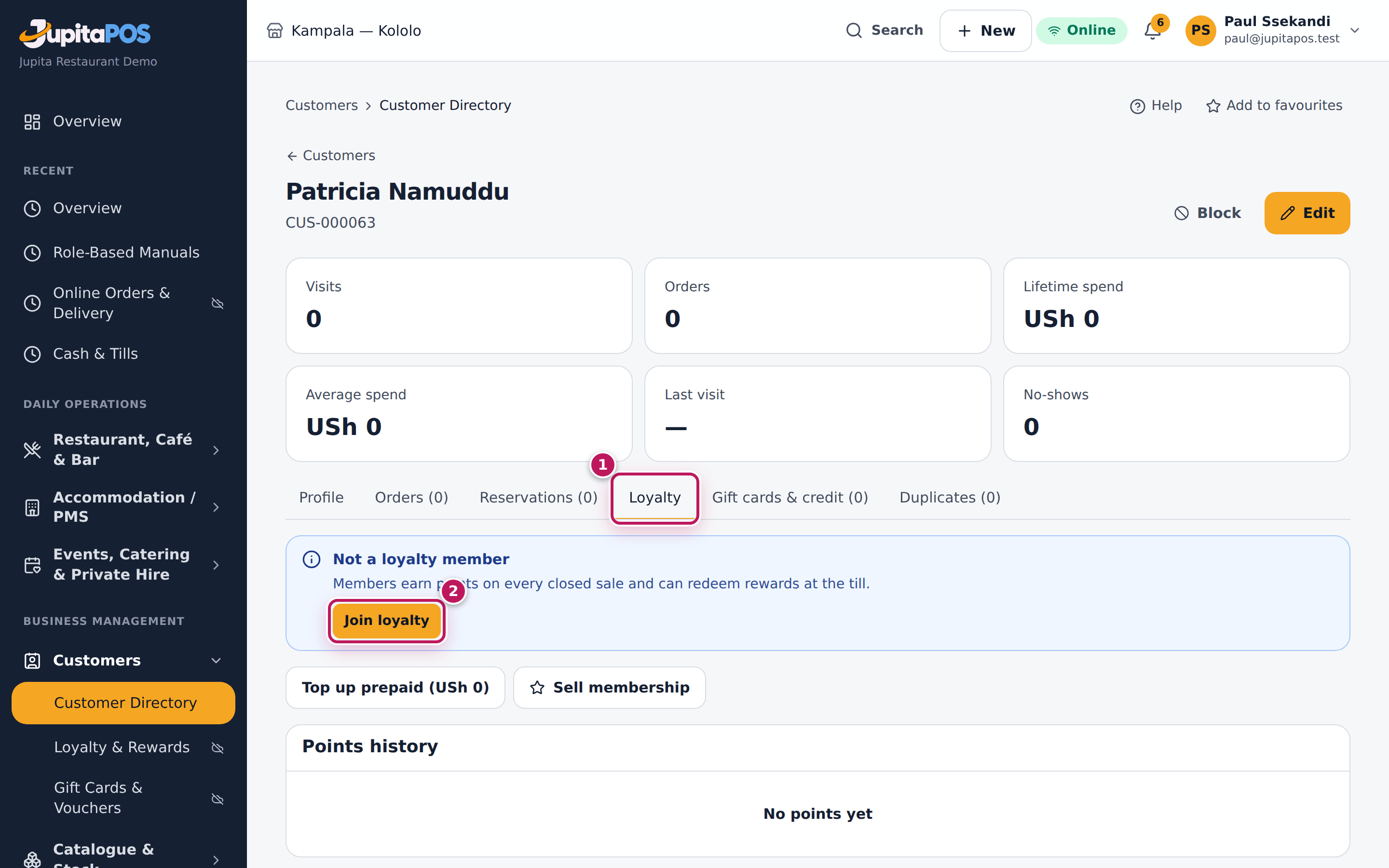
- Open the Loyalty tab (1). It says Not a loyalty member.
- Tap Join loyalty (2).
Expected result
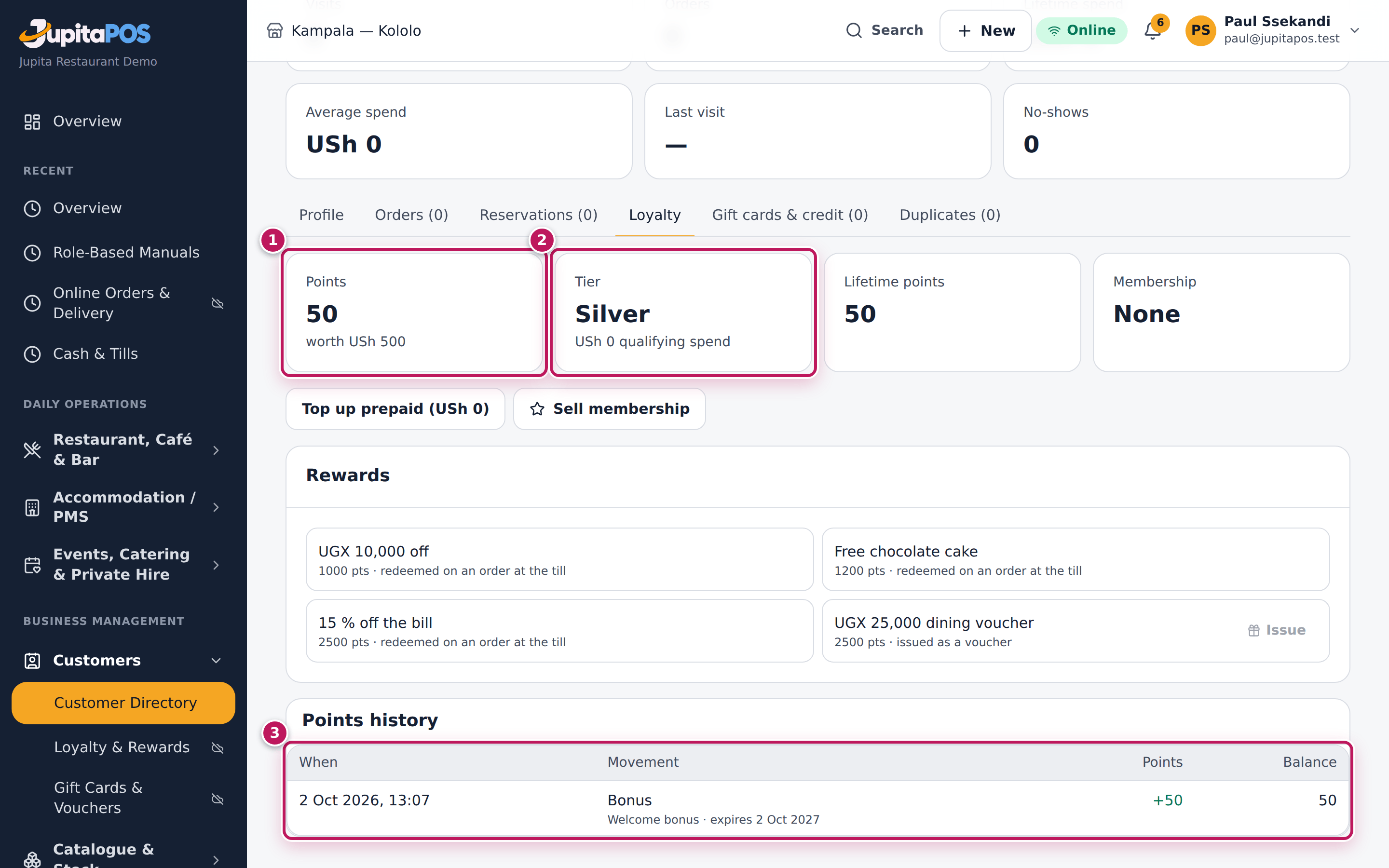
The message Enrolled appears and the tab shows the member’s Points (1) — 50, the welcome bonus — the Tier (2), Silver, the rewards they can work towards, and the Points history (3) with the welcome bonus. The header says member since today.
Screenshot
Common mistakes
- Enrolling a duplicate profile. Points on a second profile are lost to the guest. Search for them first; merge duplicates (see Merge duplicate customers).
- Enrolling after the bill was paid, expecting points for it. Points are earned when a sale closes with a member attached. Enrol first, then pay.
Troubleshooting
- Join loyalty is missing. The programme is switched off, or your role cannot edit customers.
- “… is blocked.” at the till: a blocked customer cannot be attached to orders. A manager unblocks them on their profile.
Earn points on a sale
Purpose
Give a member their points on what they spend, by attaching them to the order before it is paid.
Role / permission required
Anyone who sells (sales.create) and can see customers (customers.view):
cashiers, waiters, bartenders, baristas, supervisors.
Prerequisites
- The guest is a member (see Enrol a customer).
- An order is open at the till (see Ring up a counter order).
Steps
- On the order, tap Customer.
- Search the guest by phone and tap them.
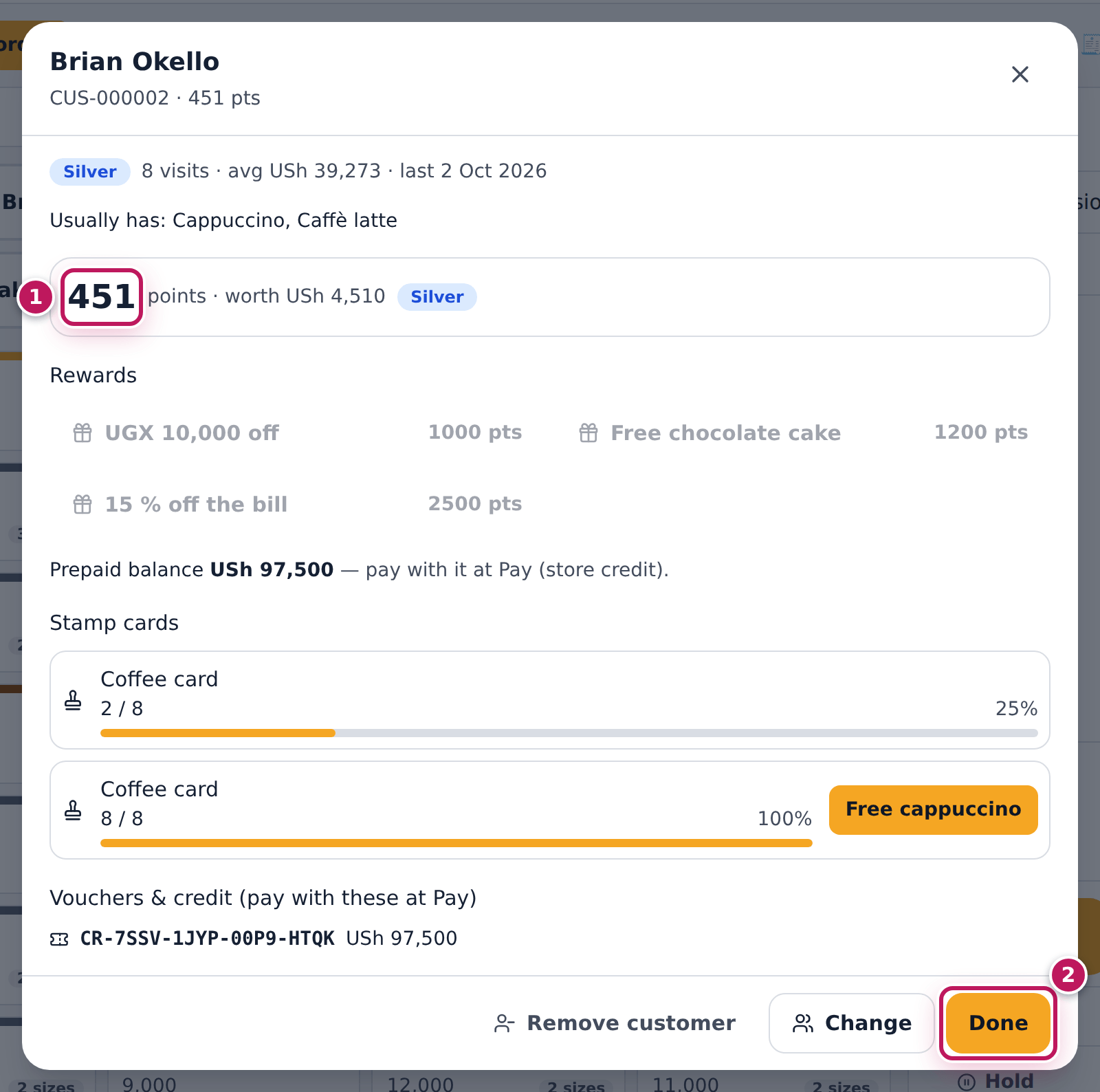
- Check the panel: their visits and usual order, the points (1) (worth so many shillings), the tier and any allergies.
- Tap Done (2). The Customer button now shows the name and the points.
- Take payment as usual (see Take a cash payment).
Expected result
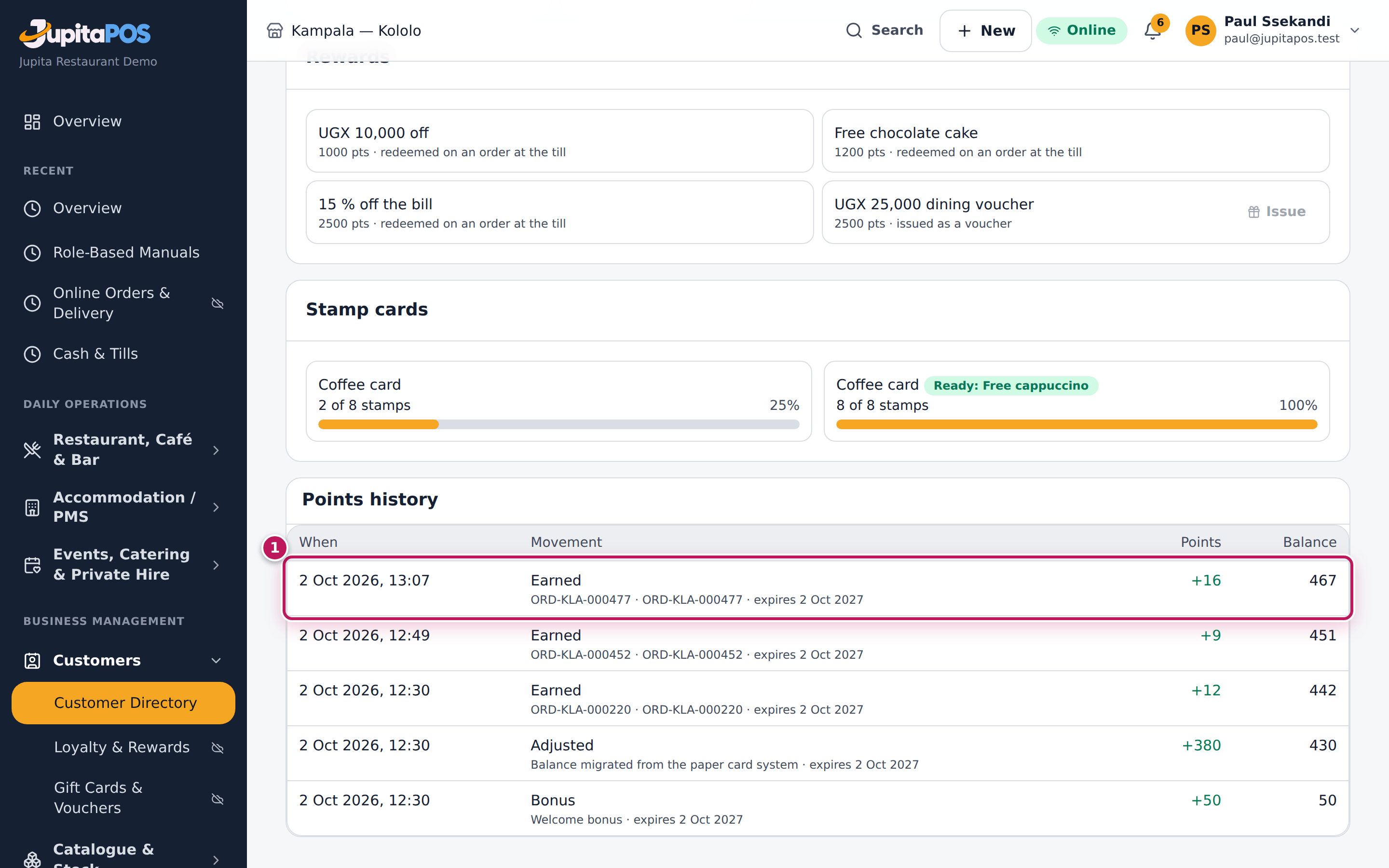
When the order closes, the member earns their points. For a passion juice and chips (USh 16,000) Brian Okello, a Silver member, earns 16 points: one point per full UGX 1,000 of the order’s items after discounts (menu prices include VAT; the service charge and the delivery fee earn nothing). His profile’s Points history shows Earned +16 with the order number (1), and his balance is 16 higher. Gold members earn 1.25× and Platinum 1.5×; promotions such as double points on Tuesdays and the breakfast bonus add to it.
Screenshot
Common mistakes
- Attaching the customer after payment. A closed order earns nothing later. Attach the member before you tap Pay.
- Attaching the wrong Brian. Several guests share a first name. Search by phone and check the code and the points.
Troubleshooting
- No points after payment. The customer is not a member (the panel says Not a loyalty member), the programme is off, or the order was paid while the till was offline: points arrive when the sale syncs and closes on the server.
- Points disappeared. The order was reopened, voided or refunded: its points are taken back.
FAQ
Do points expire? In the demo, after 365 days, oldest first. The nightly run expires them and shows them as Expired in the history.
Redeem a reward at the till
Purpose
Let a member spend their points on a reward — money off the bill or a free item — while they pay.
Role / permission required
Cashiers, waiters, supervisors and managers — loyalty.redeem.
Prerequisites
- The member is attached to the open order (see Earn points on a sale).
- The order has no other discount.
Steps
- Tap the Customer button on the order to open the member’s panel.
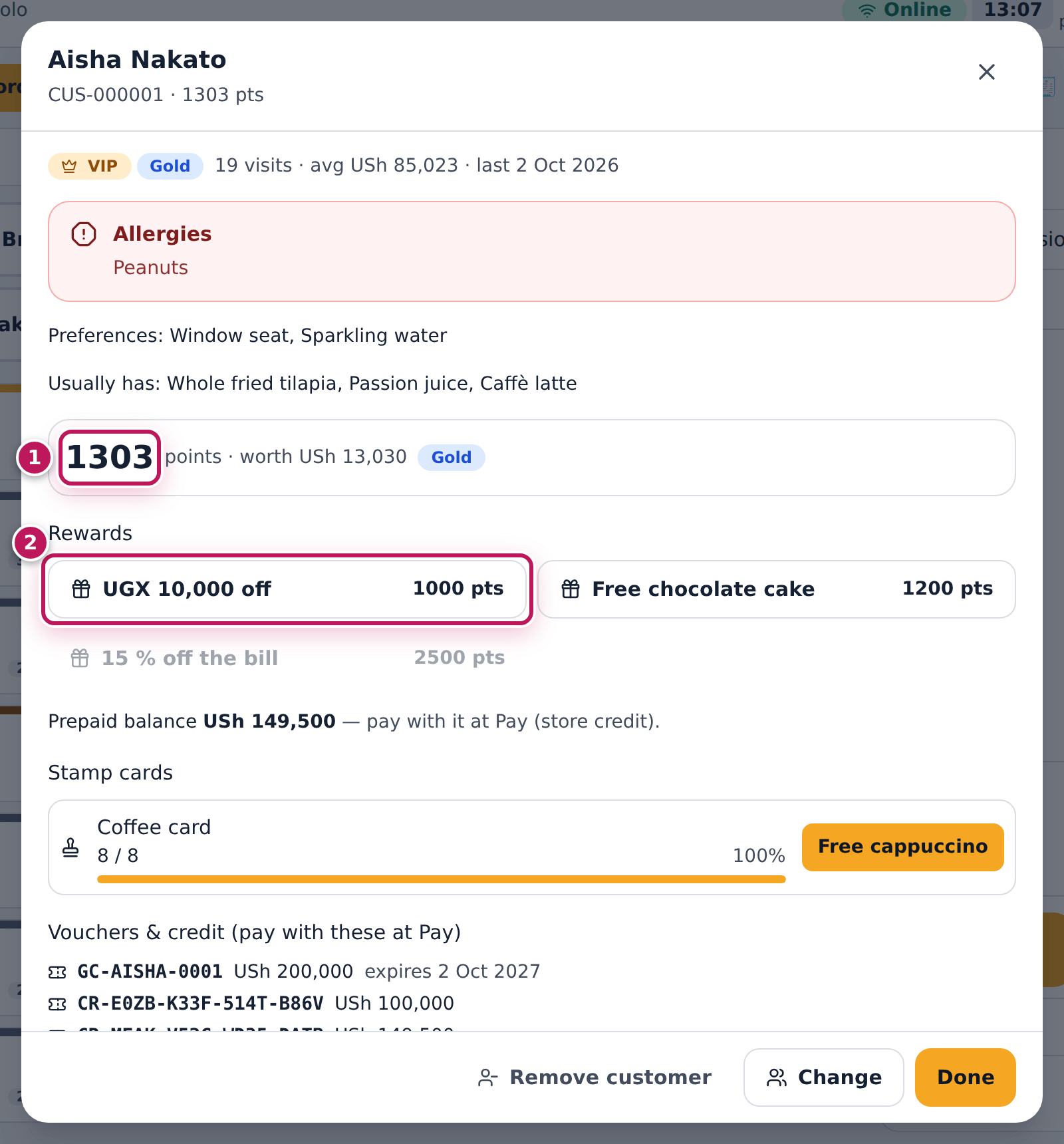
- Read the points (1). Rewards they can afford are active; the others are greyed.
- Tap the reward the guest chose, for example UGX 10,000 off (2).
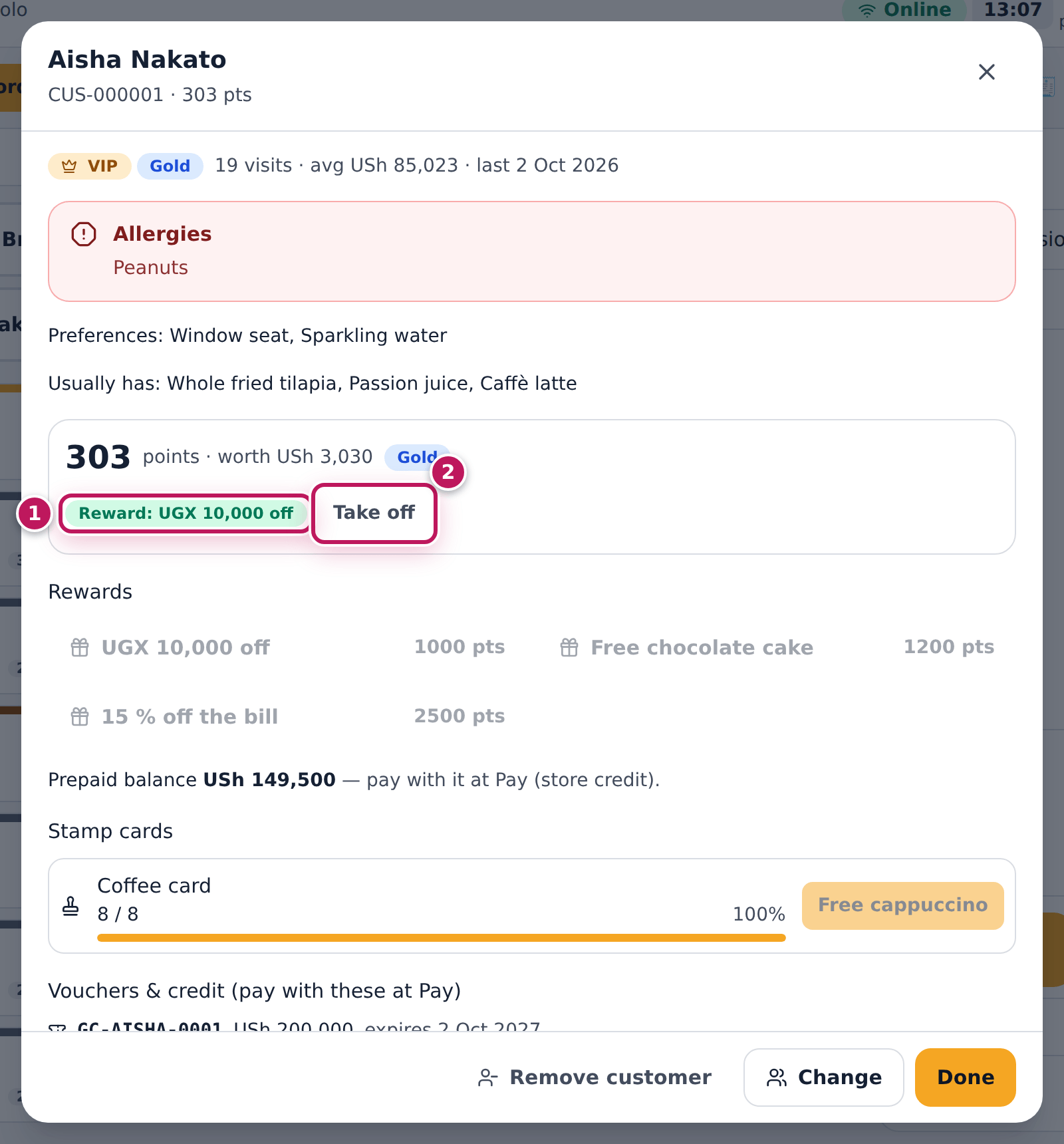
- The reward is on the order: Reward: UGX 10,000 off (1). To give the points back, tap Take off (2).
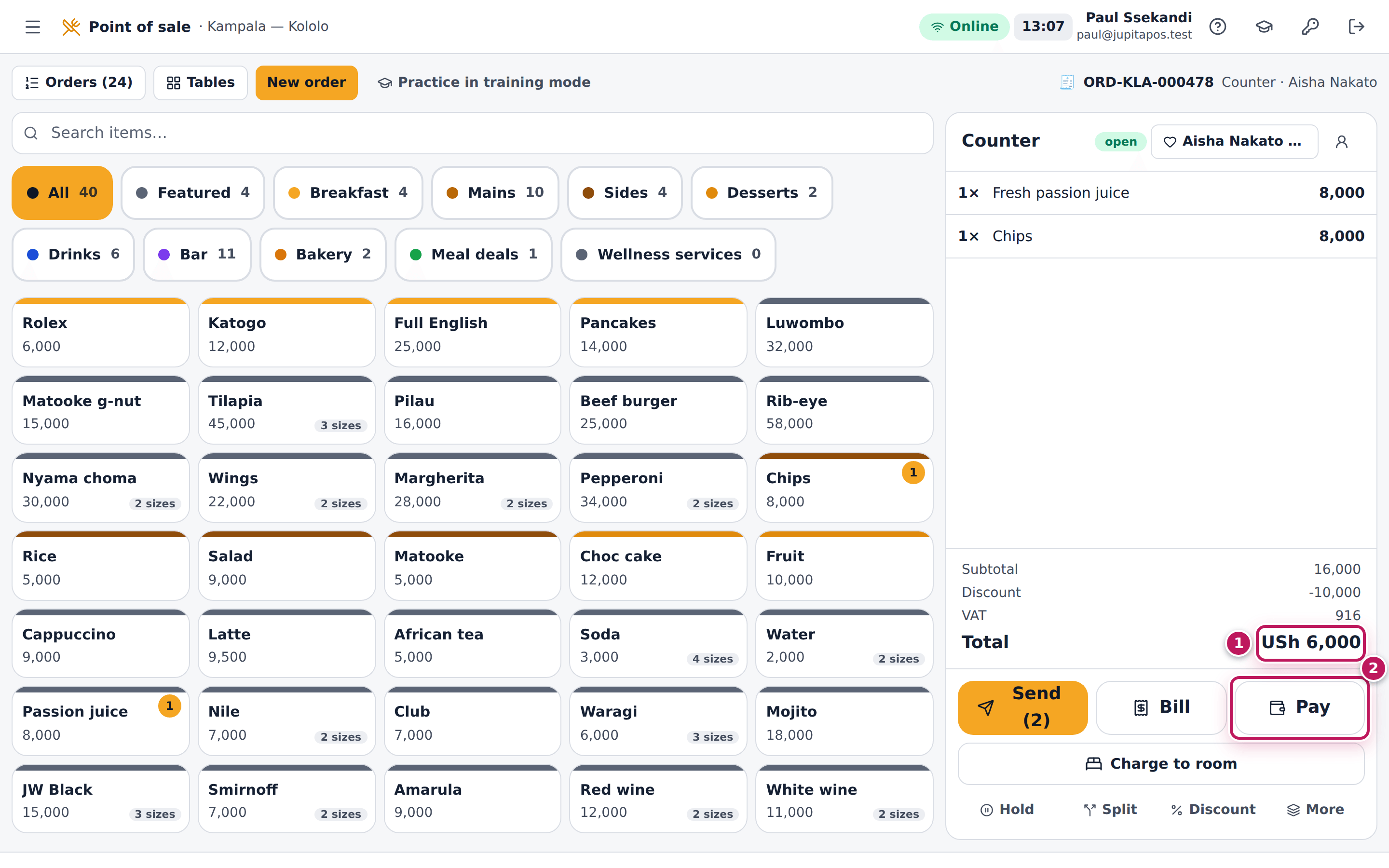
- Tap Done. The order shows the Discount, a lower VAT and a lower total (1).
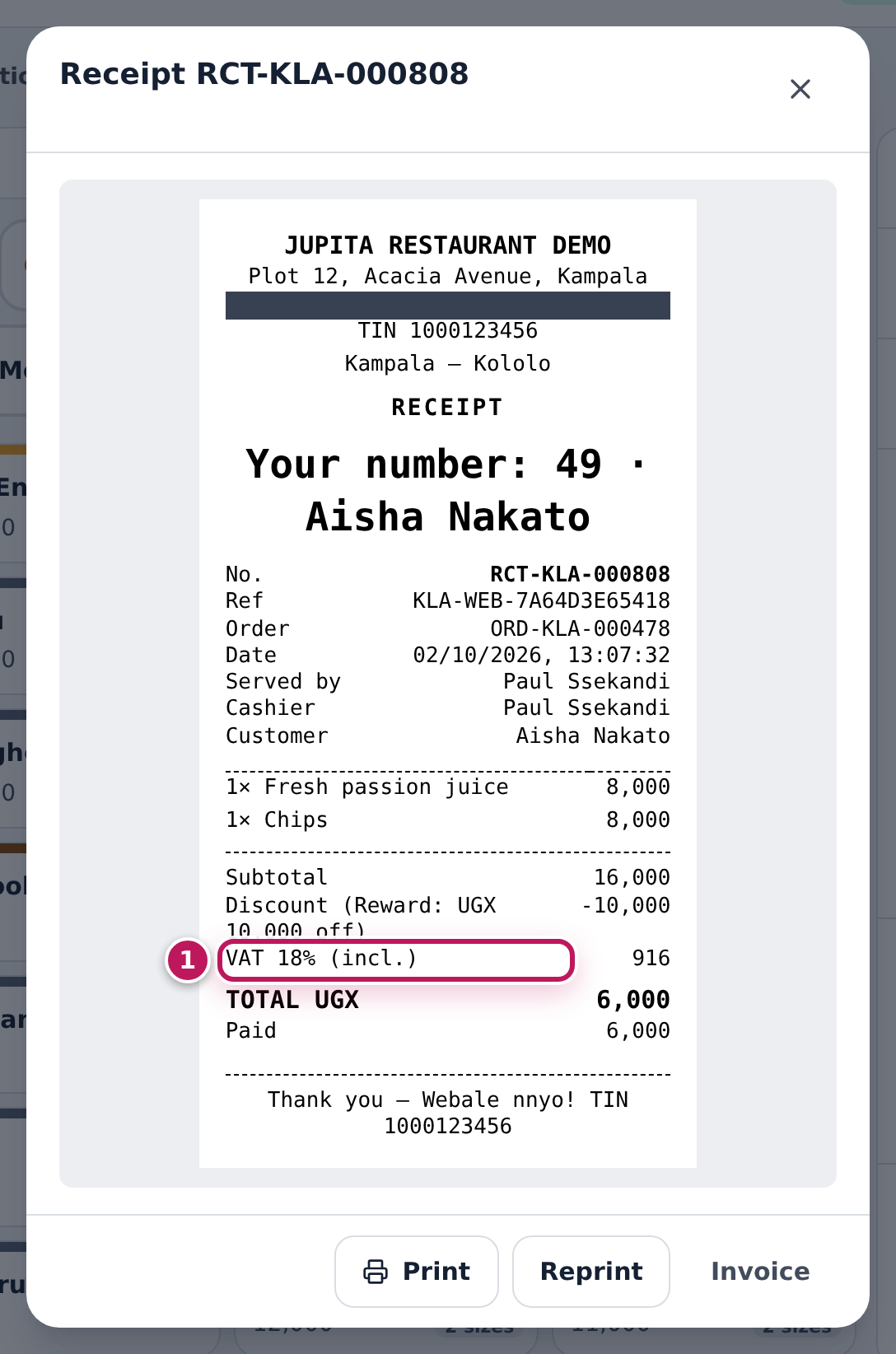
- Take payment (2). The receipt shows the reward as a discount, and the VAT on what the guest paid (1).
Expected result
Aisha Nakato, a Gold member, redeems UGX 10,000 off (1,000 points) on a passion juice and chips: the order total goes from USh 16,000 to USh 6,000. The VAT goes down with it: the receipt shows VAT 18% (incl.) USh 916, the VAT inside USh 6,000. The 1,000 points leave her balance at once (her panel then shows 1,000 fewer); Take off gives them back. When the order is paid she earns points on what she paid.
Screenshot
Common mistakes
- Giving a manual discount as well. A reward is the order’s discount; a manual discount cannot be added on top, and a reward cannot be added to an order that already has one. Remove the other discount first.
- Redeeming on the wrong order. Rewards stay with the order. If it was the wrong one, tap Take off before payment.
Troubleshooting
- The reward is greyed out. Not enough points, the reward needs a higher tier, or the order already has a discount (the panel says so).
- Stamp card rewards. A full stamp card shows its reward as a button (for example Free cappuccino): tap it to put it on the order.
FAQ
What about voucher rewards? A reward of the kind Voucher is issued from the member’s profile (Loyalty tab, Issue) and paid with later at Pay like any voucher.
Sell a paid membership
Purpose
Sell a guest a paid membership such as the Jupita Club — a yearly fee for member prices, more points and extra benefits — and take the fee like any payment.
Role / permission required
Cashiers, waiters, supervisors and managers — customers.manage, and a
payment method to take the fee. The pictures show Paul, a cashier.
Prerequisites
- The guest is a loyalty member (see Enrol a customer).
- The plan is on sale on Loyalty, Memberships (see Set up the loyalty programme).
- For cash, your till is open (see Open the till).
Steps
- Open the customer’s profile and the Loyalty tab.
- Tap Sell membership.
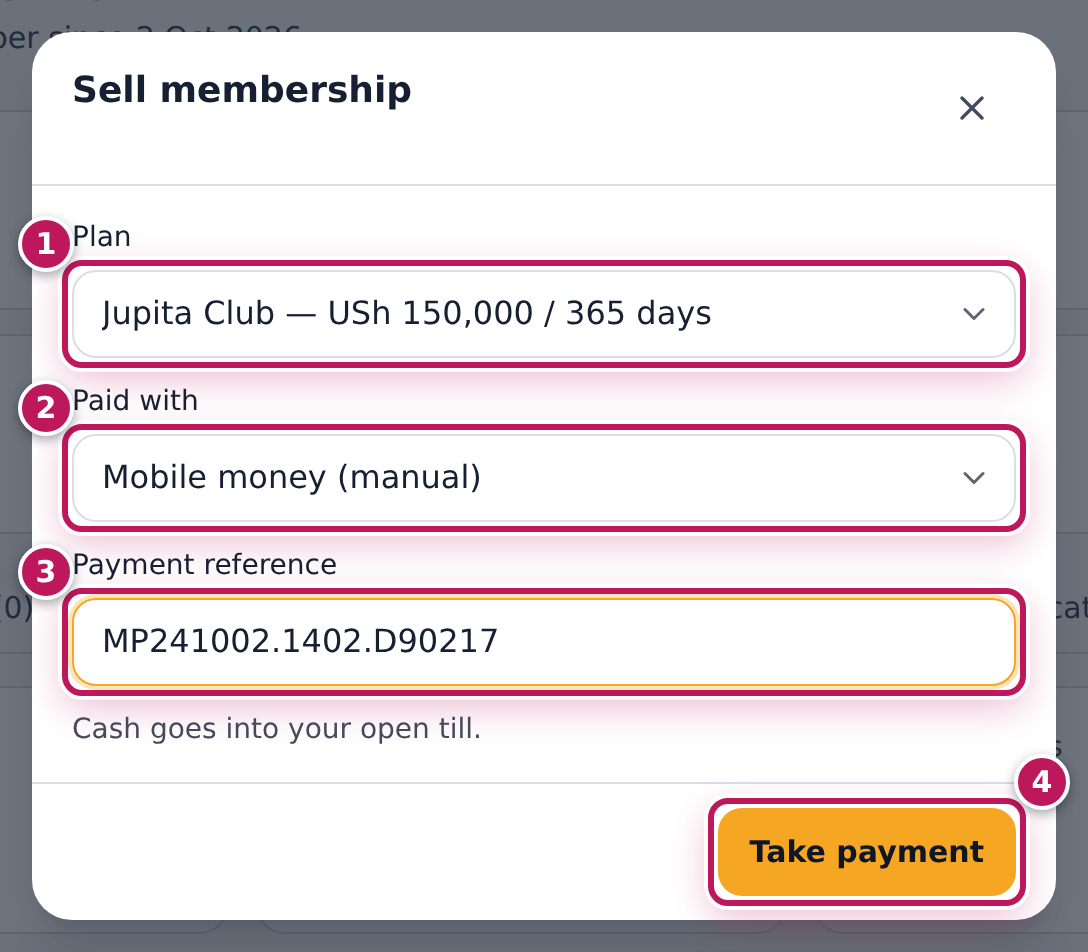
- Choose the Plan (1), for example Jupita Club — USh 150,000 / 365 days.
- Choose how they paid in Paid with (2) and type the Payment reference (3) for mobile money or card.
- Tap Take payment (4).
Expected result
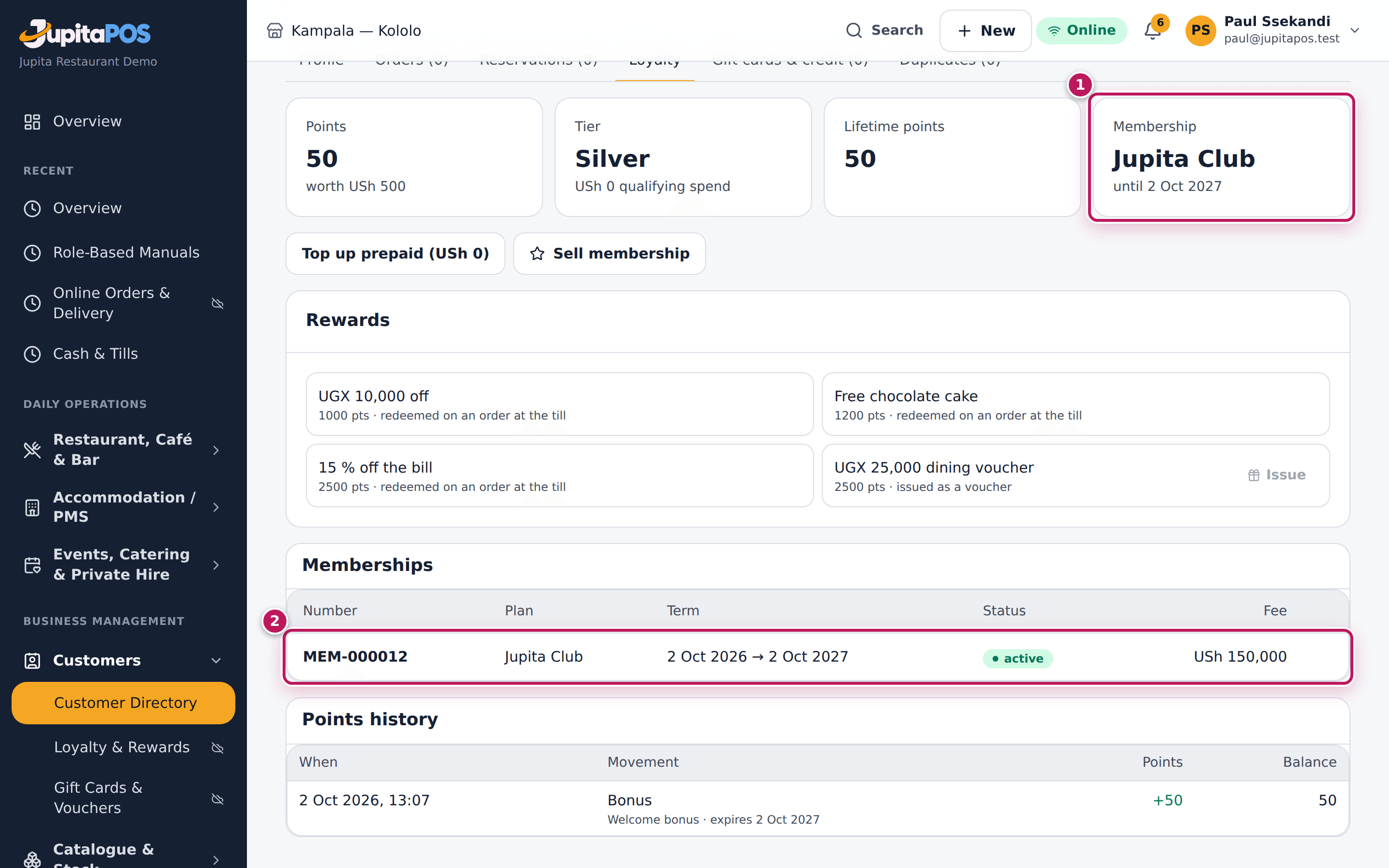
Membership sold appears. The Membership figure (1) shows Jupita Club and until the same day next year, and Memberships (2) lists the membership number, the term, active and the fee of USh 150,000. From now on the till gives the member the member prices of the plan’s price tier (the demo’s Members −10 %) as soon as they are attached to an order, and their points are multiplied (1.5× for the Jupita Club).
Screenshot
Common mistakes
- Selling the membership as a menu item at the till. It is then only a sale: the guest gets no member prices. Always use Sell membership.
- Cash taken without an open till. Cash goes into your drawer: open the till first.
Troubleshooting
- “That membership is not on sale.” A manager switched the plan’s On sale off.
- “Choose how the membership fee is paid.” Choose a Paid with method.
- Sell membership is missing. No plan is on sale, or your role cannot edit customers.
FAQ
How is a membership cancelled? A manager with loyalty.manage taps
Cancel on the membership in the list and gives a reason.
What is a subscription? A plan with Subscription: items included (for example one coffee a day). At the till the member’s panel shows what is left, and Use pays for the included items.
Set up the loyalty programme
Purpose
Decide how guests earn and what they can win — points per spend, the value of a point, expiry, bonuses, tiers, rewards, stamp cards and paid memberships — so the programme pays for itself.
Role / permission required
Branch or restaurant manager, general manager or owner — loyalty.manage.
The pictures show Moses, the branch manager.
Prerequisites
- The menu items you want to give away as rewards exist (see Add a menu item).
Steps
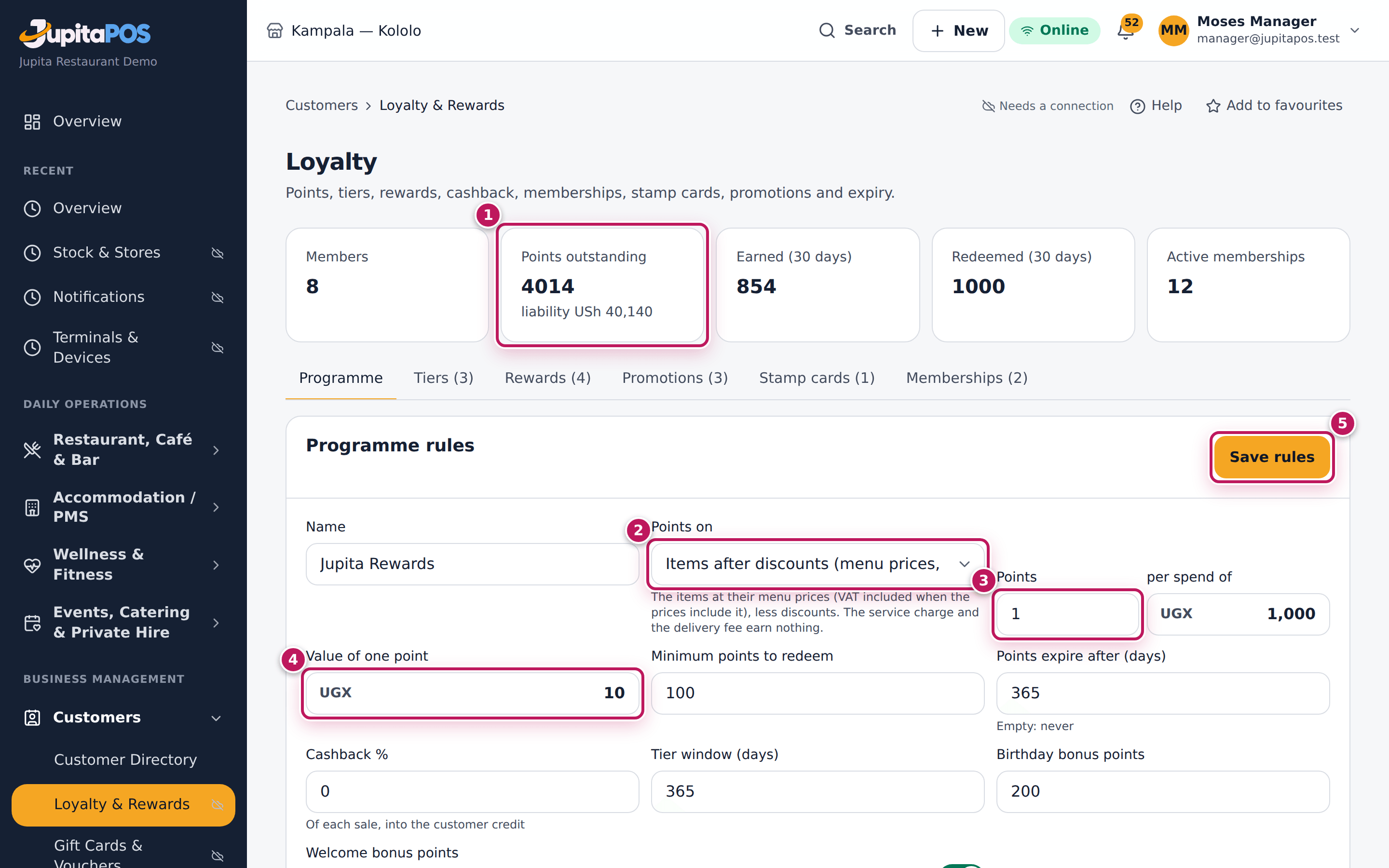
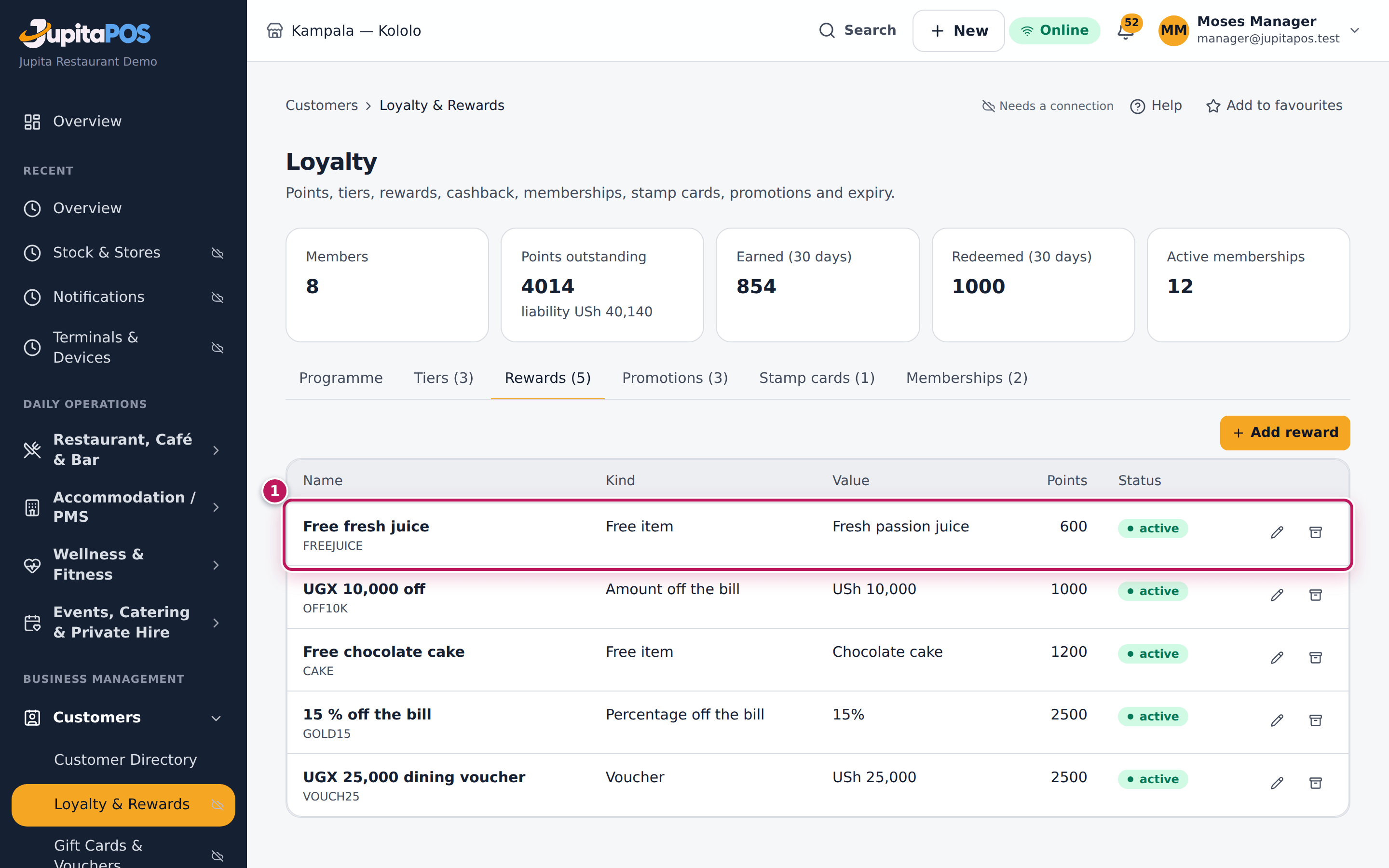
- Open Loyalty from the sidebar. Read the figures (1): Members, Points outstanding and what they are worth (the liability), Earned (30 days), Redeemed (30 days), Active memberships.
- On Programme, set how points are earned: Points on (2) — Items after discounts (menu prices, before service charge) or Bill total — and Points (3) per spend of. The hint under Points on says what counts.
- Set the Value of one point (4), the Minimum points to redeem, Points expire after (days) (empty: never), Cashback %, the Tier window (days) and the Birthday bonus points and Welcome bonus points. Keep Programme active on.
- Tap Save rules (5).
- To add a reward, open Rewards and tap Add reward.
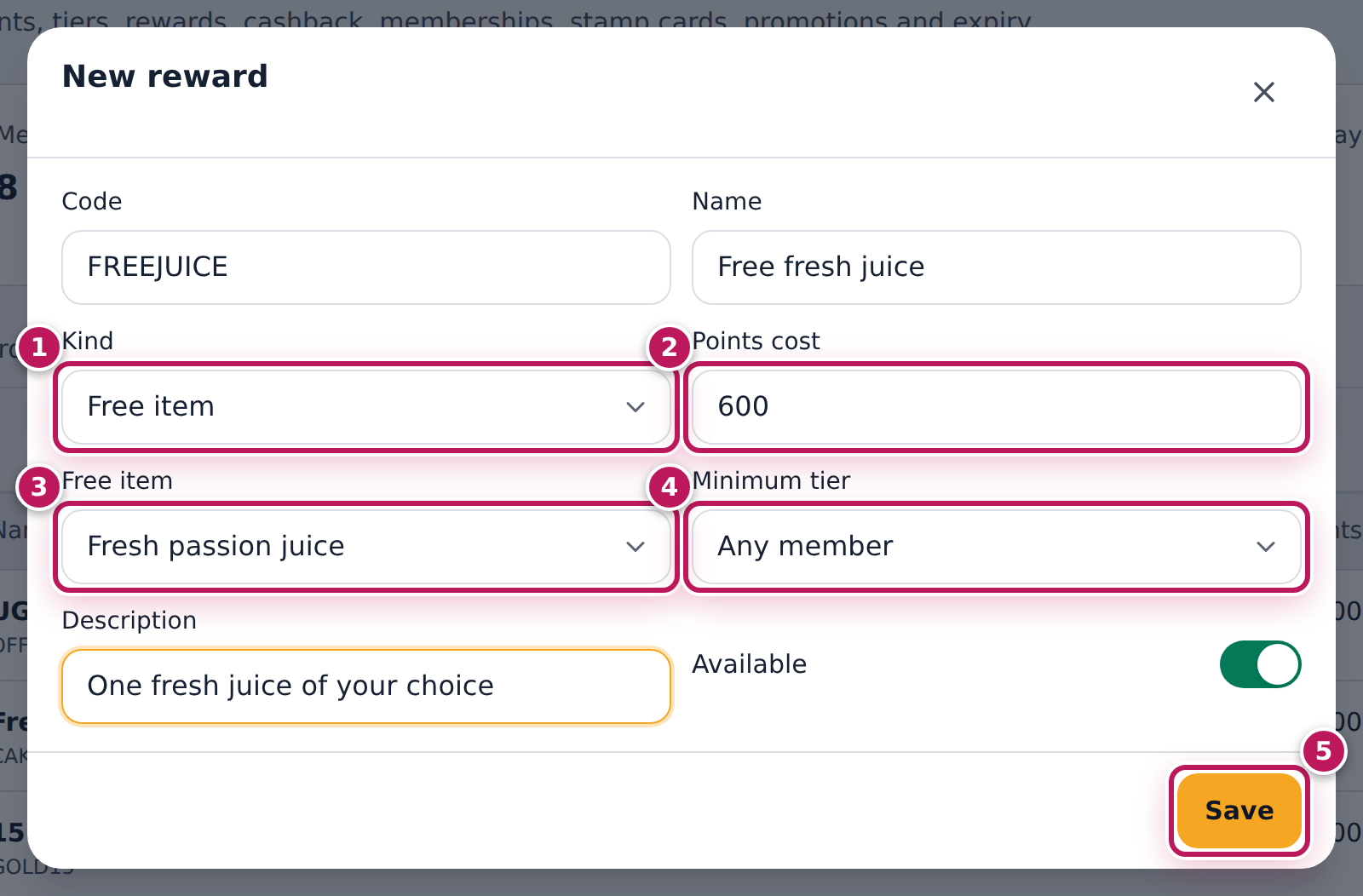
- Type a Code and a Name, and choose the Kind (1): Amount off the bill, Percent off the bill, Free item or Voucher (spend later).
- Type the Points cost (2) and what it gives: the Value, the Percent off or the Free item (3). Choose a Minimum tier (4) if only higher tiers may have it.
- Tap Save (5).
- The other tabs work the same way: Tiers (qualifying spend, multiplier, cashback), Promotions (see Send a voucher campaign), Stamp cards (stamps per item or category, how many fill a card, the reward) and Memberships (a paid plan with a fee, a duration, a points multiplier and a price tier).
Expected result
Programme saved after Save rules. After Save, the new reward is in the Rewards list (1) — Free fresh juice, free item Fresh passion juice, 600 points, active — and members with 600 points see it in the till’s customer panel at once.
Screenshot
Common mistakes
- Making points worth too much. With 1 point per UGX 1,000 and a point worth UGX 10, members get 1 % back. Check Points outstanding and its liability: that is money you owe.
- Deleting a reward members are saving for. Archive it (the box icon) only after telling members; archived rewards disappear from the till.
Troubleshooting
- “Code FREEJUICE is already used.” Another reward has that code. Choose another code, or edit the existing reward.
- “Code FREEJUICE belongs to the archived reward …” An archived reward keeps its code, so its history stays readable. Choose another code.
- The page is read-only. You can look without
loyalty.manage.
FAQ
How do tiers change? A member moves up as soon as their spend in the tier window reaches the next tier. The nightly run moves them down when their spend drops.
How do I sell a membership? On the customer’s profile, Loyalty tab, Sell membership: choose the Plan, how they Paid with, and Take payment. Cash goes into your open till.
Can I correct a customer’s points? A manager with loyalty.adjust uses
Adjust points on the profile’s Loyalty tab, with a reason. It is
recorded on the points history and the audit trail.
Send a voucher campaign
Purpose
Bring guests back with a voucher — for example UGX 15,000 for members you have not seen for two months — issued to everyone in the chosen group at once.
Role / permission required
Branch or restaurant manager, general manager or owner — loyalty.manage.
Prerequisites
- The campaign exists on Promotions (the demo’s We miss you — UGX 15,000 voucher), or you add one with Add promotion and the kind Voucher campaign.
Steps
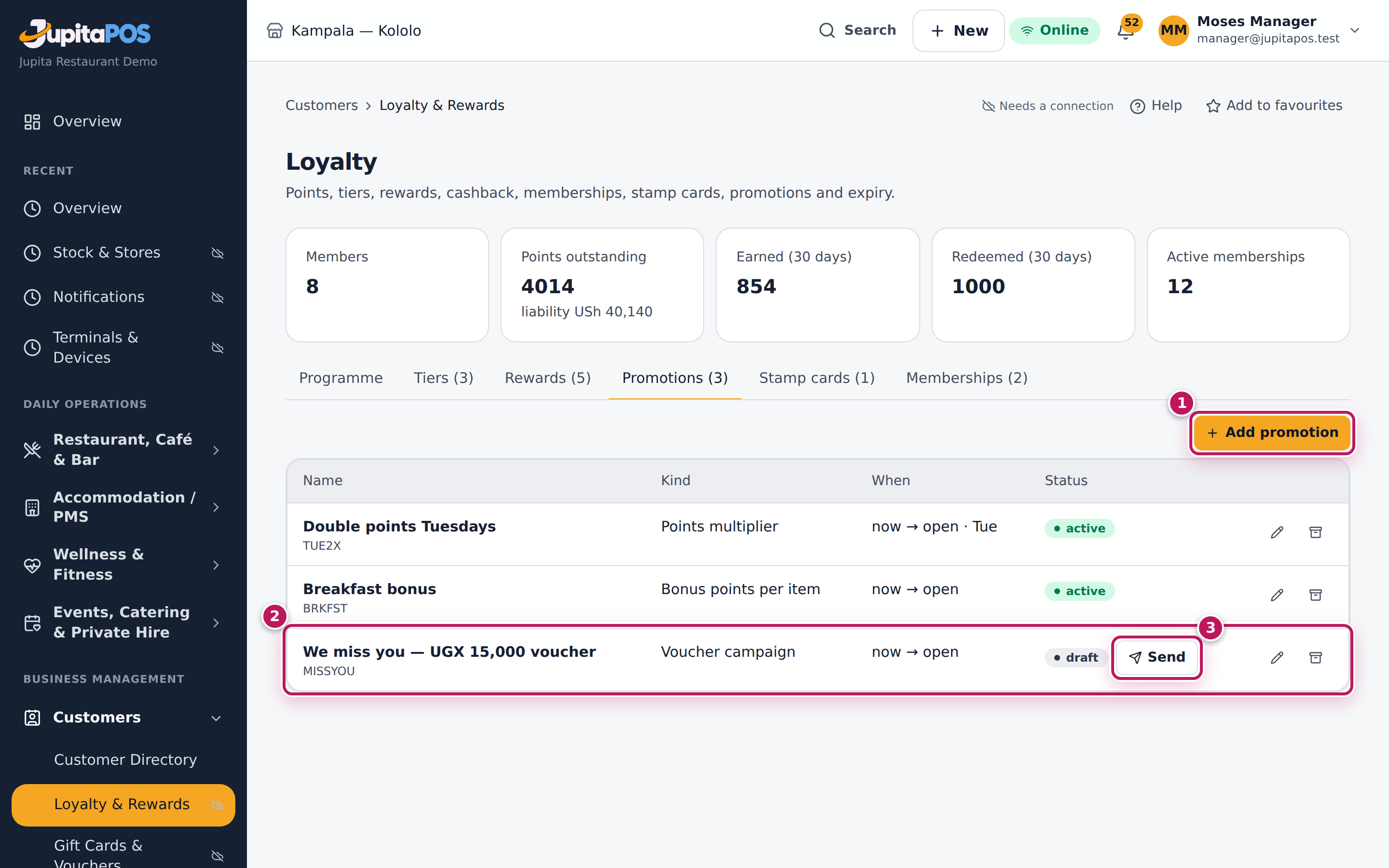
- Open Loyalty and the Promotions tab. The list shows every promotion with its kind, dates and status; Add promotion (1) adds one.
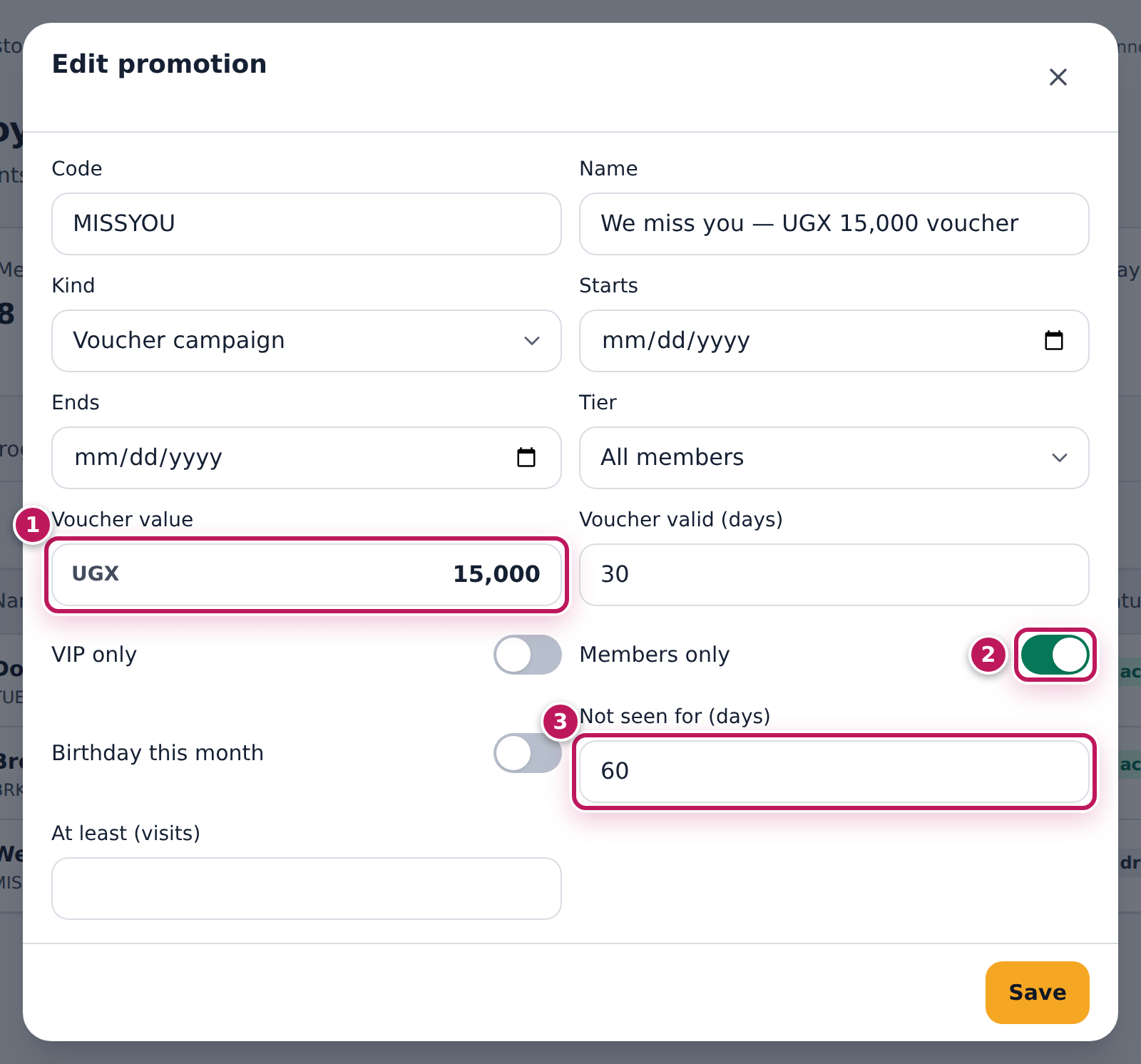
- Find the campaign (2). To check who it reaches, tap its pencil: the Voucher value (1), Voucher valid (days) and the group — VIP only, Members only (2), Birthday this month, Not seen for (days) (3), At least (visits). Close it (or Save a change).
- Tap Send (3).
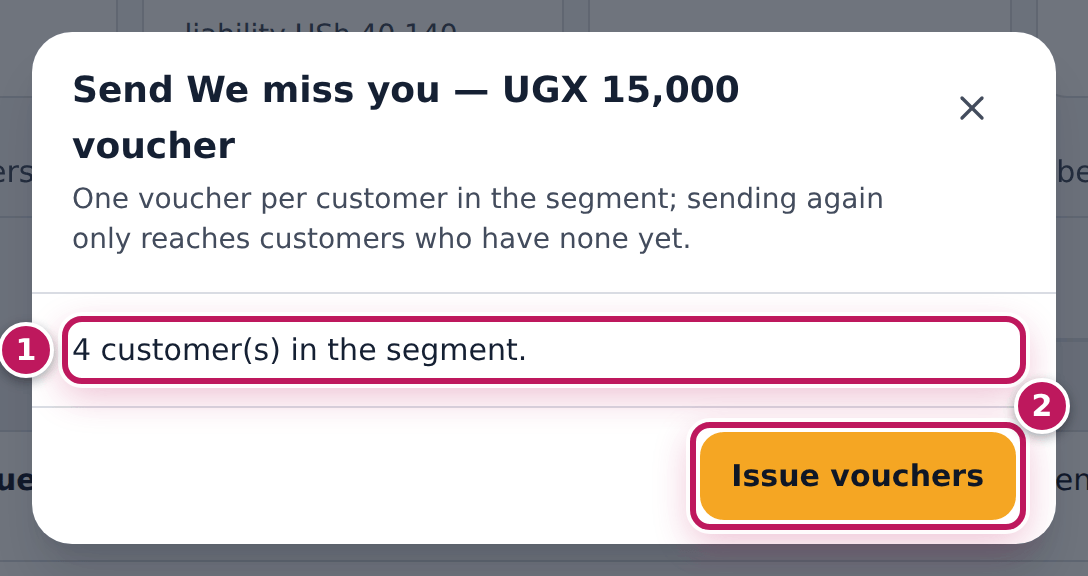
- Read how many customers are in the group (1).
- Tap Issue vouchers (2).
Expected result
Campaign queued — you will be notified appears. One voucher per customer is issued in the background; a notification tells you when it is done and the button then reads Sent with the number sent. Each voucher is on the customer’s profile (Gift cards & credit) and in the till’s customer panel under Vouchers & credit, and is paid with at Pay. Sending again only reaches customers who do not have one yet.
Screenshot
Common mistakes
- Sending to an empty group. Read the count before Issue vouchers; 0 means the conditions are too strict.
- Forgetting the expiry. A voucher without a short validity sits as a liability for months. Keep Voucher valid (days) short.
Troubleshooting
- The Send button is missing. Only voucher campaigns can be sent; points promotions run by themselves on the days you set.
- No notification after a long time. The background work may be busy or stopped; ask your administrator to check the background jobs.
FAQ
How do points promotions work? A Points multiplier (for example double points on Tuesdays), Bonus points per visit or Bonus points on an item / category is applied automatically to every member’s sale that matches its days, dates, tier and branch, while its Status is Active.
Sell and redeem a gift card
Purpose
Sell a gift card — money paid now, spent later by whoever holds the code — and let the holder pay with it at the till, with every movement on the card’s history.
Role / permission required
Selling and topping up: giftcards.sell — cashiers, waiters, supervisors,
managers. Paying with it: payments.take. The pictures show Paul, a
cashier.
Prerequisites
- For cash, your till is open (see Open the till). Other methods need their payment reference.
Steps
To sell a card:
- Open Gift cards from the sidebar and tap Sell.
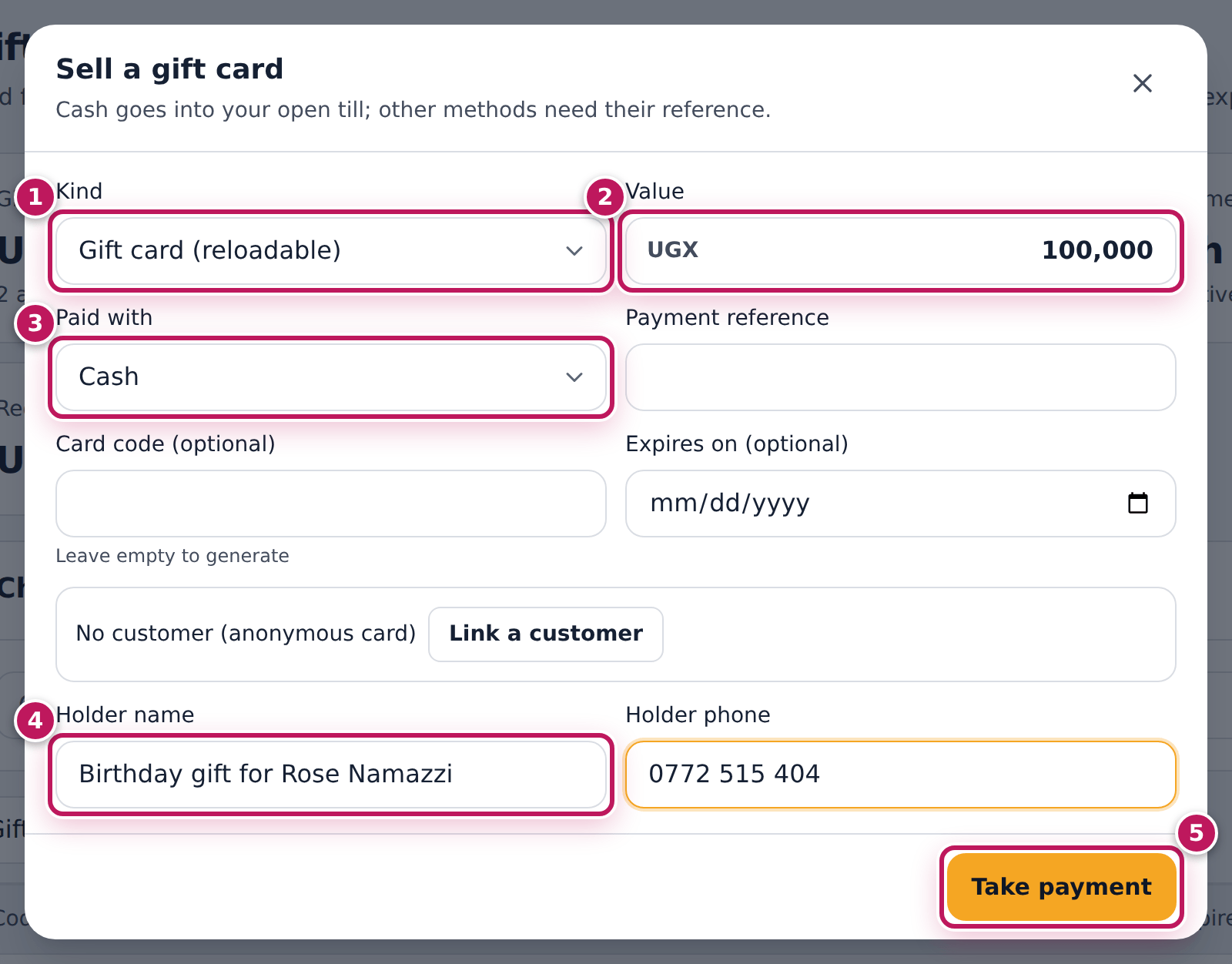
- Choose the Kind (1): Gift card (reloadable) or Voucher (single use).
- Type the Value (2), for example 100,000.
- Choose how it was paid in Paid with (3) and type the Payment reference for card or mobile money.
- Leave Card code (optional) empty to get a new code; set Expires on (optional) if the card has an end date.
- Tap Link a customer to put it on a profile, or type the Holder name (4) and Holder phone.
- Tap Take payment (5). Write the code shown in the message on the card or voucher.
To pay with it at the till:
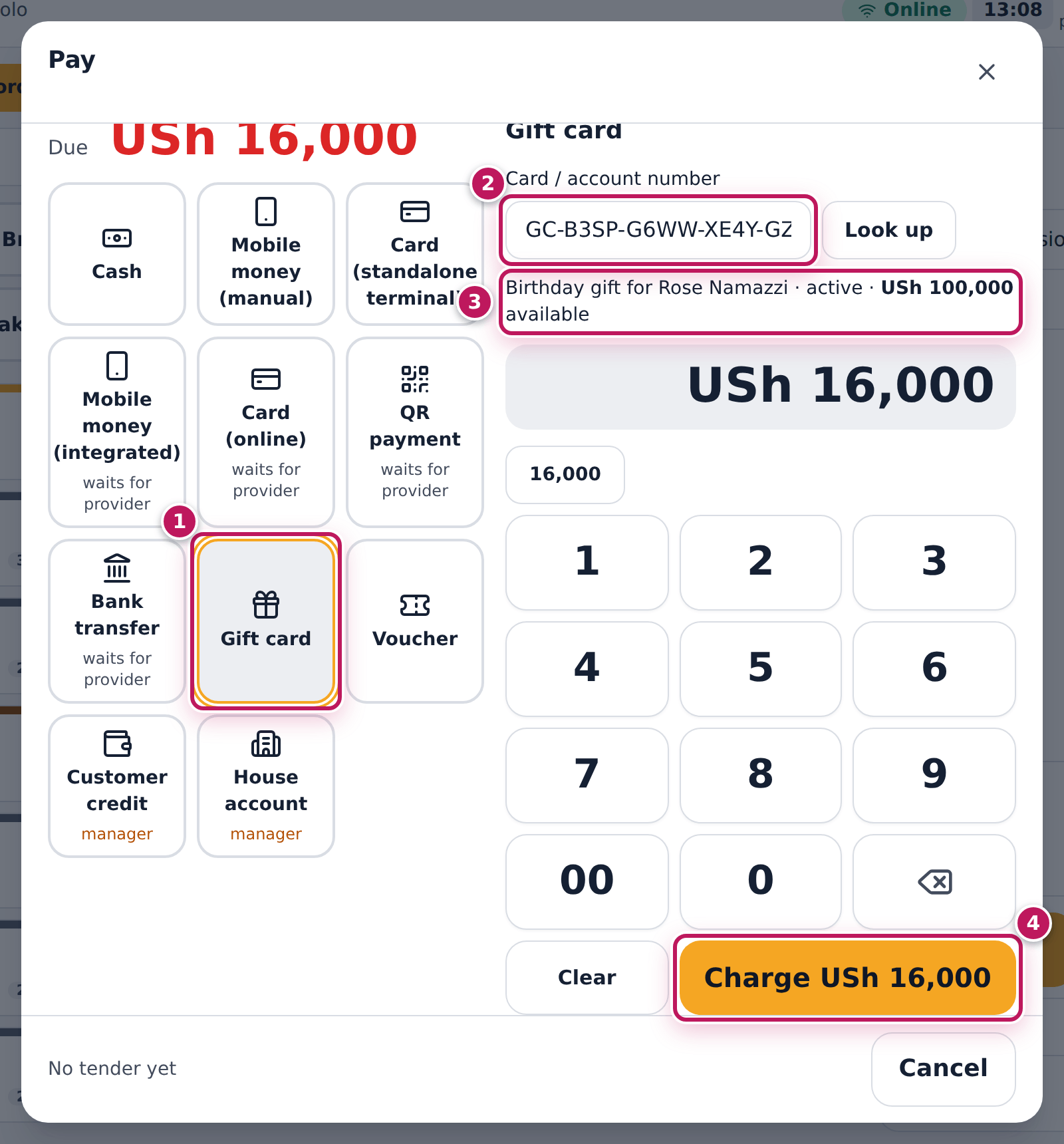
- At Pay, tap Gift card (1) (or Voucher).
- Type the code in Card / account number (2) and tap Look up. The holder, the status and what is available show (3).
- Tap Charge (4).
To check a balance:
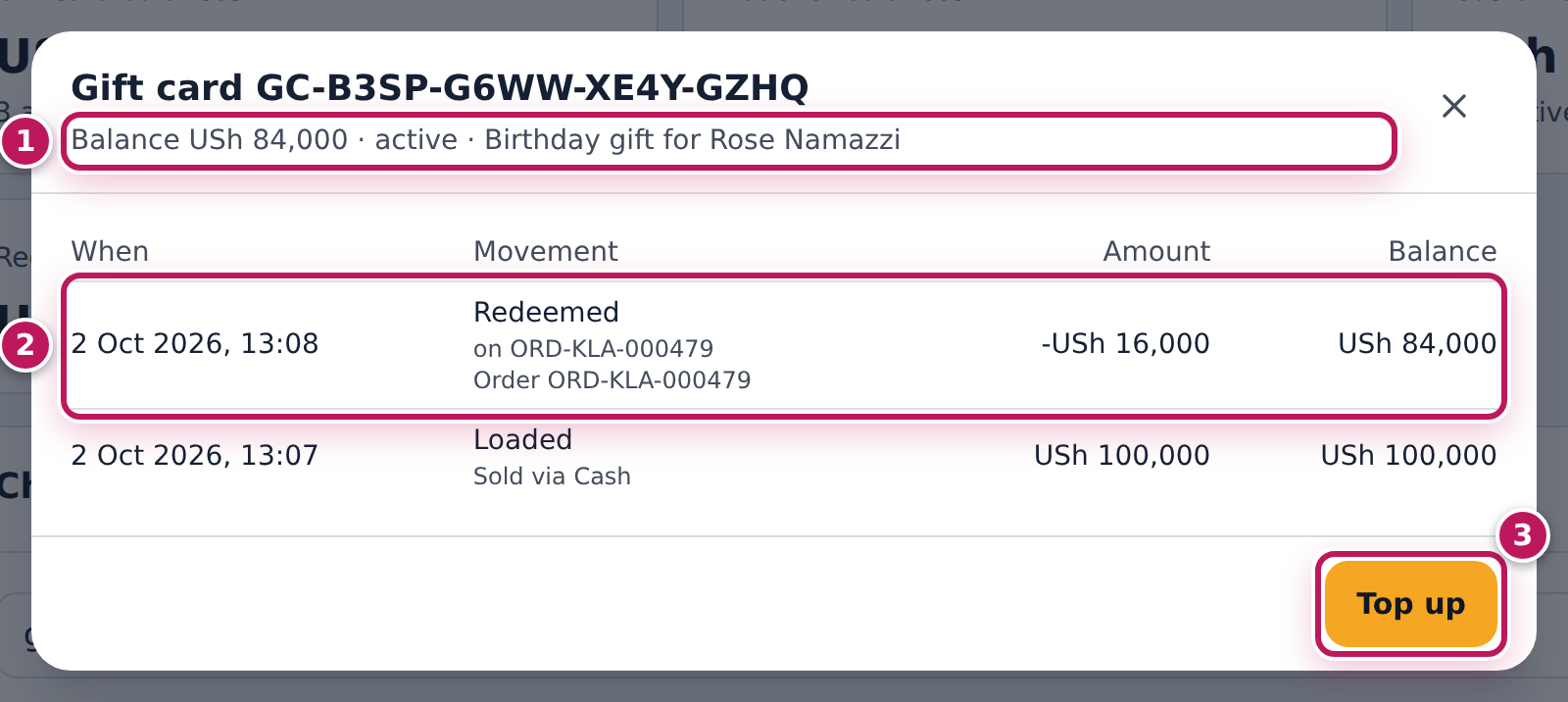
- On Gift cards, type the code in Check a balance and tap Check.
Expected result
The sale shows GC-XXXX-XXXX-XXXX-XXXX sold; the cash is in your drawer and Gift card balances goes up by 100,000. At the till the card pays the USh 16,000 bill and the order closes. Check then shows Balance USh 84,000 · active (1) and the history: Loaded 100,000, Redeemed 16,000 on the order (2). Top up (3) adds money to a gift card.
Screenshot
Common mistakes
- Selling a card as a menu item at the till. It is then a sale, not money owed to the holder, and the code does not exist. Always use Sell on Gift cards.
- Typing a bank card number as the code. It is refused: card numbers must never be stored.
- Giving change from a voucher. A voucher is single use; the till takes at most what is due from it.
Troubleshooting
- “Open a till to take cash.” Open your till, or take another method.
- Look up finds nothing. Check the code (letters and numbers, with the dashes); codes are not case sensitive.
- The card shows expired. Its end date passed; its balance was recorded as breakage. A manager decides whether to issue a new card.
FAQ
Can guests buy gift cards online? Yes, when the storefront’s Gift cards feature is on: they pay online and receive the code (see What the customer sees).
What do the figures at the top mean? The balances of gift cards, vouchers and customer credit are money you owe until it is spent. Redeemed (all time) is what was spent; Expired (breakage) is what was never spent before the end date.