

On this page
Bar control is where the bar’s stock is kept honest. Every spirit, wine, keg, beer and mixer at the bar is followed as sealed containers plus the open volume — 6 + 0.24 btl is six sealed bottles of Johnnie Walker Black and a quarter of a seventh. Each drink sold at the till pours its measure out of the bar store the moment the sale is paid; each spill, breakage or re-make is recorded as a loss; at the end of the shift the bartender counts the shelf, and the difference nobody can explain is the variance.
Johnnie Walker Black 750 ml, Friday at the Kololo Bar Store
  opening                                        750 ml
  issued from the store (6 bottles)          + 4,500 ml
  sold: 5 doubles and 10 singles             −   500 ml
  spillage                                   −    25 ml
  expected (the book)                          4,725 ml
  counted at the close (6 sealed + 180 ml)     4,680 ml
  variance                                   −    45 ml   = −USh 27,000 at the bar's price
Losses are explained; the variance is the rest. The aim is a small variance, not a short list of losses. The closing count is written to the stock ledger, so the book matches the shelf for the next shift.
This manual starts with the bartender’s work at the till — the bar tab. The drinks’ tickets on the bar screen are in Bar display.
The screens show the demo business, Jupita Restaurant Demo, at Kampala — Kololo: the Kololo Bar Store serves the Rooftop Bar and the Restaurant Bar. A single of Johnnie Walker Black is 25 ml and sells for USh 15,000.
Open and settle a bar tab
Purpose
Let a guest at the bar order round after round on one bill, and pay once at the end, with every drink sent to the bar as it is ordered.
Role / permission required
Bartenders, cashiers and waiters — ringing up needs sales.create, taking
the payment payments.take. Cash needs a till open in your name (see
Open the till).
Prerequisites
- You are at the till (Point of sale,
/pos) with your till open. - The bar seats are on the floor plan (see Design the floor plan).
Steps
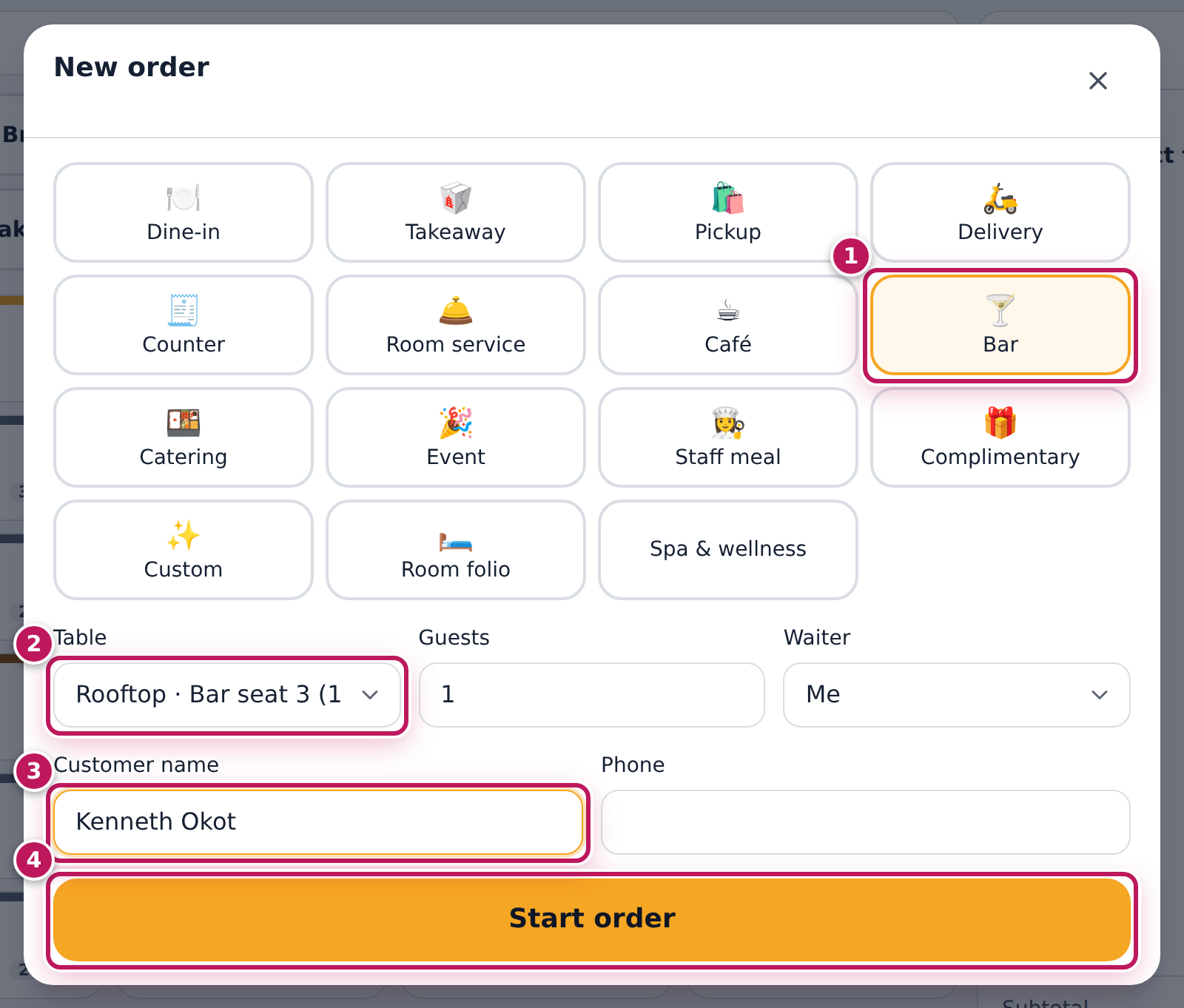
- Tap New order.
- Choose the order type Bar (1).
- In Table (2), choose the guest’s seat, for example Bar seat 3, and set Guests to 1.
- Type the guest’s name in Customer name (3) — it helps you find the tab later — and tap Start order (4).
- Ring up the first round: tap Nile, keep Bottle 500 ml, tap + for two, and tap Add · USh 14,000.
- Tap Send. The drinks go to the bar screen.
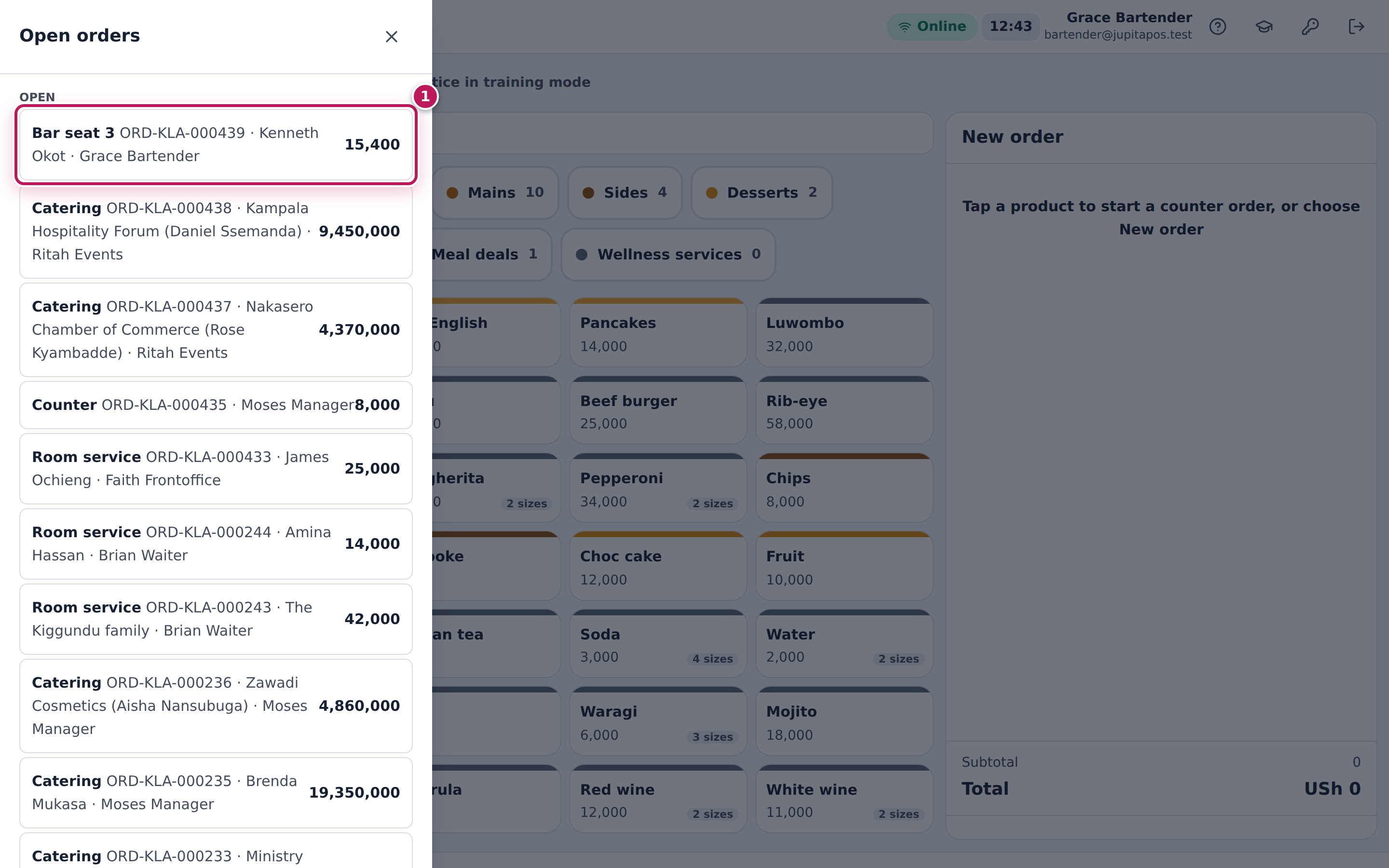
- When the guest orders again, tap Orders and find the tab (1): Bar seat 3 with the guest’s name. Tap it.
- Ring up the next round — here Waragi, Double, Add · USh 11,000 — and tap Send.
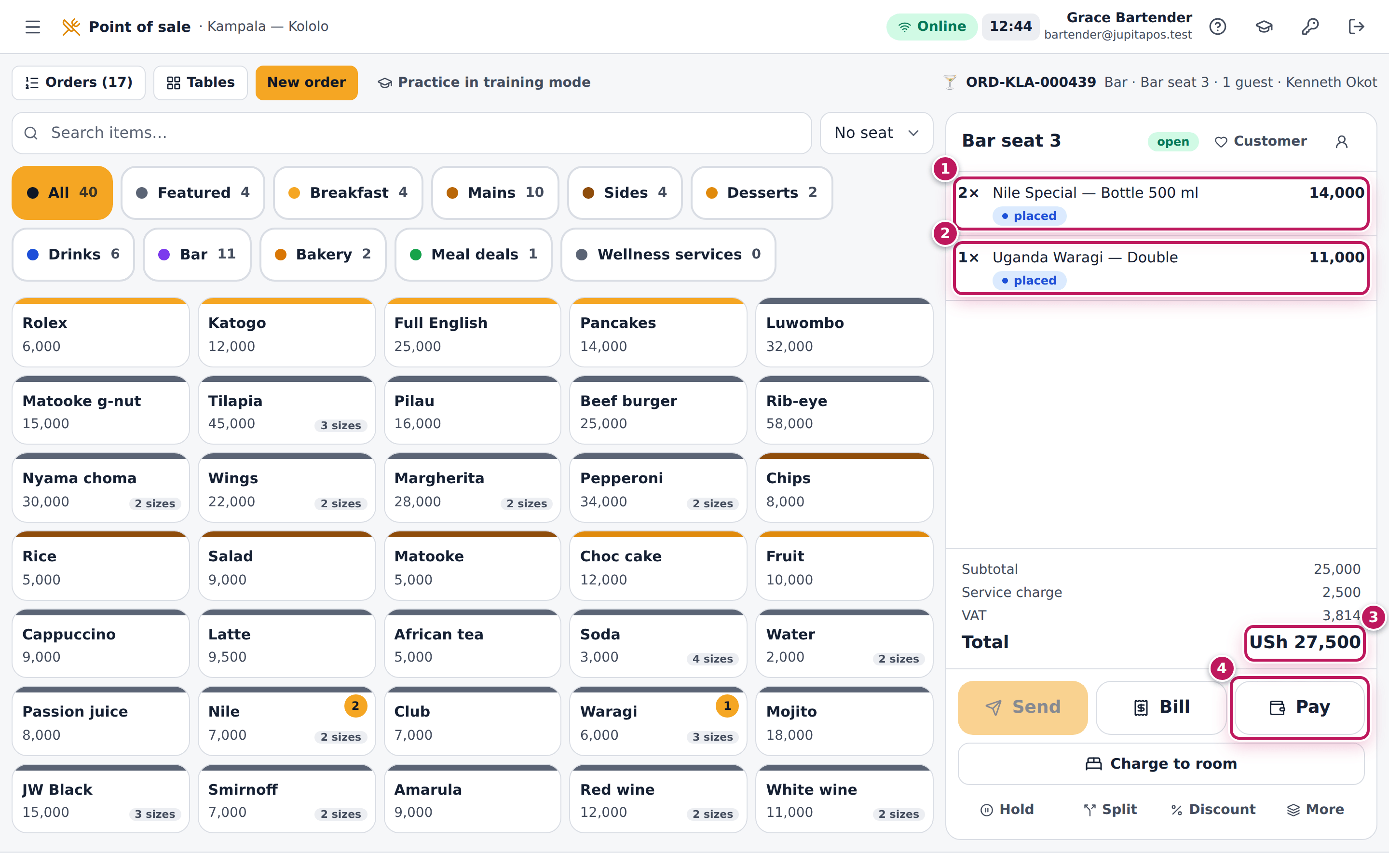
- When the guest asks for the bill, check the lines (1, 2) and the total (3), then tap Pay (4).
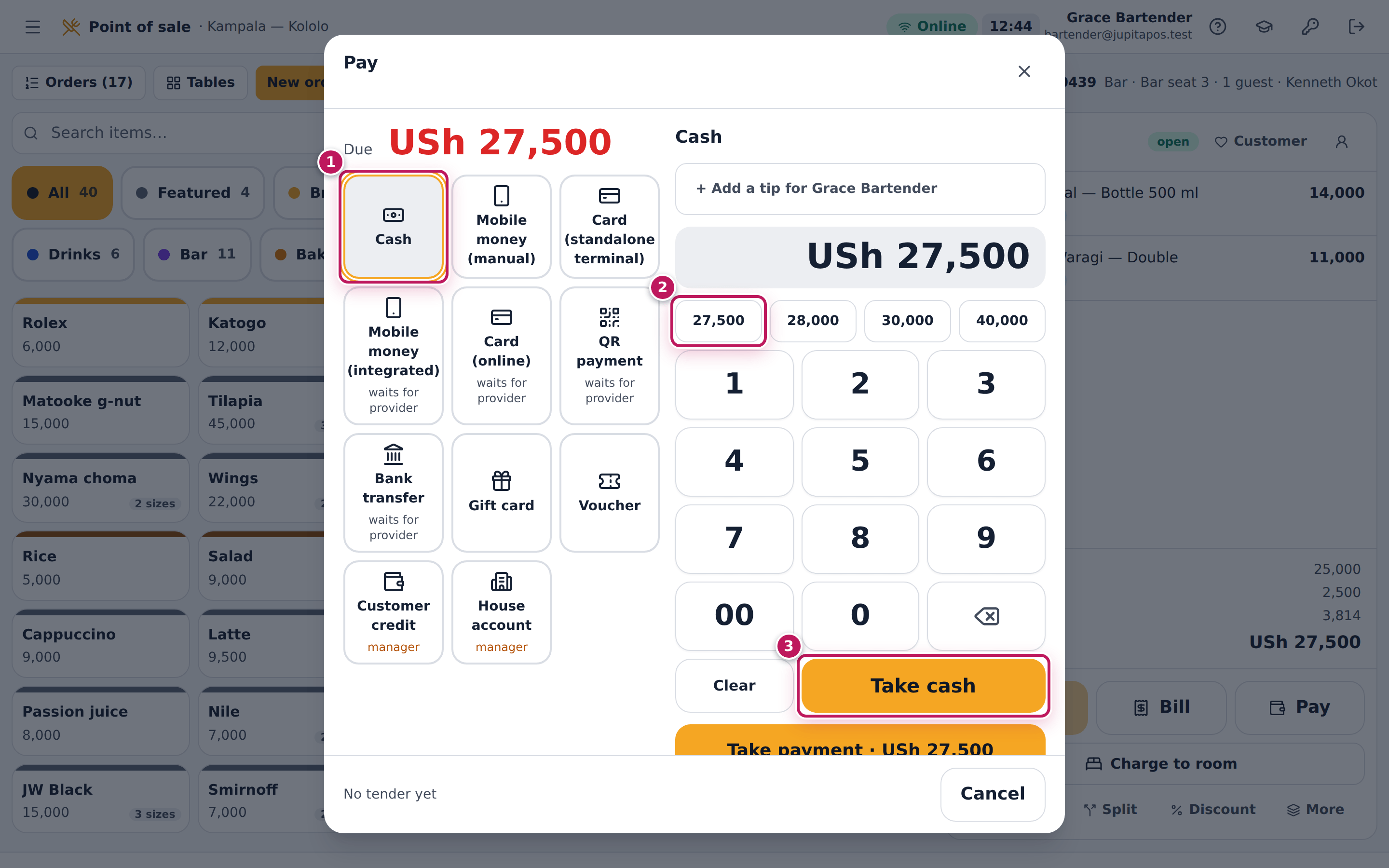
- Tap Cash (1), tap the amount the guest gives you — here the exact amount (2) — and tap Take cash (3). The receipt opens.
Expected result
The tab holds two Nile Special bottles (14,000) and a Uganda Waragi double (11,000): subtotal 25,000 plus a 10 % service charge of 2,500 — Total USh 27,500, with VAT of 3,814 included. After Take cash the receipt opens and the order is closed, paid 27,500. The drinks are taken out of the Kololo Bar Store: two 500 ml bottles and 50 ml of Waragi.
Screenshot
Common mistakes
- Starting a new order for each round. The guest then has several bills. Find the tab under Orders and add to it.
- Forgetting to send. Drinks that are not sent do not reach the bar screen and are not poured from stock until they are.
- Opening the tab without a name. At a busy bar, Bar seat 3 moves; the name finds the tab.
Troubleshooting
- Bar seat 3 is not in the Table list. It is taken by another open tab, or it is waiting to be cleaned. Open the floor plan (Tables) and check the seat.
- “Open a till before taking cash.” Your till is not open. Open it, or take the payment by card or mobile money.
- The guest leaves without paying. Tell your supervisor; the tab stays open under Orders until it is settled or voided.
FAQ
Can two guests share a tab and pay separately? Yes: tap Split on the order (see Split the bill).
Start a bar shift and check the opening stock
Purpose
Start the bar’s shift from the stock the book says is on the shelf, so that everything poured, spilt or sold from now on is counted against it.
Role / permission required
Bartenders and supervisors — anyone with beverage.operate.
Prerequisites
- The bar’s bottles have been received or issued to the bar store (see Issue a requisition).
- The previous shift is closed (see End the shift).
Steps
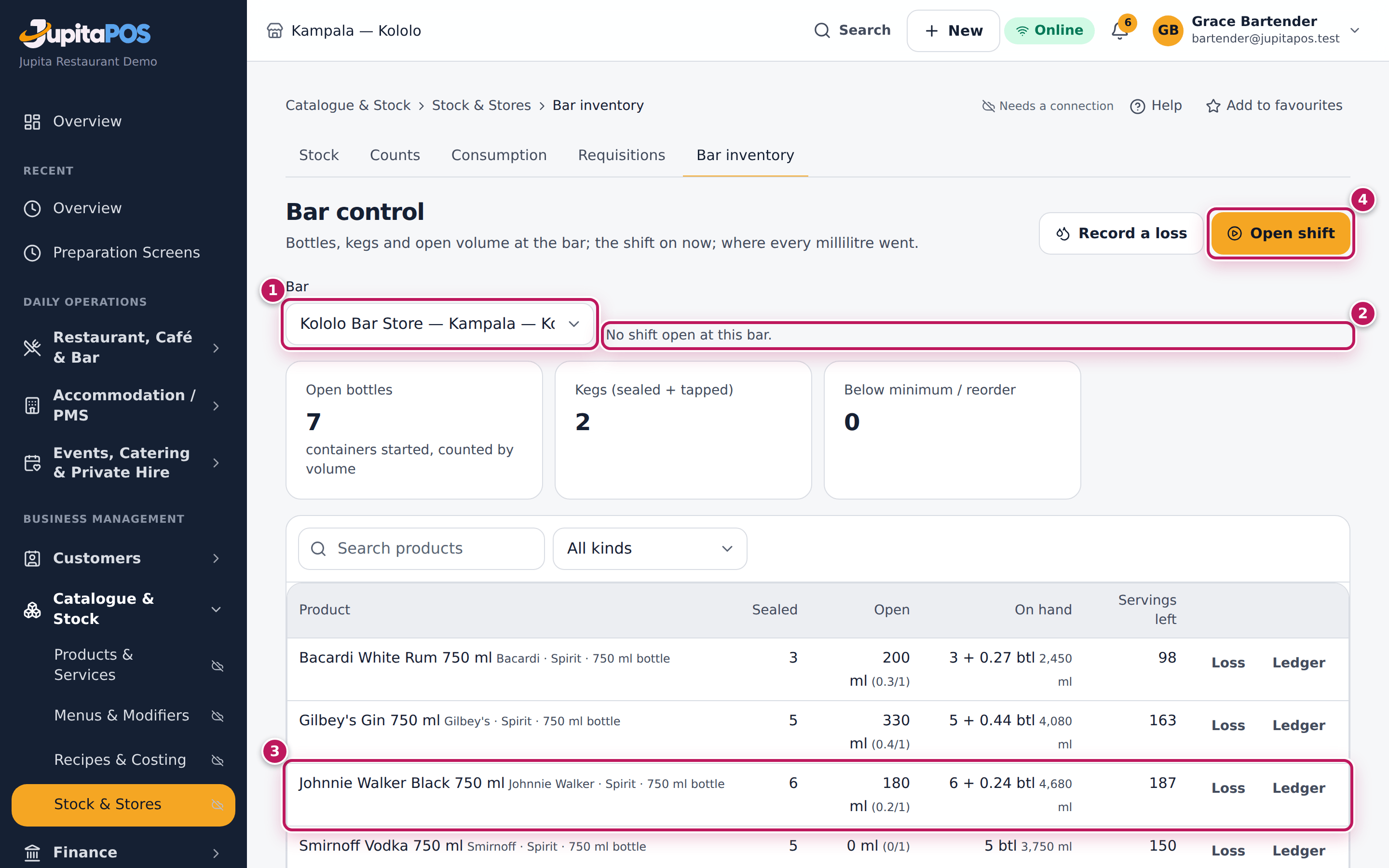
- Open Bar control from the sidebar (
/bar). - Check Bar (1) shows your bar store, Kololo Bar Store (the list has only the bar and coffee stores). The line next to it says No shift open at this bar. (2).
- Look at the stock (3): for each product the Sealed bottles, the Open volume and what is On hand. Check a few bottles on the shelf against it.
- Tap Open shift (4).
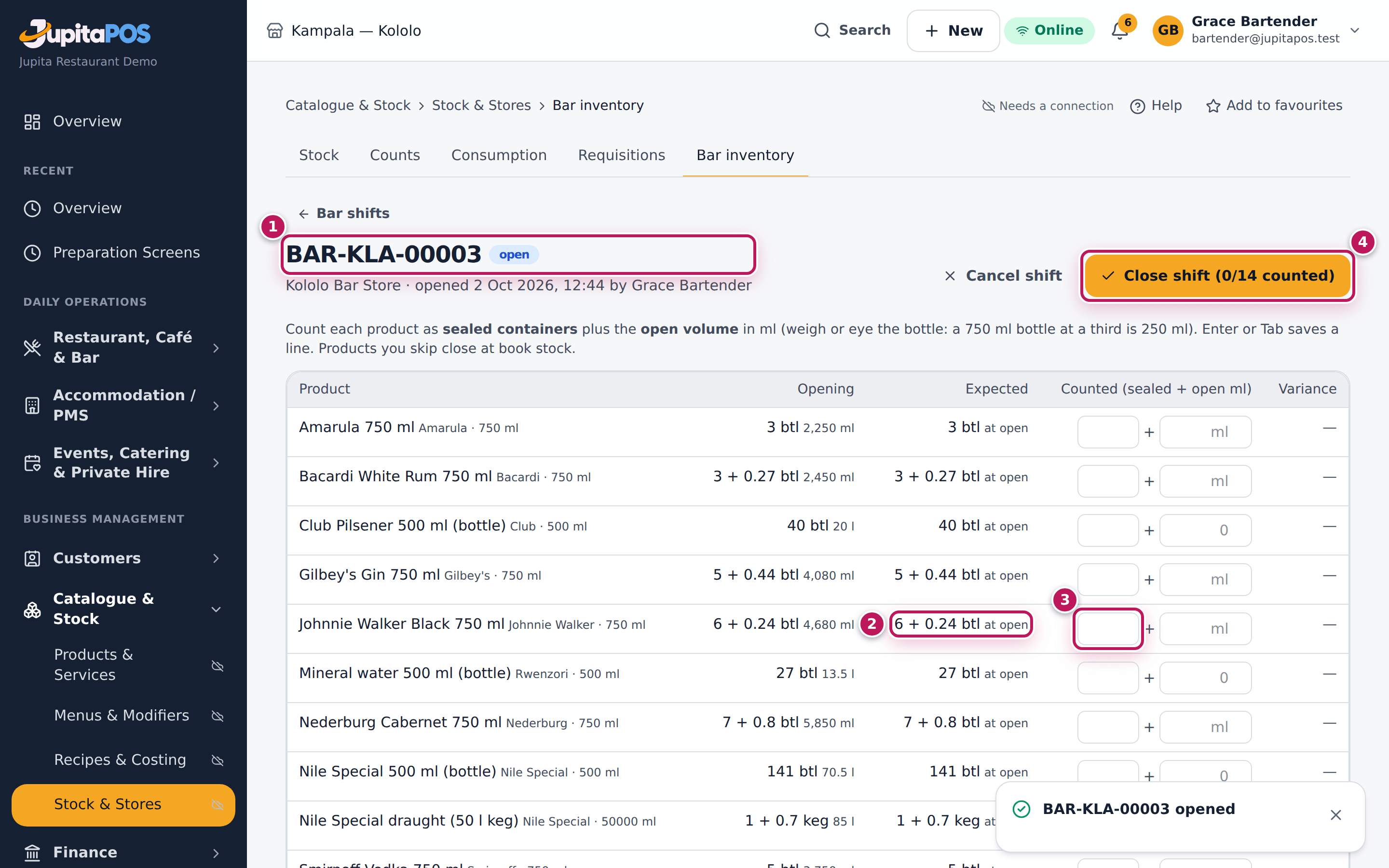
- The shift sheet opens with its number and open (1). Each product’s opening stock is under Expected (2), marked at open. The count boxes (3) are for the end of the shift.
- Go back to the bar. At the end of the shift tap Close shift (4) (see End the shift).
Expected result
A shift such as BAR-KLA-00003 is open at the Kololo Bar Store, opened by Grace Bartender, with one line per beverage (0/14 counted). Bar control now shows Shift open BAR-KLA-00003 since … and Count & close BAR-KLA-00003 instead of Open shift.
Screenshot
Common mistakes
- Opening a shift while bottles are still on the counter from the last one. Put them back first: the opening stock is the book, not what you see on the counter.
- Keeping one shift open for days. A shift should match a bartender’s work; a variance over three days tells you nothing about who poured what.
Troubleshooting
- “Kololo Bar Store already has an open shift.” The last shift was not closed. Tap Count & close and close it first.
- The stock on screen is not what is on the shelf. Tell your manager before you start: a missing bottle must be explained now, not found as your variance tonight.
- A new product is not on the sheet. Only products with stock at the bar store are on it; issue the product to the bar first.
FAQ
Do I count the bottles when I open the shift? No. The opening is the book stock — the last closing count plus everything received since. You count once, at the close.
End the shift: count the bottles and see the variance
Purpose
Count what is really on the shelf, close the shift and see, product by product, what nobody can explain — so over-pouring or a missing bottle is found the same night.
Role / permission required
Bartenders and supervisors — anyone with beverage.operate.
Prerequisites
- A shift is open at the bar (see Start a bar shift).
- Every spill, breakage and drink poured without a ticket during the shift is recorded (see Record a spill or breakage).
- Every drink is rung up and paid or on an open tab.
Steps
- Open Bar control (
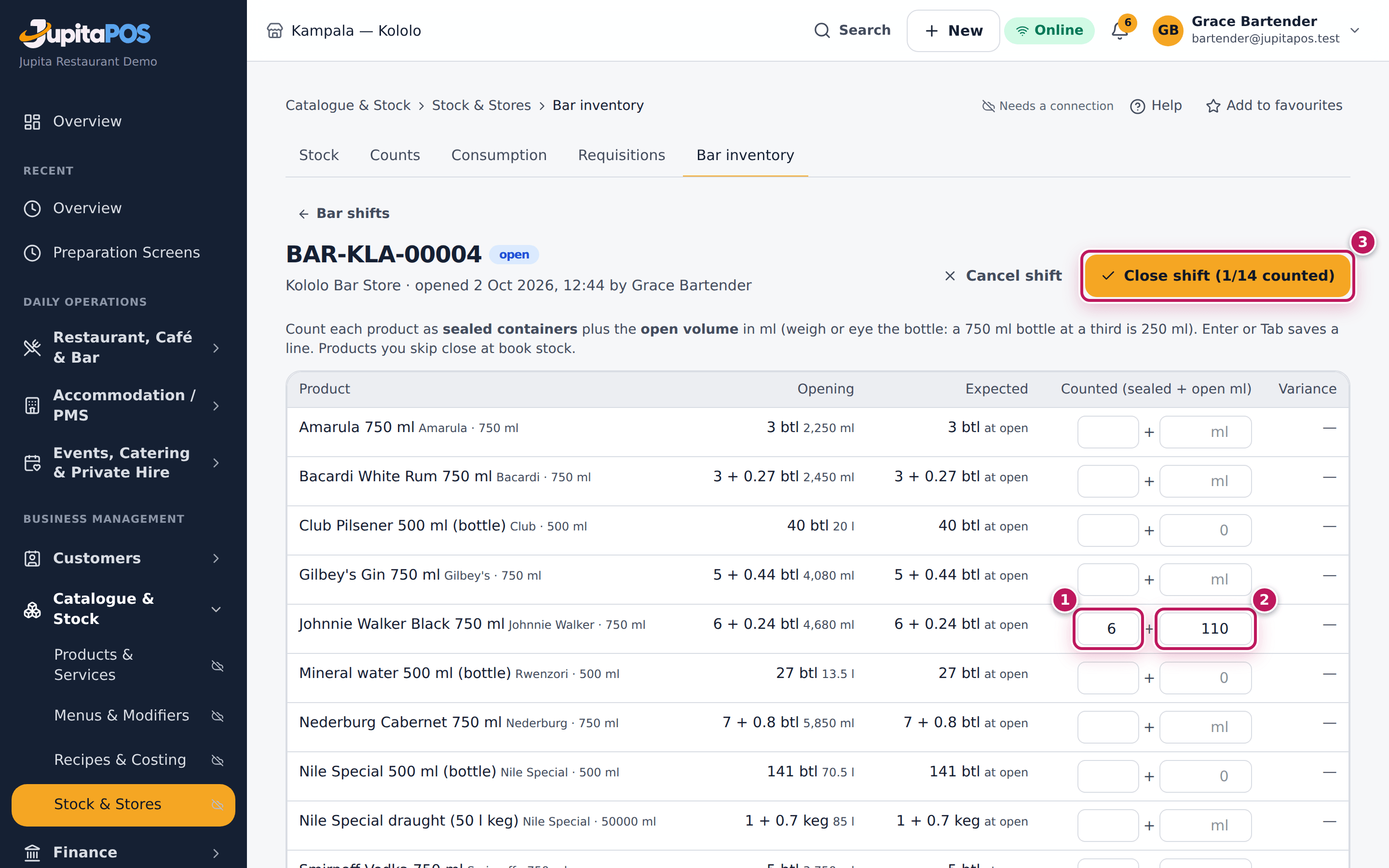
/bar) and tap Count & close with the shift’s number. - For each product, count the sealed bottles (1) and enter them, then weigh or eye the open bottle and enter its open volume in ml (2) — a 750 ml bottle at a third is 250 ml. Press Enter or Tab: the line is saved and the counter on Close shift goes up.
- Products you do not count close at the book stock. Count at least the spirits and the wine.
- Tap Close shift (3).
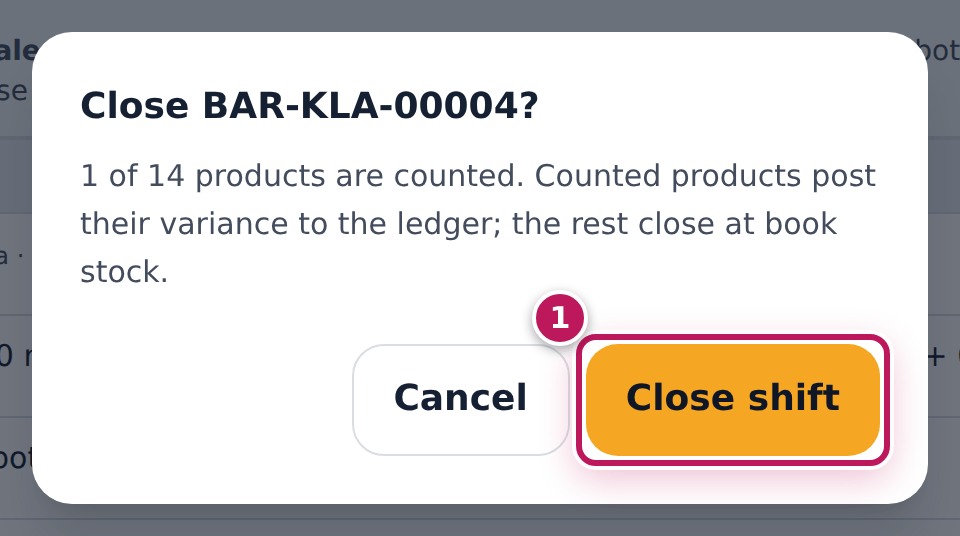
- Read the confirmation and tap Close shift (1).
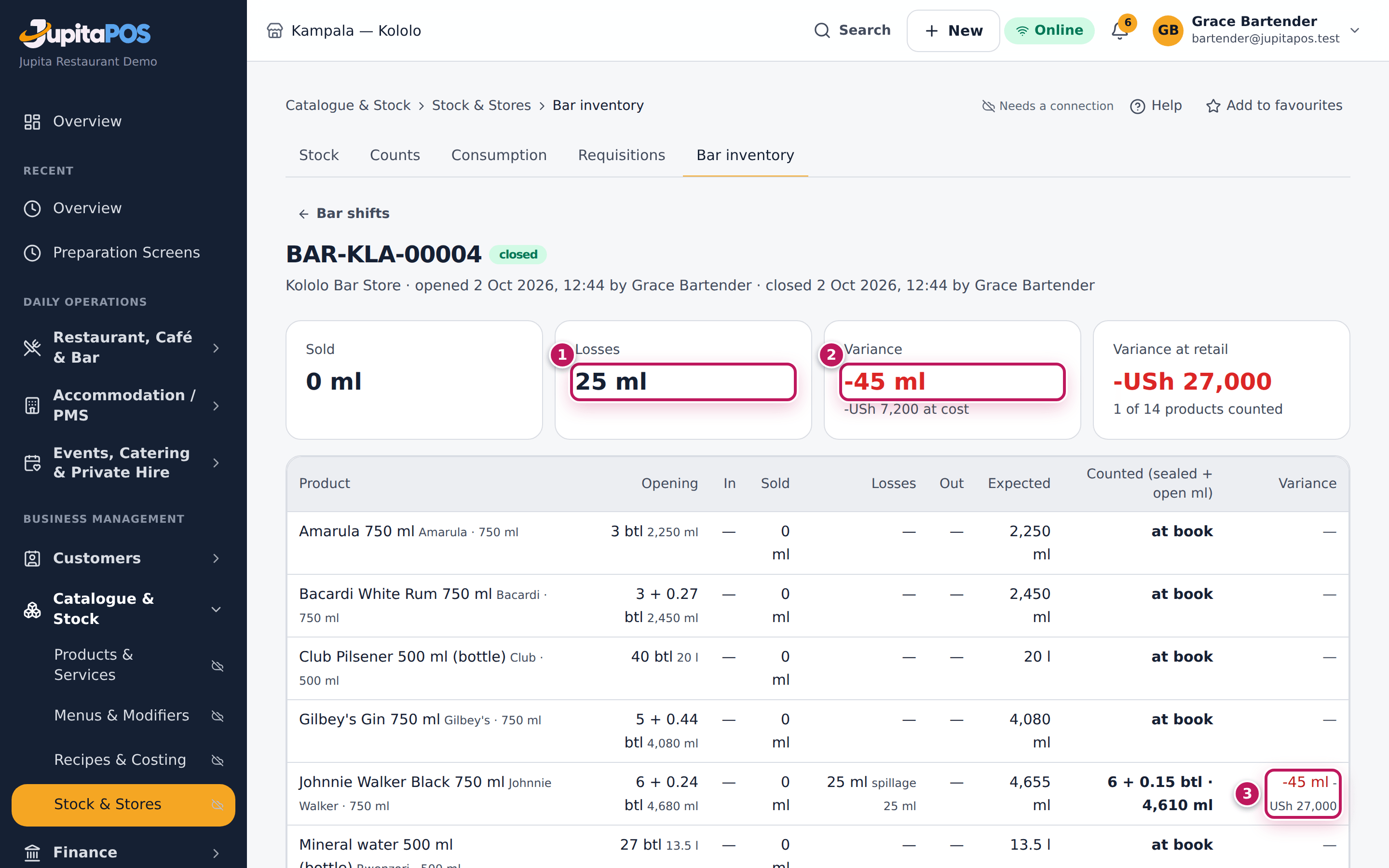
- Read the totals: Losses (1), Variance (2), and each product’s variance in ml and at the bar’s price (3).
Expected result
With Johnnie Walker Black counted 45 ml short of the book, the message BAR-KLA-… closed · variance -45 ml shows and the shift closes with Losses 25 ml (the spill recorded during the shift), Variance -45 ml (-USh 7,200 at cost) and Variance at retail -USh 27,000; the whisky’s line shows -45 ml and -USh 27,000 at the bar’s price. The difference is posted to the stock ledger as a closing count, so the next shift starts from what is really on the shelf.
Screenshot
Common mistakes
- Counting a bottle as full because it is sealed-looking. Count only bottles whose seal is unbroken as sealed; everything else is open volume.
- Entering the open volume as a fraction. The box takes millilitres: a third of a 750 ml bottle is 250, not 0.3.
- Recording spills after the close. A loss recorded after the close belongs to the next shift. Record it before you count.
Troubleshooting
- The variance is negative on every spirit. Over-pouring, free pours or comps not rung up. Compare the Bartender report (see Read the bar reports).
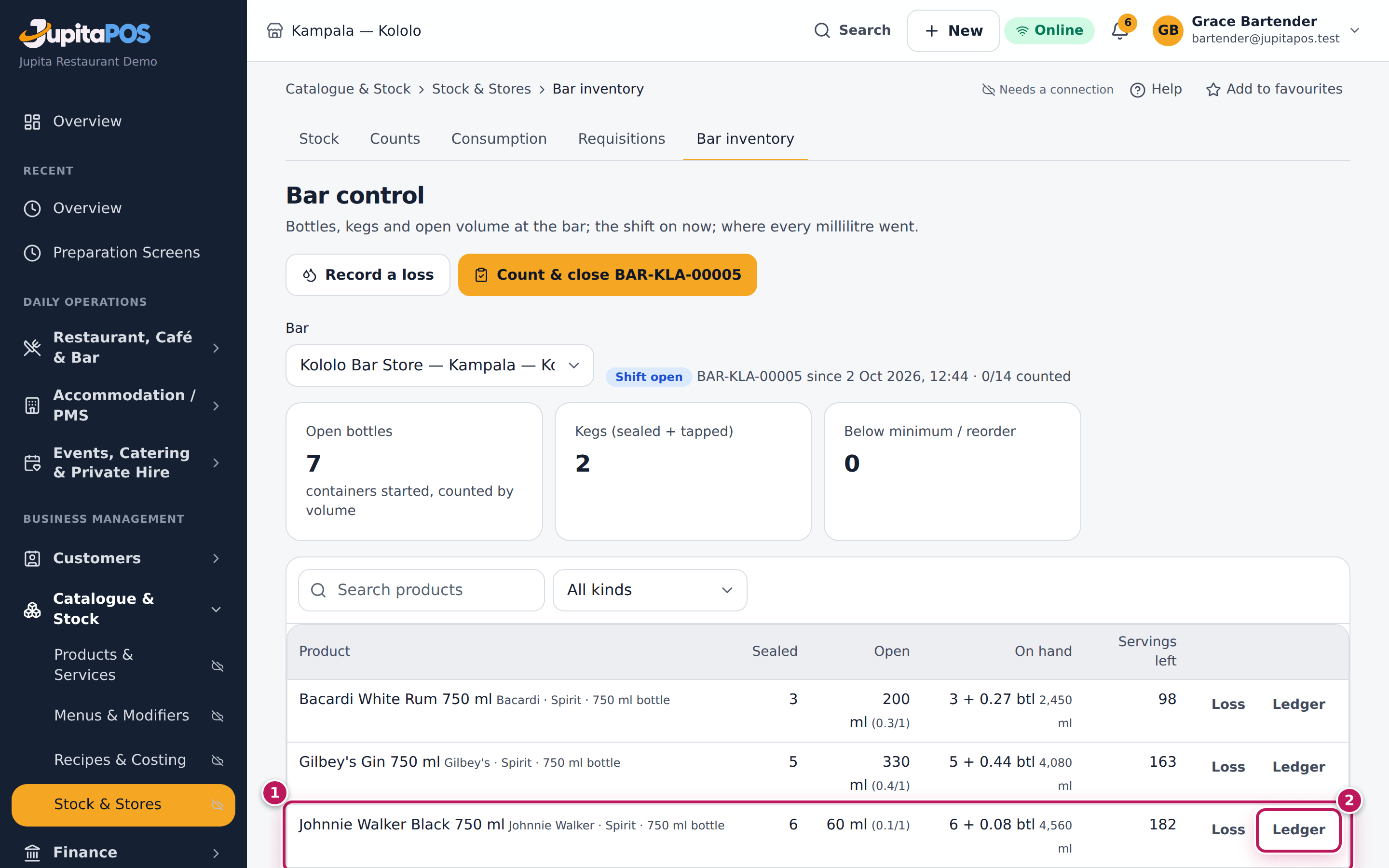
- The variance is positive. Under-pouring, or a delivery counted twice. Check the product’s ledger (Ledger on its row).
- A keg shows a big negative variance. Foam, a leaking tap or line cleaning not recorded. Record Line cleaning as a loss next time.
- I closed the shift by mistake. A closed shift cannot be reopened. Open a new shift and count again at its close.
FAQ
What does “at book” mean for products I did not count? They close at the stock the ledger expects, with no variance. Nothing is posted for them.
Can I cancel a shift? Yes, Cancel shift on an open shift discards the counts entered and posts nothing.
Record a spill or breakage
Purpose
Take out of the bar’s stock what was poured without a ticket — a spill, a broken bottle, an over-pour, a comp or staff drink, line cleaning — so it is explained as a loss and not found as a variance at the count.
Role / permission required
Bartenders and supervisors — anyone with beverage.operate.
Prerequisites
- The product is set up as a beverage product (see Set up bottles, measures and kegs).
Steps
- Open Bar control (
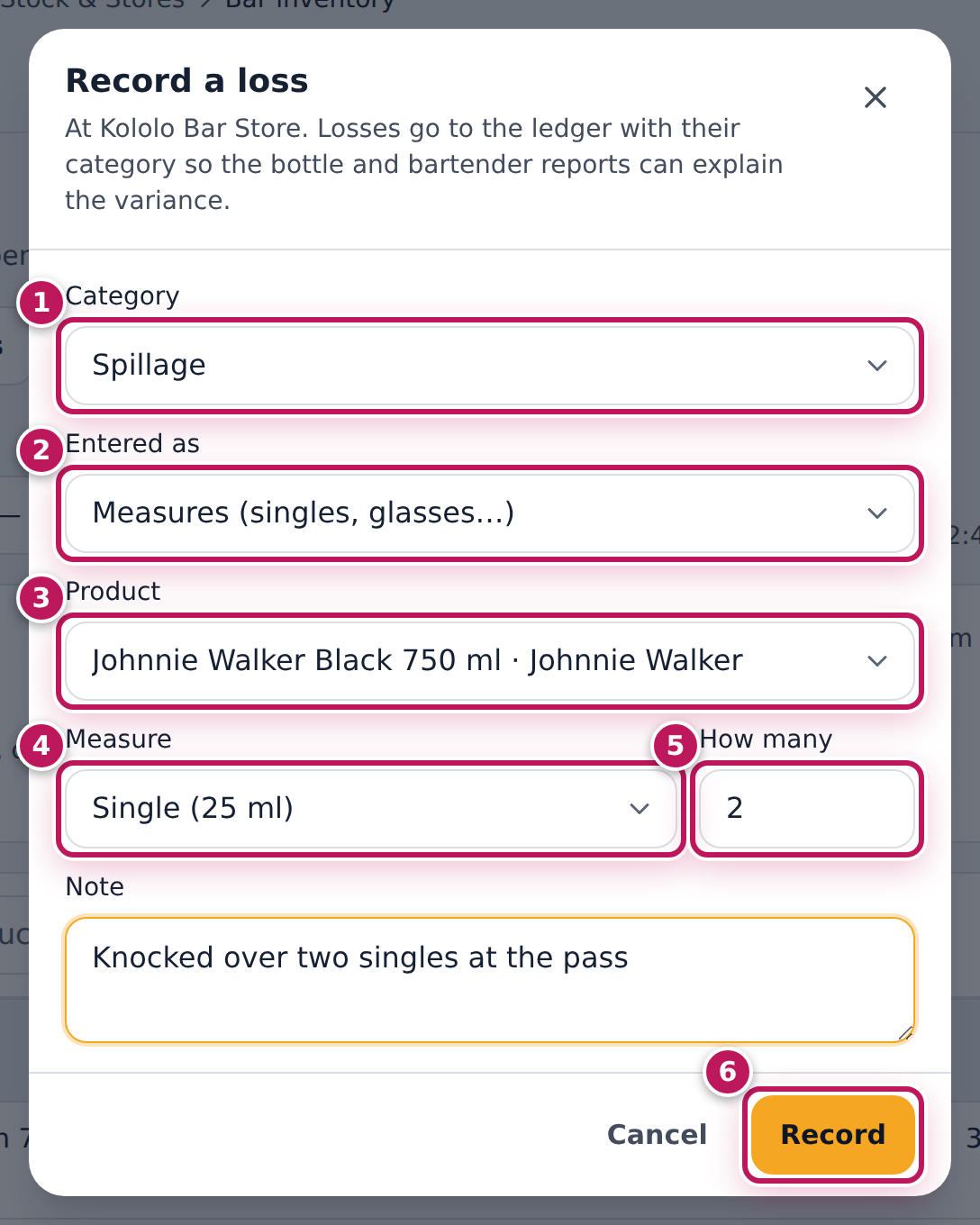
/bar) and tap Record a loss — or Loss on the product’s row. - Choose the Category (1): Spillage, Breakage, Over-pouring, Re-make, Complimentary (no ticket), Staff drink (no ticket), Line cleaning or Theft / unexplained.
- In Entered as (2), choose how you count it: Volume (ml), Measures (singles, glasses…), Whole bottles / kegs, or A drink (menu item) for a cocktail (all its ingredients are taken out).
- Choose the Product (3) and the Measure (4), and enter How many (5).
- Say what happened in Note, and tap Record (6).
Expected result
The message Spillage: 50 ml of Johnnie Walker Black 750 ml shows, and the whisky’s On hand goes down by 50 ml. The loss shows in the shift’s Losses with its category, and in the bottle and bartender reports.
Screenshot
Common mistakes
- Recording a drink that was re-made on the bar screen. Re-make and Spillage on a bar ticket already take the stock out (see Record a re-make or a spilt drink).
- Recording a comp that was rung up as a comp at the till. It is already counted as a comp. Record only what had no ticket.
- Using Theft / unexplained for everything. Use the real category; the reports group the losses by it.
Troubleshooting
- The product is not in the list. It is not set up as a beverage product, or it has no stock at this bar. Ask your manager.
- “Record” does nothing. Look for the red message at the top of the dialog: a volume is missing, or more than the stock is being taken out.
Set up bottles, measures and kegs
Purpose
Tell the system which stock items are drinks, how big their bottles and kegs are, and how they are poured — so every single, double, glass or pint sold at the till takes the right millilitres out of the bar store.
Role / permission required
Bar managers, branch managers and owners — anyone with beverage.manage.
Bartenders can see the list (beverage.view) but not change it.
Prerequisites
- The drink exists as a stock item (see Add an ingredient).
- The drink is on the menu (see Add a menu item).
Steps
- Open Bar control and tap Products & measures (
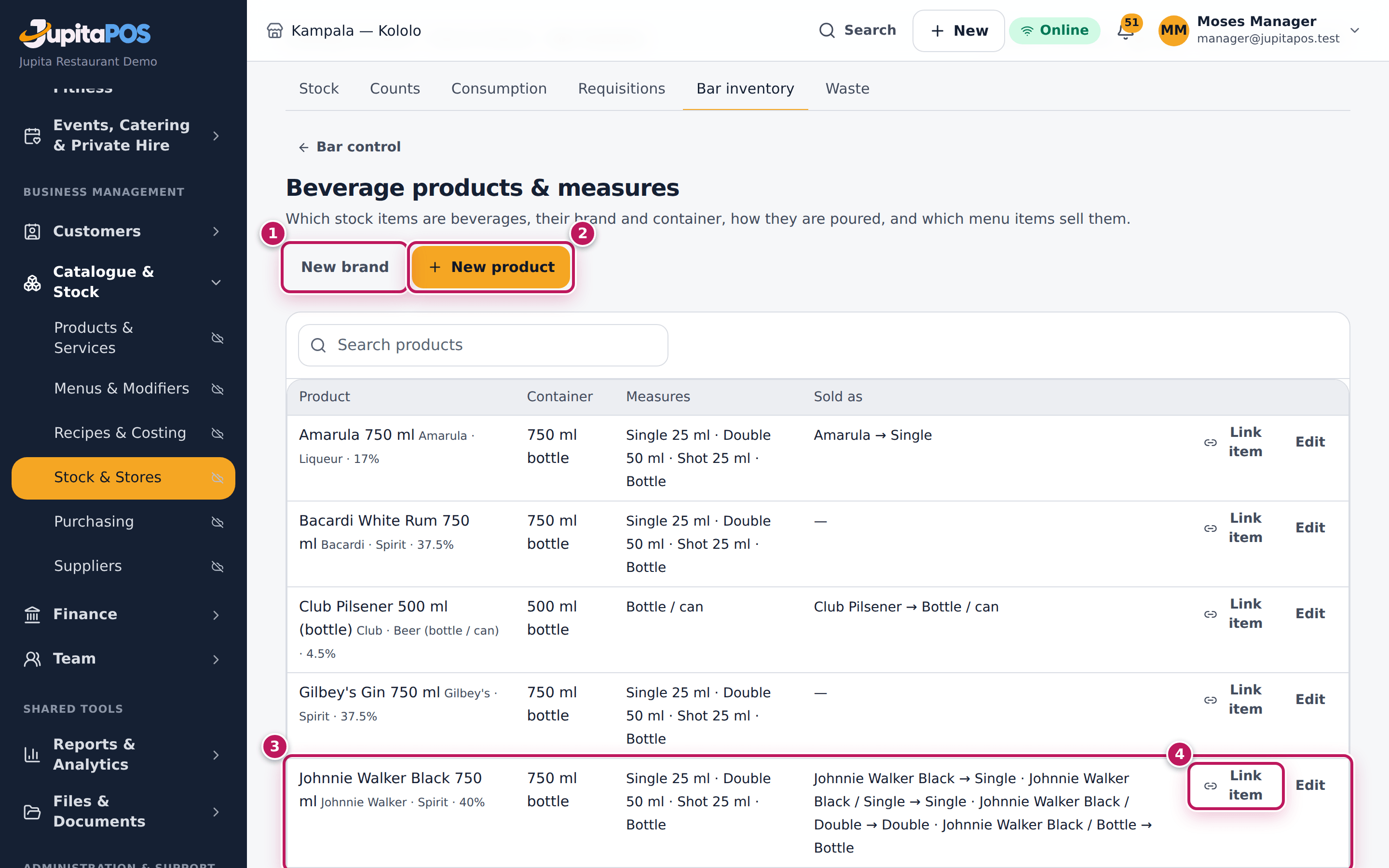
/bar/products). Each product (3) shows its container, its measures and the menu items that sell it. - For a new drink, tap New product (2) and choose its Stock item. To add a brand first, tap New brand (1).
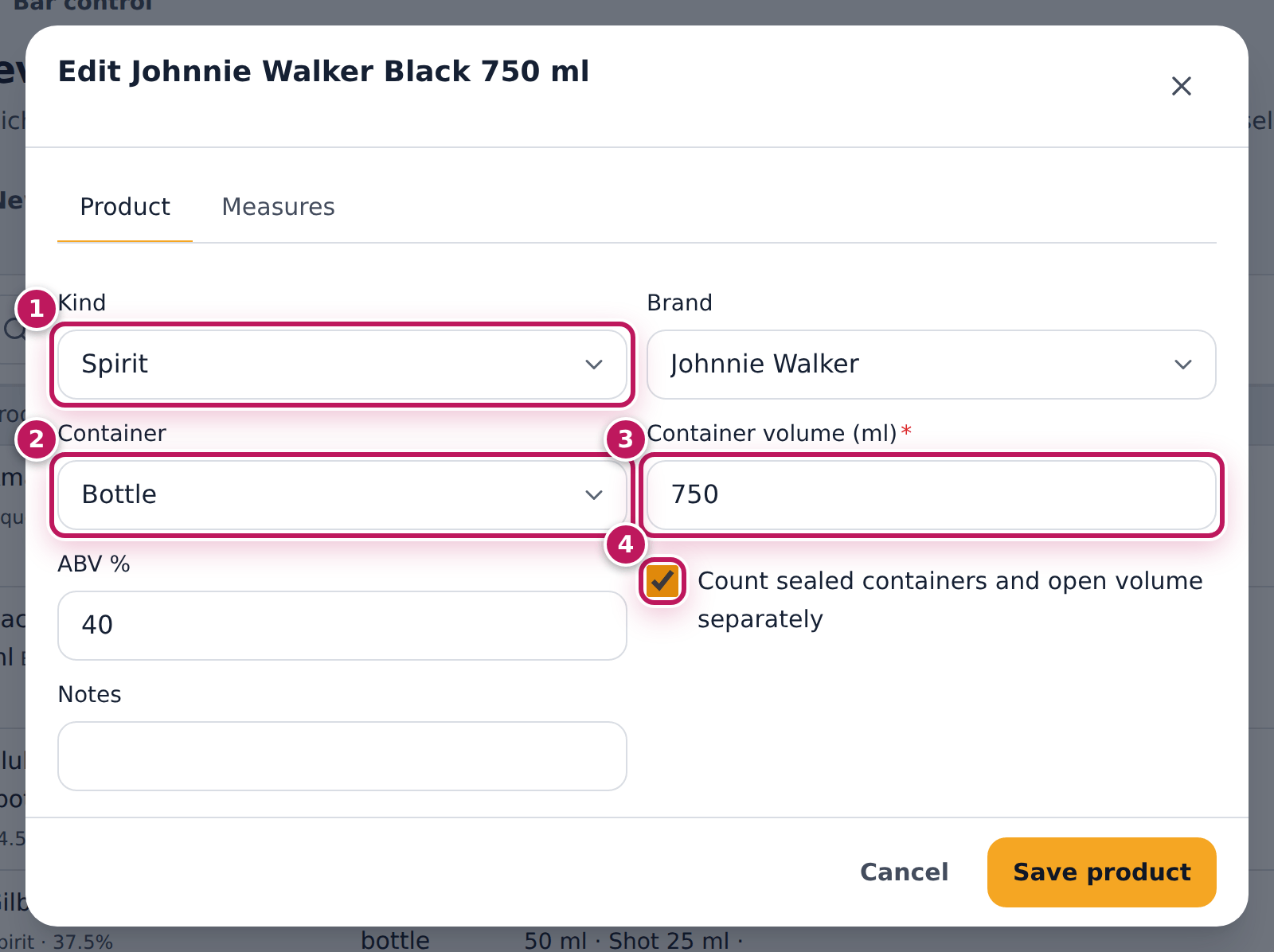
- On the Product tab, choose the Kind (1) — spirit, liqueur, wine, draft (keg), beer, mixer… — the Brand, the Container (2) and the Container volume (ml) (3). Keep Count sealed containers and open volume separately (4) ticked for spirits, wine and kegs.
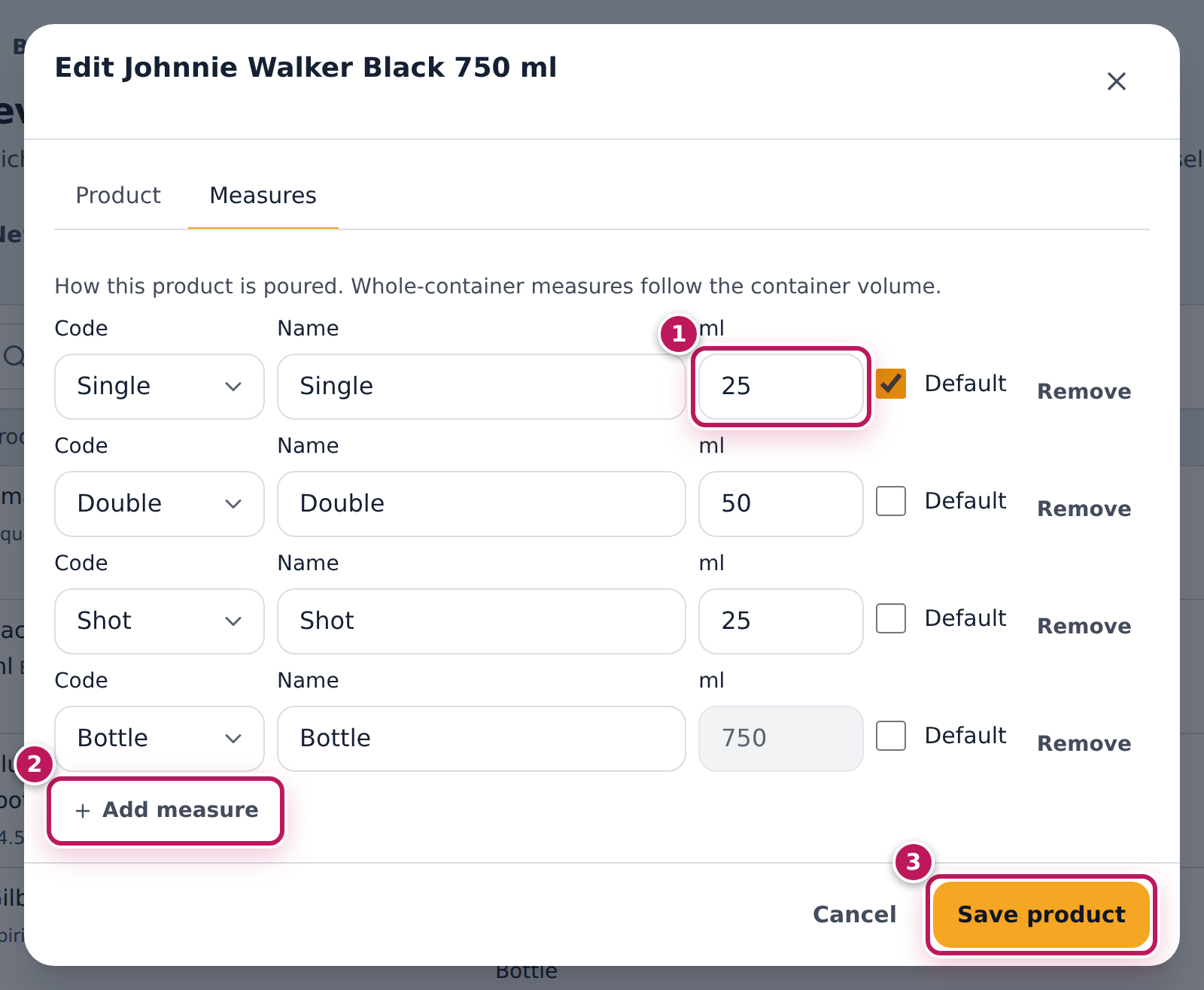
- Open the Measures tab. The kind fills in its measures — Single 25 ml, Double 50 ml, Bottle for a spirit; Glass 150 ml, Bottle for wine; Pint, Half pint, Jug, Keg for draft. Change a volume (1) or Add measure (2) — a quarter bottle of Waragi is 250 ml.
- Tap Save product (3).
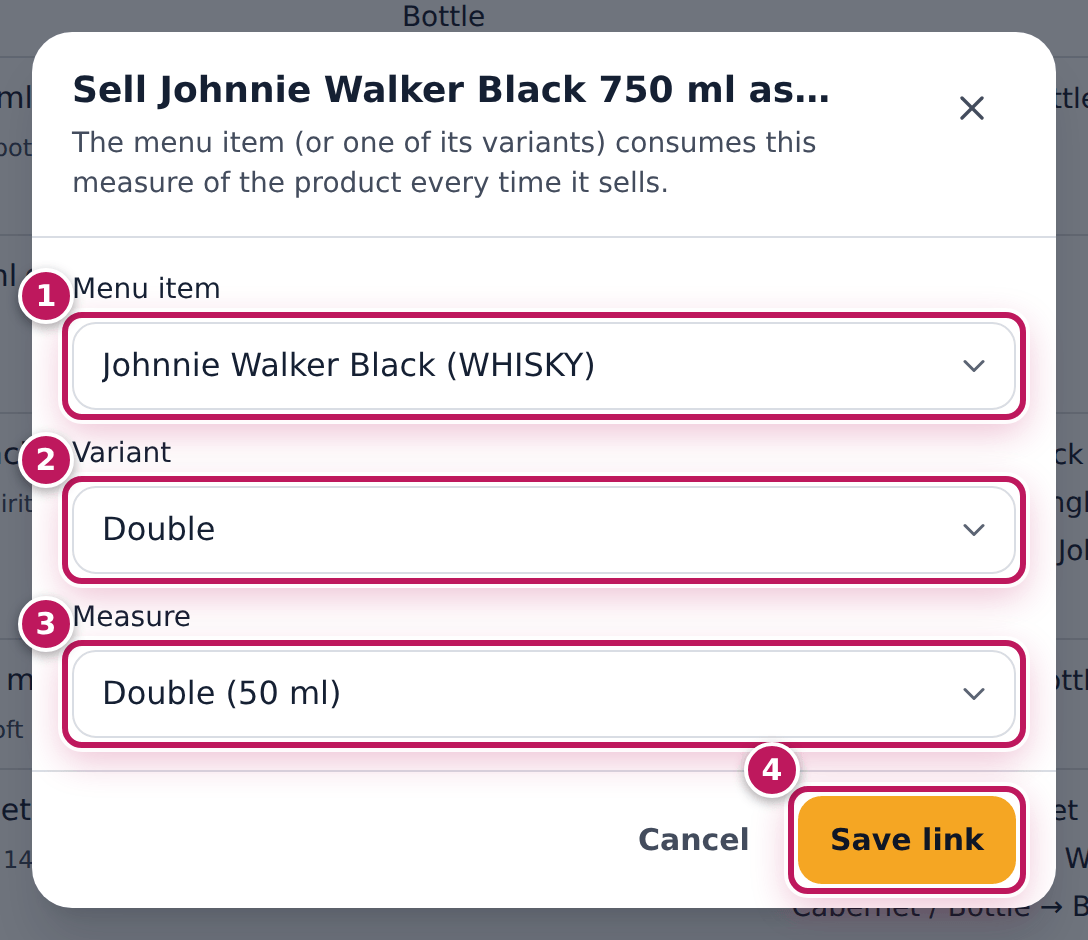
- Link the menu item: tap Link item (4) on the product’s row. Choose the Menu item (1), the Variant (2) it sells, and the Measure (3) it pours, then Save link (4). Do this for each variant: Single pours the single, Double the double.
Expected result
Product saved and Menu item linked show. The row for Johnnie Walker Black 750 ml lists Single 25 ml · Double 50 ml · Bottle, and under Sold as the menu item’s Double pours the Double. From now on each double sold takes 50 ml out of the Kololo Bar Store.
Screenshot
Common mistakes
- Linking only the item, not its variants. A double then pours a single. Link every variant.
- Linking cocktails. A cocktail needs no link: its recipe is what pours (see Write a recipe for a menu item).
- Changing a measure’s volume in the middle of a shift. Sales before and after pour different amounts. Change measures between shifts.
Troubleshooting
- The stock item is not in the list. It is already a beverage product, or it is not a stock item yet.
- “A product needs at least one measure.” Keep at least one measure on the Measures tab.
- The bar still shows no stock for the new product. Receive or issue the bottles to the bar store (see Issue a requisition).
Read the bar reports
Purpose
Find out where the drinks went — which products lost the most, which shifts and bartenders had a variance, and which drinks make money.
Role / permission required
Bar managers, supervisors, branch managers, owners and accountants —
anyone with beverage.reports.
Prerequisites
- Shifts have been closed in the period (see End the shift).
Steps
- Open Bar reports from the sidebar (
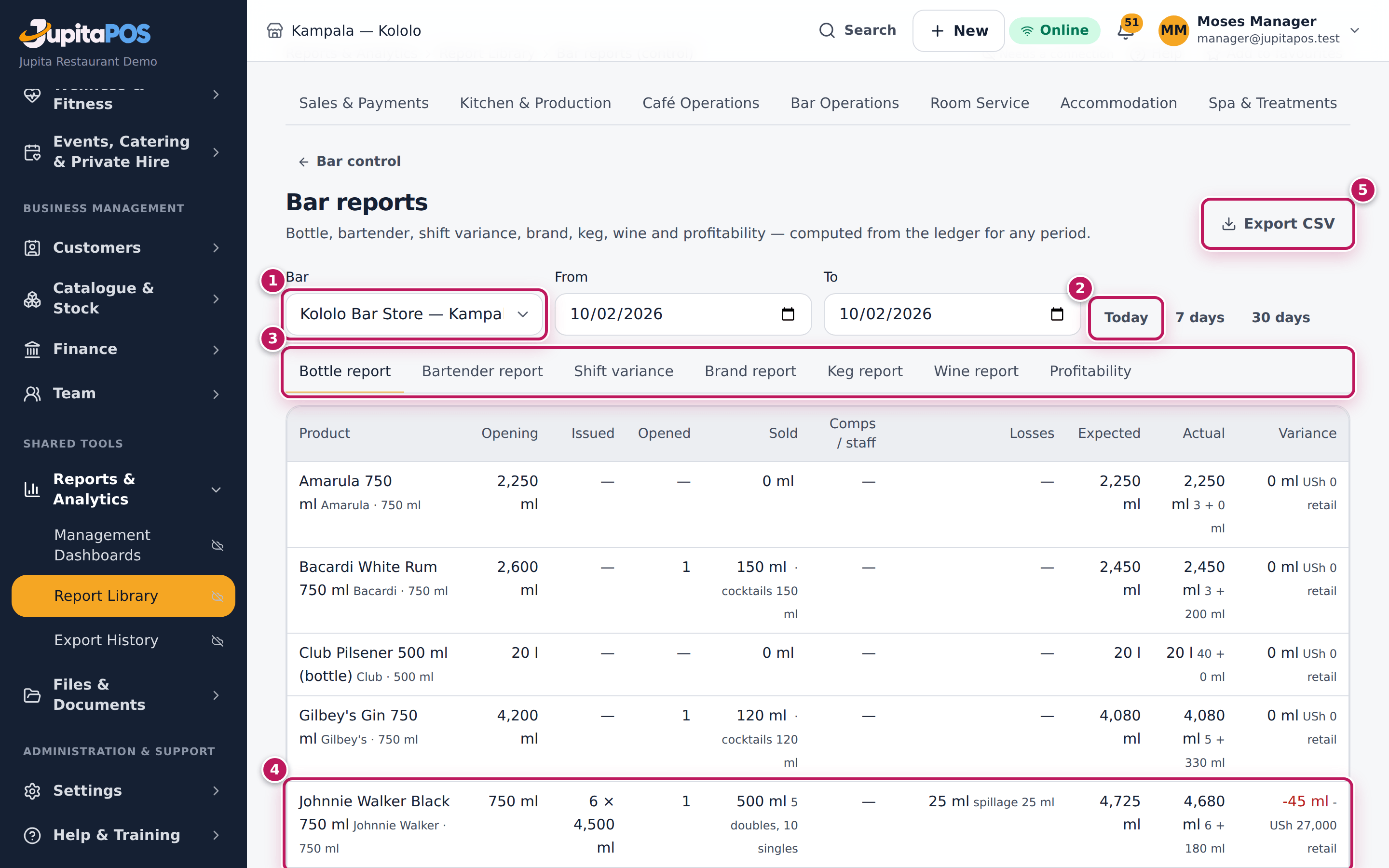
/bar/reports), or Reports on Bar control. - Choose the Bar (1), for example Kololo Bar Store, or all bars. The list shows only the bar and coffee stores.
- Choose the period with From and To, or tap Today (2), 7 days or 30 days.
- Choose the report (3):
- Bottle report — per product: opening, issued, opened, sold by measure and in cocktails, comps and staff, losses, expected, actual and the Variance (4).
- Bartender report — per person: drinks, ml poured, revenue, comps, the losses they recorded, voids after send, their shifts’ variance.
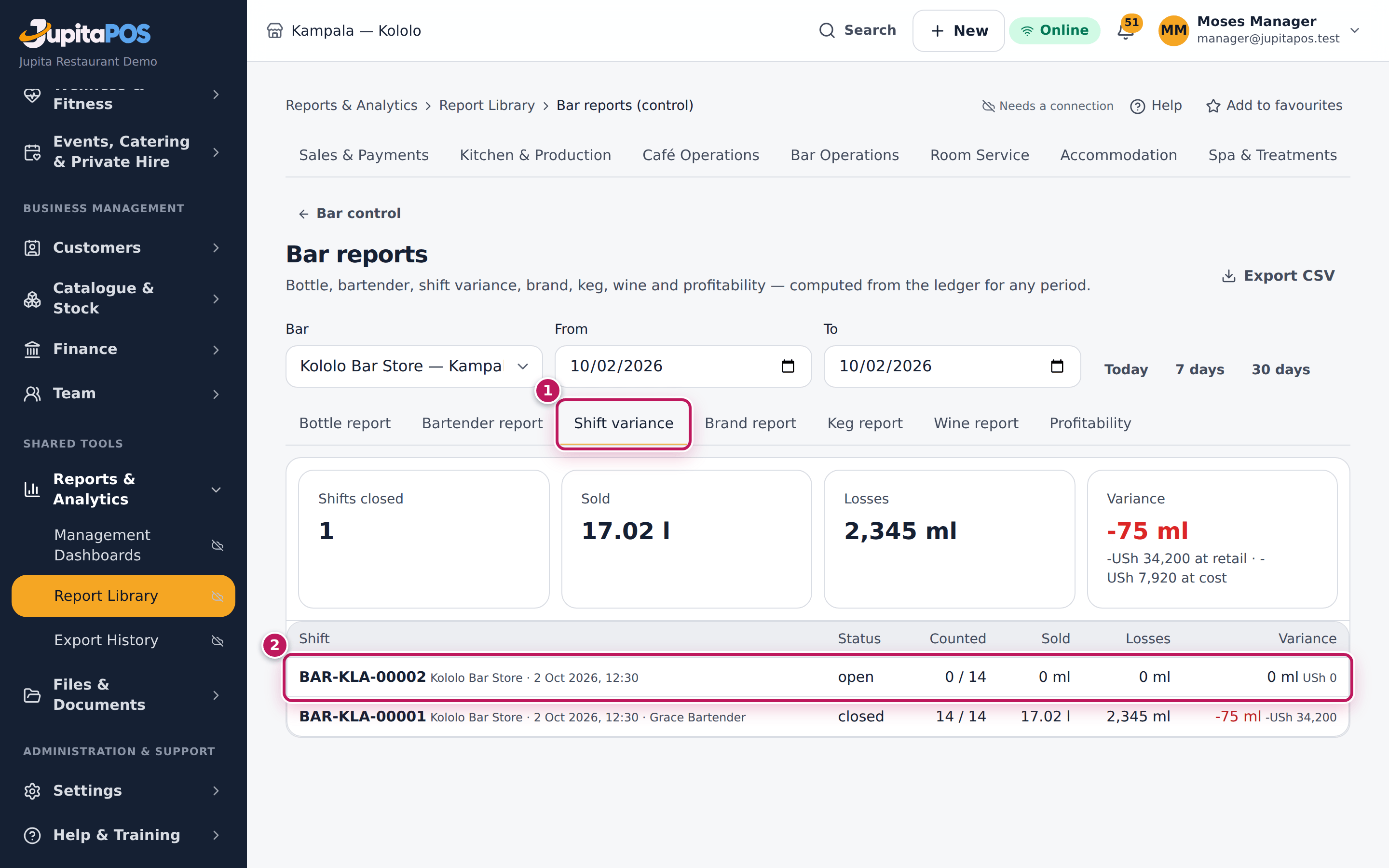
- Shift variance (1) — every shift of the period with its sold, losses and variance; tap a shift (2) to open its sheet.
- Brand report, Keg report (yield of each keg) and Wine report (glasses and bottles).
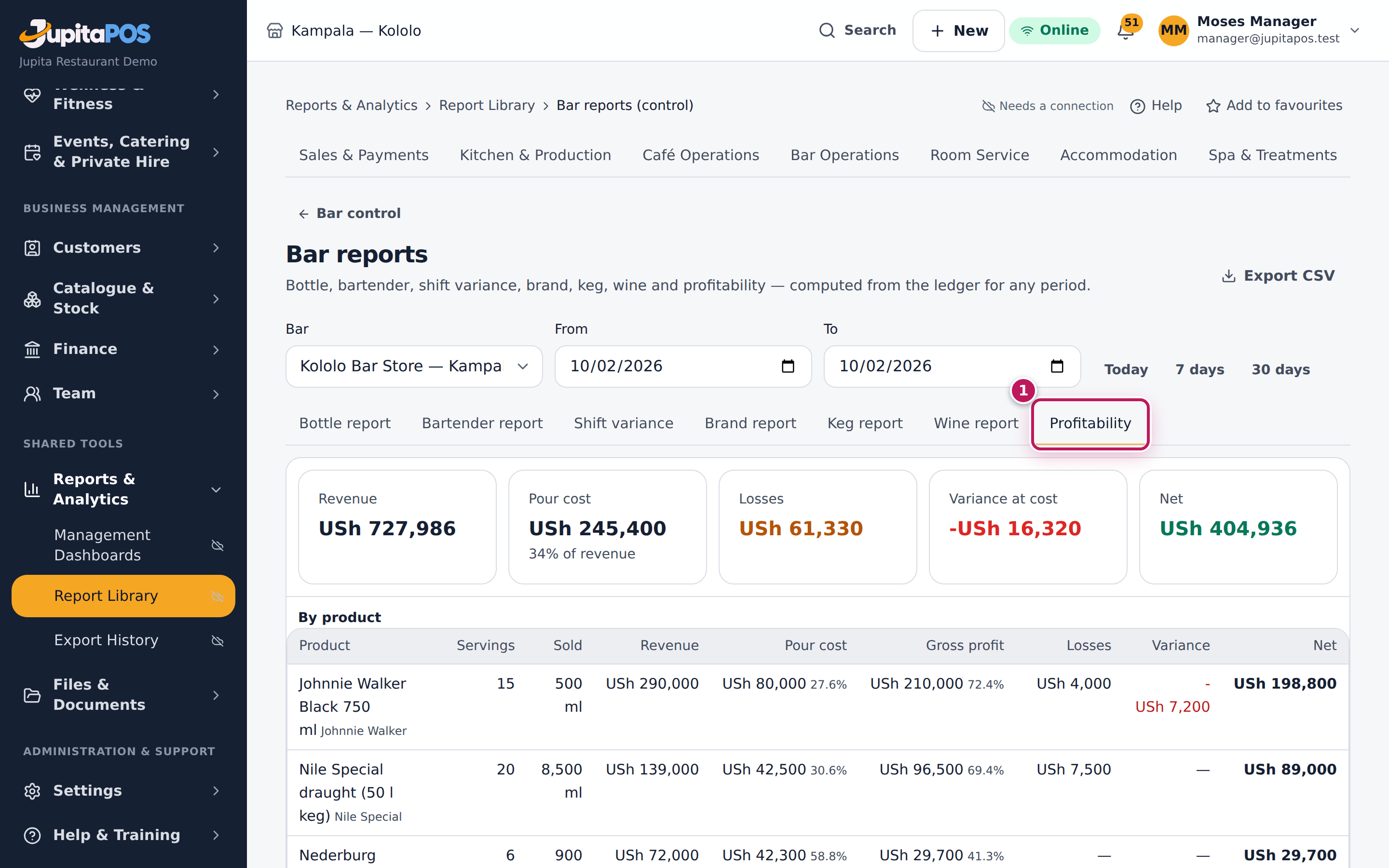
- Profitability (1) — revenue, pour cost, losses and variance at cost, and the net, per product and per drink.
- Tap Export CSV (5) to download the table on screen.
Expected result
For today at the Kololo Bar Store, the demo’s Bottle report shows Johnnie Walker Black: opening 750 ml, 6 bottles issued (4,500 ml), 500 ml sold as 5 doubles and 10 singles, 25 ml of spillage, 4,725 ml expected, 4,680 ml actual (6 + 180 ml) and a variance of -45 ml (−USh 27,000 at retail). Shift variance lists the day’s shifts with their sold, losses and variance.
Screenshot
Common mistakes
- Reading the variance of a shift that was not counted. A product closed at book has no variance; the report is only as good as the count.
- Comparing a day with open shifts. An open shift has no closing count yet. Read the reports after the shift is closed.
Troubleshooting
- “Nothing moved in this period”. No sale, loss or count at that bar in those dates. Check Bar and the dates.
- Bar reports is not in my sidebar. You need
beverage.reports; the Bartender role does not have it.
FAQ
Is a report “run” at night? No. Every report is computed from the stock ledger when you open it, for exactly the period you choose.
How is the variance at the bar’s price worked out? From what the product sells for per millilitre at the till: a single of Johnnie Walker Black (25 ml) sells for 15,000, so 45 ml is worth 27,000.