

On this page
Training mode lets a new member of staff practise on the real screens — the till, the floor plan, the kitchen and bar boards — during real service, without changing anything real. You switch it on for your own session only: the colleague at the next till, or the cook on the real board, keeps working for real.
Practice is never silent and never unapproved. A supervisor approves the switch to training with their employee number and PIN (managers who look after training start it themselves); the managers of the branch are told when someone starts; and practice is listed on the till and the shift report beside the real figures — never inside them.
Everything you make while you practise is a training record: a training
order (TRN-KLA-000001), a training ticket, a training payment and a
training receipt (TRN-RCT-KLA-000001). Training never touches:
- sales — no sale, no sales summary, no report;
- stock — nothing is consumed, wasted or counted;
- the books — nothing is posted to the ledger, no VAT;
- loyalty — no points, stamps or rewards, and no customer statistics;
- till cash — your drawer, its expected cash and the shift report do not move;
- numbering — real orders, receipts, bills and invoices keep their own numbers, with no gaps;
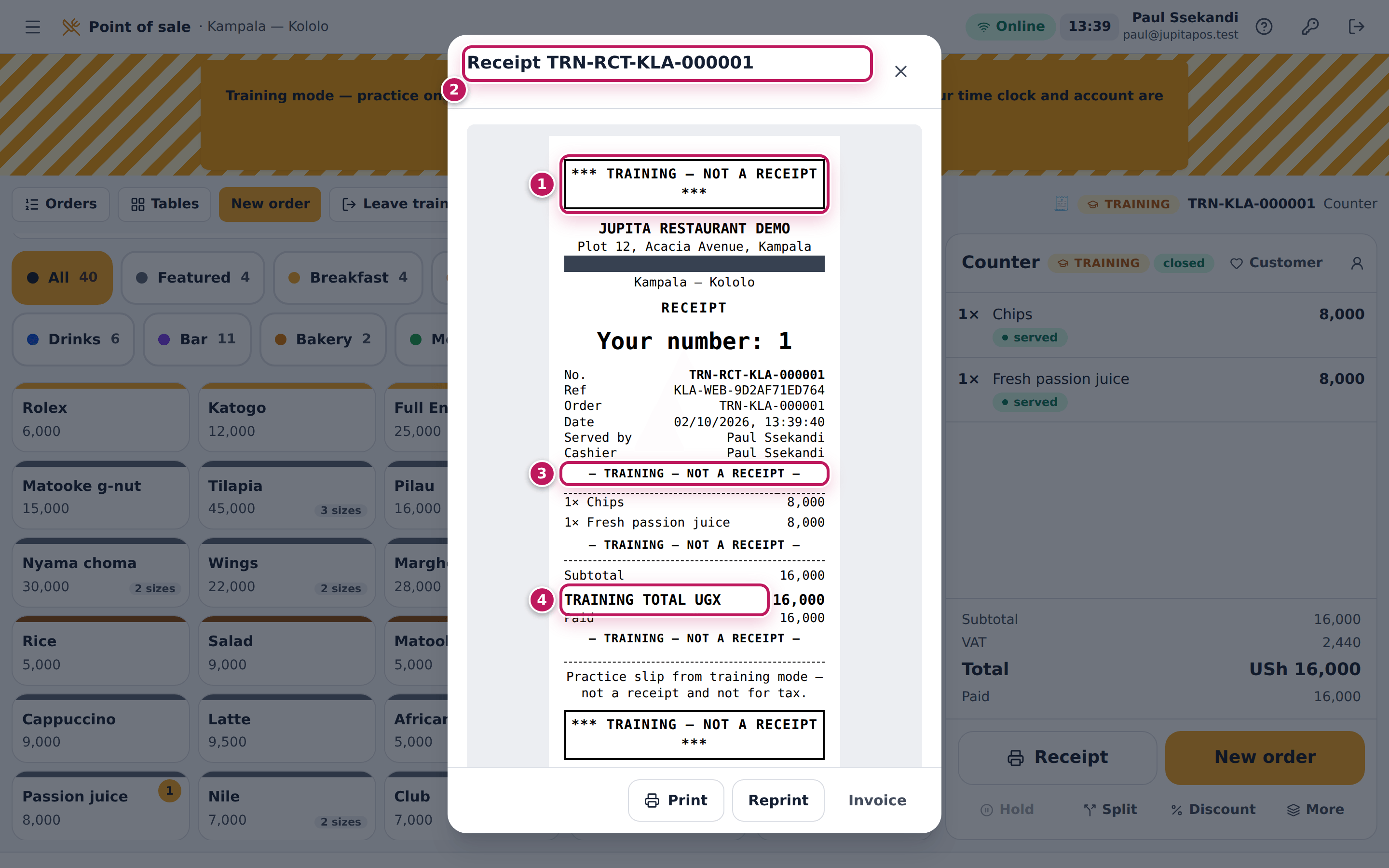
- tax — a practice slip has no tax breakdown and no TIN (the business’s own receipt footer is replaced too), says TRAINING TOTAL and repeats TRAINING — NOT A RECEIPT in every part;
- tables and the kitchen — a real table is never blocked by practice, and a real kitchen or bar board never shows a practice ticket.
Your time clock and your own account are real: clocking in and out, and changing your PIN or password, work as always while you practise.
The screens in this manual are the demo business, Jupita Restaurant Demo, at its Kampala — Kololo branch on a Friday lunchtime. The trainees are Paul Ssekandi (cashier), Brian (waiter), Diana Atim (cook) and Fatuma Nakimuli (waiter); Sam Supervisor (employee number EMP-0018) approves their practice, and the branch manager is Moses.
The guides:
- Practising — start training, sign in for training at a shared till, practise a sale, practise on the kitchen or bar board, practise table service and leave training.
- For supervisors — approve a colleague’s training.
- For managers — see who practised, open a practice order and clear the practice.
RetailPOS, PharmacyPOS and Route SalesPOS
Training mode is part of the Hospitality Suite: the till, the floor plan and the kitchen and bar boards. RetailPOS, PharmacyPOS and Route SalesPOS do not have a training switch: everything recorded in them is real.
To practise in those products, use a practice copy: a separate business of the same product, filled with made-up products, customers, stock and staff, that your provider sets up next to your real one. Everything you do there stays there; your real business never sees it. The pictures in the RetailPOS, PharmacyPOS and Route SalesPOS manuals come from such practice copies.
Start training mode
Purpose
Practise a job on the real screens before you do it for real — your first day at the till, a new menu, a new kind of order — knowing that nothing you do changes sales, stock, the books or reports. You can practise in the middle of service: only your own session is in training.
Role / permission required
Anyone who serves, cooks or runs the floor: cashiers, waiters, hosts,
bartenders, baristas, chefs, sous chefs, cooks and kitchen assistants,
supervisors and managers (training.use). Administrators, accountants,
storekeepers, procurement officers, catering and events managers and riders
do not use training mode.
Prerequisites
- You are signed in (see Sign in).
- A supervisor or manager is beside you to approve the switch with their
employee number and PIN (see
Approve a colleague’s training). Managers who
look after training (
training.manage) do not need anyone’s approval. - The device is online. Training needs the connection: nothing is practised offline.
Steps
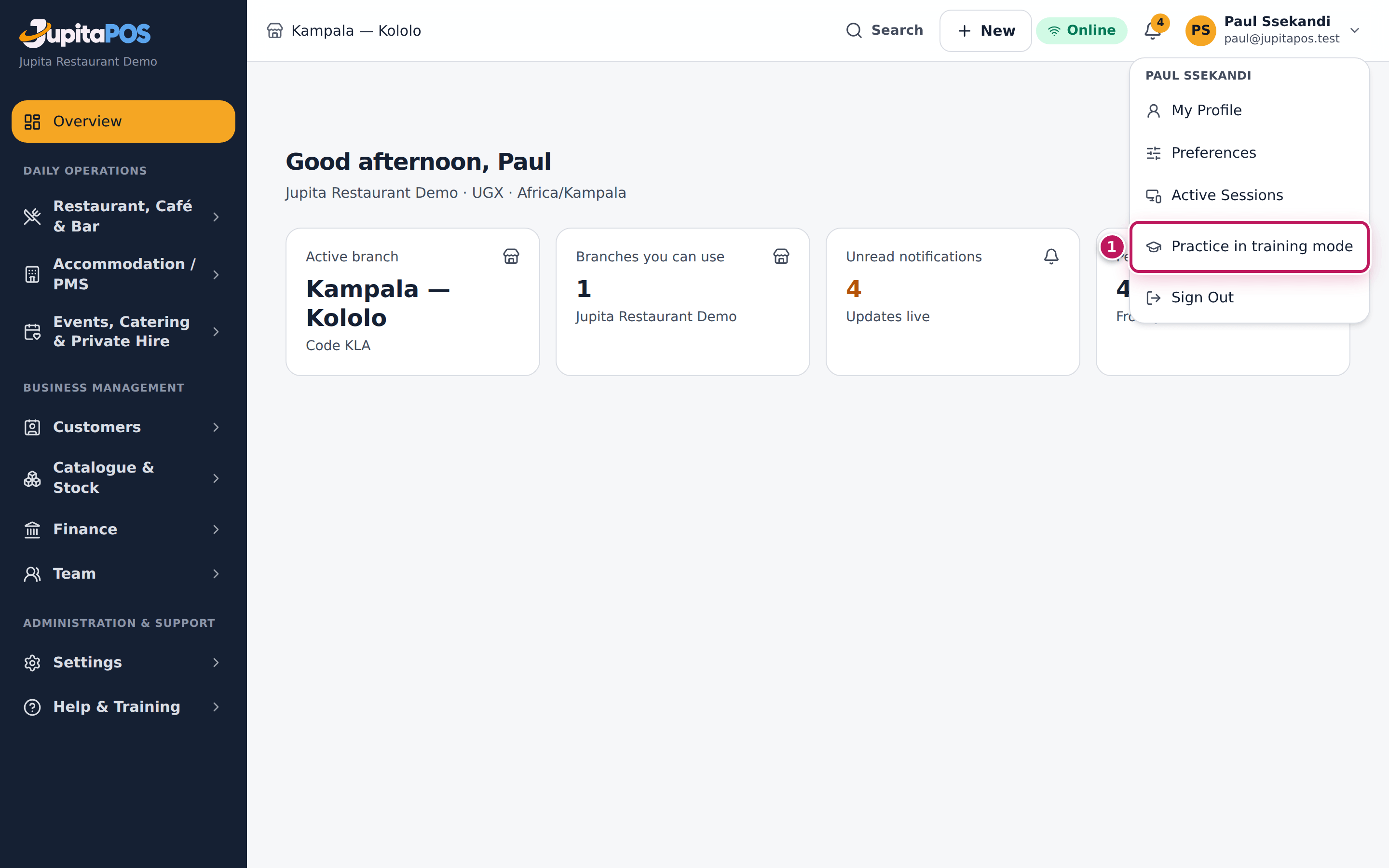
- Tap your name at the top right and choose Practice in training mode (1). On a till or a board, where there is no profile menu, it is the graduation-cap button in the top bar, beside the help button.
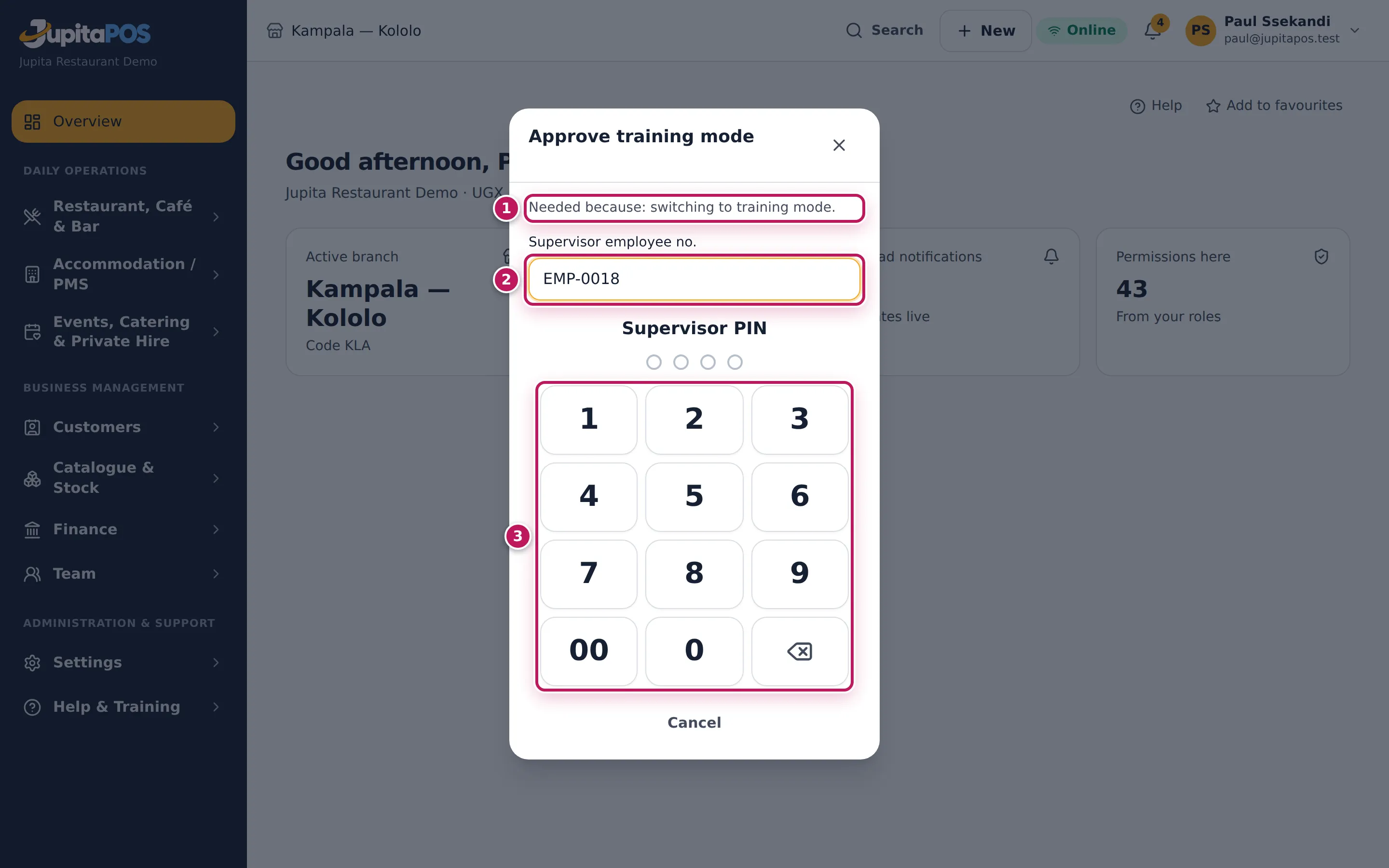
- The dialog Approve training mode opens. It says why (1): Needed
because: switching to training mode. Hand the device to your
supervisor: they type their Supervisor employee no. (2), for example
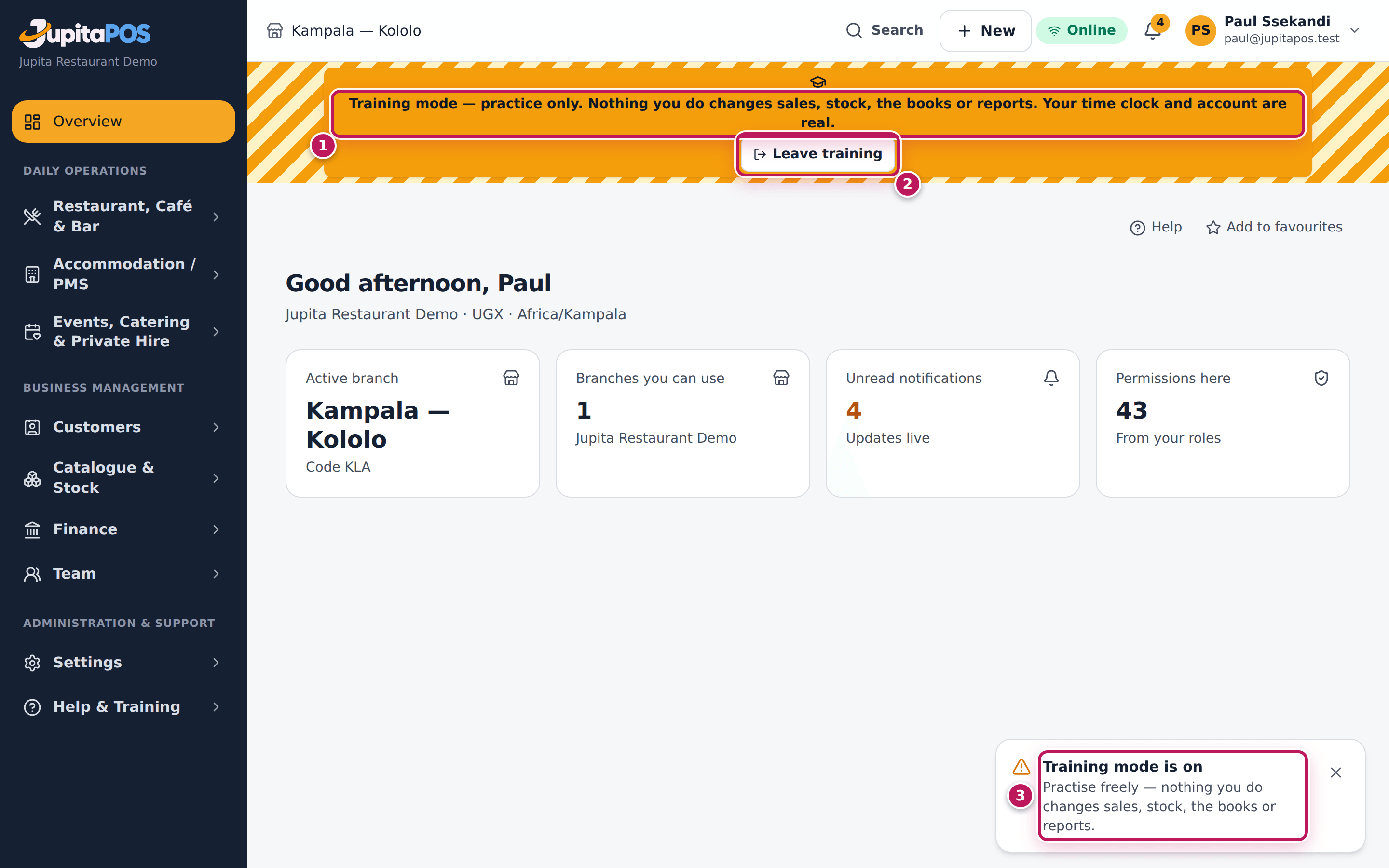
EMP-0018, and their four-digit Supervisor PIN on the keypad (3). - The page reloads in training: a striped banner runs across the top (1) with Leave training (2), and the confirmation Training mode is on (3) appears for a moment.
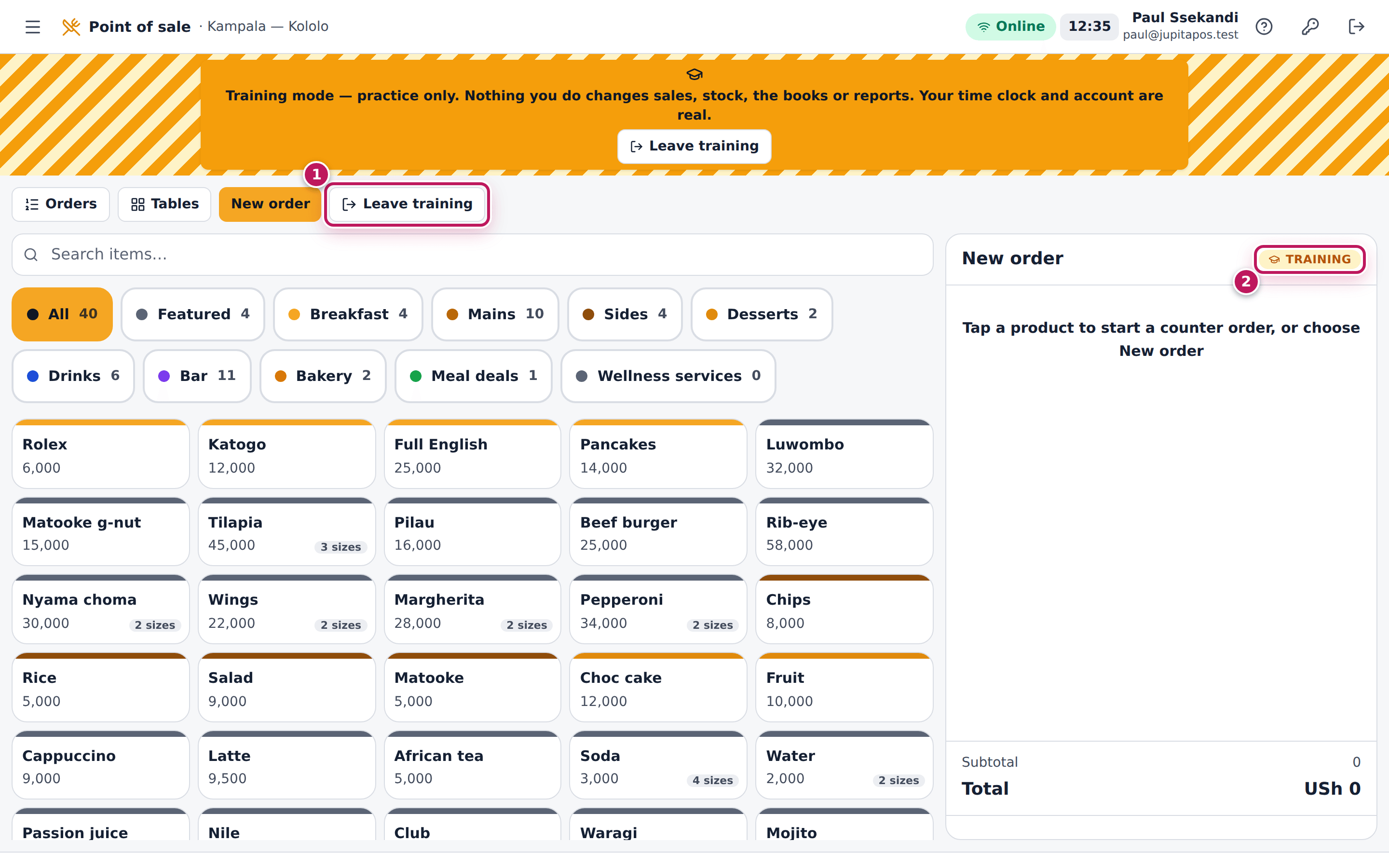
- Open the screen you want to practise on, for example Point of sale. On the till, Leave training (1) sits beside New order, and the order panel carries a TRAINING badge (2).
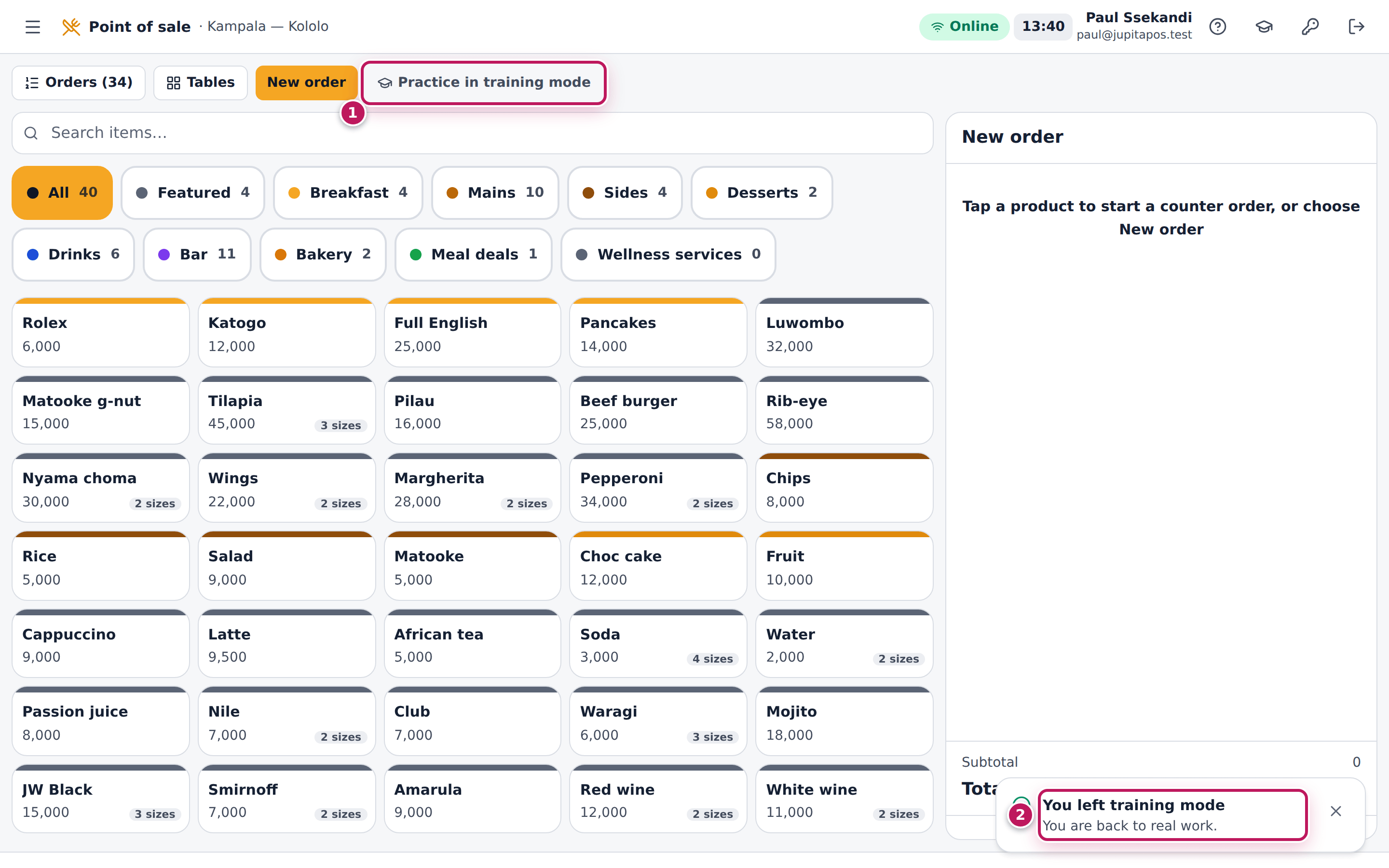
On the till you can also start from the toolbar: Practice in training mode sits beside New order when you are not practising. The same approval is asked for.
Expected result
The banner says Training mode — practice only. Nothing you do changes sales, stock, the books or reports. Your time clock and account are real. and stays on every page until you leave training. Practice in training mode is gone from the profile menu and the top bar while you practise. Orders, the floor plan and the boards now show only practice; your real orders come back when you leave training. The branch’s managers are told that you started, and who approved it.
Screenshot
Common mistakes
- Typing the supervisor’s PIN for them. The PIN is theirs alone: the approval is recorded in their name. Hand them the device.
- Starting training on a colleague’s signed-in till. Training belongs to the session, not to the person. If you practise on someone else’s session, the Training page shows the practice in their name. Sign in as yourself first, or use Sign in for training.
- Forgetting to leave training. Everything you ring while the banner shows is practice — a real customer’s order rung in training is never sold, and the kitchen’s real board never sees it. Look for the striped banner before you take a real order.
- Leaving an order open when you switch. The till lets go of the order on screen when you switch in or out; a real order you were ringing waits in Orders until you leave training.
Troubleshooting
- There is no Practice in training mode entry (and no graduation-cap
button on the till). Your role does not use training mode
(
training.use), or you are already in training — look for the banner. Ask your manager if you think your role should practise. - “Your role does not use training mode.” The same: your role does not
hold
training.use. - “You cannot approve your own action.” in the approval dialog. You typed your own employee number. A supervisor or manager types theirs.
- “Wrong PIN.” or “… cannot approve this (training.approve).” The supervisor’s PIN was wrong, or the person whose number was typed is not allowed to approve training. See Approve a colleague’s training. Cancel closes the dialog: you stay in real work.
- “Training needs the connection” on the till. The device went offline while you practise. Practice orders are only taken online; the till carries on as soon as the connection is back (see See whether the till is online).
FAQ
Can my manager see what I practised? Yes. The Training page lists every practice session with who approved it, its orders, voids, practice cash and average time to pay (see See who practised and clear the practice).
Why does a supervisor have to approve? Practice takes payments that reach no till and no books. The approval, the managers’ notification and the boxes on the till and the shift report make sure practice in the middle of service is always in the open.
Does practice count in my sales or tips? No. Practice is never a sale: it is not in the reports, your shift report, your tips or your performance.
Do I keep my own screens and rights? Yes. You see the same screens as always; training only decides what your actions change.
Sign in for training at a shared till
Purpose
A trainee at a shared till — a new waiter on the first day — signs in with their employee number and PIN straight into training, so they can never ring a real order by mistake while they learn.
Role / permission required
Staff who use training mode (training.use) and sign in with a PIN at a
till. The till must be an approved terminal.
Prerequisites
- The device is an approved till of your branch (see Approve a terminal); only an approved till shows Sign in with PIN.
- You have your employee number and PIN (see Sign in with your PIN at a shared till).
- A supervisor or manager is at the till to approve (see Approve a colleague’s training).
Steps
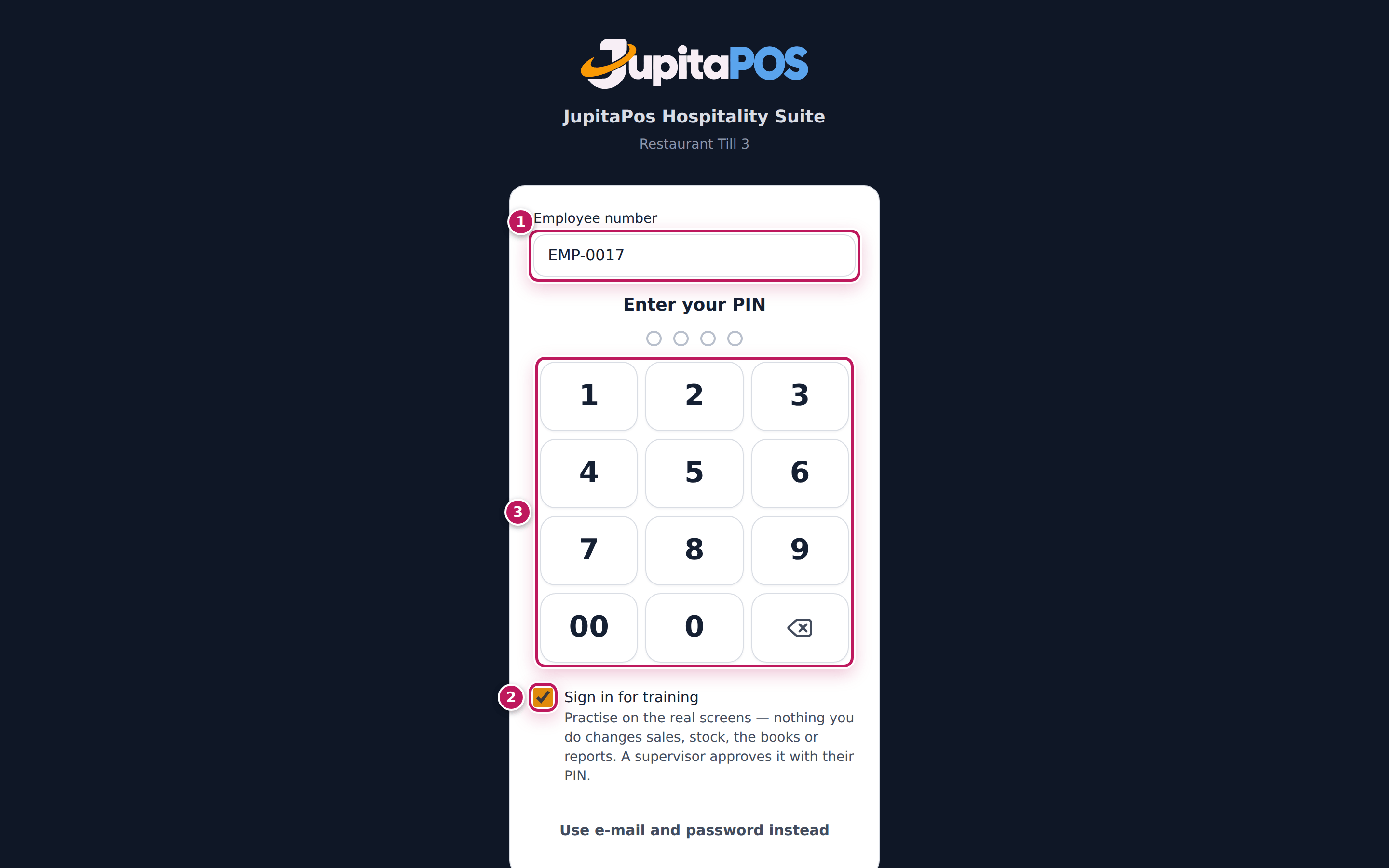
- On the till’s sign-in page, tap Sign in with PIN.
- Type your Employee number (1), for example
EMP-0017. - Tick Sign in for training (2) before you type your PIN. Its note says A supervisor approves it with their PIN.
- Tap your four-digit PIN on the keypad (3).
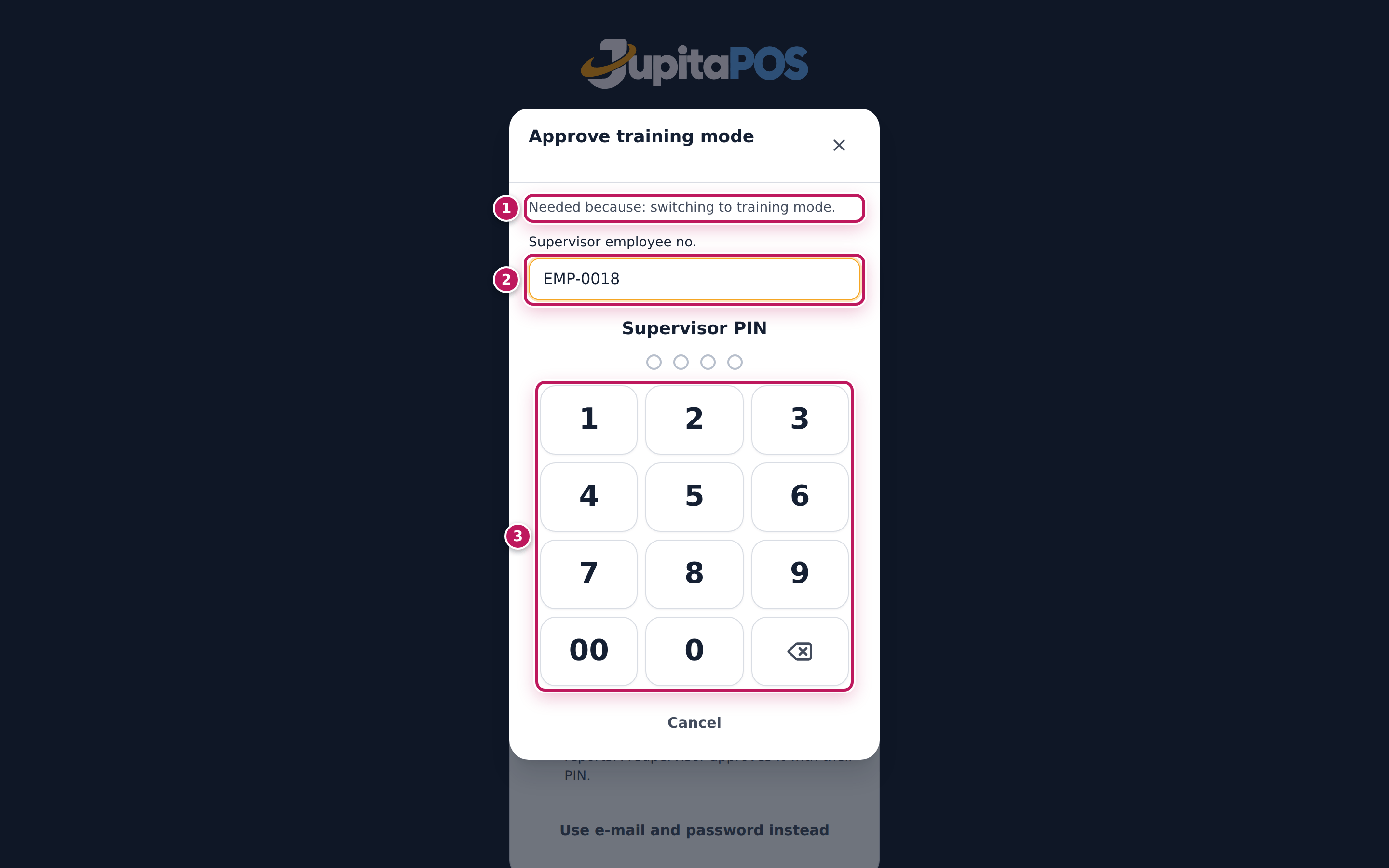
- The dialog Approve training mode opens (1). Your supervisor types
their Supervisor employee no. (2), for example
EMP-0018, and their Supervisor PIN on the keypad (3). You are signed in as soon as their fourth digit is in.
Expected result
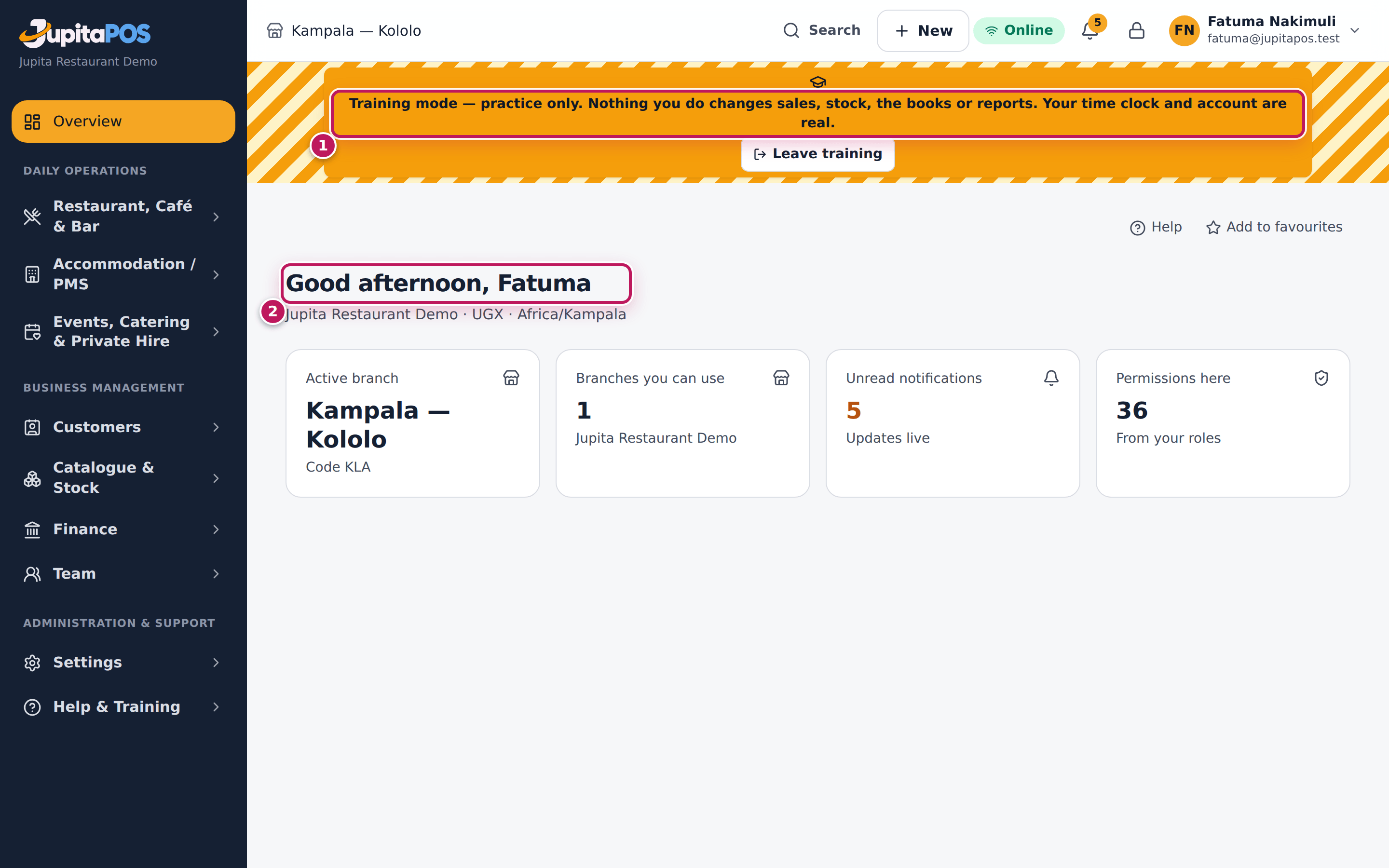
You land on your first screen with the training banner across the top (1) and your name in the top bar (2): Good afternoon, Fatuma. Everything you do now is practice. Leave training on the banner takes you back to real work in the same session; signing out, locking and switching user, or the session timing out, ends the practice too. If the supervisor taps Cancel, nobody is signed in: start again, or untick Sign in for training to sign in for real.
Screenshot
Common mistakes
- Typing the PIN before ticking the box. The PIN signs you in on the fourth digit — if the box was not ticked, you are in real work. Tap the graduation-cap button in the till’s top bar to start training instead (see Start training mode).
- Leaving the till signed in for training. The next person who unlocks it with their own PIN starts a session of their own; lock or sign out when you finish (see Lock the screen).
Troubleshooting
- There is no Sign in with PIN button. The device is not an approved till. Use your e-mail and password, then start training from the top bar.
- “Your role does not use training mode — sign in without it.” Your role
does not hold
training.use. Untick Sign in for training and sign in for real. - The keypad is greyed out. Type your employee number first, and check the device is online — a PIN sign-in for training needs the connection. In the approval dialog, the supervisor’s keypad stays grey until their Supervisor employee no. is typed.
- “Wrong PIN.”, “Unknown supervisor.” or “… cannot approve this (training.approve).” in the approval dialog. The supervisor typed a wrong PIN or number, or that person cannot approve training. They try again; your own PIN is kept while they do. A refused approval opens no session.
Practise a sale: ring, send and take payment
Purpose
Practise the whole sale — tapping items, sending them to the kitchen and bar, taking the money and giving the receipt — on the real till, exactly as you will do it for real, without making a sale.
Role / permission required
Cashiers, waiters, bartenders, baristas, supervisors and managers who sell
(sales.create, payments.take) and practise (training.use).
Prerequisites
- You are in training (see Start training mode).
- You know how a real sale goes (see Ring up a counter order and Take a cash payment). You do not need an open drawer: practice never touches till cash.
Steps
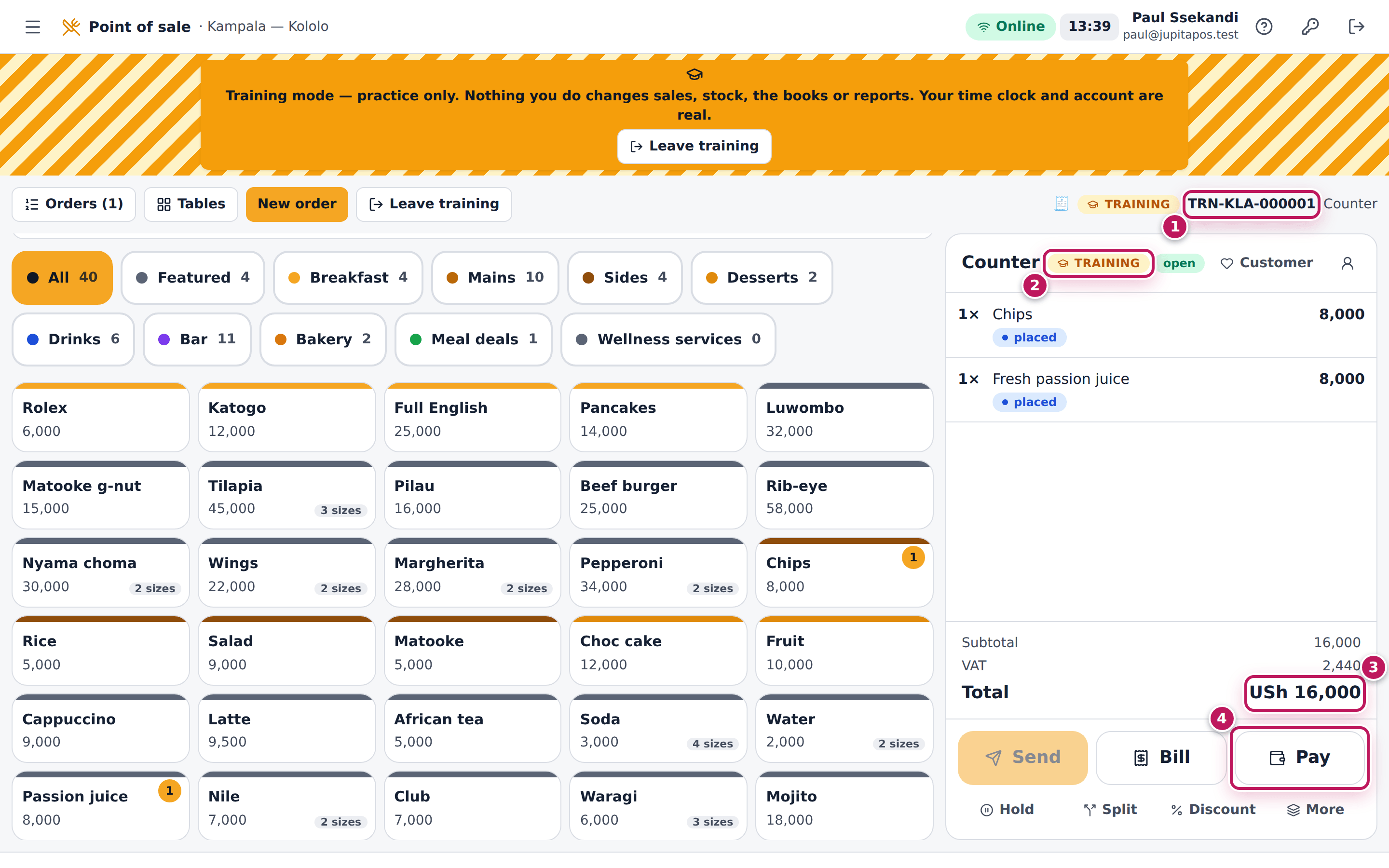
- Open Point of sale and tap the items, for example Chips and
Passion juice. The order is a training order: its number starts with
TRN-(1) and the order panel says TRAINING (2). - Tap Send. The items go to the kitchen and bar boards of anyone practising there — never to the real boards.
- Check the Total (3) and tap Pay (4).
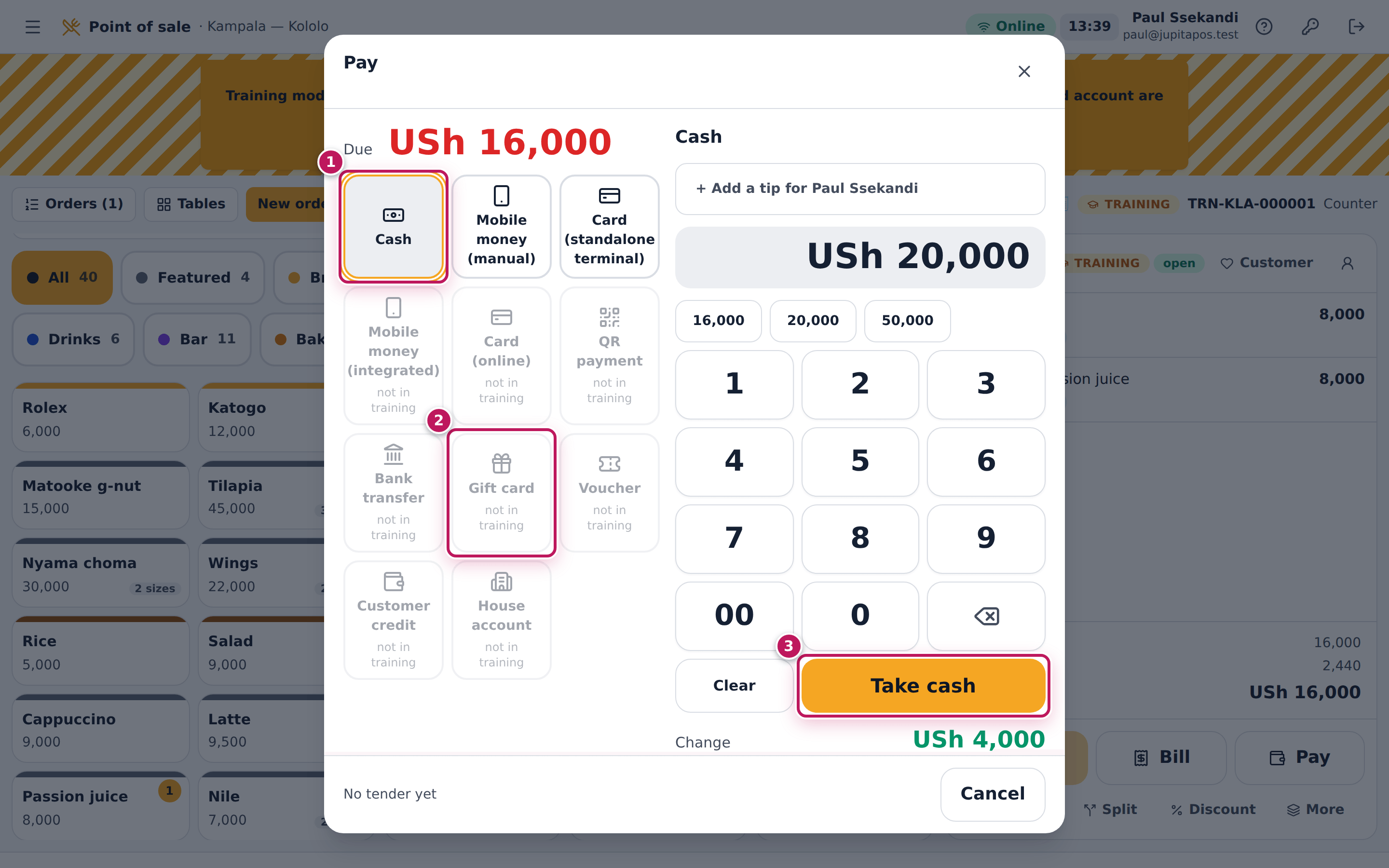
- Choose Cash (1). Methods that move real money or call a payment provider are greyed out and say not in training (2).
- Tap the quick amount 20,000, then Take cash (3).
- The practice receipt opens. Tap Print if you want to practise handing it over.
Holds, discounts, voids, splits and refunds work in training as they do for real; a supervisor’s approval is given with their PIN at the till as usual.
Expected result
A counter order TRN-KLA-… with chips (8,000) and a fresh passion juice
(8,000): total USh 16,000, of which VAT is 2,440; change from 20,000 is
USh 4,000. The receipt is numbered TRN-RCT-KLA-… (2) and says
*** TRAINING — NOT A RECEIPT *** at the top and the bottom (1), and
— TRAINING — NOT A RECEIPT — again between its parts (3), so even a torn
piece of it cannot pass as a receipt. It has no VAT lines, no TIN — the
business’s own footer is replaced by Practice slip from training mode — not
a receipt and not for tax. — and its total is printed TRAINING TOTAL
(4): a practice slip is never a tax document. The order’s page says
Training order — practice only, never a sale. Nothing reaches the sales
reports, the stock, the books, the drawer or the customer’s loyalty.
Screenshot
Common mistakes
- Giving a training receipt to a real customer. It is not a receipt and the sale was not recorded. If a real customer is waiting, leave training and ring the order again (see Leave training mode).
- Practising a gift card, voucher or house account. These move a real balance and are greyed out. Practise with cash, the card terminal or manual mobile money.
- Looking for practice in the day’s sales. It is not there, by design. Your manager sees practice on the Training page only.
Troubleshooting
- “… moves a real balance, so it is not used in training — practise with cash, card or mobile money.” You chose a gift card, voucher, customer credit or house account. Choose Cash, Card (standalone terminal) or Mobile money (manual).
- “… calls the payment provider for real, so it is not used in training — practise with cash, card or mobile money.” Integrated mobile money, online card, QR and bank transfer are real provider calls; use one of the three practice methods.
- “A training order has no tax invoice.” You tapped Invoice on a practice receipt. Tax invoices are only issued for real sales.
- “Loyalty rewards spend real points, so they are not used in training.” You can attach a customer to a practice order, but not redeem their rewards, stamps or subscription.
- “Training mode covers counter, takeaway, dine-in, café and bar orders — not this kind of order.” Catering and event orders, online orders and offline sales are not practised on the live system.
- “You are in training mode — real orders cannot be opened or changed. Leave training to work on them.” You opened a real order (from a link or the Orders page). Leave training to work on it.
- “You are in training mode — this is not part of practice. Leave training to do it.” Stock, purchasing, the books, staff, set-up, reservations, loyalty and gift cards are real work. Leave training first.
FAQ
Why does the till still show the real menu and prices? You practise on the real menu, at the real prices, so the practice is exactly like the job.
Is my drawer affected by practice cash? No. Practice payments never reach your drawer’s expected cash or the shift’s figures. Your till and the shift report do list the practice beside the figures — Training while this till was open and Training during this shift — so whoever counts the drawer knows practice happened (see Approve a colleague’s training).
What does “Your number” on the practice receipt mean? Practice orders get their own call numbers, so a real collection board never calls a practice number.
Practise on the kitchen or bar board
Purpose
A new cook, bartender or barista practises the board — a ticket arrives, start it, mark it ready, bump it — with practice tickets only, while the real kitchen works the real tickets. Boards are per mode: a real board never shows a practice ticket, so the kitchen never cooks practice in the middle of service and its times stay clean.
Role / permission required
Chefs, sous chefs, cooks, kitchen assistants, bartenders and baristas who
work a board (production.view and their station’s permission, such as
kitchen.complete) and practise (training.use).
Prerequisites
- You can open your station’s board (see Open your station’s board).
- A supervisor or manager is at hand to approve the switch to training (see Approve a colleague’s training).
- Someone practising at the till sends you practice orders — a trainee cashier or waiter, or your trainer in training mode (see Practise a sale).
Steps
- Open Preparation Screens › Stations and your station, for example Hot Kitchen.
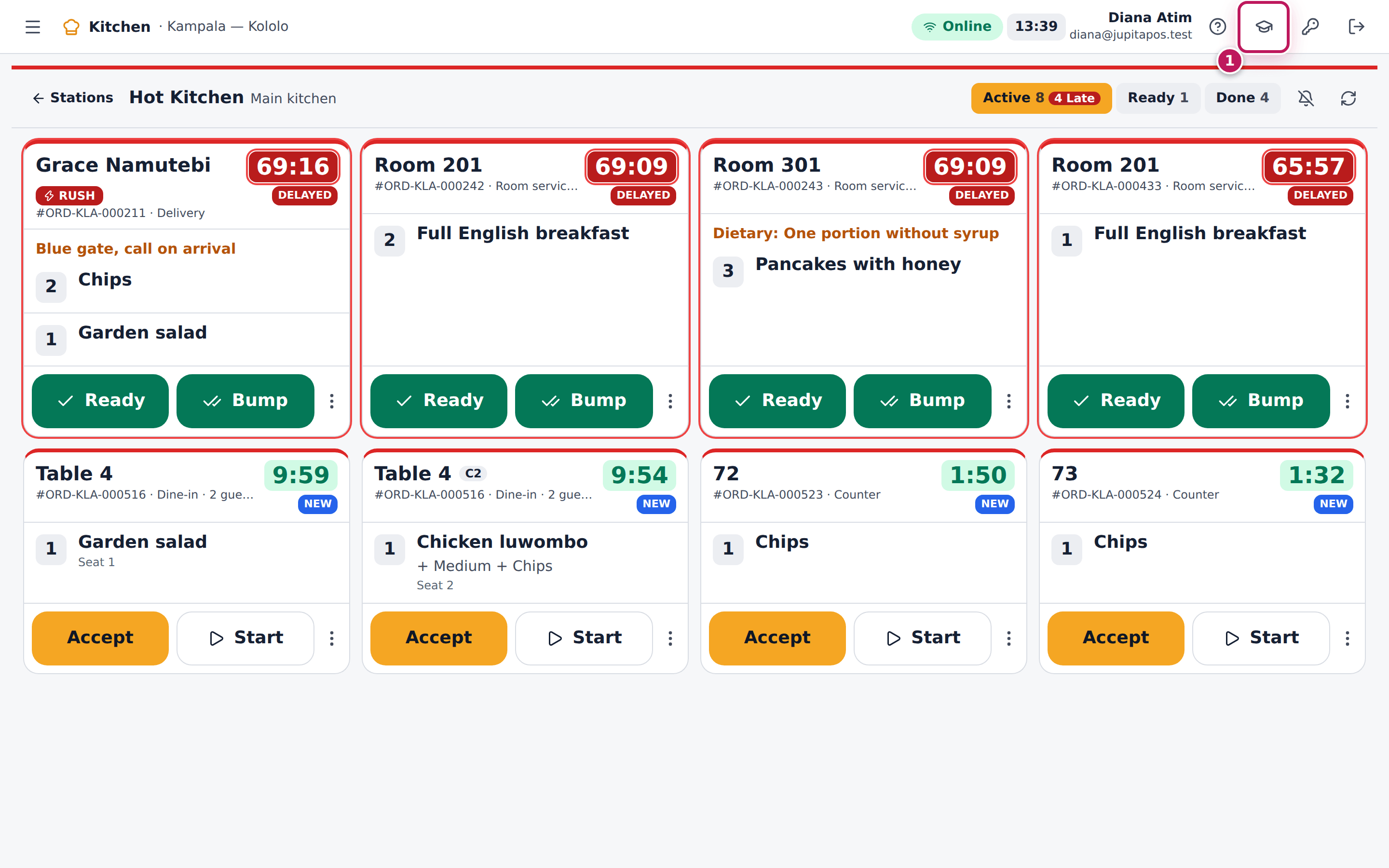
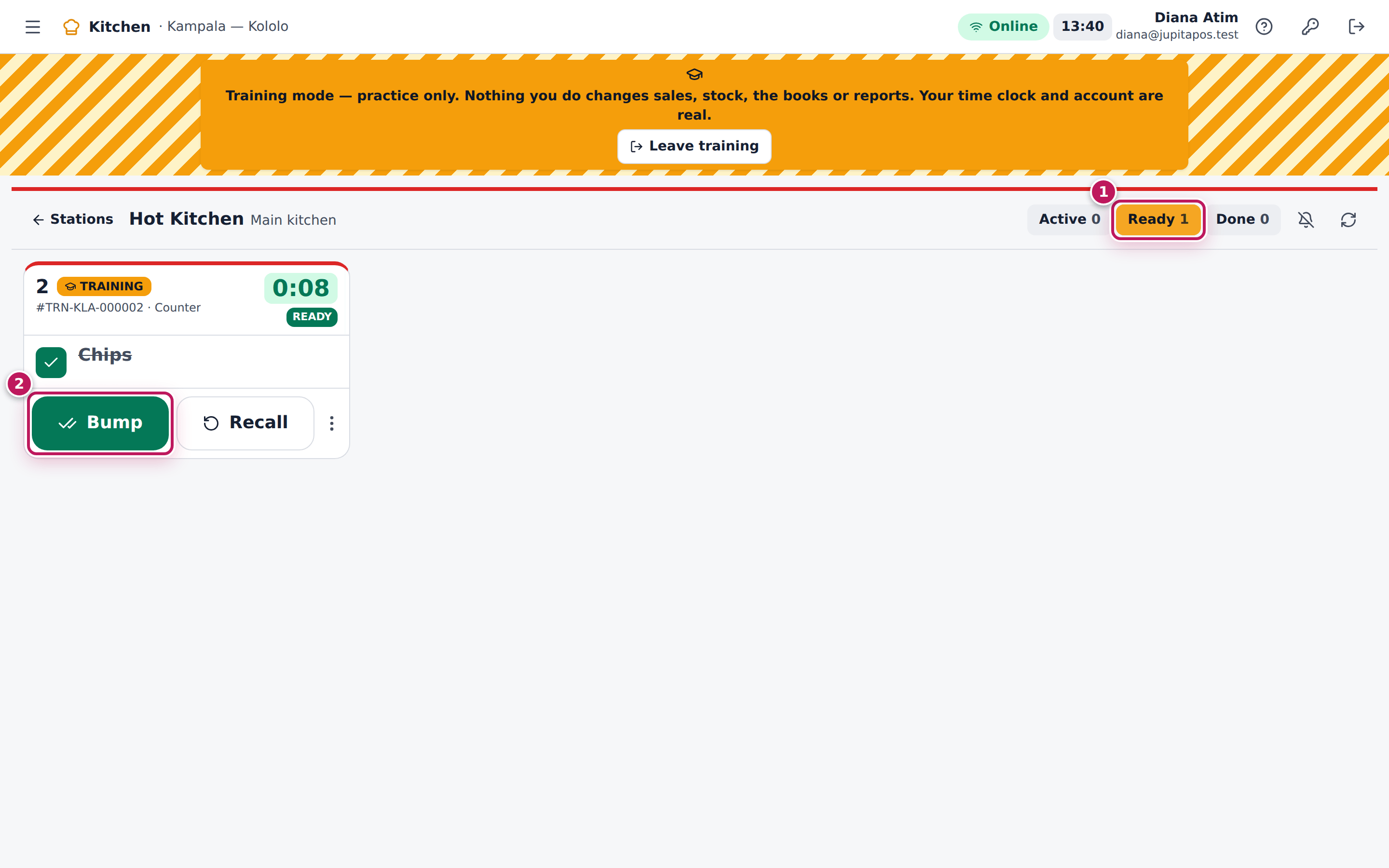
- Tap the graduation-cap button Practice in training mode (1) in the top bar. Your supervisor approves in the Approve training mode dialog with their employee number and PIN (see Start training mode). The board reloads in training, under the striped banner.
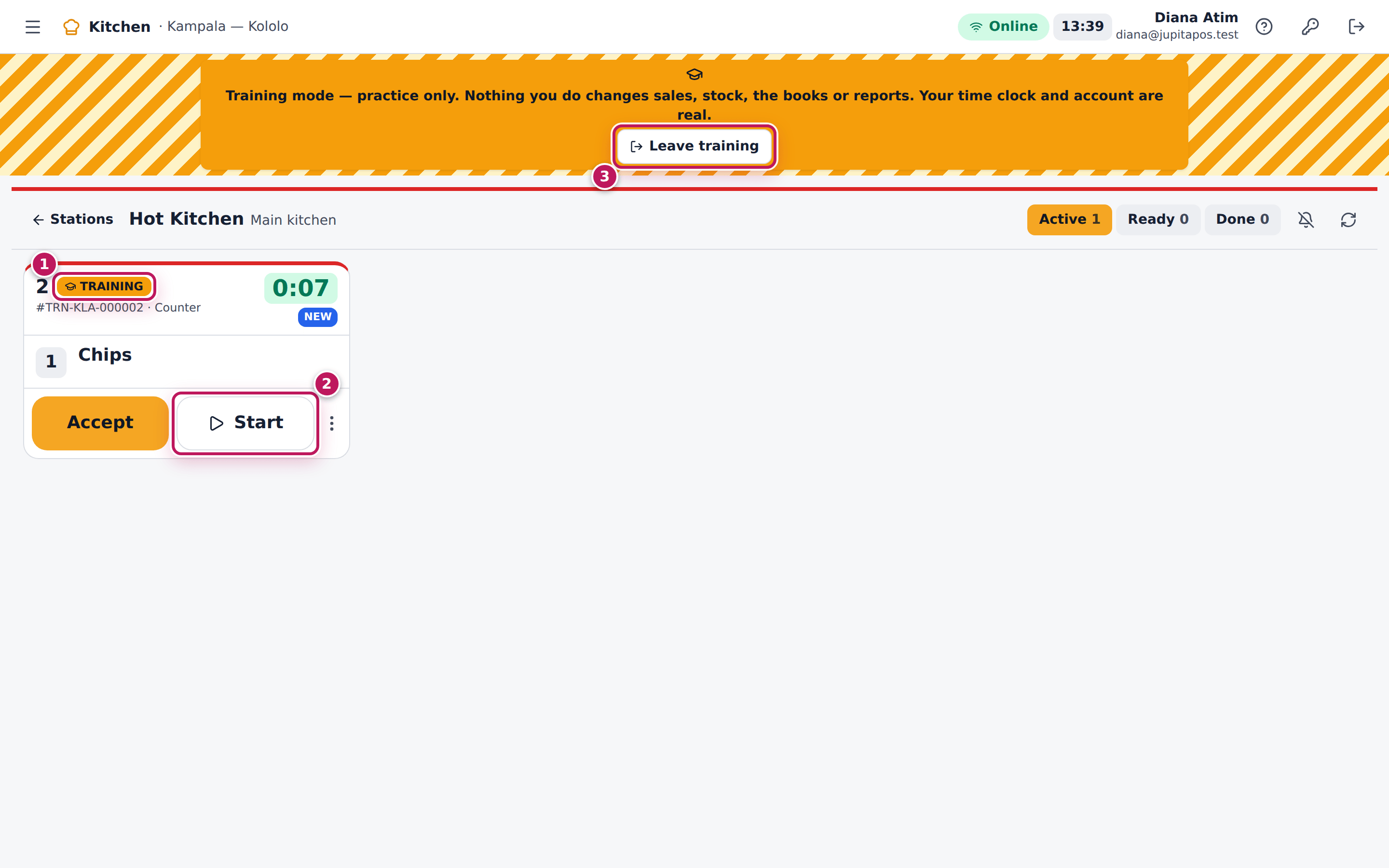
- When a practice order is sent, its ticket appears with a TRAINING badge (1). Tap Start (2) when you begin it.
- Tap Ready when it is done. The ticket moves to the Ready lane (1).
- Tap Bump (2) when it has gone to the pass.
- Tap Leave training (3) on the banner to go back to the real tickets.
Expected result
The board in training shows only practice tickets — #TRN-KLA-… with the
TRAINING badge and a practice call number; the real tickets are hidden
while you practise and come back when you leave training. A colleague on
the real Hot Kitchen board sees none of your practice. Bumping a practice
ticket moves no stock and records no kitchen time.
Screenshot
Common mistakes
- Practising on the only board of a busy station. While you are in training, this screen shows no real tickets. Practise on a second screen, or at a quiet time, so the real tickets are always on a board.
- Waiting for practice tickets on a real board. A real board never shows them. The board must be in training too.
Troubleshooting
- No practice tickets arrive. Nobody is sending practice orders to your station, or they went to another station (drinks go to the bar). Tap Refresh; ask your trainer to send an item made at your station.
- “That is a training ticket. Practise in training mode to work on it.” A real session tried to work a practice ticket. Start training on that board first.
- “You are in training mode — real tickets cannot be opened or changed. Leave training to work on them.” Leave training to work on the real tickets.
FAQ
Does a practice ticket use up stock or count as waste? No. Practice never consumes stock, and a practice spillage or re-fire records no waste.
Practise table service
Purpose
A new waiter practises seating guests, taking a table’s order and sending it — on the real floor plan, during real service — without blocking a table a real guest needs.
Role / permission required
Waiters, hosts, cashiers, supervisors and managers who seat and sell
(sales.create) and practise (training.use).
Prerequisites
- You are in training (see Start training mode).
- You know how a real table order goes (see Start a table order).
Steps
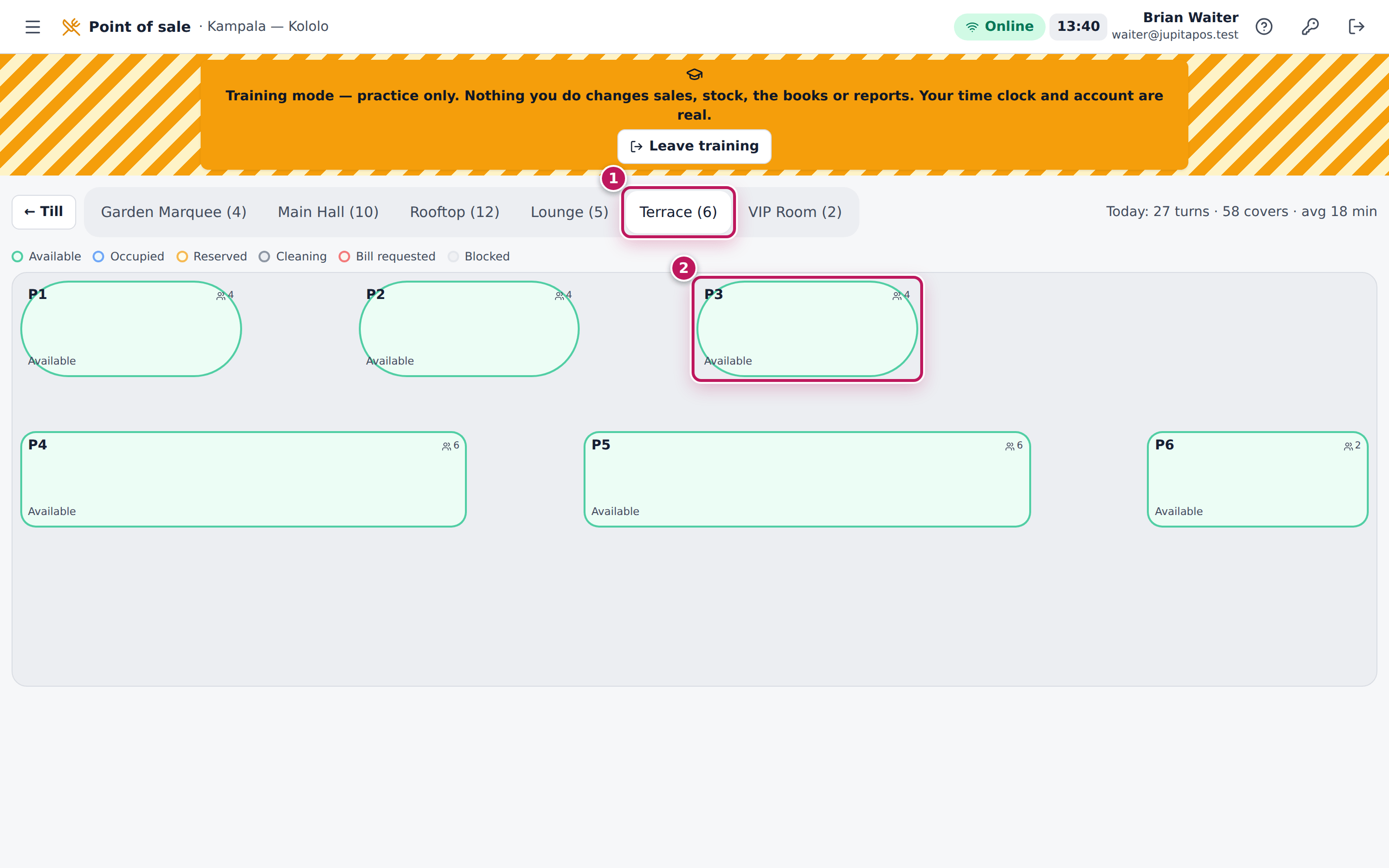
- On the till, tap Tables. The training floor opens.
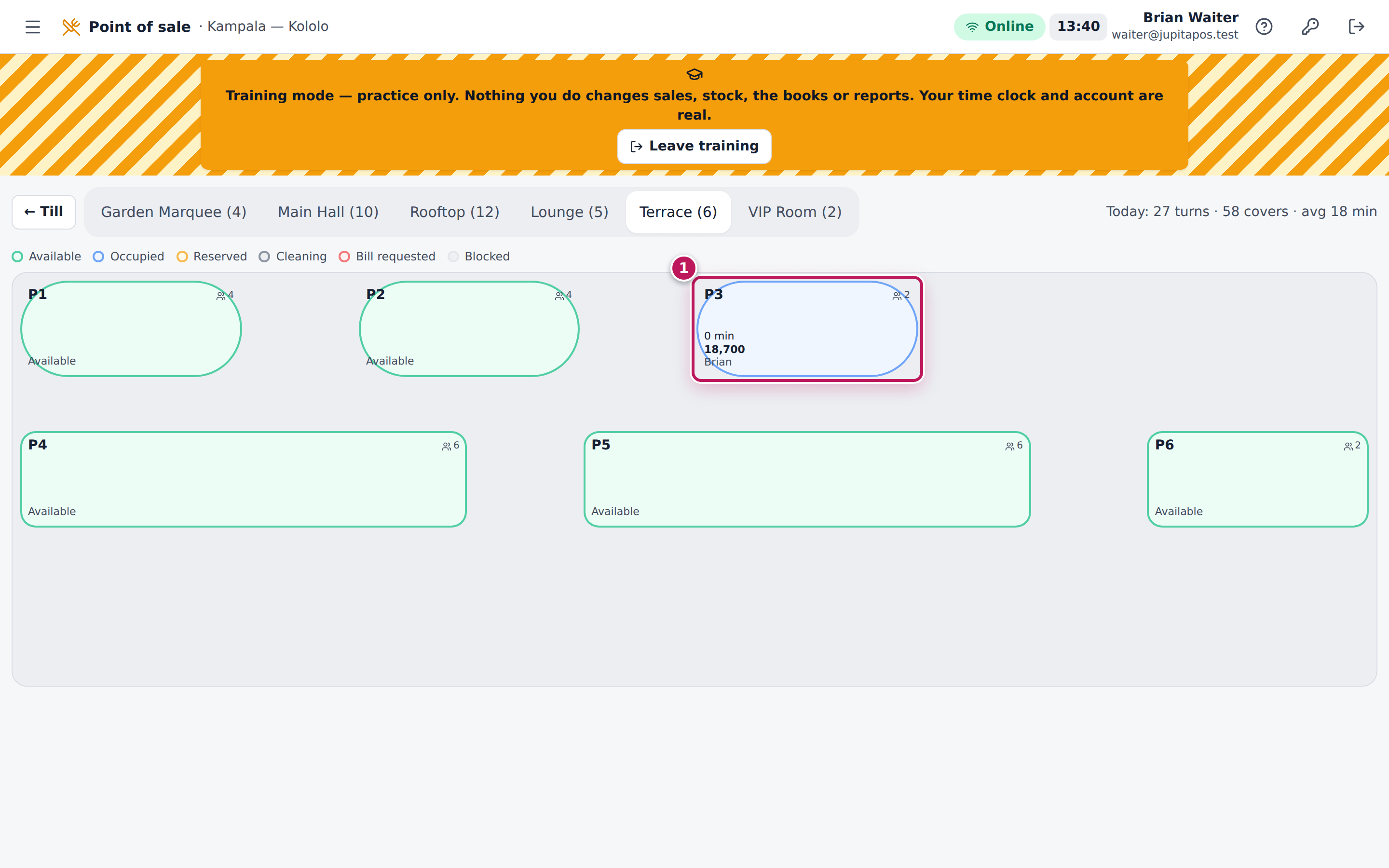
- Tap the area (1), here Terrace. Every table is free for practice, except the ones you already have practice orders on.
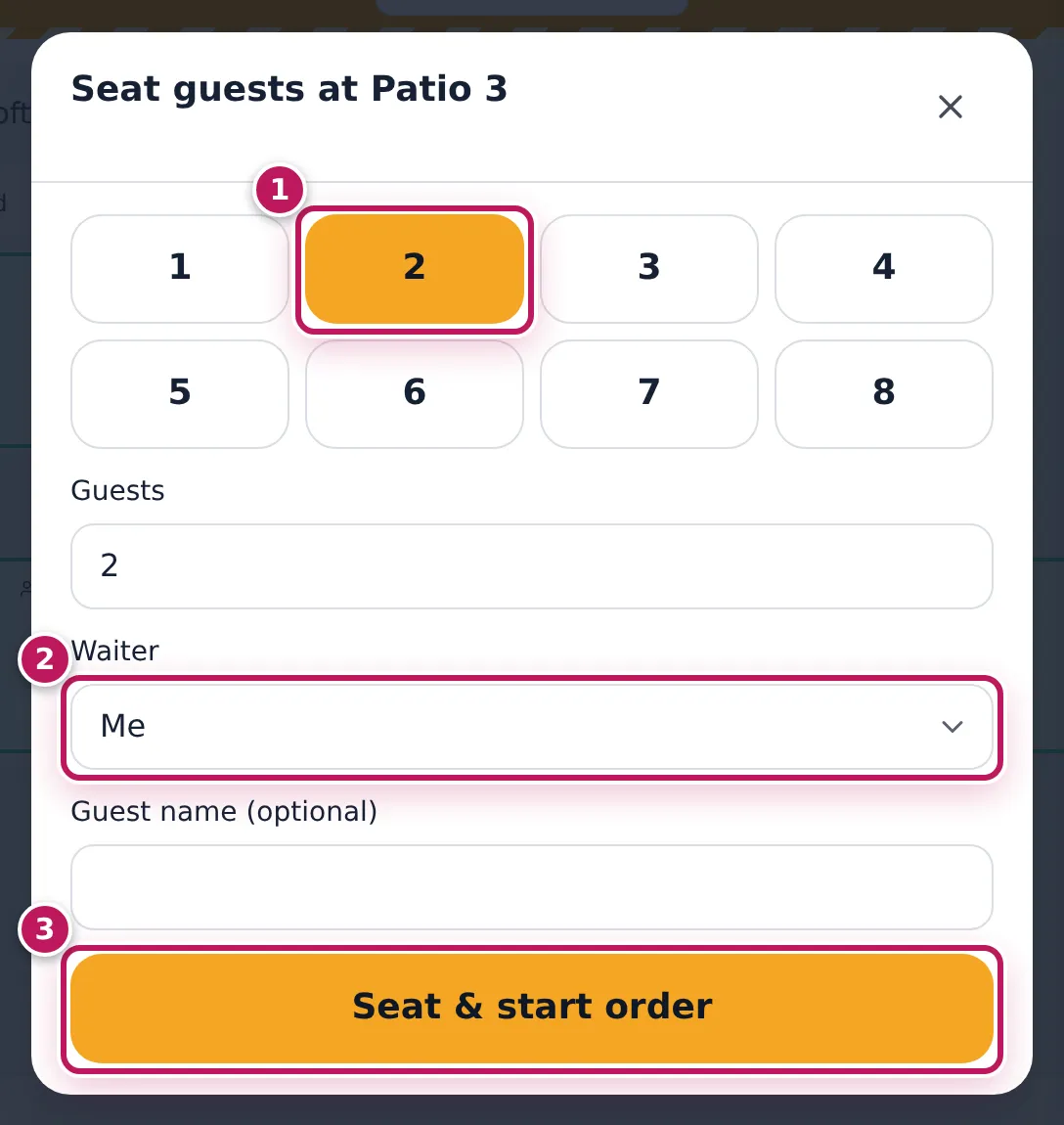
- Tap a table (2), here Patio 3, then Seat guests.
- Tap the number of guests (1), here 2, leave Waiter (2) on Me and tap Seat & start order (3).
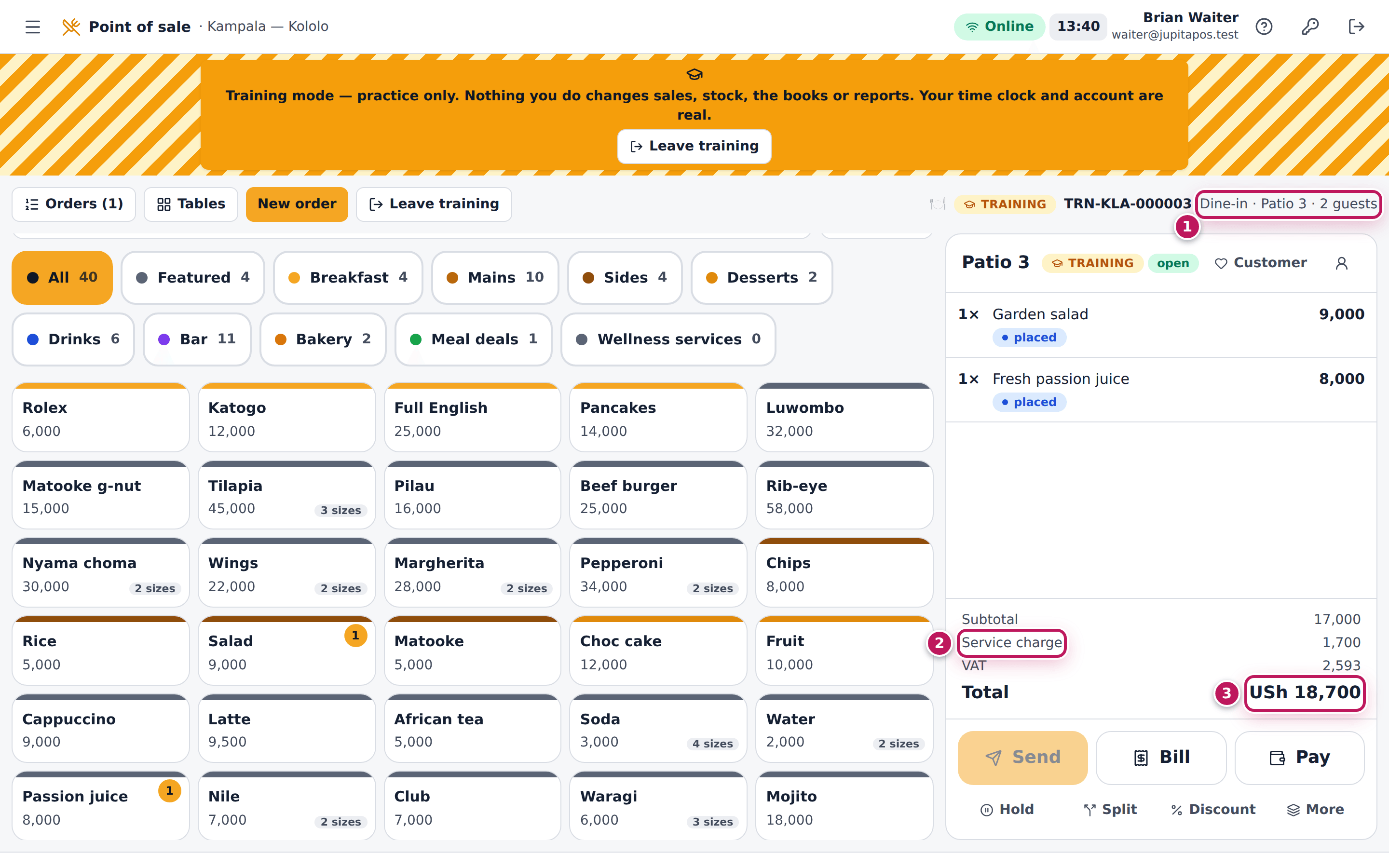
- Tap the guests’ items, for example Salad and Passion juice, then tap Send.
- Tap Tables again: the table shows your practice order (1).
Expected result
The order panel says Dine-in · Patio 3 · 2 guests (1) with the TRAINING badge. A dine-in order adds the 10 % service charge (2): a garden salad (9,000) and a passion juice (8,000) come to 17,000, service charge 1,700, total USh 18,700 (3), of which VAT is 2,593. On the training floor Patio 3 turns blue with 2 guests and 18,700. On the real floor nothing changed: if a real guest sits at Patio 3, they stay there, and a free table stays free for real guests.
Screenshot
Common mistakes
- Seating real guests while in training. A practice order does not occupy the real table, so a colleague could seat other guests there. Leave training before you serve a real table.
- Expecting the real floor’s colours. The training floor shows only practice; occupied, reserved and cleaning tables of real service look free.
Troubleshooting
- “Patio 3 already has an open training order.” You (or another trainee) already practise on that table. Choose another table, or pay or cancel the practice order first.
- Change status, block or design the floor does nothing. Table management is real work: “You are in training mode — this is not part of practice. Leave training to do it.”
FAQ
Can I practise splitting a bill? Yes. Bills, splits and payments work in training as they do for real (see Split the bill).
Leave training mode
Purpose
Go back to real work when you finish practising, so the next order you ring is a real sale and reaches the real kitchen.
Role / permission required
Anyone in training (training.use).
Prerequisites
- You are in training: the striped banner is across the top.
Steps
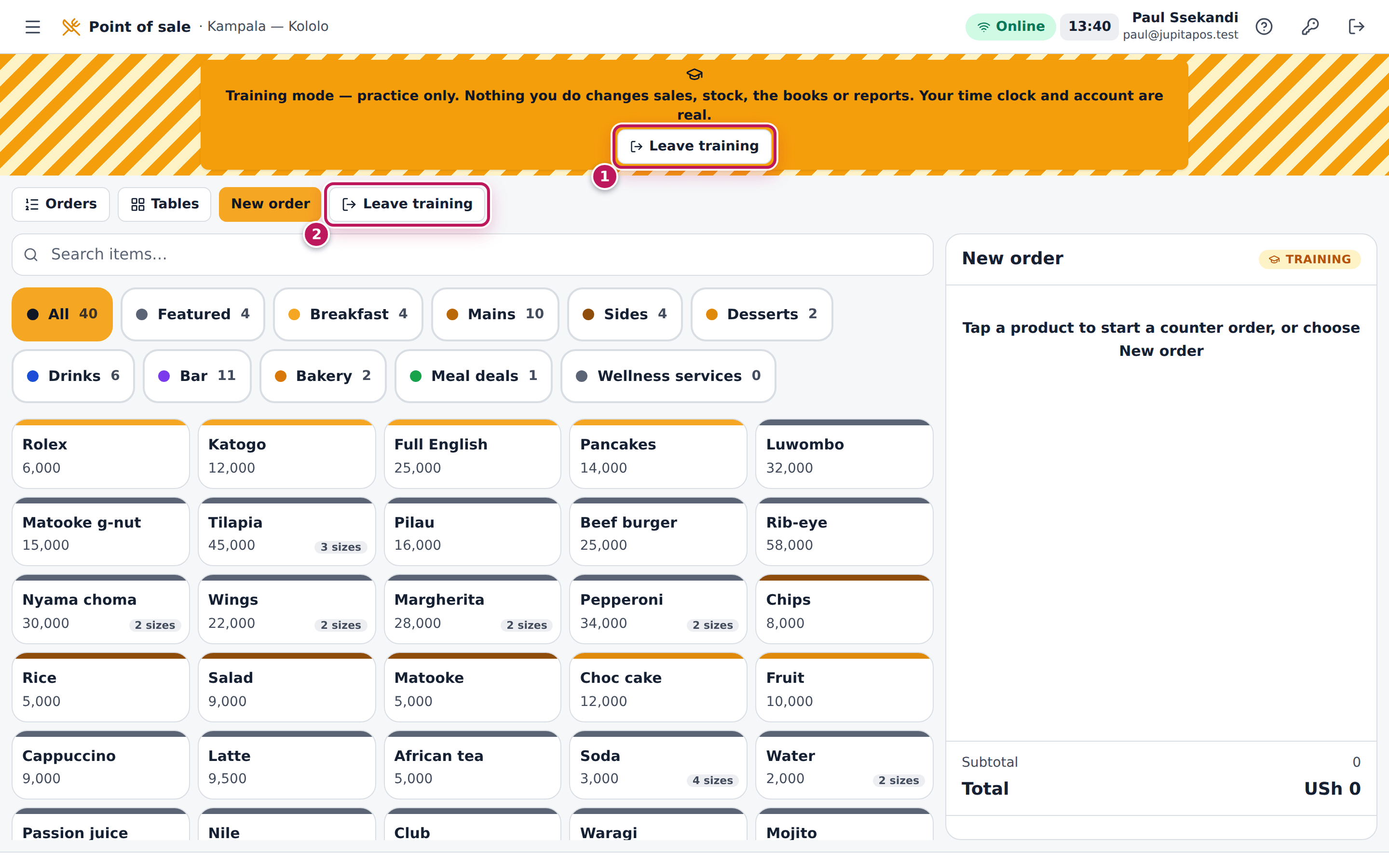
- Tap Leave training on the banner (1). On the till, Leave training beside New order (2) does the same.
- The page reloads in real work.
Expected result
The banner is gone and the confirmation says You left training mode — You are back to real work. (2). Practice in training mode is back in the profile menu, the graduation-cap button in a till’s top bar and the button on the till itself (1). The till, Orders, the floor plan and the boards show real work again. Your practice stays on the Training page until a manager clears it or it is cleared overnight.
Training also ends on its own whenever your session ends: when you sign out, lock the till and someone else signs in (switch user), your session times out or is idle too long, you use Sign out everywhere, or the till’s terminal is revoked. Next time, a supervisor approves again.
Screenshot
Common mistakes
- Leaving a practice order open. An open practice order stays on the Training page; pay or cancel it before you leave, so your trainer sees a finished practice.
- Ringing a real customer’s order before leaving. It would be practice — not sold, not sent to the real kitchen. Leave training first.
Troubleshooting
- The banner comes back after signing in again. You ticked Sign in for training on the PIN screen (and a supervisor approved it). Untick it, or tap Leave training.
- “That is a training order. Practise in training mode to work on it.” After leaving training you opened a practice order. It belongs to practice: start training again to finish it, or leave it for your manager to clear.
Approve a colleague’s training
Purpose
A trainee asks to practise on the live till or board, and you — the supervisor on shift — approve it with your own employee number and PIN. Practice takes payments that reach no till and no books, so nobody switches to training on their own: your approval says that you know practice is going on during service, and it is recorded in your name.
Role / permission required
Supervisors and managers who approve someone else’s switch to training
(training.approve): supervisors, restaurant, branch and general managers,
directors and owners. You cannot approve your own training. Managers who
look after training (training.manage) start their own practice without
anyone’s approval.
Prerequisites
- You know your employee number (on your profile and staff card, for
example
EMP-0018) and your PIN (see Sign in with your PIN at a shared till). - The trainee has tapped Practice in training mode — under their name at the top right, or the graduation-cap button on the till or their board — or ticked Sign in for training on the PIN screen (see Start training mode).
Steps
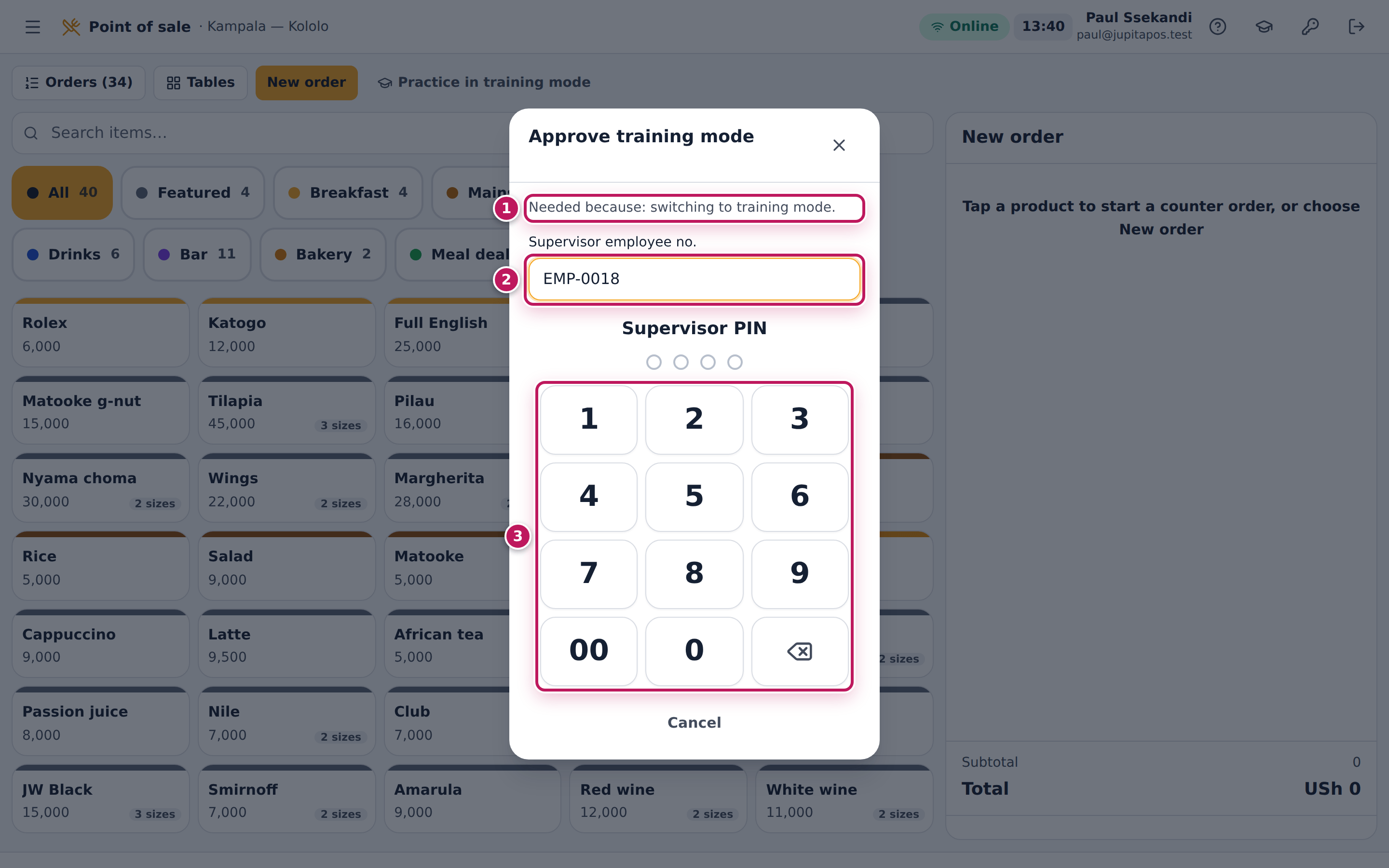
- On the trainee’s screen, read the dialog Approve training mode: Needed because: switching to training mode. (1) Make sure that is what the trainee wants, and that they are not about to serve a real customer.
- Type your Supervisor employee no. (2), here
EMP-0018. - Tap your four-digit Supervisor PIN on the keypad (3). The dialog closes as soon as the fourth digit is in, and the trainee’s screen reloads under the striped training banner.
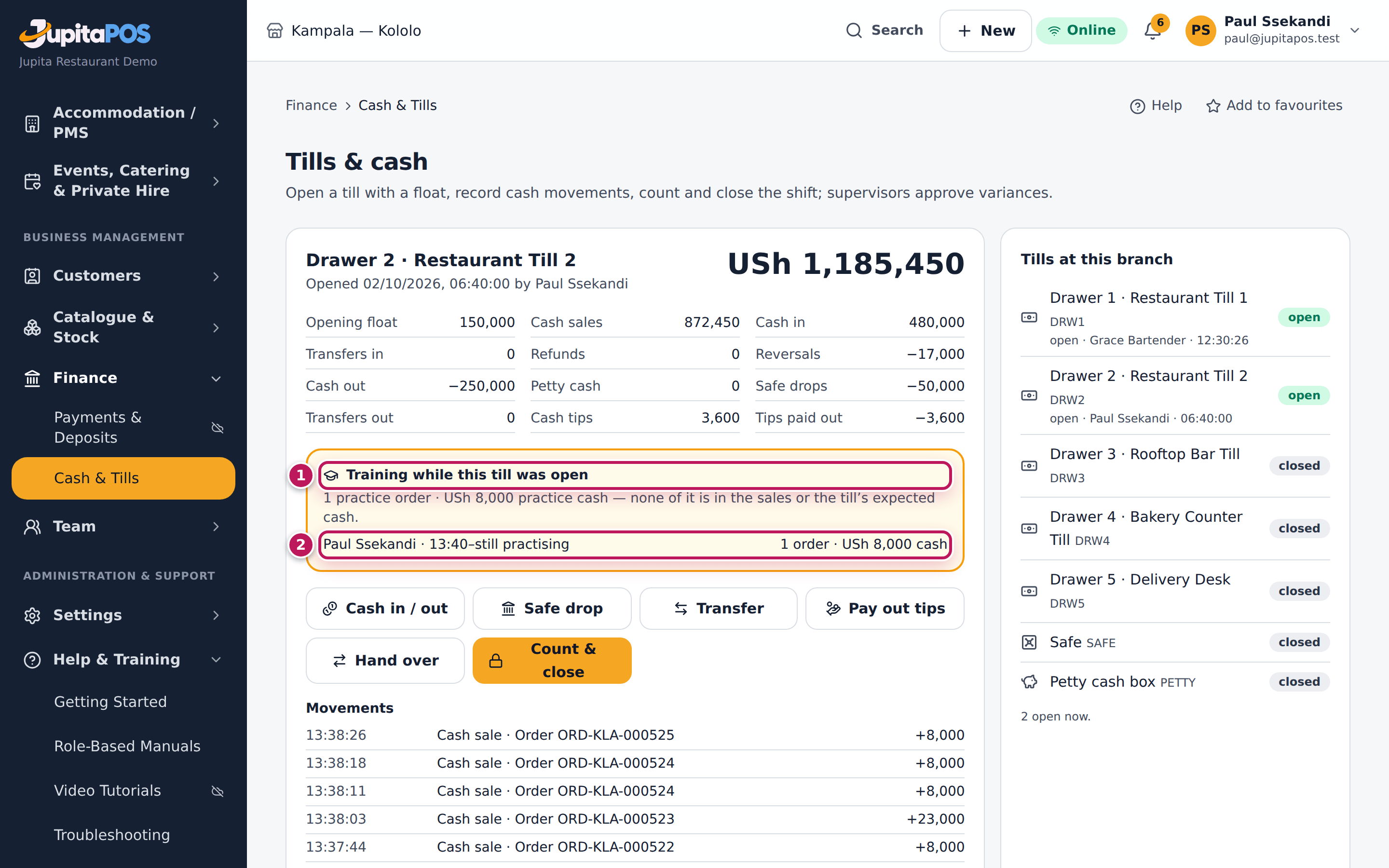
- While they practise, open Tills & cash with the drawer’s cashier: the box Training while this till was open (1) lists each practice session (2) — who, from when, still practising or until when, practice orders and practice cash.
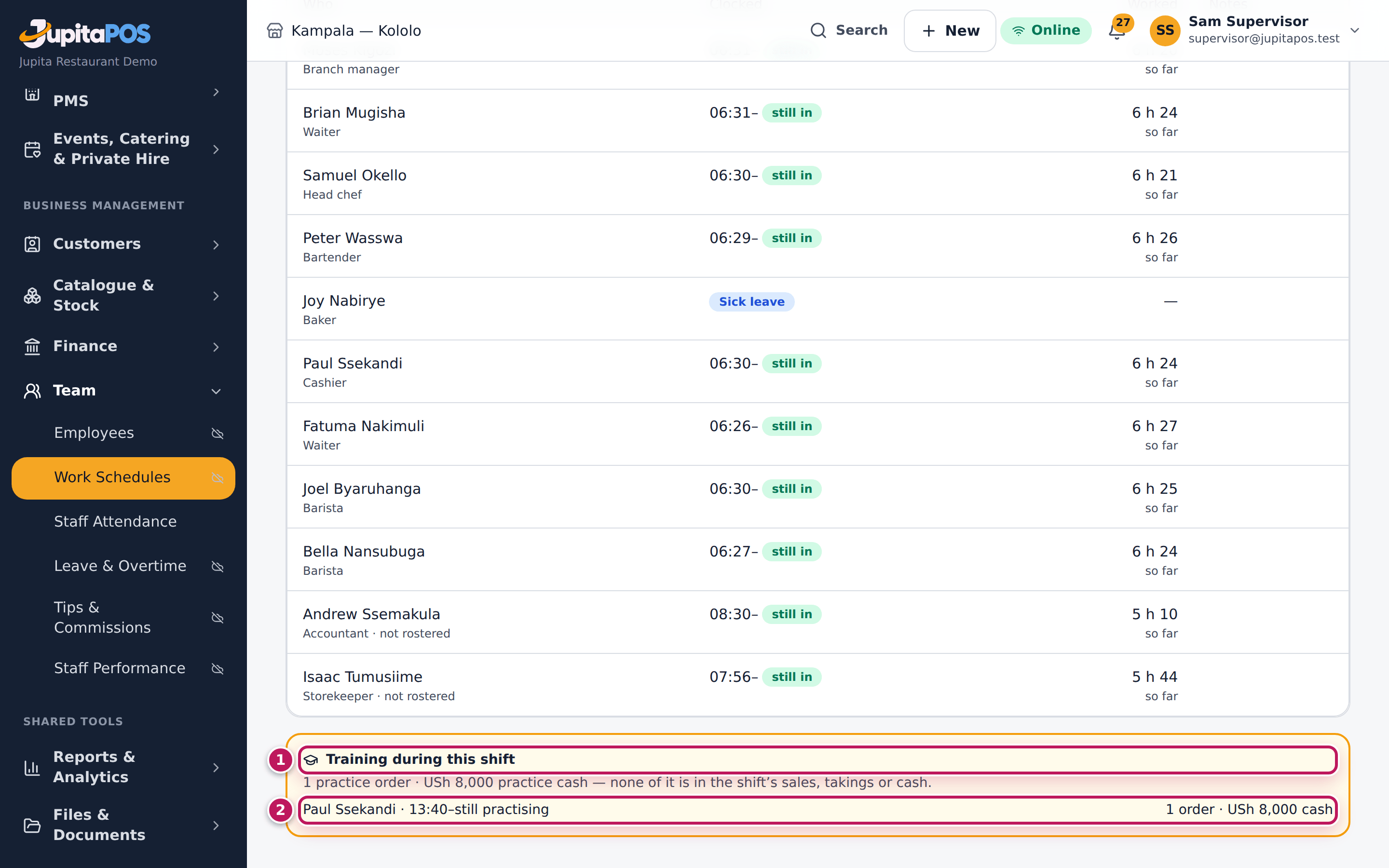
- On the trading shift’s page (Team › Work Schedules → today’s shift), the live report shows the box Training during this shift (1) with the same details (2).
Expected result
Paul Ssekandi’s till is in training, approved by Sam Supervisor. After one practice sale of chips, his drawer (Drawer 2 · Restaurant Till 2) shows Training while this till was open — 1 practice order · USh 8,000 practice cash — none of it is in the sales or the till’s expected cash., and the line Paul Ssekandi · 12:36–still practising · 1 order · USh 8,000 cash. The expected cash above it has not moved. The day shift’s report shows the same under Training during this shift, ending none of it is in the shift’s sales, takings or cash.
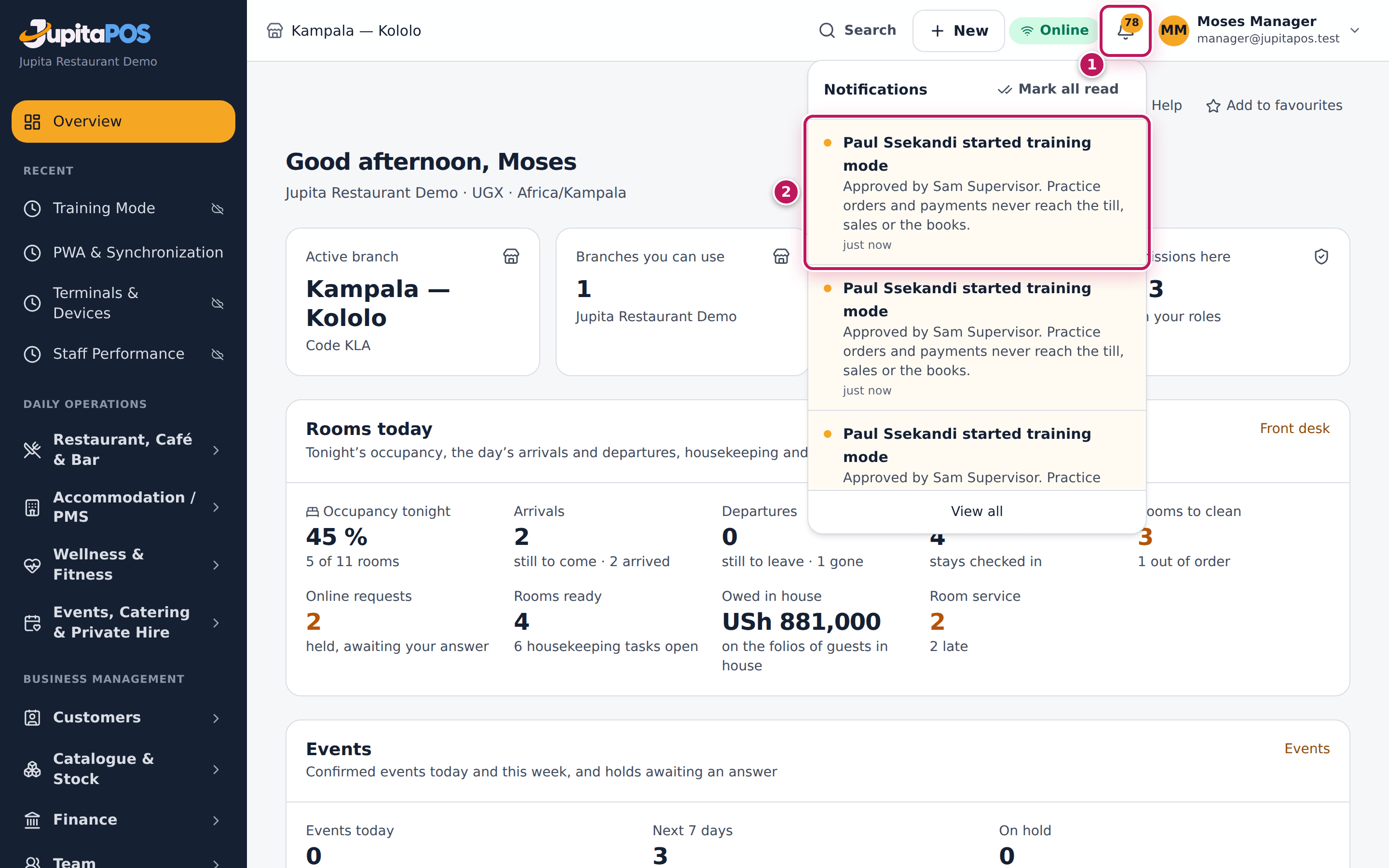
The managers of the branch who look after training are told at once: Moses gets the notification Paul Ssekandi started training mode — Approved by Sam Supervisor. (1, 2), an information alert Training mode started is raised under Security alerts, and the Training page shows Sam Supervisor in the Approved by column (see See who practised and clear the practice).
Screenshot
Common mistakes
- Telling the trainee your PIN. Type it yourself. Your PIN approves voids, discounts and pay-outs too, and everything approved with it is recorded in your name.
- Approving on a till where a real customer is waiting. Everything rung in training is practice: a real customer’s order would never be sold or reach the real kitchen. Approve when the trainee is ready to practise, not in the middle of a real sale.
- Counting practice cash into the drawer. Practice payments are never in the drawer’s expected cash. Any real notes used for practice go back where they came from; the box on the till tells you how much was practised.
Troubleshooting
- “You cannot approve your own action.” The employee number typed is the trainee’s own. Approval is always someone else’s: type yours.
- “… cannot approve this (training.approve).” — for example Fatuma Nakimuli cannot approve this (training.approve). The person whose number was typed does not approve training at this branch (a waiter or cashier). Ask a supervisor or manager.
- “Wrong PIN.” Type your PIN again. After several wrong PINs it locks: “PIN locked — try again later.” Ask another supervisor, or wait.
- “Unknown supervisor.” No employee has that number in this business. Check your employee number.
- “That supervisor is suspended or no longer employed.” Your employment is not active. Ask your manager.
- The till box or the shift box is not there. Nobody practised while that drawer was open or during that shift — the boxes only show when there was practice. Practice cleared by a manager is no longer listed.
FAQ
Does approving training put me in training? No. Only the trainee’s own session switches to practice; your own sessions stay in real work.
How long does my approval last? Until the trainee leaves training or their session ends (sign-out, switch user, time-out, sign out everywhere, or a revoked terminal). Next time, someone approves again.
Can I see what they practised? On the till box and the shift report you see how many practice orders and how much practice cash. The full detail — each practice order — is on the Training page, for managers who look after training.
See who practised and clear the practice
Purpose
A manager follows a new starter’s practice — who approved it, how many orders, how many voids, how much practice cash, how long they take to get to payment, and each practice order in full — and clears practice records when they are no longer needed.
Role / permission required
Owners, directors, general, branch and restaurant managers and
administrators (training.manage).
Prerequisites
- Someone has practised in training mode at a branch you manage (see Practise a sale). You are told when they start: the notification … started training mode, with who approved it, links to this page.
Steps
- Open Training from the sidebar (
/training). - Choose the Branch, or leave All branches.
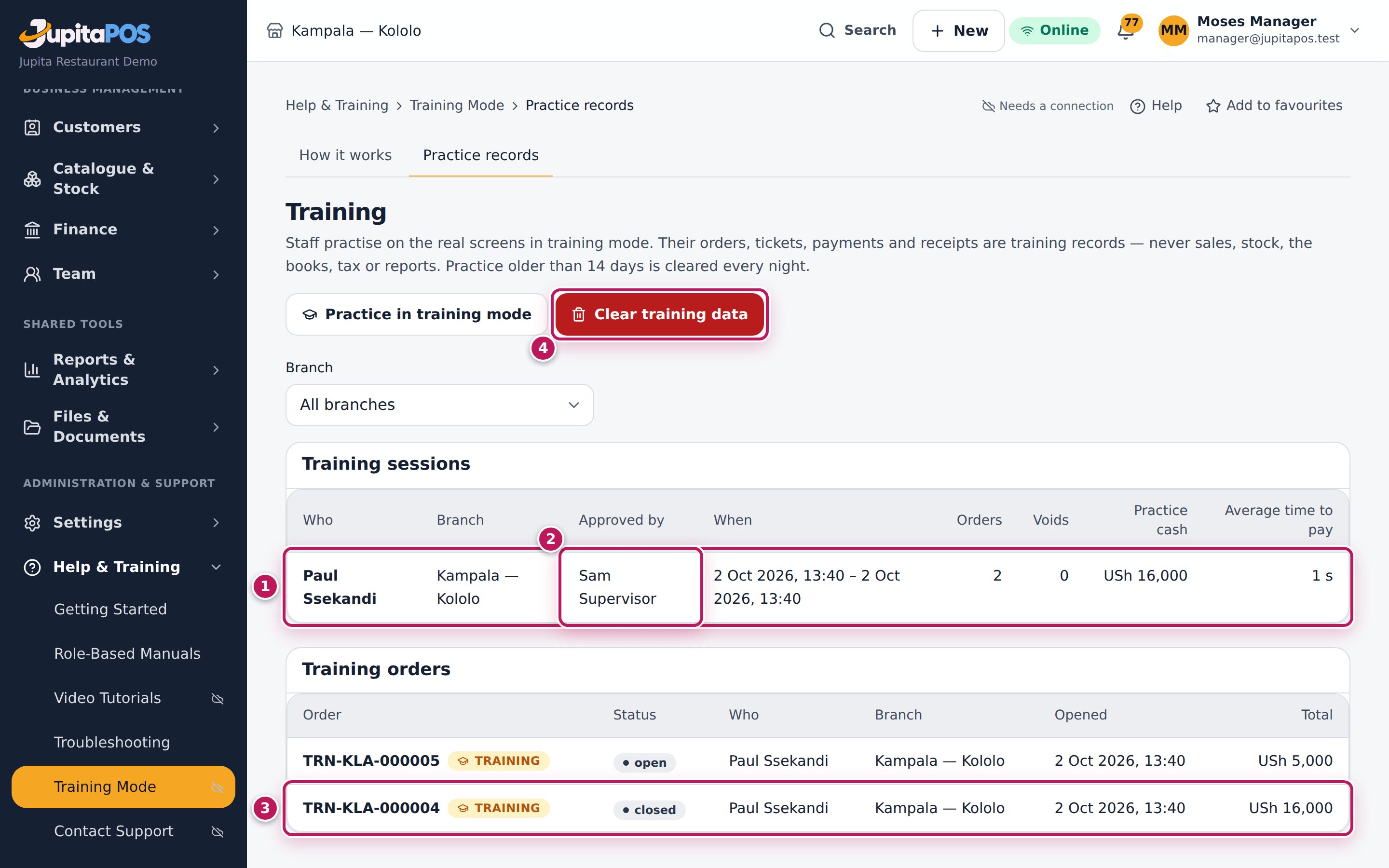
- Read Training sessions (1): Who practised, the Branch, who approved it under Approved by (2) — or Manages training when a manager started their own practice — When (from – to, or – now with a TRAINING badge while they are still practising), the Orders and Voids they made, the Practice cash they took and their Average time to pay.
- Read Training orders (3): every practice order with its status, who rang it, the branch, when it was opened and its total.
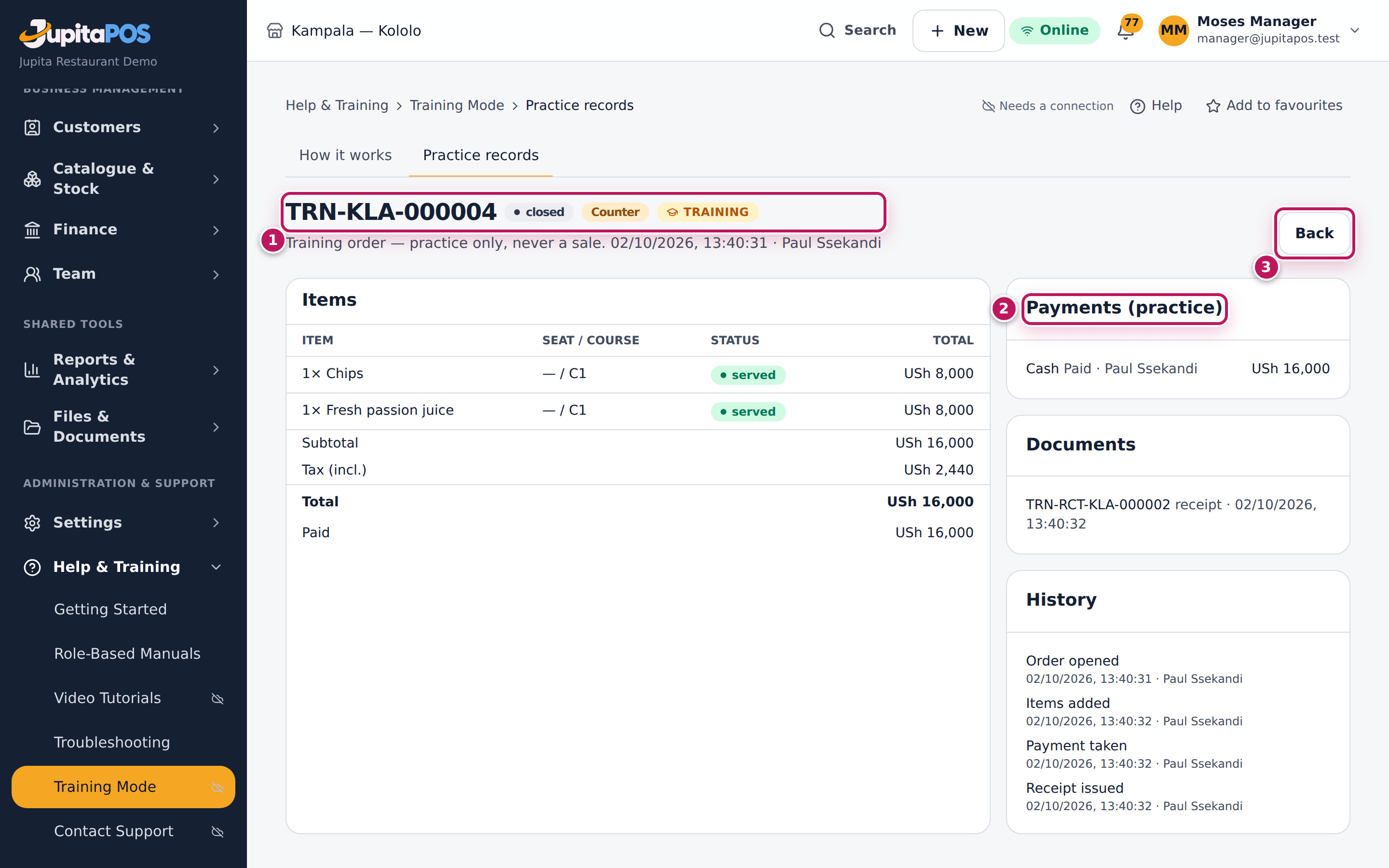
- Tap a practice order to open it. Its page is read-only (1): the items, Payments (practice) (2), the documents and the history. Nothing on it can be changed; Back (3) returns to the Training page.
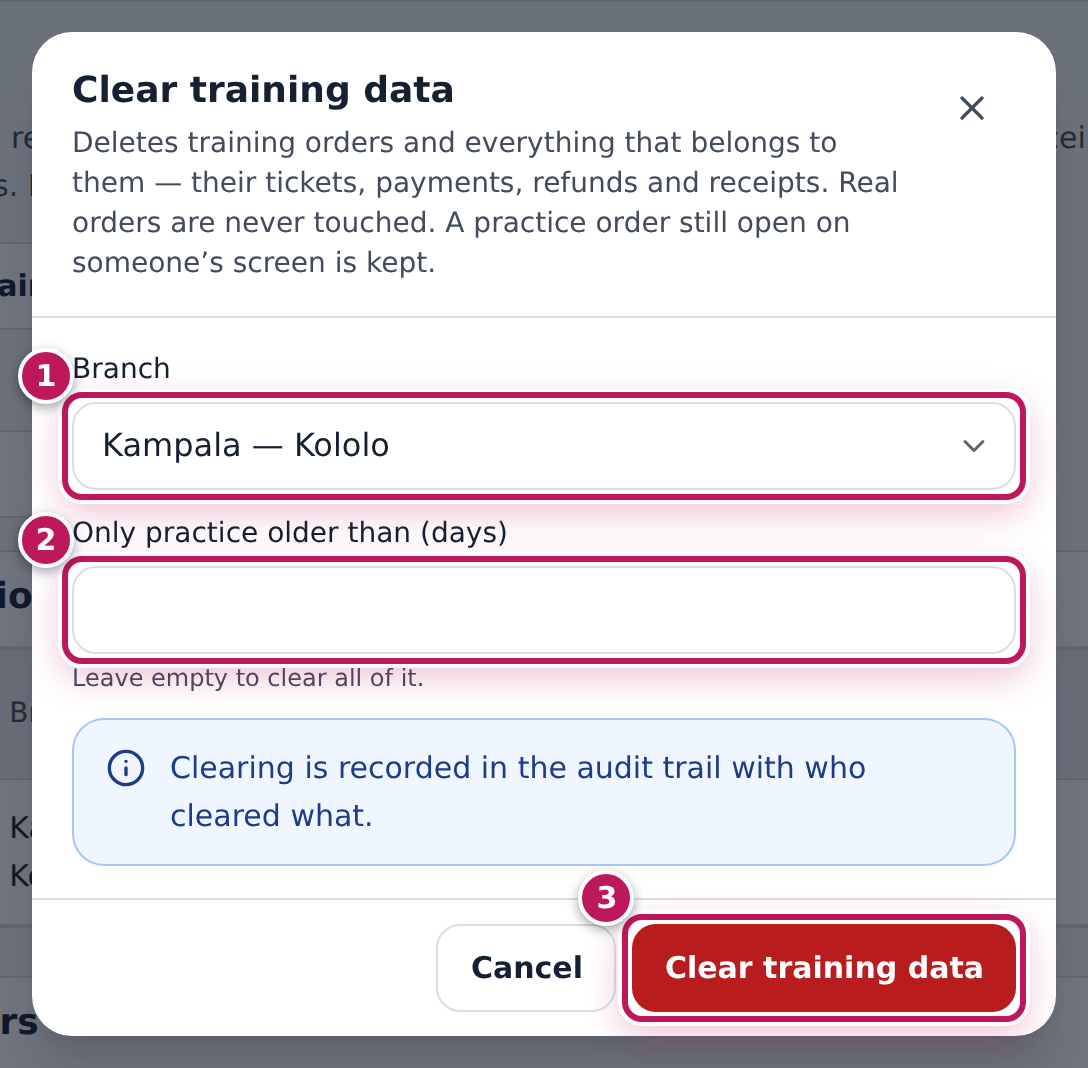
- To clear, tap Clear training data (4) on the Training page.
- Choose the Branch (1). Leave Only practice older than (days) (2) empty to clear all of it, or type a number of days to keep recent practice.
- Tap Clear training data (3).
Expected result
Paul’s session shows Sam Supervisor under Approved by, 2
orders — one paid, one still open — and USh 16,000 practice cash; the
practice orders TRN-KLA-… show their totals (USh 16,000 paid, USh 5,000
open). The paid one opens read-only: Training order — practice only, never
a sale., chips and a fresh passion juice, the practice cash payment of USh
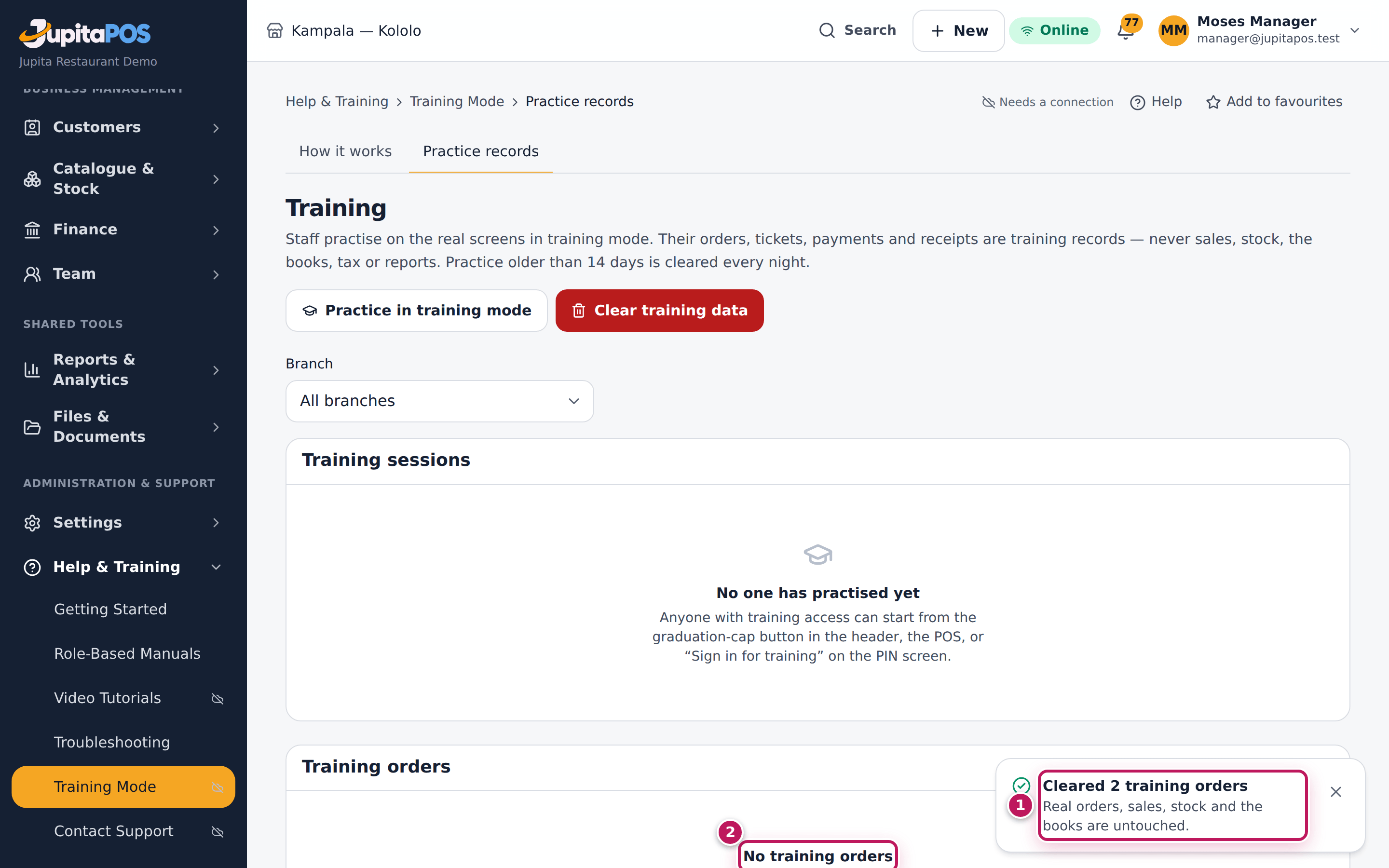
16,000 and its practice receipt TRN-RCT-KLA-…. After clearing, the confirmation says Cleared 2 training orders —
Real orders, sales, stock and the books are untouched. (1), the Training
orders table says No training orders (2), and the sessions left without
orders are removed. Clearing is recorded in the audit trail with who
cleared what.
Practice older than 14 days is also cleared every night, shortly after midnight; the number of days is the business setting training.retention_days, which your installer can change.
Screenshot
Common mistakes
- Clearing before you have looked. Cleared practice cannot be brought back. Read the sessions with the trainee first.
- Expecting an open practice order to be cleared. A practice order still open on someone’s screen is kept until they leave training; clear again later.
- Looking for practice in the reports. Reports, the books and stock never contain practice; the Training page is the only place it shows.
Troubleshooting
- There is no Training in the sidebar. Your role does not hold
training.manage. - A trainee’s practice is missing. It was cleared — by a manager or by the nightly clearing of practice older than the retention days.
- A session shows “– now” for a long time. That person is still signed in in training mode. Ask them to tap Leave training, or wait until their session ends — signing out, switching user, a time-out or a revoked terminal ends the practice too.
- “Training order not found.” The practice order was cleared, or the link is to a real order. Real orders are under Orders.
- Approved by says “Manages training”. Nobody approved, because the
person holds
training.manageand started their own practice.
FAQ
Can I practise myself from this page? Yes: Practice in training mode at the top of the page starts training for your own session.
Where else does practice show? Beside the real figures, never in them: the till’s box Training while this till was open and the shift report’s Training during this shift list who practised, when, practice orders and practice cash (see Approve a colleague’s training). Each start is also an information alert, Training mode started, under Security alerts.
Can I change or void a practice order from its page? No. The page is read-only for managers; the trainee works on their practice orders from their own till while in training.
Does clearing touch real data? No. Clearing deletes training orders and everything that belongs to them — tickets, payments, refunds and receipts — and nothing else. Real orders, sales, stock and the books are untouched.