

On this page
Every guest you know by name has one profile: their phone and e-mail,
birthday, allergies, preferences, visits and spend, bookings, loyalty
points, gift cards and credit. The till, the reservation book, the online
shop and the kitchen all read the same profile, so an allergy typed once is
shown everywhere the guest appears. Open Customers from the sidebar
(/customers).
The screens in this manual are the demo business, Jupita Restaurant Demo, at Kampala — Kololo. Amounts are in Uganda shillings.
Who can do what:
| Task | Permission | Roles in the demo |
|---|---|---|
| Find customers and read profiles | customers.view |
floor staff, host, cashier, supervisor, managers, accountant, catering and events managers |
| Add and edit customers, attach them to orders | customers.manage |
floor staff, host, cashier, supervisor, managers, catering and events managers |
| Merge duplicates | customers.merge |
branch and restaurant managers, general manager, owner |
| Set credit (house accounts) | customers.credit |
managers, accountant, owner |
| Export the directory | customers.export |
general manager, owner |
Find a customer
Purpose
Find a guest’s profile quickly — by name, by phone as they say it, by e-mail or by their code — to see their history, check an allergy or book for them.
Role / permission required
Anyone with customers.view: cashiers, waiters, hosts, supervisors,
managers. The pictures show Paul, a cashier.
Prerequisites
- You are signed in (see Sign in).
Steps
- Open Customers from the sidebar.
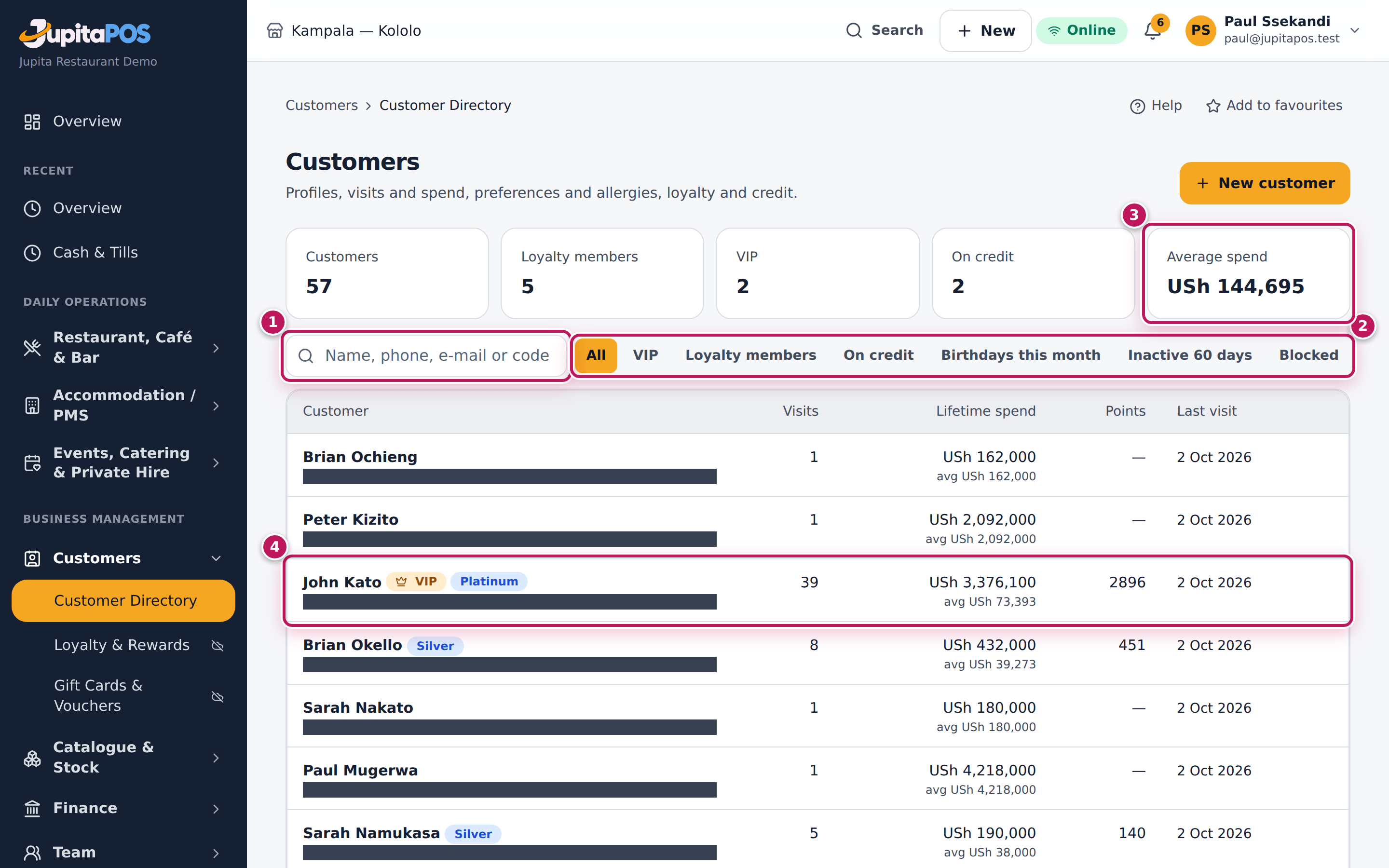
- Read the figures at the top (3): Customers, Loyalty members, VIP, On credit and Average spend.
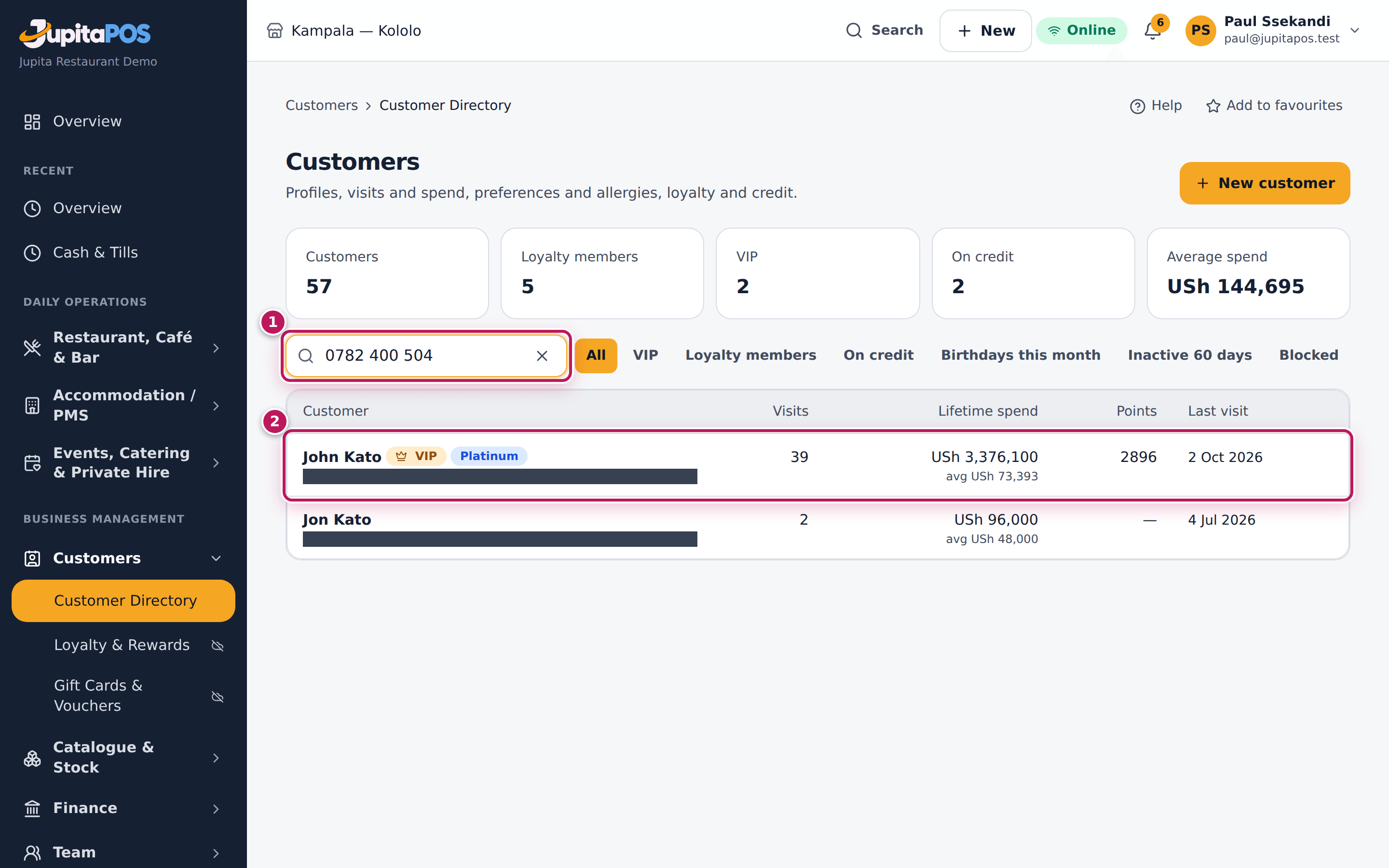
- Type in Name, phone, e-mail or code (1) and press Enter. The phone can be written any way: 0782 400 504, 0782400504 and +256 782 400 504 are the same number.
- To narrow the list, tap a segment (2): All, VIP, Loyalty members, On credit, Birthdays this month, Inactive 60 days or Blocked.
- Read a row (4): the name with VIP and tier markers, the code and phone, Visits, Lifetime spend (and the average), Points and Last visit.
- Tap the row to open the profile (see Read a customer’s profile).
Expected result
The list shows the matching customers, newest visit first. Searching 0782 400 504 finds John Kato, CUS-000005, +256 782 400 504, a VIP Platinum member with 39 visits — and any other record with the same number, which is how you spot a duplicate (see Merge duplicate customers).
Screenshot
Common mistakes
- Searching a first name only. “Brian” finds every Brian. Search the phone number: it is unique to the person.
- Leaving a segment on. A search inside VIP finds only VIPs. Tap All before you search for someone else.
- Creating the customer again because the search found nothing. Check the spelling and try the phone or e-mail before you add a new profile.
Troubleshooting
- “No customers”. Nothing matches the search and the segment. Clear the search (the × in the box) and choose All.
- A customer is missing from the list. The directory shows the 200 customers seen most recently; search for anyone else. A record that was merged into another is not listed — search for the one it was merged into.
FAQ
Can I find a customer at the till? Yes: tap Customer on the order and search the same way (see Attach a customer).
Add a customer
Purpose
Give a new guest a profile — so their allergies follow every order, they earn loyalty points, and you recognise them next time — without creating a second profile for someone you already know.
Role / permission required
Anyone with customers.manage: cashiers, waiters, hosts, supervisors,
managers. The pictures show Paul, a cashier.
Prerequisites
- The guest agrees to give you their name and a phone number or e-mail.
- You searched for them first (see Find a customer).
Steps
- On Customers, tap New customer.
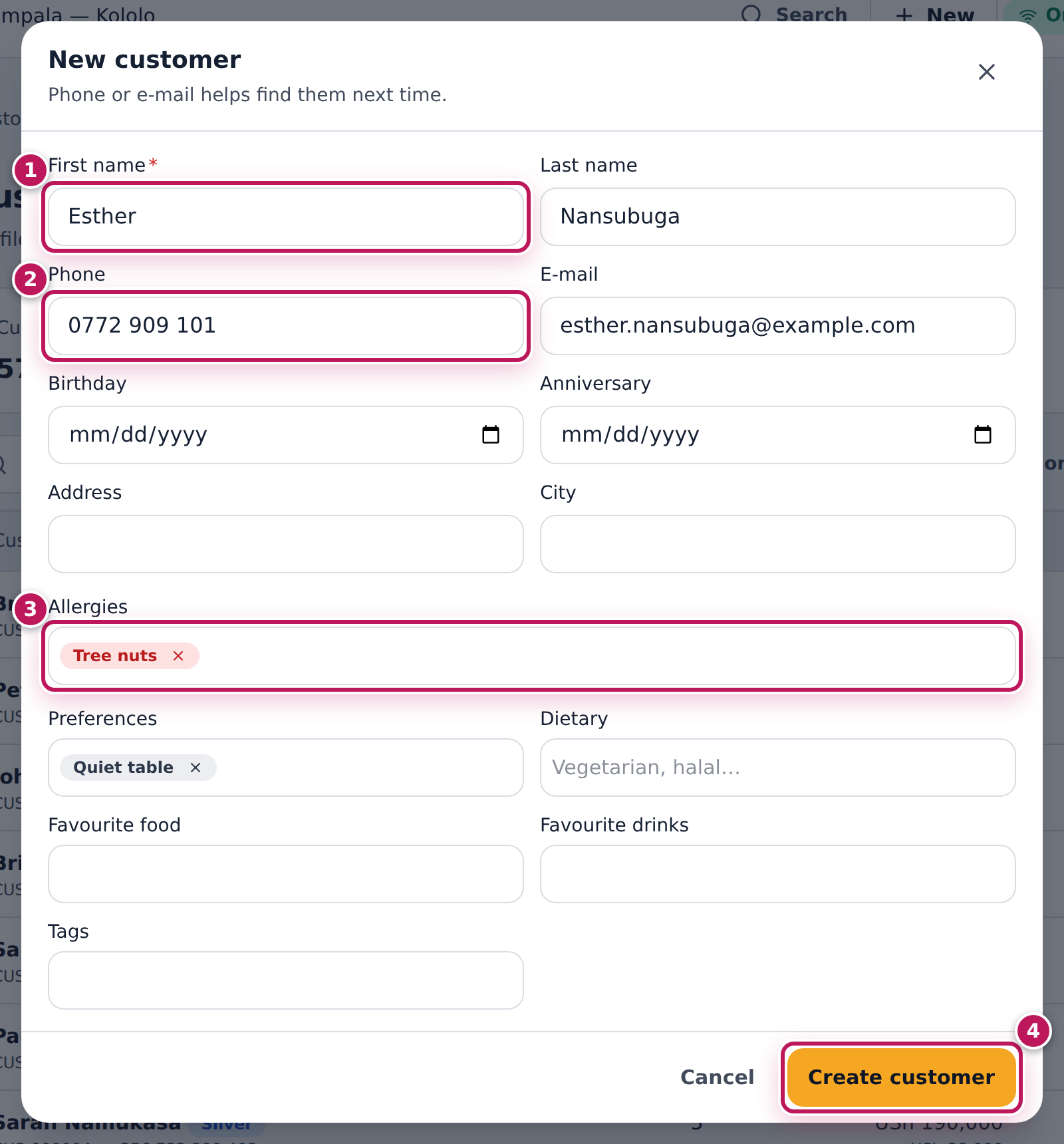
- Type the First name (1), the Last name, the Phone (2) and the E-mail if they give one.
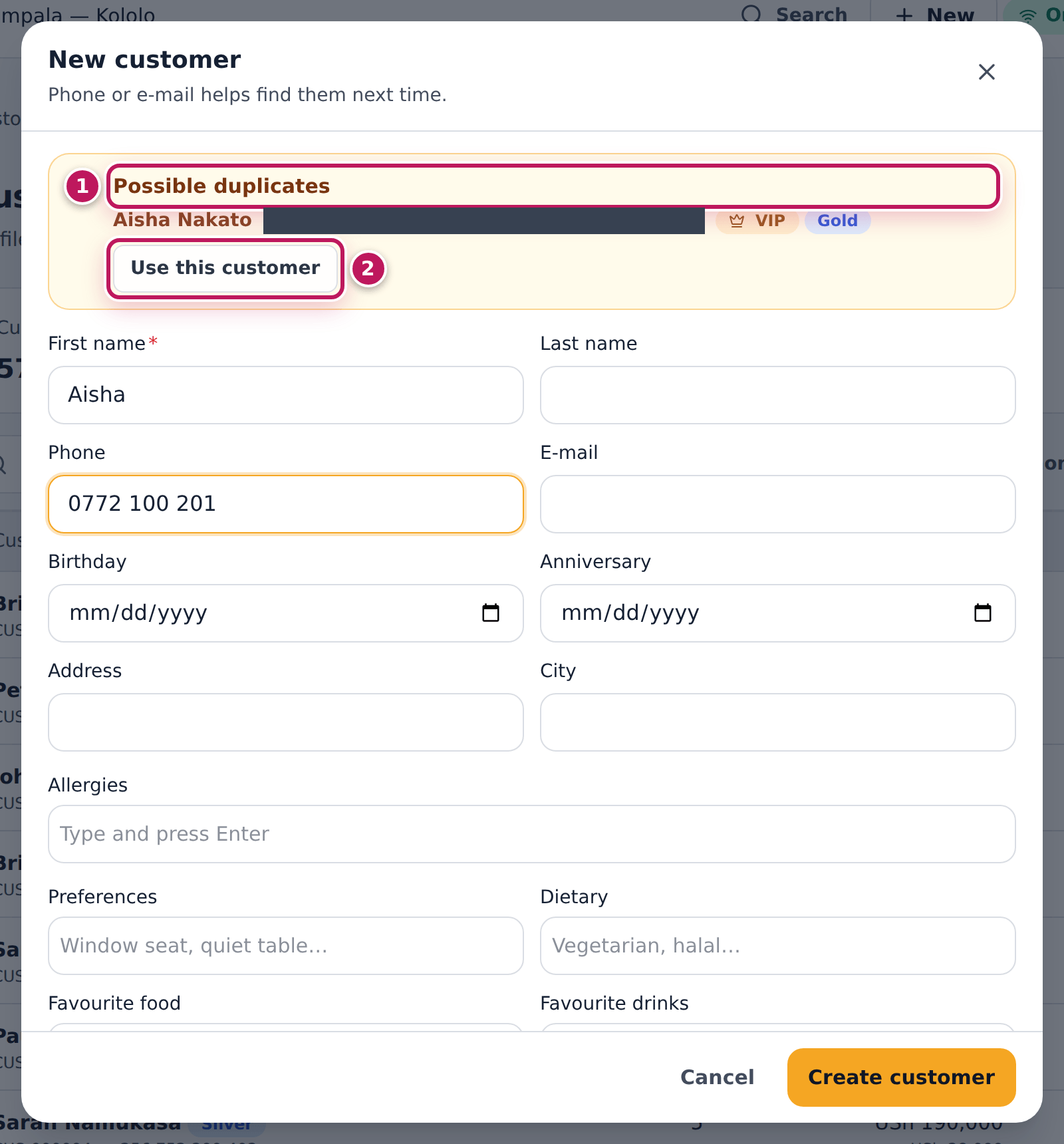
- Watch the top of the dialog. If Possible duplicates appears (1), read who it is and why (same phone, same e-mail, same name). If it is the same person, tap Use this customer (2): their profile opens and nothing new is created.
- Otherwise carry on: add the Birthday, the Allergies (3) — type one, press Enter, type the next — and any Preferences, Dietary needs, Favourite food and Favourite drinks.
- Switch Marketing consent on only if the guest agreed to receive offers.
- Leave Join loyalty on to start earning points now.
- Tap Create customer (4).
Expected result
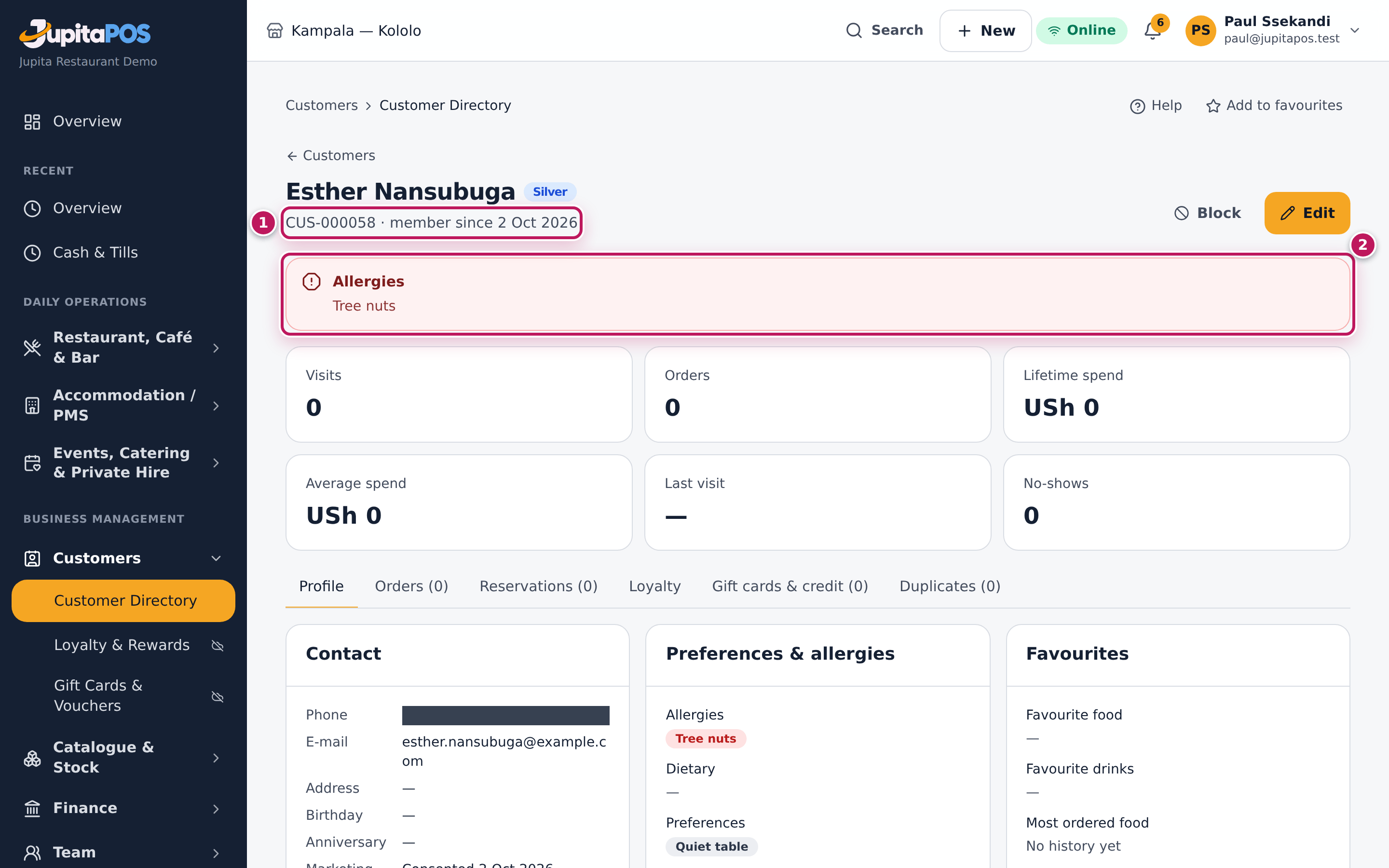
The new profile opens: Esther Nansubuga, a new code such as CUS-000020 · member since 2 Oct 2026 (1), the Silver tier badge, the allergy in a red box (2), no visits yet. The allergy now shows at the till, on bookings and on kitchen tickets for her orders.
Screenshot
Common mistakes
- Tapping Create anyway when the dialog warns. Two profiles split the guest’s visits, points and allergies. Use Create anyway only for two different people who share a phone or e-mail (a couple, a company line).
- Typing an allergy in Notes. Only Allergies is shown in red on orders and tickets.
- Switching Marketing consent on without asking. The guest must agree.
Troubleshooting
- “This looks like Aisha Nakato (same phone).” A customer with the same phone or e-mail already exists. Tap Use this customer, or Create anyway if they are really different people.
- Create customer stays grey. Type a first name.
FAQ
Can I add a customer from the till or a booking? Yes: New in the till’s customer search, and Save as customer in a new booking, create the same profile (see Take a new booking).
Read and update a customer’s profile
Purpose
See everything about a guest in one place — contact, allergies, preferences, favourites, visits and spend, orders, bookings, loyalty, gift cards and credit — and keep it up to date.
Role / permission required
Reading: customers.view. Editing and blocking: customers.manage. The
pictures show Paul, a cashier.
Prerequisites
- You found the customer (see Find a customer).
Steps
- Open the customer from Customers.
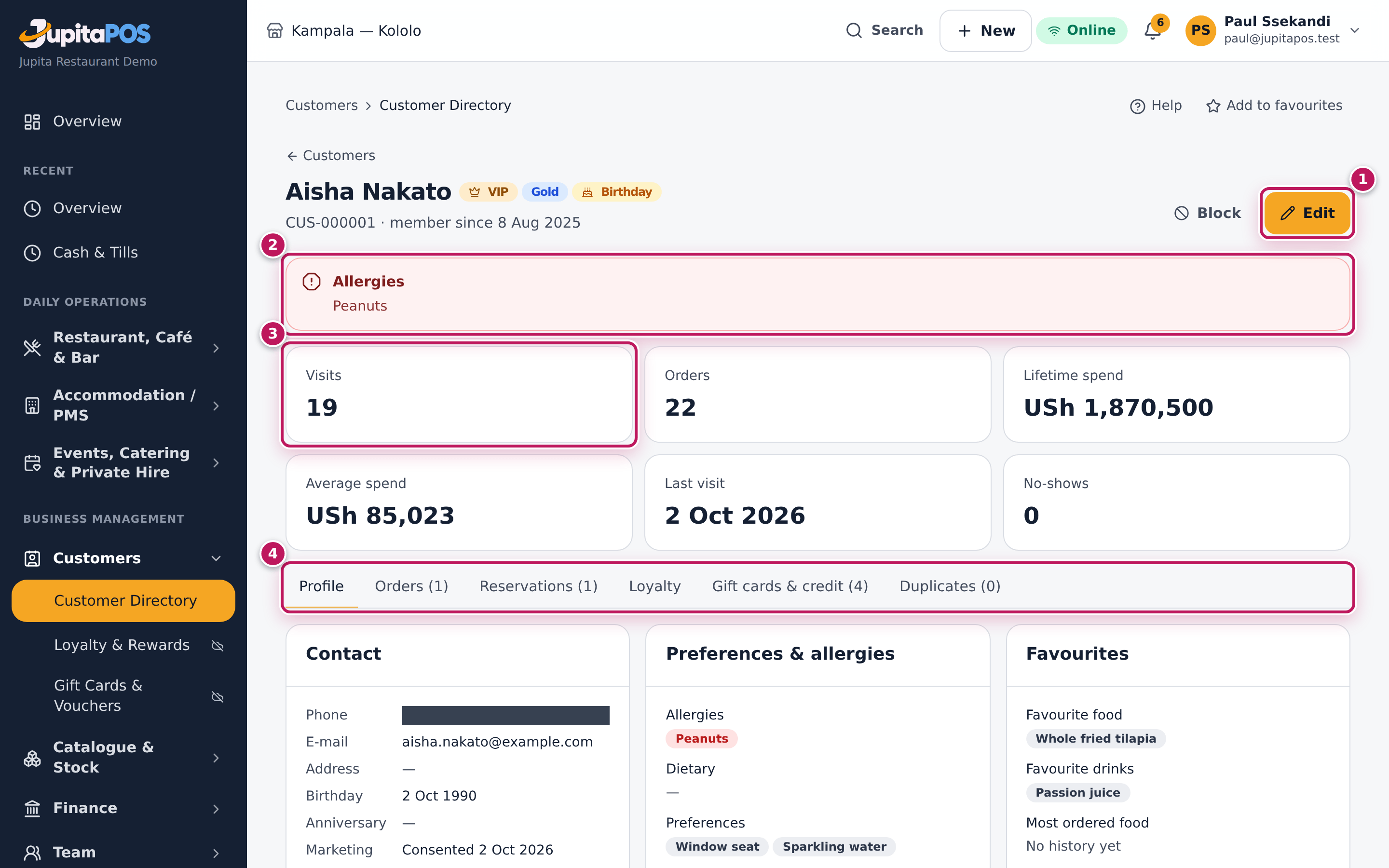
- Read the header: the name with VIP, the tier and Birthday when it is their birthday today; the code and member since.
- Read the red Allergies box (2).
- Read the figures (3): Visits, Orders, Lifetime spend, Average spend, Last visit and No-shows.
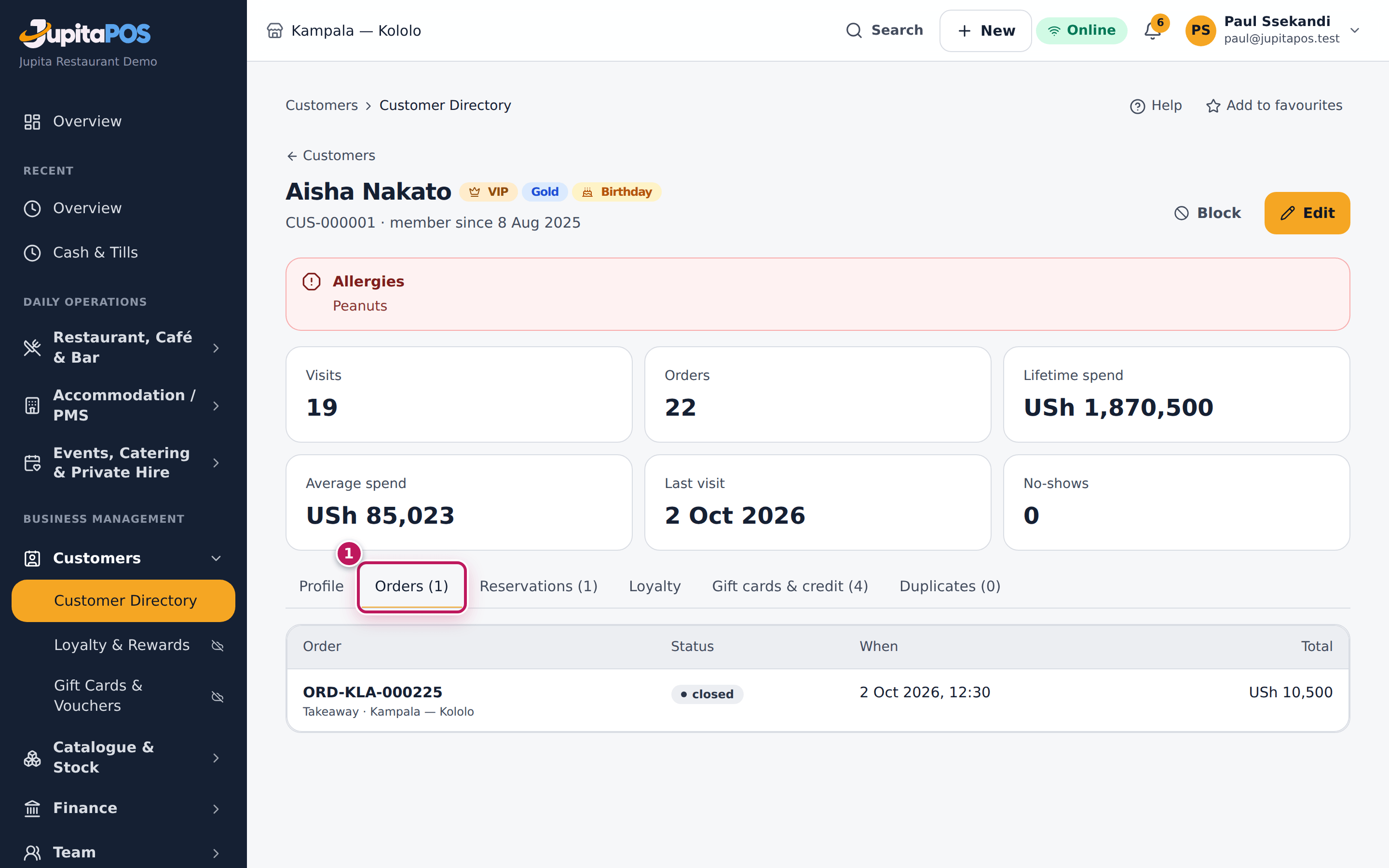
- Use the tabs (4): Profile (contact, preferences, favourites — what you recorded and what they order most — and the credit profile), Orders, Reservations, Loyalty, Gift cards & credit and Duplicates.
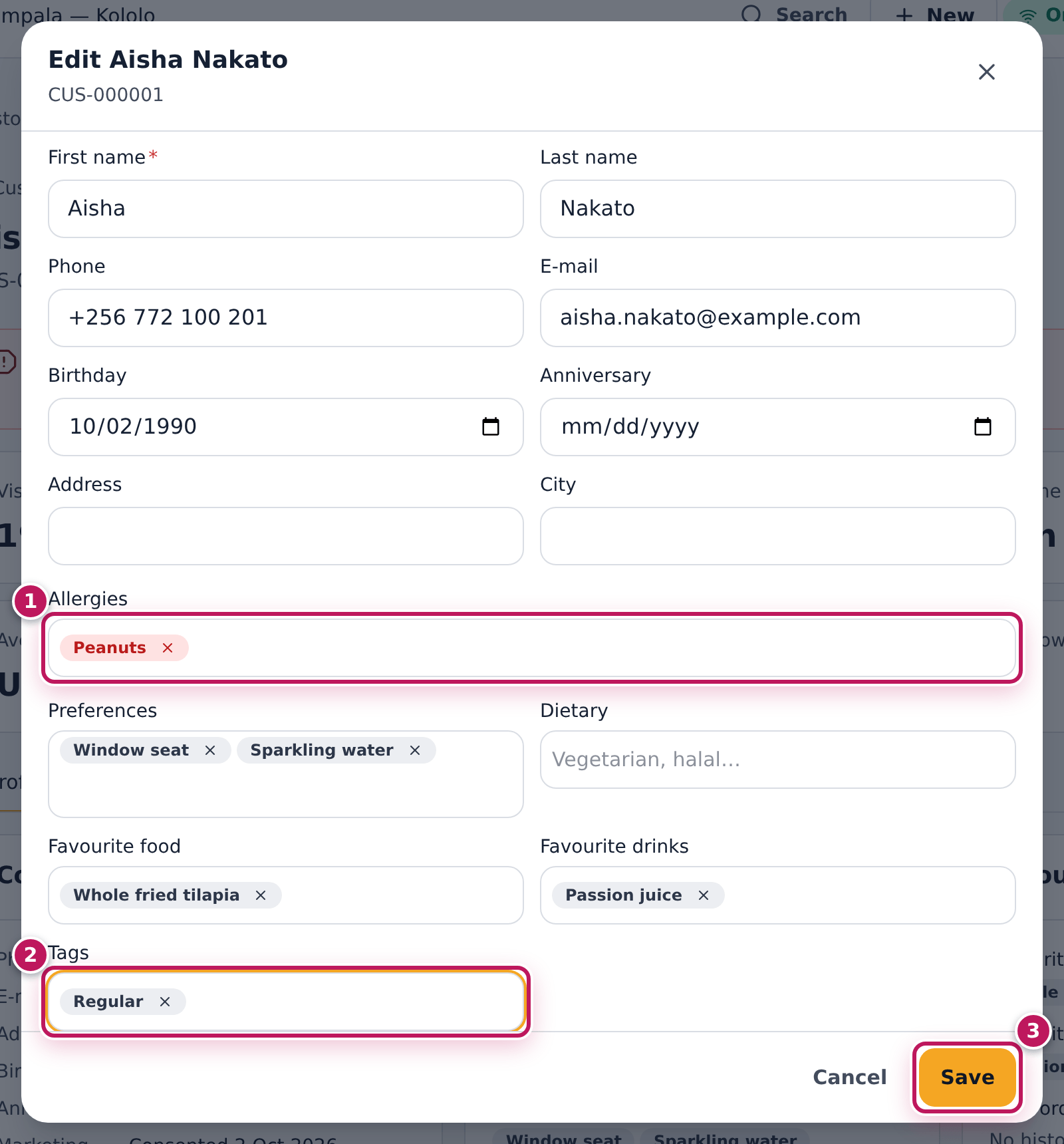
- To change something, tap Edit (1).
- Update the fields — for example add a tag in Tags (2) — and tap Save (3).
- To stop a customer being attached to new orders, tap Block; tap Unblock to allow it again.
Expected result
Aisha Nakato’s profile shows VIP, Gold and Birthday, Peanuts in the red box, 19 visits and a lifetime spend of USh 1,870,500. After Save her tags show Regular. The Orders tab lists her orders with their number, type, branch, status, date and total (3).
Screenshot
Common mistakes
- Overwriting a phone number with a second one. The old number stops finding them. Keep the number they use most; put a second one in Notes.
- Blocking instead of merging. A duplicate profile should be merged (see Merge duplicate customers), not blocked.
Troubleshooting
- “Someone else changed this customer. Reload and try again.” Another person saved the profile at the same time. Reload and edit again.
- “Samuel Wasswa is blocked.” at the till: the customer is blocked. A manager decides whether to unblock them.
- Edit and Block are missing. Your role can only read profiles.
FAQ
Where do “Most ordered food” and “Most ordered drinks” come from? From the customer’s closed orders, counted by item. Favourite food and Favourite drinks are what you typed.
Merge duplicate customers
Purpose
Join two profiles of the same guest into one, so their visits, orders, bookings, points, gift cards, stamp cards and memberships are together and their allergies are never missed.
Role / permission required
Branch or restaurant manager, general manager or owner — customers.merge.
The pictures show Moses, the branch manager.
Prerequisites
- You know the two profiles are the same person (call them if in doubt).
Steps
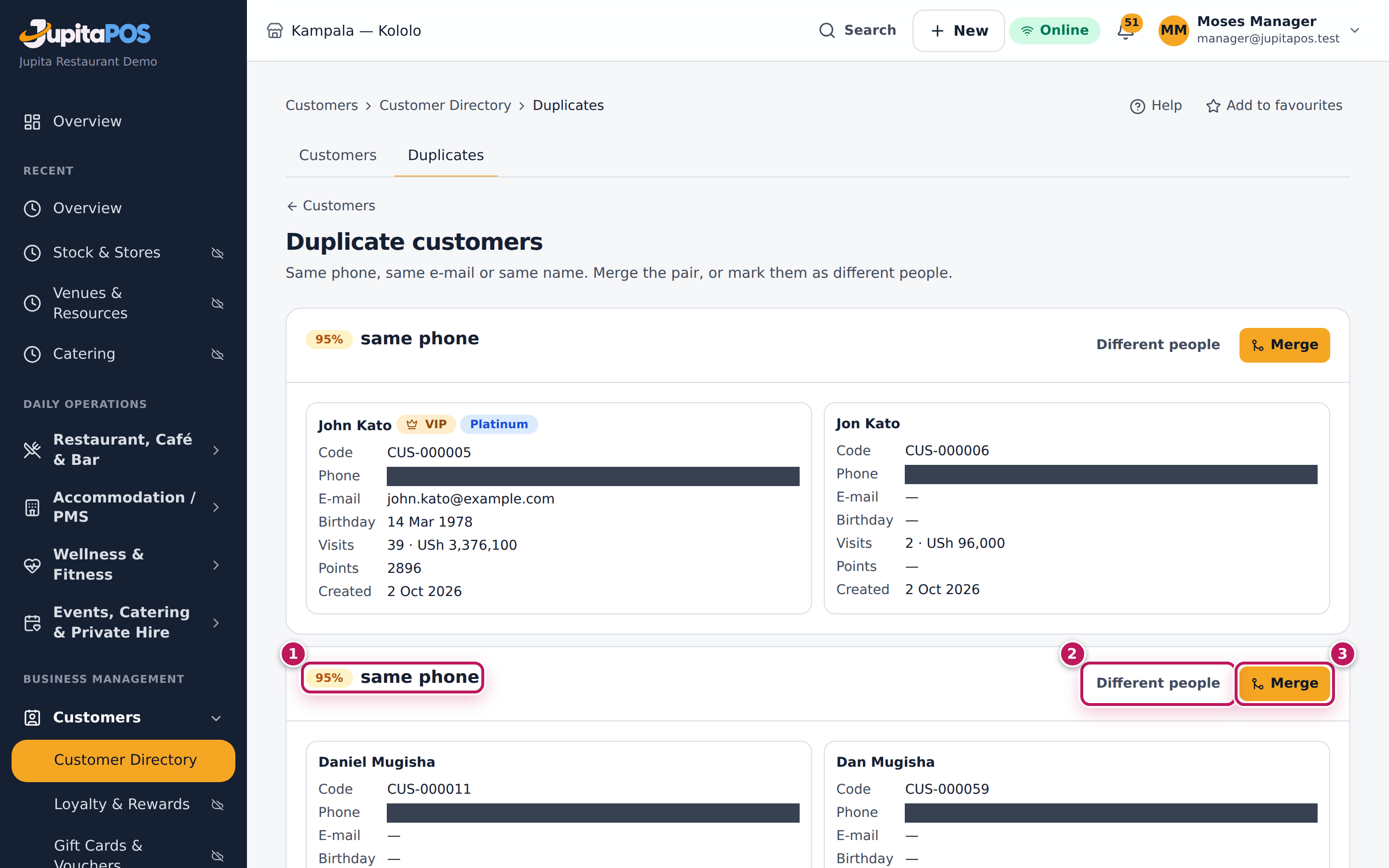
- On Customers, tap Duplicates (
/customers/duplicates). - Read each pair: the score and the reason (1) — same phone, same e-mail or same name — and the two records side by side with their code, phone, e-mail, birthday, visits and points.
- If they are two different people, tap Different people (2). The pair leaves the list.
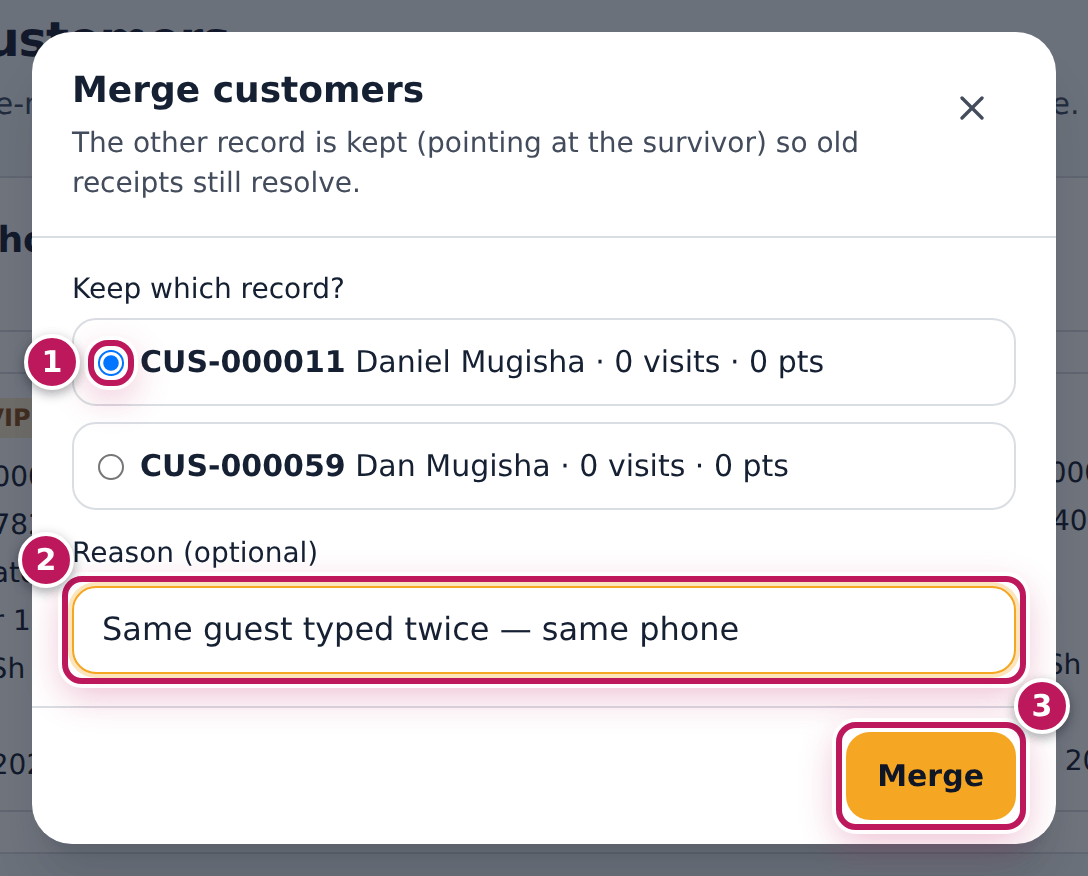
- If they are the same person, tap Merge (3).
- Under Keep which record? choose the profile to keep (1) — usually the one with more visits and points (it is chosen for you).
- Type why in Reason (optional) (2).
- Tap Merge (3).
Expected result
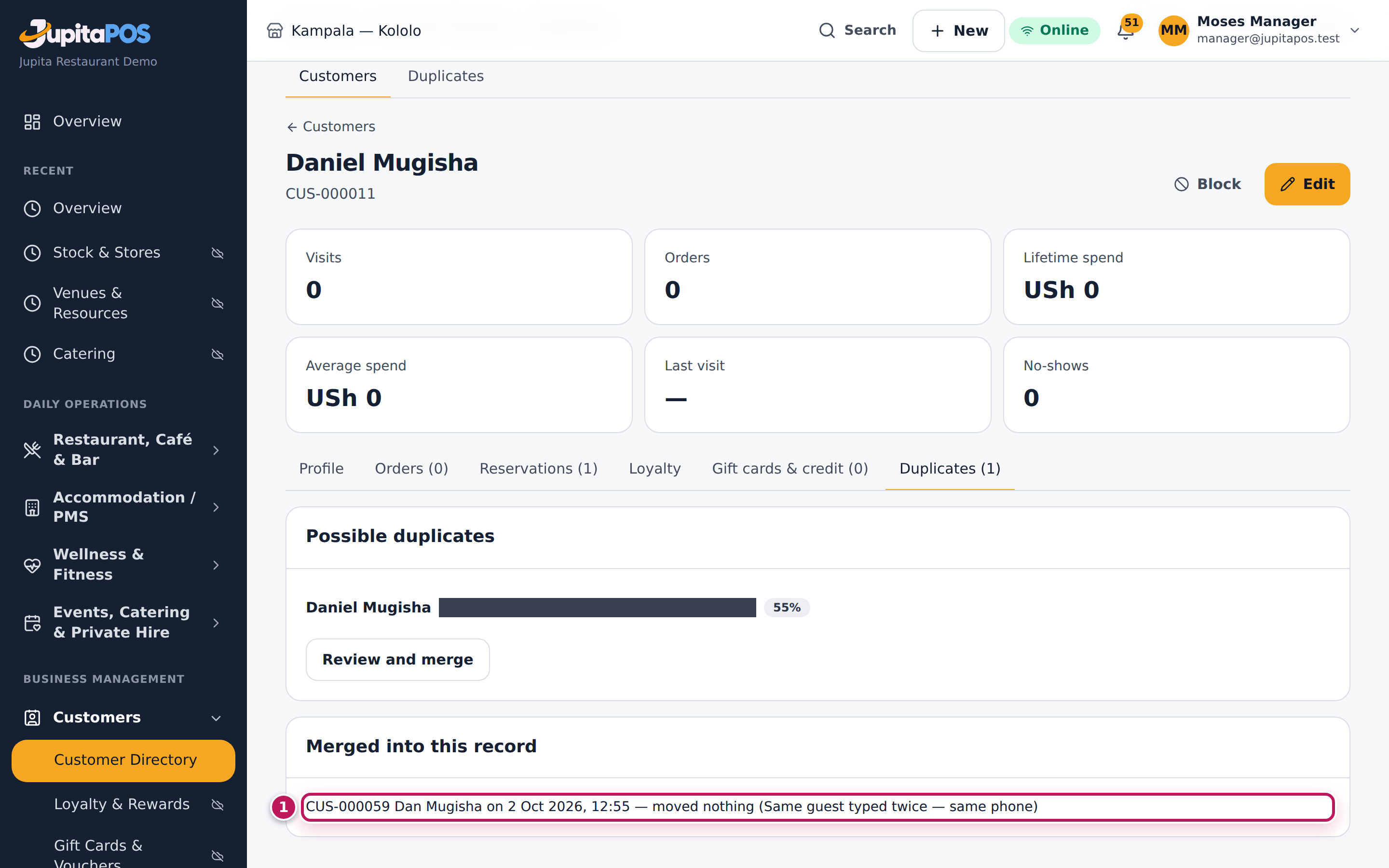
The message Dan Mugisha merged into CUS-000011 appears and the pair leaves the list. The kept profile has the other one’s orders, bookings, points, gift cards, stamp cards and memberships; details it did not have (an e-mail, a birthday) are filled in. Its Duplicates tab lists the merge under Merged into this record with the date and your reason (1). The other profile is kept, marked as merged and pointing to the kept one, so old receipts still find the guest.
Screenshot
Common mistakes
- Merging two people who share a phone. A husband and wife, or colleagues on a company line, are different people: tap Different people.
- Keeping the empty record. Keep the profile with the history; the other’s history moves into it either way, but the kept code is the one staff will see.
Troubleshooting
- “One of these customers was already merged.” Someone merged them a moment ago. Reload the page.
- The Duplicates button is missing. Only
customers.mergeshows it. - “No likely duplicates”. No pair shares a phone, an e-mail or a name.
Give a customer credit (house account)
Purpose
Let a trusted customer or company eat now and pay later — up to a limit, within agreed terms — by charging their house account at the till.
Role / permission required
Setting credit: managers, the accountant and the owner — customers.credit.
Charging the account at the till: a cashier with payments.take, approved
on the spot by a manager. The pictures show Moses (branch manager) and Paul
(cashier).
Prerequisites
- The owner or manager agreed the limit and the terms with the customer.
- For the till, the cashier’s till is open (see Open the till).
Steps
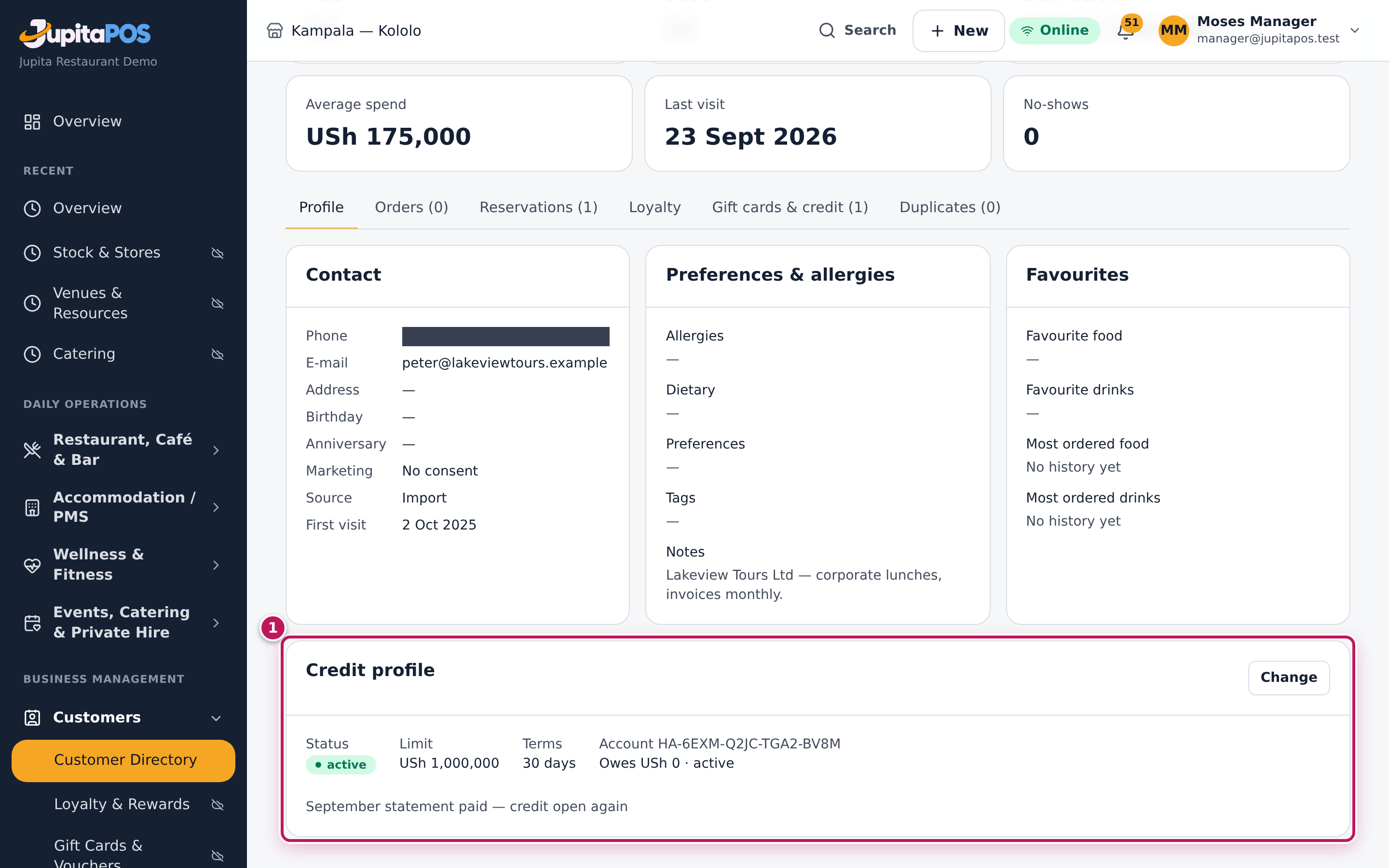
- Open the customer’s profile. On Profile, find Credit profile and tap Change.
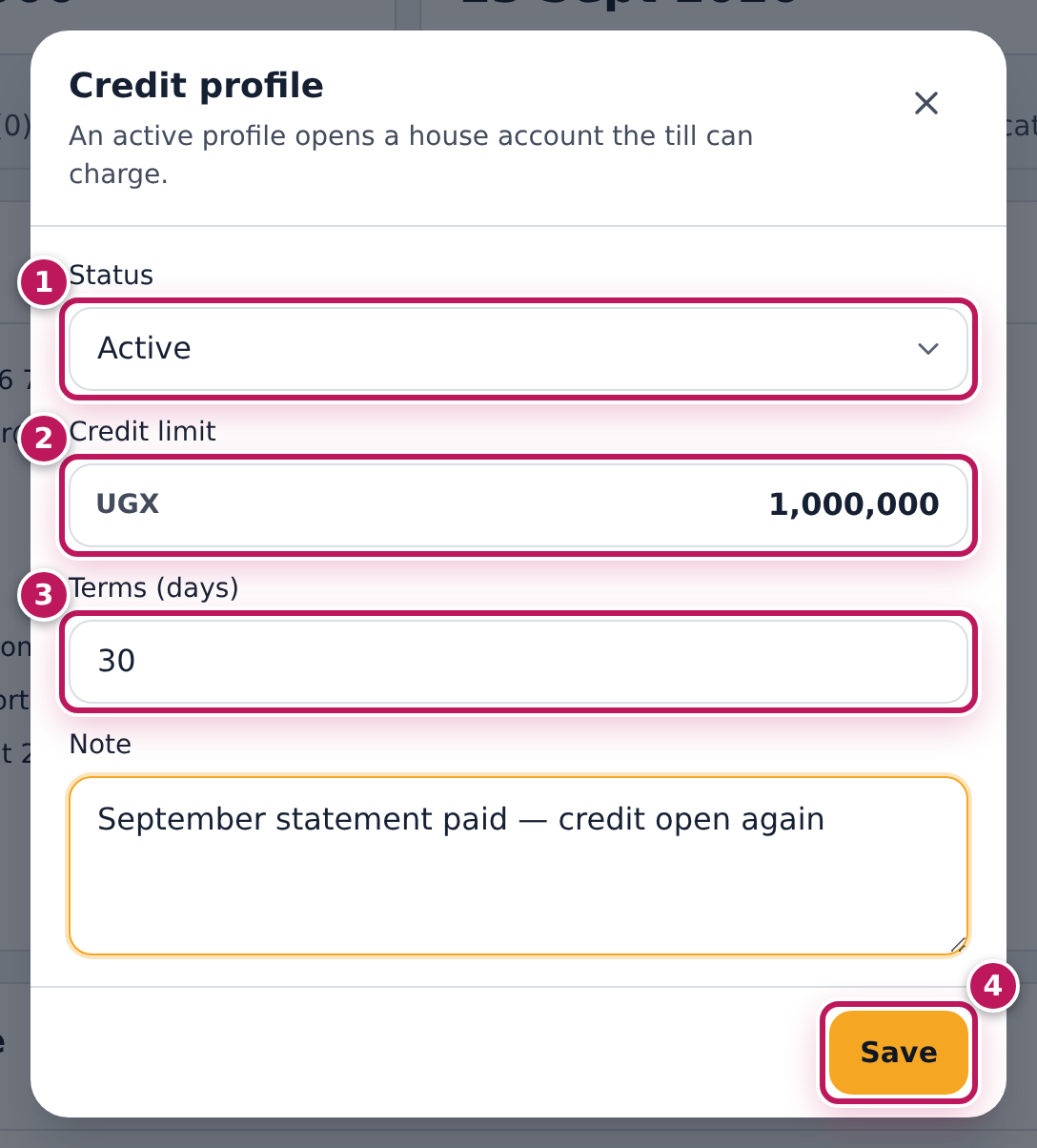
- Choose the Status (1): Active lets the till charge the account; On hold and Blocked stop it; No credit means none.
- Type the Credit limit (2) and the Terms (days) (3), and a Note (who agreed it, why).
- Tap Save (4).
- Read the credit profile (1): status, limit, terms and the house account’s code (Account HA-…) — the code the till needs.
At the till, to charge it:
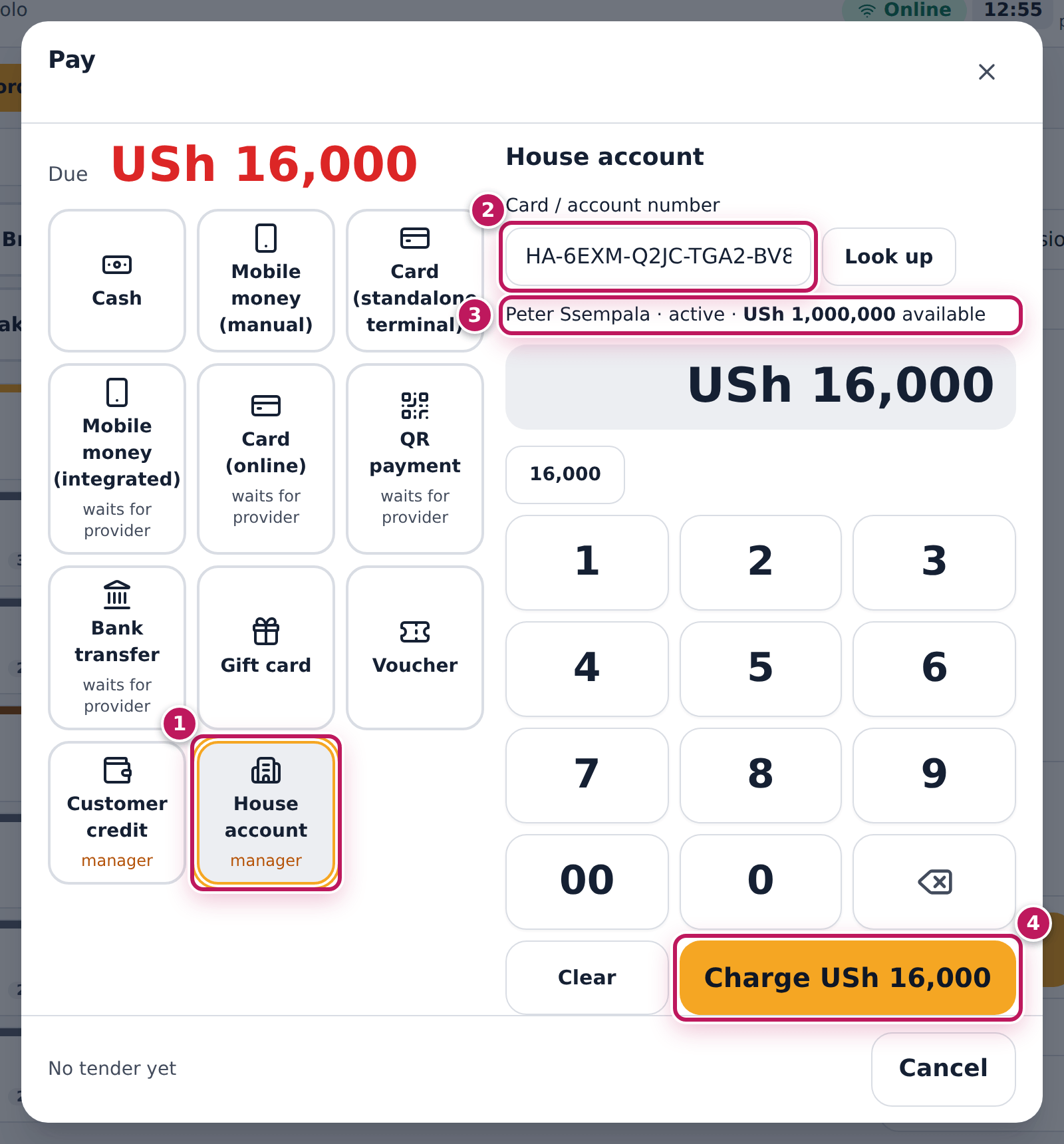
- Ring up the order and tap Pay. Tap House account (1).
- Type the account code in Card / account number (2) and tap Look up. The account holder, its status and what is available show (3).
- Tap Charge (4).
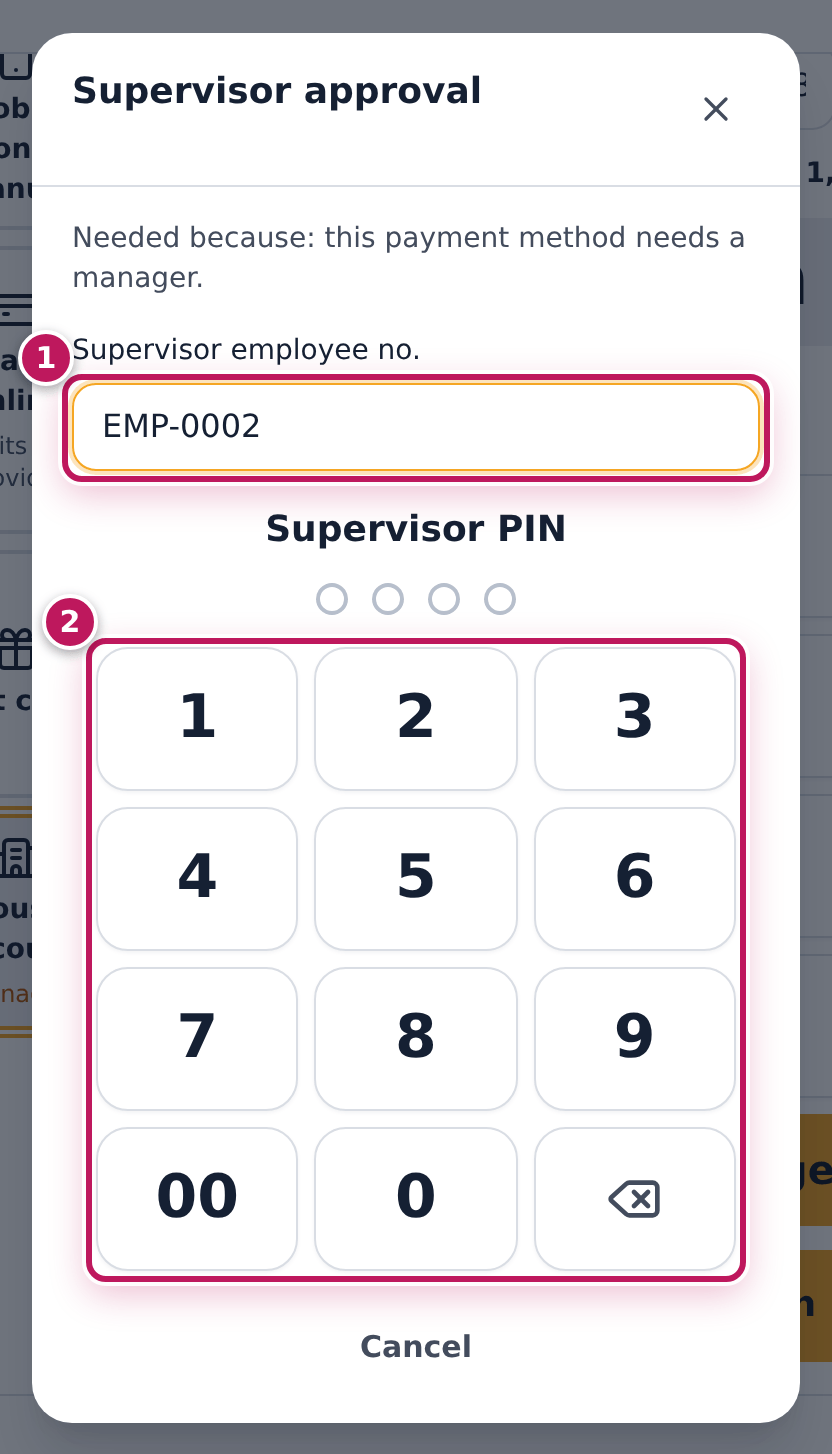
- A manager types their Supervisor employee no. (1) and their PIN on the keypad (2).
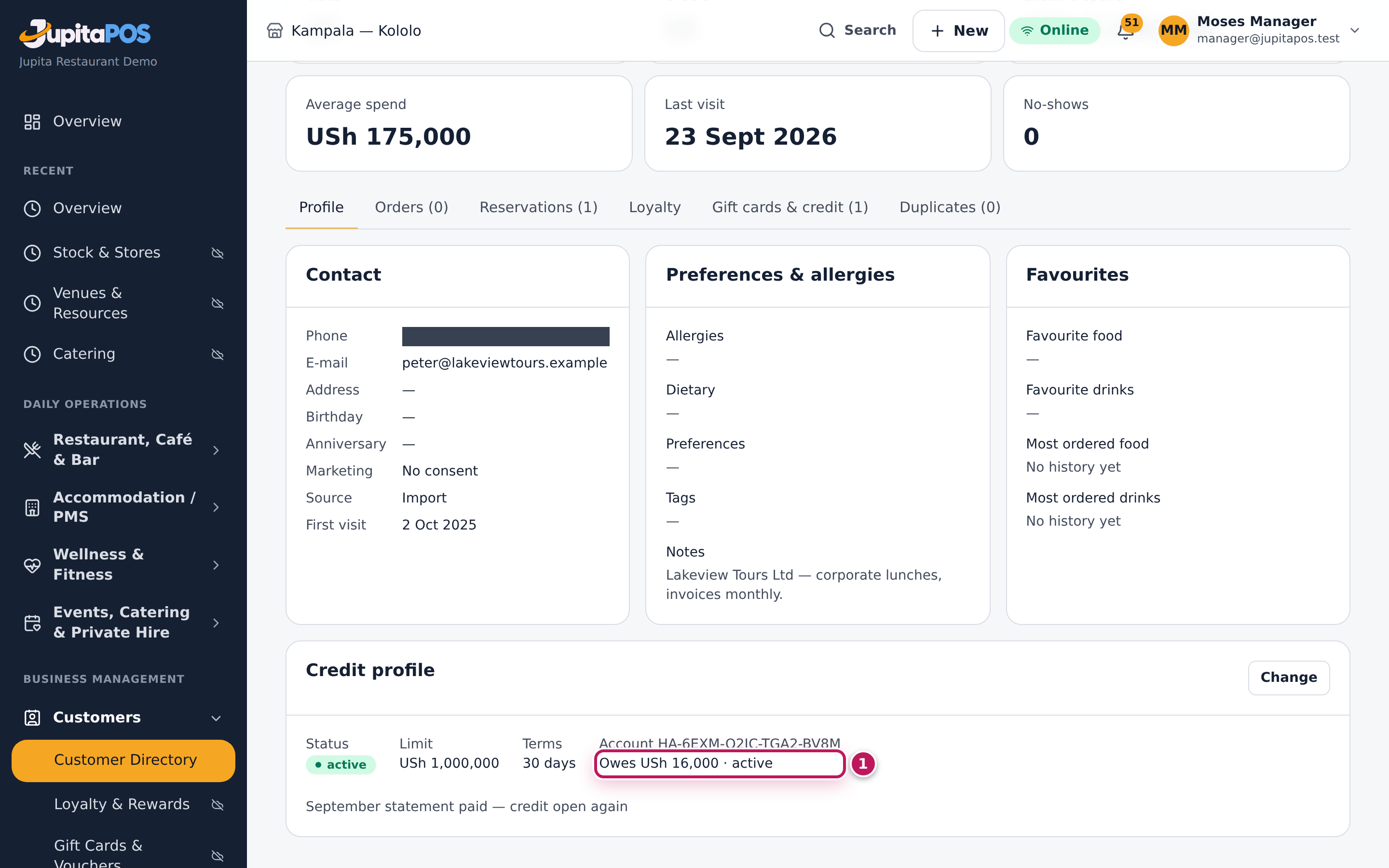
- Back on the customer’s profile, the credit profile shows what they owe on the account (1).
Expected result
Credit profile saved appears and Peter Ssempala’s profile shows active, a limit of USh 1,000,000, 30 days and his house account (Account HA-…). At the till, the order of USh 16,000 is charged to the account and closes, and the receipt prints. The credit profile then shows Owes USh 16,000 · active beside the account code. On the profile’s Gift cards & credit tab the account’s Balance is the same amount.
Screenshot
Common mistakes
- Activating credit without a limit. It is refused: Set a credit limit to activate credit.
- Charging a personal meal to a company account. Check the account holder that Look up shows before you charge.
- Leaving an account active after the customer stopped paying. Set it On hold until they pay: the till then refuses it.
Troubleshooting
- “Set a credit limit to activate credit.” Type a limit above 0.
- The account shows suspended at Look up. Its credit profile is on hold or blocked. A manager changes it to Active.
- Charge asks for a supervisor. A house account always needs a manager’s approval at the till. The manager types their employee number (for example EMP-0002) and PIN.
FAQ
How does the customer pay what they owe? The accountant records the payment against the account (see Receivables).
Can a deposit or a refund go on the account? Deposits are customer credit, not the house account (see Take a deposit).
Export the customer list
Purpose
Take the directory to a spreadsheet — for a mailing to guests who agreed to marketing, or for your accountant — knowing that every export is recorded.
Role / permission required
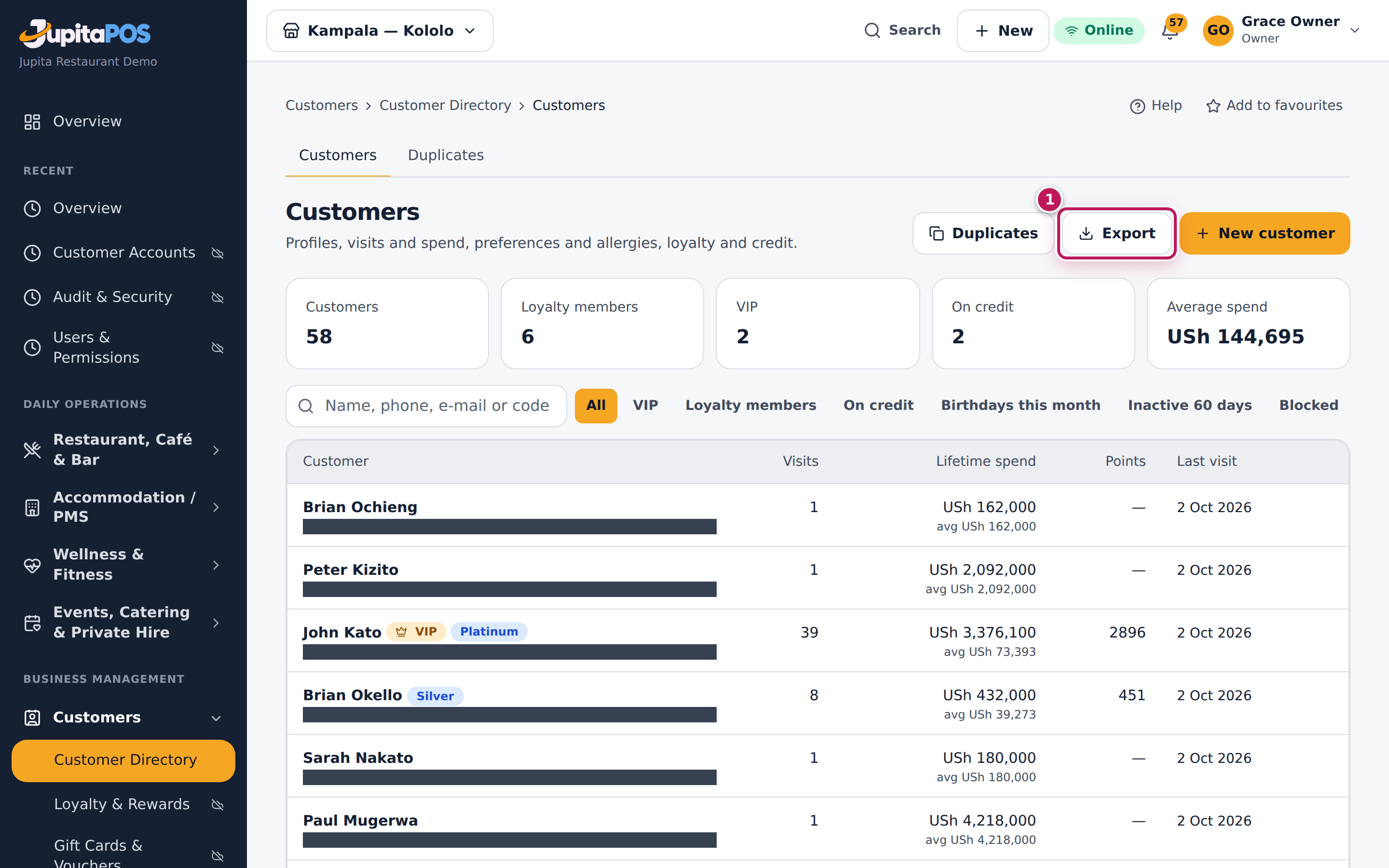
General manager or owner — customers.export (sensitive). The picture shows
Grace, the owner.
Prerequisites
- You have a reason to take customer data out of the system; keep the file safe and delete it when you are done.
Steps
- Open Customers from the sidebar.
- Tap Export (1).
- Open the downloaded file (
customers-2026-10-02.csv) in a spreadsheet.
Expected result
A CSV file downloads with one row per customer (merged records are left out), in code order, with these columns: code, name, phone, email, city, birthday, vip, member, points, orders, visits, lifetime_spend, average_spend, last_visit, marketing_consent, status. The first row is CUS-000001, Aisha Nakato. The export is written to the audit trail with how many customers it contained.
Screenshot
Common mistakes
- Mailing everyone in the file. Only write to guests with marketing_consent = yes.
- Sending the file by e-mail or leaving it on a shared computer. It holds names and phone numbers: keep it private.
Troubleshooting
- The Export button is missing. Only
customers.exportshows it (the owner and the general manager). - Accents look wrong in the spreadsheet. The file is UTF-8: open it with Data → From text/CSV and choose UTF-8.