

On this page
The kitchen display replaces the paper ticket. When a waiter or cashier sends an order from the till, every line goes to the station that makes it — chips and rolexes to the Hot Kitchen, steaks to the Grill, cakes to Pastry & Desserts — and appears on that station’s board within a second. The cook works the ticket on the screen; the till, the pass and the waiter see what the kitchen is doing without walking to the kitchen.
Every board works the same way. The kitchen, bar and barista boards share the same buttons; only what each item shows changes (see Bar display and Barista board). Where each item is made is set by the manager under Stations & routing (see Set up stations and routing).
The screens in this manual are the demo business, Jupita Restaurant Demo, at its Kampala — Kololo branch on a Friday lunchtime. The board is used on a tablet or a wall screen in the kitchen; the pictures show a desktop screen and the same screens are offered at tablet size beside them.
The life of a ticket
| Status | What it means | Buttons on the ticket |
|---|---|---|
| New | The order was just sent; nobody has looked at it yet | Accept, Start (and Ready under ⋮) |
| Accepted | A cook has seen it | Start, Ready |
| Preparing | Being cooked; the till shows the lines as preparing | Ready, Bump |
| Ready | Cooked and waiting at the pass (the Ready lane) | Bump, Recall |
| Completed | Bumped: it has left the kitchen (the Done lane) | Recall |
| Delayed | Past the station’s delay time, or marked delayed by a cook | Ready, Bump |
| Recalled | Brought back from Ready or Done | Ready, Bump |
| Re-fired | Being made again (sent back, dropped, wrong) | Ready, Bump |
| Cancelled | This station will not make it | — |
Open the kitchen board
Purpose
Put your station’s tickets on the kitchen screen at the start of the shift, so every order sent to your station appears in front of you the moment the waiter sends it.
Role / permission required
Cooks, chefs, sous chefs and kitchen assistants — anyone with
kitchen.view. Opening the list of stations needs production.view, which
every kitchen role has. Working the tickets (the buttons) needs
kitchen.complete; a kitchen assistant sees the tickets without buttons.
Prerequisites
- You are signed in on the kitchen’s screen (see Sign in), at the branch you work at.
- Your manager has set up the kitchen stations (see Set up stations and routing).
Steps
- After you sign in (password or PIN), a chef, sous chef, cook or kitchen
assistant — the kitchen roles with no dashboard — lands straight on
Preparation Screens › Stations (
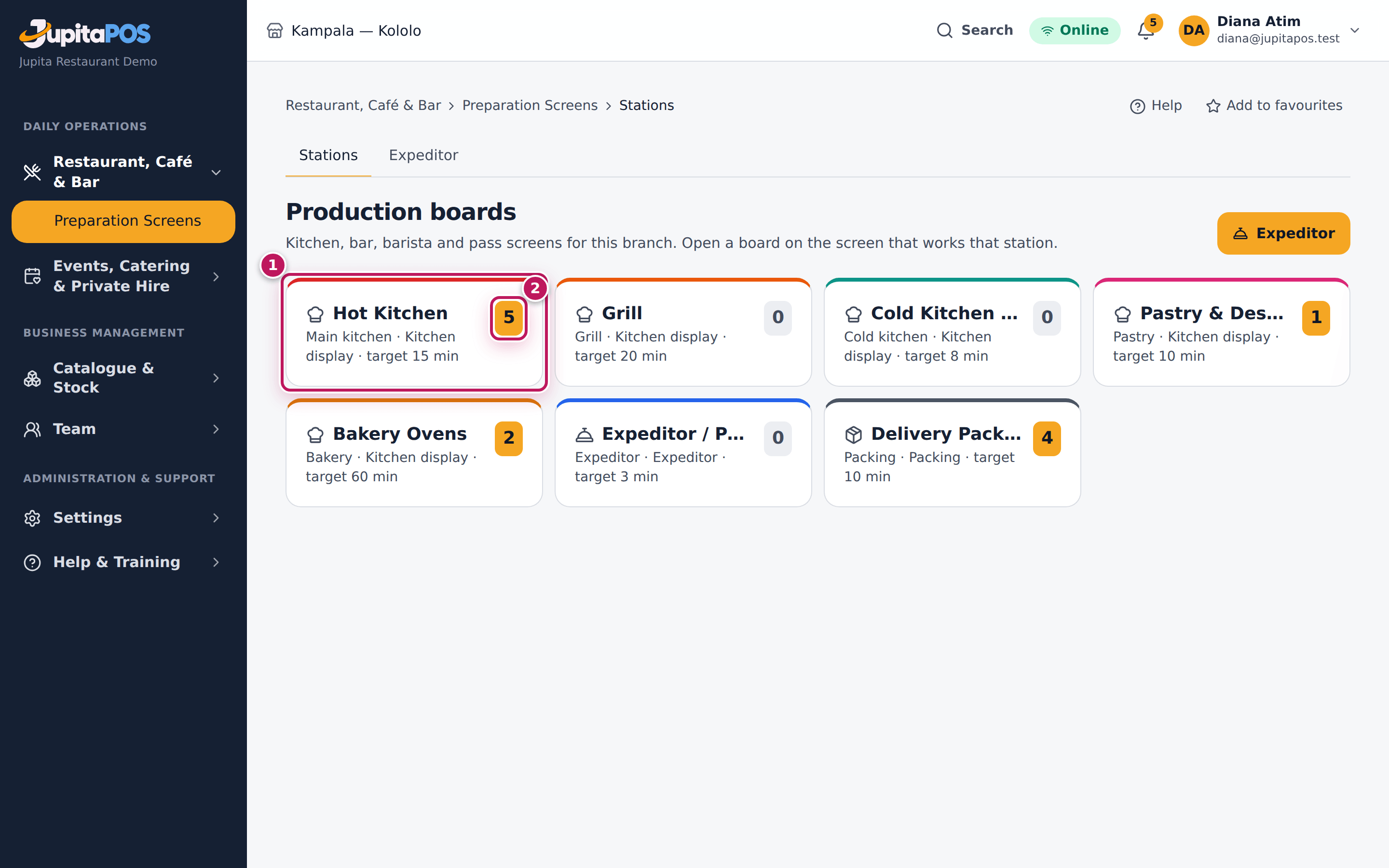
/production; the page is headed Production boards); anyone else opens it from the menu, Restaurant, Café & Bar › Preparation Screens. You see one card per station of your branch. Each card shows the station’s kind, its display, its target time and, on the right, how many tickets are open there. - Tap your station’s card, for example Hot Kitchen (1). The number on the card (2) is the open tickets waiting for you.
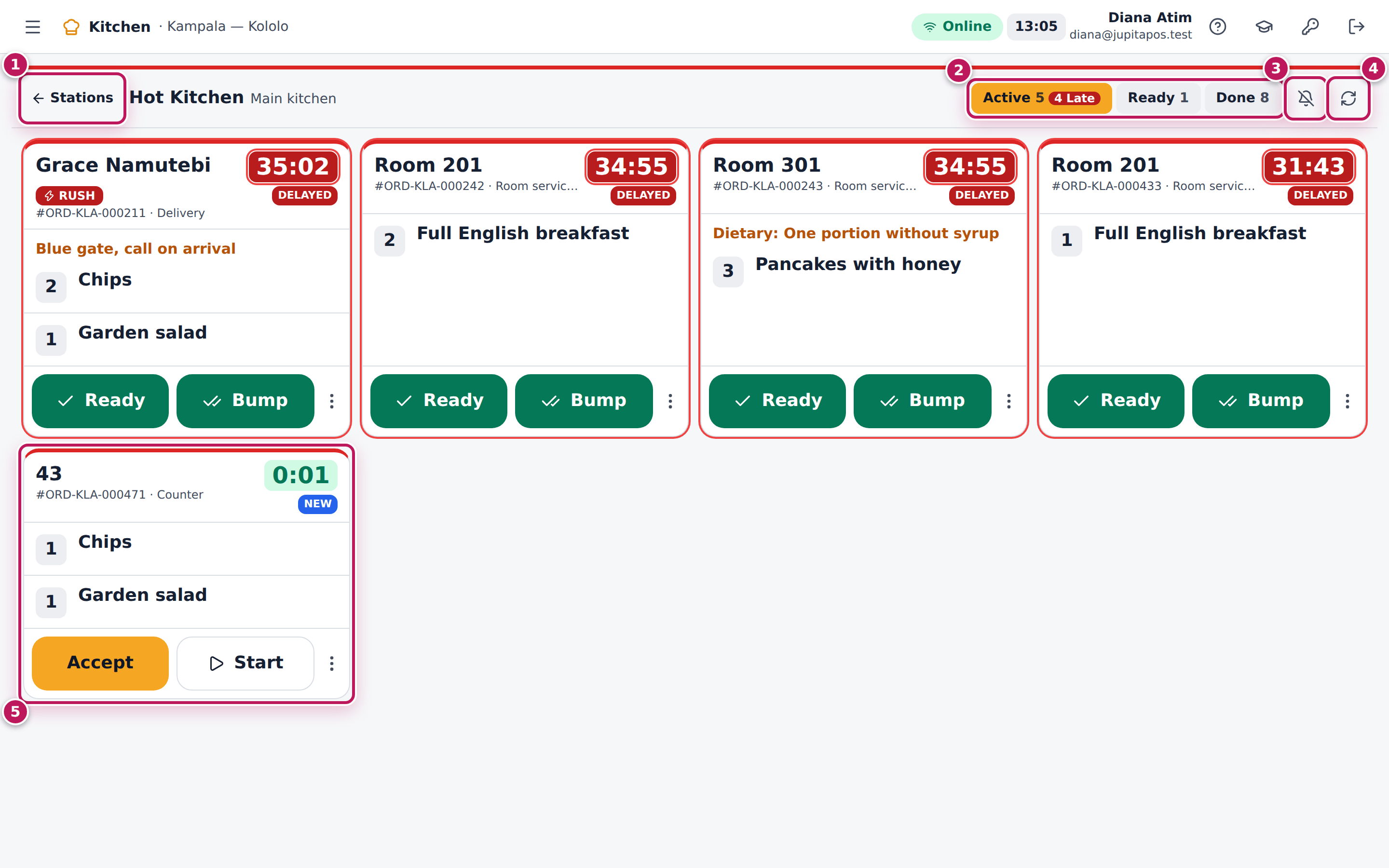
- The board opens full screen. Check the station’s name at the top, next to Stations (1).
- Read the lanes (2): Active is what you must cook, Ready is what waits at the pass, Done is what you finished in the last half hour. A red late count next to Active tells you how many tickets are past the station’s target time.
- To hear a beep when a new ticket arrives, tap the bell (3). Tap it again to mute it.
- Leave the board open. New tickets (5) appear by themselves; if the connection was down, tap Refresh (4).
Expected result
The Hot Kitchen board shows the kitchen’s open tickets, oldest first, with rush and VIP tickets and delayed tickets at the front. A counter order of chips and a garden salad arrives headed with its call number (for example 139), with New on it and a green timer counting up from 0:00.
Screenshot
Common mistakes
- Opening the wrong station. A grill cook on the Hot Kitchen board never sees the steaks. The station’s name is at the top of the board.
- Closing the board to use the tablet for something else. Tickets keep arriving, but nobody sees them. Keep the board open all service; open other screens on another device.
- Leaving the sound off in a noisy kitchen. The beep plays only while the bell is on, and it is off each time the board is opened.
Troubleshooting
- “No stations at this branch”. Nothing is set up at the branch you are signed in to. Check the branch at the top of the screen, or ask your manager to add the stations.
- My station is not in the list. You do not have the permission for its kind of display (a cook does not see the bar boards), or the station was switched off. Ask your manager.
- No new tickets for a long time during service. The screen may have lost the connection. Check the Online pill at the top; tap Refresh. The board also refreshes itself every 30 seconds.
FAQ
Can two screens show the same board? Yes. Both update together. If two cooks tap the same ticket at the same moment, the second tap is refused with This ticket changed on another screen. Reloaded. and the board reloads.
Why is the Done lane nearly empty after a busy hour? It shows only what was finished in the last 30 minutes.
What happens when the internet goes down? The board keeps showing the tickets it has, but it needs the server to receive new ones and to accept, start or bump: a tap is refused with a red message. Work from the tickets on screen and tap Refresh when the connection is back; tills that keep selling offline send their orders to the kitchen when they reconnect (see Sell while the internet is down).
Accept a new ticket and start cooking
Purpose
Tell the floor that the kitchen has seen an order and is cooking it. The waiter’s till and the pass show each step, so nobody has to come and ask.
Role / permission required
Cooks, chefs and sous chefs — anyone with kitchen.complete.
Prerequisites
- Your station’s board is open (see Open the kitchen board).
- A waiter or cashier has sent an order to your station (see Ring up a counter order and Send to the kitchen and fire courses).
Steps
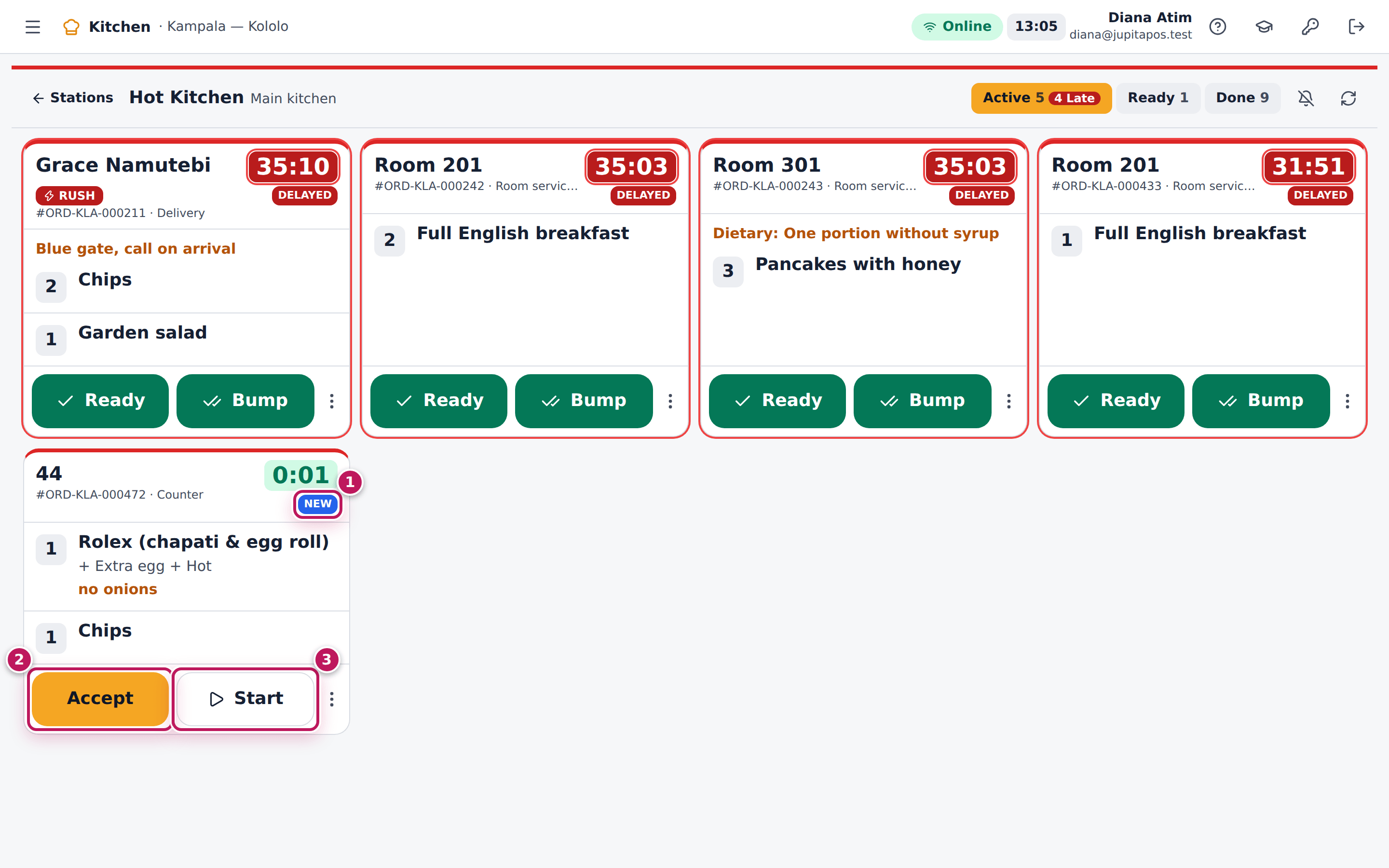
- A new ticket appears in the Active lane with New on it (1). Read it top to bottom (see Read a ticket).
- Tap Accept (2) to show the floor you have seen it. The status becomes Accepted.
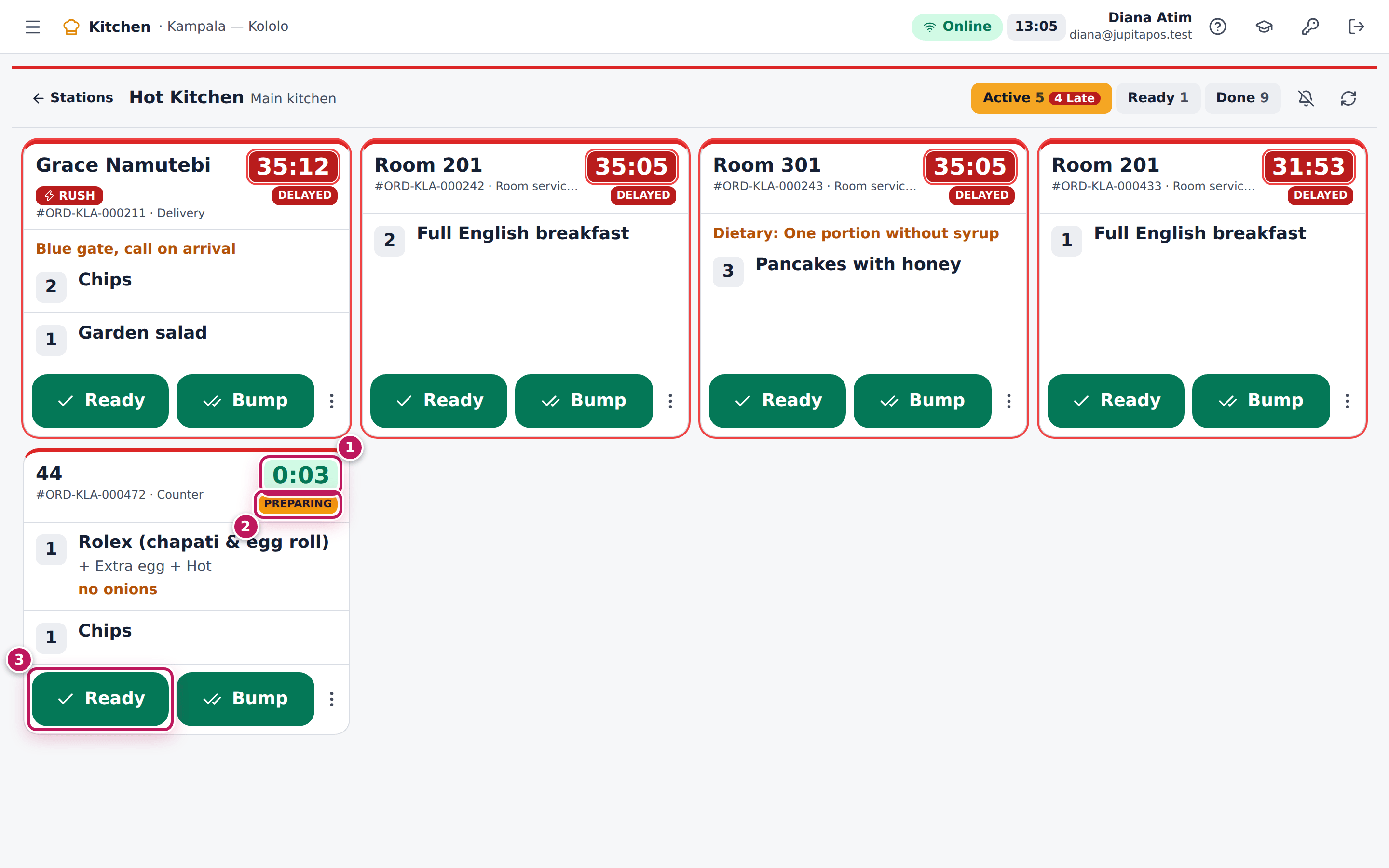
- When you start cooking, tap Start (3). The status becomes Preparing (2) and the timer (1) keeps running from the moment the order was sent.
- When everything is cooked, tap Ready (3) (see Mark a ticket ready).
Expected result
The ticket for a Rolex with + Extra egg + Hot and the note no onions, and a Chips, shows Preparing. On the waiter’s till the two lines show preparing, and on the pass (the Expeditor screen) the lines show PREPARING.
Screenshot
Common mistakes
- Accepting everything at once and cooking later. Accept means “seen”; Start is what tells the floor the food is on the way. Tap Start when you really start.
- Skipping Accept. That is allowed: Start works on a new ticket. Use Accept when the kitchen is busy and the ticket will wait.
- Working from memory of a paper ticket. The board is the order. If the waiter changes it, the ticket changes too (see the FAQ).
Troubleshooting
- The buttons are missing. Your role can view the board but not work
it (
kitchen.complete). Ask your chef or manager. - “This ticket changed on another screen. Reloaded.” Someone else changed the ticket first. The board reloads; look again and tap again if needed.
- “This course has not been fired yet.” The ticket is a later course that is still held (see Read a ticket).
FAQ
Some stations have no Accept button. Why? A station set to auto-accept skips that step (the barista board, for example): its new tickets are already accepted.
What happens if the waiter adds an item after I started? The item is added to the same ticket. If the ticket was already Ready, it goes back to Preparing. If it was already bumped, it comes back as New.
Read a ticket: table, courses, seats, notes, allergies and timers
Purpose
Cook exactly what the guests ordered, for the right seat and in the right order, and never miss an allergy.
Role / permission required
Anyone who can see the kitchen board — kitchen.view.
Prerequisites
- Your station’s board is open (see Open the kitchen board).
Steps
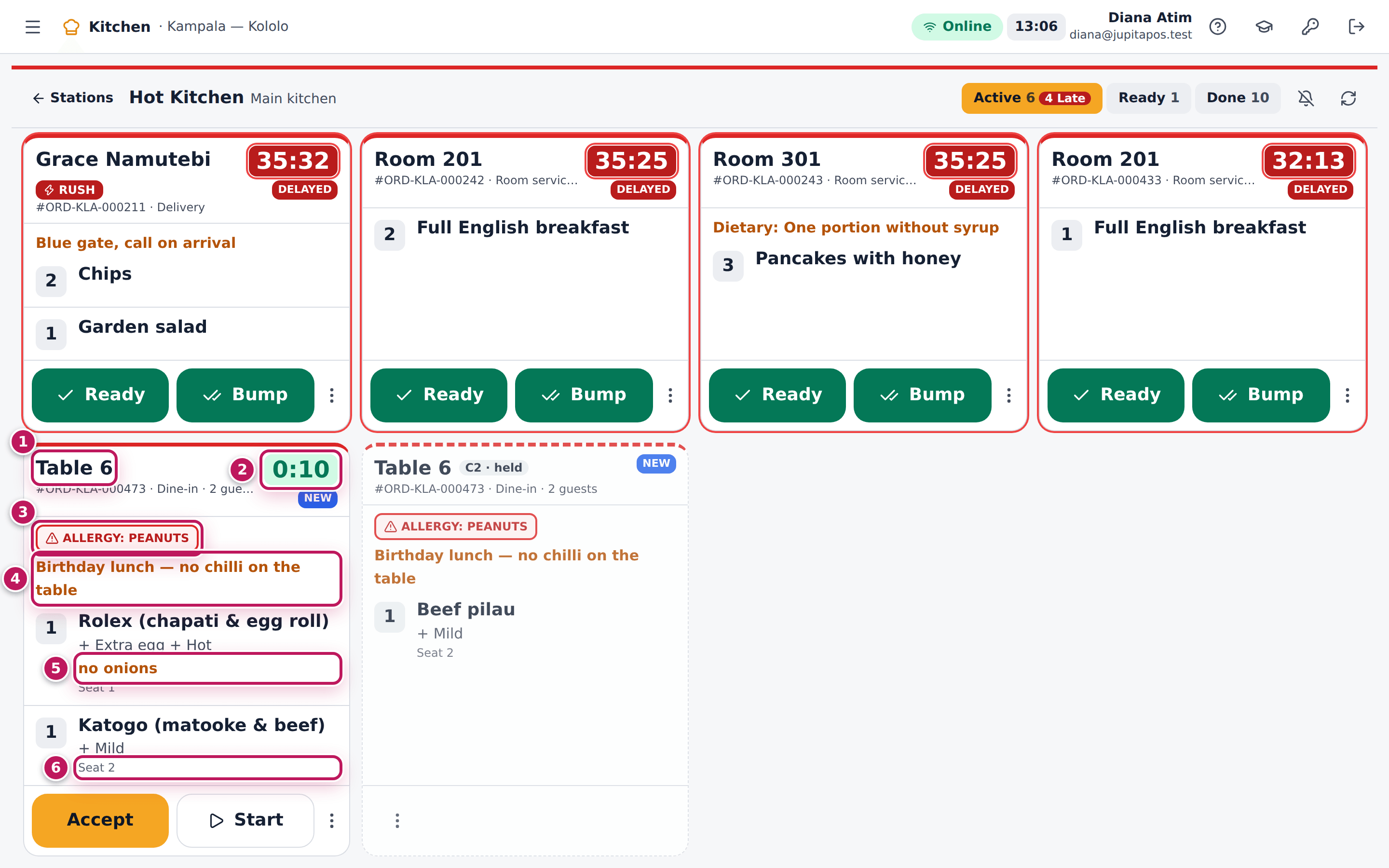
- Read the headline (1): the table (Table 6), or the customer’s call number and first name for a counter order (72), or the customer’s name for a delivery. Under it: the order number, the order type (Dine-in, Counter, Takeaway, Delivery), the number of guests and who the ticket is assigned to.
- Read the timer (2). It counts from the moment the order was sent. It is green, turns amber at 70 % of the station’s target time and red and flashing once the target is passed. The status is under it.
- Read the red Allergy warning (3) first. It comes from the order and from each line, and it is never shortened.
- Read the special instructions in amber (4) — they apply to the whole order.
- Read each item: the quantity in the box, the name, the choices under it (+ Extra egg + Hot), the note in amber (5) and the seat (6).
- Look for badges next to the headline: RUSH (red), VIP (gold), and a course badge such as C2.
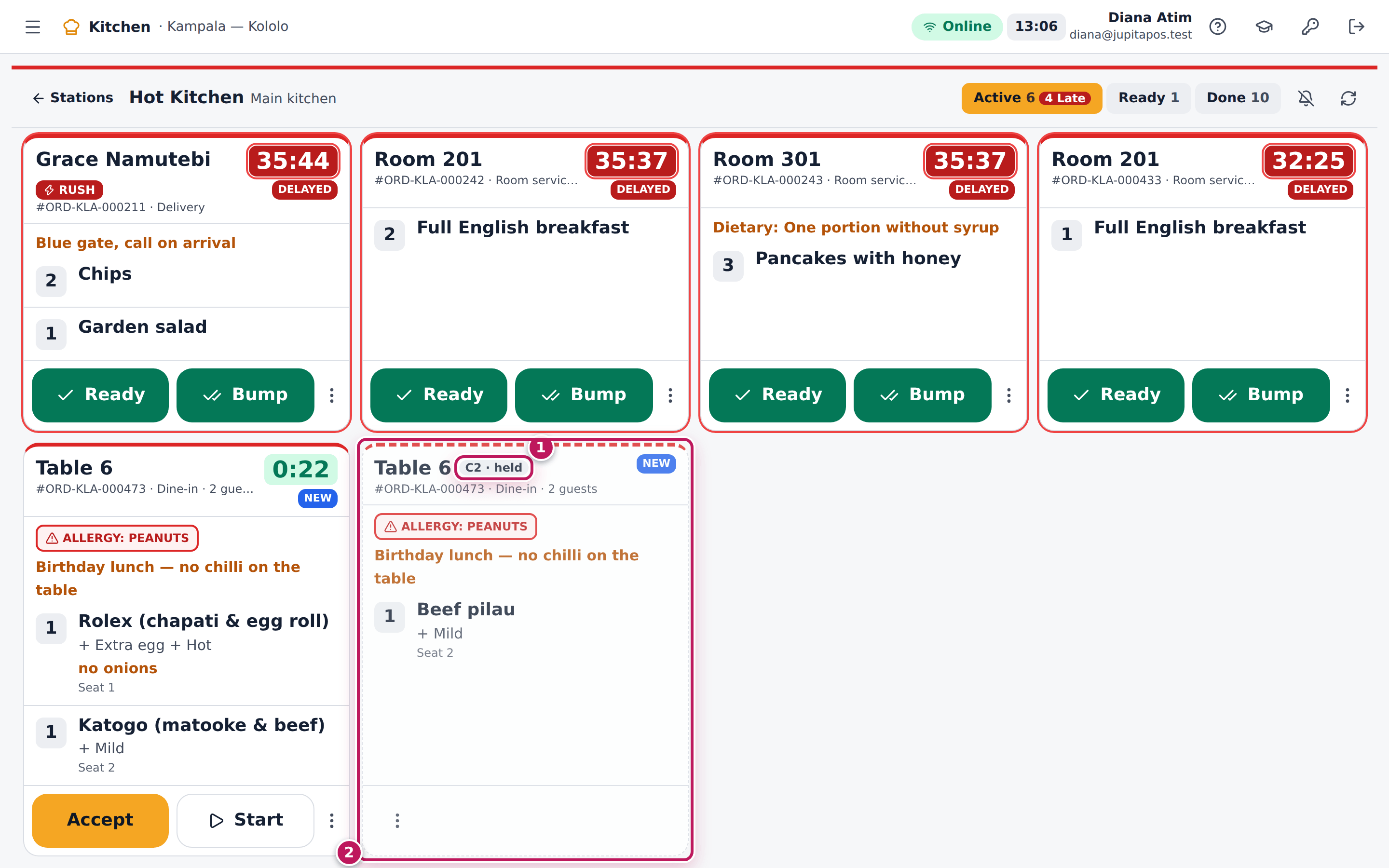
- A dashed ticket marked C2 · held (1) is a later course. It shows what is coming but has no buttons (2): wait until the waiter or the pass fires the course.
Expected result
For Table 6, 2 guests, the ticket shows Allergy: peanuts, the instruction Birthday lunch — no chilli on the table, a Rolex with + Extra egg + Hot and no onions for Seat 1, and a Katogo + Mild for Seat 2. The Beef pilau for seat 2 waits on a dashed C2 · held ticket until course 2 is fired; then it becomes New and its timer starts.
Screenshot
Common mistakes
- Reading the items and skipping the top of the ticket. Allergies and special instructions sit above the items because they matter most.
- Cooking a held course early. The guests are still on their starters. The course is fired when the table is ready for it.
- Treating the timer as the cooking time. It counts from the moment the order was sent, not from Start.
Troubleshooting
- A line is crossed out with an ✕. The waiter voided it after it was sent. Do not cook it. If every line is voided, the ticket is cancelled.
- The timer is red on a ticket I just started. The order waited before you started it; the timer counts from when it was sent.
- The ticket says Delayed although I did not touch it. The system marks a ticket delayed when it is older than the station’s delay time (by default one and a half times the target). Finish it or tell the floor.
FAQ
Why do delivery tickets show RUSH? Delivery orders are sent as rush so that riders do not wait; they sort to the front of the board.
Where does VIP come from? From a customer whose tier is VIP, or a table whose code contains VIP. A cook can also mark any ticket VIP under More actions.
What order are the tickets in? Rush and VIP first, then delayed and re-fired tickets, then the oldest.
Mark a ticket ready and bump it
Purpose
Tell the pass that the food is ready to go out, and clear the ticket from the board once it has left the kitchen.
Role / permission required
Cooks, chefs and sous chefs — anyone with kitchen.complete.
Prerequisites
- The ticket is on your board and you have started it (see Accept a new ticket and start cooking).
Steps
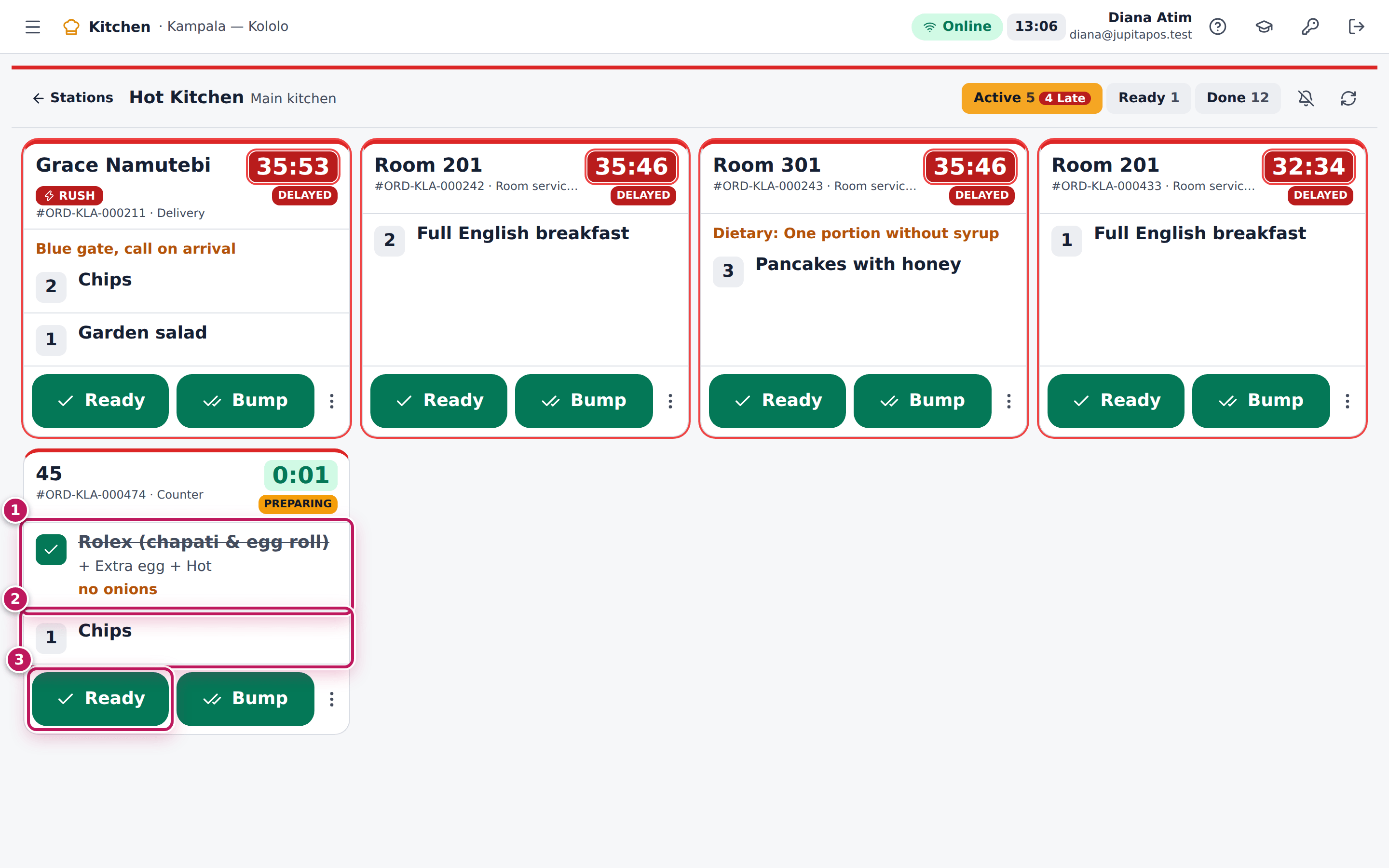
- As each dish is done, tap its line (1) on the ticket. It gets a green tick and is crossed out. Tap it again to undo.
- The lines still to do stay as they are (2).
- When the last line is ticked, the whole ticket becomes Ready by itself. You can also tap Ready (3) at any time to mark all of it ready at once.
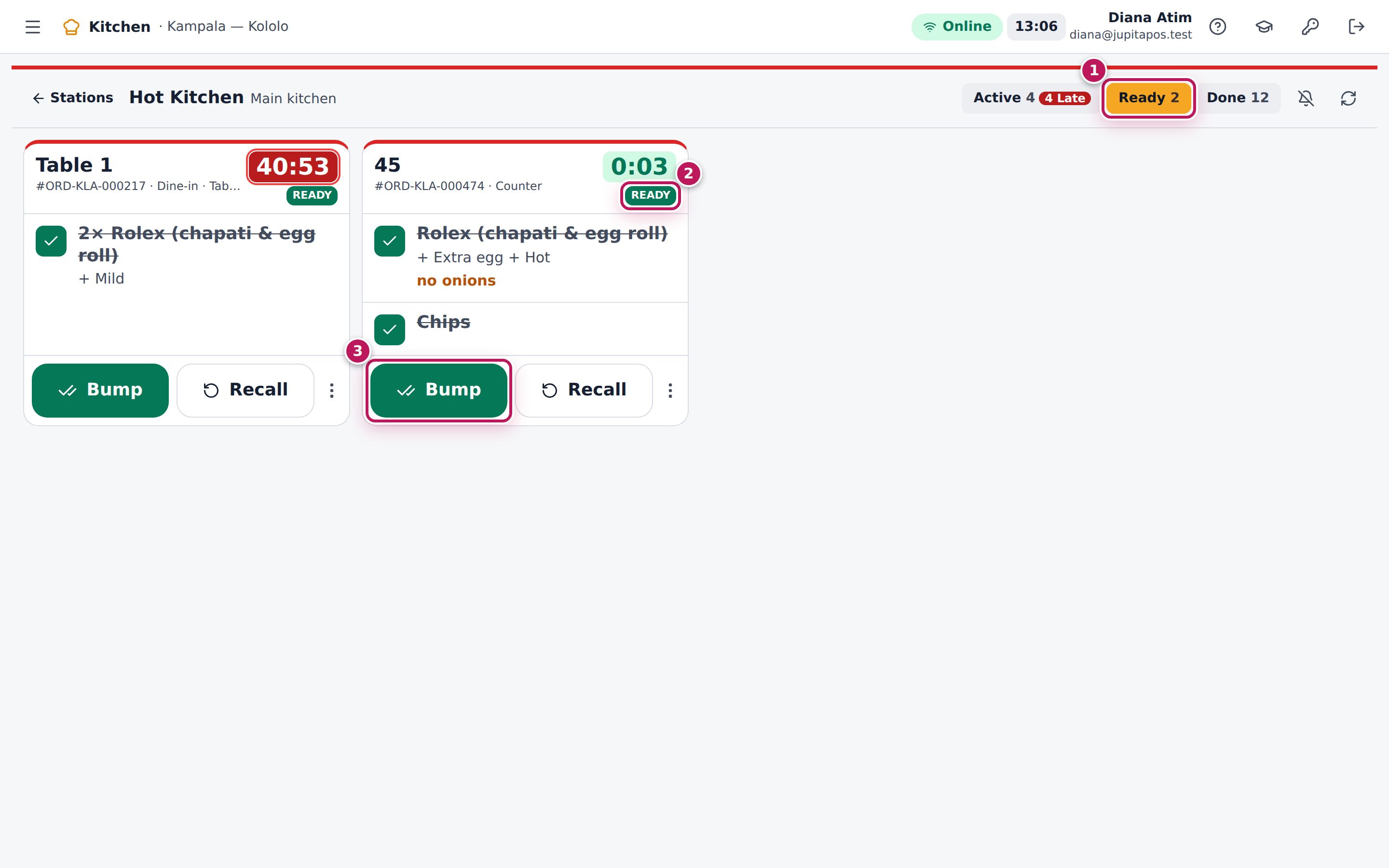
- The ticket moves to the Ready lane (1) with Ready on it (2). The pass and the waiter see that it is ready.
- When the plates have left the kitchen, tap Bump (3). The ticket moves to the Done lane. If your kitchen runs a pass, the expeditor’s Release bumps it for you.
Expected result
The Rolex and Chips ticket goes from Preparing to Ready when the Chips are ticked, then to Completed in the Done lane after Bump. The till shows the lines as ready; the expeditor shows them as READY.
Screenshot
Common mistakes
- Bumping instead of Ready. Bump takes the ticket off the board; the pass then thinks it has already gone out. Tap Ready when the food is on the pass, Bump when it has left.
- Ticking lines to “remember” them. A ticked line counts as cooked; ticking the last one sends the whole ticket to the pass.
- Forgetting the Ready lane. Ready tickets are no longer in Active. Check the Ready lane before telling a waiter the food is not done.
Troubleshooting
- The ticket disappeared after I tapped the last line. It is in the Ready lane: it became ready by itself.
- “Cannot complete a new ticket.” A new ticket must be started or made ready before it can be bumped. Tap Start or Ready first.
- I bumped the wrong ticket. Open the Done lane and tap Recall (see Recall a ticket).
Recall a ticket, or cook it again
Purpose
Bring a ticket back to the board when it was bumped by mistake or a plate comes back, and cook a dish again with the reason recorded.
Role / permission required
Cooks, chefs and sous chefs — anyone with kitchen.complete.
Prerequisites
- The ticket is in the Ready lane, or it was bumped less than 30 minutes ago and is in the Done lane.
Steps
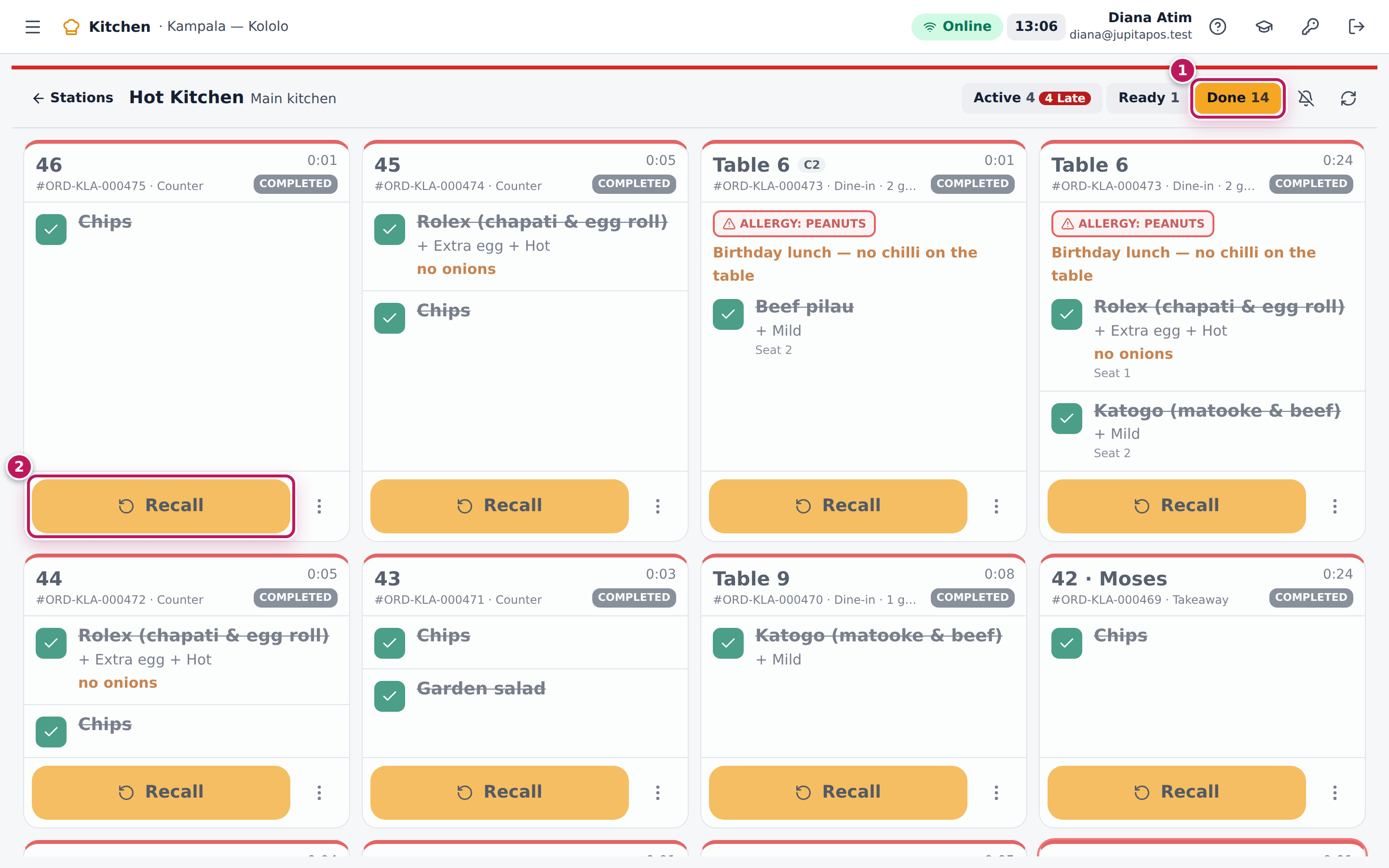
- Tap the Done lane (1) (or Ready).
- Find the ticket — the most recently bumped is first — and tap Recall (2).
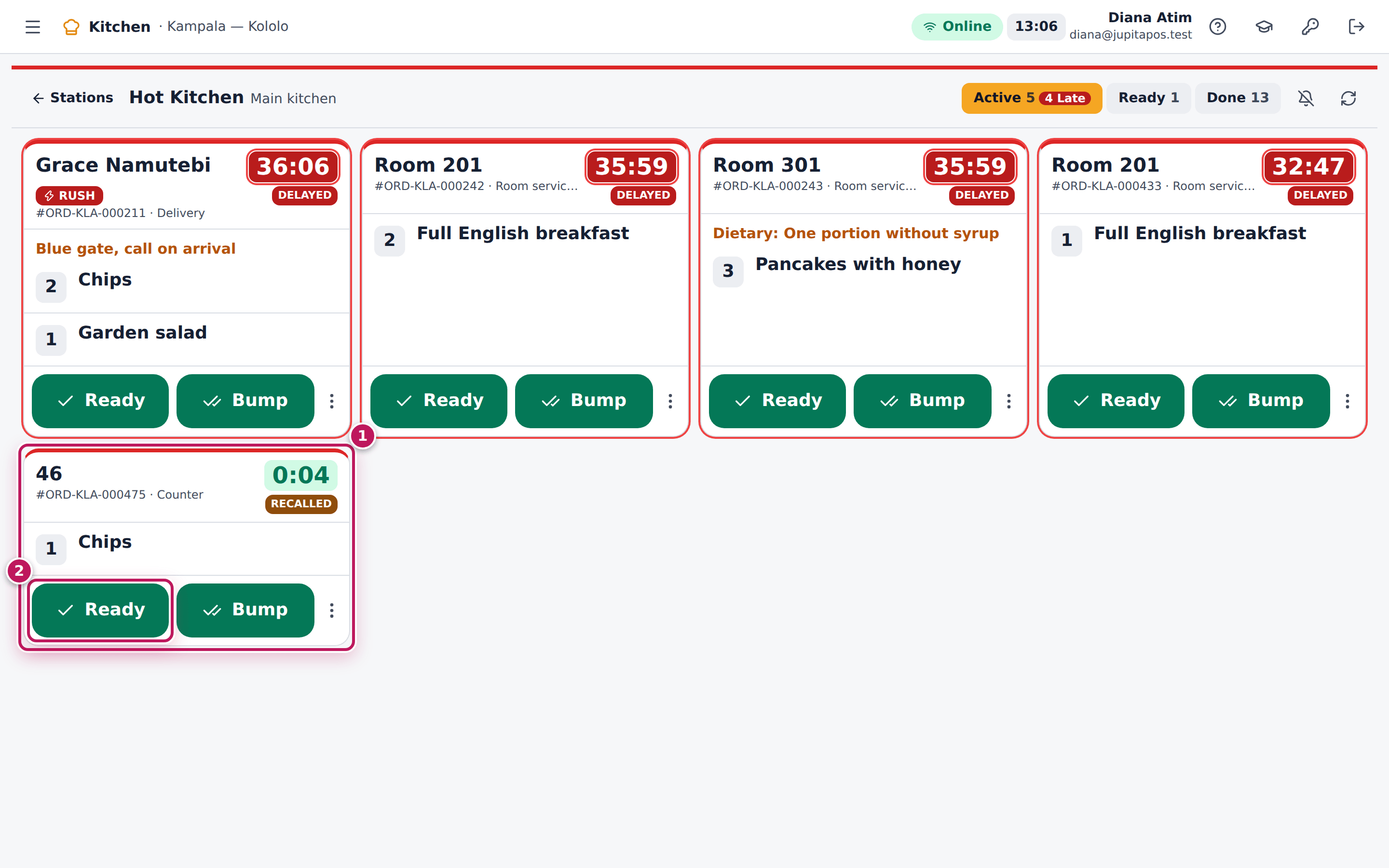
- The ticket goes back to the Active lane (1). Its lines are back to preparing. Finish it and tap Ready (2) again.
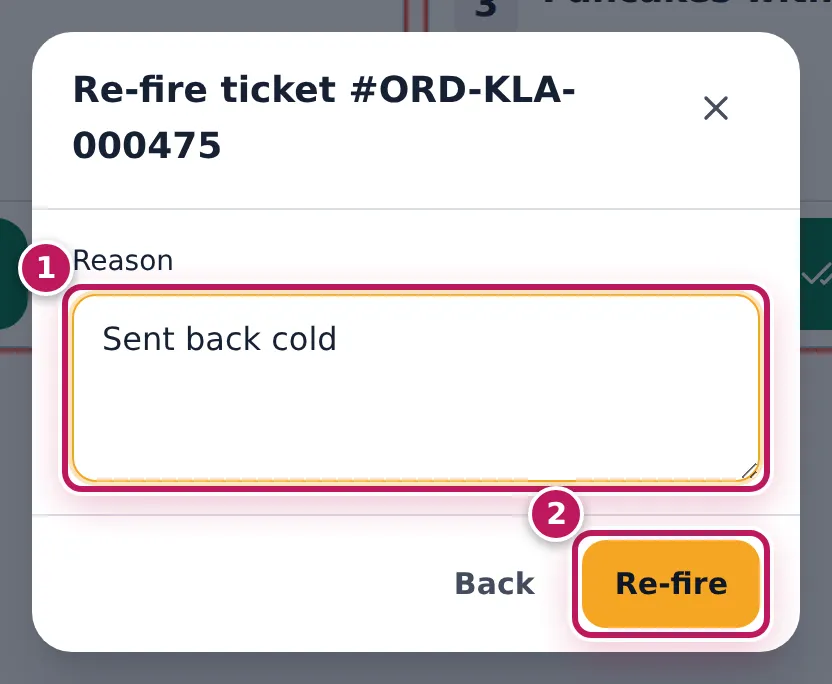
- If the dish must be cooked again (sent back cold, dropped, wrong), tap the ticket’s ⋮ button (More actions), then Re-fire.
- Type why in Reason (1), for example Sent back cold, and tap Re-fire (2).
Expected result
After Recall the Chips ticket is back in the Active lane. After Re-fire it shows Re-fired, a red re-make ×1 badge, and its lines start again. The ticket’s History lists Re-fired with your name and Reason: Sent back cold.
Screenshot
Common mistakes
- Ringing the dish up again at the till. That charges the guest twice. Recall or re-fire the ticket instead; the waiter voids only what the guest will not have.
- Looking for an old ticket in Done. Done keeps 30 minutes. For an older order, ask the waiter to send the dish again.
Troubleshooting
- There is no Recall button. Only ready and bumped tickets can be recalled; the ticket is still active.
- A cancelled ticket cannot be recalled. It has no Recall button. Ask the waiter to send the item again.
- The ticket is not in Done. It was bumped more than 30 minutes ago.
FAQ
What is the difference between Recall and Re-fire? Recall brings the ticket back as it was — to finish or check it. Re-fire means the food is made again: it counts a re-make and records why.
Mark a ticket delayed, rush it, assign it or cancel it
Purpose
Keep the floor informed when a ticket will be late, push an urgent ticket to the front, share the work between cooks, and see everything that happened to a ticket.
Role / permission required
Cooks, chefs and sous chefs — anyone with kitchen.complete.
Prerequisites
- The ticket is on your board (see Open the kitchen board).
Steps
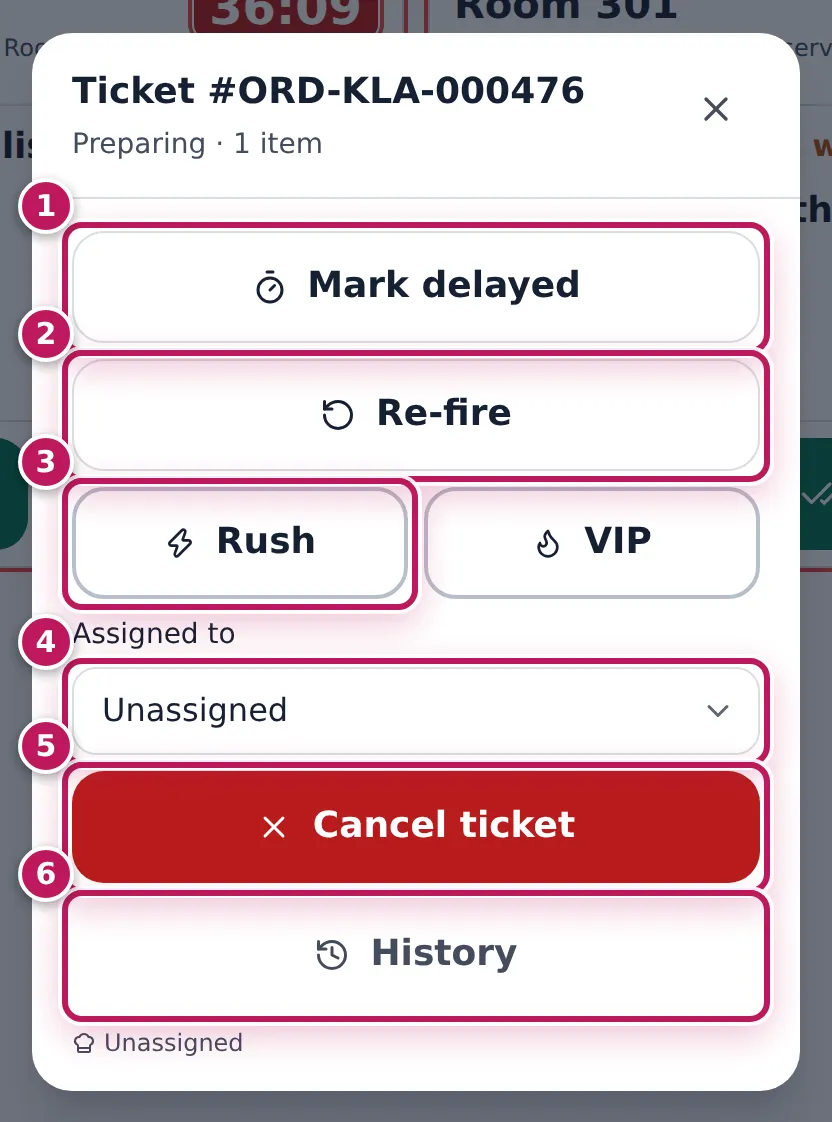
- Tap the ticket’s ⋮ button (More actions). The menu shows what you can do now.
- Mark delayed (1): type the reason (Waiting for the chicken) and tap Delayed. The ticket turns Delayed and the floor sees it.
- Re-fire (2): cook it again, with a reason (see Recall a ticket).
- Rush (3): the ticket gets a red RUSH badge and moves to the front of every board. VIP gives it a gold VIP badge. Tap again (Clear rush, Clear VIP) to undo.
- Assigned to (4): choose the cook who makes it. Their name shows on the ticket.
- Cancel ticket (5): your station will not make it. Type the reason and tap Cancel. The order line stays on the bill; tell the waiter.
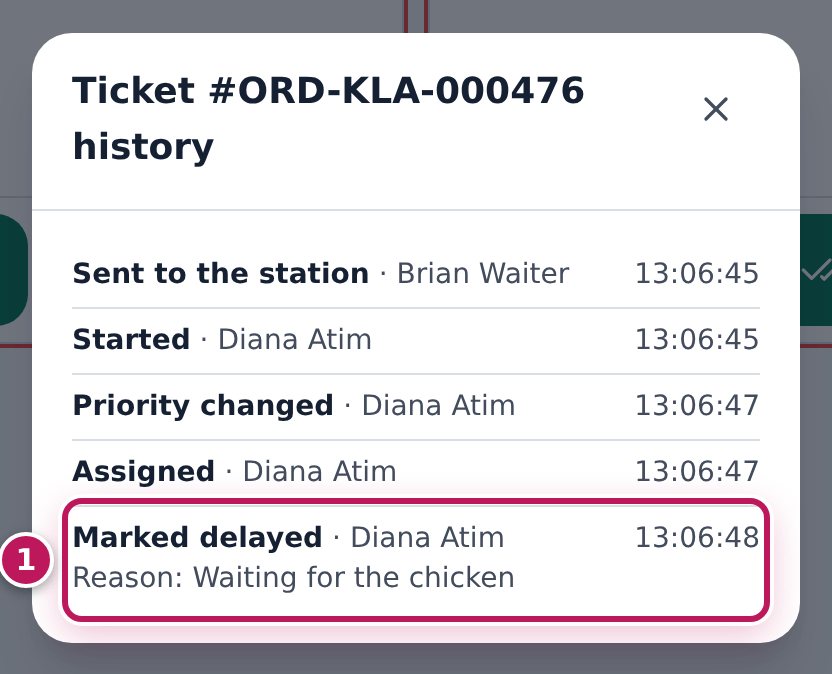
- History (6): every step of the ticket in words, with who did it and the time — Sent to the station, Started, Priority changed, Assigned, Marked delayed… A step typed with a reason (re-fire, delay, cancel) shows it under the step as Reason: ….
Expected result
A Chicken luwombo ticket marked Rush and assigned to Diana Atim shows RUSH next to the headline and Diana Atim under it, and sorts to the front of the Active lane; marked delayed, it shows Delayed. Its History lists Sent to the station, Started, Priority changed, Assigned and Marked delayed — with Reason: Waiting for the chicken — each with who did it and the time.
Screenshot
Common mistakes
- Cancelling a ticket the guest still wants. Cancel ticket stops the kitchen, not the bill. If the dish cannot be made, tell the waiter so they void the line (see Remove a line that was sent).
- Rushing every ticket. When everything is rush, nothing is. Rush the one that is really late or a guest waiting at the counter.
- Marking delayed without telling the table. The floor sees Delayed; the waiter still has to speak to the guests.
Troubleshooting
- Mark delayed is missing. It is not offered on a ticket that is already delayed or ready.
- The ticket became Delayed by itself. It passed the station’s delay time. Ready and Bump work as usual.
- Assigned to lists only some people. It lists the business’s active users; ask your manager if a cook is missing.
Tell the floor an item has run out (86)
Purpose
Stop the tills selling a dish the kitchen can no longer make — the last portion of luwombo went out — so no waiter promises what the kitchen cannot serve.
Role / permission required
Chefs, sous chefs, cooks, supervisors and managers — anyone with
menu.availability. Waiters, cashiers, bartenders and baristas have it
too.
Prerequisites
- The item is on the menu (see Add a menu item).
Steps
- Open Menu from the sidebar (
/menu). - Type the dish in Search, for example luwombo.
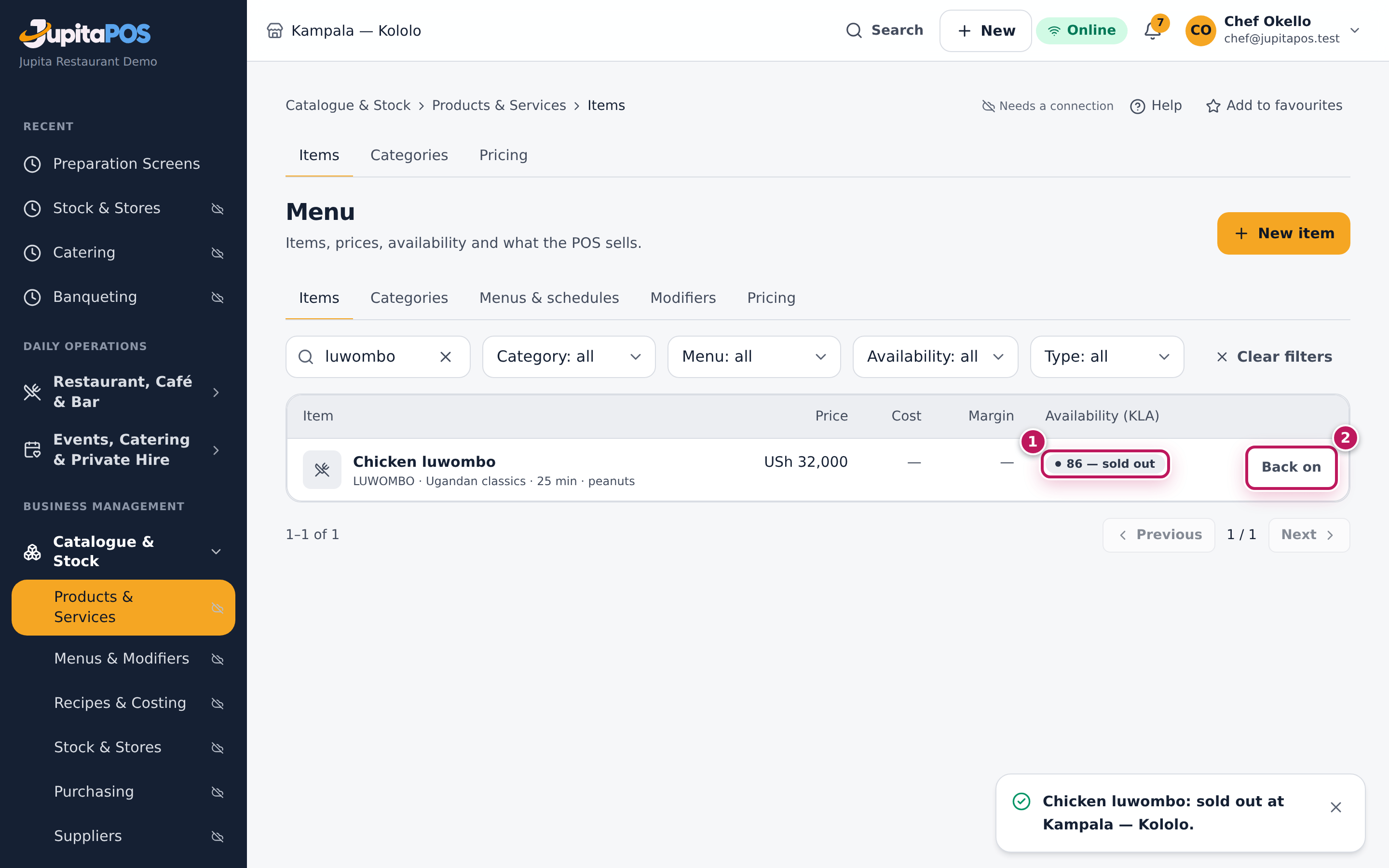
- On the item’s row, tap 86.
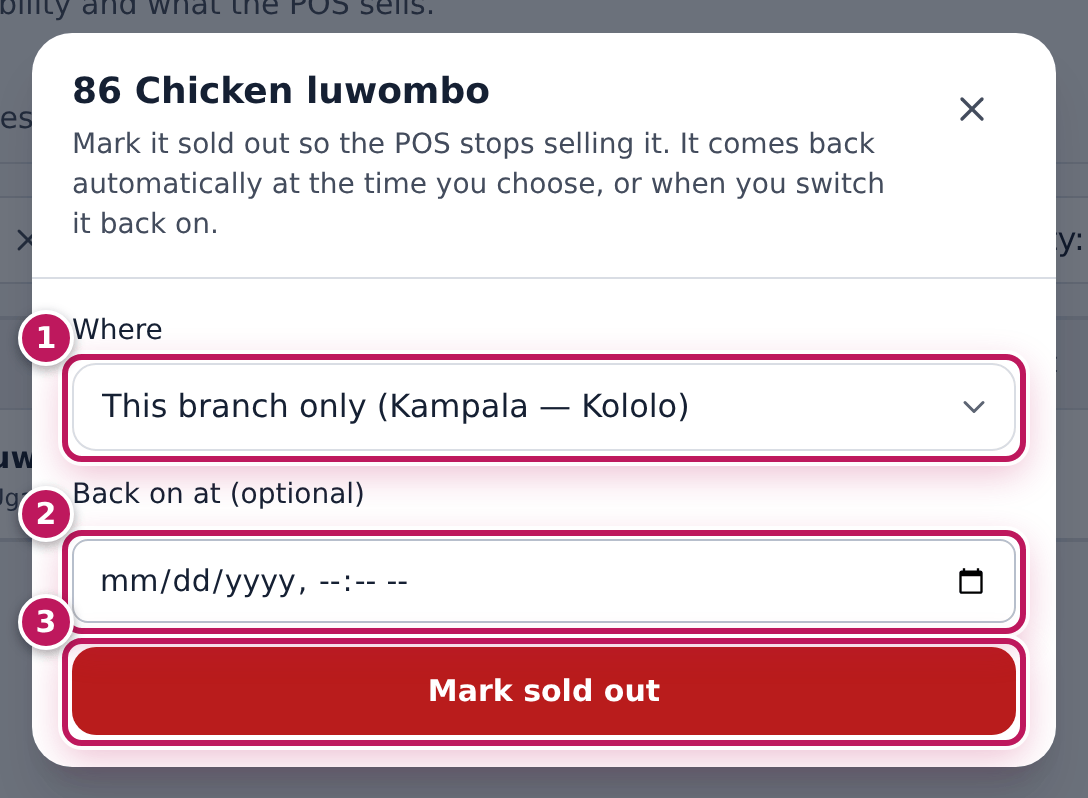
- In Where (1), keep This branch only unless every branch has run out.
- If you know when it will be back (a new batch at 18:00), enter it in Back on at (optional) (2).
- Tap Mark sold out (3).
- The row shows 86 — sold out (1). When the dish is back, tap Back on (2) on the same row.
Expected result
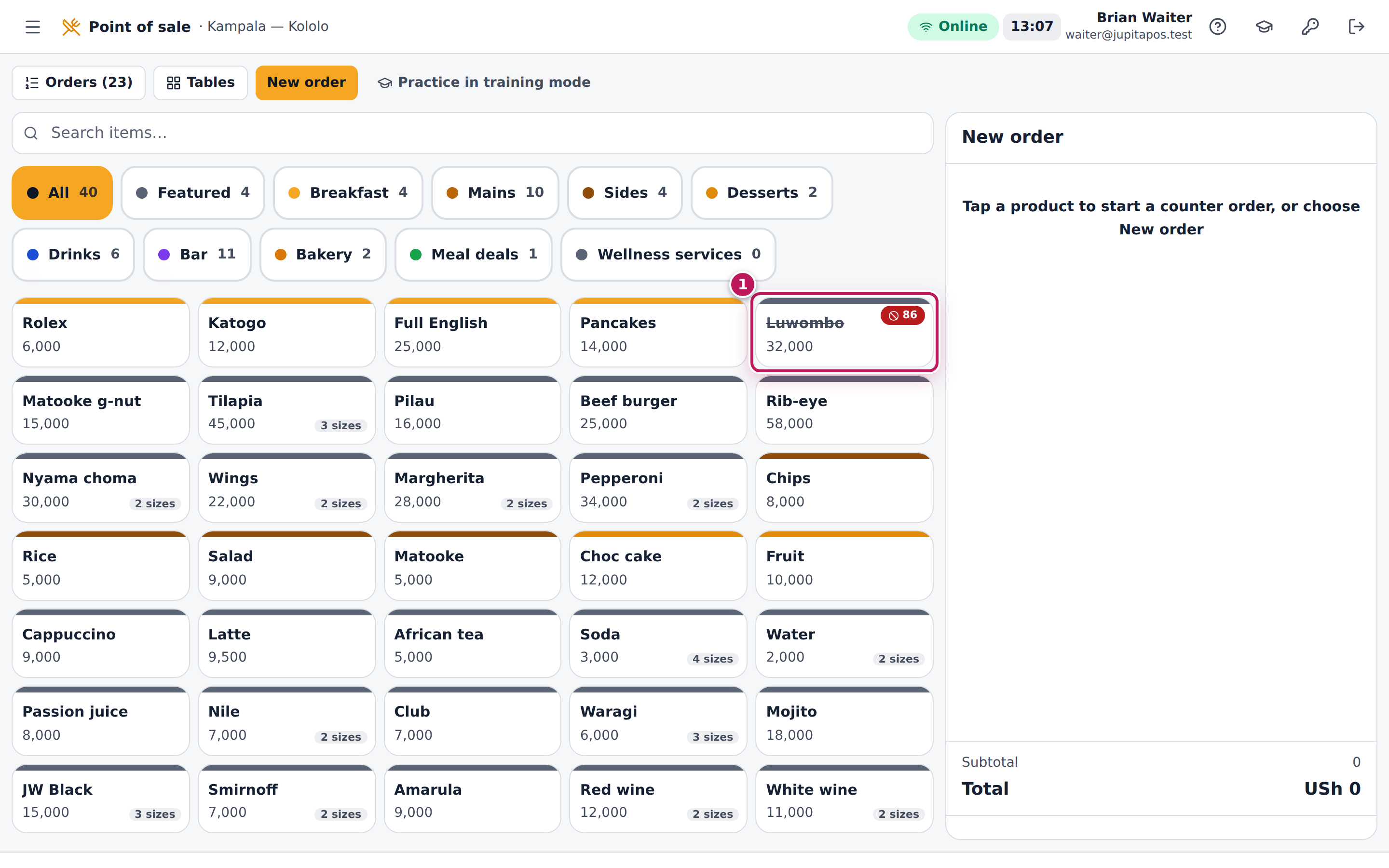
Chicken luwombo shows 86 — sold out for Kampala — Kololo. On every till at the branch its tile is greyed out, crossed out and marked 86, and cannot be tapped; the online storefront stops offering it. After Back on it sells again at once.
Screenshot
Common mistakes
- Choosing Every branch for a local shortage. Entebbe may still have luwombo. Keep This branch only.
- Forgetting to put it back. A dish left at 86 loses sales all evening. Set Back on at when you know the time, or tap Back on as soon as it is ready.
- Telling only the waiters. The till blocks the dish for everyone, including the online orders, as soon as you mark it — no need to go round the floor.
Troubleshooting
- There is no 86 button. You do not have
menu.availability, or the item is already sold out or hidden (the row shows Back on). - The till still sells it. The till updates at once when it is online. If it was offline, it catches up when it reconnects.
- The back-on time passed but a till still shows 86. An open till brings the dish back by itself at the back-on time; one that was offline catches up when it reconnects. To bring it back earlier, tap Back on.
FAQ
Is an order already sent affected? No. Tickets already in the kitchen stay; only new sales are blocked.
Who can see that I did it? Every 86 and back-on is written in the audit trail with your name and the time.