

On this page
The banquet event order (BEO) is the whole function written down for the departments that deliver it: the client and the times, the venues and their set-up, the guests and their meals, the menu with its portions, the bar, the staff, the equipment, the transport, the run of the day and the billing. It is frozen as a version. A manager approves each version, and every department — kitchen, pastry, bar, banquet service, set-up, security, AV, transport, accounts — works only from the latest approved one, and says so by acknowledging it.
The function sheet is the day on one page, printed from the same
version. Open Banquet event orders in the sidebar (/events/beo) to
see the coming functions and the version each works from; each function’s
own versions are on its BEO & documents tab.
The screens show the demo’s Mukasa & Nakato wedding reception (Tuesday 6 October 2026), whose version 1 was approved and acknowledged by the kitchen, the bar, banquet service and set-up.
| Who | May |
|---|---|
Events & Private Hire Manager, Catering Manager (events.manage) |
issue a new version |
Branch or general manager (events.approve) |
approve or reject a version (or issue and approve at once) |
Chefs, cooks, bartenders, waiters, supervisors, storekeepers, drivers, accountants (events.beo) |
read the approved BEO and acknowledge it for their department |
Write the banquet event order
Purpose
When a function is settled, freeze everything the departments need into version 1 of its BEO, for a manager to approve.
Role / permission required
Events & Private Hire Manager, Catering Manager or a manager
(events.manage).
Prerequisites
- The function has its venues, guests, menu (an accepted or sent quote), bar, staff and timeline as agreed (see Book a venue for a function, Keep the guest list and seating and Run the day’s timeline).
Steps
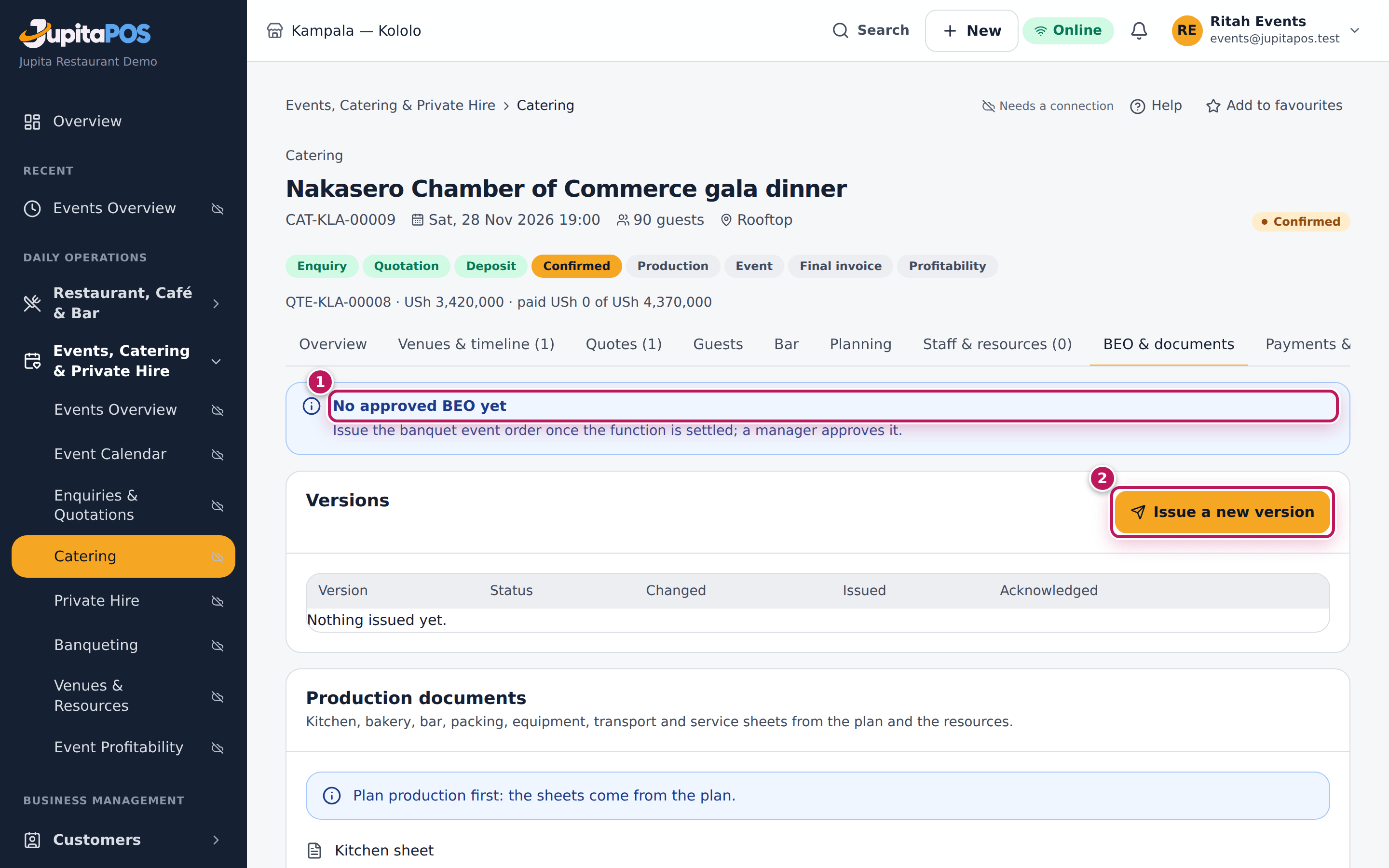
- Open the function and click the BEO & documents tab. It says No approved BEO yet (1).
- Click Issue a new version (2).
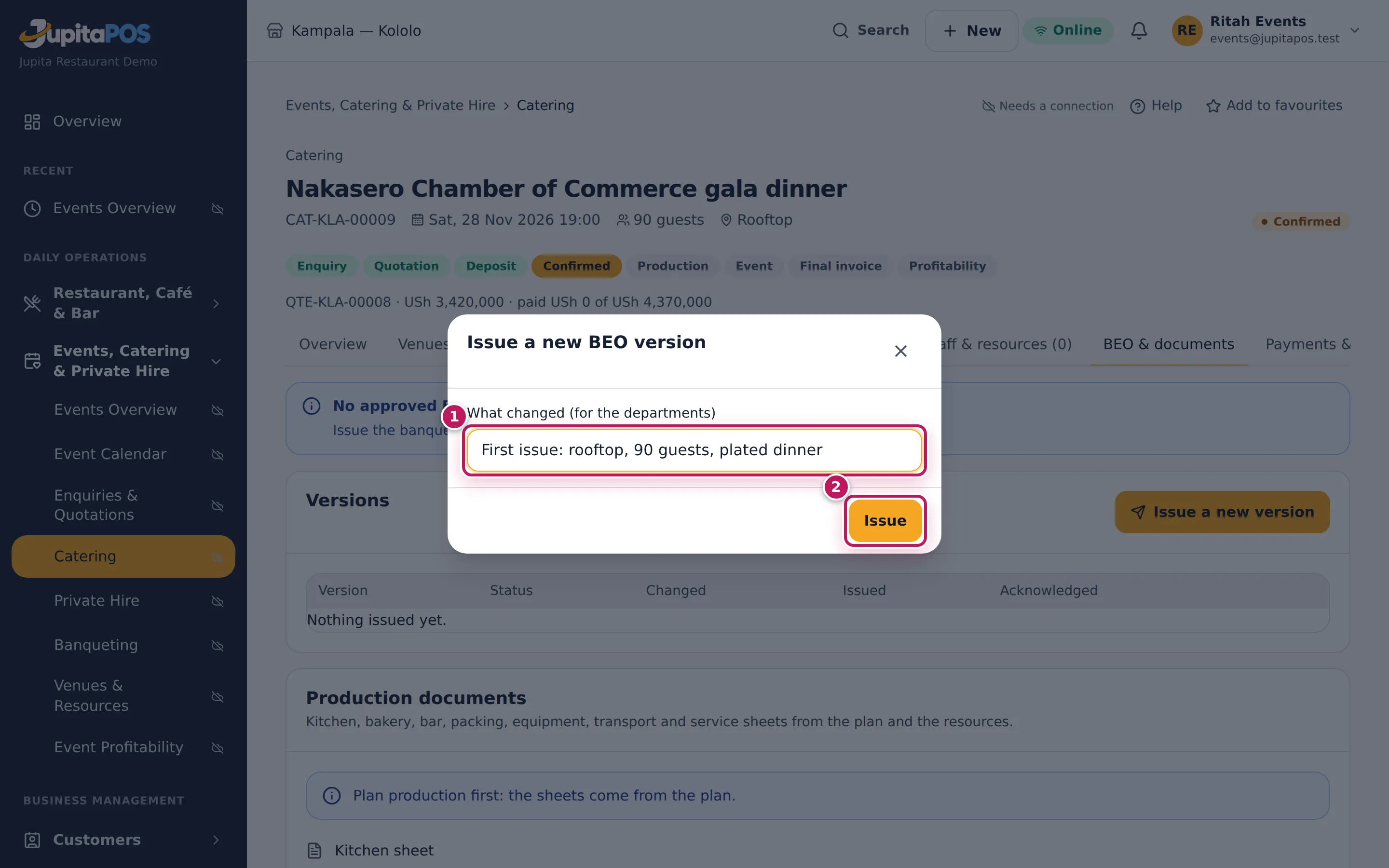
- Type What changed (for the departments) (1) — for a first issue, a short summary: First issue: rooftop, 90 guests, plated dinner.
- Click Issue (2). (A manager can switch on Approve it now here to issue and approve at once.)
Expected result
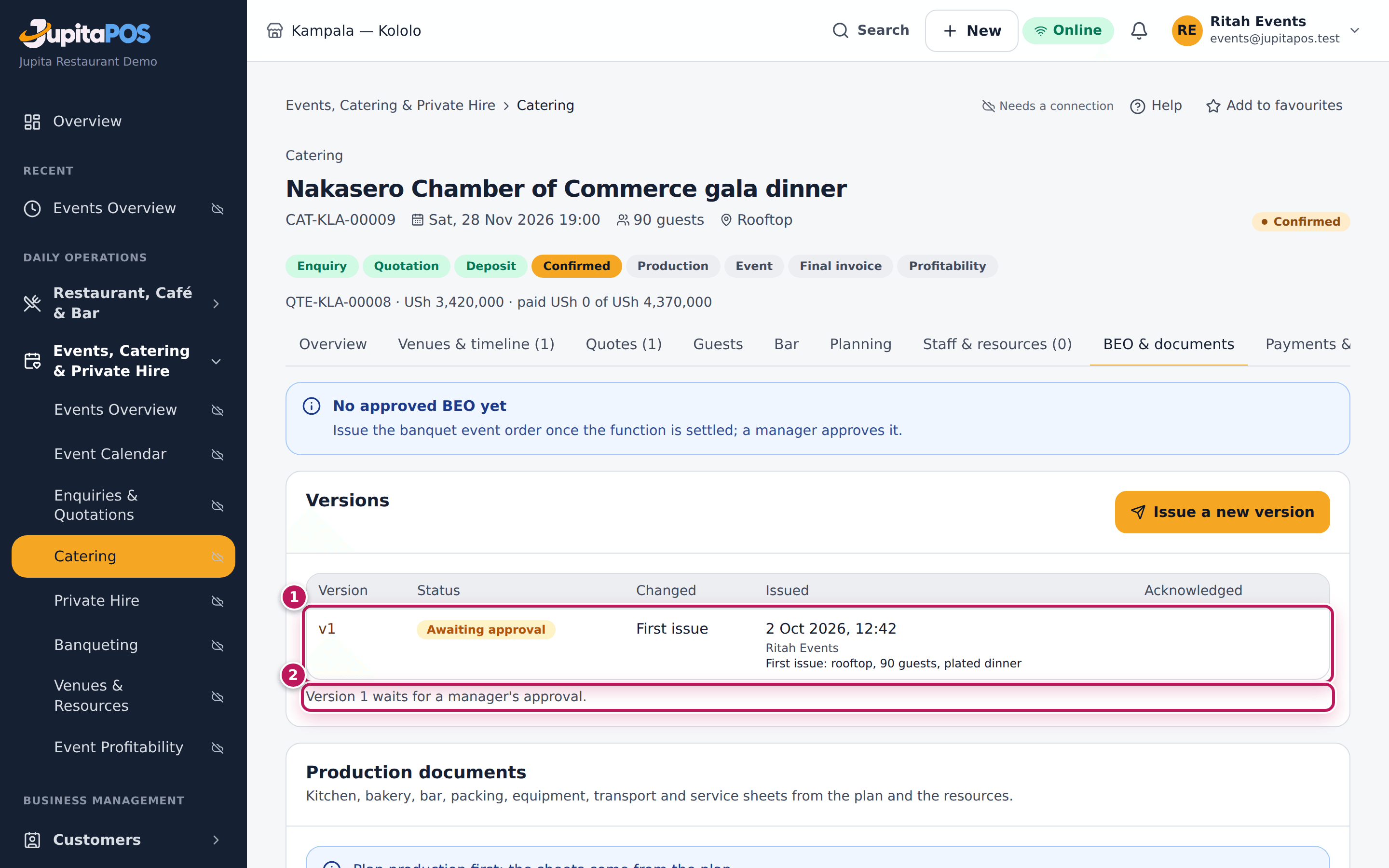
Issued for approval: v1 is in the Versions table as Awaiting approval (1), and the tab says Version 1 waits for a manager’s approval (2). The managers get a notification BEO v1 awaits approval: Nakasero Chamber of Commerce gala dinner. Until it is approved the departments see Not approved yet on the board.
Screenshot
Common mistakes
- Issuing before the function is settled. Every change afterwards needs a new version and new acknowledgements. Issue when the venues, the numbers and the menu are agreed.
- An empty note. The departments read What changed first; say it in a few words.
Troubleshooting
- There is no Issue a new version. The function is served, invoiced,
closed, lost or cancelled, or you lack
events.manage. - “Nothing changed since the approved version 1.” There is nothing new to issue: the departments already have it.
Approve a BEO version
Purpose
Check a version before the departments work from it, and approve it — or reject it with the reason.
Role / permission required
Branch or general manager (events.approve).
Prerequisites
- A version is Awaiting approval (see Write the banquet event order); the notification links to it.
Steps
- Open the function’s BEO & documents tab (or the notification).
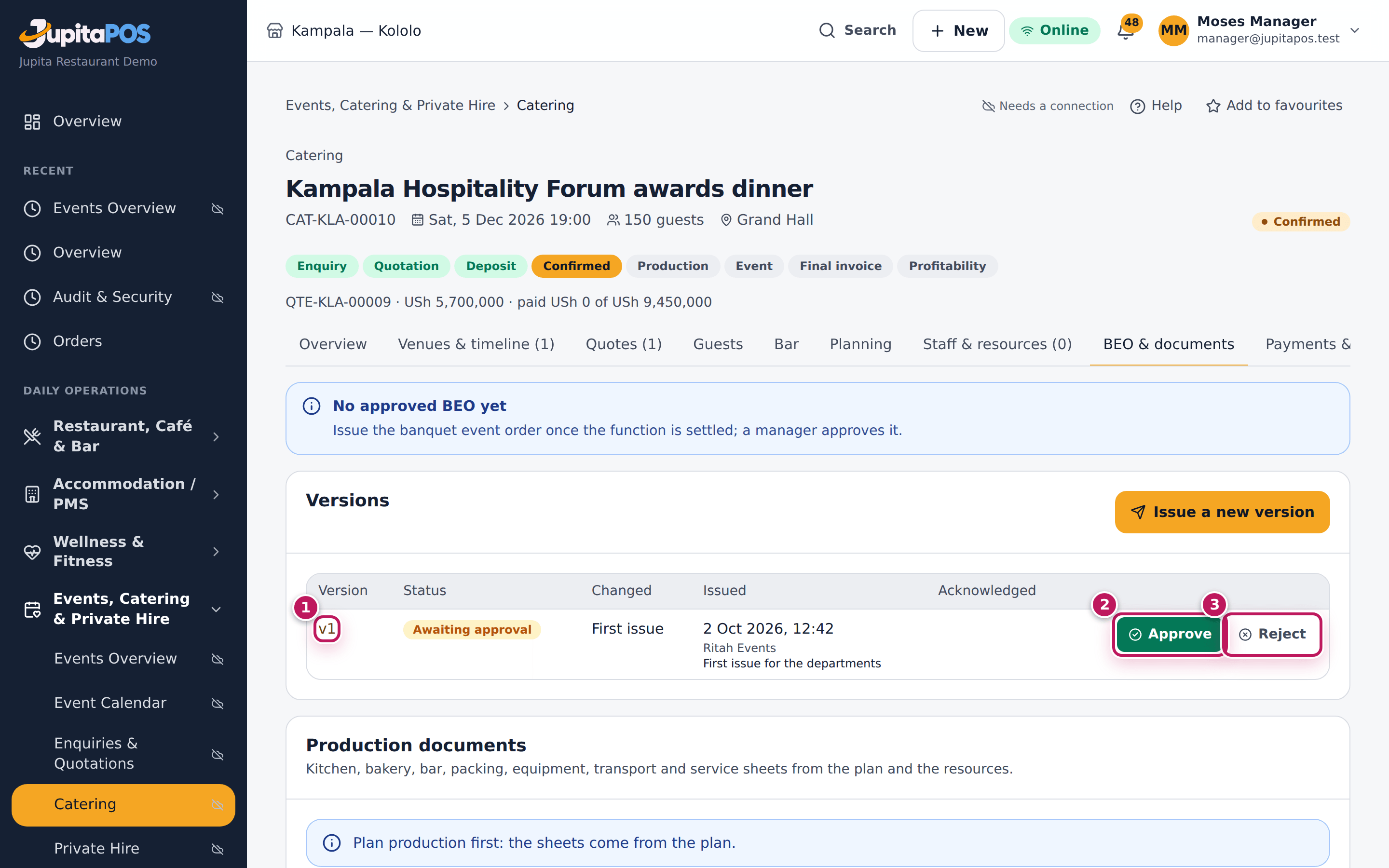
- Click the version (1) — here v1 — to read it section by section.
- Back on the tab, click Approve (2) — or Reject (3) and type Why.
Expected result
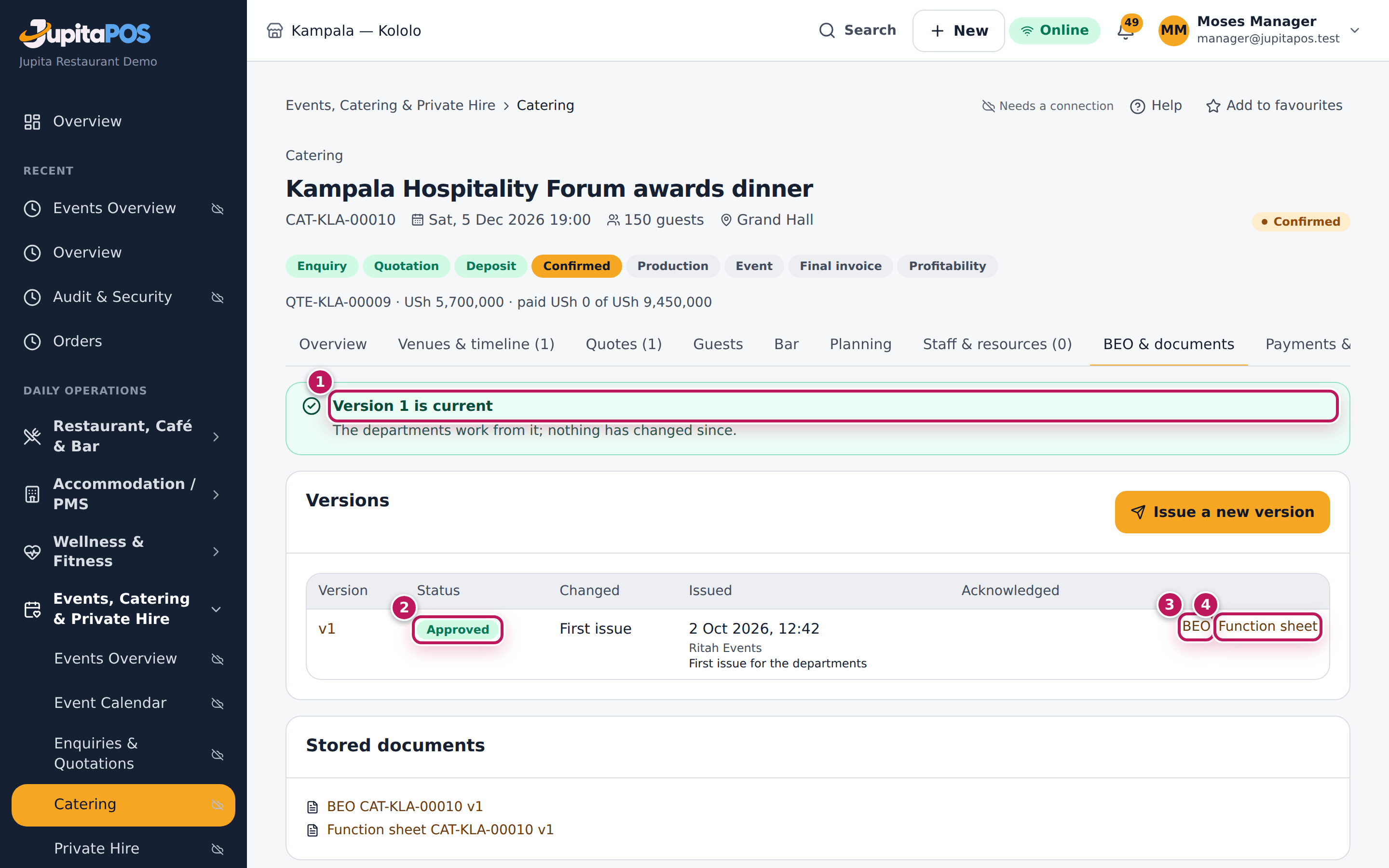
Version 1 approved: the tab says Version 1 is current (1), the version
is Approved (2), and its BEO (3) and Function sheet (4) are
generated and stored under Stored documents. Everyone with events.beo at
the branch is notified; the board shows the version to work from. A
rejected version shows its reason and the approved one (if any) stays
current.
Screenshot
Common mistakes
- Approving without reading what changed. The Changed column and the version’s page say which sections changed; read those.
Troubleshooting
- There is no Approve. You are not a manager (
events.approve), or the version was already decided or superseded by a newer one. - “Version 2 is superseded.” A newer version was issued meanwhile: approve that one.
Change a BEO and send the new version
Purpose
When something changes after the BEO was approved — guests, the menu, a venue, the timeline — send the departments a new version that says what changed, instead of phoning around.
Role / permission required
Events & Private Hire Manager, Catering Manager or a manager
(events.manage); a manager (events.approve) approves it.
Prerequisites
- The function has an approved version (see Approve a BEO version).
- The change is made on the function (for example a new timeline entry, see Run the day’s timeline).
Steps
- Open the function and click the BEO & documents tab.
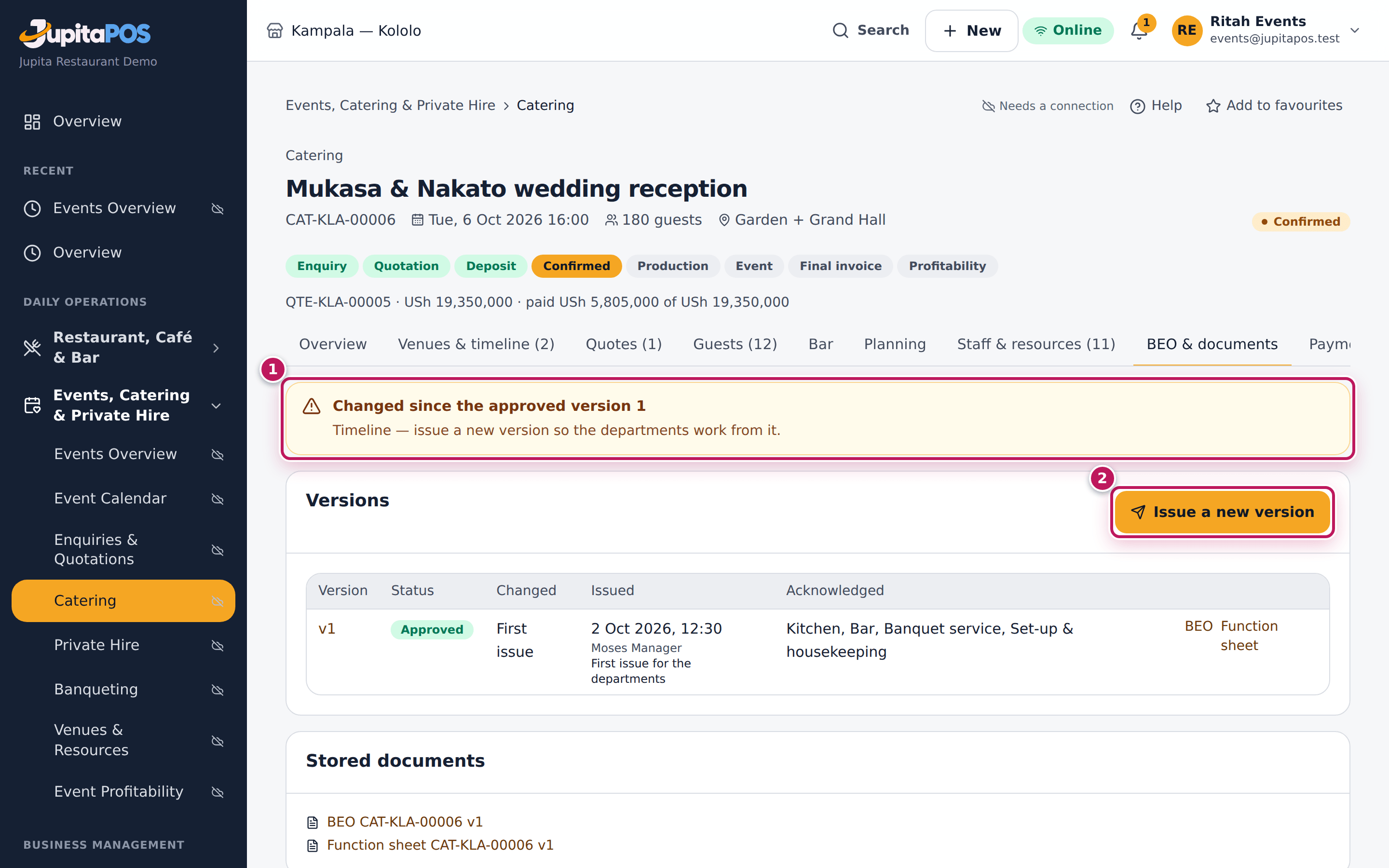
- Read the warning (1): Changed since the approved version …, with the sections that changed — here the timeline.
- Click Issue a new version (2).
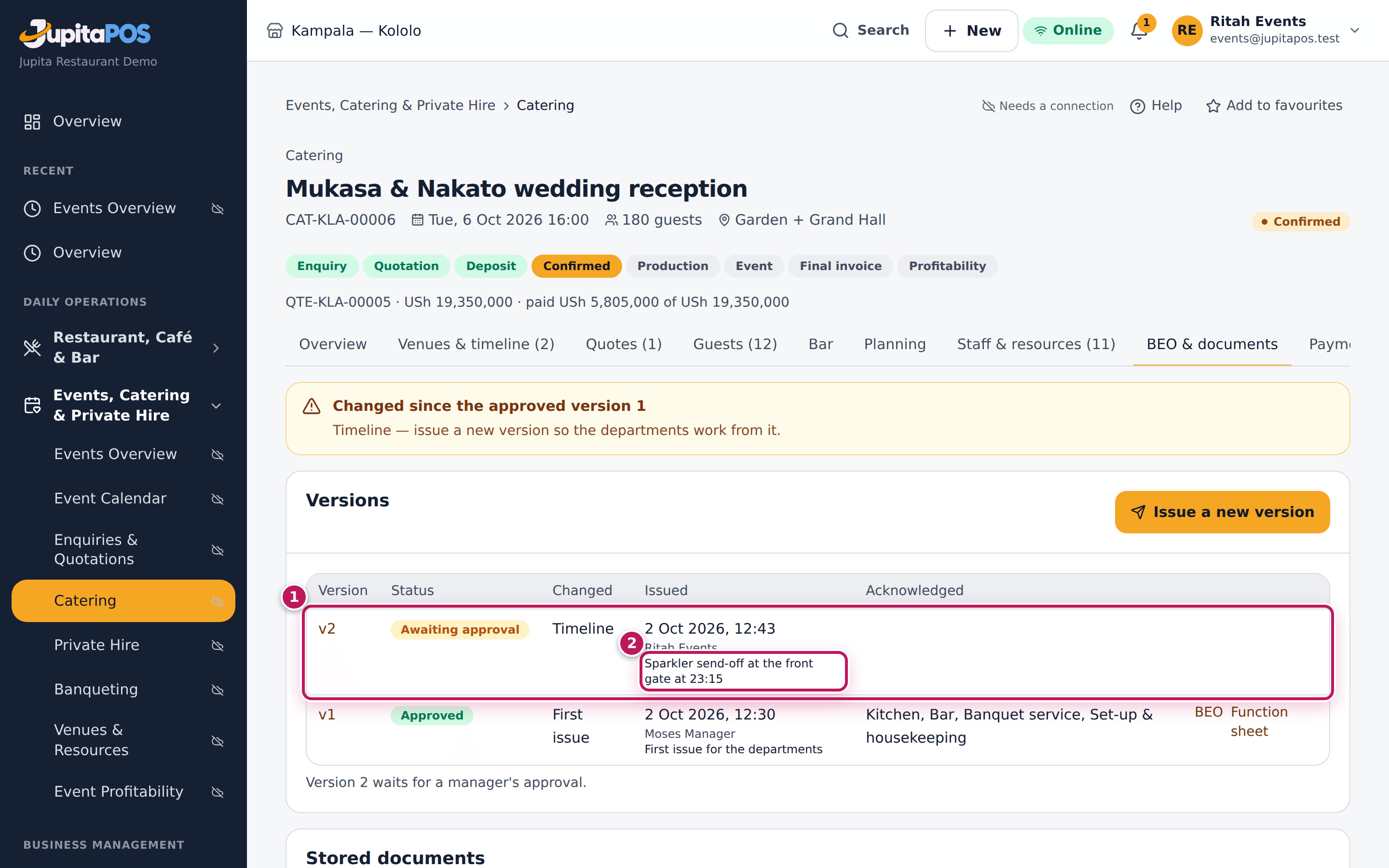
- Type What changed (for the departments) — Sparkler send-off at the front gate at 23:15 — and click Issue.
- A manager approves it (see Approve a BEO version).
Expected result
The new version is Awaiting approval (1) with the sections that changed and your note (2). The approved version stays the one to work from until the manager approves the new one; then the departments are notified, the board shows the new version, and each department acknowledges it again. On the version’s page each changed section carries a changed badge.
Screenshot
Common mistakes
- Telling one department by phone. The others never hear of it. Issue the version: everyone is notified.
- Issuing twice for one change. A pending version is replaced by a newer one; finish your changes, then issue.
Troubleshooting
- No warning, but I changed something. Not everything is on the BEO (internal notes and costs are not). If a department needs it, write it in the function’s notes or the timeline.
Acknowledge a BEO for your department
Purpose
Read your department’s part of the approved BEO and tell the events team you have it, so they know every department is ready.
Role / permission required
Anyone with events.beo: chefs and cooks, bartenders, waiters,
supervisors, storekeepers, drivers, accountants, managers.
Prerequisites
- The function has an approved version (see Approve a BEO version).
Steps
- Open Banquet event orders in the sidebar.
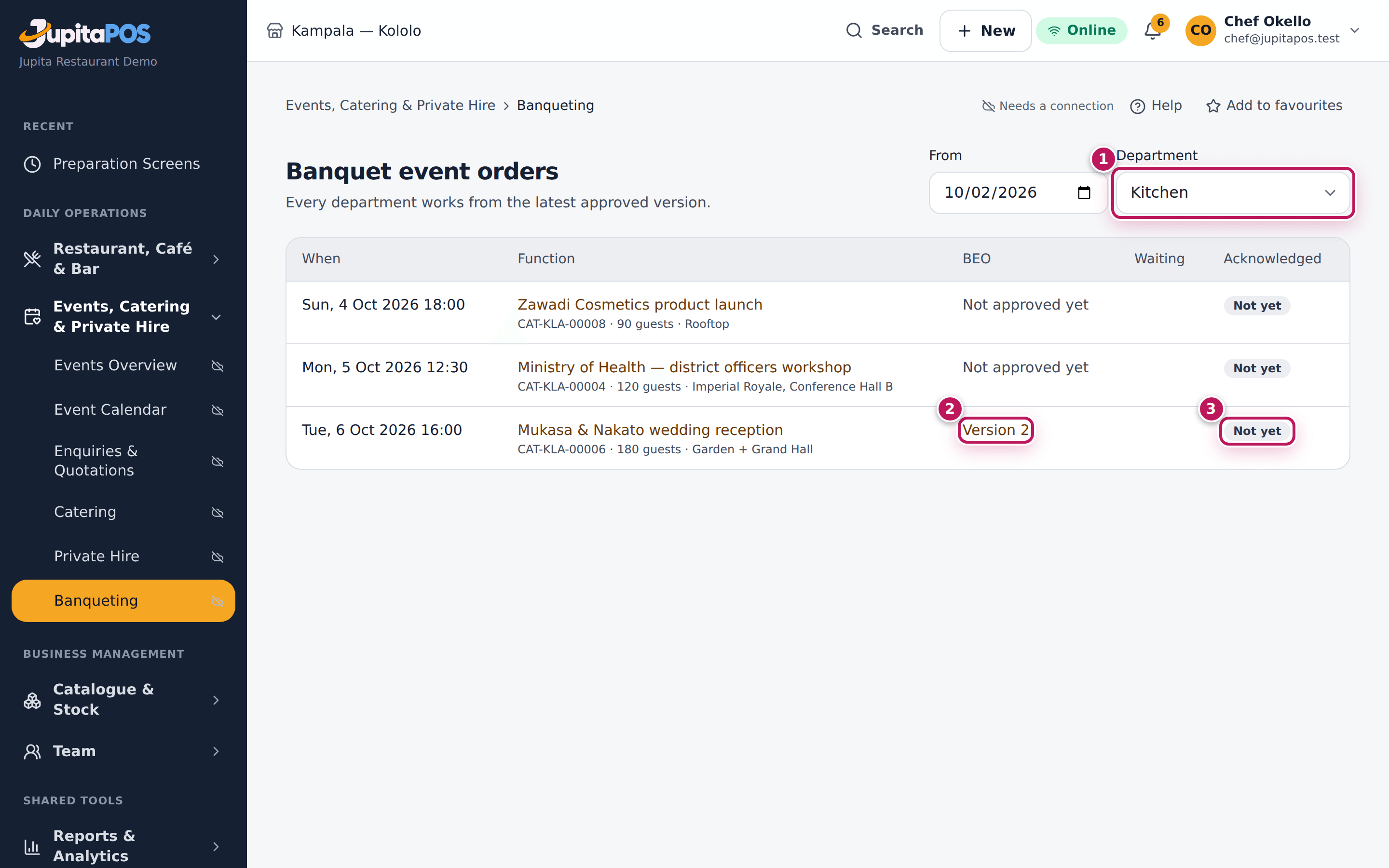
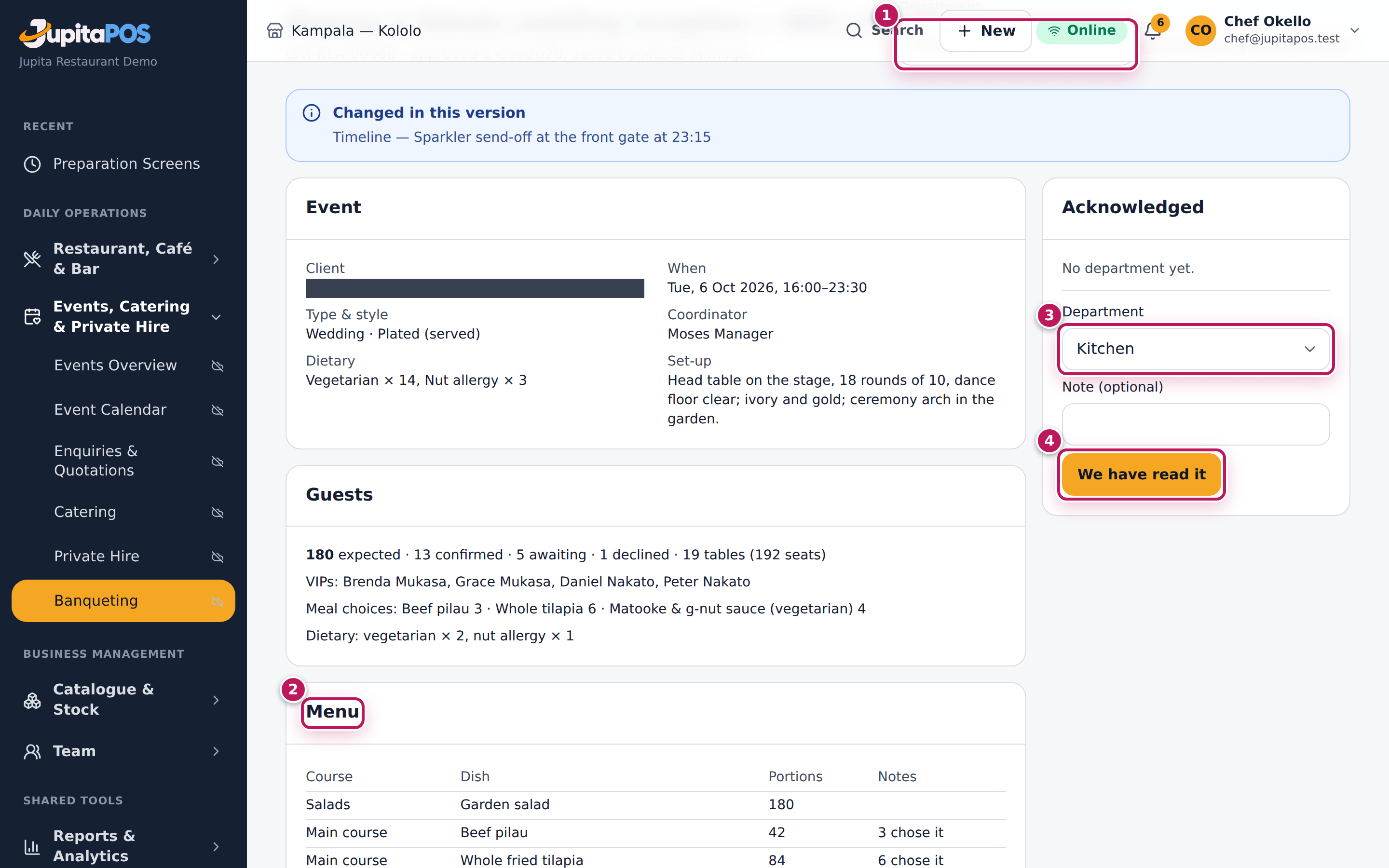
- Choose your Department (1) — here Kitchen. The board lists the coming functions, the version to work from (2) and whether your department acknowledged it (3).
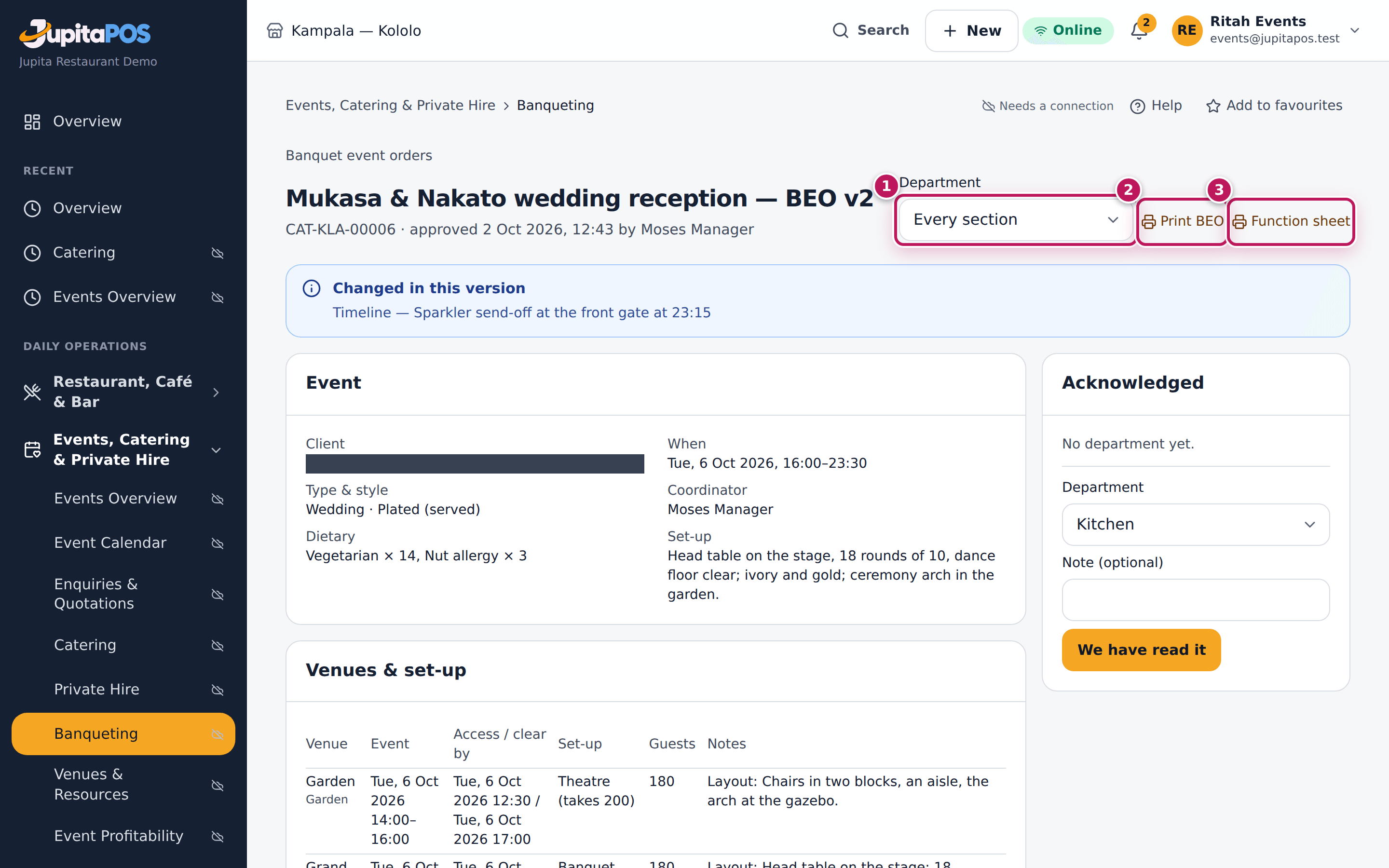
- Click the Version link (2) to open it. Your department’s sections open: for the kitchen the event, the guests, the menu, the timeline and the staff. Choose Every section in Department (1) to read all of it.
- Read it. A section that changed since the last version carries a changed badge.
- Under Acknowledged, check the Department (3), add a Note (optional), and click We have read it (4).
Expected result
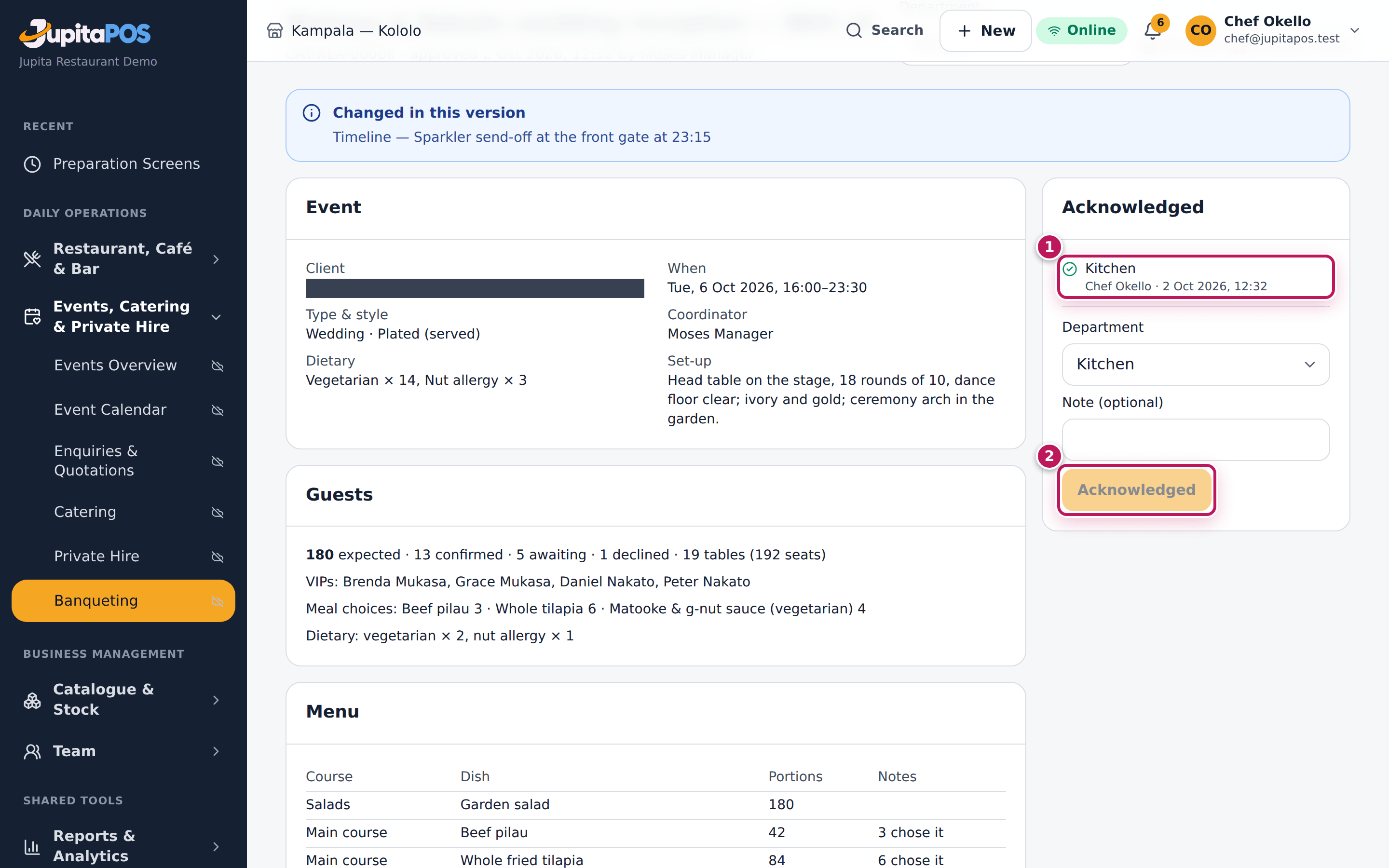
Your department is under Acknowledged (1) with your name and the time — Kitchen, Chef Okello — and the button says Acknowledged (2). The board shows Yes for your department, and the events team sees it on the function’s BEO & documents tab.
Screenshot
Common mistakes
- Acknowledging an old version. Only the latest approved version can be acknowledged; an older one says Not the version to work from with a link to the current one.
- Acknowledging for another department. Choose your own department in the list before you click.
Troubleshooting
- “Only the latest approved version is acknowledged.” A newer version was approved: open it from the board.
- There is no We have read it. You lack
events.beo, or the version is not the current one.
Print the function sheet
Purpose
Give every team leader the day on one page — when, where, how many, the timeline, the venues and set-up, the food and drink, the dietary needs and the team — and each department its own BEO print.
Role / permission required
Anyone with events.beo or events.view.
Prerequisites
- The function has an approved version (see Approve a BEO version).
Steps
- Open Banquet event orders and click the function’s Version link.
- Choose the Department (1) whose BEO you print, or Every section.
- Click Print BEO (2) for that department’s BEO with a sign-off, or Function sheet (3) for the day on one page.
- Print from the browser (Ctrl and P), or save as PDF.
Expected result
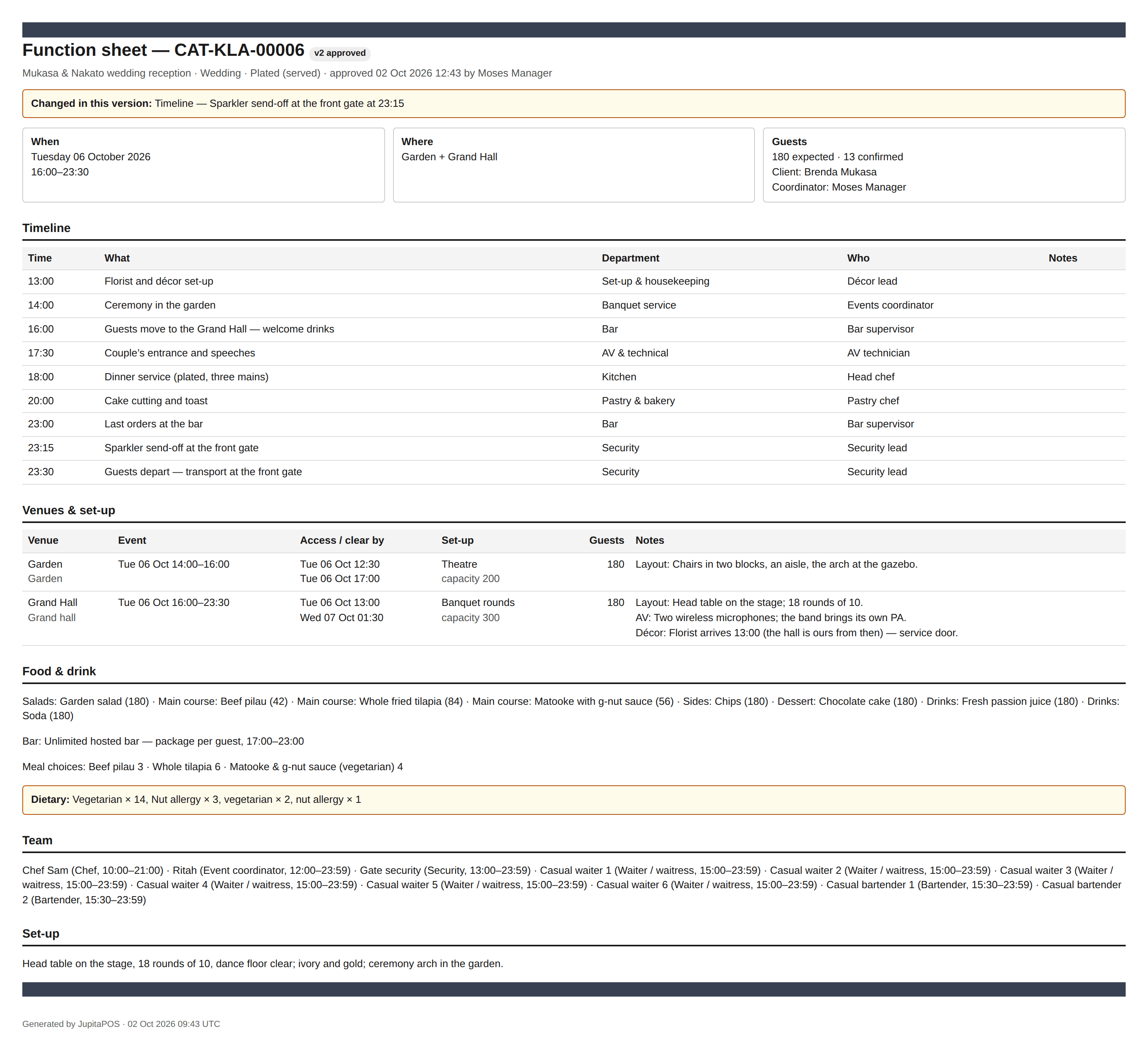
The function sheet of the wedding shows Function sheet — CAT-KLA-00006 with the approved version, when (Tuesday 06 October 2026, 16:00–23:30), where (Garden + Grand Hall), the guests and the coordinator; the timeline from the florist at 13:00 to the departure at 23:30; the venues with their access and clear-by times, set-up and notes; the food and drink with portions and the meal choices; the dietary needs; the team; and the set-up notes.
Screenshot
Common mistakes
- Printing the day before and changing things after. A print is the version it came from. Print again after a new version is approved.
Troubleshooting
- The board says “Not approved yet”. No version is approved yet; there is nothing to print.
See a function’s profit
Purpose
See what a function earns once the bar, the guests’ own drinks and any damage are counted — and, before the day, what is recorded so far.
Role / permission required
Anyone who can see the function (events.view).
Prerequisites
- The function is booked.
Steps
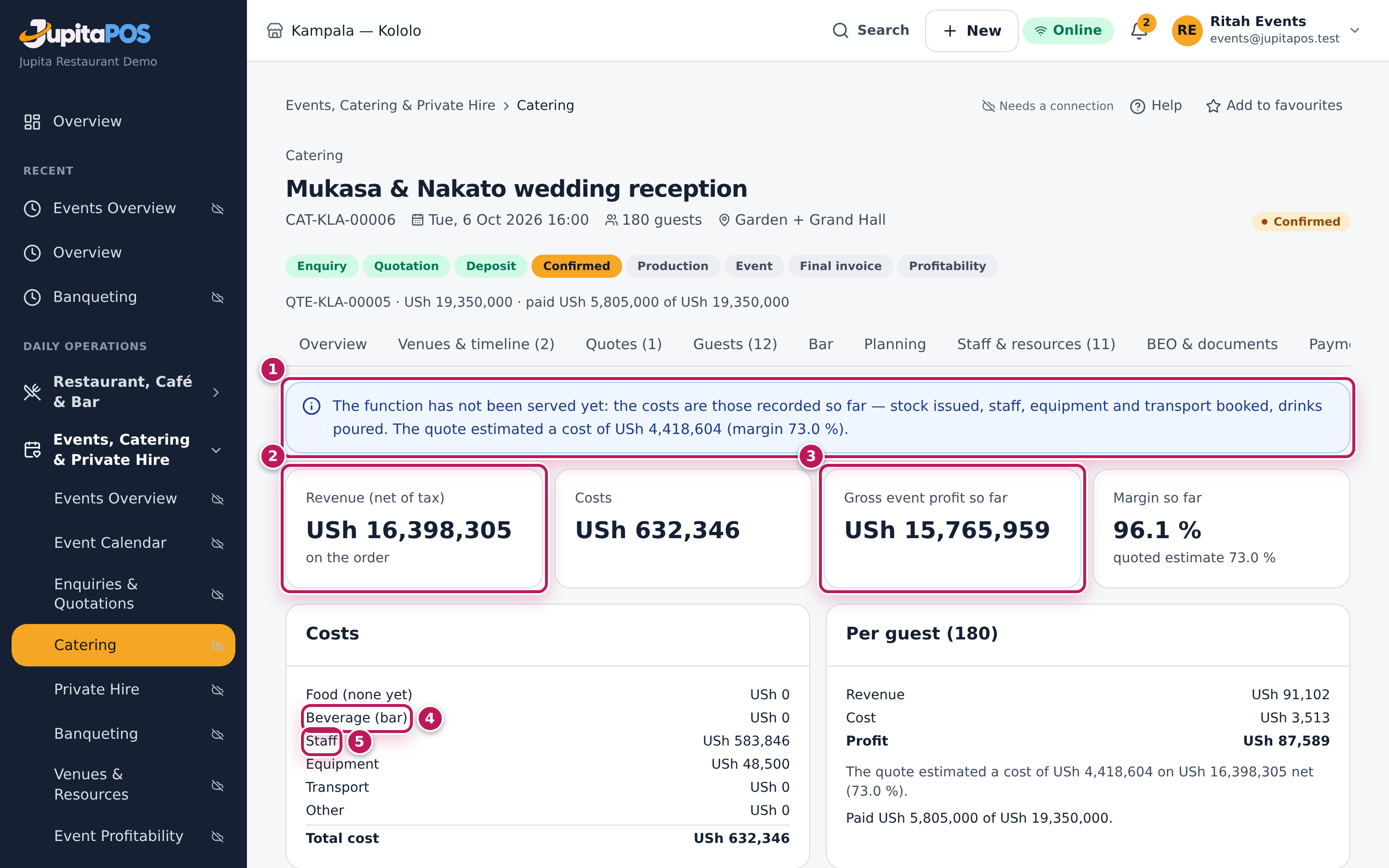
- Open the function and click the Profitability tab.
- Before the function is served, read the note (1): the costs are only those recorded so far, and the quote’s estimate.
- Read Revenue (net of tax) (2): the account net of tax, plus what the guests paid at the bar and any damage charged.
- Read Gross event profit so far (3) — Gross event profit once served — and the margin.
- Read Costs: food (stock issued, else the plan), Beverage (bar) (4) — the host’s drinks poured and what the guests’ bar sales used —, Staff (5), equipment with damage, transport and other.
Expected result
Four days before the wedding the tab says the function has not been served yet and shows the revenue from its account, the costs recorded so far (the staff and equipment booked, the drinks poured at the bar) and the profit so far, with the quote’s estimated cost and margin for comparison. After the final invoice the figures are final (see Read a function’s profitability).
Screenshot
Common mistakes
- Reading the profit so far as the result. Food is not issued yet and the bar is still open; wait for the final invoice.
Troubleshooting
- Beverage is 0 on a hosted bar. Nothing has been poured yet: the beverage cost is what the host’s drinks poured and the guests’ bar sales used. (The quote’s estimate counts a bar package at the cost share of its drink list.)