

On this page
When a till sells offline (see Offline mode), everything it does is kept as a list of events — the order, each line, the payment, the receipt — and sent to the server by itself when the connection returns. That is a sync run. Most runs apply every event and nothing more is needed.
Sometimes something changed on the server meanwhile: a colleague added a drink to the same order at another till, the bill was paid there, a price changed, an item was sold out. The server then keeps the sale if it can and raises a conflict for a manager: for information when the sale was kept as it was, or blocking when an event is held until a manager decides.
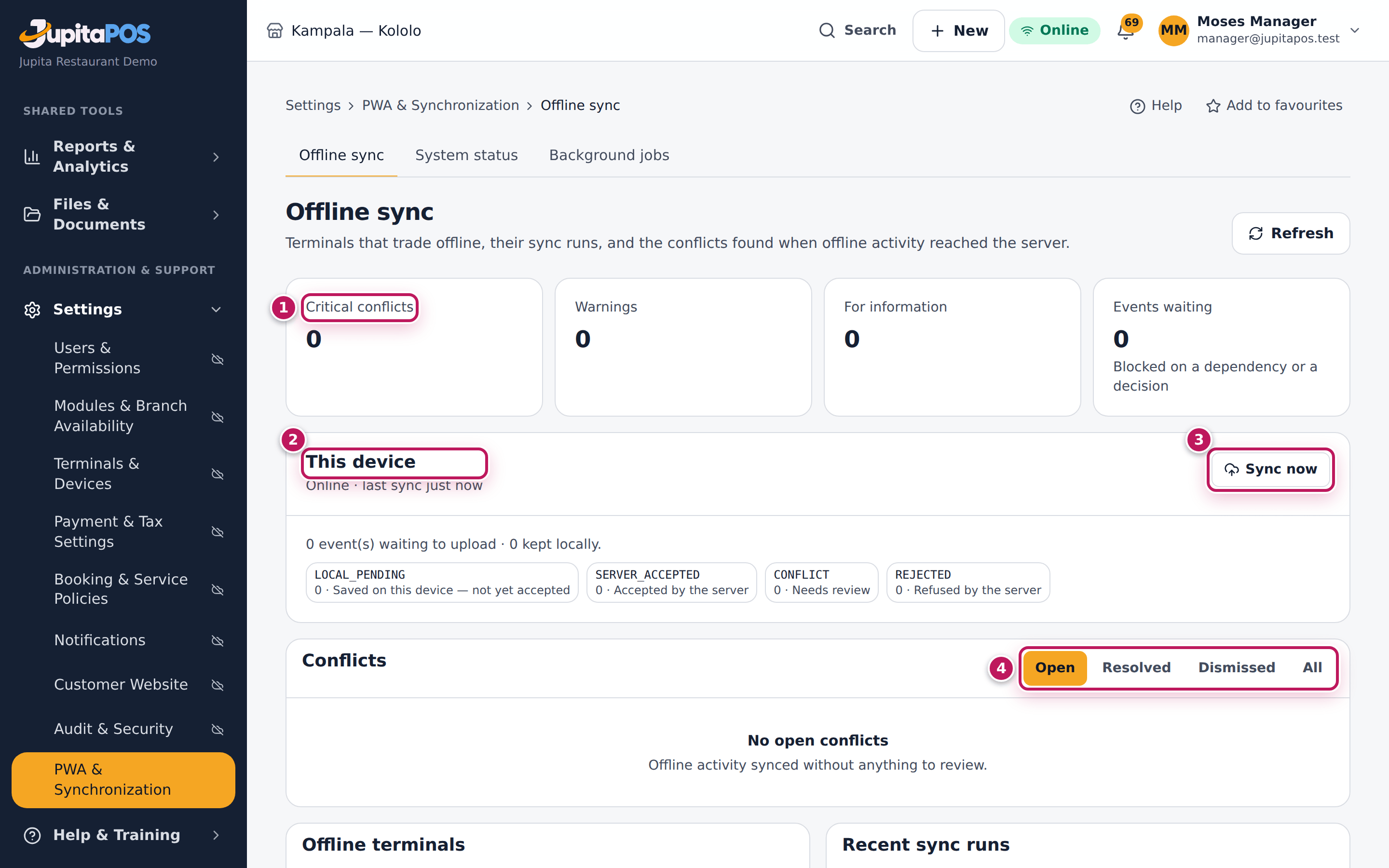
The Offline sync screen (/sync) shows it all. The pictures show Moses,
the branch manager of the demo business’s Kampala — Kololo branch, and
Restaurant Till 3 (code KLA-T11), where Paul Ssekandi sold offline.
See every till’s sync status
Purpose
Check, in one place, that every till that sells offline is healthy: talking to the server, nothing stuck on it, no conflict waiting for you.
Role / permission required
Branch managers, restaurant managers, owners, accountants and auditors
(sync.view).
Prerequisites
- At least one till is approved for offline use (see Prepare a till for offline use).
Steps
- Open Offline sync from the menu.
- Read the counts at the top (1): Critical conflicts, Warnings, For information and Events waiting (events blocked on another event or on a decision). Zero everywhere is what you want.
- This device (2) is the device you are using now: its status, its last sync and what it has waiting. Sync now (3) sends what it has at once.
- Under Conflicts, choose Open, Resolved, Dismissed or All (4). Open conflicts need you (see Resolve a sync conflict).
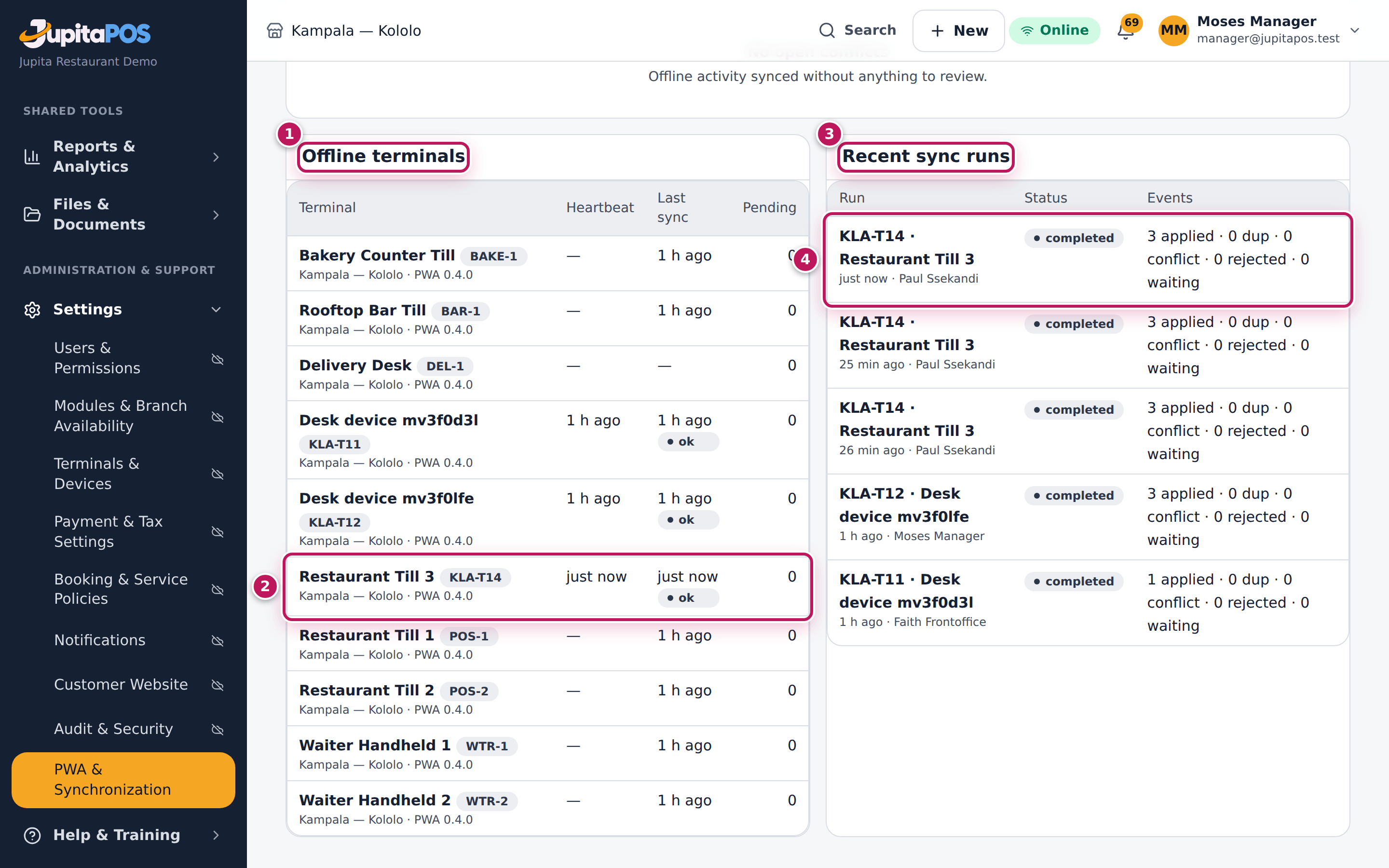
- Scroll down to Offline terminals (1): each till that may sell offline (2), its last Heartbeat, its Last sync with the result, and how many events are Pending on it.
- Read Recent sync runs (3): each run (4) with the till, when, who was signed in, its status and how many events were applied, duplicates, conflicts, rejected or waiting.
- Tap Refresh at the top to see the latest.
Expected result
After Paul’s offline sale, the latest run is KLA-T11 · Restaurant Till 3, just now · Paul Ssekandi, completed, with 3 applied · 0 dup · 0 conflict · 0 rejected · 0 waiting — the order, its cash payment and its receipt. Restaurant Till 3 shows a heartbeat and a last sync a moment ago and 0 pending.
Screenshot
Common mistakes
- Checking only after a problem. Look at Offline sync after every internet cut: conflicts can wait for a decision even when the tills look fine.
- Reading an old heartbeat as offline. Tills that are switched off at night show their last heartbeat from closing time; that is normal.
Troubleshooting
- A till has pending events for a long time. It is still offline, or its sign-in ended. On the till, sign in again; the events are then sent.
- “No terminal is enabled for offline use”. No till has Offline enabled (see Prepare a till for offline use).
- “No sync runs yet”. No till has synced offline activity yet.
Resolve a sync conflict
Purpose
Look at what happened when an offline sale met a change made online, and confirm it — so that the accounts are right and nothing is forgotten.
Role / permission required
Branch and restaurant managers, owners (sync.resolve, a sensitive
permission: sign in with your password). Others with sync.view can read
conflicts.
Prerequisites
- An open conflict on Offline sync.
Steps
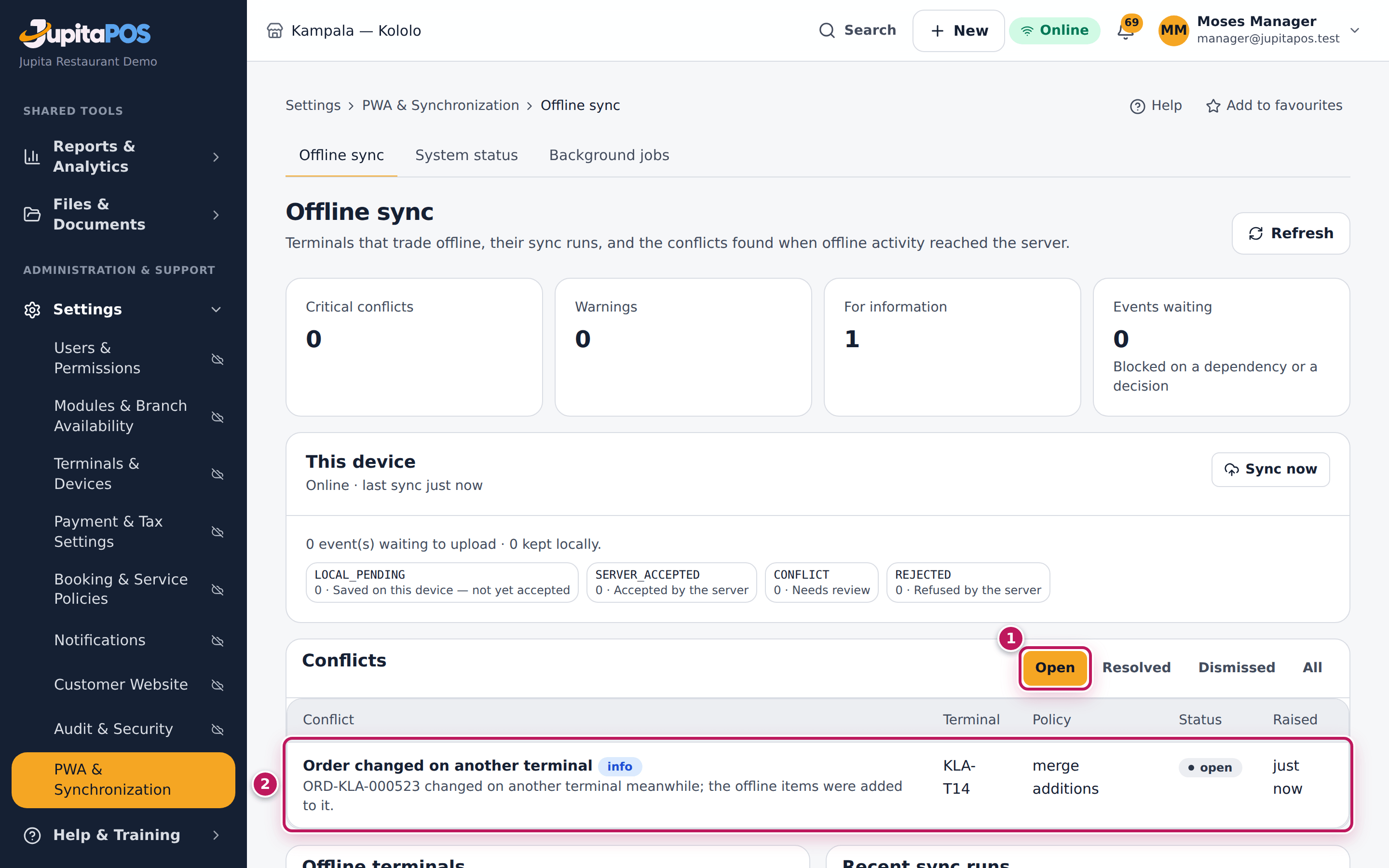
- Open Offline sync; Open (1) is chosen under Conflicts.
- Tap the conflict (2). Here: Order changed on another terminal, info — Paul added chips offline to an order while, at another till, a colleague added a Club to it.
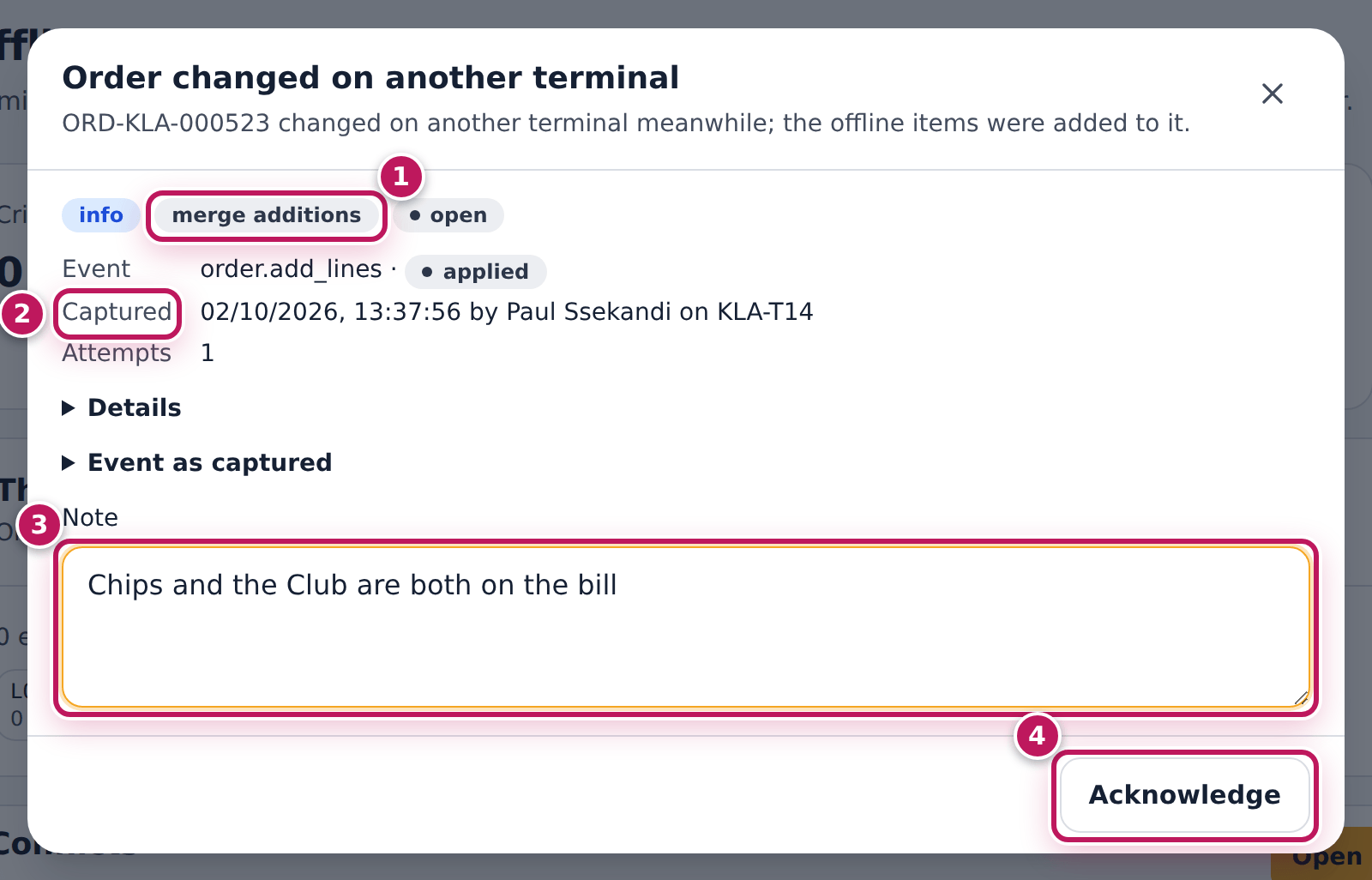
- Read the dialog: the severity and the policy the server applied (1) — here merge additions: both were kept — and what the till captured, when and by whom (2). Open Details and Event as captured to see the figures.
- Type a Note (3) for the record, for example Chips and the Club are both on the bill.
- Tap Acknowledge (4).
Expected result
JupitaPos says Conflict acknowledged. and the conflict leaves the Open list; it is under Resolved with your name and note. The order has everything: the passion juice, the Club and the chips.
Screenshot
Common mistakes
- Acknowledging without reading. Acknowledging only records that you saw it. If the kept sale is wrong — a guest charged twice — correct the order or refund (see Refund a paid order).
- Leaving information conflicts open. They pile up and hide the ones that block. Acknowledge them after each internet cut.
Troubleshooting
- There is no Acknowledge button. The conflict blocks an event: it needs Retry event or Discard event (see Retry or discard a failed event); or your role cannot resolve conflicts.
- “This action needs a password sign-in.” Sign out and sign in with your password.
FAQ
Which conflicts are only for information? The sale was kept as the till recorded it: the price changed since the till downloaded the menu, the item is sold out now, the table was taken, the receipt was renumbered, or the order changed on another till and both were kept.
Which ones block? The event was not applied: the order was already paid or closed, the item no longer exists, a payment method that needs the internet was used offline, or nothing proves who recorded it. They each raise a security alert too when they concern who did it.
Retry or discard a failed event
Purpose
Decide what happens to an offline event the server held: apply it once the cause is fixed, or discard it with a reason — so that money and stock are right.
Role / permission required
Branch and restaurant managers, owners (sync.resolve, sensitive: sign in
with your password).
Prerequisites
- An open conflict marked blocks event on Offline sync.
Steps
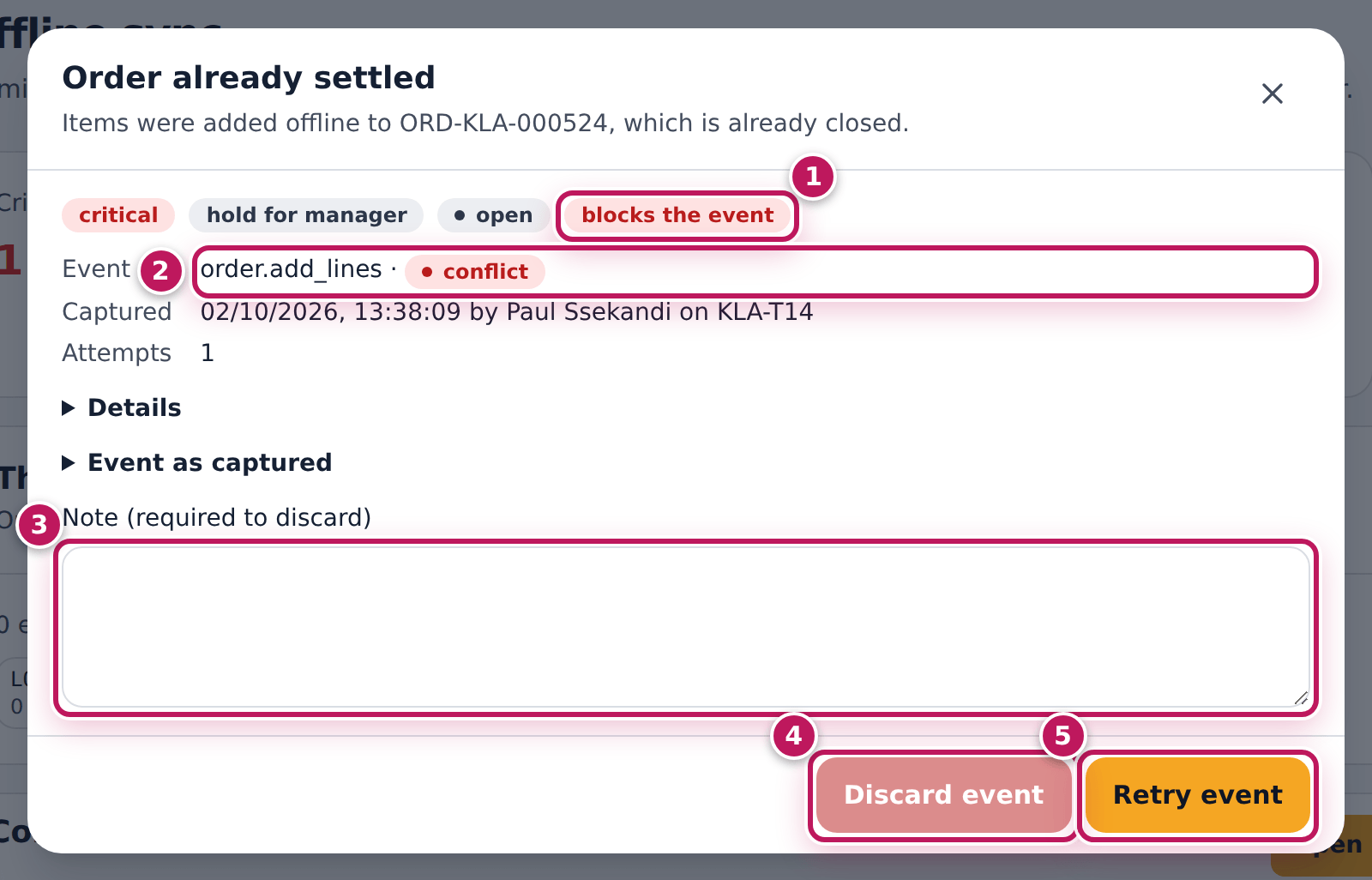
- Open Offline sync and tap the conflict. Here: Order already settled — chips were added offline to an order that was paid and closed at another till meanwhile.
- Read it: critical, blocks the event (1), and the event (2) — order.add_lines — with who captured it, when and on which till.
- Decide:
- the event is right and the cause can be fixed → fix it first. Here the chips were served, so reopen the order (on the till: More → Reopen closed order (manager)). Then open the conflict again and tap Retry event (5);
- the event should not count → type why in Note (required to discard) (3) and tap Discard event (4).
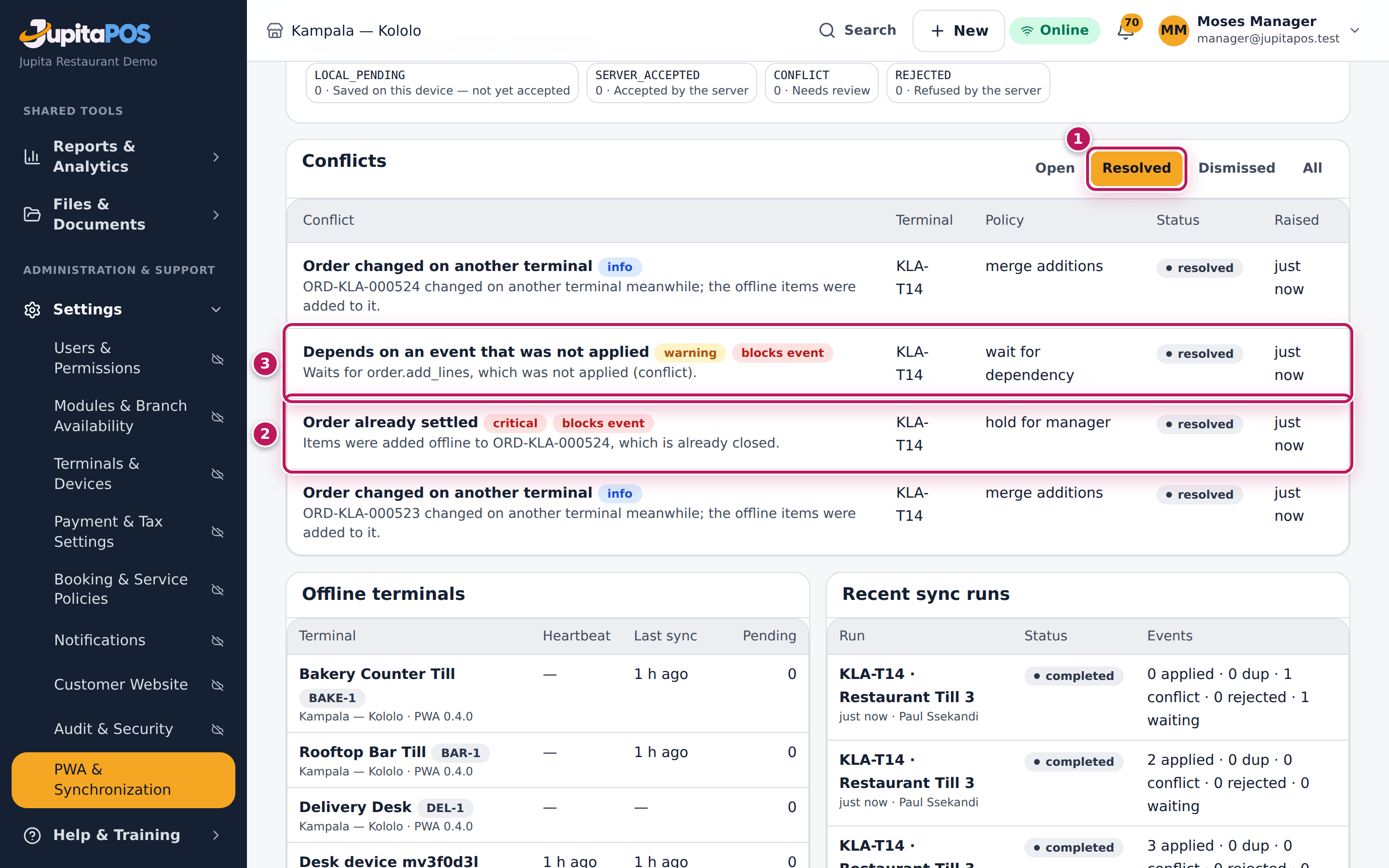
- An event that waited for this one — here the send to the kitchen — is shown as Depends on an event that was not applied. After a successful retry it is applied by itself and its conflict closes. After a discard it stays blocked: open it and discard it as well.
- After a retry, an Order changed on another terminal conflict for information can appear for the same order (here the order was reopened meanwhile). Acknowledge it (see Resolve a sync conflict).
- Choose Resolved under Conflicts (1) to see what was decided (2), and the event that waited, applied with it (3).
Expected result
After Retry event JupitaPos says Event applied.: the chips are on the order, which is open for them to be paid, and the send that waited went through by itself, so the kitchen gets the ticket. Both conflicts are under Resolved. After Discard event, JupitaPos says Event discarded. and the conflict is under Dismissed with your note.
Screenshot
Common mistakes
- Retrying without fixing the cause. The event fails again the same way; JupitaPos says Retried: … and the conflict stays open.
- Discarding a payment. A discarded payment is money the till took that the books will not show. Count the drawer and record it another way before you discard.
- Retrying the waiting event first. It depends on the other one and fails again. Decide the one it waits for first; after a retry, the waiting event follows by itself.
Troubleshooting
- Discard event is greyed out. Type the reason in Note (required to discard).
- “Could not resolve the conflict.” The conflict was resolved by someone else meanwhile, or your session ended. Tap Refresh.
Follow a till’s sync history
Purpose
See when a till was last active and synced, and what each of its sync runs did — to answer “did the sales from Restaurant Till 3 reach the server?” or to spot a till that syncs badly.
Role / permission required
Managers and owners (sync.view; the Terminals list needs
terminals.view).
Prerequisites
- The till has synced at least once.
Steps
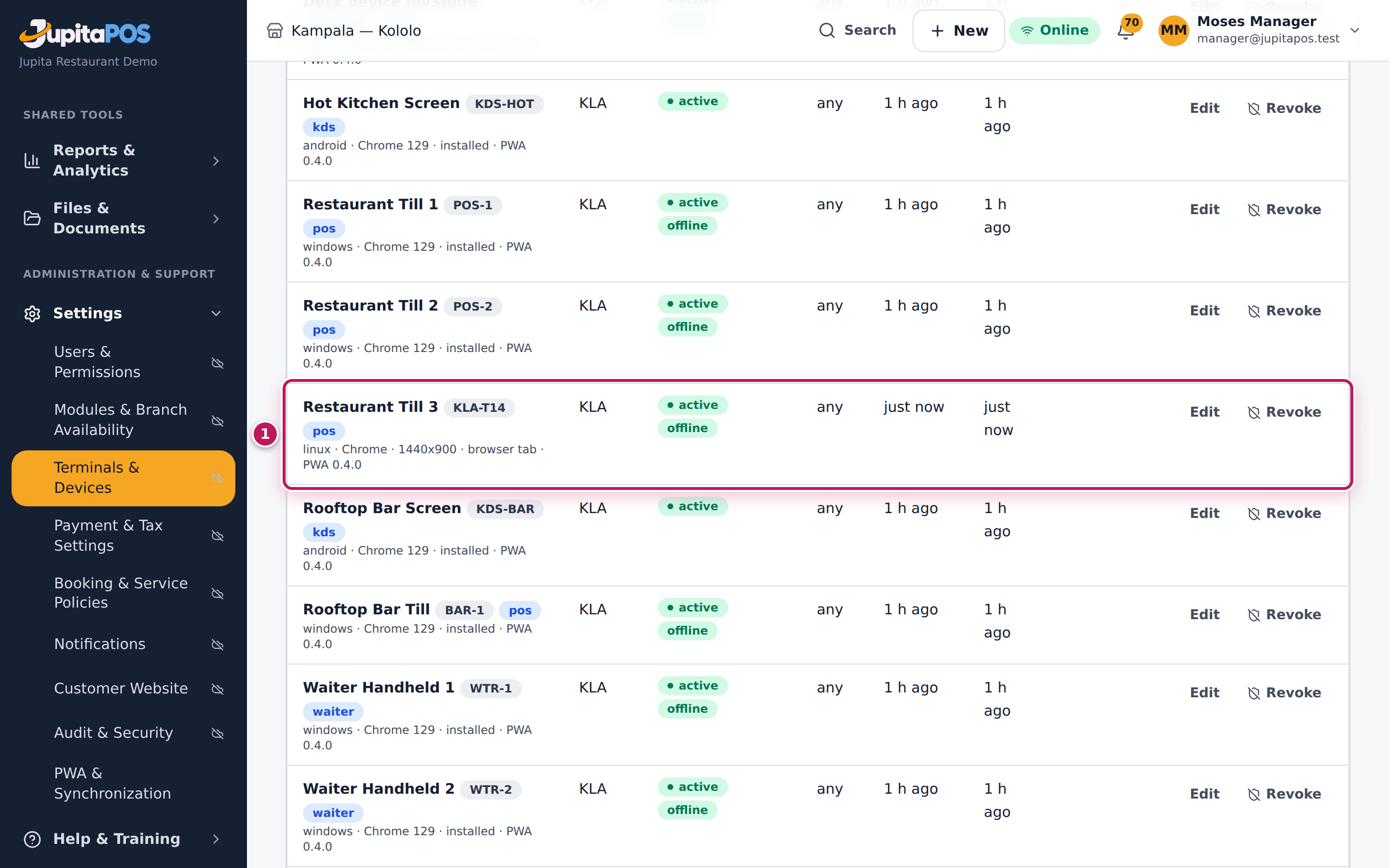
- Open Terminals from the menu. The till’s row (1) shows its status, Last active and Last sync.
- Open Offline sync and scroll down.
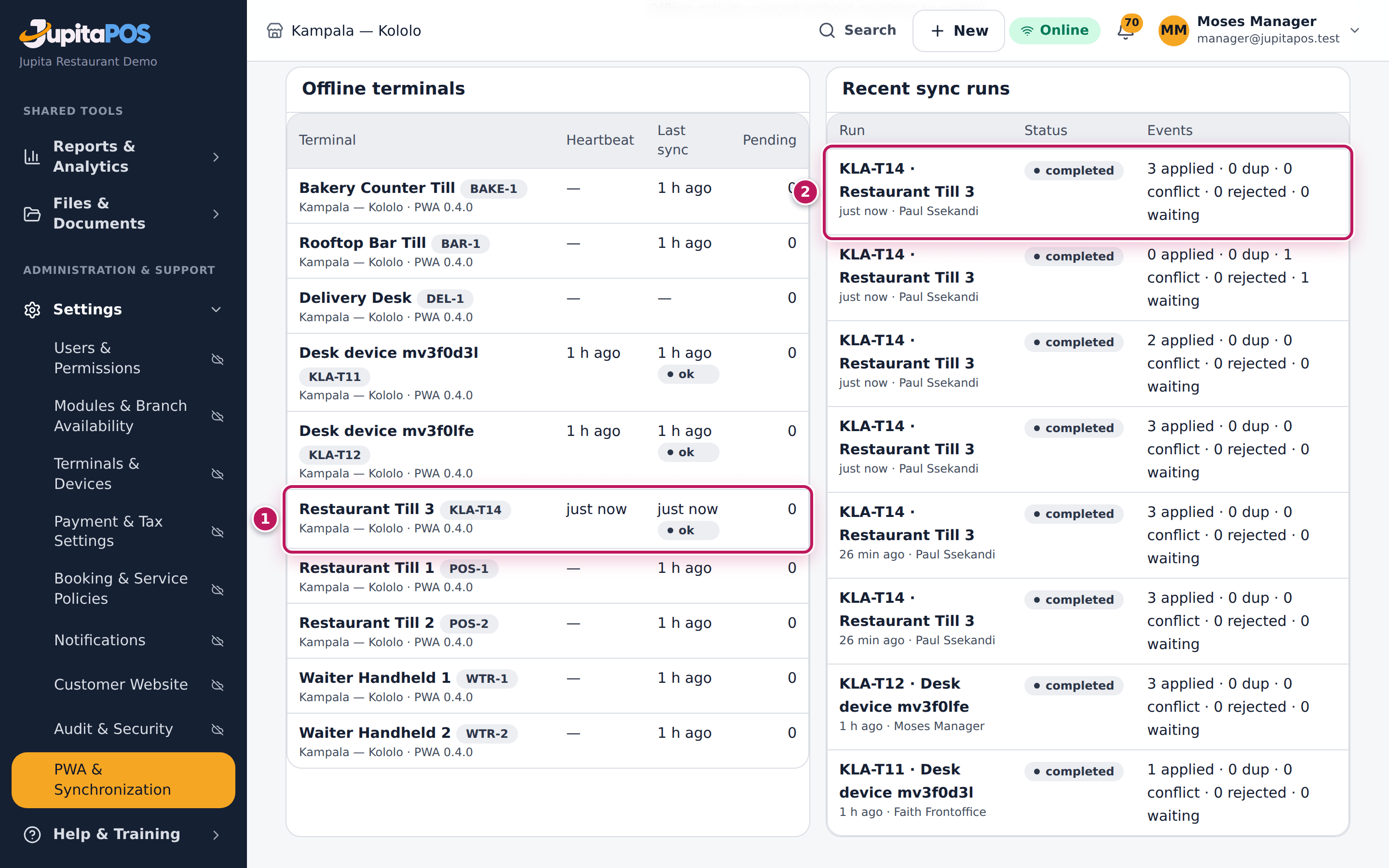
- In Offline terminals, find the till (1): its last Heartbeat, its Last sync with the result, and Pending — events still on the till.
- In Recent sync runs, read the runs of the till (2), newest first: when, who was signed in, the status, and the events applied, dup (sent twice, applied once), conflict, rejected and waiting. A clock difference of more than two minutes is shown as clock off … min.
Expected result
Restaurant Till 3 is active, offline, last active and last synced a moment ago; its latest run by Paul Ssekandi is completed with its events applied and nothing waiting.
Screenshot
Common mistakes
- Reading “dup” as a problem. A duplicate is an event the till sent again after a dropped connection; it was applied once. That is the design working.
Troubleshooting
- A run shows rejected events. The events could not be used at all; open the conflicts of that time under All.
- “clock off … min” on a run. The till’s clock is wrong. Set the device’s date and time to automatic.