

On this page
A supplier’s page holds everything the business knows about the people it buys from: the profile (contacts, payment terms, lead time, currency, tax ID, bank details), the Catalogue of what they sell you with the last price, the Price history of every quote, order, receipt and invoice, their performance (rating, on-time deliveries, fill rate, rejections, spend) and their recent orders and invoices.
Open Procurement → Suppliers (/procurement/suppliers). The list
shows each supplier with its status, currency and terms, the number of
products and the rating; the Status filter shows active, on hold
or blacklisted suppliers. Orders cannot be placed with a blacklisted
supplier.
The demo’s suppliers are Fresh Farm Supplies (fresh produce, preferred), Kampala Grain Millers (dry goods), Lakeside Dairy Co-op (dairy), Nile Breweries (beverages) and Global Foods Trading in Dubai (imports, in US dollars).
Who can do what
| Task | Permission | Usually |
|---|---|---|
| See suppliers, catalogues, prices and performance | procurement.view |
procurement officer, storekeeper, chef, managers, accountant |
| Add and edit suppliers, contacts and catalogue | procurement.suppliers |
procurement officer, store manager, owner |
| See what is owed (accounts payable) | procurement.invoice or procurement.pay |
procurement officer, accountant |
Add a supplier
Purpose
Put a new supplier on the books with the details every order, invoice and payment needs: contact, currency, terms, lead time, tax ID and bank.
Role / permission required
Procurement officer, store manager or owner (procurement.suppliers).
Prerequisites
- The supplier’s details: name, contact, phone, e-mail, payment terms, delivery time, tax ID (TIN) and bank account.
Steps
- Open Procurement → Suppliers and tap New supplier.
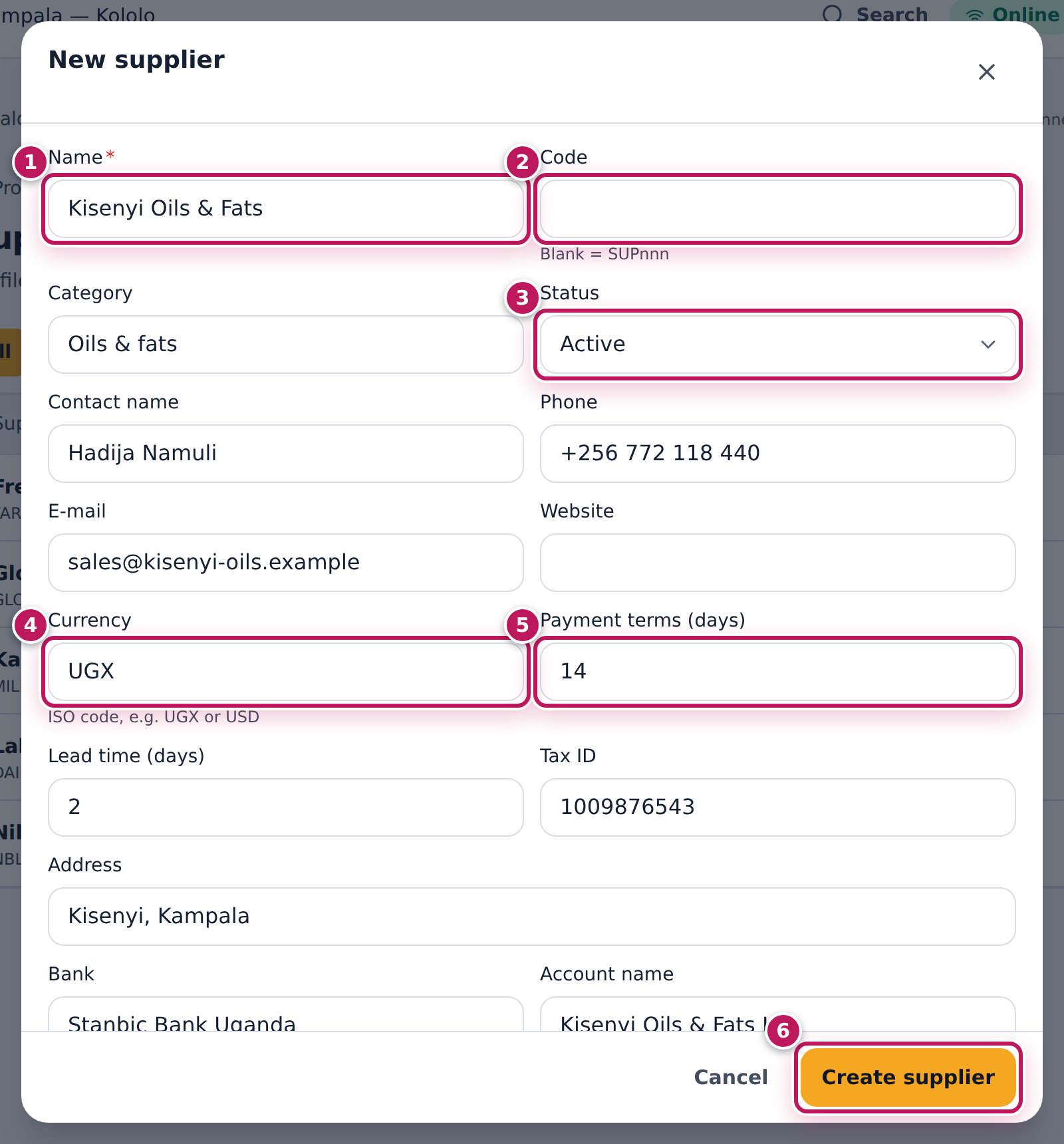
- Type the Name (1): Kisenyi Oils & Fats.
- Leave Code (2) empty for an automatic code (SUP…), or type your own.
- Type the Category (Oils & fats) and leave Status (3) on Active.
- Type the Contact name, Phone and E-mail. Documents are e-mailed to the primary contact (see Edit a supplier and its contacts).
- Check the Currency (4) (UGX; USD for a supplier abroad), and type the Payment terms (days) (5) (14) and Lead time (days) (2).
- Type the Tax ID, Address, Bank, Account name and Account number. Tick Preferred supplier if it is your first choice.
- Tap Create supplier (6).
Expected result
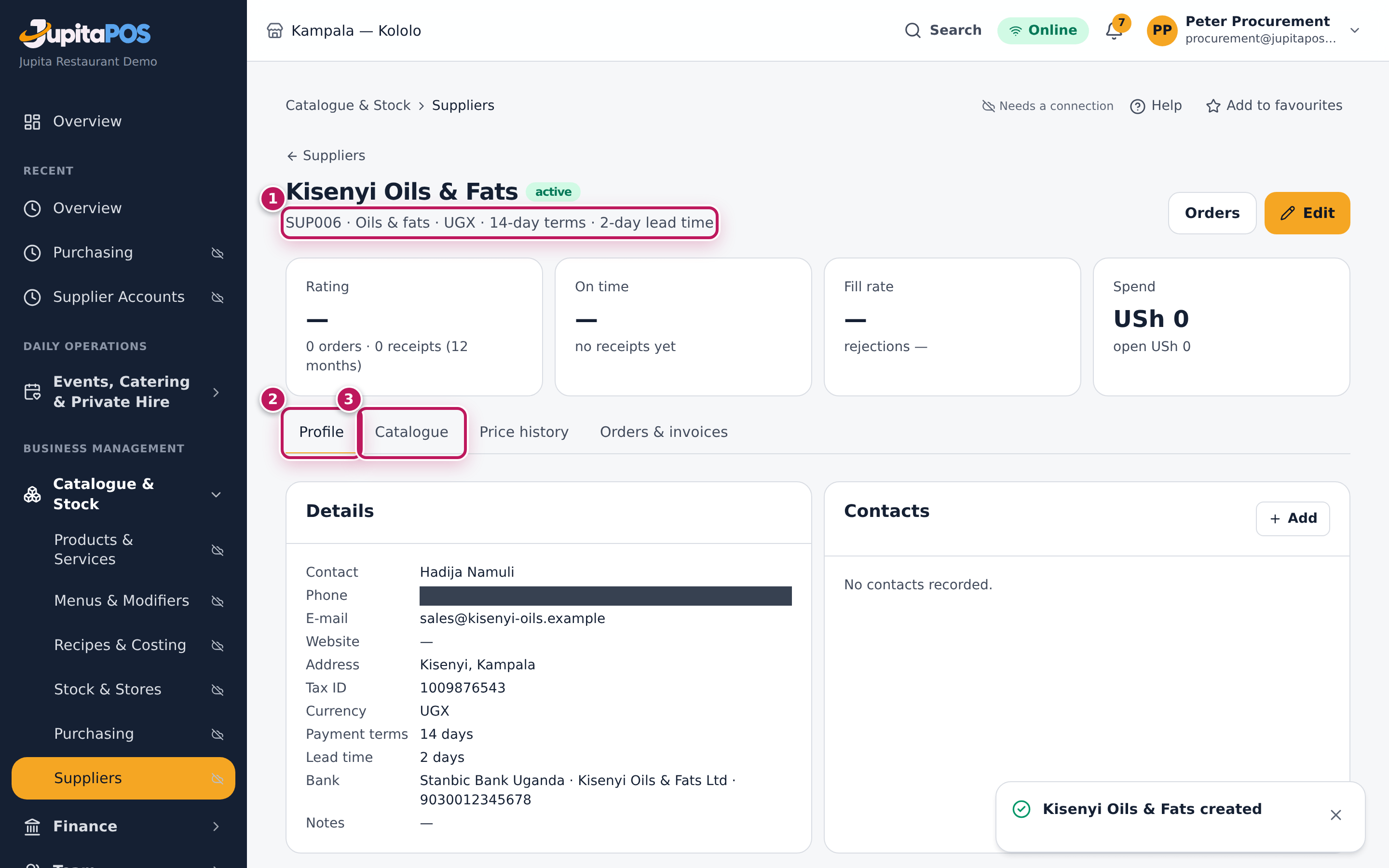
The message Kisenyi Oils & Fats created appears and its page opens: SUP… · Oils & fats · UGX · 14-day terms · 2-day lead time (1), with the Profile tab (2), the Catalogue tab (3) and the others. The tiles show no rating yet — there are no orders. The supplier can be chosen on requisitions, RFQs and orders at once.
Screenshot
Common mistakes
- The wrong currency. Orders, quotes and invoices take the supplier’s currency; a Ugandan supplier set to USD gets dollar orders.
- Adding a supplier that already exists. Search the list first; two profiles split the history, the prices and the performance.
Troubleshooting
- “Code … is already used.” Leave Code empty or choose another.
- The New supplier button is missing. You do not have
procurement.suppliers.
Edit a supplier and its contacts
Purpose
Keep the details right — a new sales person, a new e-mail for orders, new terms — and mark a supplier who lets you down, so the whole team knows.
Role / permission required
Procurement officer, store manager or owner (procurement.suppliers).
Prerequisites
- The supplier exists (see Add a supplier).
Steps
- Open the supplier. On the Profile tab, Contacts lists the people.
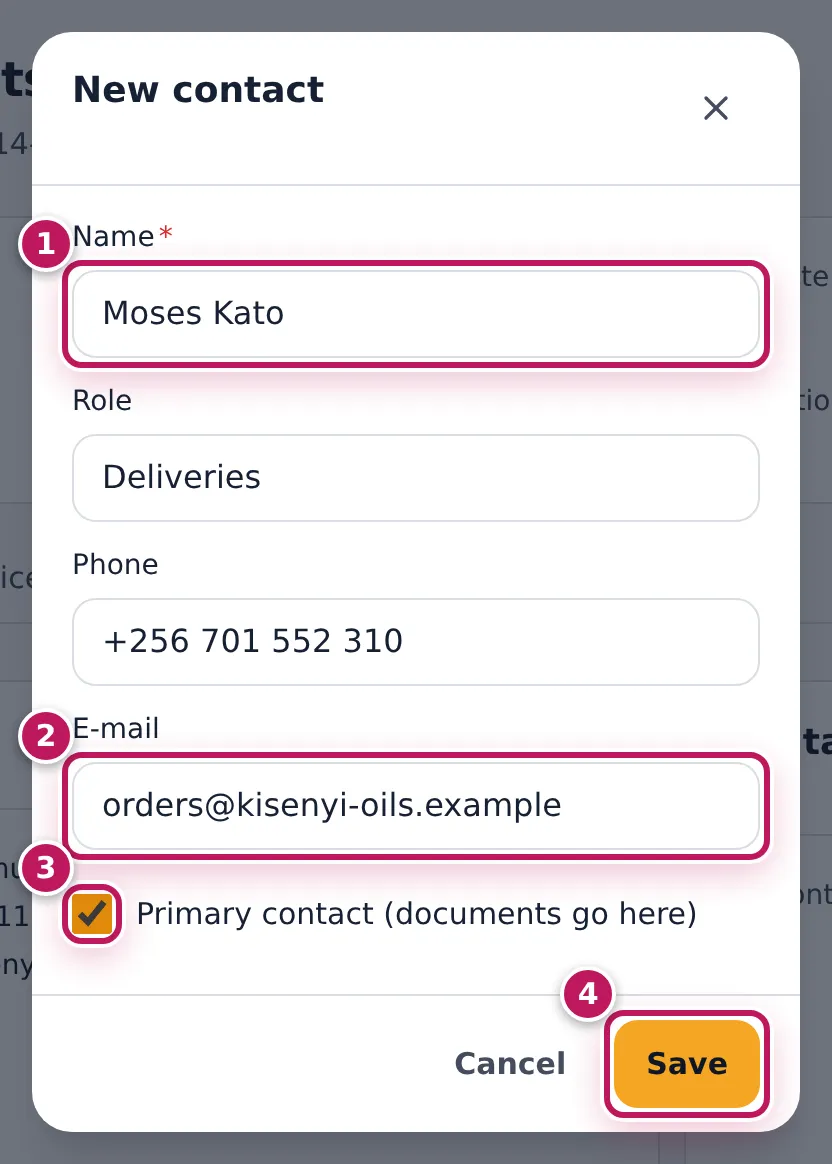
- Tap Add. Type the Name (1), Role, Phone and E-mail (2) of the contact.
- Tick Primary contact (documents go here) (3) if orders and RFQs should go to this person. Tap Save (4).
- To change the profile, tap Edit.
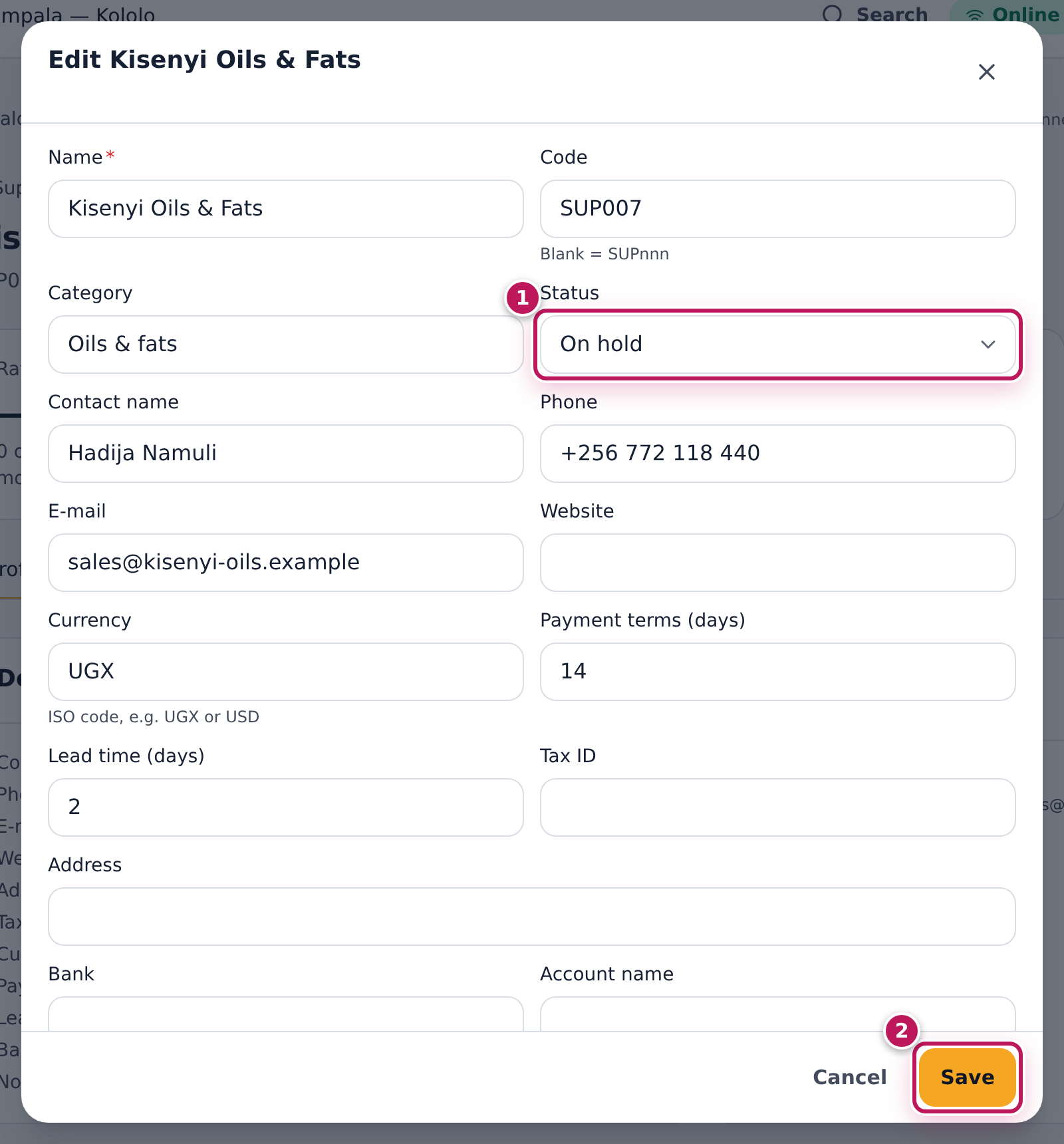
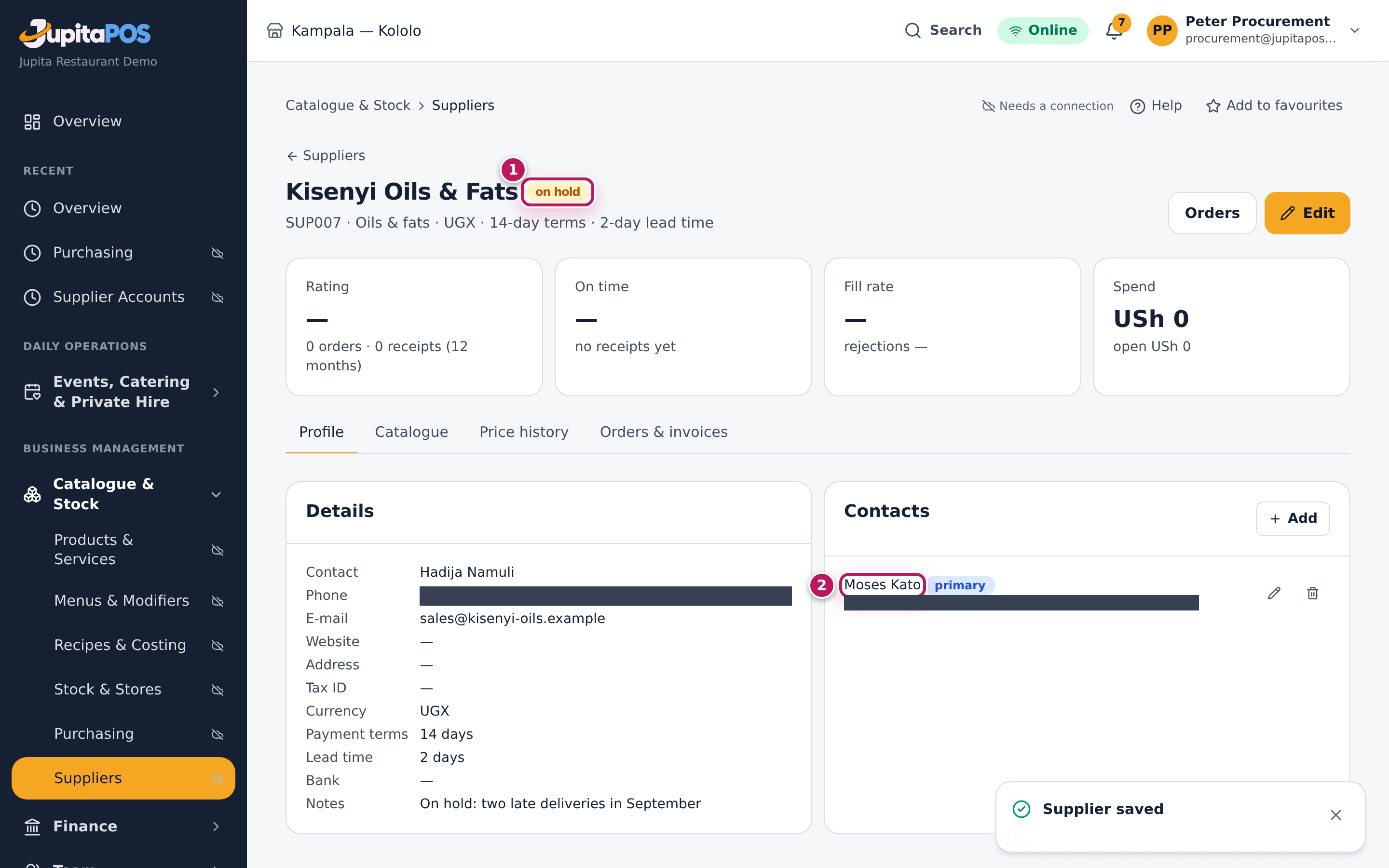
- To warn the team about a problem, set Status (1) to On hold, and write why in Notes, at the bottom of the form. Tap Save (2).
Expected result
Contact saved and Supplier saved appear. Moses Kato is in the contacts with the primary badge (2); from now on orders and RFQs are e-mailed to him. The name carries the on hold badge (1) and the reason is in Details.
On hold is a warning only: the supplier can still be chosen on new requisitions, RFQs and orders, so read the badge before you order. Blacklisted stops them: a blacklisted supplier is no longer offered on new RFQs and orders, and the ones already open stay as they are.
Screenshot
Common mistakes
- Ticking Primary on the wrong person. A supplier has one primary contact: ticking it on a new contact takes it off the old one, and only the primary gets the documents.
- Thinking On hold stops orders. It does not; it only shows the badge. Use Blacklisted to stop new orders, and set the supplier back to Active when the problem is solved.
Troubleshooting
- Orders still go to the old e-mail. The order goes to the primary contact’s e-mail when it is sent; check the tick, or type the address in E-mail to when you send.
Supplier prices and lead times
Purpose
Keep what each supplier sells you — the pack, the price, how many days it takes and the minimum order — so requisitions and orders start from real prices, and see how prices move over time.
Role / permission required
Seeing: procurement.view. Changing the catalogue: procurement.suppliers.
Prerequisites
- The ingredient exists (see Add an ingredient).
Steps
- Open the supplier, here Kampala Grain Millers, and tap Catalogue.
- Tap Add product.
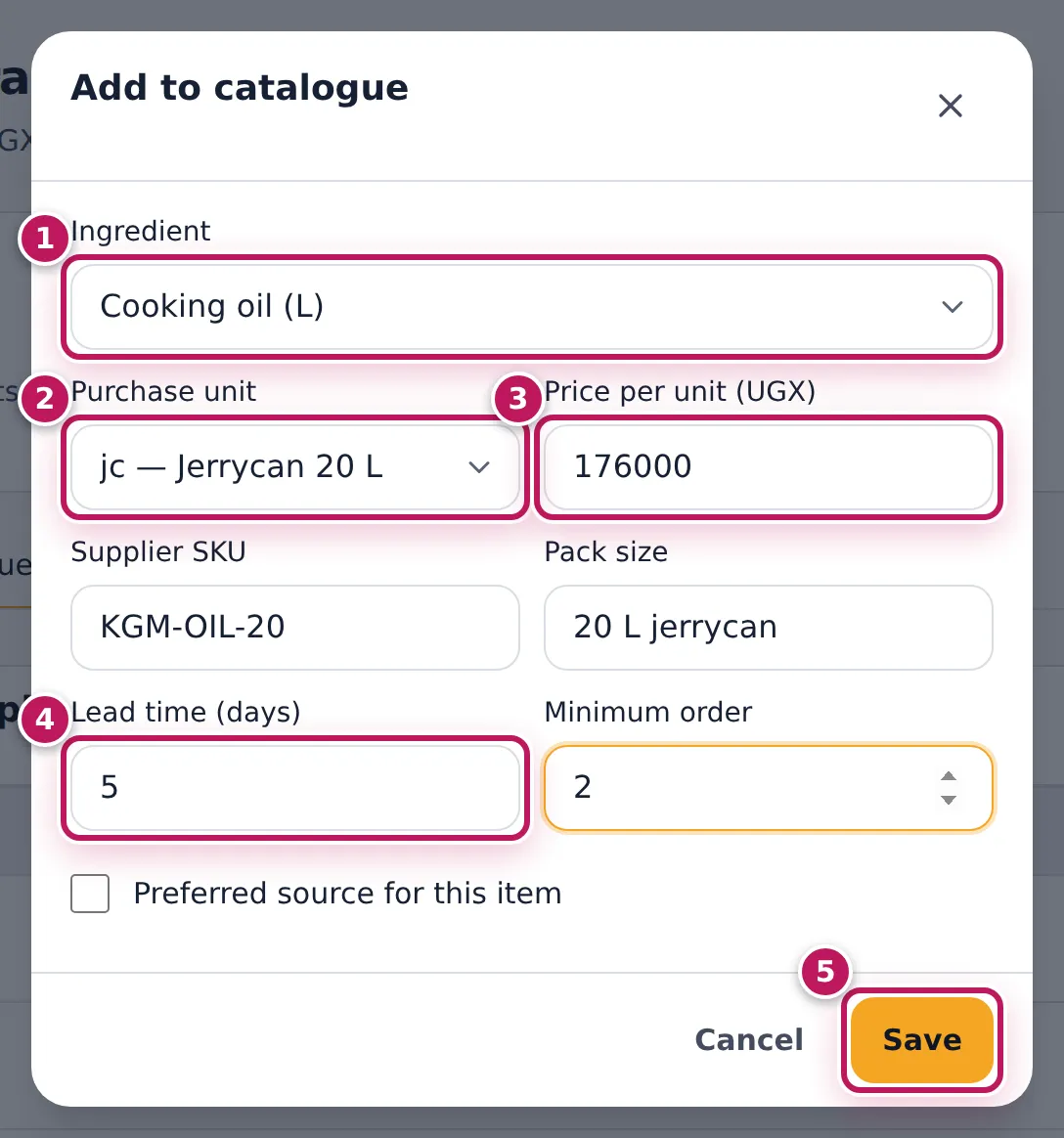
- Choose the Ingredient (1): Cooking oil (L).
- Choose the Purchase unit (2) the supplier sells by: jc — Jerrycan 20 L. Leave it on the stock unit if they sell by the kilo or litre.
- Type the Price per unit (UGX) (3): 176000 for one jerrycan.
- Type the Supplier SKU, the Pack size, the Lead time (days) (4) (5) and the Minimum order (2). Tick Preferred source for this item if this supplier is your first choice for it.
- Tap Save (5).
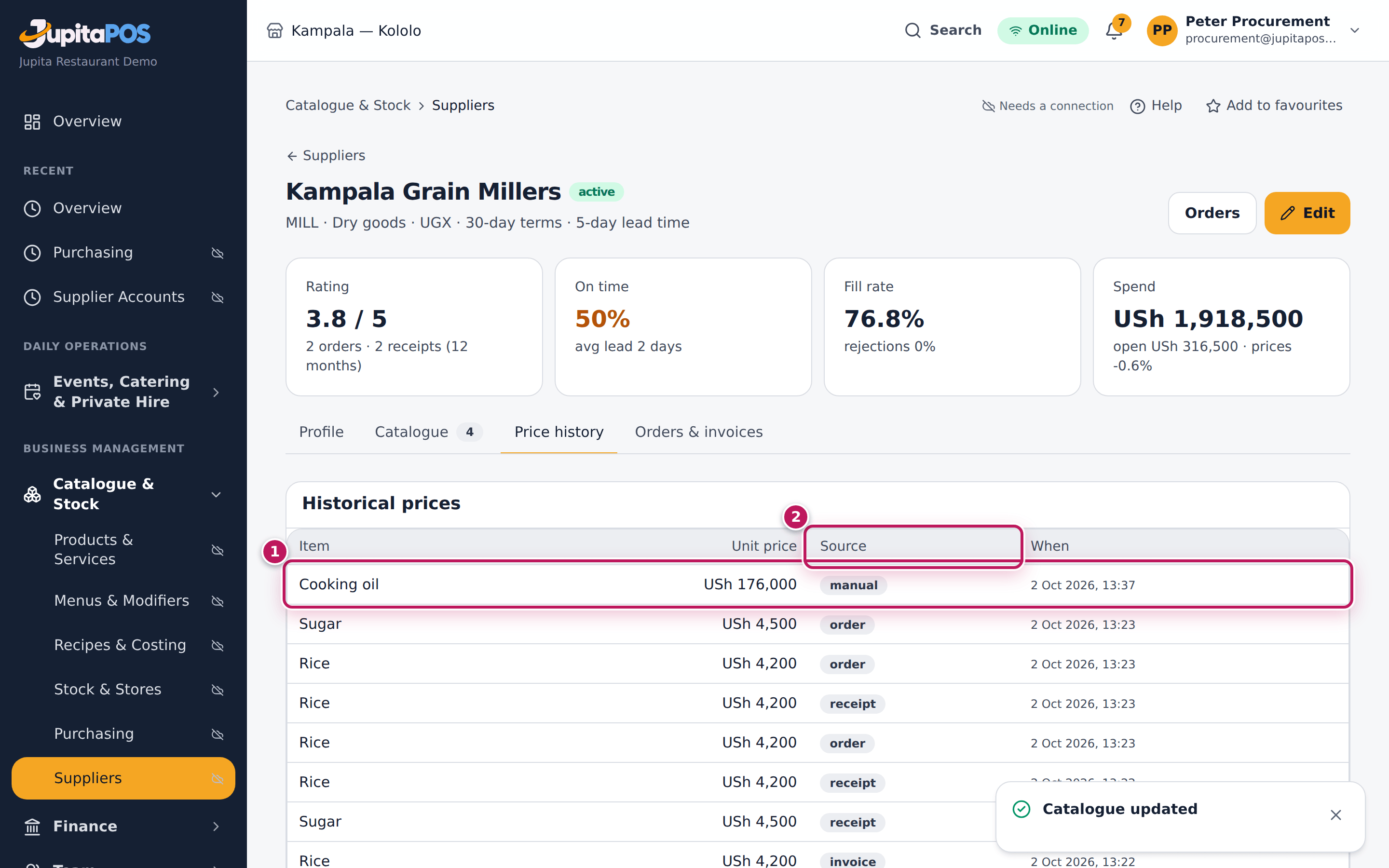
- Tap Price history to see every price the supplier has given.
Expected result
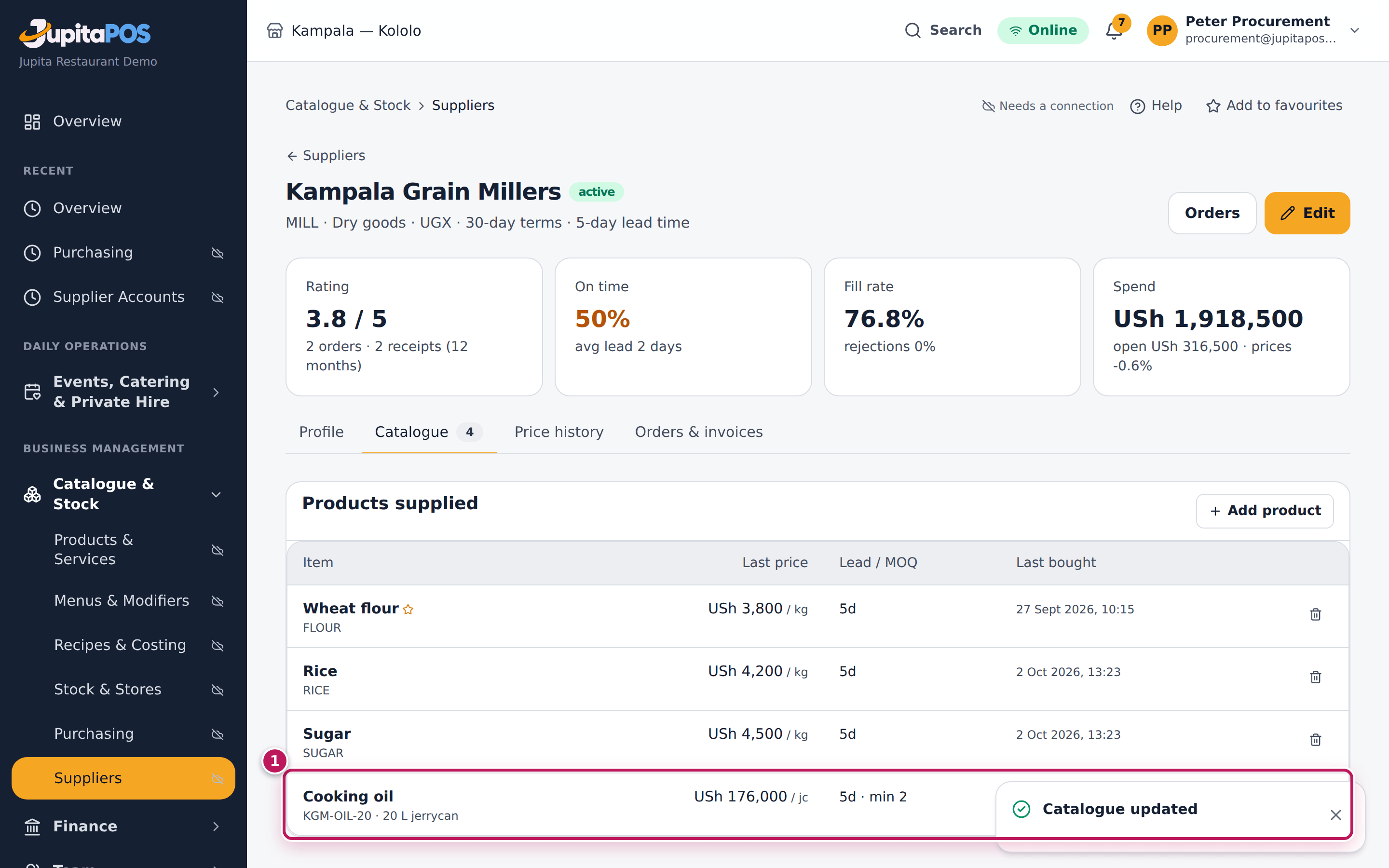
Catalogue updated. The catalogue shows cooking oil at USh 176,000 / jc, 5d · min 2 (1). Price history has a new manual line for it, among the prices that came from quotes, orders, receipts and invoices, each with its date (and, for a foreign supplier, the shilling equivalent). Saving the same item again replaces its catalogue line.
Screenshot
Common mistakes
- A pack price with the stock unit. USh 176,000 is the price of a 20 L jerrycan; with the unit L it would mean 176,000 a litre.
Troubleshooting
- “No conversion from the purchase unit to Cooking oil’s stock unit.” The pack is not the same kind of unit as the stock unit (a crate for an item stocked in kg). Add a conversion (see Units and conversions).
Read a supplier’s performance
Purpose
Know which suppliers deliver on time and in full, and how much you spend with them — to choose who gets the next order and to talk to the ones who let you down.
Role / permission required
Anyone with procurement.view. Recalculating: procurement.suppliers.
Prerequisites
- The supplier has orders and receipts in the last 12 months.
Steps
- Open the supplier, here Fresh Farm Supplies.
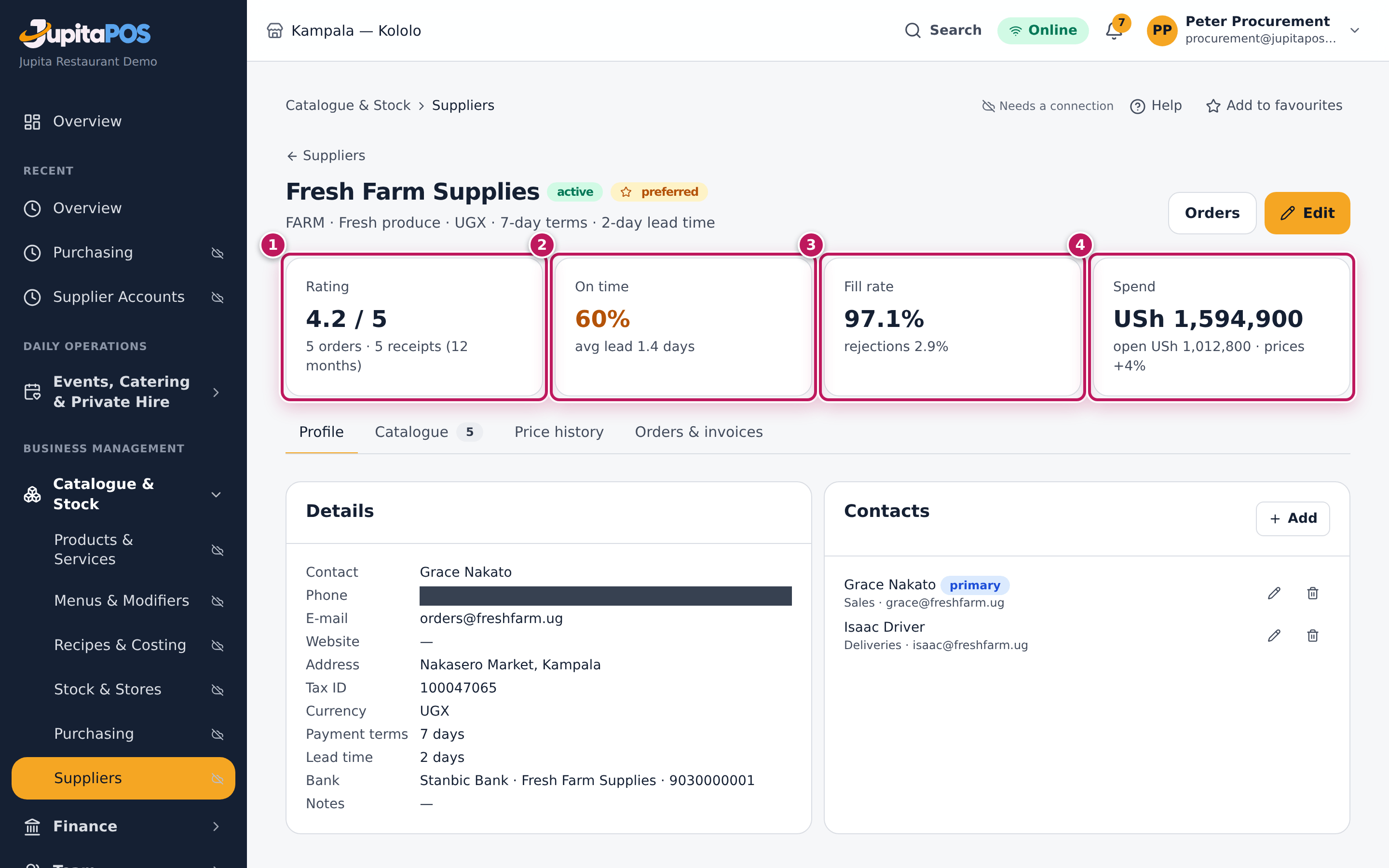
- Read Rating (1): out of 5, with the orders and receipts it counts.
- Read On time (2): the share of deliveries on or before the expected date, with the average lead time. Below 80 % it turns amber.
- Read Fill rate (3): the share of what was ordered that was delivered, with the rejections. Above 5 % rejections it turns red.
- Read Spend (4): what was bought in 12 months, what is open and how prices moved.
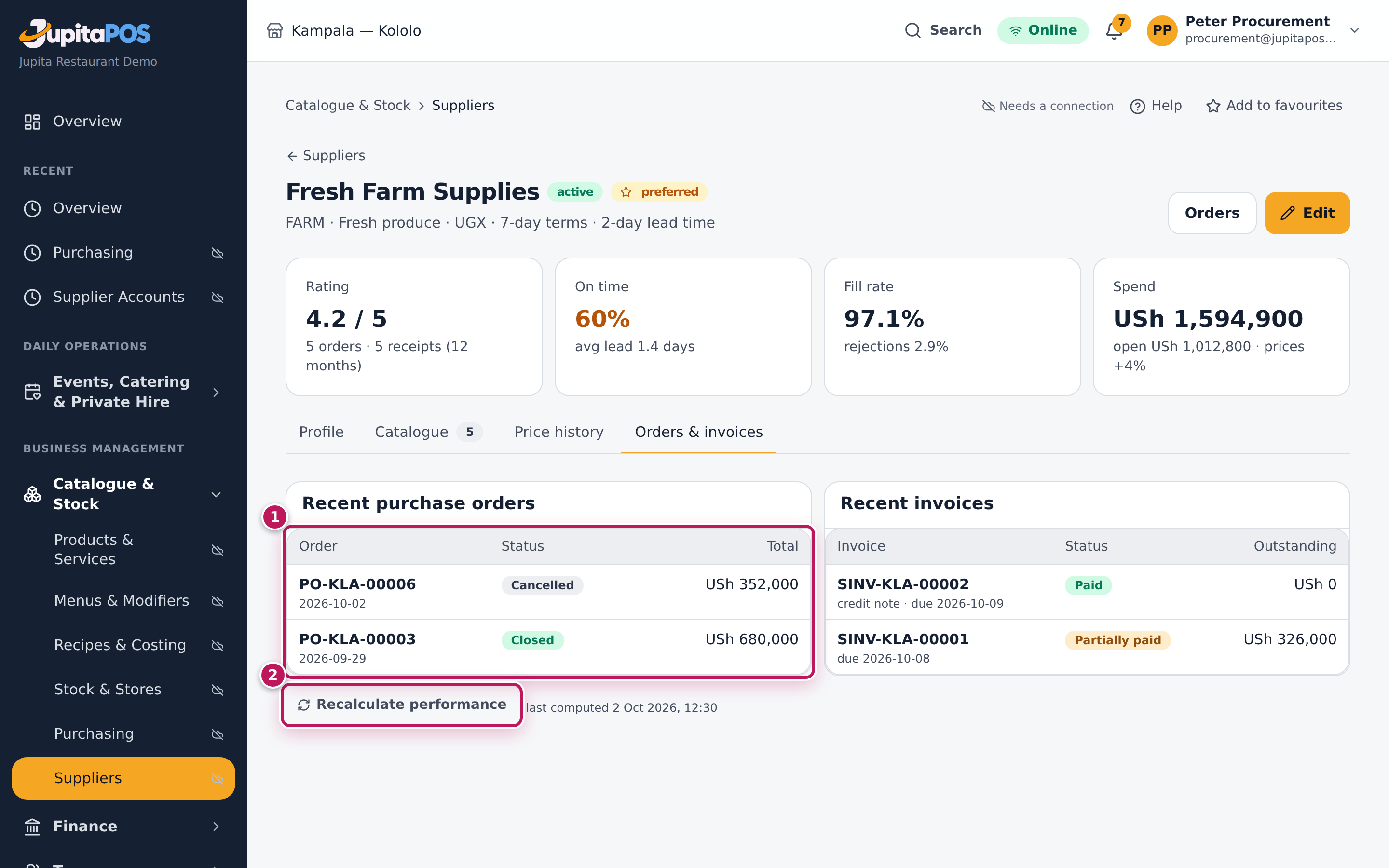
- Tap Orders & invoices to see the documents (1). The figures are worked out again every night (at 02:20) — last computed … says when; tap Recalculate performance (2) to do it now, after a delivery.
Expected result
Fresh Farm Supplies shows a Rating of 4.2 / 5, On time 60 % in amber (average lead 1.4 days), a Fill rate of 97.1 % with 2.9 % rejections, and its spend. The fresh produce is good, but two deliveries in five come late — worth a word with Grace Nakato before the weekend orders.
Screenshot
Common mistakes
- Judging a supplier on one delivery. Look at the orders counted under the rating; a new supplier’s figures move a lot.
- Late receipts counted as late deliveries. On time compares the receipt with the expected date; post the goods receipt the day the goods arrive.
Troubleshooting
- The tiles show “—”. No receipts in the last 12 months.
- The tiles do not match today’s orders. They are those of last night’s calculation; tap Recalculate performance.
What we owe a supplier
Purpose
Answer the supplier’s call — “when will you pay?” — with what is owed, what is overdue, which invoices are open and what was paid, in one place.
Role / permission required
Procurement officer or accountant (procurement.invoice or
procurement.pay).
Prerequisites
- None.
Steps
- Open Accounts payable from the sidebar.
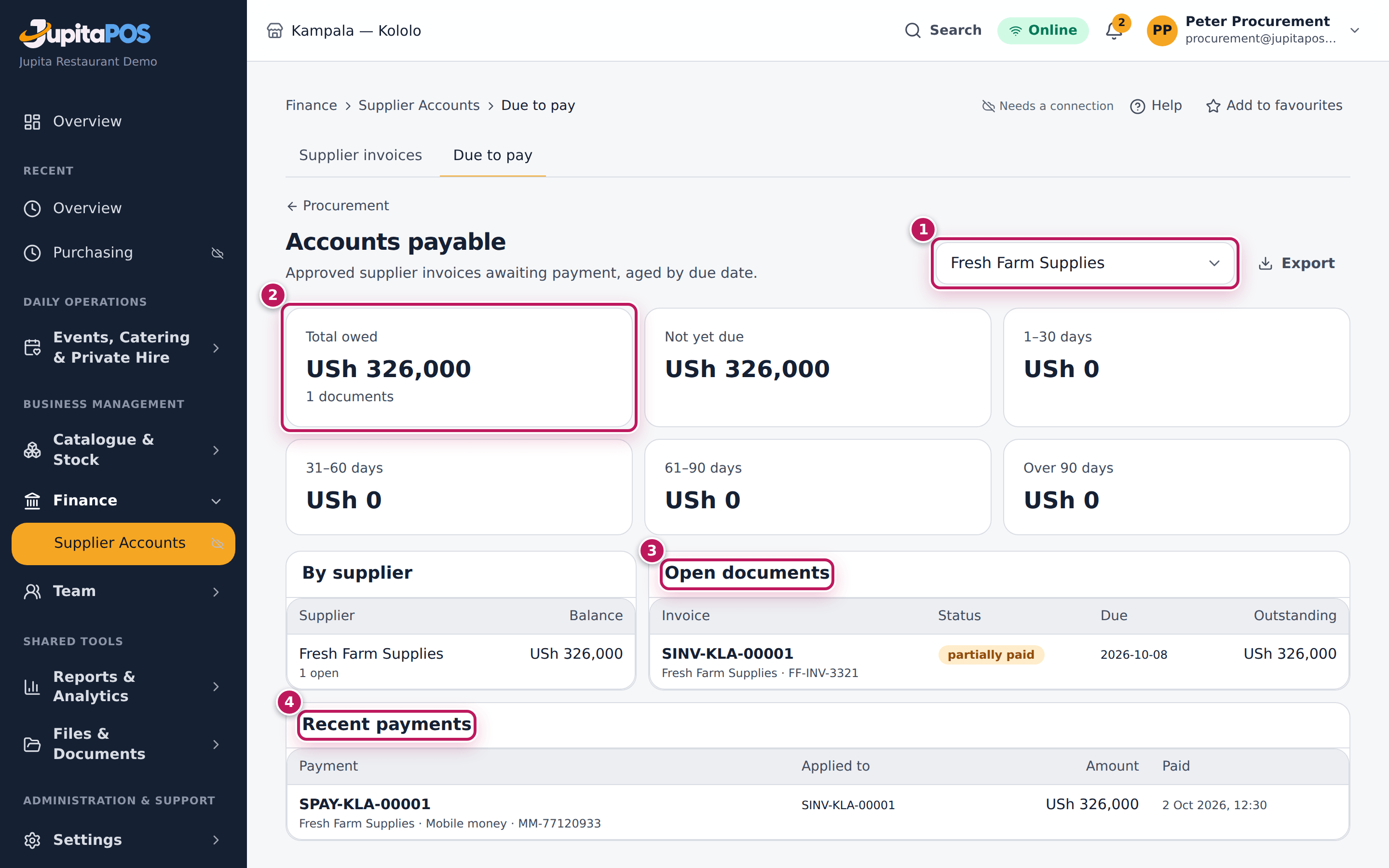
- Choose the supplier in Supplier (1): Fresh Farm Supplies.
- Read Total owed (2) and the ageing tiles next to it: Not yet due, 1–30 days, 31–60 days, 61–90 days, Over 90 days.
- Read Open documents (3): each invoice or credit note with its status, due date (in red with the days late when overdue) and what is outstanding.
- Read Recent payments (4): what was paid to this supplier, how, with which reference and to which invoices.
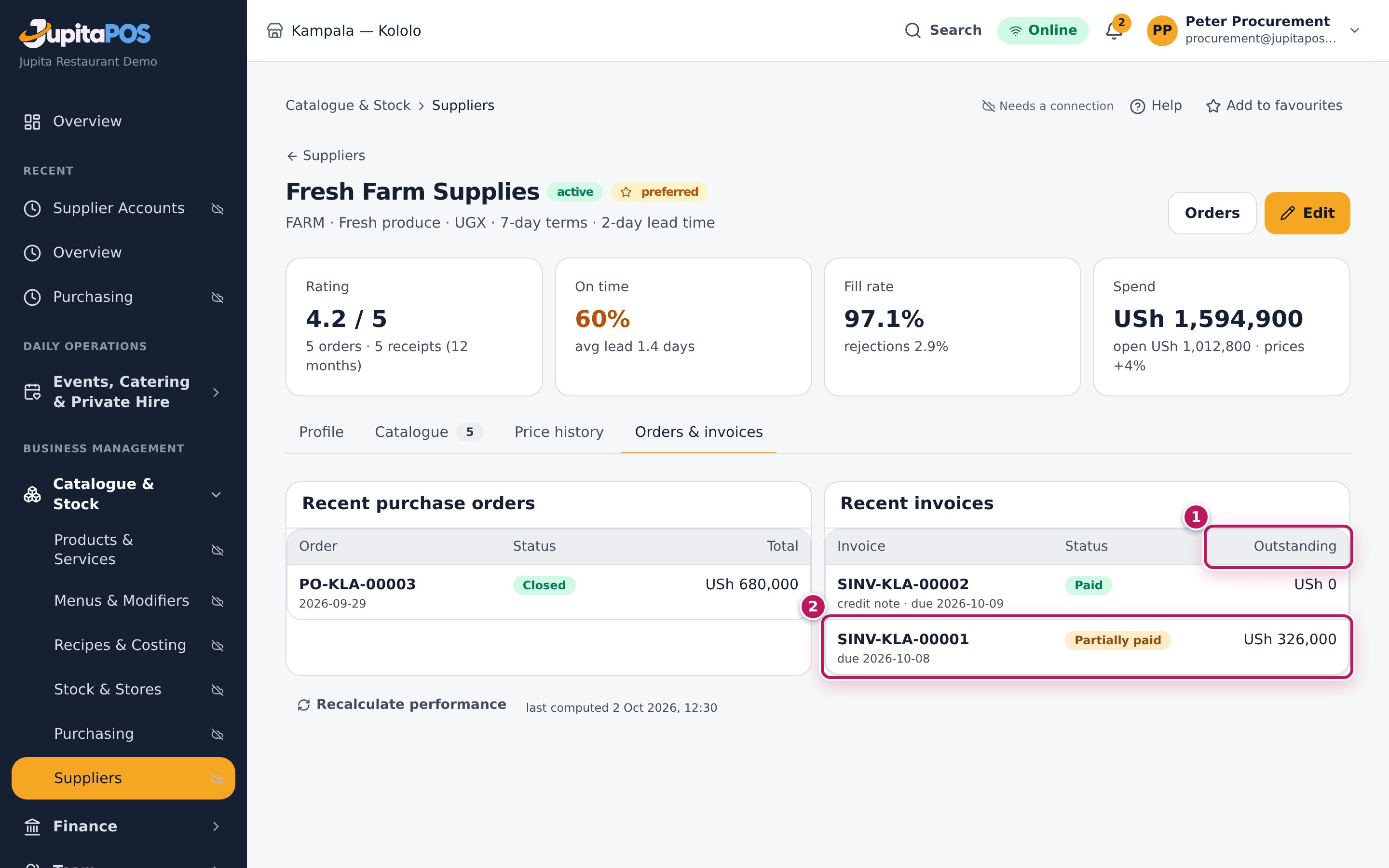
- On the supplier’s page, Orders & invoices gives the same invoices with their Outstanding (1), next to the orders.
Expected result
In the demo, Fresh Farm Supplies is owed USh 326,000, not yet due: the rest of invoice SINV-KLA-00001 (FF-INV-3321, USh 666,000, of which 326,000 was paid by mobile money and a credit note of USh 14,000 for returned tomatoes was used). The supplier page shows SINV-KLA-00001 Partially paid with USh 326,000 outstanding (2).
Screenshot
Common mistakes
- Reading the total of all suppliers. Choose the supplier first; the tiles follow the choice.
Troubleshooting
- An invoice the supplier talks about is not listed. It was not recorded yet, or it waits on a variance or a dispute.
- Total owed says “… to review”. Invoices still on variance or disputed are not counted in what is owed and are not in Open documents: they wait to be approved or settled (see Match and post the supplier’s invoice).
- Export makes a file of accounts payable in the background; you are notified when it is ready.