

On this page
If your business runs a gym or a studio — a weights room, a yoga studio, classes, personal trainers — JupitaPos keeps its members on the same customer list as the restaurant and the spa, raises their dues as ordinary bills paid at the till, and checks them in at the door against their plan. Clients can also join, buy packs and book training on your storefront.
The gym’s pages are in the Wellness & Fitness workspace of the menu (Daily operations); a page’s deeper functions are its tabs:
| Menu path | Page | What it is for |
|---|---|---|
| Attendance & Access › Door check-in | /wellness/check-in (the page is headed Gym check-in) |
the door: a member’s card or number, and whether they may come in — the gym desk’s landing screen is Attendance & Access › Attendance (/wellness/attendance) |
| Attendance & Access › Attendance | /wellness/attendance |
who is in, class check-ins and the day’s attendance |
| Yoga & Classes › Classes | /wellness/classes |
the week’s classes, their bookings and waitlists, the register, and the timetable |
| Yoga & Classes › Yoga | /wellness/yoga |
the yoga timetable (the Yoga studios module) |
| Gym & Fitness › Personal training | /wellness/training |
trainers’ sessions with clients, on a credit or as a bill |
| Gym & Fitness › Members | /wellness/members |
every member, their plan, status and what they owe; enrol a member |
| Memberships & Packages | /wellness/memberships |
memberships, packages and class packs; Membership plans (/wellness/membership-plans) are a card of Wellness Resources › Settings |
| Wellness Overview › Clients; Wellness Resources › Settings (Services & packages), Resources, Practitioners | shared with the spa: see Spa, sauna and wellness |
The gym is a module (Gyms & fitness studios): an owner or
administrator switches it on in Modules (/system/modules). When it is
off, its menu entries disappear and the server refuses its pages and API;
its members and bills are kept.
The words used on these pages:
| Word | Meaning |
|---|---|
| Plan | what a member buys: the dues every week, month, quarter or year, and its rules |
| Member | a customer on a plan, with a number (MEM-000001) and a card code printed as a QR code |
| Dues | the plan’s price for a period, raised as a bill at the member’s home branch |
| Grace days | how long a bill may be unpaid before the door refuses the member |
| Freeze | days a member stops coming; they are added to what is billed |
| Notice | a member leaving: the last day is after the notice and the minimum term |
| Class allowance | the classes a plan includes each week or month |
| Drop-in | a class place paid for on its own, at the till |
| Class pack | class or training credits bought in advance (a package) |
Who does what:
| Role | What they do here |
|---|---|
| Gym manager | everything: plans and rules, members, dues and write-offs, the timetable, trainers’ hours, letting a refused member in, fitness reports |
| Gym front desk | the door, enrolling members, freezes and notice, class bookings, taking payment |
| Fitness instructor | their own classes and sessions: the register, attendance and progress notes |
Set up membership plans
Purpose
Describe the memberships you sell — the dues and how often, the joining fee, the minimum term and notice, freezes, the hours and branches a plan opens and the classes it includes — so that bills and the door follow them.
Role / permission required
Gym manager or owner (fitness.manage).
Prerequisites
- The gym module is on. The tax for dues exists (Set up taxes).
Steps
- Open Wellness & Fitness › Memberships & Packages in the menu.
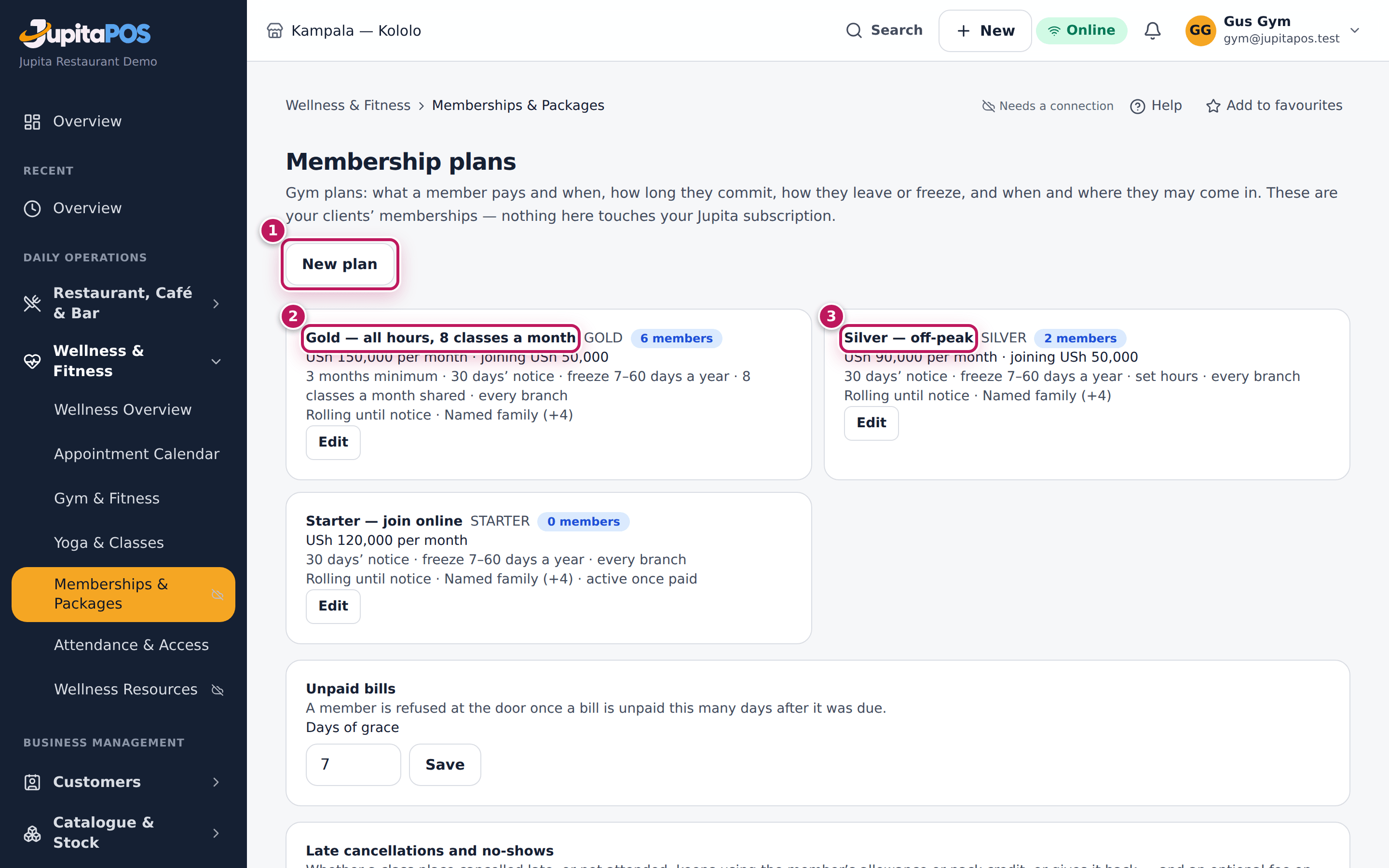
- Choose New plan (1). Give it a code and a name, and set Dues every (week, month, quarter or year) with the price, the joining fee and the Tax.
- Set the minimum term in months, the notice in days, and the freeze rules: the shortest freeze, the most days a contract year and a fee.
- Set access hours per Day with From and To — none means any time — and the branches it opens (none means every branch).
- Under Classes, choose none, an allowance (how many, Classes per week or month, and Shared or each — shared by everyone on the membership, or each person’s own) or unlimited, and tick the classes covered (none ticked: every class).
- Under periods and term: Periods are calendar (a month is a calendar month) or a fixed number of days; Term rolling until notice, or a fixed term that expires unless renewed (with Renew automatically). A day pass is Dues every day: one day, for one person, once paid.
- Under who it covers: the Arrangement — one person, a named family or a company (whose named people come in) — and Visits allowed (blank: no limit). Becomes active at its start, or once the first bill is paid.
- Tick On sale and save. Below the plans, set what a late cancellation and a no-show cost under Late cancellations and no-shows.
Expected result
The plan (2, 3) is offered when enrolling. Its dues, joining fee and freeze fee post to membership revenue. A price change applies from each member’s next bill; other changes to the terms apply to new members — members keep the terms they accepted until they change plan or renew.
Screenshot
Common mistakes
- Setting off-peak hours in your own time zone while the branch is in another: hours are the branch’s time.
Troubleshooting
- A member wants another plan. Open the member and schedule the change from their next bill (Schedule the change); a member holds one plan at a time.
- Unlimited classes cannot have a number. Unlimited is its own choice; leave the allowance empty.
FAQ
How many days of grace before the door refuses an unpaid member? Seven, unless the gym manager changes Days of grace on the plans page.
Enrol a member
Purpose
Make a customer a member on a plan: give them a number and a card, and raise their first bill — the joining fee and the first period.
Role / permission required
Gym front desk or gym manager (fitness.members).
Prerequisites
- The plan is on sale and opens the member’s home branch.
- The person is a customer (Add a customer).
Steps
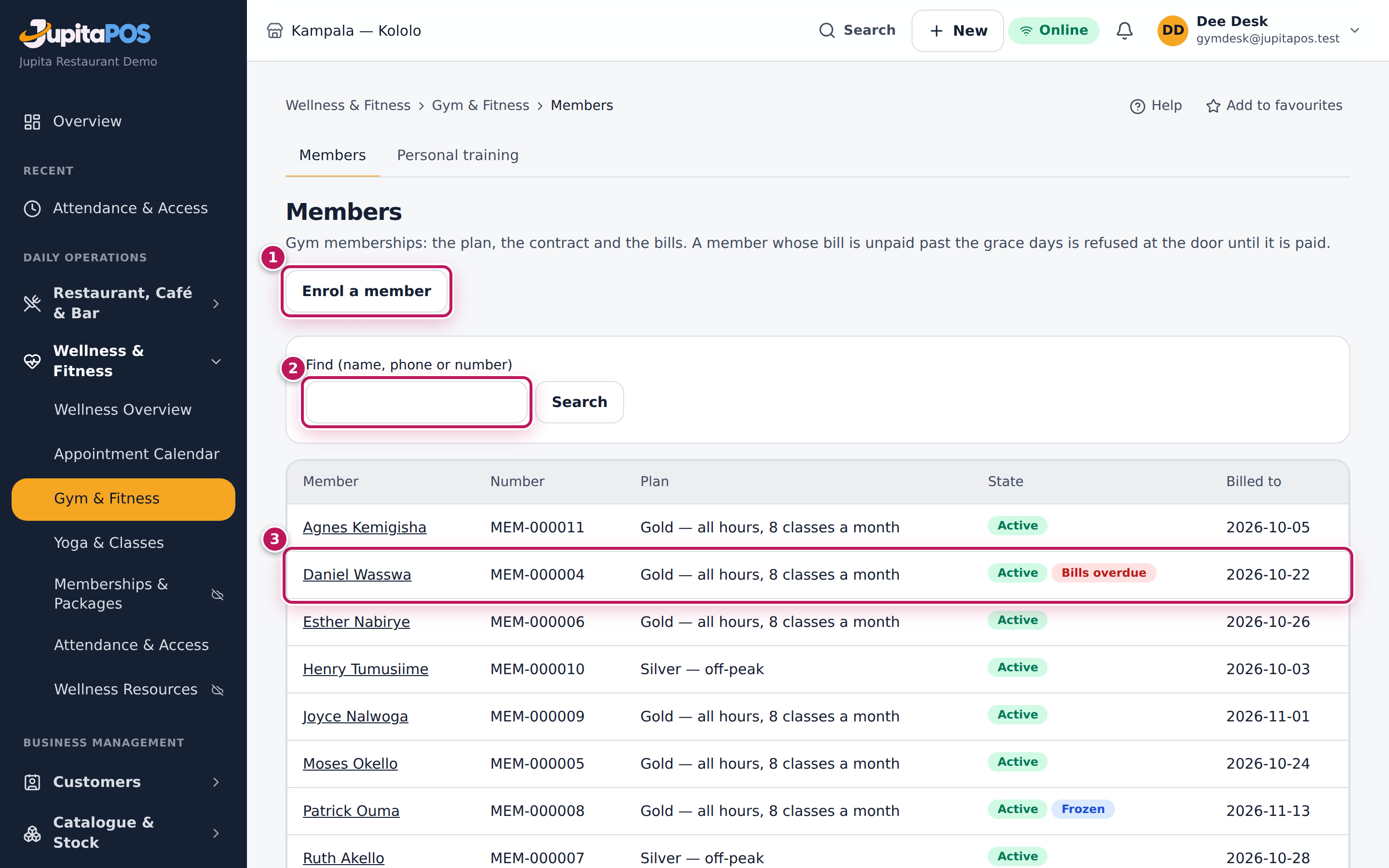
- Open Wellness & Fitness › Gym & Fitness › Members in the menu. Find (name, phone or number) (2) shows a member; a member in arrears (3) shows what they owe.
- Choose Enrol a member (1).
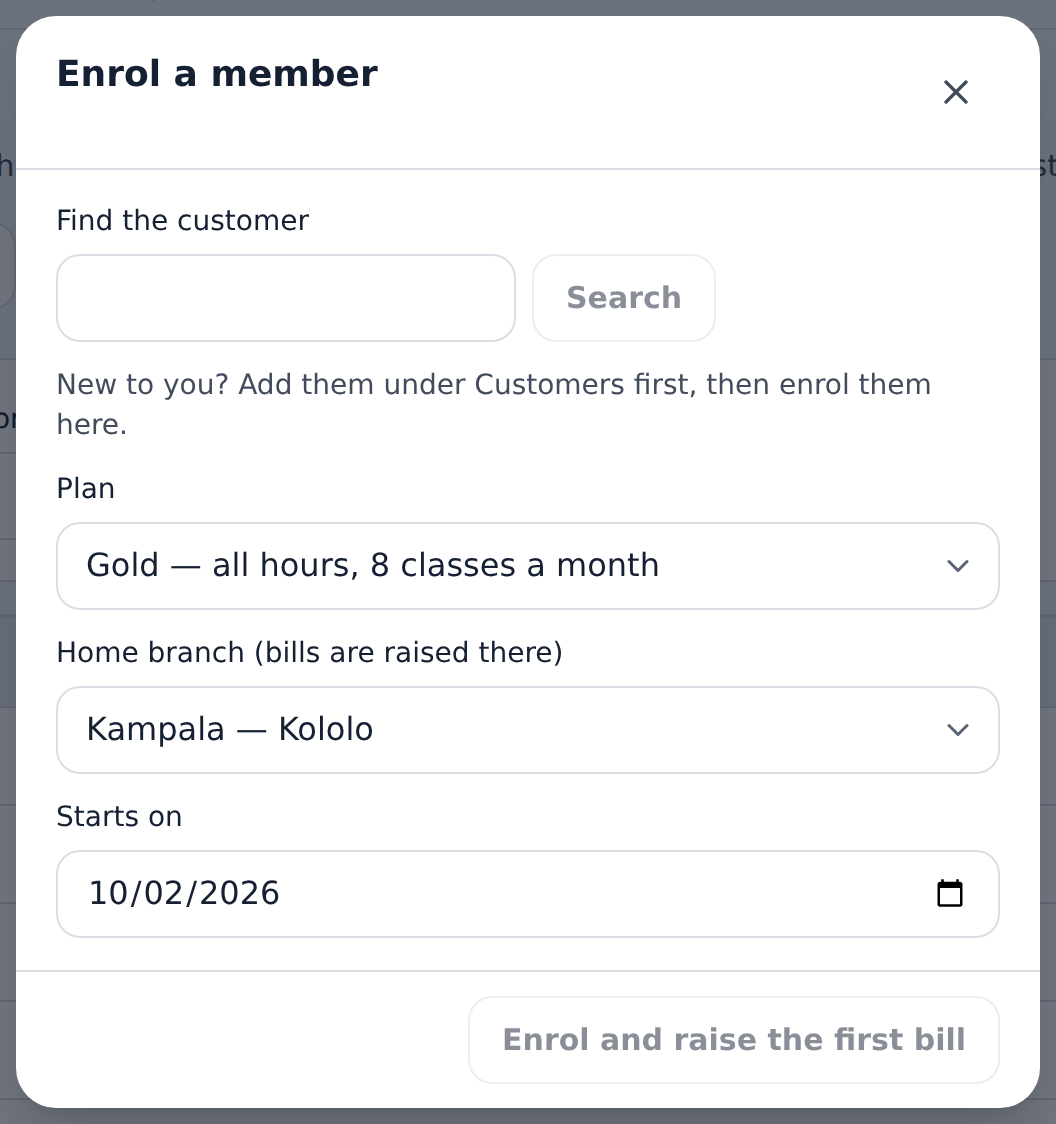
- Find the customer, pick the Plan, the day it Starts on (today, or within 90 days) and the Home branch (bills are raised there).
- Choose Enrol and raise the first bill.
- Open the member and choose Take payment at the till to take the first bill (Take a cash payment).
Expected result
The member has a number and a card code (print it as a QR code). The joining fee and the first period are one bill, due on the start day. Each later period is raised by itself when it comes due.
Screenshot
Common mistakes
- Enrolling someone who is already a member: refused. Change plans by notice and a new enrolment.
Troubleshooting
- Nothing is billed for a new period. Bills are raised every night; the gym manager can choose Raise due bills now on the Members page.
Check members in at the door
Purpose
Let members in with their card or number, and refuse — with the reason — anyone whose membership does not let them in now.
Role / permission required
Gym front desk or gym manager (fitness.checkin). Letting a refused member
in needs fitness.manage.
Prerequisites
- The member is enrolled.
Steps
- Open Wellness & Fitness › Attendance & Access › Door check-in in the menu.
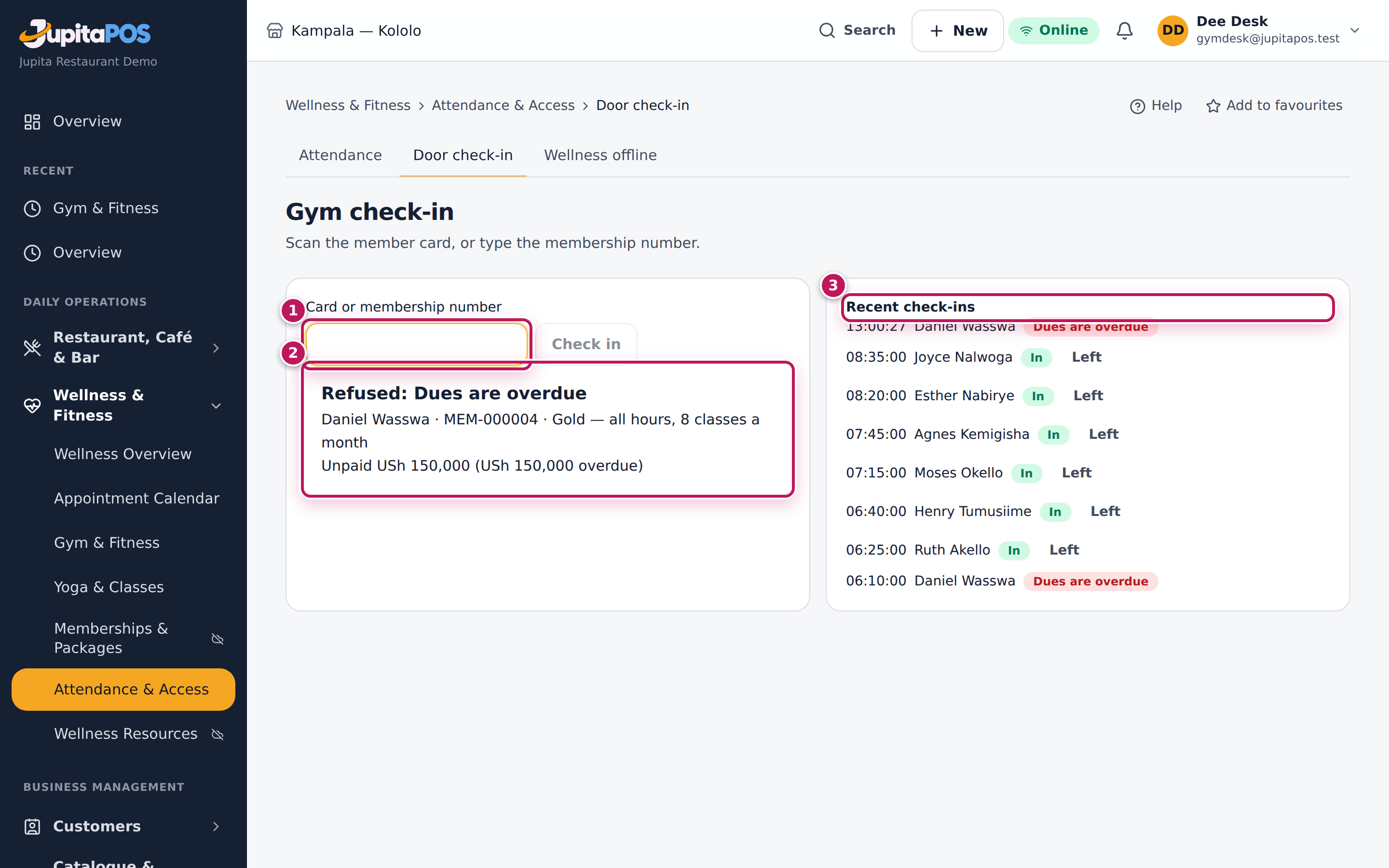
- Scan the member’s card or type their number in Card or membership number (1) and choose Check in.
- Read the answer (2): Welcome in, or Refused with the reason and what is owed.
- A refused member who owes money pays at the till; then check them in again.
- A manager may choose Let them in (recorded as you); the override is audited.
- When a member leaves, choose Left beside their check-in. A card scanned again while they are inside shows Already inside and is not counted again.
Expected result
Every attempt — let in or refused — is in the Recent check-ins (3) and the member’s visits. A member is refused when they have no membership, it has ended or not started, it is frozen today, a bill is unpaid past the grace days, or the plan does not open this branch or this hour.
Screenshot
Common mistakes
- Letting someone in without checking them in: the visit is not counted and the class allowance and reports miss it.
- Expecting a second visit the same day to count while the first is still open: a member is inside until let out (or the day ends), so choose Left when they go.
- Treating the card as a key: the card or QR code only says who someone is. The answer comes from their membership today. JupitaPos does not open turnstiles or gates; a gate needs its own supported hardware adapter.
Troubleshooting
- The internet is down. Open Wellness offline: the door keeps working from this device’s copy and sends the check-ins later (see Keep working without a connection).
- A scanned card is not found. The member’s card was replaced; use their number, or print their new card from the member’s page.
- Someone else is using a member’s card. A card is a QR code and can be copied: the door lets the code in while the member is not inside. Check the name the door shows against the person, and replace the card (Look after a member, step 10).
Look after a member: bills, freezes and notice
Purpose
Handle a member’s contract: their bills, a freeze while they travel, notice when they leave, and their contract as a PDF.
Role / permission required
Gym front desk or gym manager (fitness.members). Writing off a bill
needs fitness.dues; choosing the last day or waiving the minimum term is
for a manager.
Prerequisites
- The member is enrolled.
Steps
- Open Wellness & Fitness › Gym & Fitness › Members and open the member.
- Bills: an unpaid bill has Take payment at the till. A bill nothing was paid on can be written off with Write off — why.
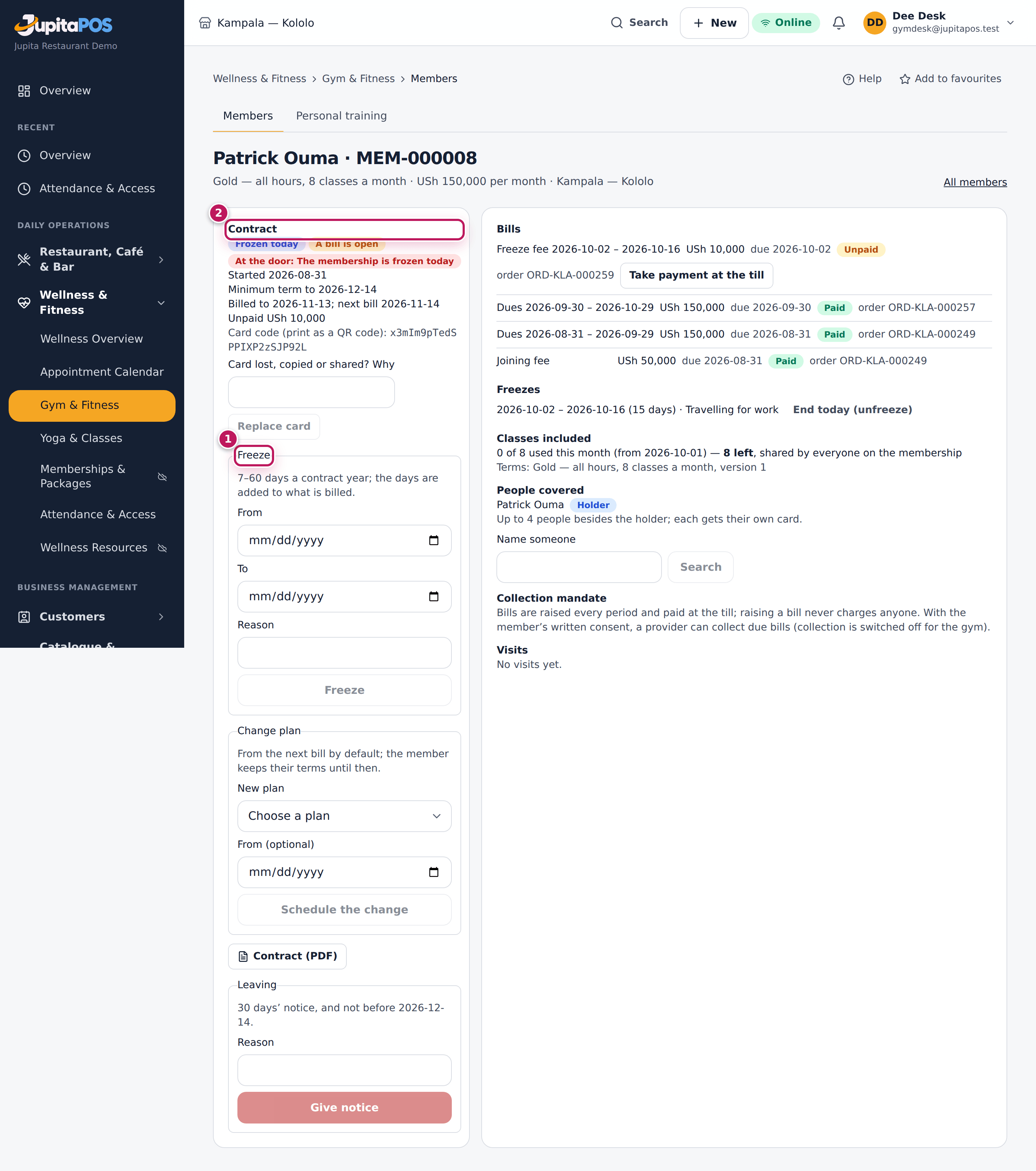
- Freeze (1): set From and To and a Reason, then Freeze. A freeze not yet started can be cancelled.
- Leaving: give the Reason and choose Give notice. A manager may set the Last day (manager, optional) or tick Waive the minimum term. Withdraw the notice undoes it before the last day.
- In the Contract panel (2), Contract (PDF) prints the member’s contract.
- Renew the term after the last day of a fixed term renews it once — pressing it twice, or from two desks, still renews it once.
- Change plan: choose the new plan and Schedule the change; it applies from the next bill, and can be cancelled until then.
- A freeze in progress can be ended with End today (unfreeze): the days not used come off the bills and the term again.
- A manager may Suspend a membership with a reason (the door and the class allowance stop; bills carry on) and Resume it, or activate a pending one on agreed credit with Approve and activate.
- A card lost, copied or shared: type why in Card lost, copied or
shared? Why and choose Replace card. The old card stops opening
the door at once; print the new code for the member. A family member’s
card is replaced from their own line the same way. Only the gym manager
and the front desk (
fitness.members) can do it, and it is audited (without the code).
Expected result
A freeze’s days are added to the contract: the next bill, the date billed to and the minimum term move on by them, and the door refuses the member while frozen. With notice, nothing is billed after the last day and the membership ends the day after. The member’s page shows where the membership is (pending, active, frozen, suspended, expired, ended) apart from whether its bills are paid, and the classes included with what is used and left this week or month.
Screenshot
Common mistakes
- Writing off a part-paid bill: refused. Refund what was paid at the till (Refund).
Troubleshooting
- A freeze is refused. It is shorter than the plan’s shortest freeze, overlaps another, goes past the days allowed this contract year, or the member is on notice.
Run the class timetable, bookings and the register
Purpose
Keep the weekly timetable, make the classes, book members and drop-ins with a waitlist, and take the register.
Role / permission required
Gym front desk or gym manager (fitness.classes) for bookings; the gym
manager (fitness.manage) for the timetable; the instructor
(fitness.instruct) for their own register.
Prerequisites
- The class services (with Places per session (classes, sauna)), the studio and the instructors’ skills and hours are set up.
Steps
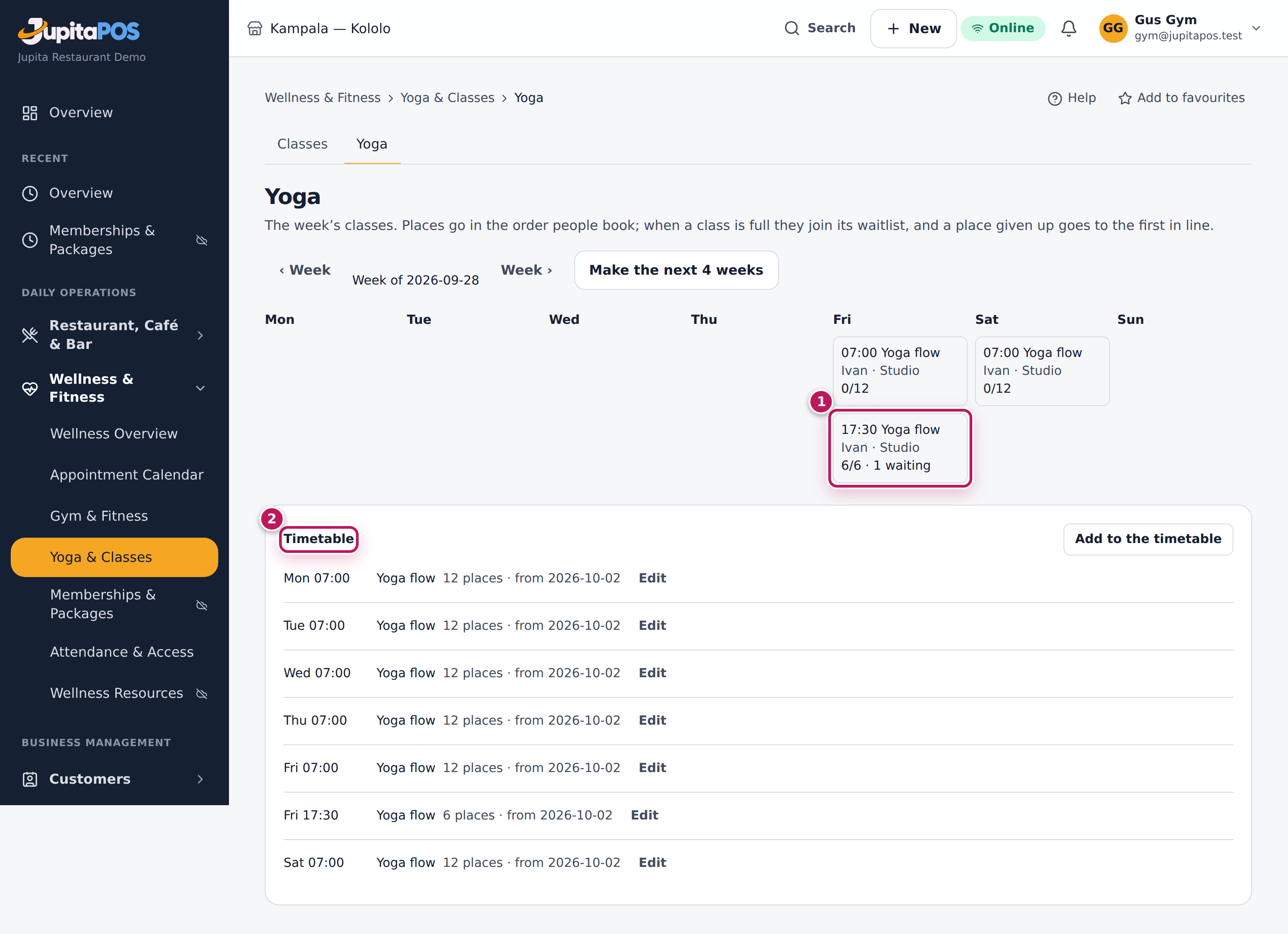
- Open Wellness & Fitness › Yoga & Classes › Classes (the page is headed Fitness classes), or › Yoga for a yoga studio’s classes. The week shows each day’s classes with their instructor, studio and places taken.
- Under Timetable (2), choose Add to the timetable: the Class, Day, time, Studio and Instructor. Choose Make the next 4 weeks to make the classes.
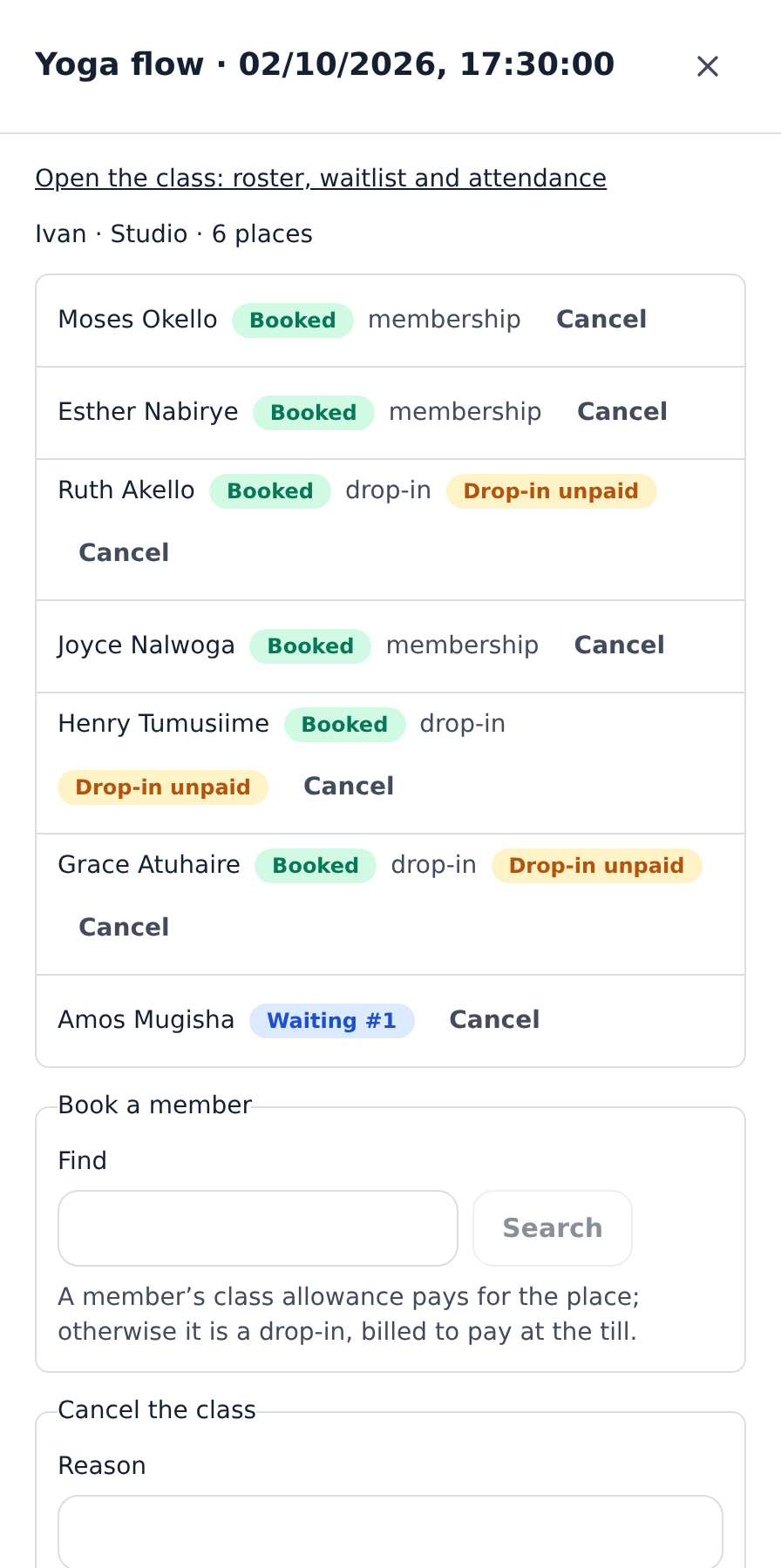
- To book, open a class (1), Search the member and add them. Once the class is full, people join the waitlist in order.
- For the roster, waitlist and attendance of one class, choose Open the class: roster, waitlist and attendance. From half an hour before, the desk can Check in each person as they arrive.
- At the class, tick Came for each person; choose Save the register, then Close the register at the end. Anyone checked in and not marked counts as attended.
- If the instructor cannot teach one class, choose Substitute instructor, pick the Instructor and say Why. The class keeps its time, studio and bookings.
- To call a class off, choose Cancel the class with a Reason.
Expected result
A member’s place is paid from their plan’s class allowance, then a class pack, else it is a drop-in bill paid at the till. A place given up goes to the first person waiting. Closing the register marks everyone left as not shown, under the no-show terms saved when they booked.
Each place shows its own state — Booked, Checked in, Attended, Cancelled late, No-show or Cancelled — apart from the class itself and its payment. Cancelling a class gives every allowance and class-pack credit back once and cancels unpaid bills. Money already paid is listed once per place under Payments to resolve, to refund at the till.
Screenshot
Common mistakes
- Cancelling a member’s place inside the class’s cancellation window: it is a late cancellation, and the allowance stays used.
Troubleshooting
- A class is not made. Its studio or instructor is taken at that time (a spa treatment, a session, another class) or the instructor is not working; the reason is listed.
- The register will not open. It opens half an hour before the class.
- A booking is refused: “for members”. The class type is for members (or certain plans, or a minimum age), and the client’s membership is frozen, ended or missing on the class’s day.
- A substitute is refused. They do not hold the class’s skill, or they are teaching, training or treating someone then.
Book personal training
Purpose
Book a trainer with a client, use the client’s training credit or bill the session, and record it done.
Role / permission required
Gym front desk or gym manager (fitness.classes); a trainer
(fitness.instruct) books and records their own sessions.
Prerequisites
- The training service, with its skill, and the trainer’s hours are set up.
Steps
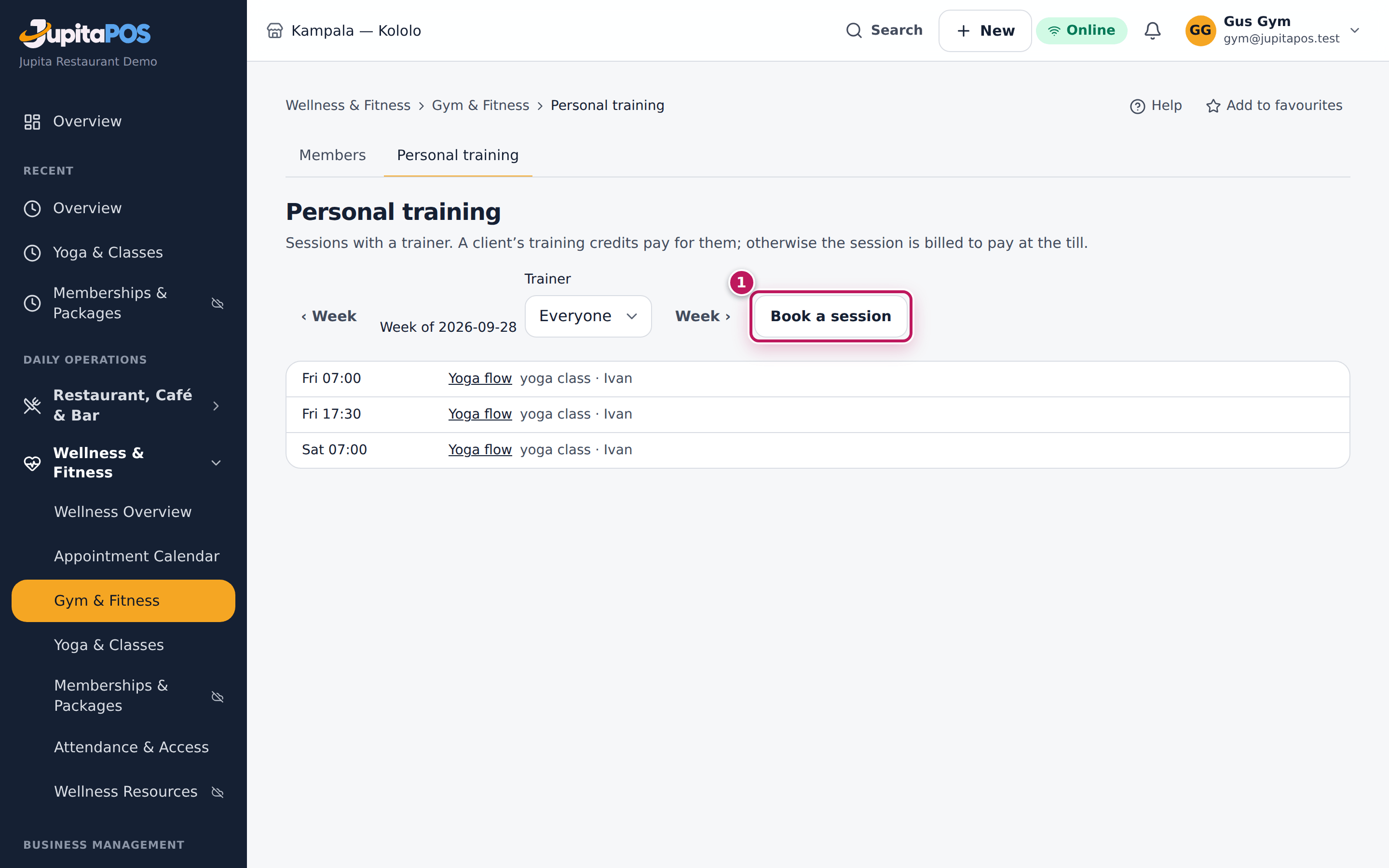
- Open Wellness & Fitness › Gym & Fitness › Personal training and choose Book a session (1).
- Find the client, pick the Service, the Trainer and the time (At). A manager may tick Free (no credit, no bill). Choose Book.
- For a private group (a private yoga class for a family), set People (a private group), up to the service’s places.
- To move a session, open it, set the New time (or another Trainer), say Why and choose Move.
- After the session, open it and choose Done or Not shown.
- The trainer can add a private Note (kept sealed) and choose Keep the note. The client’s goals, in their own words, are shown on the session; nothing is prescribed from them.
Expected result
The session uses one of the client’s credits for the service; without one it is billed, paid at the till. The trainer and the room are held, so the trainer is never booked twice.
Screenshot
Common mistakes
- Selling a training package at the till: sell it from the client’s page (Clients → the client → Credits) so its credits have an owner.
Troubleshooting
- The trainer is not offered. They do not hold the service’s skill that day, are not working, or are booked.
- Move is refused. The trainer is booked then — in a class, a session or a treatment — or the session has started.
Sell memberships, packs and training online
Purpose
Let your clients join a plan, buy a pack and book personal training on your storefront, after signing in, with the same prices, plans and trainers the desk uses.
Role / permission required
The gym manager or owner marks what is sold online (wellness.setup).
The storefront pages are for clients who are signed in to their
storefront account.
Prerequisites
- The storefront is live with Customer accounts ticked (Set up the storefront).
- Online payments are set up, so clients can pay the bill from their account.
Steps
- To sell a pack online, open Wellness Resources › Settings › Services & packages, open the package and tick Sold online to signed-in clients, then save.
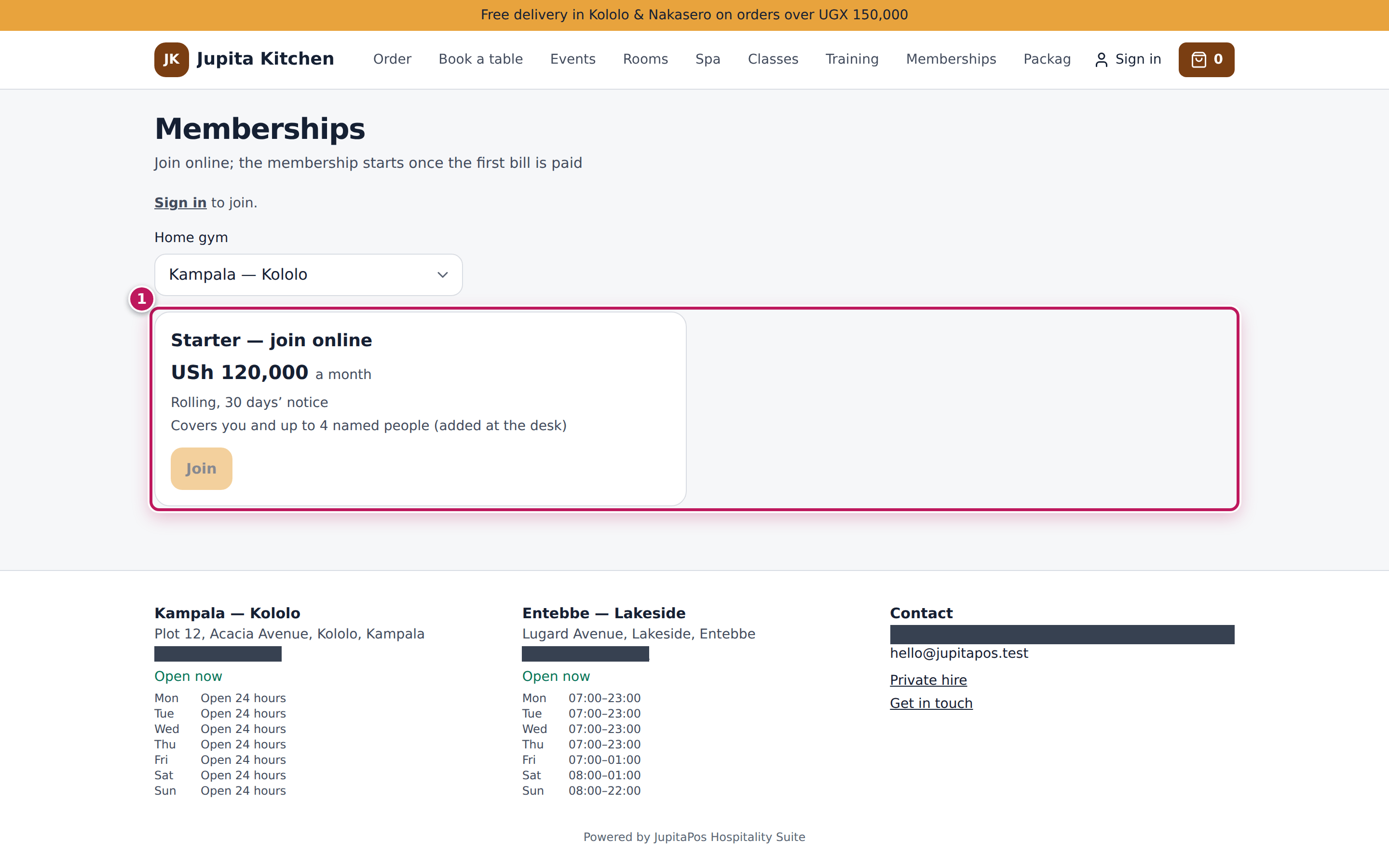
- To let clients join a plan online, open the plan and tick Clients may join online. Only a plan that Becomes active once the first bill is paid can be joined online.
- To let clients book training online, tick Bookable online on the personal-training service.
- Your clients sign in on the storefront and open Memberships (1), Packages or Training. They choose Join or Buy, then pay the bill from their account; on Training they choose a session and a day, Find times, pick a time and Book on my pack.
- Clients see their memberships, what a membership that covers them lets them do, their bills and the payments received under Wellness in their account, and renew a fixed term there.
Expected result
A joined membership stays pending until its first bill is paid, then starts. A pack’s credits are issued when its bill is paid. A training session is booked on one credit with the first free trainer; the client sees the time, never the trainer’s diary. The storefront menu shows Memberships, Packages and Training only when something is offered.
Screenshot
Common mistakes
- Expecting a joined membership to let the client in at once: it starts when the first bill is paid.
- Offering training online without credits: clients book on a pack, so sell packs online too or at the desk.
Troubleshooting
- “That time has just been taken”. Someone booked it a moment earlier; the client picks another time.
- A plan is not offered online. It is not on sale, not ticked, or it waits for staff approval rather than payment.
- A client cannot renew online. Rolling plans renew by themselves; giving notice is done at the desk.